• Skip to primary navigation
  • Skip to main content
  • Skip to primary sidebar
  • Skip to footer

FlashRouters Support Portal

Prioritizing Privacy

  • SETUP GUIDES
    • Privacy Hero Router Setup Guide
    • ASUS-WRT Router Setup Guide
    • AsusWRT-Merlin Router Setup Guide
    • DD-WRT Router Setup Guide
    • ExpressVPN Router Setup Guide
    • GL.iNet Router Setup Guide
    • Roqos Core Router Setup Guide
  • TROUBLESHOOTING
    • Router Access
    • WiFi Connectivity
    • Internet Connection Issues
    • General VPN Issues
    • DD-WRT Firmware
    • TeamViewer Remote Support
  • FAQs
    • Router FAQs
    • VPN FAQs
    • Warranty and Returns FAQs
    • Sales FAQs
    • Shipping FAQs
    • Service Plan FAQs
  • Show Search
Hide Search

Search Results for: restore flas router

PPPoE Internet Setup

TeamFlashRouters · Mar 21, 2019 ·

Most ISPs do not require PPPoE credentials. If you are certain this is an ISP requirement in your setup, we kindly ask that you get in touch with your ISP to verify that they do in fact require PPPoE authentication and to provide you with the correct credentials to enter into your FlashRouter.

Before you enter your PPPoE credentials, you should have already setup your FlashRouter in a Single Router Setup with correct wiring. Once you enter PPPoE credentials you should then be able to connect to the internet.

If you are using a Dual Router Setup there is no need to enter PPPoE credentials if they are already entered in the existing router. You can disregard this article.

Enter your PPPoE credentials

DD-WRT Firmware

Navigate to Setup > Basic Setup
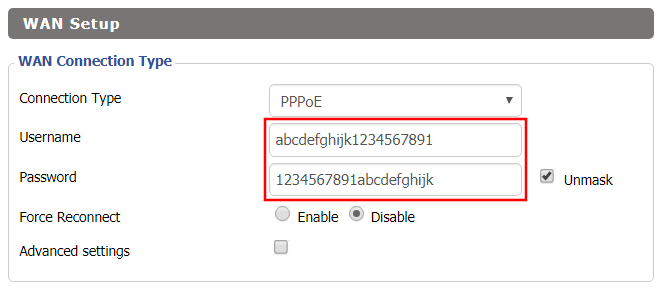
Access FlashRouters DD-WRT Admin Settings - Enter PPPOE Username and Password
  1. Set the Connection Type dropdown to PPPoE.
  2. Enter your ISP assigned PPPoE username and password.
  3. Click Apply Settings.

Power cycle your network devices

  1. Power off your ISP modem and the FlashRouter.
  2. Power on the ISP modem and wait for it to fully boot up.
  3. Power on the FlashRouter.

Verify a successful Internet connection

Once the FlashRouter is booted up connect one of your devices to the FlashRouter via Ethernet or Wireless.

Visit any website and make sure the page fully loads. Once you have verified a successful Internet connection, begin connecting your network devices to the FlashRouter via wired or WiFi.

Please be aware that our support is not able to replicate PPPoE issues on our end, which makes them challenging to troubleshoot. In the event of an issue we recommend using a Dual Router Setup.


My WiFi password is not working

Dave · Apr 29, 2019 ·

Keep in mind that passwords are case sensitive.

The preset DD-WRT FlashRouter WiFi password is Wireless#[First 5 characters of your router MAC]. The router MAC can be found on the bottom of your router. For e.g. if your MAC is 1459C07E70A8 then your WiFi password is Wireless#1459C

Verify wireless password

Connect an ethernet cable from a numbered port on the FlashRouter to a computer and access the FlashRouter’s settings.

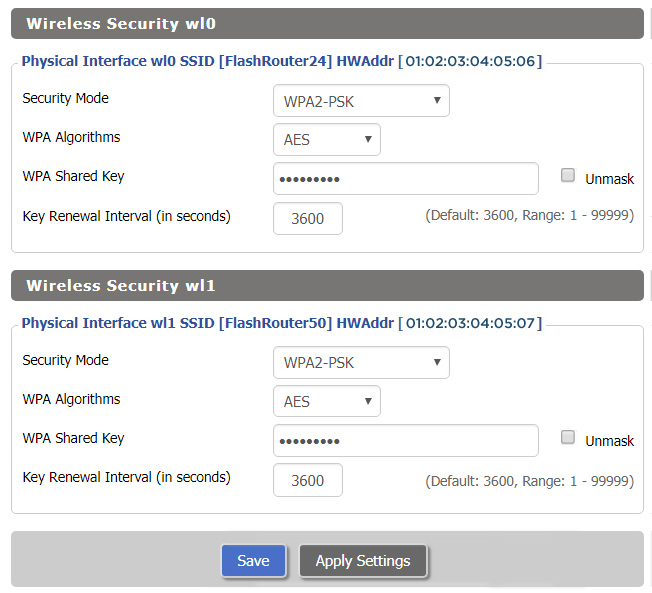
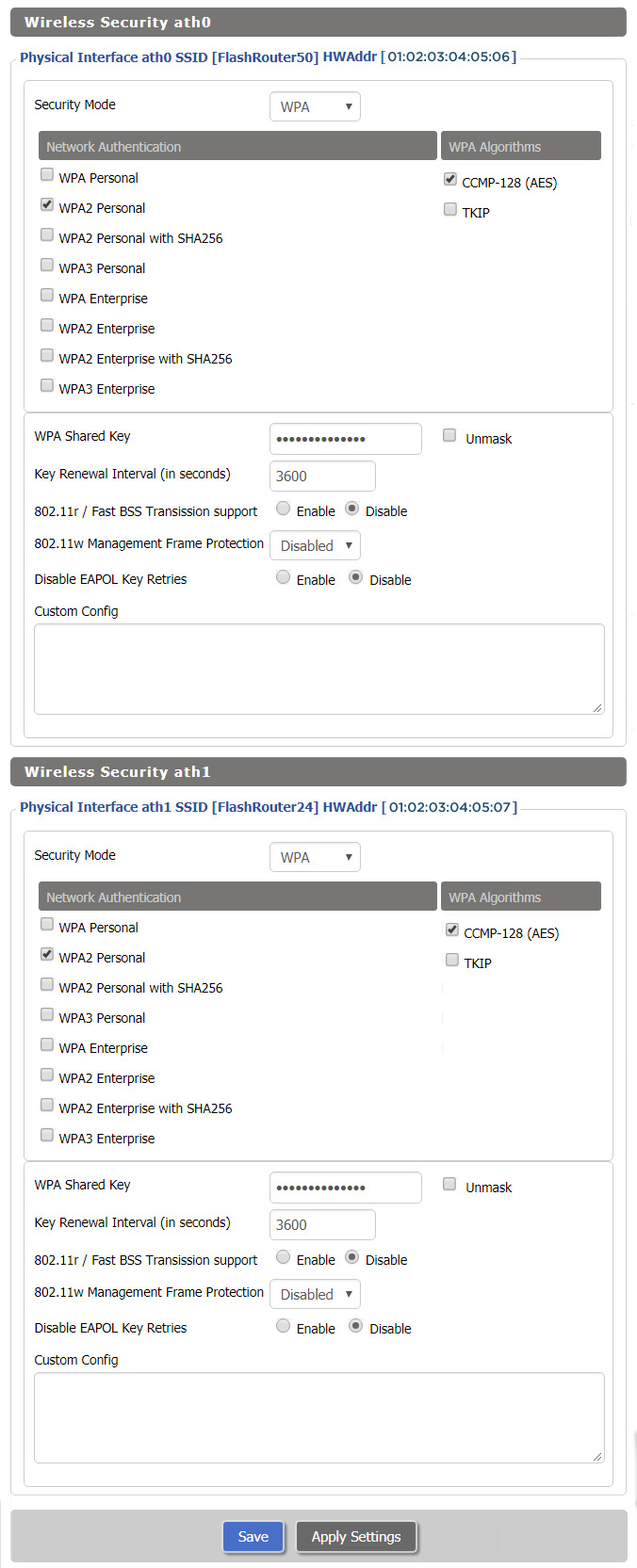
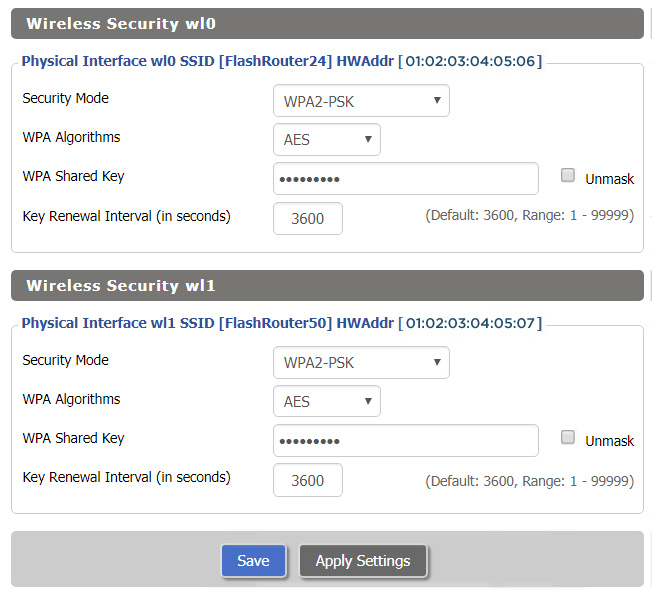
Navigate to Wireless > Wireless Security

Check the Unmask box and note the wireless password that is entered.

Verify the wireless settings

Make sure that you have WPA2 Personal / AES set as the security settings for all bands. For some router models make sure the CCMP-128 (AES) box is checked for all bands.

Forget network on your device

Wireless devices usually offer a “forget” network feature to remove a wireless network from the saved information of the wireless adapter. If you have updated your WiFi password and are trying to connect on a device that previously used the old WiFi password then removing the wireless network and then trying to connect fresh can help with this issue.

Privacy Hero Change Wireless Channel

TeamFlashRouters · Feb 8, 2023 ·

Your Privacy Hero router uses Cloud Based router management which means you can access the router settings from anywhere on any device that has an internet connection. You can follow these steps while connected to your phone, other Wi-Fi network, or the Privacy Hero network.

Use these steps to change your Privacy Hero wireless channel.

1. From any device that has a browser such as a computer, smartphone, or tablet visit app.privacyhero.com

App.PrivacyHero.com

2. Enter your Privacy Hero account email and password. Click Login.

Privacy Hero Access Settings

If you have not created your Privacy Hero account yet please follow these instructions.

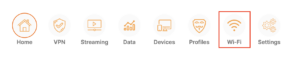
3. Click the Wi-Fi symbol.

Privacy Hero Select Wifi

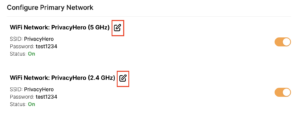
4. Click the edit box for the 5GHz network or the 2.4GHz network.

Privacy Hero Edit Wifi network

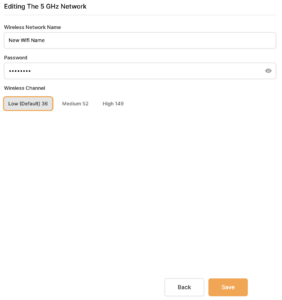
5. Select the new Wireless Channel that you would like to use. Click Save at the bottom of the page.

Privacy Hero enter new wifi name and password

TROUBLESHOOTING

Still having issues? Visit the VPN Troubleshooting section.

Troubleshoot Here

Privacy Hero Disable Wi-Fi

TeamFlashRouters · Feb 8, 2023 ·

Your Privacy Hero router uses Cloud Based router management which means you can access the router settings from anywhere on any device that has an internet connection. You can follow these steps while connected to your phone, other Wi-Fi network, or the Privacy Hero network.

Use these steps to disable your Privacy Hero Wi-Fi so only ethernet connections are active. This is not a required step just a preference.

1. From any device that has a browser such as a computer, smartphone, or tablet visit app.privacyhero.com

App.PrivacyHero.com

2. Enter your Privacy Hero account email and password. Click Login.

Privacy Hero Access Settings

If you have not created your Privacy Hero account yet please follow these instructions.

3. Click the Wi-Fi symbol.

Privacy Hero Select Wifi

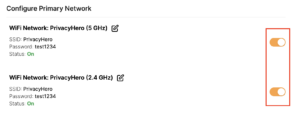
4. Set the toggle switches to the off position for the Wi-Fi bands you want to disable.

Privacy Hero Disable Wifi

TROUBLESHOOTING

Still having issues? Visit the VPN Troubleshooting section.

Troubleshoot Here

NordVPN Setup for GL.iNet Routers

TeamFlashRouters · May 29, 2023 ·

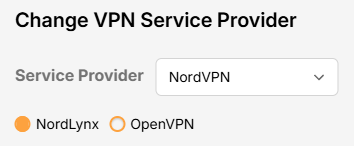
You can connect to NordVPN on your GL.iNet router using NordLynx, OpenVPN, or a Dedicated IP.

Quick Options

  • NordLynx: Choose your preferred city or country from NordVPN’s server list

  • OpenVPN: Choose your preferred city or country from NordVPN’s server list.

  • Dedicated IP (optional): Enter your unique configuration file if you’ve been assigned a static NordVPN IP.

:point_right: If you are not already a NordVPN user Sign Up Now.

NordVPN NordLynx Setup for GLiNet

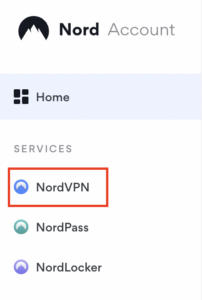
1. Get your NordVPN Access Token for NordLynx connections. Log in to your NordVPN account and select NordVPN from your list of Services.

NordVPN Services Section

2. At the bottom of the page click Get Access token and you will receive a code via email. Enter this code to proceed.

NordVPN Access Token

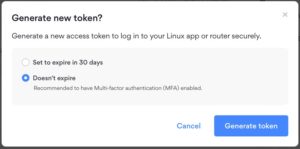
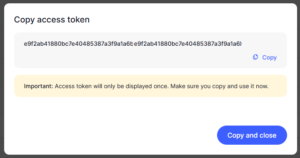
3. After you enter the email code select Generate new token and set it to Doesn’t expire. Copy this token.

NordVPN Generate new token
NordVPN Copy Token

4. Login to GL.iNet firmware settings (usually 192.168.8.1) in a browser on any computer or smart device connected to the GL.iNet FlashRouter’s network.

View our guide for more instructions on how to access GL.iNet firmware settings.

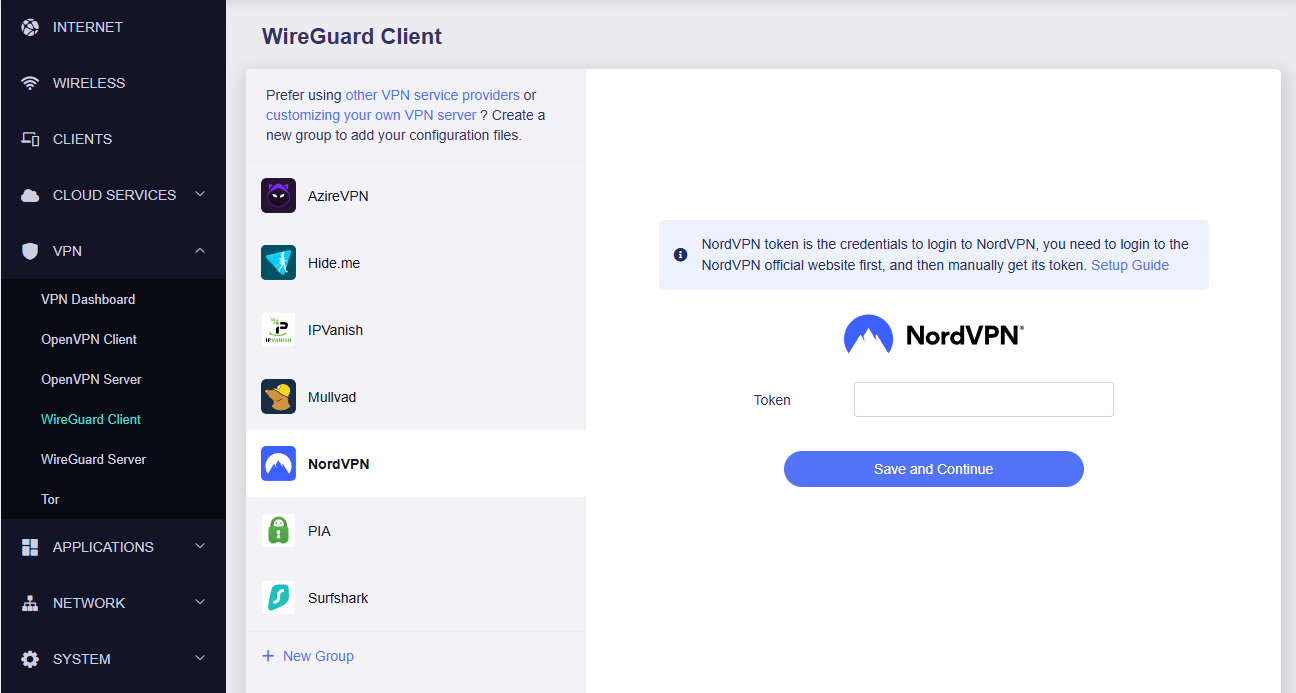
5. Navigate to the VPN tab and select Wireguard Client then choose NordVPN. Enter your Token then click Save and Continue

GLiNet NordVPN Wireguard

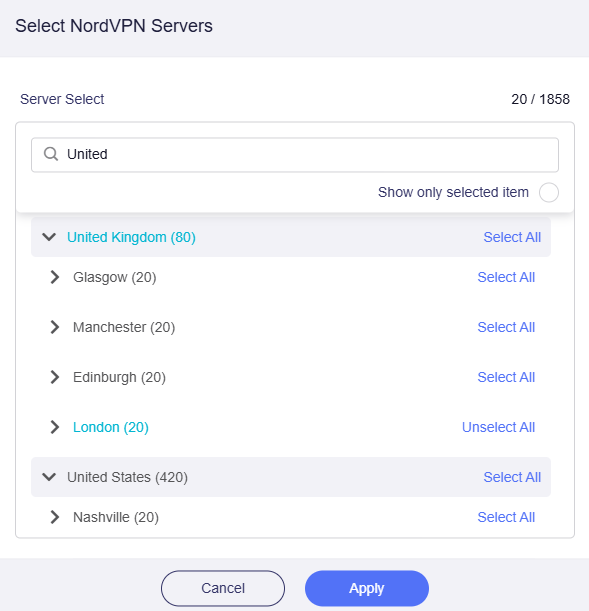
6. Select your preferred server locations, and click Apply.

GLiNet Select NordLynx Servers

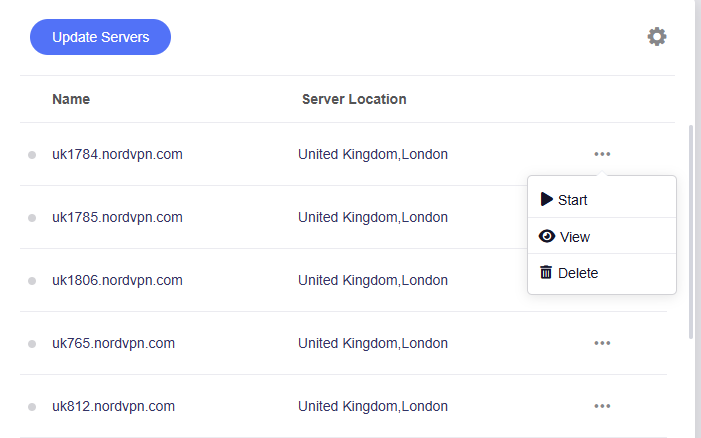
7. Start a connection by clicking the 3 dots (…) > Start next to your chosen server.

GLiNet NordLynx Start

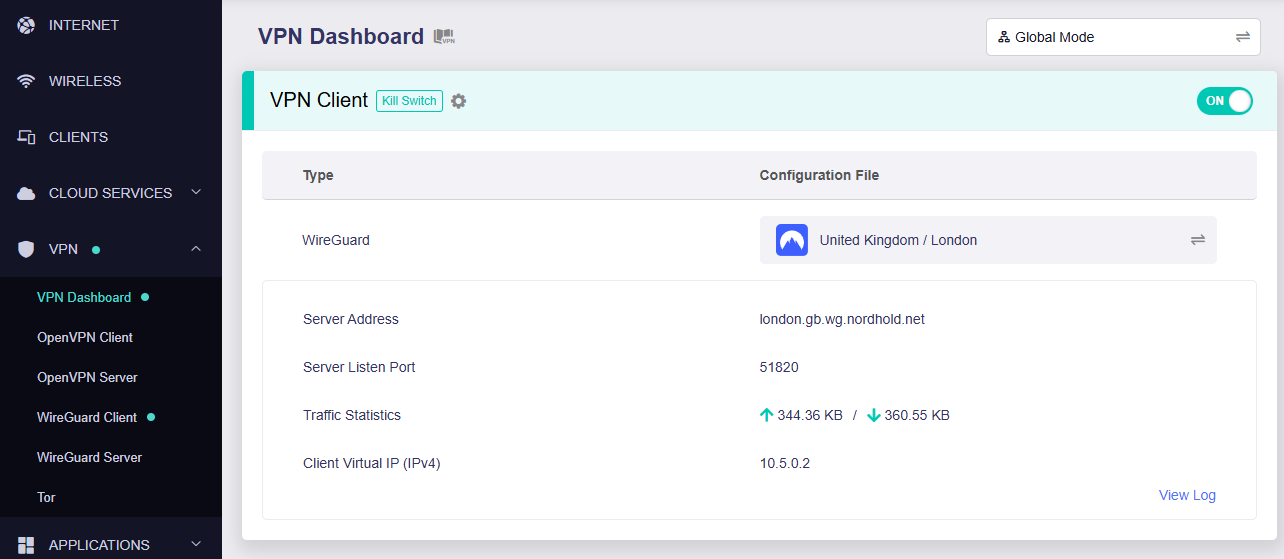
8. A green dot confirms success. You can also switch between Global Mode or Policy Mode for routing in the VPN Dashboard.

GLiNet NordLynx Connected

NordVPN OpenVPN Setup for GLiNet

1. Get your NordVPN manual service credentials for OpenVPN connections. Log in to your NordVPN account and select NordVPN from your list of Services.

NordVPN Service

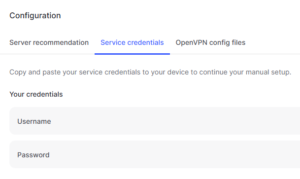
2. At the bottom of the page in the Manual Setup section click Setup NordVPN manually then under the Configuration section go to Service credentials. Click Verify email to receive a code via email and enter the code to view and copy your credentials.

NordVPN Manual OpenVPN
NordVPN Service Credentials

3. Login to GL.iNet firmware settings (usually 192.168.8.1) in a browser on any computer or smart device connected to the GL.iNet FlashRouter’s network.

View our guide for more instructions on how to access GL.iNet firmware settings.

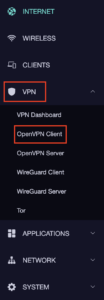
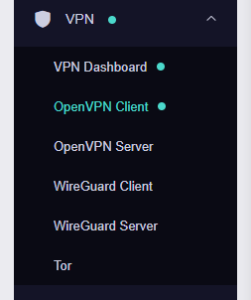
4. Navigate to the VPN tab and select OpenVPN Client.

GL.iNet VPN OpenVPN Client

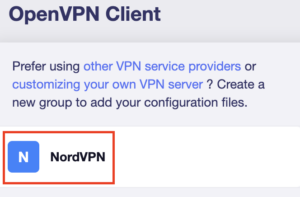
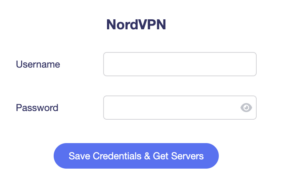
5. Select the NordVPN group, enter your manual credentials, then click Save Credentials & Get Servers.

GL.iNet NordVPN Group
GL.iNet NordVPN Login

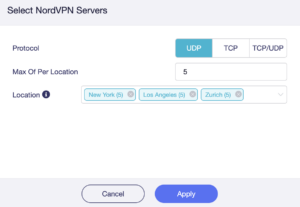
6. Choose UDP (recommended), select your preferred server locations, and click Apply.

GL.iNet NordVPN select servers

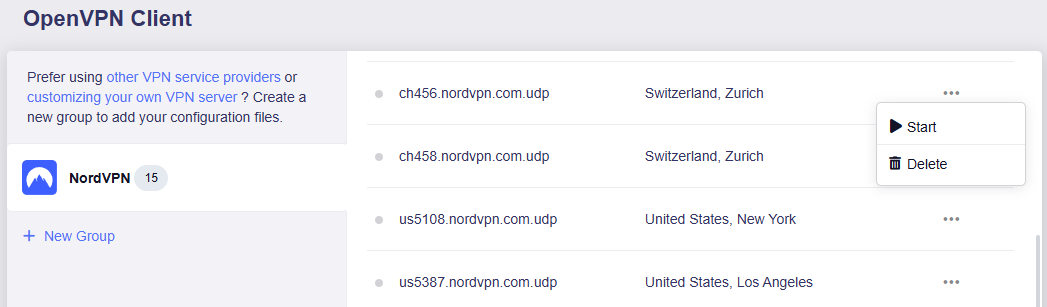
7. Start a connection by clicking the 3 dots (…) > Start next to your chosen server.

NordVPN GLiNet OpenVPN Start

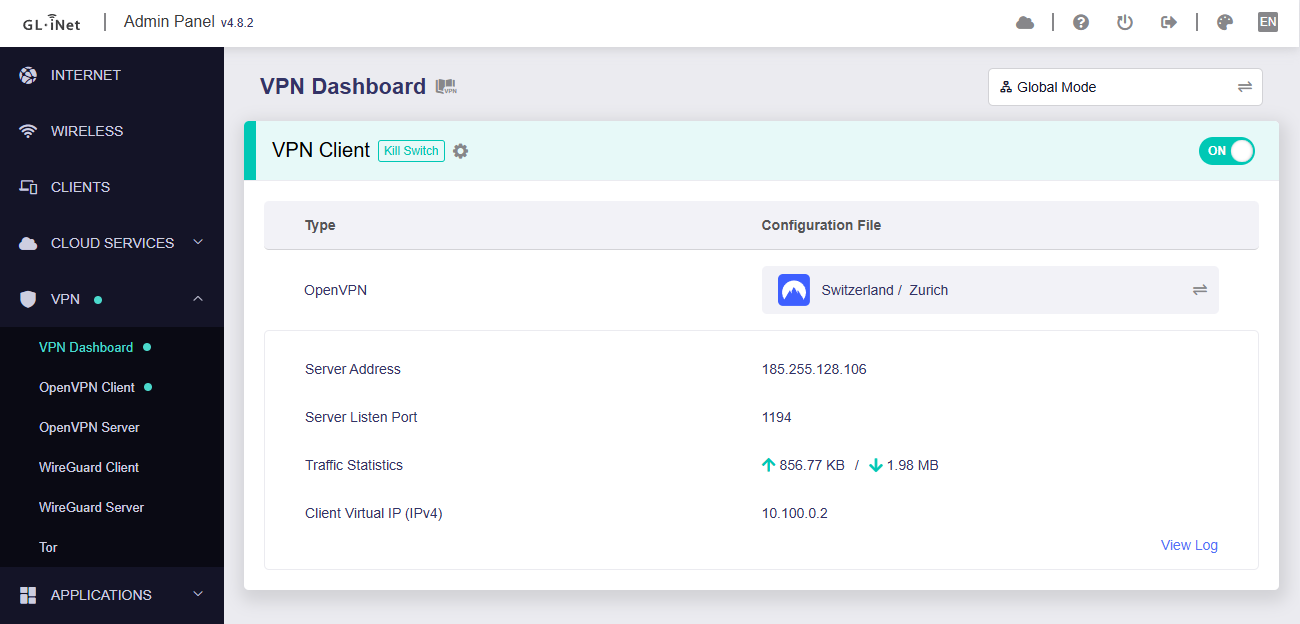
8. A green dot confirms success. You can also switch between Global Mode or Policy Mode for routing in the VPN Dashboard.

GLiNet VPN Dashboard

NordVPN Dedicated IP Setup for GLiNet

1. Get your NordVPN manual service credentials for OpenVPN connections. Log in to your NordVPN account and select NordVPN from your list of Services.

NordVPN Service

2. At the bottom of the page in the Manual Setup section click Setup NordVPN manually then under the Configuration section go to Service credentials. Click Verify email to receive a code via email and enter the code to view and copy your credentials.

NordVPN Manual OpenVPN
NordVPN Service Credentials

3. Login to GL.iNet firmware settings (usually 192.168.8.1) in a browser on any computer or smart device connected to the GL.iNet FlashRouter’s network.

View our guide for more instructions on how to access GL.iNet firmware settings.

4. Navigate to the VPN tab and select OpenVPN Client.

GLiNet VPN Dashboard

5. Download your Dedicated IP configuration file from the NordVPN website.

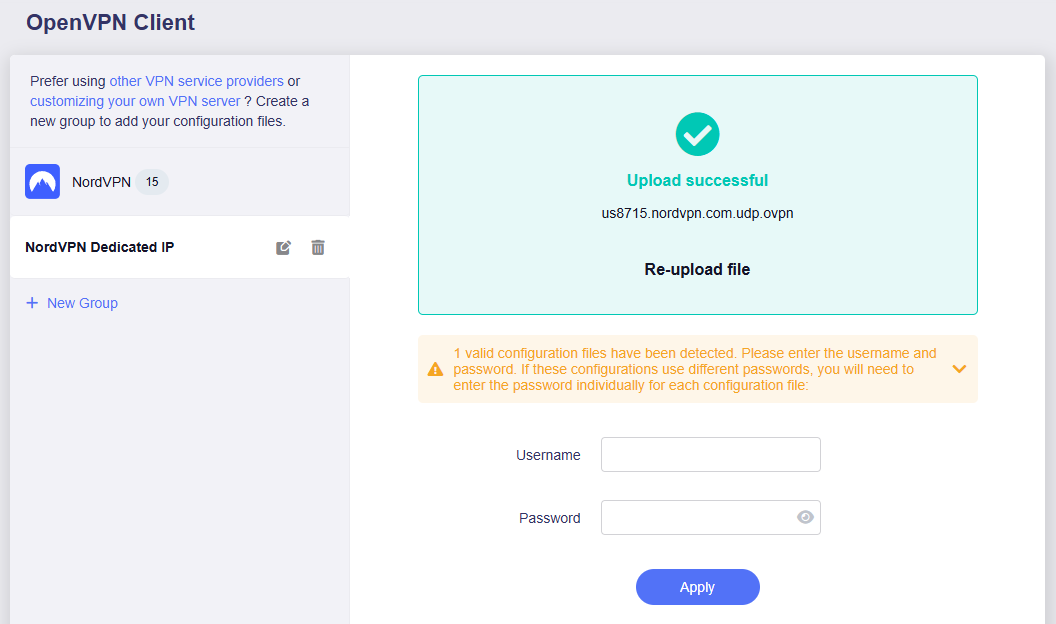
6. Click +New Group and name your NordVPN Dedicated IP connection, then upload the configuration file, enter your manual service credentials and click Apply.

GLiNet Dedicated IP Address Load

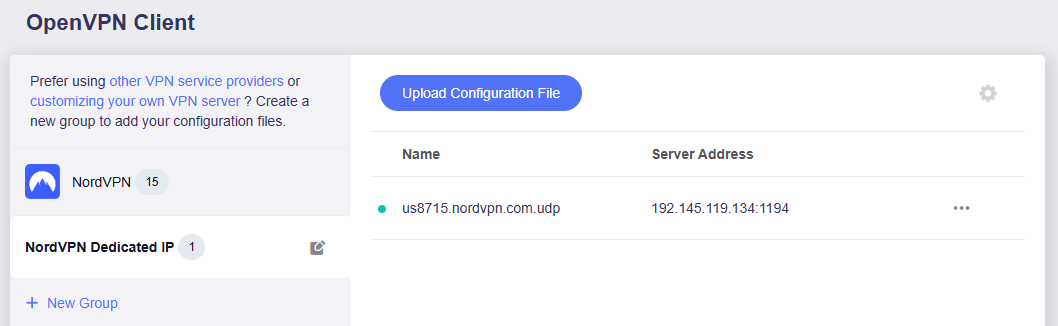
7. Start a connection by clicking the 3 dots (…) > Start next to your chosen server.

GLiNet Dedicated IP

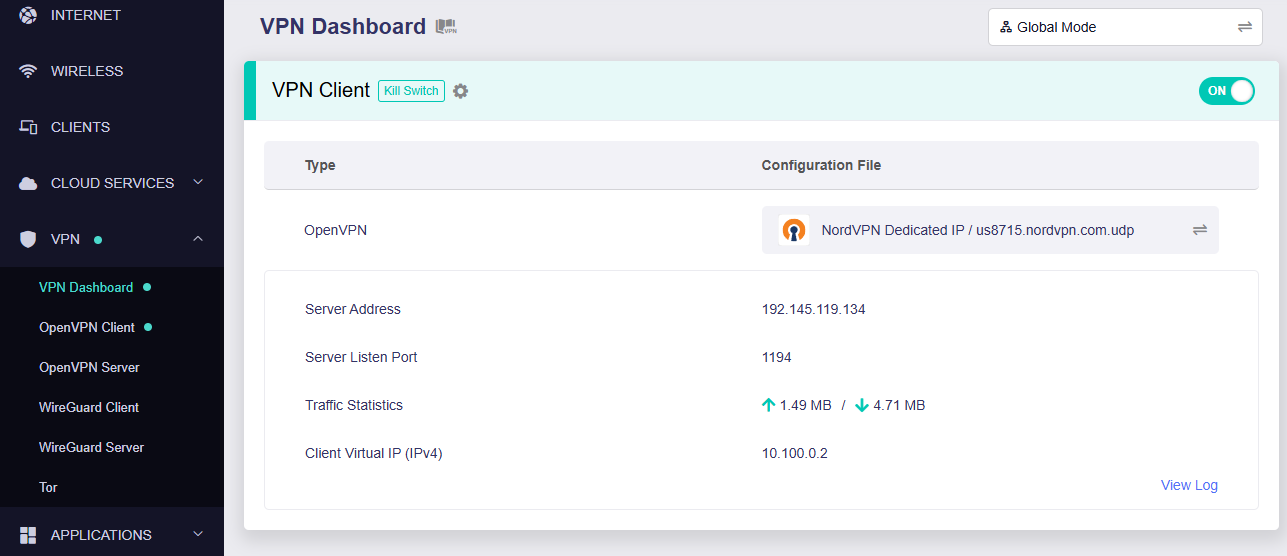
8. A green dot confirms success. You can also switch between Global Mode or Policy Mode for routing in the VPN Dashboard.

GLiNet Dedicated IP Dashboard
  1. You should now see information appear in the Server Address, Server Listen Port, Traffic Statistics, and Client Virtual IP areas.
  2. Visit NordVPN’s IP Check to verify your new IP address and virtual location.

In some cases you may notice that the location is not showing the same location as the server you have input in your router settings; this is because geo tracking tools are often tricked by VPN connections. As long as you see an IP address that is not the same as your normal Internet IP address then you are indeed connected to NordVPN.

🚫📱Do not run NordVPN apps on devices connected to your NordVPN router. Using the app at the same time as the router VPN may cause conflicts and connection issues.

Still having issues?

Feel free to submit a ticket and we will get back to you as soon as possible.

Connecting to OpenVPN on Asus Merlin Firmware

TeamFlashRouters · Sep 22, 2021 ·

To setup VPN on your Asuswrt Merlin router, you will need to first download an OpenVPN (.ovpn) file from your VPN service provider and load it onto your router.

Review your specific VPN service instructions below. Follow these instructions to locate and upload your OpenVPN file. Depending on the VPN service, there may be additional steps and configurations required to complete the setup.

NordVPN

ExpressVPN

IPVanish

Astrill

Hide.Me

Hotspot Shield

IVPN

Mullvad

SaferVPN

StrongVPN

SurfShark

TorGuard

VPNUnlimited

VyprVPN

Windscribe

Using Asuswrt Merlin’s VPN Director, your router can store up to five different VPN connections and switch between them at will.

How do I save and load a backup file?

TeamFlashRouters · Jun 4, 2019 ·

Why should I save a backup file?

Save a backup file of your correctly configured DD-WRT settings to ensure you can load the working settings in a few simple clicks instead of manually configuring each setting in the event of a reset.

Save a backup file

Navigate to Administration > Backup

  1. Click Backup and save / download the file.
  2. Name the backup file “FlashRouter Backup”

Load a backup file

Navigate to Administration > Backup

  1. Click Choose File and find the backup file you previously saved.
  2. Click Restore.
How to Load a Backup File in DD-WRT FlashRouter

Parental Controls on Roqos

Dave · Dec 16, 2021 ·

The Roqos Core includes a suite of user access settings which can be used as Parental Controls.
You can create individual user profiles and assign specific devices. Using these profiles you can restrict access, block certain content, or even monitor internet usage if you choose to do so.

Create User Profiles

  1. Using the navigation pane on the left of the screen, select USERS.
  2. Select the ADD USER button at the top of the menu.
  3. Create a name to identify the user. You may also add a photo or picture to associate with this user however this is optional.
  4. Select the SAVE button at the bottom of the menu.

Assign Devices

  1. Once you have created a user, you must assign one or more devices to the user.
  2. Using the navigation pane on the left of the screen, select USERS. Choose a user from the list.
  3. You are now in the USER/GROUP PROFILE menu.
  1. Select DEVICES.
  2. Select ADD DEVICE.
  1. The ADD DEVICES menu lists all devices which are currently or previously connected to the Roqos. You cannot assign a device to a user unless it has been connected to the Roqos. 
  2. Use the check box to select one or more devices and then select the SAVE button to assign the device to the user.

A device can only be assigned to one user. Access restrictions you place on a user such as scheduled internet access or content restriction will apply to all devices assigned to that user regardless of who in your home is actually using the device at that time.

Turn Off Internet Access

  1. Using the navigation pane on the left of the screen, select USERS. Choose a user from the list
  2. You are now in the USER/GROUP PROFILE menu
  3. Use the PAUSE button next to the user’s name to halt all internet access to the devices assigned to this user. Conversely, you can restore internet access by pushing the PLAY button here as well.

Schedule Internet Access

  1. Using the navigation pane on the left of the screen, select USERS. Choose a user from the list.
  2. You are now in the USER/GROUP PROFILE menu.
  3. Select SCHEDULE PAUSES. You can create multiple schedules for each user to pause their internet access on a daily recurring basis for every day of the week.

Enable Content Filters

  1. Using the navigation pane on the left of the screen, select USERS. Choose a user from the list.
  2. You are now in the USER/GROUP PROFILE menu.
  3. Select FILTER. Use existing category and content filters provided by Roqos and customize with your own blocked and allowed site lists.
  4. Select SAVE.

Monitor Internet Usage

  1. Using the navigation pane on the left of the screen, select USERS. Choose a user from the list.
  2. You are now in the USER/GROUP PROFILE menu.
  3. Select USAGE HISTORY. Access usage data for all devices assigned to this user. This includes websites visited and activity times.

Please note that in order to collect device information, you must enable this functionality on your Roqos. It is disabled by default.

  1. Using the navigation pane on the left of the screen, select ADVANCED SETTINGS.
  2. Select MISCELLANEOUS.
  3. Activate the COLLECT USER INTERNET USAGE and COLLECT DEVICE DATA USAGE options.

TROUBLESHOOTING

Still having issues? Visit our Troubleshooting section to diagnose common problems here.

Troubleshoot Here

AsusWRT-Merlin Router Setup Guide

Asus-Merlin Router Setup

Quick Start Guide for AsusWRT-Merlin FlashRouters

Find setup guides, FAQs and troubleshooting tips for Asus-Merlin configured FlashRouters.

VIEW SUPPORTED ROUTER MODELS

Asus Logo
  • RT-BE88U (BE7200), RT-AC68U, RT-AC88U, RT-AC3100, RT-AC5300, RT-AC86U, RT-AX56U, RT-AX58U, RT-AX68U, RT-AX86U. RT-AX86U-PRO, RT-AX88U, RT-AX88U-PRO
  • GT-AC2900, GT-AX6000, GT-AX11000, GT-AXE11000,GT-AXE11000-PRO,  GT-AXE16000
  • ZenWiFi Pro XT12

Internet Setup

  • Internet and Wifi Setup on Asus Merlin Firmware
  • DNS Setup for Asus Merlin

WiFi Setup

  • Change WiFi name and password on Merlin
  • Separate your WiFi 2.4GHz and 5GHz Merlin networks

VPN Setup

  • Connecting to OpenVPN on Asus Merlin Firmware
  • PureVPN Merlin WireGuard Setup
  • Surfshark Merlin WireGuard Setup
  • ProtonVPN Merlin WireGuard Setup
  • IPVanish Merlin OpenVPN Setup
  • PrivateInternetAccess (PIA) Merlin OpenVPN Setup
  • NordVPN Merlin OpenVPN Setup
  • ExpressVPN Merlin OpenVPN Setup
  • CyberGhost Merlin OpenVPN Setup

AsusWRT-Merlin Features

  • VPN Director for Asus Merlin
  • VPN Killswitch for Asus Merlin

Search Support Articles

Troubleshooting

  • Device Settings That Can Interfere With Your Router VPN
  • How do I find my router local IP address?

More Ways to Get Help

GET IN TOUCH

BUY SUPPORT
BROWSE FAQs

Privacy Hero Change Wi-Fi Name and Password

TeamFlashRouters · Feb 8, 2023 ·

Your Privacy Hero router uses Cloud Based router management which means you can access the router settings from anywhere on any device that has an internet connection. You can follow these steps while connected to your phone, other Wi-Fi network, or the Privacy Hero network.

Use these steps to change your Privacy Hero WiFi name and password.

1. From any device that has a browser such as a computer, smartphone, or tablet visit app.privacyhero.com

App.PrivacyHero.com

2. Enter your Privacy Hero account email and password. Click Login.

Privacy Hero Access Settings

If you have not created your Privacy Hero account yet please follow these instructions.

3. Click the Wi-Fi symbol.

Privacy Hero Select Wifi

4. Click the edit box for the 5GHz network or the 2.4GHz network.

Privacy Hero Edit Wifi network

5. Enter the new Wi-Fi name and password you’d like to set. Click Save at the bottom of the page.

Privacy Hero enter new wifi name and password

TROUBLESHOOTING

Still having issues? Visit the VPN Troubleshooting section.

Troubleshoot Here

Privacy Hero Router Setup Guide

Privacy Hero Routers

Quick Start Guide for Privacy Hero FlashRouters

Find setup guides, FAQs and troubleshooting tips for Privacy Hero FlashRouters.

Privacy Hero 2

Internet Setup

  • Privacy Hero Activation and Setup
  • Privacy Hero Access Router Settings
  • Privacy Hero Creating User Profiles and Adding Devices to Profiles

WiFi Setup

  • Privacy Hero Activation and Setup
  • Privacy Hero Change Wi-Fi Name and Password
  • Privacy Hero Change Wireless Channel
  • Privacy Hero Disable Wi-Fi

VPN Setup

  • NordVPN Setup for Privacy Hero
  • Surfshark Setup for Privacy Hero
  • IPVanish Setup for Privacy Hero
  • ProtonVPN Setup for Privacy Hero
  • ExpressVPN Setup for Privacy Hero
  • Private Internet Access (PIA) Setup for Privacy Hero
  • Privacy Hero VPN Setup Guide for Privacy Hero

Privacy Hero Features

  • Privacy Hero VPN Kill Switch Setup
  • Privacy Hero Bypass certain devices from VPN
  • Privacy Hero Streaming Relocation
  • Privacy Hero Adblocking Malware and Phishing Prevention Setup
  • Privacy Hero Creating User Profiles and Adding Devices to Profiles
  • Privacy Hero Safe Surf
  • Privacy Hero Bedtime Settings (Internet Scheduler)

Search Support Articles

Troubleshooting

  • How to Reset a Failed VPN Connection on Privacy Hero
  • Privacy Hero Dashboard Not Updating or Showing Old Information
  • Privacy Hero VPN Kill Switch Troubleshooting: No Internet or WiFi
  • Device Settings That Can Interfere With Your Router VPN
  • Privacy Hero NordVPN Not Connecting or Showing Timeout Errors

More Ways to Get Help

GET IN TOUCH

BUY SUPPORT
BROWSE FAQs

DD-WRT Router VPN Setup

DD-WRT Router VPN Setup

TP-Link Router Setup Guide

TP-Link Router Support Guides

Quick Start Guide for TP-Link FlashRouters

Find setup guides, FAQs and troubleshooting tips for TP-Link configured FlashRouters.

VIEW SUPPORTED ROUTER MODELS

Archer AX10000, Archer AX1100, Archer AX21, Archer AX3000, Archer AX3000 Pro, Archer AX3200, Archer AX4400, Archer AX5400 Pro, Archer AX55, Archer AX55 Pro
Archer AX6000, Archer AX72 Pro, Archer AX73, Archer AX75, Archer AX80, Archer AX90
Archer AXE300, Archer AXE5400, Archer AXE75, Archer AXE95
Archer BE550, Archer BE800, Archer BE900, Archer BE9300, Archer GE80, Archer GX90

Internet Setup

  • TP-Link Internet Setup
  • TP-Link Access Router Settings

WiFi Setup

  • TP-Link Merge or Separate 2.4GHz and 5GHz Wi-Fi
  • TP-Link Change Wireless Channel
  • TP-Link Change Wi-Fi name and password

VPN Setup

  • ProtonVPN TP-Link WireGuard Setup
  • Surfshark TP-Link OpenVPN Setup
  • Surfshark TP-Link WireGuard Setup
  • IPVanish TP-Link OpenVPN Setup
  • PrivateInternetAccess (PIA) TP-Link OpenVPN Setup
  • NordVPN TP-Link OpenVPN Setup
  • ExpressVPN TP-Link OpenVPN Setup

TP-Link Features

Search Support Articles

Troubleshooting

More Ways to Get Help

GET IN TOUCH

BUY SUPPORT
BROWSE FAQs

ExpressVPN Router Setup Guide

Quick Start Guide for ExpressVPN FlashRouters

Find setup guides, FAQs and troubleshooting tips for ExpressVPN configured FlashRouters.

VIEW SUPPORTED ROUTER MODELS

Aircove

R6300 V2, R6400 V2, R6700 V3, R7000, R7000P

Asus Logo

RT-AC56U, RT-AC56R, RT-AC56S, RT-AC68U V3, RT-AC87U

EA6200, WRT1200AC, WRT1900AC V1, WRT1900AC V2, WRT1900ACS V1, WRT1900ACS V2, WRT32X, WRT3200ACM

Internet Setup

  • ExpressVPN Asus Quick Start Guide
  • ExpressVPN Netgear Quick Start Guide
  • ExpressVPN Linksys Quick Start Guide
  • ExpressVPN/Aircove FlashRouter Internet Setup and Activation
  • How do I reset and reconfigure my ExpressVPN/Aircove FlashRouter?

WiFi Setup

  • Separate 2.4GHz and 5GHz Wi-Fi bands on ExpressVPN/Aircove firmware
  • Change Wireless Channels on ExpressVPN/Aircove firmware

VPN Setup

  • Change server locations on ExpressVPN/Aircove firmware
  • Using Device Groups to connect to multiple VPN locations on ExpressVPN/Aircove firmware
  • Using Device Groups to bypass VPN on ExpressVPN/Aircove firmware
  • Change VPN Protocols on ExpressVPN/Aircove firmware
  • ExpressVPN TP-Link OpenVPN Setup
  • ExpressVPN Cudy OpenVPN Setup
  • ExpressVPN Asus AX1800S OpenVPN Setup
  • Flint/Slate GL.iNet ExpressVPN OpenVPN Setup
  • ExpressVPN Merlin OpenVPN Setup

ExpressVPN Features

  • ExpressVPN MediaStreamer SmartDNS Setup
  • ExpressVPN Router App Support

Search Support Articles

Troubleshooting

  • Separate 2.4GHz and 5GHz Wi-Fi bands on ExpressVPN/Aircove firmware
  • Change Wireless Channels on ExpressVPN/Aircove firmware
  • How do I reset and reconfigure my ExpressVPN/Aircove FlashRouter?

More Ways to Get Help

GET IN TOUCH

BUY SUPPORT
BROWSE FAQs

Cudy Router Setup Guide

Quick Start Guide for Cudy FlashRouters

Find setup guides, FAQs and troubleshooting tips for Cudy configured FlashRouters.

VIEW SUPPORTED ROUTER MODELS

WR3000, M1800, M3000

Internet Setup

  • Cudy Access Router Settings
  • Cudy Internet Setup

WiFi Setup

  • Cudy Change Wi-Fi name and password

VPN Setup

  • PrivateInternetAccess (PIA) Cudy OpenVPN Setup
  • IPVanish Cudy OpenVPN Setup
  • ExpressVPN Cudy OpenVPN Setup
  • NordVPN Cudy OpenVPN Setup

Cudy Features

Search Support Articles

Troubleshooting

  • Device Settings That Can Interfere With Your Router VPN

More Ways to Get Help

GET IN TOUCH

BUY SUPPORT
BROWSE FAQs

What is a DNS leak and how can I prevent a DNS leak in my router?

TeamFlashRouters · Jun 11, 2019 ·

What is a DNS leak?

A DNS Leak is an instance where your ISP receives DNS requests despite being connected to a VPN tunnel.

How do I check if my DNS is leaking?

  1. Perform the extended test on DNSLeakTest.com. Be sure to do so on multiple web browsers for best accuracy.
  2. Here you should only find one server and your ISP should not be listed as your actual ISP.
  3. If your actual ISP is not listed there is no DNS leak.

How can I prevent a DNS leak in DD-WRT?

Check your device's browser settings

Updates to web browsers have added DNS settings capabilities, while this often makes your browsing experience more secure it can also effect the results of a DNS leak test. You can go into your browser’s settings and search for “DNS” and disable the DNS of the browser for more accurate DNS leak test results.

A simple web search for “DNS settings [browser name]” should return helpful information for finding the setting in your browser.

Adjust DD-WRT settings

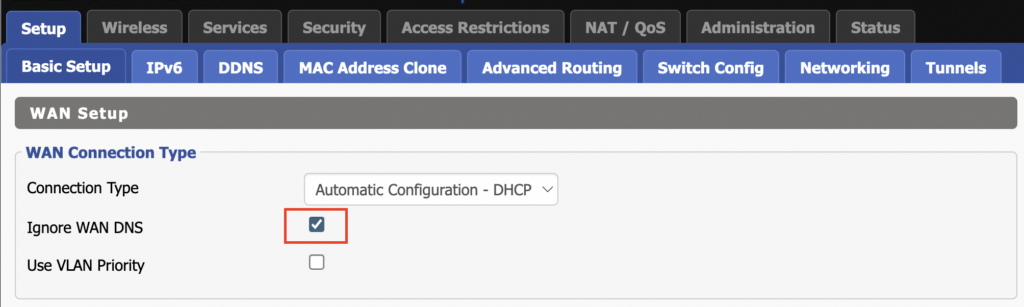
1. On the Setup > Basic Setup page of the DD-WRT settings check the Ignore WAN DNS box.

This setting may not appear in older DD-WRT firmware builds. If it is not appearing for you, upgrade your DD-WRT firmware.

DD-WRT Check Ignore WAN DNS

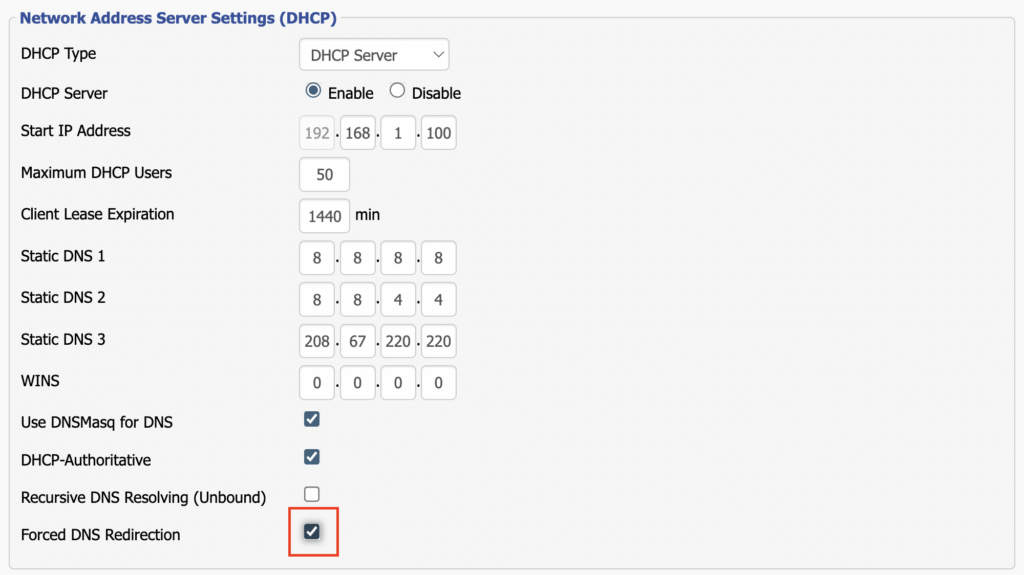
2. Lower on the same page check the Forced DNS Redirection box.

DD-WRT Check Forced DNS Redirection

3. Click Apply Settings at the bottom of the page and then wait a full minute and power the FlashRouter off and back on. Reconnect to the FlashRouter’s network once it boots back up and then make sure you are connected to VPN by going to https://whatismyipaddress.com then perform the DNS leak test again.

Adding your VPN provider’s DNS servers to the router’s configuration can be helpful as well. The DNS servers are typically found on the VPN provider’s website or you can reach out to their team for a recommendation of what DNS servers to enter.

Privacy Hero Adblocking Malware and Phishing Prevention Setup

TeamFlashRouters · Apr 3, 2023 ·

Your Privacy Hero router uses Cloud Based router management which means you can access the router settings from anywhere on any device that has an internet connection. You can follow these steps while connected to your phone, other Wi-Fi network, or the Privacy Hero network.

Use these steps to enable Privacy Hero’s adblocking, malware, and phishing prevention settings to add extra security to your network.

1. From any device that has a browser such as a computer, smartphone, or tablet visit app.privacyhero.com

App.PrivacyHero.com

2. Enter your Privacy Hero account email and password. Click Login.

Privacy Hero Access Settings

If you have not created your Privacy Hero account yet please follow these instructions.

3. Click the VPN symbol.

Privacy Hero Setup VPN

4. Toggle the Adblocking and Malware & Phishing switches to On.

Privacy Hero Adblocking Malware and Phishing

TROUBLESHOOTING

Still having issues? Visit the VPN Troubleshooting section.

Troubleshoot Here

Privacy Hero Bedtime Settings (Internet Scheduler)

TeamFlashRouters · Apr 3, 2023 ·

Your Privacy Hero router uses Cloud Based router management which means you can access the router settings from anywhere on any device that has an internet connection. You can follow these steps while connected to your phone, other Wi-Fi network, or the Privacy Hero network.

The Bedtime settings feature allows users to schedule when internet access will be turned off for specific user profiles. All devices assigned to this profile will have these rules applied.

1. From any device that has a browser such as a computer, smartphone, or tablet visit app.privacyhero.com

App.PrivacyHero.com

2. Enter your Privacy Hero account email and password. Click Login.

Privacy Hero Access Settings

If you have not created your Privacy Hero account yet please follow these instructions.

3. Click the Profiles symbol.

Privacy Hero Profiles

4. Click the name of the User Profile.

Privacy Hero Select Profile

5. Click Schoolnights or Weekends depending on which you need to set rules for.

Privacy Hero Bedtime School Nights Weekends

6. Select the time that you want the Internet to turn off and the days you want this rule to apply to. Click Save.

Privacy Hero Set Bedtime

7. Set the Bedtime toggle to On.

Privacy Hero Enable Bedtime

TROUBLESHOOTING

Still having issues? Visit the VPN Troubleshooting section.

Troubleshoot Here

Privacy Hero Safe Surf

TeamFlashRouters · Apr 3, 2023 ·

Your Privacy Hero router uses Cloud Based router management which means you can access the router settings from anywhere on any device that has an internet connection. You can follow these steps while connected to your phone, other Wi-Fi network, or the Privacy Hero network.

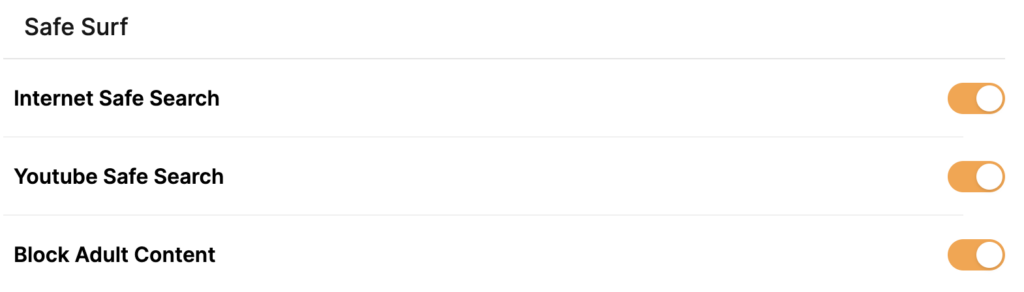
The Safe Surf settings feature allows users to block inappropriate search results, YouTube videos, and adult content. All devices assigned to this profile will have these rules applied.

1. From any device that has a browser such as a computer, smartphone, or tablet visit app.privacyhero.com

App.PrivacyHero.com

2. Enter your Privacy Hero account email and password. Click Login.

Privacy Hero Access Settings

If you have not created your Privacy Hero account yet please follow these instructions.

3. Click the Profiles symbol.

Privacy Hero Profiles

4. Click the name of the User Profile.

Privacy Hero Select Profile

5. Toggle On the settings for Internet Safe Search, YouTube Safe Search, and Block Adult Content as needed.

Privacy Hero Safe Search

TROUBLESHOOTING

Still having issues? Visit the VPN Troubleshooting section.

Troubleshoot Here

Asus RT-AC68U B1 / C1 / AC1900 DD-WRT WiFi Settings

Dave · Feb 25, 2019 ·

Recommended DD-WRT WiFi settings for the Asus RT-AC68U are based on extensive testing by FlashRouters. Please note that optimal settings may vary depending on external factors such as home size, interference, and the types of WiFi devices you are connecting in your network.

Screenshots below provide a visual display of recommended WiFi and encryption settings exactly as they appear in the Asus RT-AC68U with DD-WRT firmware.

Navigate to the Wireless > Basic Settings to view or edit WiFi network settings.

2.4 GHz - Wireless-N

View AC68U DD-WRT FlashRouter 2.4GHz Settings

5.0 GHz - Wireless-AC

View AC68U DD-WRT FlashRouter 5GHz Settings

Additional DD-WRT WiFi Information

Intimidated by all the available WiFi settings? The DD-WRT website provides extensive information about all of the available configuration options in the firmware. Learn about everything from Wireless channels to channel widths and more in the Basic Wireless Settings – DD-WRT Wiki.

RT-AC68U DD-WRT Wireless Security

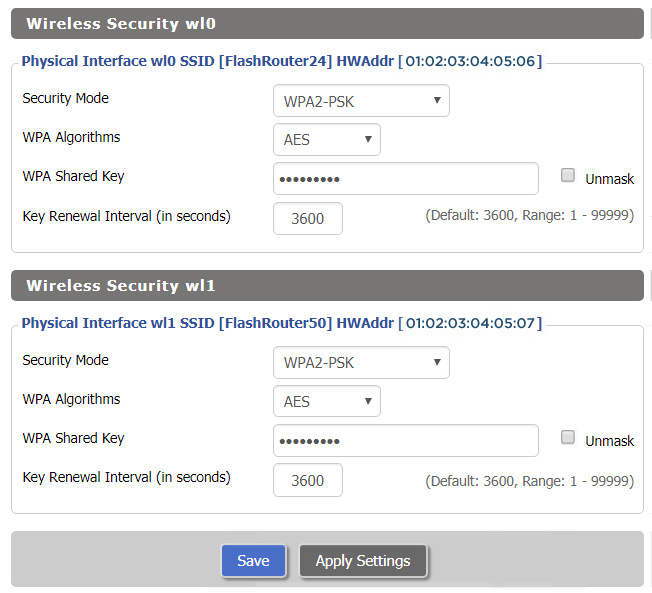
The preset RT-AC68U FlashRouter WiFi password is Wireless#[First 5 characters of your router MAC]. The router MAC can be found on the bottom of your router. For e.g. if your MAC is 1459C07E70A8 then your WiFi password is Wireless#1459C

Navigate to the Wireless > Wireless Security to view or edit WiFi passwords.

View AC68U DD-WRT FlashRouter WiFi Security Settings

TROUBLESHOOTING

Trouble with your Asus RT-AC68U WiFi? Visit the Wireless troubleshooting section.

Troubleshoot Here

Asus RT-AC66U DD-WRT WiFi Settings

Dave · Feb 25, 2019 ·

Recommended DD-WRT WiFi settings for the Asus RT-AC66U are based on extensive testing by FlashRouters. Please note that optimal settings may vary depending on external factors such as home size, interference, and the types of WiFi devices you are connecting in your network.

Screenshots below provide a visual display of recommended WiFi and encryption settings exactly as they appear in the Asus RT-AC66U with DD-WRT firmware.

Navigate to the Wireless > Basic Settings to view or edit WiFi network settings.

2.4 GHz - Wireless-N

View AC66U DD-WRT FlashRouter 2.4GHz Settings

5.0 GHz - Wireless-AC

View AC66U DD-WRT FlashRouter 5GHz Settings

Additional DD-WRT WiFi Information

Intimidated by all the available WiFi settings? The DD-WRT website provides extensive information about all of the available configuration options in the firmware. Learn about everything from Wireless channels to channel widths and more in the Basic Wireless Settings – DD-WRT Wiki.

RT-AC66U DD-WRT Wireless Security

The preset RT-AC66U FlashRouter WiFi password is Wireless#[First 5 characters of your router MAC]. The router MAC can be found on the bottom of your router. For e.g. if your MAC is 1459C07E70A8 then your WiFi password is Wireless#1459C

Navigate to the Wireless > Wireless Security to view or edit WiFi passwords.

View AC66U DD-WRT FlashRouter WiFi Security Settings

TROUBLESHOOTING

Trouble with your Asus RT-AC66U WiFi? Visit the Wireless troubleshooting section.

Troubleshoot Here

Asus RT-AC56U DD-WRT WiFi Settings

Dave · Mar 5, 2019 ·

Recommended DD-WRT WiFi settings for the Asus RT-AC56U are based on extensive testing by FlashRouters. Please note that optimal settings may vary depending on external factors such as home size, interference, and the types of WiFi devices you are connecting in your network.

Screenshots below provide a visual display of recommended WiFi and encryption settings exactly as they appear in the Asus RT-AC56U with DD-WRT firmware.

Navigate to the Wireless > Basic Settings to view or edit WiFi network settings.

2.4 GHz - Wireless-N

View AC56U DD-WRT FlashRouter 2.4GHz Settings

5.0 GHz - Wireless-AC

View AC56U DD-WRT FlashRouter 5GHz Settings

Additional DD-WRT WiFi Information

Intimidated by all the available WiFi settings? The DD-WRT website provides extensive information about all of the available configuration options in the firmware. Learn about everything from Wireless channels to channel widths and more in the Basic Wireless Settings – DD-WRT Wiki.

RT-AC56U DD-WRT Wireless Security

The preset RT-AC56U FlashRouter WiFi password is Wireless#[First 5 characters of your router MAC]. The router MAC can be found on the bottom of your router. For e.g. if your MAC is 1459C07E70A8 then your WiFi password is Wireless#1459C

Navigate to the Wireless > Wireless Security to view or edit WiFi passwords.

ViewAC56U DD-WRT FlashRouter WiFi Security Settings

TROUBLESHOOTING

Trouble with your Asus RT-AC56U WiFi? Visit the Wireless troubleshooting section.

Troubleshoot Here

Surfshark AsusWRT WireGuard Setup

TeamFlashRouters · Apr 29, 2024 ·

Preparing for Surfshark AsusWRT Setup

Copy your Surfshark Private Key

If you are not already a Surfshark user Sign Up Now.

1. Log in to your account on the Surfshark website.

Surfshark Account Login

2. Click VPN Manual Setup.

Surfshark VPN Manual Setup

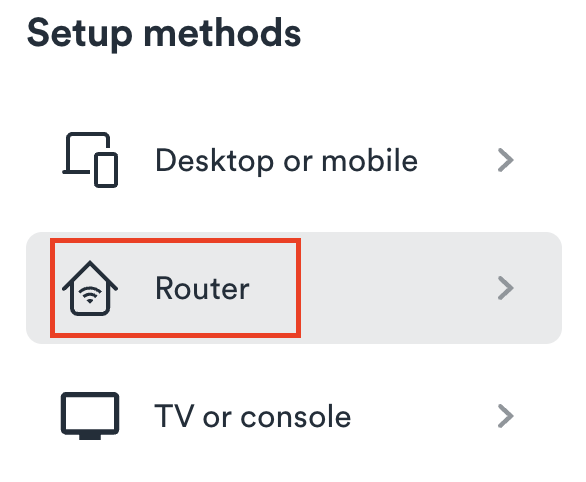
3. Select Router as the Setup method.

Surfshark setup method Router

4. Select WireGuard as the Protocol.

Surfshark select WireGuard

5. Select I don’t have a key pair.

Surfshark No Key Pair

6. Enter FlashRouter as the name of the connection and click Next.

Surfshark Connection Name

7. Click Generate a new key pair.

Surfshark Generate new Key Pair

8. A Public Key and Private Key will then appear. Use the copy box to copy the Private Key. You will not need the public key.

Surfshark Private Key

AsusWRT Router Setup for Surfshark

Login to AsusWRT firmware settings in a browser on any computer or smart device connected to the AsusWRT FlashRouter’s network.

1. Navigate to the VPN tab.

Merlin VPN Tab

2. Navigate to the VPN Fusion tab.

Asus VPN Fusion

3. Click Add profile.

Asus Add profile

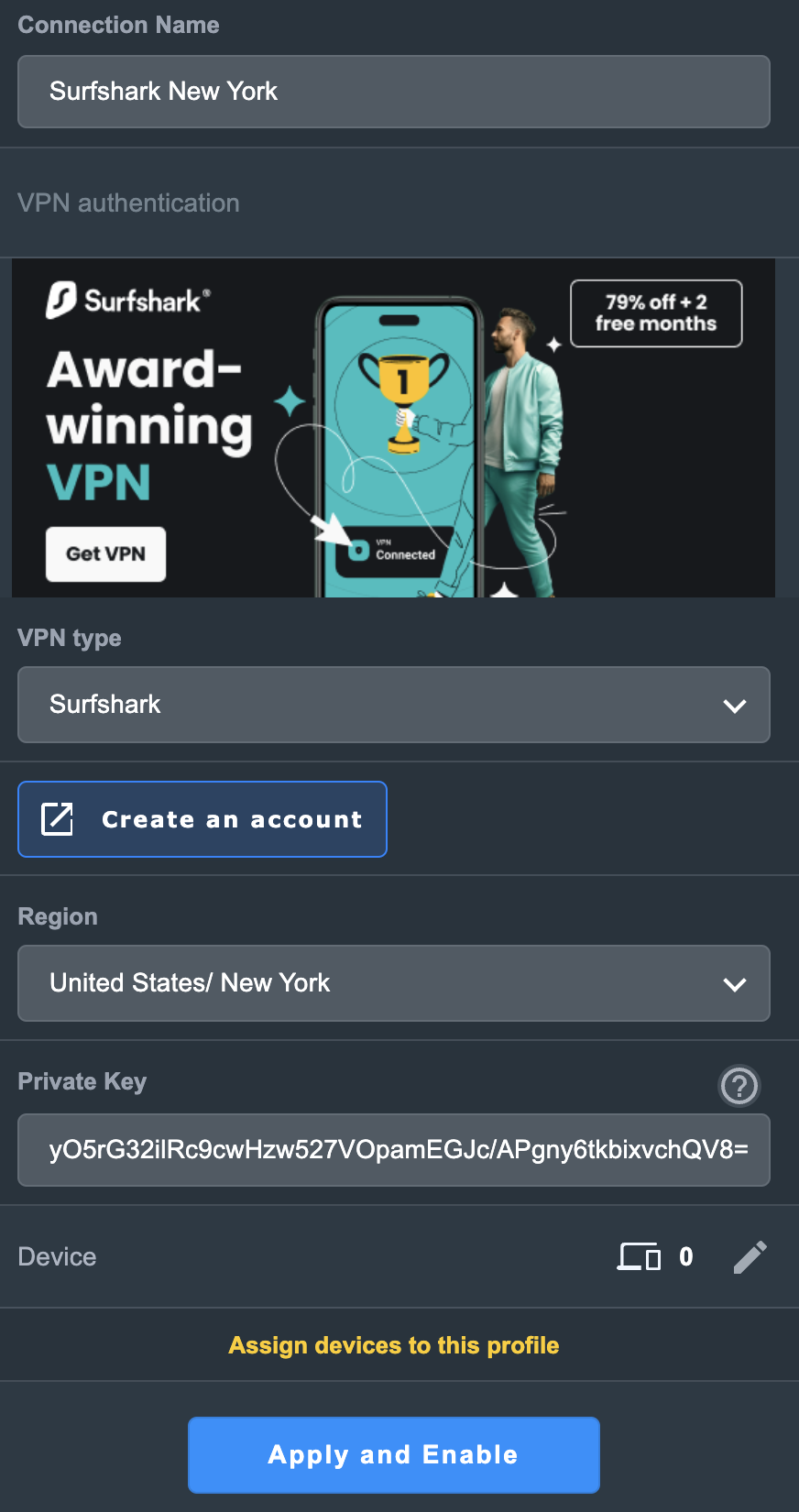
4. In the Connection Name field enter in Surfshark.

5. In the VPN Type dropdown select Surfshark.

6. In the Region dropdown select the Surfshark location you want to connect to.

7. In the Private Key field paste in the Surfshark Private Key obtained earlier.

8. Click Apply and Enable at the bottom of the page.

Asus Surfshark profile

If you only want certain devices to connect to the Surfshark profile you are setting up instead of all the devices connected to the FlashRouter’s network click into the profile and disable Apply to all devices. Then click Devices and select the devices that you want to connect to VPN.

Asus VPN devices
Asus VPN select devices

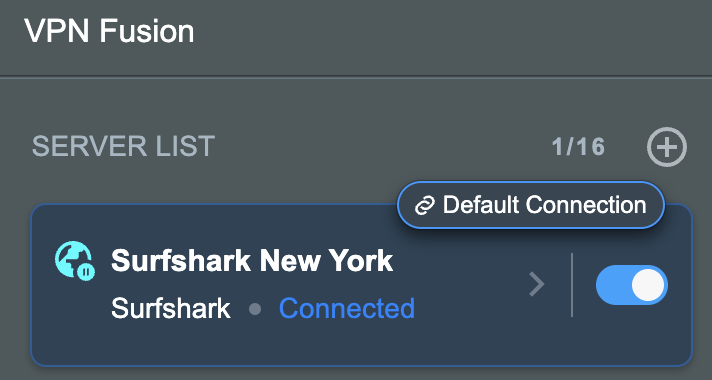
9. At the top of the page set the Service State toggle to ON to activate the VPN connection.

Asus Surfshark Connected

Verify a successful Surfshark connection

  1. You should now see a CONNECTED message.
  2. Visit Surfshark’s IP Check to verify your new IP address and virtual location.

In some cases you may notice that the location is not showing the same location as the server you have input in your router settings; this is because geo tracking tools are often tricked by VPN connections. As long as you see an IP address that is not the same as your normal Internet IP address then you are indeed connected to Surfshark.

How to change the Surfshark server

  1. Use the profile service state toggle to disconnect the currently connected location.
  2. Then click into the Surfshark profile in the router’s settings.
  3. Then adjust the Region dropdown to a new location.
  4. Click Apply all settings.
  5. Use the profile service state toggle to connect the new location.

TROUBLESHOOTING

Still having issues? Visit the VPN Troubleshooting section.

Troubleshoot Here

NordVPN Merlin OpenVPN Setup

TeamFlashRouters · Jan 11, 2023 ·

Preparing for NordVPN Merlin Setup

Obtain your NordVPN manual Username and Password

If you are not already an NordVPN user Sign Up Now.

1. Log in to your account on the NordVPN website.

NordVPN login

2. Click NordVPN on the left hand side and then click Setup NordVPN manually.

NordVPN setup manually

3. Enter in the verification code that was sent to your email.

NordVPN verify code

4. Copy and paste your NordVPN manual username and password to a secure location. This is the username and password you will enter into the router settings to connect to NordVPN.

NordVPN credentials

Download your NordVPN .ovpn file

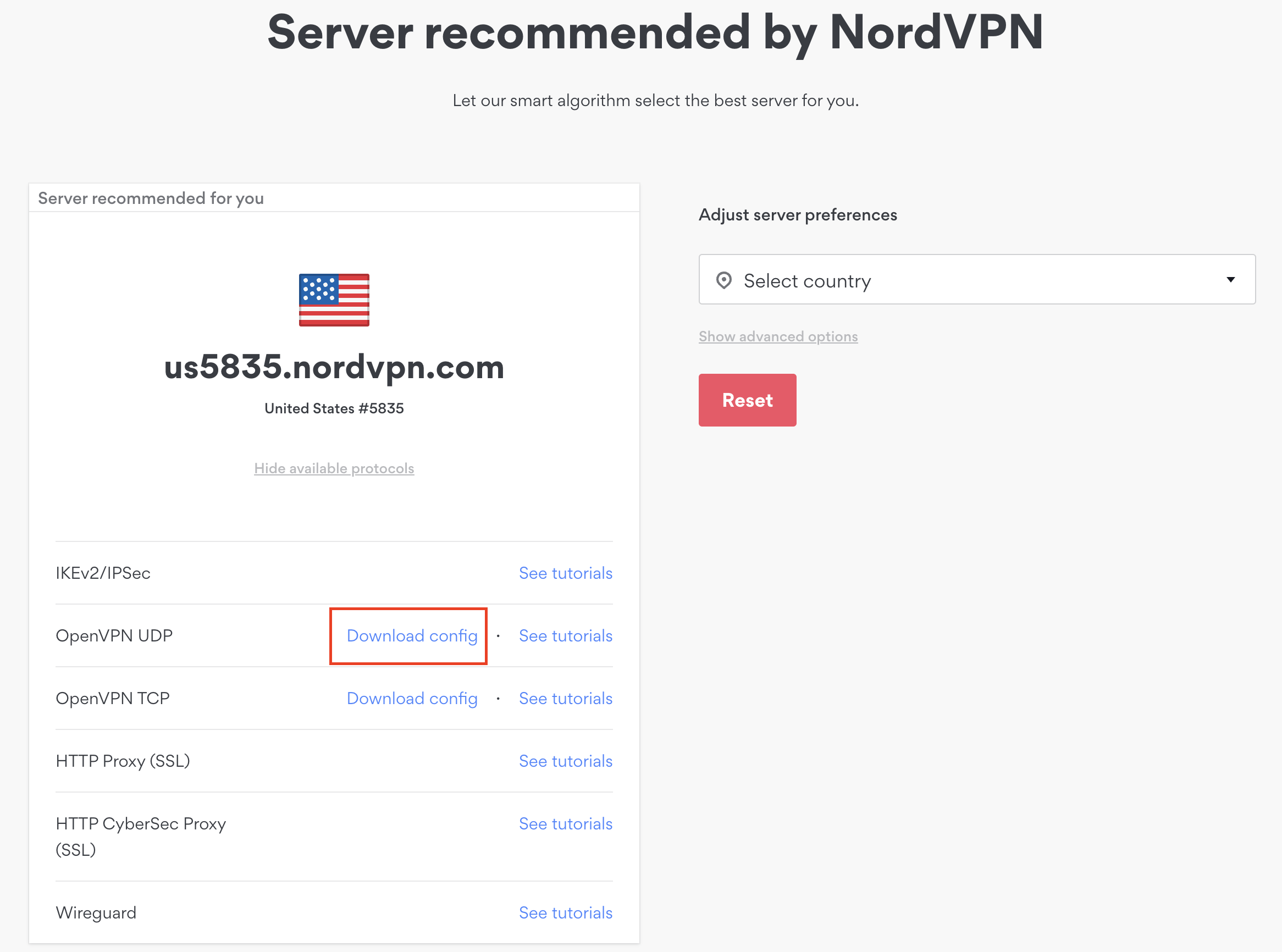
1. There are two options for obtaining the .ovpn file. The first and recommended is to navigate to NordVPN’s server recommendation page. Click Recommended Server to display the fastest server based on your actual location. You can adjust the country if you don’t want to connect to the recommended country.

Then click Show Available Protocols. Click Download Config next to OpenVPN UDP. This will download the .ovpn file to your computer for this server. Do not open this file.

NordVPN Recommended Server

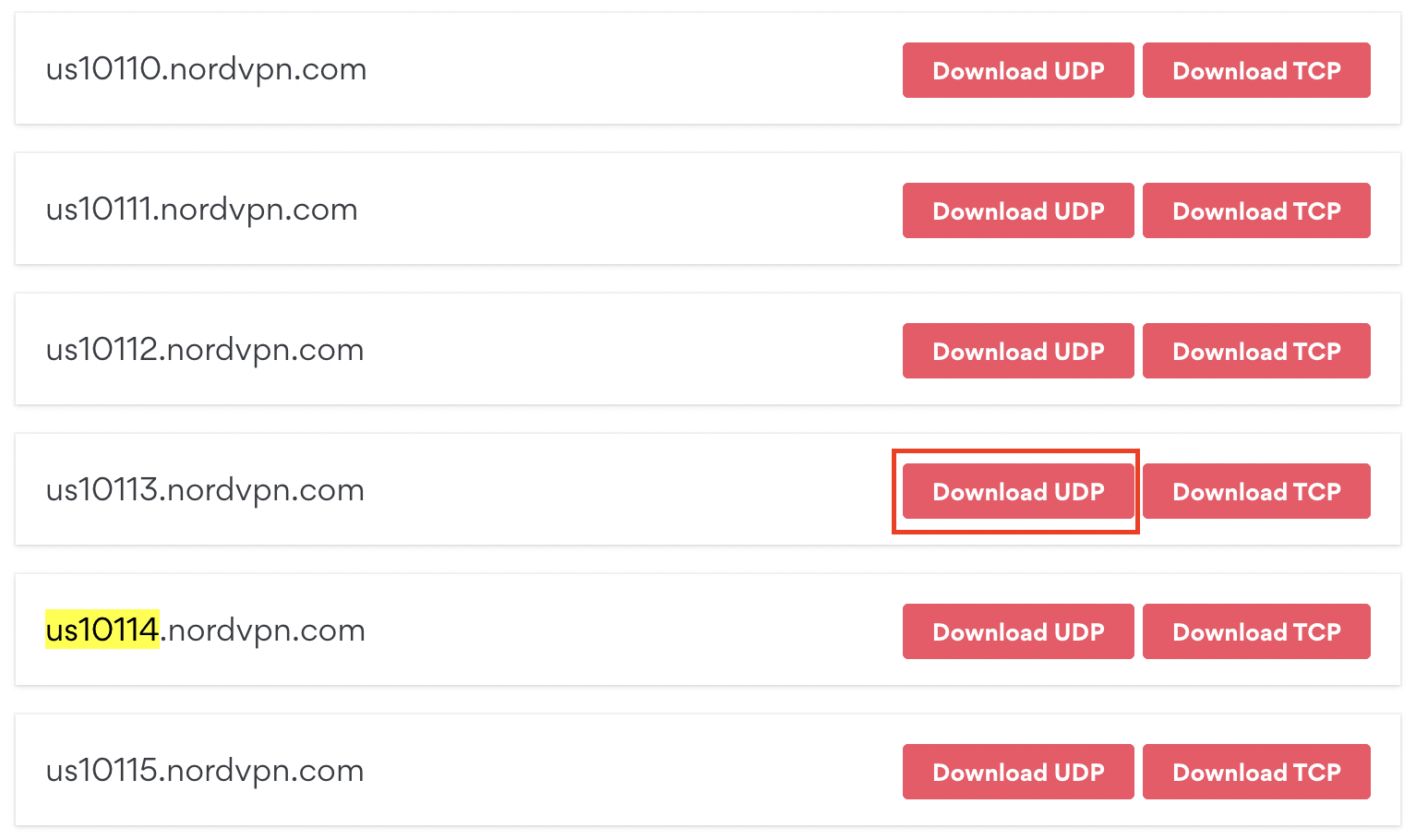
The second method to obtain a server is for connecting to a specific server number that you know you want to use. This applies to NordVPN Dedicated IP servers if you are signed up for that service. Go to NordVPN’s .ovpn file page. Then search for the server number that you want to use and click Download UDP.

NordVPN Download Specific Server

Merlin Router Setup for NordVPN

Login to Asus Merlin firmware settings in a browser on any computer or smart device connected to the Merlin FlashRouter’s network.

1. Navigate to the VPN tab.

Merlin VPN Tab

2. Navigate to the VPN Client tab.

Merlin VPN Client Tab

3. Click Choose file and select the .ovpn file you downloaded earlier. Then click Upload.

Merlin Choose File Upload

4. Set Automatic Start at boot time to Yes if you want the VPN connection to begin automatically when the router is powered off and back on.

Merlin Automatic Start at boot time

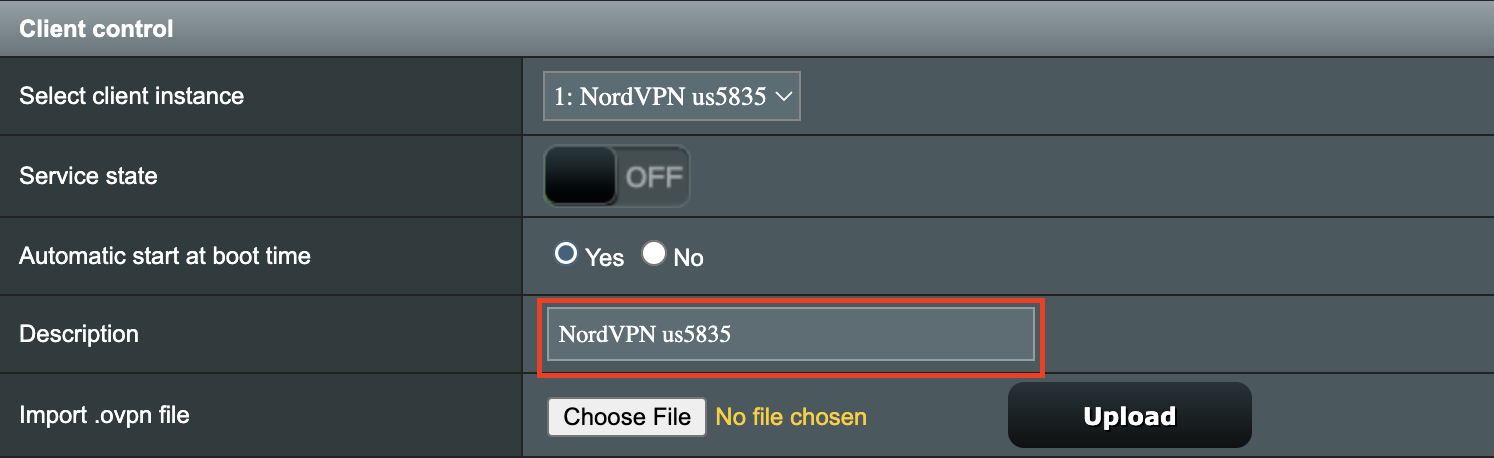
5. In the Description field enter in the name you’d like to use for this OpenVPN Client profile. We typically advise entering in the location or server number here. Our example server was in us5835.nordvpn.com so I have entered in NordVPN us5835.

Merlin NordVPN Description

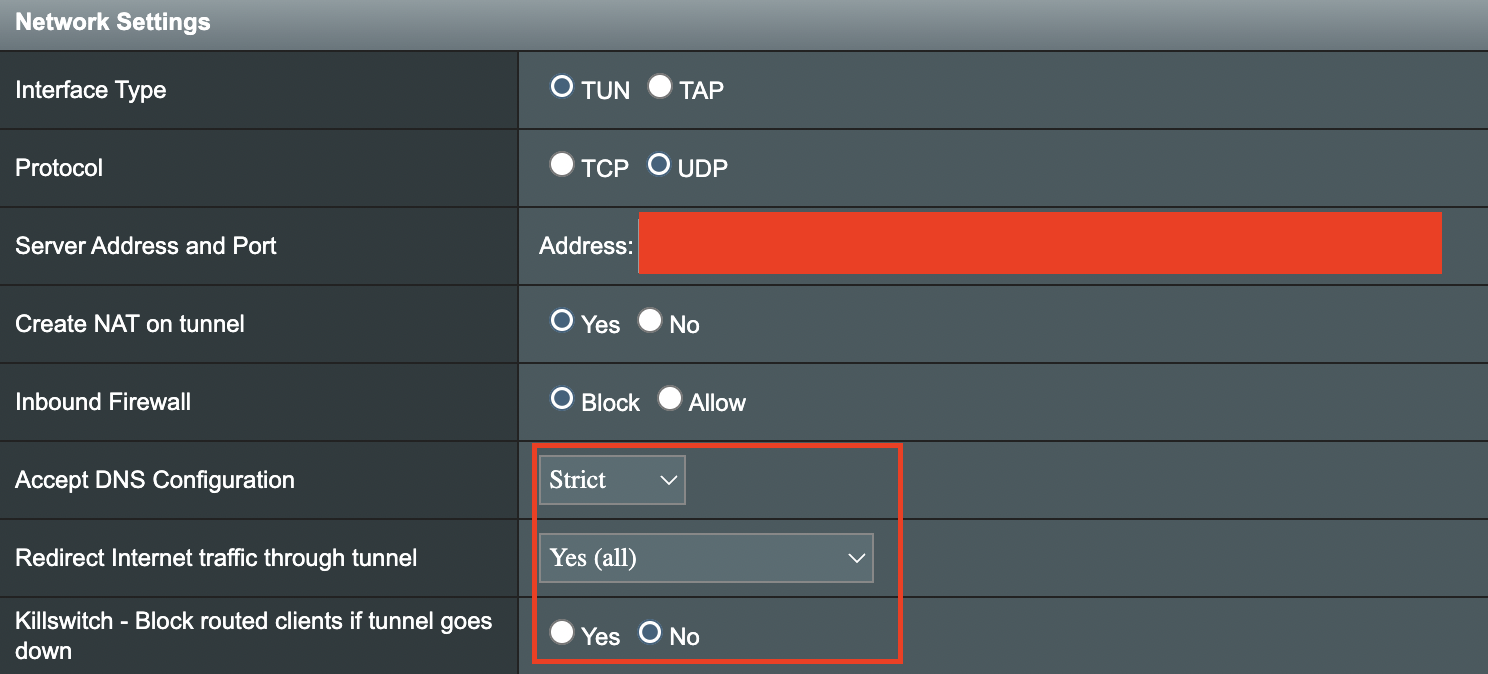
6. Set Accept DNS Configuration to Strict. Set Redirect Internet traffic through tunnel to Yes (all). Set Kill Switch to Yes or No depending on if you want the Internet to be killed if the VPN connection drops.

Merlin Accept DNS configuration Redirect Internet and Kill Switch

If you only want certain devices to connect to the OpenVPN Client profile you are setting up instead of all the devices connected to the FlashRouter’s network please set the Redirect Internet traffic through tunnel to VPN Director. Then complete the instructions on this page and then view our VPN Director guide.

7. Enter your NordVPN username and password that you obtained earlier in the Username and Password. Note that these are different from your NordVPN email login and password.

Merlin VPN Username and Password

8. Click Apply at the bottom of the page.

9. At the top of the page set the Service State toggle to ON to activate the VPN connection.

Merlin Service State All Providers

Verify a successful NordVPN connection

  1. You should now see a CONNECTED message.
  2. Visit NordVPN’s IP Check to verify your new IP address and virtual location.

In some cases you may notice that the location is not showing the same location as the server you have input in your router settings; this is because geo tracking tools are often tricked by VPN connections. As long as you see an IP address that is not the same as your normal Internet IP address then you are indeed connected to NordVPN.

How to change the NordVPN server

  1. Follow the steps at the top of the page to obtain a new .ovpn file.
  2. Then proceed with the settings same as initial setup.

TROUBLESHOOTING

Still having issues? Visit the VPN Troubleshooting section.

Troubleshoot Here

Linksys WRT1200AC DD-WRT WiFi Settings

Dave · Mar 4, 2019 ·

Recommended DD-WRT WiFi settings for the Linksys WRT1200AC are based on extensive testing by FlashRouters. Please note that optimal settings may vary depending on external factors such as home size, interference, and the types of WiFi devices you are connecting in your network.

Screenshots below provide a visual display of recommended WiFi and encryption settings exactly as they appear in the Linksys WRT1200AC with DD-WRT firmware.

Navigate to the Wireless > Basic Settings to view or edit WiFi network settings.

5.0 GHz - Wireless-AC

View WRT1200AC DD-WRT FlashRouter 5GHz Settings

2.4 GHz - Wireless-N

View WRT1900AC DD-WRT FlashRouter 2.4GHz Settings

Additional DD-WRT WiFi Information

Intimidated by all the available WiFi settings? The DD-WRT website provides extensive information about all of the available configuration options in the firmware. Learn about everything from Wireless channels to channel widths and more in the Basic Wireless Settings – DD-WRT Wiki.

WRT1200AC DD-WRT Wireless Security

The preset WRT1200AC FlashRouter WiFi password is Wireless#[First 5 characters of your router MAC]. The router MAC can be found on the bottom of your router. For e.g. if your MAC is 1459C07E70A8 then your WiFi password is Wireless#1459C

Navigate to the Wireless > Wireless Security to view or edit WiFi passwords.

View WRT1200AC DD-WRT FlashRouter WiFi Security Settings

TROUBLESHOOTING

Trouble with your Linksys WRT1200AC WiFi? Visit the Wireless troubleshooting section.

Troubleshoot Here

Why is my connection speed slower?

TeamFlashRouters · Jun 4, 2019 ·

The encryption provided by a VPN connection almost always results in slower connection speed. In some cases you may have noticed that your computer or tablet was working faster when running a VPN client application or program, that is because a computer has a processor that is normally about 4-6x times as strong as a the processor on a router, and that is for managing a single VPN connection. A router has a smaller processor and is managing an entire network of devices. Encrypting an entire network does take considerable processing power.

Speed test results while connected to VPN are never going to be accurate. A speed test measures the rate at which a data packet travels from one server to another, however when you are connecting to VPN the data packets travel to an extra server where they are encrypted and then sent back into the route. We strongly recommend disabling the FlashRouter’s VPN connection when testing speeds to make sure there isn’t and issue with the router.

Connection Types

Ethernet: Wired ethernet connections will almost always be the most stable and reliable connection. To speed up your internet connection, use an ethernet cable to wire your devices to the FlashRouter.

Wireless (5.0GHz): The 5.0GHz WiFi frequency has less range than the standard 2.4GHz WiFi, but also transmits your internet connection at a significantly faster speed. If you were previously using the 2.4GHz network and experiencing slow speeds please connect to the 5GHz wireless network which should improve your speed.

Connect to the closest VPN server

Our supported VPN providers offer many servers in different countries and regions. If a server has slower connection speed we recommend connecting to the server closest to your actual location.

The process for changing servers is detailed in your provider’s setup instructions.

FlashRouters Privacy App

DD-WRT Manual VPN Configuration

Select a UDP server

UDP servers do not authenticate every data packets the way TCP servers do which results in faster connection speeds.

VPN provider server recommendation

Contact your VPN provider for a server recommendation that should provide the fastest speeds for you.

Untangle Support

TeamFlashRouters · Jul 16, 2019 ·

Support for Untangle Router NG Firewall features is provided by the Untangle Support team and not the FlashRouter support team.

We recommend reviewing these excellent resources that Untangle has created to get you setup as desired.

  • Untangle Help Center
  • Untangle Wiki
  • Untangle Forums
  • Untangle.com

To contact Untangle directly you can email them at support@untangle.com and their team would be happy to assist you with getting setup to use their NG Firewall settings such as Web Monitor, Captive Portal, Intrusion Prevention, and many other features supported by the Untangle firmware running on your FlashRouter.

Linksys WRT32X DD-WRT WiFi Settings

admin · Feb 19, 2019 ·

Recommended DD-WRT WiFi settings for the Linksys WRT32X are based on extensive testing by FlashRouters. Please note that optimal settings may vary depending on external factors such as home size, interference, and the types of WiFi devices you are connecting in your network.

Screenshots below provide a visual display of recommended WiFi and encryption settings exactly as they appear in the Linksys WRT32X with DD-WRT firmware.

Navigate to the Wireless > Basic Settings to view or edit WiFi network settings.

5.0 GHz - Wireless-AC

View WRT32X DD-WRT FlashRouter 5GHz #1 Settings

2.4 GHz - Wireless-N

View WRT32X DD-WRT FlashRouter 2.4GHz Settings

Additional DD-WRT WiFi Information

Intimidated by all the available WiFi settings? The DD-WRT website provides extensive information about all of the available configuration options in the firmware. Learn about everything from Wireless channels to channel widths and more in the Basic Wireless Settings – DD-WRT Wiki.

WRT32X DD-WRT Wireless Security

The preset WRT32X FlashRouter WiFi password is Wireless#[First 5 characters of your router MAC]. The router MAC can be found on the bottom of your router. For e.g. if your MAC is 1459C07E70A8 then your WiFi password is Wireless#1459C

Navigate to the Wireless > Wireless Security to view or edit WiFi passwords.

View WRT32X DD-WRT FlashRouter WiFi Security Settings

TROUBLESHOOTING

Trouble with your Linksys WRT32X WiFi? Visit the Wireless troubleshooting section.

Troubleshoot Here

NordVPN Setup for Privacy Hero

TeamFlashRouters · Apr 3, 2023 ·

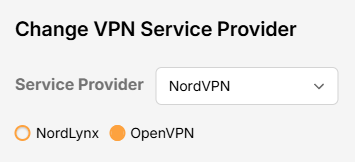
Privacy Hero supports NordVPN using both NordLynx and OpenVPN.

NordLynx is recommended for most users. OpenVPN is also available and may be required for NordVPN Dedicated IP connections. Some Dedicated IP configurations require a private OpenVPN file imported as a Custom VPN.

Privacy Hero is cloud-managed, so you can complete the setup from any device with an internet connection. You do not need to be connected to Privacy Hero WiFi to change these settings.

Choose Your NordVPN Setup

Jump straight to the setup or troubleshooting instructions you need.

NordLynx Setup →Recommended · Access token
OpenVPN Setup →Manual service credentials
Country & Server →Select a location or server hostname
Dedicated IP →Advanced Options or Custom .ovpn
Verify Connection →Confirm your VPN IP and location
Troubleshooting →Connection errors and next steps

NordVPN NordLynx Setup

NordLynx uses a NordVPN access token, not your regular NordVPN website email and password.

Open Privacy Hero and Select NordLynx

  1. From a computer, smartphone, or tablet, open app.privacyhero.com.
  2. Sign in with your Privacy Hero account email and password.
  3. Open the VPN section.
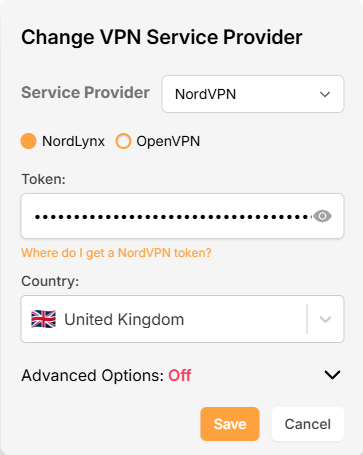
  4. Click Change and select NordVPN.
  5. Choose NordLynx.
NordVPN Protocol Privacy Hero

Generate Your NordVPN Access Token

  1. In another browser tab, open NordVPN Access Tokens and sign in to your NordVPN account.
  2. Complete any account or email verification requested by NordVPN.
  3. Select Generate new token; choose Doesn’t expire if available, then copy the token.

Important: Treat your NordVPN token as a password. Do not share it publicly.

Connect Privacy Hero to NordVPN

  1. Return to Privacy Hero, paste the token into the NordLynx token field, and click Save. The default country selection automatically chooses an available NordVPN server for that location.
  2. Wait for the VPN status to show Connected.
NordVPN Protocols Privacy Hero

NordVPN OpenVPN Setup

Use OpenVPN if you prefer the OpenVPN protocol or if your configuration requires it. OpenVPN requires NordVPN Manual Service Credentials, which are different from your website login email and password.

Select OpenVPN in Privacy Hero

  1. Open app.privacyhero.com and sign in.
  2. Open the VPN section.
  3. Click Change and select NordVPN.
  4. Select OpenVPN.
NordVPN Protocol Privacy Hero

Get Your Manual Service Credentials

  1. Open NordVPN Manual Service Credentials and sign in.
  2. Complete NordVPN’s verification if prompted, then copy the current Service Username and Service Password.

Important: Do not enter your normal NordVPN website email and password into Privacy Hero’s OpenVPN fields.

Save Your OpenVPN Connection

  1. Return to Privacy Hero and enter the manual service username and password in the OpenVPN credential fields. Click Save.
  2. Confirm Privacy Hero shows the connection as Connected.

Choose a NordVPN Country or Specific Server

Privacy Hero can select a NordVPN server automatically, or you can choose a country or specify a server hostname.

Choose a Country

  1. Open your NordVPN connection in Privacy Hero.
  2. Open the Country dropdown.
  3. Search for and select your preferred country.
  4. Click Save. Privacy Hero will use an available NordVPN server for the selected country.

Use a Specific NordVPN Server

  1. Open your NordVPN connection in Privacy Hero.
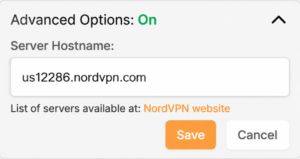
  2. Open Advanced Options.
  3. Enter the NordVPN server hostname, for example us12286.nordvpn.com.
  4. Click Save.

Use NordVPN’s server recommendation tool if you need a hostname. NordVPN servers can be retired or taken offline for maintenance; if your specific server stops working, choose another server or return to country selection.


NordVPN Dedicated IP Setup

NordVPN Dedicated IP can require either the regular NordVPN OpenVPN connection or a private .ovpn file imported as a Custom VPN.

Method 1: OpenVPN Advanced Options

Try this first if your Dedicated IP works with the standard NordVPN OpenVPN setup.

  1. Set up NordVPN → OpenVPN using your NordVPN Manual Service Credentials as described above.
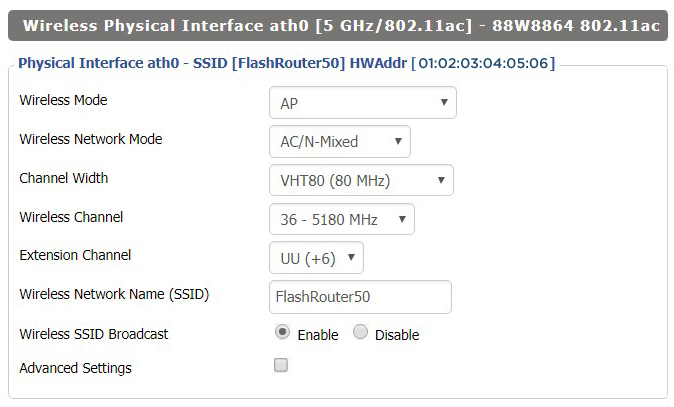
  2. Open Advanced Options.
  3. Enter the Dedicated IP server hostname assigned to your account.
  4. Click Save and check whether the VPN connects.
  5. Verify that your public IP matches your assigned Dedicated IP.
Nord US Dedicated OpenVPN

If connected and the public IP matches, no additional configuration is needed.

Method 2: Custom VPN With a Private OpenVPN File

Some Dedicated IP servers require a private OpenVPN configuration file. If Method 1 does not connect, follow NordVPN’s Manual Dedicated IP Server Setup instructions.

Download Your Dedicated IP Configuration

  1. Sign in to the NordVPN account associated with the Dedicated IP.
  2. Locate your assigned Dedicated IP server using NordVPN’s manual setup instructions.
  3. Download its OpenVPN UDP configuration file.
  4. Save the .ovpn file to your computer or device.

Important: Use the private configuration file for your actual Dedicated IP, not a public NordVPN server file.

Upload the File as a Custom VPN

  1. Open app.privacyhero.com and select VPN → Change.
  2. Select Custom from the VPN provider dropdown, not NordVPN.
  3. Upload your Dedicated IP UDP .ovpn file.
  4. Enter your NordVPN Manual Service Username and Password.
  5. Save the configuration, enable the VPN, and wait for Connected.
  6. Verify the public IP matches your NordVPN Dedicated IP.

These are NordVPN’s separate manual service credentials, not your regular website login.


Verify Your NordVPN Connection

  1. Connect your testing device to the Privacy Hero WiFi.
  2. Disconnect any NordVPN or other VPN app running directly on that device.
  3. Open a fresh private/incognito browser window.
  4. Visit NordVPN What Is My IP.
  5. Confirm the public IP and location match your selected NordVPN server (or assigned Dedicated IP).

Running a VPN application directly on the device at the same time as the router VPN can produce double-VPN conflicts and unexpected IP or location results.

Streaming Relocation and VPN Location

If Streaming Relocation is enabled for a supported service, that service may use the Streaming Relocation region instead of your VPN server region. See Privacy Hero Streaming Relocation.


NordVPN Not Connecting?

If the VPN displays Failed, Connecting, or a timeout error, check for:

  • A server undergoing maintenance or no longer available.
  • An expired, revoked, or outdated NordLynx access token.
  • Incorrect or changed OpenVPN Manual Service Credentials.
  • Recent account changes or an inactive NordVPN subscription.
  • A protocol-specific issue.
  • A Dedicated IP that requires a private .ovpn file and Custom provider selection.

Follow Privacy Hero NordVPN Not Connecting or Showing Timeout Errors for troubleshooting.

No Internet After NordVPN Disconnects?

If internet access stops when the VPN disconnects, the VPN Kill Switch may be blocking normal traffic as intended. See Privacy Hero VPN Kill Switch: No Internet or WiFi Troubleshooting.

VPN Connected, but One Device Shows the Wrong IP?

If other devices show the correct VPN IP, check the affected device’s VPN apps, Private Relay, Private DNS, antivirus, and browser settings. See Device Settings That Can Interfere With Your Router VPN.

Related Privacy Hero Guides

  • NordVPN Not Connecting / Timeout
  • Privacy Hero VPN Kill Switch Setup
  • VPN Kill Switch: No Internet or WiFi
  • Streaming Relocation
  • Device Settings That Can Interfere With Your Router VPN

Netgear R6400V2 DD-WRT WiFi Settings

Dave · Feb 21, 2019 ·

Recommended DD-WRT WiFi settings for the Linksys R6400V2 are based on extensive testing by FlashRouters. Please note that optimal settings may vary depending on external factors such as home size, interference, and the types of WiFi devices you are connecting in your network.

Screenshots below provide a visual display of WiFi settings exactly as they appear in the Linksys R6400V2 with DD-WRT firmware.

Navigate to the Wireless > Basic Settings to view or edit WiFi network settings.

2.4 GHz - Wireless-N

View R6400 DD-WRT FlashRouter 2.4GHz Settings

5.0 GHz - Wireless-AC

View R6400 DD-WRT FlashRouter 5GHz Settings

Additional DD-WRT WiFi Information

Intimidated by all the available WiFi settings? The DD-WRT website provides extensive information about all of the available configuration options in the firmware. Learn about everything from Wireless channels to channel widths and more in the Basic Wireless Settings – DD-WRT Wiki.

R6400V2 DD-WRT Wireless Security

The preset WiFi password is Wireless#[First 5 characters of your router MAC]. The router MAC can be found on the bottom of your router. For e.g. if your MAC is 1459C07E70A8 then your WiFi password is Wireless#1459C

Navigate to the Wireless > Wireless Security to view or edit WiFi passwords.

View R6400 DD-WRT FlashRouter WiFi Security Settings

TROUBLESHOOTING

Trouble with your Netgear R6400 V2 WiFi? Visit the Wireless troubleshooting section.

Troubleshoot Here
« Previous Page
Next Page »

Primary Sidebar

  • Troubleshooting
  • Router Access
  • Internet Connection Issues
  • WiFi Connectivity
  • General VPN Issues
  • TeamViewer Remote Support
  • DD-WRT Firmware
  • Facebook
  • Twitter
  • Instagram
  • Pinterest
  • YouTube

Footer