Set up ExpressVPN on an ASUS FlashRouter running AsusWRT-Merlin using OpenVPN. Download an ExpressVPN server .ovpn file, enter your separate Manual Configuration credentials, and choose whether to route all devices or selected devices through ExpressVPN.
You need working internet access, a compatible ExpressVPN subscription, and a Merlin router with OpenVPN client support. ExpressVPN manual router configuration uses OpenVPN only.
Step 1: Get Your ExpressVPN Manual Credentials and OpenVPN File
Find Your Manual Configuration Credentials
- Open ExpressVPN Manual Configuration and sign in if prompted.
- Under Applications, expand Advanced setup and select Manual Configuration.
- Copy the separate Username and Password shown under Setup, step 1. Keep these private. They are not the same as your regular ExpressVPN website credentials.
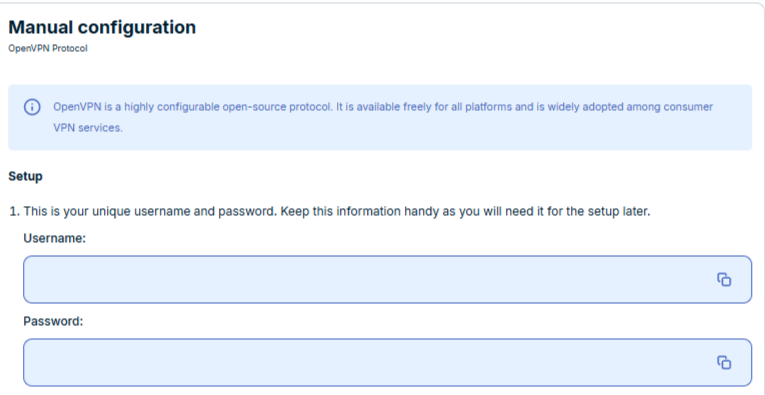
View the complete ExpressVPN Manual Configuration screen (credentials removed).
Download an OpenVPN Server Location
- On the same Manual Configuration page, expand the region you want, such as Americas, Europe, or Asia Pacific.
- Click an available location to download its
.ovpnconfiguration file. Choose a UDP OpenVPN configuration where available and save the downloaded file. - Keep both the
.ovpnfile and the separate manual-configuration username/password available for the Merlin import.
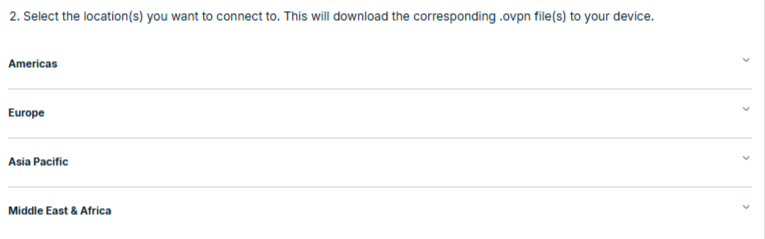
Official reference: Find your ExpressVPN manual configuration credentials.
Step 2: Import ExpressVPN OpenVPN into AsusWRT-Merlin
- Open VPN > VPN Client, select OpenVPN, and choose an unused client instance.
- Use Choose File to select your downloaded ExpressVPN
.ovpnand click Upload. - Enter a recognizable Description, such as ExpressVPN – USA.
- In Authentication Settings, enter your separate ExpressVPN Manual Configuration username and password. If prompted, enable username/password authentication. Do not enter your regular ExpressVPN login email and password.
- For an all-device connection, set Redirect Internet traffic through tunnel to Yes (all). Review the imported settings; retain the server and authentication values from the ExpressVPN file. Set your preferred DNS and optional Kill Switch settings.
- Click Apply, set Enable OpenVPN client to Yes, and confirm it shows Connected. Some older Merlin builds use a Service State switch instead.
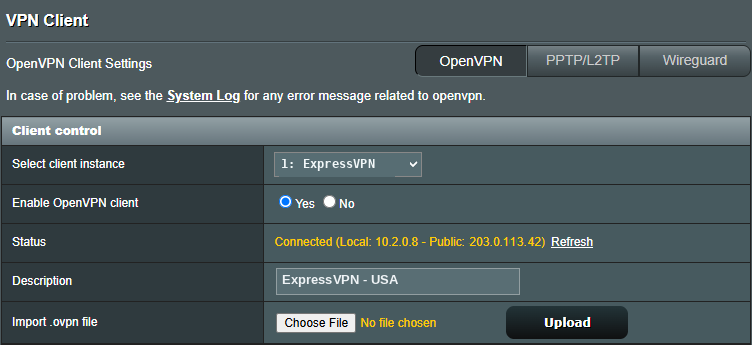
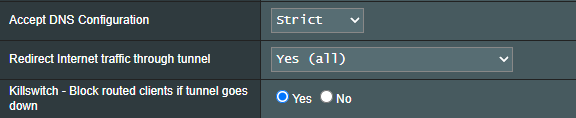
Step 3: Choose Which Devices Use ExpressVPN
Option A: Route All Main LAN Devices Through ExpressVPN
Keep Redirect Internet traffic through tunnel set to Yes (all) in the Merlin OpenVPN client. This routes applicable LAN traffic through ExpressVPN without additional VPN Director policies.
Option B: Assign Selected Devices Through VPN Director
- In the OpenVPN client, set Redirect Internet traffic through tunnel to VPN Director / Guest Network and click Apply.
- Open VPN > VPN Director, add a rule, select the connected ExpressVPN OpenVPN client instance, and specify a reserved device LAN IP or the relevant LAN subnet as Local IP.
- For a main network using
192.168.50.1with subnet mask255.255.255.0, use192.168.50.0/24to route the whole main LAN. Leave Remote IP blank for all destinations. Enable the rule and click Apply.

For details about priority and per-device rules, see Merlin VPN Director: Route Devices and Subnets. An active VPN Director rule does not itself act as a kill switch.
Step 4: Verify Your ExpressVPN Connection
- Confirm the ExpressVPN OpenVPN client reads Connected in Merlin.
- Connect a test device to your ASUS WiFi or wired LAN and confirm it is included in your chosen routing policy.
- Temporarily disable any separate VPN app or device proxy on that device during testing.
- Visit ExpressVPN’s IP checker or IPLeak.net. Its public IP should reflect the chosen ExpressVPN server rather than your normal ISP address.
IP-geolocation services can sometimes identify an unexpected nearby city. Check the actual VPN public IP and connection route rather than relying only on a city label.
How to Change the ExpressVPN Server
- Return to ExpressVPN Manual Configuration and download the
.ovpnfor your new location. - Disable the existing Merlin OpenVPN client and upload the replacement
.ovpn, or create a second client instance for the new location. - Apply the settings, enable the client, and verify the public IP. Recheck any VPN Director rules if you selected a different client instance.
ExpressVPN OpenVPN Troubleshooting
- Internet first: Disable the VPN temporarily and verify normal router internet works.
- Authentication: Check your separate ExpressVPN Manual Configuration username and password. Your website login credentials will not work here.
- Configuration file: Download a fresh
.ovpnfor an available location. If the imported file uses UDP, preserve its protocol directives and avoid adding a duplicateprotoline. - Incorrect IP: Check Yes (all) or the active VPN Director rule, confirm the client instance, and ensure the test device uses your Merlin network.
- No internet after disconnect: Check the OpenVPN Kill Switch and whether it is deliberately blocking traffic; see Merlin VPN Kill Switch Setup and Troubleshooting.
- Device interference: Check device-level VPN apps, Private Relay, and Private DNS using Device Settings That Can Interfere With Router VPN.
