Privacy Hero supports ExpressVPN using OpenVPN. To connect, you need your ExpressVPN Manual Configuration username and password and an OpenVPN (.ovpn) configuration file for your preferred server location.
Important: In Privacy Hero, choose Custom as the VPN provider. Upload the ExpressVPN .ovpn file and enter your separate Manual Configuration credentials, not your regular ExpressVPN website login.
Privacy Hero is cloud-managed, so you can complete setup from any computer, smartphone, or tablet with an internet connection. You do not need to be connected to Privacy Hero WiFi while changing the settings.
Get Your ExpressVPN Manual Configuration Credentials
ExpressVPN provides separate credentials for manual OpenVPN connections. These are different from your normal ExpressVPN website email and password.
- Open ExpressVPN Set Up Devices and sign in to your ExpressVPN account.
- In the left navigation, select Set Up Devices.
- Under Applications, expand Advanced setup and choose Manual Configuration.
- Find your unique Username and Password under Manual Configuration. Keep this tab open so you can copy them into Privacy Hero.
Important: Do not use your regular ExpressVPN account password, and do not share your manual configuration credentials publicly.
Download Your ExpressVPN OpenVPN Server File
Each available ExpressVPN location has its own OpenVPN configuration file. The file determines the server location used by Privacy Hero.
- On the same Manual Configuration page, locate the server regions, such as Americas, Europe, Asia Pacific, or Middle East & Africa.
- Expand your preferred region and download the UDP .ovpn file for an available location. Save it to the device you are using to configure Privacy Hero.
Only locations offered on your ExpressVPN Manual Configuration page can be used for this setup. To change locations later, download the corresponding .ovpn file and upload it to Privacy Hero.
Add ExpressVPN to Privacy Hero as a Custom VPN
ExpressVPN uses Privacy Hero’s Custom VPN configuration rather than a dedicated ExpressVPN provider option.
Upload the OpenVPN File and Enter Credentials
- Open app.privacyhero.com and sign in to your Privacy Hero account.
- Open the VPN section.
- Click Change beside the VPN provider and choose Custom.
- Choose OpenVPN if prompted, then upload the UDP .ovpn file downloaded from ExpressVPN.
- Copy the separate ExpressVPN Manual Configuration Username and Password into the corresponding Privacy Hero fields.

Check the UDP Configuration and Connect
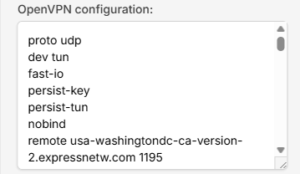
- If Privacy Hero displays the OpenVPN configuration in an editor, confirm that the downloaded UDP configuration specifies
proto udp. If the directive is missing, addproto udpat the beginning of the configuration. Do not add a conflicting second protocol directive. - Click Save to apply the configuration and establish the VPN connection.
- Confirm Privacy Hero displays Connected for the Custom OpenVPN connection.
Verify Your ExpressVPN Connection
After Privacy Hero reports Connected, check that devices on the Privacy Hero network are actually using the VPN.
- Connect the testing device to the Privacy Hero WiFi or LAN network.
- Disconnect the ExpressVPN app or any other VPN application running directly on that device.
- Open a fresh private/incognito browser window.
- Visit ExpressVPN What Is My IP.
- Confirm the public IP address and approximate location correspond to the ExpressVPN server selected in your .ovpn file.
Important: You can manage Privacy Hero’s VPN settings from another network or cellular data. However, to verify the router’s VPN IP, the testing device must be connected to the Privacy Hero network. Running another VPN app on the device can produce double-VPN results.
Streaming Relocation and VPN Location
If Streaming Relocation is enabled for a supported streaming service, that service may use its Streaming Relocation region instead of the location defined in the ExpressVPN configuration file. See Privacy Hero Streaming Relocation.
ExpressVPN Not Connecting?
If Privacy Hero shows Failed, stays on Connecting, or displays a timeout error, try these checks:
- Confirm your ExpressVPN subscription is active and you entered the separate Manual Configuration username and password.
- Check that you selected Custom in Privacy Hero, rather than another VPN provider.
- Download a fresh UDP .ovpn file for an available ExpressVPN server location and upload it again.
- Check that the OpenVPN configuration uses
proto udpwithout conflicting protocol directives. - Temporarily disable the VPN Kill Switch while testing whether normal internet access works without the VPN, then restore your preferred Kill Switch setting.
- Try another ExpressVPN server location or reconnect the VPN.
No Internet After the VPN Disconnects?
The Privacy Hero VPN Kill Switch may intentionally block normal internet traffic when the VPN connection is unavailable. See Privacy Hero VPN Kill Switch: No Internet or WiFi Troubleshooting.
VPN Connected, but One Device Shows the Wrong IP?
If other devices show the correct VPN IP, check the affected device’s VPN apps, iCloud Private Relay, Private DNS, antivirus filtering, browser proxy/DNS settings, or other security software. See Device Settings That Can Interfere With Your Router VPN.
Related Privacy Hero Guides
- Privacy Hero VPN Kill Switch Setup
- Privacy Hero VPN Kill Switch: No Internet or WiFi Troubleshooting
- Privacy Hero Streaming Relocation
- Device Settings That Can Interfere With Your Router VPN
- FlashRouters Router Troubleshooting
EXPRESSVPN SERVICE
Need a ExpressVPN subscription?
The OpenVPN setup above requires an active ExpressVPN subscription with access to Manual Configuration files and credentials. Already subscribe? No additional account is needed.
PRIVACY HERO 2 ROUTER
Bring VPN Protection to Your Whole Network
Privacy Hero 2 supports ExpressVPN using the setup instructions above. The router includes 1 year of Privacy Hero VPN and Privacy Hero Premium; a separate ExpressVPN subscription is required to use that provider.