• Skip to primary navigation
  • Skip to main content
  • Skip to primary sidebar
  • Skip to footer

FlashRouters Support Portal

Prioritizing Privacy

  • SETUP GUIDES
    • Privacy Hero Router Setup Guide
    • ASUS-WRT Router Setup Guide
    • AsusWRT-Merlin Router Setup Guide
    • DD-WRT Router Setup Guide
    • ExpressVPN Router Setup Guide
    • GL.iNet Router Setup Guide
    • Roqos Core Router Setup Guide
  • TROUBLESHOOTING
    • Router Access
    • WiFi Connectivity
    • Internet Connection Issues
    • General VPN Issues
    • DD-WRT Firmware
    • TeamViewer Remote Support
  • FAQs
    • Router FAQs
    • VPN FAQs
    • Warranty and Returns FAQs
    • Sales FAQs
    • Shipping FAQs
    • Service Plan FAQs
  • Show Search
Hide Search

Search Results for: change+router+username

Sales FAQs

admin · Jan 29, 2019 ·

Sales FAQs

Can My Router Be Preconfigured With My VPN Information?

Plug and Play VPN Support

Yes you can!

To receive a plug and play with VPN device, you will need to provide our team with the credentials from your VPN provider subscription.

IMPORTANT NOTE: This is not required but recommended for users who wish to have the simplest, most seamless experience when the FlashRouter arrives. You can always change the password when the device arrives if you wish as well.


To have your router VPN preconfigured:

  1. Check the “Connect To VPN For Me” box under VPN – Preconfiguration on the Product Page during check out.
  2. Select your VPN provider. If you don’t see your VPN listed select “Other” and you will see an additional field to input who your provider is.
  3. You’ll receive an email after purchase with detailed instructions. If you have any questions our team is happy to help!
Please note:  If you do give a server location, we will automatically start the device with the closest/optimal server for the location we are shipping the device by default. A location has to be added to the initial configuration for plug and play encryption security to occur on the device.


Privacy Hero 2 Only:

While our team isn’t able to pre-configure the Privacy Hero 2 VPN Router before shipping it out since you’ll have to make a Privacy Hero user account and register your router, we can assist you with the VPN set up process once you receive the router and create your Privacy Hero user account via 1-on-1 remote session, email, or live chat on our site.

You can also use our step-by-step Privacy Hero VPN Router Setup Guide to complete the process.

Can I Use My Dedicated IP Address With A FlashRouter?

Dedicated IP Addresses from NordVPN, SurfShark, & TorGuard are supported on almost all of our FlashRouter options.

Check out our Dedicated IP Addresses Blog Post for more details!

Can I Use A FlashRouter With My Current Mesh System?

Yes!

You will be able to connect the FlashRouter of your choosing to your current mesh router via ethernet port as shown below:

ISP Modem/Router —- FlashRouter (VPN) —- Main Mesh Router (VPN from FlashRouter) 

This setup will allow you to keep your mesh network with added VPN protection, as well as add the FlashRouter wireless network for your devices.

You can disable the wifi on the FlashRouter also if you only wanted to use the mesh network for wifi.

Can You Flash My Router and Connect me to VPN?

At FlashRouters, we offer expert router flashing and VPN configuration services through our Flash My Router plans. Whether your router needs custom firmware flashing or just a VPN configuration, we ensure it’s set up for maximum security, privacy, and streaming performance with your chosen VPN provider.

The appointment will take place via remote software. During the appointment, our team will also answer any questions you may have about using the VPN on the router. Flashing is done out of the East Coast of the United States – we will do our best to accommodate your time zone difference if you are located in another part of the United States or another country.

👉 Explore our Flash My Router plans:
🔗 Flash My Router Plans


🔹 How It Works

✅ Flashing vs. Configuration: Some routers require custom firmware (flashing) to enable VPN, while others can be configured without flashing.
✅ Fully Optimized: Our team ensures your router is ready to securely connect to your VPN, block ISP tracking, and enhance your streaming experience.
✅ Remote Assistance Available: Get expert help setting up your VPN connection remotely if needed.


Flashing vs. Configuration: Router Compatibility

At FlashRouters, we handle VPN setup differently based on your router brand and model. Some routers require flashing custom firmware (like DD-WRT or AsusWRT-Merlin), while others can be configured without flashing.

🛠 Router Setup Types by Brand

🔹 Flashing Required (Custom Firmware Installation)

These routers require firmware flashing (DD-WRT or AsusWRT-Merlin) to enable VPN compatibility.

  • Asus – Flashed with AsusWRT-Merlin or updated to the latest AsusWRT build. Some models only require configuration.
  • Linksys – Flashed with DD-WRT firmware.
  • Netgear – Flashed with DD-WRT firmware.

🔹 Configuration Only (No Flashing Required)

These routers have built-in VPN support and only require proper setup.

  • TP-Link – Configured without flashing.
  • GL.iNet – Configured without flashing.
  • Cudy – Configured without flashing.

📌 Other brands are not supported at this time. If you have a different router, we recommend checking out our pre-flashed router options.


✅ Supported VPN Providers

We work with a wide range of VPN providers, including:

  • NordVPN
  • ExpressVPN
  • Surfshark
  • CyberGhost
  • IPVanish
  • Private Internet Access (PIA)
  • VyprVPN
  • ProtonVPN
  • PureVPN
  • Windscribe
  • IVPN
  • Mullvad
  • StrongVPN
  • AzireVPN
  • AstrillVPN
  • HotspotShield VPN

(If your provider isn’t listed, reach out – we may still be able to support it!)


🔗 Get Started Today!

👉 Explore our Flash My Router plans:
🔗 Flash My Router Plans

🔹 Need help selecting the right option? Contact our support team! We’re happy to assist.

How Can I Add The 1 Year NordVPN Service From My FlashRouters.com Order To My Current NordVPN Account?

You can easily combine the free 1 year of NordVPN included with your FlashRouter purchase once you receive the NordVPN Activation Code Email from FlashRouters.com. The email is typically received within 24 hours of order completion and will contain a link as well as an activation code.

This code can be entered at nordvpn.com/activate with the email address associated with your current NordVPN account to add the 1 year of free service to your existing service.


Privacy Hero 2 Only:

You can easily combine the free 1 year of NordVPN included with the Privacy Hero 2 VPN Router during the router activation process.

After activating the router, you’ll receive a NordVPN activation code within your privacy hero account dashboard. This code can be entered at nordvpn.com/activate with the email address associated with your current NordVPN account to add the 1 year of free service to your existing service.

What Are the Differences Between New, Recertified, And Open Box FlashRouters?

New

  • Direct from manufacturer, in new box.
  • Custom flashed on demand at time of the order.
  • 30 Day Satisfaction Guarantee / 1 Year Warranty.

Recertified (RM)

  • Direct from manufacturer/reseller, may be reboxed.
  • Custom flashed on demand at time of the order.
  • Specialists tested to guarantee same functionality as NEW routers.
  • 30 Day Satisfaction Guarantee / 1 Year Warranty.

Open Box

  • Limited quantity, discount items reboxed that may have cosmetic imperfections.
  • Same testing and functionality level and New and RM.
  • 30 Day Satisfaction Guarantee / No Warranty.

Will a FlashRouter Work With My Internet Service Provider?

US Customers (Single Router Solution):

Almost all Internet Service Providers(ISPs) require a modem in place to establish a connection to their service, however a modem by itself doesn’t provide the wifi connectivity needed in the home or office. A FlashRouter can connect directly to all known modems provided by major ISPs to create a wireless network so long as there is an Ethernet port on the modem to connect to the FlashRouter Internet port. 

US Customers (Dual Router Solution): 

Yes, FlashRouters are compatible with your ISP in what is called a Dual Router Set Up.

For this type of setup, you would use your current router or modem router to connect to your local ISP while using a FlashRouter to connect to your VPN. This is recommended as you will not overhaul your network with a new router, and you will be able to use your selected VPN service on the devices you wish to use it with.

This set up would result in the creation of two networks, which can be seen as the “Local Network” and the “FlashRouter Network”. All devices connected to the FlashRouter Network will go through the VPN service. 

For any device you would prefer to use without a VPN, you can connect to the local network. The chain of devices would be connected from LAN ton your modem or modem/router to WAN on the FlashRouter, with your current router connected to the FlashRouter via Ethernet cable. 


International Customers (Single Router Solution):

Almost all Internet Service Providers (ISPs) require a modem in place to establish a connection to their service, however a modem by itself doesn’t provide the wifi connectivity needed in the home or office. A FlashRouter can connect directly to all known modems provided by major ISPs to create a wireless network so long as there is an Ethernet port on the modem to connect to the FlashRouter Internet port. 

International Customers (Dual Router Solution):

ISPs should all be compatible. Some providers require VLAN tagging/VID settings when wiring directly from modem to FlashRouter. 

For this type of setup, you would use your current router or modem router to connect to your local ISP while using a FlashRouter to connect to your VPN. This is recommended as you will not overhaul your network with a new router, and you will be able to use your selected VPN service on the devices you wish to use it with.

This set up would result in the creation of two networks, which can be seen as the “Local Network” and the “FlashRouter Network”. All devices connected to the FlashRouter Network will go through the VPN service. 

For any device you would prefer to use without a VPN, you can connect to the local network. The chain of devices would be connected from LAN ton your modem or modem/router to WAN on the FlashRouter, with your current router connected to the FlashRouter via Ethernet cable. 

What Stock Firmware Features Will I Lose If I Flash My Router

Open Source firmware like DD-WRT or Assu Merlin has many features equivalent to what stock firmware has, in addition to adding new features to a router. However, some features are lost from the stock firmware when a router is flashed.

These are typically features that are put into the stock firmware by the manufacturers themselves. Things like the Linksys App and the NetGear Genie are examples of what would not be available or compatible on the router after flashing.

Most routers also have a WPS button. By default, the WPS button’s functionality is disabled when a router is flashed as it can be vulnerable and a security risk. It can be re-enabled by following this guide but we do not recommend it.

Does a FlashRouter or Service Plan Purchase Include a VPN Subscription?

A subscription to a VPN does not come with a FlashRouter or Service plan. If you are planning to use a VPN, you would need to sign up for one separately, directly from a provider.

Need assistance in finding a VPN Provider? Please visit our recent VPN Provider Best Seller List.

Plug and Play VPN Support

Unlike other VPN Router providers, FlashRouters is proud to offer free VPN service integration with any purchase.

To receive a plug and play with VPN device, you will need to provide our team with the credentials from your VPN provider subscription.

IMPORTANT NOTE: This is not required but recommended for users who wish to have the simplest, most seamless experience when the FlashRouter arrives. You can always change the password when the device arrives if you wish as well.

Shows what to look for when you want to preconfigure your router.

To have your router VPN pre-configured:

  1. Select Yes from the “Want Your Router Preconfigured?” on the Payment Page during checkout.
  2. Select your VPN provider. If you don’t see your VPN listed select “Other” and you will see an additional field to input who your provider is.
  3. Enter your your VPN username and password
  4. For ExpressVPN Firmware Routers there will be an additional box for your activation code.

Please note:  If you do not enter a server location request in “Order Comments”, we will automatically start the device with the closest/optimal server for the location we are shipping the device by default. A location has to be added to the initial configuration for plug and play encryption security to occur on the device.

Can I Use A FlashRouter To Work From Home?

Yes! A large number of our customers use their FlashRouters to “work from home” no matter where your travels take you. Check out our Working Remotely Blog Post for more details.

What is the Difference Between Business VPNs and VPN Services?

Location: VPN Services offer many server locations to encrypt your traffic through. They are located in several countries worldwide for creating a private VPN tunnel for your online activities. A business VPN connects to specific central servers for data or directly to your office, creating a direct tunnel for accessing sensitive work documents and information.

Logging: Most VPN services offer log-free connections for total anonymity and security when connected (it is important to check out their terms of service and privacy policy for full details). A business VPN is monitored and maintained by employers such as corporations, hospitals or universities.

Protection: VPN services secure your family’s personal data while using computers, SmartTVs and various Internet of Things devices. Business VPNs protect the data of the company while you are tunneling into work.

Are There VPN Service Providers That Offer VPN for Business?

There are in fact several trusted VPN providers that have services specially tailored for business use. NordVPN Teams and VyprVPN for Business offer a full suite of solutions like user management tools, dedicated IPs, personal product managers, global server access, business pricing, and more.

These solutions allow you to quickly deploy a safe and secure corporate network without building and maintaining your own servers. If you are a small business looking to quickly secure remote workers as they shift to work from home, and you do not have an in-house IT expert, then you should consider NordVPN Teams or VyprVPN for Business.

Even better, when choosing a business VPN provider like NordVPN or VyprVPN, employees can use routers with direct NordVPN and VyprVPN integration already included through the FR Privacy App. Meaning that a full network kill switch, routing by device, automatic connections, and more are all included as features with your business VPN connection.

Can I use a VPN on a FlashRouter With My Work/Corporate VPN?

Many of our customers have found that they can connect to both their corporate and personal VPN, however due to the variables beyond our control, we cannot guarantee this for every unique situation.

Using two VPNs at once can lead to unpredictable results. Bouncing your network traffic to multiple servers before finally arriving at it’s intended destination can sometimes introduce speed and connection issues.

Please consider that some employers and agencies are more vigilant regarding third party VPN use than others. There are tools readily available that detect the use of VPN services.

While these tools cannot decrypt and view your network traffic, they can tell your employer that you are potentially using a VPN, which can be against company policy.

If your corporate and personal VPN do not work together, then you can always set the computer using your work VPN to bypass the FlashRouter’s VPN tunnel by accessing the router admin panel for your device.

This way, your computer would only use the work VPN. Keep in mind however, your location would appear as your actual location to your work.

Every FlashRouter also comes with a 30 Day Satisfaction Guarantee.

If in the event you determine the FlashRouter is not working out for you, you can return the device within the first 30 Days. A $25 restocking fee does apply.

Can I Use a FlashRouter to Connect to a Dedicated Business VPN Network?

Of course! If you have an OpenVPN server running on a local machine or hosted on a cloud provider like Amazon Web Services (AWS), FlashRouters can create a custom router client configuration to connect the entire router and all connected devices to your OpenVPN server. Instead of employees connecting device-by-device, a router-based VPN connection allows for always-on secure VPN tunneling.

Our service team is here to work with you to test and ensure compatibility before purchasing. Interested in a router based custom client VPN solution for your remote workers? Please do not hesitate to contact us.

And, if you’re looking for a specific router, take a look at some of our most popular options!

How can I Reset the Password for My FlashRouters.com Customer Account?

To reset your password, you’ll want to click the “Account” icon in the upper right hand corner on our main website (Flashrouters.com). Once clicked, a menu will open where you can enter your login information, or select the “Forgot Password” button to trigger a reset email.

If you’re still having issues accessing your FlashRouters.com customer account after attempting a password reset, please reach out to us at support@flashrouters.com for further assistance.

What Payment Methods does FlashRouters Accept?

We accept Apple Pay, Google Pay, and all major cred/debit card providers on our payment method options page during checkout.


If you’d like to complete a purchase using PayPal as a payment method, please contact our team at support@flashrouters.com to request an invoice.

Can I Make Change/Update/Cancel My Order?

We strive to process and ship all orders within one business day. If you wish to make changes or cancellations, please contact us within 24 hours of placing your order at support@flashrouters.com with your order number and the changes you’d like to make.

While we will do our best to accommodate your request, please note that we cannot guarantee changes or cancellations.

Please note that if you need to update the shipping address, the order will require reapproval through our fraud prevention system with the new address.

Trouble Checking Out

Some customers have found that trying the methods below have helped solve any checkout errors they may have encountered:

⚡️Clearing cache
⚡️Refreshing web page
⚡️Switching web browsers
⚡️Using an incognito/private window
⚡️Confirming all billing information is accurate
⚡️Disable VPN if one is enabled
⚡️Disable Ad & Script Blockers if enabled
⚡️If you’re using a mobile device, switching to a computer or laptop would be ideal.


ProtonVPN Setup for Privacy Hero

TeamFlashRouters · Sep 17, 2025 ·

Privacy Hero supports Proton VPN through WireGuard and OpenVPN using the Custom VPN provider option.

WireGuard is recommended for most users. It uses a downloadable .conf configuration file. OpenVPN uses a downloadable .ovpn file and a separate Proton VPN OpenVPN username and password (not your regular Proton Account login).

Privacy Hero is cloud-managed. You can configure the VPN from a computer, smartphone, or tablet connected to any internet network; you do not need to be on the Privacy Hero WiFi to change settings.

Choose Your Proton VPN Setup

Jump directly to the connection method or instructions you need.

WireGuard Setup →Recommended · Generate your .conf fileOpenVPN Setup →Manual credentials and .ovpn fileUpload WireGuard →Add a Custom WireGuard connectionUpload OpenVPN →Add the file and service credentialsVerify Connection →Confirm VPN IP address and locationTroubleshooting →Fix connection failures and no internet

Proton VPN WireGuard Setup (Recommended)

WireGuard uses a configuration file generated by Proton VPN. You do not need an OpenVPN username and password for this method.

Generate Your Proton VPN WireGuard Configuration

  1. Open your Proton VPN account and sign in.
  2. Go to Downloads → WireGuard configuration.
  3. Enter a recognizable configuration name and select Router as the platform.
  4. Choose your preferred VPN options and an available server or country. For a straightforward setup, select a standard server configuration.
  5. Click Create, then Download to save the generated WireGuard .conf file to your device.

Important: A WireGuard configuration contains a private key. Keep the downloaded file private; do not paste its contents into public posts or unprotected support messages. For detailed Proton account instructions, see Proton VPN: Download WireGuard Configuration Files.

Upload WireGuard to Privacy Hero

  1. Open app.privacyhero.com and log in to your Privacy Hero account.
  2. Open the VPN section, click Change beside the VPN provider, and choose Custom.
  3. Select WireGuard and upload the Proton VPN .conf file you downloaded.
  4. Click Save to apply the configuration and connect. Confirm that Privacy Hero reports Connected.
Privacy Hero Custom WireGuard configuration screen showing the configuration file upload

Proton VPN OpenVPN Setup

OpenVPN is an alternative to WireGuard. You need a Proton VPN OpenVPN-specific username and password and a server .ovpn configuration file.

Get Your Proton VPN OpenVPN Credentials

  1. Sign in to your Proton VPN account.
  2. Open Account → OpenVPN username to find your separate OpenVPN username and password.
  3. Copy these credentials or keep the page open. Do not use your usual Proton Account email and password for the manual OpenVPN connection.

For help locating these credentials, see Proton VPN: How to Sign In / OpenVPN Credentials.

Download Your Proton VPN OpenVPN Server File

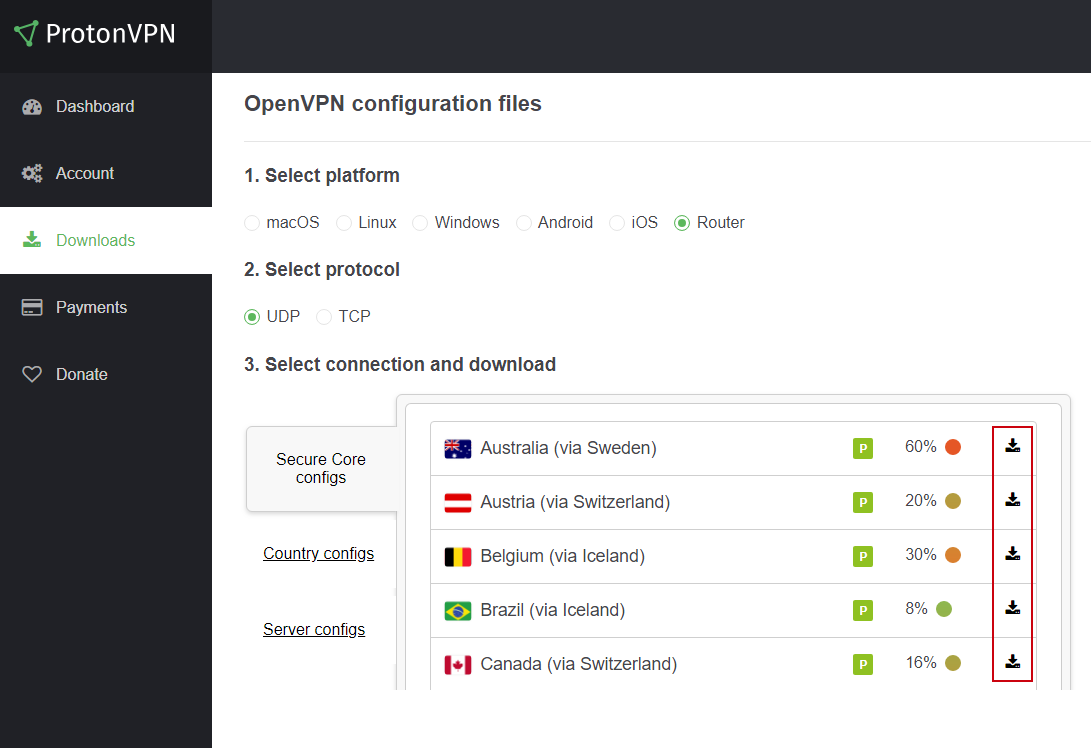
  1. In your Proton VPN account, go to Downloads → OpenVPN configuration files.
  2. Select Router as the platform and UDP as the protocol (recommended starting point). If UDP does not work on your network, you can try a TCP configuration later.
  3. Select an available country or individual server from the standard configuration list, then click Download to save its .ovpn file.

For additional details about the file download options, see Proton VPN: Download OpenVPN Configuration Files.

Upload OpenVPN to Privacy Hero

  1. Open app.privacyhero.com and sign in to your Privacy Hero account.
  2. Open the VPN section, click Change, and select Custom as the VPN provider.
  3. Choose OpenVPN and upload the Proton VPN .ovpn file you downloaded.
  4. Enter your separate Proton VPN OpenVPN username and password into the Custom VPN fields.
  5. Click Save, then confirm Privacy Hero displays Connected.
Privacy Hero Custom OpenVPN setup with configuration file upload and separate VPN username and password fields

Verify Your Proton VPN Connection

After Privacy Hero reports Connected, confirm that a device on the router network is using your Proton VPN connection.

  1. Connect your testing device to the Privacy Hero WiFi or LAN network.
  2. Disable any Proton VPN app or other VPN application running directly on that device, so it does not create a second VPN connection.
  3. Open a private/incognito browser window.
  4. Visit Proton VPN’s IP Address Checker.
  5. Verify that the public IP address and approximate location correspond to the Proton VPN server configured in Privacy Hero.

Important: You can manage Privacy Hero from another WiFi network or cellular data. However, the device performing the VPN IP test must be connected to the Privacy Hero network.

Streaming Relocation and VPN Location

If Privacy Hero Streaming Relocation is enabled for a supported streaming service, that service may use its Streaming Relocation location rather than the country selected in your Proton VPN configuration. See Privacy Hero Streaming Relocation.


Proton VPN Not Connecting?

If Privacy Hero displays Failed, remains on Connecting, or reports a timeout, work through these checks:

  1. Confirm that you selected Custom as the VPN provider in Privacy Hero and chose the protocol that matches your configuration file.
  2. For WireGuard, create and download a fresh Proton VPN .conf file for an available server, then upload it again. Do not use an OpenVPN .ovpn file in the WireGuard section.
  3. For OpenVPN, verify that you entered Proton VPN’s separate OpenVPN username and password, not your regular Proton Account login.
  4. Download a fresh configuration for a different Proton VPN server and reconnect. Proton VPN occasionally changes server configurations.
  5. If using OpenVPN UDP and the connection still fails, download and try a TCP .ovpn configuration file to test for a protocol-related issue.
  6. Temporarily disable the VPN Kill Switch while checking whether internet works without the VPN. Re-enable your preferred Kill Switch setting once testing is complete.

VPN Disconnects and Devices Have No Internet?

The VPN Kill Switch may be intentionally blocking normal internet traffic when the VPN connection is unavailable. See Privacy Hero VPN Kill Switch: No Internet or WiFi Troubleshooting.

VPN Connected but One Device Shows the Wrong IP?

Check the affected device for a second VPN app, iCloud Private Relay, Private DNS, browser proxy settings, or filtering software. See Device Settings That Can Interfere With Your Router VPN.

Related Privacy Hero Guides

  • Privacy Hero VPN Kill Switch Setup
  • VPN Kill Switch: No Internet or WiFi
  • Privacy Hero Streaming Relocation
  • Device Settings That Can Interfere With Your Router VPN
  • FlashRouters Router Troubleshooting

Surfshark Setup for Privacy Hero

TeamFlashRouters · Sep 23, 2025 ·

Privacy Hero supports Surfshark through WireGuard and OpenVPN using the Custom VPN provider option.

WireGuard is recommended for most users. It requires a Surfshark WireGuard key pair and a downloaded server configuration file. OpenVPN uses a downloaded .ovpn file and Surfshark’s separate Manual Setup credentials, not your usual Surfshark login email and password.

Privacy Hero is cloud-managed. You can change these settings from any computer, smartphone, or tablet with an internet connection; you do not need to be on the Privacy Hero WiFi to configure the VPN.

Choose Your Surfshark Setup

Select the connection method or instructions you need.

WireGuard Setup →Recommended · Key pair and server fileOpenVPN Setup →Manual credentials and UDP .ovpn fileUpload WireGuard →Import your configuration into Privacy HeroUpload OpenVPN →Add the file and service credentialsVerify Connection →Check your VPN IP and locationTroubleshooting →Fix connection failures and no internet

Surfshark WireGuard Setup (Recommended)

WireGuard uses a key pair for authentication. A separate Surfshark username and password is not needed for the WireGuard configuration.

Create or Select Your Surfshark WireGuard Key Pair

  1. Sign in to your Surfshark account.
  2. Open VPN → Manual Setup, choose the Router setup option, and select WireGuard.
  3. If you already registered a key pair with Surfshark, select I have a key pair and follow the prompts to register your public key. Otherwise, select I don’t have a key pair.
  4. If generating a new key pair, enter a name and choose Generate a new key pair. Save the generated keys securely when prompted.

Important: Your WireGuard private key is sensitive. Do not publish or send it in a support ticket. Surfshark notes that you may not be able to view the generated keys again after leaving that screen.

Download a Surfshark WireGuard Server File

  1. After setting up the key pair, select Choose a location or open the Locations section.
  2. Choose an available Surfshark server and download its WireGuard configuration file to your device.

Do not download the WireGuard configuration before setting up the key pair. Surfshark warns that a file downloaded too early can be missing the required key information. For more detail, see Surfshark’s manual WireGuard router instructions.

Upload WireGuard to Privacy Hero

  1. Open app.privacyhero.com and log in to your Privacy Hero account.
  2. Open the VPN section, click Change, and choose Custom as the VPN provider.
  3. Select WireGuard and upload the Surfshark WireGuard configuration file you downloaded.
  4. Click Save and allow Privacy Hero to establish the connection. Confirm the VPN status shows Connected.
Privacy Hero Custom WireGuard configuration and file upload panel

Surfshark OpenVPN Setup

OpenVPN is an alternative to WireGuard. It requires a Surfshark Manual Setup username and password and a downloaded OpenVPN configuration (.ovpn) file.

Get Your Surfshark OpenVPN Credentials

  1. Sign in to your Surfshark account.
  2. Open VPN → Manual Setup, choose Router, and select OpenVPN.
  3. Open the Credentials tab. If credentials are not yet available, select Generate credentials.
  4. Copy the Manual Setup username and password, or keep the tab open to enter them into Privacy Hero later.

Important: These are not your regular Surfshark website email and password. Keep the service credentials private.

Download a Surfshark OpenVPN Server File

  1. In Surfshark’s OpenVPN Manual Setup area, open the Locations tab.
  2. Select a country or server and download its UDP .ovpn configuration file. UDP is the recommended starting option; a TCP configuration may be worth trying later if needed.

Download a new .ovpn file whenever you want to switch to a different Surfshark server location. See Surfshark’s manual server selection instructions.

Upload OpenVPN to Privacy Hero

  1. Open app.privacyhero.com, sign in, and select the VPN section.
  2. Click Change, select Custom, and choose OpenVPN.
  3. Upload the Surfshark UDP .ovpn file you downloaded.
  4. Enter the Surfshark Manual Setup username and password into the Custom OpenVPN fields.
  5. Click Save, then confirm the VPN status shows Connected.
Privacy Hero Custom OpenVPN screen with configuration file upload and username and password fields

Verify Your Surfshark Connection

Privacy Hero showing Connected confirms the router connection status. Test a device on the Privacy Hero network to confirm it is using Surfshark.

  1. Connect your device to the Privacy Hero WiFi or LAN.
  2. Disconnect the Surfshark app or any other VPN app running directly on the testing device.
  3. Open a fresh private/incognito browser window.
  4. Visit Surfshark’s IP address checker.
  5. Confirm the displayed public IP and approximate location correspond to your selected Surfshark server.

You can change Privacy Hero settings while using another WiFi network or cellular data, but the device performing this VPN IP test must be connected to Privacy Hero. Avoid running a separate VPN app on the same testing device, as that creates a double-VPN connection.

Streaming Relocation and Your VPN Location

When Streaming Relocation is enabled for a supported streaming service, that service may use its Streaming Relocation region instead of the Surfshark VPN server region. See Privacy Hero Streaming Relocation.


Surfshark Not Connecting?

If Privacy Hero displays Failed, remains on Connecting, or reports a timeout, try these steps:

  1. Confirm your Surfshark subscription is active and that Custom is selected as the VPN provider in Privacy Hero.
  2. If using WireGuard, confirm that the key pair was created or registered before downloading the server file. If necessary, generate a new key pair, download a fresh configuration, and upload it again.
  3. If using OpenVPN, double-check your separate Surfshark Manual Setup username and password, not your regular website login.
  4. Download a fresh server configuration for another available Surfshark location and try again.
  5. If OpenVPN UDP continues to fail, try a Surfshark TCP .ovpn configuration file to check for a protocol-specific issue.
  6. Temporarily disable the VPN Kill Switch while checking whether internet access works without the VPN, then restore your preferred Kill Switch setting.

No Internet After Surfshark Disconnects?

The VPN Kill Switch may intentionally block normal internet traffic when the VPN connection is unavailable. See Privacy Hero VPN Kill Switch: No Internet or WiFi Troubleshooting.

VPN Connected but One Device Shows the Wrong IP?

If other Privacy Hero devices display the expected Surfshark VPN IP, review the affected device for VPN apps, iCloud Private Relay, Private DNS, proxy settings, antivirus filtering, or other security software. See Device Settings That Can Interfere With Your Router VPN.

Related Privacy Hero Guides

  • Privacy Hero VPN Kill Switch Setup
  • VPN Kill Switch: No Internet or WiFi
  • Privacy Hero Streaming Relocation
  • Device Settings That Can Interfere With Your Router VPN
  • FlashRouters Router Troubleshooting

IPVanish Setup for Privacy Hero

TeamFlashRouters · Sep 23, 2025 ·

Privacy Hero supports IPVanish VPN through WireGuard (recommended) and OpenVPN. Both are configured in Privacy Hero using the Custom VPN provider option. You will need an active IPVanish VPN subscription and the configuration file for the protocol and server location you select.

Choose your method: WireGuard uses a generated .conf file and generally provides better performance. OpenVPN uses a downloaded .ovpn file plus your IPVanish VPN username and password.

Privacy Hero is cloud-managed. You can sign in and adjust VPN settings from a computer, phone, or tablet connected to any internet connection. You do not need to be on the Privacy Hero WiFi network to configure the router.

IPVanish Setup Guide

Jump to the instructions you need.

WireGuard File →Generate a WireGuard server configurationWireGuard Setup →Upload your .conf file to Privacy HeroOpenVPN File →Download an IPVanish .ovpn server fileOpenVPN Setup →Enter credentials and upload the configurationVerify Connection →Check your public VPN IP addressTroubleshooting →Fix connection errors and IP issues

Download an IPVanish WireGuard Configuration (Recommended)

Use the WireGuard configuration generator in your IPVanish account to create a server file for your router. A generated WireGuard file contains the connection keys and server details, so keep it private.

  1. Open the IPVanish account sign-in page and log in.
  2. Open WireGuard in the account navigation to access the WireGuard Configuration Generator.
  3. Select your preferred IPVanish server location and choose Generate to download the WireGuard configuration file. Save the downloaded .conf file to the device you are using for setup.

Important: Do not publicly share your WireGuard configuration file. To switch server locations later, generate and upload a new configuration.

Add IPVanish WireGuard to Privacy Hero

  1. Sign in to the Privacy Hero dashboard at app.privacyhero.com.
  2. Open the VPN section, select Change beside the provider, and choose Custom.
  3. Choose WireGuard and upload the IPVanish .conf file you just generated.
  4. Click Save to apply the settings. Wait for Privacy Hero to report Connected.
Privacy Hero Custom WireGuard configuration with WireGuard file upload

WireGuard authentication is contained in the generated configuration file; there is no separate OpenVPN username/password step in this method.


Download an IPVanish OpenVPN Configuration File

OpenVPN is a good alternative if WireGuard is unavailable or fails to connect on your network. It requires an IPVanish .ovpn configuration file and VPN login credentials.

  1. Open the IPVanish OpenVPN server configuration list.
  2. Download an .ovpn file for your preferred available server location. If IPVanish provides both UDP and TCP files, start with UDP and keep a TCP file as a fallback.
  3. Have your IPVanish account username and password available for the OpenVPN setup. Use the credentials accepted by your IPVanish VPN account; these are not Privacy Hero login credentials.

If the linked server directory has changed, check the latest manual OpenVPN configuration downloads offered by IPVanish before selecting a file.

Add IPVanish OpenVPN to Privacy Hero

  1. Sign in at app.privacyhero.com and open VPN.
  2. Select Change, choose Custom, and select OpenVPN.
  3. Upload the IPVanish .ovpn file you downloaded.
  4. Enter your IPVanish username and password in the Custom OpenVPN fields. Do not enter the Privacy Hero account login.
  5. Click Save and wait for the connection status to show Connected.
Privacy Hero Custom OpenVPN configuration showing server file upload and username and password fields

Tip: If OpenVPN UDP times out or cannot connect, try an available IPVanish OpenVPN TCP configuration or another server location.


Verify Your IPVanish VPN Connection

After Privacy Hero displays Connected, verify that a device on the router is actually using IPVanish.

  1. Connect the device you want to test to the Privacy Hero WiFi or LAN network.
  2. Temporarily disconnect any IPVanish app, other VPN app, or device-level VPN connection on that device so you test the router VPN alone.
  3. Open a new private/incognito browser window and visit IPVanish What Is My IP Address.
  4. Confirm that your public IP address and approximate location correspond to the VPN server you selected.

Note: Privacy Hero settings can be managed remotely, but the device used for this IP test must be on the Privacy Hero network.

Streaming Relocation and Your VPN Location

If Streaming Relocation is enabled for a supported streaming service, that service may use the configured Streaming Relocation location instead of the IPVanish server location. See Privacy Hero Streaming Relocation.


IPVanish Not Connecting?

If Privacy Hero remains on Connecting, displays Failed, or reports a timeout, check the following:

  1. Make sure your IPVanish subscription is active and that Custom is selected as the VPN provider in Privacy Hero.
  2. For WireGuard, generate a fresh configuration from your IPVanish account and upload that .conf file again.
  3. For OpenVPN, confirm your IPVanish username/password and upload a fresh .ovpn file for a different server.
  4. Try a different server location. With OpenVPN, also try switching between available UDP and TCP files.
  5. Temporarily disable the Privacy Hero VPN connection and test normal internet access. If enabled, temporarily turn off the VPN Kill Switch for this test, then restore your preferred Kill Switch setting.
  6. Check whether a device-level VPN app, private DNS, proxy, or security software is interfering with the router VPN connection.

VPN Disconnected and No Internet?

The VPN Kill Switch can intentionally block internet access when the VPN disconnects. Review Privacy Hero VPN Kill Switch Setup.

VPN Connected but One Device Shows the Wrong IP?

If only one device shows an unexpected IP address, look for another VPN app, iCloud Private Relay, Private DNS, browser proxy/DNS settings, or security software on that device. See Device Settings That Can Interfere With Your Router VPN.

Related Privacy Hero Guides

  • Privacy Hero VPN Kill Switch Setup
  • Privacy Hero Streaming Relocation
  • Device Settings That Can Interfere With Your Router VPN
  • FlashRouters Router Troubleshooting

ExpressVPN Setup for Privacy Hero

TeamFlashRouters · Aug 14, 2025 ·

Privacy Hero supports ExpressVPN using OpenVPN. To connect, you need your ExpressVPN Manual Configuration username and password and an OpenVPN (.ovpn) configuration file for your preferred server location.

Important: In Privacy Hero, choose Custom as the VPN provider. Upload the ExpressVPN .ovpn file and enter your separate Manual Configuration credentials, not your regular ExpressVPN website login.

Privacy Hero is cloud-managed, so you can complete setup from any computer, smartphone, or tablet with an internet connection. You do not need to be connected to Privacy Hero WiFi while changing the settings.

Choose Your ExpressVPN Setup Step

Jump directly to the instructions you need.

Manual Credentials →Find your ExpressVPN OpenVPN username and passwordDownload .ovpn File →Choose a server location and download its UDP fileCustom VPN Setup →Upload the file and enter credentials in Privacy HeroUDP Configuration →Check the OpenVPN protocol and save your connectionVerify Connection →Confirm your VPN IP address and server locationTroubleshooting →Connection errors, timeouts, and no internet

Get Your ExpressVPN Manual Configuration Credentials

ExpressVPN provides separate credentials for manual OpenVPN connections. These are different from your normal ExpressVPN website email and password.

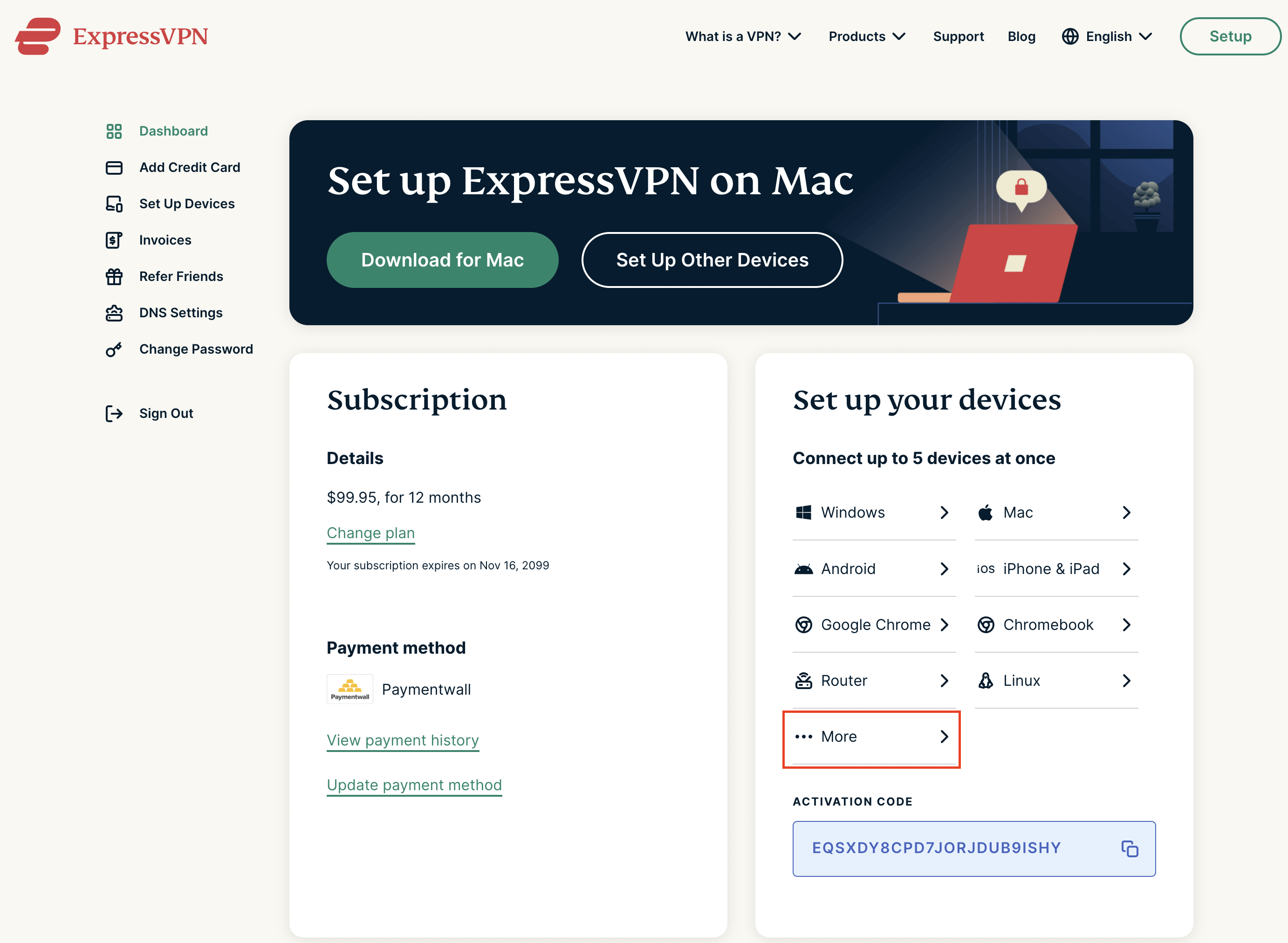
  1. Open ExpressVPN Set Up Devices and sign in to your ExpressVPN account.
  2. In the left navigation, select Set Up Devices.
  3. Under Applications, expand Advanced setup and choose Manual Configuration.
  4. Find your unique Username and Password under Manual Configuration. Keep this tab open so you can copy them into Privacy Hero.

Important: Do not use your regular ExpressVPN account password, and do not share your manual configuration credentials publicly.


Download Your ExpressVPN OpenVPN Server File

Each available ExpressVPN location has its own OpenVPN configuration file. The file determines the server location used by Privacy Hero.

  1. On the same Manual Configuration page, locate the server regions, such as Americas, Europe, Asia Pacific, or Middle East & Africa.
  2. Expand your preferred region and download the UDP .ovpn file for an available location. Save it to the device you are using to configure Privacy Hero.

Only locations offered on your ExpressVPN Manual Configuration page can be used for this setup. To change locations later, download the corresponding .ovpn file and upload it to Privacy Hero.


Add ExpressVPN to Privacy Hero as a Custom VPN

ExpressVPN uses Privacy Hero’s Custom VPN configuration rather than a dedicated ExpressVPN provider option.

Upload the OpenVPN File and Enter Credentials

  1. Open app.privacyhero.com and sign in to your Privacy Hero account.
  2. Open the VPN section.
  3. Click Change beside the VPN provider and choose Custom.
  4. Choose OpenVPN if prompted, then upload the UDP .ovpn file downloaded from ExpressVPN.
  5. Copy the separate ExpressVPN Manual Configuration Username and Password into the corresponding Privacy Hero fields.
Privacy Hero Custom OpenVPN configuration showing file upload and manual username and password fields

Check the UDP Configuration and Connect

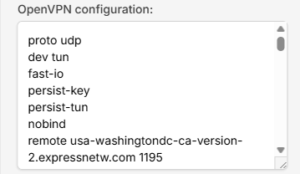
  1. If Privacy Hero displays the OpenVPN configuration in an editor, confirm that the downloaded UDP configuration specifies proto udp. If the directive is missing, add proto udp at the beginning of the configuration. Do not add a conflicting second protocol directive.
  2. Click Save to apply the configuration and establish the VPN connection.
  3. Confirm Privacy Hero displays Connected for the Custom OpenVPN connection.
Privacy Hero Custom OpenVPN configuration editor with proto udp directive

Verify Your ExpressVPN Connection

After Privacy Hero reports Connected, check that devices on the Privacy Hero network are actually using the VPN.

  1. Connect the testing device to the Privacy Hero WiFi or LAN network.
  2. Disconnect the ExpressVPN app or any other VPN application running directly on that device.
  3. Open a fresh private/incognito browser window.
  4. Visit ExpressVPN What Is My IP.
  5. Confirm the public IP address and approximate location correspond to the ExpressVPN server selected in your .ovpn file.

Important: You can manage Privacy Hero’s VPN settings from another network or cellular data. However, to verify the router’s VPN IP, the testing device must be connected to the Privacy Hero network. Running another VPN app on the device can produce double-VPN results.

Streaming Relocation and VPN Location

If Streaming Relocation is enabled for a supported streaming service, that service may use its Streaming Relocation region instead of the location defined in the ExpressVPN configuration file. See Privacy Hero Streaming Relocation.


ExpressVPN Not Connecting?

If Privacy Hero shows Failed, stays on Connecting, or displays a timeout error, try these checks:

  1. Confirm your ExpressVPN subscription is active and you entered the separate Manual Configuration username and password.
  2. Check that you selected Custom in Privacy Hero, rather than another VPN provider.
  3. Download a fresh UDP .ovpn file for an available ExpressVPN server location and upload it again.
  4. Check that the OpenVPN configuration uses proto udp without conflicting protocol directives.
  5. Temporarily disable the VPN Kill Switch while testing whether normal internet access works without the VPN, then restore your preferred Kill Switch setting.
  6. Try another ExpressVPN server location or reconnect the VPN.

No Internet After the VPN Disconnects?

The Privacy Hero VPN Kill Switch may intentionally block normal internet traffic when the VPN connection is unavailable. See Privacy Hero VPN Kill Switch: No Internet or WiFi Troubleshooting.

VPN Connected, but One Device Shows the Wrong IP?

If other devices show the correct VPN IP, check the affected device’s VPN apps, iCloud Private Relay, Private DNS, antivirus filtering, browser proxy/DNS settings, or other security software. See Device Settings That Can Interfere With Your Router VPN.

Related Privacy Hero Guides

  • Privacy Hero VPN Kill Switch Setup
  • Privacy Hero VPN Kill Switch: No Internet or WiFi Troubleshooting
  • Privacy Hero Streaming Relocation
  • Device Settings That Can Interfere With Your Router VPN
  • FlashRouters Router Troubleshooting

VyprVPN Manual OpenVPN Setup

TeamFlashRouters · Apr 19, 2019 ·

Preparing for Manual VyprVPN Setup

Verify your VyprVPN login information

If you are not already a VyprVPN user Sign Up Now.

Log in to your account on the VyprVPN website.

VyprVPN - Website Login

VyprVPN Server Addresses

United States

Los Angeles, CA us1.vpn.goldenfrog.com
Washington, DC us2.vpn.goldenfrog.com
Austin, TX us3.vpn.goldenfrog.com
Miami, FL us4.vpn.goldenfrog.com
New York City, NY us5.vpn.goldenfrog.com
Chicago, IL us6.vpn.goldenfrog.com
San Francisco, CA us7.vpn.goldenfrog.com
Seattle, WA us8.vpn.goldenfrog.com

United Kingdom

 London uk1.vpn.goldenfrog.com

Canada

Toronto ca1.vpn.goldenfrog.com

Australia

Sydney au1.vpn.goldenfrog.com
Melbourne au2.vpn.goldenfrog.com
Perth au3.vpn.goldenfrog.com

Germany

Frankfurt de1.vpn.goldenfrog.com

Rest of the World

UAE – Dubai ae1.vpn.goldenfrog.com
Argentina – Buenos Aires ar1.vpn.goldenfrog.com
Austria – Vienna at1.vpn.goldenfrog.com
Belgium – Brussels be1.vpn.goldenfrog.com
Bulgaria – Sofia bg1.vpn.goldenfrog.com
Bahrain – Manama bh1.vpn.goldenfrog.com
Brazil – São Paulo br1.vpn.goldenfrog.com
Switzerland – Zurich ch1.vpn.goldenfrog.com
Colombia – Bogotá co1.vpn.goldenfrog.com
Costa Rica – San José cr1.vpn.goldenfrog.com
Czech Republic – Prague cz1.vpn.goldenfrog.com
Germany – Frankfurt de1.vpn.goldenfrog.com
Denmark – Copenhagen dk1.vpn.goldenfrog.com
Algeria – Algiers dz1.vpn.goldenfrog.com
Egypt – Cairo eg1.vpn.goldenfrog.com
Spain – Madrid es1.vpn.goldenfrog.com
Netherlands – Amsterdam eu1.vpn.goldenfrog.com
Finland – Helsinki fi1.vpn.goldenfrog.com
France – Paris fr1.vpn.goldenfrog.com
Greece – Athens gr1.vpn.goldenfrog.com
Hong Kong – Hong Kong hk1.vpn.goldenfrog.com
Indonesia – Jakarta id1.vpn.goldenfrog.com
Ireland – Dublin ie1.vpn.goldenfrog.com
Israel – Tel Aviv il1.vpn.goldenfrog.com
India – Mumbai in1.vpn.goldenfrog.com
Iceland – Reykjavík is1.vpn.goldenfrog.com
Italy – Rome it1.vpn.goldenfrog.com
Japan – Tokyo jp1.vpn.goldenfrog.com
South Korea – Seoul kr1.vpn.goldenfrog.com
Liechtenstein – Schaan li1.vpn.goldenfrog.com
Lithuania – Vilnius lt1.vpn.goldenfrog.com
Luxembourg – Luxembourg City lu1.vpn.goldenfrog.com
Latvia – Riga lv1.vpn.goldenfrog.com
Marshall Islands – Majuro mh1.vpn.goldenfrog.com
Macao – Macao mo1.vpn.goldenfrog.com
Maldives – Malé mv1.vpn.goldenfrog.com
Mexico – Mexico City mx1.vpn.goldenfrog.com
Malaysia – Kuala Lumpur my1.vpn.goldenfrog.com
Norway – Oslo no1.vpn.goldenfrog.com
New Zealand – Auckland nz1.vpn.goldenfrog.com
Panama – Panama City pa1.vpn.goldenfrog.com
Philippines – Manila ph1.vpn.goldenfrog.com
Pakistan – Karachi pk1.vpn.goldenfrog.com
Poland – Warsaw pl1.vpn.goldenfrog.com
Portugal – Lisbon pt1.vpn.goldenfrog.com
Qatar – Doha qa1.vpn.goldenfrog.com
Romania – Bucharest ro1.vpn.goldenfrog.com
Russia – Moscow ru1.vpn.goldenfrog.com
Saudi Arabia – Riyadh sa1.vpn.goldenfrog.com
Sweden – Stockholm se1.vpn.goldenfrog.com
Singapore – Singapore sg1.vpn.goldenfrog.com
Slovenia – Ljubljana si1.vpn.goldenfrog.com
Slovakia – Bratislava sk1.vpn.goldenfrog.com
El Salvador – San Salvador sv1.vpn.goldenfrog.com
Thailand – Bangkok th1.vpn.goldenfrog.com
Turkey – Istanbul tr1.vpn.goldenfrog.com
Taiwan – Taipei tw1.vpn.goldenfrog.com
Ukraine – Kiev ua1.vpn.goldenfrog.com
Uruguay – Montevideo uy1.vpn.goldenfrog.com
Vietnam – Hanoi vn1.vpn.goldenfrog.com

DD-WRT Router Setup for VyprVPN

Navigate to Services > VPN

VyprVPN offers two different Encryption levels:

Default Encryption (Blowfish-CBC)
typically provides faster speeds.

Strong Encryption (AES-256) provides stronger encryption.

Follow the table below of the one that fits your needs.

Enter VyprVPN settings (Default Encryption)

OpenVPN Client

Start OpenVPN Client

If you wish to disable your VPN connection simply set this to Disable at any time and click Apply Settings.

Server IP/Name

Copy and paste the server you would like to connect to from the server list above. Be sure there are no extra spaces or characters.

If you wish to change VyprVPN connection locations, THIS IS THE ONLY FIELD YOU NEED TO CHANGE.

Port

1194

Tunnel Device

TUN

Tunnel Protocol

UDP

Encryption cipher

Blowfish-CBC

Hash Algorithm

SHA1

User Pass Authentication

Enable

Username

Enter the Username you successfully logged in to your VyprVPN account with.

Password

Enter the Password you successfully logged in to your VyprVPN account with.

Advanced Options

Enable

TLS Cipher

None

LZO Compression

Adaptive

NAT

Enable

Firewall Protection

Enable

Additional Config

resolv-retry infinite
keepalive 10 60
persist-key
persist-tun
persist-remote-ip
nobind

Policy Based Routing

This field can be used for split VPN and Dual Gateway routing.

CA Cert

-----BEGIN CERTIFICATE-----
MIIGWjCCBEKgAwIBAgIJAJxUG61mxDS7MA0GCSqGSIb3DQEBDQUAMHsxCzAJBgNV
BAYTAlJPMRIwEAYDVQQHEwlCdWNoYXJlc3QxGDAWBgNVBAoTD0N5YmVyR2hvc3Qg
Uy5BLjEbMBkGA1UEAxMSQ3liZXJHaG9zdCBSb290IENBMSEwHwYJKoZIhvcNAQkB
FhJpbmZvQGN5YmVyZ2hvc3Qucm8wHhcNMTcwNjE5MDgxNzI1WhcNMzcwNjE0MDgx
NzI1WjB7MQswCQYDVQQGEwJSTzESMBAGA1UEBxMJQnVjaGFyZXN0MRgwFgYDVQQK
Ew9DeWJlckdob3N0IFMuQS4xGzAZBgNVBAMTEkN5YmVyR2hvc3QgUm9vdCBDQTEh
MB8GCSqGSIb3DQEJARYSaW5mb0BjeWJlcmdob3N0LnJvMIICIjANBgkqhkiG9w0B
AQEFAAOCAg8AMIICCgKCAgEA7O8+mji2FlQhJXn/G4VLrKPjGtxgQBAdjo0dZEQz
KX08q14dLkslmOLgShStWKrOiLXGAvB1rPvvk613jtA0KjQLpgyLy9lIWohQKYjj
5jrJYXMZMkbSHBYI9L8L7iezBEFYrjYKdDo51nq99wRFhKdbyKKjDh3e2L2SVEZL
T1ogkK5gWzjvH+mjjtjUUicK+YjGwWOz6I+KKaG4Ve/D/cE6nCLbhHIMMnargZEu
7sqA6BFeS4kEP/ZdCZoTSX2n43XV1q63nJt/v0KDetbZDciFVW9h9SVPG4qT44p0
550N+Mom7zTX7S/ID5T9dplgU8sRGtIMrG0cIMD9zmpFgUnMusCrR7jJFr0sMAve
TbgZg95LmstV6R6WKZkSFdUrE0DHl4dHoZvTFX+1LhwhHgjgDLaosX0vhG/C/7Lp
oVWimd6RRQT3M9o4Fa1TuhfvBzQ20QHrmRV/yKvGNK0xckZ6EZ/QY7Z55ORU15Tg
ab4ebnblYPWoEmn0mIYP3LFFeoR5OS1EX7+j4kPv+bwPGsmpHjxmZyq2Y7sJBpbO
CJgbkn52WZdPBIRDpPdIHQ8pAJC4T0iMK9xvAwWNl/V6EYYNpR97osyEDXn+BTdA
HlhJ5fck9KlwI9mb1Kg1bhbvbmaIAiOLenSULYf3j6rI1ygo3R2cCyybtuAq8M7z
0OECAwEAAaOB4DCB3TAdBgNVHQ4EFgQU6tdK1g/He5qzjeAoM5eHt4in9iUwga0G
A1UdIwSBpTCBooAU6tdK1g/He5qzjeAoM5eHt4in9iWhf6R9MHsxCzAJBgNVBAYT
AlJPMRIwEAYDVQQHEwlCdWNoYXJlc3QxGDAWBgNVBAoTD0N5YmVyR2hvc3QgUy5B
LjEbMBkGA1UEAxMSQ3liZXJHaG9zdCBSb290IENBMSEwHwYJKoZIhvcNAQkBFhJp
bmZvQGN5YmVyZ2hvc3Qucm+CCQCcVButZsQ0uzAMBgNVHRMEBTADAQH/MA0GCSqG
SIb3DQEBDQUAA4ICAQDNyQ92kj4qiNjnHk99qvnFw9qGfwB9ofaPL74zh0G5hEe3
Wgb2o4fqUGnvUNgOu53gJksz3DcPQ8t40wfmm9I1Z8tiM9qrqvkuQ+nKcLgdooXt
EsTybPIYDZ2cWR/5E0TKRvC7RFzKgQ4D77Vbi4TdaHiDV7ZNfU1iLCoBGcYm80hc
UHEs5KIVLwUmcSOTmbZBySJxcSD0yUpS7nlZGwLY6VQrU+JFwDSisbXT4DXf3iSz
p7FzW0/u/SFvWsPHrjE0hkPoZPalYvouaJEHKAhip0ZwSmitlxbBnmm8+K/3c9mL
A5/uXrirfpuhhs8V3lyV2mczVtSiTl6gpi88gc//JY80JeHdupjO25T3XEzY9cpx
ecmkWaUEjLMx4wVoXQuUiPonfILM6OLwi+zUS8gQErdFeGvcQXbncPa4SdJuHkF8
lgiX2i8S8fPGdXvU37E9bdAXwP5nZriYq1s0D59Qfvz+vLXVkmyZp6ztxjKjKole
mPMak0Y5c1Q4RjNF6tmQoFuy/ACSkWy14Tzu2dFp7UiVbGg1FOvKhfs48zC2/IUQ
v1arqmPT/9LVq3B2DVT9UKXRUXX/f/jSSsVjkz4uUe2jUyL+XHX1nSmROTPHSAJ+
oKf0BLnfqUxFkEUTwLnayssP2nwGgq35b7wEbTFIXdrjHGFUVQIDeERz8UThew==
-----END CERTIFICATE-----

CLICK APPLY SETTINGS

Leave all settings not mentioned above as their default setting.

Enter VyprVPN settings (Strong Encryption)

OpenVPN Client

Start OpenVPN Client

If you wish to disable your VPN connection simply set this to Disable at any time and click Apply Settings.

Server IP/Name

Copy and paste the server you would like to connect to from the server list above. Be sure there are no extra spaces or characters.

If you wish to change VyprVPN connection locations, THIS IS THE ONLY FIELD YOU NEED TO CHANGE.

Port

443

Tunnel Device

TUN

Tunnel Protocol

UDP

Encryption cipher

AES-256-CBC

Hash Algorithm

SHA256

User Pass Authentication

Enable

Username

Enter the Username you successfully logged in to your VyprVPN account with.

Password

Enter the Password you successfully logged in to your VyprVPN account with.

Advanced Options

Enable

TLS Cipher

None

LZO Compression

Adaptive

NAT

Enable

Firewall Protection

Enable

Additional Config

resolv-retry infinite
keepalive 10 60
persist-key
persist-tun
persist-remote-ip
nobind
tls-cipher TLS-DHE-RSA-WITH-AES-256-CBC-SHA

Policy Based Routing

This field can be used for split VPN and Dual Gateway routing. Learn more here.

CA Cert

-----BEGIN CERTIFICATE-----
MIIGWjCCBEKgAwIBAgIJAJxUG61mxDS7MA0GCSqGSIb3DQEBDQUAMHsxCzAJBgNV
BAYTAlJPMRIwEAYDVQQHEwlCdWNoYXJlc3QxGDAWBgNVBAoTD0N5YmVyR2hvc3Qg
Uy5BLjEbMBkGA1UEAxMSQ3liZXJHaG9zdCBSb290IENBMSEwHwYJKoZIhvcNAQkB
FhJpbmZvQGN5YmVyZ2hvc3Qucm8wHhcNMTcwNjE5MDgxNzI1WhcNMzcwNjE0MDgx
NzI1WjB7MQswCQYDVQQGEwJSTzESMBAGA1UEBxMJQnVjaGFyZXN0MRgwFgYDVQQK
Ew9DeWJlckdob3N0IFMuQS4xGzAZBgNVBAMTEkN5YmVyR2hvc3QgUm9vdCBDQTEh
MB8GCSqGSIb3DQEJARYSaW5mb0BjeWJlcmdob3N0LnJvMIICIjANBgkqhkiG9w0B
AQEFAAOCAg8AMIICCgKCAgEA7O8+mji2FlQhJXn/G4VLrKPjGtxgQBAdjo0dZEQz
KX08q14dLkslmOLgShStWKrOiLXGAvB1rPvvk613jtA0KjQLpgyLy9lIWohQKYjj
5jrJYXMZMkbSHBYI9L8L7iezBEFYrjYKdDo51nq99wRFhKdbyKKjDh3e2L2SVEZL
T1ogkK5gWzjvH+mjjtjUUicK+YjGwWOz6I+KKaG4Ve/D/cE6nCLbhHIMMnargZEu
7sqA6BFeS4kEP/ZdCZoTSX2n43XV1q63nJt/v0KDetbZDciFVW9h9SVPG4qT44p0
550N+Mom7zTX7S/ID5T9dplgU8sRGtIMrG0cIMD9zmpFgUnMusCrR7jJFr0sMAve
TbgZg95LmstV6R6WKZkSFdUrE0DHl4dHoZvTFX+1LhwhHgjgDLaosX0vhG/C/7Lp
oVWimd6RRQT3M9o4Fa1TuhfvBzQ20QHrmRV/yKvGNK0xckZ6EZ/QY7Z55ORU15Tg
ab4ebnblYPWoEmn0mIYP3LFFeoR5OS1EX7+j4kPv+bwPGsmpHjxmZyq2Y7sJBpbO
CJgbkn52WZdPBIRDpPdIHQ8pAJC4T0iMK9xvAwWNl/V6EYYNpR97osyEDXn+BTdA
HlhJ5fck9KlwI9mb1Kg1bhbvbmaIAiOLenSULYf3j6rI1ygo3R2cCyybtuAq8M7z
0OECAwEAAaOB4DCB3TAdBgNVHQ4EFgQU6tdK1g/He5qzjeAoM5eHt4in9iUwga0G
A1UdIwSBpTCBooAU6tdK1g/He5qzjeAoM5eHt4in9iWhf6R9MHsxCzAJBgNVBAYT
AlJPMRIwEAYDVQQHEwlCdWNoYXJlc3QxGDAWBgNVBAoTD0N5YmVyR2hvc3QgUy5B
LjEbMBkGA1UEAxMSQ3liZXJHaG9zdCBSb290IENBMSEwHwYJKoZIhvcNAQkBFhJp
bmZvQGN5YmVyZ2hvc3Qucm+CCQCcVButZsQ0uzAMBgNVHRMEBTADAQH/MA0GCSqG
SIb3DQEBDQUAA4ICAQDNyQ92kj4qiNjnHk99qvnFw9qGfwB9ofaPL74zh0G5hEe3
Wgb2o4fqUGnvUNgOu53gJksz3DcPQ8t40wfmm9I1Z8tiM9qrqvkuQ+nKcLgdooXt
EsTybPIYDZ2cWR/5E0TKRvC7RFzKgQ4D77Vbi4TdaHiDV7ZNfU1iLCoBGcYm80hc
UHEs5KIVLwUmcSOTmbZBySJxcSD0yUpS7nlZGwLY6VQrU+JFwDSisbXT4DXf3iSz
p7FzW0/u/SFvWsPHrjE0hkPoZPalYvouaJEHKAhip0ZwSmitlxbBnmm8+K/3c9mL
A5/uXrirfpuhhs8V3lyV2mczVtSiTl6gpi88gc//JY80JeHdupjO25T3XEzY9cpx
ecmkWaUEjLMx4wVoXQuUiPonfILM6OLwi+zUS8gQErdFeGvcQXbncPa4SdJuHkF8
lgiX2i8S8fPGdXvU37E9bdAXwP5nZriYq1s0D59Qfvz+vLXVkmyZp6ztxjKjKole
mPMak0Y5c1Q4RjNF6tmQoFuy/ACSkWy14Tzu2dFp7UiVbGg1FOvKhfs48zC2/IUQ
v1arqmPT/9LVq3B2DVT9UKXRUXX/f/jSSsVjkz4uUe2jUyL+XHX1nSmROTPHSAJ+
oKf0BLnfqUxFkEUTwLnayssP2nwGgq35b7wEbTFIXdrjHGFUVQIDeERz8UThew==
-----END CERTIFICATE-----

CLICK APPLY SETTINGS

Leave all settings not mentioned above as their default setting.

Verify a successful VyprVPN connection

Navigate to the Status > OpenVPN

  1. You should now see a CONNECTED SUCCESS message.
  2. Visit to WhatIsMyIPAddress to verify your new IP address and virtual location.

In some cases you may notice that the location is not showing the same location as the server you have input in your router settings; this is because geo tracking tools are often tricked by VPN connections. As long as you see an IP address that is not the same as your normal Internet IP address then you are indeed connected to VyprVPN.

Back up your settings

Navigate to Administration > Backup

  1. Click the Backup button.
  2. A file named nvrambak.bin will be saved to your computer.
  3. You can load nvrambak.bin to restore your settings in the event of a reset.

How to change the VyprVPN server

  1. Copy the new VyprVPN server address from the above server list.
  2. Paste the server into the Server IP/Name field and Click Apply Settings.

TROUBLESHOOTING

Still having issues? Visit the VPN Troubleshooting section.

Troubleshoot Here

OverPlay Manual OpenVPN Setup

TeamFlashRouters · Apr 16, 2019 ·

Preparing for Manual OverPlay Setup

Verify your OverPlay login information

Log in to your account on the OverPlay website.

OverPlay Server Addresses

View a full list of OverPlay servers.

United States

Ashburn:
iad-a01.wlvpn.com

Atlanta:
atl-a01.wlvpn.com

Chicago
:
chi-a01.wlvpn.com

Dallas
:
dal-a02.wlvpn.com

Las Vegas
:
las-c11.wlvpn.com

Los Angeles
:
lax-a01.wlvpn.com

Miami
:
mia-a01.wlvpn.com

New York
:
nyc-a01.wlvpn.com

Phoenix
:
phx-a01.wlvpn.com

Salt Lake City
:
slc-c01.wlvpn.com

San Jose
:
sjc-a01.wlvpn.com

Seattle
:
sea-a01.wlvpn.com

DD-WRT Router Setup for OverPlay

Navigate to Services > VPN

Enter OverPlay settings

OpenVPN Client

Start OpenVPN Client

If you wish to disable your VPN connection simply set this to Disable at any time and click Apply Settings.

Server IP/Name

Copy and paste the server you would like to connect to from the server list above. Be sure there are no extra spaces or characters.

If you wish to change OverPlay connection locations, THIS IS THE ONLY FIELD YOU NEED TO CHANGE.

Port

1194 for UDP
443 for TCP

Tunnel Device

TUN

Tunnel Protocol

UDP or TCP

Encryption cipher

AES-256-CBC

Hash Algorithm

SHA256

User Pass Authentication

Enable

Username

Enter the username that you use to login to the OverPlay website.  Make sure to add @overplay after your username.

Hint:  For example, if your OverPlay username is “flashrouters” enter “flashrouters@overplay” as your username.

Password

Enter the Password you successfully logged in to your OverPlay account with.

Advanced Options

Enable

TLS Cipher

None

LZO Compression

Adaptive

NAT

Enable

Firewall Protection

Enable

Policy Based Routing

This field can be used for split VPN and Dual Gateway routing.

CA Cert

-----BEGIN CERTIFICATE-----
MIIESDCCAzCgAwIBAgIJAKSqvk2CSdJGMA0GCSqGSIb3DQEBBQUAMHUxCzAJBgNV
BAYTAlVTMQwwCgYDVQQIEwNWUE4xDDAKBgNVBAcTA1ZQTjEMMAoGA1UEChMDVlBO
MQwwCgYDVQQLEwNWUE4xDDAKBgNVBAMTA1ZQTjEMMAoGA1UEKRMDVlBOMRIwEAYJ
KoZIhvcNAQkBFgNWUE4wHhcNMTMwNDI1MDIzMjQ3WhcNMjMwNDI3MDIzMjQ3WjB1
MQswCQYDVQQGEwJVUzEMMAoGA1UECBMDVlBOMQwwCgYDVQQHEwNWUE4xDDAKBgNV
BAoTA1ZQTjEMMAoGA1UECxMDVlBOMQwwCgYDVQQDEwNWUE4xDDAKBgNVBCkTA1ZQ
TjESMBAGCSqGSIb3DQEJARYDVlBOMIIBIjANBgkqhkiG9w0BAQEFAAOCAQ8AMIIB
CgKCAQEAyUr2BAz2gHGaXri6rWMpKqcvVTX3IOSLEfBWf1fb2zCwx0+GFMG258Yk
OCiQho/YOX58bJpssGI42OzZitSisTVpXNIBelzGUPdKgx0qURGgDW+7eOySJYCn
1EUncElJCHt1so0SbfdQpxA88VZMH9fFOKtLY5qHHi0drXm/wZy+zW7TfV5Lce04
6vv2M9I5/Ko4zZ5Vh6jTo2VrCQRw8goXB5NAdU5D76lVhWK4Zzt4woI8nRW5Ev3A
WEw5oX85j5B0TY9nEi5j0vNYBuMxf/GiLO8M8LCHPX0HYBiLDjZesJCvuG3vfwnA
Y5CJQqNjufpmnF3ivsaF0dGeo54kWQIDAQABo4HaMIHXMB0GA1UdDgQWBBQXnwHk
vpHSf/lMacKoKshAcGM2qTCBpwYDVR0jBIGfMIGcgBQXnwHkvpHSf/lMacKoKshA
cGM2qaF5pHcwdTELMAkGA1UEBhMCVVMxDDAKBgNVBAgTA1ZQTjEMMAoGA1UEBxMD
VlBOMQwwCgYDVQQKEwNWUE4xDDAKBgNVBAsTA1ZQTjEMMAoGA1UEAxMDVlBOMQww
CgYDVQQpEwNWUE4xEjAQBgkqhkiG9w0BCQEWA1ZQToIJAKSqvk2CSdJGMAwGA1Ud
EwQFMAMBAf8wDQYJKoZIhvcNAQEFBQADggEBADAbNIIHF5vtCA+69/oipQ6niZit
Q+mnCNX5bxiF4xtw9qOQ90vLDc/ocbAGGP4Sub3hEkOoQlv9DHH56HVq1g9+L/Y7
RoneRykZ+GSPj2NlkobrPA7ZxAsLdFwM9Y+Fkql7cAHHLUCKh7H1IKidhTDHPCUj
hs4ZstNRckPd6wxlGGOP/Yf5sVse3pJwa0HyMYhI8pdTVJIHnFSy9vTPjVf3oWiz
Trci0+SkYKQE//5pE5wsYe0uB5wvQJslq/eEWfczg0l9biwJxG/qwxsVBkRgw5q6
defHWGj1eucVyy9fxKMcX89gjstQZDmsINNtG1C78/+nYS65rqaBaq+rqpA=
-----END CERTIFICATE-----

CLICK APPLY SETTINGS

Leave all settings not mentioned above as their default setting.

Verify a successful VPN connection

Navigate to Status > OpenVPN

  1. You should now see a CONNECTED SUCCESS message.
  2. Visit OverPlay’s website to verify your new IP address and virtual location.

In some cases you may notice that the location is not showing the same location as the server you have input in your router settings; this is because geo tracking tools are often tricked by VPN connections. As long as you see an IP address that is not the same as your normal Internet IP address then you are indeed connected to OverPlay.

Back up your settings

Navigate to Administration > Backup

  1. Click the Backup button.
  2. A file named nvrambak.bin will be saved to your computer.
  3. You can load nvrambak.bin to restore your settings in the event of a reset.

How to change the OverPlay server

  1. Copy the new OverPlay server address from the above server list.
  2. Paste the server into the Server IP/Name field.
  3. Click Apply Settings.

TROUBLESHOOTING

Still having issues? Visit the VPN Troubleshooting section.

Troubleshoot Here

Private Internet Access (PIA) Setup for Privacy Hero

TeamFlashRouters · Apr 3, 2023 ·

Privacy Hero supports Private Internet Access (PIA) with WireGuard (recommended) and OpenVPN. You need an active PIA subscription and your PIA VPN username and password.

Important difference: PIA WireGuard has a built-in provider integration in Privacy Hero. Choose Private Internet Access from the VPN provider list—not Custom WireGuard. No WireGuard configuration file or key generation is needed.

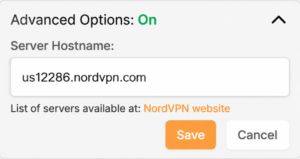
By default, Privacy Hero can automatically select an optimal available PIA server based on your location and server conditions. Alternatively, use Advanced Options to enter a specific PIA server hostname from the regional list below.

Privacy Hero is cloud-managed. You can configure your router from any device with an internet connection, whether or not you are on the Privacy Hero WiFi network.

PIA VPN Setup Guide

Choose your setup method or jump to a particular step.

PIA WireGuard →Use the built-in Privacy Hero PIA providerAutomatic or Manual Server →Select an optimal server or enter a hostnamePIA Server Hostnames →Browse the full list organized by regionOpenVPN Setup →Generate and upload an OpenVPN configurationVerify Connection →Confirm your device is using the PIA VPNTroubleshooting →Connection errors, wrong region, no internet

Set Up PIA WireGuard in Privacy Hero (Recommended)

Unlike most other providers, PIA WireGuard does not use Custom VPN file uploads in Privacy Hero. The built-in PIA integration connects using your PIA account credentials and handles the WireGuard configuration for you.

  1. Open app.privacyhero.com and sign in to your Privacy Hero account.
  2. Open the VPN section. Select Change beside your current VPN provider.
  3. Choose Private Internet Access from the provider list. Do not select Custom for this WireGuard setup.
  4. Enter your PIA VPN account username and password (not your Privacy Hero dashboard credentials). You can check your account at PIA Client Control Panel.
  5. For automatic server selection, leave the optional server hostname unset, then click Save to connect. Wait until Privacy Hero displays Connected.
Privacy Hero built-in Private Internet Access provider login settings

Choose the Automatic Server or a Specific PIA Location

Privacy Hero offers two ways to select the PIA WireGuard server:

  • Automatic (recommended for most users): Leave the server hostname field blank. Privacy Hero selects an optimal available PIA location, generally favoring nearby servers and server conditions such as load. You do not need to manually maintain a server address.
  • Specific location: Enter a PIA region hostname under Advanced Options. This is useful when you need an IP address from a particular country or city.
  1. To use a specific location, open the existing Private Internet Access connection and select Advanced Options.
  2. Enter a complete PIA server hostname from the list below, for example us-newyorkcity.privacy.network or uk-london.privacy.network.
  3. Click Save, wait for Connected, then verify your new public IP address. If the selected location becomes unavailable, try another hostname or remove the hostname to return to automatic selection.
Privacy Hero Private Internet Access Advanced Options field for entering a VPN server hostname

PIA Server Hostname List by Region

Use these hostnames in PIA > Advanced Options when you prefer a specific location. Expand a region below and copy the complete hostname, including .privacy.network. This list is retained from the existing FlashRouters guide.

Server availability can change. Some hostnames, particularly those ending in -pf or marked for streaming, are specialized locations and may not be available for every connection. If a hostname no longer works, use automatic selection or check PIA’s current location list for available locations. PIA’s location list names regions; it does not necessarily provide matching hostnames.

North America (65 locations)
bahamas.privacy.networkca-ontario.privacy.networkca-toronto.privacy.networkca-vancouver.privacy.networkca-montreal.privacy.networkgreenland.privacy.networkgt-guatemala-pf.privacy.networkmexico.privacy.networkpanama.privacy.networksanjose.privacy.networkus-alabama-pf.privacy.networkus-alaska-pf.privacy.networkus-arkansas-pf.privacy.networkus-atlanta.privacy.networkus-california.privacy.networkus-chicago.privacy.networkus-connecticut-pf.privacy.networkus-denver.privacy.networkus-florida.privacy.networkus-houston.privacy.networkus-idaho-pf.privacy.networkus-indiana-pf.privacy.networkus-iowa-pf.privacy.networkus-kansas-pf.privacy.networkus-kentucky-pf.privacy.networkus-lasvegas.privacy.networkus-louisiana-pf.privacy.networkus-maine-pf.privacy.networkus-massachusetts-pf.privacy.networkus-michigan-pf.privacy.networkus-minnesota-pf.privacy.networkus-mississippi-pf.privacy.networkus-missouri-pf.privacy.networkus-montana-pf.privacy.networkus-nebraska-pf.privacy.networkus-new-hampshire-pf.privacy.networkus-new-mexico-pf.privacy.networkus-newyorkcity.privacy.networkus-north-carolina-pf.privacy.networkus-north-dakota-pf.privacy.networkus-ohio-pf.privacy.networkus-oklahoma-pf.privacy.networkus-oregon-pf.privacy.networkus-pennsylvania-pf.privacy.networkus-rhode-island-pf.privacy.networkus-seattle.privacy.networkus-siliconvalley.privacy.networkus-south-carolina-pf.privacy.networkus-south-dakota-pf.privacy.networkus-texas.privacy.networkus-tennessee-pf.privacy.networkus-vermont-pf.privacy.networkus-virginia-pf.privacy.networkus-washingtondc.privacy.networkus-west-virginia-pf.privacy.networkus-wisconsin-pf.privacy.networkus-wyoming-pf.privacy.networkus3.privacy.networkus-baltimore.privacy.networkus-honolulu.privacy.networkus-newjersey.privacy.networkus-saltlakecity.privacy.networkus-streaming-2.privacy.networkus-streaming.privacy.networkus-wilmington.privacy.network
South America (9 locations)
ar.privacy.networkbo-bolivia-pf.privacy.networkbogota.privacy.networkbr.privacy.networkec-ecuador-pf.privacy.networkpe-peru-pf.privacy.networksantiago.privacy.networkuy-uruguay-pf.privacy.networkvenezuela.privacy.network
Europe (51 locations)
al.privacy.networkad.privacy.networkaustria.privacy.networkbrussels.privacy.networkba.privacy.networksofia.privacy.networkzagreb.privacy.networkczech.privacy.networkde-berlin.privacy.networkde-frankfurt.privacy.networkdenmark.privacy.networkdenmark-2.privacy.networkspain.privacy.networkes-valencia.privacy.networkee.privacy.networkfi.privacy.networkfi-2.privacy.networkfrance.privacy.networkgr.privacy.networkhungary.privacy.networkitaly.privacy.networkitaly-2.privacy.networkis.privacy.networkireland.privacy.networkman.privacy.networklv.privacy.networkliechtenstein.privacy.networklt.privacy.networklu.privacy.networkmalta.privacy.networkmd.privacy.networkmonaco.privacy.networkmontenegro.privacy.networknl-amsterdam.privacy.networkmk.privacy.networkno.privacy.networkpoland.privacy.networkpt.privacy.networkro.privacy.networksweden.privacy.networksweden-2.privacy.networkrs.privacy.networksk.privacy.networkslovenia.privacy.networkswiss.privacy.networktr.privacy.networkuk-london.privacy.networkuk-manchester.privacy.networkuk-southampton.privacy.networkuk-2.privacy.networkua.privacy.network
Asia (26 locations)
ae.privacy.networkbangladesh.privacy.networkcambodia.privacy.networkchina.privacy.networkcyprus.privacy.networkgeorgia.privacy.networkhk.privacy.networkin.privacy.networkisrael.privacy.networkjakarta.privacy.networkjapan.privacy.networkjapan-2.privacy.networkkazakhstan.privacy.networkkr-south-korea-pf.privacy.networkkualalumpur.privacy.networkmacau.privacy.networkmongolia.privacy.networknp-nepal-pf.privacy.networkphilippines.privacy.networkqatar.privacy.networksaudiarabia.privacy.networksg.privacy.networksrilanka.privacy.networktaiwan.privacy.networkvietnam.privacy.networkyerevan.privacy.network
Oceania (7 locations)
au-adelaide-pf.privacy.networkau-australia-so.privacy.networkau-brisbane-pf.privacy.networkaus-melbourne.privacy.networkaus-perth.privacy.networkau-sydney.privacy.networknz.privacy.network
Africa (5 locations)
dz.privacy.networkegypt.privacy.networkmorocco.privacy.networknigeria.privacy.networkza.privacy.network

Set Up PIA OpenVPN in Privacy Hero

OpenVPN is the alternative when you need a manually uploaded connection or if the built-in PIA WireGuard method does not work on your network. OpenVPN uses Custom in Privacy Hero, unlike the built-in PIA WireGuard setup.

Download a PIA OpenVPN Configuration File

  1. Sign in to the PIA Client Control Panel using your PIA VPN account.
  2. Open Downloads and scroll to OpenVPN Configuration Generator or OpenVPN Configurations.
  3. If using the generator, choose OpenVPN 2.4 or newer and Linux when these options are offered, then choose an available server location.
  4. Select your preferred configuration. UDP / 1198 (AES-128-CBC) is a standard default. UDP / 1197 (AES-256-CBC) is an alternative. Use a PIA-provided TCP configuration if UDP does not work on your network.
  5. Click Generate or download a suitable pre-made configuration and save the resulting .ovpn file. Each server file is tied to its selected location/settings.

PIA also provides pre-made OpenVPN configuration bundles; see PIA’s OpenVPN file instructions.

Add PIA OpenVPN as a Custom VPN

  1. Open Privacy Hero, go to VPN, click Change, and select Custom.
  2. Choose OpenVPN and upload the PIA .ovpn file downloaded in the previous section.
  3. Enter your PIA VPN username and password in the Custom OpenVPN authentication fields.
  4. Click Save and confirm Privacy Hero shows Connected.
Privacy Hero Custom OpenVPN configuration with file upload and username password fields

Note: If OpenVPN UDP cannot connect, try a TCP profile from PIA or another server. When switching protocols, make sure you upload a matching PIA configuration file.


Verify Your Private Internet Access Connection

  1. Connect a device to the Privacy Hero WiFi or LAN network.
  2. Disconnect any PIA app or other VPN running directly on the device so the router VPN can be tested independently.
  3. Open a private/incognito browser window and visit PIA What Is My IP.
  4. Confirm that your public IP address reflects the VPN connection, and that the approximate location is consistent with either the selected hostname or Privacy Hero’s automatic server selection.

Privacy Hero VPN settings can be changed remotely, but the device used to verify the VPN IP must be connected to the Privacy Hero network.

Streaming Relocation and Your PIA Location

If Streaming Relocation is enabled for a supported service, that service may use the Streaming Relocation location instead of your PIA VPN server location. See Privacy Hero Streaming Relocation.


PIA VPN Not Connecting?

If Privacy Hero reports Failed, stays on Connecting, or connected devices lose internet access, try these checks:

  1. Confirm your PIA subscription is active and enter your PIA VPN login, not your Privacy Hero email/password.
  2. For built-in PIA WireGuard, verify the provider is Private Internet Access—not Custom. No downloaded WireGuard file is required.
  3. Remove any specific server hostname to test automatic server selection. If that connects, the previous hostname may be unavailable.
  4. For Custom OpenVPN, upload a fresh PIA .ovpn file, re-enter the PIA credentials, and try a different server or a TCP configuration.
  5. Turn off the router VPN temporarily to check that normal internet access works. If the VPN Kill Switch is blocking internet traffic, temporarily disable it for testing, then restore your preferred setting.
  6. Check whether a separate VPN app, iCloud Private Relay, Private DNS, proxy, or security software on the testing device is affecting your VPN IP results.

No Internet When the VPN Disconnects?

The Privacy Hero VPN Kill Switch may intentionally block internet access if the VPN goes down. See Privacy Hero VPN Kill Switch: No Internet or WiFi Troubleshooting.

VPN Connected but One Device Shows the Wrong IP?

If other devices show the expected VPN address, review device VPN apps, iCloud Private Relay, Private DNS, and security settings.

Related Privacy Hero Guides

  • Privacy Hero VPN Kill Switch Setup
  • Privacy Hero VPN Kill Switch: No Internet or WiFi Troubleshooting
  • Privacy Hero Streaming Relocation
  • Device Settings That Can Interfere With Your Router VPN
  • FlashRouters Router Troubleshooting

PrivateInternetAccess (PIA) Manual OpenVPN Setup

TeamFlashRouters · Apr 5, 2019 ·

Preparing for Manual PIA Setup

Verify your PIA login information

If you are not already a PIA user Sign Up Now.

Log in to your account on the PIA website.

FlashRouters Privacy App - PIA Login

PIA Server Addresses

The below servers are the only servers compatible with PIA router connections. Dedicated IP Addresses are not able to connect via routers.

United States

us-california.privacy.network
us-newjersey.privacy.network
us-chicago.privacy.network
us-texas.privacy.network
us-florida.privacy.network
us-seattle.privacy.network
us3.privacy.network
us-siliconvalley.privacy.network
us-newyorkcity.privacy.network
us-washingtondc.privacy.network
us-atlanta.privacy.network
us-houston.privacy.network
us-denver.privacy.network

United Kingdom

uk-london.privacy.network
uk-manchester.privacy.network

Canada

ca-toronto.privacy.network
ca-montreal.privacy.network

Australia

au-sydney.privacy.network
aus-melbourne.privacy.network
aus-perth.privacy.network

Germany

de-berlin.privacy.network
de-frankfurt.privacy.network

Rest of the World

ae.privacy.network
austria.privacy.network
dz.privacy.network
ad.privacy.network
ar.privacy.network
yerevan.privacy.network
bahamas.privacy.network
bangladesh.privacy.network
brussels.privacy.network
sofia.privacy.network
cambodia.privacy.network
china.privacy.network
cyprus.privacy.network
czech.privacy.network
denmark.privacy.network
egypt.privacy.network
fi.privacy.network
france.privacy.network
georgia.privacy.network
greenland.privacy.network
hungary.privacy.network
is.privacy.network
in.privacy.network
iran.privacy.network
ireland.privacy.network
man.privacy.network
israel.privacy.network
italy.privacy.network
japan.privacy.network
kazakhstan.privacy.network
liechtenstein.privacy.network
lu.privacy.network
macau.privacy.network
malta.privacy.network
mexico.privacy.network
md.privacy.network
monaco.privacy.network
mongolia.privacy.network
montenegro.privacy.network
morocco.privacy.network
nl-amsterdam.privacy.network
nz.privacy.network
nigeria.privacy.network
no.privacy.network
panama.privacy.network
philippines.privacy.network
poland.privacy.network
qatar.privacy.network
ro.privacy.network
rs.privacy.network
saudiarabia.privacy.network
spain.privacy.network
srilanka.privacy.network
sweden.privacy.network
swiss.privacy.network
sg.privacy.network
tr.privacy.network
taiwan.privacy.network
ua.privacy.network
venezuela.privacy.network
vietnam.privacy.network
za.privacy.network

DD-WRT Router Setup for PIA

Navigate to Services > VPN

PIA offers two different Encryption levels.
Default Encryption (AES-128) typically provides faster speeds.
Strong Encryption (AES-256) provides stronger encryption.
Follow the table below of the one that fits your needs.

Enter PIA settings (Default Encryption)

OpenVPN Client

Start OpenVPN Client

If you wish to disable your VPN connection simply set this to Disable at any time and click Apply Settings.

Server IP/Name

Copy and paste the server you would like to connect to from the server list above. Be sure there are no extra spaces or characters.

If you wish to change PIA connection locations, THIS IS THE ONLY FIELD YOU NEED TO CHANGE.

Port

1198

Tunnel Device

TUN

Tunnel Protocol

UDP

Encryption cipher

AES-128-CBC

Hash Algorithm

SHA1

First Data Cipher

Not set

Second Data Cipher

Not set

Third Data Cipher

Not set

Userpass Authentication

Enable

Username

Enter the Username you successfully logged in to your PIA account with.

Password

Enter the Password you successfully logged in to your PIA account with.

Advanced Options

Enable

TLS Cipher

None

LZO Compression

Disabled

NAT

Enable

Firewall Protection

Enable

Additional Config

persist-key
persist-tun

Policy Based Routing

This field can be used for split VPN and Dual Gateway routing.

CA Cert

-----BEGIN CERTIFICATE-----
MIIFqzCCBJOgAwIBAgIJAKZ7D5Yv87qDMA0GCSqGSIb3DQEBDQUAMIHoMQswCQYD
VQQGEwJVUzELMAkGA1UECBMCQ0ExEzARBgNVBAcTCkxvc0FuZ2VsZXMxIDAeBgNV
BAoTF1ByaXZhdGUgSW50ZXJuZXQgQWNjZXNzMSAwHgYDVQQLExdQcml2YXRlIElu
dGVybmV0IEFjY2VzczEgMB4GA1UEAxMXUHJpdmF0ZSBJbnRlcm5ldCBBY2Nlc3Mx
IDAeBgNVBCkTF1ByaXZhdGUgSW50ZXJuZXQgQWNjZXNzMS8wLQYJKoZIhvcNAQkB
FiBzZWN1cmVAcHJpdmF0ZWludGVybmV0YWNjZXNzLmNvbTAeFw0xNDA0MTcxNzM1
MThaFw0zNDA0MTIxNzM1MThaMIHoMQswCQYDVQQGEwJVUzELMAkGA1UECBMCQ0Ex
EzARBgNVBAcTCkxvc0FuZ2VsZXMxIDAeBgNVBAoTF1ByaXZhdGUgSW50ZXJuZXQg
QWNjZXNzMSAwHgYDVQQLExdQcml2YXRlIEludGVybmV0IEFjY2VzczEgMB4GA1UE
AxMXUHJpdmF0ZSBJbnRlcm5ldCBBY2Nlc3MxIDAeBgNVBCkTF1ByaXZhdGUgSW50
ZXJuZXQgQWNjZXNzMS8wLQYJKoZIhvcNAQkBFiBzZWN1cmVAcHJpdmF0ZWludGVy
bmV0YWNjZXNzLmNvbTCCASIwDQYJKoZIhvcNAQEBBQADggEPADCCAQoCggEBAPXD
L1L9tX6DGf36liA7UBTy5I869z0UVo3lImfOs/GSiFKPtInlesP65577nd7UNzzX
lH/P/CnFPdBWlLp5ze3HRBCc/Avgr5CdMRkEsySL5GHBZsx6w2cayQ2EcRhVTwWp
cdldeNO+pPr9rIgPrtXqT4SWViTQRBeGM8CDxAyTopTsobjSiYZCF9Ta1gunl0G/
8Vfp+SXfYCC+ZzWvP+L1pFhPRqzQQ8k+wMZIovObK1s+nlwPaLyayzw9a8sUnvWB
/5rGPdIYnQWPgoNlLN9HpSmsAcw2z8DXI9pIxbr74cb3/HSfuYGOLkRqrOk6h4RC
OfuWoTrZup1uEOn+fw8CAwEAAaOCAVQwggFQMB0GA1UdDgQWBBQv63nQ/pJAt5tL
y8VJcbHe22ZOsjCCAR8GA1UdIwSCARYwggESgBQv63nQ/pJAt5tLy8VJcbHe22ZO
sqGB7qSB6zCB6DELMAkGA1UEBhMCVVMxCzAJBgNVBAgTAkNBMRMwEQYDVQQHEwpM
b3NBbmdlbGVzMSAwHgYDVQQKExdQcml2YXRlIEludGVybmV0IEFjY2VzczEgMB4G
A1UECxMXUHJpdmF0ZSBJbnRlcm5ldCBBY2Nlc3MxIDAeBgNVBAMTF1ByaXZhdGUg
SW50ZXJuZXQgQWNjZXNzMSAwHgYDVQQpExdQcml2YXRlIEludGVybmV0IEFjY2Vz
czEvMC0GCSqGSIb3DQEJARYgc2VjdXJlQHByaXZhdGVpbnRlcm5ldGFjY2Vzcy5j
b22CCQCmew+WL/O6gzAMBgNVHRMEBTADAQH/MA0GCSqGSIb3DQEBDQUAA4IBAQAn
a5PgrtxfwTumD4+3/SYvwoD66cB8IcK//h1mCzAduU8KgUXocLx7QgJWo9lnZ8xU
ryXvWab2usg4fqk7FPi00bED4f4qVQFVfGfPZIH9QQ7/48bPM9RyfzImZWUCenK3
7pdw4Bvgoys2rHLHbGen7f28knT2j/cbMxd78tQc20TIObGjo8+ISTRclSTRBtyC
GohseKYpTS9himFERpUgNtefvYHbn70mIOzfOJFTVqfrptf9jXa9N8Mpy3ayfodz
1wiqdteqFXkTYoSDctgKMiZ6GdocK9nMroQipIQtpnwd4yBDWIyC6Bvlkrq5TQUt
YDQ8z9v+DMO6iwyIDRiU
-----END CERTIFICATE-----

CLICK APPLY SETTINGS

Leave all settings not mentioned above as their default setting.

Enter PIA settings (Strong Encryption)

OpenVPN Client

Start OpenVPN Client

If you wish to disable your VPN connection simply set this to Disable at any time and click Apply Settings.

Server IP/Name

Copy and paste the server you would like to connect to from the server list above. Be sure there are no extra spaces or characters.

If you wish to change PIA connection locations, THIS IS THE ONLY FIELD YOU NEED TO CHANGE.

Port

1197

Tunnel Device

TUN

Tunnel Protocol

UDP

Encryption cipher

AES-256-CBC

Hash Algorithm

SHA256

First Data Cipher

Not set

Second Data Cipher

Not set

Third Data Cipher

Not set

Userpass Authentication

Enable

Username

Enter the Username you successfully logged in to your PIA account with.

Password

Enter the Password you successfully logged in to your PIA account with.

Advanced Options

Enable

TLS Cipher

None

LZO Compression

Adaptive

NAT

Enable

Firewall Protection

Enable

Additional Config

persist-key
persist-tun

Policy Based Routing

This field can be used for split VPN and Dual Gateway routing.

CA Cert

-----BEGIN CERTIFICATE-----
MIIHqzCCBZOgAwIBAgIJAJ0u+vODZJntMA0GCSqGSIb3DQEBDQUAMIHoMQswCQYD
VQQGEwJVUzELMAkGA1UECBMCQ0ExEzARBgNVBAcTCkxvc0FuZ2VsZXMxIDAeBgNV
BAoTF1ByaXZhdGUgSW50ZXJuZXQgQWNjZXNzMSAwHgYDVQQLExdQcml2YXRlIElu
dGVybmV0IEFjY2VzczEgMB4GA1UEAxMXUHJpdmF0ZSBJbnRlcm5ldCBBY2Nlc3Mx
IDAeBgNVBCkTF1ByaXZhdGUgSW50ZXJuZXQgQWNjZXNzMS8wLQYJKoZIhvcNAQkB
FiBzZWN1cmVAcHJpdmF0ZWludGVybmV0YWNjZXNzLmNvbTAeFw0xNDA0MTcxNzQw
MzNaFw0zNDA0MTIxNzQwMzNaMIHoMQswCQYDVQQGEwJVUzELMAkGA1UECBMCQ0Ex
EzARBgNVBAcTCkxvc0FuZ2VsZXMxIDAeBgNVBAoTF1ByaXZhdGUgSW50ZXJuZXQg
QWNjZXNzMSAwHgYDVQQLExdQcml2YXRlIEludGVybmV0IEFjY2VzczEgMB4GA1UE
AxMXUHJpdmF0ZSBJbnRlcm5ldCBBY2Nlc3MxIDAeBgNVBCkTF1ByaXZhdGUgSW50
ZXJuZXQgQWNjZXNzMS8wLQYJKoZIhvcNAQkBFiBzZWN1cmVAcHJpdmF0ZWludGVy
bmV0YWNjZXNzLmNvbTCCAiIwDQYJKoZIhvcNAQEBBQADggIPADCCAgoCggIBALVk
hjumaqBbL8aSgj6xbX1QPTfTd1qHsAZd2B97m8Vw31c/2yQgZNf5qZY0+jOIHULN
De4R9TIvyBEbvnAg/OkPw8n/+ScgYOeH876VUXzjLDBnDb8DLr/+w9oVsuDeFJ9K
V2UFM1OYX0SnkHnrYAN2QLF98ESK4NCSU01h5zkcgmQ+qKSfA9Ny0/UpsKPBFqsQ
25NvjDWFhCpeqCHKUJ4Be27CDbSl7lAkBuHMPHJs8f8xPgAbHRXZOxVCpayZ2SND
fCwsnGWpWFoMGvdMbygngCn6jA/W1VSFOlRlfLuuGe7QFfDwA0jaLCxuWt/BgZyl
p7tAzYKR8lnWmtUCPm4+BtjyVDYtDCiGBD9Z4P13RFWvJHw5aapx/5W/CuvVyI7p
Kwvc2IT+KPxCUhH1XI8ca5RN3C9NoPJJf6qpg4g0rJH3aaWkoMRrYvQ+5PXXYUzj
tRHImghRGd/ydERYoAZXuGSbPkm9Y/p2X8unLcW+F0xpJD98+ZI+tzSsI99Zs5wi
jSUGYr9/j18KHFTMQ8n+1jauc5bCCegN27dPeKXNSZ5riXFL2XX6BkY68y58UaNz
meGMiUL9BOV1iV+PMb7B7PYs7oFLjAhh0EdyvfHkrh/ZV9BEhtFa7yXp8XR0J6vz
1YV9R6DYJmLjOEbhU8N0gc3tZm4Qz39lIIG6w3FDAgMBAAGjggFUMIIBUDAdBgNV
HQ4EFgQUrsRtyWJftjpdRM0+925Y6Cl08SUwggEfBgNVHSMEggEWMIIBEoAUrsRt
yWJftjpdRM0+925Y6Cl08SWhge6kgeswgegxCzAJBgNVBAYTAlVTMQswCQYDVQQI
EwJDQTETMBEGA1UEBxMKTG9zQW5nZWxlczEgMB4GA1UEChMXUHJpdmF0ZSBJbnRl
cm5ldCBBY2Nlc3MxIDAeBgNVBAsTF1ByaXZhdGUgSW50ZXJuZXQgQWNjZXNzMSAw
HgYDVQQDExdQcml2YXRlIEludGVybmV0IEFjY2VzczEgMB4GA1UEKRMXUHJpdmF0
ZSBJbnRlcm5ldCBBY2Nlc3MxLzAtBgkqhkiG9w0BCQEWIHNlY3VyZUBwcml2YXRl
aW50ZXJuZXRhY2Nlc3MuY29tggkAnS7684Nkme0wDAYDVR0TBAUwAwEB/zANBgkq
hkiG9w0BAQ0FAAOCAgEAJsfhsPk3r8kLXLxY+v+vHzbr4ufNtqnL9/1Uuf8NrsCt
pXAoyZ0YqfbkWx3NHTZ7OE9ZRhdMP/RqHQE1p4N4Sa1nZKhTKasV6KhHDqSCt/dv
Em89xWm2MVA7nyzQxVlHa9AkcBaemcXEiyT19XdpiXOP4Vhs+J1R5m8zQOxZlV1G
tF9vsXmJqWZpOVPmZ8f35BCsYPvv4yMewnrtAC8PFEK/bOPeYcKN50bol22QYaZu
LfpkHfNiFTnfMh8sl/ablPyNY7DUNiP5DRcMdIwmfGQxR5WEQoHL3yPJ42LkB5zs
6jIm26DGNXfwura/mi105+ENH1CaROtRYwkiHb08U6qLXXJz80mWJkT90nr8Asj3
5xN2cUppg74nG3YVav/38P48T56hG1NHbYF5uOCske19F6wi9maUoto/3vEr0rnX
JUp2KODmKdvBI7co245lHBABWikk8VfejQSlCtDBXn644ZMtAdoxKNfR2WTFVEwJ
iyd1Fzx0yujuiXDROLhISLQDRjVVAvawrAtLZWYK31bY7KlezPlQnl/D9Asxe85l
8jO5+0LdJ6VyOs/Hd4w52alDW/MFySDZSfQHMTIc30hLBJ8OnCEIvluVQQ2UQvoW
+no177N9L2Y+M9TcTA62ZyMXShHQGeh20rb4kK8f+iFX8NxtdHVSkxMEFSfDDyQ=
-----END CERTIFICATE-----

CLICK APPLY SETTINGS

Leave all settings not mentioned above as their default setting.

Verify a successful PIA connection

Navigate to Status > OpenVPN

  1. You should now see a CONNECTED SUCCESS message.
  2. Visit PIA’s IP Check to verify your new IP address and virtual location.

In some cases you may notice that the location is not showing the same location as the server you have input in your router settings; this is because geo tracking tools are often tricked by VPN connections. As long as you see an IP address that is not the same as your normal Internet IP address then you are indeed connected to PIA.

Back up your settings

Navigate to Administration > Backup

  1. Click the Backup button.
  2. A file named nvrambak.bin will be saved to your computer.
  3. You can load nvrambak.bin to restore your settings in the event of a reset.

How to change the PIA server

  1. Copy the new PIA server address from the above server list.
  2. Paste the server into the Server IP/Name field.
  3. Click Apply Settings.

TROUBLESHOOTING

Still having issues? Visit the VPN Troubleshooting section.

Troubleshoot Here

NordVPN Setup for Privacy Hero

TeamFlashRouters · Apr 3, 2023 ·

Privacy Hero supports NordVPN using both NordLynx and OpenVPN.

NordLynx is recommended for most users. OpenVPN is also available and may be required for NordVPN Dedicated IP connections. Some Dedicated IP configurations require a private OpenVPN file imported as a Custom VPN.

Privacy Hero is cloud-managed, so you can complete the setup from any device with an internet connection. You do not need to be connected to Privacy Hero WiFi to change these settings.

Choose Your NordVPN Setup

Jump straight to the setup or troubleshooting instructions you need.

NordLynx Setup →Recommended · Access token
OpenVPN Setup →Manual service credentials
Country & Server →Select a location or server hostname
Dedicated IP →Advanced Options or Custom .ovpn
Verify Connection →Confirm your VPN IP and location
Troubleshooting →Connection errors and next steps

NordVPN NordLynx Setup

NordLynx uses a NordVPN access token, not your regular NordVPN website email and password.

Open Privacy Hero and Select NordLynx

  1. From a computer, smartphone, or tablet, open app.privacyhero.com.
  2. Sign in with your Privacy Hero account email and password.
  3. Open the VPN section.
  4. Click Change and select NordVPN.
  5. Choose NordLynx.
NordVPN Protocol Privacy Hero

Generate Your NordVPN Access Token

  1. In another browser tab, open NordVPN Access Tokens and sign in to your NordVPN account.
  2. Complete any account or email verification requested by NordVPN.
  3. Select Generate new token; choose Doesn’t expire if available, then copy the token.

Important: Treat your NordVPN token as a password. Do not share it publicly.

Connect Privacy Hero to NordVPN

  1. Return to Privacy Hero, paste the token into the NordLynx token field, and click Save. The default country selection automatically chooses an available NordVPN server for that location.
  2. Wait for the VPN status to show Connected.
NordVPN Protocols Privacy Hero

NordVPN OpenVPN Setup

Use OpenVPN if you prefer the OpenVPN protocol or if your configuration requires it. OpenVPN requires NordVPN Manual Service Credentials, which are different from your website login email and password.

Select OpenVPN in Privacy Hero

  1. Open app.privacyhero.com and sign in.
  2. Open the VPN section.
  3. Click Change and select NordVPN.
  4. Select OpenVPN.
NordVPN Protocol Privacy Hero

Get Your Manual Service Credentials

  1. Open NordVPN Manual Service Credentials and sign in.
  2. Complete NordVPN’s verification if prompted, then copy the current Service Username and Service Password.

Important: Do not enter your normal NordVPN website email and password into Privacy Hero’s OpenVPN fields.

Save Your OpenVPN Connection

  1. Return to Privacy Hero and enter the manual service username and password in the OpenVPN credential fields. Click Save.
  2. Confirm Privacy Hero shows the connection as Connected.

Choose a NordVPN Country or Specific Server

Privacy Hero can select a NordVPN server automatically, or you can choose a country or specify a server hostname.

Choose a Country

  1. Open your NordVPN connection in Privacy Hero.
  2. Open the Country dropdown.
  3. Search for and select your preferred country.
  4. Click Save. Privacy Hero will use an available NordVPN server for the selected country.

Use a Specific NordVPN Server

  1. Open your NordVPN connection in Privacy Hero.
  2. Open Advanced Options.
  3. Enter the NordVPN server hostname, for example us12286.nordvpn.com.
  4. Click Save.

Use NordVPN’s server recommendation tool if you need a hostname. NordVPN servers can be retired or taken offline for maintenance; if your specific server stops working, choose another server or return to country selection.


NordVPN Dedicated IP Setup

NordVPN Dedicated IP can require either the regular NordVPN OpenVPN connection or a private .ovpn file imported as a Custom VPN.

Method 1: OpenVPN Advanced Options

Try this first if your Dedicated IP works with the standard NordVPN OpenVPN setup.

  1. Set up NordVPN → OpenVPN using your NordVPN Manual Service Credentials as described above.
  2. Open Advanced Options.
  3. Enter the Dedicated IP server hostname assigned to your account.
  4. Click Save and check whether the VPN connects.
  5. Verify that your public IP matches your assigned Dedicated IP.
Nord US Dedicated OpenVPN

If connected and the public IP matches, no additional configuration is needed.

Method 2: Custom VPN With a Private OpenVPN File

Some Dedicated IP servers require a private OpenVPN configuration file. If Method 1 does not connect, follow NordVPN’s Manual Dedicated IP Server Setup instructions.

Download Your Dedicated IP Configuration

  1. Sign in to the NordVPN account associated with the Dedicated IP.
  2. Locate your assigned Dedicated IP server using NordVPN’s manual setup instructions.
  3. Download its OpenVPN UDP configuration file.
  4. Save the .ovpn file to your computer or device.

Important: Use the private configuration file for your actual Dedicated IP, not a public NordVPN server file.

Upload the File as a Custom VPN

  1. Open app.privacyhero.com and select VPN → Change.
  2. Select Custom from the VPN provider dropdown, not NordVPN.
  3. Upload your Dedicated IP UDP .ovpn file.
  4. Enter your NordVPN Manual Service Username and Password.
  5. Save the configuration, enable the VPN, and wait for Connected.
  6. Verify the public IP matches your NordVPN Dedicated IP.

These are NordVPN’s separate manual service credentials, not your regular website login.


Verify Your NordVPN Connection

  1. Connect your testing device to the Privacy Hero WiFi.
  2. Disconnect any NordVPN or other VPN app running directly on that device.
  3. Open a fresh private/incognito browser window.
  4. Visit NordVPN What Is My IP.
  5. Confirm the public IP and location match your selected NordVPN server (or assigned Dedicated IP).

Running a VPN application directly on the device at the same time as the router VPN can produce double-VPN conflicts and unexpected IP or location results.

Streaming Relocation and VPN Location

If Streaming Relocation is enabled for a supported service, that service may use the Streaming Relocation region instead of your VPN server region. See Privacy Hero Streaming Relocation.


NordVPN Not Connecting?

If the VPN displays Failed, Connecting, or a timeout error, check for:

  • A server undergoing maintenance or no longer available.
  • An expired, revoked, or outdated NordLynx access token.
  • Incorrect or changed OpenVPN Manual Service Credentials.
  • Recent account changes or an inactive NordVPN subscription.
  • A protocol-specific issue.
  • A Dedicated IP that requires a private .ovpn file and Custom provider selection.

Follow Privacy Hero NordVPN Not Connecting or Showing Timeout Errors for troubleshooting.

No Internet After NordVPN Disconnects?

If internet access stops when the VPN disconnects, the VPN Kill Switch may be blocking normal traffic as intended. See Privacy Hero VPN Kill Switch: No Internet or WiFi Troubleshooting.

VPN Connected, but One Device Shows the Wrong IP?

If other devices show the correct VPN IP, check the affected device’s VPN apps, Private Relay, Private DNS, antivirus, and browser settings. See Device Settings That Can Interfere With Your Router VPN.

Related Privacy Hero Guides

  • NordVPN Not Connecting / Timeout
  • Privacy Hero VPN Kill Switch Setup
  • VPN Kill Switch: No Internet or WiFi
  • Streaming Relocation
  • Device Settings That Can Interfere With Your Router VPN

PureVPN Manual OpenVPN Setup

TeamFlashRouters · Apr 16, 2019 ·

Preparing for Manual PureVPN Setup

Verify your PureVPN login information

If you are not already an PureVPN user Sign Up Now.

Log in to your account on the PureVPN website.

PureVPN Website Login

Navigate to the Home page and note the VPN username on this page. You will need this specific username later on in the configuration process.
Ex: purevpn0s1234567

PureVPN Server Addresses

View a full list of PureVPN servers.

United States

Miami:
usfl1-ovpn-udp.pointtoserver.com

Seattle:
ussa-ovpn-udp.pointtoserver.com

Houston
:
ustx1-ovpn-tcp.pointtoserver.com

Georgia
:
usga1-ovpn-udp.pointtoserver.com

New Jersey
:
usnj1-ovpn-udp.pointtoserver.com

Washington
:
uswdc1-ovpn-udp.pointtoserver.com

Chicago
:
usil1-ovpn-udp.pointtoserver.com

Phoenix
:
usphx1-ovpn-udp.pointtoserver.com

Los Angeles
:
usla1-ovpn-udp.pointtoserver.com

Virginia
:
vlbr-usvc1-ovpn-udp.pointtoserver.com

San Francisco
:
vlsa-ussf1-ovpn-udp.pointtoserver.com

New York
:
usny1-ovpn-udp.pointtoserver.com

Ohio
:
vleu-usoh1-ovpn-udp.pointtoserver.com

United Kingdom

London:
ukl1-ovpn-udp.pointtoserver.com

Gosport:
ukg1-ovpn-udp.pointtoserver.com

Maidenhead:
ukm1-ovpn-udp.pointtoserver.com

Manchester
:
vlus-uk-man1-ovpn-udp.pointtoserver.com

Leicester
:
vlap-ukle1-ovpn-udp.pointtoserver.com

DD-WRT Router Setup for PureVPN

Navigate to Services > VPN

Enter PureVPN settings

OpenVPN Client

Start OpenVPN Client

If you wish to disable your VPN connection simply set this to Disable at any time and click Apply Settings.

Server IP/Name

Copy and paste the server you would like to connect to from the server list above. Be sure there are no extra spaces or characters.

If you wish to change PureVPN connection locations, THIS IS THE ONLY FIELD YOU NEED TO CHANGE.

Port

53

Tunnel Device

TUN

Tunnel Protocol

UDP

Encryption cipher

AES-256-CBC

Hash Algorithm

SHA1

Userpass Authentication

Enable

Username

Enter the Username you noted from the Home page above.
Ex: purevpn0s1234567

Password

Enter the Password you successfully logged in to your PureVPN account with.

Advanced Options

Enable

TLS Cipher

None

LZO Compression

Adaptive

NAT

Enable

Firewall Protection

Enable

TLS Auth Key

-----BEGIN OpenVPN Static key V1-----
e30af995f56d07426d9ba1f824730521
d4283db4b4d0cdda9c6e8759a3799dcb
7939b6a5989160c9660de0f6125cbb1f
585b41c074b2fe88ecfcf17eab9a33be
1352379cdf74952b588fb161a93e13df
9135b2b29038231e02d657a6225705e6
868ccb0c384ed11614690a1894bfbeb2
74cebf1fe9c2329bdd5c8a40fe882062
4d2ea7540cd79ab76892db51fc371a3a
c5fc9573afecb3fffe3281e61d72e915
79d9b03d8cbf7909b3aebf4d90850321
ee6b7d0a7846d15c27d8290e031e951e
19438a4654663cad975e138f5bc5af89
c737ad822f27e19057731f41e1e254cc
9c95b7175c622422cde9f1f2cfd3510a
dd94498b4d7133d3729dd214a16b27fb
-----END OpenVPN Static key V1-----

Additional Config

tls-cipher “DEFAULT:@SECLEVEL=0”

Policy Based Routing

This field can be used for split VPN and Dual Gateway routing.

CA Cert

-----BEGIN CERTIFICATE-----
MIIEoTCCA4mgAwIBAgIJANysBdFD6U2oMA0GCSqGSIb3DQEBBQUAMIGRMQswCQYD
VQQGEwJISzELMAkGA1UECBMCSEsxETAPBgNVBAcTCEhvbmdLb25nMRAwDgYDVQQK
EwdQdXJlVlBOMQswCQYDVQQLEwJJVDEQMA4GA1UEAxMHUHVyZVZQTjEQMA4GA1UE
KRMHUHVyZVZQTjEfMB0GCSqGSIb3DQEJARYQbWFpbEBob3N0LmRvbWFpbjAeFw0x
NDA0MTAwNzI5NDlaFw0yNDA0MDcwNzI5NDlaMIGRMQswCQYDVQQGEwJISzELMAkG
A1UECBMCSEsxETAPBgNVBAcTCEhvbmdLb25nMRAwDgYDVQQKEwdQdXJlVlBOMQsw
CQYDVQQLEwJJVDEQMA4GA1UEAxMHUHVyZVZQTjEQMA4GA1UEKRMHUHVyZVZQTjEf
MB0GCSqGSIb3DQEJARYQbWFpbEBob3N0LmRvbWFpbjCCASIwDQYJKoZIhvcNAQEB
BQADggEPADCCAQoCggEBAJYqtUkQTlf/pHcGXuuII8S3pfI0fwFbs7l/1RP3nX3n
v1vyuvLi7h0jWsgJU0XM7LJywiRFJ8zsMLH7KZnIg7bscb50GY75WIq7C2NnWnnS
7zzyCCm2XD/2xZPym2lVRytpnWJbpemSS6Hdz7xI3q2FmixuBa1t5FeKsXfeaGGg
+ohwLvamnGHJYUYu3Nu0EWVzzy5wgT0c2C5jleGxl3kxRimD8FpnlAVdqyt0ib/f
f9XanaotSopIHUZmpYjT+udRC2+harlNKvOXYgDRl1mpimCvlzEWpZAo8dyBCxWl
xlBIT8OA8rimGi1XviknuOlWu2cGi13Ug8mCG0MjOQ0CAwEAAaOB+TCB9jAdBgNV
HQ4EFgQUt+1vJ2X2ho12PUDhdo2CsSHYXbYwgcYGA1UdIwSBvjCBu4AUt+1vJ2X2
ho12PUDhdo2CsSHYXbahgZekgZQwgZExCzAJBgNVBAYTAkhLMQswCQYDVQQIEwJI
SzERMA8GA1UEBxMISG9uZ0tvbmcxEDAOBgNVBAoTB1B1cmVWUE4xCzAJBgNVBAsT
AklUMRAwDgYDVQQDEwdQdXJlVlBOMRAwDgYDVQQpEwdQdXJlVlBOMR8wHQYJKoZI
hvcNAQkBFhBtYWlsQGhvc3QuZG9tYWluggkA3KwF0UPpTagwDAYDVR0TBAUwAwEB
/zANBgkqhkiG9w0BAQUFAAOCAQEAAhLQQmkKWJdyGqgMSKOWXSKN2WXTDjIdb9bK
Q8uHeq0LYCcPoRh8VYJg2X4UWR/KO9pKaG+iZJw4Jqz4GQJjjJLKHfsWwj790ay0
7U5KT08qmxFaxZUYn663H9b0+Zud1spTsTJjVe1eoRk6IDbbB4OMUzN9zyWEn6er
xi6llIAjQX1qtlBQasmTAbRtbSsCsZAxL2kXysULIdLrQP0iTgMQqqkv5zvpdEKN
3ciKCd8OHEhHOlAwA0/DNy3dg3Et0F2hNMDJhqMpxXsbKtGJ/rzGXQF2geEVzLZA
o42I1wBOSZLTX1fO1gl3gAGS9aYg5o31rrpBKzQewitJgIuc+Q==
-----END CERTIFICATE-----

CLICK APPLY SETTINGS

Leave all settings not mentioned above as their default setting.

Verify a successful PureVPN connection

Navigate to Status > OpenVPN

  1. You should now see a CONNECTED SUCCESS message.
  2. Visit PureVPN’s website to verify your new IP address, virtual location, and status as Protected at the top of the page.

In some cases you may notice that the location is not showing the same location as the server you have input in your router settings; this is because geo tracking tools are often tricked by VPN connections. As long as you see an IP address that is not the same as your normal Internet IP address then you are indeed connected to PureVPN.

Back up your settings

Navigate to Administration > Backup

  1. Click the Backup button.
  2. A file named nvrambak.bin will be saved to your computer.
  3. You can load nvrambak.bin to restore your settings in the event of a reset.

How to change the PureVPN server

  1. Copy the new PureVPN server address from the above server list.
  2. Paste the server into the Server IP/Name field.
  3. Click Apply Settings.

TROUBLESHOOTING

Still having issues? Visit the VPN Troubleshooting section.

Troubleshoot Here

Access FlashRouter DD-WRT firmware settings

TeamFlashRouters · Mar 22, 2019 ·

You must be connected to the FlashRouter network via ethernet or WiFi connection on your device in order to be able to access the FlashRouter’s firmware settings.

Why do I need to access my FlashRouter's settings?

It is important to understand how to access your router if you want to:
  • Change WiFi or admin passwords
  • Switch VPN server locations
  • Attempt custom setups
  • Troubleshoot your network

Connect your device to the FlashRouter network

We recommend using a computer, tablet, or phone to access your FlashRouter firmware settings. You can connect your device to the FlashRouter via Ethernet Cable or Wireless connection.

Please note, you will NOT be able access the firmware settings unless you connect your device to the FlashRouter Network.

via Ethernet

Connect an Ethernet cable to your device’s Ethernet port.

Access FlashRouters DD-WRT Admin Settings via Ethernet Connection 1

Connect the other end of that Ethernet cable to a FlashRouter LAN/numbered port.

Access FlashRouters DD-WRT Admin Settings via Ethernet Connection 2

Be sure NOT to connect your device to the WAN/internet port of the FlashRouter. Please use the LAN/numbered ports to connect your devices.

via Wireless

Navigate to the available wireless networks in your device network settings and join any of the available FlashRouter networks – FlashRouter24, FlashRouter50, or FlashRouter80 (if you have a tri-band router).

Access the FlashRouter settings

We recommend using a Google Chrome or Mozilla Firefox incognito/private browsing window to access the FlashRouter firmware settings. You can access the main DD-WRT firmware GUI or you can go directly into the FlashRouters Privacy App settings to manage your basic router settings and VPN connection settings right away.

Please note, after accessing the FlashRouter Settings at the Local IP Address, you will be prompted to enter an admin username and password. You can find this information in the subsections below.

DD-WRT - Firmware GUI

Local IP Address: 192.168.11.1

Username: flashrouter

Password: ddwrt

Keep in mind that if you enable HTTPS and disable HTTP access you will need to add https:// in front of the Local IP Address to access your FlashRouter’s firmware settings.

If your router has been reset for any reason then you can access the router at a local IP address of 192.168.1.1.

Please note you will be required to set the administration username and password as well as your WiFi and VPN network settings after a reset.

TROUBLESHOOTING

Still having issues? Visit our Troubleshooting section to diagnose common problems here.

Troubleshoot Here

Privacy Hero NordVPN Not Connecting or Showing Timeout Errors

Dave · Sep 22, 2026 ·

If NordVPN will not connect on Privacy Hero, shows a timeout error, remains stuck on Connecting, or displays Failed, the Privacy Hero router itself may still be working normally.

NordVPN connections can occasionally stop working when servers are placed into maintenance, removed or cycled out of service, account credentials change, or a previously saved NordVPN access token or manual service credential is no longer valid.

Start by confirming that Privacy Hero has normal internet access, then troubleshoot the NordVPN connection.


Jump to a Section

  • Confirm Privacy Hero Has Internet
  • Reconnect NordVPN
  • Try Another NordVPN Server
  • Update Your NordLynx Token
  • Update OpenVPN Credentials
  • Recent NordVPN Account Changes
  • Verify the VPN Connection

First: Confirm Privacy Hero Has Internet

Before changing your NordVPN settings, confirm that Privacy Hero itself has normal internet access.

  1. Open app.privacyhero.com.
  2. Open the VPN section.
  3. If the VPN Kill Switch is enabled, temporarily turn it Off.
  4. Turn the failed NordVPN connection off.
  5. Connect a device to the Privacy Hero network.
  6. Test normal internet access.

If internet access works normally with NordVPN and the Kill Switch disabled, the underlying Privacy Hero internet connection is working. Continue troubleshooting the NordVPN connection.

If your internet stopped working because NordVPN failed while the VPN Kill Switch was enabled, follow our Privacy Hero VPN Kill Switch: No Internet or WiFi Troubleshooting guide.

Reconnect NordVPN

A temporary NordVPN server or connection issue may resolve without changing your account information.

  1. Open the VPN section at app.privacyhero.com.
  2. Turn the NordVPN connection off.
  3. Wait a few seconds.
  4. Turn NordVPN back on.
  5. Allow the connection time to establish.
  6. Check whether the VPN status changes to Connected.

If NordVPN still shows Failed, Connecting, or a timeout error, continue with the steps below.

Try Another NordVPN Server

NordVPN regularly maintains, replaces, and cycles servers in its network. A specific NordVPN server that worked previously may eventually be taken offline, removed, or temporarily unavailable.

If your Privacy Hero NordVPN connection is configured to use a specific server and suddenly stops working, try another server or return to the normal country selection.

  1. Open app.privacyhero.com.
  2. Open the VPN section.
  3. Select your NordVPN connection.
  4. If you previously entered a specific NordVPN server under Advanced Options, remove or replace that server.
  5. Select the country or location you want to use.
  6. Save the settings.
  7. Reconnect NordVPN.
  8. Check whether the status changes to Connected.

If you specifically need to use an individual NordVPN server, make sure that server is still active before continuing to use it.

Important: A previously working specific server should not be assumed to remain available indefinitely. NordVPN may change its server network over time.

Update Your NordVPN Token for NordLynx

Privacy Hero uses a NordVPN access token to authenticate NordLynx connections.

If the saved token is expired, revoked, replaced, or otherwise no longer valid, NordLynx may show Failed, Connecting, or a timeout error.

Generating a new token is a good troubleshooting step if your NordVPN account information has changed or the existing token is no longer working.

  1. Sign in to your NordVPN account.
  2. Open the NordVPN Access Tokens page.
  3. Generate a new access token.
  4. Select Doesn’t expire if NordVPN provides that option.
  5. Copy the new token.
  6. Open app.privacyhero.com.
  7. Open the NordVPN settings.
  8. Confirm that NordLynx is the selected protocol.
  9. Replace the existing token with the newly generated token.
  10. Save the settings.
  11. Reconnect NordVPN.

Important: NordVPN access tokens are sensitive account credentials. Do not post or share your token publicly.

For complete setup instructions, see Privacy Hero NordVPN / NordLynx Setup.

Update NordVPN Manual Service Credentials for OpenVPN

If you are using OpenVPN instead of NordLynx, Privacy Hero uses NordVPN’s Manual Service Credentials.

These are different from the email address and password you normally use to sign in to the NordVPN website or application.

If the saved credentials are no longer valid, update them:

  1. Sign in to your NordVPN account.
  2. Open NordVPN Manual Service Credentials.
  3. Copy the current service username and password.
  4. Open app.privacyhero.com.
  5. Open your NordVPN settings.
  6. Confirm that OpenVPN is the selected protocol.
  7. Replace the existing manual service credentials with the current credentials from NordVPN.
  8. Save the settings.
  9. Reconnect NordVPN.

Do not enter your regular NordVPN website email address and password in place of the manual service credentials.

Did You Recently Change Your NordVPN Account Information?

If NordVPN stopped connecting after an account change, update the authentication information stored in Privacy Hero.

This is especially important after changes such as:

  • Changing your NordVPN account password.
  • Changing or updating NordVPN account security settings.
  • Generating or replacing NordVPN access tokens.
  • Changes to NordVPN manual service credentials.
  • Renewing, changing, or restoring your NordVPN subscription.

The credentials used by Privacy Hero depend on the VPN protocol:

  • NordLynx: Uses a NordVPN access token.
  • OpenVPN: Uses NordVPN manual service credentials.

Your regular NordVPN website login should not be entered as the router’s OpenVPN credentials.

If you are unsure whether the existing authentication information is still valid, retrieve current credentials directly from your NordVPN account and update Privacy Hero.

Confirm Your NordVPN Subscription Is Active

Privacy Hero cannot establish a NordVPN connection if the NordVPN account being used no longer has active VPN service.

Sign in to your NordVPN account and confirm that your subscription is active before continuing with server, token, or credential troubleshooting.

Try Another VPN Protocol

If your NordVPN account, credentials, and server selection are correct but the connection still fails, try another NordVPN protocol available in Privacy Hero.

For example, if NordLynx is not connecting, testing OpenVPN can help determine whether the issue is specific to the protocol or authentication method.

Remember that changing protocols also changes the required NordVPN authentication:

  • NordLynx requires a NordVPN access token.
  • OpenVPN requires NordVPN manual service credentials.

Important: Do Not Run Two VPNs at Once

Do not leave the NordVPN application connected directly on your phone or computer while testing the Privacy Hero VPN.

Running a VPN application on the device while also routing that device through the Privacy Hero VPN creates a double-VPN connection and can cause routing, connectivity, or IP-location problems.

Disconnect the device-level NordVPN app before testing the router VPN.

Verify the NordVPN Connection

Once Privacy Hero displays NordVPN as Connected:

  1. Connect your device to the Privacy Hero WiFi.
  2. Make sure the NordVPN app on the device is disconnected.
  3. Open a fresh private/incognito browser window.
  4. Visit NordVPN What Is My IP.
  5. Confirm that the public IP address and location correspond to your selected NordVPN location.
  6. Test several websites or applications.

If you use the Privacy Hero VPN Kill Switch, enable it only after confirming that NordVPN is connected and working.

NordVPN Is Connected but One Device Shows the Wrong IP

If Privacy Hero shows NordVPN as Connected and other devices display the correct VPN IP, the NordVPN connection itself is likely working.

Check the affected device’s Privacy Hero VPN assignment and review any VPN, privacy, DNS, browser, antivirus, firewall, or security settings running directly on that device.

See Device Privacy, DNS, VPN, and Security Settings That Can Interfere With Your Router VPN.

Related Privacy Hero Guides

  • Privacy Hero VPN Kill Switch: No Internet or WiFi Troubleshooting
  • Privacy Hero VPN Kill Switch Setup
  • Privacy Hero NordVPN / NordLynx Setup
  • Device Privacy, DNS, VPN, and Security Settings That Can Interfere With Your Router VPN

Surfshark Manual OpenVPN Setup

TeamFlashRouters · Apr 24, 2019 ·

Preparing for Manual Surfshark Setup

Obtain your Surfshark OpenVPN information

If you are not already an Surfshark user Sign Up Now.

1. Log in to your account on the Surfshark website.

2. Successfully log in with your account information and Navigate to the Manual Connection Guide. Here you will find the OpenVPN Specific Username and Password required for manual configuration.

FlashRouters Privacy App - SurfShark OpenVPN Specific Username and Password

Surfshark Server Addresses

View a full list of Surfshark servers.

United States

Atlanta:
us-atl.prod.surfshark.com
Buffalo:
us-buf.prod.surfshark.com
Chicago:
us-chi.prod.surfshark.com
Dallas:
us-dal.prod.surfshark.com
Las Vegas:
us-las.prod.surfshark.com
Los Angeles:
us-lax.prod.surfshark.com
Miami:
us-mia.prod.surfshark.com
New York City:
us-nyc.prod.surfshark.com
Phoenix:
us-phx.prod.surfshark.com
San Fransisco:
us-sfo.prod.surfshark.com
Seattle:
us-sea.prod.surfshark.com

DD-WRT Router Setup for Surfshark

Navigate to Services > VPN

Enter Surfshark settings

OpenVPN Client

Start OpenVPN Client

If you wish to disable your VPN connection simply set this to Disable at any time and click Apply Settings.

Server IP/Name

Copy and paste the server you would like to connect to from the server list above. Be sure there are no extra spaces or characters.

If you wish to change Surfshark connection locations, THIS IS THE ONLY FIELD YOU NEED TO CHANGE.

Port

1194

Tunnel Device

TUN

Tunnel Protocol

UDP

Encryption cipher

None

Hash Algorithm

SHA512

Userpass Authentication

Enable

Username

Enter your OpenVPN specific Username.

Password

Enter your OpenVPN specific Password.

Advanced Options

Enable

TLS Cipher

None

LZO Compression

Disabled

NAT

Enable

Firewall Protection

Enable

TLS Auth Key

-----BEGIN OpenVPN Static key V1-----
b02cb1d7c6fee5d4f89b8de72b51a8d0
c7b282631d6fc19be1df6ebae9e2779e
6d9f097058a31c97f57f0c35526a44ae
09a01d1284b50b954d9246725a1ead1f
f224a102ed9ab3da0152a15525643b2e
ee226c37041dc55539d475183b889a10
e18bb94f079a4a49888da566b9978346
0ece01daaf93548beea6c827d9674897
e7279ff1a19cb092659e8c1860fbad0d
b4ad0ad5732f1af4655dbd66214e552f
04ed8fd0104e1d4bf99c249ac229ce16
9d9ba22068c6c0ab742424760911d463
6aafb4b85f0c952a9ce4275bc821391a
a65fcd0d2394f006e3fba0fd34c4bc4a
b260f4b45dec3285875589c97d3087c9
134d3a3aa2f904512e85aa2dc2202498
-----END OpenVPN Static key V1-----

Additional Config

remote-cert-tls server
remote-random
nobind
tun-mtu 1500
tun-mtu-extra 32
mssfix 1450
persist-key
persist-tun
ping-timer-rem
reneg-sec 0
cipher AES-256-GCM
log /tmp/vpn.log

Policy Based Routing

This field can be used for split VPN and Dual Gateway routing.

CA Cert

-----BEGIN CERTIFICATE-----
MIIFTTCCAzWgAwIBAgIJAMs9S3fqwv+mMA0GCSqGSIb3DQEBCwUAMD0xCzAJBgNV
BAYTAlZHMRIwEAYDVQQKDAlTdXJmc2hhcmsxGjAYBgNVBAMMEVN1cmZzaGFyayBS
b290IENBMB4XDTE4MDMxNDA4NTkyM1oXDTI4MDMxMTA4NTkyM1owPTELMAkGA1UE
BhMCVkcxEjAQBgNVBAoMCVN1cmZzaGFyazEaMBgGA1UEAwwRU3VyZnNoYXJrIFJv
b3QgQ0EwggIiMA0GCSqGSIb3DQEBAQUAA4ICDwAwggIKAoICAQDEGMNj0aisM63o
SkmVJyZPaYX7aPsZtzsxo6m6p5Wta3MGASoryRsBuRaH6VVa0fwbI1nw5ubyxkua
Na4v3zHVwuSq6F1p8S811+1YP1av+jqDcMyojH0ujZSHIcb/i5LtaHNXBQ3qN48C
c7sqBnTIIFpmb5HthQ/4pW+a82b1guM5dZHsh7q+LKQDIGmvtMtO1+NEnmj81BAp
FayiaD1ggvwDI4x7o/Y3ksfWSCHnqXGyqzSFLh8QuQrTmWUm84YHGFxoI1/8AKdI
yVoB6BjcaMKtKs/pbctk6vkzmYf0XmGovDKPQF6MwUekchLjB5gSBNnptSQ9kNgn
TLqi0OpSwI6ixX52Ksva6UM8P01ZIhWZ6ua/T/tArgODy5JZMW+pQ1A6L0b7egIe
ghpwKnPRG+5CzgO0J5UE6gv000mqbmC3CbiS8xi2xuNgruAyY2hUOoV9/BuBev8t
tE5ZCsJH3YlG6NtbZ9hPc61GiBSx8NJnX5QHyCnfic/X87eST/amZsZCAOJ5v4EP
SaKrItt+HrEFWZQIq4fJmHJNNbYvWzCE08AL+5/6Z+lxb/Bm3dapx2zdit3x2e+m
iGHekuiE8lQWD0rXD4+T+nDRi3X+kyt8Ex/8qRiUfrisrSHFzVMRungIMGdO9O/z
CINFrb7wahm4PqU2f12Z9TRCOTXciQIDAQABo1AwTjAdBgNVHQ4EFgQUYRpbQwyD
ahLMN3F2ony3+UqOYOgwHwYDVR0jBBgwFoAUYRpbQwyDahLMN3F2ony3+UqOYOgw
DAYDVR0TBAUwAwEB/zANBgkqhkiG9w0BAQsFAAOCAgEAn9zV7F/XVnFNZhHFrt0Z
S1Yqz+qM9CojLmiyblMFh0p7t+Hh+VKVgMwrz0LwDH4UsOosXA28eJPmech6/bjf
ymkoXISy/NUSTFpUChGO9RabGGxJsT4dugOw9MPaIVZffny4qYOc/rXDXDSfF2b+
303lLPI43y9qoe0oyZ1vtk/UKG75FkWfFUogGNbpOkuz+et5Y0aIEiyg0yh6/l5Q
5h8+yom0HZnREHhqieGbkaGKLkyu7zQ4D4tRK/mBhd8nv+09GtPEG+D5LPbabFVx
KjBMP4Vp24WuSUOqcGSsURHevawPVBfgmsxf1UCjelaIwngdh6WfNCRXa5QQPQTK
ubQvkvXONCDdhmdXQccnRX1nJWhPYi0onffvjsWUfztRypsKzX4dvM9k7xnIcGSG
EnCC4RCgt1UiZIj7frcCMssbA6vJ9naM0s7JF7N3VKeHJtqe1OCRHMYnWUZt9vrq
X6IoIHlZCoLlv39wFW9QNxelcAOCVbD+19MZ0ZXt7LitjIqe7yF5WxDQN4xru087
FzQ4Hfj7eH1SNLLyKZkA1eecjmRoi/OoqAt7afSnwtQLtMUc2bQDg6rHt5C0e4dC
LqP/9PGZTSJiwmtRHJ/N5qYWIh9ju83APvLm/AGBTR2pXmj9G3KdVOkpIC7L35dI
623cSEC3Q3UZutsEm/UplsM=
-----END CERTIFICATE-----

CLICK APPLY SETTINGS

Leave all settings not mentioned above as their default setting.

Verify a successful Surfshark connection

Navigate to Status > OpenVPN

  1. You should now see a CONNECTED SUCCESS message.
  2. Visit WhatIsMyIPAddress to verify your new IP address, virtual location, and status as Protected at the top of the page.

In some cases you may notice that the location is not showing the same location as the server you have input in your router settings; this is because geo tracking tools are often tricked by VPN connections. As long as you see an IP address that is not the same as your normal Internet IP address then you are indeed connected to Surfshark VPN.

Back up your settings

Navigate to Administration > Backup

  1. Click the Backup button.
  2. A file named nvrambak.bin will be saved to your computer.
  3. You can load nvrambak.bin to restore your settings in the event of a reset.

How to change the Surfshark server

  1. Visit the Surfshark Manual setup page and scroll down to Section 3.
  2. Copy and paste one of the server IP Address into the Server IP/Name field.
  3. Click Apply Settings.

TROUBLESHOOTING

Still having issues? Visit the VPN Troubleshooting section.

Troubleshoot Here

Windscribe Manual OpenVPN Setup

TeamFlashRouters · Apr 25, 2019 ·

Preparing for Manual Windscribe Setup

Verify your Windscribe login information

If you are not already an Windscribe user Sign Up Now.

1. Log in to your account on the Windscribe website.

2. Click on the Download link at the top of the page.

3. Scroll down to the Config Generators section and Click on the OpenVPN link.

Windscribe Website - Generate OpenVPN Configuration Files

4. Click on Get Credentials and copy the Username and Password. This information will be used later on in the configuration.

Windscribe Website OpenVPN Specific Username and Password

Windscribe Server Addresses

United States

US East:
us-east.windscribe.com
US West:
us-west.windscribe.com
US Windflix:
wf-us.windscribe.com

Canada

Canada:
ca.windscribe.com
Canada West:
ca-west.windscribe.com

Additional Servers

Australia:
au.windscribe.com
Austria:
at.windscribe.com
Belgium:
be.windscribe.com
Brazil:
br.windscribe.com
Bulgaria:
bg.windscribe.com
Czech Republic:
cz.windscribe.com
Denmark:
dk.windscribe.com
Egypt:
eg.windscribe.com
Finland:
fi.windscribe.com
France:
fr.windscribe.com
Germany:
de.windscribe.com
Hong Kong:
hk.windscribe.com
Hungary:
hu.windscribe.com
India:
in.windscribe.com
Ireland:
ie.windscribe.com
Italy:
it.windscribe.com
Japan:
jp.windscribe.com
Latvia:
lv.windscribe.com
Luxemburg:
lu.windscribe.com
Malaysia:
my.windscribe.com
Mexico:
mx.windscribe.com
Netherlands:
nl.windscribe.com
Norway:
no.windscribe.com
Poland:
pl.windscribe.com
Romania:
ro.windscribe.com
Russia:
ru.windscribe.com
Singapore:
ch.windscribe.com
South Africa:
za.windscribe.com
South Korea:
kr.windscribe.com
Spain:
es.windscribe.com
Sweden:
se.windscribe.com
Switzerland:
ch.windscribe.com
Taiwan:
tw.windscribe.com
Turkey:
tr.windscribe.com
Ukraine:
ua.windscribe.com
United Kingdom:
uk.windscribe.com

DD-WRT Router Setup for Windscribe

Navigate to Services > VPN

Enter Windscribe settings

OpenVPN Client

Start OpenVPN Client

If you wish to disable your VPN connection simply set this to Disable at any time and click Apply Settings.

Server IP/Name

Copy and Paste the server you would like to connect to from the server list above. Be sure there are no extra spaces or characters.

If you wish to change Windscribe connection locations, THIS IS THE ONLY FIELD YOU NEED TO CHANGE.

Port

443

Tunnel Device

TUN

Tunnel Protocol

UDP

Encryption cipher

AES-256-CBC

Hash Algorithm

SHA512

User Pass Authentication

Enable

Username

Enter your OpenVPN specific Username.

Password

Enter your OpenVPN specific Password.

Advanced Options

Enable

TLS Cipher

None

LZO Compression

Adaptive

NAT

Enable

Firewall Protection

Enable

TLS Auth Key

-----BEGIN OpenVPN Static key V1-----
5801926a57ac2ce27e3dfd1dd6ef8204
2d82bd4f3f0021296f57734f6f1ea714
a6623845541c4b0c3dea0a050fe6746c
b66dfab14cda27e5ae09d7c155aa554f
399fa4a863f0e8c1af787e5c602a801d
3a2ec41e395a978d56729457fe6102d7
d9e9119aa83643210b33c678f9d4109e
3154ac9c759e490cb309b319cf708cae
83ddadc3060a7a26564d1a24411cd552
fe6620ea16b755697a4fc5e6e9d0cfc0
c5c4a1874685429046a424c026db672e
4c2c492898052ba59128d46200b40f88
0027a8b6610a4d559bdc9346d33a0a6b
08e75c7fd43192b162bfd0aef0c716b3
1584827693f676f9a5047123466f0654
eade34972586b31c6ce7e395f4b478cb
-----END OpenVPN Static key V1-----

Additional Config

tun-mtu-extra 32
mssfix 1450
persist-key
persist-tun

Policy Based Routing

This field can be used for split VPN and Dual Gateway routing.

CA Cert

-----BEGIN CERTIFICATE-----
MIIFozCCA4ugAwIBAgIBATANBgkqhkiG9w0BAQ0FADBAMQswCQYDVQQGEwJDSDEV
MBMGA1UEChMMUHJvdG9uVlBOIEFHMRowGAYDVQQDExFQcm90b25WUE4gUm9vdCBD
QTAeFw0xNzAyMTUxNDM4MDBaFw0yNzAyMTUxNDM4MDBaMEAxCzAJBgNVBAYTAkNI
MRUwEwYDVQQKEwxQcm90b25WUE4gQUcxGjAYBgNVBAMTEVByb3RvblZQTiBSb290
IENBMIICIjANBgkqhkiG9w0BAQEFAAOCAg8AMIICCgKCAgEAt+BsSsZg7+AuqTq7
vDbPzfygtl9f8fLJqO4amsyOXlI7pquL5IsEZhpWyJIIvYybqS4s1/T7BbvHPLVE
wlrq8A5DBIXcfuXrBbKoYkmpICGc2u1KYVGOZ9A+PH9z4Tr6OXFfXRnsbZToie8t
2Xjv/dZDdUDAqeW89I/mXg3k5x08m2nfGCQDm4gCanN1r5MT7ge56z0MkY3FFGCO
qRwspIEUzu1ZqGSTkG1eQiOYIrdOF5cc7n2APyvBIcfvp/W3cpTOEmEBJ7/14RnX
nHo0fcx61Inx/6ZxzKkW8BMdGGQF3tF6u2M0FjVN0lLH9S0ul1TgoOS56yEJ34hr
JSRTqHuar3t/xdCbKFZjyXFZFNsXVvgJu34CNLrHHTGJj9jiUfFnxWQYMo9UNUd4
a3PPG1HnbG7LAjlvj5JlJ5aqO5gshdnqb9uIQeR2CdzcCJgklwRGCyDT1pm7eoiv
WV19YBd81vKulLzgPavu3kRRe83yl29It2hwQ9FMs5w6ZV/X6ciTKo3etkX9nBD9
ZzJPsGQsBUy7CzO1jK4W01+u3ItmQS+1s4xtcFxdFY8o/q1zoqBlxpe5MQIWN6Qa
lryiET74gMHE/S5WrPlsq/gehxsdgc6GDUXG4dk8vn6OUMa6wb5wRO3VXGEc67IY
m4mDFTYiPvLaFOxtndlUWuCruKcCAwEAAaOBpzCBpDAMBgNVHRMEBTADAQH/MB0G
A1UdDgQWBBSDkIaYhLVZTwyLNTetNB2qV0gkVDBoBgNVHSMEYTBfgBSDkIaYhLVZ
TwyLNTetNB2qV0gkVKFEpEIwQDELMAkGA1UEBhMCQ0gxFTATBgNVBAoTDFByb3Rv
blZQTiBBRzEaMBgGA1UEAxMRUHJvdG9uVlBOIFJvb3QgQ0GCAQEwCwYDVR0PBAQD
AgEGMA0GCSqGSIb3DQEBDQUAA4ICAQCYr7LpvnfZXBCxVIVc2ea1fjxQ6vkTj0zM
htFs3qfeXpMRf+g1NAh4vv1UIwLsczilMt87SjpJ25pZPyS3O+/VlI9ceZMvtGXd
MGfXhTDp//zRoL1cbzSHee9tQlmEm1tKFxB0wfWd/inGRjZxpJCTQh8oc7CTziHZ
ufS+Jkfpc4Rasr31fl7mHhJahF1j/ka/OOWmFbiHBNjzmNWPQInJm+0ygFqij5qs
51OEvubR8yh5Mdq4TNuWhFuTxpqoJ87VKaSOx/Aefca44Etwcj4gHb7LThidw/ky
zysZiWjyrbfX/31RX7QanKiMk2RDtgZaWi/lMfsl5O+6E2lJ1vo4xv9pW8225B5X
eAeXHCfjV/vrrCFqeCprNF6a3Tn/LX6VNy3jbeC+167QagBOaoDA01XPOx7Odhsb
Gd7cJ5VkgyycZgLnT9zrChgwjx59JQosFEG1DsaAgHfpEl/N3YPJh68N7fwN41Cj
zsk39v6iZdfuet/sP7oiP5/gLmA/CIPNhdIYxaojbLjFPkftVjVPn49RqwqzJJPR
N8BOyb94yhQ7KO4F3IcLT/y/dsWitY0ZH4lCnAVV/v2YjWAWS3OWyC8BFx/Jmc3W
DK/yPwECUcPgHIeXiRjHnJt0Zcm23O2Q3RphpU+1SO3XixsXpOVOYP6rJIXW9bMZ
A1gTTlpi7A==
-----END CERTIFICATE-----

CLICK APPLY SETTINGS

Leave all settings not mentioned above as their default setting.

Verify a successful VPN connection

Navigate to Status > OpenVPN

  1. You should now see a CONNECTED SUCCESS message.
  2. Visit WhatIsMyIPAddress to verify your new IP address, virtual location, and status as Protected at the top of the page.

In some cases you may notice that the location is not showing the same location as the server you have input in your router settings; this is because geo tracking tools are often tricked by VPN connections. As long as you see an IP address that is not the same as your normal Internet IP address then you are indeed connected to Windscribe VPN.

Back up your settings

Navigate to Administration > Backup

  1. Click the Backup button.
  2. A file named nvrambak.bin will be saved to your computer.
  3. You can load nvrambak.bin to restore your settings in the event of a reset.

How to change the Windscribe server

  1. Copy and paste the server IP Address from the server list above into the Server IP/Name field.
  2. Click Apply Settings.

TROUBLESHOOTING

Still having issues? Visit the VPN Troubleshooting section.

Troubleshoot Here

Service Plan FAQs

admin · May 25, 2021 ·

Service Plan FAQs

Is the service plan a one time purchase or does it renew?

All FR service plans automatically renew on a quarterly or annual basis based on the term initially purchased. A reminder e-mail will be sent one week prior to renewal. In your FlashRouter account panel, you can cancel the plan at any time to stop any further renewals.

What is included with a FlashRouter?

  • On-demand Installation of enhanced firmware and our exclusive FlashRouters VPN Privacy App.
  • Custom setup guide.
  • Power cord and an ethernet cable.
  • Individual VPN Account Setup/Pre-configuration (On Request)
  • 1 year open source hardware warranty.
  • 30 day satisfaction guarantee.
  • Initial basic setup assistance via e-mail. For any advanced setups/configurations, live chat or remote assistance, a service plan purchase is required.

Does the service plan include a VPN subscription?

A subscription to a VPN does not come with a FlashRouter or Service plan. If you are planning to use a VPN, you would need to sign up for one separately, directly from a provider.

Need assistance in finding a VPN Provider? Please visit our recent VPN Provider Best Seller List.

Plug and Play VPN Support

Unlike other VPN Router providers, FlashRouters is proud to offer free VPN service integration with any purchase.

To receive a plug and play with VPN device, you will need to provide our team with the credentials from your VPN provider subscription.

IMPORTANT NOTE: This is not required but recommended for users who wish to have the simplest, most seamless experience when the FlashRouter arrives. You can always change the password when the device arrives if you wish as well.

Shows what to look for when you want to preconfigure your router.

To have your router VPN pre-configured:

  1. Select Yes from the “Want Your Router Preconfigured?” on the Payment Page during check out.
  2. Select your VPN provider. If you don’t see your VPN listed select “Other” and you will see an additional field to input who your provider is.
  3. Enter your your VPN username and password
  4. For ExpressVPN Firmware Routers there will be an additional box for your activation code.

Please note:  If you do not enter a server location request in “Order Comments”, we will automatically start the device with the closest/optimal server for the location we are shipping the device by default. A location has to be added to the initial configuration for plug and play encryption security to occur on the device.

Do I have to buy a service plan?

Our routers are priced for the custom upgrades performed at our warehouse, testing expenses and keeping the FlashRouter App update to date.

Our service plan has three levels as an optional add-on with your purchase to get continued direct assistance from our team. This is especially useful to customers who are less tech savvy and want direct access to our support team to make sure their network is running exactly how they desire. Here is how these plans differ

Bronze – Basic E-mail Support
Silver – E-mail and Live Chat Support.
Gold – E-mail, Live Chat, and Remote One-on-One Sessions

Each situation and user has different needs and expertise. Our team of US-based support agents are highly trained specialists in VPN and DD-WRT router setup. From firmware updates to networking configuration/troubleshooting,solutions, the purpose of our Service Plans is to help our customers in whatever level they deem necessary.

Does FlashRouters offer phone support?

At this time, we do not provide phone support with our service plans. We have tested phone support for networking troubleshooting in the past but have found that on average caused us to help less customers in a less efficient manner. However, with a purchase of a Gold Service Plan, customers can schedule 1-on-1 remote support sessions via Teamviewer with our engineers and they will provide a hands-on, personal solution, to any problems you may be facing.

Do I need a Service Plan for a firmware upgrade?

Firmware upgrades are free of charge to any FlashRouter customer!

You can visit our support center and select your specific router model to upgrade your firmware based on the recommendations provided.

If you want the help of our Support Team to assist in this upgrade, you can always sign up for our Gold Service Plan and schedule a 1-on-1 Teamviewer session in which our trained engineers will take care of the upgrade for you!

What does the warranty cover?

Our complimentary 1-year hardware warranty does not include tech support outside. If your router suffers hardware failure within 365 days from the date you received the unit, then we will gladly replace your router with another fully tested one. For more information regarding our warranty and return policy, please check out our warranty and return section.

Can I purchase a router without a service plan and subscribe later?

Yes, you may purchase a service plan at any time. However, we can’t guarantee any pricing, or apply any previously offered discounts or specific features at that later date.

NordVPN Setup on Roqos

TeamFlashRouters · Dec 24, 2021 ·

Preparing for NordVPN Setup

Obtain your NordVPN manual Username and Password

If you are not already a NordVPN user Sign Up Now.

1. Log in to your account on the NordVPN website.

NordVPN login

2. Click NordVPN on the left hand side and then click Setup NordVPN manually.

NordVPN setup manually

3. Enter in the verification code that was sent to your email.

NordVPN verify code

4. Copy and paste your NordVPN manual username and password to a secure location. This is the username and password you will enter into the router settings to connect to NordVPN.

NordVPN credentials

Connecting to NordVPN in the Roqos Core

Access the Roqos Core UI

1. Login to the Roqos Core web app in a browser on any computer or smart device.

2. Click VPN from the navigation menu and then click VPN OUT.

Roqos VPN Out

3. Click the Connect to box.

Roqos NordVPN Connect to

4. In the Connect dropdown choose 3rd Party VPN Providers and for the VPN Provider dropdown choose NordVPN.

Roqos NordVPN select provider

Enter your NordVPN information

In the Username and Password field enter the NordVPN OpenVPN Username and Password that you obtained.

NordVPN credentials
Roqos NordVPN enter username and password

Select a NordVPN server

Navigate to NordVPN server recommendation page. Click Recommended server and select the country you want to connect to and note the server number that appears.

Click the Location dropdown and type in or scroll to the preferred server country.

Roqos NordVPN Select Location

Click the Server dropdown and type in or scroll to the server number that was recommended. Select the UDP version of the server.

Roqos NordVPN select server number

Click the Save button.

Roqos NordVPN Save Settings

Connect to NordVPN

Once you click Save you will be returned to the VPN OUT menu.

Click the Connect button to start your NordVPN connection. Please be patient as the router connects your entire network through VPN.

Roqos VPN Connect

Assign devices to connect to VPN

By default there are no devices assigned to the VPN tunnel. Click Included Devices. From this page you can choose if all devices should connect to NordVPN or only certain devices.

Roqos NordVPN Included Devices

From the dropdown select Include all devices if you want every device that connects to the Roqos to connect to NordVPN. Then click Save.

Roqos VPN Include All Devices

If you only want specific devices to connect to NordVPN while others bypass the VPN connection select Include selected devices from the dropdown and then toggle the sliders for the devices you want connected to VPN. Click Save.

Roqos VPN Include Selected devices

Verify a successful NordVPN connection

Make sure you are connected to the Roqos network via WiFi or ethernet connection on your device.

Visit NordVPN’s website to verify your new IP Address and Protected Status at the top of the page.

You should see Connected at the top of the page underneath NordVPN.

Connect to a different NordVPN server

To change your server click Disconnect on the VPN OUT page then return to the Connect To section to select a new server from the Server dropdown and click Save. Now click Connect once again on the VPN Out page.

Disconnect from NordVPN

To disconnect from NordVPN click the Disconnect button.

TROUBLESHOOTING

Still having issues? Visit the FR Privacy App Troubleshooting section.

Troubleshoot Here

CyberGhost Manual OpenVPN Setup

TeamFlashRouters · Apr 9, 2019 ·

Preparing for Manual CyberGhost Setup

Obtain your CyberGhost OpenVPN Information

If you are not already a CyberGhost user Sign Up Now.

1. Log in to your account on the CyberGhost website.

CyberGhost Website Login

2. Select My Devices.

3. Select Other and then Configure New Device.

CyberGhost Website OpenVPN Configuration Files Generator Cyberghost - Website Screen CyberGhost Website OpenVPN Configuration Files Generator

4. Set Protocol to OpenVPN. Select the Country you would like to connect to. Select the Server Group. Name the device in the Device Name field. Click Save Configuration.

CyberGhost Website OpenVPN Configuration Files Generator 3

5. Press View configuration.

CyberGhost Website OpenVPN Configuration Files Generator 2

6. Copy the Username, and Password that appear to a notepad, since you will need this information later in the setup process. Click Download Configuration.

CyberGhost Website OpenVPN Configuration Files Generator 1

Open the file that was downloaded with NotePad++ for Windows or TextEdit for Apple. You only need the ca.crt, client.crt, and client.key files. All CyberGhost servers have different keys and certificates.

DD-WRT Router Setup for CyberGhost

Navigate to Services > VPN

Enter CyberGhost settings

OpenVPN Client

Start OpenVPN Client

If you wish to disable your VPN connection simply set this to Disable at any time and click Apply Settings.

Server IP/Name

Copy and paste the server you selected in your account. Be sure there are no extra spaces or characters.

Port

443

Tunnel Device

TUN

Tunnel Protocol

UDP

Encryption cipher

AES-256-CBC

Hash Algorithm

SHA256

User Pass Authentication

Enable

Username

Enter the Username you obtained in your CyberGhost account.

Password

Enter the Password you obtained in your CyberGhost account.

Advanced Options

Enable

TLS Cipher

None

LZO Compression

Adaptive

NAT

Enable

Firewall Protection

Enable

Additional Config

tun-mtu 1500
fragment 1300
mssfix 1300

Policy Based Routing

This field can be used for split VPN and Dual Gateway routing.

CA Cert

—–BEGIN CERTIFICATE—–
MIIGWjCCBEKgAwIBAgIJAJxUG61mxDS7MA0GCSqGSIb3DQEBDQUAMHsxCzAJBgNV
BAYTAlJPMRIwEAYDVQQHEwlCdWNoYXJlc3QxGDAWBgNVBAoTD0N5YmVyR2hvc3Qg
Uy5BLjEbMBkGA1UEAxMSQ3liZXJHaG9zdCBSb290IENBMSEwHwYJKoZIhvcNAQkB
FhJpbmZvQGN5YmVyZ2hvc3Qucm8wHhcNMTcwNjE5MDgxNzI1WhcNMzcwNjE0MDgx
NzI1WjB7MQswCQYDVQQGEwJSTzESMBAGA1UEBxMJQnVjaGFyZXN0MRgwFgYDVQQK
Ew9DeWJlckdob3N0IFMuQS4xGzAZBgNVBAMTEkN5YmVyR2hvc3QgUm9vdCBDQTEh
MB8GCSqGSIb3DQEJARYSaW5mb0BjeWJlcmdob3N0LnJvMIICIjANBgkqhkiG9w0B
AQEFAAOCAg8AMIICCgKCAgEA7O8+mji2FlQhJXn/G4VLrKPjGtxgQBAdjo0dZEQz
KX08q14dLkslmOLgShStWKrOiLXGAvB1rPvvk613jtA0KjQLpgyLy9lIWohQKYjj
5jrJYXMZMkbSHBYI9L8L7iezBEFYrjYKdDo51nq99wRFhKdbyKKjDh3e2L2SVEZL
T1ogkK5gWzjvH+mjjtjUUicK+YjGwWOz6I+KKaG4Ve/D/cE6nCLbhHIMMnargZEu
7sqA6BFeS4kEP/ZdCZoTSX2n43XV1q63nJt/v0KDetbZDciFVW9h9SVPG4qT44p0
550N+Mom7zTX7S/ID5T9dplgU8sRGtIMrG0cIMD9zmpFgUnMusCrR7jJFr0sMAve
TbgZg95LmstV6R6WKZkSFdUrE0DHl4dHoZvTFX+1LhwhHgjgDLaosX0vhG/C/7Lp
oVWimd6RRQT3M9o4Fa1TuhfvBzQ20QHrmRV/yKvGNK0xckZ6EZ/QY7Z55ORU15Tg
ab4ebnblYPWoEmn0mIYP3LFFeoR5OS1EX7+j4kPv+bwPGsmpHjxmZyq2Y7sJBpbO
CJgbkn52WZdPBIRDpPdIHQ8pAJC4T0iMK9xvAwWNl/V6EYYNpR97osyEDXn+BTdA
HlhJ5fck9KlwI9mb1Kg1bhbvbmaIAiOLenSULYf3j6rI1ygo3R2cCyybtuAq8M7z
0OECAwEAAaOB4DCB3TAdBgNVHQ4EFgQU6tdK1g/He5qzjeAoM5eHt4in9iUwga0G
A1UdIwSBpTCBooAU6tdK1g/He5qzjeAoM5eHt4in9iWhf6R9MHsxCzAJBgNVBAYT
AlJPMRIwEAYDVQQHEwlCdWNoYXJlc3QxGDAWBgNVBAoTD0N5YmVyR2hvc3QgUy5B
LjEbMBkGA1UEAxMSQ3liZXJHaG9zdCBSb290IENBMSEwHwYJKoZIhvcNAQkBFhJp
bmZvQGN5YmVyZ2hvc3Qucm+CCQCcVButZsQ0uzAMBgNVHRMEBTADAQH/MA0GCSqG
SIb3DQEBDQUAA4ICAQDNyQ92kj4qiNjnHk99qvnFw9qGfwB9ofaPL74zh0G5hEe3
Wgb2o4fqUGnvUNgOu53gJksz3DcPQ8t40wfmm9I1Z8tiM9qrqvkuQ+nKcLgdooXt
EsTybPIYDZ2cWR/5E0TKRvC7RFzKgQ4D77Vbi4TdaHiDV7ZNfU1iLCoBGcYm80hc
UHEs5KIVLwUmcSOTmbZBySJxcSD0yUpS7nlZGwLY6VQrU+JFwDSisbXT4DXf3iSz
p7FzW0/u/SFvWsPHrjE0hkPoZPalYvouaJEHKAhip0ZwSmitlxbBnmm8+K/3c9mL
A5/uXrirfpuhhs8V3lyV2mczVtSiTl6gpi88gc//JY80JeHdupjO25T3XEzY9cpx
ecmkWaUEjLMx4wVoXQuUiPonfILM6OLwi+zUS8gQErdFeGvcQXbncPa4SdJuHkF8
lgiX2i8S8fPGdXvU37E9bdAXwP5nZriYq1s0D59Qfvz+vLXVkmyZp6ztxjKjKole
mPMak0Y5c1Q4RjNF6tmQoFuy/ACSkWy14Tzu2dFp7UiVbGg1FOvKhfs48zC2/IUQ
v1arqmPT/9LVq3B2DVT9UKXRUXX/f/jSSsVjkz4uUe2jUyL+XHX1nSmROTPHSAJ+
oKf0BLnfqUxFkEUTwLnayssP2nwGgq35b7wEbTFIXdrjHGFUVQIDeERz8UThew==
—–END CERTIFICATE—–

Public Client Cert

Copy and paste all contents of the client.crt file starting and ending with:
—–BEGIN CERTIFICATE—–
…
—–END CERTIFICATE—–

Private Client Key

Copy and paste all contents of the client.key file starting and ending with:
—–BEGIN PRIVATE KEY—–
…
—–END PRIVATE KEY—–

CLICK APPLY SETTINGS

Leave all settings not mentioned above as their default setting.

Verify a successful CyberGhost connection

Navigate to Status > OpenVPN

  1. You should now see a CONNECTED SUCCESS message.
  2. Visit CyberGhost’s website to verify your new IP address and virtual location.

In some cases you may notice that the location is not showing the same location as the server you have input in your router settings; this is because geo tracking tools are often tricked by VPN connections. As long as you see an IP address that is not the same as your normal Internet IP address then you are indeed connected to CyberGhost.

Back up your settings

Navigate to Administration > Backup

  1. Click the Backup button.
  2. A file named nvrambak.bin will be saved to your computer.
  3. You can load nvrambak.bin to restore your settings in the event of a reset.

How to change the CyberGhost server

  1. Follow the instructions for obtaining the OpenVPN information from above.
  2. Enter the new Server Address in the Server IP/Name field.
  3. Enter the new Username and Password.
  4. Enter the new ca.crt, client.crt, and client.key
  5. Click Apply Settings.

TROUBLESHOOTING

Still having issues? Visit the VPN Troubleshooting section.

Troubleshoot Here

SaferVPN Manual OpenVPN Setup

TeamFlashRouters · Apr 15, 2019 ·

Preparing for Manual SaferVPN Setup

Verify your SaferVPN login information

If you are not already an SaferVPN user Sign Up Now.

Log in to your account on the SaferVPN website.

FlashRouters Privacy App - SaferVPN Login

SaferVPN Server Addresses

View a full list of SaferVPN servers.

America

East Coast:
us1.safervpn.net

West Coast:
us2.safervpn.net

United Kingdom

uk1.safervpn.net

DD-WRT Router Setup for SaferVPN

Navigate to Services > VPN

Enter SaferVPN settings

OpenVPN Client

Start OpenVPN Client

If you wish to disable your VPN connection simply set this to Disable at any time and click Apply Settings.

Server IP/Name

Copy and paste the server you would like to connect to from the server list above. Be sure there are no extra spaces or characters.

If you wish to change SaferVPN connection locations, THIS IS THE ONLY FIELD YOU NEED TO CHANGE.

Port

1194

Tunnel Device

TUN

Tunnel Protocol

UDP

Encryption cipher

AES-256-CBC

Hash Algorithm

SHA1

User Pass Authentication

Enable

Username

Enter the Username you successfully logged in to your SaferVPN account with.

Password

Enter the Password you successfully logged in to your SaferVPN account with.

Advanced Options

Enable

TLS Cipher

None

LZO Compression

Adaptive

NAT

Enable

Additional Config

persist-key
persist-tun
tun-mtu-extra 32
mssfix 1450

Policy Based Routing

This field can be used for split VPN and Dual Gateway routing.

CA Cert

-----BEGIN CERTIFICATE-----
MIIE1jCCA76gAwIBAgIJAOnRq4FWsZgYMA0GCSqGSIb3DQEBCwUAMIGiMQswCQYD
VQQGEwJVUzELMAkGA1UECBMCQ0ExFTATBgNVBAcTDFNhbkZyYW5jaXNjbzERMA8G
A1UEChMIU2FmZXJWUE4xETAPBgNVBAsTCFNhZmVyVlBOMREwDwYDVQQDEwhTYWZl
clZQTjERMA8GA1UEKRMIU2FmZXJWUE4xIzAhBgkqhkiG9w0BCQEWFHN1cHBvcnRA
c2FmZXJ2cG4uY29tMB4XDTE3MDgzMTA5NDEyM1oXDTI3MDgyOTA5NDEyM1owgaIx
CzAJBgNVBAYTAlVTMQswCQYDVQQIEwJDQTEVMBMGA1UEBxMMU2FuRnJhbmNpc2Nv
MREwDwYDVQQKEwhTYWZlclZQTjERMA8GA1UECxMIU2FmZXJWUE4xETAPBgNVBAMT
CFNhZmVyVlBOMREwDwYDVQQpEwhTYWZlclZQTjEjMCEGCSqGSIb3DQEJARYUc3Vw
cG9ydEBzYWZlcnZwbi5jb20wggEiMA0GCSqGSIb3DQEBAQUAA4IBDwAwggEKAoIB
AQCqNV7oJZrUqD/mBSWlKi/sGRE2y3Yphs5m/vmmS4GPrc8lyaI1idhv44MGZ0i1
XCkJFZmaVQk7NUz5npz9hcnxN3MiZd/5Kv8Vo4aQkL0xQ7euto71LIgTqbJvTJjW
kowsVVgartGK2ewfCd+KV6k5oBImlDdSnLW1pq82Kg+YcnXxdaFc8RpNWdBbdxBe
tb4k6JcoZHuk9Zq5gi5Nnhtjc6lheCRzTGZ2hslDfJ58yMpR0jTMC3Rd+G+sM0q3
/gEEEW34ckUgCb5j6Kq35LUlnuonnViBnEzFR/MTizMARFj7VYkzOpxSsxJ6Epan
JP8Zgbz81z4A822hosakl7kTAgMBAAGjggELMIIBBzAdBgNVHQ4EFgQUKSnUrJLQ
omrGvdncxKkKT7Rxrj8wgdcGA1UdIwSBzzCBzIAUKSnUrJLQomrGvdncxKkKT7Rx
rj+hgaikgaUwgaIxCzAJBgNVBAYTAlVTMQswCQYDVQQIEwJDQTEVMBMGA1UEBxMM
U2FuRnJhbmNpc2NvMREwDwYDVQQKEwhTYWZlclZQTjERMA8GA1UECxMIU2FmZXJW
UE4xETAPBgNVBAMTCFNhZmVyVlBOMREwDwYDVQQpEwhTYWZlclZQTjEjMCEGCSqG
SIb3DQEJARYUc3VwcG9ydEBzYWZlcnZwbi5jb22CCQDp0auBVrGYGDAMBgNVHRME
BTADAQH/MA0GCSqGSIb3DQEBCwUAA4IBAQB704c0nixfDuJ7OiFBUmkhmDUFEIhl
D35wxlthKYRs8tBzetZEipFGdyUOwuWiuwG/BuOwuP7fPS9uP4u4EPKjA5kL/Z/V
E743q50PS4L/kT3ZFyUrcisUKajAr5Gu+o6rzA6F4+QYu26iBbKewNrrb+riF1wR
GKthc6W++Awt+oVyKtVNyS2QokuBFcSu5IiVsfGqJ8TmffvFBqKUUjWopmP+qiYR
8+0qwHing/S/C9S72ZxhM9DF3et1dXFuHf/69YL8/u36tyKMqy/JVhByAlc87cRI
tcRGaviUttBeSw4j1Y6XrycVkhn4LzizWrqrmfCikhx26MrIeWK5JxYL
-----END CERTIFICATE-----

CLICK APPLY SETTINGS

Leave all settings not mentioned above as their default setting.

Verify a successful SaferVPN connection

Navigate to Status > OpenVPN

  1. You should now see a CONNECTED SUCCESS message.
  2. Visit SaferVPN’s IP Check to verify your new IP address and virtual location.

In some cases you may notice that the location is not showing the same location as the server you have input in your router settings; this is because geo tracking tools are often tricked by VPN connections. As long as you see an IP address that is not the same as your normal Internet IP address then you are indeed connected to SaferVPN.

Back up your settings

Navigate to Administration > Backup

  1. Click the Backup button.
  2. A file named nvrambak.bin will be saved to your computer.
  3. You can load nvrambak.bin to restore your settings in the event of a reset.

How to change the SaferVPN server

  1. Copy the new SaferVPN server address from the above server list.
  2. Paste the server into the Server IP/Name field.
  3. Click Apply Settings.

TROUBLESHOOTING

Still having issues? Visit the VPN Troubleshooting section.

Troubleshoot Here

IPVanish Manual OpenVPN Setup

TeamFlashRouters · Apr 5, 2019 ·

Preparing for Manual IPVanish Setup

Verify your IPVanish login information

If you are not already an IPVanish user Sign Up Now.

Log in to your account on the IPVanish website.

IPVanish Server Addresses

View a full list of IPVanish servers.

America

Ashburn:
iad-a01.ipvanish.com
through
iad-a78.ipvanish.com

Atlanta:
atl-a01.ipvanish.com
through
atl-a88.ipvanish.com

Boston:
bos-c01.ipvanish.com
through
bos-c27.ipvanish.com

Chicago:
chi-a01.ipvanish.com
through
chi-a58.ivpanish.com

Cleveland:
cle-c01.ipvanish.com
through
cle-c20.ipvanish.com

Dallas:
dal-a01.ipvanish.com
through
dal-a79.ipvanish.com

Denver:
den-c01.ipvanish.com
through
den-c13.ipvanish.com

Jackson:
jan-c01.ipvanish.com
through
jan-c15.ipvanish.com

Las Vegas:
las-c11.ipvanish.com
through
las-c20.ipvanish.com

Los Angeles:
lax-a01.ipvanish.com
through
lax-a60.ipvanish.com

Miami:
mia-a01.ipvanish.com
through
mia-a34.ipvanish.com

Milwaukee:
mke-c01.ipvanish.com
through
mke-c19.ipvanish.com

New York:
nyc-a01.ipvanish.com
through
nyc-a51.ipvanish.com

Phoenix:
phx-a01.ipvanish.com
through
phx-a24.ipvanish.com

Salt Lake City:
slc-c01.ipvanish.com
through
slc-c12.ipvanish.com

San Jose:
sjc-a01.ipvanish.com
through
sjc-a27.ipvanish.com

Seattle:
sea-a01-ipvanish.com
through
sea-a41.ipvanish.com

St. Louis:
stl-c01.ipvanish.com
through
stl-c18.ipvanish.com

United Kingdom

London:
lon-a01.ipvanish.com
through
lon-a69.ipvanish.com

lon-c01.ipvanish.com
through
lon-c58.ipvanish.com

Manchester:
man-c01.ipvanish.com
through
man-c09.ipvanish.com

DD-WRT Router Setup for IPVanish

Navigate to Services > VPN

Enter IPVanish settings

OpenVPN Client

Start OpenVPN Client

If you wish to disable your VPN connection simply set this to Disable at any time and click Apply Settings.

Server IP/Name

Copy and paste the server you would like to connect to from the server list above. Be sure there are no extra spaces or characters.

If you wish to change IPVanish connection locations, THIS IS THE ONLY FIELD YOU NEED TO CHANGE.

Port

443

Tunnel Device

TUN

Tunnel Protocol

UDP

Encryption cipher

AES-256-CBC

Hash Algorithm

SHA256

User Pass Authentication

Enable

Username

Enter the Username you successfully logged in to your IPVanish account with.

Password

Enter the Password you successfully logged in to your IPVanish account with.

Advanced Options

Enable

TLS Cipher

None

LZO Compression

Adaptive

NAT

Enable

Firewall Protection

Enable

Additional Config

persist-key
persist-tun
persist-remote-ip
keysize 256

Policy Based Routing

This field can be used for split VPN and Dual Gateway routing.

CA Cert

-----BEGIN CERTIFICATE-----
MIIErTCCA5WgAwIBAgIJAMYKzSS8uPKDMA0GCSqGSIb3DQEBDQUAMIGVMQswCQYD
VQQGEwJVUzELMAkGA1UECBMCRkwxFDASBgNVBAcTC1dpbnRlciBQYXJrMREwDwYD
VQQKEwhJUFZhbmlzaDEVMBMGA1UECxMMSVBWYW5pc2ggVlBOMRQwEgYDVQQDEwtJ
UFZhbmlzaCBDQTEjMCEGCSqGSIb3DQEJARYUc3VwcG9ydEBpcHZhbmlzaC5jb20w
HhcNMTIwMTExMTkzMjIwWhcNMjgxMTAyMTkzMjIwWjCBlTELMAkGA1UEBhMCVVMx
CzAJBgNVBAgTAkZMMRQwEgYDVQQHEwtXaW50ZXIgUGFyazERMA8GA1UEChMISVBW
YW5pc2gxFTATBgNVBAsTDElQVmFuaXNoIFZQTjEUMBIGA1UEAxMLSVBWYW5pc2gg
Q0ExIzAhBgkqhkiG9w0BCQEWFHN1cHBvcnRAaXB2YW5pc2guY29tMIIBIjANBgkq
hkiG9w0BAQEFAAOCAQ8AMIIBCgKCAQEAt9DBWNr/IKOuY3TmDP5x7vYZR0DGxLbX
U8TyAzBbjUtFFMbhxlHiXVQrZHmgzih94x7BgXM7tWpmMKYVb+gNaqMdWE680Qm3
nOwmhy/dulXDkEHAwD05i/iTx4ZaUdtV2vsKBxRg1vdC4AEiwD7bqV4HOi13xcG9
71aQ55Mj1KeCdA0aNvpat1LWx2jjWxsfI8s2Lv5Fkoi1HO1+vTnnaEsJZrBgAkLX
pItqP29Lik3/OBIvkBIxlKrhiVPixE5qNiD+eSPirsmROvsyIonoJtuY4Dw5K6pc
NlKyYiwo1IOFYU3YxffwFJk+bSW4WVBhsdf5dGxq/uOHmuz5gdwxCwIDAQABo4H9
MIH6MAwGA1UdEwQFMAMBAf8wHQYDVR0OBBYEFEv9FCWJHefBcIPX9p8RHCVOGe6u
MIHKBgNVHSMEgcIwgb+AFEv9FCWJHefBcIPX9p8RHCVOGe6uoYGbpIGYMIGVMQsw
CQYDVQQGEwJVUzELMAkGA1UECBMCRkwxFDASBgNVBAcTC1dpbnRlciBQYXJrMREw
DwYDVQQKEwhJUFZhbmlzaDEVMBMGA1UECxMMSVBWYW5pc2ggVlBOMRQwEgYDVQQD
EwtJUFZhbmlzaCBDQTEjMCEGCSqGSIb3DQEJARYUc3VwcG9ydEBpcHZhbmlzaC5j
b22CCQDGCs0kvLjygzANBgkqhkiG9w0BAQ0FAAOCAQEAI2dkh/43ksV2fdYpVGhY
aFZPVqCJoToCez0IvOmLeLGzow+EOSrY508oyjYeNP4VJEjApqo0NrMbKl8g/8bp
LBcotOCF1c1HZ+y9v7648uumh01SMjsbBeHOuQcLb+7gX6c0pEmxWv8qj5JiW3/1
L1bktnjW5Yp5oFkFSMXjOnIoYKHyKLjN2jtwH6XowUNYpg4qVtKU0CXPdOznWcd9
/zSfa393HwJPeeVLbKYaFMC4IEbIUmKYtWyoJ9pJ58smU3pWsHZUg9Zc0LZZNjkN
lBdQSLmUHAJ33Bd7pJS0JQeiWviC+4UTmzEWRKa7pDGnYRYNu2cUo0/voStphv8E
VA==
-----END CERTIFICATE-----

CLICK APPLY SETTINGS

Leave all settings not mentioned above as their default setting.

Verify a successful IPVanish connection

Navigate to Status > OpenVPN

  1. You should now see a CONNECTED SUCCESS message.
  2. Visit IPVanish’s IP Check to verify your new IP address and virtual location.

In some cases you may notice that the location is not showing the same location as the server you have input in your router settings; this is because geo tracking tools are often tricked by VPN connections. As long as you see an IP address that is not the same as your normal Internet IP address then you are indeed connected to IPVanish.

Back up your settings

Navigate to Administration > Backup.

  1. Click the Backup button.
  2. A file named nvrambak.bin will be saved to your computer.
  3. You can load nvrambak.bin to restore your settings in the event of a reset.

How to change the IPVanish server

  1. Copy the new IPVanish server address from the above server list.
  2. Paste the server into the Server IP/Name field.
  3. Click Apply Settings.

TROUBLESHOOTING

Still having issues? Visit the VPN Troubleshooting section.

Troubleshoot Here

GL.iNet Router Setup Guide

Quick Start Guide for GL.iNet FlashRouters

Find setup guides, FAQs and troubleshooting tips for GL.iNet FlashRouters.

VIEW SUPPORTED ROUTER MODELS

  • Slate: GL-AX1800, GL-AXT1800, GL-BE3600
  • Flint: GL-MT6000
  • Other: Beryl GL-MT3000, Velica GL-B2200, Marble GL-B3000
Flint GLinet Router Support

Internet Setup

  • How to Access Your GL.iNet FlashRouter Settings
  • Flint/Slate GL.iNet Repeater Setup
  • Flint/Slate GL.iNet Internet Setup

WiFi Setup

  • Flint/Slate GL.iNet Guest Network Setup
  • Flint/Slate GL.iNet Disable Wi-Fi
  • Flint/Slate GL.iNet Change Wi-Fi name and password

VPN Setup

  • Flint/Slate GL.iNet PureVPN WireGuard Setup
  • ProtonVPN Setup Guide for GL.iNet Routers
  • NordVPN Setup for GL.iNet Routers
  • Flint/Slate GL.iNet ExpressVPN OpenVPN Setup

GL.iNet Features

  • Flint/Slate GL.iNet Repeater Setup
  • GL.iNet Access Router Settings and Firmware Upgrade

Search Support Articles

Troubleshooting

  • Device Settings That Can Interfere With Your Router VPN

More Ways to Get Help

GET IN TOUCH

BUY SUPPORT
BROWSE FAQs

IVPN Manual OpenVPN Setup

TeamFlashRouters · Apr 16, 2019 ·

Preparing for Manual IVPN Setup

Verify your IVPN login information

If you are not already an IVPN user Sign Up Now.

Log in to your account on the IVPN website.

FlashRouter Privacy App - IVPN Login

Locate and Copy the Username displayed on the VPN Accounts page.

FlashRouters DD-WRT Privacy APP IVPN OpenVPN Specific Username and Password

IVPN Server Addresses

View a full list of IVPN servers.

United States

Atlanta:
us-ga.gw.ivpn.net

Dallas:
us-tx.gw.ivpn.net

Los Angeles
:
us-ca.gw.ivpn.net

Miami
:
us-fl.gw.ivpn.net

New Jersey
:
us-nj.gw.ivpn.net

Salt Lake City
:
us-ut.gw.ivpn.net

DD-WRT Router Setup for IVPN

Navigate to Services > VPN

Enter IVPN settings

OpenVPN Client

Start OpenVPN Client

If you wish to disable your VPN connection simply set this to Disable at any time and click Apply Settings.

Server IP/Name

Copy and paste the server you would like to connect to from the server list above. Be sure there are no extra spaces or characters.

If you wish to change PureVPN connection locations, THIS IS THE ONLY FIELD YOU NEED TO CHANGE.

Port

443 for TCP
2049 for UDP

Tunnel Device

TUN

Tunnel Protocol

TCP or UDP

Encryption cipher

AES-256-CBC

Hash Algorithm

SHA1

User Pass Authentication

Enable

Username

Enter the Username you noted from the Home page above.
eg. ivpn1234567

Password

Enter the Password you successfully logged in to your IVPN account with.

Advanced Options

Enable

TLS Cipher

None

LZO Compression

Adaptive

NAT

Enable

Firewall Protection

Enable

TLS Auth Key

-----BEGIN OpenVPN Static key V1-----
ac470c93ff9f5602a8aab37dee84a528
14d10f20490ad23c47d5d82120c1bf85
9e93d0696b455d4a1b8d55d40c2685c4
1ca1d0aef29a3efd27274c4ef09020a3
978fe45784b335da6df2d12db97bbb83
8416515f2a96f04715fd28949c6fe296
a925cfada3f8b8928ed7fc963c156327
2f5cf46e5e1d9c845d7703ca881497b7
e6564a9d1dea9358adffd435295479f4
7d5298fabf5359613ff5992cb57ff081
a04dfb81a26513a6b44a9b5490ad265f
8a02384832a59cc3e075ad545461060b
7bcab49bac815163cb80983dd51d5b1f
d76170ffd904d8291071e96efc3fb777
856c717b148d08a510f5687b8a8285dc
ffe737b98916dd15ef6235dee4266d3b
-----END OpenVPN Static key V1-----

Additional Config

tls-client
tls-cipher TLS-DHE-RSA-WITH-AES-256-CBC-SHA
resolv-retry infinite
keepalive 10 60
nobind
persist-key
persist-tun
persist-remote-ip
verb 3

Policy Based Routing

This field can be used for split VPN and Dual Gateway routing.

CA Cert

-----BEGIN CERTIFICATE-----
MIIGoDCCBIigAwIBAgIJAJjvUclXmxtnMA0GCSqGSIb3DQEBCwUAMIGMMQswCQYD
VQQGEwJDSDEPMA0GA1UECAwGWnVyaWNoMQ8wDQYDVQQHDAZadXJpY2gxETAPBgNV
BAoMCElWUE4ubmV0MQ0wCwYDVQQLDARJVlBOMRgwFgYDVQQDDA9JVlBOIFJvb3Qg
Q0EgdjIxHzAdBgkqhkiG9w0BCQEWEHN1cHBvcnRAaXZwbi5uZXQwHhcNMjAwMjI2
MTA1MjI5WhcNNDAwMjIxMTA1MjI5WjCBjDELMAkGA1UEBhMCQ0gxDzANBgNVBAgM
Blp1cmljaDEPMA0GA1UEBwwGWnVyaWNoMREwDwYDVQQKDAhJVlBOLm5ldDENMAsG
A1UECwwESVZQTjEYMBYGA1UEAwwPSVZQTiBSb290IENBIHYyMR8wHQYJKoZIhvcN
AQkBFhBzdXBwb3J0QGl2cG4ubmV0MIICIjANBgkqhkiG9w0BAQEFAAOCAg8AMIIC
CgKCAgEAxHVeaQN3nYCLnGoEg6cY44AExbQ3W6XGKYwC9vI+HJbb1o0tAv56ryvc
6eS6BdG5q9M8fHaHEE/jw9rtznioiXPwIEmqMqFPA9k1oRIQTGX73m+zHGtRpt9P
4tGYhkvbqnN0OGI0H+j9R6cwKi7KpWIoTVibtyI7uuwgzC2nvDzVkLi63uvnCKRX
cGy3VWC06uWFbqI9+QDrHHgdJA1F0wRfg0Iac7TE75yXItBMvNLbdZpge9SmplYW
FQ2rVPG+n75KepJ+KW7PYfTP4Mh3R8A7h3/WRm03o3spf2aYw71t44voZ6agvslv
wqGyczDytsLUny0U2zR7/mfEAyVbL8jqcWr2Df0m3TA0WxwdWvA51/RflVk9G96L
ncUkoxuBT56QSMtdjbMSqRgLfz1iPsglQEaCzUSqHfQExvONhXtNgy+Pr2+wGrEu
SlLMee7aUEMTFEX/vHPZanCrUVYf5Vs8vDOirZjQSHJfgZfwj3nL5VLtIq6ekDhS
AdrqCTILP3V2HbgdZGWPVQxl4YmQPKo0IJpse5Kb6TF2o0i90KhORcKg7qZA40sE
bYLEwqTM7VBs1FahTXsOPAoMa7xZWV1TnigF5pdVS1l51dy5S8L4ErHFEnAp242B
DuTClSLVnWDdofW0EZ0OkK7V9zKyVl75dlBgxMIS0y5MsK7IWicCAwEAAaOCAQEw
gf4wHQYDVR0OBBYEFHUDcMOMo35yg2A/v0uYfkDE11CXMIHBBgNVHSMEgbkwgbaA
FHUDcMOMo35yg2A/v0uYfkDE11CXoYGSpIGPMIGMMQswCQYDVQQGEwJDSDEPMA0G
A1UECAwGWnVyaWNoMQ8wDQYDVQQHDAZadXJpY2gxETAPBgNVBAoMCElWUE4ubmV0
MQ0wCwYDVQQLDARJVlBOMRgwFgYDVQQDDA9JVlBOIFJvb3QgQ0EgdjIxHzAdBgkq
hkiG9w0BCQEWEHN1cHBvcnRAaXZwbi5uZXSCCQCY71HJV5sbZzAMBgNVHRMEBTAD
AQH/MAsGA1UdDwQEAwIBBjANBgkqhkiG9w0BAQsFAAOCAgEAABAjRMJy+mXFLezA
Z8iUgxOjNtSqkCv1aU78K1XkYUzbwNNrSIVGKfP9cqOEiComXY6nniws7QEV2IWi
lcdPKm0x57recrr9TExGGOTVGB/WdmsFfn0g/HgmxNvXypzG3qulBk4qQTymICds
l9vIPb1l9FSjKw1KgUVuCPaYq7xiXbZ/kZdZX49xeKtoDBrXKKhXVYoWus/S+k2I
S8iCxvcp599y7LQJg5DOGlbaxFhsW4R+kfGOaegyhPvpaznguv02i7NLd99XqJhp
v2jTUF5F3T23Z4KkL/wTo4zxz09DKOlELrE4ai++ilCt/mXWECXNOSNXzgszpe6W
As0h9R++sH+AzJyhBfIGgPUTxHHHvxBVLj3k6VCgF7mRP2Y+rTWa6d8AGI2+Raey
V9DVVH9UeSoU0Hv2JHiZL6dRERnyg8dyzKeTCke8poLIjXF+gyvI+22/xsL8jcNH
i9Kji3Vpc3i0Mxzx3gu2N+PL71CwJilgqBgxj0firr3k8sFcWVSGos6RJ3IvFvTh
xYx0p255WrWM01fR9TktPYEfjDT9qpIJ8OrGlNOhWhYj+a45qibXDpaDdb/uBEmf
2sSXNifjSeUyqu6cKfZvMqB7pS3l/AhuAOTT80E4sXLEoDxkFD4C78swZ8wyWRKw
sWGIGABGAHwXEAoDiZ/jjFrEZT0=
-----END CERTIFICATE-----

CLICK APPLY SETTINGS

Leave all settings not mentioned above as their default setting.

Verify a successful IVPN connection

Navigate to Status > OpenVPN

  1. You should now see a CONNECTED SUCCESS message.
  2. Visit WhatIsMyIPAddress to verify your new IP address, virtual location, and status as Protected at the top of the page.

In some cases you may notice that the location is not showing the same location as the server you have input in your router settings; this is because geo tracking tools are often tricked by VPN connections. As long as you see an IP address that is not the same as your normal Internet IP address then you are indeed connected to IVPN.

Back up your settings

Navigate to Administration > Backup

  1. Click the Backup button.
  2. A file named nvrambak.bin will be saved to your computer.
  3. You can load nvrambak.bin to restore your settings in the event of a reset.

How to change the IVPN server

  1. Copy the new IVPN server address from the above server list.
  2. Paste the server into the Server IP/Name field.
  3. Click Apply Settings.

TROUBLESHOOTING

Still having issues? Visit the VPN Troubleshooting section.

Troubleshoot Here

ExpressVPN Manual OpenVPN Setup

admin · Feb 19, 2019 ·

Preparing for Manual ExpressVPN Setup

Obtain your ExpressVPN OpenVPN Information

If you are not already an ExpressVPN user Sign Up Now.

1. Log in to your account on the ExpressVPN website.

ExpressVPN login page

2. Successfully log in with your account information. Select More.

3. Select Manual Configuration and copy the Username and Password that are displayed on the right hand side of the screen.

ExpressVPN Manual Configuration
ExpressVPN username and password

ExpressVPN Server Addresses

Americas

usa-atlanta-ca-version-2.expressnetw.com
usa-boston-ca-version-2.expressnetw.com
usa-chicago-ca-version-2.expressnetw.com
usa-dallas-ca-version-2.expressnetw.com
usa-dallas-2-ca-version-2.expressnetw.com
usa-denver-ca-version-2.expressnetw.com
usa-kansascity-ca-version-2.expressnetw.com
usa-losangeles-ca-version-2.expressnetw.com
usa-losangeles-1-ca-version-2.expressnetw.com
usa-losangeles-2-ca-version-2.expressnetw.com
usa-losangeles-3-ca-version-2.expressnetw.com
usa-los-angeles-4-ca-version-2.expressnetw.com
usa-miami-ca-version-2.expressnetw.com
usa-miami-2-ca-version-2.expressnetw.com
usa-minneapolis-ca-version-2.expressnetw.com
usa-newjersey-1-ca-version-2.expressnetw.com
usa-newjersey-3-ca-version-2.expressnetw.com
usa-newyork-ca-version-2.expressnetw.com
us-new-york-2-ca-version-2.expressnetw.com
usa-phoenix-ca-version-2.expressnetw.com
usa-saltlakecity-ca-version-2.expressnetw.com
usa-sanfrancisco-ca-version-2.expressnetw.com
usa-sanjose-ca-version-2.expressnetw.com
usa-seattle-ca-version-2.expressnetw.com
usa-tampa-1-ca-version-2.expressnetw.com
usa-virginia-ca-version-2.expressnetw.com
usa-washingtondc-ca-version-2.expressnetw.com
usa-washingtondc-2-ca-version-2.expressnetw.com
canada-montreal-ca-version-2.expressnetw.com
canada-toronto-ca-version-2.expressnetw.com
canada-toronto-2-ca-version-2.expressnetw.com
canada-vancouver-ca-version-2.expressnetw.com
mexico-ca-version-2.expressnetw.com
argentina-ca-version-2.expressnetw.com
brazil-ca-version-2.expressnetw.com
brazil-2-ca-version-2.expressnetw.com
chile-ca-version-2.expressnetw.com
colombia-ca-version-2.expressnetw.com
costarica-ca-version-2.expressnetw.com
ecuador-ca-version-2.expressnetw.com
guatemala-ca-version-2.expressnetw.com
panama-ca-version-2.expressnetw.com
peru-ca-version-2.expressnetw.com
uruguay-ca-version-2.expressnetw.com
venezuela-ca-version-2.expressnetw.com

Europe

uk-berkshire-ca-version-2.expressnetw.com
uk-berkshire-2-ca-version-2.expressnetw.com
uk-docklands-ca-version-2.expressnetw.com
uk-east-london-ca-version-2.expressnetw.com
uk-kent-ca-version-2.expressnetw.com
uk-london-ca-version-2.expressnetw.com
france-paris-1-ca-version-2.expressnetw.com
france-paris-2-ca-version-2.expressnetw.com
france-strasbourg-ca-version-2.expressnetw.com
germany-darmstadt-ca-version-2.expressnetw.com
germany-frankfurt-1-ca-version-2.expressnetw.com
germany-frankfurt-2-ca-version-2.expressnetw.com
germany-nuremberg-ca-version-2.expressnetw.com
italy-cosenza-ca-version-2.expressnetw.com
italy-milan-ca-version-2.expressnetw.com
netherlands-amsterdam-ca-version-2.expressnetw.com
netherlands-rotterdam-ca-version-2.expressnetw.com
netherlands-thehague-ca-version-2.expressnetw.com
spain-barcelona-ca-version-2.expressnetw.com
spain-ca-version-2.expressnetw.com
sweden-ca-version-2.expressnetw.com
sweden-2-ca-version-2.expressnetw.com
switzerland-ca-version-2.expressnetw.com
switzerland-2-ca-version-2.expressnetw.com
albania-ca-version-2.expressnetw.com
andorra-ca-version-2.expressnetw.com
armenia-ca-version-2.expressnetw.com
austria-ca-version-2.expressnetw.com
azerbaijan-ca-version-2.expressnetw.com
belarus-ca-version-2.expressnetw.com
belgium-ca-version-2.expressnetw.com
bosniaandherzegovina-ca-version-2.expressnetw.com
bulgaria-ca-version-2.expressnetw.com
croatia-ca-version-2.expressnetw.com
cyprus-ca-version-2.expressnetw.com
czechrepublic-ca-version-2.expressnetw.com
denmark-ca-version-2.expressnetw.com
estonia-ca-version-2.expressnetw.com
finland-ca-version-2.expressnetw.com
georgia-ca-version-2.expressnetw.com
greece-ca-version-2.expressnetw.com
hungary-ca-version-2.expressnetw.com
iceland-ca-version-2.expressnetw.com
ireland-ca-version-2.expressnetw.com
isleofman-ca-version-2.expressnetw.com
jersey-ca-version-2.expressnetw.com
latvia-ca-version-2.expressnetw.com
liechtenstein-ca-version-2.expressnetw.com
lithuania-ca-version-2.expressnetw.com
luxembourg-ca-version-2.expressnetw.com
macedonia-ca-version-2.expressnetw.com
malta-ca-version-2.expressnetw.com
moldova-ca-version-2.expressnetw.com
monaco-ca-version-2.expressnetw.com
montenegro-ca-version-2.expressnetw.com
norway-ca-version-2.expressnetw.com
poland-ca-version-2.expressnetw.com
portugal-ca-version-2.expressnetw.com
romania-ca-version-2.expressnetw.com
serbia-ca-version-2.expressnetw.com
slovakia-ca-version-2.expressnetw.com
slovenia-ca-version-2.expressnetw.com
ukraine-ca-version-2.expressnetw.com

Asia Pacific

australia-brisbane-ca-version-2.expressnetw.com
australia-melbourne-ca-version-2.expressnetw.com
australia-perth-ca-version-2.expressnetw.com
australia-sydney-ca-version-2.expressnetw.com
australia-sydney-2-ca-version-2.expressnetw.com
australia-sydney-3-ca-version-2.expressnetw.com
hongkong-2-ca-version-2.expressnetw.com
hongkong4-ca-version-2.expressnetw.com
hongkong-1-ca-version-2.expressnetw.com
japan-tokyo-1-ca-version-2.expressnetw.com
japan-tokyo-2-ca-version-2.expressnetw.com
india-chennai-ca-version-2.expressnetw.com
india-mumbai-1-ca-version-2.expressnetw.com
singapore-cbd-ca-version-2.expressnetw.com
singapore-jurong-ca-version-2.expressnetw.com
southkorea-ca-version-2.expressnetw.com
southkorea2-ca-version-2.expressnetw.com
bangladesh-ca-version-2.expressnetw.com
bhutan-ca-version-2.expressnetw.com
brunei-ca-version-2.expressnetw.com
cambodia-ca-version-2.expressnetw.com
indonesia-ca-version-2.expressnetw.com
kazakhstan-ca-version-2.expressnetw.com
kyrgyzstan-ca-version-2.expressnetw.com
laos-ca-version-2.expressnetw.com
macau-ca-version-2.expressnetw.com
malaysia-ca-version-2.expressnetw.com
mongolia-ca-version-2.expressnetw.com
myanmar-ca-version-2.expressnetw.com
nepal-ca-version-2.expressnetw.com
newzealand-ca-version-2.expressnetw.com
pakistan-ca-version-2.expressnetw.com
ph-via-sing-ca-version-2.expressnetw.com
srilanka-ca-version-2.expressnetw.com
taiwan-3-ca-version-2.expressnetw.com
thailand-ca-version-2.expressnetw.com
vietnam-ca-version-2.expressnetw.com

Middle East and Africa

algeria-ca-version-2.expressnetw.com
israel-ca-version-2.expressnetw.com
kenya-ca-version-2.expressnetw.com
southafrica-ca-version-2.expressnetw.com

DD-WRT Router Setup for ExpressVPN

Navigate to Services > VPN

Enter ExpressVPN settings

OpenVPN Client

Start OpenVPN Client

If you wish to disable your VPN connection simply set this to Disable at any time and click Apply Settings.

Server IP/Name

Copy and paste the server you would like to connect to from the server list above. Be sure there are no extra spaces or characters.

If you wish to change ExpressVPN connection locations, THE ONLY SETTING YOU NEED TO CHANGE IS THE EXPRESSVPN SERVER ADDRESS.*

Port

1195

Tunnel Device

TUN

Tunnel Protocol

UDP

Encryption cipher

AES-256-CBC

Hash Algorithm

SHA512

User Pass Authentication

Enable

Username

Enter the Username you found in the Manual Config section.

Password

Enter the Password you found in the Manual Config section.

Advanced Options

Enable

TLS Cipher

None

LZO Compression

Adaptive

NAT

Enable

Firewall Protection

Enable

nsCertType verification

Checked

TLS Auth Key

-----BEGIN OpenVPN Static key V1-----
48d9999bd71095b10649c7cb471c1051
b1afdece597cea06909b99303a18c674
01597b12c04a787e98cdb619ee960d90
a0165529dc650f3a5c6fbe77c91c137d
cf55d863fcbe314df5f0b45dbe974d9b
de33ef5b4803c3985531c6c23ca6906d
6cd028efc8585d1b9e71003566bd7891
b9cc9212bcba510109922eed87f5c8e6
6d8e59cbd82575261f02777372b2cd4c
a5214c4a6513ff26dd568f574fd40d6c
d450fc788160ff68434ce2bf6afb00e7
10a3198538f14c4d45d84ab42637872e
778a6b35a124e700920879f1d003ba93
dccdb953cdf32bea03f365760b0ed800
2098d4ce20d045b45a83a8432cc73767
7aed27125592a7148d25c87fdbe0a3f6
-----END OpenVPN Static key V1-----

Additional Config

persist-key
persist-tun
fragment 1300
mssfix 1450
keysize 256

Policy Based Routing

This field can be used for split VPN and Dual Gateway routing.

CA Cert

-----BEGIN CERTIFICATE-----
MIIF+DCCA+CgAwIBAgIBATANBgkqhkiG9w0BAQ0FADCBhDELMAkGA1UEBhMCVkcx
DDAKBgNVBAgMA0JWSTETMBEGA1UECgwKRXhwcmVzc1ZQTjETMBEGA1UECwwKRXhw
cmVzc1ZQTjEWMBQGA1UEAwwNRXhwcmVzc1ZQTiBDQTElMCMGCSqGSIb3DQEJARYW
c3VwcG9ydEBleHByZXNzdnBuLmNvbTAeFw0xNTEwMjEwMDAwMDBaFw0yNjA0MDEy
MTEyMDBaMIGEMQswCQYDVQQGEwJWRzEMMAoGA1UECAwDQlZJMRMwEQYDVQQKDApF
eHByZXNzVlBOMRMwEQYDVQQLDApFeHByZXNzVlBOMRYwFAYDVQQDDA1FeHByZXNz
VlBOIENBMSUwIwYJKoZIhvcNAQkBFhZzdXBwb3J0QGV4cHJlc3N2cG4uY29tMIIC
IjANBgkqhkiG9w0BAQEFAAOCAg8AMIICCgKCAgEAxzXvHZ25OsESKRMQFINHJNqE
9kVRLWJS50oVB2jxobudPhCsWvJSApvar8CB2RrqkVMhXu2HT3FBtDL91INg070q
AyjjRpzEbDPWqQ1+G0tk0sjiJt2mXPJK2IlNFnhe6rTs09Pkpcp8qRhfZay/dIlm
agohQAr4JvYL1Ajg9A3sLb8JkY03H6GhOF8EKYTqhrEppCcg4sQKQhNSytRoQAm8
Ta+tnTYIedwWpqjUXP9YXFOvljPaixfYug24eAkpTjeuWTcELSyfnuiBeK+z9+5O
YunhqFt2QZMq33kLFZGMN2gHRCzngxxphurypsPRo7jiFgQI1yLt8uZsEZ+otGEK
91jjKfOC+g9TBy2RUtxk1neWcQ6syXDuc3rBNrGA8iM0ZoEqQ1BC8xWr3NYlSjqN
+1mgpTAX3/Dxze4GzHd7AmYaYJV8xnKBVNphlMlg1giCAu5QXjMxPbfCgZiEFq/u
q0SOKQJeT3AI/uVPSvwCMWByjyMbDpKKAK8Hy3UT5m4bCNu8J7bxj+vdnq0A2HPw
tF0FwBl/TIM3zNsyFrZZ0j6jLRT50mFsgDBKcD4L/J5rjdCsKPu5rodhxe38rCx2
GknP1Zkov4yoVCcR48+CQwg3oBkq0/EflvWUvcYApzs9SomUM/g+8Q/V0WOfJmFW
uxN9YntZlnzHRSRjrvMCAwEAAaNzMHEwHQYDVR0OBBYEFIzmQGj8xS+0LLklwqHD
45VVOZRJMB8GA1UdIwQYMBaAFIzmQGj8xS+0LLklwqHD45VVOZRJMA8GA1UdEwEB
/wQFMAMBAf8wCwYDVR0PBAQDAgEGMBEGCWCGSAGG+EIBAQQEAwIBFjANBgkqhkiG
9w0BAQ0FAAOCAgEAbHfuMKtojm1NgX7qSU2Rm2B5L8G0FuFP0L40dj8O5WHt45j2
z8coMK90vrUnQEZNQmRzot7v3XjVzVlxBWYSsCEApTsSDNi/4BNFP8H/BUUtJuy2
GFTO4wDVJnqNkZOHBmyVD75s1Y+W8a+zB4jkMeDEhOHZdwQ0l1fJDDgXal5f1UT5
F5WH6/RwHmWTwX4GxuCiIVtx70CjkXqhM8yZtTp1UtHLRNYcNSIes0vrAPHPgoA5
z9B8UvsOjuP+mfcjzi0LGGrY+2pJu0BKO2dRnarIZZABETIisI3FokoTszx5jpRP
yxyUTuRDKWHrvi0PPtOmC8nFahfugWFUi6uBsqCaSeuex+ahnTPCq0b1l0Ozpg0Y
eE8CW1TL9Y92b01up2c+PP6wZOIm3JyTH+L5smDFbh80V42dKyGNdPXMg5IcJhj3
YfAy4k8h/qbWY57KFcIzKx40bFsoI7PeydbGtT/dIoFLSZRLW5bleXNgG9mXZp27
0UeEC6CpATCS6uVl8LVT1I02uulHUpFaRmTEOrmMxsXGt6UAwYTY55K/B8uuID34
1xKbeC0kzhuN2gsL5UJaocBHyWK/AqwbeBttdhOCLwoaj7+nSViPxICObKrg3qav
GNCvtwy/fEegK9X/wlp2e2CFlIhFbadeXOBr9Fn8ypYPP17mTqe98OJYM04=
-----END CERTIFICATE-----

Public Client Cert

-----BEGIN CERTIFICATE-----
MIIDTjCCAregAwIBAgIDKzZvMA0GCSqGSIb3DQEBCwUAMIGFMQswCQYDVQQGEwJV
UzELMAkGA1UECBMCQ0ExFTATBgNVBAcTDFNhbkZyYW5jaXNjbzEVMBMGA1UEChMM
Rm9ydC1GdW5zdG9uMRgwFgYDVQQDEw9Gb3J0LUZ1bnN0b24gQ0ExITAfBgkqhkiG
9w0BCQEWEm1lQG15aG9zdC5teWRvbWFpbjAgFw0xNjExMDMwMzA2MThaGA8yMDY2
MTEwMzAzMDYxOFowgYoxCzAJBgNVBAYTAlZHMQwwCgYDVQQIDANCVkkxEzARBgNV
BAoMCkV4cHJlc3NWUE4xEzARBgNVBAsMCkV4cHJlc3NWUE4xHDAaBgNVBAMME2V4
cHJlc3N2cG5fY3VzdG9tZXIxJTAjBgkqhkiG9w0BCQEWFnN1cHBvcnRAZXhwcmVz
c3Zwbi5jb20wggEiMA0GCSqGSIb3DQEBAQUAA4IBDwAwggEKAoIBAQCrOYt/KOi2
uMDGev3pXg8j1SO4J/4EVWDF7vJcKr2jrZlqD/zuAFx2W1YWvwumPO6PKH4PU962
1aNdiumaUkv/RplCfznnnxqobhJuTE2oA+rS1bOq+9OhHwF9jgNXNVk+XX4d0toS
T5uGE6Z3OdmPBur8o5AlCf78PDSAwpFOw5HrgLqOEU4hTweC1/czX2VsvsHv22HR
I6JMZgP8gGQii/p9iukqfaJvGdPciL5p1QRBUQIi8P8pNvEp1pVIpxYj7/LOUqb2
DxFvgmp2v1IQ0Yu88SWsFk84+xAYHzfkLyS31Sqj5uLRBnJqx3fIlOihQ50GI72f
wPMwo+OippvVAgMBAAGjPzA9MAwGA1UdEwEB/wQCMAAwDgYDVR0PAQH/BAQDAgSw
MB0GA1UdDgQWBBSkBM1TCX9kBgFsv2RmOzudMXa9njANBgkqhkiG9w0BAQsFAAOB
gQA+2e4b+33zFmA+1ZQ46kWkfiB+fEeDyMwMLeYYyDS2d8mZhNZKdOw7dy4Ifz9V
qzp4aKuQ6j61c6k1UaQQL0tskqWVzslSFvs9NZyUAJLLdGUc5TT2MiLwiXQwd4Uv
H6bGeePdhvB4+ZbW7VMD7TE8hZhjhAL4F6yAP1EQvg3LDA==
-----END CERTIFICATE-----

Private Client Key

-----BEGIN RSA PRIVATE KEY-----
MIIEpAIBAAKCAQEAqzmLfyjotrjAxnr96V4PI9UjuCf+BFVgxe7yXCq9o62Zag/8
7gBcdltWFr8Lpjzujyh+D1PettWjXYrpmlJL/0aZQn85558aqG4SbkxNqAPq0tWz
qvvToR8BfY4DVzVZPl1+HdLaEk+bhhOmdznZjwbq/KOQJQn+/Dw0gMKRTsOR64C6
jhFOIU8Hgtf3M19lbL7B79th0SOiTGYD/IBkIov6fYrpKn2ibxnT3Ii+adUEQVEC
IvD/KTbxKdaVSKcWI+/yzlKm9g8Rb4Jqdr9SENGLvPElrBZPOPsQGB835C8kt9Uq
o+bi0QZyasd3yJTooUOdBiO9n8DzMKPjoqab1QIDAQABAoIBAHgsekC0SKi+AOcN
OZqJ3pxqophE0V7fQX2KWGXhxZnUZMFxGTc936deMYzjZ1y0lUa6x8cgOUcfqHol
3hDmw9oWBckLHGv5Wi9umdb6DOLoZO62+FQATSdfaJ9jheq2Ub2YxsRN0apaXzB6
KDKz0oM0+sZ4Udn9Kw6DfuIELRIWwEx4w0v3gKW7YLC4Jkc4AwLkPK03xEA/qImf
kCmaMPLhrgVQt+IFfP8bXzL7CCC04rNU/IS8pyjex+iUolnQZlbXntF7Bm4V2mz0
827ZVqrgAb/hEQRlsTW3rRkVh+rrdoUE7BCZRTFmRCbLoShjN6XuSf4sAus8ch4U
EN12gN0CgYEA4o/tSvij1iPaXLmt4KOEuxqmSGB8MLKhFde8lBbNdrDgxiIH9bH7
khKx15XRTX0qLDbs8b2/UJygZG0Aa1kIBqZTXTgeMAuxPRTesALJPdqQ/ROnbJcd
FkI7gllrAG8VB0fH4wTRsRd0vWEB6YlCdE107u6LEsLAHxOj9Q5819cCgYEAwXjx
9RkQ2qITBx5Ewib8YsltA0n3cmRomPicLlsnKV5DfvyCLpFIsZ1h3f9dUpfxRLwz
p8wcoLiq9cCoOGdu1udw/yBTqmhaXWhUK/g77f9Ze2ZB1OEhuyKLYJ1vW/h/Z/a1
aPCMxZqsDTPCePsuO8Cez5gqs8LjM3W7EyzRxDMCgYEAvhHrDFt975fSiLoJgo0M
PIAGAnBXn+8sLwv3m/FpW+rWF8LTFK/Fku12H5wDpNOdvswxijkauIE+GiJMGMLv
dcyx4WHECaC1h73reJRNykOEIZ0Md5BrCZJ1JEzp9Mo8RQhWTEFtvfkkqgApP4g0
pSeaMx0StaGG1kt+4IbP+68CgYBrZdQKlquAck/Vt7u7eyDHRcE5/ilaWtqlb/xi
zz7h++3D5C/v4b5UumTFcyg+3RGVclPKZcfOgDSGzzeSd/hTW46iUTOgeOUQzQVM
kzPRXdoyYgVRQtgSpY5xR3O1vjAbahwx8LZ0SvQPMBhYSDbV/Isr+fBacWjl/Aip
EEwxeQKBgQDdrAEnVlOFoCLw4sUjsPoxkLjhTAgI7CYk5NNxX67Rnj0tp+Y49+sG
Uhl5sCGfMKkLShiON5P2oxZa+B0aPtQjsdnsFPa1uaZkK4c++SS6AetzYRpVDLmL
p7/1CulE0z3O0sBekpwiuaqLJ9ZccC81g4+2j8j6c50rIAct3hxIxw==
-----END RSA PRIVATE KEY-----

CLICK APPLY SETTINGS

Leave all settings not mentioned above as their default setting.

Verify a successful ExpressVPN connection

Navigate to Status > OpenVPN.

  1. You should now see a CONNECTED SUCCESS message.
  2. Visit ExpressVPN’s IP Check to verify your new IP address and virtual location.

In some cases you may notice that the location is not showing the same location as the server you have input in your router settings; this is because geo tracking tools are often tricked by VPN connections. As long as you see an IP address that is not the same as your normal Internet IP address then you are indeed connected to ExpressVPN.

Back up your settings

Navigate to Administration > Backup

  1. Click the Backup button.
  2. A file named nvrambak.bin will be saved to your computer.
  3. You can load nvrambak.bin to restore your settings in the event of a reset.

How to change the ExpressVPN server

  1. Copy the new ExpressVPN server address from the above server list.
  2. Paste the server into the Server IP/Name field.
  3. Click Apply Settings.

TROUBLESHOOTING

Still having issues? Visit the VPN Troubleshooting section.

Troubleshoot Here

ProtonVPN Manual OpenVPN Setup

TeamFlashRouters · Apr 19, 2019 ·

Preparing for Manual ProtonVPN Setup

Verify your ProtonVPN login information

If you are not already an ProtonVPN user Sign Up Now.

1. Log in to your account on the ProtonVPN website.

2. Navigate to the Account tab and note your OpenVPN specific Username and Password.

FlashRouters DD-WRT Privacy APP ProtonVPN OpenVPN Specific Username and Password

ProtonVPN Server Addresses

Click on the following link to Download the .ovpn file containing the Server IP Address you wish to connect to.

Open the .ovpn file that is downloaded to your computer with NotePad++ for Windows or TextEdit for Apple.

DD-WRT Router Setup for ProtonVPN

Navigate to Services > VPN

Enter ProtonVPN settings

OpenVPN Client

Start OpenVPN Client

If you wish to disable your VPN connection simply set this to Disable at any time and click Apply Settings.

Server IP/Name

At the top of the .ovpn file you downloaded above, there is a line e.g.:
remote 206.226.72.27 1194
206.226.72.27 is your ProtonVPN server IP address. Enter that IP Address in this field.

Port

1194

Tunnel Device

TUN

Tunnel Protocol

UDP

Encryption cipher

AES-256-CBC

Hash Algorithm

SHA512

Userpass Authentication

Enable

Username

Enter your OpenVPN specific Username.

Password

Enter your OpenVPN specific Password.

Advanced Options

Enable

TLS Cipher

None

LZO Compression

Adaptive

NAT

Enable

Firewall Protection

Enable

TLS Auth Key

-----BEGIN OpenVPN Static key V1-----
6acef03f62675b4b1bbd03e53b187727
423cea742242106cb2916a8a4c829756
3d22c7e5cef430b1103c6f66eb1fc5b3
75a672f158e2e2e936c3faa48b035a6d
e17beaac23b5f03b10b868d53d03521d
8ba115059da777a60cbfd7b2c9c57472
78a15b8f6e68a3ef7fd583ec9f398c8b
d4735dab40cbd1e3c62a822e97489186
c30a0b48c7c38ea32ceb056d3fa5a710
e10ccc7a0ddb363b08c3d2777a3395e1
0c0b6080f56309192ab5aacd4b45f55d
a61fc77af39bd81a19218a79762c3386
2df55785075f37d8c71dc8a42097ee43
344739a0dd48d03025b0450cf1fb5e8c
aeb893d9a96d1f15519bb3c4dcb40ee3
16672ea16c012664f8a9f11255518deb
-----END OpenVPN Static key V1-----

Additional Config

tun-mtu-extra 32
mssfix 1450
persist-key
persist-tun

Policy Based Routing

This field can be used for split VPN and Dual Gateway routing.

CA Cert

-----BEGIN CERTIFICATE-----
MIIFozCCA4ugAwIBAgIBATANBgkqhkiG9w0BAQ0FADBAMQswCQYDVQQGEwJDSDEV
MBMGA1UEChMMUHJvdG9uVlBOIEFHMRowGAYDVQQDExFQcm90b25WUE4gUm9vdCBD
QTAeFw0xNzAyMTUxNDM4MDBaFw0yNzAyMTUxNDM4MDBaMEAxCzAJBgNVBAYTAkNI
MRUwEwYDVQQKEwxQcm90b25WUE4gQUcxGjAYBgNVBAMTEVByb3RvblZQTiBSb290
IENBMIICIjANBgkqhkiG9w0BAQEFAAOCAg8AMIICCgKCAgEAt+BsSsZg7+AuqTq7
vDbPzfygtl9f8fLJqO4amsyOXlI7pquL5IsEZhpWyJIIvYybqS4s1/T7BbvHPLVE
wlrq8A5DBIXcfuXrBbKoYkmpICGc2u1KYVGOZ9A+PH9z4Tr6OXFfXRnsbZToie8t
2Xjv/dZDdUDAqeW89I/mXg3k5x08m2nfGCQDm4gCanN1r5MT7ge56z0MkY3FFGCO
qRwspIEUzu1ZqGSTkG1eQiOYIrdOF5cc7n2APyvBIcfvp/W3cpTOEmEBJ7/14RnX
nHo0fcx61Inx/6ZxzKkW8BMdGGQF3tF6u2M0FjVN0lLH9S0ul1TgoOS56yEJ34hr
JSRTqHuar3t/xdCbKFZjyXFZFNsXVvgJu34CNLrHHTGJj9jiUfFnxWQYMo9UNUd4
a3PPG1HnbG7LAjlvj5JlJ5aqO5gshdnqb9uIQeR2CdzcCJgklwRGCyDT1pm7eoiv
WV19YBd81vKulLzgPavu3kRRe83yl29It2hwQ9FMs5w6ZV/X6ciTKo3etkX9nBD9
ZzJPsGQsBUy7CzO1jK4W01+u3ItmQS+1s4xtcFxdFY8o/q1zoqBlxpe5MQIWN6Qa
lryiET74gMHE/S5WrPlsq/gehxsdgc6GDUXG4dk8vn6OUMa6wb5wRO3VXGEc67IY
m4mDFTYiPvLaFOxtndlUWuCruKcCAwEAAaOBpzCBpDAMBgNVHRMEBTADAQH/MB0G
A1UdDgQWBBSDkIaYhLVZTwyLNTetNB2qV0gkVDBoBgNVHSMEYTBfgBSDkIaYhLVZ
TwyLNTetNB2qV0gkVKFEpEIwQDELMAkGA1UEBhMCQ0gxFTATBgNVBAoTDFByb3Rv
blZQTiBBRzEaMBgGA1UEAxMRUHJvdG9uVlBOIFJvb3QgQ0GCAQEwCwYDVR0PBAQD
AgEGMA0GCSqGSIb3DQEBDQUAA4ICAQCYr7LpvnfZXBCxVIVc2ea1fjxQ6vkTj0zM
htFs3qfeXpMRf+g1NAh4vv1UIwLsczilMt87SjpJ25pZPyS3O+/VlI9ceZMvtGXd
MGfXhTDp//zRoL1cbzSHee9tQlmEm1tKFxB0wfWd/inGRjZxpJCTQh8oc7CTziHZ
ufS+Jkfpc4Rasr31fl7mHhJahF1j/ka/OOWmFbiHBNjzmNWPQInJm+0ygFqij5qs
51OEvubR8yh5Mdq4TNuWhFuTxpqoJ87VKaSOx/Aefca44Etwcj4gHb7LThidw/ky
zysZiWjyrbfX/31RX7QanKiMk2RDtgZaWi/lMfsl5O+6E2lJ1vo4xv9pW8225B5X
eAeXHCfjV/vrrCFqeCprNF6a3Tn/LX6VNy3jbeC+167QagBOaoDA01XPOx7Odhsb
Gd7cJ5VkgyycZgLnT9zrChgwjx59JQosFEG1DsaAgHfpEl/N3YPJh68N7fwN41Cj
zsk39v6iZdfuet/sP7oiP5/gLmA/CIPNhdIYxaojbLjFPkftVjVPn49RqwqzJJPR
N8BOyb94yhQ7KO4F3IcLT/y/dsWitY0ZH4lCnAVV/v2YjWAWS3OWyC8BFx/Jmc3W
DK/yPwECUcPgHIeXiRjHnJt0Zcm23O2Q3RphpU+1SO3XixsXpOVOYP6rJIXW9bMZ
A1gTTlpi7A==
-----END CERTIFICATE-----

CLICK APPLY SETTINGS

Leave all settings not mentioned above as their default setting.

Verify a successful ProtonVPN connection

Navigate to Status > OpenVPN

  1. You should now see a CONNECTED SUCCESS message.
  2. Visit WhatIsMyIPAddress to verify your new IP address, virtual location, and status as Protected at the top of the page.

In some cases you may notice that the location is not showing the same location as the server you have input in your router settings; this is because geo tracking tools are often tricked by VPN connections. As long as you see an IP address that is not the same as your normal Internet IP address then you are indeed connected to ProtonVPN.

Back up your settings

Navigate to Administration > Backup

  1. Click the Backup button.
  2. A file named nvrambak.bin will be saved to your computer.
  3. You can load nvrambak.bin to restore your settings in the event of a reset.

How to change the ProtonVPN server

  1. Download and open a new .ovpn file from ProtonVPN.
  2. Copy and paste the server IP Address into the Server IP/Name field.
  3. Click Apply Settings.

TROUBLESHOOTING

Still having issues? Visit the VPN Troubleshooting section.

Troubleshoot Here

ExpressVPN Setup on Roqos

Dave · Dec 16, 2021 ·

Preparing for ExpressVPN Setup

Obtain your ExpressVPN login information

If you are not already an ExpressVPN user Sign Up Now.

1. Visit ExpressVPN’s website login page.

ExpressVPN login page

2. Successfully log in with your account information. Select More.

ExpressVPN account page

3. Select Manual Configuration and copy the Username and Password that are displayed on the right hand side of the screen.

ExpressVPN Manual Configuration
ExpressVPN username and password

Connecting to ExpressVPN in the Roqos Core

Access the Roqos Core UI

1. Login to the Roqos Core web app in a browser on any computer or smart device.

2. Click VPN from the navigation menu and then click VPN OUT.

Roqos VPN Out

3. Click the Connect to box.

Roqos VPN Connect to

4. In the Connect dropdown choose 3rd Party VPN Providers and for the VPN Provider dropdown choose ExpressVPN.

Roqos ExpressVPN select provider

Enter your ExpressVPN information

In the Username and Password field enter the ExpressVPN OpenVPN Username and Password that you obtained.

ExpressVPN on FlashRouters Privacy App Setup - OpenVPN Specific Username and Password
Roqos VPN ExpressVPN enter username and password

Select an ExpressVPN server

Click the Server dropdown and type in or scroll to your preferred server location.

Roqos VPN ExpressVPN select server

Click the Save button.

Roqos VPN Save Settings

Connect to ExpressVPN

Once you click Save you will be returned to the VPN OUT menu.

Click the Connect button to start your ExpressVPN connection. Please be patient as the router connects your entire network through VPN.

Roqos VPN Connect

Assign devices to connect to VPN

By default there are no devices assigned to the VPN tunnel. Click Included Devices. From this page you can choose if all devices should connect to ExpressVPN or only certain devices.

Roqos VPN Included Devices

From the dropdown select Include all devices if you want every device that connects to the Roqos to connect to ExpressVPN. Then click Save.

Roqos VPN Include All Devices

If you only want specific devices to connect to ExpressVPN while others bypass the VPN connection select Include selected devices from the dropdown and then toggle the sliders for the devices you want connected to VPN. Click Save.

Roqos VPN Include Selected devices

Verify a successful ExpressVPN connection

Make sure you are connected to the Roqos network via WiFi or ethernet connection on your device.

Visit ExpressVPN’s IP Check to verify your new IP Address and virtual location.

You should see Connected at the top of the page underneath ExpressVPN.

Connect to a different ExpressVPN server

To change your server click Disconnect on the VPN OUT page then return to the Connect To section to select a new server from the Server dropdown and click Save. Now click Connect once again on the VPN Out page.

Disconnect from ExpressVPN

To disconnect from ExpressVPN click the Disconnect button.

TROUBLESHOOTING

Still having issues? Visit the FR Privacy App Troubleshooting section.

Troubleshoot Here

NordVPN Manual OpenVPN Setup

TeamFlashRouters · Apr 8, 2019 ·

Preparing for Manual NordVPN Setup

Verify your NordVPN login information

If you are not already an NordVPN user Sign Up Now.

Log in to your account on the NordVPN website.

NordVPN Server Addresses

For a NordVPN server recommendation visit their Recommend Server page.

Once you have selected the server you want to connect to, download the UDP .ovpn file containing the Server IP Address, TLS Auth Key, and CA Cert referenced below.

Open the .ovpn file that is downloaded to your computer with NotePad++ for Windows or TextEdit for Apple. You will only need the Server IP Address, TLS Auth Key, and CA Cert from this file. All NordVPN servers and .ovpn files have different IP Addresses, keys, and certificates.

DD-WRT Router Setup for NordVPN

Navigate to Services > VPN

Enter NordVPN settings

OpenVPN Client

Start OpenVPN Client

If you wish to disable your VPN connection simply set this to Disable at any time and click Apply Settings.

Server IP/Name

At the top of the .ovpn file you downloaded above, there is a line e.g.:
remote 206.226.72.27 1194
206.226.72.27 is your NordVPN server IP address. Enter the IP Address in this field.

Port

1194

Tunnel Device

TUN

Tunnel Protocol

UDP

Encryption cipher

AES-256-CBC

Hash Algorithm

SHA512

Userpass Authentication

Enable

Username

Enter the Username you successfully logged in to your NordVPN account with.

Password

Enter the Password you successfully logged in to your NordVPN account with.

Advanced Options

Enable

TLS Cipher

None

LZO Compression

Adaptive

NAT

Enable

Firewall Protection

Enable

TLS Auth Key

In the .ovpn file copy and paste all contents in between the <tls-auth> and </tls-auth> lines from your .ovpn file starting and ending with:
—–BEGIN OpenVPN Static key V1—–
…
—–END OpenVPN Static key V1—–

Additional Config

tun-mtu-extra 32
mssfix 1450
persist-key
persist-tun

Policy Based Routing

This field can be used for split VPN and Dual Gateway routing.

CA Cert

In the .ovpn file Copy and Paste all contents in between the <ca> and </ca> lines from your .ovpn file starting and ending with:
—–BEGIN CERTIFICATE—–
…
—–END CERTIFICATE—–

CLICK APPLY SETTINGS

Leave all settings not mentioned above as their default setting.

Verify a successful NordVPN connection

Navigate to Status > OpenVPN

  1. You should now see a CONNECTED SUCCESS message.
  2. Visit NordVPN’s website to verify your new IP address, virtual location, and status as Protected at the top of the page.

In some cases you may notice that the location is not showing the same location as the server you have input in your router settings; this is because geo tracking tools are often tricked by VPN connections. As long as you see an IP address that is not the same as your normal Internet IP address then you are indeed connected to NordVPN.

Back up your settings

Navigate to Administration > Backup

  1. Click the Backup button.
  2. A file named nvrambak.bin will be saved to your computer.
  3. You can load nvrambak.bin to restore your settings in the event of a reset.

How to change the NordVPN server

  1. Download and open a new .ovpn file from NordVPN.
  2. Copy and paste the server IP Address into the Server IP/Name field.
  3. Copy and paste the TLS Auth Key into the TLS Auth Key field.
  4. Copy and paste the CA Cert into the CA Cert field.
  5. Click Apply Settings.

TROUBLESHOOTING

Still having issues? Visit the VPN Troubleshooting section.

Troubleshoot Here

AsusWRT-Merlin Router Setup Guide

Asus-Merlin Router Setup

Quick Start Guide for AsusWRT-Merlin FlashRouters

Find setup guides, FAQs and troubleshooting tips for Asus-Merlin configured FlashRouters.

VIEW SUPPORTED ROUTER MODELS

Asus Logo
  • RT-BE88U (BE7200), RT-AC68U, RT-AC88U, RT-AC3100, RT-AC5300, RT-AC86U, RT-AX56U, RT-AX58U, RT-AX68U, RT-AX86U. RT-AX86U-PRO, RT-AX88U, RT-AX88U-PRO
  • GT-AC2900, GT-AX6000, GT-AX11000, GT-AXE11000,GT-AXE11000-PRO,  GT-AXE16000
  • ZenWiFi Pro XT12

Internet Setup

  • Internet and Wifi Setup on Asus Merlin Firmware
  • DNS Setup for Asus Merlin

WiFi Setup

  • Change WiFi name and password on Merlin
  • Separate your WiFi 2.4GHz and 5GHz Merlin networks

VPN Setup

  • Connecting to OpenVPN on Asus Merlin Firmware
  • PureVPN Merlin WireGuard Setup
  • Surfshark Merlin WireGuard Setup
  • ProtonVPN Merlin WireGuard Setup
  • IPVanish Merlin OpenVPN Setup
  • PrivateInternetAccess (PIA) Merlin OpenVPN Setup
  • NordVPN Merlin OpenVPN Setup
  • ExpressVPN Merlin OpenVPN Setup
  • CyberGhost Merlin OpenVPN Setup

AsusWRT-Merlin Features

  • VPN Director for Asus Merlin
  • VPN Killswitch for Asus Merlin

Search Support Articles

Troubleshooting

  • Device Settings That Can Interfere With Your Router VPN
  • How do I find my router local IP address?

More Ways to Get Help

GET IN TOUCH

BUY SUPPORT
BROWSE FAQs

PrivateInternetAccess (PIA) Setup on Roqos

TeamFlashRouters · Dec 24, 2021 ·

Preparing for PIA Setup

Obtain your PIA login information

If you are not already an PIA user Sign Up Now.

1. Visit PIA’s website login page.

PIA login

2. Successfully log in with your account information.

Connecting to PIA in the Roqos Core

Access the Roqos Core UI

1. Login to the Roqos Core web app in a browser on any computer or smart device.

2. Click VPN from the navigation menu and then click VPN OUT.

Roqos VPN Out

3. Click the Connect to box.

Roqos PIA Connect to

4. In the Connect dropdown choose 3rd Party VPN Providers and for the VPN Provider dropdown choose Private_Internet_Access.

Roqos PIA select provider

Enter your PIA information

In the Username and Password field enter the PIA Username and Password that you logged in with.

Roqos PIA enter username and password

Select a PIA server

Click the Server dropdown and type in or scroll to your preferred server location.

Roqos PIA server select

Click the Save button.

Roqos PIA Save Settings

Connect to PIA

Once you click Save you will be returned to the VPN OUT menu.

Click the Connect button to start your PIA connection. Please be patient as the router connects your entire network through VPN.

Roqos VPN Connect

Assign devices to connect to VPN

By default there are no devices assigned to the VPN tunnel. Click Included Devices. From this page you can choose if all devices should connect to PIA or only certain devices.

Roqos PIA Included Devices

From the dropdown select Include all devices if you want every device that connects to the Roqos to connect to PIA. Then click Save.

Roqos VPN Include All Devices

If you only want specific devices to connect to PIA while others bypass the VPN connection select Include selected devices from the dropdown and then toggle the sliders for the devices you want connected to VPN. Click Save.

Roqos VPN Include Selected devices

Verify a successful PIA connection

Make sure you are connected to the Roqos network via WiFi or ethernet connection on your device.

Visit PIA’s IP Check to verify your new IP Address and virtual location.

You should see Connected at the top of the page underneath Private_Internet_Access.

Connect to a different PIA server

To change your server click Disconnect on the VPN OUT page then return to the Connect To section to select a new server from the Server dropdown and click Save. Now click Connect once again on the VPN Out page.

Disconnect from PIA

To disconnect from PIA click the Disconnect button.

TROUBLESHOOTING

Still having issues? Visit the FR Privacy App Troubleshooting section.

Troubleshoot Here

ASUS-WRT Router Setup Guide

ASUSWRT Routers

Quick Start Guide for ASUS-WRT FlashRouters

Find setup guides, FAQs and troubleshooting tips for ASUSWRT configured FlashRouters.

VIEW SUPPORTED ROUTER MODELS

Asus Logo
  • ROG series: GT-BE98 Pro
  • GT series: GT6, GT-AXE16000, GT-AX11000 Pro, GT-AXE11000, GT-AX6000, GT-AX11000, GS-AX5400, GS-AX3000
  • ZenWiFi: ZenWiFi Pro XT12, ZenWiFi Pro ET12, ZenWiFi XT9, ZenWiFi AX (XT8), ZenWiFi ET8, ZenWiFi XD6, ZenWiFi XD5
  • RT series: RT-BE96U, RT-BE88U, RT-BE58U, RT-AXE7800, RT-AX88U Pro, RT-AX88U, RT-AX86U Pro, RT-AX86U, RT-AX86S, RT-AX68U, RT-AX82U, RT-AX58U, RT-AX3000, RT-AX59U, RT-AX92U
  • TUF series: TUF-AX5400, TUF-AX3000_V2, TUF-AX3000, TUF Gaming AX6000, TUF Gaming AX4200

Internet Setup

  • How to Access Your AsusWRT FlashRouter Settings

WiFi Setup

  • ASUS Guest WiFi With or Without VPN: Setup Guide
  • Change WiFi name and password on Asus

VPN Setup

  • CyberGhost AsusWRT OpenVPN Setup
  • Surfshark AsusWRT WireGuard Setup
  • NordVPN Setup for AsusWRT: Token, WireGuard & OpenVPN
  • IPVanish AsusWRT OpenVPN Setup
  • PrivateInternetAccess (PIA) AsusWRT OpenVPN Setup
  • ExpressVPN Setup for AsusWRT Firmware Routers
  • PrivateInternetAccess (PIA) Asus AX1800S OpenVPN Setup
  • IPVanish Asus AX1800S OpenVPN Setup
  • ExpressVPN Asus AX1800S OpenVPN Setup
  • NordVPN Asus AX1800S OpenVPN Setup

Asus-WRT Features

  • How to Use ASUS VPN Fusion: Assign Devices and Multiple VPNs

Search Support Articles

Troubleshooting

  • Device Settings That Can Interfere With Your Router VPN

More Ways to Get Help

GET IN TOUCH

BUY SUPPORT
BROWSE FAQs

Primary Sidebar

  • Troubleshooting
  • Router Access
  • Internet Connection Issues
  • WiFi Connectivity
  • General VPN Issues
  • TeamViewer Remote Support
  • DD-WRT Firmware
  • Facebook
  • Twitter
  • Instagram
  • Pinterest
  • YouTube

Footer