• Skip to primary navigation
  • Skip to main content
  • Skip to primary sidebar
  • Skip to footer

FlashRouters Support Portal

Prioritizing Privacy

  • SETUP GUIDES
    • Privacy Hero Router Setup Guide
    • ASUS-WRT Router Setup Guide
    • AsusWRT-Merlin Router Setup Guide
    • DD-WRT Router Setup Guide
    • ExpressVPN Router Setup Guide
    • GL.iNet Router Setup Guide
    • Roqos Core Router Setup Guide
  • TROUBLESHOOTING
    • Router Access
    • WiFi Connectivity
    • Internet Connection Issues
    • General VPN Issues
    • DD-WRT Firmware
    • TeamViewer Remote Support
  • FAQs
    • Router FAQs
    • VPN FAQs
    • Warranty and Returns FAQs
    • Sales FAQs
    • Shipping FAQs
    • Service Plan FAQs
  • Show Search
Hide Search

Search Results for: point cloud pro

VPN Router Setup Guides & FAQs | FlashRouters Help Center

Support Guides

Select your router type

Privacy hero Routers

Router Models

Privacy Hero, Privacy Hero 2

PRIVACY HERO SETUP GUIDE
Asus Merlin Router Support Guides

Router Models

ASUS
  • RT Series: RT-AC68U, RT-AC88U, RT-AC3100, RT-AC5300, RT-AC86U, RT-AX56U, RT-AX58U, RT-AX68U, RT-AX86U. RT-AX86U-PRO, RT-AX88U, RT-AX88U-PRO, RT-BE86U, RT-BE88U, RT-BE92U, RT-BE96U
  • GT Series: GT-AC2900, GT-AX6000, GT-AX11000, GT-AXE11000,GT-AXE11000-PRO,  GT-AXE16000, GT-BE98_PRO
  • ZenWiFi Pro XT12
MERLIN SETUP GUIDE

Router Models

WR3000, M1800, M3000
CUDY SETUP GUIDE
Asus WRT Router Support Guides

Router Models

GT series: GT6, GT-AXE16000, GT-AX11000 Pro, GT-AXE11000, GT-AX6000, GT-AX11000, GS-AX5400, GS-AX3000
ZenWiFi: ZenWiFi Pro XT12, ZenWiFi Pro ET12, ZenWiFi XT9, ZenWiFi AX (XT8), ZenWiFi ET8, ZenWiFi XD6, ZenWiFi XD5
RT series: RT-AXE7800, RT-AX88U Pro, RT-AX88U, RT-AX86U Pro, RT-AX86U, RT-AX86S, RT-AX68U, RT-AX82U, RT-AX58U, RT-AX3000, RT-AX59U, RT-AX92U
TUF series: TUF-AX5400, TUF-AX3000_V2, TUF-AX3000, TUF Gaming AX6000, TUF Gaming AX4200
ASUS-WRT SETUP GUIDE
TP-Link Router Support Guides

Router Models

Archer AX10000, Archer AX1100, Archer AX21, Archer AX3000, Archer AX3000 Pro, Archer AX3200, Archer AX4400, Archer AX5400 Pro, Archer AX55, Archer AX55 Pro
Archer AX6000, Archer AX72 Pro, Archer AX73, Archer AX75, Archer AX80, Archer AX90
Archer AXE300, Archer AXE5400, Archer AXE75, Archer AXE95
Archer BE550, Archer BE800, Archer BE900, Archer BE9300, Archer GE80, Archer GX90
TP-LINK SETUP GUIDE
gl.iNet Router Setup Guides

Router Models

Flint 2 GL-MT6000, Flint GL-AX1800, Slate GL-AXT1800, Beryl GL-MT3000, Marble GL-B3000

GL.iNet SETUP GUIDE
Roqos Router Support Guides

Router Models

Roqos Core Router, Roqos SASE Appliance

ROQOS SETUP GUIDE
DD-wrt Router Support Guides

Router Models

NETGEAR

AC1450, R6220, R6230, R6250, R6260, R6300 V1, R6300 V2, R6400 V1, R6400 V2, R6700 V1, R6700 V2, R6700 V3, R7000, R7000P, R7800, R8000, R9000, XR500

ASUS

RT-AC56U/R, RT-AC68U V1, RT-AC68U V2, RT-AC1900P, RT-AC87U, RT-AC3100, RT-AC5300

LINKSYS

WRT1200AC, WRT1900AC V1, WRT1900AC V2, WRT1900ACS V1, WRT1900ACS V2, WRT32X, WRT3200ACM

DD-WRT SETUP GUIDE
ExpressVPN Routers

Router Models

ExpressVPN Aircove, Aircove Go

NETGEAR

R6300 V2, R6400 V2, R6700 V3, R7000, R7000P

ASUS

RT-AC56U, RT-AC56R, RT-AC56S, RT-AC68U V3, RT-AC87U

LINKSYS

EA6200, WRT1200AC, WRT1900AC V1, WRT1900AC V2, WRT1900ACS V1, WRT1900ACS V2, WRT32X, WRT3200ACM

EXPRESSVPN SETUP GUIDE

Search Support Articles

Top Router Questions

  • How do I upgrade the DD-WRT firmware of my FlashRouter?
  • Roqos VPN Connected, but my device IP is unchanged
  • How do I access my Roqos device settings?
  • Why can’t I access router settings?
  • How do I reset and reconfigure my ExpressVPN/Aircove FlashRouter?
  • How do I reset and reconfigure my FlashRouter?
  • How do I change my Wireless Password?
  • My 2.4GHz network is not showing up
  • My 5.0GHz network is not showing up
  • My WiFi password is not working
  • Why can’t I connect to WiFi using the WPS button feature?
  • Access FlashRouter DD-WRT firmware settings

More Ways to Get Help

GET IN TOUCH

BUY SUPPORT
BROWSE FAQs

ASUS Guest WiFi With or Without VPN: Setup Guide

Dave · Oct 26, 2026 ·

On supported ASUS routers, you can create a separate WiFi network (SSID) that routes connected devices through a VPN profile, while another network uses the regular ISP connection. This is useful for streaming TVs, guests, work devices, and family members who need different VPN behavior.

The available controls depend on your ASUS model and firmware. Newer routers may call the feature Guest Network Pro or simply Network; older routers may only have Guest Network, which does not offer the same VPN-by-SSID options.

In This Guide

Check Your ASUS Model →Guest Network Pro vs. legacyCreate a VPN WiFi →SSID associated with VPNCreate an ISP WiFi →Network without VPNTest Both Networks →Verify VPN and ISP IPsCommon Mistakes →Default routes, DNS and firmwareRelated Guides →VPN setup and device routing

What You Need Before Starting

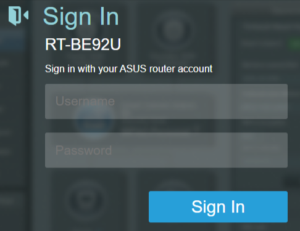
  1. Connect to your ASUS router and open http://www.asusrouter.com or its LAN IP. For login details, see AsusWRT Router Access Guide.
  2. For a VPN WiFi network, first set up and verify at least one connected VPN profile under VPN > VPN Fusion. Choose a supported VPN provider from the AsusWRT VPN Setup Guides, then review How to Use ASUS VPN Fusion: Assign Devices and Multiple VPNs for routing options.
  3. Look for Guest Network Pro, Network, or VPN Network in your ASUS firmware. If you only see the traditional Guest Network screen, read the legacy note below before proceeding.

Firmware compatibility: ASUS documents VPN Network functionality on eligible models with firmware 3.0.0.6.102_34312 or later, with the Guest Network Pro section renamed Network from 3.0.0.6.102_35404. Not all models, regions, or firmware builds offer the same features.

Create a Dedicated WiFi Network That Uses the VPN

Preferred route for supported ASUS models: create a VPN Network SSID so all devices joining that SSID use the chosen VPN without individual device assignments.

  1. Open Guest Network Pro > VPN Network, or the equivalent Network > Add Network > VPN Network menu in newer firmware.
  2. Choose a recognizable WiFi name such as Home-VPN and a strong WiFi password.
  3. Select the configured, connected VPN Fusion client/profile and enable VPN routing for that network.
  4. Review any options for local-network access, guest isolation, and bands, then click Apply.
  5. Connect a test device to the new Home-VPN WiFi SSID and check its public IP.

ASUS official walkthrough: Guest Network Pro / VPN Network Setup.

Alternative: Assign a VPN to an Existing Guest Network Pro SSID

  1. In Guest Network Pro / Network, open the existing Guest Network profile.
  2. Select the VPN tab, enable VPN routing, and choose your existing VPN Fusion client.
  3. Click Apply, reconnect a device to the guest SSID, and verify the VPN IP.

ASUS also documents this path: Assign a VPN to Guest Network Pro.

Create a Separate WiFi Network Without a VPN

Use a guest/secondary network routed through the regular ISP internet connection for devices that should not use the VPN.

  1. Under Guest Network Pro / Network, add a normal Guest Network or other suitable network profile (not the VPN Network preset).
  2. Set a clear name such as Home-ISP and secure it with a strong password.
  3. In that network profile’s VPN tab, leave the VPN assignment disabled or choose the Internet/ISP path if your firmware offers it.
  4. Check your VPN Fusion default connection and device policies. If a VPN is set to Apply to all devices, simply turning off the Guest Network’s VPN toggle may not guarantee an ISP bypass on every firmware. Configure an explicit ISP/bypass route where supported.
  5. Save, join the Home-ISP network with a test device, and confirm the public IP matches the ISP connection.

Always test the actual public IP. Different ASUS firmwares apply VPN Fusion defaults and network-profile overrides differently. A WiFi name that says “ISP” or “No VPN” does not itself enforce a VPN bypass.

Confirm Each WiFi Network Uses the Intended Internet Route

  1. Connect a phone or laptop to the VPN WiFi SSID. Disable any VPN app or iCloud Private Relay on the device for this test.
  2. Visit WhatIsMyIPAddress.com and note the public IP and location. This should reflect your selected VPN endpoint.
  3. Disconnect and join the ISP WiFi SSID. Repeat the IP check; it should now show the ISP’s public internet route.
  4. If both SSIDs show the same IP, review the VPN Fusion default profile, guest-network VPN assignment, and any device-specific rules.

Common Issues and What to Check

I only see “Guest Network,” not “Guest Network Pro” or “VPN Network”

Your router may use older firmware or lack this feature. Traditional Guest Network creates a separate WiFi SSID, but the VPN routing option may not exist. Use VPN Fusion device assignments as an alternative rather than assuming the guest network automatically bypasses or uses the VPN.

Every network still uses the VPN

Check whether Apply to all devices is enabled in VPN Fusion. If it is, verify that the guest profile actually overrides the default route on your firmware. You may need an explicit per-network or per-device ISP rule.

A phone reports the wrong IP although the guest VPN profile is correct

Temporarily disable device-level VPN apps, iCloud Private Relay / Limit IP Address Tracking, browser proxy, or Private DNS settings, then reconnect. See Device Settings That Interfere With Router VPN.

Guest devices cannot reach local printers or other LAN devices

Check the guest network’s intranet access / network isolation settings. Changing isolation affects LAN access, not necessarily VPN selection. Keep guests isolated unless LAN access is actually needed.

Related AsusWRT Guides

  • AsusWRT VPN Setup Guides
  • How to Use ASUS VPN Fusion: Assign Devices and Multiple VPNs
  • Device Settings That Interfere With Router VPN
  • ASUS Guest Network Pro Instructions (official)

Upgrade your ASUS router

Explore the Latest WiFi 7 ASUS FlashRouters

Looking for a newer ASUS router? Browse WiFi 7 models available from FlashRouters and compare features to find the right fit for your home or office. VPN Fusion and other features vary by router model and firmware.

Shop ASUS WiFi 7 Routers →

ASUS-WRT Router Setup Guide

ASUSWRT Routers

Quick Start Guide for ASUS-WRT FlashRouters

Find setup guides, FAQs and troubleshooting tips for ASUSWRT configured FlashRouters.

VIEW SUPPORTED ROUTER MODELS

Asus Logo
  • ROG series: GT-BE98 Pro
  • GT series: GT6, GT-AXE16000, GT-AX11000 Pro, GT-AXE11000, GT-AX6000, GT-AX11000, GS-AX5400, GS-AX3000
  • ZenWiFi: ZenWiFi Pro XT12, ZenWiFi Pro ET12, ZenWiFi XT9, ZenWiFi AX (XT8), ZenWiFi ET8, ZenWiFi XD6, ZenWiFi XD5
  • RT series: RT-BE96U, RT-BE88U, RT-BE58U, RT-AXE7800, RT-AX88U Pro, RT-AX88U, RT-AX86U Pro, RT-AX86U, RT-AX86S, RT-AX68U, RT-AX82U, RT-AX58U, RT-AX3000, RT-AX59U, RT-AX92U
  • TUF series: TUF-AX5400, TUF-AX3000_V2, TUF-AX3000, TUF Gaming AX6000, TUF Gaming AX4200

Internet Setup

  • How to Access Your AsusWRT FlashRouter Settings

WiFi Setup

  • ASUS Guest WiFi With or Without VPN: Setup Guide
  • Change WiFi name and password on Asus

VPN Setup

  • CyberGhost AsusWRT OpenVPN Setup
  • Surfshark AsusWRT WireGuard Setup
  • NordVPN Setup for AsusWRT: Token, WireGuard & OpenVPN
  • IPVanish AsusWRT OpenVPN Setup
  • PrivateInternetAccess (PIA) AsusWRT OpenVPN Setup
  • ExpressVPN Setup for AsusWRT Firmware Routers
  • PrivateInternetAccess (PIA) Asus AX1800S OpenVPN Setup
  • IPVanish Asus AX1800S OpenVPN Setup
  • ExpressVPN Asus AX1800S OpenVPN Setup
  • NordVPN Asus AX1800S OpenVPN Setup

Asus-WRT Features

  • How to Use ASUS VPN Fusion: Assign Devices and Multiple VPNs

Search Support Articles

Troubleshooting

  • Device Settings That Can Interfere With Your Router VPN

More Ways to Get Help

GET IN TOUCH

BUY SUPPORT
BROWSE FAQs

Router FAQs

admin · Jan 29, 2019 ·

Router FAQs

What is an IP Address?

An IP (Internet Protocol) Address is a numerical assignment for each device (cell phone, iPad, laptop computer, printer etc) inside a network that uses the Internet Protocol for communication. Internet Protocol is responsible for routing information packets across network boundaries. It is the main protocol establishing the Internet.

An IP address serves two predominant functions. First is to host or network interface identification. Second, it provides location addressing. To put it bluntly, an IP address tells wherever you are connecting, to whom you are visiting, and where you are located.

What is DNS?

DNS (Domain Name System) is a protocol within the TCP/IP protocol that uses a set of standards for how computers exchange data on the Internet and on many private networks.

The basic job of DNS is to convert a user-friendly domain name into an IP address that computers use to identify one another. Think of DNS like your cellphone contact list; you tap the name and the phone contacts to a phone number.

It is easier to remember flashrouters.com, rather than its IP address. Imagine if you had to remember all of the IP addresses of your favorite websites!

What is DNSMasq?

DNSMasq is a local DNS server that speeds up host-name searches from your computer/Internet connection after pressing enter.

Basically, DNSMasq gives the router some advanced enterprise functionality – caching DNS records locally so you have a faster browsing experience. Your computer only has to go to the router instead of repeatedly scouring the web for a commonly visited site.

What is Throughput and How Do I Improve it?

Throughput is the average rate of successful delivery of messages through a network. Simply put, throughput measures the speed of message delivery inside a network. If you think about it in relationship to networks and Internet connections, throughput defines the user experience. The key to a pleasing user experience is uninterrupted service and smooth data transfer.

In order to improve throughput,  you should get a router with more memory. If you notice that your network is running slowly due to congestion, you could probably benefit by upgrading your router to one with more memory. FlashMemory and RAM on a router add more room to prevent network congestion and improve throughput.

Most of FlashRouters‘ high-end units come with at least 8 MB of Flash memory and 64 MB of RAM which should be more than capable for providing for the average home users’ or small business will need in the future.

What is PPPoE?

PPPoE stands for Point-to-Point Protocol over Ethernet, a network protocol for encapsulating Point-to-Point Protocol (PPP) frames inside Ethernet frames. It is used mainly with DSL services where individual users connect to a DSL modem over Ethernet.

With PPPoE, users virtually “dial” from one machine to another over an Ethernet network, establish a point-to-point connection and then data packets are securely transported through the connection.

PPPoE offers an Internet service provider (ISP) an easier way to track exactly how much bandwidth you are using in case they want to charge for it in the future.

What is the Difference Between VPN Encryption and Wireless Network Security?

VPN Encryption: If you are connected to the VPN on your home network, then any data that flows over the Internet is entirely encrypted whether you are connected to the Internet either wired or wirelessly. This means that if your Local ISP was trying to see what you are browsing or downloading, they would not be able to see your data.

Wireless Network Security: If you leave your wireless network open or insecure, it does not matter whether Internet traffic is encrypted, because someone can directly see what you are doing on your network, or even worse, can go in and put a wireless password on your network, locking you out. They may also be able to access folders and files on your computer without your control.

Best thing to do is protect your wireless network with a WPA secured password along with your VPN connection.

Are FlashRouters Affected By the Shellshock Bug?

No.

According to our in-house testing and multiple DD-WRT community reports, we have found that the Shellshock vulnerability will not work on with DD-WRT or TomatoUSB installed router. The vulnerability is based on a shell called BASH (Bourne Again Shell) but DD-WRT & Tomato firmware use BusyBox which is confirmed to not have this issue.

Please be advised that if you are using Optware on your DD-WRT router there is a chance that implementation is BASH based. Only used trusted optware on your router.

Wireless Access Point Setup

TeamFlashRouters · Apr 23, 2019 ·

A Wireless Access Point is a setup that has the FlashRouter using an existing network’s DHCP instead of assigning its own. The FlashRouter’s WAN/Internet port should be not be connected to your modem or other router while performing this setup.

Preparing for Wireless Access Point Setup

Locate the Local IP Address of the existing wireless network

Locate the Local IP Address of the existing router that the FlashRouter will be bridged to.

DD-WRT Router Setup for Wireless Access Point

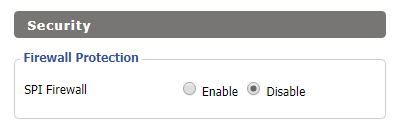
Disable Firewall

Navigate to Security > Firewall

Wireless Client Bridge Setup on FlashRouter DD-WRT - Disable Firewall
  1. Set SPI Firewall to Disable.
  2. Click Save.

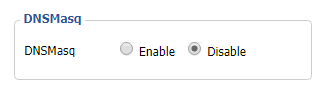
Disable DNSmasq

Navigate to Services > Services

Wireless Repeater Bridge Setup on FlashRouter DD-WRT - Disable DNSMasqButton
  1. Set DNSmasq to Disable.
  2. Click Save.

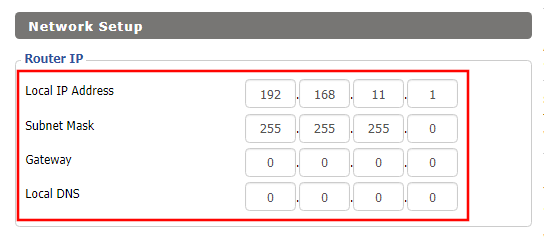
Change the FlashRouter's Local IP Address

Navigate to Setup > Basic Setup

Wireless Client Bridge Setup on FlashRouter DD-WRT - Set Local IP
  1. Set the Local IP Address to a different address on the same subnet as the existing network that you noted early. (example: if the existing network is 192.168.1.1 then set the Local IP Address to 192.168.1.2)
  2. Set the Gateway to the Local IP Address of the existing network. (example: 192.168.1.1)
  3. Set the Local DNS to the Local IP Address of the existing network. (example: 192.168.1.1)
  4. Click Save.

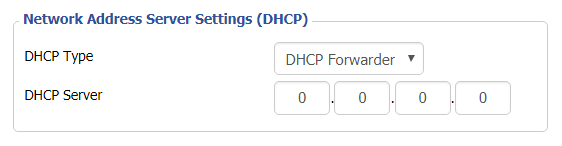
Change the FlashRouter's DHCP settings

DHCP Forwarder Setup for DD-WRT
  1. Set the DHCP Type to DHCP Forwarder.
  2. Click Save.

Change the FlashRouter's Operating Mode

Navigate to Setup > Advanced Routing

DHCP Forwarder Setup for DD-WRT
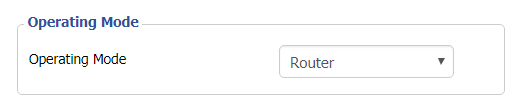
  1. Set the Operating Mode to Router.
  2. Click Apply Settings.

Reboot your FlashRouter

  • Power off the FlashRouter for 30 seconds and connect from the other router’s LAN port to one of the FlashRouter’s LAN port then power it back on.  When it boots back up you will be able to access the FlashRouter’s settings at the new Local IP Address that you set.

Back up your settings

Navigate to the Administration > Backup page.

  1. Click the Backup button.
  2. A file named nvrambak.bin will be saved to your computer.
  3. You can load nvrambak.bin to restore your settings in the event of a reset.

TROUBLESHOOTING

Still having issues? Visit our Troubleshooting section to diagnose common problems here.

Troubleshoot Here

AsusWRT-Merlin Router Setup Guide

Asus-Merlin Router Setup

Quick Start Guide for AsusWRT-Merlin FlashRouters

Find setup guides, FAQs and troubleshooting tips for Asus-Merlin configured FlashRouters.

VIEW SUPPORTED ROUTER MODELS

Asus Logo
  • RT-BE88U (BE7200), RT-AC68U, RT-AC88U, RT-AC3100, RT-AC5300, RT-AC86U, RT-AX56U, RT-AX58U, RT-AX68U, RT-AX86U. RT-AX86U-PRO, RT-AX88U, RT-AX88U-PRO
  • GT-AC2900, GT-AX6000, GT-AX11000, GT-AXE11000,GT-AXE11000-PRO,  GT-AXE16000
  • ZenWiFi Pro XT12

Internet Setup

  • Internet and Wifi Setup on Asus Merlin Firmware
  • DNS Setup for Asus Merlin

WiFi Setup

  • Change WiFi name and password on Merlin
  • Separate your WiFi 2.4GHz and 5GHz Merlin networks

VPN Setup

  • Connecting to OpenVPN on Asus Merlin Firmware
  • PureVPN Merlin WireGuard Setup
  • Surfshark Merlin WireGuard Setup
  • ProtonVPN Merlin WireGuard Setup
  • IPVanish Merlin OpenVPN Setup
  • PrivateInternetAccess (PIA) Merlin OpenVPN Setup
  • NordVPN Merlin OpenVPN Setup
  • ExpressVPN Merlin OpenVPN Setup
  • CyberGhost Merlin OpenVPN Setup

AsusWRT-Merlin Features

  • VPN Director for Asus Merlin
  • VPN Killswitch for Asus Merlin

Search Support Articles

Troubleshooting

  • Device Settings That Can Interfere With Your Router VPN
  • How do I find my router local IP address?

More Ways to Get Help

GET IN TOUCH

BUY SUPPORT
BROWSE FAQs

TP-Link Router Setup Guide

TP-Link Router Support Guides

Quick Start Guide for TP-Link FlashRouters

Find setup guides, FAQs and troubleshooting tips for TP-Link configured FlashRouters.

VIEW SUPPORTED ROUTER MODELS

Archer AX10000, Archer AX1100, Archer AX21, Archer AX3000, Archer AX3000 Pro, Archer AX3200, Archer AX4400, Archer AX5400 Pro, Archer AX55, Archer AX55 Pro
Archer AX6000, Archer AX72 Pro, Archer AX73, Archer AX75, Archer AX80, Archer AX90
Archer AXE300, Archer AXE5400, Archer AXE75, Archer AXE95
Archer BE550, Archer BE800, Archer BE900, Archer BE9300, Archer GE80, Archer GX90

Internet Setup

  • TP-Link Internet Setup
  • TP-Link Access Router Settings

WiFi Setup

  • TP-Link Merge or Separate 2.4GHz and 5GHz Wi-Fi
  • TP-Link Change Wireless Channel
  • TP-Link Change Wi-Fi name and password

VPN Setup

  • ProtonVPN TP-Link WireGuard Setup
  • Surfshark TP-Link OpenVPN Setup
  • Surfshark TP-Link WireGuard Setup
  • IPVanish TP-Link OpenVPN Setup
  • PrivateInternetAccess (PIA) TP-Link OpenVPN Setup
  • NordVPN TP-Link OpenVPN Setup
  • ExpressVPN TP-Link OpenVPN Setup

TP-Link Features

Search Support Articles

Troubleshooting

More Ways to Get Help

GET IN TOUCH

BUY SUPPORT
BROWSE FAQs

Privacy Hero VPN Kill Switch Troubleshooting: No Internet or WiFi

Dave · Oct 8, 2026 ·

If your Privacy Hero router suddenly loses internet access, devices report that WiFi has no internet, or devices will not stay connected after a VPN failure, the VPN Kill Switch may be blocking normal internet traffic.

The VPN Kill Switch is designed to prevent traffic from passing through Privacy Hero without VPN protection. If the VPN disconnects or fails while the Kill Switch is enabled, normal internet access is intentionally blocked.

Important: You can still access app.privacyhero.com to manage Privacy Hero, turn off the Kill Switch, or repair the VPN connection.

Privacy Hero is cloud-managed, so you do not need to be connected to the Privacy Hero WiFi to change these settings. You can also access the dashboard using cellular data, your main router’s WiFi, or another internet connection as long as Privacy Hero remains connected to the internet and Privacy Hero cloud.


Jump to a Section

  • Common Kill Switch Symptoms
  • Restore Internet Access
  • VPN Still Fails to Connect
  • Privacy Hero Appears Offline
  • Kill Switch, WiFi, or WAN Problem?
  • Frequently Asked Questions

Common Privacy Hero Kill Switch Symptoms

A failed VPN connection combined with an enabled Kill Switch can make the Privacy Hero network appear unavailable even though the router itself may still be functioning.

Common symptoms include:

  1. Your device connects to Privacy Hero WiFi but websites and apps will not load.
  2. Your phone, computer, television, or streaming device reports that WiFi has no internet.
  3. A device refuses to remain connected because it detects that the WiFi network does not currently provide normal internet access.
  4. Your phone automatically switches from Privacy Hero WiFi to cellular data or another saved WiFi network.
  5. Your computer displays “No Internet” or “Connected without Internet.”
  6. The VPN displays Failed, Disconnected, Connecting, or a timeout error.
  7. Privacy Hero was working normally and suddenly stopped providing internet access.

If the Privacy Hero WiFi network itself is completely missing and cannot be detected by any device, that is different from normal Kill Switch behavior. Continue with WiFi or router connectivity troubleshooting instead.

Restore Internet Access

The fastest way to determine whether the Kill Switch is responsible is to temporarily disable it and test Privacy Hero without VPN.

  1. Open app.privacyhero.com.
  2. Sign in to your Privacy Hero account.
  3. Open the VPN section.
  4. Check the current VPN status.
  5. If the VPN shows Failed or Disconnected, turn the VPN Kill Switch Off.
  6. Turn the failed VPN connection off.
  7. Connect a device to the Privacy Hero network.
  8. Test normal internet access.

If internet access returns with the VPN and Kill Switch disabled, Privacy Hero’s basic internet connection is working and the problem is isolated to the VPN connection.

Important: Disabling the Kill Switch allows normal non-VPN internet traffic through Privacy Hero. Leave it disabled only while troubleshooting if continuous VPN protection is required.

VPN Still Fails to Connect

Do not turn the Kill Switch back on until the VPN is connected and working.

If you are using NordVPN and the VPN shows Failed, Connecting, or a timeout error, continue with our dedicated Privacy Hero NordVPN Not Connecting or Showing Timeout Errors guide.

That guide covers:

  • Selecting a different NordVPN server.
  • Replacing a failed Auto Country connection with a specific NordVPN server.
  • Generating a new NordVPN NordLynx access token.
  • Verifying NordVPN OpenVPN manual service credentials.
  • Avoiding double-VPN conflicts while testing.

If you use another VPN provider, try another available VPN server or protocol and verify that your VPN account and credentials remain active.

Verify the VPN Before Re-Enabling the Kill Switch

Once the VPN reconnects:

  1. Confirm Privacy Hero displays the VPN as Connected.
  2. Connect a device to the Privacy Hero WiFi.
  3. Make sure a separate VPN application is not connected directly on the testing device.
  4. Check your public IP address.
  5. Confirm the IP address and location reflect the VPN server you selected.
  6. Test normal websites and applications.
  7. Return to Privacy Hero and enable the VPN Kill Switch.

If you enable the Kill Switch while the VPN is still failing, normal internet access will be blocked again.

What If Privacy Hero Appears Offline?

If Privacy Hero shows Offline in the dashboard, the router may not currently be communicating with the Privacy Hero cloud.

  1. Confirm Privacy Hero is powered on.
  2. Confirm the Ethernet cable from your ISP gateway or primary router is connected to the Privacy Hero WAN/Internet port.
  3. Confirm your ISP gateway or primary router has working internet access.
  4. Restart Privacy Hero and allow it to finish booting.
  5. Using another internet connection, open app.privacyhero.com.
  6. Check whether Privacy Hero returns online.

If the router returns online, check the VPN and Kill Switch status before enabling the VPN again.

Privacy Hero Has a WAN IP but Devices Have No Internet

Privacy Hero can receive an IP address from your ISP gateway while the Kill Switch is still blocking normal internet traffic.

Before changing IP Passthrough, bridge mode, firewall settings, or other ISP gateway settings:

  1. Check the VPN status.
  2. Check whether the Kill Switch is enabled.
  3. Disable the VPN and Kill Switch temporarily.
  4. Test internet access again.

If internet access returns, troubleshoot the VPN connection rather than changing the ISP gateway configuration.

Kill Switch, WiFi, or WAN Problem?

WiFi Connects but There Is No Internet

If the VPN shows Failed or Disconnected and the Kill Switch is enabled, the Kill Switch is likely blocking normal internet traffic.

Device Will Not Stay Connected to Privacy Hero WiFi

Some devices automatically leave a WiFi network when they detect that it does not provide internet access. Use cellular data or another internet connection to access app.privacyhero.com and check the VPN and Kill Switch.

Privacy Hero WiFi Is Completely Missing

The Kill Switch does not normally cause the WiFi network itself to stop broadcasting. If no devices can detect the Privacy Hero WiFi network, troubleshoot the WiFi or router connection separately.

Privacy Hero Is Not Receiving a WAN IP Address

Check the Ethernet connection between Privacy Hero and your ISP gateway or primary router and confirm the upstream internet connection is working.

VPN Shows Connected but One Device Has the Wrong IP

If the VPN works correctly on other devices, the Kill Switch is probably not the issue. Check that device’s Privacy Hero VPN assignment and its own VPN, privacy, DNS, or security settings.

See Device Privacy, DNS, VPN, and Security Settings That Can Interfere With Your Router VPN.

Frequently Asked Questions

Why does Privacy Hero WiFi say no internet?

If the VPN has failed while the Kill Switch is enabled, normal internet traffic is intentionally blocked. Your device may therefore report that Privacy Hero WiFi has no internet.

Can I access Privacy Hero settings while the Kill Switch is blocking internet?

Yes. Open app.privacyhero.com. You can use the Privacy Hero network, cellular data, your main router’s WiFi, or another internet connection.

Do I have to be connected to Privacy Hero WiFi to change the settings?

No. Privacy Hero is cloud-managed and can be managed remotely while the router remains connected to the Privacy Hero cloud.

Why does my phone keep leaving the Privacy Hero WiFi?

Some phones automatically switch to cellular data or another saved WiFi network when the current WiFi connection does not provide normal internet access.

Should I turn the Kill Switch back on immediately?

Only after the VPN is connected and you have confirmed that your internet traffic is using the VPN.

Related Privacy Hero Guides

  • Privacy Hero VPN Kill Switch Setup
  • Privacy Hero NordVPN Not Connecting or Showing Timeout Errors
  • Privacy Hero NordVPN / NordLynx Setup
  • Device Privacy, DNS, VPN, and Security Settings That Can Interfere With Your Router VPN
  • Privacy Hero Router Setup Guide

Which DD-WRT wireless extender setup should I be using?

TeamFlashRouters · Jun 11, 2019 ·

FlashRouters supports four unique DD-WRT wireless extender setups – options similar to an open source Mesh network. Each different wireless extender configuration serves a different purpose. Read below to see which guide fits your configuration requirements!

Wireless Repeater

Why should I choose Wireless Repeater Setup?

  1. If you have a MiFi wireless only internet connection or other type of WiFi internet where there is no access to any ethernet port for a wired internet connection, then you can setup a wireless repeater network to both extend WiFi and add wired connection capabilities.
  2. If you have a large home or office area that requires additional WiFi coverage can use a wireless repeater setup to extend the existing network.
  3. If you want to create a separate VPN WiFi network in your home without placing the FlashRouter in the same room as your primary router you can use wireless repeater to establish a WiFi internet connection and then connect to VPN on your WiFi repeater network.
  4. If you want a wireless Dual Router setup option where you can have local ISP IP address through your main router WiFi network and your VPN IP address through your FlashRouter Wireless Repeater WiFi network, both available for you to connect at all times. Each network is on a unique subnet.

View the FlashRouter Wireless Repeater Setup Guide.

Wireless Repeater Bridge

Use Cases

Wireless Repeater Bridge Setup

  1. Anyone that needs all their devices connected to the same local network.
  2. Anyone with a MiFi internet connection that does not have an ethernet port and has no need for VPN.
  3. Anyone with a large wireless area that requires additional coverage.

Wireless Client Bridge

Use Cases

Wireless Client Bridge Setup

  1. Anyone with a MiFi internet connection that needs wired access.
  2. Anyone that needs additional wired ports instead of using a switch.
  3. Anyone with wired only devices in their home that are too far from your main router.

Wireless Access Point DHCP Forwarder

Use Cases

Wireless Access Point DHCP Forwarder Setup

  1. Anyone that needs their devices connected to the same local network and wants lossless LAN to LAN speeds via wireless and ethernet connection.
  2. Anyone that wants to use their main router to provide DHCP to their router instead of having an additional DHCP server.

Privacy Hero VPN Kill Switch Setup

TeamFlashRouters · Apr 3, 2023 ·

The Privacy Hero VPN Kill Switch prevents regular internet traffic from passing through your router if its VPN disconnects or fails to connect. This helps prevent devices from using your normal ISP connection without VPN protection.

Before enabling: Make sure your VPN is already Connected and that internet access works through the VPN. The Kill Switch is optional, but useful if you prefer internet access to stop rather than continue unprotected when the VPN goes down.

Privacy Hero is managed at app.privacyhero.com. You can make changes using a computer, phone, or tablet.

VPN Kill Switch Guide

Jump to the steps or learn what to expect when the VPN disconnects.

Enable Kill Switch →Turn on the setting in the Privacy Hero dashboardWhat It Does →Know when internet is permitted or blockedDashboard Access →Access Privacy Hero while normal traffic is blockedTurn Off or Troubleshoot →Restore internet or repair the VPN connection

How to Enable the VPN Kill Switch

  1. Open app.privacyhero.com and sign in using your Privacy Hero account. If the router has not been activated yet, follow the Privacy Hero Activation and Setup guide first.
  2. Open the VPN section of your Privacy Hero settings.
  3. Confirm that your selected VPN provider is active and its connection status shows Connected. If the VPN is failing, fix the connection before proceeding.
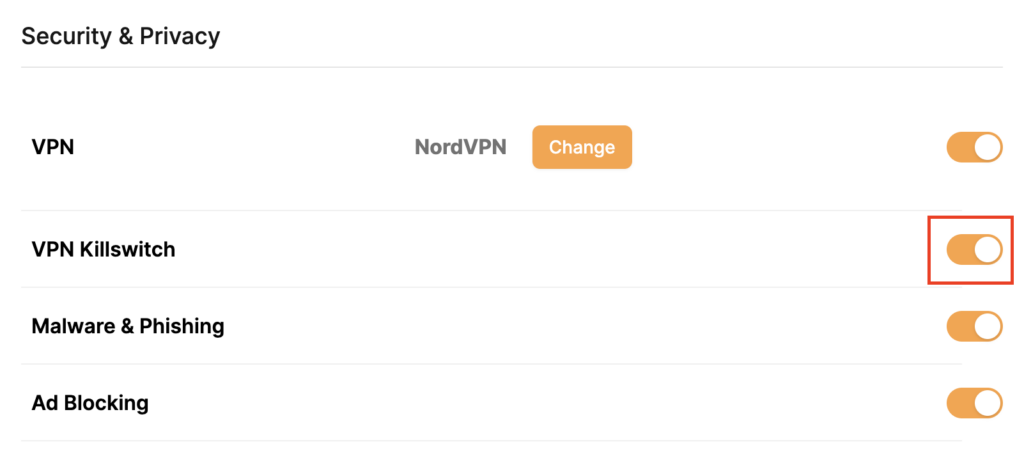
  4. Find VPN Killswitch (VPN Kill Switch) and move its toggle to On (orange). The setting is enabled when its toggle is On.
  5. Keep a device connected to the Privacy Hero WiFi or LAN and confirm that ordinary websites work with the VPN connected.
Privacy Hero Security and Privacy VPN Killswitch toggle enabled, highlighted on the right side of the settings page
In Privacy Hero, the VPN Killswitch toggle is shown directly below the VPN provider setting.

Tip: To check the router’s VPN IP address, use a browser on a device connected to Privacy Hero, not on a phone using cellular data or another WiFi network. Disable any separate VPN app on the test device so you can verify the router VPN independently.


What Happens When the Kill Switch Is On?

VPN status Kill Switch Normal internet traffic
Connected On Allowed through the VPN
Disconnected or Failed On Blocked until the VPN reconnects or you turn the Kill Switch off
Disconnected or Failed Off May use the normal ISP connection without VPN protection

The Kill Switch does not turn off the WiFi network. Your device may stay connected to Privacy Hero WiFi but report No Internet when the VPN is unavailable. Some phones and computers may automatically switch to cellular data or another saved WiFi network.


Access Privacy Hero Even When the Kill Switch Is Blocking Internet

Important: Privacy Hero includes a built-in exception for its cloud management dashboard. If the VPN is down and the Kill Switch blocks normal internet traffic, you can still access app.privacyhero.com while connected to the Privacy Hero WiFi or LAN network, provided the router itself still has its upstream/cloud connection.

This means you can sign in, check the VPN status, change the server or protocol, or switch off the Kill Switch without first leaving the Privacy Hero network.

You can also access the cloud dashboard through another working WiFi connection or cellular data. If the router shows Offline in the dashboard, that indicates a separate WAN or cloud-connectivity problem rather than normal Kill Switch behavior.


How to Turn Off the Kill Switch or Restore Internet

If your VPN has stopped connecting and you need to restore ordinary internet access temporarily:

  1. Open app.privacyhero.com, including from the Privacy Hero network if the Kill Switch is blocking regular internet.
  2. Open VPN and check the current VPN status.
  3. Move VPN Killswitch to Off.
  4. If the VPN remains Failed or Disconnected, temporarily switch the VPN connection Off and test internet access using a device on the Privacy Hero network.
  5. Repair the VPN connection, confirm Connected, and verify that ordinary internet traffic works through the VPN before turning the Kill Switch back On.

Security note: With the Kill Switch off, devices may access the internet without VPN protection if the VPN is disconnected. Re-enable it after testing if preventing non-VPN traffic is your goal.

VPN showing Failed? Privacy Hero includes a Reset option that removes all saved third-party VPN settings. With an active Privacy Premium subscription, the router reconnects using the built-in Privacy Hero VPN. With Privacy Core, it returns to your normal ISP connection without a router VPN.

Before using Reset, see our How to Reset a Failed VPN Connection on Privacy Hero guide.

For a complete diagnosis of WiFi connected but no internet, VPN failures, and router Offline status, follow the Privacy Hero VPN Kill Switch: No Internet or WiFi Troubleshooting guide.

Related Privacy Hero Guides

  • VPN Kill Switch: No Internet or WiFi Troubleshooting
  • NordVPN Not Connecting or Showing Timeout Errors
  • Device VPN, Private Relay, and Private DNS Settings

ProtonVPN Setup for Privacy Hero

TeamFlashRouters · Sep 17, 2025 ·

Privacy Hero supports Proton VPN through WireGuard and OpenVPN using the Custom VPN provider option.

WireGuard is recommended for most users. It uses a downloadable .conf configuration file. OpenVPN uses a downloadable .ovpn file and a separate Proton VPN OpenVPN username and password (not your regular Proton Account login).

Privacy Hero is cloud-managed. You can configure the VPN from a computer, smartphone, or tablet connected to any internet network; you do not need to be on the Privacy Hero WiFi to change settings.

Choose Your Proton VPN Setup

Jump directly to the connection method or instructions you need.

WireGuard Setup →Recommended · Generate your .conf fileOpenVPN Setup →Manual credentials and .ovpn fileUpload WireGuard →Add a Custom WireGuard connectionUpload OpenVPN →Add the file and service credentialsVerify Connection →Confirm VPN IP address and locationTroubleshooting →Fix connection failures and no internet

Proton VPN WireGuard Setup (Recommended)

WireGuard uses a configuration file generated by Proton VPN. You do not need an OpenVPN username and password for this method.

Generate Your Proton VPN WireGuard Configuration

  1. Open your Proton VPN account and sign in.
  2. Go to Downloads → WireGuard configuration.
  3. Enter a recognizable configuration name and select Router as the platform.
  4. Choose your preferred VPN options and an available server or country. For a straightforward setup, select a standard server configuration.
  5. Click Create, then Download to save the generated WireGuard .conf file to your device.

Important: A WireGuard configuration contains a private key. Keep the downloaded file private; do not paste its contents into public posts or unprotected support messages. For detailed Proton account instructions, see Proton VPN: Download WireGuard Configuration Files.

Upload WireGuard to Privacy Hero

  1. Open app.privacyhero.com and log in to your Privacy Hero account.
  2. Open the VPN section, click Change beside the VPN provider, and choose Custom.
  3. Select WireGuard and upload the Proton VPN .conf file you downloaded.
  4. Click Save to apply the configuration and connect. Confirm that Privacy Hero reports Connected.
Privacy Hero Custom WireGuard configuration screen showing the configuration file upload

Proton VPN OpenVPN Setup

OpenVPN is an alternative to WireGuard. You need a Proton VPN OpenVPN-specific username and password and a server .ovpn configuration file.

Get Your Proton VPN OpenVPN Credentials

  1. Sign in to your Proton VPN account.
  2. Open Account → OpenVPN username to find your separate OpenVPN username and password.
  3. Copy these credentials or keep the page open. Do not use your usual Proton Account email and password for the manual OpenVPN connection.

For help locating these credentials, see Proton VPN: How to Sign In / OpenVPN Credentials.

Download Your Proton VPN OpenVPN Server File

  1. In your Proton VPN account, go to Downloads → OpenVPN configuration files.
  2. Select Router as the platform and UDP as the protocol (recommended starting point). If UDP does not work on your network, you can try a TCP configuration later.
  3. Select an available country or individual server from the standard configuration list, then click Download to save its .ovpn file.

For additional details about the file download options, see Proton VPN: Download OpenVPN Configuration Files.

Upload OpenVPN to Privacy Hero

  1. Open app.privacyhero.com and sign in to your Privacy Hero account.
  2. Open the VPN section, click Change, and select Custom as the VPN provider.
  3. Choose OpenVPN and upload the Proton VPN .ovpn file you downloaded.
  4. Enter your separate Proton VPN OpenVPN username and password into the Custom VPN fields.
  5. Click Save, then confirm Privacy Hero displays Connected.
Privacy Hero Custom OpenVPN setup with configuration file upload and separate VPN username and password fields

Verify Your Proton VPN Connection

After Privacy Hero reports Connected, confirm that a device on the router network is using your Proton VPN connection.

  1. Connect your testing device to the Privacy Hero WiFi or LAN network.
  2. Disable any Proton VPN app or other VPN application running directly on that device, so it does not create a second VPN connection.
  3. Open a private/incognito browser window.
  4. Visit Proton VPN’s IP Address Checker.
  5. Verify that the public IP address and approximate location correspond to the Proton VPN server configured in Privacy Hero.

Important: You can manage Privacy Hero from another WiFi network or cellular data. However, the device performing the VPN IP test must be connected to the Privacy Hero network.

Streaming Relocation and VPN Location

If Privacy Hero Streaming Relocation is enabled for a supported streaming service, that service may use its Streaming Relocation location rather than the country selected in your Proton VPN configuration. See Privacy Hero Streaming Relocation.


Proton VPN Not Connecting?

If Privacy Hero displays Failed, remains on Connecting, or reports a timeout, work through these checks:

  1. Confirm that you selected Custom as the VPN provider in Privacy Hero and chose the protocol that matches your configuration file.
  2. For WireGuard, create and download a fresh Proton VPN .conf file for an available server, then upload it again. Do not use an OpenVPN .ovpn file in the WireGuard section.
  3. For OpenVPN, verify that you entered Proton VPN’s separate OpenVPN username and password, not your regular Proton Account login.
  4. Download a fresh configuration for a different Proton VPN server and reconnect. Proton VPN occasionally changes server configurations.
  5. If using OpenVPN UDP and the connection still fails, download and try a TCP .ovpn configuration file to test for a protocol-related issue.
  6. Temporarily disable the VPN Kill Switch while checking whether internet works without the VPN. Re-enable your preferred Kill Switch setting once testing is complete.

VPN Disconnects and Devices Have No Internet?

The VPN Kill Switch may be intentionally blocking normal internet traffic when the VPN connection is unavailable. See Privacy Hero VPN Kill Switch: No Internet or WiFi Troubleshooting.

VPN Connected but One Device Shows the Wrong IP?

Check the affected device for a second VPN app, iCloud Private Relay, Private DNS, browser proxy settings, or filtering software. See Device Settings That Can Interfere With Your Router VPN.

Related Privacy Hero Guides

  • Privacy Hero VPN Kill Switch Setup
  • VPN Kill Switch: No Internet or WiFi
  • Privacy Hero Streaming Relocation
  • Device Settings That Can Interfere With Your Router VPN
  • FlashRouters Router Troubleshooting

How to Reset a Failed VPN Connection on Privacy Hero

Dave · Oct 24, 2026 ·

If your Privacy Hero VPN connection shows Failed, you can use the new Reset button to clear the saved third-party VPN settings and return the router to its available default connection. This is useful when a VPN setup is stuck or you want to start again without manually removing the existing third-party VPN configuration.

Important: A VPN reset removes all saved third-party VPN settings from Privacy Hero. You will need to configure that provider again if you want to use it later. The connection Privacy Hero uses after resetting depends on your subscription plan.

Reset a Failed VPN Connection

Follow the reset instructions, then check which connection your plan restores.

When to Use Reset →Know when a VPN reset is appropriate
Reset the Failed VPN →Clear third-party VPN settings in the dashboard
Premium vs. Core →Understand which connection returns afterward
What Gets Removed →Know what you will need to set up again
Verify Your Connection →Check the dashboard and public IP address
Still No Internet? →Check Kill Switch, WAN, and WiFi separately

When Should You Use the VPN Reset Button?

Use Reset when the current VPN connection is in a Failed state and you want to remove the third-party VPN setup and restore a working default connection. It is a more complete action than simply retrying the same VPN server.

  • Use it if the third-party VPN settings are no longer working and you want to start over.
  • Use it if you no longer want the saved third-party VPN configuration.
  • Do not use it if you need to preserve the existing VPN configuration. First try reconnecting or choosing a different VPN server or protocol.

The Reset action addresses the VPN configuration. It does not repair a disconnected WAN cable, an ISP outage, or a router that cannot reach the Privacy Hero cloud.


How to Reset a Failed VPN Connection

  1. Open app.privacyhero.com in a browser and sign in to your Privacy Hero account.
  2. Select your Privacy Hero router, then open its VPN settings.
  3. Confirm the existing VPN connection is showing Failed.
  4. Find the new Reset button in the failed VPN connection area. Before clicking, be aware that this action will remove all third-party VPN settings saved on the router.
  5. Click Reset. If a confirmation message appears, review it before confirming. Allow the dashboard to apply the reset and update the VPN connection status.
  6. Check the resulting connection using the subscription comparison below, then verify internet access from a device connected to Privacy Hero.

Dashboard access during a Kill Switch block: Privacy Hero permits access to app.privacyhero.com over its WiFi or LAN even when the VPN Kill Switch blocks ordinary internet traffic, as long as the router maintains its upstream/cloud connection. You can also manage the router from cellular data or another working internet connection.


What Happens After Reset? Privacy Premium vs. Privacy Core

VPN Reset: Side-by-Side Plan Comparison
Privacy Premium Active subscription Privacy Core
Third-party VPN settingsRemoved Third-party VPN settingsRemoved
Connection after resetBuilt-in Privacy Hero VPN Connection after resetNormal ISP internet
VPN protection afterwardYes, when the built-in VPN is connected VPN protection afterwardNo router VPN is active

Privacy Core users: After resetting, your normal internet access is not VPN-protected by Privacy Hero. If you want a third-party VPN again, you must configure it again in Privacy Hero.

Privacy Premium users: Check that the built-in Privacy Hero VPN shows Connected before assuming your traffic is going through the VPN. A working upstream internet connection and active Premium subscription are still required.


What Information Does the Reset Remove?

The VPN Reset button clears the third-party VPN configuration stored in Privacy Hero. This means any saved third-party provider details will need to be entered or imported again before that provider can be used.

Depending on the provider and protocol you had configured, this may include the saved VPN provider selection, server details, credentials or tokens, and custom OpenVPN or WireGuard settings. Have your provider login or configuration materials available if you plan to set up that VPN again.

This is a VPN configuration reset, not a request to cancel your third-party VPN subscription. It should not be confused with a full router factory reset.


How to Verify Internet and VPN Status After Reset

  1. Refresh the Privacy Hero dashboard and reopen VPN.
  2. If you have Privacy Premium, verify that the built-in Privacy Hero VPN is selected and shows Connected.
  3. If you have Privacy Core, verify that the third-party VPN configuration is gone and ordinary internet access is available through your ISP connection.
  4. Connect a computer or phone to the Privacy Hero WiFi or LAN. To test the router by itself, turn off any VPN application running directly on that device.
  5. Load a regular website, then check your public IP address using ipleak.net. Premium should show a VPN IP if its built-in VPN is connected; Core will normally show your ISP public IP.

If you have Streaming Relocation enabled, some streaming services may use their separately selected location; that is not necessarily the same location shown by a general public IP check.


Reset Complete but Still No Internet?

  1. Check the VPN Kill Switch. If it is still enabled while there is no working VPN connection, it may block ordinary internet traffic. Review the Kill Switch setting before assuming the router has lost WiFi.
  2. Check the connection status. A router listed as Offline may have a WAN, ISP, or cloud-communication problem. The VPN reset cannot fix an upstream internet outage.
  3. Check the network wiring. Confirm your main router or ISP gateway has internet access and the cable is connected to the Privacy Hero WAN/Internet port.
  4. Check a device on Privacy Hero WiFi or LAN. Make sure you are testing the Privacy Hero network rather than another WiFi or cellular connection.
  5. Check your subscription. An active Privacy Premium subscription is required for the built-in Privacy Hero VPN fallback described above. Privacy Core returns to ordinary ISP internet access.

For Kill Switch behavior and restoring internet, see Privacy Hero VPN Kill Switch: No Internet or WiFi Troubleshooting. To learn when to enable the feature, see Privacy Hero VPN Kill Switch Setup.

Related Privacy Hero Articles

  • VPN Kill Switch: No Internet or WiFi Troubleshooting
  • How to Enable the Privacy Hero VPN Kill Switch
  • Privacy Hero VPN Setup Guides

Privacy Hero VPN Setup Guide for Privacy Hero

TeamFlashRouters · Apr 3, 2023 ·

Your Privacy Hero router uses Cloud Based router management which means you can access the router settings from anywhere on any device that has an internet connection. You can follow these steps while connected to your phone, other Wi-Fi network, or the Privacy Hero network.

Use these steps to connect to Privacy Hero’s own WireGuard VPN servers. You will automatically be connected to the ideal USA or Canada server based on your location.

1. From any device that has a browser such as a computer, smartphone, or tablet visit app.privacyhero.com

App.PrivacyHero.com

2. Enter your Privacy Hero account email and password. Click Login.

Privacy Hero Access Settings

If you have not created your Privacy Hero account yet please follow these instructions.

3. Click the VPN symbol.

Privacy Hero Setup VPN

4. Set the VPN toggle to On.

Privacy Hero Enable VPN

5. Connect to the Privacy Hero’s via wireless or ethernet connection on your device and visit What is my IP Address from a private/incognito browser to verify your new IP address and virtual location.

Privacy Hero’s cloud based router settings access makes it so you can change settings while not connected to the Privacy Hero network so if your IP Address has not changed be sure to double check that you are indeed connected to the Privacy Hero network on the device you are checking your IP from.

Keep in mind that the VPN connection will not change the location of the streaming services listed in the Streaming Relocation area of the Privacy Hero settings.

TROUBLESHOOTING

Still having issues? Visit the VPN Troubleshooting section.

Troubleshoot Here

How to Use ASUS VPN Fusion: Assign Devices and Multiple VPNs

Dave · Oct 26, 2026 ·

ASUS VPN Fusion lets supported AsusWRT routers run VPN client profiles and decide which connected devices use each VPN connection. You can send the entire network through one VPN, use separate VPN profiles for selected devices, or leave certain devices on the regular ISP connection.

This guide covers how to use ASUS VPN Fusion to assign devices to specific VPN connections, manage multiple VPN profiles simultaneously, and choose which devices use a VPN or connect directly through your ISP. These features work with supported VPN providers and protocols, including WireGuard and OpenVPN.

In This Guide

Before You Start →Connect and open VPN FusionApply VPN to All Devices →Default VPN routeAssign Selected Devices →Per-device VPN or ISPMultiple VPN Profiles →WireGuard and OpenVPNVerify & Troubleshoot →Check each device’s public IPGuest Network Routing →VPN WiFi and ISP WiFi

Open VPN Fusion

  1. Connect your computer or phone to your ASUS FlashRouter’s WiFi or LAN.
  2. Open http://www.asusrouter.com or the router’s LAN IP (often 192.168.50.1) and log in. See How to Access Your AsusWRT FlashRouter Settings.
  3. Go to VPN > VPN Fusion. Add and configure at least one working VPN client profile before assigning devices.
ASUS VPN Fusion page with Add Profile and Internet Connection
VPN Fusion displays your saved VPN profiles and the Add Profile option.

The exact menu names, profile limits, and available VPN types depend on your ASUS model and firmware. Some older ASUS routers use a different VPN Client interface and do not have the full VPN Fusion controls.

Method 1: Apply One VPN to All Devices

Use this option when you want the selected VPN profile to be your router’s default connection.

  1. In VPN Fusion, open the VPN profile that should provide the default internet route.
  2. Enable Apply to all devices (or Default Connection in firmware that uses that label).
  3. Click Apply all settings, then enable the VPN profile.
  4. Connect a test device to the router and check its IP. If you use per-device overrides, verify those rules separately.
ASUS VPN Fusion Apply to all devices setting and device count
Enable Apply to all devices to use the selected VPN as the default connection.

Do not assume every active VPN profile applies to every device. The default route and any device-specific policies determine which connection a device uses.

Method 2: Send Only Selected Devices Through a VPN

  1. In VPN Fusion, turn off Apply to all devices for a profile when you do not want that VPN used network-wide.
  2. Open the profile’s Device area using the pencil/edit icon or the firmware’s device-assignment control.
  3. Select the intended devices (for example, a TV and streaming box), confirm with OK, then click Apply all settings.
  4. Enable the VPN profile and verify the selected devices’ public IPs.
  5. For devices that should use the normal ISP internet, leave them on the Internet Connection route or explicitly set the Internet/bypass rule available in your firmware. Remove any conflicting VPN assignments.

Important: A device being connected to ASUS WiFi does not guarantee that it is assigned to the desired VPN. Check the assigned profile and the actual public IP.

How Multiple VPN Connections Work

On supported models, VPN Fusion can keep several VPN connections active and route different devices through different providers at the same time. For example:

TVNordVPN — WireGuard
LaptopProton VPN — OpenVPN
Streaming deviceSurfshark — OpenVPN
Work computerRegular ISP connection

You may be able to run one WireGuard profile and multiple OpenVPN profiles concurrently, but connection limits and supported combinations vary by ASUS router model and firmware. Adding many saved OpenVPN profiles is not the same as having all of them connected at once.

  1. Create separate profiles with clear names, such as Nord-US-WG, Proton-US-OVPN, and Surfshark-UK-OVPN.
  2. Enable only the profiles you need and confirm each shows connected.
  3. Assign each client device to the appropriate active profile; avoid applying conflicting default routes.
  4. Verify each device’s observed IP and server country. If one tunnel fails, test it individually with the other profiles temporarily disabled.

ASUS reference: How VPN Fusion handles multiple tunnels and devices.

Confirm a Device Is Actually Using the VPN

  1. In VPN Fusion, confirm the target profile’s connection status is active.
  2. Check the device’s assignment in the ASUS VPN Fusion interface.
  3. On that same device, visit IPLeak.net or another public-IP checker.
  4. Compare the reported public IP and location with the VPN server assigned to that device.
  5. If the device still shows your ISP IP, test with its own VPN app and iCloud Private Relay / Private DNS / browser proxy disabled. Use Device Settings That Can Interfere With Your Router VPN.

Quick isolation test

  1. Turn off VPN Fusion routing for a test device and confirm ISP internet works.
  2. Turn on just one known-working VPN profile for that device.
  3. Recheck public IP. If it now works, reintroduce other profiles/assignments individually.

Want a Separate WiFi Network With or Without VPN?

Rather than selecting devices one at a time, supported ASUS routers offer Guest Network Pro or Network > VPN Network features that can associate a WiFi SSID with VPN routing. See ASUS Guest WiFi With or Without VPN: Setup Guide.

On routers with only the traditional Guest Network feature, available VPN-by-SSID behavior may differ; do not assume the standard guest SSID bypasses a network-wide VPN default.

Related AsusWRT Guides

  • NordVPN Setup for AsusWRT: Token, WireGuard & OpenVPN
  • ASUS Guest WiFi With or Without VPN: Setup Guide
  • Device Settings That Can Interfere With Your Router VPN
  • How to Access Your AsusWRT FlashRouter Settings

Upgrade your ASUS router

Explore the Latest WiFi 7 ASUS FlashRouters

Looking for a newer ASUS router? Browse WiFi 7 models available from FlashRouters and compare features to find the right fit for your home or office. VPN Fusion and other features vary by router model and firmware.

Shop ASUS WiFi 7 Routers →

How to Access Your GL.iNet FlashRouter Settings

TeamFlashRouters · Feb 26, 2024 ·

This quick guide walk you through connecting to your GL.iNet FlashRouter (Flint, Slate, Beryl, or Marble) and logging into the admin settings page. You’ll use either WiFi or an Ethernet cable, then access the router dashboard through your browser.

Step 1. Connect Your Device to the Router

You can connect by WiFi or Ethernet:

  • WiFi: Look for a network name like FlashRouter24 or FlashRouter50
    • The WiFi password has been set to: Wireless#9483C
    • ⚠️ Be sure to capitalize the “W” in
  • Ethernet: Plug an Ethernet cable from your computer into one of the router’s LAN ports (usually marked or color-coded differently from the WAN port).

👉 Pro tip: Disconnect from any other WiFi networks during setup.

Step 2. Open the Router Login Page

  1. Open a web browser (Chrome, Safari, Firefox, Edge).
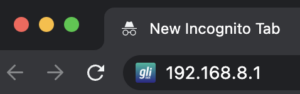
  2. In the address bar, type: 192.168.8.1
  3. Press Enter.
GL.iNet router access

This is the local router dashboard address (not a public website). If the page doesn’t load:

  • Try a different browser.
  • Clear your cache.
  • Ensure your device is connected to the FlashRouter network.

Step 3. Log In to the Router Settings

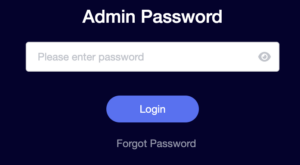
  • Default password: glopenwrt1 or openwrt
  • This is the factory default for all GL.iNet routers shipped by FlashRouters.
GL.iNet admin password enter

💡 Once you’re in, you can update your admin password in the settings for extra security.

Next Steps

Now that you’ve accessed your GL.iNet FlashRouter, you can:

  • Set up your VPN service
  • Customize your WiFi name and password
  • Adjust device controls and security settings

Check our support library for your specific VPN setup guide.

How to Access Your AsusWRT FlashRouter Settings

TeamFlashRouters · Oct 16, 2025 ·

This quick guide will walk you through connecting to your AsusWRT FlashRouter and logging into the admin settings page. You’ll use either WiFi or an Ethernet cable, then access the router dashboard through your browser.

Step 1. Connect Your Device to the Router

You can connect by WiFi or Ethernet:

  • WiFi: Look for a network name like FlashRouter24 or FlashRouter50.
    • The WiFi password is set to: Wireless#[First 5 characters of your router’s MAC]
    • Example: If your MAC is CC28A07E70A8, your WiFi password is Wireless#CC28A.
    • ⚠️ Be sure to capitalize the “W” in Wireless.
  • Ethernet: Plug an Ethernet cable from your computer into one of the router’s LAN ports (usually marked or color-coded differently from the WAN port).

👉 Pro tip: Disconnect from any other WiFi networks during setup.

Step 2. Open the Router Login Page

  1. Open a web browser (Chrome, Safari, Firefox, Edge).
  2. In the address bar, type: 192.168.50.1 or go to asusrouter.com
  3. Press Enter.
Access Asus Router

This is the local router dashboard address (not a public website). If the page doesn’t load:

  • Try a different browser.
  • Clear your cache.
  • Ensure your device is connected to the FlashRouter network.

Step 3. Log In to the Router Settings

  • Default username: flashrouter
  • Default password: asuswrt-admin1
  • Some older devices may use: asuswrt1 or asuswrt
  • This is the factory default for AsusWRT routers shipped by FlashRouters.
Asus Router Login

💡 Once you’re in, you can update your admin password in the settings for extra security.

Next Steps

Now that you’ve accessed your AsusWRT FlashRouter, you can:

  • Set up your VPN service
  • Customize your WiFi name and password
  • Adjust device controls and security settings

Check our support library for your specific VPN setup guide.

Why can’t I access router settings?

Dave · May 3, 2019 ·

Be sure to first try the preset details to access your FlashRouter’s settings.

First time setup

Are you connected to the FlashRouter's network?

In order to access the FlashRouter’s settings you need to be connected to the FlashRouter’s network via ethernet or WiFi.

It is possible that if you are connected to the FlashRouter’s network you device might have static IP settings from a previous connection preventing it from being read correctly. Check your device’s static IP settings before proceeding.

Is your FlashRouter wired correctly?

Your FlashRouter should be wired as detailed in our Connect FlashRouter to the Internet setup.

A common mistake is to connect from your modem or other router to a LAN/numbered port of the FlashRouter instead of the WAN/Internet port of the FlashRouter as it should be. Doing so results in no access to the FlashRouter’s settings.

Lost access

How to find you FlashRouter's Local IP Address?

It is possible that your Local IP Address was changed at some point. Your Local IP Address is the address that you can access the FlashRouter’s settings with. We recommend finding the Local IP Address of the FlashRouter.

Was your FlashRouter reset?

If your FlashRouter is showing a local IP Address of 192.168.1.1 and you are seeing ‘dd-wrt’ as an available network in your wireless networks, your FlashRouter was reset. Reconfigure your FlashRouter.

Keep in mind that seeing a Local IP Address of 192.168.1.1 can also mean your are wired incorrectly and the router has not been reset. Be sure to check your wireless networks for ‘dd-wrt’. If the FlashRouter’s wireless network name appears as it was set then your FlashRouter was not reset and you should see the above section.

Tried updating firmware

Why can't I access my FlashRouter after a firmware upgrade?

When performing a firmware upgrade there is a dropdown that has Don’t Reset or Reset to Default settings as options.

If you accidentally selected Reset to Default settings you will need to reconfigure your FlashRouter.

If you had Don’t Reset selected and are still unable to connect to the FlashRouter’s network after a firmware upgrade, first make sure you are connected to the FlashRouter’s network as WiFi can disconnect during an upgrade, and then Reboot the FlashRouter.

NordVPN Setup for AsusWRT: Token, WireGuard & OpenVPN

TeamFlashRouters · Oct 15, 2025 ·

Set up NordVPN on an ASUS router using AsusWRT VPN Fusion. Supported ASUS firmware offers three different VPN types: NordVPN (access-token integration), WireGuard (downloadable .conf file), and OpenVPN (manual service credentials plus an .ovpn file). Choose the method that matches your needs and your router’s available options.

All configuration is completed directly through your ASUS router’s administration interface using VPN Fusion. Before starting, make sure your router is connected to the internet, your firmware supports VPN Fusion, and you have an active NordVPN subscription.

Before starting, join the ASUS router WiFi or LAN and sign in to http://www.asusrouter.com or your router’s LAN IP (commonly 192.168.50.1). Open VPN > VPN Fusion > Add profile. Router model, firmware, and region affect which VPN types appear. See Access Your AsusWRT Settings.

In This Guide

Choose a VPN Type →NordVPN, WireGuard, or OpenVPNNordVPN Token Setup →Built-in NordLynx integrationWireGuard File Setup →Download and import a .confOpenVPN Setup →Manual credentials and .ovpnDedicated IP Setup →OpenVPN onlyDevices & Troubleshooting →Route devices and verify IP

Which NordVPN Option Should You Choose?

1. NordVPN

NordVPN access token and a country/region dropdown. The built-in ASUS/NordVPN integration is the simplest approach if you only need a country, not an exact server file.

Follow token setup →

2. WireGuard

Import a NordVPN .conf configuration file for a server selected in Nord Account. Useful when you want a downloaded profile for a particular server.

Follow WireGuard setup →

3. OpenVPN

Import a NordVPN .ovpn server file and enter your separate manual service username and password. Also used for NordVPN Dedicated IP.

Follow OpenVPN setup →

Dedicated IP uses OpenVPN only in this guide. Select OpenVPN in VPN Fusion and import your Dedicated IP .ovpn file. Do not use the standard NordVPN token/region dropdown for a Dedicated IP.

Option 1: NordVPN Dropdown — Token-Based NordLynx

Select the NordVPN type inside VPN Fusion. This is the integrated token-based setup and offers a country/region selection, rather than a manually imported server file.

  1. In Nord Account, open NordVPN Access Tokens and complete email/account verification if requested.
  2. Generate an access token, choose an expiry period if NordVPN offers that setting, and copy the token immediately (it may only be displayed once).
  3. On your ASUS router, open VPN > VPN Fusion > Add profile.
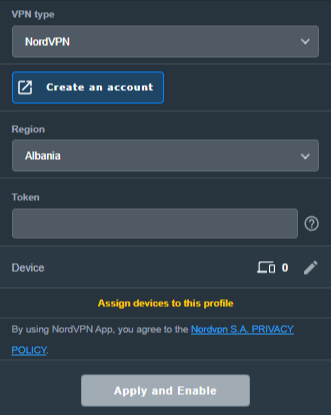
  4. Set VPN Type to NordVPN. Name the profile, select your preferred Region, and paste the token.
  5. Choose Apply to all devices if you want it as the default route, or assign only selected devices (see the VPN Fusion guide below).
  6. Click Apply and Enable / Apply all settings, as shown in your firmware, and verify the profile connects.
ASUS VPN Fusion NordVPN VPN type with Region and Token fields
Keep: existing ASUS NordVPN region/token form (remove any private token before publishing).

Need a specific server? Use the separate WireGuard file method below or the OpenVPN configuration-file method. Do not expect the token-based country dropdown to accept a .conf or .ovpn file.

Option 2: WireGuard Dropdown — Import a NordVPN .conf File

NordVPN now provides downloadable WireGuard configuration files through its manual server recommendation page. This is different from the built-in NordVPN token option in VPN Fusion.

  1. Sign in to Nord Account and open NordVPN Server Recommendation.
  2. Choose your preferred country and server; use the available filters if you need to narrow the list. Select a currently available server.
  3. Choose Get setup configuration, select WireGuard from the protocol menu, and click Download config. Save the downloaded .conf file.
  4. In your ASUS router settings open VPN > VPN Fusion > Add profile, then set VPN Type to WireGuard (not NordVPN).
  5. Use the ASUS Import configuration / file-import control to select the NordVPN .conf file. Confirm the imported parameters and save the profile.
  6. Choose the target devices or enable the default/all-devices route. Click Apply and Enable, then check the VPN status and your public IP.


WireGuard configuration files may contain a private key. Do not share an actual customer .conf file or publish a screenshot exposing its key material. When changing servers, download/import a different file and choose the desired active profile.

NordVPN’s official instructions: How to download WireGuard and OpenVPN configuration files.

Option 3: OpenVPN Dropdown — Credentials + .ovpn File

OpenVPN requires two separate items: the configuration file for your desired server and NordVPN’s manual service credentials. Your normal Nord Account email/password is not the correct credential pair for this method.

  1. Open NordVPN Manual Service Credentials and copy the service username and service password after any required verification.
  2. Open NordVPN OpenVPN Configuration Files and choose a server/location. Download its UDP .ovpn file, or TCP .ovpn if UDP does not work on your network.
  3. On ASUS, go to VPN > VPN Fusion > Add profile and set VPN Type to OpenVPN.
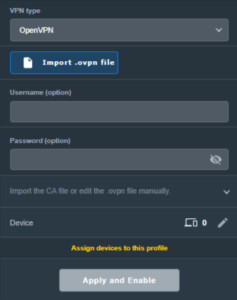
  4. Enter a connection name, Import .ovpn file, and paste the NordVPN manual service username and password in the corresponding fields.
  5. Choose devices or Apply to all devices, then click Apply and Enable. Confirm VPN Fusion shows a successful connection.
ASUS VPN Fusion OpenVPN VPN type with OVPN import and username password fields
Keep: existing ASUS OpenVPN profile form. New screenshots should use a larger clean capture if available.

Server selection: The location is controlled by the server named in the imported .ovpn file. To switch locations, import another server file or use a separate OpenVPN profile.

NordVPN Dedicated IP — OpenVPN Only

If you have purchased and activated the NordVPN Dedicated IP add-on, use your specific Dedicated IP OpenVPN configuration file. Do not select the ordinary NordVPN token integration or a regular shared server.

  1. In your Nord Account, open the Dedicated IP details and download the assigned server’s OpenVPN UDP or TCP configuration file, following NordVPN Dedicated IP manual configuration instructions.
  2. Open NordVPN Manual Service Credentials and copy the manual username and password.
  3. In ASUS VPN Fusion > Add profile, choose OpenVPN.
  4. Import the Dedicated IP .ovpn file, enter manual service credentials, save, enable, and verify the public IP matches your assigned Dedicated IP.

The Dedicated IP add-on must be active on the NordVPN account. A regular shared-server .ovpn file will not give you the Dedicated IP.

Assign Devices, Verify the VPN, and Troubleshoot

One VPN for everyone, or different VPNs for different devices?

VPN Fusion lets you use a VPN profile as the default connection for all devices or assign specific client devices to different profiles. Some supported ASUS models can maintain one WireGuard tunnel alongside multiple OpenVPN profiles, but the number of simultaneous tunnels is model/firmware dependent; creating multiple profiles does not mean all can be active simultaneously.

For step-by-step device assignments, default routing, profile conflicts, and bypassing the VPN, see How to Use ASUS VPN Fusion and Assign Devices to VPN Profiles. For a dedicated WiFi network with VPN or ISP routing, see ASUS Guest Network VPN / No-VPN Setup.

Verify the IP of the actual device

  1. Confirm your chosen profile shows Connected in VPN Fusion.
  2. Join the ASUS WiFi or LAN using a device that is actually assigned to that VPN profile.
  3. Open NordVPN IP Address Check and compare the public IP/location with the intended server or Dedicated IP.
  4. If the device shows an ISP IP, first check Apply to all devices and the per-device assignments in VPN Fusion.
  5. Disconnect a NordVPN app, Apple iCloud Private Relay, browser VPN/proxy, or other device-level network service during testing. Follow Router VPN Shows Wrong IP? Check Device Settings.

If VPN Fusion will not connect

  1. Temporarily disable the failing profile and confirm the ASUS router works using its normal ISP internet connection.
  2. For NordVPN type, check that the access token is valid and hasn’t expired; regenerate if needed.
  3. For WireGuard, import a fresh .conf from the Nord server recommendation page and make sure the profile is enabled.
  4. For OpenVPN, double-check manual service credentials (not website credentials) and try a different server file or TCP instead of UDP.
  5. Check that device-assignment rules point to the intended active profile, then retest with one clean device.

NordVPN Routers & Offers

Shop NordVPN-Ready FlashRouters

Compare ASUS and Privacy Hero router options and choose the hardware that fits your VPN and network requirements.

Browse NordVPN Routers →

NordVPN Partner Offer

Need NordVPN service? See the current FlashRouters NordVPN promotional offer. Subscription pricing and terms are shown on the offer page.

See NordVPN Offer →

Related AsusWRT Guides

  • ASUS VPN Fusion: Assign Devices and Manage Multiple Profiles
  • ASUS Guest Network: WiFi With or Without a VPN
  • AsusWRT Router Login Guide
  • Router VPN Shows Wrong IP? Device Settings

Upgrade your ASUS router

Explore the Latest WiFi 7 ASUS FlashRouters

Looking for a newer ASUS router? Browse WiFi 7 models available from FlashRouters and compare features to find the right fit for your home or office. VPN Fusion and other features vary by router model and firmware.

Shop ASUS WiFi 7 Routers →

VPN FAQs

admin · Jan 29, 2019 ·

VPN FAQs

General VPN FAQ Answers

What is a VPN?

VPN is an acronym for ‘Virtual Private Network’, historically used by private organizations to seamlessly link geographically diverse locations via the Internet. A VPN ‘tunnels’ traffic between two devices by transmitting it over a secure network. There are also clearly identifiable benefits to individual Internet users accessing a VPN.

  • A VPN provides you with top-level security and privacy for all your Internet downloading, streaming and browsing. As long as you are signed into your VPN account, all data you transmit over the Internet is encrypted.
  • A VPN encrypts your device by hiding the IP address assigned by your Internet Service Provider (ISP) and replacing it with the IP address of your choosing from the list of server locations belonging to your VPN provider. This masks your identity when visiting sites that geo-restricted content, and helps you avoid devious local Internet marketing and advertising schemes that track you through your IP address.

Will a FlashRouter with a built-in VPN client speed up my connection?

FlashRouters are relatively new models that may enhance data transfers across your home network or extend the range of your Wireless signal. However, the speed at which you download or stream content can not exceed the speed of the connection you pay for through your ISP. Purchasing a FlashRouter or signing up for VPN service WILL NOT transform your regular connection into a high-speed broadband connection.

At the same time, if you do have a broadband connection, a FlashRouter with a VPN connection may slow down your transfer speeds due to the processor encrypting all of your data. In certain cases a FlashRouter with a VPN can also prevent throttling by an ISP of specific service like Netflix or Amazon Video.

Which VPN provider should I use?

Our routers have been tested to perform with many of the most popular VPN providers such as ExpressVPN, NordVPN, IPVanish, PrivateInternetAccess & CyberGhost among 50+ VPN providers so that subscribers can get the maximum benefit from their VPN service. If you prefer another provider, that is not an issue at all. You can still use a DD-WRT VPN FlashRouter with any VPN provider that offers DD-WRT router integration support. Contact our team for further information about using our routers with your VPN service of choice or if you need a VPN provider recommendation based on your location.

Should my FlashRouter replace my old router?

A FlashRouter will work as a standalone router by connecting your modem to its Wide Area Network (WAN) port, or using it in a Dual Router Network by connecting it to your existing router through a Local Area Network (LAN)/Ethernet port. Either way a FlashRouter can be configured to tunnel all traffic through the VPN server of your choosing.

If you would like to set up your Home Network so that some devices are being tunneled through a VPN server, and others are connecting to your Internet Service Provider (ISP) within your home country, then using your FlashRouter as an auxiliary device is recommended.

VPN Security FAQ Answers

Can I change my IP address to one in another country?

YES! The countries that you can change your IP address to depend on the offerings of your specific VPN providers. Prices and server locations vary across all VPN providers.

If you choose to purchase a FlashRouter then you will not have to install any VPN client software on your computer to change your IP address; the VPN will already be configured within the router. Therefore, any device you plug into this FlashRouter is automatically assigned the IP address of your selected VPN server.

When is my connection secure?

As long as the VPN account preset into your FlashRouter is active, any device that is connected to the Internet through this router has its network traffic encrypted, and IP address masked. With a FlashRouter you never have to physically login to your VPN account, as the settings have been stored in the router’s DD-WRT firmware.

Don’t worry though! If you are not at home, and using Wi-Fi in a public location, you can still use your VPN account on a laptop or mobile device through various other methods.

How can I be sure my connection is safe and encrypted?

In order to make sure that the connection on your FlashRouter is being rerouted appropriately through your VPN service, visit What is my IP address and make sure the location listed is the one you have chosen in your VPN settings, NOT your actual location.

If you wish, there is an Internet Kill Switch available as well for your router which will block the internet whenever you disconnect from VPN.

What VPN connection standards are supported on a FlashRouter?

Currently we support the OpenVPN protocol for VPN client connections. PPTP VPN has been deemed as insecure by the privacy community and so we no longer offer support for PPTP VPN connections.

Technical VPN FAQ Answers

What operating systems do you support?

A FlashRouter can be used with any operating system, be it Windows, Mac OS or Linux. A FlashRouter can also be used as a wireless access point for iPhones, iPads, and Android devices.

Our routers also work in conjunction with any other brand of router of ADSL or DSL modem/router combo from ISPs across the world.

Can I set up a VPN on a PS4, Xbox One, Kindle Fire, Roku, AppleTV or other devices without native VPN support?

THAT’S WHAT WE ARE HERE FOR!

If you purchase one of our FlashRouters loaded with DD-WRT firmware, you can run the client VPN connection from your router. Once you do this every device connected to the router will tunnel through the VPN.

Now you can stream content like Netflix, BBC iPlayer, Pandora Hulu, or Amazon Instant to your TV through any of these devices, instead of being constrained to streaming content on your computer!

If you need a recommendation for a VPN service with a specific streaming platform do not hesitate to contact our support team.

Privacy Hero Bypass certain devices from VPN

TeamFlashRouters · Apr 3, 2023 ·

Your Privacy Hero router uses Cloud Based router management which means you can access the router settings from anywhere on any device that has an internet connection. You can follow these steps while connected to your phone, other Wi-Fi network, or the Privacy Hero network.

If you have certain devices in your network that you do NOT want connecting to VPN you can follow these steps to bypass these devices from the Privacy Hero’s VPN connection.

1. From any device that has a browser such as a computer, smartphone, or tablet visit app.privacyhero.com

App.PrivacyHero.com

2. Enter your Privacy Hero account email and password. Click Login.

Privacy Hero Access Settings

If you have not created your Privacy Hero account yet please follow these instructions.

3. Click the Devices symbol.

Privacy Hero Devices

4. Click the name of the Device you want to bypass from VPN.

Privacy Hero Select Device

5. Set the VPN toggle to Off. You can also do the same for Adblocking and Device Protection as needed.

Privacy Hero VPN off by device

TROUBLESHOOTING

Still having issues? Visit the VPN Troubleshooting section.

Troubleshoot Here

Privacy Hero Access Router Settings

TeamFlashRouters · Feb 8, 2023 ·

Your Privacy Hero router uses Cloud Based router management which means you can access the router settings from anywhere on any device that has an internet connection. You can follow these steps while connected to your phone, other Wi-Fi network, or the Privacy Hero network.

1. From any device that has a browser such as a computer, smartphone, or tablet visit app.privacyhero.com

App.PrivacyHero.com

2. Enter your Privacy Hero account email and password. Click Login.

Privacy Hero Access Settings

If you have not created your Privacy Hero account yet please follow these instructions.

TROUBLESHOOTING

Still having issues? Visit the VPN Troubleshooting section.

Troubleshoot Here

Privacy Hero Change Wi-Fi Name and Password

TeamFlashRouters · Feb 8, 2023 ·

Your Privacy Hero router uses Cloud Based router management which means you can access the router settings from anywhere on any device that has an internet connection. You can follow these steps while connected to your phone, other Wi-Fi network, or the Privacy Hero network.

Use these steps to change your Privacy Hero WiFi name and password.

1. From any device that has a browser such as a computer, smartphone, or tablet visit app.privacyhero.com

App.PrivacyHero.com

2. Enter your Privacy Hero account email and password. Click Login.

Privacy Hero Access Settings

If you have not created your Privacy Hero account yet please follow these instructions.

3. Click the Wi-Fi symbol.

Privacy Hero Select Wifi

4. Click the edit box for the 5GHz network or the 2.4GHz network.

Privacy Hero Edit Wifi network

5. Enter the new Wi-Fi name and password you’d like to set. Click Save at the bottom of the page.

Privacy Hero enter new wifi name and password

TROUBLESHOOTING

Still having issues? Visit the VPN Troubleshooting section.

Troubleshoot Here

Privacy Hero Change Wireless Channel

TeamFlashRouters · Feb 8, 2023 ·

Your Privacy Hero router uses Cloud Based router management which means you can access the router settings from anywhere on any device that has an internet connection. You can follow these steps while connected to your phone, other Wi-Fi network, or the Privacy Hero network.

Use these steps to change your Privacy Hero wireless channel.

1. From any device that has a browser such as a computer, smartphone, or tablet visit app.privacyhero.com

App.PrivacyHero.com

2. Enter your Privacy Hero account email and password. Click Login.

Privacy Hero Access Settings

If you have not created your Privacy Hero account yet please follow these instructions.

3. Click the Wi-Fi symbol.

Privacy Hero Select Wifi

4. Click the edit box for the 5GHz network or the 2.4GHz network.

Privacy Hero Edit Wifi network

5. Select the new Wireless Channel that you would like to use. Click Save at the bottom of the page.

Privacy Hero enter new wifi name and password

TROUBLESHOOTING

Still having issues? Visit the VPN Troubleshooting section.

Troubleshoot Here

Privacy Hero Disable Wi-Fi

TeamFlashRouters · Feb 8, 2023 ·

Your Privacy Hero router uses Cloud Based router management which means you can access the router settings from anywhere on any device that has an internet connection. You can follow these steps while connected to your phone, other Wi-Fi network, or the Privacy Hero network.

Use these steps to disable your Privacy Hero Wi-Fi so only ethernet connections are active. This is not a required step just a preference.

1. From any device that has a browser such as a computer, smartphone, or tablet visit app.privacyhero.com

App.PrivacyHero.com

2. Enter your Privacy Hero account email and password. Click Login.

Privacy Hero Access Settings

If you have not created your Privacy Hero account yet please follow these instructions.

3. Click the Wi-Fi symbol.

Privacy Hero Select Wifi

4. Set the toggle switches to the off position for the Wi-Fi bands you want to disable.

Privacy Hero Disable Wifi

TROUBLESHOOTING

Still having issues? Visit the VPN Troubleshooting section.

Troubleshoot Here

Privacy Hero Streaming Relocation

TeamFlashRouters · Apr 3, 2023 ·

Your Privacy Hero router uses Cloud Based router management which means you can access the router settings from anywhere on any device that has an internet connection. You can follow these steps while connected to your phone, other Wi-Fi network, or the Privacy Hero network.

Use these steps change your location for popular streaming services allowing you to access to regionally restricted content. Privacy Hero uses DNS routing to change your location which is a great way around VPN streaming blocks.

1. From any device that has a browser such as a computer, smartphone, or tablet visit app.privacyhero.com

App.PrivacyHero.com

2. Enter your Privacy Hero account email and password. Click Login.

Privacy Hero Access Settings

3. Click the Streaming symbol.

Privacy Hero Streaming

4. Set the Streaming Relocation toggle to On.

Privacy Hero enable Streaming Relocation

5. Click the flag of the country you would like the listed streaming service to use.

Privacy Hero select Region

This streaming relocation feature will not change your IP address in the way that a VPN does. This is why it is not able to be blocked in the same way that a VPN connection can be.

The listed services on the streaming relocation page will not be connected to VPN even if the Privacy Hero has an active VPN connection. These services are set to bypass the router’s VPN tunnel to avoid streaming blocks.

Toggling the streaming relocation feature On will also relocate many other streaming services automatically. They will be automatically optimized for the best connection with no manual selection needed for:
ABC
Adult Swim
All 4
Apple TV Channels
BBC
Britbox
CBC Gem
CBS Sports
Crackle
DirecTV Stream
DSTV Now
Filmrise
Freeform
Freevee
Frndly TV
F1 TV
FX Now
ITV
MGM+
Molotov.TV
My 5
NBC
NBC Sports
Now E
Now TV
Pandora
Paramount+
PBS
Peacock
Philo
Pluto TV
Showmax
Sling
SonyLIV
S Sports Plus
Starz
Stirr
TBS
Tennis Channel
The CW
Tubi
TVPlayer
Vudu
Xumo
Zattoo

TROUBLESHOOTING

Still having issues? Visit the VPN Troubleshooting section.

Troubleshoot Here

Privacy Hero Adblocking Malware and Phishing Prevention Setup

TeamFlashRouters · Apr 3, 2023 ·

Your Privacy Hero router uses Cloud Based router management which means you can access the router settings from anywhere on any device that has an internet connection. You can follow these steps while connected to your phone, other Wi-Fi network, or the Privacy Hero network.

Use these steps to enable Privacy Hero’s adblocking, malware, and phishing prevention settings to add extra security to your network.

1. From any device that has a browser such as a computer, smartphone, or tablet visit app.privacyhero.com

App.PrivacyHero.com

2. Enter your Privacy Hero account email and password. Click Login.

Privacy Hero Access Settings

If you have not created your Privacy Hero account yet please follow these instructions.

3. Click the VPN symbol.

Privacy Hero Setup VPN

4. Toggle the Adblocking and Malware & Phishing switches to On.

Privacy Hero Adblocking Malware and Phishing

TROUBLESHOOTING

Still having issues? Visit the VPN Troubleshooting section.

Troubleshoot Here

Privacy Hero Creating User Profiles and Adding Devices to Profiles

TeamFlashRouters · Apr 3, 2023 ·

Your Privacy Hero router uses Cloud Based router management which means you can access the router settings from anywhere on any device that has an internet connection. You can follow these steps while connected to your phone, other Wi-Fi network, or the Privacy Hero network.

The Privacy Hero router allows for User Profile creation. Doing so allows you to group different user’s devices together to customize the following rules:

  • Internet access scheduler (Bedtime settings)
  • Internet Safe Search
  • Youtube Safe Search
  • Block Adult Content

This makes the Privacy Hero a great router option for families and internet addicts.

1. From any device that has a browser such as a computer, smartphone, or tablet visit app.privacyhero.com

App.PrivacyHero.com

2. Enter your Privacy Hero account email and password. Click Login.

Privacy Hero Access Settings

If you have not created your Privacy Hero account yet please follow these instructions.

3. Click the Profiles symbol.

Privacy Hero Profiles

4. Click Create New Profile.

Privacy Hero Create New Profile

5. Set the Profile Name, select the Profile Icon, and click Save.

Privacy Hero Set Profile Name

6. Click the name of the User Profile.

Privacy Hero Select Profile

7. Select Devices.

Privacy Hero Select Devices

8. Select Manage Devices.

Privacy Hero Select Manage Devices

9. If you have not already connected your devices to the Privacy Hero network via wireless or ethernet you can do so now. Refresh the page after connecting a new device and it will appear in the list where you can select Move to “Profile Name” to move the device to the appropriate profile. By default new devices are in the Shared profile.

Privacy Hero Move to User Profile

If your devices were already connected to the Privacy Hero network and you are having issues identifying them I would recommend the following steps:

  1. Click the Devices icon.
  2. Select the device in question.
  3. Click Nerd and note down the IP Address of the device.
  4. Go to the network settings of your device where it will display the local IP Address and match that to the IP Address noted in Privacy Hero.

This is how you can identify a device that is not properly named.

10. Now that your devices are assigned you can set the Bedtime Settings (Internet Scheduler) and Safe Surf settings for your new Profile.

TROUBLESHOOTING

Still having issues? Visit the VPN Troubleshooting section.

Troubleshoot Here

Privacy Hero Bedtime Settings (Internet Scheduler)

TeamFlashRouters · Apr 3, 2023 ·

Your Privacy Hero router uses Cloud Based router management which means you can access the router settings from anywhere on any device that has an internet connection. You can follow these steps while connected to your phone, other Wi-Fi network, or the Privacy Hero network.

The Bedtime settings feature allows users to schedule when internet access will be turned off for specific user profiles. All devices assigned to this profile will have these rules applied.

1. From any device that has a browser such as a computer, smartphone, or tablet visit app.privacyhero.com

App.PrivacyHero.com

2. Enter your Privacy Hero account email and password. Click Login.

Privacy Hero Access Settings

If you have not created your Privacy Hero account yet please follow these instructions.

3. Click the Profiles symbol.

Privacy Hero Profiles

4. Click the name of the User Profile.

Privacy Hero Select Profile

5. Click Schoolnights or Weekends depending on which you need to set rules for.

Privacy Hero Bedtime School Nights Weekends

6. Select the time that you want the Internet to turn off and the days you want this rule to apply to. Click Save.

Privacy Hero Set Bedtime

7. Set the Bedtime toggle to On.

Privacy Hero Enable Bedtime

TROUBLESHOOTING

Still having issues? Visit the VPN Troubleshooting section.

Troubleshoot Here

Privacy Hero Safe Surf

TeamFlashRouters · Apr 3, 2023 ·

Your Privacy Hero router uses Cloud Based router management which means you can access the router settings from anywhere on any device that has an internet connection. You can follow these steps while connected to your phone, other Wi-Fi network, or the Privacy Hero network.

The Safe Surf settings feature allows users to block inappropriate search results, YouTube videos, and adult content. All devices assigned to this profile will have these rules applied.

1. From any device that has a browser such as a computer, smartphone, or tablet visit app.privacyhero.com

App.PrivacyHero.com

2. Enter your Privacy Hero account email and password. Click Login.

Privacy Hero Access Settings

If you have not created your Privacy Hero account yet please follow these instructions.

3. Click the Profiles symbol.

Privacy Hero Profiles

4. Click the name of the User Profile.

Privacy Hero Select Profile

5. Toggle On the settings for Internet Safe Search, YouTube Safe Search, and Block Adult Content as needed.

Privacy Hero Safe Search

TROUBLESHOOTING

Still having issues? Visit the VPN Troubleshooting section.

Troubleshoot Here

Surfshark Setup for Privacy Hero

TeamFlashRouters · Sep 23, 2025 ·

Privacy Hero supports Surfshark through WireGuard and OpenVPN using the Custom VPN provider option.

WireGuard is recommended for most users. It requires a Surfshark WireGuard key pair and a downloaded server configuration file. OpenVPN uses a downloaded .ovpn file and Surfshark’s separate Manual Setup credentials, not your usual Surfshark login email and password.

Privacy Hero is cloud-managed. You can change these settings from any computer, smartphone, or tablet with an internet connection; you do not need to be on the Privacy Hero WiFi to configure the VPN.

Choose Your Surfshark Setup

Select the connection method or instructions you need.

WireGuard Setup →Recommended · Key pair and server fileOpenVPN Setup →Manual credentials and UDP .ovpn fileUpload WireGuard →Import your configuration into Privacy HeroUpload OpenVPN →Add the file and service credentialsVerify Connection →Check your VPN IP and locationTroubleshooting →Fix connection failures and no internet

Surfshark WireGuard Setup (Recommended)

WireGuard uses a key pair for authentication. A separate Surfshark username and password is not needed for the WireGuard configuration.

Create or Select Your Surfshark WireGuard Key Pair

  1. Sign in to your Surfshark account.
  2. Open VPN → Manual Setup, choose the Router setup option, and select WireGuard.
  3. If you already registered a key pair with Surfshark, select I have a key pair and follow the prompts to register your public key. Otherwise, select I don’t have a key pair.
  4. If generating a new key pair, enter a name and choose Generate a new key pair. Save the generated keys securely when prompted.

Important: Your WireGuard private key is sensitive. Do not publish or send it in a support ticket. Surfshark notes that you may not be able to view the generated keys again after leaving that screen.

Download a Surfshark WireGuard Server File

  1. After setting up the key pair, select Choose a location or open the Locations section.
  2. Choose an available Surfshark server and download its WireGuard configuration file to your device.

Do not download the WireGuard configuration before setting up the key pair. Surfshark warns that a file downloaded too early can be missing the required key information. For more detail, see Surfshark’s manual WireGuard router instructions.

Upload WireGuard to Privacy Hero

  1. Open app.privacyhero.com and log in to your Privacy Hero account.
  2. Open the VPN section, click Change, and choose Custom as the VPN provider.
  3. Select WireGuard and upload the Surfshark WireGuard configuration file you downloaded.
  4. Click Save and allow Privacy Hero to establish the connection. Confirm the VPN status shows Connected.
Privacy Hero Custom WireGuard configuration and file upload panel

Surfshark OpenVPN Setup

OpenVPN is an alternative to WireGuard. It requires a Surfshark Manual Setup username and password and a downloaded OpenVPN configuration (.ovpn) file.

Get Your Surfshark OpenVPN Credentials

  1. Sign in to your Surfshark account.
  2. Open VPN → Manual Setup, choose Router, and select OpenVPN.
  3. Open the Credentials tab. If credentials are not yet available, select Generate credentials.
  4. Copy the Manual Setup username and password, or keep the tab open to enter them into Privacy Hero later.

Important: These are not your regular Surfshark website email and password. Keep the service credentials private.

Download a Surfshark OpenVPN Server File

  1. In Surfshark’s OpenVPN Manual Setup area, open the Locations tab.
  2. Select a country or server and download its UDP .ovpn configuration file. UDP is the recommended starting option; a TCP configuration may be worth trying later if needed.

Download a new .ovpn file whenever you want to switch to a different Surfshark server location. See Surfshark’s manual server selection instructions.

Upload OpenVPN to Privacy Hero

  1. Open app.privacyhero.com, sign in, and select the VPN section.
  2. Click Change, select Custom, and choose OpenVPN.
  3. Upload the Surfshark UDP .ovpn file you downloaded.
  4. Enter the Surfshark Manual Setup username and password into the Custom OpenVPN fields.
  5. Click Save, then confirm the VPN status shows Connected.
Privacy Hero Custom OpenVPN screen with configuration file upload and username and password fields

Verify Your Surfshark Connection

Privacy Hero showing Connected confirms the router connection status. Test a device on the Privacy Hero network to confirm it is using Surfshark.

  1. Connect your device to the Privacy Hero WiFi or LAN.
  2. Disconnect the Surfshark app or any other VPN app running directly on the testing device.
  3. Open a fresh private/incognito browser window.
  4. Visit Surfshark’s IP address checker.
  5. Confirm the displayed public IP and approximate location correspond to your selected Surfshark server.

You can change Privacy Hero settings while using another WiFi network or cellular data, but the device performing this VPN IP test must be connected to Privacy Hero. Avoid running a separate VPN app on the same testing device, as that creates a double-VPN connection.

Streaming Relocation and Your VPN Location

When Streaming Relocation is enabled for a supported streaming service, that service may use its Streaming Relocation region instead of the Surfshark VPN server region. See Privacy Hero Streaming Relocation.


Surfshark Not Connecting?

If Privacy Hero displays Failed, remains on Connecting, or reports a timeout, try these steps:

  1. Confirm your Surfshark subscription is active and that Custom is selected as the VPN provider in Privacy Hero.
  2. If using WireGuard, confirm that the key pair was created or registered before downloading the server file. If necessary, generate a new key pair, download a fresh configuration, and upload it again.
  3. If using OpenVPN, double-check your separate Surfshark Manual Setup username and password, not your regular website login.
  4. Download a fresh server configuration for another available Surfshark location and try again.
  5. If OpenVPN UDP continues to fail, try a Surfshark TCP .ovpn configuration file to check for a protocol-specific issue.
  6. Temporarily disable the VPN Kill Switch while checking whether internet access works without the VPN, then restore your preferred Kill Switch setting.

No Internet After Surfshark Disconnects?

The VPN Kill Switch may intentionally block normal internet traffic when the VPN connection is unavailable. See Privacy Hero VPN Kill Switch: No Internet or WiFi Troubleshooting.

VPN Connected but One Device Shows the Wrong IP?

If other Privacy Hero devices display the expected Surfshark VPN IP, review the affected device for VPN apps, iCloud Private Relay, Private DNS, proxy settings, antivirus filtering, or other security software. See Device Settings That Can Interfere With Your Router VPN.

Related Privacy Hero Guides

  • Privacy Hero VPN Kill Switch Setup
  • VPN Kill Switch: No Internet or WiFi
  • Privacy Hero Streaming Relocation
  • Device Settings That Can Interfere With Your Router VPN
  • FlashRouters Router Troubleshooting
Next Page »

Primary Sidebar

  • Troubleshooting
  • Router Access
  • Internet Connection Issues
  • WiFi Connectivity
  • General VPN Issues
  • TeamViewer Remote Support
  • DD-WRT Firmware
  • Facebook
  • Twitter
  • Instagram
  • Pinterest
  • YouTube

Footer