• Skip to primary navigation
  • Skip to main content
  • Skip to primary sidebar
  • Skip to footer

FlashRouters Support Portal

Prioritizing Privacy

  • SETUP GUIDES
    • Privacy Hero Router Setup Guide
    • ASUS-WRT Router Setup Guide
    • AsusWRT-Merlin Router Setup Guide
    • DD-WRT Router Setup Guide
    • ExpressVPN Router Setup Guide
    • GL.iNet Router Setup Guide
    • Roqos Core Router Setup Guide
  • TROUBLESHOOTING
    • Router Access
    • WiFi Connectivity
    • Internet Connection Issues
    • General VPN Issues
    • DD-WRT Firmware
    • TeamViewer Remote Support
  • FAQs
    • Router FAQs
    • VPN FAQs
    • Warranty and Returns FAQs
    • Sales FAQs
    • Shipping FAQs
    • Service Plan FAQs
  • Show Search
Hide Search

Search Results for: over the air internet

Router FAQs

admin · Jan 29, 2019 ·

Router FAQs

What is an IP Address?

An IP (Internet Protocol) Address is a numerical assignment for each device (cell phone, iPad, laptop computer, printer etc) inside a network that uses the Internet Protocol for communication. Internet Protocol is responsible for routing information packets across network boundaries. It is the main protocol establishing the Internet.

An IP address serves two predominant functions. First is to host or network interface identification. Second, it provides location addressing. To put it bluntly, an IP address tells wherever you are connecting, to whom you are visiting, and where you are located.

What is DNS?

DNS (Domain Name System) is a protocol within the TCP/IP protocol that uses a set of standards for how computers exchange data on the Internet and on many private networks.

The basic job of DNS is to convert a user-friendly domain name into an IP address that computers use to identify one another. Think of DNS like your cellphone contact list; you tap the name and the phone contacts to a phone number.

It is easier to remember flashrouters.com, rather than its IP address. Imagine if you had to remember all of the IP addresses of your favorite websites!

What is DNSMasq?

DNSMasq is a local DNS server that speeds up host-name searches from your computer/Internet connection after pressing enter.

Basically, DNSMasq gives the router some advanced enterprise functionality – caching DNS records locally so you have a faster browsing experience. Your computer only has to go to the router instead of repeatedly scouring the web for a commonly visited site.

What is Throughput and How Do I Improve it?

Throughput is the average rate of successful delivery of messages through a network. Simply put, throughput measures the speed of message delivery inside a network. If you think about it in relationship to networks and Internet connections, throughput defines the user experience. The key to a pleasing user experience is uninterrupted service and smooth data transfer.

In order to improve throughput,  you should get a router with more memory. If you notice that your network is running slowly due to congestion, you could probably benefit by upgrading your router to one with more memory. FlashMemory and RAM on a router add more room to prevent network congestion and improve throughput.

Most of FlashRouters‘ high-end units come with at least 8 MB of Flash memory and 64 MB of RAM which should be more than capable for providing for the average home users’ or small business will need in the future.

What is PPPoE?

PPPoE stands for Point-to-Point Protocol over Ethernet, a network protocol for encapsulating Point-to-Point Protocol (PPP) frames inside Ethernet frames. It is used mainly with DSL services where individual users connect to a DSL modem over Ethernet.

With PPPoE, users virtually “dial” from one machine to another over an Ethernet network, establish a point-to-point connection and then data packets are securely transported through the connection.

PPPoE offers an Internet service provider (ISP) an easier way to track exactly how much bandwidth you are using in case they want to charge for it in the future.

What is the Difference Between VPN Encryption and Wireless Network Security?

VPN Encryption: If you are connected to the VPN on your home network, then any data that flows over the Internet is entirely encrypted whether you are connected to the Internet either wired or wirelessly. This means that if your Local ISP was trying to see what you are browsing or downloading, they would not be able to see your data.

Wireless Network Security: If you leave your wireless network open or insecure, it does not matter whether Internet traffic is encrypted, because someone can directly see what you are doing on your network, or even worse, can go in and put a wireless password on your network, locking you out. They may also be able to access folders and files on your computer without your control.

Best thing to do is protect your wireless network with a WPA secured password along with your VPN connection.

Are FlashRouters Affected By the Shellshock Bug?

No.

According to our in-house testing and multiple DD-WRT community reports, we have found that the Shellshock vulnerability will not work on with DD-WRT or TomatoUSB installed router. The vulnerability is based on a shell called BASH (Bourne Again Shell) but DD-WRT & Tomato firmware use BusyBox which is confirmed to not have this issue.

Please be advised that if you are using Optware on your DD-WRT router there is a chance that implementation is BASH based. Only used trusted optware on your router.
Privacy Hero VPN Kill Switch Troubleshooting: No Internet or WiFi

Dave · Oct 8, 2026 ·

If your Privacy Hero router suddenly loses internet access, devices report that WiFi has no internet, or devices will not stay connected after a VPN failure, the VPN Kill Switch may be blocking normal internet traffic.

The VPN Kill Switch is designed to prevent traffic from passing through Privacy Hero without VPN protection. If the VPN disconnects or fails while the Kill Switch is enabled, normal internet access is intentionally blocked.

Important: You can still access app.privacyhero.com to manage Privacy Hero, turn off the Kill Switch, or repair the VPN connection.

Privacy Hero is cloud-managed, so you do not need to be connected to the Privacy Hero WiFi to change these settings. You can also access the dashboard using cellular data, your main router’s WiFi, or another internet connection as long as Privacy Hero remains connected to the internet and Privacy Hero cloud.


Jump to a Section

  • Common Kill Switch Symptoms
  • Restore Internet Access
  • VPN Still Fails to Connect
  • Privacy Hero Appears Offline
  • Kill Switch, WiFi, or WAN Problem?
  • Frequently Asked Questions

Common Privacy Hero Kill Switch Symptoms

A failed VPN connection combined with an enabled Kill Switch can make the Privacy Hero network appear unavailable even though the router itself may still be functioning.

Common symptoms include:

  1. Your device connects to Privacy Hero WiFi but websites and apps will not load.
  2. Your phone, computer, television, or streaming device reports that WiFi has no internet.
  3. A device refuses to remain connected because it detects that the WiFi network does not currently provide normal internet access.
  4. Your phone automatically switches from Privacy Hero WiFi to cellular data or another saved WiFi network.
  5. Your computer displays “No Internet” or “Connected without Internet.”
  6. The VPN displays Failed, Disconnected, Connecting, or a timeout error.
  7. Privacy Hero was working normally and suddenly stopped providing internet access.

If the Privacy Hero WiFi network itself is completely missing and cannot be detected by any device, that is different from normal Kill Switch behavior. Continue with WiFi or router connectivity troubleshooting instead.

Restore Internet Access

The fastest way to determine whether the Kill Switch is responsible is to temporarily disable it and test Privacy Hero without VPN.

  1. Open app.privacyhero.com.
  2. Sign in to your Privacy Hero account.
  3. Open the VPN section.
  4. Check the current VPN status.
  5. If the VPN shows Failed or Disconnected, turn the VPN Kill Switch Off.
  6. Turn the failed VPN connection off.
  7. Connect a device to the Privacy Hero network.
  8. Test normal internet access.

If internet access returns with the VPN and Kill Switch disabled, Privacy Hero’s basic internet connection is working and the problem is isolated to the VPN connection.

Important: Disabling the Kill Switch allows normal non-VPN internet traffic through Privacy Hero. Leave it disabled only while troubleshooting if continuous VPN protection is required.

VPN Still Fails to Connect

Do not turn the Kill Switch back on until the VPN is connected and working.

If you are using NordVPN and the VPN shows Failed, Connecting, or a timeout error, continue with our dedicated Privacy Hero NordVPN Not Connecting or Showing Timeout Errors guide.

That guide covers:

  • Selecting a different NordVPN server.
  • Replacing a failed Auto Country connection with a specific NordVPN server.
  • Generating a new NordVPN NordLynx access token.
  • Verifying NordVPN OpenVPN manual service credentials.
  • Avoiding double-VPN conflicts while testing.

If you use another VPN provider, try another available VPN server or protocol and verify that your VPN account and credentials remain active.

Verify the VPN Before Re-Enabling the Kill Switch

Once the VPN reconnects:

  1. Confirm Privacy Hero displays the VPN as Connected.
  2. Connect a device to the Privacy Hero WiFi.
  3. Make sure a separate VPN application is not connected directly on the testing device.
  4. Check your public IP address.
  5. Confirm the IP address and location reflect the VPN server you selected.
  6. Test normal websites and applications.
  7. Return to Privacy Hero and enable the VPN Kill Switch.

If you enable the Kill Switch while the VPN is still failing, normal internet access will be blocked again.

What If Privacy Hero Appears Offline?

If Privacy Hero shows Offline in the dashboard, the router may not currently be communicating with the Privacy Hero cloud.

  1. Confirm Privacy Hero is powered on.
  2. Confirm the Ethernet cable from your ISP gateway or primary router is connected to the Privacy Hero WAN/Internet port.
  3. Confirm your ISP gateway or primary router has working internet access.
  4. Restart Privacy Hero and allow it to finish booting.
  5. Using another internet connection, open app.privacyhero.com.
  6. Check whether Privacy Hero returns online.

If the router returns online, check the VPN and Kill Switch status before enabling the VPN again.

Privacy Hero Has a WAN IP but Devices Have No Internet

Privacy Hero can receive an IP address from your ISP gateway while the Kill Switch is still blocking normal internet traffic.

Before changing IP Passthrough, bridge mode, firewall settings, or other ISP gateway settings:

  1. Check the VPN status.
  2. Check whether the Kill Switch is enabled.
  3. Disable the VPN and Kill Switch temporarily.
  4. Test internet access again.

If internet access returns, troubleshoot the VPN connection rather than changing the ISP gateway configuration.

Kill Switch, WiFi, or WAN Problem?

WiFi Connects but There Is No Internet

If the VPN shows Failed or Disconnected and the Kill Switch is enabled, the Kill Switch is likely blocking normal internet traffic.

Device Will Not Stay Connected to Privacy Hero WiFi

Some devices automatically leave a WiFi network when they detect that it does not provide internet access. Use cellular data or another internet connection to access app.privacyhero.com and check the VPN and Kill Switch.

Privacy Hero WiFi Is Completely Missing

The Kill Switch does not normally cause the WiFi network itself to stop broadcasting. If no devices can detect the Privacy Hero WiFi network, troubleshoot the WiFi or router connection separately.

Privacy Hero Is Not Receiving a WAN IP Address

Check the Ethernet connection between Privacy Hero and your ISP gateway or primary router and confirm the upstream internet connection is working.

VPN Shows Connected but One Device Has the Wrong IP

If the VPN works correctly on other devices, the Kill Switch is probably not the issue. Check that device’s Privacy Hero VPN assignment and its own VPN, privacy, DNS, or security settings.

See Device Privacy, DNS, VPN, and Security Settings That Can Interfere With Your Router VPN.

Frequently Asked Questions

Why does Privacy Hero WiFi say no internet?

If the VPN has failed while the Kill Switch is enabled, normal internet traffic is intentionally blocked. Your device may therefore report that Privacy Hero WiFi has no internet.

Can I access Privacy Hero settings while the Kill Switch is blocking internet?

Yes. Open app.privacyhero.com. You can use the Privacy Hero network, cellular data, your main router’s WiFi, or another internet connection.

Do I have to be connected to Privacy Hero WiFi to change the settings?

No. Privacy Hero is cloud-managed and can be managed remotely while the router remains connected to the Privacy Hero cloud.

Why does my phone keep leaving the Privacy Hero WiFi?

Some phones automatically switch to cellular data or another saved WiFi network when the current WiFi connection does not provide normal internet access.

Should I turn the Kill Switch back on immediately?

Only after the VPN is connected and you have confirmed that your internet traffic is using the VPN.

Related Privacy Hero Guides

  • Privacy Hero VPN Kill Switch Setup
  • Privacy Hero NordVPN Not Connecting or Showing Timeout Errors
  • Privacy Hero NordVPN / NordLynx Setup
  • Device Privacy, DNS, VPN, and Security Settings That Can Interfere With Your Router VPN
  • Privacy Hero Router Setup Guide

How to Reset a Failed VPN Connection on Privacy Hero

Dave · Oct 24, 2026 ·

If your Privacy Hero VPN connection shows Failed, you can use the new Reset button to clear the saved third-party VPN settings and return the router to its available default connection. This is useful when a VPN setup is stuck or you want to start again without manually removing the existing third-party VPN configuration.

Important: A VPN reset removes all saved third-party VPN settings from Privacy Hero. You will need to configure that provider again if you want to use it later. The connection Privacy Hero uses after resetting depends on your subscription plan.

Reset a Failed VPN Connection

Follow the reset instructions, then check which connection your plan restores.

When to Use Reset →Know when a VPN reset is appropriate
Reset the Failed VPN →Clear third-party VPN settings in the dashboard
Premium vs. Core →Understand which connection returns afterward
What Gets Removed →Know what you will need to set up again
Verify Your Connection →Check the dashboard and public IP address
Still No Internet? →Check Kill Switch, WAN, and WiFi separately

When Should You Use the VPN Reset Button?

Use Reset when the current VPN connection is in a Failed state and you want to remove the third-party VPN setup and restore a working default connection. It is a more complete action than simply retrying the same VPN server.

  • Use it if the third-party VPN settings are no longer working and you want to start over.
  • Use it if you no longer want the saved third-party VPN configuration.
  • Do not use it if you need to preserve the existing VPN configuration. First try reconnecting or choosing a different VPN server or protocol.

The Reset action addresses the VPN configuration. It does not repair a disconnected WAN cable, an ISP outage, or a router that cannot reach the Privacy Hero cloud.


How to Reset a Failed VPN Connection

  1. Open app.privacyhero.com in a browser and sign in to your Privacy Hero account.
  2. Select your Privacy Hero router, then open its VPN settings.
  3. Confirm the existing VPN connection is showing Failed.
  4. Find the new Reset button in the failed VPN connection area. Before clicking, be aware that this action will remove all third-party VPN settings saved on the router.
  5. Click Reset. If a confirmation message appears, review it before confirming. Allow the dashboard to apply the reset and update the VPN connection status.
  6. Check the resulting connection using the subscription comparison below, then verify internet access from a device connected to Privacy Hero.

Dashboard access during a Kill Switch block: Privacy Hero permits access to app.privacyhero.com over its WiFi or LAN even when the VPN Kill Switch blocks ordinary internet traffic, as long as the router maintains its upstream/cloud connection. You can also manage the router from cellular data or another working internet connection.


What Happens After Reset? Privacy Premium vs. Privacy Core

VPN Reset: Side-by-Side Plan Comparison
Privacy Premium Active subscription Privacy Core
Third-party VPN settingsRemoved Third-party VPN settingsRemoved
Connection after resetBuilt-in Privacy Hero VPN Connection after resetNormal ISP internet
VPN protection afterwardYes, when the built-in VPN is connected VPN protection afterwardNo router VPN is active

Privacy Core users: After resetting, your normal internet access is not VPN-protected by Privacy Hero. If you want a third-party VPN again, you must configure it again in Privacy Hero.

Privacy Premium users: Check that the built-in Privacy Hero VPN shows Connected before assuming your traffic is going through the VPN. A working upstream internet connection and active Premium subscription are still required.


What Information Does the Reset Remove?

The VPN Reset button clears the third-party VPN configuration stored in Privacy Hero. This means any saved third-party provider details will need to be entered or imported again before that provider can be used.

Depending on the provider and protocol you had configured, this may include the saved VPN provider selection, server details, credentials or tokens, and custom OpenVPN or WireGuard settings. Have your provider login or configuration materials available if you plan to set up that VPN again.

This is a VPN configuration reset, not a request to cancel your third-party VPN subscription. It should not be confused with a full router factory reset.


How to Verify Internet and VPN Status After Reset

  1. Refresh the Privacy Hero dashboard and reopen VPN.
  2. If you have Privacy Premium, verify that the built-in Privacy Hero VPN is selected and shows Connected.
  3. If you have Privacy Core, verify that the third-party VPN configuration is gone and ordinary internet access is available through your ISP connection.
  4. Connect a computer or phone to the Privacy Hero WiFi or LAN. To test the router by itself, turn off any VPN application running directly on that device.
  5. Load a regular website, then check your public IP address using ipleak.net. Premium should show a VPN IP if its built-in VPN is connected; Core will normally show your ISP public IP.

If you have Streaming Relocation enabled, some streaming services may use their separately selected location; that is not necessarily the same location shown by a general public IP check.


Reset Complete but Still No Internet?

  1. Check the VPN Kill Switch. If it is still enabled while there is no working VPN connection, it may block ordinary internet traffic. Review the Kill Switch setting before assuming the router has lost WiFi.
  2. Check the connection status. A router listed as Offline may have a WAN, ISP, or cloud-communication problem. The VPN reset cannot fix an upstream internet outage.
  3. Check the network wiring. Confirm your main router or ISP gateway has internet access and the cable is connected to the Privacy Hero WAN/Internet port.
  4. Check a device on Privacy Hero WiFi or LAN. Make sure you are testing the Privacy Hero network rather than another WiFi or cellular connection.
  5. Check your subscription. An active Privacy Premium subscription is required for the built-in Privacy Hero VPN fallback described above. Privacy Core returns to ordinary ISP internet access.

For Kill Switch behavior and restoring internet, see Privacy Hero VPN Kill Switch: No Internet or WiFi Troubleshooting. To learn when to enable the feature, see Privacy Hero VPN Kill Switch Setup.

Related Privacy Hero Articles

  • VPN Kill Switch: No Internet or WiFi Troubleshooting
  • How to Enable the Privacy Hero VPN Kill Switch
  • Privacy Hero VPN Setup Guides

Connect FlashRouter to Internet

TeamFlashRouters · Mar 21, 2019 ·

All FlashRouters are compatible with all ISP service types such as fiber, cable, DSL, and satellite. As long as you have a modem, modem/router, or router capable of an ethernet connection your FlashRouter will have no problems connecting to the internet.

Internet Service Providers (ISP) include a modem or modem/router combo to connect your network devices to the internet. In some instances your ISP will provide a separate router as well as the modem. You can replace this router with a FlashRouter or use both in a dual router setup.

Single router setup

If you would like to replace your outdated router or avoid paying to rent a router from your ISP then you should use a FlashRouter as the only WiFi device in your network.

In a single router setup the FlashRouter will be wired directly to your modem via ethernet cable and will be the only router in the setup.

Connect to your ISP modem

Wire an ethernet cable from an open ethernet port on your modem to the WAN/internet port of the FlashRouter.

FlashRouters Single Router Setup

On Asus FlashRouters the WAN/internet port will be blue.

Asus Wifi Setup - back panel

On Linksys FlashRouters the WAN/internet port will be yellow.

Linksys Wifi Setup - back panel

On Netgear FlashRouters the WAN/internet port will be yellow.

Netgear Wifi Setup - back panel

Power cycle modem and router

Once you have properly connected an ethernet cable from your modem into the FlashRouter internet port you must power cycle your network devices to establish an internet connection.

  1. Power off your ISP modem and the FlashRouter.
  2. Power on the ISP modem and wait for it to fully boot up.
  3. Power on the FlashRouter.

Dual router setup

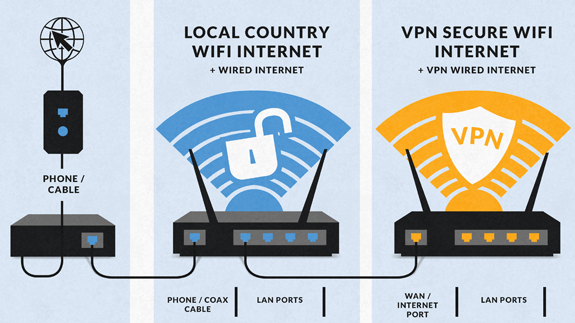
If you would like to keep your existing WiFi network in place, and simply want to add in a VPN WiFi network with a FlashRouter then you can do so using a dual router setup. No settings in your existing network router need to change to add a FlashRouter in a dual router setup. Since we preset all FlashRouters to a unique Local IP Address, there won’t be a conflict with your existing router.

In a dual router setup the FlashRouter is wired to your existing router via ethernet cable and you will have two completely segmented WiFi networks available.

Connect to your existing router

Remember if your existing router is connecting to the internet without issue already, make sure to keep the ethernet cable between your modem and existing router internet port in place.

Now connect another ethernet cable from a LAN/numbered port on your existing router to the WAN/internet port of the FlashRouter.

Reference the images above to see your WAN/internet port color.

FlashRouters Dual Router Setup

Power cycle all network devices

Once you have properly connected an ethernet cable from your existing router into the FlashRouter internet port you must power cycle your network devices to establish an internet connection.

  1. Power off your ISP modem, existing router, and the FlashRouter.
  2. Power on the ISP modem and wait for it to fully boot up.
  3. Power on the existing router and wait for it to fully boot up.
  4. Power on the FlashRouter.

Verify a successful internet connection

Once the power cycling steps are complete and the FlashRouter is powered up, start connecting your internet capable devices via ethernet or WiFi. Visit any website and make sure the page fully loads.

If you want to check your internet IP address that is visible to websites and services that you visit over the internet check out WhatIsMyIPAddress.com.

TROUBLESHOOTING

Still having issues? Visit our Troubleshooting section to diagnose common problems here.

Troubleshoot Here

VPN FAQs

admin · Jan 29, 2019 ·

VPN FAQs

General VPN FAQ Answers

What is a VPN?

VPN is an acronym for ‘Virtual Private Network’, historically used by private organizations to seamlessly link geographically diverse locations via the Internet. A VPN ‘tunnels’ traffic between two devices by transmitting it over a secure network. There are also clearly identifiable benefits to individual Internet users accessing a VPN.

  • A VPN provides you with top-level security and privacy for all your Internet downloading, streaming and browsing. As long as you are signed into your VPN account, all data you transmit over the Internet is encrypted.
  • A VPN encrypts your device by hiding the IP address assigned by your Internet Service Provider (ISP) and replacing it with the IP address of your choosing from the list of server locations belonging to your VPN provider. This masks your identity when visiting sites that geo-restricted content, and helps you avoid devious local Internet marketing and advertising schemes that track you through your IP address.

Will a FlashRouter with a built-in VPN client speed up my connection?

FlashRouters are relatively new models that may enhance data transfers across your home network or extend the range of your Wireless signal. However, the speed at which you download or stream content can not exceed the speed of the connection you pay for through your ISP. Purchasing a FlashRouter or signing up for VPN service WILL NOT transform your regular connection into a high-speed broadband connection.

At the same time, if you do have a broadband connection, a FlashRouter with a VPN connection may slow down your transfer speeds due to the processor encrypting all of your data. In certain cases a FlashRouter with a VPN can also prevent throttling by an ISP of specific service like Netflix or Amazon Video.

Which VPN provider should I use?

Our routers have been tested to perform with many of the most popular VPN providers such as ExpressVPN, NordVPN, IPVanish, PrivateInternetAccess & CyberGhost among 50+ VPN providers so that subscribers can get the maximum benefit from their VPN service. If you prefer another provider, that is not an issue at all. You can still use a DD-WRT VPN FlashRouter with any VPN provider that offers DD-WRT router integration support. Contact our team for further information about using our routers with your VPN service of choice or if you need a VPN provider recommendation based on your location.

Should my FlashRouter replace my old router?

A FlashRouter will work as a standalone router by connecting your modem to its Wide Area Network (WAN) port, or using it in a Dual Router Network by connecting it to your existing router through a Local Area Network (LAN)/Ethernet port. Either way a FlashRouter can be configured to tunnel all traffic through the VPN server of your choosing.

If you would like to set up your Home Network so that some devices are being tunneled through a VPN server, and others are connecting to your Internet Service Provider (ISP) within your home country, then using your FlashRouter as an auxiliary device is recommended.

VPN Security FAQ Answers

Can I change my IP address to one in another country?

YES! The countries that you can change your IP address to depend on the offerings of your specific VPN providers. Prices and server locations vary across all VPN providers.

If you choose to purchase a FlashRouter then you will not have to install any VPN client software on your computer to change your IP address; the VPN will already be configured within the router. Therefore, any device you plug into this FlashRouter is automatically assigned the IP address of your selected VPN server.

When is my connection secure?

As long as the VPN account preset into your FlashRouter is active, any device that is connected to the Internet through this router has its network traffic encrypted, and IP address masked. With a FlashRouter you never have to physically login to your VPN account, as the settings have been stored in the router’s DD-WRT firmware.

Don’t worry though! If you are not at home, and using Wi-Fi in a public location, you can still use your VPN account on a laptop or mobile device through various other methods.

How can I be sure my connection is safe and encrypted?

In order to make sure that the connection on your FlashRouter is being rerouted appropriately through your VPN service, visit What is my IP address and make sure the location listed is the one you have chosen in your VPN settings, NOT your actual location.

If you wish, there is an Internet Kill Switch available as well for your router which will block the internet whenever you disconnect from VPN.

What VPN connection standards are supported on a FlashRouter?

Currently we support the OpenVPN protocol for VPN client connections. PPTP VPN has been deemed as insecure by the privacy community and so we no longer offer support for PPTP VPN connections.

Technical VPN FAQ Answers

What operating systems do you support?

A FlashRouter can be used with any operating system, be it Windows, Mac OS or Linux. A FlashRouter can also be used as a wireless access point for iPhones, iPads, and Android devices.

Our routers also work in conjunction with any other brand of router of ADSL or DSL modem/router combo from ISPs across the world.

Can I set up a VPN on a PS4, Xbox One, Kindle Fire, Roku, AppleTV or other devices without native VPN support?

THAT’S WHAT WE ARE HERE FOR!

If you purchase one of our FlashRouters loaded with DD-WRT firmware, you can run the client VPN connection from your router. Once you do this every device connected to the router will tunnel through the VPN.

Now you can stream content like Netflix, BBC iPlayer, Pandora Hulu, or Amazon Instant to your TV through any of these devices, instead of being constrained to streaming content on your computer!

If you need a recommendation for a VPN service with a specific streaming platform do not hesitate to contact our support team.

Privacy Hero NordVPN Not Connecting or Showing Timeout Errors

Dave · Sep 22, 2026 ·

If NordVPN will not connect on Privacy Hero, shows a timeout error, remains stuck on Connecting, or displays Failed, the Privacy Hero router itself may still be working normally.

NordVPN connections can occasionally stop working when servers are placed into maintenance, removed or cycled out of service, account credentials change, or a previously saved NordVPN access token or manual service credential is no longer valid.

Start by confirming that Privacy Hero has normal internet access, then troubleshoot the NordVPN connection.


Jump to a Section

  • Confirm Privacy Hero Has Internet
  • Reconnect NordVPN
  • Try Another NordVPN Server
  • Update Your NordLynx Token
  • Update OpenVPN Credentials
  • Recent NordVPN Account Changes
  • Verify the VPN Connection

First: Confirm Privacy Hero Has Internet

Before changing your NordVPN settings, confirm that Privacy Hero itself has normal internet access.

  1. Open app.privacyhero.com.
  2. Open the VPN section.
  3. If the VPN Kill Switch is enabled, temporarily turn it Off.
  4. Turn the failed NordVPN connection off.
  5. Connect a device to the Privacy Hero network.
  6. Test normal internet access.

If internet access works normally with NordVPN and the Kill Switch disabled, the underlying Privacy Hero internet connection is working. Continue troubleshooting the NordVPN connection.

If your internet stopped working because NordVPN failed while the VPN Kill Switch was enabled, follow our Privacy Hero VPN Kill Switch: No Internet or WiFi Troubleshooting guide.

Reconnect NordVPN

A temporary NordVPN server or connection issue may resolve without changing your account information.

  1. Open the VPN section at app.privacyhero.com.
  2. Turn the NordVPN connection off.
  3. Wait a few seconds.
  4. Turn NordVPN back on.
  5. Allow the connection time to establish.
  6. Check whether the VPN status changes to Connected.

If NordVPN still shows Failed, Connecting, or a timeout error, continue with the steps below.

Try Another NordVPN Server

NordVPN regularly maintains, replaces, and cycles servers in its network. A specific NordVPN server that worked previously may eventually be taken offline, removed, or temporarily unavailable.

If your Privacy Hero NordVPN connection is configured to use a specific server and suddenly stops working, try another server or return to the normal country selection.

  1. Open app.privacyhero.com.
  2. Open the VPN section.
  3. Select your NordVPN connection.
  4. If you previously entered a specific NordVPN server under Advanced Options, remove or replace that server.
  5. Select the country or location you want to use.
  6. Save the settings.
  7. Reconnect NordVPN.
  8. Check whether the status changes to Connected.

If you specifically need to use an individual NordVPN server, make sure that server is still active before continuing to use it.

Important: A previously working specific server should not be assumed to remain available indefinitely. NordVPN may change its server network over time.

Update Your NordVPN Token for NordLynx

Privacy Hero uses a NordVPN access token to authenticate NordLynx connections.

If the saved token is expired, revoked, replaced, or otherwise no longer valid, NordLynx may show Failed, Connecting, or a timeout error.

Generating a new token is a good troubleshooting step if your NordVPN account information has changed or the existing token is no longer working.

  1. Sign in to your NordVPN account.
  2. Open the NordVPN Access Tokens page.
  3. Generate a new access token.
  4. Select Doesn’t expire if NordVPN provides that option.
  5. Copy the new token.
  6. Open app.privacyhero.com.
  7. Open the NordVPN settings.
  8. Confirm that NordLynx is the selected protocol.
  9. Replace the existing token with the newly generated token.
  10. Save the settings.
  11. Reconnect NordVPN.

Important: NordVPN access tokens are sensitive account credentials. Do not post or share your token publicly.

For complete setup instructions, see Privacy Hero NordVPN / NordLynx Setup.

Update NordVPN Manual Service Credentials for OpenVPN

If you are using OpenVPN instead of NordLynx, Privacy Hero uses NordVPN’s Manual Service Credentials.

These are different from the email address and password you normally use to sign in to the NordVPN website or application.

If the saved credentials are no longer valid, update them:

  1. Sign in to your NordVPN account.
  2. Open NordVPN Manual Service Credentials.
  3. Copy the current service username and password.
  4. Open app.privacyhero.com.
  5. Open your NordVPN settings.
  6. Confirm that OpenVPN is the selected protocol.
  7. Replace the existing manual service credentials with the current credentials from NordVPN.
  8. Save the settings.
  9. Reconnect NordVPN.

Do not enter your regular NordVPN website email address and password in place of the manual service credentials.

Did You Recently Change Your NordVPN Account Information?

If NordVPN stopped connecting after an account change, update the authentication information stored in Privacy Hero.

This is especially important after changes such as:

  • Changing your NordVPN account password.
  • Changing or updating NordVPN account security settings.
  • Generating or replacing NordVPN access tokens.
  • Changes to NordVPN manual service credentials.
  • Renewing, changing, or restoring your NordVPN subscription.

The credentials used by Privacy Hero depend on the VPN protocol:

  • NordLynx: Uses a NordVPN access token.
  • OpenVPN: Uses NordVPN manual service credentials.

Your regular NordVPN website login should not be entered as the router’s OpenVPN credentials.

If you are unsure whether the existing authentication information is still valid, retrieve current credentials directly from your NordVPN account and update Privacy Hero.

Confirm Your NordVPN Subscription Is Active

Privacy Hero cannot establish a NordVPN connection if the NordVPN account being used no longer has active VPN service.

Sign in to your NordVPN account and confirm that your subscription is active before continuing with server, token, or credential troubleshooting.

Try Another VPN Protocol

If your NordVPN account, credentials, and server selection are correct but the connection still fails, try another NordVPN protocol available in Privacy Hero.

For example, if NordLynx is not connecting, testing OpenVPN can help determine whether the issue is specific to the protocol or authentication method.

Remember that changing protocols also changes the required NordVPN authentication:

  • NordLynx requires a NordVPN access token.
  • OpenVPN requires NordVPN manual service credentials.

Important: Do Not Run Two VPNs at Once

Do not leave the NordVPN application connected directly on your phone or computer while testing the Privacy Hero VPN.

Running a VPN application on the device while also routing that device through the Privacy Hero VPN creates a double-VPN connection and can cause routing, connectivity, or IP-location problems.

Disconnect the device-level NordVPN app before testing the router VPN.

Verify the NordVPN Connection

Once Privacy Hero displays NordVPN as Connected:

  1. Connect your device to the Privacy Hero WiFi.
  2. Make sure the NordVPN app on the device is disconnected.
  3. Open a fresh private/incognito browser window.
  4. Visit NordVPN What Is My IP.
  5. Confirm that the public IP address and location correspond to your selected NordVPN location.
  6. Test several websites or applications.

If you use the Privacy Hero VPN Kill Switch, enable it only after confirming that NordVPN is connected and working.

NordVPN Is Connected but One Device Shows the Wrong IP

If Privacy Hero shows NordVPN as Connected and other devices display the correct VPN IP, the NordVPN connection itself is likely working.

Check the affected device’s Privacy Hero VPN assignment and review any VPN, privacy, DNS, browser, antivirus, firewall, or security settings running directly on that device.

See Device Privacy, DNS, VPN, and Security Settings That Can Interfere With Your Router VPN.

Related Privacy Hero Guides

  • Privacy Hero VPN Kill Switch: No Internet or WiFi Troubleshooting
  • Privacy Hero VPN Kill Switch Setup
  • Privacy Hero NordVPN / NordLynx Setup
  • Device Privacy, DNS, VPN, and Security Settings That Can Interfere With Your Router VPN

Private Internet Access (PIA) Setup for Privacy Hero

TeamFlashRouters · Apr 3, 2023 ·

Privacy Hero supports Private Internet Access (PIA) with WireGuard (recommended) and OpenVPN. You need an active PIA subscription and your PIA VPN username and password.

Important difference: PIA WireGuard has a built-in provider integration in Privacy Hero. Choose Private Internet Access from the VPN provider list—not Custom WireGuard. No WireGuard configuration file or key generation is needed.

By default, Privacy Hero can automatically select an optimal available PIA server based on your location and server conditions. Alternatively, use Advanced Options to enter a specific PIA server hostname from the regional list below.

Privacy Hero is cloud-managed. You can configure your router from any device with an internet connection, whether or not you are on the Privacy Hero WiFi network.

PIA VPN Setup Guide

Choose your setup method or jump to a particular step.

PIA WireGuard →Use the built-in Privacy Hero PIA providerAutomatic or Manual Server →Select an optimal server or enter a hostnamePIA Server Hostnames →Browse the full list organized by regionOpenVPN Setup →Generate and upload an OpenVPN configurationVerify Connection →Confirm your device is using the PIA VPNTroubleshooting →Connection errors, wrong region, no internet

Set Up PIA WireGuard in Privacy Hero (Recommended)

Unlike most other providers, PIA WireGuard does not use Custom VPN file uploads in Privacy Hero. The built-in PIA integration connects using your PIA account credentials and handles the WireGuard configuration for you.

  1. Open app.privacyhero.com and sign in to your Privacy Hero account.
  2. Open the VPN section. Select Change beside your current VPN provider.
  3. Choose Private Internet Access from the provider list. Do not select Custom for this WireGuard setup.
  4. Enter your PIA VPN account username and password (not your Privacy Hero dashboard credentials). You can check your account at PIA Client Control Panel.
  5. For automatic server selection, leave the optional server hostname unset, then click Save to connect. Wait until Privacy Hero displays Connected.
Privacy Hero built-in Private Internet Access provider login settings

Choose the Automatic Server or a Specific PIA Location

Privacy Hero offers two ways to select the PIA WireGuard server:

  • Automatic (recommended for most users): Leave the server hostname field blank. Privacy Hero selects an optimal available PIA location, generally favoring nearby servers and server conditions such as load. You do not need to manually maintain a server address.
  • Specific location: Enter a PIA region hostname under Advanced Options. This is useful when you need an IP address from a particular country or city.
  1. To use a specific location, open the existing Private Internet Access connection and select Advanced Options.
  2. Enter a complete PIA server hostname from the list below, for example us-newyorkcity.privacy.network or uk-london.privacy.network.
  3. Click Save, wait for Connected, then verify your new public IP address. If the selected location becomes unavailable, try another hostname or remove the hostname to return to automatic selection.
Privacy Hero Private Internet Access Advanced Options field for entering a VPN server hostname

PIA Server Hostname List by Region

Use these hostnames in PIA > Advanced Options when you prefer a specific location. Expand a region below and copy the complete hostname, including .privacy.network. This list is retained from the existing FlashRouters guide.

Server availability can change. Some hostnames, particularly those ending in -pf or marked for streaming, are specialized locations and may not be available for every connection. If a hostname no longer works, use automatic selection or check PIA’s current location list for available locations. PIA’s location list names regions; it does not necessarily provide matching hostnames.

North America (65 locations)
bahamas.privacy.networkca-ontario.privacy.networkca-toronto.privacy.networkca-vancouver.privacy.networkca-montreal.privacy.networkgreenland.privacy.networkgt-guatemala-pf.privacy.networkmexico.privacy.networkpanama.privacy.networksanjose.privacy.networkus-alabama-pf.privacy.networkus-alaska-pf.privacy.networkus-arkansas-pf.privacy.networkus-atlanta.privacy.networkus-california.privacy.networkus-chicago.privacy.networkus-connecticut-pf.privacy.networkus-denver.privacy.networkus-florida.privacy.networkus-houston.privacy.networkus-idaho-pf.privacy.networkus-indiana-pf.privacy.networkus-iowa-pf.privacy.networkus-kansas-pf.privacy.networkus-kentucky-pf.privacy.networkus-lasvegas.privacy.networkus-louisiana-pf.privacy.networkus-maine-pf.privacy.networkus-massachusetts-pf.privacy.networkus-michigan-pf.privacy.networkus-minnesota-pf.privacy.networkus-mississippi-pf.privacy.networkus-missouri-pf.privacy.networkus-montana-pf.privacy.networkus-nebraska-pf.privacy.networkus-new-hampshire-pf.privacy.networkus-new-mexico-pf.privacy.networkus-newyorkcity.privacy.networkus-north-carolina-pf.privacy.networkus-north-dakota-pf.privacy.networkus-ohio-pf.privacy.networkus-oklahoma-pf.privacy.networkus-oregon-pf.privacy.networkus-pennsylvania-pf.privacy.networkus-rhode-island-pf.privacy.networkus-seattle.privacy.networkus-siliconvalley.privacy.networkus-south-carolina-pf.privacy.networkus-south-dakota-pf.privacy.networkus-texas.privacy.networkus-tennessee-pf.privacy.networkus-vermont-pf.privacy.networkus-virginia-pf.privacy.networkus-washingtondc.privacy.networkus-west-virginia-pf.privacy.networkus-wisconsin-pf.privacy.networkus-wyoming-pf.privacy.networkus3.privacy.networkus-baltimore.privacy.networkus-honolulu.privacy.networkus-newjersey.privacy.networkus-saltlakecity.privacy.networkus-streaming-2.privacy.networkus-streaming.privacy.networkus-wilmington.privacy.network
South America (9 locations)
ar.privacy.networkbo-bolivia-pf.privacy.networkbogota.privacy.networkbr.privacy.networkec-ecuador-pf.privacy.networkpe-peru-pf.privacy.networksantiago.privacy.networkuy-uruguay-pf.privacy.networkvenezuela.privacy.network
Europe (51 locations)
al.privacy.networkad.privacy.networkaustria.privacy.networkbrussels.privacy.networkba.privacy.networksofia.privacy.networkzagreb.privacy.networkczech.privacy.networkde-berlin.privacy.networkde-frankfurt.privacy.networkdenmark.privacy.networkdenmark-2.privacy.networkspain.privacy.networkes-valencia.privacy.networkee.privacy.networkfi.privacy.networkfi-2.privacy.networkfrance.privacy.networkgr.privacy.networkhungary.privacy.networkitaly.privacy.networkitaly-2.privacy.networkis.privacy.networkireland.privacy.networkman.privacy.networklv.privacy.networkliechtenstein.privacy.networklt.privacy.networklu.privacy.networkmalta.privacy.networkmd.privacy.networkmonaco.privacy.networkmontenegro.privacy.networknl-amsterdam.privacy.networkmk.privacy.networkno.privacy.networkpoland.privacy.networkpt.privacy.networkro.privacy.networksweden.privacy.networksweden-2.privacy.networkrs.privacy.networksk.privacy.networkslovenia.privacy.networkswiss.privacy.networktr.privacy.networkuk-london.privacy.networkuk-manchester.privacy.networkuk-southampton.privacy.networkuk-2.privacy.networkua.privacy.network
Asia (26 locations)
ae.privacy.networkbangladesh.privacy.networkcambodia.privacy.networkchina.privacy.networkcyprus.privacy.networkgeorgia.privacy.networkhk.privacy.networkin.privacy.networkisrael.privacy.networkjakarta.privacy.networkjapan.privacy.networkjapan-2.privacy.networkkazakhstan.privacy.networkkr-south-korea-pf.privacy.networkkualalumpur.privacy.networkmacau.privacy.networkmongolia.privacy.networknp-nepal-pf.privacy.networkphilippines.privacy.networkqatar.privacy.networksaudiarabia.privacy.networksg.privacy.networksrilanka.privacy.networktaiwan.privacy.networkvietnam.privacy.networkyerevan.privacy.network
Oceania (7 locations)
au-adelaide-pf.privacy.networkau-australia-so.privacy.networkau-brisbane-pf.privacy.networkaus-melbourne.privacy.networkaus-perth.privacy.networkau-sydney.privacy.networknz.privacy.network
Africa (5 locations)
dz.privacy.networkegypt.privacy.networkmorocco.privacy.networknigeria.privacy.networkza.privacy.network

Set Up PIA OpenVPN in Privacy Hero

OpenVPN is the alternative when you need a manually uploaded connection or if the built-in PIA WireGuard method does not work on your network. OpenVPN uses Custom in Privacy Hero, unlike the built-in PIA WireGuard setup.

Download a PIA OpenVPN Configuration File

  1. Sign in to the PIA Client Control Panel using your PIA VPN account.
  2. Open Downloads and scroll to OpenVPN Configuration Generator or OpenVPN Configurations.
  3. If using the generator, choose OpenVPN 2.4 or newer and Linux when these options are offered, then choose an available server location.
  4. Select your preferred configuration. UDP / 1198 (AES-128-CBC) is a standard default. UDP / 1197 (AES-256-CBC) is an alternative. Use a PIA-provided TCP configuration if UDP does not work on your network.
  5. Click Generate or download a suitable pre-made configuration and save the resulting .ovpn file. Each server file is tied to its selected location/settings.

PIA also provides pre-made OpenVPN configuration bundles; see PIA’s OpenVPN file instructions.

Add PIA OpenVPN as a Custom VPN

  1. Open Privacy Hero, go to VPN, click Change, and select Custom.
  2. Choose OpenVPN and upload the PIA .ovpn file downloaded in the previous section.
  3. Enter your PIA VPN username and password in the Custom OpenVPN authentication fields.
  4. Click Save and confirm Privacy Hero shows Connected.
Privacy Hero Custom OpenVPN configuration with file upload and username password fields

Note: If OpenVPN UDP cannot connect, try a TCP profile from PIA or another server. When switching protocols, make sure you upload a matching PIA configuration file.


Verify Your Private Internet Access Connection

  1. Connect a device to the Privacy Hero WiFi or LAN network.
  2. Disconnect any PIA app or other VPN running directly on the device so the router VPN can be tested independently.
  3. Open a private/incognito browser window and visit PIA What Is My IP.
  4. Confirm that your public IP address reflects the VPN connection, and that the approximate location is consistent with either the selected hostname or Privacy Hero’s automatic server selection.

Privacy Hero VPN settings can be changed remotely, but the device used to verify the VPN IP must be connected to the Privacy Hero network.

Streaming Relocation and Your PIA Location

If Streaming Relocation is enabled for a supported service, that service may use the Streaming Relocation location instead of your PIA VPN server location. See Privacy Hero Streaming Relocation.


PIA VPN Not Connecting?

If Privacy Hero reports Failed, stays on Connecting, or connected devices lose internet access, try these checks:

  1. Confirm your PIA subscription is active and enter your PIA VPN login, not your Privacy Hero email/password.
  2. For built-in PIA WireGuard, verify the provider is Private Internet Access—not Custom. No downloaded WireGuard file is required.
  3. Remove any specific server hostname to test automatic server selection. If that connects, the previous hostname may be unavailable.
  4. For Custom OpenVPN, upload a fresh PIA .ovpn file, re-enter the PIA credentials, and try a different server or a TCP configuration.
  5. Turn off the router VPN temporarily to check that normal internet access works. If the VPN Kill Switch is blocking internet traffic, temporarily disable it for testing, then restore your preferred setting.
  6. Check whether a separate VPN app, iCloud Private Relay, Private DNS, proxy, or security software on the testing device is affecting your VPN IP results.

No Internet When the VPN Disconnects?

The Privacy Hero VPN Kill Switch may intentionally block internet access if the VPN goes down. See Privacy Hero VPN Kill Switch: No Internet or WiFi Troubleshooting.

VPN Connected but One Device Shows the Wrong IP?

If other devices show the expected VPN address, review device VPN apps, iCloud Private Relay, Private DNS, and security settings.

Related Privacy Hero Guides

  • Privacy Hero VPN Kill Switch Setup
  • Privacy Hero VPN Kill Switch: No Internet or WiFi Troubleshooting
  • Privacy Hero Streaming Relocation
  • Device Settings That Can Interfere With Your Router VPN
  • FlashRouters Router Troubleshooting

Privacy Hero VPN Kill Switch Setup

TeamFlashRouters · Apr 3, 2023 ·

The Privacy Hero VPN Kill Switch prevents regular internet traffic from passing through your router if its VPN disconnects or fails to connect. This helps prevent devices from using your normal ISP connection without VPN protection.

Before enabling: Make sure your VPN is already Connected and that internet access works through the VPN. The Kill Switch is optional, but useful if you prefer internet access to stop rather than continue unprotected when the VPN goes down.

Privacy Hero is managed at app.privacyhero.com. You can make changes using a computer, phone, or tablet.

VPN Kill Switch Guide

Jump to the steps or learn what to expect when the VPN disconnects.

Enable Kill Switch →Turn on the setting in the Privacy Hero dashboardWhat It Does →Know when internet is permitted or blockedDashboard Access →Access Privacy Hero while normal traffic is blockedTurn Off or Troubleshoot →Restore internet or repair the VPN connection

How to Enable the VPN Kill Switch

  1. Open app.privacyhero.com and sign in using your Privacy Hero account. If the router has not been activated yet, follow the Privacy Hero Activation and Setup guide first.
  2. Open the VPN section of your Privacy Hero settings.
  3. Confirm that your selected VPN provider is active and its connection status shows Connected. If the VPN is failing, fix the connection before proceeding.
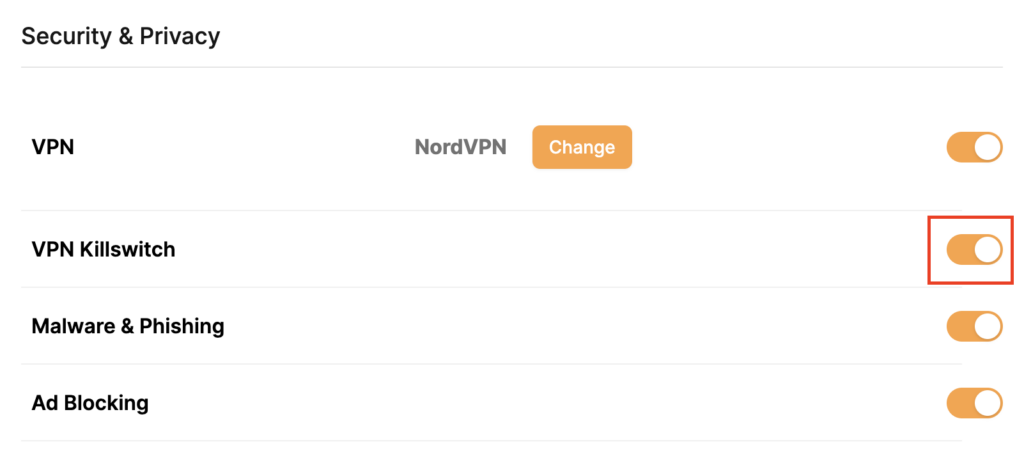
  4. Find VPN Killswitch (VPN Kill Switch) and move its toggle to On (orange). The setting is enabled when its toggle is On.
  5. Keep a device connected to the Privacy Hero WiFi or LAN and confirm that ordinary websites work with the VPN connected.
Privacy Hero Security and Privacy VPN Killswitch toggle enabled, highlighted on the right side of the settings page
In Privacy Hero, the VPN Killswitch toggle is shown directly below the VPN provider setting.

Tip: To check the router’s VPN IP address, use a browser on a device connected to Privacy Hero, not on a phone using cellular data or another WiFi network. Disable any separate VPN app on the test device so you can verify the router VPN independently.


What Happens When the Kill Switch Is On?

VPN status Kill Switch Normal internet traffic
Connected On Allowed through the VPN
Disconnected or Failed On Blocked until the VPN reconnects or you turn the Kill Switch off
Disconnected or Failed Off May use the normal ISP connection without VPN protection

The Kill Switch does not turn off the WiFi network. Your device may stay connected to Privacy Hero WiFi but report No Internet when the VPN is unavailable. Some phones and computers may automatically switch to cellular data or another saved WiFi network.


Access Privacy Hero Even When the Kill Switch Is Blocking Internet

Important: Privacy Hero includes a built-in exception for its cloud management dashboard. If the VPN is down and the Kill Switch blocks normal internet traffic, you can still access app.privacyhero.com while connected to the Privacy Hero WiFi or LAN network, provided the router itself still has its upstream/cloud connection.

This means you can sign in, check the VPN status, change the server or protocol, or switch off the Kill Switch without first leaving the Privacy Hero network.

You can also access the cloud dashboard through another working WiFi connection or cellular data. If the router shows Offline in the dashboard, that indicates a separate WAN or cloud-connectivity problem rather than normal Kill Switch behavior.


How to Turn Off the Kill Switch or Restore Internet

If your VPN has stopped connecting and you need to restore ordinary internet access temporarily:

  1. Open app.privacyhero.com, including from the Privacy Hero network if the Kill Switch is blocking regular internet.
  2. Open VPN and check the current VPN status.
  3. Move VPN Killswitch to Off.
  4. If the VPN remains Failed or Disconnected, temporarily switch the VPN connection Off and test internet access using a device on the Privacy Hero network.
  5. Repair the VPN connection, confirm Connected, and verify that ordinary internet traffic works through the VPN before turning the Kill Switch back On.

Security note: With the Kill Switch off, devices may access the internet without VPN protection if the VPN is disconnected. Re-enable it after testing if preventing non-VPN traffic is your goal.

VPN showing Failed? Privacy Hero includes a Reset option that removes all saved third-party VPN settings. With an active Privacy Premium subscription, the router reconnects using the built-in Privacy Hero VPN. With Privacy Core, it returns to your normal ISP connection without a router VPN.

Before using Reset, see our How to Reset a Failed VPN Connection on Privacy Hero guide.

For a complete diagnosis of WiFi connected but no internet, VPN failures, and router Offline status, follow the Privacy Hero VPN Kill Switch: No Internet or WiFi Troubleshooting guide.

Related Privacy Hero Guides

  • VPN Kill Switch: No Internet or WiFi Troubleshooting
  • NordVPN Not Connecting or Showing Timeout Errors
  • Device VPN, Private Relay, and Private DNS Settings

Device Settings That Can Interfere With Your Router VPN

Dave · Oct 6, 2026 ·

If your router VPN is connected and working on other devices but one phone, tablet, computer, or streaming device shows the wrong IP address, wrong location, cannot access certain websites, or behaves differently, check the affected device before changing the router.

VPN applications, privacy features, custom DNS settings, antivirus software, firewalls, browser settings, and corporate security software can all change how traffic is handled directly on a device.

This guide applies to all FlashRouter types and VPN providers.


Jump to a Section

  • Start Here: Router or Device?
  • Device VPN Applications
  • iPhone & iPad Privacy Settings
  • Android VPN & DNS Settings
  • Security, Firewall & Browser Settings
  • Run a Clean VPN Test

Start Here: Is the Problem the Router or One Device?

Before changing your router VPN configuration, compare the affected device with another device connected to the same FlashRouter.

If several devices show the correct VPN IP and location while only one device does not, the router VPN is already demonstrating that it can route traffic through the VPN.

Focus troubleshooting on the affected device.

If every device connected to the FlashRouter has the same VPN problem, continue with router-level VPN troubleshooting instead.

Privacy Hero users should also check the Privacy Hero dashboard. If the VPN itself displays Failed, Disconnected, Connecting, or a timeout error, troubleshoot that connection before changing device settings.

  • Privacy Hero VPN Kill Switch: No Internet or WiFi Troubleshooting
  • Privacy Hero NordVPN Not Connecting or Showing Timeout Errors

Disconnect VPN Applications Running on the Device

Do not run a VPN application directly on the device while troubleshooting a VPN running on your router.

This includes applications from NordVPN, ExpressVPN, Surfshark, Proton VPN, IPVanish, Private Internet Access, Mullvad, corporate VPN providers, and other VPN services.

If both the router VPN and device VPN are active, the device VPN can take control of that device’s traffic after it passes through the router.

This can cause:

  • An unexpected public IP address.
  • An unexpected VPN location.
  • Websites or applications not loading.
  • Streaming region problems.
  • DNS problems.
  • Slow or unstable connections.
  • One device behaving differently from other devices on the same router.

Disconnect the VPN application completely before testing the router VPN.

Closing the VPN app window may not disconnect the VPN. Confirm in the application or device network settings that the device-level VPN is actually disconnected.

iPhone and iPad: Check Private Relay and Limit IP Address Tracking

Apple devices include privacy features that can change how supported internet traffic is handled and make router VPN testing more difficult.

Limit IP Address Tracking

To temporarily disable Limit IP Address Tracking for your FlashRouter WiFi network:

  1. Open Settings.
  2. Select Wi-Fi.
  3. Tap the information button next to the FlashRouter WiFi network.
  4. Find Limit IP Address Tracking.
  5. Turn it Off.
  6. Disconnect from WiFi and reconnect.
  7. Test the connection again.

This setting is configured per WiFi network, so make sure you are changing it for the FlashRouter network being tested.

iCloud Private Relay

iCloud Private Relay can also alter IP address visibility for supported traffic.

For troubleshooting:

  1. Open Settings.
  2. Tap your Apple Account/name.
  3. Select iCloud.
  4. Select Private Relay.
  5. Temporarily turn Private Relay Off.
  6. Reconnect to the FlashRouter.
  7. Test the IP address and connection again.

These settings can be restored after testing.

Android: Check Private DNS and Always-On VPN

Android devices can have DNS and VPN settings that operate independently of the router.

Private DNS

Android Private DNS can send DNS requests to a selected DNS provider instead of relying solely on the DNS configuration supplied by the router.

If you are troubleshooting DNS, website access, streaming, filtering, or location behavior:

  1. Open Settings.
  2. Select Network & internet.
  3. Select Private DNS.
  4. Temporarily select Off.
  5. Save the setting.
  6. Reconnect to the FlashRouter WiFi.
  7. Test again.

Android menus vary by manufacturer and Android version. Search the device Settings for Private DNS if necessary.

Always-On VPN

An Android VPN application can be configured to automatically reconnect even after you believe the VPN has been disconnected.

  1. Open Settings.
  2. Select Network & internet.
  3. Select VPN.
  4. Select the configured VPN.
  5. Disable Always-on VPN while testing.
  6. Check whether Block connections without VPN is enabled and temporarily disable it if necessary for testing.

Then reconnect to the FlashRouter and test the router VPN again.

Check Antivirus, Firewall, Browser, and Work Security Settings

If the problem affects a computer or only occurs in one browser, check for software that modifies network traffic directly on the device.

Antivirus and Internet Security Software

Security applications may include network features such as:

  • Web Protection.
  • Safe Browsing or Secure Web.
  • Network Protection.
  • DNS Protection.
  • HTTPS scanning.
  • Tracking protection.
  • Built-in VPN services.
  • Firewall controls.

Temporarily disable the relevant network protection feature and test again. You do not normally need to disable the entire antivirus product.

Third-Party Firewalls

A third-party firewall can block applications, DNS requests, VPN-related traffic, or specific network interfaces.

Temporarily disable the firewall and test the connection. If the problem disappears, re-enable the firewall and review its network rules.

Browser VPN, Proxy, and Secure DNS

Browsers and browser extensions can also use their own:

  • VPN services.
  • Proxy connections.
  • Secure DNS or DNS-over-HTTPS.
  • Privacy or filtering extensions.
  • Location-changing extensions.

If the problem occurs only in one browser, test another browser without extensions or custom networking settings.

Work and Corporate Devices

Company-managed computers and mobile devices may use corporate VPN clients, DNS filtering, web filtering, endpoint security, device-management profiles, or zero-trust networking software.

These systems may intentionally override the local router’s network behavior.

If a personal device works correctly on the same FlashRouter while a company-managed device does not, the company security configuration may be responsible.

Run a Clean Router VPN Test

For the cleanest test, temporarily remove device-level networking variables and let the FlashRouter VPN handle the connection.

  • FlashRouter VPN: On
  • Device VPN: Off
  • iCloud Private Relay: Off while testing
  • Limit IP Address Tracking: Off while testing
  • Android Private DNS/custom DNS: Off while testing
  • Always-On VPN: Off while testing
  • Third-party network filtering: Off while testing

Then:

  1. Disconnect the affected device from WiFi.
  2. Reconnect it to the FlashRouter.
  3. Open a fresh private/incognito browser window.
  4. Check the device’s public IP address and location.
  5. Compare the result with another device connected to the same FlashRouter.

If the second device shows the correct VPN IP but the affected device does not, continue troubleshooting settings or software on the affected device.

If all devices show the same incorrect IP address or all devices fail to use the VPN, continue with router-level VPN troubleshooting.

Privacy Hero VPN Connected but Device Still Shows the Wrong IP?

Privacy Hero provides device-level VPN controls. Make sure the affected device is actually assigned to use the VPN.

  1. Open app.privacyhero.com.
  2. Open the Devices section.
  3. Select the affected device.
  4. Confirm VPN protection is enabled for that device.
  5. Disconnect any VPN application running directly on the device.
  6. Test the public IP address again.

If other Privacy Hero devices show the correct VPN IP and only one device remains incorrect, continue with the device-level checks above.


Related FlashRouters Guides

  • Should I Be Using My Computer, Phone, or Tablet VPN App While Connected to the FlashRouter?
  • What Is a DNS Leak and How Can I Prevent a DNS Leak in My Router?
  • FlashRouters VPN FAQs
  • FlashRouters Router Troubleshooting
  • Privacy Hero VPN Kill Switch: No Internet or WiFi Troubleshooting
  • Privacy Hero NordVPN Not Connecting or Showing Timeout Errors
  • Privacy Hero VPN Kill Switch Setup

Warranty and Returns FAQs
admin · Jan 29, 2019 ·

Warranty and Returns FAQs
At FlashRouters, we are confident that every router sold will function as advertised. We open, inspect, upgrade, configure, and then test all FlashRouters before they get shipped out. That is why we guarantee you will receive a working unit and offer our own 1-Year Hardware Warranty included with all New and Refurbished routers purchased from the FlashRouters website.

If you would like to extend the warranty coverage period to 2 years, the option is available during the FlashRouters checkout process.

Since we are so certain you will be happy with your upgraded and super secure network, all routers purchased from FlashRouters.com also come with a 30-day satisfaction guarantee.

Please read the warranty and return section in detail before placing an order or requesting an RMA. Our goal is to make the return process as smooth and transparent as possible for all customers. If the router you purchased does not work out for your needs we still want you to be satisfied with your purchasing experience.

Hardware Warranty and Return Policy

Requesting an RMA

Automated Return Merchant Authorization (RMA) requests are available from within your customer account panel. If you are eligible for a return then your RMA request will be approved. If your RMA request is not valid then it will be denied and you must e-mail FlashRouters Support for any additional information or actions. RMAs are valid for 7 days from the day they are issued. 

The following are the available options when submitting an RMA request. Continue reading for more information on all available RMA options and conditions. 

  1. Hardware Guarantee – available for 7 days after receiving your FlashRouter.
  2. Satisfaction Guarantee – available for 30 days after receiving your FlashRouter.
  3. Hardware Warranty – available for 1 year, or 2 years if upgraded when purchasing a FlashRouter.
  4. Hardware Repair – Anyone with a valid FlashRouters Support subscription is eligible for free Hardware Repair. 

Please note we can only provide prepaid labels for approved Hardware Warranty returns within the USA. Prepaid labels are not available for international customers. All return shipping for 30 Day Satisfaction refunds is paid for by the customer.

Hardware Guarantee

In the rare case you receive a faulty router, you can open a ticket to contact FlashRouter Support for an RMA or request an RMA in your customer account panel and we will work to rectify the situation immediately. If it is determined that the power supply you received was faulty, and not the router itself, our team will immediately ship you out a tested power supply at no additional cost.

Rest assured that we individually test and inspect every FlashRouter with great detail before shipment. BUT… if router gremlins (yes they do exist) snuck into your router during the shipping process and it no longer powers on, our team will supply you with a prepaid shipping label to return the unit back to our offices. As soon as we receive verified tracking on your return shipment we will ship out another thoroughly tested unit to you at no additional cost.

You must contact us within 7 days from when you received your FlashRouter to be eligible for a Hardware Guarantee prepaid shipping label from FlashRouters.

30-Day Satisfaction Guarantee

If you are not satisfied with the performance of your router after trying it out for up to 30 days, you can open a ticket to contact FlashRouter Support for an RMA or request an RMA in your customer account panel. Once the RMA is approved, you will then have the option to ship the unit back to FlashRouters.

Once we receive the return, our team inspects and refunds accordingly based on the original purchase price of your FlashRouter. Please note there is a $25 restocking fee and refunds do not include any initial shipping costs associated with your order. All restocking fees are returned as Store Credit. This means if you make another purchase at FlashRouters then your fee is refunded.

The item must also be fully functional and have no signs of cosmetic damage for you to receive the maximum refund. If you do not include the original boxing, or any router accessories you may also be charged an additional fee as indicated.

Ethernet Cable: $5

Power Source: $10 

Antennas: $5 per antenna

Router Stand: $10

Box: $10

Cosmetic Damage: Up to $25

What is covered under the 30-Day Satisfaction Guarantee?

If the VPN speeds or WiFi network speeds are not what you had hoped, if the setup is too complicated, or you just decided on another solution; these are all covered under the 30-Day Satisfaction Guarantee. 

We will not accept any returns of working routers after 30 days from the date you received your router. After 30 days, router returns/replacements will only be processed under the Hardware Warranty. 

Can I get the restocking fee waived?

If you place a new order for a different FlashRouter unit before returning your initial purchase, then we will waive the restocking fee. Otherwise the $25 restocking fee will be applied to your customer account as a store credit. You can then use this $25 store credit on any future FlashRouter purchase.

Rewards Points refunds

If you return your FlashRouter under the 30 day satisfaction guarantee then you will lose any reward points received for your initial purchase.

Hardware Warranty

A 1-year Hardware Warranty is included with the purchase of all New and Refurbished FlashRouters. If your router suffers hardware failure within 365 days from the date you received the unit then we will replace your router with another fully tested unit. You must pay for return shipping of the faulty unit back to our offices located in New Jersey, USA and our team will ship out your replacement at no additional cost.

You must contact the FlashRouter support team for an RMA number or request an RMA from your customer account panel before returning a router for warranty replacement. If you do not receive approval for a return then you will not be eligible for a replacement unit.

There are 2 options for receiving a Hardware Warranty replacement unit:

Option #1: Process another order for immediate shipping and as soon as we receive the returned device back in our offices we will issue you a refund for the initial purchase.

Option #2: Ship your faulty router back to our office, and as soon as we receive the unit our returns department will have a replacement unit shipped out to you at no extra cost.

How long do I have before my RMA expires?

RMA’s are good for 7 days from the date they are issued.

What if I upgraded to a 2 year Hardware Warranty at checkout?

All refund, replacement, RMA details, and options covered by the 1-year Warranty apply in the exact same manner for 2 year warranties over each respective warranty coverage period.

If for any reason the router you purchased is no longer in stock or discontinued then you have the option to replace your router with one of equal value or receive a refund. Hardware warranties are only eligible for refunds if we are unable to provide a replacement unit for you.

What should I do if my router is out of warranty coverage?

If your FlashRouter is out of the warranty coverage period, we are first and foremost apologetic for the passing of your router. Be sure to contact our sales team though and you can receive a special coupon as a return customer for a shiny new wireless networking centerpiece.

What is not covered with a FlashRouter Warranty?

Items that have been clearly damaged either by the customer or during the return process are not eligible for a full refund. This includes routers that have visible dents, scratches, or moving parts inside the router.

Can I upgrade to a 2 year warranty after my FlashRouter purchase?

2 year warranty upgrades are only available at the time of your FlashRouter purchase. Upgrades are not available once a FlashRouter order has been shipped. 

Can I get a Warranty on my router if I purchased a “Flash My Router” plan from FlashRouters?

Routers that have been “flashed” and configured by our support specialists for anyone who has purchased a Flash My Router Plan are not eligible for warranty coverage from FlashRouters. Only routers purchased through the FlashRouters.com website are eligible for warranty replacements or refunds.

Hardware Repair

FlashRouters is proud to offer a free repair and upgrade service for anyone with an active Silver or Gold Service Plan subscription. Any and all shipment costs associated with FlashRouter repairs or upgrade requests are the burden of the customer and will not be paid for by FlashRouters. However, the repair and upgrade service itself is FREE.

If you do choose to ship your router back to our office for repair, then you should include a prepaid shipping label in your package back to your home or office, so our team can send the router back to you whether we are able to repair the unit or not. Router accessories like power supplies, ethernet cable, or antennas do not need to be included when shipping back a unit for repair.

If our team is not able to resurrect your router from a power failure, faulty firmware upgrade, or any other reason then we can return the faulty unit back to you using the return shipping label included with your return package. Alternatively, we can destroy the unit and refund the return shipping costs if that is your preference.

Open Box Routers

What is an Open Box Router?

Open Box routers are fully functional units that have cosmetic flaws and are sold at heavy discounts. These units come with the same Support Plan options as New or RM units, which means you get the same support service with extremely discounted hardware.

Open Box routers are covered under the FlashRouter 30-Day Satisfaction Guarantee BUT come with no Hardware Warranty. We take every measure possible to ensure complete functionality and our team fully load tests these devices before shipment, but you should be very aware that you buy these discounted “open box” devices at your own risk without any Hardware Warranty.

What is the Open Box Router return policy?

Open Box Routers can only be returned within 30 days from the date you received your router. Returns will not be accepted on open box routers after 30-Day Satisfaction Guarantee window has expired. Please note that Open Box Router return shipping costs are not covered by FlashRouters and initial shipping costs are not included in any refunds. 

Accessories Warranty

All Accessories come with manufacturer warranties as listed on the respective product pages. 

FlashRouters will accept returns for refund or replacement of accessories only within 30 days from the date you received your order. After 30 days you must contact the manufacturer for any warranty replacements.

Accessories must be returned with all original packaging and with no cosmetic damage to receive a full refund. A missing box or damage to an item will result in a restocking fee per our discretion.

"Flash My Router" Refund Policy

The “Flash My Router” product offered by FlashRouters is a virtual service provided by the FlashRouters support team. This product includes a remote support session where our support team will flash your router and then complete your internet, WiFi, and VPN setup, and in certain cases support additional router features. 

Once your remote support session is completed there are absolutely no refunds on “Flash My Router” purchases. In the case we are unable to successfully flash your router we will offer a full refund for your “Flash My Router” purchase. “Flash My Router” purchases are fully refundable if you decide you would no longer like to use the service after your purchase is completed.

Service Plan Subscription Refund Policy

All FlashRouter router purchases include a recurring FlashRouters Service Plan subscription. There are 3 levels of support to choose from as either a quarterly or yearly recurring billing plan.

30-Day Satisfaction Guarantee

If you choose to return your FlashRouter under the 30-Day Satisfaction Guarantee, then you are eligible for a full refund on any Service Plan purchased with your FlashRouter.

Cancellation Policy

You may cancel your recurring billing at any time and you will not be charged again. Please note you will not be refunded for unused time from the initial billing/service period of your support plan subscription.

If you choose to cancel your 3 month FlashRouter support plan then you will retain support until the end of the 3 month period. If you choose to cancel your 1 year FlashRouter support plan then you will retain support until the end of the 1 year period. You will not lose time from your existing service plan if you cancel when a plan is active.

There is a 7-day grace period after Service Plan renewals have been charged, where you may request an immediate cancellation and full refund.

How do I change my FlashRouter Support subscription level?

How do I Upgrade my Service Plan?

You can upgrade a Service Plan at any time during a billing cycle. You must e-mail or live chat our support team and request an upgrade. Our team will then issue you store credit for any unused time on your existing Service Plan, which will then be immediately applied to your new upgraded Service Plan purchase. Your recurring billing will then continue at the new Service Plan level. Your 3 months or 1 year of upgrade service will start again from the date of the upgrade purchase. 

How do I switch from a Quarterly to a Yearly Service Plan?

If you would like to switch to a Yearly plan from a Quarterly plan of the same service level, then you must e-mail or live chat our support team and request an upgrade. Our team will then issue you store credit for any unused time on your existing Quarterly Service Plan, which will then be immediately applied to your new Yearly Service Plan purchase. Your recurring billing will then continue at the Yearly Service Plan level. Your 1 year of service will start again from the date of the upgrade purchase. 

How do I Downgrade my Service Plan?

If you are subscribed a Service Plan, but would like to switch to a lower level Service Plan then you can request that our support team cancel your recurring billing at any time. As soon your existing Service Plan is expired you can make a new purchase for the new Service Plan of your choice.

How do I switch from a Yearly to a Quarterly Service Plan?

If you would like to change the billing cycle from yearly to quarterly, you may cancel your existing subscription plan and then once your year of service has expired, you may purchase a Quarterly Service Plan instead.

If you just purchased a FlashRouter, there is a 7-day grace period from when you receive your unit if you would like an immediate change from Yearly to a Quarterly Service Plan.

How do I cancel my subscription?

You may request a Service Plan subscription cancellation by e-mailing support@flashrouters.com or from within your customer account panel at any time. You will be notified of a successful cancellation and your payment method will not be billed again.

Please note there are no refunds when cancelling your subscription. Cancellation means you will not be billed again for your Service Plan, there are no partial refunds for cancelled Service Plans.

Change server locations on ExpressVPN/Aircove firmware

TeamFlashRouters · May 12, 2022 ·

You can change the ExpressVPN server location at any time so your Internet connection appears as originating from that location.

1. Connect to the FlashRouter’s network via ethernet cable or wireless.

2. Open your web browser and enter expressvpnrouter.com or 192.168.132.1 in the URL.

ExpressVPNrouter.com
192.168.132.1

3. Login with your ExpressVPN FlashRouter admin password.

ExpressVPN Router admin login

4. Click the three dots next to the server location.

ExpressVPN change server 1

5. Type in the location you want to connect to. Click the new location to connect.

ExpressVPN change server 2

6. You are now connected to the new server location.

ExpressVPN change server 3

ExpressVPN offers servers in locations all over the world. Typically for speeds it is best to connect to the server closest to your actual location. Clicking a country instead of a city will connect you to the ideal city in that country.

ExpressVPN Router App Support

TeamFlashRouters · Jul 16, 2019 ·

ExpressVPN Router App Setup Guides

Asus RT-AC68U, RT-AC87U, RT-AC56R, RT-AC56S, RT-AC56U

How to set up the ExpressVPN router app for Asus RT-AC68U, RT-AC87U, RT-AC56R, RT-AC56S, and RT-AC56U

ExpressVPN router app with MediaStreamer

How to use MediaStreamer on the ExpressVPN router app

Linksys EA6200

How to configure the ExpressVPN router app for Linksys EA6200

Linksys WRT1200AC

How to configure the ExpressVPN router app for Linksys WRT1200AC

Linksys WRT1900AC(S or V2)

How to configure the ExpressVPN router app for Linksys WRT1900AC(S)

Linksys WRT3200ACM

How to configure the ExpressVPN router app for Linksys WRT3200ACM

Netgear R6300v2, Netgear R6700v3, Netgear Nighthawk R7000, and Netgear Nighthawk R7000P

How to set up the ExpressVPN router app for Netgear R6300v2, Netgear R6700v3, Netgear Nighthawk R7000, and Netgear Nighthawk R7000P

Set up ExpressVPN app on existing Linksys router

Set up the ExpressVPN app for router on your existing Linksys router

ExpressVPN Router App Troubleshooting

Bridge devices to your network via an ExpressVPN router

How to bridge devices to your wireless network via an ExpressVPN router

ExpressVPN router app FAQs

ExpressVPN router app FAQs

ExpressVPN router app setting changes

Additional ExpressVPN router app setting changes

Finding the default passwords for the ExpressVPN router app

Finding the default passwords for the ExpressVPN Router App

Identify which Linksys router you have

How to identify which Linksys router you have

NOT connected to the ExpressVPN router correctly

Seeing the “NOT connected to the ExpressVPN router correctly” page

Reflash Linksys router back to factory image

How to reflash your Linksys router back to factory image

Reset your ExpressVPN router to the original firmware

How to reset your ExpressVPN routers to the original firmware

Set up remote access for your router

How to use port forwarding to remotely access your router

Share a USB drive over your router’s network

How to share a USB drive over your router’s network

Upgrade the ExpressVPN router firmware

How to upgrade the ExpressVPN router firmware

How do I schedule a reboot of my FlashRouter?

TeamFlashRouters · May 30, 2019 ·

Schedule a reboot of the FlashRouter to restart your connection. A reboot of your network can help with stability and prevent the connection from slowing down over time.

Navigate to Administration > Keep Alive

Schedule a Reboot in FlashRouter DD-WRT Settings
  1. Enable Schedule Reboot.
  2. Select At a Set Time, and select the time of the day and day of the week you wish to schedule your reboot.
  3. Click Apply Settings.

What are some extra steps I can take to secure my network?

TeamFlashRouters · May 30, 2019 ·

DD-WRT open source firmware removes many firmware vulnerabilities and backdoor access issues that may cause problems in stock firmware. DD-WRT is also updated more frequently than stock firmware, so be sure to always check with the FlashRouter support team to see which DD-WRT build we recommend for the highest level of security for your router at any time.

Aside from avoiding common issues and flaws with stock firmware, DD-WRT give you more control over the firmware settings and allows you to take some extra steps to really lock down your network security. In this article we highlight additional options for WiFi network security and also preventative measures for remote execution attacks.

Wireless MAC Filtering

Navigate to Wireless > MAC Filter

Access FlashRouters DD-WRT Admin Enable MAC Filtering
  1. Set Use Filter to Enable.
  2. Select either Prevent or Permit
    • Choose Prevent to add MAC addresses that you don’t want to join your network.
    • Choose Permit to add MAC addresses that you do want to join your network, automatically blocking all others.
  3. Select Edit MAC Filter List.
  4. Add the MAC Address of the wireless devices you want to prevent or permit. Be sure to use the xx:xx:xx:xx:xx:xx format. Hint: You can see a list of connected devices MAC Address by clicking Wireless Client MAC List.
  5. Click Save.
  6. Replicate the steps above for each wireless band.
  7. Click Apply Settings.

Disable Remote Access

Navigate to Services > Services

Access FlashRouters DD-WRT Admin Settings and Disable Remote Access
  1. Set SNMP to Disable – this setting disables Simple Network Management Protocol, which prevents software from polling your network for information about connected devices.
  2. Set SSHd to Disable – disabling the Secure Shell is a simple way to prevent root access and brute force attacks on your network.
  3. Set Telnet to Disable – Telnet is a less secure version of SSH to manage your local router network via command line.
  4. Click Apply Settings.

Navigate to Administration > Management

Access FlashRouters DD-WRT Admin Settings and Disable Remote Access 2
  1. Set Web GUI Management to Disable.
  2. Set SSH Management to Disable.
  3. Set Telnet Management to Disable.
  4. Set Allow Any Remote IP to Enable – Even though this setting is set to Enable there is no remote access because Web GUI Management is already set to Disable. 
  5. Click Apply Settings.

Roqos Core Internet Setup and Activation

TeamFlashRouters · Mar 15, 2022 ·

Follow this article when you receive your new Roqos Core router to create your Roqos account, connect your Roqos to the Internet, and customize your network so it is ready to use.

Create your Roqos account

1. From any device that has a browser such as a computer, smartphone, or tablet visit login.roqos.com

Roqos Login URL

2. Select Create Account.

Roqos Create Account

3. Enter the Email address and password you want to set for your Roqos account. This will be your login to the Roqos settings moving forward. Click Next.

Roqos Enter Email

4. Enter the name and phone number you want associated with your Roqos. Click Next.

Roqos Enter Name and Number

5. Enter the address where your Roqos is located. This section may require a CAPTCHA to be completed to authenticate you are human. Click Create Account.

Roqos Enter Address

6. You have now created your Roqos account. In a new tab proceed to open the email from Roqos and click the Activate account button.

Roqos email activation

Activate your Roqos Internet

1. From the Account created page click Next to begin the Internet Setup of the Roqos.

Roqos Account Created

2. Select the Roqos model Teal RC10-P. Click Next.

Roqos Model

3. Connect the ethernet cable that came with your Roqos from the port labeled INTERNET on the back of your Roqos to an open ethernet port on your ISP Modem or other router in your network.

Roqos Wiring

4. Then connect the power adapter that came with the Roqos to the back of the Roqos. Wait for the light on the Roqos to begin blinking blue. Once your see the blinking blue lights on the Roqos click Next.

Roqos Power On

If your Roqos lights does not begin blinking blue after a long while please see the steps in this article and contact us.

5. Enter in the Roqos serial number found on the bottom of the device exactly as it appears there. Click Next.

Roqos Activation Code

Setup your Roqos Network

1. Enter in a name that you would like to call the Roqos. This is just the Roqo’s device name and it is not the WiFi network name. Click Next.

Roqos Device Name

2. Select the Time Zone of your actual location from the dropdown. Click Next.

Roqos Time Zone

3. Set the WiFi name and password for the Roqos. The WiFi name should be unique and not a duplicate of an existing wireless network. This will be the name that appears in your wireless devices available network list and the password to join the devices to the network. Click Next.

Roqos Set WiFi Name and Password

4. Select the custom alert settings as you best see fit using the toggle switches. We typically recommend having the first two toggles selected for Email Alerts and Consolidate Security Alerts. Click Next.

Begin connecting your devices to the Roqos network

You are now done setting up your Roqos to connect to the Internet and can begin joining your wireless devices to the Roqos network and exploring the Roqos Core Features.

Roqos Setup Done

TROUBLESHOOTING

Still having issues? Visit the VPN Troubleshooting section.

Troubleshoot Here

Surfshark Setup for Privacy Hero

TeamFlashRouters · Sep 23, 2025 ·

Privacy Hero supports Surfshark through WireGuard and OpenVPN using the Custom VPN provider option.

WireGuard is recommended for most users. It requires a Surfshark WireGuard key pair and a downloaded server configuration file. OpenVPN uses a downloaded .ovpn file and Surfshark’s separate Manual Setup credentials, not your usual Surfshark login email and password.

Privacy Hero is cloud-managed. You can change these settings from any computer, smartphone, or tablet with an internet connection; you do not need to be on the Privacy Hero WiFi to configure the VPN.

Choose Your Surfshark Setup

Select the connection method or instructions you need.

WireGuard Setup →Recommended · Key pair and server fileOpenVPN Setup →Manual credentials and UDP .ovpn fileUpload WireGuard →Import your configuration into Privacy HeroUpload OpenVPN →Add the file and service credentialsVerify Connection →Check your VPN IP and locationTroubleshooting →Fix connection failures and no internet

Surfshark WireGuard Setup (Recommended)

WireGuard uses a key pair for authentication. A separate Surfshark username and password is not needed for the WireGuard configuration.

Create or Select Your Surfshark WireGuard Key Pair

  1. Sign in to your Surfshark account.
  2. Open VPN → Manual Setup, choose the Router setup option, and select WireGuard.
  3. If you already registered a key pair with Surfshark, select I have a key pair and follow the prompts to register your public key. Otherwise, select I don’t have a key pair.
  4. If generating a new key pair, enter a name and choose Generate a new key pair. Save the generated keys securely when prompted.

Important: Your WireGuard private key is sensitive. Do not publish or send it in a support ticket. Surfshark notes that you may not be able to view the generated keys again after leaving that screen.

Download a Surfshark WireGuard Server File

  1. After setting up the key pair, select Choose a location or open the Locations section.
  2. Choose an available Surfshark server and download its WireGuard configuration file to your device.

Do not download the WireGuard configuration before setting up the key pair. Surfshark warns that a file downloaded too early can be missing the required key information. For more detail, see Surfshark’s manual WireGuard router instructions.

Upload WireGuard to Privacy Hero

  1. Open app.privacyhero.com and log in to your Privacy Hero account.
  2. Open the VPN section, click Change, and choose Custom as the VPN provider.
  3. Select WireGuard and upload the Surfshark WireGuard configuration file you downloaded.
  4. Click Save and allow Privacy Hero to establish the connection. Confirm the VPN status shows Connected.
Privacy Hero Custom WireGuard configuration and file upload panel

Surfshark OpenVPN Setup

OpenVPN is an alternative to WireGuard. It requires a Surfshark Manual Setup username and password and a downloaded OpenVPN configuration (.ovpn) file.

Get Your Surfshark OpenVPN Credentials

  1. Sign in to your Surfshark account.
  2. Open VPN → Manual Setup, choose Router, and select OpenVPN.
  3. Open the Credentials tab. If credentials are not yet available, select Generate credentials.
  4. Copy the Manual Setup username and password, or keep the tab open to enter them into Privacy Hero later.

Important: These are not your regular Surfshark website email and password. Keep the service credentials private.

Download a Surfshark OpenVPN Server File

  1. In Surfshark’s OpenVPN Manual Setup area, open the Locations tab.
  2. Select a country or server and download its UDP .ovpn configuration file. UDP is the recommended starting option; a TCP configuration may be worth trying later if needed.

Download a new .ovpn file whenever you want to switch to a different Surfshark server location. See Surfshark’s manual server selection instructions.

Upload OpenVPN to Privacy Hero

  1. Open app.privacyhero.com, sign in, and select the VPN section.
  2. Click Change, select Custom, and choose OpenVPN.
  3. Upload the Surfshark UDP .ovpn file you downloaded.
  4. Enter the Surfshark Manual Setup username and password into the Custom OpenVPN fields.
  5. Click Save, then confirm the VPN status shows Connected.
Privacy Hero Custom OpenVPN screen with configuration file upload and username and password fields

Verify Your Surfshark Connection

Privacy Hero showing Connected confirms the router connection status. Test a device on the Privacy Hero network to confirm it is using Surfshark.

  1. Connect your device to the Privacy Hero WiFi or LAN.
  2. Disconnect the Surfshark app or any other VPN app running directly on the testing device.
  3. Open a fresh private/incognito browser window.
  4. Visit Surfshark’s IP address checker.
  5. Confirm the displayed public IP and approximate location correspond to your selected Surfshark server.

You can change Privacy Hero settings while using another WiFi network or cellular data, but the device performing this VPN IP test must be connected to Privacy Hero. Avoid running a separate VPN app on the same testing device, as that creates a double-VPN connection.

Streaming Relocation and Your VPN Location

When Streaming Relocation is enabled for a supported streaming service, that service may use its Streaming Relocation region instead of the Surfshark VPN server region. See Privacy Hero Streaming Relocation.


Surfshark Not Connecting?

If Privacy Hero displays Failed, remains on Connecting, or reports a timeout, try these steps:

  1. Confirm your Surfshark subscription is active and that Custom is selected as the VPN provider in Privacy Hero.
  2. If using WireGuard, confirm that the key pair was created or registered before downloading the server file. If necessary, generate a new key pair, download a fresh configuration, and upload it again.
  3. If using OpenVPN, double-check your separate Surfshark Manual Setup username and password, not your regular website login.
  4. Download a fresh server configuration for another available Surfshark location and try again.
  5. If OpenVPN UDP continues to fail, try a Surfshark TCP .ovpn configuration file to check for a protocol-specific issue.
  6. Temporarily disable the VPN Kill Switch while checking whether internet access works without the VPN, then restore your preferred Kill Switch setting.

No Internet After Surfshark Disconnects?

The VPN Kill Switch may intentionally block normal internet traffic when the VPN connection is unavailable. See Privacy Hero VPN Kill Switch: No Internet or WiFi Troubleshooting.

VPN Connected but One Device Shows the Wrong IP?

If other Privacy Hero devices display the expected Surfshark VPN IP, review the affected device for VPN apps, iCloud Private Relay, Private DNS, proxy settings, antivirus filtering, or other security software. See Device Settings That Can Interfere With Your Router VPN.

Related Privacy Hero Guides

  • Privacy Hero VPN Kill Switch Setup
  • VPN Kill Switch: No Internet or WiFi
  • Privacy Hero Streaming Relocation
  • Device Settings That Can Interfere With Your Router VPN
  • FlashRouters Router Troubleshooting

ExpressVPN/Aircove FlashRouter Internet Setup and Activation

TeamFlashRouters · Mar 16, 2022 ·

Follow this article when you receive your new ExpressVPN FlashRouter to connect your FlashRouter to the Internet via ExpressVPN and customize your network so it is ready to use.

Obtain your ExpressVPN Activation Code

If you are not already an ExpressVPN user Sign Up Now.

1. Visit ExpressVPN’s website login page.

ExpressVPN on FlashRouters Privacy App Setup - Sign Into ExpressVPN Dashboard

2. Copy your ExpressVPN Activation code and paste it into a document or leave this page open while you proceed with the instructions.

Access Router Settings

1. Connect to the FlashRouter’s network via ethernet cable or wireless.

The wireless network will appear as “Aircove”, “Linksys##”, “Netgear##”, or “Asus” and the password to join the network will be the default wireless password printed on the bottom of the router.

2. Open your web browser and enter expressvpnrouter.com or 192.168.132.1 in the URL.

ExpressVPNrouter.com
192.168.132.1

3. Click Get Started on the ExpressVPN page that is displayed.

ExpressVPN Get Started

4a. If your FlashRouter is wired to the Internet correctly then you will be prompted to enter your ExpressVPN Activation Code found in your ExpressVPN account. Paste that in and click Sign in to ExpressVPN.

ExpressVPN Activation Code

4b. If your FlashRouter is not wired correctly or is not receiving Internet properly make sure you are wired as detailed in the diagram that appears. If you are stuck at this screen we recommend powering off your ISP modem and any other router that the ExpressVPN FlashRouter is wired to and then powering them back up one by one.

Proceed with step “4a” above once the router is receiving Internet and you are prompted to enter the Activation Code.

ExpressVPN Wiring

5. Select if you want to share anonymous crash report data with ExpressVPN to help them improve the firmware for future releases.

ExpressVPN Share Crash Report

6. Set the WiFi name and password your wireless devices will use to connect to the FlashRouter’s network. Make sure the WiFi name is unique and not a duplicate of an existing WiFi name if you change it. You can also leave it as the default information if you like. Click Continue.

ExpressVPN Set WiFi Name and Password

7. Enter the admin password you will use to access the ExpressVPN router settings. Be sure to TYPE CAREFULLY when setting the admin password as a typo will result in needing to reset the router again. Note this password in a secure location or commit it to memory.

ExpressVPN admin password

8. Your ExpressVPN FlashRouter is now fully setup!

ExpressVPN Connected

ExpressVPN Setup for Privacy Hero

TeamFlashRouters · Aug 14, 2025 ·

Privacy Hero supports ExpressVPN using OpenVPN. To connect, you need your ExpressVPN Manual Configuration username and password and an OpenVPN (.ovpn) configuration file for your preferred server location.

Important: In Privacy Hero, choose Custom as the VPN provider. Upload the ExpressVPN .ovpn file and enter your separate Manual Configuration credentials, not your regular ExpressVPN website login.

Privacy Hero is cloud-managed, so you can complete setup from any computer, smartphone, or tablet with an internet connection. You do not need to be connected to Privacy Hero WiFi while changing the settings.

Choose Your ExpressVPN Setup Step

Jump directly to the instructions you need.

Manual Credentials →Find your ExpressVPN OpenVPN username and passwordDownload .ovpn File →Choose a server location and download its UDP fileCustom VPN Setup →Upload the file and enter credentials in Privacy HeroUDP Configuration →Check the OpenVPN protocol and save your connectionVerify Connection →Confirm your VPN IP address and server locationTroubleshooting →Connection errors, timeouts, and no internet

Get Your ExpressVPN Manual Configuration Credentials

ExpressVPN provides separate credentials for manual OpenVPN connections. These are different from your normal ExpressVPN website email and password.

  1. Open ExpressVPN Set Up Devices and sign in to your ExpressVPN account.
  2. In the left navigation, select Set Up Devices.
  3. Under Applications, expand Advanced setup and choose Manual Configuration.
  4. Find your unique Username and Password under Manual Configuration. Keep this tab open so you can copy them into Privacy Hero.

Important: Do not use your regular ExpressVPN account password, and do not share your manual configuration credentials publicly.


Download Your ExpressVPN OpenVPN Server File

Each available ExpressVPN location has its own OpenVPN configuration file. The file determines the server location used by Privacy Hero.

  1. On the same Manual Configuration page, locate the server regions, such as Americas, Europe, Asia Pacific, or Middle East & Africa.
  2. Expand your preferred region and download the UDP .ovpn file for an available location. Save it to the device you are using to configure Privacy Hero.

Only locations offered on your ExpressVPN Manual Configuration page can be used for this setup. To change locations later, download the corresponding .ovpn file and upload it to Privacy Hero.


Add ExpressVPN to Privacy Hero as a Custom VPN

ExpressVPN uses Privacy Hero’s Custom VPN configuration rather than a dedicated ExpressVPN provider option.

Upload the OpenVPN File and Enter Credentials

  1. Open app.privacyhero.com and sign in to your Privacy Hero account.
  2. Open the VPN section.
  3. Click Change beside the VPN provider and choose Custom.
  4. Choose OpenVPN if prompted, then upload the UDP .ovpn file downloaded from ExpressVPN.
  5. Copy the separate ExpressVPN Manual Configuration Username and Password into the corresponding Privacy Hero fields.
Privacy Hero Custom OpenVPN configuration showing file upload and manual username and password fields

Check the UDP Configuration and Connect

  1. If Privacy Hero displays the OpenVPN configuration in an editor, confirm that the downloaded UDP configuration specifies proto udp. If the directive is missing, add proto udp at the beginning of the configuration. Do not add a conflicting second protocol directive.
  2. Click Save to apply the configuration and establish the VPN connection.
  3. Confirm Privacy Hero displays Connected for the Custom OpenVPN connection.
Privacy Hero Custom OpenVPN configuration editor with proto udp directive

Verify Your ExpressVPN Connection

After Privacy Hero reports Connected, check that devices on the Privacy Hero network are actually using the VPN.

  1. Connect the testing device to the Privacy Hero WiFi or LAN network.
  2. Disconnect the ExpressVPN app or any other VPN application running directly on that device.
  3. Open a fresh private/incognito browser window.
  4. Visit ExpressVPN What Is My IP.
  5. Confirm the public IP address and approximate location correspond to the ExpressVPN server selected in your .ovpn file.

Important: You can manage Privacy Hero’s VPN settings from another network or cellular data. However, to verify the router’s VPN IP, the testing device must be connected to the Privacy Hero network. Running another VPN app on the device can produce double-VPN results.

Streaming Relocation and VPN Location

If Streaming Relocation is enabled for a supported streaming service, that service may use its Streaming Relocation region instead of the location defined in the ExpressVPN configuration file. See Privacy Hero Streaming Relocation.


ExpressVPN Not Connecting?

If Privacy Hero shows Failed, stays on Connecting, or displays a timeout error, try these checks:

  1. Confirm your ExpressVPN subscription is active and you entered the separate Manual Configuration username and password.
  2. Check that you selected Custom in Privacy Hero, rather than another VPN provider.
  3. Download a fresh UDP .ovpn file for an available ExpressVPN server location and upload it again.
  4. Check that the OpenVPN configuration uses proto udp without conflicting protocol directives.
  5. Temporarily disable the VPN Kill Switch while testing whether normal internet access works without the VPN, then restore your preferred Kill Switch setting.
  6. Try another ExpressVPN server location or reconnect the VPN.

No Internet After the VPN Disconnects?

The Privacy Hero VPN Kill Switch may intentionally block normal internet traffic when the VPN connection is unavailable. See Privacy Hero VPN Kill Switch: No Internet or WiFi Troubleshooting.

VPN Connected, but One Device Shows the Wrong IP?

If other devices show the correct VPN IP, check the affected device’s VPN apps, iCloud Private Relay, Private DNS, antivirus filtering, browser proxy/DNS settings, or other security software. See Device Settings That Can Interfere With Your Router VPN.

Related Privacy Hero Guides

  • Privacy Hero VPN Kill Switch Setup
  • Privacy Hero VPN Kill Switch: No Internet or WiFi Troubleshooting
  • Privacy Hero Streaming Relocation
  • Device Settings That Can Interfere With Your Router VPN
  • FlashRouters Router Troubleshooting

ProtonVPN Setup for Privacy Hero

TeamFlashRouters · Sep 17, 2025 ·

Privacy Hero supports Proton VPN through WireGuard and OpenVPN using the Custom VPN provider option.

WireGuard is recommended for most users. It uses a downloadable .conf configuration file. OpenVPN uses a downloadable .ovpn file and a separate Proton VPN OpenVPN username and password (not your regular Proton Account login).

Privacy Hero is cloud-managed. You can configure the VPN from a computer, smartphone, or tablet connected to any internet network; you do not need to be on the Privacy Hero WiFi to change settings.

Choose Your Proton VPN Setup

Jump directly to the connection method or instructions you need.

WireGuard Setup →Recommended · Generate your .conf fileOpenVPN Setup →Manual credentials and .ovpn fileUpload WireGuard →Add a Custom WireGuard connectionUpload OpenVPN →Add the file and service credentialsVerify Connection →Confirm VPN IP address and locationTroubleshooting →Fix connection failures and no internet

Proton VPN WireGuard Setup (Recommended)

WireGuard uses a configuration file generated by Proton VPN. You do not need an OpenVPN username and password for this method.

Generate Your Proton VPN WireGuard Configuration

  1. Open your Proton VPN account and sign in.
  2. Go to Downloads → WireGuard configuration.
  3. Enter a recognizable configuration name and select Router as the platform.
  4. Choose your preferred VPN options and an available server or country. For a straightforward setup, select a standard server configuration.
  5. Click Create, then Download to save the generated WireGuard .conf file to your device.

Important: A WireGuard configuration contains a private key. Keep the downloaded file private; do not paste its contents into public posts or unprotected support messages. For detailed Proton account instructions, see Proton VPN: Download WireGuard Configuration Files.

Upload WireGuard to Privacy Hero

  1. Open app.privacyhero.com and log in to your Privacy Hero account.
  2. Open the VPN section, click Change beside the VPN provider, and choose Custom.
  3. Select WireGuard and upload the Proton VPN .conf file you downloaded.
  4. Click Save to apply the configuration and connect. Confirm that Privacy Hero reports Connected.
Privacy Hero Custom WireGuard configuration screen showing the configuration file upload

Proton VPN OpenVPN Setup

OpenVPN is an alternative to WireGuard. You need a Proton VPN OpenVPN-specific username and password and a server .ovpn configuration file.

Get Your Proton VPN OpenVPN Credentials

  1. Sign in to your Proton VPN account.
  2. Open Account → OpenVPN username to find your separate OpenVPN username and password.
  3. Copy these credentials or keep the page open. Do not use your usual Proton Account email and password for the manual OpenVPN connection.

For help locating these credentials, see Proton VPN: How to Sign In / OpenVPN Credentials.

Download Your Proton VPN OpenVPN Server File

  1. In your Proton VPN account, go to Downloads → OpenVPN configuration files.
  2. Select Router as the platform and UDP as the protocol (recommended starting point). If UDP does not work on your network, you can try a TCP configuration later.
  3. Select an available country or individual server from the standard configuration list, then click Download to save its .ovpn file.

For additional details about the file download options, see Proton VPN: Download OpenVPN Configuration Files.

Upload OpenVPN to Privacy Hero

  1. Open app.privacyhero.com and sign in to your Privacy Hero account.
  2. Open the VPN section, click Change, and select Custom as the VPN provider.
  3. Choose OpenVPN and upload the Proton VPN .ovpn file you downloaded.
  4. Enter your separate Proton VPN OpenVPN username and password into the Custom VPN fields.
  5. Click Save, then confirm Privacy Hero displays Connected.
Privacy Hero Custom OpenVPN setup with configuration file upload and separate VPN username and password fields

Verify Your Proton VPN Connection

After Privacy Hero reports Connected, confirm that a device on the router network is using your Proton VPN connection.

  1. Connect your testing device to the Privacy Hero WiFi or LAN network.
  2. Disable any Proton VPN app or other VPN application running directly on that device, so it does not create a second VPN connection.
  3. Open a private/incognito browser window.
  4. Visit Proton VPN’s IP Address Checker.
  5. Verify that the public IP address and approximate location correspond to the Proton VPN server configured in Privacy Hero.

Important: You can manage Privacy Hero from another WiFi network or cellular data. However, the device performing the VPN IP test must be connected to the Privacy Hero network.

Streaming Relocation and VPN Location

If Privacy Hero Streaming Relocation is enabled for a supported streaming service, that service may use its Streaming Relocation location rather than the country selected in your Proton VPN configuration. See Privacy Hero Streaming Relocation.


Proton VPN Not Connecting?

If Privacy Hero displays Failed, remains on Connecting, or reports a timeout, work through these checks:

  1. Confirm that you selected Custom as the VPN provider in Privacy Hero and chose the protocol that matches your configuration file.
  2. For WireGuard, create and download a fresh Proton VPN .conf file for an available server, then upload it again. Do not use an OpenVPN .ovpn file in the WireGuard section.
  3. For OpenVPN, verify that you entered Proton VPN’s separate OpenVPN username and password, not your regular Proton Account login.
  4. Download a fresh configuration for a different Proton VPN server and reconnect. Proton VPN occasionally changes server configurations.
  5. If using OpenVPN UDP and the connection still fails, download and try a TCP .ovpn configuration file to test for a protocol-related issue.
  6. Temporarily disable the VPN Kill Switch while checking whether internet works without the VPN. Re-enable your preferred Kill Switch setting once testing is complete.

VPN Disconnects and Devices Have No Internet?

The VPN Kill Switch may be intentionally blocking normal internet traffic when the VPN connection is unavailable. See Privacy Hero VPN Kill Switch: No Internet or WiFi Troubleshooting.

VPN Connected but One Device Shows the Wrong IP?

Check the affected device for a second VPN app, iCloud Private Relay, Private DNS, browser proxy settings, or filtering software. See Device Settings That Can Interfere With Your Router VPN.

Related Privacy Hero Guides

  • Privacy Hero VPN Kill Switch Setup
  • VPN Kill Switch: No Internet or WiFi
  • Privacy Hero Streaming Relocation
  • Device Settings That Can Interfere With Your Router VPN
  • FlashRouters Router Troubleshooting

PPPoE Internet Setup

TeamFlashRouters · Mar 21, 2019 ·

Most ISPs do not require PPPoE credentials. If you are certain this is an ISP requirement in your setup, we kindly ask that you get in touch with your ISP to verify that they do in fact require PPPoE authentication and to provide you with the correct credentials to enter into your FlashRouter.

Before you enter your PPPoE credentials, you should have already setup your FlashRouter in a Single Router Setup with correct wiring. Once you enter PPPoE credentials you should then be able to connect to the internet.

If you are using a Dual Router Setup there is no need to enter PPPoE credentials if they are already entered in the existing router. You can disregard this article.

Enter your PPPoE credentials

DD-WRT Firmware

Navigate to Setup > Basic Setup

Access FlashRouters DD-WRT Admin Settings - Enter PPPOE Username and Password
  1. Set the Connection Type dropdown to PPPoE.
  2. Enter your ISP assigned PPPoE username and password.
  3. Click Apply Settings.

Power cycle your network devices

  1. Power off your ISP modem and the FlashRouter.
  2. Power on the ISP modem and wait for it to fully boot up.
  3. Power on the FlashRouter.

Verify a successful Internet connection

Once the FlashRouter is booted up connect one of your devices to the FlashRouter via Ethernet or Wireless.

Visit any website and make sure the page fully loads. Once you have verified a successful Internet connection, begin connecting your network devices to the FlashRouter via wired or WiFi.

Please be aware that our support is not able to replicate PPPoE issues on our end, which makes them challenging to troubleshoot. In the event of an issue we recommend using a Dual Router Setup.

Cudy Internet Setup

TeamFlashRouters · Feb 26, 2024 ·

Follow this article when you receive your new Cudy FlashRouter to connect it to the Internet.

1. Connect the ethernet cable that came with the router from an open LAN ethernet port on your ISP modem or other router to the WAN port if you purchased a Cudy AX3000 or to ethernet port #1 of the device marked Primary if you purchased a Cudy M1800 or Cudy M3000.

Cudy Mesh internet wiring

2. Connect the power to the router and wait about 2 minutes for the router to fully boot up.

3. Connect your computer, phone, or tablet to the Cudy router via wireless (FlashRouter24 / FlashRouter50) or via ethernet cable to one of the LAN ports on the router.

The FlashRouter WiFi password is printed on the sheet that came with the router and is set to Wireless#[First 5 characters of your router MAC]. The router MAC can be found on the bottom of your router if you cannot locate the sheet. For e.g. if your MAC is 1459C07E70A8 then your WiFi password is Wireless#1459C

Be sure to capitalize the W.

4. Once connected via wireless or ethernet on your device open your browser and go to 192.168.10.1

Cudy local IP access

5. Enter openwrt as the admin password to access the Cudy firmware settings.

Cudy router access

6. Verify that your Cudy FlashRouter is reporting as Internet and WAN Connected.

Cudy Verify Internet

6. Verify that your Cudy FlashRouter is reporting as Internet and WAN Connected.

7. If you purchased a Cudy M1800 or Cudy M3000 mesh package you can now take the unit labeled Node to the location you want it connecting from and power it up. It will connect to the Primary network that was just setup automatically. You will then see the Mesh Units number increase according to the number that you have purchased shortly.

Cudy Verify Mesh connection

TROUBLESHOOTING

Still having issues? Visit the VPN Troubleshooting section.

Troubleshoot Here

Internet and Wifi Setup on Asus Merlin Firmware

TeamFlashRouters · Sep 29, 2021 ·

Listed below are important links to setup instructions for connecting an Asus Merlin firmware router to the internet and WiFi.

How to set up ASUS Wi-Fi router via ASUS Router App? (QIS, Quick Internet Setup)

How to set up an Internet Connection?

How to enter the router setting page(Web GUI) (ASUSWRT)?

Why is the internet LED red on my router?

Dave · May 2, 2019 ·

Upon flashing the router from stock manufacturer firmware to DD-WRT firmware many buttons and lights on the router may have altered functionality. With DD-WRT firmware on certain devices a red internet/WAN light means a successful connection. While in factory firmware a red light denotes an issue with your internet connection. For anyone with DD-WRT firmware, this is not something you need to worry about as long as the internet functionality is in fact working.

Parental Controls on Roqos

Dave · Dec 16, 2021 ·

The Roqos Core includes a suite of user access settings which can be used as Parental Controls.
You can create individual user profiles and assign specific devices. Using these profiles you can restrict access, block certain content, or even monitor internet usage if you choose to do so.

Create User Profiles

  1. Using the navigation pane on the left of the screen, select USERS.
  2. Select the ADD USER button at the top of the menu.
  3. Create a name to identify the user. You may also add a photo or picture to associate with this user however this is optional.
  4. Select the SAVE button at the bottom of the menu.

Assign Devices

  1. Once you have created a user, you must assign one or more devices to the user.
  2. Using the navigation pane on the left of the screen, select USERS. Choose a user from the list.
  3. You are now in the USER/GROUP PROFILE menu.
  1. Select DEVICES.
  2. Select ADD DEVICE.
  1. The ADD DEVICES menu lists all devices which are currently or previously connected to the Roqos. You cannot assign a device to a user unless it has been connected to the Roqos. 
  2. Use the check box to select one or more devices and then select the SAVE button to assign the device to the user.

A device can only be assigned to one user. Access restrictions you place on a user such as scheduled internet access or content restriction will apply to all devices assigned to that user regardless of who in your home is actually using the device at that time.

Turn Off Internet Access

  1. Using the navigation pane on the left of the screen, select USERS. Choose a user from the list
  2. You are now in the USER/GROUP PROFILE menu
  3. Use the PAUSE button next to the user’s name to halt all internet access to the devices assigned to this user. Conversely, you can restore internet access by pushing the PLAY button here as well.

Schedule Internet Access

  1. Using the navigation pane on the left of the screen, select USERS. Choose a user from the list.
  2. You are now in the USER/GROUP PROFILE menu.
  3. Select SCHEDULE PAUSES. You can create multiple schedules for each user to pause their internet access on a daily recurring basis for every day of the week.

Enable Content Filters

  1. Using the navigation pane on the left of the screen, select USERS. Choose a user from the list.
  2. You are now in the USER/GROUP PROFILE menu.
  3. Select FILTER. Use existing category and content filters provided by Roqos and customize with your own blocked and allowed site lists.
  4. Select SAVE.

Monitor Internet Usage

  1. Using the navigation pane on the left of the screen, select USERS. Choose a user from the list.
  2. You are now in the USER/GROUP PROFILE menu.
  3. Select USAGE HISTORY. Access usage data for all devices assigned to this user. This includes websites visited and activity times.

Please note that in order to collect device information, you must enable this functionality on your Roqos. It is disabled by default.

  1. Using the navigation pane on the left of the screen, select ADVANCED SETTINGS.
  2. Select MISCELLANEOUS.
  3. Activate the COLLECT USER INTERNET USAGE and COLLECT DEVICE DATA USAGE options.

TROUBLESHOOTING

Still having issues? Visit our Troubleshooting section to diagnose common problems here.

Troubleshoot Here

Sales FAQs
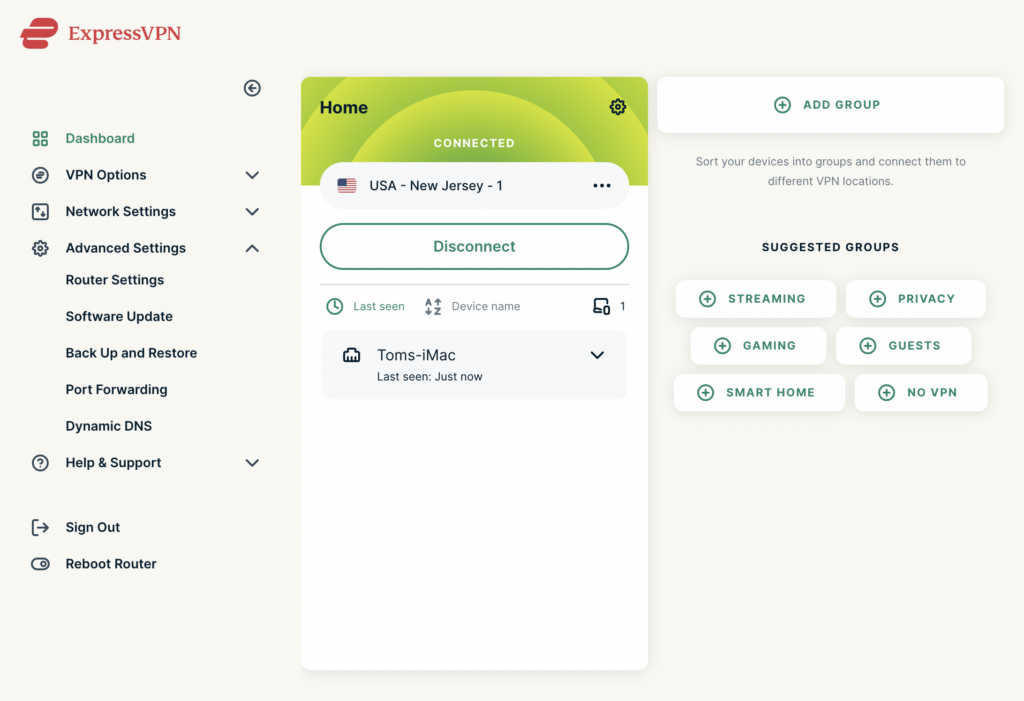
admin · Jan 29, 2019 ·

Sales FAQs
Can My Router Be Preconfigured With My VPN Information?

Plug and Play VPN Support

Yes you can!

To receive a plug and play with VPN device, you will need to provide our team with the credentials from your VPN provider subscription.

IMPORTANT NOTE: This is not required but recommended for users who wish to have the simplest, most seamless experience when the FlashRouter arrives. You can always change the password when the device arrives if you wish as well.


To have your router VPN preconfigured:

  1. Check the “Connect To VPN For Me” box under VPN – Preconfiguration on the Product Page during check out.
  2. Select your VPN provider. If you don’t see your VPN listed select “Other” and you will see an additional field to input who your provider is.
  3. You’ll receive an email after purchase with detailed instructions. If you have any questions our team is happy to help!
Please note:  If you do give a server location, we will automatically start the device with the closest/optimal server for the location we are shipping the device by default. A location has to be added to the initial configuration for plug and play encryption security to occur on the device.


Privacy Hero 2 Only:

While our team isn’t able to pre-configure the Privacy Hero 2 VPN Router before shipping it out since you’ll have to make a Privacy Hero user account and register your router, we can assist you with the VPN set up process once you receive the router and create your Privacy Hero user account via 1-on-1 remote session, email, or live chat on our site.

You can also use our step-by-step Privacy Hero VPN Router Setup Guide to complete the process.

Can I Use My Dedicated IP Address With A FlashRouter?

Dedicated IP Addresses from NordVPN, SurfShark, & TorGuard are supported on almost all of our FlashRouter options.

Check out our Dedicated IP Addresses Blog Post for more details!

Can I Use A FlashRouter With My Current Mesh System?

Yes!

You will be able to connect the FlashRouter of your choosing to your current mesh router via ethernet port as shown below:

ISP Modem/Router —- FlashRouter (VPN) —- Main Mesh Router (VPN from FlashRouter) 

This setup will allow you to keep your mesh network with added VPN protection, as well as add the FlashRouter wireless network for your devices.

You can disable the wifi on the FlashRouter also if you only wanted to use the mesh network for wifi.

Can You Flash My Router and Connect me to VPN?

At FlashRouters, we offer expert router flashing and VPN configuration services through our Flash My Router plans. Whether your router needs custom firmware flashing or just a VPN configuration, we ensure it’s set up for maximum security, privacy, and streaming performance with your chosen VPN provider.

The appointment will take place via remote software. During the appointment, our team will also answer any questions you may have about using the VPN on the router. Flashing is done out of the East Coast of the United States – we will do our best to accommodate your time zone difference if you are located in another part of the United States or another country.

👉 Explore our Flash My Router plans:
🔗 Flash My Router Plans


🔹 How It Works

✅ Flashing vs. Configuration: Some routers require custom firmware (flashing) to enable VPN, while others can be configured without flashing.
✅ Fully Optimized: Our team ensures your router is ready to securely connect to your VPN, block ISP tracking, and enhance your streaming experience.
✅ Remote Assistance Available: Get expert help setting up your VPN connection remotely if needed.


Flashing vs. Configuration: Router Compatibility

At FlashRouters, we handle VPN setup differently based on your router brand and model. Some routers require flashing custom firmware (like DD-WRT or AsusWRT-Merlin), while others can be configured without flashing.

🛠 Router Setup Types by Brand

🔹 Flashing Required (Custom Firmware Installation)

These routers require firmware flashing (DD-WRT or AsusWRT-Merlin) to enable VPN compatibility.

  • Asus – Flashed with AsusWRT-Merlin or updated to the latest AsusWRT build. Some models only require configuration.
  • Linksys – Flashed with DD-WRT firmware.
  • Netgear – Flashed with DD-WRT firmware.

🔹 Configuration Only (No Flashing Required)

These routers have built-in VPN support and only require proper setup.

  • TP-Link – Configured without flashing.
  • GL.iNet – Configured without flashing.
  • Cudy – Configured without flashing.

📌 Other brands are not supported at this time. If you have a different router, we recommend checking out our pre-flashed router options.


✅ Supported VPN Providers

We work with a wide range of VPN providers, including:

  • NordVPN
  • ExpressVPN
  • Surfshark
  • CyberGhost
  • IPVanish
  • Private Internet Access (PIA)
  • VyprVPN
  • ProtonVPN
  • PureVPN
  • Windscribe
  • IVPN
  • Mullvad
  • StrongVPN
  • AzireVPN
  • AstrillVPN
  • HotspotShield VPN

(If your provider isn’t listed, reach out – we may still be able to support it!)


🔗 Get Started Today!

👉 Explore our Flash My Router plans:
🔗 Flash My Router Plans

🔹 Need help selecting the right option? Contact our support team! We’re happy to assist.

How Can I Add The 1 Year NordVPN Service From My FlashRouters.com Order To My Current NordVPN Account?

You can easily combine the free 1 year of NordVPN included with your FlashRouter purchase once you receive the NordVPN Activation Code Email from FlashRouters.com. The email is typically received within 24 hours of order completion and will contain a link as well as an activation code.

This code can be entered at nordvpn.com/activate with the email address associated with your current NordVPN account to add the 1 year of free service to your existing service.


Privacy Hero 2 Only:

You can easily combine the free 1 year of NordVPN included with the Privacy Hero 2 VPN Router during the router activation process.

After activating the router, you’ll receive a NordVPN activation code within your privacy hero account dashboard. This code can be entered at nordvpn.com/activate with the email address associated with your current NordVPN account to add the 1 year of free service to your existing service.

What Are the Differences Between New, Recertified, And Open Box FlashRouters?

New

  • Direct from manufacturer, in new box.
  • Custom flashed on demand at time of the order.
  • 30 Day Satisfaction Guarantee / 1 Year Warranty.

Recertified (RM)

  • Direct from manufacturer/reseller, may be reboxed.
  • Custom flashed on demand at time of the order.
  • Specialists tested to guarantee same functionality as NEW routers.
  • 30 Day Satisfaction Guarantee / 1 Year Warranty.

Open Box

  • Limited quantity, discount items reboxed that may have cosmetic imperfections.
  • Same testing and functionality level and New and RM.
  • 30 Day Satisfaction Guarantee / No Warranty.

Will a FlashRouter Work With My Internet Service Provider?

US Customers (Single Router Solution):

Almost all Internet Service Providers(ISPs) require a modem in place to establish a connection to their service, however a modem by itself doesn’t provide the wifi connectivity needed in the home or office. A FlashRouter can connect directly to all known modems provided by major ISPs to create a wireless network so long as there is an Ethernet port on the modem to connect to the FlashRouter Internet port. 

US Customers (Dual Router Solution): 

Yes, FlashRouters are compatible with your ISP in what is called a Dual Router Set Up.

For this type of setup, you would use your current router or modem router to connect to your local ISP while using a FlashRouter to connect to your VPN. This is recommended as you will not overhaul your network with a new router, and you will be able to use your selected VPN service on the devices you wish to use it with.

This set up would result in the creation of two networks, which can be seen as the “Local Network” and the “FlashRouter Network”. All devices connected to the FlashRouter Network will go through the VPN service. 

For any device you would prefer to use without a VPN, you can connect to the local network. The chain of devices would be connected from LAN ton your modem or modem/router to WAN on the FlashRouter, with your current router connected to the FlashRouter via Ethernet cable. 


International Customers (Single Router Solution):

Almost all Internet Service Providers (ISPs) require a modem in place to establish a connection to their service, however a modem by itself doesn’t provide the wifi connectivity needed in the home or office. A FlashRouter can connect directly to all known modems provided by major ISPs to create a wireless network so long as there is an Ethernet port on the modem to connect to the FlashRouter Internet port. 

International Customers (Dual Router Solution):

ISPs should all be compatible. Some providers require VLAN tagging/VID settings when wiring directly from modem to FlashRouter. 

For this type of setup, you would use your current router or modem router to connect to your local ISP while using a FlashRouter to connect to your VPN. This is recommended as you will not overhaul your network with a new router, and you will be able to use your selected VPN service on the devices you wish to use it with.

This set up would result in the creation of two networks, which can be seen as the “Local Network” and the “FlashRouter Network”. All devices connected to the FlashRouter Network will go through the VPN service. 

For any device you would prefer to use without a VPN, you can connect to the local network. The chain of devices would be connected from LAN ton your modem or modem/router to WAN on the FlashRouter, with your current router connected to the FlashRouter via Ethernet cable. 

What Stock Firmware Features Will I Lose If I Flash My Router

Open Source firmware like DD-WRT or Assu Merlin has many features equivalent to what stock firmware has, in addition to adding new features to a router. However, some features are lost from the stock firmware when a router is flashed.

These are typically features that are put into the stock firmware by the manufacturers themselves. Things like the Linksys App and the NetGear Genie are examples of what would not be available or compatible on the router after flashing.

Most routers also have a WPS button. By default, the WPS button’s functionality is disabled when a router is flashed as it can be vulnerable and a security risk. It can be re-enabled by following this guide but we do not recommend it.

Does a FlashRouter or Service Plan Purchase Include a VPN Subscription?

A subscription to a VPN does not come with a FlashRouter or Service plan. If you are planning to use a VPN, you would need to sign up for one separately, directly from a provider.

Need assistance in finding a VPN Provider? Please visit our recent VPN Provider Best Seller List.

Plug and Play VPN Support

Unlike other VPN Router providers, FlashRouters is proud to offer free VPN service integration with any purchase.

To receive a plug and play with VPN device, you will need to provide our team with the credentials from your VPN provider subscription.

IMPORTANT NOTE: This is not required but recommended for users who wish to have the simplest, most seamless experience when the FlashRouter arrives. You can always change the password when the device arrives if you wish as well.

Shows what to look for when you want to preconfigure your router.

To have your router VPN pre-configured:

  1. Select Yes from the “Want Your Router Preconfigured?” on the Payment Page during checkout.
  2. Select your VPN provider. If you don’t see your VPN listed select “Other” and you will see an additional field to input who your provider is.
  3. Enter your your VPN username and password
  4. For ExpressVPN Firmware Routers there will be an additional box for your activation code.

Please note:  If you do not enter a server location request in “Order Comments”, we will automatically start the device with the closest/optimal server for the location we are shipping the device by default. A location has to be added to the initial configuration for plug and play encryption security to occur on the device.

Can I Use A FlashRouter To Work From Home?

Yes! A large number of our customers use their FlashRouters to “work from home” no matter where your travels take you. Check out our Working Remotely Blog Post for more details.

What is the Difference Between Business VPNs and VPN Services?

Location: VPN Services offer many server locations to encrypt your traffic through. They are located in several countries worldwide for creating a private VPN tunnel for your online activities. A business VPN connects to specific central servers for data or directly to your office, creating a direct tunnel for accessing sensitive work documents and information.

Logging: Most VPN services offer log-free connections for total anonymity and security when connected (it is important to check out their terms of service and privacy policy for full details). A business VPN is monitored and maintained by employers such as corporations, hospitals or universities.

Protection: VPN services secure your family’s personal data while using computers, SmartTVs and various Internet of Things devices. Business VPNs protect the data of the company while you are tunneling into work.

Are There VPN Service Providers That Offer VPN for Business?

There are in fact several trusted VPN providers that have services specially tailored for business use. NordVPN Teams and VyprVPN for Business offer a full suite of solutions like user management tools, dedicated IPs, personal product managers, global server access, business pricing, and more.

These solutions allow you to quickly deploy a safe and secure corporate network without building and maintaining your own servers. If you are a small business looking to quickly secure remote workers as they shift to work from home, and you do not have an in-house IT expert, then you should consider NordVPN Teams or VyprVPN for Business.

Even better, when choosing a business VPN provider like NordVPN or VyprVPN, employees can use routers with direct NordVPN and VyprVPN integration already included through the FR Privacy App. Meaning that a full network kill switch, routing by device, automatic connections, and more are all included as features with your business VPN connection.

Can I use a VPN on a FlashRouter With My Work/Corporate VPN?

Many of our customers have found that they can connect to both their corporate and personal VPN, however due to the variables beyond our control, we cannot guarantee this for every unique situation.

Using two VPNs at once can lead to unpredictable results. Bouncing your network traffic to multiple servers before finally arriving at it’s intended destination can sometimes introduce speed and connection issues.

Please consider that some employers and agencies are more vigilant regarding third party VPN use than others. There are tools readily available that detect the use of VPN services.

While these tools cannot decrypt and view your network traffic, they can tell your employer that you are potentially using a VPN, which can be against company policy.

If your corporate and personal VPN do not work together, then you can always set the computer using your work VPN to bypass the FlashRouter’s VPN tunnel by accessing the router admin panel for your device.

This way, your computer would only use the work VPN. Keep in mind however, your location would appear as your actual location to your work.

Every FlashRouter also comes with a 30 Day Satisfaction Guarantee.

If in the event you determine the FlashRouter is not working out for you, you can return the device within the first 30 Days. A $25 restocking fee does apply.

Can I Use a FlashRouter to Connect to a Dedicated Business VPN Network?

Of course! If you have an OpenVPN server running on a local machine or hosted on a cloud provider like Amazon Web Services (AWS), FlashRouters can create a custom router client configuration to connect the entire router and all connected devices to your OpenVPN server. Instead of employees connecting device-by-device, a router-based VPN connection allows for always-on secure VPN tunneling.

Our service team is here to work with you to test and ensure compatibility before purchasing. Interested in a router based custom client VPN solution for your remote workers? Please do not hesitate to contact us.

And, if you’re looking for a specific router, take a look at some of our most popular options!

How can I Reset the Password for My FlashRouters.com Customer Account?

To reset your password, you’ll want to click the “Account” icon in the upper right hand corner on our main website (Flashrouters.com). Once clicked, a menu will open where you can enter your login information, or select the “Forgot Password” button to trigger a reset email.

If you’re still having issues accessing your FlashRouters.com customer account after attempting a password reset, please reach out to us at support@flashrouters.com for further assistance.

What Payment Methods does FlashRouters Accept?

We accept Apple Pay, Google Pay, and all major cred/debit card providers on our payment method options page during checkout.


If you’d like to complete a purchase using PayPal as a payment method, please contact our team at support@flashrouters.com to request an invoice.

Can I Make Change/Update/Cancel My Order?

We strive to process and ship all orders within one business day. If you wish to make changes or cancellations, please contact us within 24 hours of placing your order at support@flashrouters.com with your order number and the changes you’d like to make.

While we will do our best to accommodate your request, please note that we cannot guarantee changes or cancellations.

Please note that if you need to update the shipping address, the order will require reapproval through our fraud prevention system with the new address.

Trouble Checking Out

Some customers have found that trying the methods below have helped solve any checkout errors they may have encountered:

⚡️Clearing cache
⚡️Refreshing web page
⚡️Switching web browsers
⚡️Using an incognito/private window
⚡️Confirming all billing information is accurate
⚡️Disable VPN if one is enabled
⚡️Disable Ad & Script Blockers if enabled
⚡️If you’re using a mobile device, switching to a computer or laptop would be ideal.

DD-WRT Router Setup Guide

DD-WRT Router Setup Guide

Quick Start Guide for DD-WRT FlashRouters

Find setup guides, FAQs and troubleshooting tips for DD-WRT configured FlashRouters.
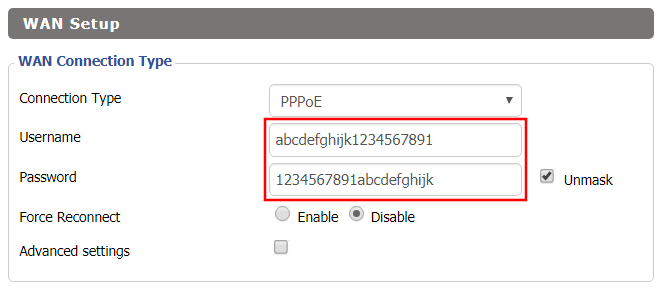
VIEW SUPPORTED ROUTER MODELS

AC1450, R6220, R6230, R6250, R6260, R6300 V1, R6300 V2, R6400 V1, R6400 V2, R6700 V1, R6700 V2, R6700 V3, R7000, R7000P, R7800, R8000, R9000, XR500

Asus Logo

RT-AC56U/R, RT-AC68U V1, RT-AC68U V2, RT-AC1900P, RT-AC87U, RT-AC3100, RT-AC5300

WRT1200AC, WRT1900AC V1, WRT1900AC V2, WRT1900ACS V1, WRT1900ACS V2, WRT32X, WRT3200ACM

Internet Setup

  • Connect FlashRouter to Internet
  • Access FlashRouter DD-WRT firmware settings
  • What are some extra steps I can take to secure my network?
  • IPv6 Internet Setup
  • PPPoE Internet Setup

WiFi Setup

VPN Setup

DD-WRT Features

  • How do I set a Static IP for my device in DD-WRT?
  • How do I upgrade the DD-WRT firmware of my FlashRouter?
  • How do I save and load a backup file?
  • How do I schedule a reboot of my FlashRouter?
  • How do I change the DHCP range of my FlashRouter?

Search Support Articles

Troubleshooting

  • Device Settings That Can Interfere With Your Router VPN
  • Why can’t I send emails while connected to VPN?
  • What is a DNS leak and how can I prevent a DNS leak in my router?
  • My VPN stopped working on my FlashRouter.
  • Why is my connection speed slower?
  • Why are streaming services blocked while connected to VPN?
  • How do I find my router local IP address?
  • How do I reset and reconfigure my FlashRouter?
  • How do I check for static network settings on my devices?
  • Why is my router not connecting to internet?
  • How to fix an Unidentified Network or Limited Connection.
  • Why are some of my devices not connecting to the internet?
  • Why is the internet LED red on my router?
  • Why is the power light on my FlashRouter blinking?
  • My 2.4GHz network is not showing up
  • My 5.0GHz network is not showing up
  • My WiFi password is not working
  • Why did my WiFi SSID change to ‘dd-wrt’?
  • Why are devices disconnecting from Wireless?
  • Why is my WiFi signal weak?

More Ways to Get Help

GET IN TOUCH

BUY SUPPORT
BROWSE FAQs

Which DD-WRT wireless extender setup should I be using?

TeamFlashRouters · Jun 11, 2019 ·

FlashRouters supports four unique DD-WRT wireless extender setups – options similar to an open source Mesh network. Each different wireless extender configuration serves a different purpose. Read below to see which guide fits your configuration requirements!

Wireless Repeater

Why should I choose Wireless Repeater Setup?

  1. If you have a MiFi wireless only internet connection or other type of WiFi internet where there is no access to any ethernet port for a wired internet connection, then you can setup a wireless repeater network to both extend WiFi and add wired connection capabilities.
  2. If you have a large home or office area that requires additional WiFi coverage can use a wireless repeater setup to extend the existing network.
  3. If you want to create a separate VPN WiFi network in your home without placing the FlashRouter in the same room as your primary router you can use wireless repeater to establish a WiFi internet connection and then connect to VPN on your WiFi repeater network.
  4. If you want a wireless Dual Router setup option where you can have local ISP IP address through your main router WiFi network and your VPN IP address through your FlashRouter Wireless Repeater WiFi network, both available for you to connect at all times. Each network is on a unique subnet.

View the FlashRouter Wireless Repeater Setup Guide.

Wireless Repeater Bridge

Use Cases

Wireless Repeater Bridge Setup

  1. Anyone that needs all their devices connected to the same local network.
  2. Anyone with a MiFi internet connection that does not have an ethernet port and has no need for VPN.
  3. Anyone with a large wireless area that requires additional coverage.

Wireless Client Bridge

Use Cases

Wireless Client Bridge Setup

  1. Anyone with a MiFi internet connection that needs wired access.
  2. Anyone that needs additional wired ports instead of using a switch.
  3. Anyone with wired only devices in their home that are too far from your main router.

Wireless Access Point DHCP Forwarder

Use Cases

Wireless Access Point DHCP Forwarder Setup

  1. Anyone that needs their devices connected to the same local network and wants lossless LAN to LAN speeds via wireless and ethernet connection.
  2. Anyone that wants to use their main router to provide DHCP to their router instead of having an additional DHCP server.

Privacy Hero Bedtime Settings (Internet Scheduler)

TeamFlashRouters · Apr 3, 2023 ·

Your Privacy Hero router uses Cloud Based router management which means you can access the router settings from anywhere on any device that has an internet connection. You can follow these steps while connected to your phone, other Wi-Fi network, or the Privacy Hero network.

The Bedtime settings feature allows users to schedule when internet access will be turned off for specific user profiles. All devices assigned to this profile will have these rules applied.

1. From any device that has a browser such as a computer, smartphone, or tablet visit app.privacyhero.com

App.PrivacyHero.com

2. Enter your Privacy Hero account email and password. Click Login.

Privacy Hero Access Settings

If you have not created your Privacy Hero account yet please follow these instructions.

3. Click the Profiles symbol.

Privacy Hero Profiles

4. Click the name of the User Profile.

Privacy Hero Select Profile

5. Click Schoolnights or Weekends depending on which you need to set rules for.

Privacy Hero Bedtime School Nights Weekends

6. Select the time that you want the Internet to turn off and the days you want this rule to apply to. Click Save.

Privacy Hero Set Bedtime

7. Set the Bedtime toggle to On.

Privacy Hero Enable Bedtime

TROUBLESHOOTING

Still having issues? Visit the VPN Troubleshooting section.

Troubleshoot Here

How to Use ASUS VPN Fusion: Assign Devices and Multiple VPNs

Dave · Oct 26, 2026 ·

ASUS VPN Fusion lets supported AsusWRT routers run VPN client profiles and decide which connected devices use each VPN connection. You can send the entire network through one VPN, use separate VPN profiles for selected devices, or leave certain devices on the regular ISP connection.

This guide covers how to use ASUS VPN Fusion to assign devices to specific VPN connections, manage multiple VPN profiles simultaneously, and choose which devices use a VPN or connect directly through your ISP. These features work with supported VPN providers and protocols, including WireGuard and OpenVPN.

In This Guide

Before You Start →Connect and open VPN FusionApply VPN to All Devices →Default VPN routeAssign Selected Devices →Per-device VPN or ISPMultiple VPN Profiles →WireGuard and OpenVPNVerify & Troubleshoot →Check each device’s public IPGuest Network Routing →VPN WiFi and ISP WiFi

Open VPN Fusion

  1. Connect your computer or phone to your ASUS FlashRouter’s WiFi or LAN.
  2. Open http://www.asusrouter.com or the router’s LAN IP (often 192.168.50.1) and log in. See How to Access Your AsusWRT FlashRouter Settings.
  3. Go to VPN > VPN Fusion. Add and configure at least one working VPN client profile before assigning devices.
ASUS VPN Fusion page with Add Profile and Internet Connection
VPN Fusion displays your saved VPN profiles and the Add Profile option.

The exact menu names, profile limits, and available VPN types depend on your ASUS model and firmware. Some older ASUS routers use a different VPN Client interface and do not have the full VPN Fusion controls.

Method 1: Apply One VPN to All Devices

Use this option when you want the selected VPN profile to be your router’s default connection.

  1. In VPN Fusion, open the VPN profile that should provide the default internet route.
  2. Enable Apply to all devices (or Default Connection in firmware that uses that label).
  3. Click Apply all settings, then enable the VPN profile.
  4. Connect a test device to the router and check its IP. If you use per-device overrides, verify those rules separately.
ASUS VPN Fusion Apply to all devices setting and device count
Enable Apply to all devices to use the selected VPN as the default connection.

Do not assume every active VPN profile applies to every device. The default route and any device-specific policies determine which connection a device uses.

Method 2: Send Only Selected Devices Through a VPN

  1. In VPN Fusion, turn off Apply to all devices for a profile when you do not want that VPN used network-wide.
  2. Open the profile’s Device area using the pencil/edit icon or the firmware’s device-assignment control.
  3. Select the intended devices (for example, a TV and streaming box), confirm with OK, then click Apply all settings.
  4. Enable the VPN profile and verify the selected devices’ public IPs.
  5. For devices that should use the normal ISP internet, leave them on the Internet Connection route or explicitly set the Internet/bypass rule available in your firmware. Remove any conflicting VPN assignments.

Important: A device being connected to ASUS WiFi does not guarantee that it is assigned to the desired VPN. Check the assigned profile and the actual public IP.

How Multiple VPN Connections Work

On supported models, VPN Fusion can keep several VPN connections active and route different devices through different providers at the same time. For example:

TVNordVPN — WireGuard
LaptopProton VPN — OpenVPN
Streaming deviceSurfshark — OpenVPN
Work computerRegular ISP connection

You may be able to run one WireGuard profile and multiple OpenVPN profiles concurrently, but connection limits and supported combinations vary by ASUS router model and firmware. Adding many saved OpenVPN profiles is not the same as having all of them connected at once.

  1. Create separate profiles with clear names, such as Nord-US-WG, Proton-US-OVPN, and Surfshark-UK-OVPN.
  2. Enable only the profiles you need and confirm each shows connected.
  3. Assign each client device to the appropriate active profile; avoid applying conflicting default routes.
  4. Verify each device’s observed IP and server country. If one tunnel fails, test it individually with the other profiles temporarily disabled.

ASUS reference: How VPN Fusion handles multiple tunnels and devices.

Confirm a Device Is Actually Using the VPN

  1. In VPN Fusion, confirm the target profile’s connection status is active.
  2. Check the device’s assignment in the ASUS VPN Fusion interface.
  3. On that same device, visit IPLeak.net or another public-IP checker.
  4. Compare the reported public IP and location with the VPN server assigned to that device.
  5. If the device still shows your ISP IP, test with its own VPN app and iCloud Private Relay / Private DNS / browser proxy disabled. Use Device Settings That Can Interfere With Your Router VPN.

Quick isolation test

  1. Turn off VPN Fusion routing for a test device and confirm ISP internet works.
  2. Turn on just one known-working VPN profile for that device.
  3. Recheck public IP. If it now works, reintroduce other profiles/assignments individually.

Want a Separate WiFi Network With or Without VPN?

Rather than selecting devices one at a time, supported ASUS routers offer Guest Network Pro or Network > VPN Network features that can associate a WiFi SSID with VPN routing. See ASUS Guest WiFi With or Without VPN: Setup Guide.

On routers with only the traditional Guest Network feature, available VPN-by-SSID behavior may differ; do not assume the standard guest SSID bypasses a network-wide VPN default.

Related AsusWRT Guides

  • NordVPN Setup for AsusWRT: Token, WireGuard & OpenVPN
  • ASUS Guest WiFi With or Without VPN: Setup Guide
  • Device Settings That Can Interfere With Your Router VPN
  • How to Access Your AsusWRT FlashRouter Settings

Upgrade your ASUS router

Explore the Latest WiFi 7 ASUS FlashRouters

Looking for a newer ASUS router? Browse WiFi 7 models available from FlashRouters and compare features to find the right fit for your home or office. VPN Fusion and other features vary by router model and firmware.

Shop ASUS WiFi 7 Routers →

What do the lights on my Roqos Core mean?

TeamFlashRouters · Mar 3, 2022 ·

  1. White (looks blueish white on Teal colored Roqos Cores): System startup
  2. Solid Red: System is up, but there is no internet connection. Roqos Core cannot detect a network link either.
  3. Flashing Red: System is up and there is an ethernet cable connected to Internet port, however Roqos Core is unable to reach the internet. Usually happens with bad ethernet cable, or cable modem/ISP modem not giving IP address to Roqos Core due to ISP provisioning issues, or some other type of network setting blocking Roqos Core’s access to the internet. First thing to try in this scenario is to reboot the ISP router/modem upstream of Roqos Core.
  4. Flashing Blue: Roqos Core is up and connected to the internet, but it is not yet activated. Brand new Roqos Cores, or Roqos Cores that are factory reset will show this behavior when they are ready to be activated again.
  5. Blue (deep blue color, different from #1): Roqos Core is up and activated, everything is normal.
Next Page »

Primary Sidebar

  • Troubleshooting
  • Router Access
  • Internet Connection Issues
  • WiFi Connectivity
  • General VPN Issues
  • TeamViewer Remote Support
  • DD-WRT Firmware
  • Facebook
  • Twitter
  • Instagram
  • Pinterest
  • YouTube

Footer