
Quick Start Guide for GL.iNet FlashRouters
Find setup guides, FAQs and troubleshooting tips for GL.iNet FlashRouters.

- Slate: GL-AX1800, GL-AXT1800, GL-BE3600
- Flint: GL-MT6000
- Other: Beryl GL-MT3000, Velica GL-B2200, Marble GL-B3000

Prioritizing Privacy
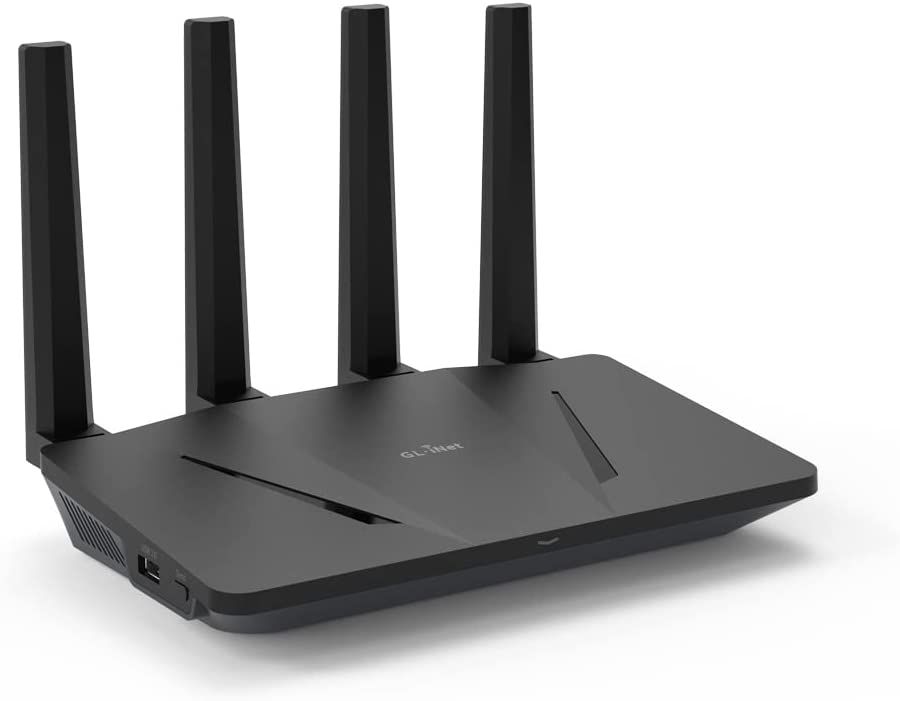
Follow this article when you receive your new Flint or Slate GL.iNet router to connect it to the Internet.
1. Connect the ethernet cable that came with the router from an open LAN ethernet port on your ISP modem or other router to the WAN port of the Flint or Slate GL.iNet router.
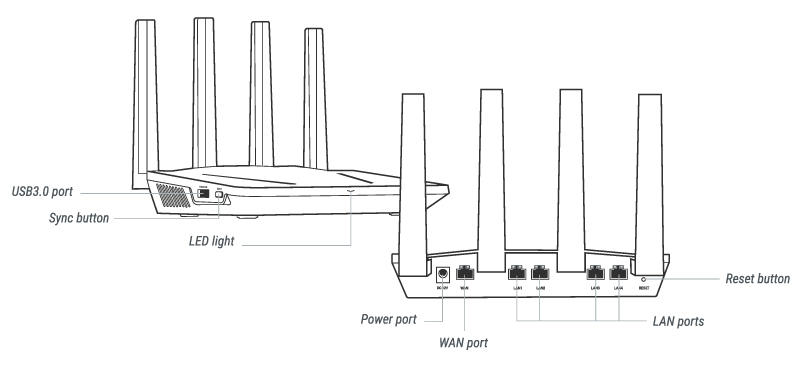
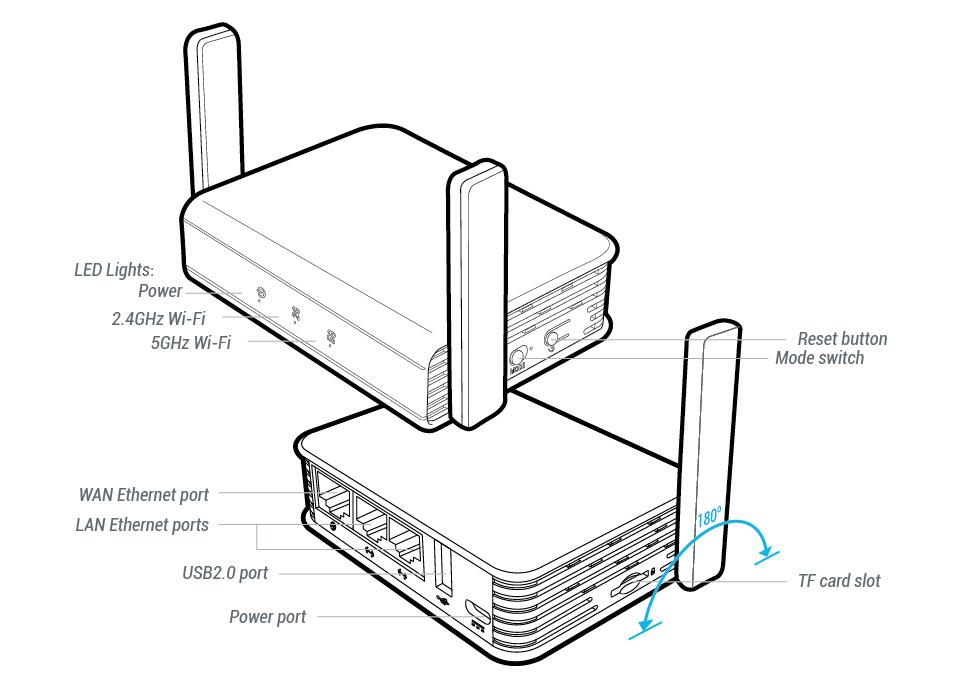
2. Connect the power to the router and wait about 2 minutes for the router to fully boot up.
3. Connect your computer, phone, or tablet to the GL.iNet router via wireless (FlashRouter24 / FlashRouter50) or via ethernet cable to one of the LAN ports on the router.
The FlashRouter WiFi password is printed on the sheet that came with the router and is set to Wireless#[First 5 characters of your router MAC]. The router MAC can be found on the bottom of your router if you cannot locate the sheet. For e.g. if your MAC is 1459C07E70A8 then your WiFi password is Wireless#1459C
Be sure to capitalize the W.
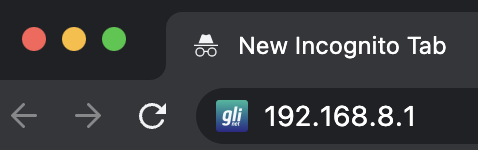
4. Once connected via wireless or ethernet on your device open your browser and go to 192.168.8.1
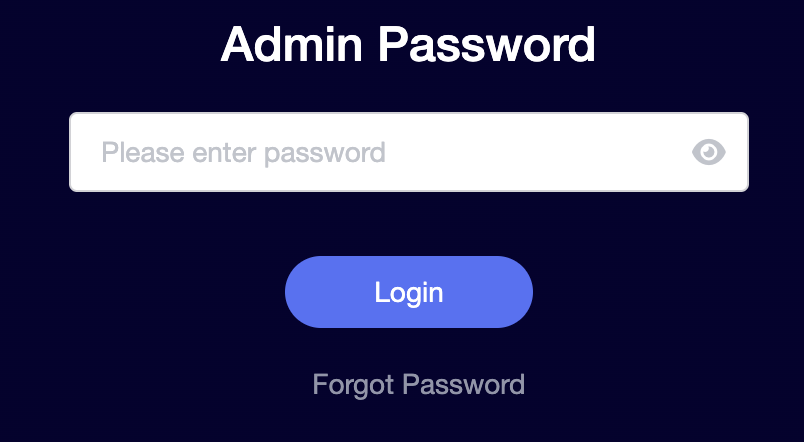
5. Enter openwrt as the admin password to access the GL.iNet firmware settings.
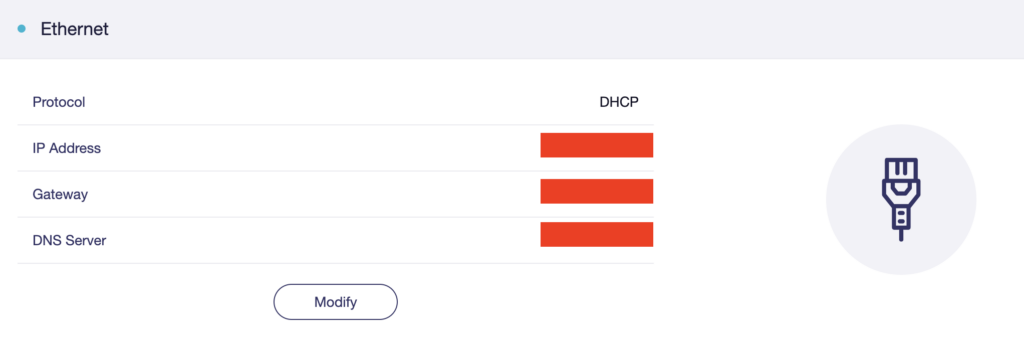
6. Verify that your Flint/Slate GL.iNet router is receiving a WAN IP Address and webpages are loading while connected to its network.
Follow this guide to change the Wi-Fi name and password on your GL.iNet FlashRouter.
1. Connect your computer, phone, or tablet to the GL.iNet router via wireless (FlashRouter24 / FlashRouter50) or via ethernet cable to one of the LAN ports on the router.
The FlashRouter WiFi password is printed on the sheet that came with the router and is set to Wireless#[First 5 characters of your router MAC]. The router MAC can be found on the bottom of your router if you cannot locate the sheet. For e.g. if your MAC is 1459C07E70A8 then your WiFi password is Wireless#1459C
Be sure to capitalize the W.
2. Once connected via wireless or ethernet on your device open your browser and go to 192.168.8.1
3. Enter openwrt as the admin password to access the GL.iNet firmware settings.
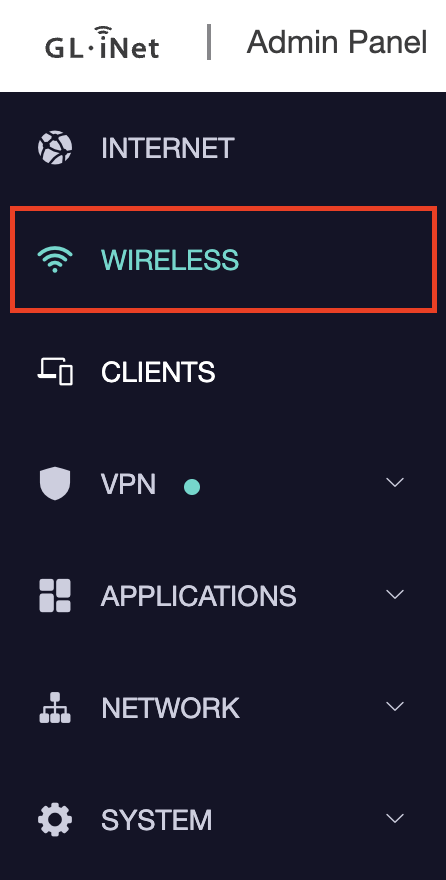
4. Click Wireless.
5. Click Modify under the 5GHz or 2.4GHz band.
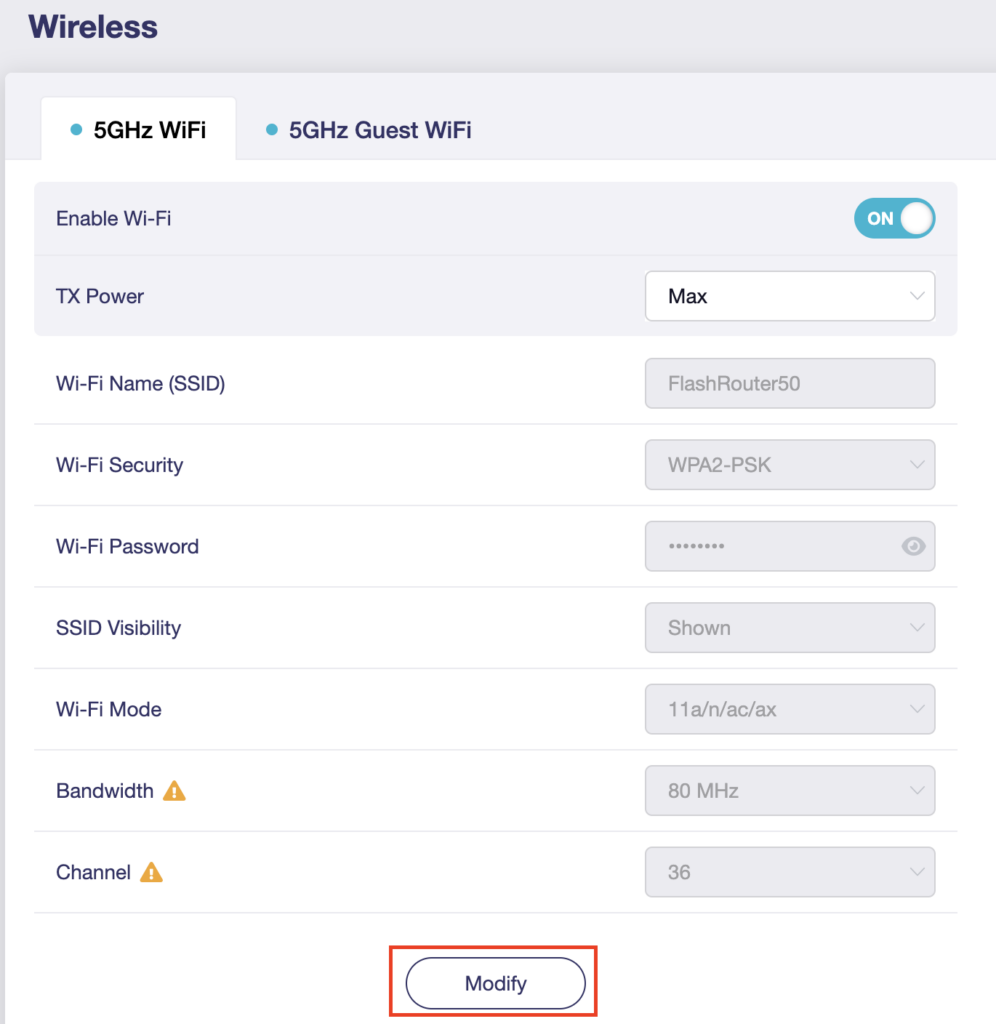
The 5GHz and 2.4GHz information must be changed at separate times. Keep in mind that if you are connected to wireless when changing one band you may need to reconnect with the new info you set to be on the network again to make changes to the other band.
6. Change the Wi-Fi Name (SSID) and Wi-Fi Password fields to what you want to use. The SSID should be unique and NOT a duplicate of an existing network. Click Apply.
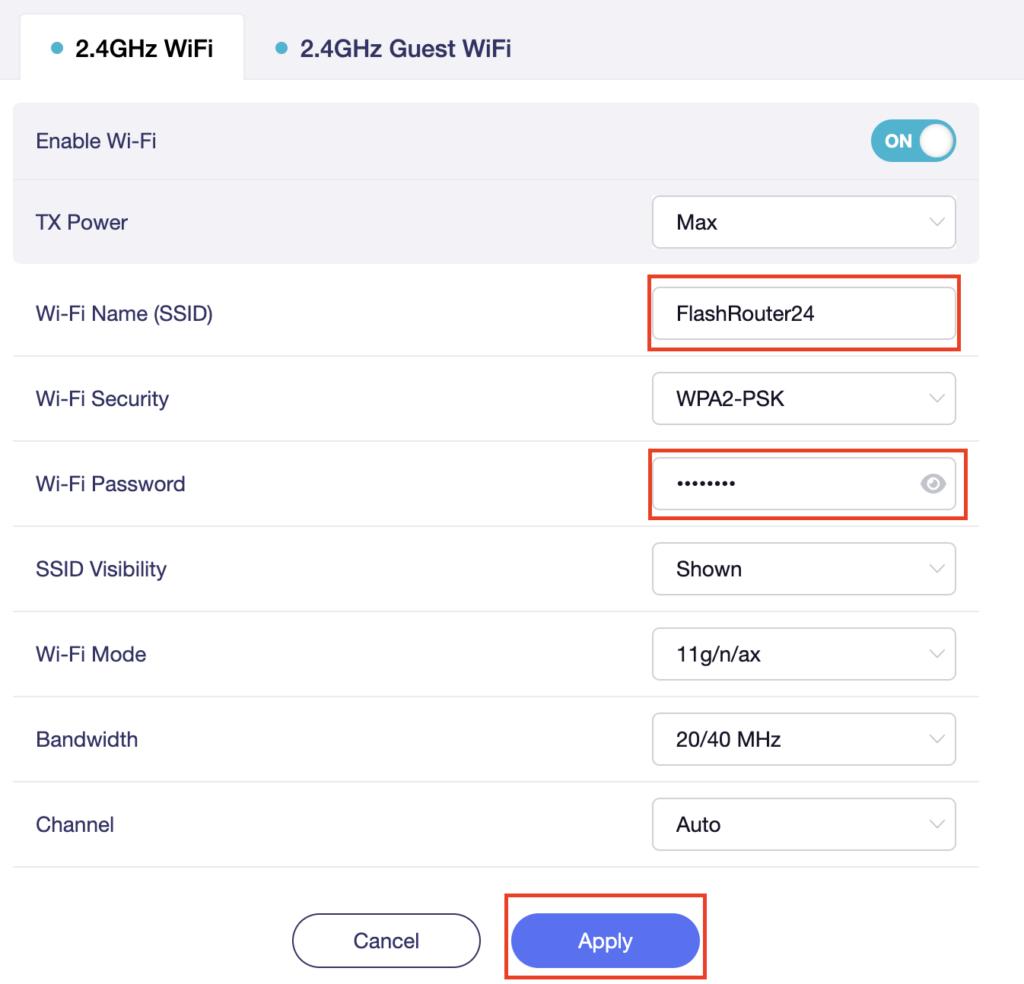
7. Connect your devices to the new wireless network.
Follow this guide to disable Wi-Fi network on your GL.iNet FlashRouter.
1. Connect your computer, phone, or tablet to the GL.iNet router via wireless (FlashRouter24 / FlashRouter50) or via ethernet cable to one of the LAN ports on the router.
The FlashRouter WiFi password is printed on the sheet that came with the router and is set to Wireless#[First 5 characters of your router MAC]. The router MAC can be found on the bottom of your router if you cannot locate the sheet. For e.g. if your MAC is 1459C07E70A8 then your WiFi password is Wireless#1459C
Be sure to capitalize the W.
2. Once connected via wireless or ethernet on your device open your browser and go to 192.168.8.1
3. Enter openwrt as the admin password to access the GL.iNet firmware settings.
4. Click Wireless.
5. Click Modify under the 5GHz or 2.4GHz band.
The 5GHz and 2.4GHz bands must be disabled at separate times. Keep in mind that if you are connected to wireless when disabling one band you may need to reconnect with the other band to disable it. Also make sure you have a device that has ethernet capabilities so you can still access the settings with wireless disabled.
6. Set the Enable Wi-Fi toggle to the OFF position and click Apply.
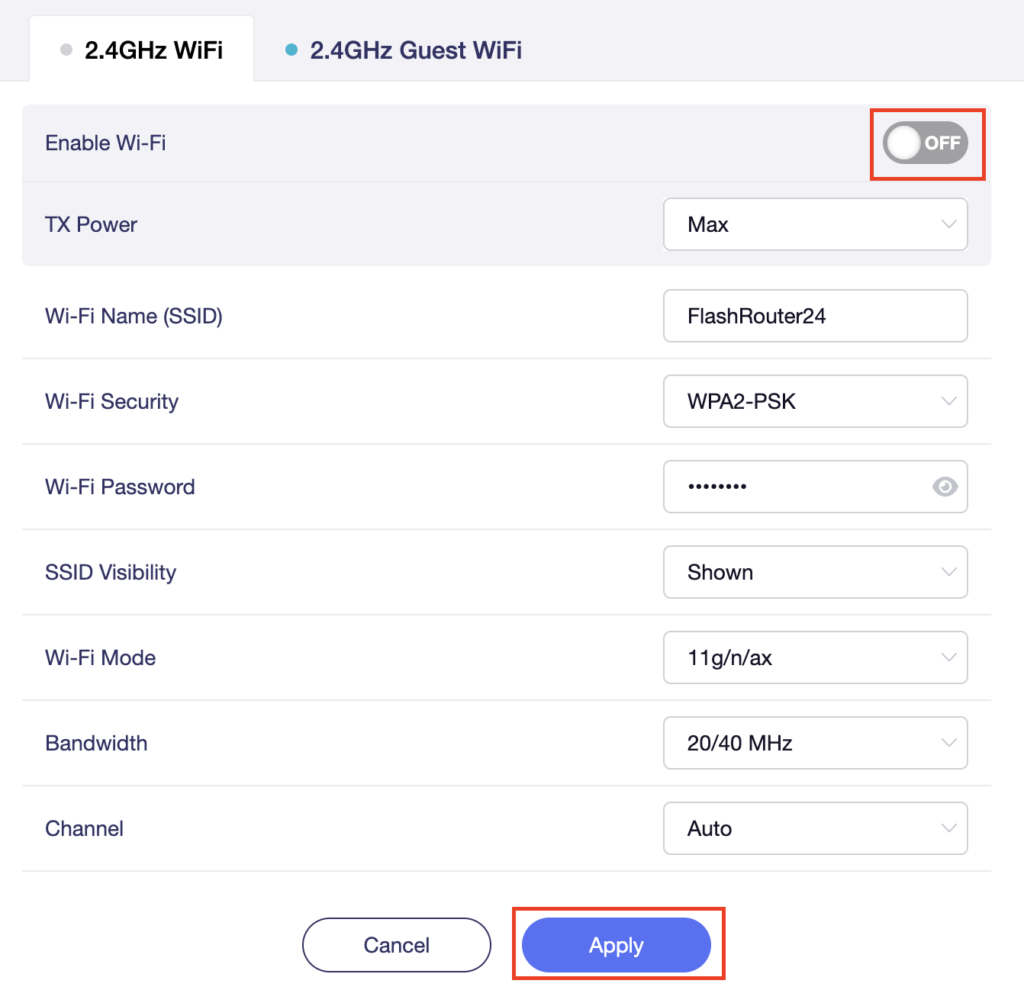
Follow this guide to setup a Guest Network on your GL.iNet FlashRouter. Devices connected to the guest network will be on a separate subnet and will not have access to the router settings or be able to talk to devices on the main network.
1. Connect your computer, phone, or tablet to the GL.iNet router via wireless (FlashRouter24 / FlashRouter50) or via ethernet cable to one of the LAN ports on the router.
The FlashRouter WiFi password is printed on the sheet that came with the router and is set to Wireless#[First 5 characters of your router MAC]. The router MAC can be found on the bottom of your router if you cannot locate the sheet. For e.g. if your MAC is 1459C07E70A8 then your WiFi password is Wireless#1459C
Be sure to capitalize the W.
2. Once connected via wireless or ethernet on your device open your browser and go to 192.168.8.1
3. Enter openwrt as the admin password to access the GL.iNet firmware settings.
4. Click Wireless.
5. Click 5GHz Guest Wi-Fi or 2.4GHz Guest Wi-Fi.
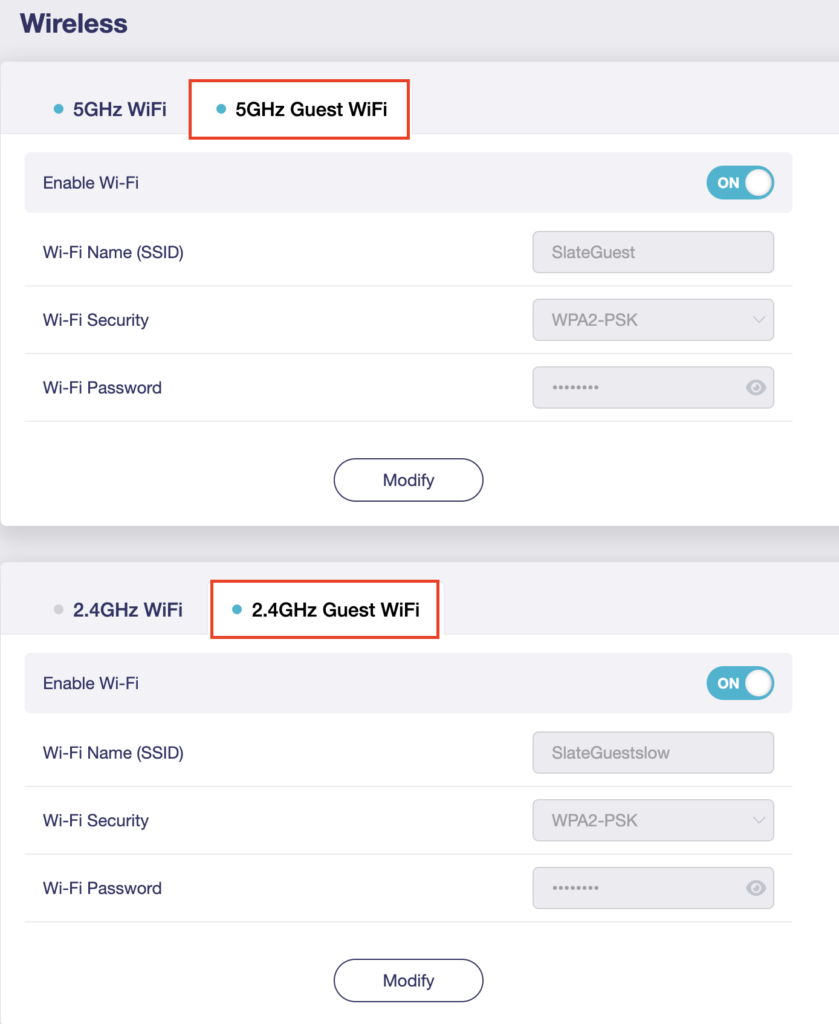
6. Click Modify.
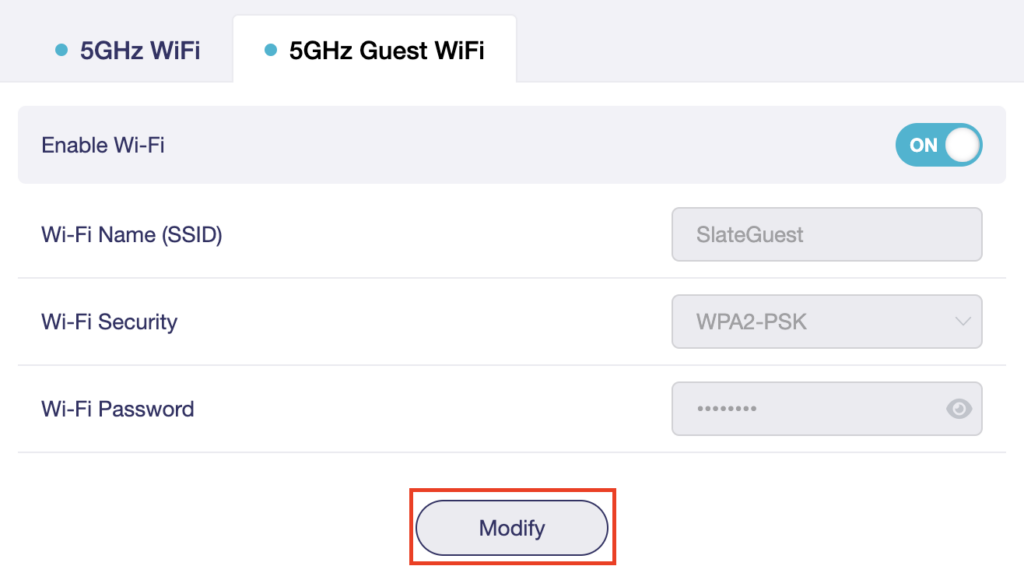
7. Set the Enable Wi-Fi toggle to the ON position.
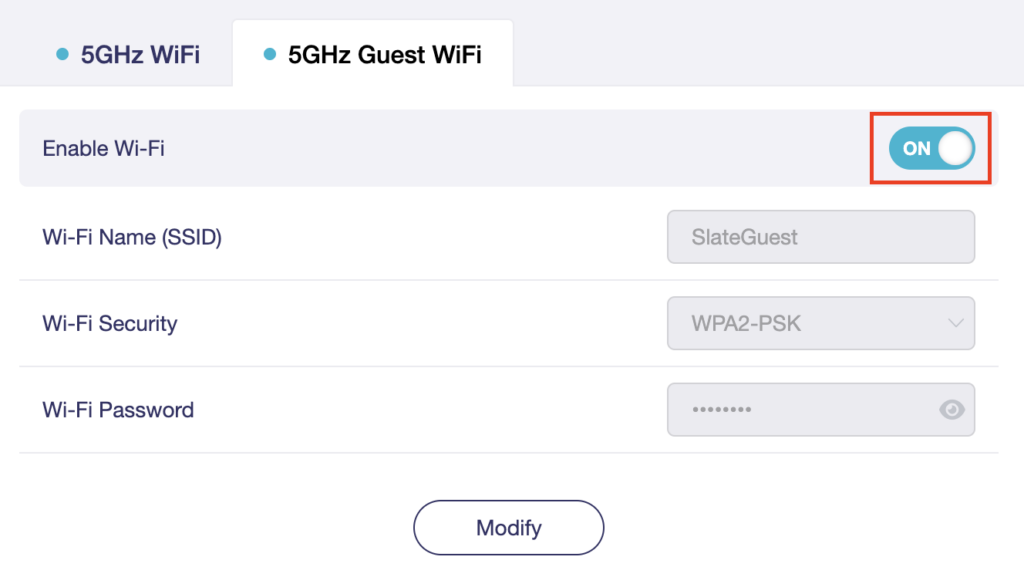
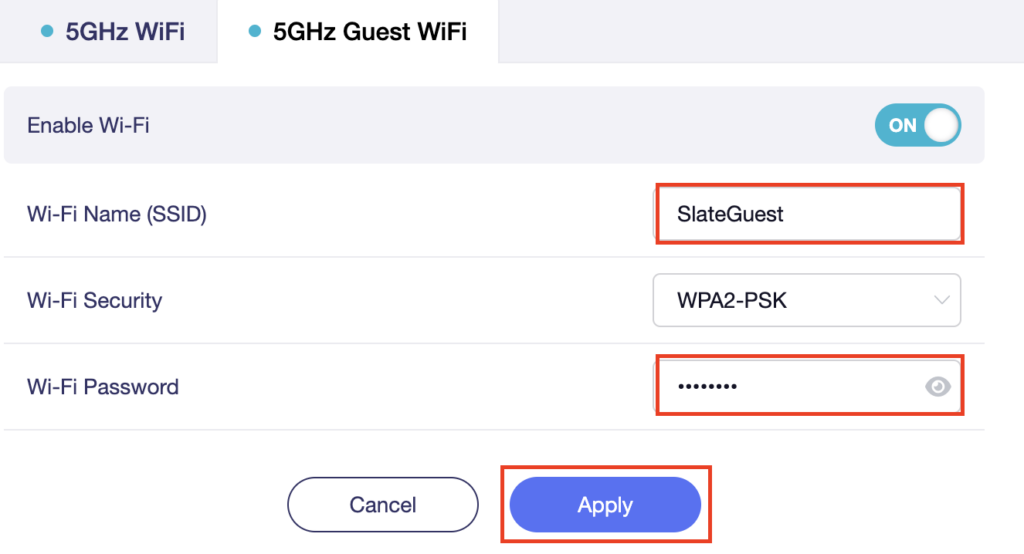
8. Change the Wi-Fi Name (SSID) and Wi-Fi Password fields to what you want to use. The SSID should be unique and NOT a duplicate of an existing network. Click Apply.
9. Connect your devices to the new guest wireless network.
If you want to connect your FlashRouter to the Internet via Wi-Fi instead of an ethernet cable you can setup a FlashRouter as a Wireless Repeater. In Wireless Repeater mode the FlashRouter connects to an available network via WiFi and then creates a completely separate network segment for you.
1. Connect your computer, phone, or tablet to the GL.iNet router via wireless (FlashRouter24 / FlashRouter50) or via ethernet cable to one of the LAN ports on the router.
The FlashRouter WiFi password is printed on the sheet that came with the router and is set to Wireless#[First 5 characters of your router MAC]. The router MAC can be found on the bottom of your router if you cannot locate the sheet. For e.g. if your MAC is 1459C07E70A8 then your WiFi password is Wireless#1459C
Be sure to capitalize the W.
2. Once connected via wireless or ethernet on your device open your browser and go to 192.168.8.1
3. Enter openwrt as the admin password to access the GL.iNet firmware settings.
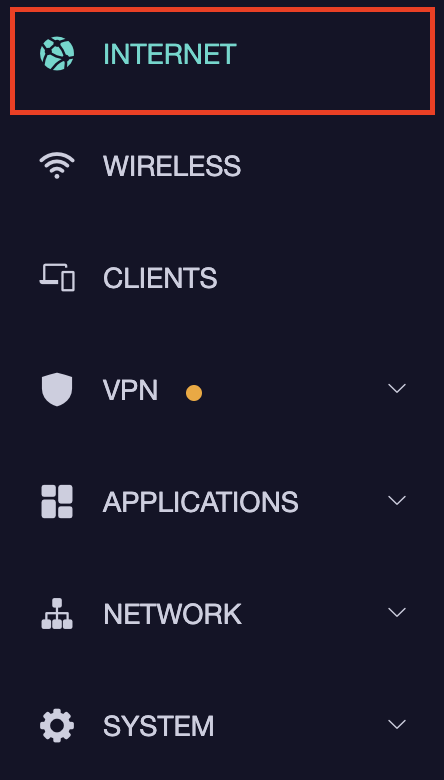
4. Select the Internet tab.
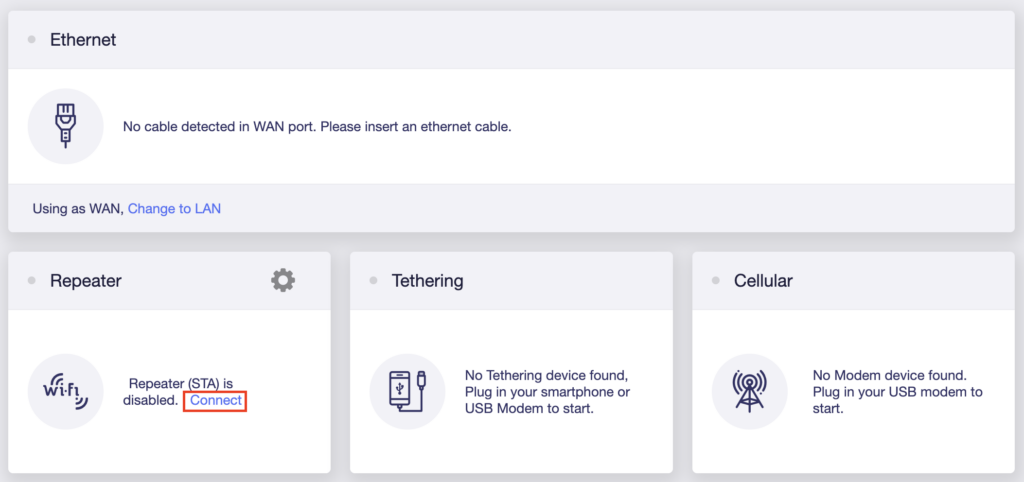
5. In the Repeater area select Connect.
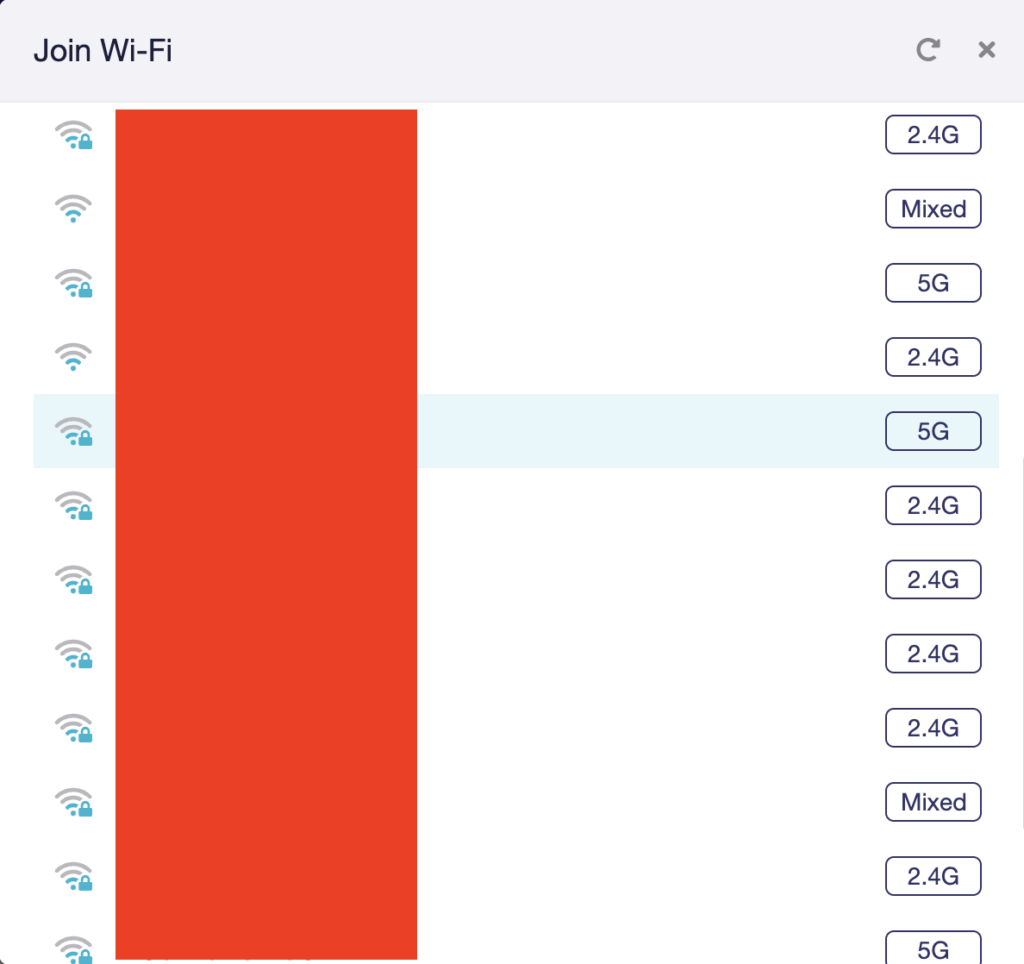
6. Select the available Wi-Fi network you want the FlashRouter to use for Internet from the list. You can use a 2.4GHz and/or 5GHz network to connect.
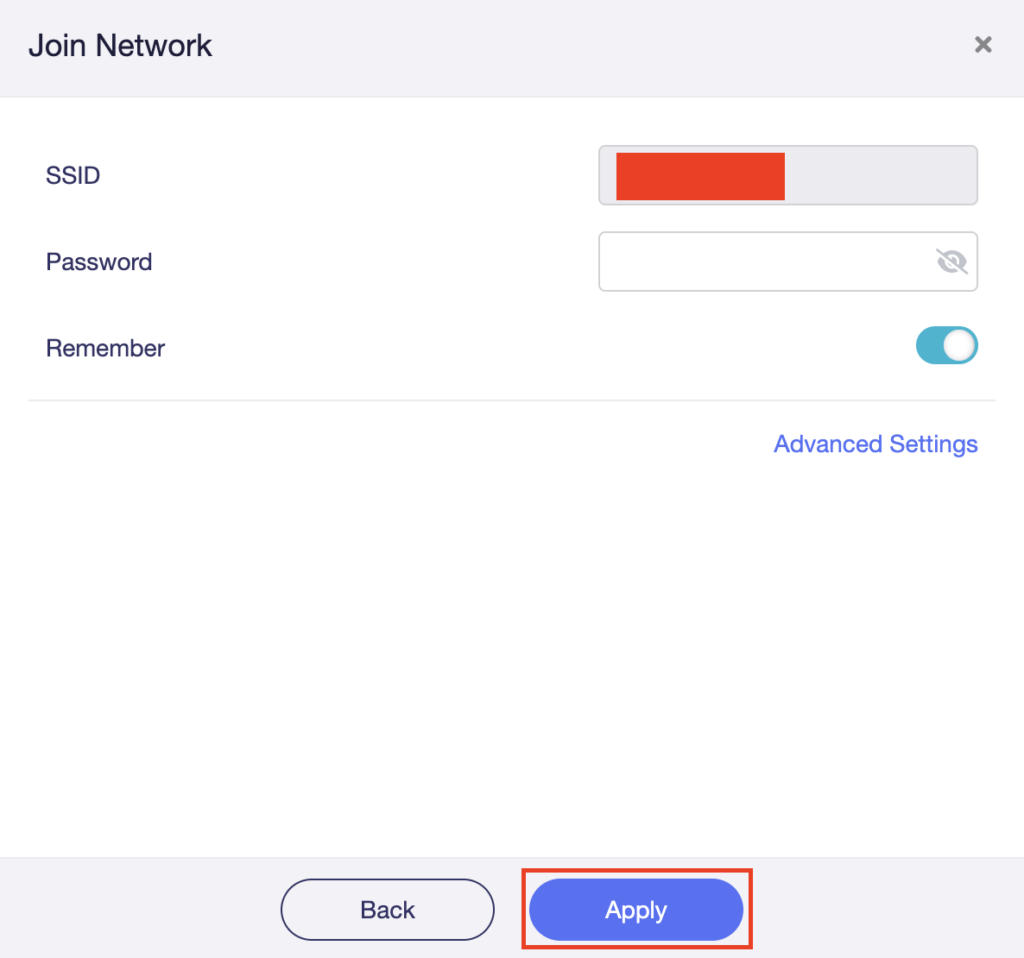
7. Enter the correct Wi-Fi password in the Password field for the network you selected. Then click Apply.
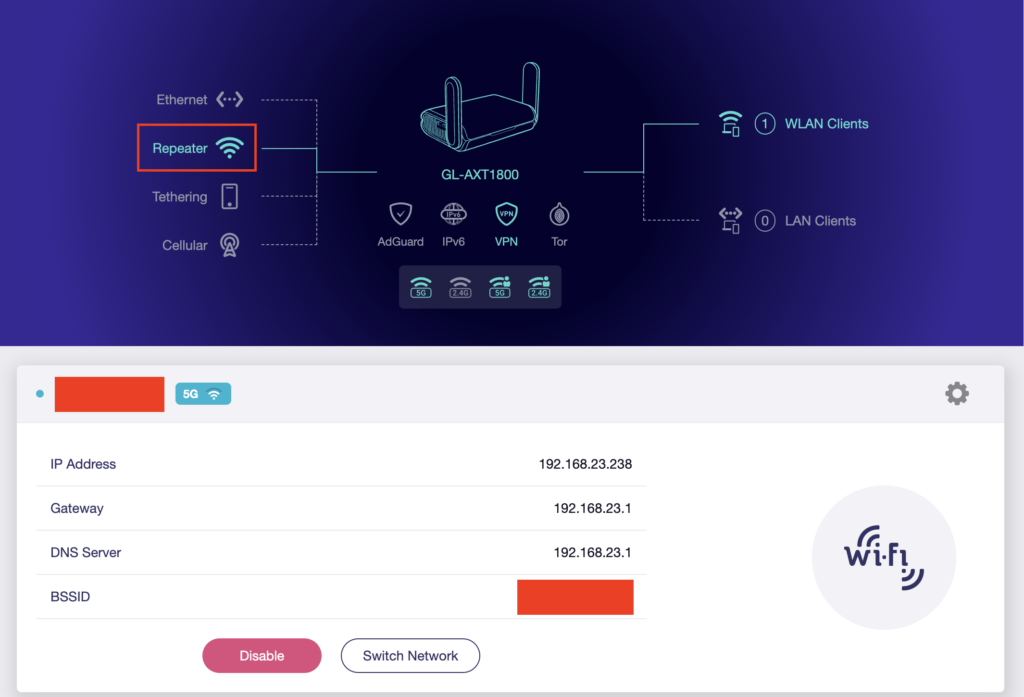
8. You are now setup with the GL.iNet FlashRouter receiving Internet via Wi-Fi. The Repeater area should now be filled in with the network information of the connection as shown below.
This quick guide walk you through connecting to your GL.iNet FlashRouter (Flint, Slate, Beryl, or Marble) and logging into the admin settings page. You’ll use either WiFi or an Ethernet cable, then access the router dashboard through your browser.
You can connect by WiFi or Ethernet:
👉 Pro tip: Disconnect from any other WiFi networks during setup.
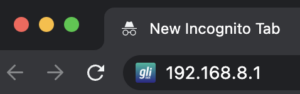
This is the local router dashboard address (not a public website). If the page doesn’t load:
glopenwrt1 or openwrt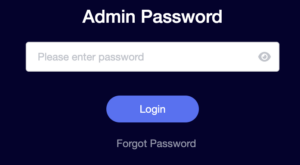
💡 Once you’re in, you can update your admin password in the settings for extra security.
Now that you’ve accessed your GL.iNet FlashRouter, you can:
Check our support library for your specific VPN setup guide.
If you are not already an ExpressVPN user Sign Up Now.
1. Log in to your account on the ExpressVPN website.

2. Successfully log in with your account information. Select More.

3. Select Manual Configuration and copy the Username and Password that are displayed on the right hand side of the screen.


4. Click the Server Location(s) that you want to connect to. This will download a .ovpn file to your computer that we will use later on. There is no need to open the file. For this example I have selected New York but feel free to select any server listed there or multiple servers.

Login to GL.iNet firmware settings in a browser on any computer or smart device connected to the GL.iNet FlashRouter’s network. For more instructions on how to access the firmware settings view our guide here.
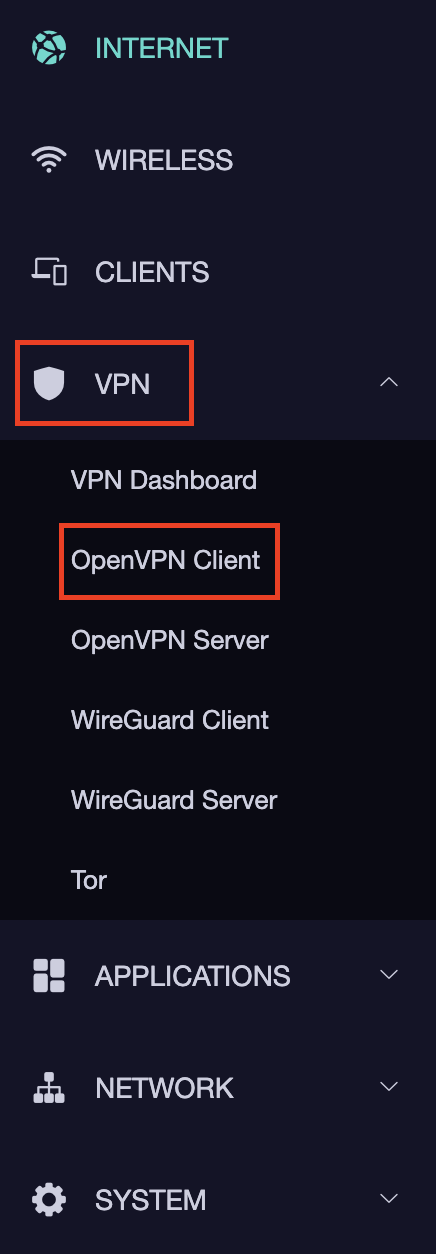
1. Navigate to the VPN tab and select OpenVPN Client.
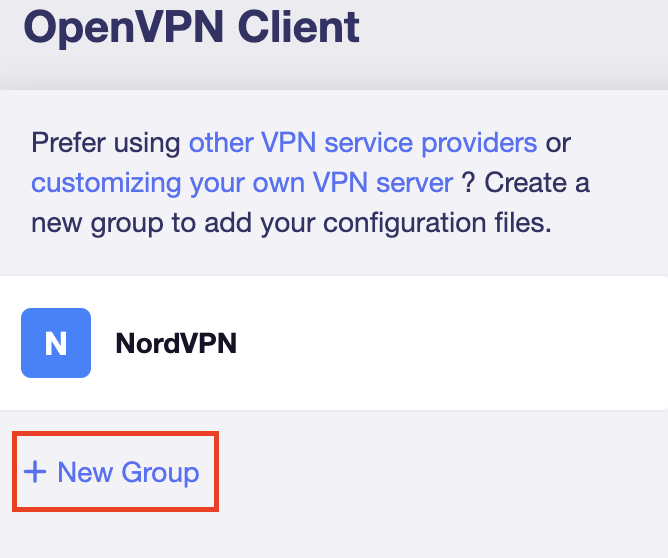
2. Click New Group.
3. Enter ExpressVPN and click the check mark.

4. Select the .ovpn file(s) you downloaded earlier and upload them here.
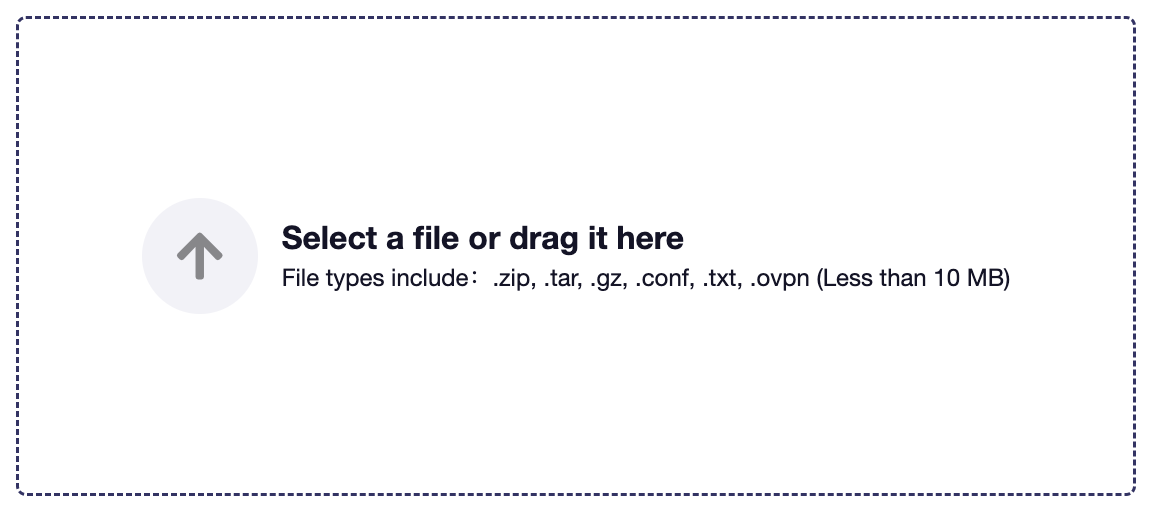
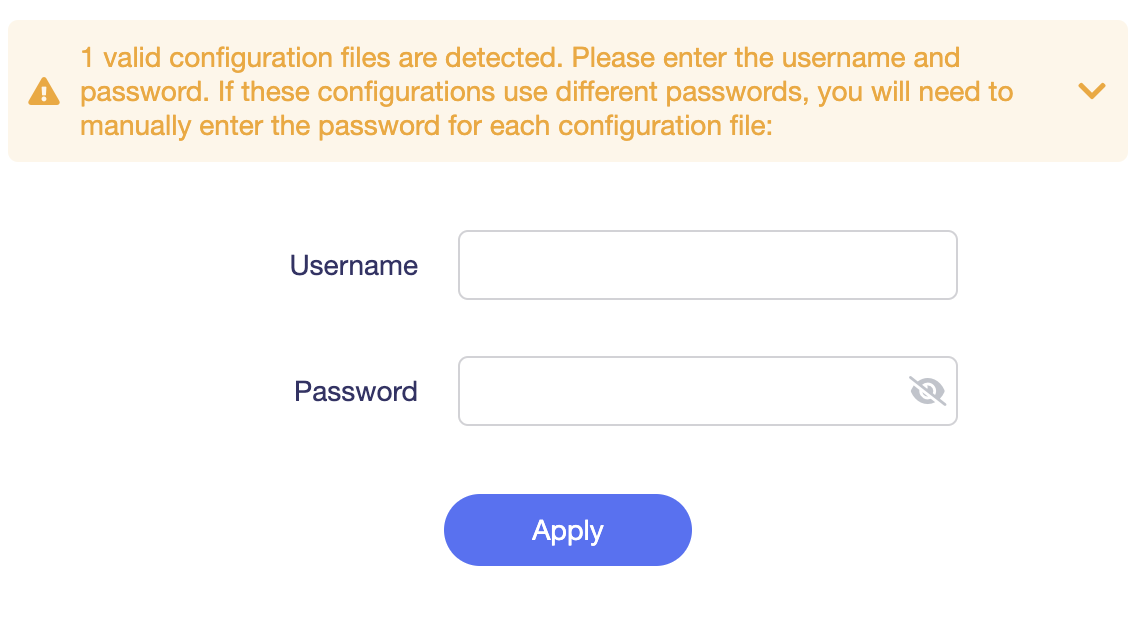
5. Enter in the ExpressVPN username and password that you obtained earlier. Do NOT enter your ExpressVPN account email and password login. Click Apply.
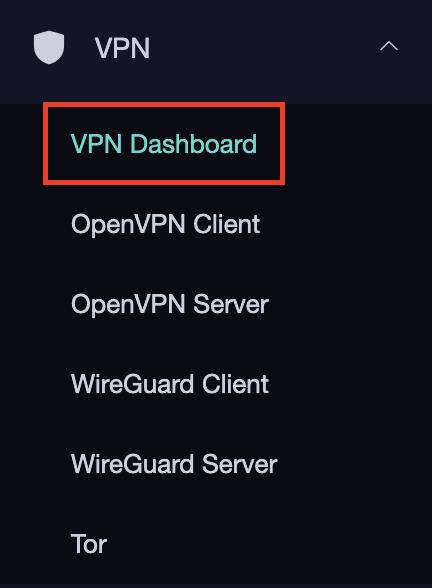
6. Select VPN Dashboard.
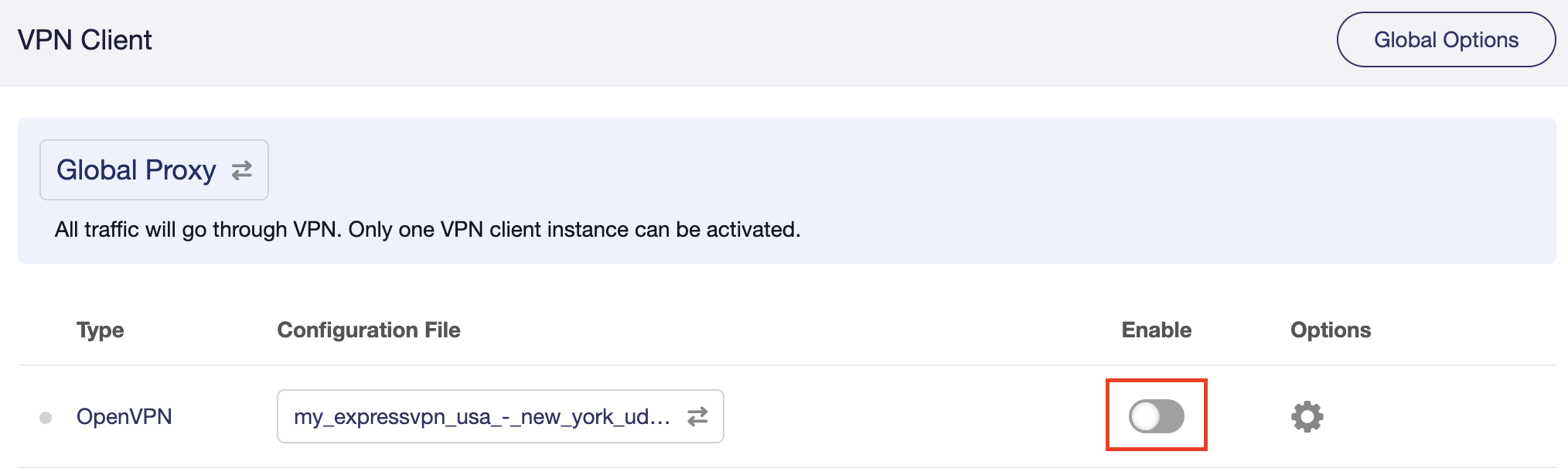
7. Set the Enable toggle to On to begin the ExpressVPN connection.
In some cases you may notice that the location is not showing the same location as the server you have input in your router settings; this is because geo tracking tools are often tricked by VPN connections. As long as you see an IP address that is not the same as your normal Internet IP address then you are indeed connected to ExpressVPN.
If you are not already an PureVPN user Sign Up Now.
1. Log in to your account on the PureVPN website.
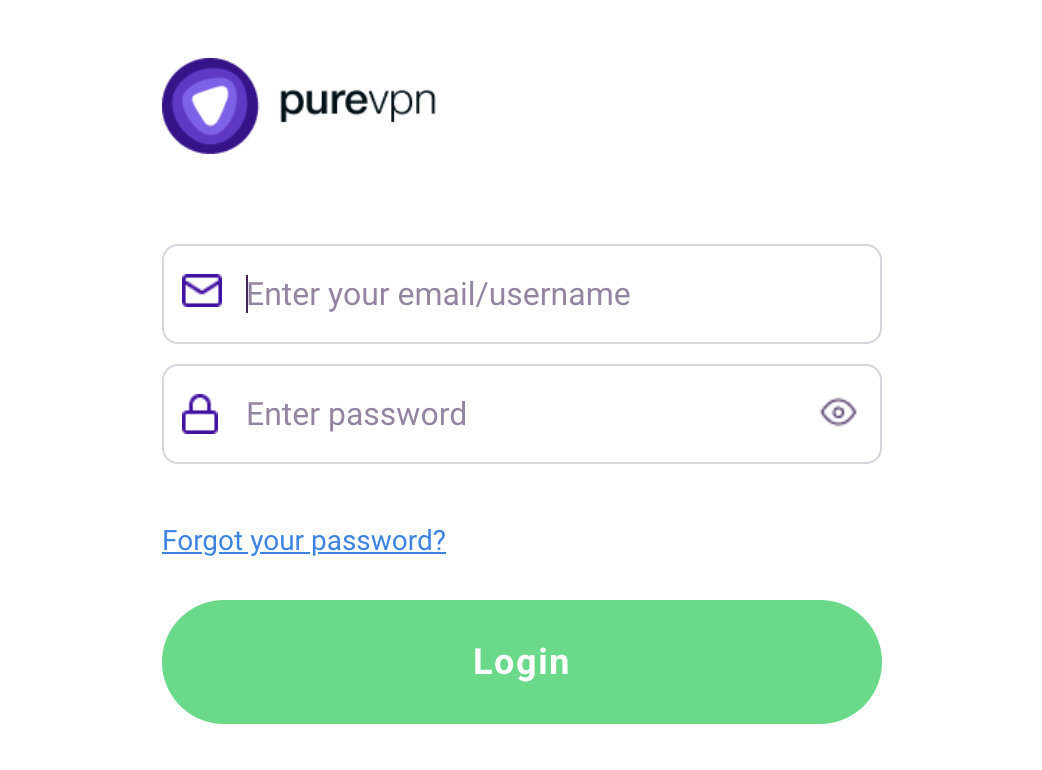
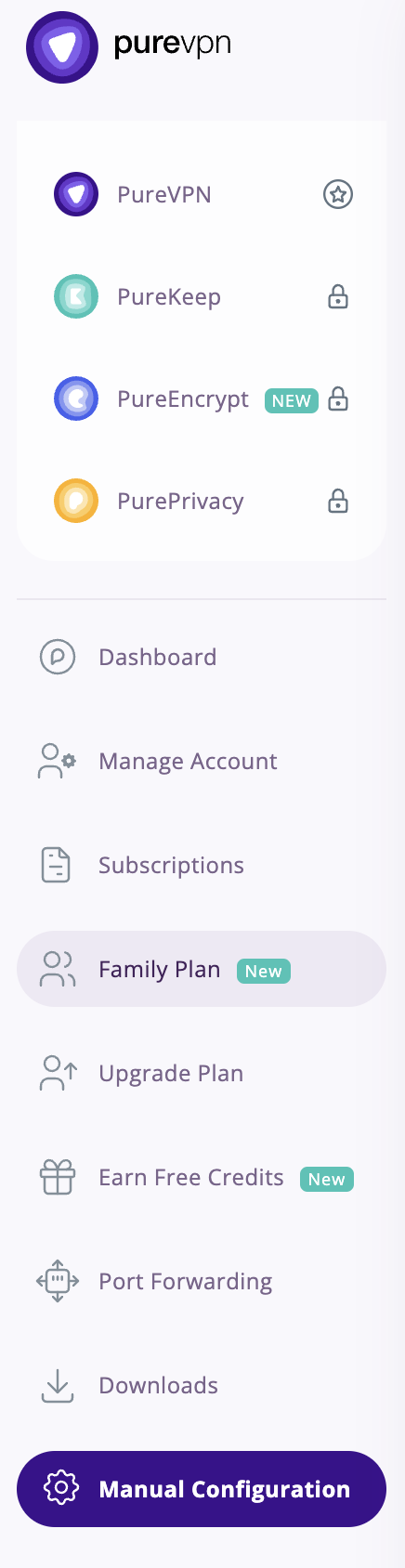
2. Select Manual Configuration.
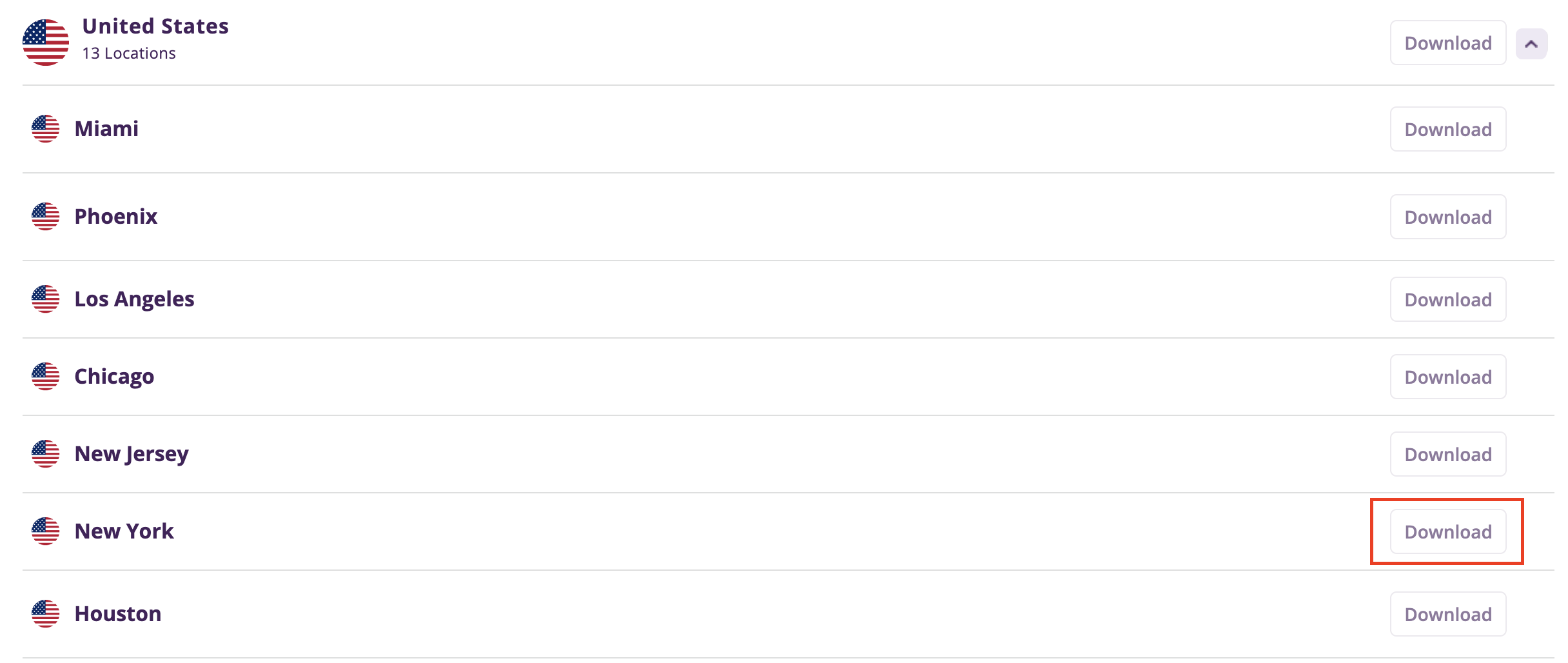
3. Select the Server Location you want to connect to and then click Download.
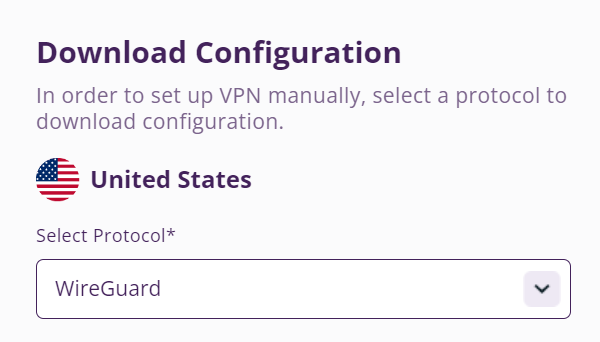
4. In the Select Protocol dropdown choose WireGuard.
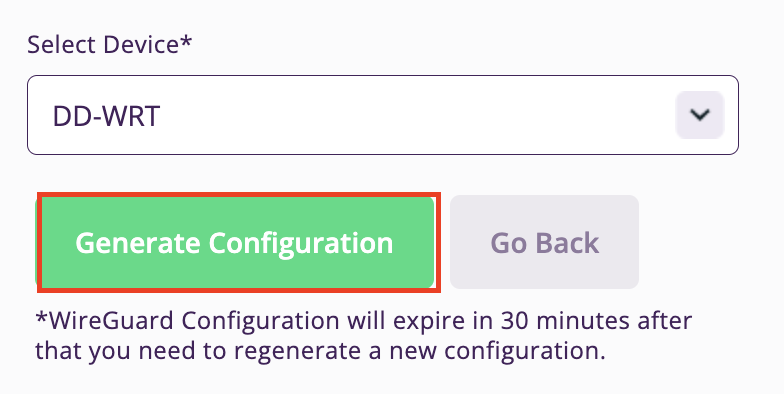
5. In the Select Device dropdown choose DD-WRT. Then click Generate Configuration. This will save a .conf file to your computer.
Login to GL.iNet firmware settings in a browser on any computer or smart device connected to the GL.iNet FlashRouter’s network. For more instructions on how to access the firmware settings view our guide here.
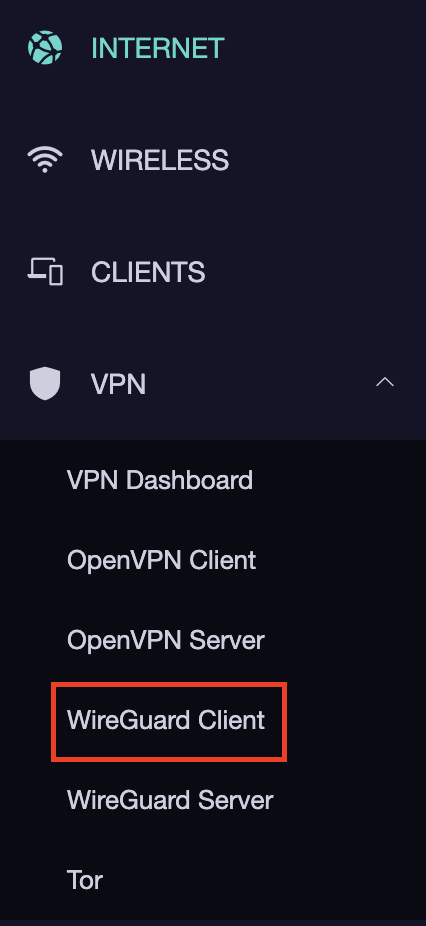
1. Navigate to the VPN tab and select WireGuard Client.
2. Click New Group.
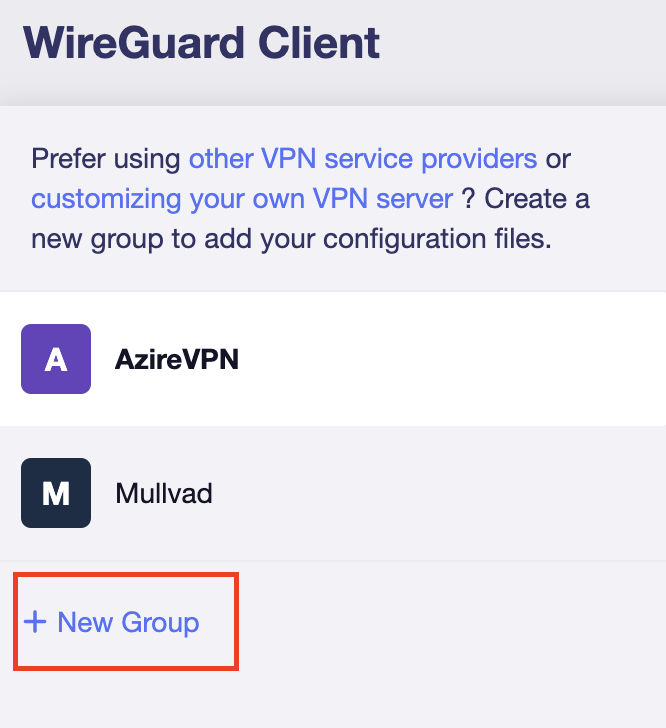
3. Enter PureVPN and click the check mark.

4. Select the .conf file you downloaded earlier and upload it here.
5. Click Apply.
6. Select VPN Dashboard.
7. Set the Enable toggle to On to begin the PureVPN connection.
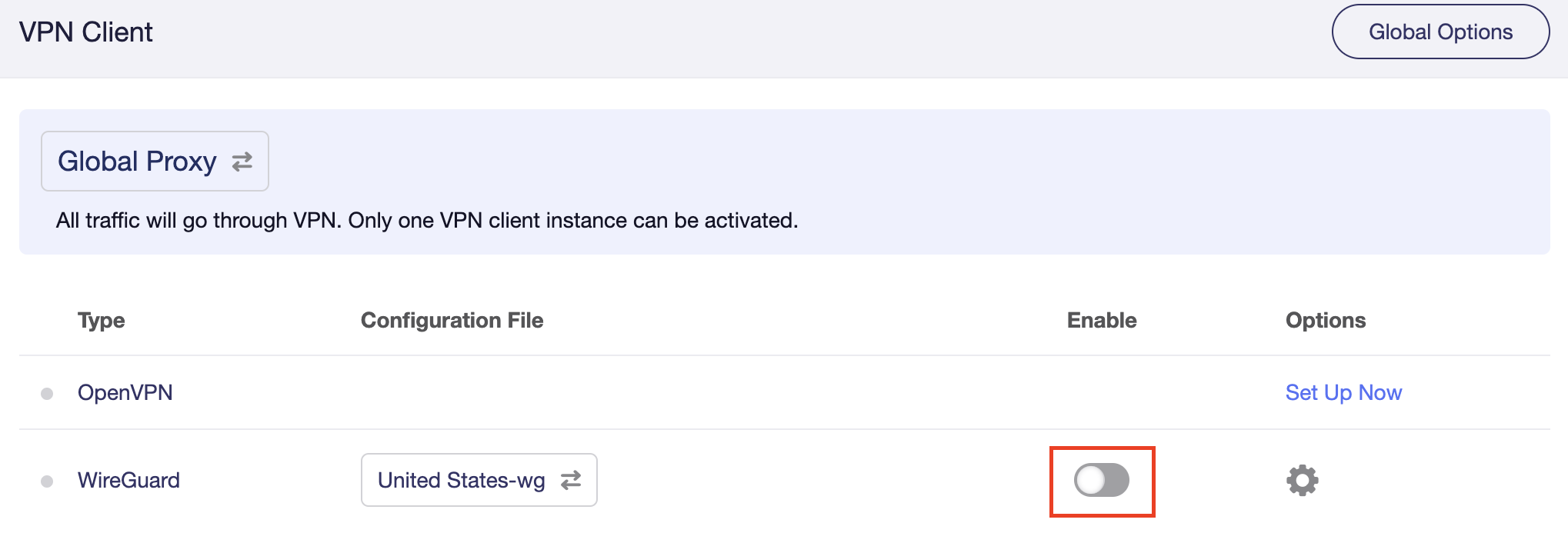
In some cases you may notice that the location is not showing the same location as the server you have input in your router settings; this is because geo tracking tools are often tricked by VPN connections. As long as you see an IP address that is not the same as your normal Internet IP address then you are indeed connected to PureVPN.
Replicate the steps above with a new location.
 Support Guides
Select your router type

Privacy Hero, Privacy Hero 2


Flint 2 GL-MT6000, Flint GL-AX1800, Slate GL-AXT1800, Beryl GL-MT3000, Marble GL-B3000

Roqos Core Router, Roqos SASE Appliance

AC1450, R6220, R6230, R6250, R6260, R6300 V1, R6300 V2, R6400 V1, R6400 V2, R6700 V1, R6700 V2, R6700 V3, R7000, R7000P, R7800, R8000, R9000, XR500
RT-AC56U/R, RT-AC68U V1, RT-AC68U V2, RT-AC1900P, RT-AC87U, RT-AC3100, RT-AC5300
WRT1200AC, WRT1900AC V1, WRT1900AC V2, WRT1900ACS V1, WRT1900ACS V2, WRT32X, WRT3200ACM

ExpressVPN Aircove, Aircove Go
R6300 V2, R6400 V2, R6700 V3, R7000, R7000P
RT-AC56U, RT-AC56R, RT-AC56S, RT-AC68U V3, RT-AC87U
EA6200, WRT1200AC, WRT1900AC V1, WRT1900AC V2, WRT1900ACS V1, WRT1900ACS V2, WRT32X, WRT3200ACM
Follow this guide to upgrade the firmware of your GL.iNet FlashRouter.
1. Connect your computer, phone, or tablet to the GL.iNet router via wireless (FlashRouter24 / FlashRouter50) or via ethernet cable to one of the LAN ports on the router.
The FlashRouter WiFi password is printed on the sheet that came with the router and is set to Wireless#[First 5 characters of your router MAC]. The router MAC can be found on the bottom of your router if you cannot locate the sheet. For e.g. if your MAC is 9483C07E70A8 then your WiFi password is Wireless#9483C
Be sure to capitalize the W.
2. Once connected via wireless or ethernet on your device open your browser and go to 192.168.8.1
3. Enter openwrt as the admin password to access the GL.iNet firmware settings. Newer devices may have a different admin password set as openwrt1 or glopenwrt1
3. If a new firmware upgrade is available the router settings will either display a banner when you first access the router or a header. Click Install or the Upgrade arrow depending on which appears for you.


4. Make sure the Keep Settings toggle is pushed to the right so your router does not get reset. Click the Install button to begin the firmware upgrade.

5. The firmware update should take about 2-3 minutes. You may need to reconnect your wireless devices after the network comes back up in your available networks.
You can connect to ProtonVPN on your GL.iNet router using Wireguard or OpenVPN.
Wireguard: Download your preferred server .conf configuration file from the ProtonVPN website.
OpenVPN: Download your preferred server .ovpn configuration file from the ProtonVPN website.
 If you are not already a ProtonVPN user Sign Up Now.
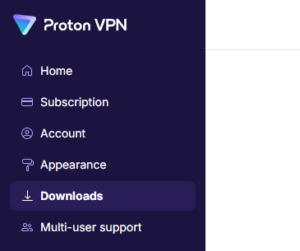
1. Login to your ProtonVPN account and go to the Downloads section of your ProtonVPN account page
2. Scroll down to find the WireGuard configuration section. Name your configuration and then select Router as the platform, and select Standard server configs.
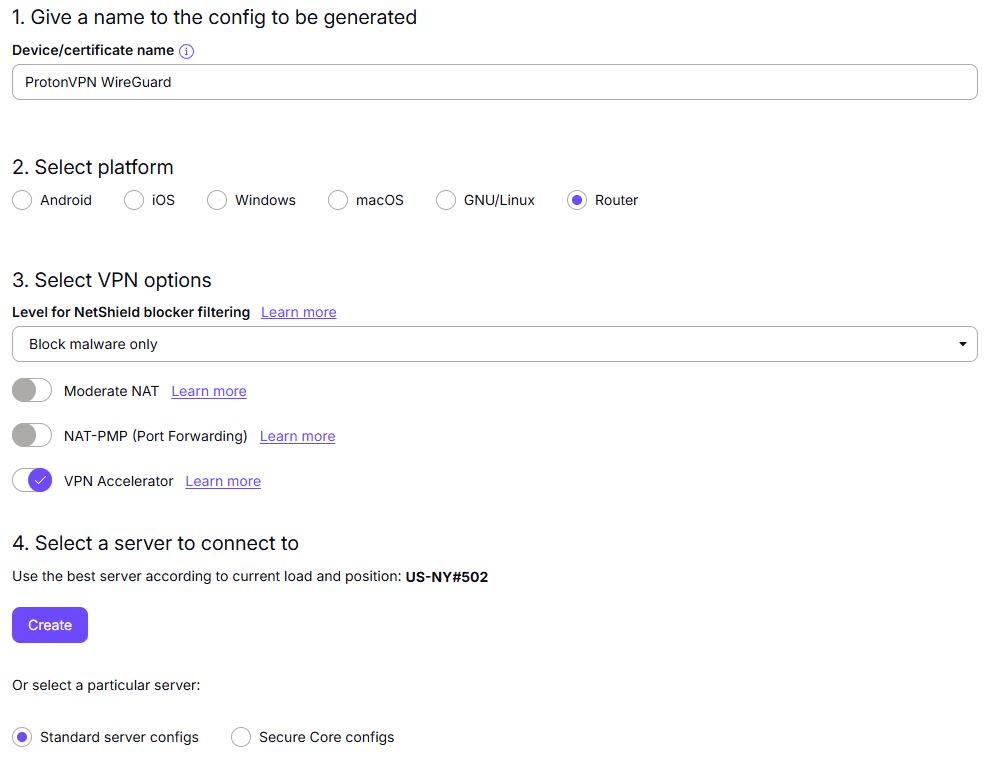
3. Click Create button to choose the recommended server or scroll down to choose and Download any of the available server files from the list.

4. Login to GL.iNet firmware settings (usually 192.168.8.1) in a browser on any computer or smart device connected to the GL.iNet FlashRouter’s network.
View our guide for more instructions on how to access GL.iNet firmware settings.
5. Navigate to the VPN tab and select WireGuard Client then click + New Group and name your connection and click the check to save.
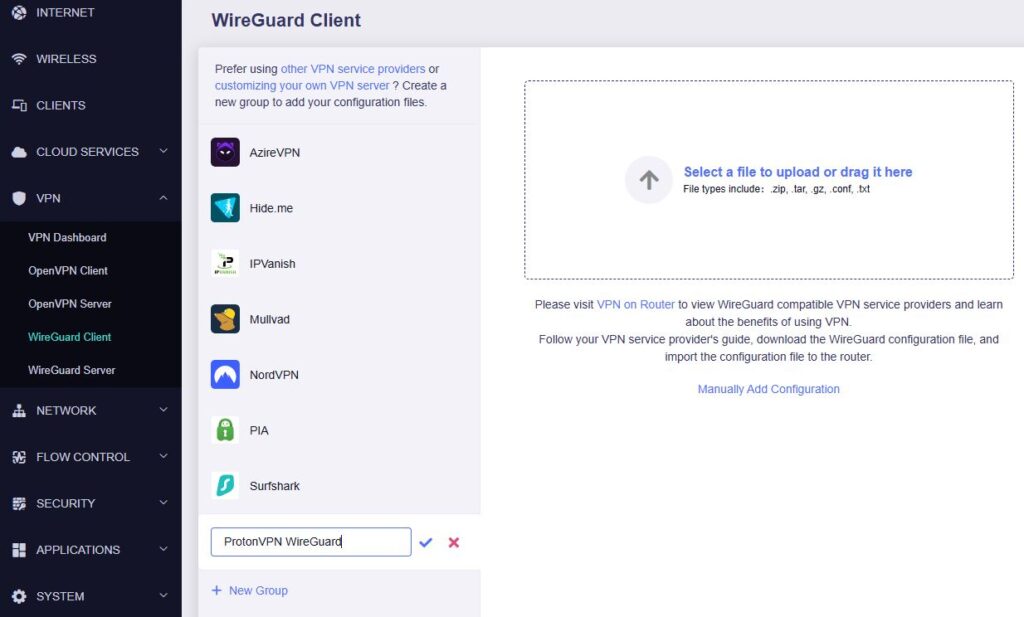
6. Upload the configuration file and click Apply.
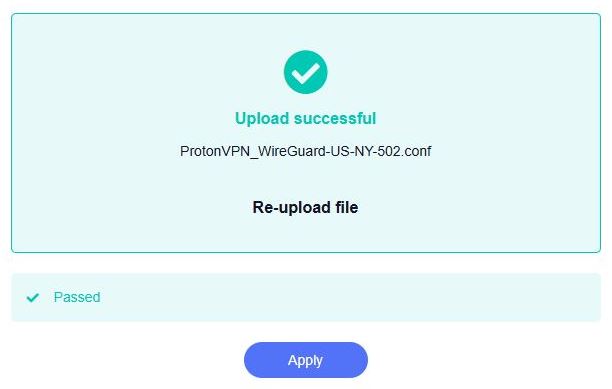
7. Start a connection by clicking the 3 dots (…) > Start next to your chosen server.
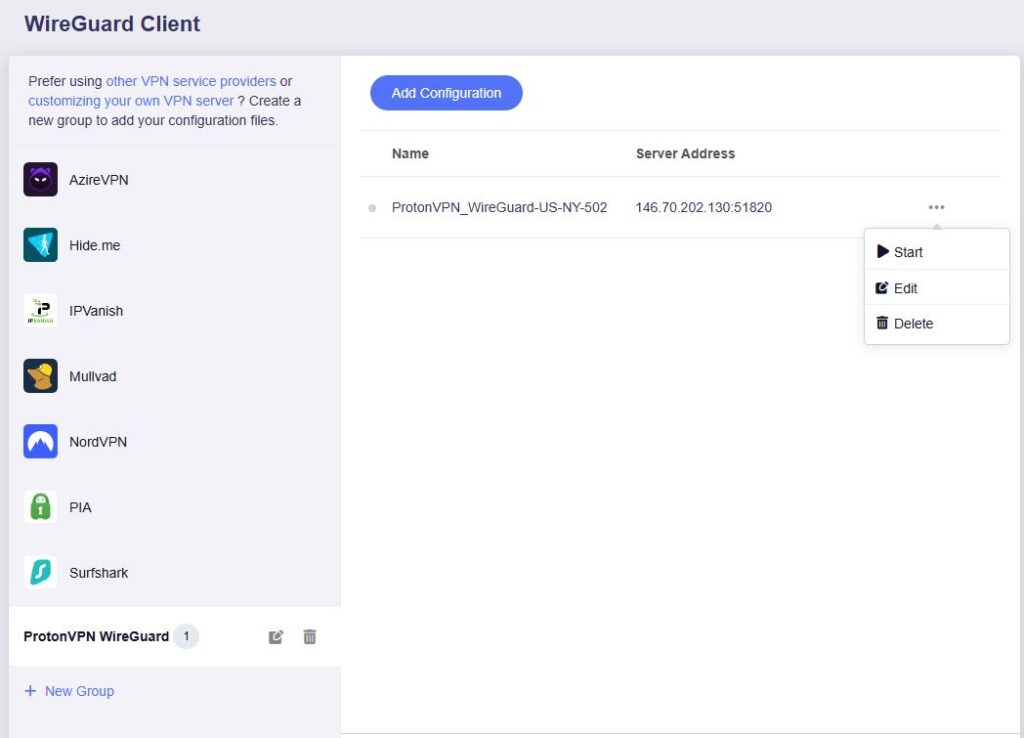
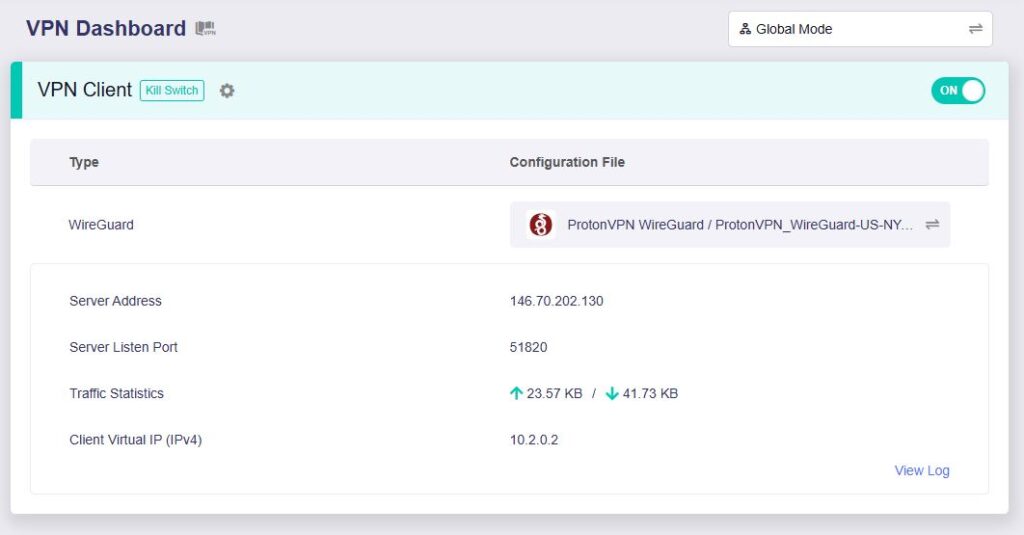
8. A green dot confirms success. You can also switch between Global Mode or Policy Mode for routing in the VPN Dashboard.
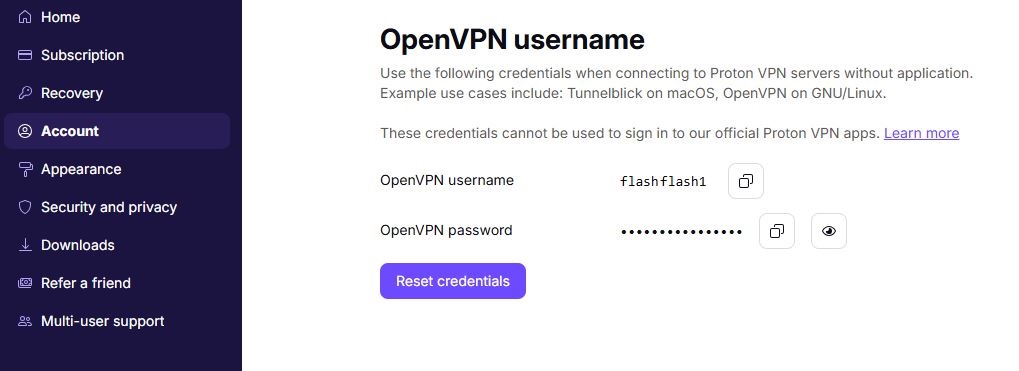
1. Log in to your ProtonVPN account and navigate to the Account tab. Scroll down to find your OpenVPN specific Username and Password.
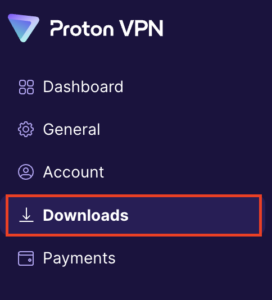
2. Go to the Downloads section of your ProtonVPN account page
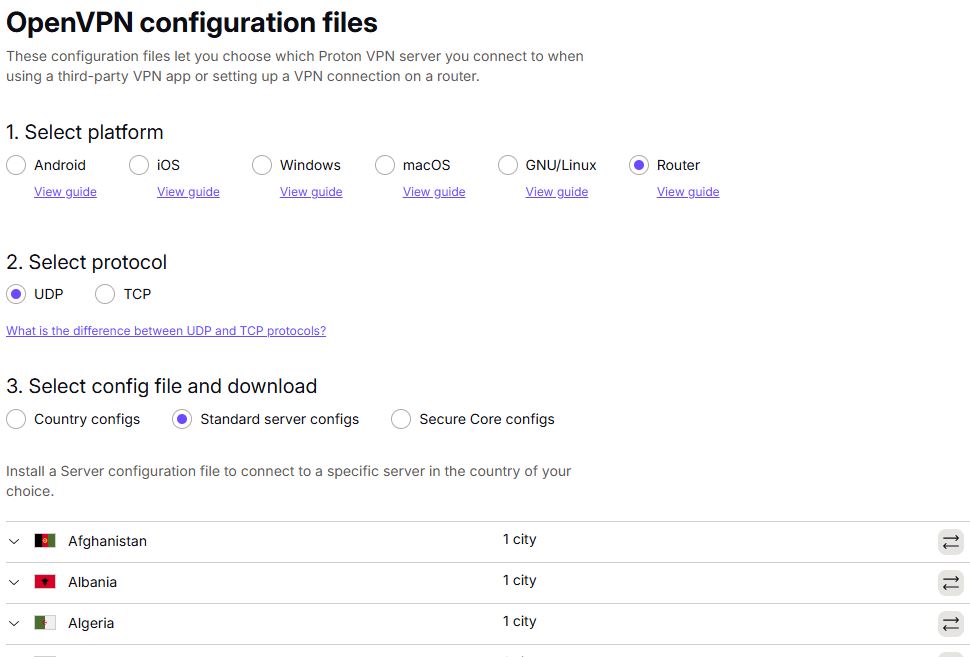
3. Scroll down to find the OpenVPN configuration Files. Select Router as the platform, UDP as the protocol, and select Standard server configs. Choose your preferred country and download the configuration file.
4. Login to GL.iNet firmware settings (usually 192.168.8.1) in a browser on any computer or smart device connected to the GL.iNet FlashRouter’s network.
View our guide for more instructions on how to access GL.iNet firmware settings.
5. Navigate to the VPN tab and select OpenVPN Client.
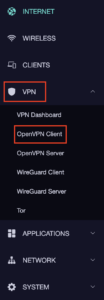
6. Select Add Manually then click + New Group and name your connection and click the check to save.
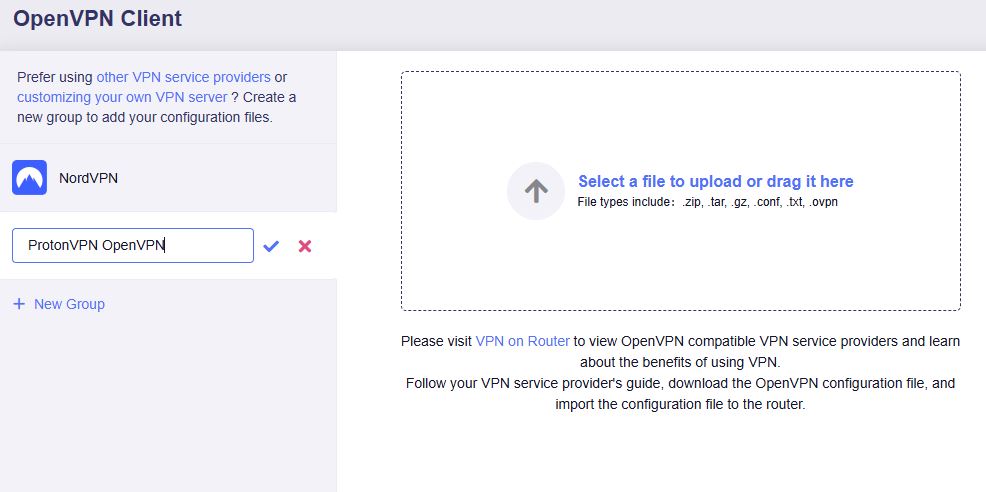
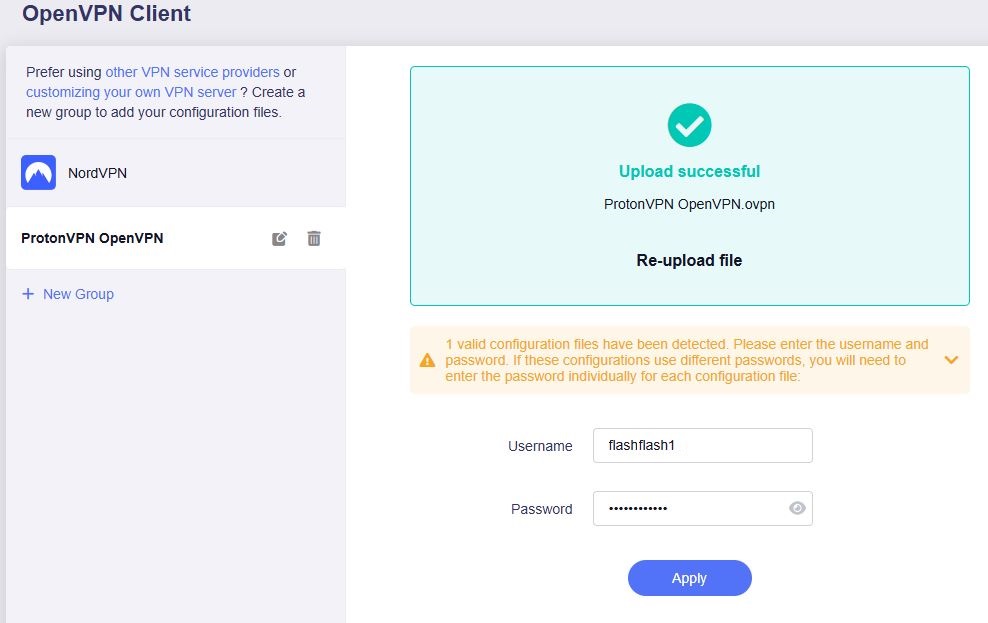
7. Upload the configuration file and input your username and password, click Apply.
8. Start a connection by clicking the 3 dots (…) > Start next to your chosen server.
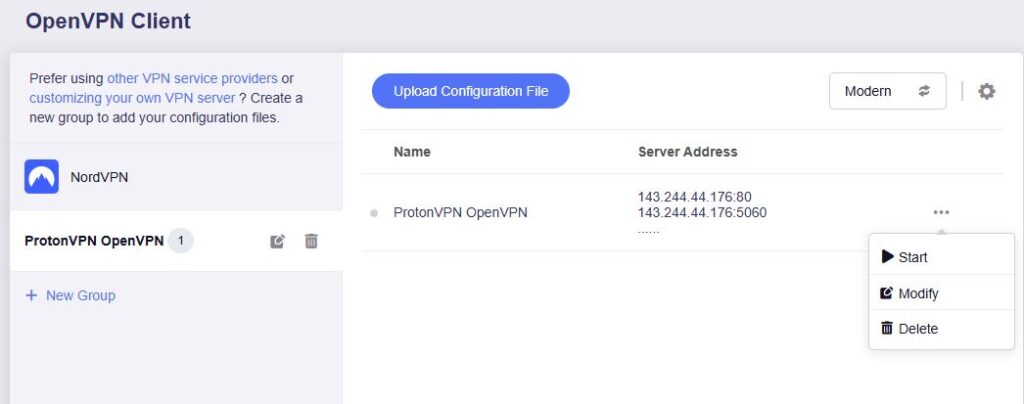
9. A green dot confirms success. You can also switch between Global Mode or Policy Mode for routing in the VPN Dashboard.
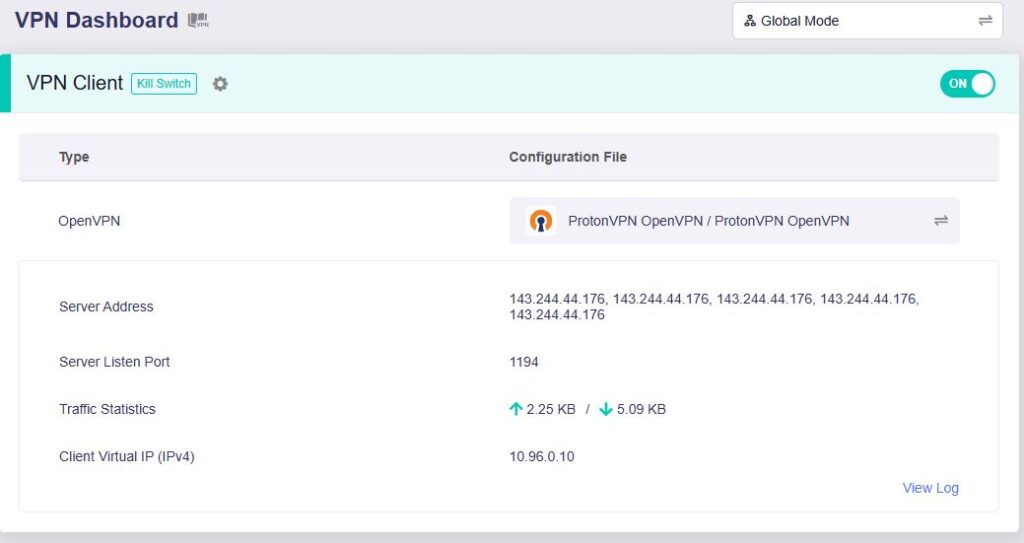
In some cases you may notice that the location is not showing the same location as the server you have input in your router settings; this is because geo tracking tools are often tricked by VPN connections. As long as you see an IP address that is not the same as your normal Internet IP address then you are indeed connected to ProtonVPN.
🚫📱Do not run ProtonVPN apps on devices connected to your ProtonVPN router. Using the app at the same time as the router VPN may cause conflicts and connection issues.
You can connect to NordVPN on your GL.iNet router using NordLynx, OpenVPN, or a Dedicated IP.
NordLynx: Choose your preferred city or country from NordVPN’s server list
OpenVPN: Choose your preferred city or country from NordVPN’s server list.
Dedicated IP (optional): Enter your unique configuration file if you’ve been assigned a static NordVPN IP.
If you are not already a NordVPN user Sign Up Now.
1. Get your NordVPN Access Token for NordLynx connections. Log in to your NordVPN account and select NordVPN from your list of Services.
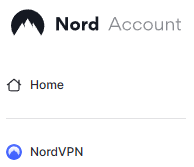
2. At the bottom of the page click Get Access token and you will receive a code via email. Enter this code to proceed.

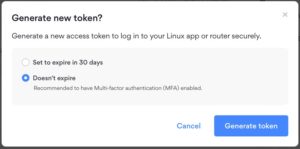
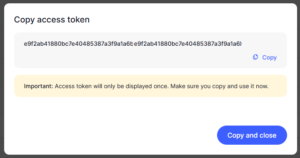
3. After you enter the email code select Generate new token and set it to Doesn’t expire. Copy this token.
4. Login to GL.iNet firmware settings (usually 192.168.8.1) in a browser on any computer or smart device connected to the GL.iNet FlashRouter’s network.
View our guide for more instructions on how to access GL.iNet firmware settings.
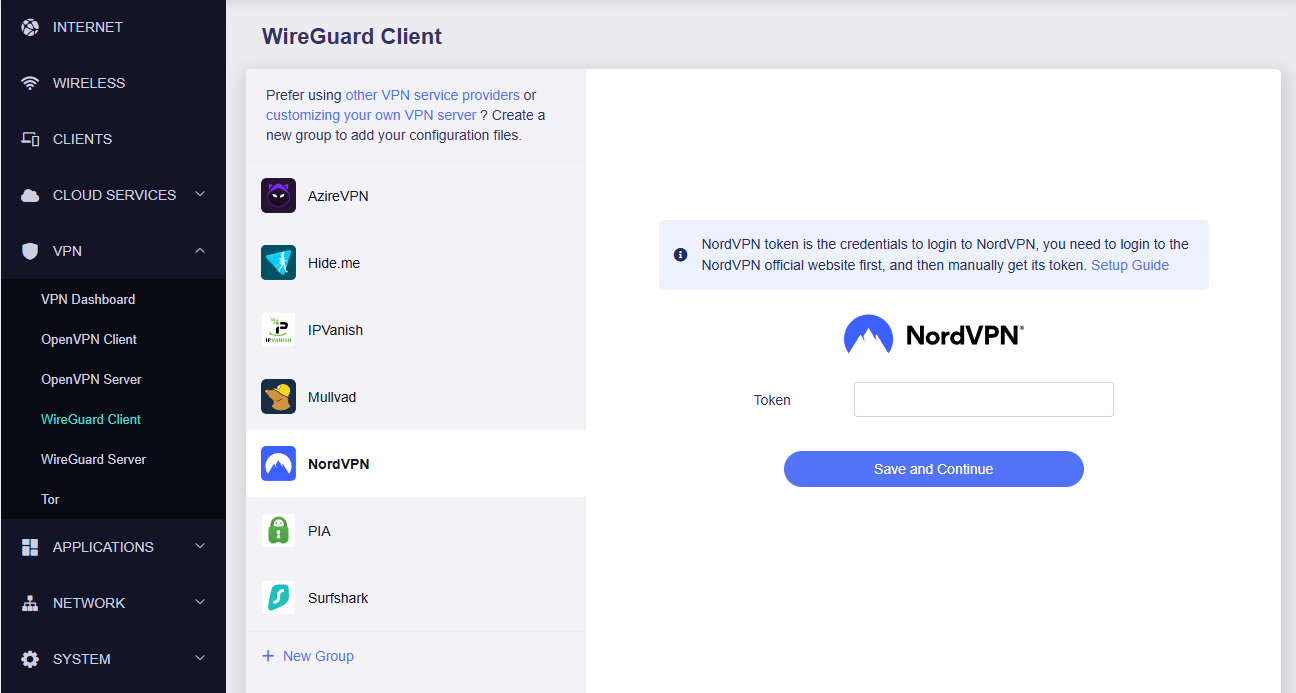
5. Navigate to the VPN tab and select Wireguard Client then choose NordVPN. Enter your Token then click Save and Continue
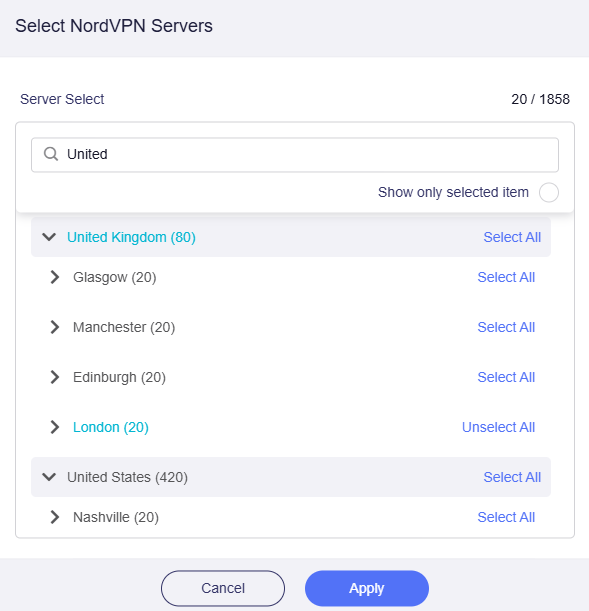
6. Select your preferred server locations, and click Apply.
7. Start a connection by clicking the 3 dots (…) > Start next to your chosen server.
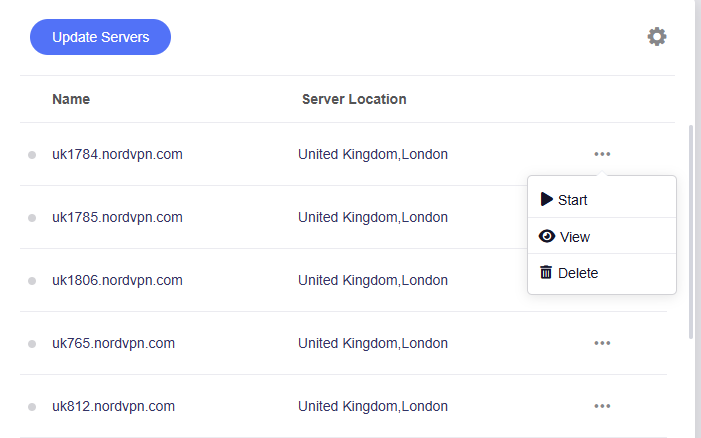
8. A green dot confirms success. You can also switch between Global Mode or Policy Mode for routing in the VPN Dashboard.
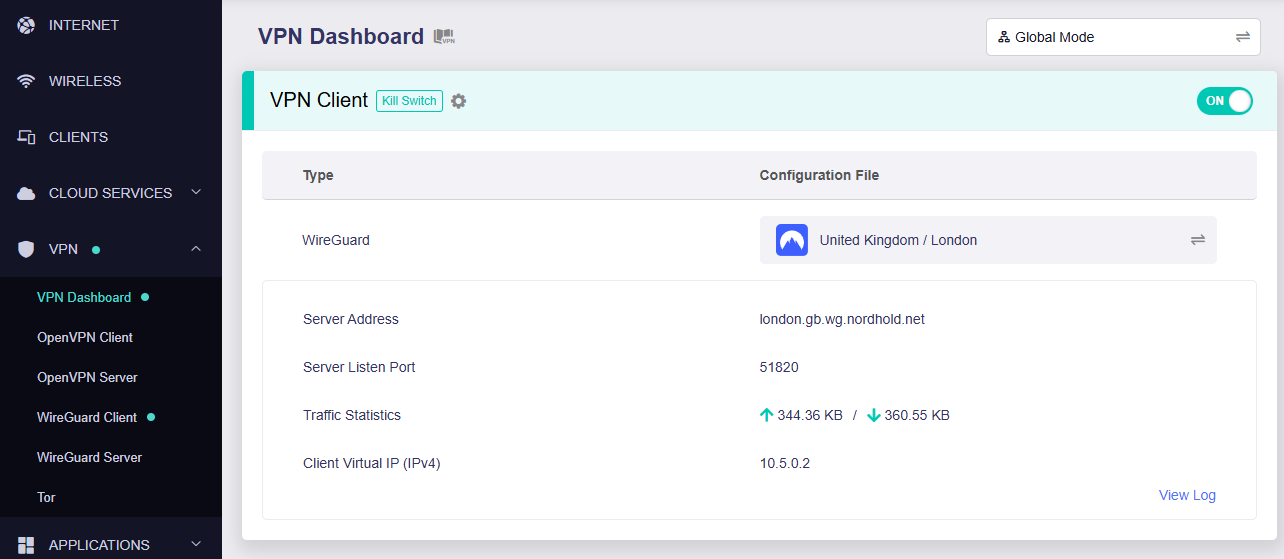
1. Get your NordVPN manual service credentials for OpenVPN connections. Log in to your NordVPN account and select NordVPN from your list of Services.
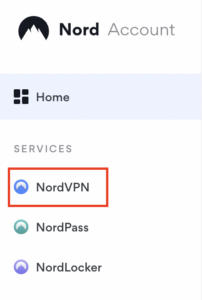
2. At the bottom of the page in the Manual Setup section click Setup NordVPN manually then under the Configuration section go to Service credentials. Click Verify email to receive a code via email and enter the code to view and copy your credentials.

3. Login to GL.iNet firmware settings (usually 192.168.8.1) in a browser on any computer or smart device connected to the GL.iNet FlashRouter’s network.
View our guide for more instructions on how to access GL.iNet firmware settings.
4. Navigate to the VPN tab and select OpenVPN Client.
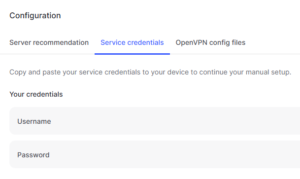
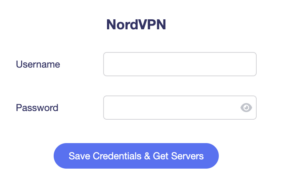
5. Select the NordVPN group, enter your manual credentials, then click Save Credentials & Get Servers.
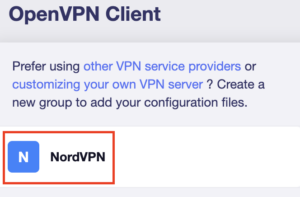
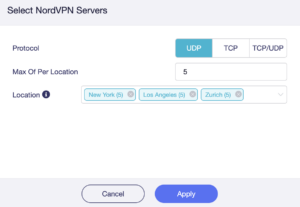
6. Choose UDP (recommended), select your preferred server locations, and click Apply.
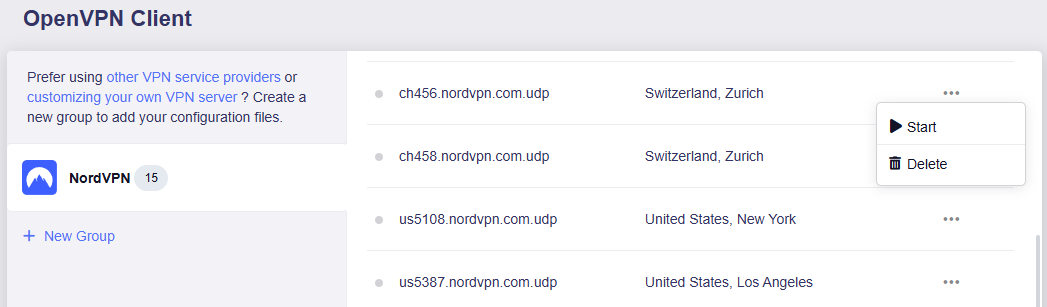
7. Start a connection by clicking the 3 dots (…) > Start next to your chosen server.
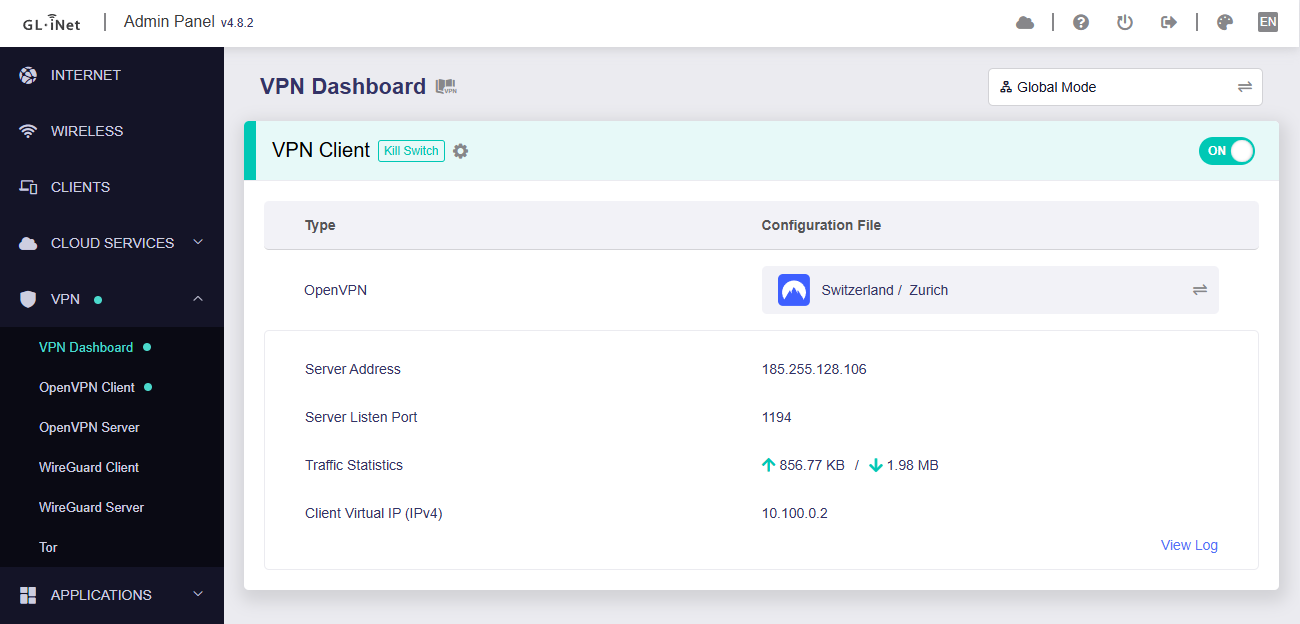
8. A green dot confirms success. You can also switch between Global Mode or Policy Mode for routing in the VPN Dashboard.
1. Get your NordVPN manual service credentials for OpenVPN connections. Log in to your NordVPN account and select NordVPN from your list of Services.
2. At the bottom of the page in the Manual Setup section click Setup NordVPN manually then under the Configuration section go to Service credentials. Click Verify email to receive a code via email and enter the code to view and copy your credentials.
3. Login to GL.iNet firmware settings (usually 192.168.8.1) in a browser on any computer or smart device connected to the GL.iNet FlashRouter’s network.
View our guide for more instructions on how to access GL.iNet firmware settings.
4. Navigate to the VPN tab and select OpenVPN Client.
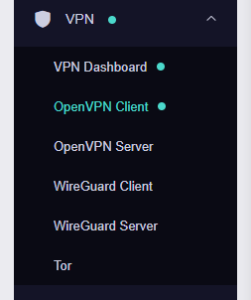
5. Download your Dedicated IP configuration file from the NordVPN website.
6. Click +New Group and name your NordVPN Dedicated IP connection, then upload the configuration file, enter your manual service credentials and click Apply.
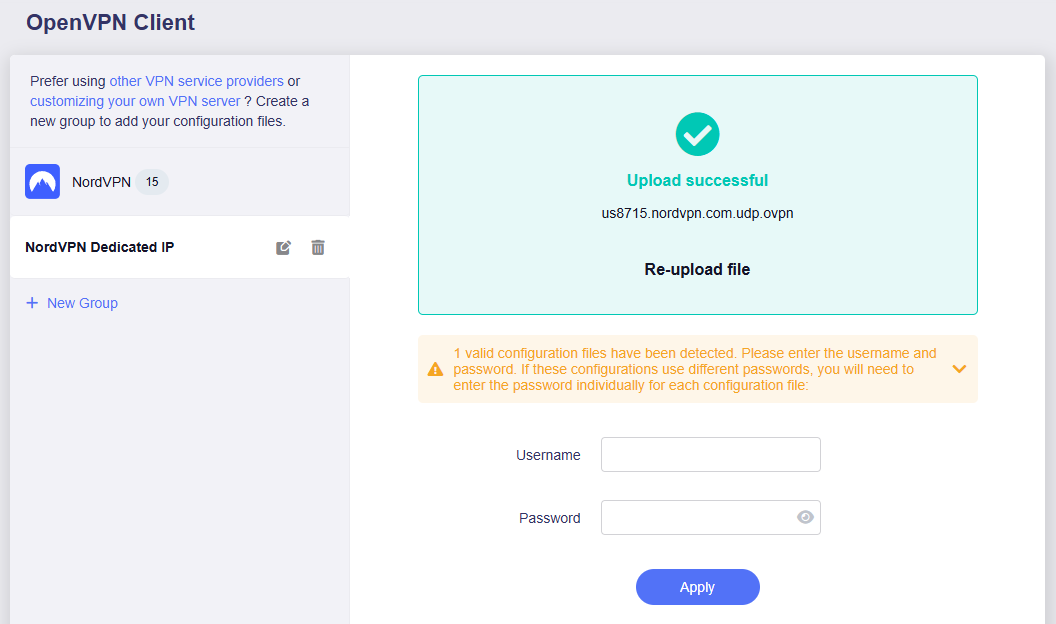
7. Start a connection by clicking the 3 dots (…) > Start next to your chosen server.
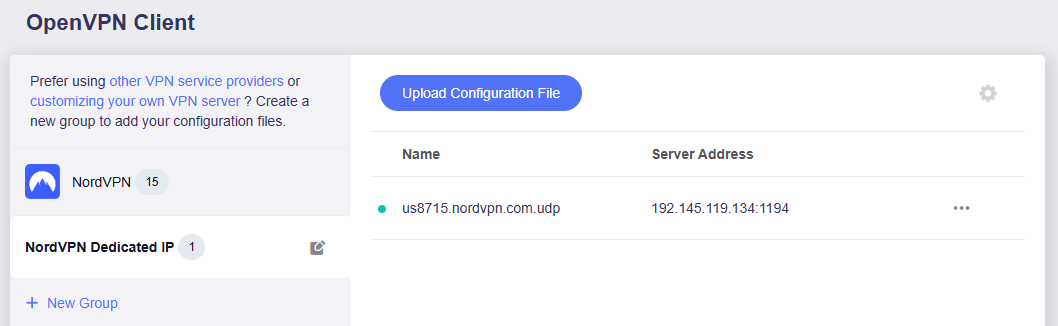
8. A green dot confirms success. You can also switch between Global Mode or Policy Mode for routing in the VPN Dashboard.
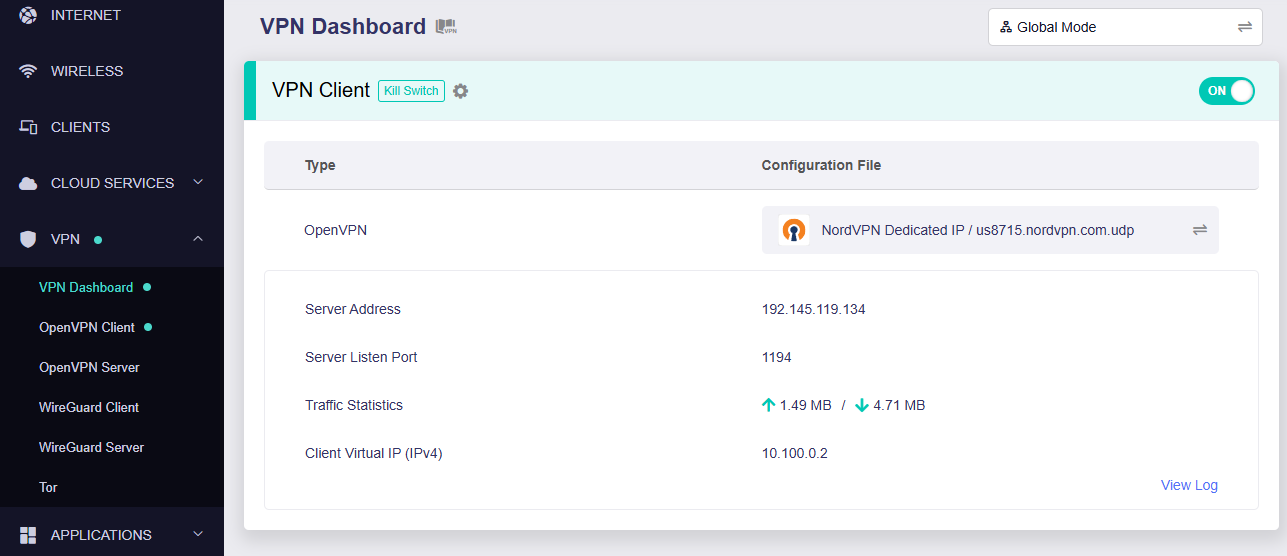
In some cases you may notice that the location is not showing the same location as the server you have input in your router settings; this is because geo tracking tools are often tricked by VPN connections. As long as you see an IP address that is not the same as your normal Internet IP address then you are indeed connected to NordVPN.
🚫📱Do not run NordVPN apps on devices connected to your NordVPN router. Using the app at the same time as the router VPN may cause conflicts and connection issues.
