Upon flashing the router from stock manufacturer firmware to DD-WRT firmware many buttons and lights on the router may have altered functionality. With DD-WRT firmware on certain devices a red internet/WAN light means a successful connection. While in factory firmware a red light denotes an issue with your internet connection. For anyone with DD-WRT firmware, this is not something you need to worry about as long as the internet functionality is in fact working.
Search Results for: identify font from image
TP-Link Internet Setup
Follow this article when you receive your new TP-Link FlashRouter to connect it to the Internet.
1. Connect the ethernet cable that came with the router from an open LAN ethernet port on your ISP modem or other router to the WAN port of the TP-Link.
2. Connect the power to the router and wait about 2 minutes for the router to fully boot up.
3. Connect your computer, phone, or tablet to the TP-Link router via wireless (FlashRouter24 / FlashRouter50) or via ethernet cable to one of the LAN ports on the router.
The FlashRouter WiFi password is printed on the sheet that came with the router and is set to Wireless#[First 5 characters of your router MAC]. The router MAC can be found on the bottom of your router if you cannot locate the sheet. For e.g. if your MAC is 1459C07E70A8 then your WiFi password is Wireless#1459C
Be sure to capitalize the W.
4. Once connected via wireless or ethernet on your device open your browser and go to tplinkwifi.net
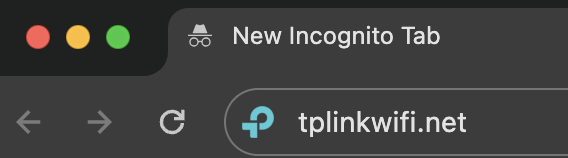
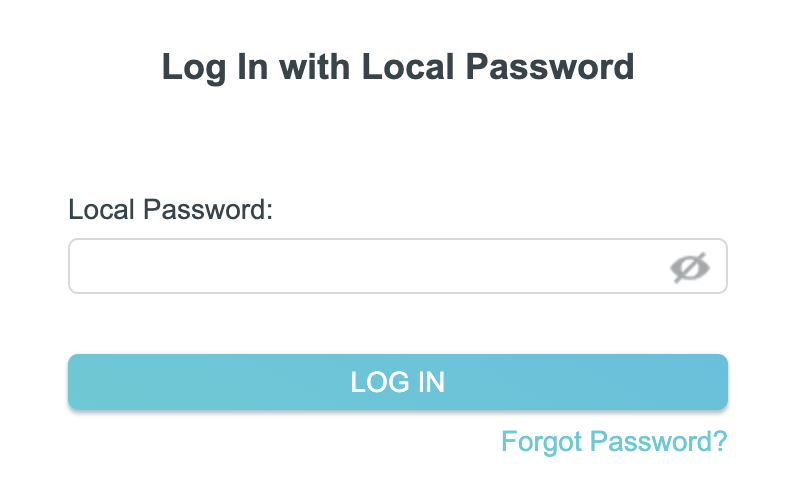
5. Enter tp-link as the admin password to access the TP-Link firmware settings.
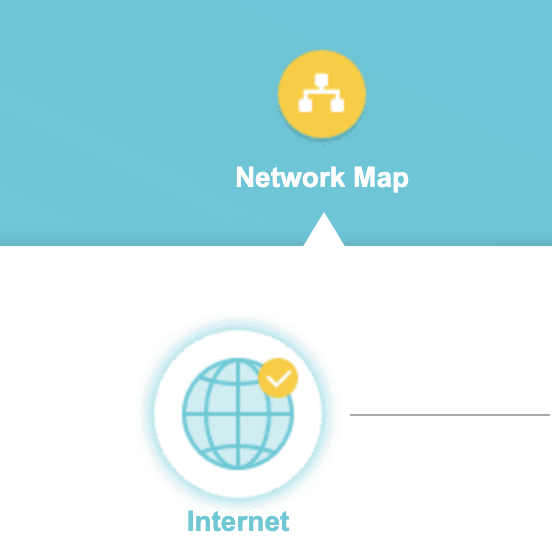
6. Verify that your TP-Link FlashRouter is reporting as Internet and WAN Connected.
VPN Director for Asus Merlin
Once you have OpenVPN connected on your Merlin FlashRouter you can manage your VPN connections by device or by VPN servers or even VPN providers. This is a major advantage of Asus Merlin firmware as it allows up to 5 VPN connections at the same.
Login to Asus Merlin firmware settings in a browser on any computer or smart device.
Setup multiple VPN clients
1. Under Advanced Settings select VPN.
2. Click the VPN Client tab.
3. In the Select Client instance dropdown select a new client instance to setup and follow your VPN providers setup guide.
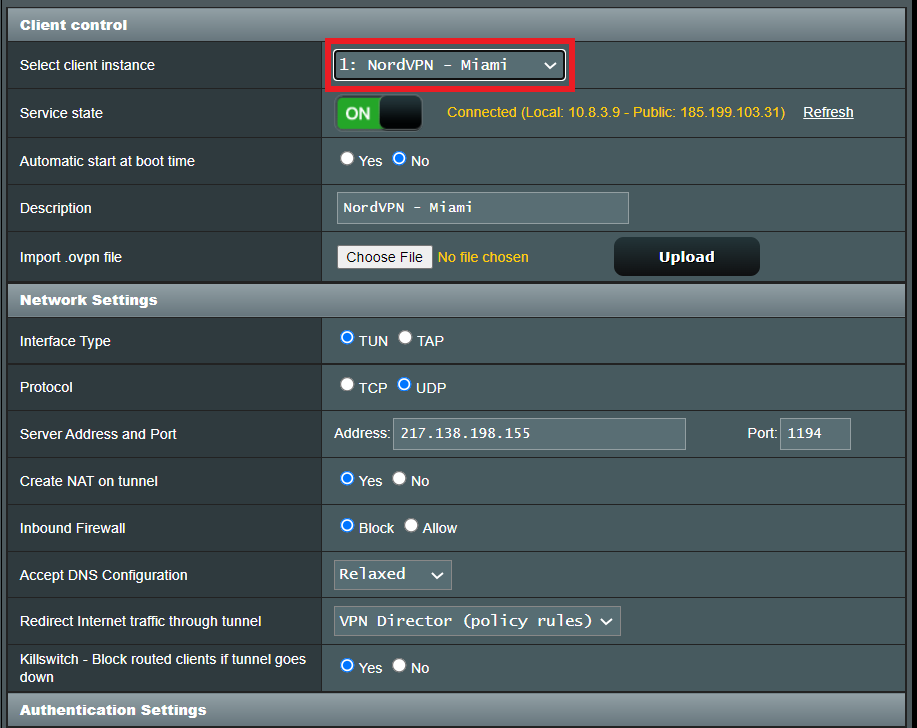
4. Name the client in the Description field for more clarity for which server or provider is being setup.
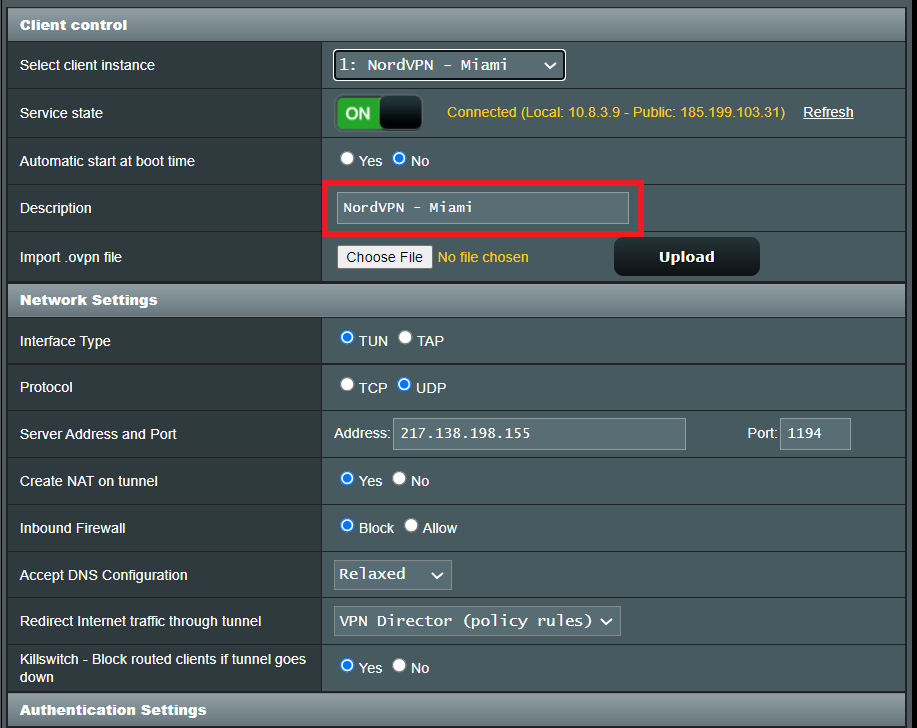
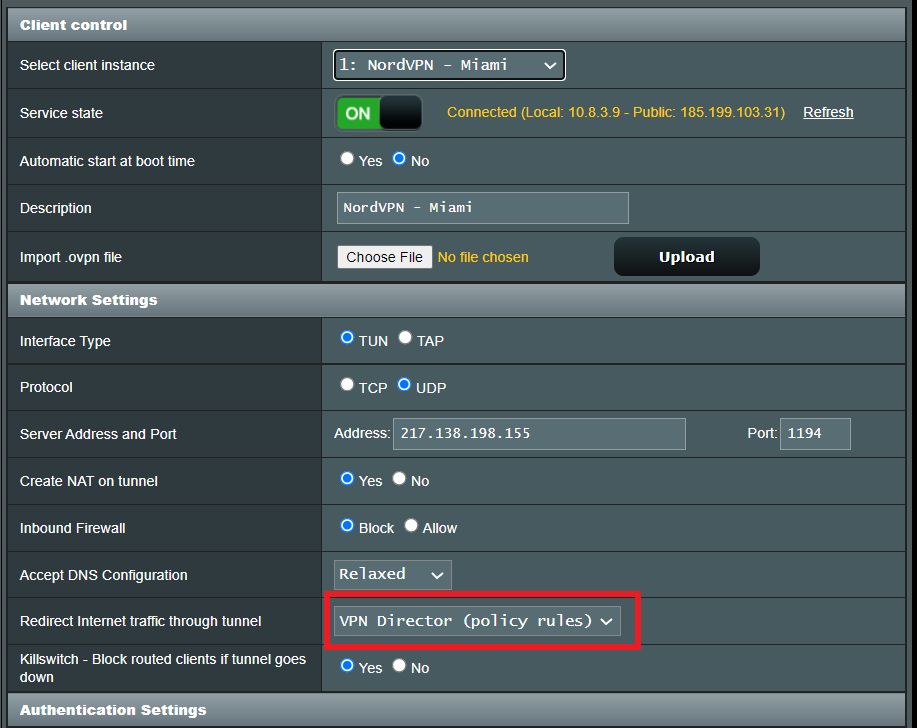
5. Set the Redirect Internet traffic through tunnel dropdown to VPN Director.
Start or Stop VPN Client
1. Under Advanced Settings select VPN.
2. Click the VPN Director tab.
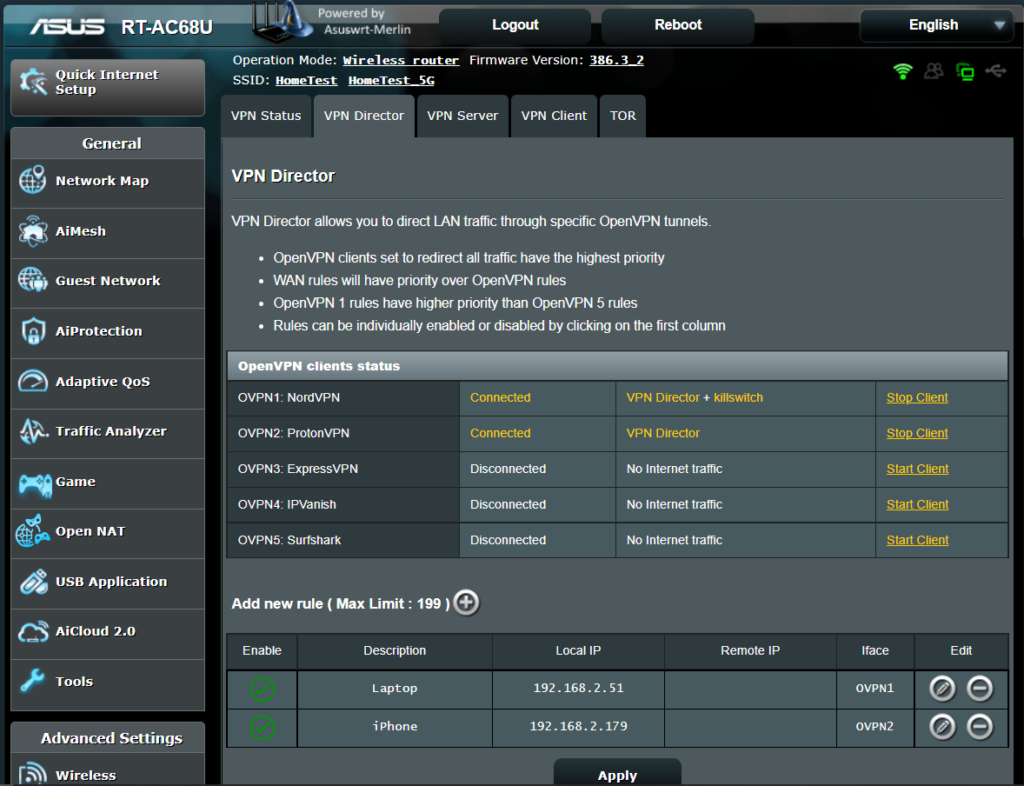
3. With multiple VPN clients connected you can start and stop them as needed from this page.
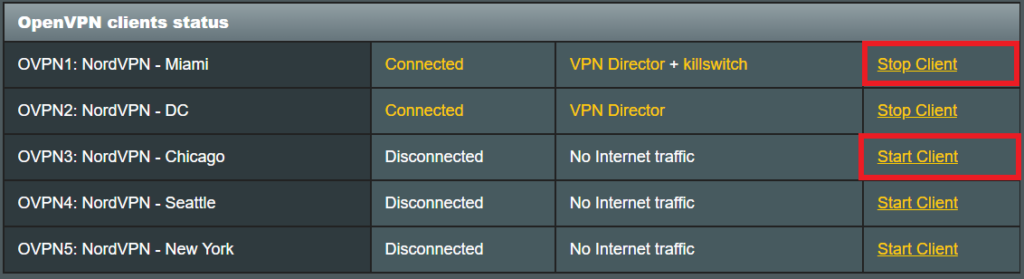
Assign a device to a specific VPN client
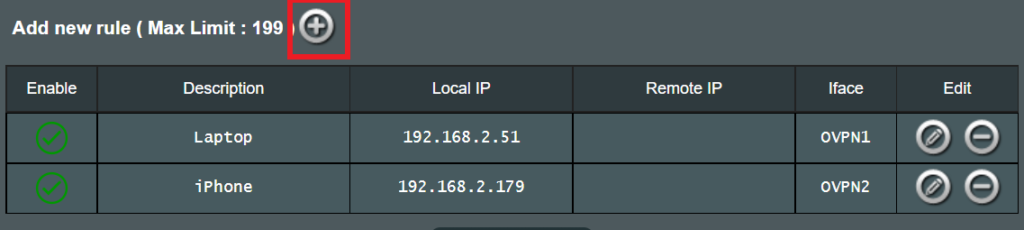
1. On the VPN Director page click the + symbol next to Add new rule.
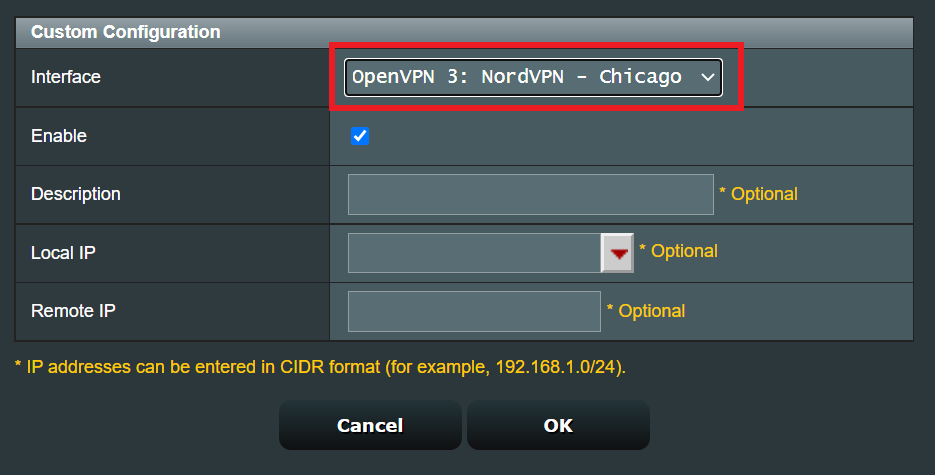
2. Select the Interface that you want to add the device to.
3. Click the Local IP dropdown and a full list of devices connected to the Merlin FlashRouter should appear. Select the device you want to assign to this VPN client.
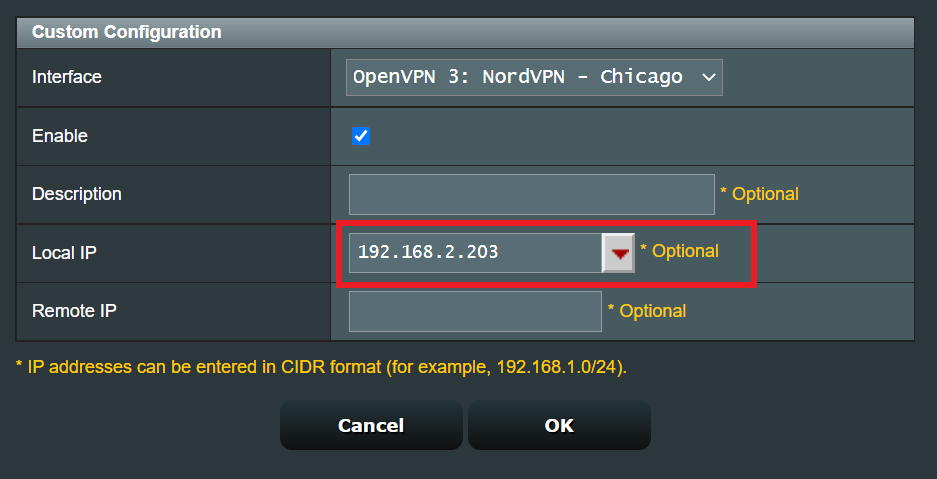
4. Click OK and click Apply.
IVPN WireGuard Setup
Preparing for IVPN WireGuard Setup
Verify your IVPN login information
If you are not already a IVPN user Sign Up Now.
Log in to your account on the IVPN website.
DD-WRT Router Setup for IVPN WireGuard
Navigate to Setup > Tunnels
Enter IVPN WireGuard settings
1. Click Add Tunnel.
2. Set Tunnel to Enable.
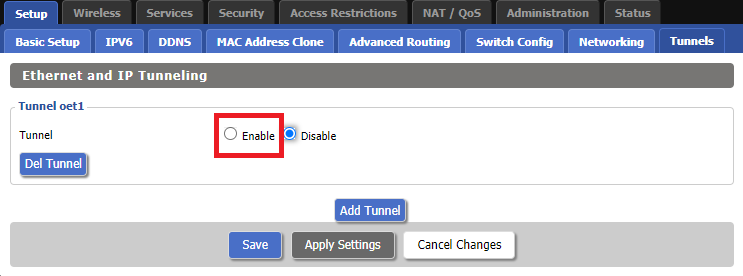
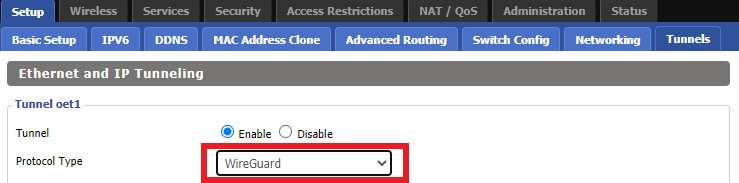
3. Select Wireguard from the dropdown.
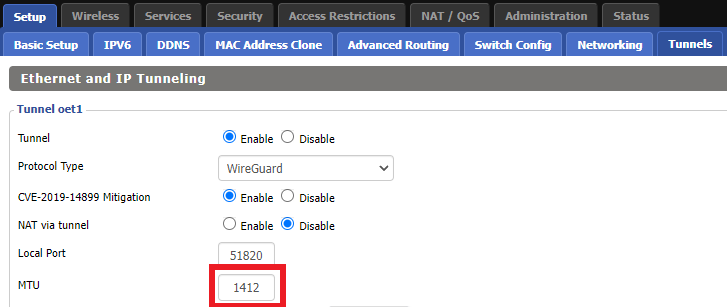
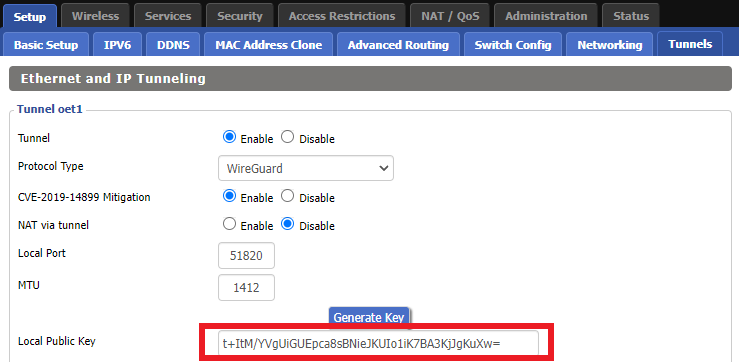
3. Set MTU to 1412.
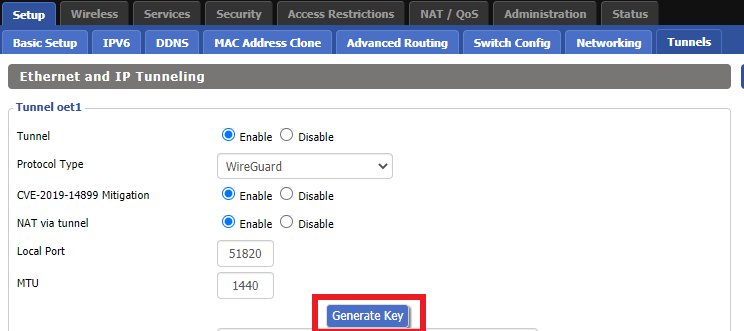
4. Click Generate Key.
9. Copy the Local Public Key.
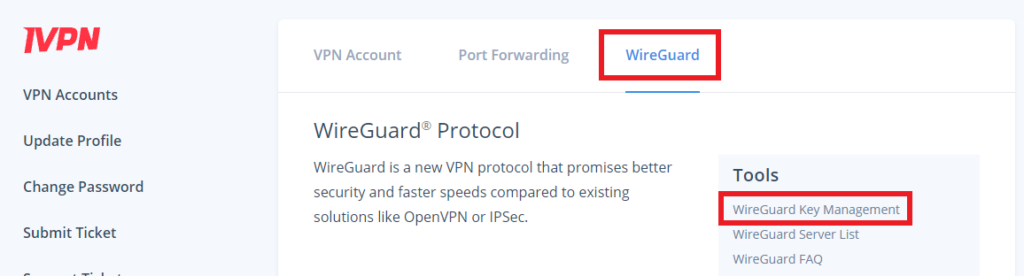
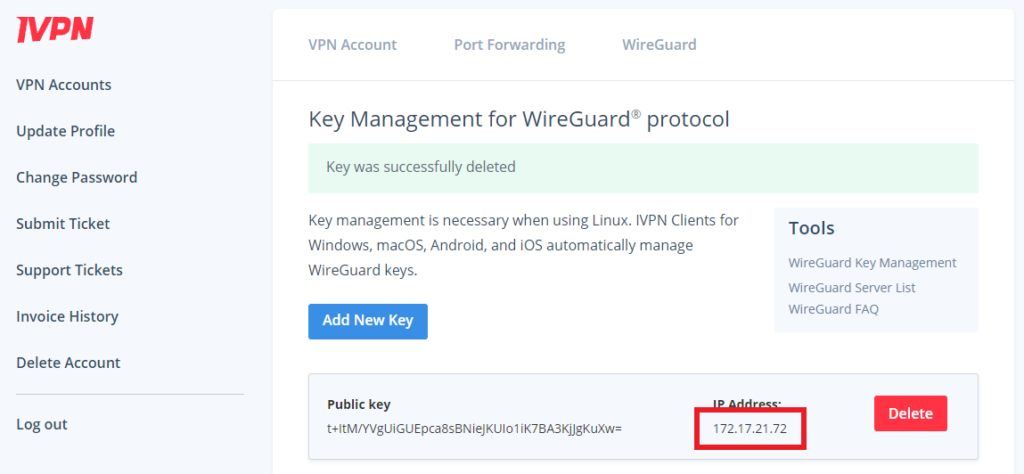
10. In a new tab (leave the DD-WRT settings opened), go to your IVPN Account and click WireGuard and then click WireGuard Key Management.
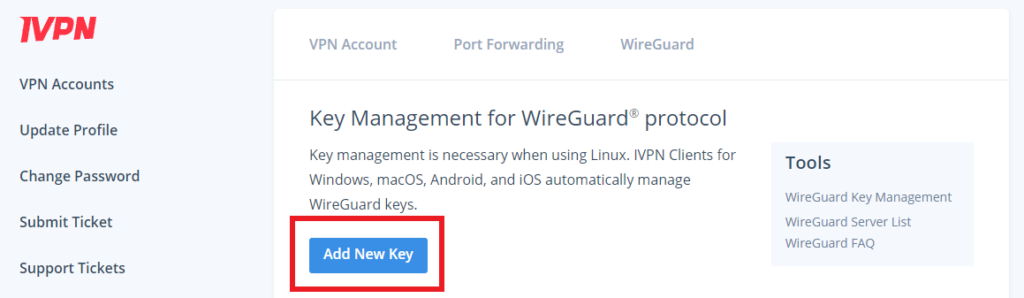
11. Click Add New Key.
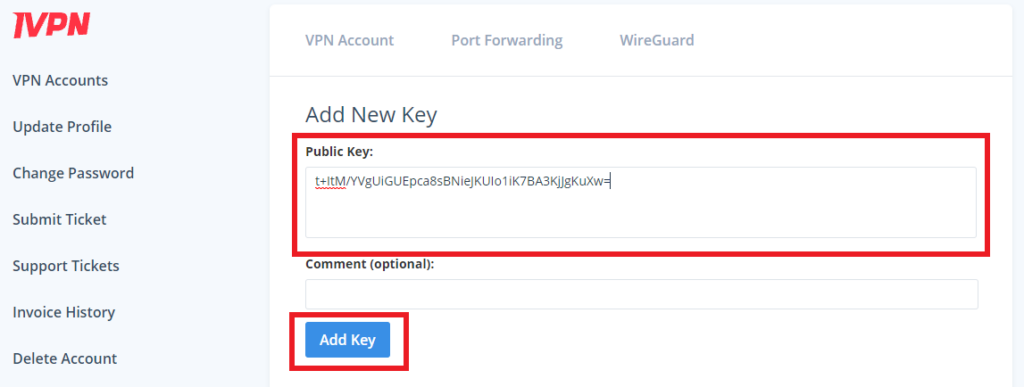
12. Paste the copied Local Public key to the Public Key field and click Add Key.
13.Copy the IP Address assigned to your public key and add it to the IP Addresses/Netmask(CIDR) field followed by a /32 subnet mask.
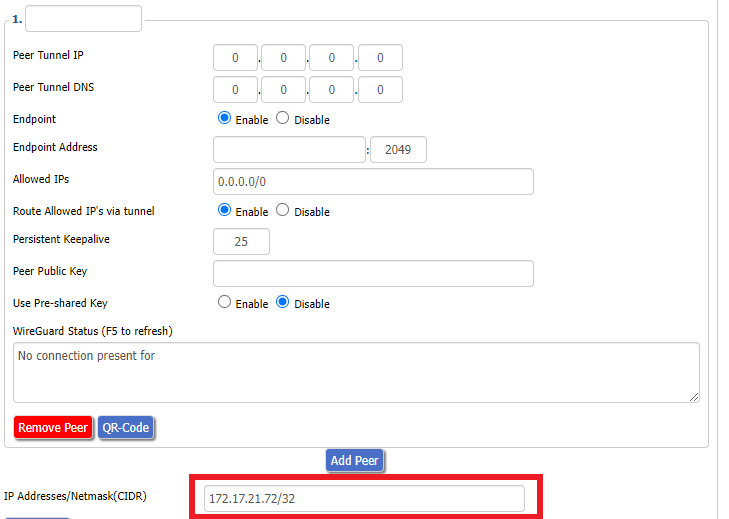
Certain DD-WRT builds will show two separate fields here: IP Address and Subnet Mask. If that is the case set the IP Address field to the Address without the /32 added and set the Subnet Mask to 255.255.255.255
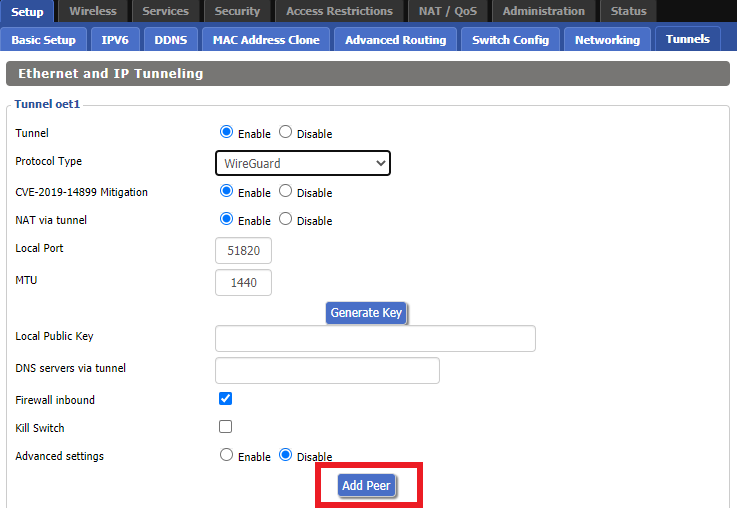
14. Click Add Peer.
15. Set the Peer Tunnel IP to 0.0.0.0. Set Peer Tunnel DNS to 172.16.0.1
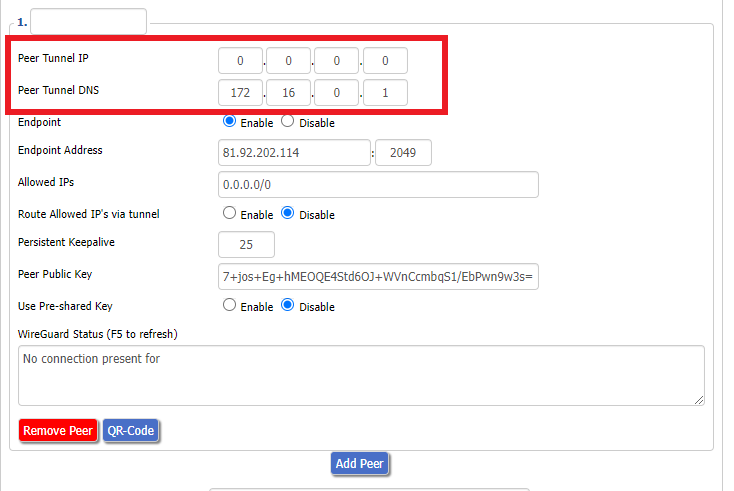
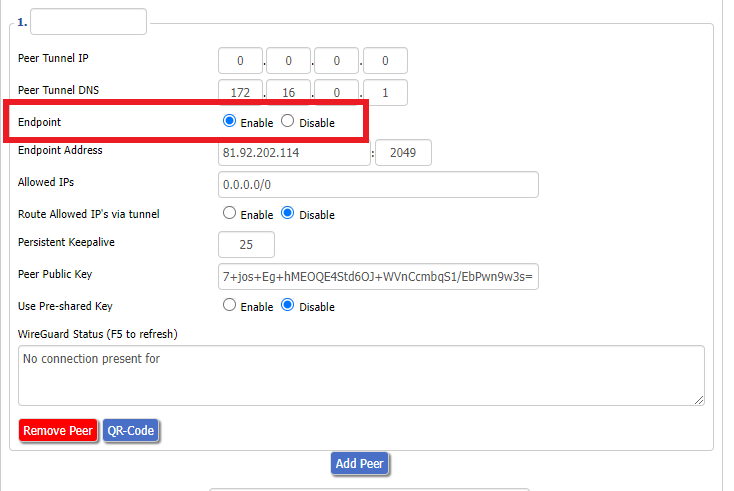
16. Set Endpoint to Enable.
17. Go to the IVPN Server Status page and copy the server name for the WireGuard server location you want to connect to.
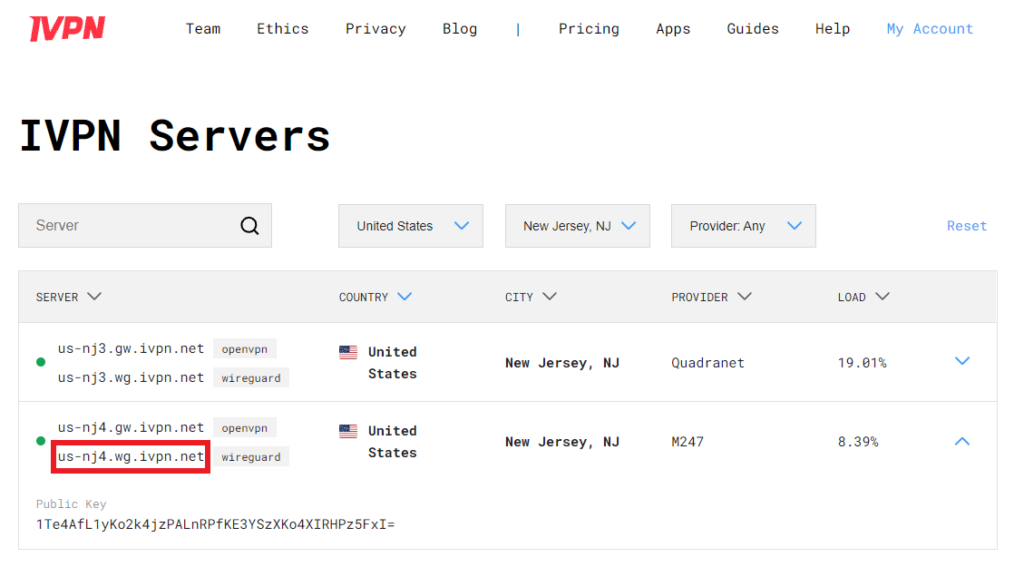
Be sure to copy the WireGuard server address and not the OpenVPN server address.
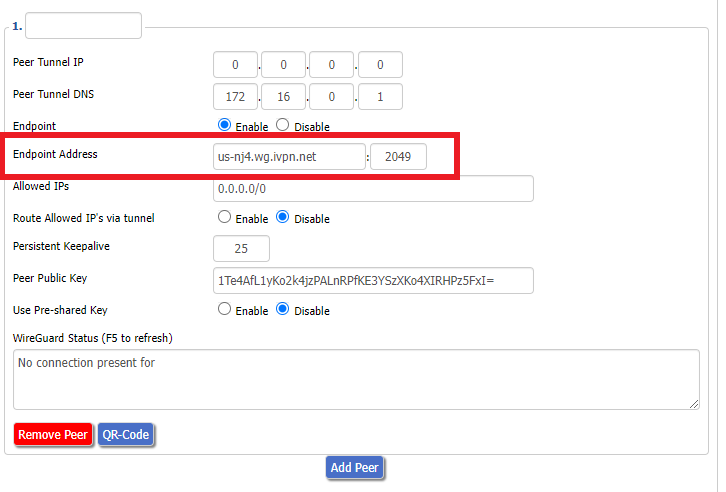
18. Paste the server name you copied into the Endpoint Address field and set the Port to 2049.
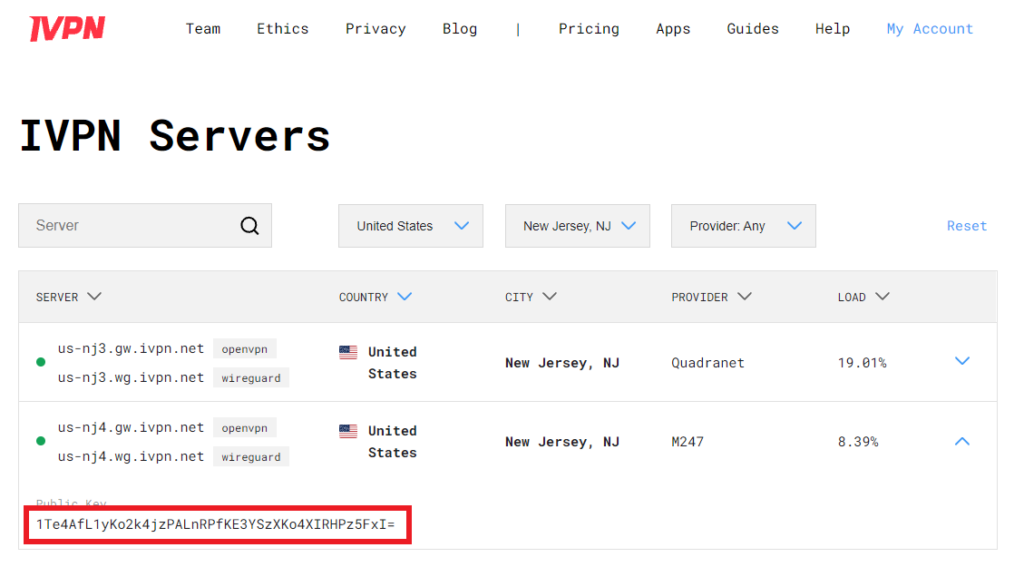
19. On the IVPN Server Status page copy the Public Key of the server location you entered. Paste the Public Key into the Peer Public Key field.
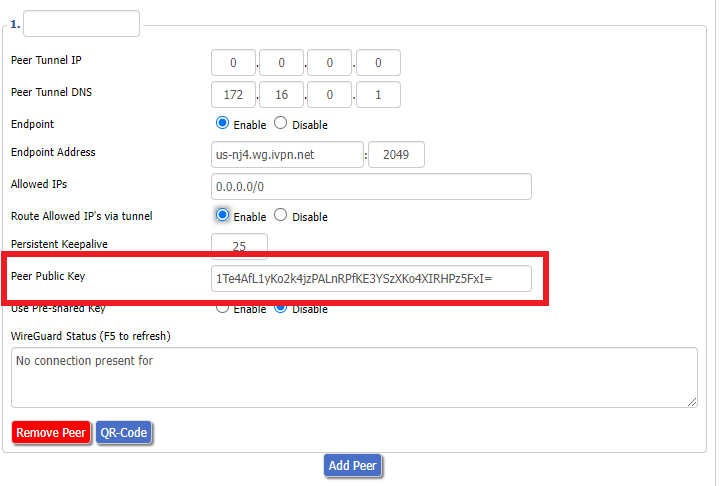
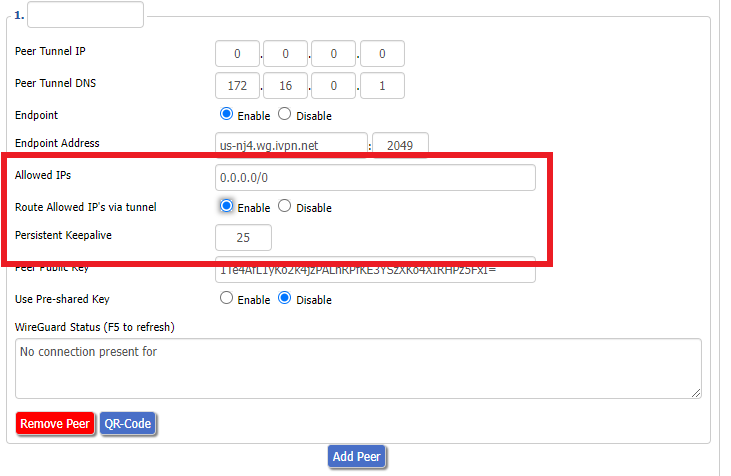
20. Leave Allowed IPs as 0.0.0.0/0. Set Router Allowed IP’s via tunnel to Enable. Set Persistent Keep Alive to 25.
21. At the bottom of the page click Save and then click Apply Settings.
Set IVPN DNS servers
Navigate to Setup > Basic Setup
Set Static DNS 1 to 172.16.0.1
Set Static DNS 2 to 198.245.51.147
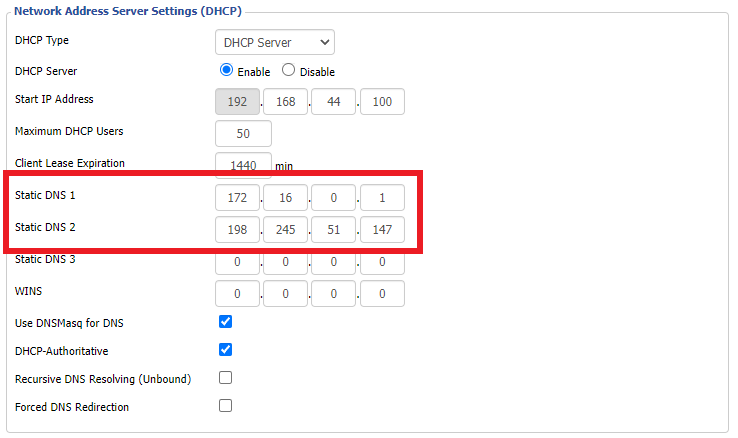
Click Apply Settings.
Reboot the FlashRouter
Navigate to Administration > Management
Scroll to the bottom of the page and click the red Reboot Router button. Wait for the FlashRouter to reboot and then reconnect.
Verify a successful IVPN connection
Navigate to Setup > Tunnels
- You should Endpoint, Latest handshake, and Transfer in the WireGuard status area.
- Visit IVPN’s website to verify your status as using IVPN.
Back up your settings
Navigate to Administration > Backup
- Click the Backup button.
- A file named nvrambak.bin will be saved to your computer.
- You can load nvrambak.bin to restore your settings in the event of a reset.
DD-WRT Router Setup Guide

Quick Start Guide for DD-WRT FlashRouters
Find setup guides, FAQs and troubleshooting tips for DD-WRT configured FlashRouters.

AC1450, R6220, R6230, R6250, R6260, R6300 V1, R6300 V2, R6400 V1, R6400 V2, R6700 V1, R6700 V2, R6700 V3, R7000, R7000P, R7800, R8000, R9000, XR500

RT-AC56U/R, RT-AC68U V1, RT-AC68U V2, RT-AC1900P, RT-AC87U, RT-AC3100, RT-AC5300

WRT1200AC, WRT1900AC V1, WRT1900AC V2, WRT1900ACS V1, WRT1900ACS V2, WRT32X, WRT3200ACM

Search Support Articles
Troubleshooting
- Device Settings That Can Interfere With Your Router VPN
- Why can’t I send emails while connected to VPN?
- What is a DNS leak and how can I prevent a DNS leak in my router?
- My VPN stopped working on my FlashRouter.
- Why is my connection speed slower?
- Why are streaming services blocked while connected to VPN?
- How do I find my router local IP address?
- How do I reset and reconfigure my FlashRouter?
- How do I check for static network settings on my devices?
- Why is my router not connecting to internet?
- How to fix an Unidentified Network or Limited Connection.
- Why are some of my devices not connecting to the internet?
- Why is the internet LED red on my router?
- Why is the power light on my FlashRouter blinking?
- My 2.4GHz network is not showing up
- My 5.0GHz network is not showing up
- My WiFi password is not working
- Why did my WiFi SSID change to ‘dd-wrt’?
- Why are devices disconnecting from Wireless?
- Why is my WiFi signal weak?
More Ways to Get Help

Setting up a Guest WiFi Network on Roqos
Create a Guest WiFi network on your Roqos to segment certain devices from the main network and set custom content filters as you see fit. Note that this is only for 2.4GHz wireless.
Login to Roqos Core UI web app in a browser on any computer or smart device.
1. Click the navigation menu and select Basic Settings > WiFi Settings.
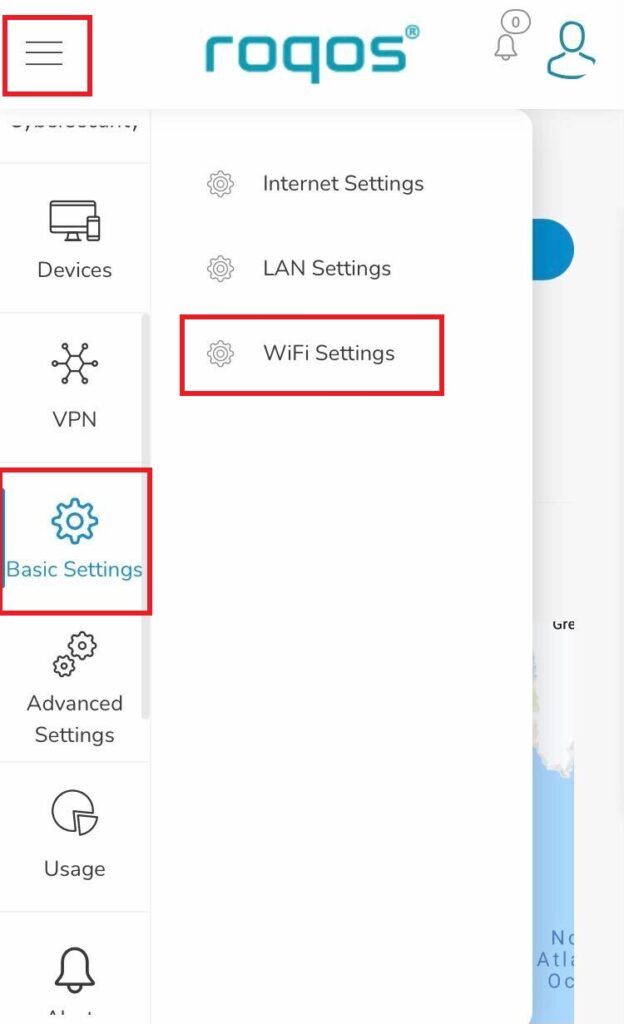
2. Click Guest WiFi.
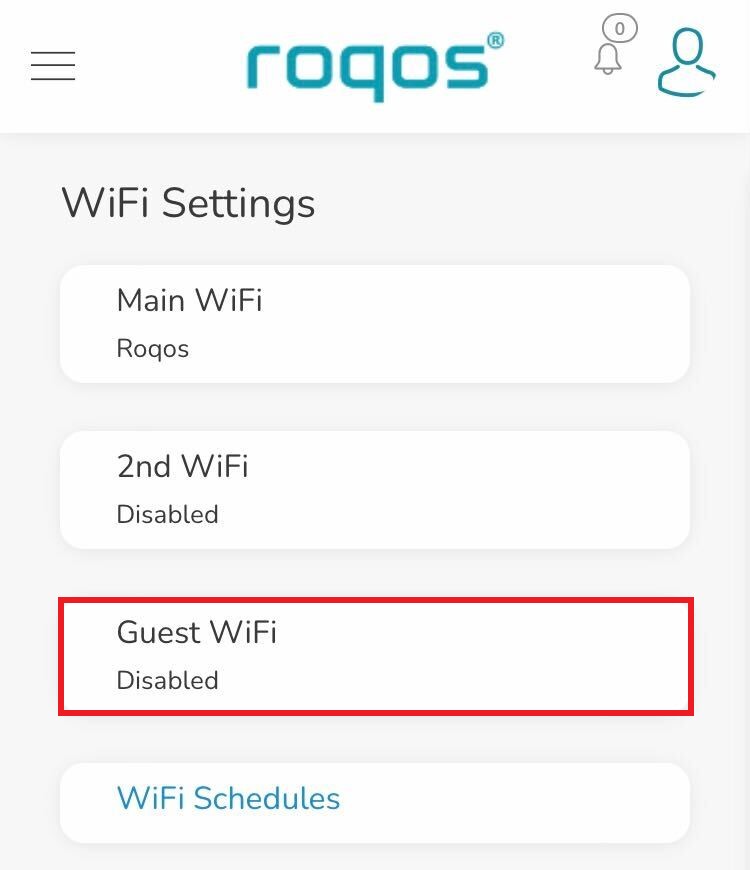
3. Toggle the Enable slider and set the Network Name and Guest WiFi Password. Click Save.
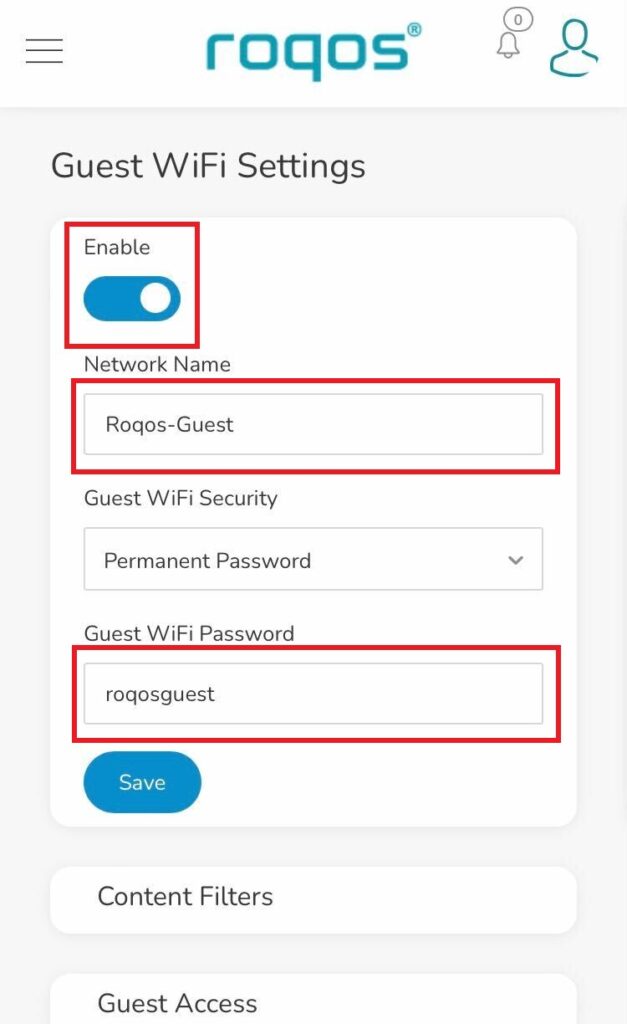
4. Optional: If you wish to set specific Content Filters for the Guest Network and set the Filters that you see fit.
What is a DNS leak and how can I prevent a DNS leak in my router?
What is a DNS leak?
A DNS Leak is an instance where your ISP receives DNS requests despite being connected to a VPN tunnel.
How do I check if my DNS is leaking?
- Perform the extended test on DNSLeakTest.com. Be sure to do so on multiple web browsers for best accuracy.
- Here you should only find one server and your ISP should not be listed as your actual ISP.
- If your actual ISP is not listed there is no DNS leak.
How can I prevent a DNS leak in DD-WRT?
Check your device's browser settings
Updates to web browsers have added DNS settings capabilities, while this often makes your browsing experience more secure it can also effect the results of a DNS leak test. You can go into your browser’s settings and search for “DNS” and disable the DNS of the browser for more accurate DNS leak test results.
A simple web search for “DNS settings [browser name]” should return helpful information for finding the setting in your browser.
Adjust DD-WRT settings
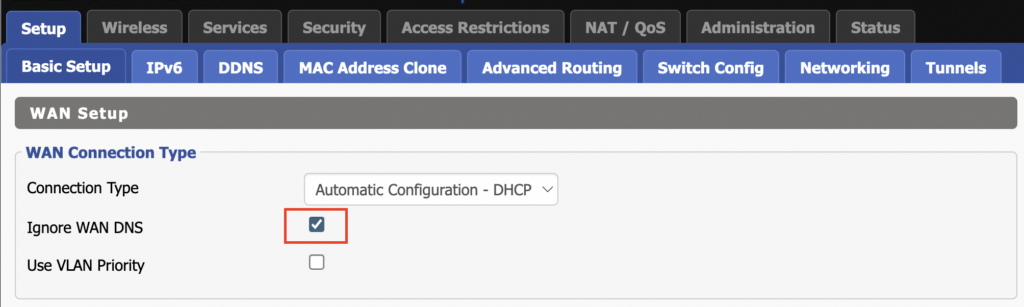
1. On the Setup > Basic Setup page of the DD-WRT settings check the Ignore WAN DNS box.
This setting may not appear in older DD-WRT firmware builds. If it is not appearing for you, upgrade your DD-WRT firmware.
2. Lower on the same page check the Forced DNS Redirection box.
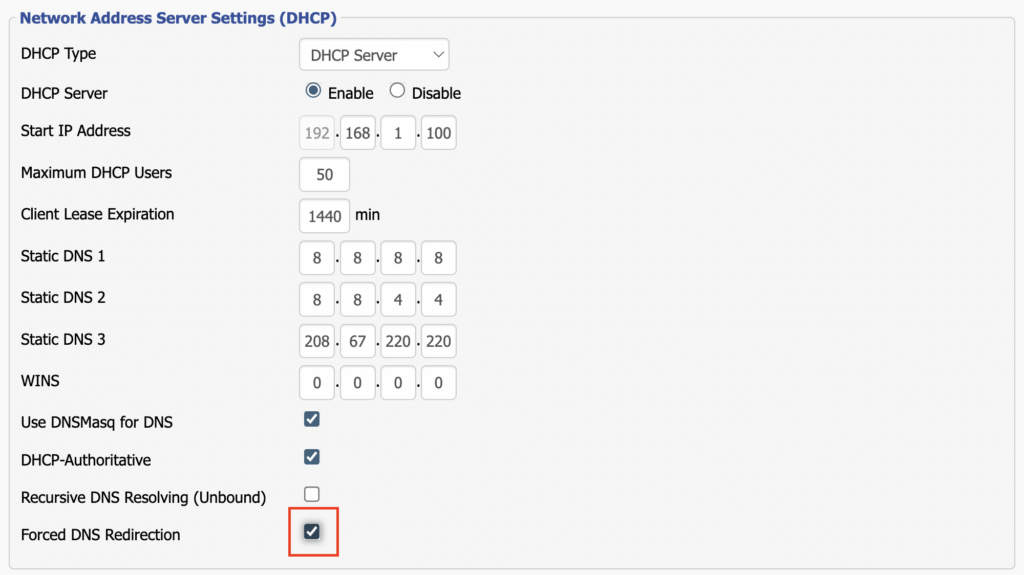
3. Click Apply Settings at the bottom of the page and then wait a full minute and power the FlashRouter off and back on. Reconnect to the FlashRouter’s network once it boots back up and then make sure you are connected to VPN by going to https://whatismyipaddress.com then perform the DNS leak test again.
Adding your VPN provider’s DNS servers to the router’s configuration can be helpful as well. The DNS servers are typically found on the VPN provider’s website or you can reach out to their team for a recommendation of what DNS servers to enter.