Please note: HMA no longer allows router based integration, please visit our top recommended VPNs.
Search Results for: vpn router setup
ExpressVPN Cudy OpenVPN Setup
Preparing for ExpressVPN Cudy Setup
Obtain your ExpressVPN OpenVPN Information
If you are not already an ExpressVPN user Sign Up Now.
1. Log in to your account on the ExpressVPN website.

2. Successfully log in with your account information. Select More.

3. Select Manual Configuration and copy the Username and Password that are displayed on the right hand side of the screen.


4. Click the Server Location that you want to connect to. This will download a .ovpn file to your computer that we will use later on. There is no need to open the file. For this example I have selected New York but feel free to select any server listed there.

Cudy Router Setup for ExpressVPN
Login to Cudy firmware settings in a browser on any computer or smart device connected to the Cudy FlashRouter’s network.
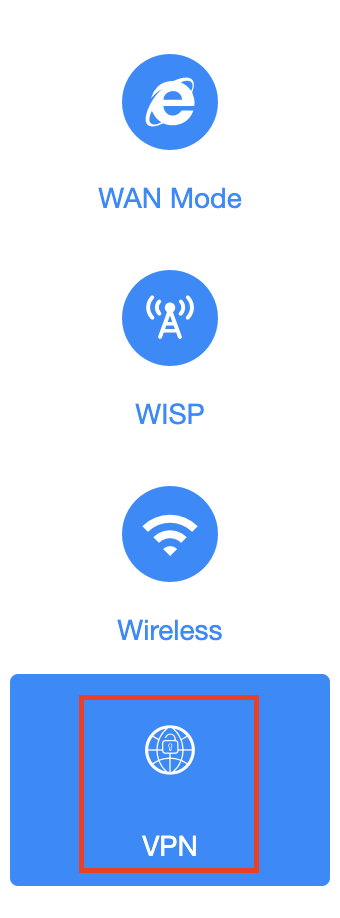
1. Click General Settings.

2. Click VPN.
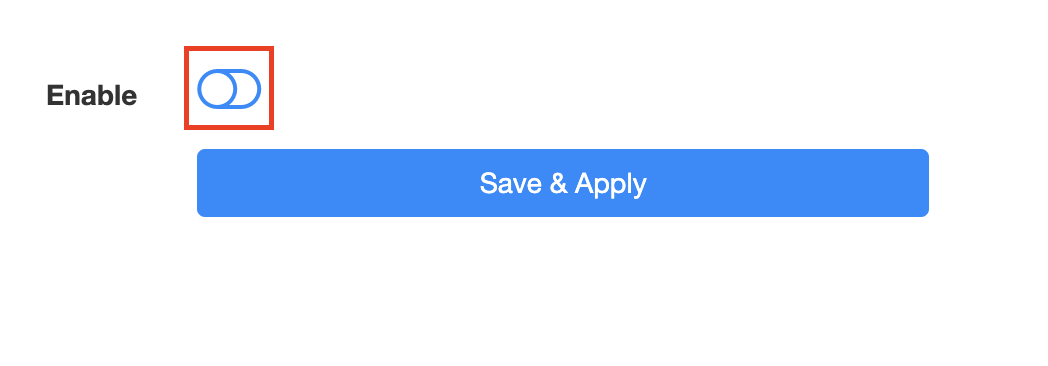
3. Toggle the Enable switch to On.
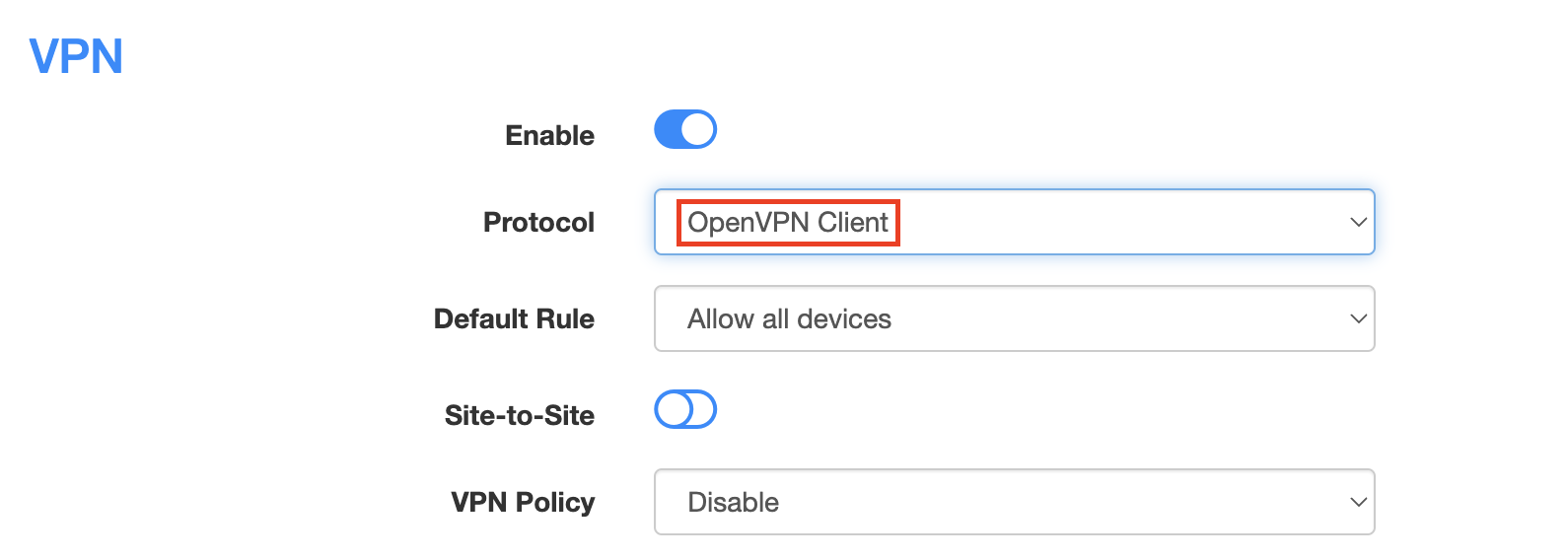
4. Select OpenVPN Client from the Protocol dropdown.
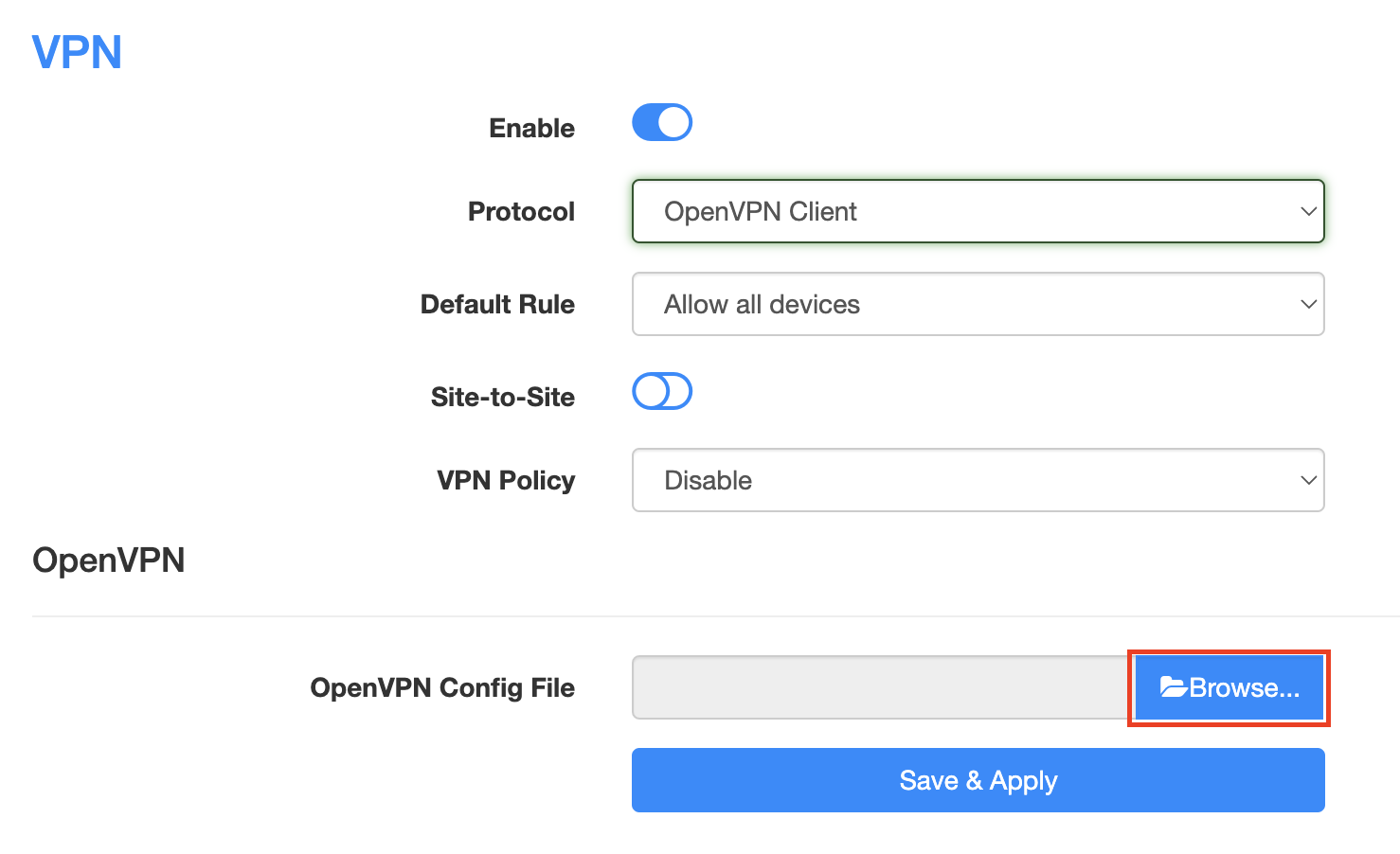
5. Click Browse and select the .ovpn file you downloaded earlier. You should see the server file name listed next to Current Config File after doing so.
6. Enter your ExpressVPN username and password that you obtained earlier in the Username and Password. Note that these are different from your ExpressVPN email login and password.

7. Click Save & Apply at the bottom of the page.
Verify a successful ExpressVPN connection
- You should now see a CONNECTED message.
- Visit ExpressVPN’s IP Check to verify your new IP address and virtual location.
In some cases you may notice that the location is not showing the same location as the server you have input in your router settings; this is because geo tracking tools are often tricked by VPN connections. As long as you see an IP address that is not the same as your normal Internet IP address then you are indeed connected to ExpressVPN.
How to change the ExpressVPN server
- Follow the steps at the top of the page to obtain a new .ovpn file.
- Then proceed with the settings same as initial setup.
IPVanish Cudy OpenVPN Setup
Preparing for IPVanish Cudy Setup
Download your IPVanish .ovpn file
If you are not already an IPVanish user Sign Up Now.
1. Log in to your account on the IPVanish website.
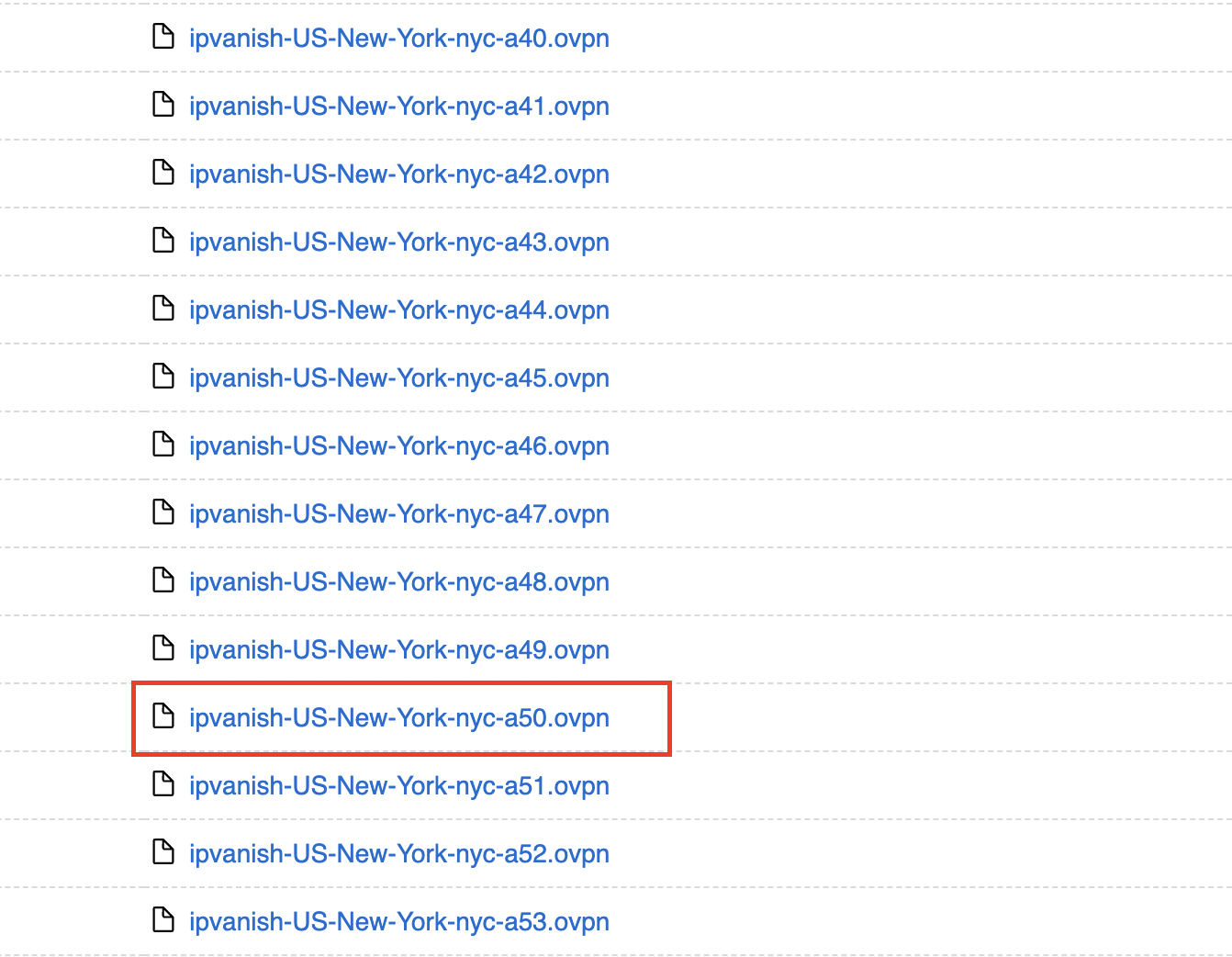
2. Successfully log in with your account information then go to IPVanish .ovpn file page.
3. Click on the .ovpn file for the server location you want to use to dowloand the .ovpn file. Do not open this file.
Cudy Router Setup for IPVanish
Login to Cudy firmware settings in a browser on any computer or smart device connected to the Cudy FlashRouter’s network.
1. Click General Settings.
2. Click VPN.
3. Toggle the Enable switch to On.
4. Select OpenVPN Client from the Protocol dropdown.
5. Click Browse and select the .ovpn file you downloaded earlier. You should see the server file name listed next to Current Config File after doing so.
6. Enter your IPVanish account login email and password that you obtained earlier in the Username and Password.

7. Click Save & Apply at the bottom of the page.
Verify a successful IPVanish connection
- You should now see a CONNECTED message.
- Visit IPVanish’s IP Check to verify your new IP address and virtual location.
In some cases you may notice that the location is not showing the same location as the server you have input in your router settings; this is because geo tracking tools are often tricked by VPN connections. As long as you see an IP address that is not the same as your normal Internet IP address then you are indeed connected to IPVanish.
How to change the IPVanish server
- Follow the steps at the top of the page to obtain a new .ovpn file.
- Then proceed with the settings same as initial setup.
PrivateInternetAccess (PIA) Cudy OpenVPN Setup
Preparing for PIA Cudy Setup
Download your PIA .ovpn file
If you are not already a PIA user Sign Up Now.
1. Log in to your account on the PIA website.
2. Successfully log in with your account information then go to PIA’s OpenVPN Config Generator.
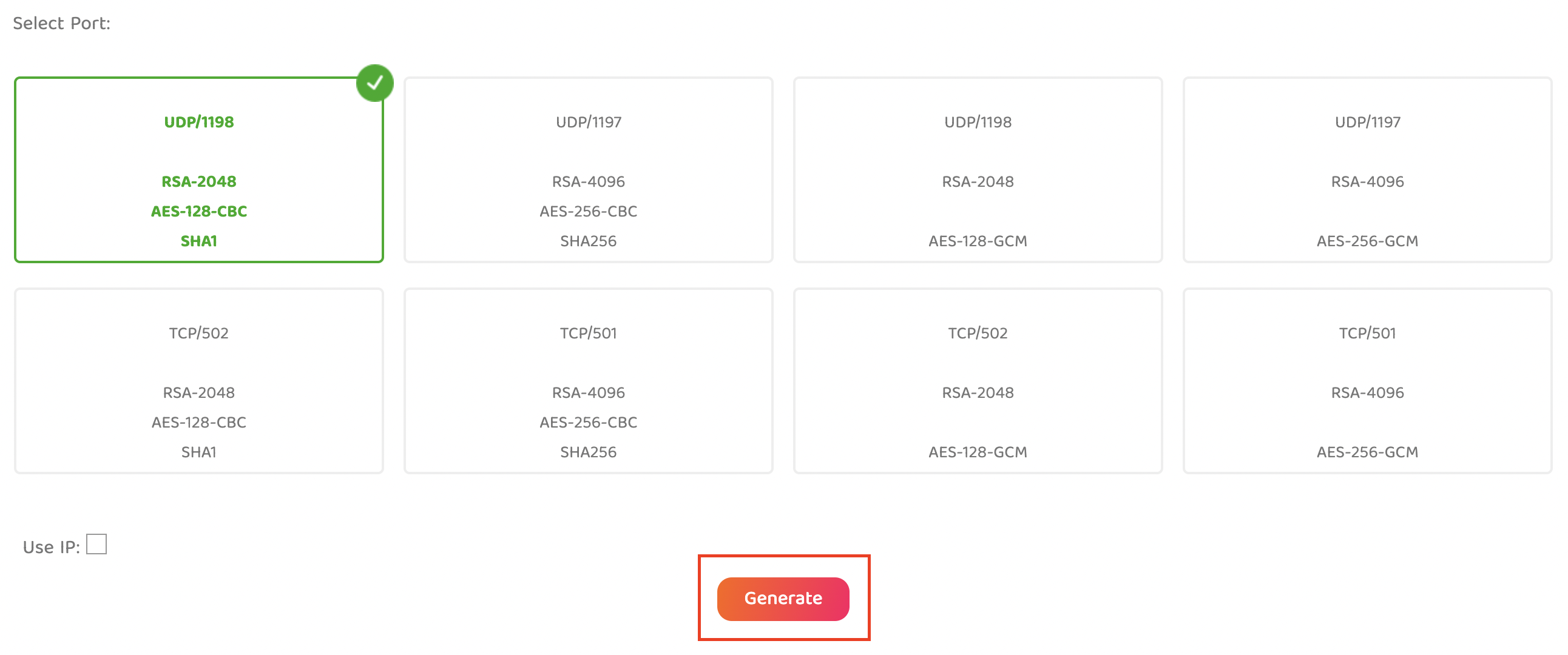
3. On the OpenVPN Configuration Generator select the following:
OpenVPN Version: OpenVPN 2.4 or newer
Select Platform: Linux
Select Region: Choose the server location you’d like to connect to
Select Port: Typically we recommend UDP/1198 RSA-2048 AES-128-CBC SHA1 for best speeds but feel free to select the one you want to use.
4. Click Generate to download the .ovpn file. Do not open this file once it is downloaded.
Cudy Router Setup for PIA
Login to Cudy firmware settings in a browser on any computer or smart device connected to the Cudy FlashRouter’s network.
1. Click General Settings.
2. Click VPN.
3. Toggle the Enable switch to On.
4. Select OpenVPN Client from the Protocol dropdown.
5. Click Browse and select the .ovpn file you downloaded earlier. You should see the server file name listed next to Current Config File after doing so.
6. Enter your PIA account login username and password in the Username and Password.
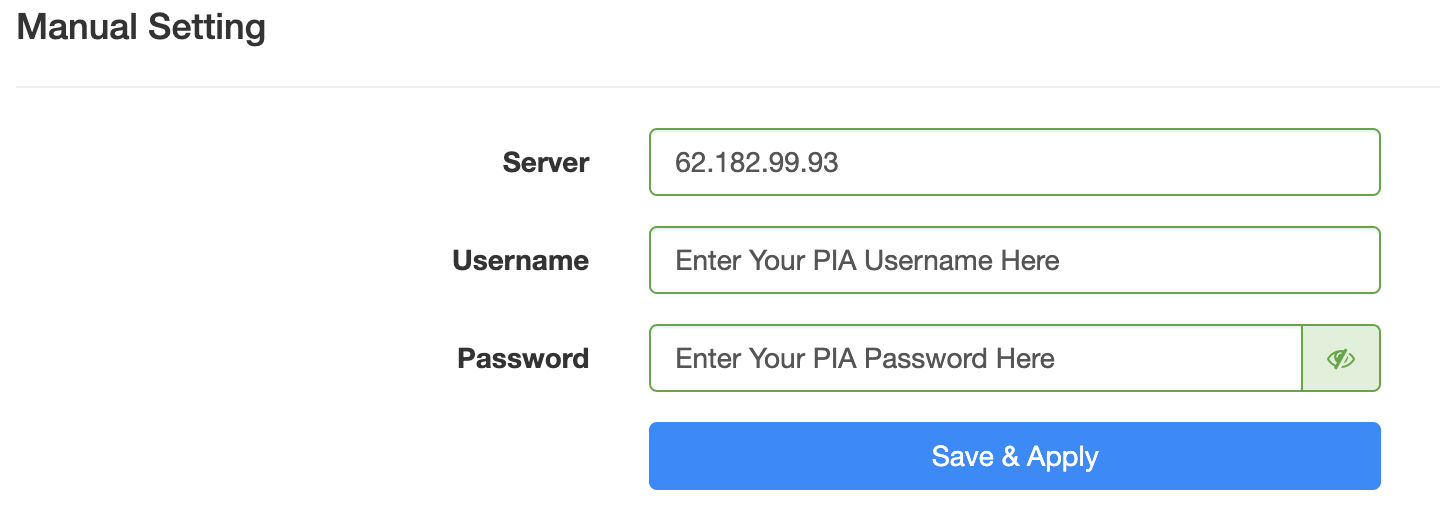
7. Click Save & Apply at the bottom of the page.
Verify a successful PIA connection
- You should now see a CONNECTED message.
- Visit PIA’s IP Check to verify your new IP address and virtual location.
In some cases you may notice that the location is not showing the same location as the server you have input in your router settings; this is because geo tracking tools are often tricked by VPN connections. As long as you see an IP address that is not the same as your normal Internet IP address then you are indeed connected to PIA.
How to change the PIA server
- Follow the steps at the top of the page to obtain a new .ovpn file.
- Then proceed with the settings same as initial setup.
Roqos Core Router Setup Guide

Quick Start Guide for Roqos Core Routers
Find setup guides, FAQs and troubleshooting tips for the FlashRouters Roqos Core Router.

Roqos Core Features
- Set a Static IP for your connected devices on Roqos
- VPN Kill Switch on Roqos
- Managing User Profiles on Roqos
- Cybersecurity and Intrusion Prevention on Roqos
- Block Websites by Country on Roqos
- Ad blocking on Roqos
- Parental Controls on Roqos
- Wireless Repeater – WiFi as WAN on Roqos
- What do the lights on my Roqos Core mean?
Search Support Articles
Troubleshooting
More Ways to Get Help

StrongVPN WireGuard Setup
DD-WRT Router Setup for StrongVPN WireGuard
StrongVPN Wireguard DD-WRT setup is now officially supported by FlashRouters. Follow the steps below to gather all the required information to complete your Wireguard router setup.
Navigate to Security > Firewall
Set SPI Firewall to Disable.
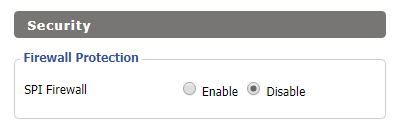
Click Save at the bottom of the page.
Select your actual time zone for you physical location from the dropdown and enter 1.pool.ntp.org in the Server IP/Name dropdown.

Click Apply Settings at the bottom of the page.
Preparing for StrongVPN WireGuard Setup
Obtain your StrongVPN WireGuard Information
If you are not already a StrongVPN user Sign Up Now.
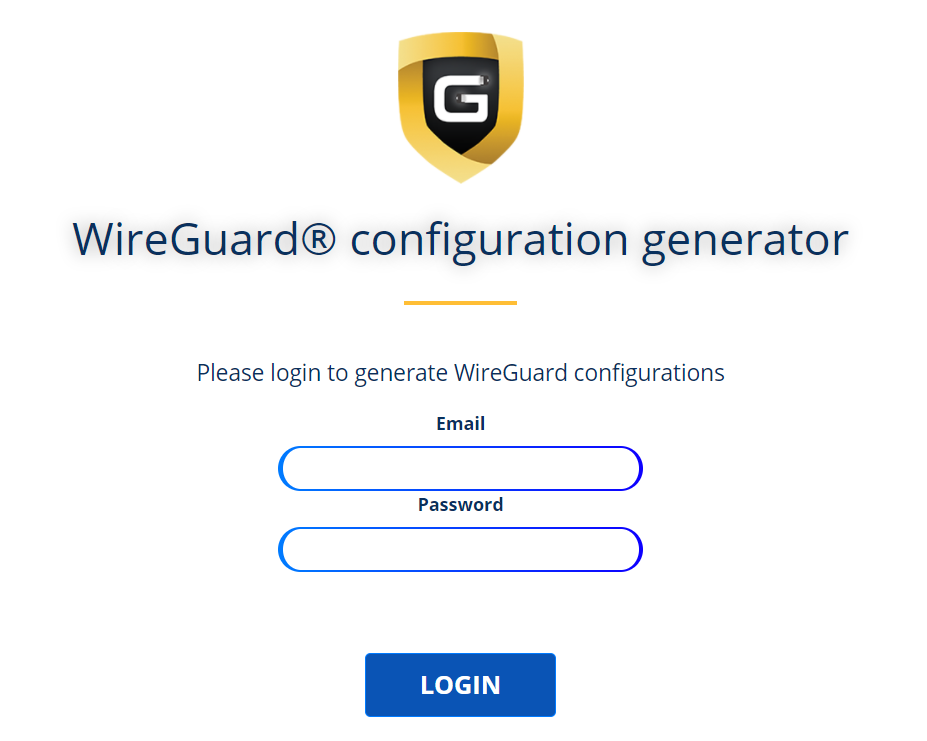
1. Log in to your account on the StrongVPN website.
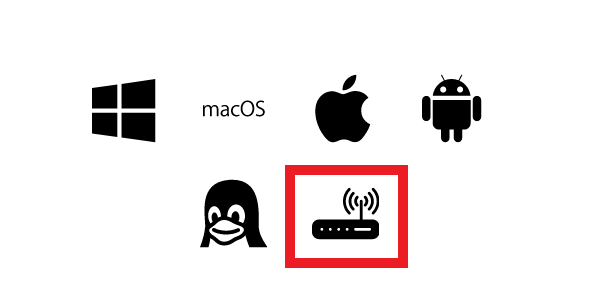
2. Select Router icon as the Platform
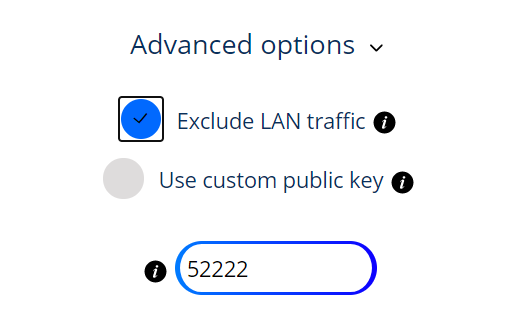
3. Select the Advanced Options dropdown and then check Exclude LAN Traffic and set any value between 52000 and 60000 in the Custom Port field.
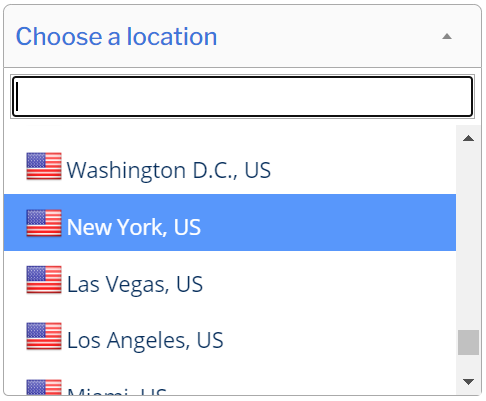
4. Select the Server Location from the dropdown that you would like to connect to.
5. Select the Generate at the bottom of the page.
6. Click the DD-WRT installer script box to copy.
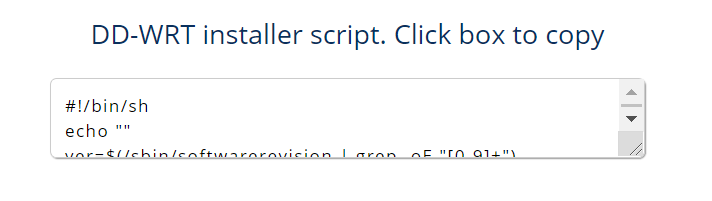
Enter StrongVPN WireGuard Script
Navigate to Administration > Commands
Paste the StrongVPN Script that was copied in the empty Commands Shell.
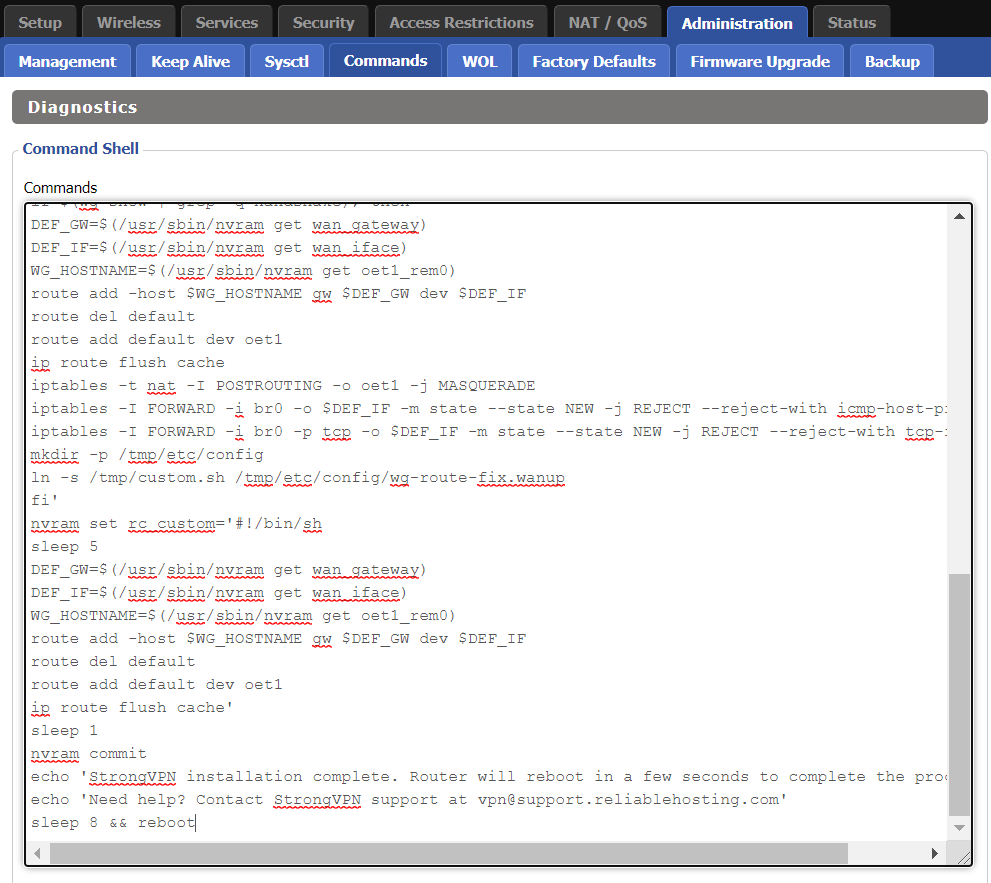
Delete the very last line sleep 8 && reboot.
Click Save Custom (or Save Custom Script may appear depending on your firmware build, they are the same thing)
Copy the line below and paste into the empty Commands Shell.
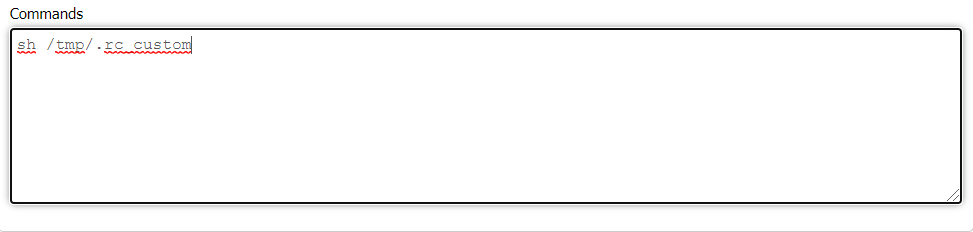
sh /tmp/.rc_custom
Click Run Commands.
Wait two minutes and then power the FlashRouter off and back on. Reconnect to the FlashRouter’s network when it has booted back up.
Verify a successful StrongVPN WireGuard connection
Navigate to Setup > Tunnels
- You should now see that page filled in with WireGuard info.
- Visit StrongVPN’s IP Check to verify your new IP address and virtual location.
Back up your settings
Navigate to Administration > Backup
- Click the Backup button.
- A file named nvrambak.bin will be saved to your computer.
- You can load nvrambak.bin to restore your settings in the event of a reset.
Getting Started With Your FlashRouter
Getting Started With Your FlashRouter
Setting Up Your VPN Service
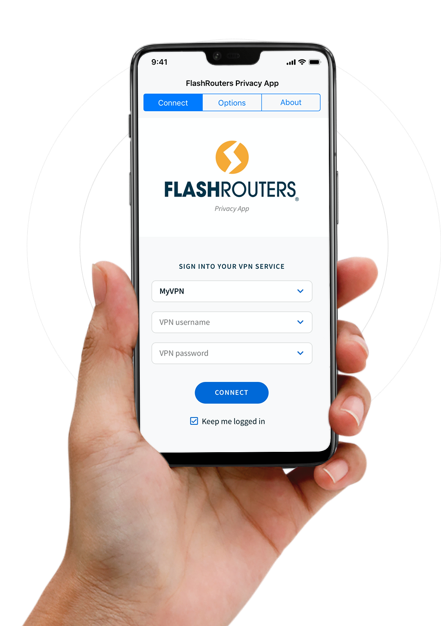
Select your operating system below to setup the FlashRouters Privacy App on your router, the easiest way to connect to the best VPN services. For ExpressVPN FlashRouter users, please view the following section for setting up the ExpressVPN app.

OpenWRT Setup Guide

Quick Start Guide for OpenWRT Routers
Find setup guides, FAQs and troubleshooting tips for the FlashRouters OpenWRT Routers.

Flint WiFi 6 AX1800 VPN Router
Internet Setup
WiFi Setup
VPN Setup
OpenWRT Features
Search Support Articles
Troubleshooting
More Ways to Get Help
Obtain your NordVPN manual Username and Password for OpenVPN
Obtain your NordVPN manual Username and Password
If you are not already an NordVPN user Sign Up Now.
1. Log in to your account on the NordVPN website.
2. Click NordVPN on the left hand side and then click Setup NordVPN manually.
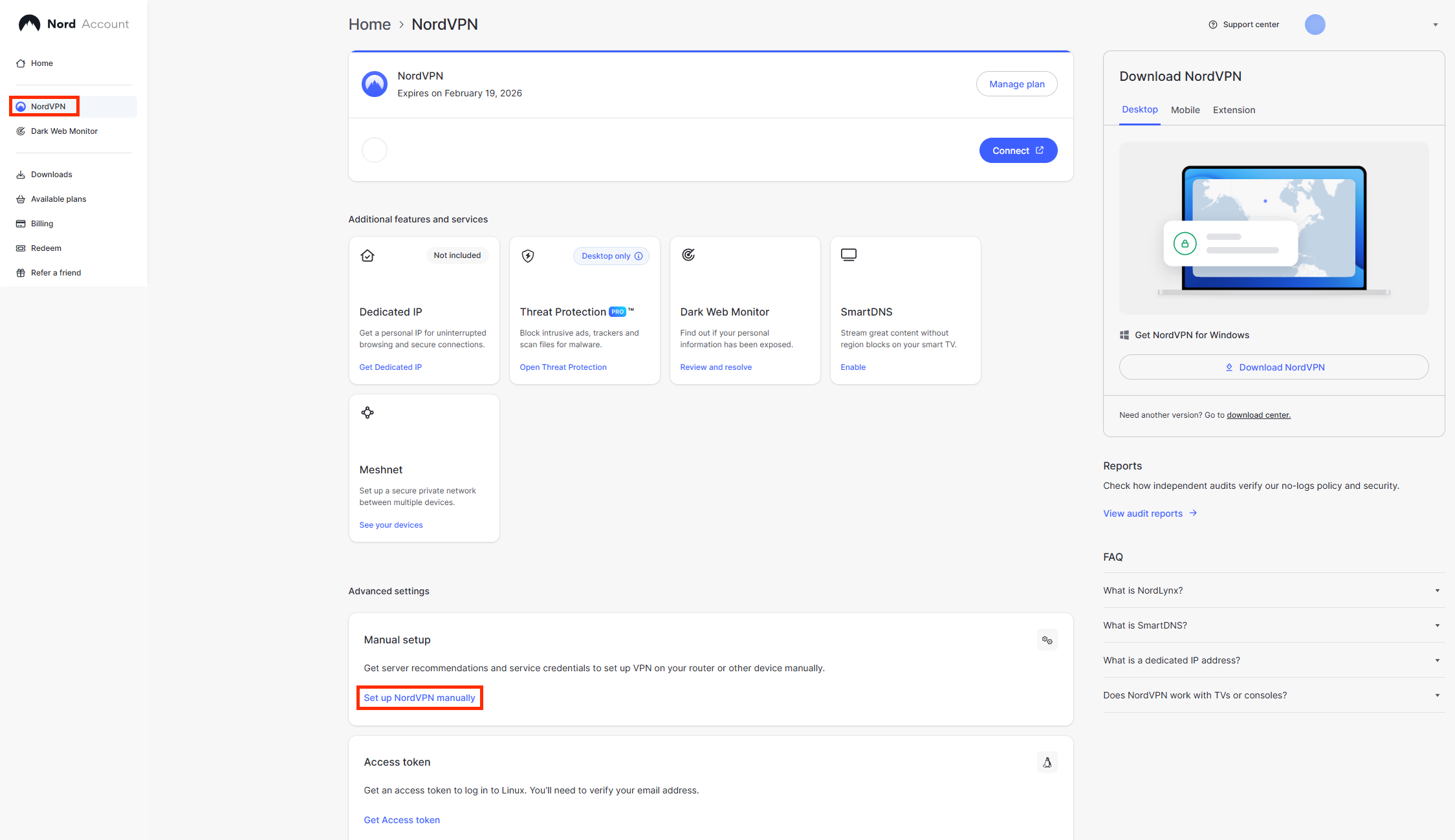
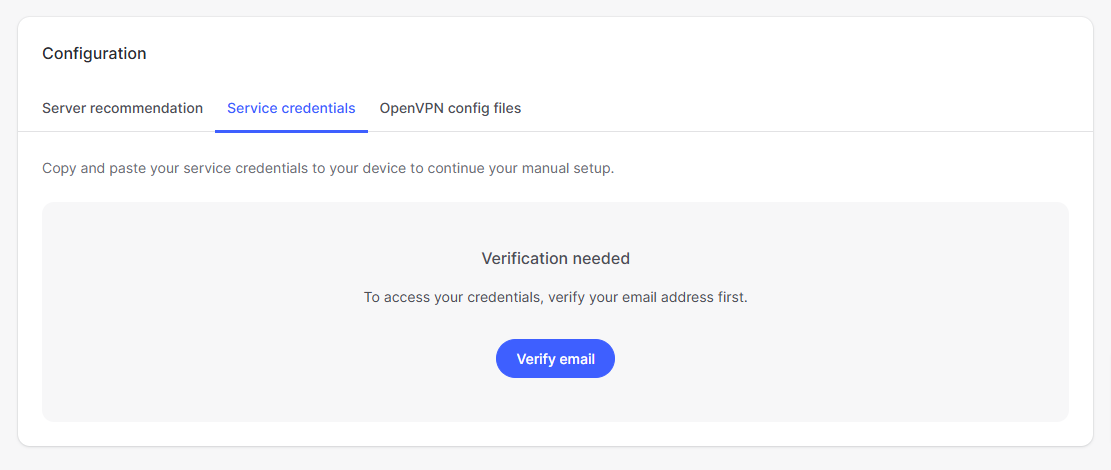
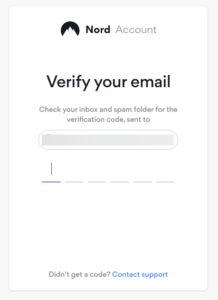
3. Go to the Service Credentials section and click Verify email. Enter in the verification code that was sent to your email.
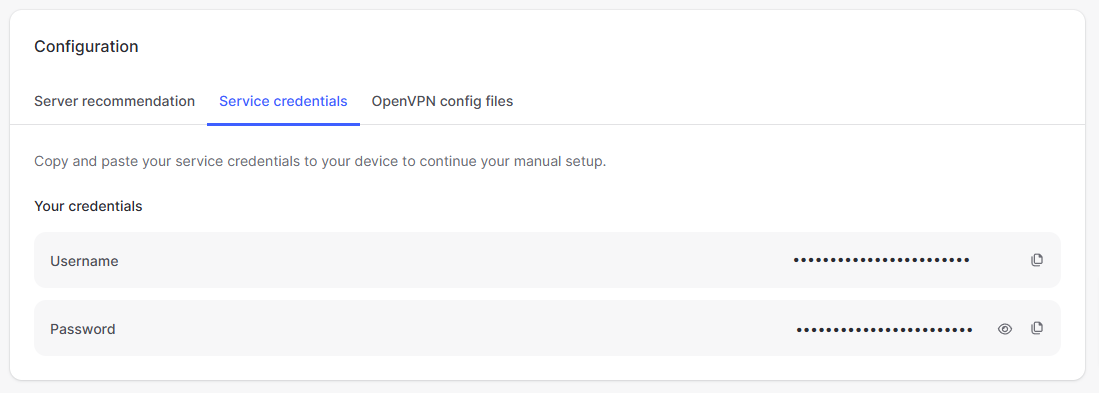
4. Copy and paste your NordVPN manual username and password to a secure location. This is the username and password you will enter into the router settings to connect to NordVPN OpenVPN.
How do I connect a Wireless Extender to my FlashRouter network?
The settings of your FlashRouter do not need to change to connect an extender to the FlashRouter’s network. Simply access the settings of the extender device and enter the FlashRouter’s wireless network name and the correct wireless password.
The extender will then connect via wireless to the FlashRouter and add wireless range to your network.
To use a DD-WRT router as an extender follow our Advanced Wireless Setup Guides.
It is also easy to setup a Mesh system like Orbi or Velop and send your entire Mesh network through the FlashRouter VPN Network, for a VPN connected Mesh Network.
Simply connect from an open LAN port on your FlashRouter to the WAN port on your Mesh base station and then use your Mesh smart apps to complete the setup from there.
ProtonVPN WireGuard Setup
Preparing for ProtonVPN WireGuard Setup
Verify your ProtonVPN login information
If you are not already a ProtonVPN user Sign Up Now.
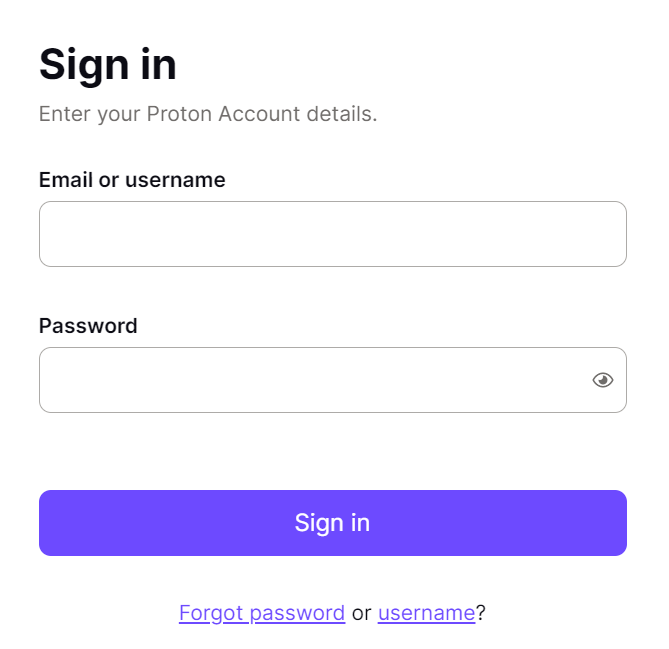
Log in to your account on the ProtonVPN website.
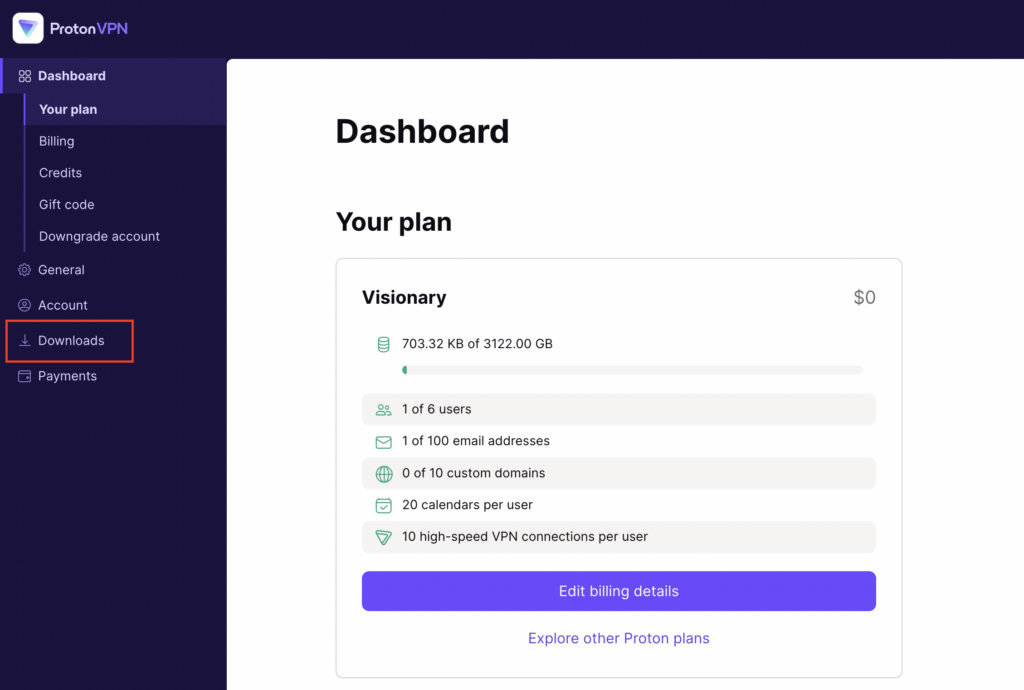
1. On the left hand side select Downloads.
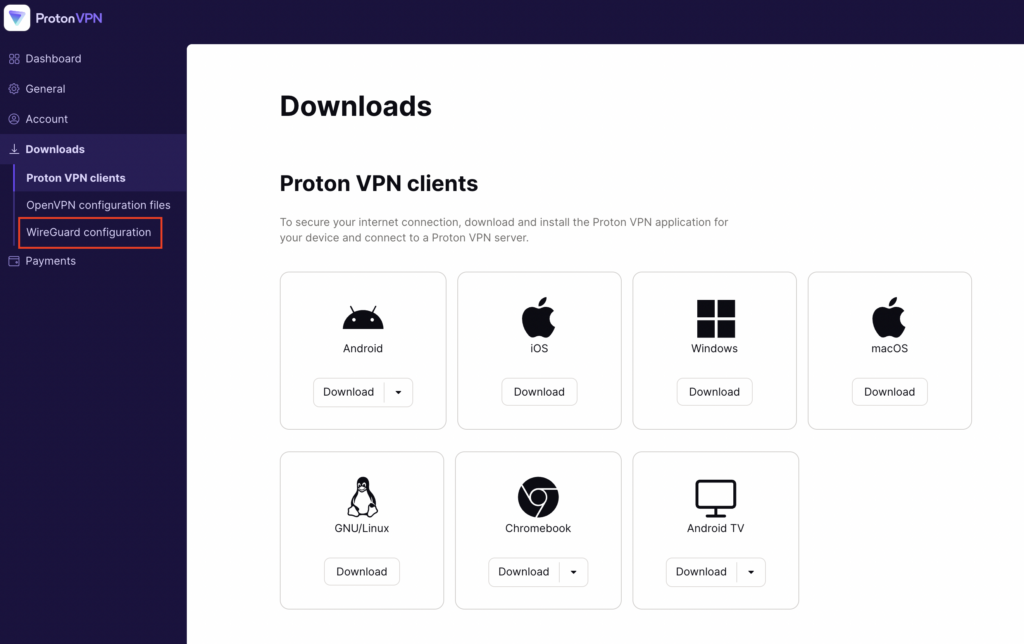
2. Then select WireGuard Configuration.
3. Enter the Device Name to assign the FlashRouter to identify it among your ProtonVPN connections.
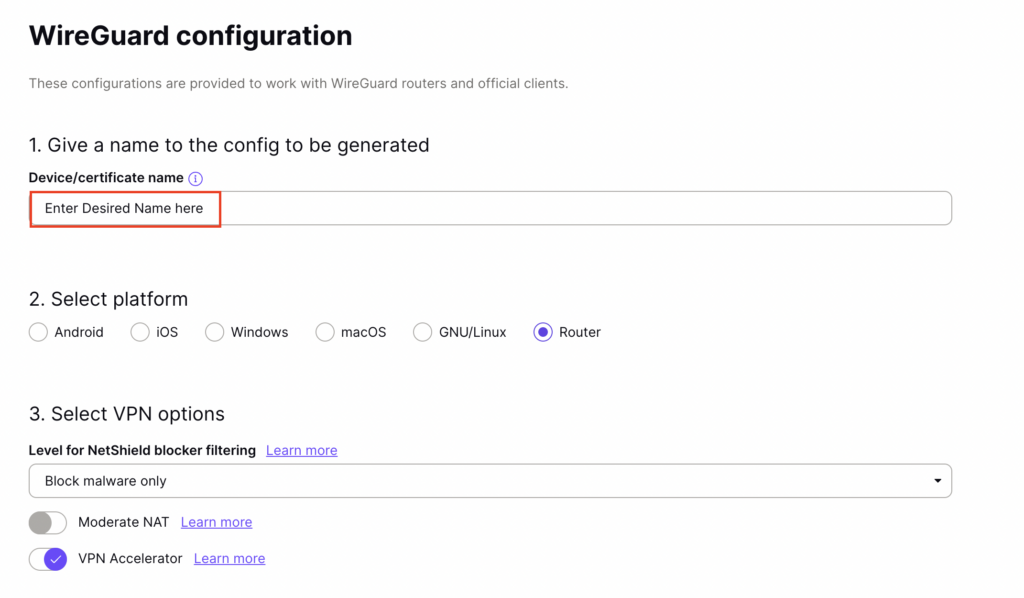
4. Set the Device platform as Router.
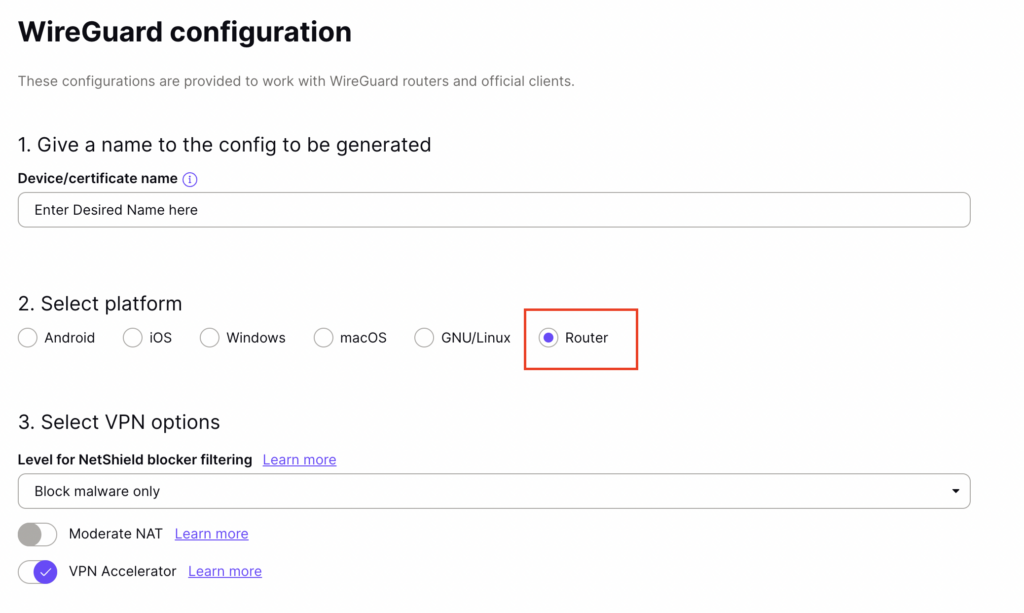
5. Select the VPN Options that you would like to connect with.
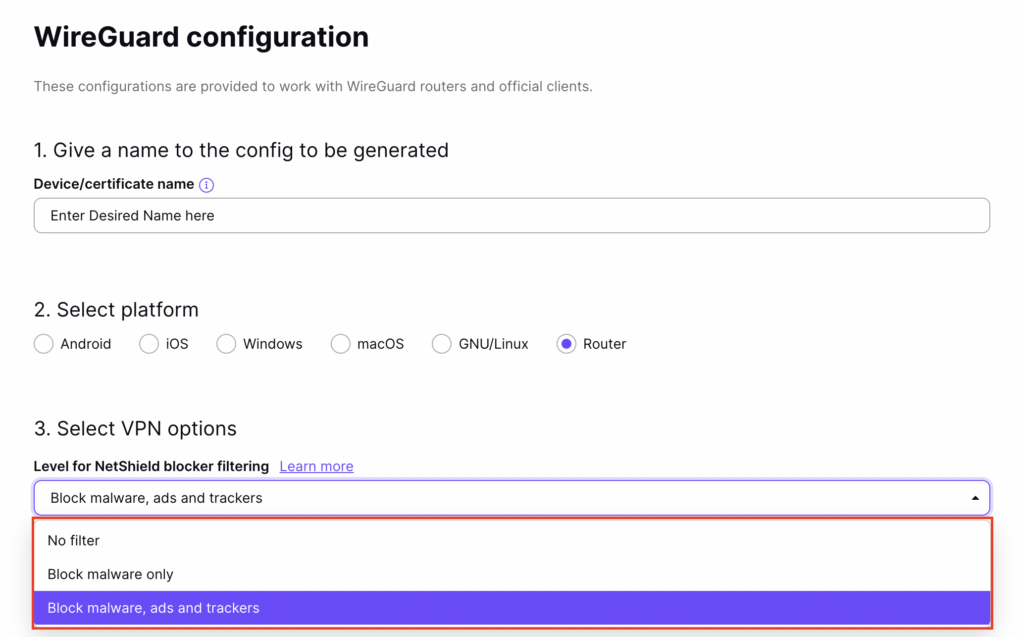
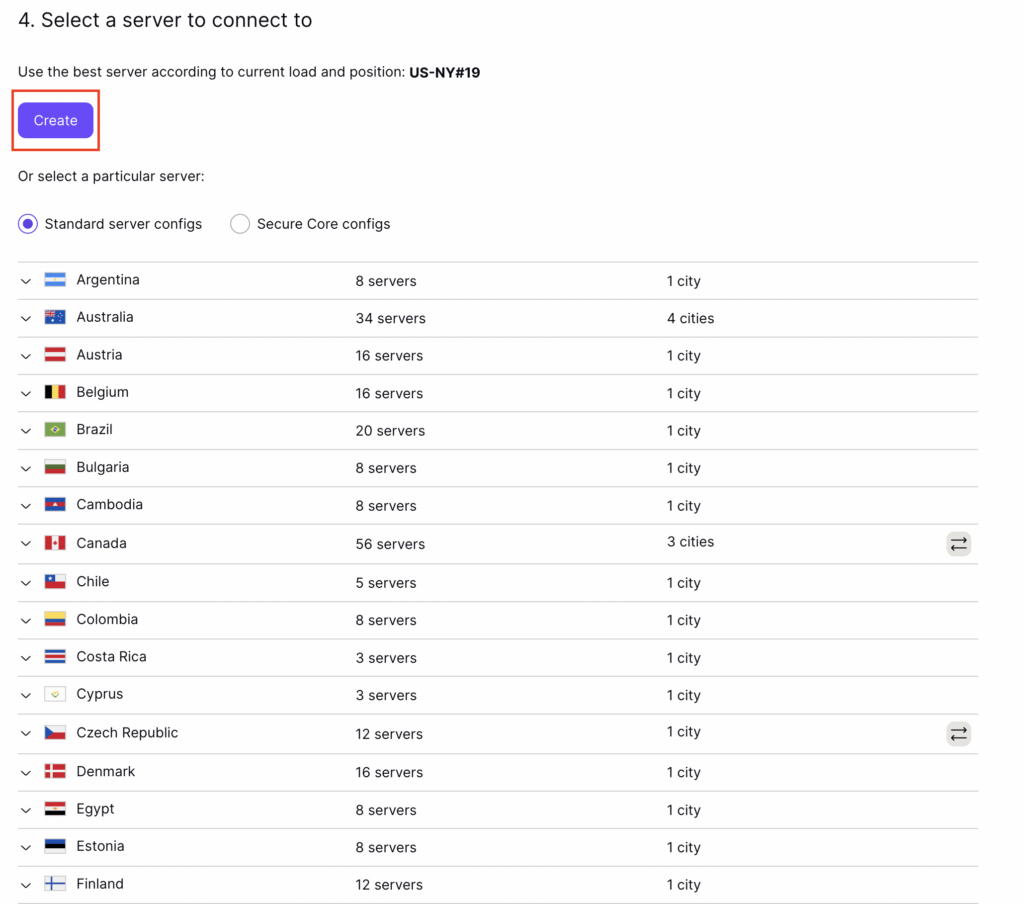
6. ProtonVPN will recommend the ideal server for you to connect to based on your location. Click Create or scroll down and select the server you wish to connect to and click Create next to the server number.
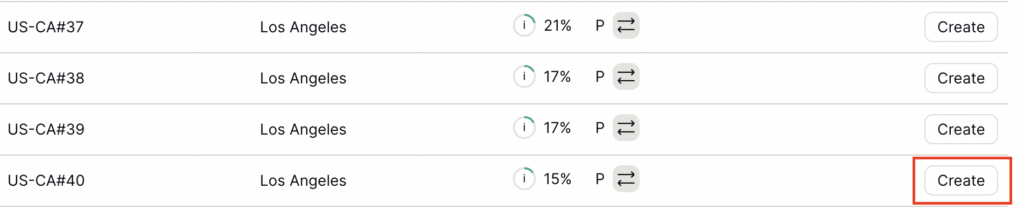
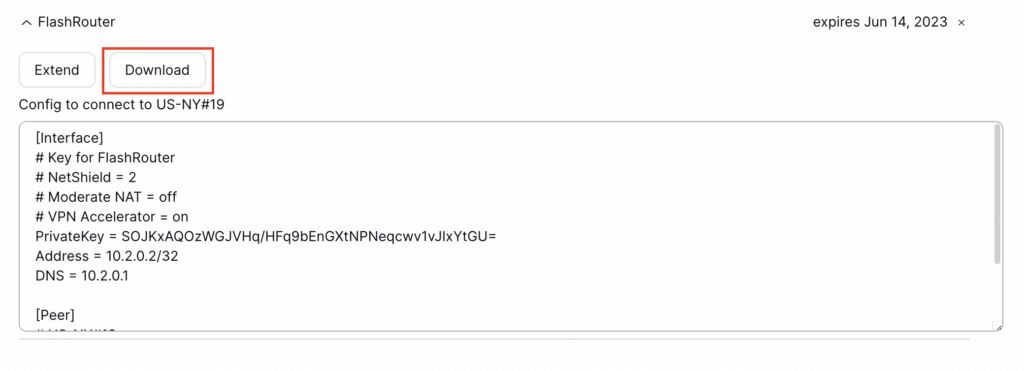
7. Click Download to download the .conf file of the server you selected.
DD-WRT Router Setup for ProtonVPN WireGuard
Navigate to Setup > Tunnels
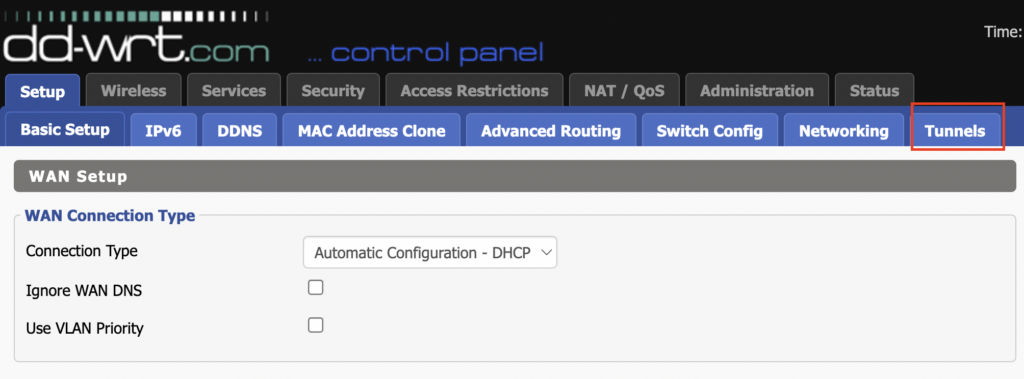
Enter ProtonVPN WireGuard settings
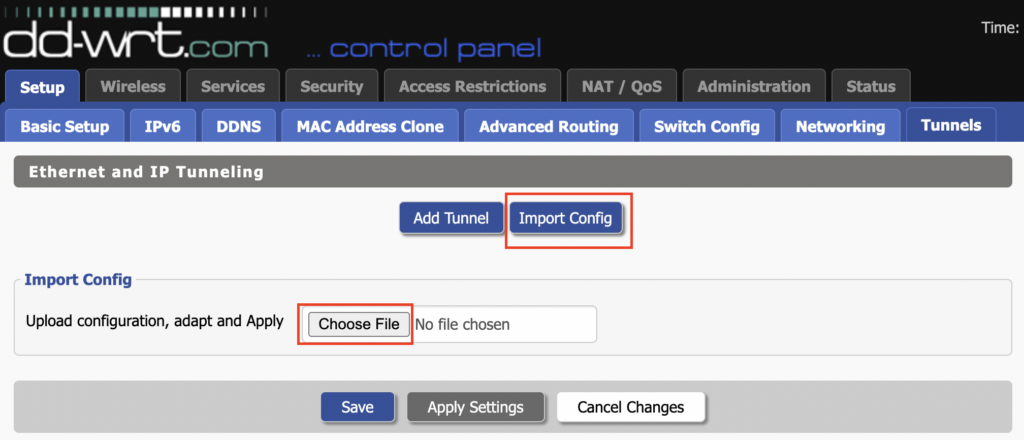
1. Click Import Config and then select Choose file. Select the .conf file that was downloaded earlier.
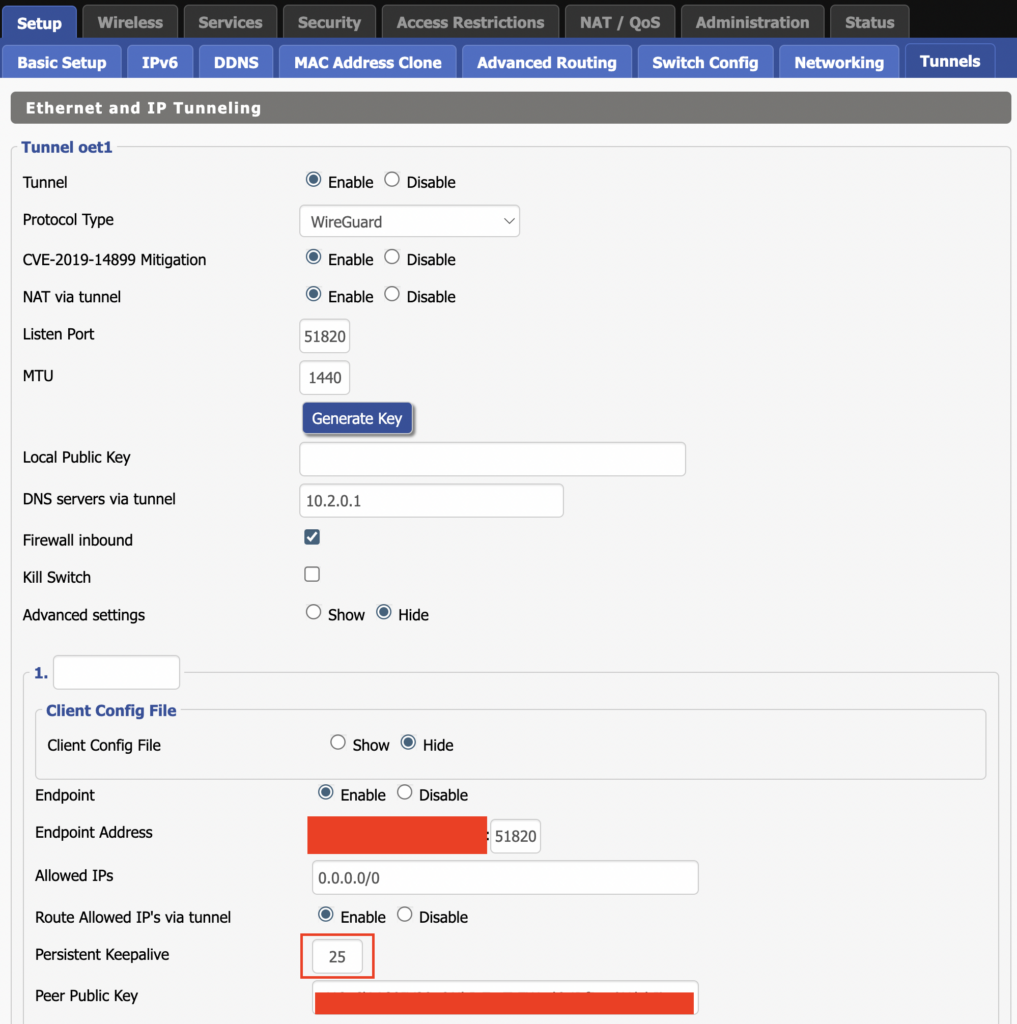
2. All settings will be loaded into the DD-WRT firmware the only field that needs to be adjusted is setting Persistent Keepalive to 25.
3. Click Apply Settings at the bottom of the page.
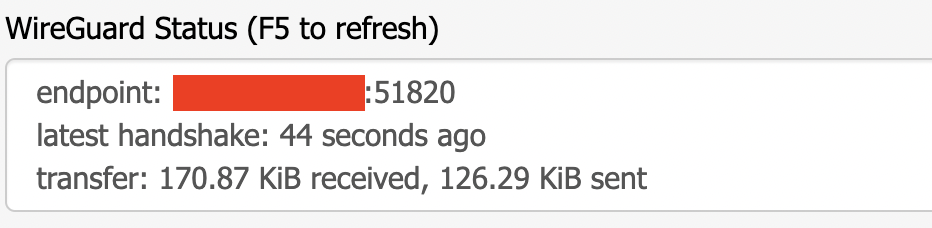
4. After 30 seconds or so refresh the page until you see the WireGuard Status on the page is populated as seen below.
Verify a successful ProtonVPN connection
Navigate to Setup > Tunnels
- You should Endpoint, Latest handshake, and Transfer in the WireGuard status area.
- Visit whatismyipaddress.com to verify your status as using ProtonVPN.
Back up your settings
Navigate to Administration > Backup
- Click the Backup button.
- A file named nvrambak.bin will be saved to your computer.
- You can load nvrambak.bin to restore your settings in the event of a reset.
Mullvad WireGuard Setup
Preparing for Mullvad WireGuard Setup
Verify your Mullvad login information
If you are not already a Mullvad user Sign Up Now.
Log in to your account on the Mullvad website.
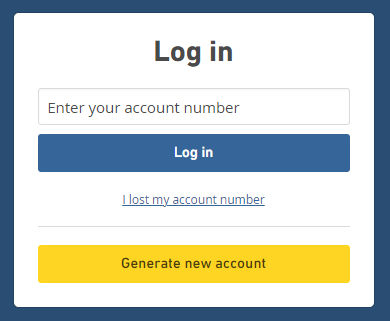
Select Manage ports and WireGuard Keys displayed on the account page.

DD-WRT Router Setup for Mullvad WireGuard
Navigate to Setup > Tunnels
Enter Mullvad WireGuard settings
1. Click Add Tunnel.
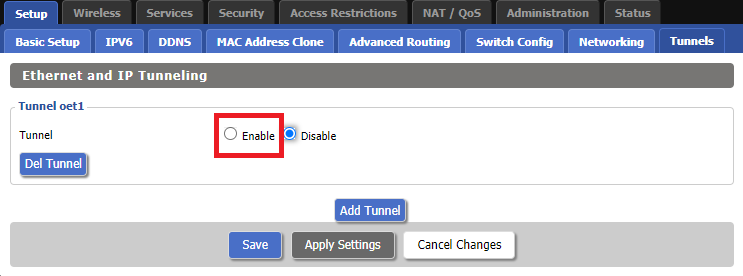
2. Set Tunnel to Enable.
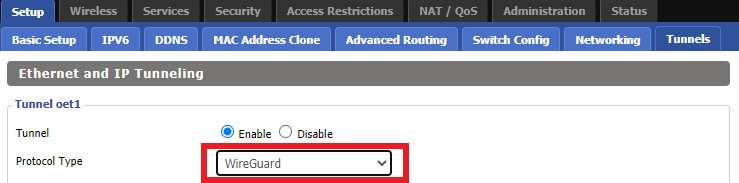
3. Select Wireguard from the dropdown.
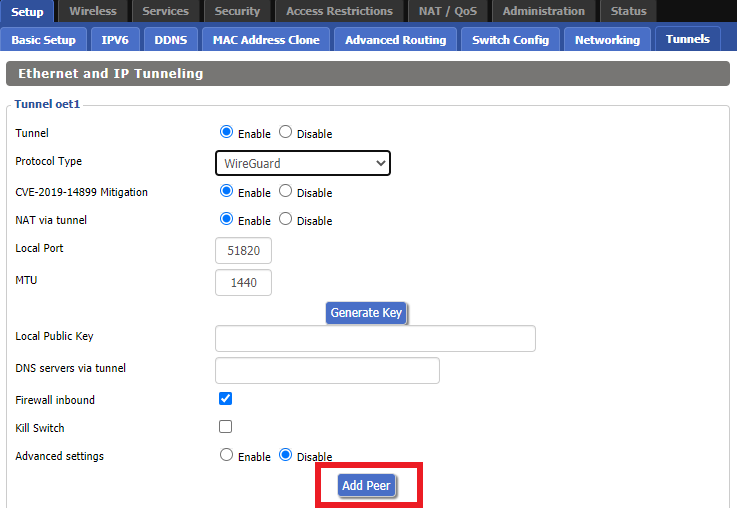
4. Click Add Peer.
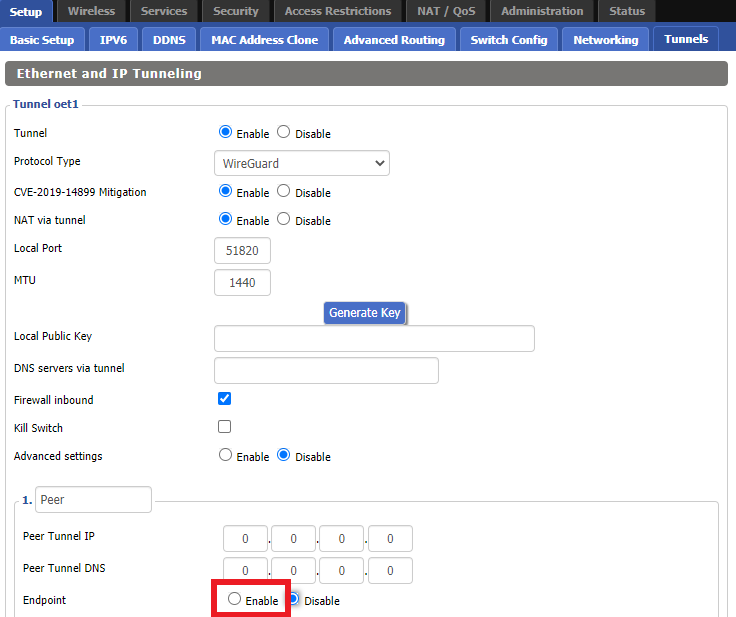
5. Set Endpoint to Enable.
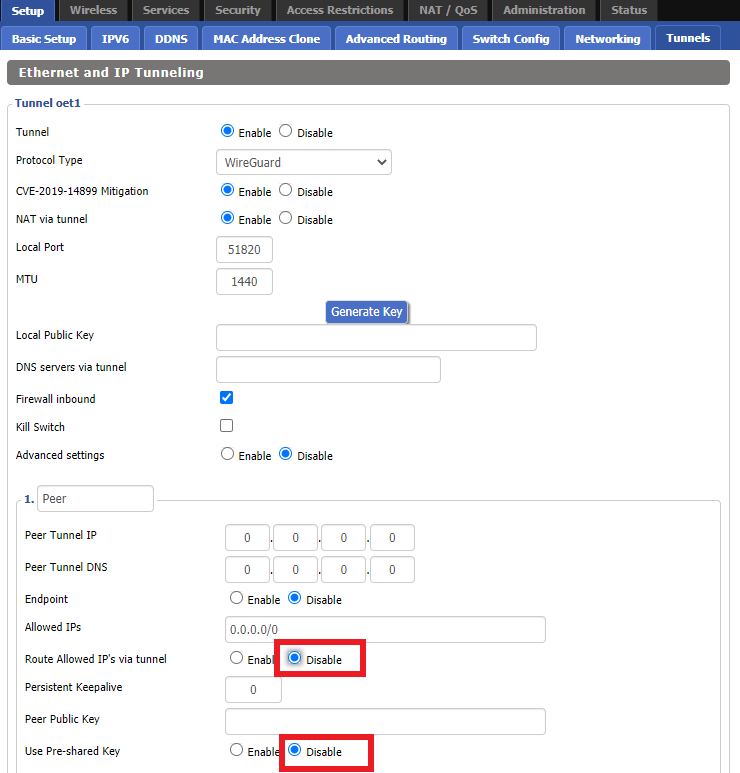
6. Set Router Allowed IP’s via tunnel and Use Pre-shared Key to Disable.
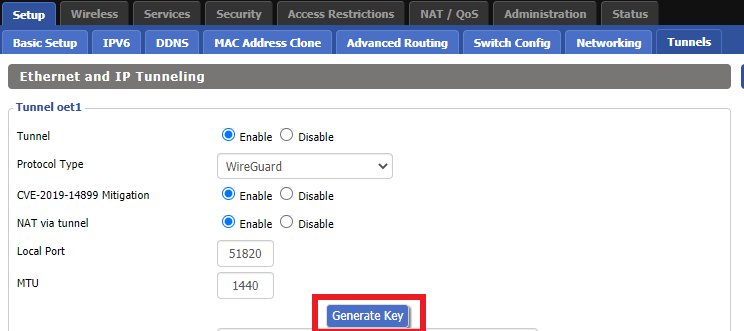
7. Click Generate Key.
8. Set Advanced Settings to Enable.
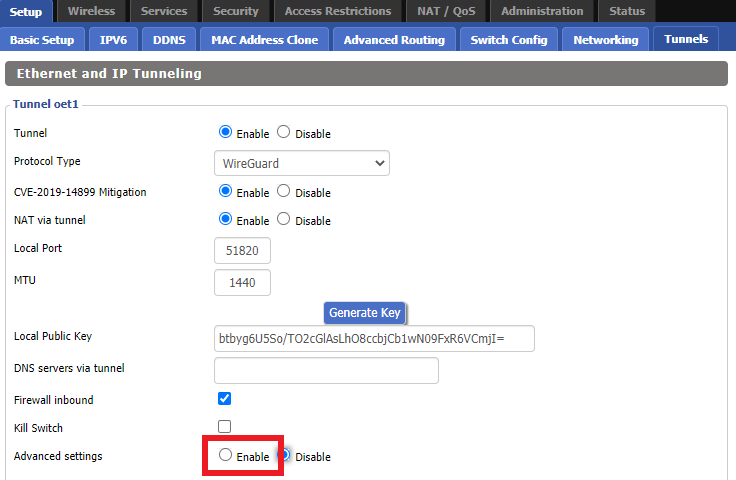
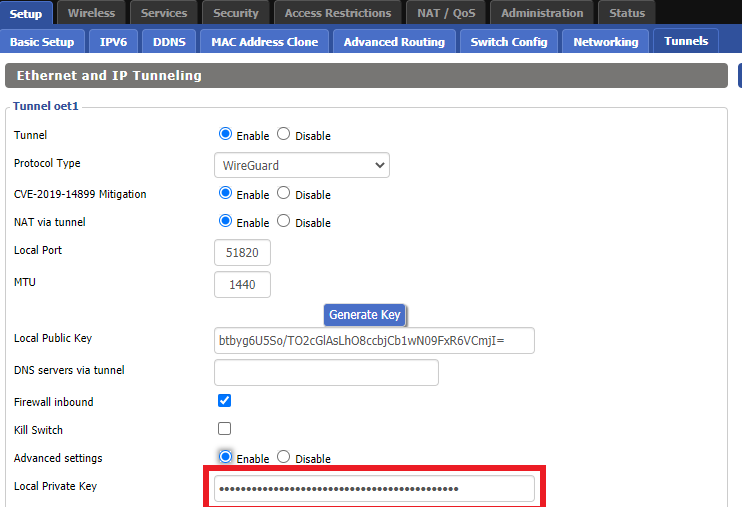
9. Copy the Local Private Key.
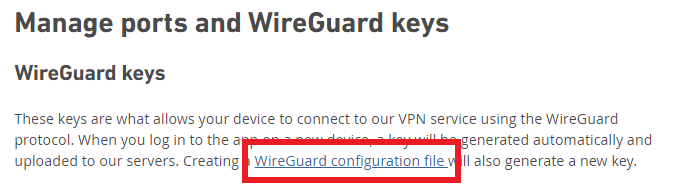
10. In a new tab (leave the DD-WRT settings opened), go to your Mullvad Account and click Manage Ports and WireGuard Keys.

11. Click WireGuard configuration file.
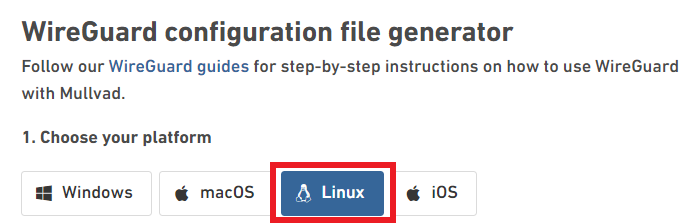
12. Select Linux as your Platform.
13. Click Manage Keys.
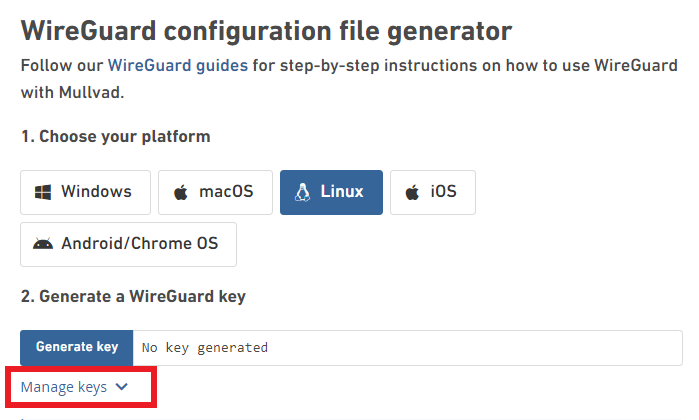
14. Paste the copied Local Private key to the Manage WireGuard Keys field and click Import Keys.
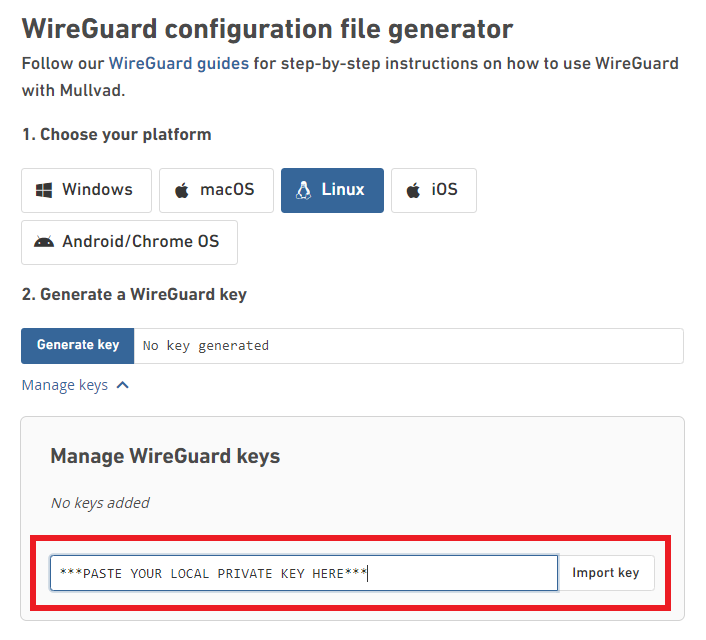
15. Select your Country, City, and Server number that you want to connect to.
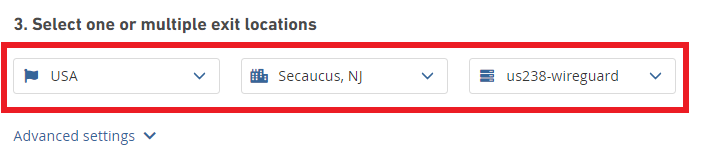
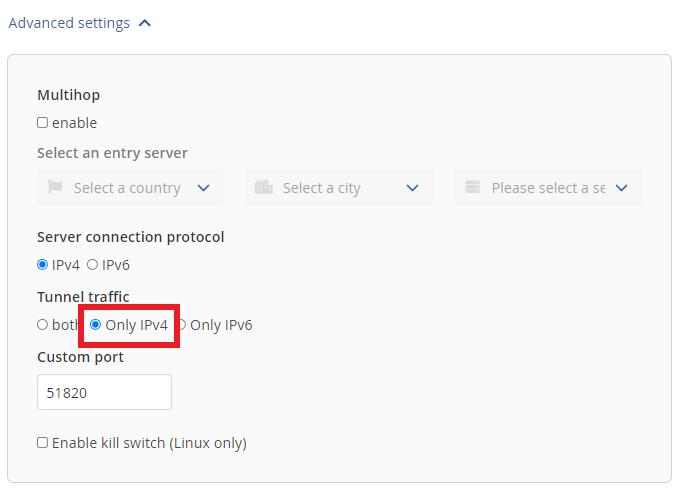
16. Click Advanced Settings.
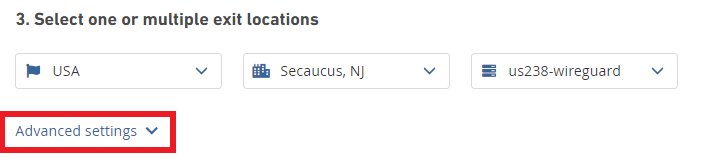
17. Set the Tunnel Traffic to Only IPv4.
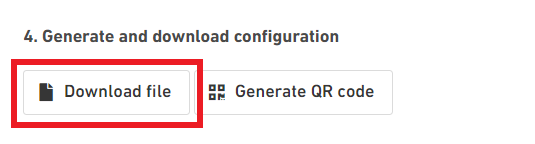
18. Click Download File.
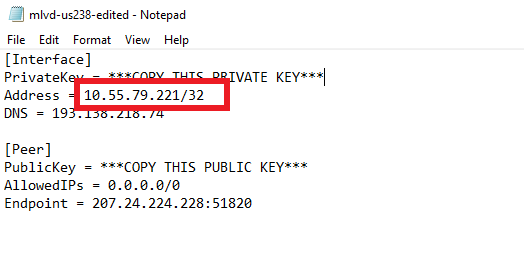
19. Open the config file that was downloaded to your computer with NotePad or Notepad++ for Windows or TextEdit for Mac.
20. In the downloaded config file under [Interface] enter the Address into the IP Addresses/Netmask(CIDR) field in the DD-WRT settings.
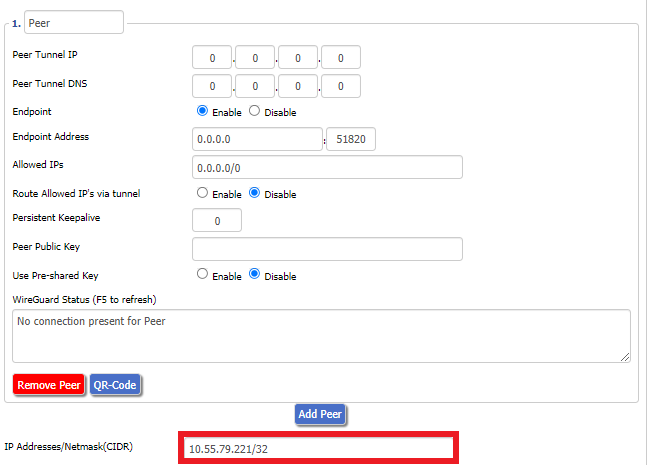
Certain DD-WRT builds will show two separate fields here: IP Address and Subnet Mask. If that is the case set the IP Address field to the Address without the /32 added and set the Subnet Mask to 255.255.255.255
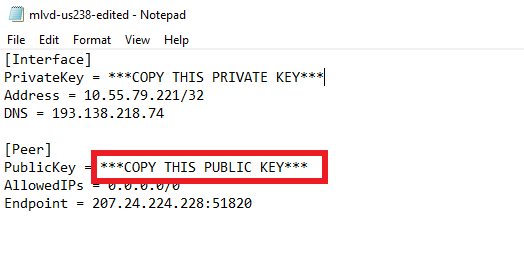
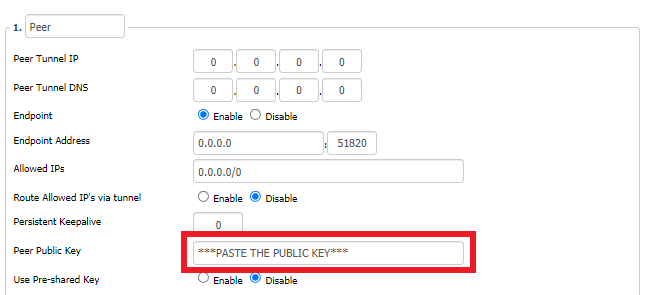
21. In the config file under [Peer] copy the PublicKey and paste it into the Peer Public Key field in the DD-WRT Settings.
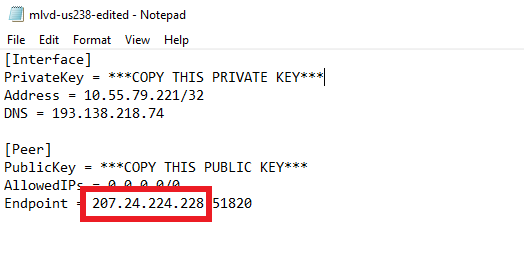
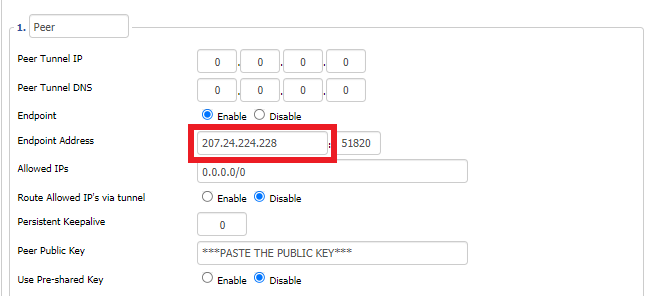
22. In the config file under [Peer] copy the Endpoint and paste it into the Endpoint Address field.
23. At the bottom of the page click Save and then click Apply Settings.
Enter Mullvad WireGuard Commands
Navigate to Administration > Commands
1. Copy and paste the text below and click Save Startup.
sleep 30
echo "Update route table on startup..."
WGSERVER=$(/usr/sbin/nvram get oet1_rem0)
WANGW=$(/usr/sbin/nvram get wan_gateway)
WANIF=$(/usr/sbin/nvram get wan_iface)
route add -host $WGSERVER gw $WANGW dev $WANIF
route del default
route add default dev oet1
ip route flush cache
mkdir -p /tmp/etc/config
ln -s /tmp/custom.sh /tmp/etc/config/wg-route-fix.wanup
echo "... Done route table update."
2. Copy and paste the text below and click Save Custom.
#!/bin/sh
sleep 5
echo "Update route table on wanup ..."
WGSERVER=$(/usr/sbin/nvram get oet1_rem0)
WANGW=$(/usr/sbin/nvram get wan_gateway)
WANIF=$(/usr/sbin/nvram get wan_iface)
route add -host $WGSERVER gw $WANGW dev $WANIF
route del default
route add default dev oet1
ip route flush cache
echo "... Done route table update."
3. Copy and paste the text below and click Save Firewall.
WANIF=$(/usr/sbin/nvram get wan_iface)
iptables -t nat -I POSTROUTING -o oet1 -j MASQUERADE
iptables -I FORWARD -i br0 -o $WANIF -m state –state NEW -j REJECT –reject-with icmp-host-prohibited
iptables -I FORWARD -i br0 -p tcp -o $WANIF -m state –state NEW -j REJECT –reject-with tcp-reset
Set Mullvad DNS servers
Navigate to Setup > Basic Setup
Set Static DNS 1 to 10.64.0.1
Set Static DNS 2 to 193.138.218.74
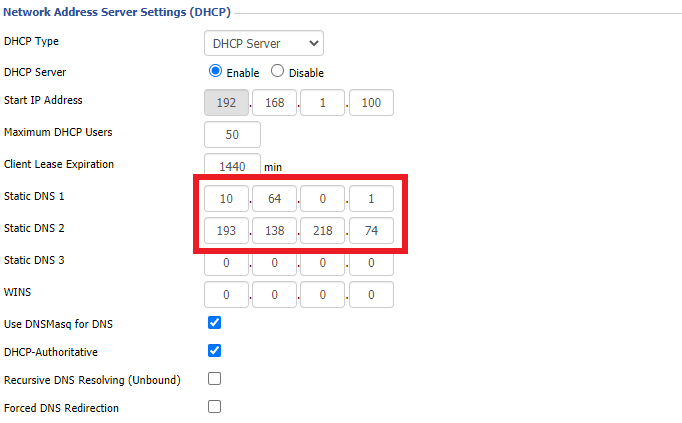
Click Apply Settings.
Reboot the FlashRouter
Navigate to Administration > Management
Scroll to the bottom of the page and click the red Reboot Router button. Wait for the FlashRouter to reboot and then reconnect.
Verify a successful Mullvad connection
Navigate to Setup > Tunnels
- You should see Endpoint, Latest handshake, and Transfer in the WireGuard status area.
- Visit Mullvad’s IP Check to verify your status as using Mullvad.
Back up your settings
Navigate to Administration > Backup
- Click the Backup button.
- A file named nvrambak.bin will be saved to your computer.
- You can load nvrambak.bin to restore your settings in the event of a reset.
How do I set a Static IP for my device in DD-WRT?
It can be very useful to setup static local IP addresses for devices on your FlashRouter network. By assigning specific IP’s to specific devices you can better control and manage how your network and the internet interacts with each device.
Once you setup a static IP you can set access restrictions, monitor and control bandwidth, as well as bypass a router VPN connection or setup a device specific Kill Switch. Without a static IP assignment you may lose device specific settings when the DHCP lease to the router expires.
Navigate to Services > Services
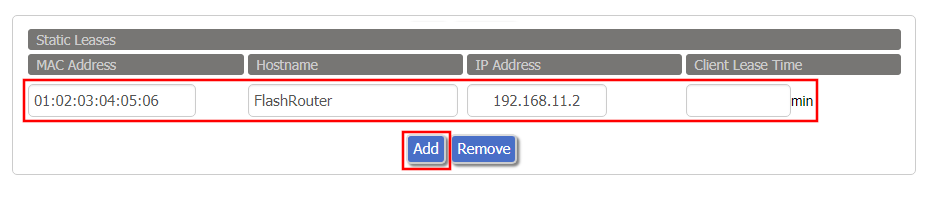
- Under Static Leases click Add once.
- Fill in the newly appeared fields.
- MAC Address: Enter the device’s MAC address which can be found on the device itself or on the Status > LAN page.
- Hostame: Enter a name for the device. Make sure that there are no spaces.
- IP Address: Enter the desired static IP Address of the device. It should be on the same subnet as the FlashRouter (192.168.11.x)
- Client Lease Time: Leave this field blank.
- Click Apply Settings
- Repeat the steps above for each individual static IP address you would like to setup. If you click Add before clicking Apply Settings you will lose the configuration.
If a device has wireless and ethernet capabilities the MAC Addresses will be different for a wireless connection and an ethernet connection. Make sure to set a static IP for both MAC Addresses in this case.
IVPN WireGuard Setup
Preparing for IVPN WireGuard Setup
Verify your IVPN login information
If you are not already a IVPN user Sign Up Now.
Log in to your account on the IVPN website.
DD-WRT Router Setup for IVPN WireGuard
Navigate to Setup > Tunnels
Enter IVPN WireGuard settings
1. Click Add Tunnel.
2. Set Tunnel to Enable.
3. Select Wireguard from the dropdown.
3. Set MTU to 1412.
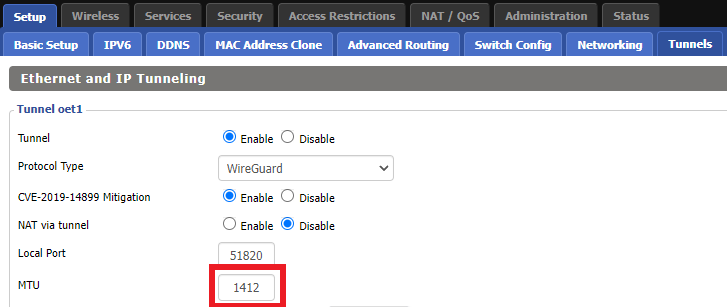
4. Click Generate Key.
9. Copy the Local Public Key.
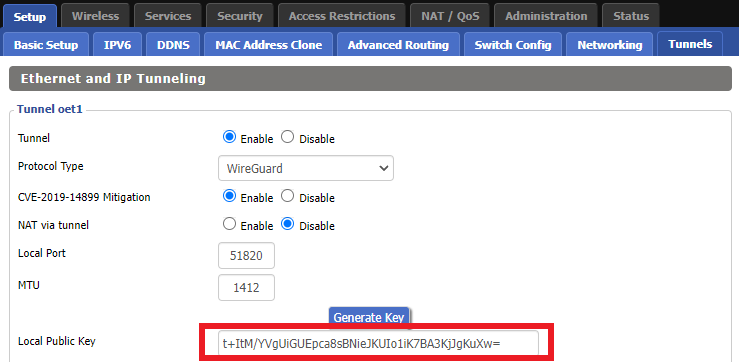
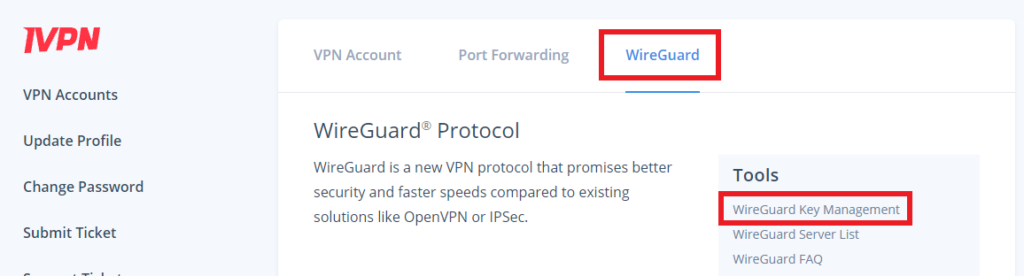
10. In a new tab (leave the DD-WRT settings opened), go to your IVPN Account and click WireGuard and then click WireGuard Key Management.
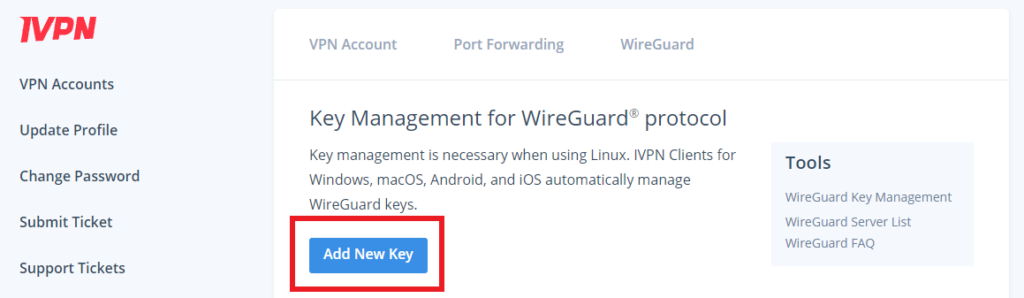
11. Click Add New Key.
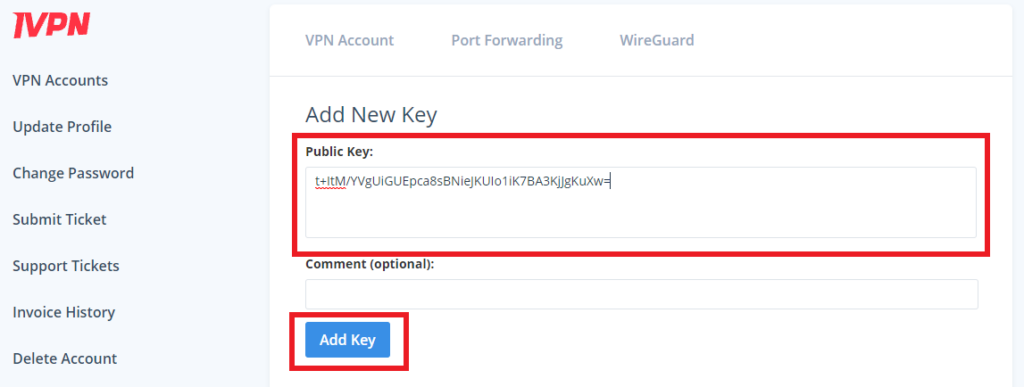
12. Paste the copied Local Public key to the Public Key field and click Add Key.
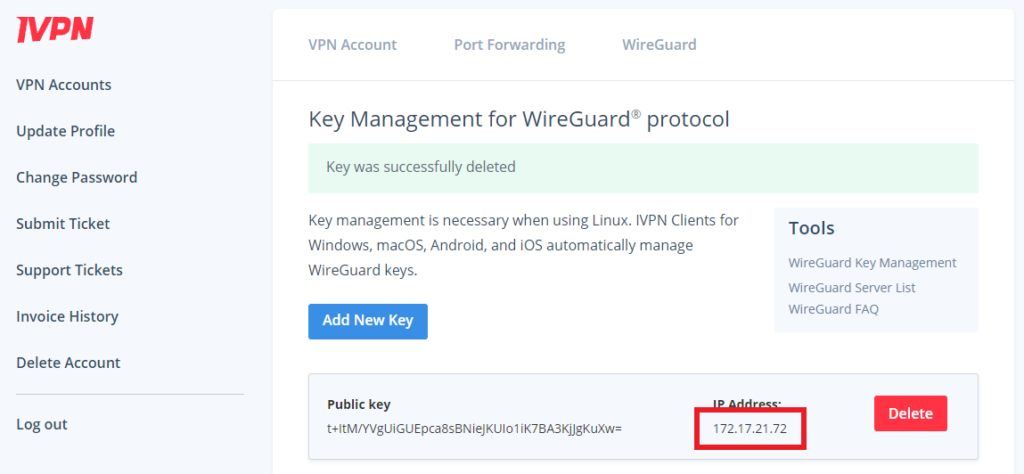
13.Copy the IP Address assigned to your public key and add it to the IP Addresses/Netmask(CIDR) field followed by a /32 subnet mask.
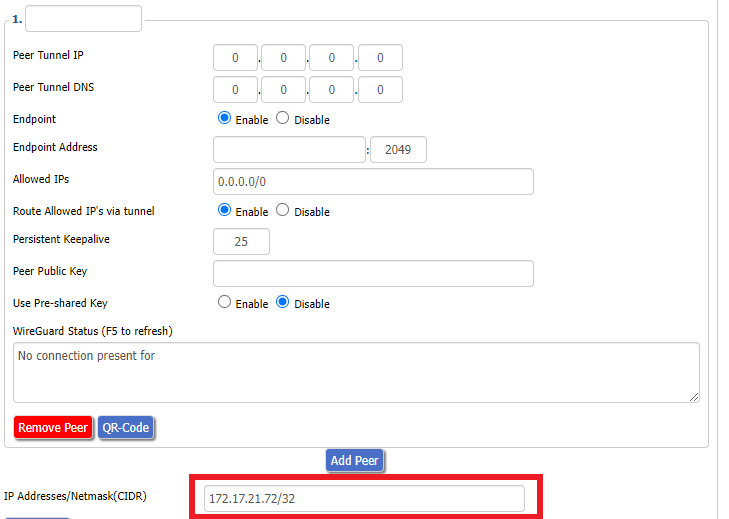
Certain DD-WRT builds will show two separate fields here: IP Address and Subnet Mask. If that is the case set the IP Address field to the Address without the /32 added and set the Subnet Mask to 255.255.255.255
14. Click Add Peer.
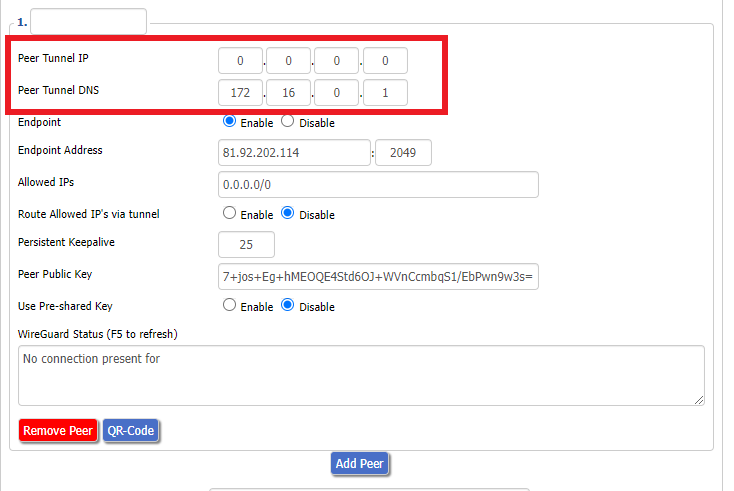
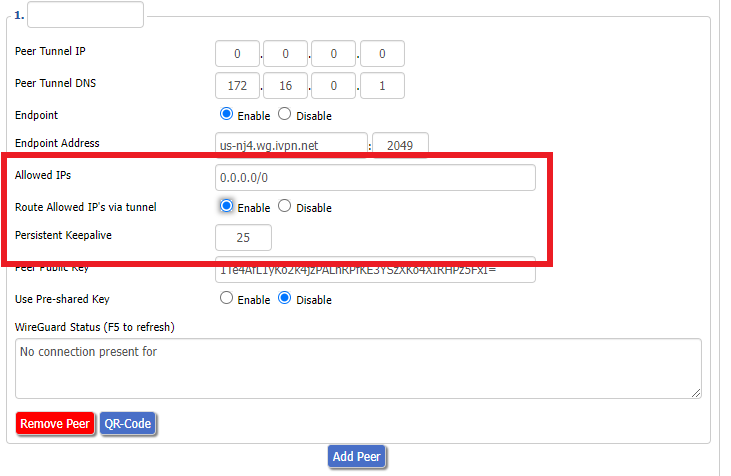
15. Set the Peer Tunnel IP to 0.0.0.0. Set Peer Tunnel DNS to 172.16.0.1
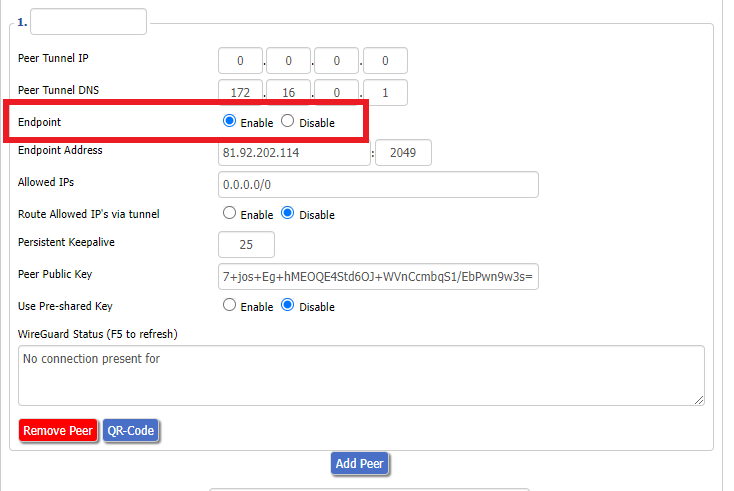
16. Set Endpoint to Enable.
17. Go to the IVPN Server Status page and copy the server name for the WireGuard server location you want to connect to.
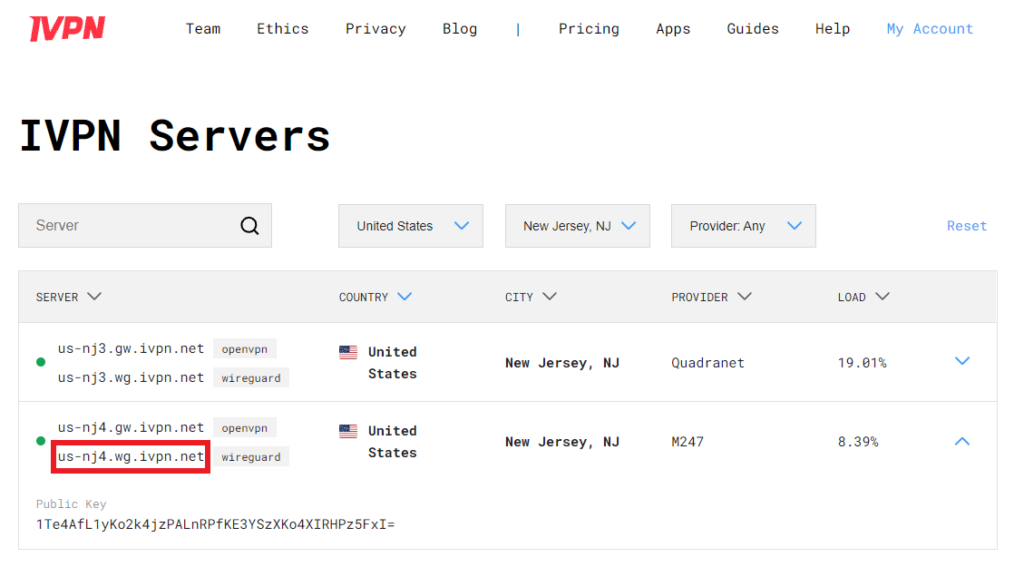
Be sure to copy the WireGuard server address and not the OpenVPN server address.
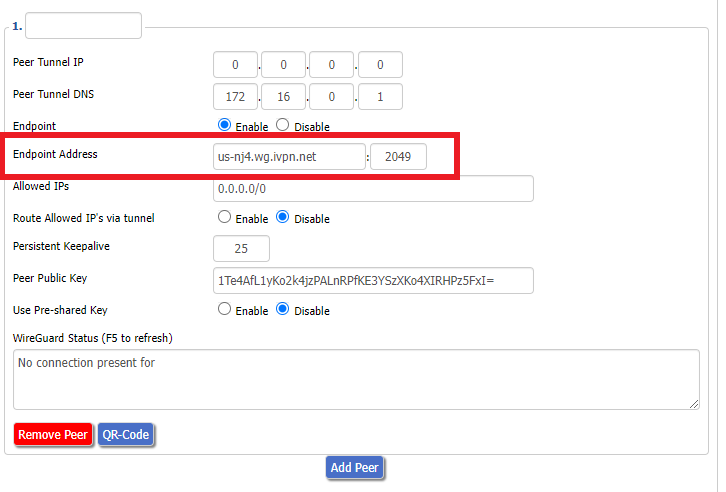
18. Paste the server name you copied into the Endpoint Address field and set the Port to 2049.
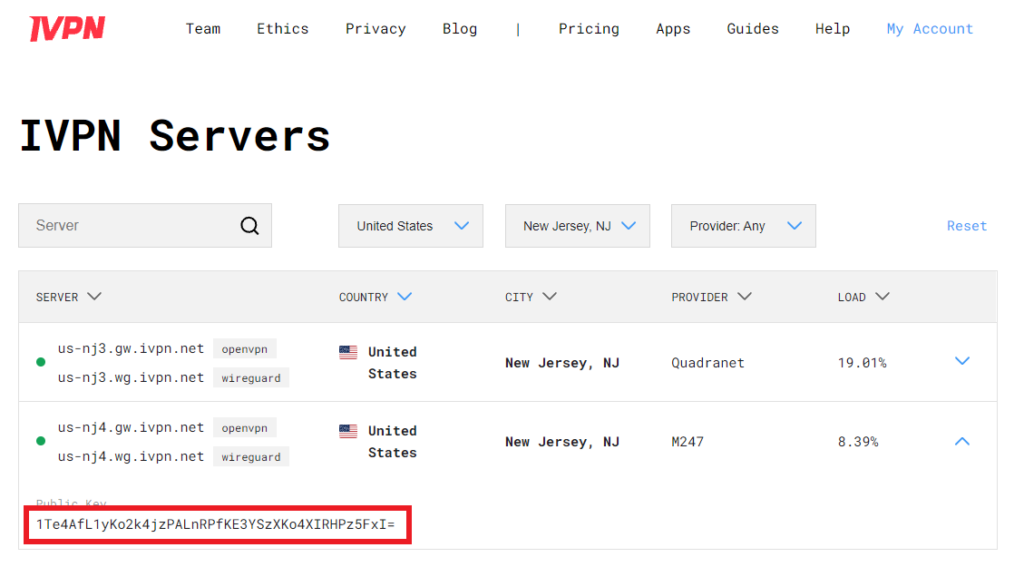
19. On the IVPN Server Status page copy the Public Key of the server location you entered. Paste the Public Key into the Peer Public Key field.
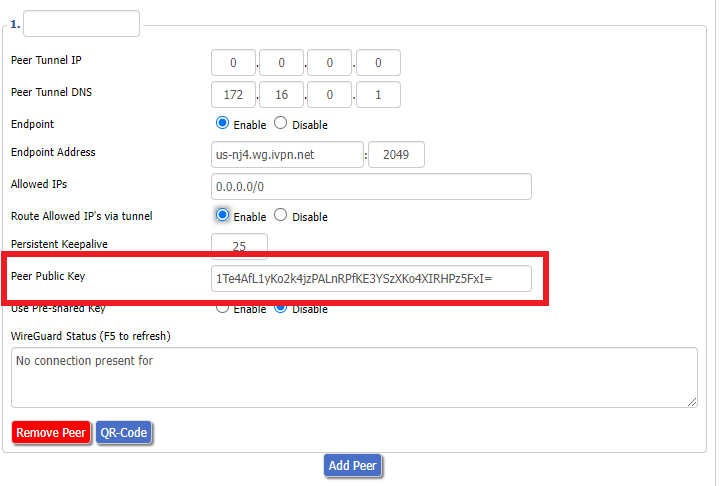
20. Leave Allowed IPs as 0.0.0.0/0. Set Router Allowed IP’s via tunnel to Enable. Set Persistent Keep Alive to 25.
21. At the bottom of the page click Save and then click Apply Settings.
Set IVPN DNS servers
Navigate to Setup > Basic Setup
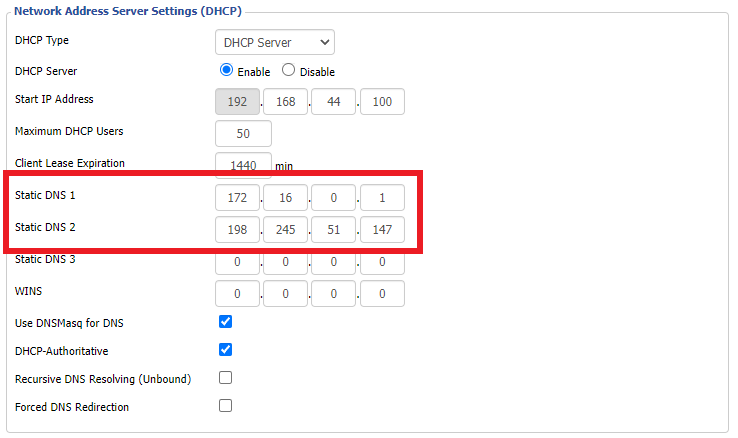
Set Static DNS 1 to 172.16.0.1
Set Static DNS 2 to 198.245.51.147
Click Apply Settings.
Reboot the FlashRouter
Navigate to Administration > Management
Scroll to the bottom of the page and click the red Reboot Router button. Wait for the FlashRouter to reboot and then reconnect.
Verify a successful IVPN connection
Navigate to Setup > Tunnels
- You should Endpoint, Latest handshake, and Transfer in the WireGuard status area.
- Visit IVPN’s website to verify your status as using IVPN.
Back up your settings
Navigate to Administration > Backup
- Click the Backup button.
- A file named nvrambak.bin will be saved to your computer.
- You can load nvrambak.bin to restore your settings in the event of a reset.
Wireless Repeater Setup
If you need to extend your wireless and wired connection capabilities, you can setup a FlashRouter as a Wireless Repeater. In Wireless Repeater mode the FlashRouter connects to your main router via WiFi and then creates a completely separate network segment for you. This new “repeater” network then transmits your internet signal via FlashRouter LAN ports for wired internet access while also creating a new Wireless Extender network that will expand your wireless network range throughout your home or office just like a mesh network.
Preparing for Wireless Repeater Setup
Verify your wireless information
To connect your FlashRouter wirelessly to your existing wireless network you will need the Wireless Network Name (SSID) and Wireless Password of the existing wireless network that you will repeat. Verify and note this information.
We recommend using a 2.4GHz network to repeat as this network will have more range. Be sure to click Add under the 2.4GHz settings and not the 5GHz settings.
DD-WRT Router Setup for Wireless Repeater
Disable Firewall
Navigate to Security > Firewall
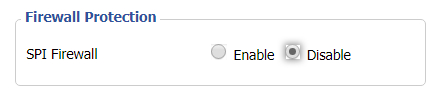
- Set SPI Firewall to Disable.
- Click Save.
Enter Wireless settings
Navigate to Wireless > Basic Settings
Select Add in the Virtual Interface area.
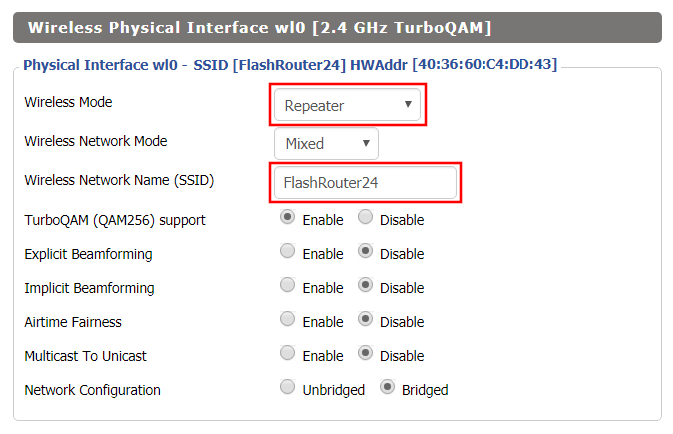
In the Wireless Physical Interface settings for the 2.4GHz network set the Wireless Mode to Repeater.
FlashRouters with a Broadcom chipset will have Repeater as an option in the dropdown but FlashRouters with an Atheroes chipset will not. Select Client or Client (Routed) if Repeater is not listed for your FlashRouter.
Change the Wireless Network Name (SSID) to match exactly with the Wireless Network Name of the network that you will repeat.
In the Virtual Interfaces settings change the Wireless Network Name (SSID) to FlashRouter24 or any other unique SSID.
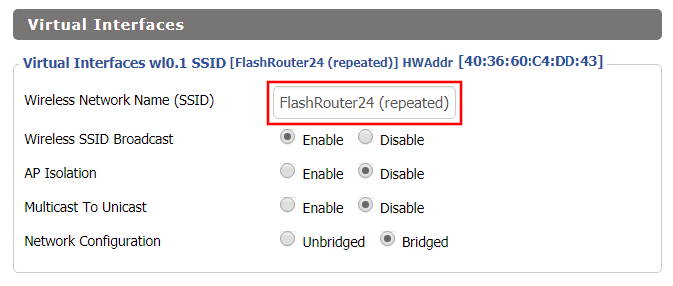
CLICK SAVE
Enter Wireless Security settings
Navigate to Wireless > Wireless Security
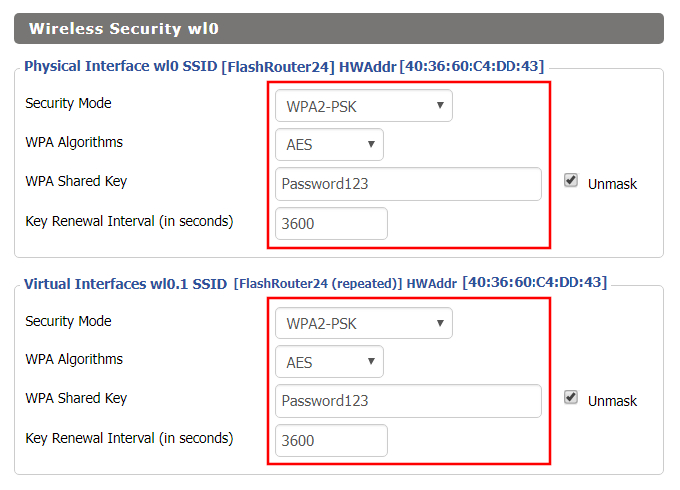
- Duplicate the wireless security settings that are set for the other bands for the newly created virtual interface.
- Change the WPA Shared Key to match exactly with the Wireless Password of the network that you will repeat.
- Click Apply Settings.
Verify the Internet Connection
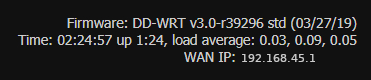
In the top right hand corner of the DD-WRT you should see the WAN IP change from 0.0.0.0 to an actual IP Address. Once this changes navigate to any website to test your Internet connection.
Back up your settings
Navigate to the Administration > Backup page.
- Click the Backup button.
- A file named nvrambak.bin will be saved to your computer.
- You can load nvrambak.bin to restore your settings in the event of a reset.
Windscribe WireGuard Setup
Preparing for Windscribe WireGuard Setup
Verify your Windscribe login information
If you are not already a Windscribe user Sign Up Now.
Log in to your account on the Windscribe website.
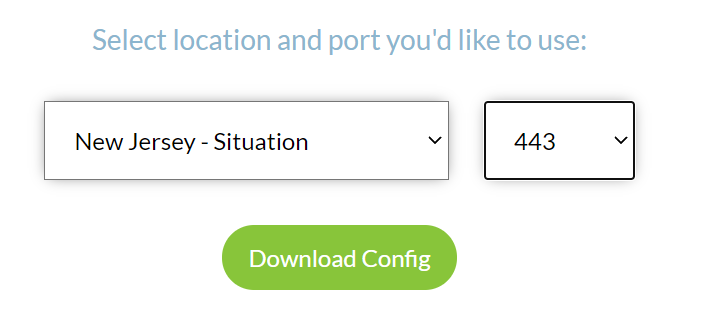
Go to the Windscribe WireGuard config generator page and select the Server location and Port you would like to use. Click Download Config.
Open the .conf file that is downloaded using Notepad in Windows or TextEdit in Mac.
DD-WRT Router Setup for Windscribe WireGuard
Navigate to Setup > Tunnels
Enter Winscribe WireGuard settings
1. Click Add Tunnel.
2. Set Tunnel to Enable.
3. Select Wireguard from the dropdown.
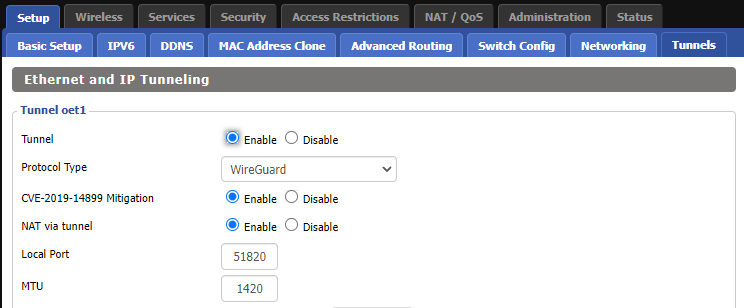
3. Set CVE-2019-14899 Mitigation to Enable. Set NAT via Tunnel to Enable. Set Local Port to 51820. Set MTU to 1420.
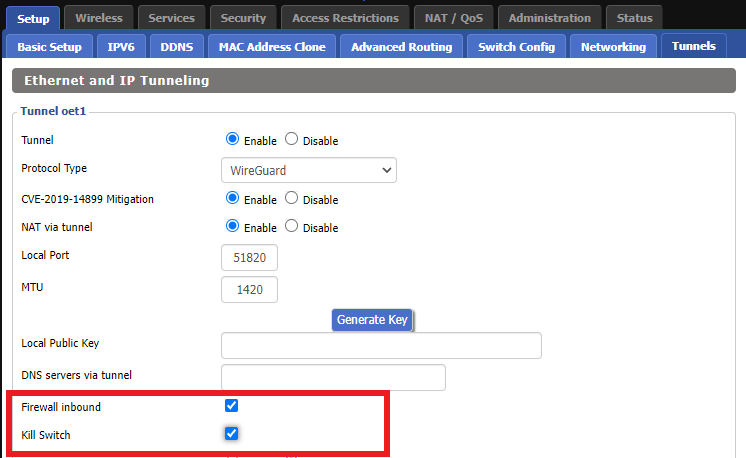
4. Check Firewall inbound and Kill Switch.
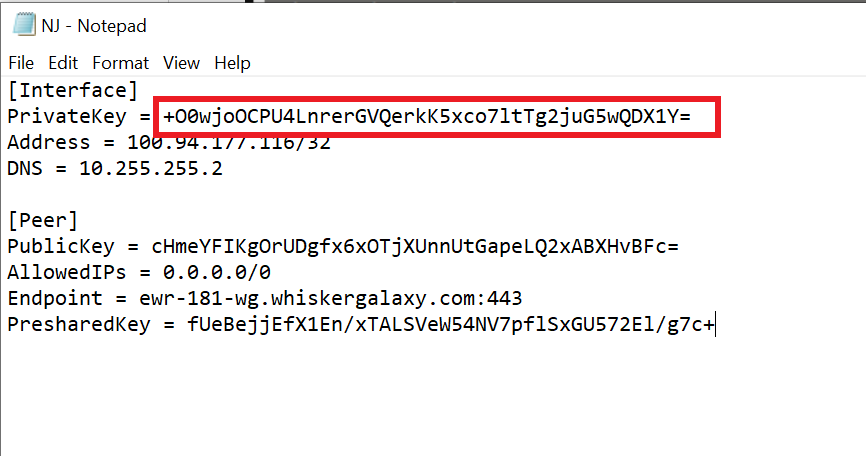
5. Set Advanced Settings to Enable and copy the PrivateKey from the .conf file and paste it into the Local Private Key field.
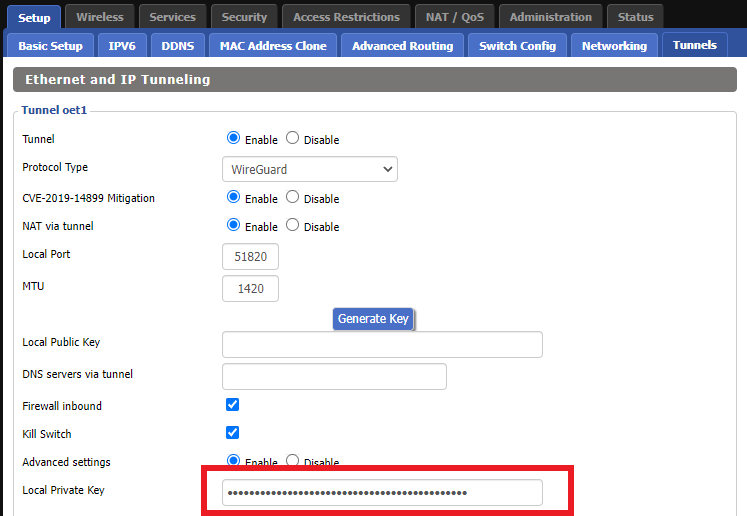
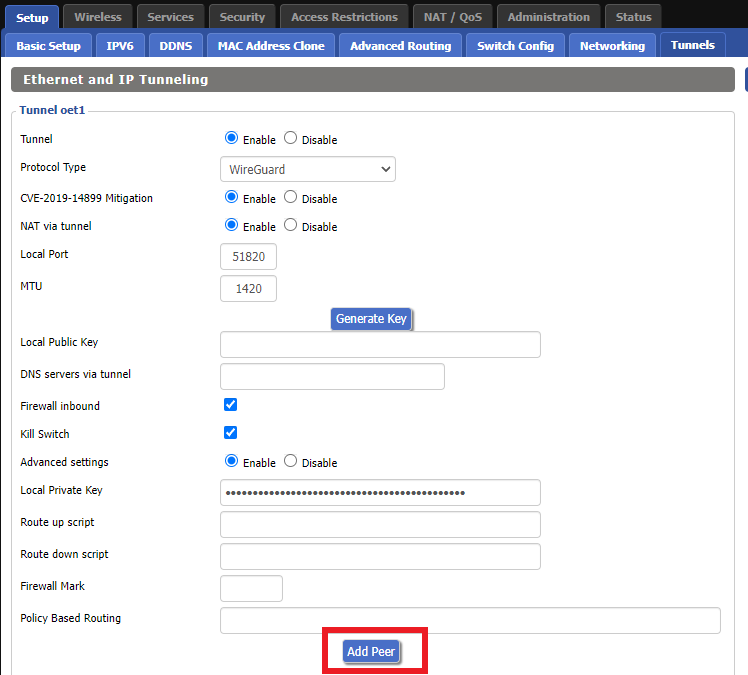
6. Click Add Peer.
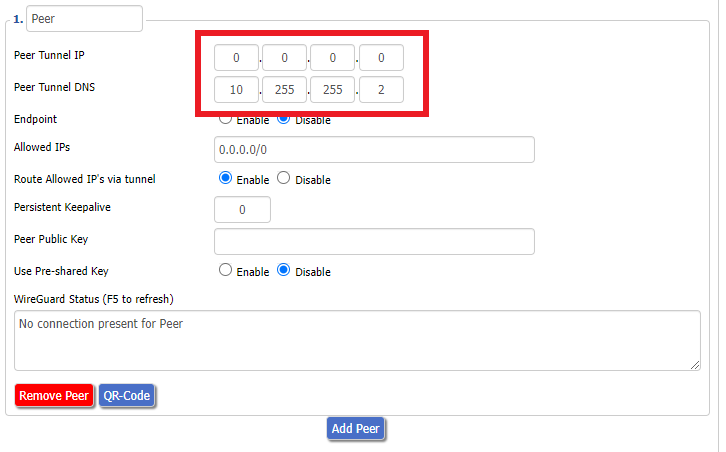
7. Set Peer Tunnel IP to 0.0.0.0. Set Peer Tunnel DNS to the DNS found in the .conf file.
8. Set Endpoint to Enable. Copy and Paste the Endpoint from the .conf file and paste it into the Endpoint Address field. Enter the same Port that appears next to the Endpoint.
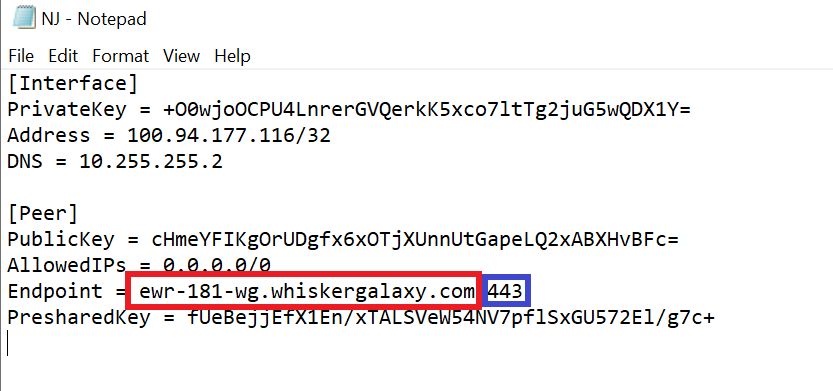
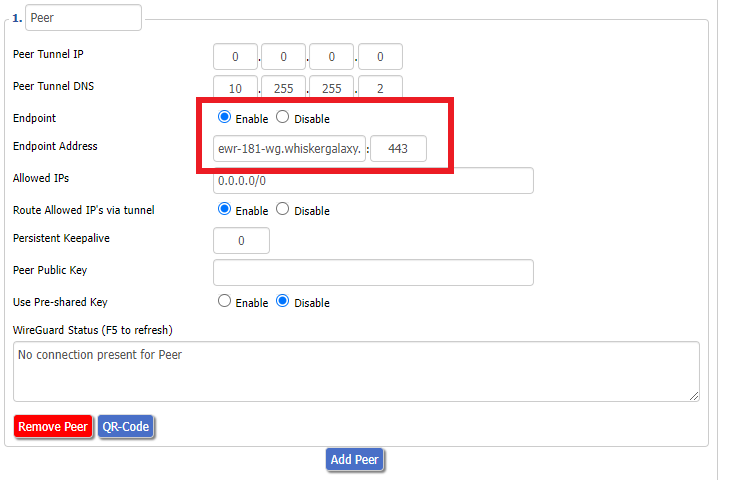
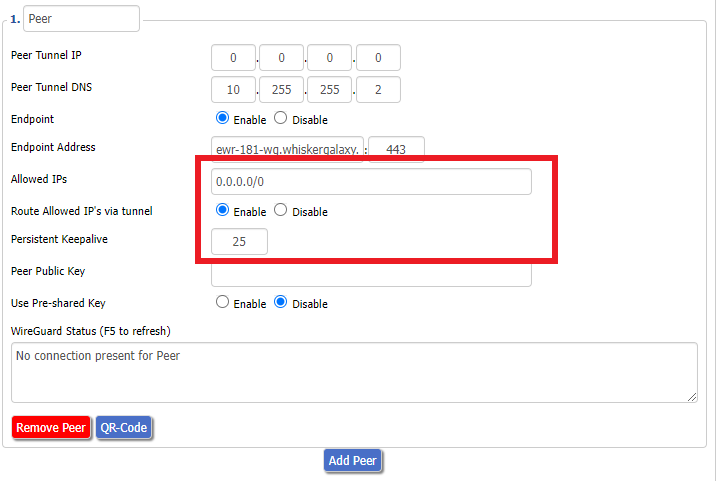
9. Leave Allowed IPs as 0.0.0.0/0. Set Router Allowed IP’s via tunnel to Enable. Set Persistent Keep Alive to 25.
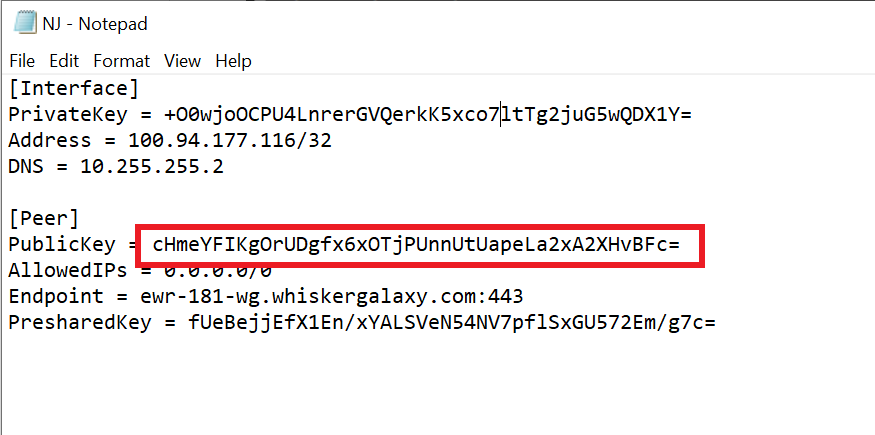
10. Copy and Paste the PublicKey from the .conf file and paste it into the Peer Public Key field.
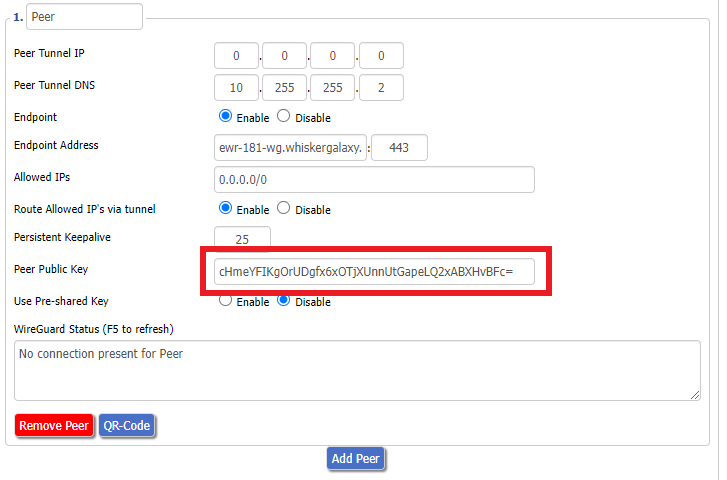
11. Set Use Pre-shared Key to Enable. Copy and Paste the Presharedkey from the .conf file and paste it into the Pre-Shared Key field.
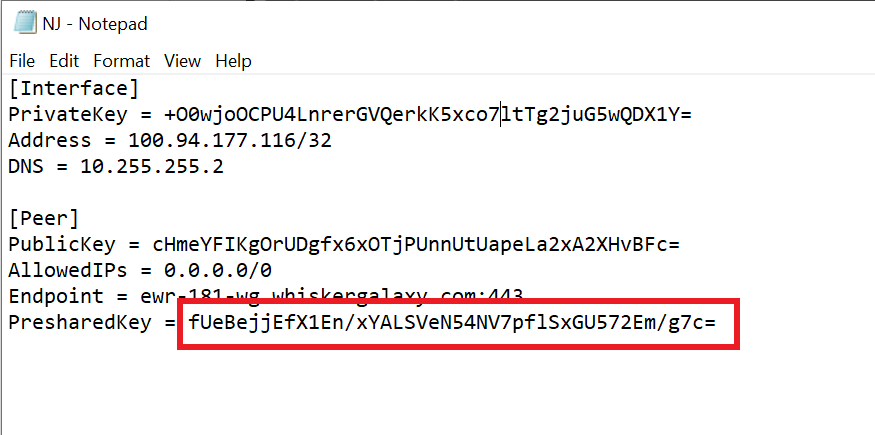
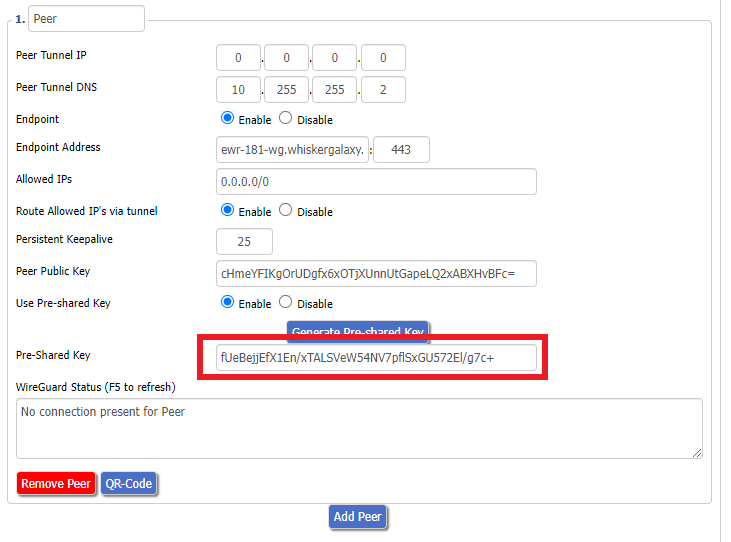
12. Copy the Address from the .conf file and paste it into the IP Addresses/Netmask(CIDR) field.
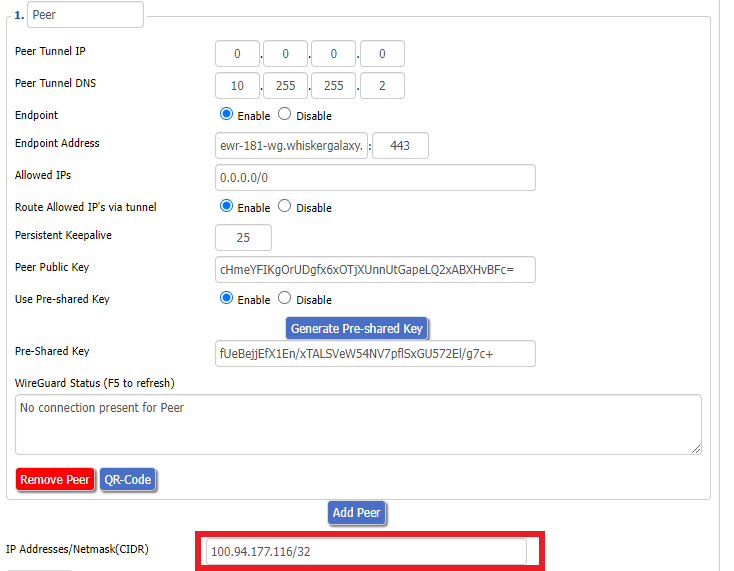
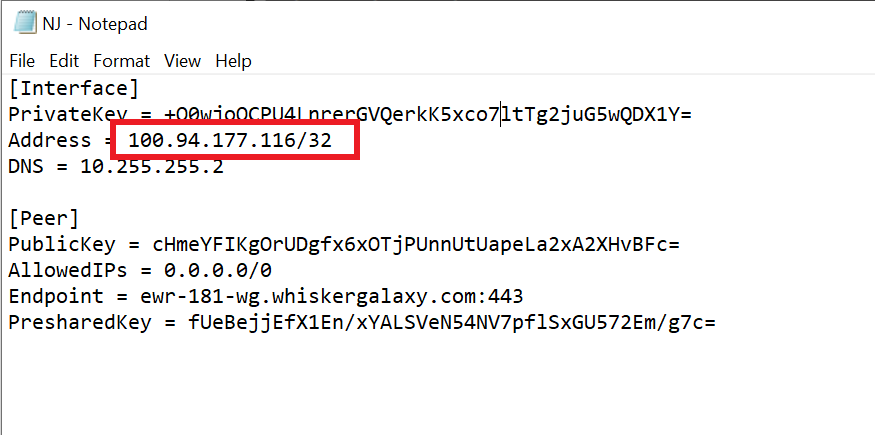
Certain DD-WRT builds will show two separate fields here: IP Address and Subnet Mask. If that is the case set the IP Address field to the Address without the /32 added and set the Subnet Mask to 255.255.255.255
21. At the bottom of the page click Save and then click Apply Settings.
Verify a successful Winscribe connection
Navigate to Setup > Tunnels
- You should Endpoint, Latest handshake, and Transfer in the WireGuard status area.
- Visit whatismyipaddress.com to verify your status as using Winscribe.
Back up your settings
Navigate to Administration > Backup
- Click the Backup button.
- A file named nvrambak.bin will be saved to your computer.
- You can load nvrambak.bin to restore your settings in the event of a reset.