Upon flashing the router from stock manufacturer firmware to DD-WRT firmware many buttons and lights on the router may have altered functionality. With DD-WRT firmware on certain devices a red internet/WAN light means a successful connection. While in factory firmware a red light denotes an issue with your internet connection. For anyone with DD-WRT firmware, this is not something you need to worry about as long as the internet functionality is in fact working.
Search Results for: special k red b
What do the lights on my Roqos Core mean?
- White (looks blueish white on Teal colored Roqos Cores): System startup
- Solid Red: System is up, but there is no internet connection. Roqos Core cannot detect a network link either.
- Flashing Red: System is up and there is an ethernet cable connected to Internet port, however Roqos Core is unable to reach the internet. Usually happens with bad ethernet cable, or cable modem/ISP modem not giving IP address to Roqos Core due to ISP provisioning issues, or some other type of network setting blocking Roqos Core’s access to the internet. First thing to try in this scenario is to reboot the ISP router/modem upstream of Roqos Core.
- Flashing Blue: Roqos Core is up and connected to the internet, but it is not yet activated. Brand new Roqos Cores, or Roqos Cores that are factory reset will show this behavior when they are ready to be activated again.
- Blue (deep blue color, different from #1): Roqos Core is up and activated, everything is normal.
Warranty and Returns FAQs
 Warranty and Returns FAQs
At FlashRouters, we are confident that every router sold will function as advertised. We open, inspect, upgrade, configure, and then test all FlashRouters before they get shipped out. That is why we guarantee you will receive a working unit and offer our own 1-Year Hardware Warranty included with all New and Refurbished routers purchased from the FlashRouters website.
If you would like to extend the warranty coverage period to 2 years, the option is available during the FlashRouters checkout process.
Since we are so certain you will be happy with your upgraded and super secure network, all routers purchased from FlashRouters.com also come with a 30-day satisfaction guarantee.
Please read the warranty and return section in detail before placing an order or requesting an RMA. Our goal is to make the return process as smooth and transparent as possible for all customers. If the router you purchased does not work out for your needs we still want you to be satisfied with your purchasing experience.
Hardware Warranty and Return Policy
Requesting an RMA
Automated Return Merchant Authorization (RMA) requests are available from within your customer account panel. If you are eligible for a return then your RMA request will be approved. If your RMA request is not valid then it will be denied and you must e-mail FlashRouters Support for any additional information or actions. RMAs are valid for 7 days from the day they are issued.
The following are the available options when submitting an RMA request. Continue reading for more information on all available RMA options and conditions.
- Hardware Guarantee – available for 7 days after receiving your FlashRouter.
- Satisfaction Guarantee – available for 30 days after receiving your FlashRouter.
- Hardware Warranty – available for 1 year, or 2 years if upgraded when purchasing a FlashRouter.
- Hardware Repair – Anyone with a valid FlashRouters Support subscription is eligible for free Hardware Repair.
Please note we can only provide prepaid labels for approved Hardware Warranty returns within the USA. Prepaid labels are not available for international customers. All return shipping for 30 Day Satisfaction refunds is paid for by the customer.
Hardware Guarantee
In the rare case you receive a faulty router, you can open a ticket to contact FlashRouter Support for an RMA or request an RMA in your customer account panel and we will work to rectify the situation immediately. If it is determined that the power supply you received was faulty, and not the router itself, our team will immediately ship you out a tested power supply at no additional cost.
Rest assured that we individually test and inspect every FlashRouter with great detail before shipment. BUT… if router gremlins (yes they do exist) snuck into your router during the shipping process and it no longer powers on, our team will supply you with a prepaid shipping label to return the unit back to our offices. As soon as we receive verified tracking on your return shipment we will ship out another thoroughly tested unit to you at no additional cost.
You must contact us within 7 days from when you received your FlashRouter to be eligible for a Hardware Guarantee prepaid shipping label from FlashRouters.
30-Day Satisfaction Guarantee
If you are not satisfied with the performance of your router after trying it out for up to 30 days, you can open a ticket to contact FlashRouter Support for an RMA or request an RMA in your customer account panel. Once the RMA is approved, you will then have the option to ship the unit back to FlashRouters.
Once we receive the return, our team inspects and refunds accordingly based on the original purchase price of your FlashRouter. Please note there is a $25 restocking fee and refunds do not include any initial shipping costs associated with your order. All restocking fees are returned as Store Credit. This means if you make another purchase at FlashRouters then your fee is refunded.
The item must also be fully functional and have no signs of cosmetic damage for you to receive the maximum refund. If you do not include the original boxing, or any router accessories you may also be charged an additional fee as indicated.
Ethernet Cable: $5
Power Source: $10
Antennas: $5 per antenna
Router Stand: $10
Box: $10
Cosmetic Damage: Up to $25
What is covered under the 30-Day Satisfaction Guarantee?
If the VPN speeds or WiFi network speeds are not what you had hoped, if the setup is too complicated, or you just decided on another solution; these are all covered under the 30-Day Satisfaction Guarantee.
We will not accept any returns of working routers after 30 days from the date you received your router. After 30 days, router returns/replacements will only be processed under the Hardware Warranty.
Can I get the restocking fee waived?
If you place a new order for a different FlashRouter unit before returning your initial purchase, then we will waive the restocking fee. Otherwise the $25 restocking fee will be applied to your customer account as a store credit. You can then use this $25 store credit on any future FlashRouter purchase.
Rewards Points refunds
If you return your FlashRouter under the 30 day satisfaction guarantee then you will lose any reward points received for your initial purchase.
Hardware Warranty
A 1-year Hardware Warranty is included with the purchase of all New and Refurbished FlashRouters. If your router suffers hardware failure within 365 days from the date you received the unit then we will replace your router with another fully tested unit. You must pay for return shipping of the faulty unit back to our offices located in New Jersey, USA and our team will ship out your replacement at no additional cost.
You must contact the FlashRouter support team for an RMA number or request an RMA from your customer account panel before returning a router for warranty replacement. If you do not receive approval for a return then you will not be eligible for a replacement unit.
There are 2 options for receiving a Hardware Warranty replacement unit:
Option #1: Process another order for immediate shipping and as soon as we receive the returned device back in our offices we will issue you a refund for the initial purchase.
Option #2: Ship your faulty router back to our office, and as soon as we receive the unit our returns department will have a replacement unit shipped out to you at no extra cost.
How long do I have before my RMA expires?
RMA’s are good for 7 days from the date they are issued.
What if I upgraded to a 2 year Hardware Warranty at checkout?
All refund, replacement, RMA details, and options covered by the 1-year Warranty apply in the exact same manner for 2 year warranties over each respective warranty coverage period.
If for any reason the router you purchased is no longer in stock or discontinued then you have the option to replace your router with one of equal value or receive a refund. Hardware warranties are only eligible for refunds if we are unable to provide a replacement unit for you.
What should I do if my router is out of warranty coverage?
If your FlashRouter is out of the warranty coverage period, we are first and foremost apologetic for the passing of your router. Be sure to contact our sales team though and you can receive a special coupon as a return customer for a shiny new wireless networking centerpiece.
What is not covered with a FlashRouter Warranty?
Items that have been clearly damaged either by the customer or during the return process are not eligible for a full refund. This includes routers that have visible dents, scratches, or moving parts inside the router.
Can I upgrade to a 2 year warranty after my FlashRouter purchase?
2 year warranty upgrades are only available at the time of your FlashRouter purchase. Upgrades are not available once a FlashRouter order has been shipped.
Can I get a Warranty on my router if I purchased a “Flash My Router” plan from FlashRouters?
Routers that have been “flashed” and configured by our support specialists for anyone who has purchased a Flash My Router Plan are not eligible for warranty coverage from FlashRouters. Only routers purchased through the FlashRouters.com website are eligible for warranty replacements or refunds.
Hardware Repair
FlashRouters is proud to offer a free repair and upgrade service for anyone with an active Silver or Gold Service Plan subscription. Any and all shipment costs associated with FlashRouter repairs or upgrade requests are the burden of the customer and will not be paid for by FlashRouters. However, the repair and upgrade service itself is FREE.
If you do choose to ship your router back to our office for repair, then you should include a prepaid shipping label in your package back to your home or office, so our team can send the router back to you whether we are able to repair the unit or not. Router accessories like power supplies, ethernet cable, or antennas do not need to be included when shipping back a unit for repair.
If our team is not able to resurrect your router from a power failure, faulty firmware upgrade, or any other reason then we can return the faulty unit back to you using the return shipping label included with your return package. Alternatively, we can destroy the unit and refund the return shipping costs if that is your preference.
Open Box Routers
What is an Open Box Router?
Open Box routers are fully functional units that have cosmetic flaws and are sold at heavy discounts. These units come with the same Support Plan options as New or RM units, which means you get the same support service with extremely discounted hardware.
Open Box routers are covered under the FlashRouter 30-Day Satisfaction Guarantee BUT come with no Hardware Warranty. We take every measure possible to ensure complete functionality and our team fully load tests these devices before shipment, but you should be very aware that you buy these discounted “open box” devices at your own risk without any Hardware Warranty.
What is the Open Box Router return policy?
Open Box Routers can only be returned within 30 days from the date you received your router. Returns will not be accepted on open box routers after 30-Day Satisfaction Guarantee window has expired. Please note that Open Box Router return shipping costs are not covered by FlashRouters and initial shipping costs are not included in any refunds.
Accessories Warranty
All Accessories come with manufacturer warranties as listed on the respective product pages.
FlashRouters will accept returns for refund or replacement of accessories only within 30 days from the date you received your order. After 30 days you must contact the manufacturer for any warranty replacements.
Accessories must be returned with all original packaging and with no cosmetic damage to receive a full refund. A missing box or damage to an item will result in a restocking fee per our discretion.
"Flash My Router" Refund Policy
The “Flash My Router” product offered by FlashRouters is a virtual service provided by the FlashRouters support team. This product includes a remote support session where our support team will flash your router and then complete your internet, WiFi, and VPN setup, and in certain cases support additional router features.
Once your remote support session is completed there are absolutely no refunds on “Flash My Router” purchases. In the case we are unable to successfully flash your router we will offer a full refund for your “Flash My Router” purchase. “Flash My Router” purchases are fully refundable if you decide you would no longer like to use the service after your purchase is completed.
Service Plan Subscription Refund Policy
All FlashRouter router purchases include a recurring FlashRouters Service Plan subscription. There are 3 levels of support to choose from as either a quarterly or yearly recurring billing plan.
30-Day Satisfaction Guarantee
If you choose to return your FlashRouter under the 30-Day Satisfaction Guarantee, then you are eligible for a full refund on any Service Plan purchased with your FlashRouter.
Cancellation Policy
You may cancel your recurring billing at any time and you will not be charged again. Please note you will not be refunded for unused time from the initial billing/service period of your support plan subscription.
If you choose to cancel your 3 month FlashRouter support plan then you will retain support until the end of the 3 month period. If you choose to cancel your 1 year FlashRouter support plan then you will retain support until the end of the 1 year period. You will not lose time from your existing service plan if you cancel when a plan is active.
There is a 7-day grace period after Service Plan renewals have been charged, where you may request an immediate cancellation and full refund.
How do I change my FlashRouter Support subscription level?
How do I Upgrade my Service Plan?
You can upgrade a Service Plan at any time during a billing cycle. You must e-mail or live chat our support team and request an upgrade. Our team will then issue you store credit for any unused time on your existing Service Plan, which will then be immediately applied to your new upgraded Service Plan purchase. Your recurring billing will then continue at the new Service Plan level. Your 3 months or 1 year of upgrade service will start again from the date of the upgrade purchase.
How do I switch from a Quarterly to a Yearly Service Plan?
If you would like to switch to a Yearly plan from a Quarterly plan of the same service level, then you must e-mail or live chat our support team and request an upgrade. Our team will then issue you store credit for any unused time on your existing Quarterly Service Plan, which will then be immediately applied to your new Yearly Service Plan purchase. Your recurring billing will then continue at the Yearly Service Plan level. Your 1 year of service will start again from the date of the upgrade purchase.
How do I Downgrade my Service Plan?
If you are subscribed a Service Plan, but would like to switch to a lower level Service Plan then you can request that our support team cancel your recurring billing at any time. As soon your existing Service Plan is expired you can make a new purchase for the new Service Plan of your choice.
How do I switch from a Yearly to a Quarterly Service Plan?
If you would like to change the billing cycle from yearly to quarterly, you may cancel your existing subscription plan and then once your year of service has expired, you may purchase a Quarterly Service Plan instead.
If you just purchased a FlashRouter, there is a 7-day grace period from when you receive your unit if you would like an immediate change from Yearly to a Quarterly Service Plan.
How do I cancel my subscription?
You may request a Service Plan subscription cancellation by e-mailing support@flashrouters.com or from within your customer account panel at any time. You will be notified of a successful cancellation and your payment method will not be billed again.
Please note there are no refunds when cancelling your subscription. Cancellation means you will not be billed again for your Service Plan, there are no partial refunds for cancelled Service Plans.
Mullvad WireGuard Setup
Preparing for Mullvad WireGuard Setup
Verify your Mullvad login information
If you are not already a Mullvad user Sign Up Now.
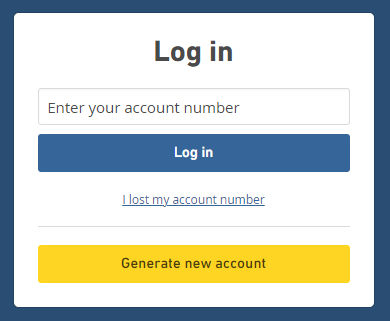
Log in to your account on the Mullvad website.
Select Manage ports and WireGuard Keys displayed on the account page.

DD-WRT Router Setup for Mullvad WireGuard
Navigate to Setup > Tunnels
Enter Mullvad WireGuard settings
1. Click Add Tunnel.
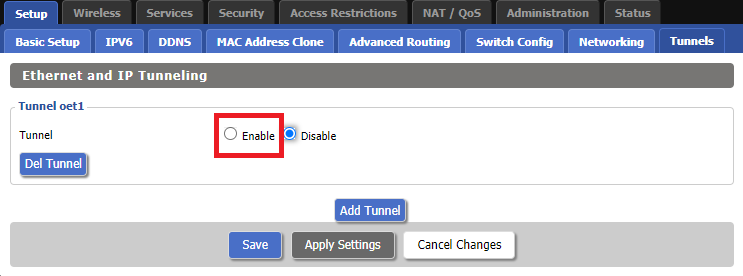
2. Set Tunnel to Enable.
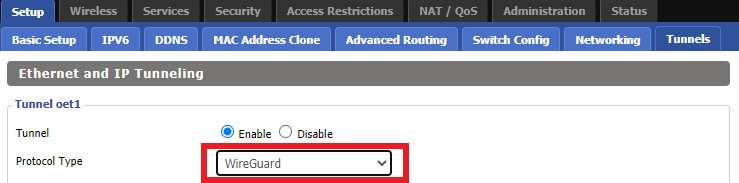
3. Select Wireguard from the dropdown.
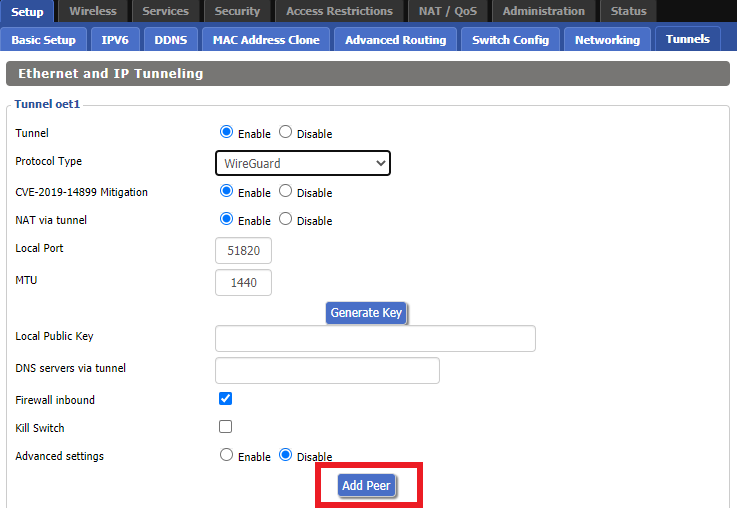
4. Click Add Peer.
5. Set Endpoint to Enable.
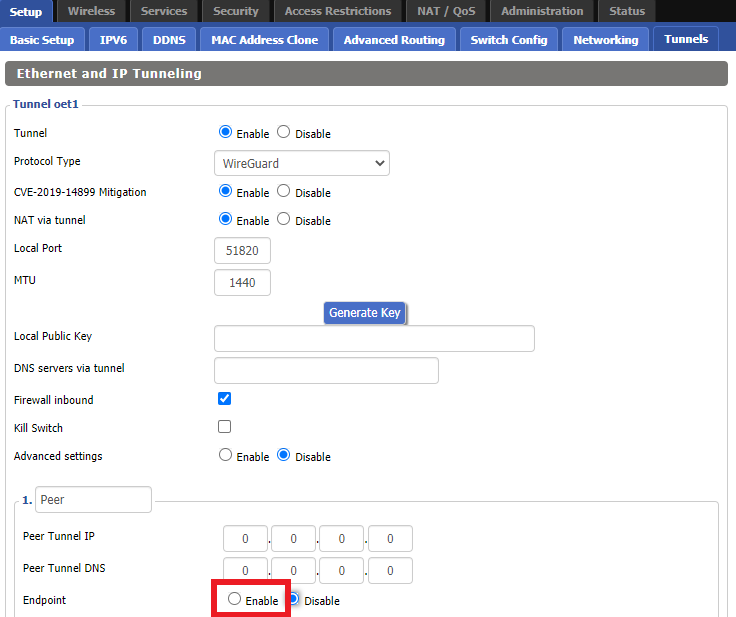
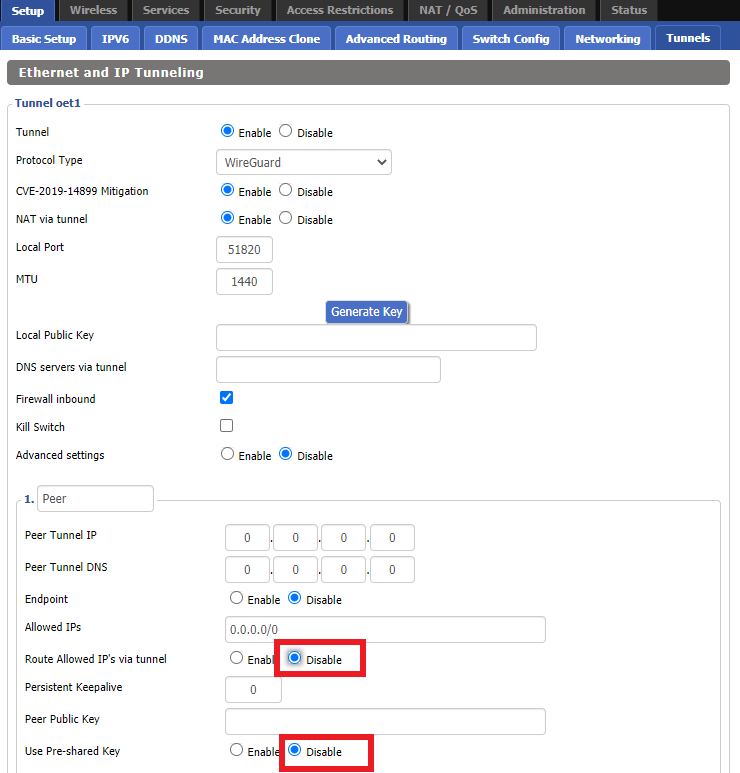
6. Set Router Allowed IP’s via tunnel and Use Pre-shared Key to Disable.
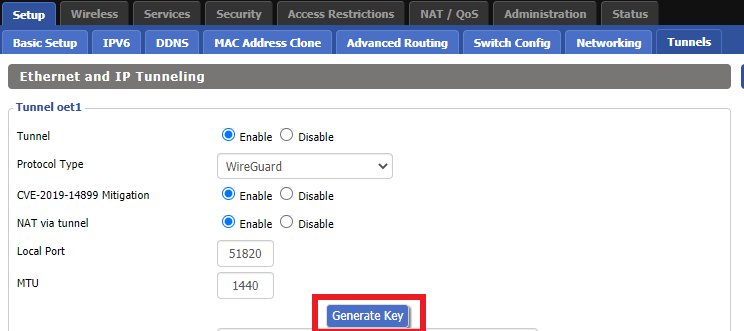
7. Click Generate Key.
8. Set Advanced Settings to Enable.
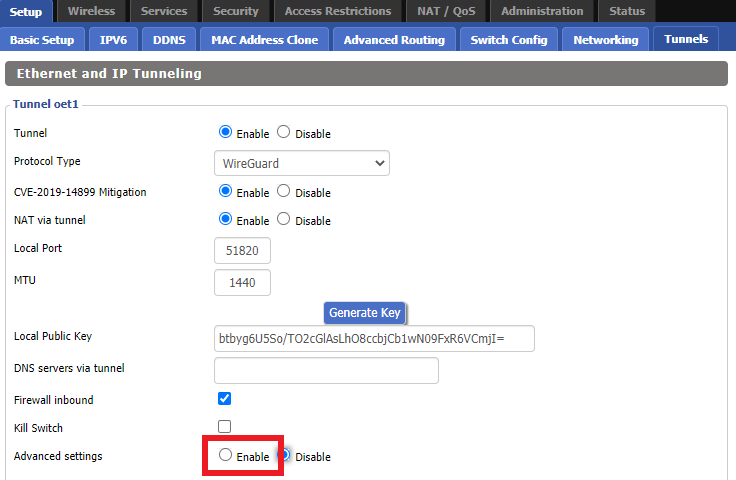
9. Copy the Local Private Key.
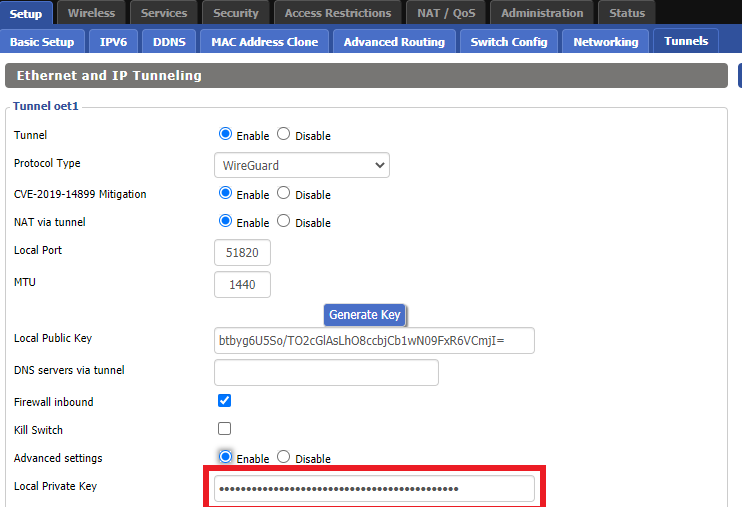
10. In a new tab (leave the DD-WRT settings opened), go to your Mullvad Account and click Manage Ports and WireGuard Keys.

11. Click WireGuard configuration file.
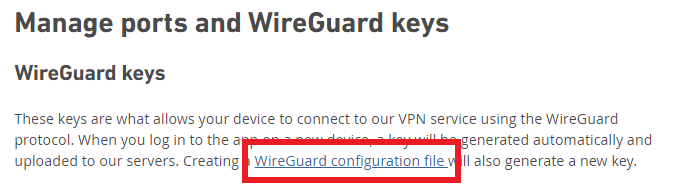
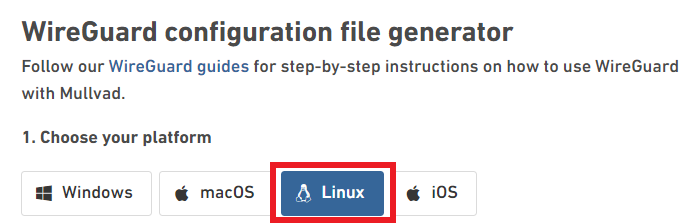
12. Select Linux as your Platform.
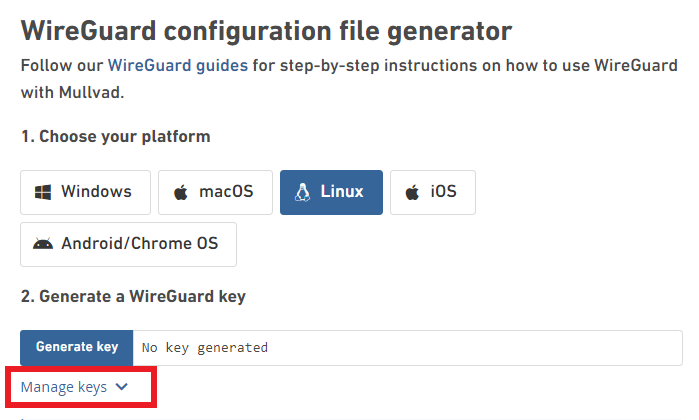
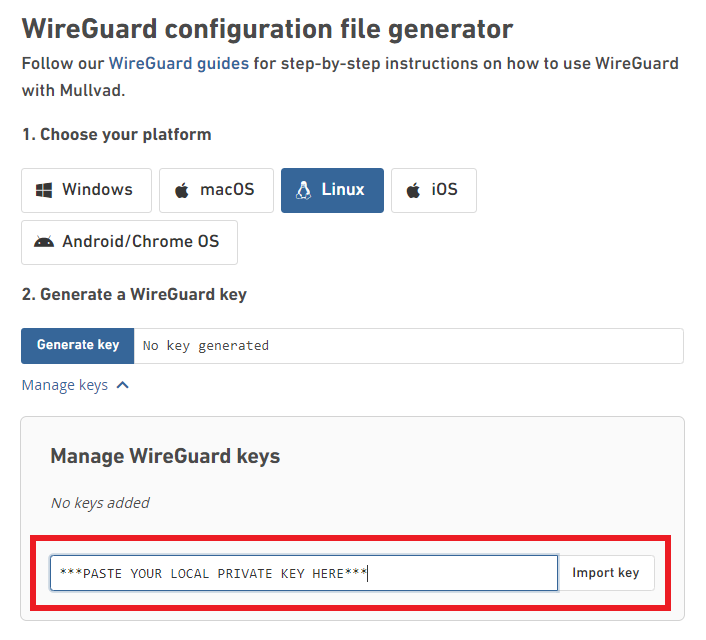
13. Click Manage Keys.
14. Paste the copied Local Private key to the Manage WireGuard Keys field and click Import Keys.
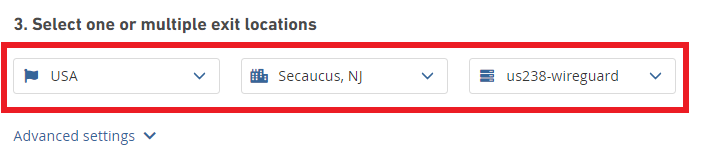
15. Select your Country, City, and Server number that you want to connect to.
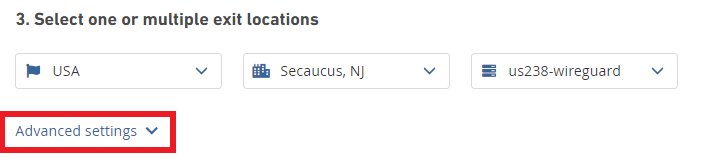
16. Click Advanced Settings.
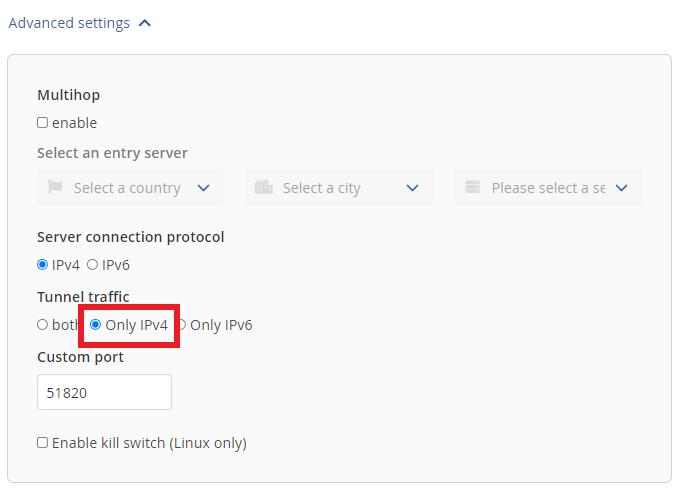
17. Set the Tunnel Traffic to Only IPv4.
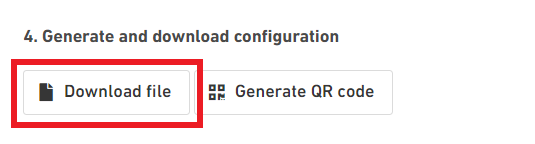
18. Click Download File.
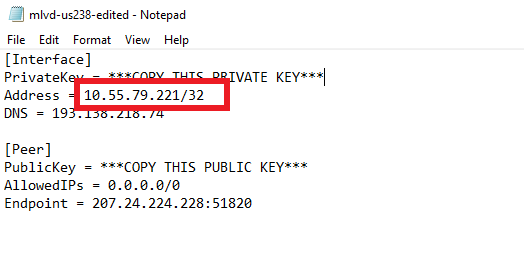
19. Open the config file that was downloaded to your computer with NotePad or Notepad++ for Windows or TextEdit for Mac.
20. In the downloaded config file under [Interface] enter the Address into the IP Addresses/Netmask(CIDR) field in the DD-WRT settings.
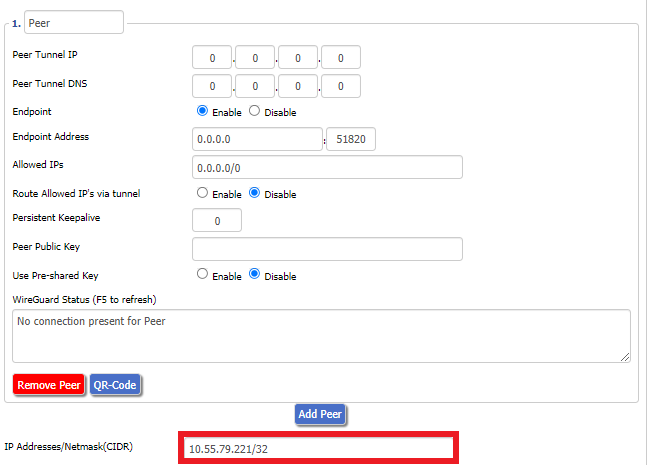
Certain DD-WRT builds will show two separate fields here: IP Address and Subnet Mask. If that is the case set the IP Address field to the Address without the /32 added and set the Subnet Mask to 255.255.255.255
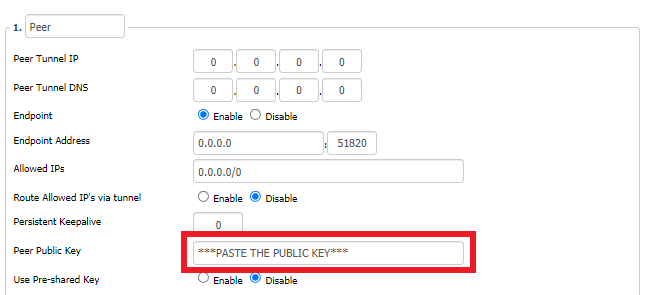
21. In the config file under [Peer] copy the PublicKey and paste it into the Peer Public Key field in the DD-WRT Settings.
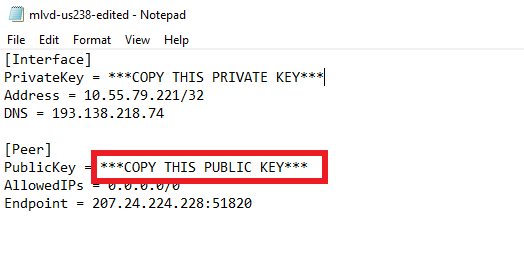
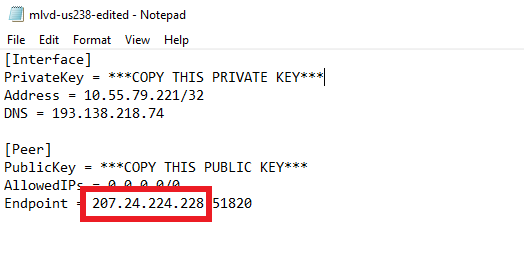
22. In the config file under [Peer] copy the Endpoint and paste it into the Endpoint Address field.
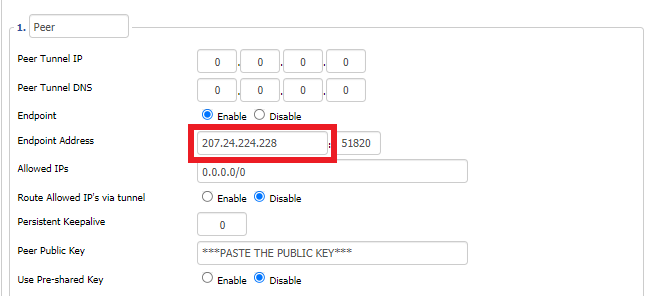
23. At the bottom of the page click Save and then click Apply Settings.
Enter Mullvad WireGuard Commands
Navigate to Administration > Commands
1. Copy and paste the text below and click Save Startup.
sleep 30
echo "Update route table on startup..."
WGSERVER=$(/usr/sbin/nvram get oet1_rem0)
WANGW=$(/usr/sbin/nvram get wan_gateway)
WANIF=$(/usr/sbin/nvram get wan_iface)
route add -host $WGSERVER gw $WANGW dev $WANIF
route del default
route add default dev oet1
ip route flush cache
mkdir -p /tmp/etc/config
ln -s /tmp/custom.sh /tmp/etc/config/wg-route-fix.wanup
echo "... Done route table update."
2. Copy and paste the text below and click Save Custom.
#!/bin/sh
sleep 5
echo "Update route table on wanup ..."
WGSERVER=$(/usr/sbin/nvram get oet1_rem0)
WANGW=$(/usr/sbin/nvram get wan_gateway)
WANIF=$(/usr/sbin/nvram get wan_iface)
route add -host $WGSERVER gw $WANGW dev $WANIF
route del default
route add default dev oet1
ip route flush cache
echo "... Done route table update."
3. Copy and paste the text below and click Save Firewall.
WANIF=$(/usr/sbin/nvram get wan_iface)
iptables -t nat -I POSTROUTING -o oet1 -j MASQUERADE
iptables -I FORWARD -i br0 -o $WANIF -m state –state NEW -j REJECT –reject-with icmp-host-prohibited
iptables -I FORWARD -i br0 -p tcp -o $WANIF -m state –state NEW -j REJECT –reject-with tcp-reset
Set Mullvad DNS servers
Navigate to Setup > Basic Setup
Set Static DNS 1 to 10.64.0.1
Set Static DNS 2 to 193.138.218.74
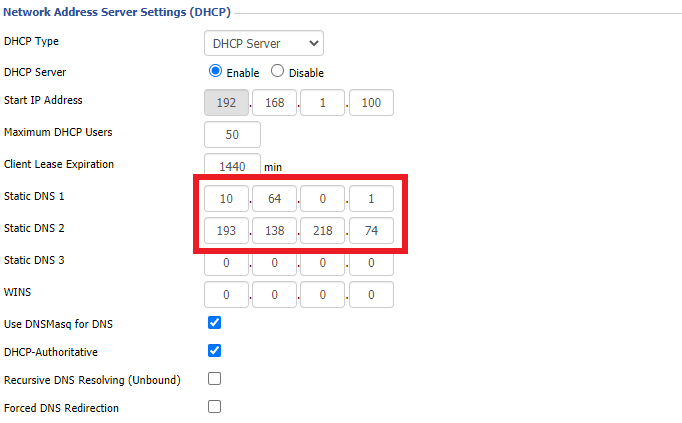
Click Apply Settings.
Reboot the FlashRouter
Navigate to Administration > Management
Scroll to the bottom of the page and click the red Reboot Router button. Wait for the FlashRouter to reboot and then reconnect.
Verify a successful Mullvad connection
Navigate to Setup > Tunnels
- You should see Endpoint, Latest handshake, and Transfer in the WireGuard status area.
- Visit Mullvad’s IP Check to verify your status as using Mullvad.
Back up your settings
Navigate to Administration > Backup
- Click the Backup button.
- A file named nvrambak.bin will be saved to your computer.
- You can load nvrambak.bin to restore your settings in the event of a reset.
IVPN WireGuard Setup
Preparing for IVPN WireGuard Setup
Verify your IVPN login information
If you are not already a IVPN user Sign Up Now.
Log in to your account on the IVPN website.
DD-WRT Router Setup for IVPN WireGuard
Navigate to Setup > Tunnels
Enter IVPN WireGuard settings
1. Click Add Tunnel.
2. Set Tunnel to Enable.
3. Select Wireguard from the dropdown.
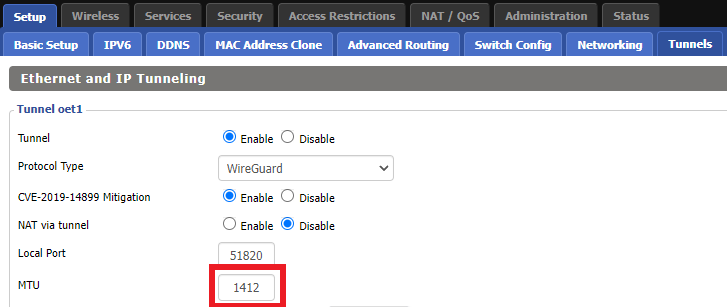
3. Set MTU to 1412.
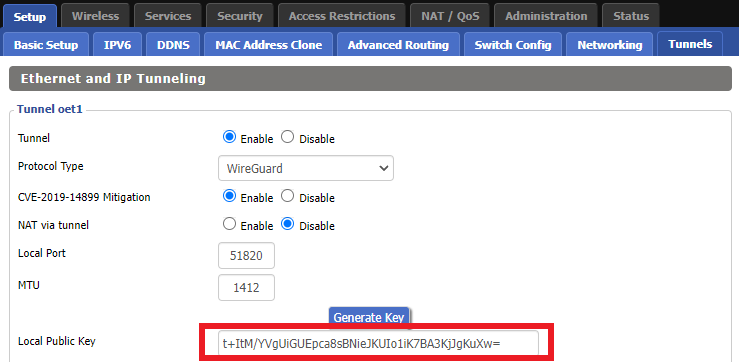
4. Click Generate Key.
9. Copy the Local Public Key.
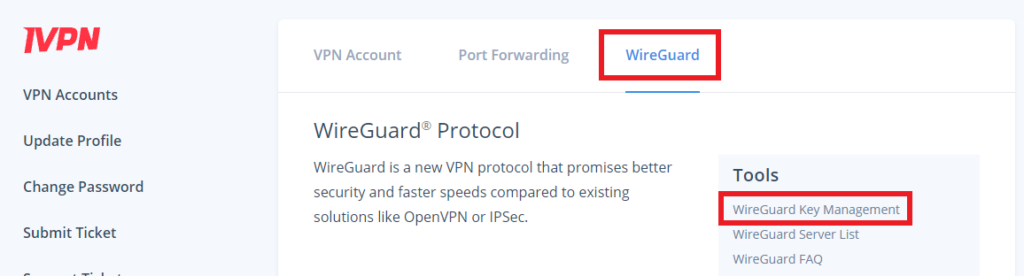
10. In a new tab (leave the DD-WRT settings opened), go to your IVPN Account and click WireGuard and then click WireGuard Key Management.
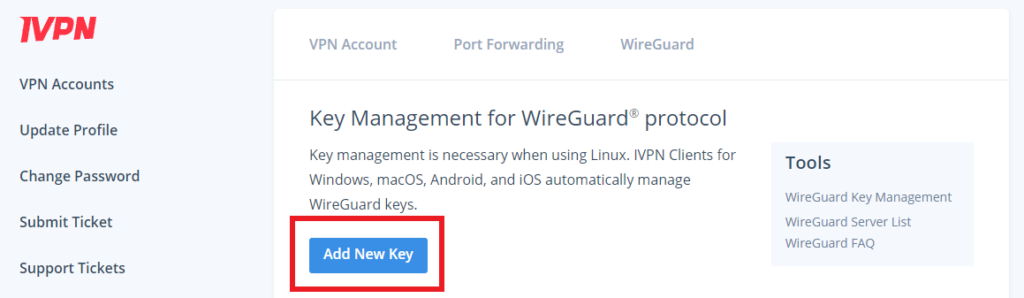
11. Click Add New Key.
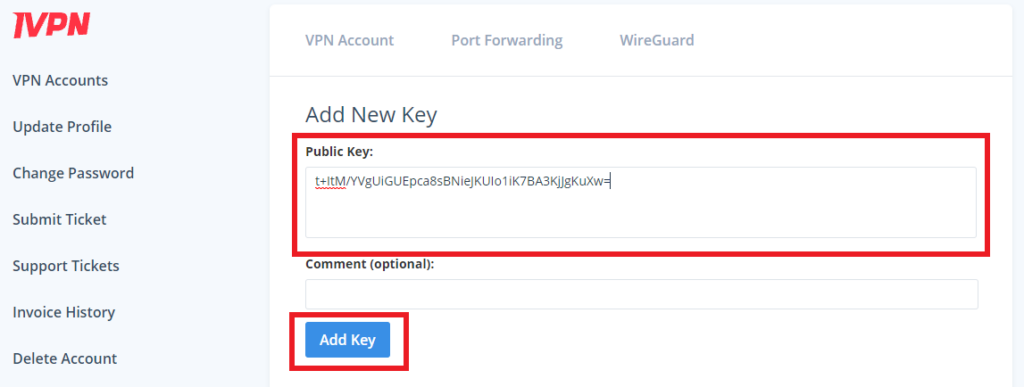
12. Paste the copied Local Public key to the Public Key field and click Add Key.
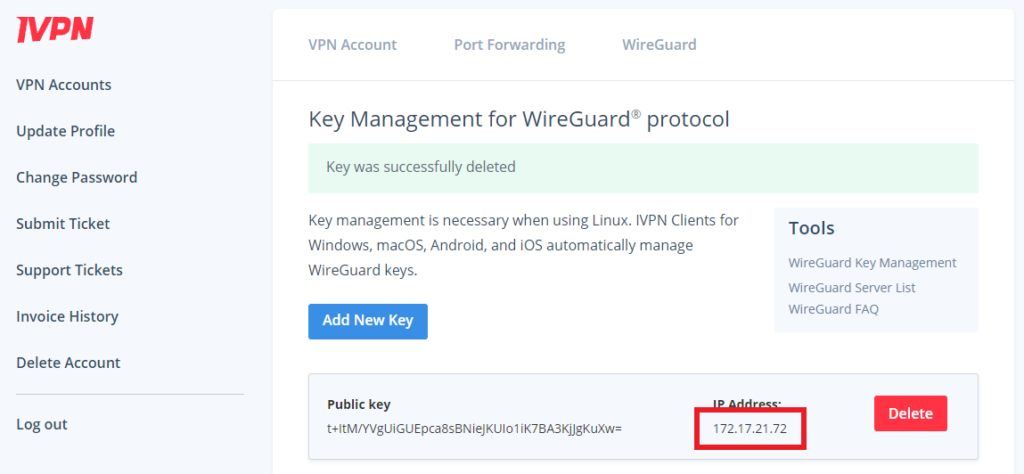
13.Copy the IP Address assigned to your public key and add it to the IP Addresses/Netmask(CIDR) field followed by a /32 subnet mask.
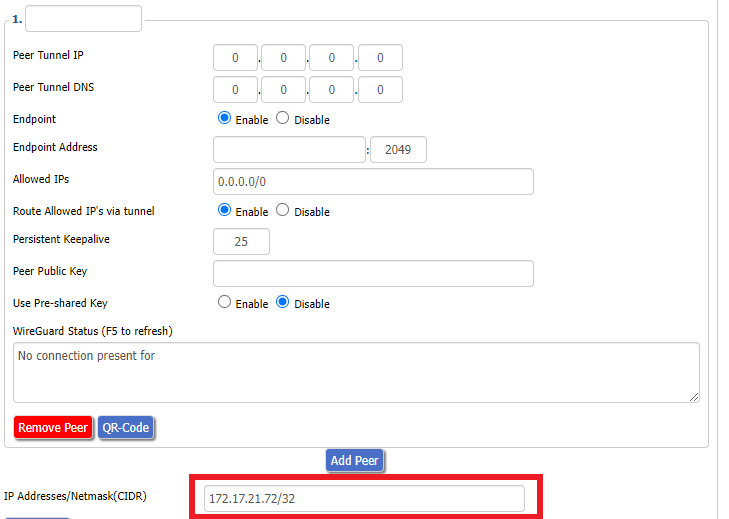
Certain DD-WRT builds will show two separate fields here: IP Address and Subnet Mask. If that is the case set the IP Address field to the Address without the /32 added and set the Subnet Mask to 255.255.255.255
14. Click Add Peer.
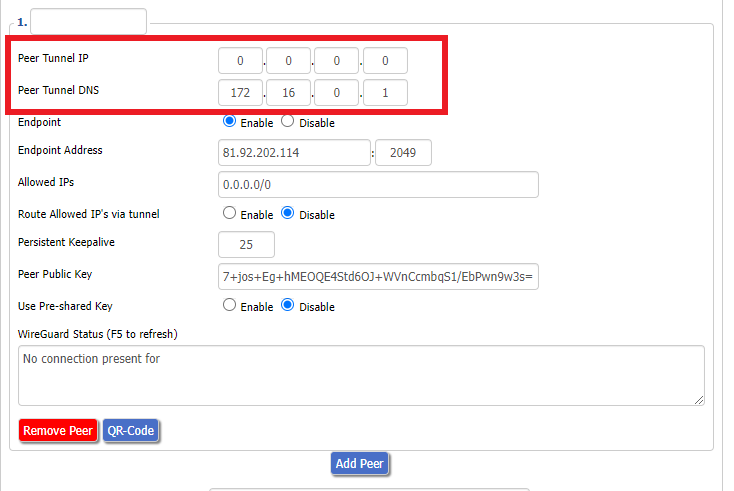
15. Set the Peer Tunnel IP to 0.0.0.0. Set Peer Tunnel DNS to 172.16.0.1
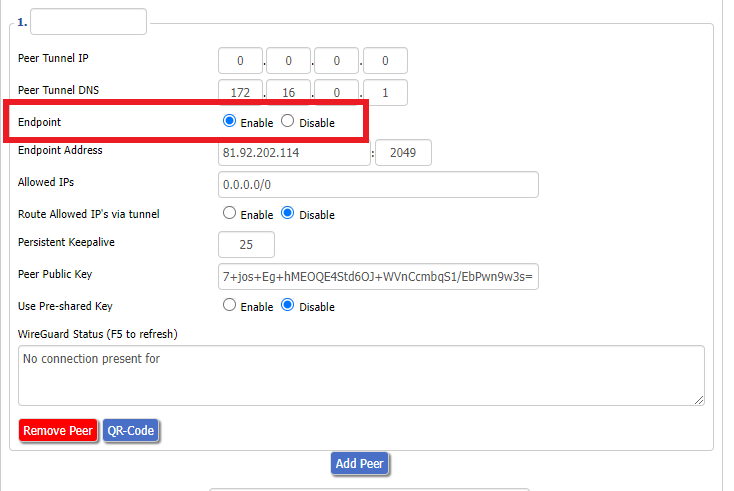
16. Set Endpoint to Enable.
17. Go to the IVPN Server Status page and copy the server name for the WireGuard server location you want to connect to.
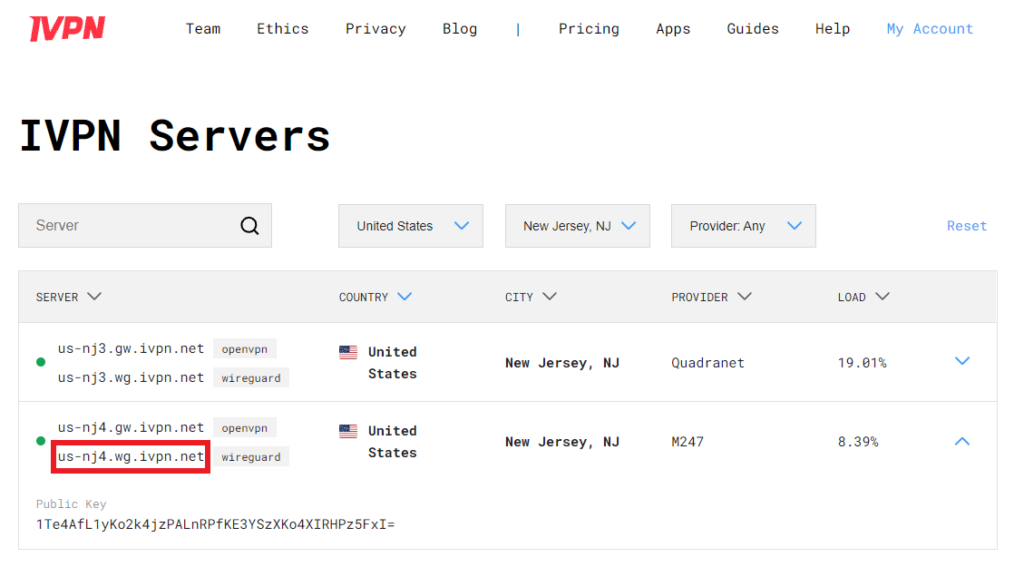
Be sure to copy the WireGuard server address and not the OpenVPN server address.
18. Paste the server name you copied into the Endpoint Address field and set the Port to 2049.
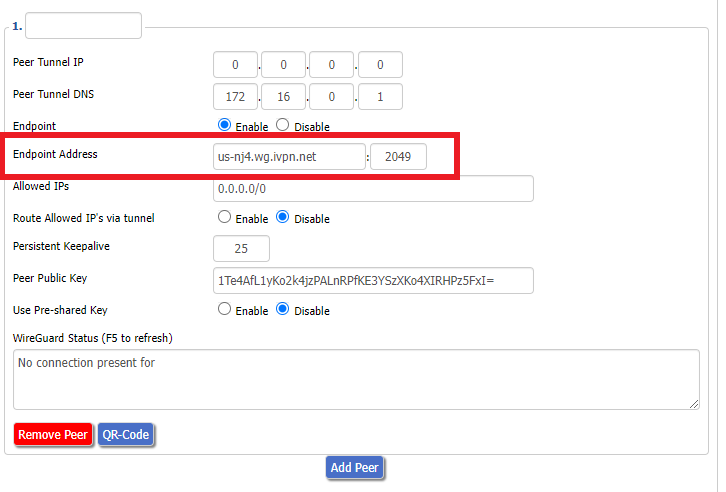
19. On the IVPN Server Status page copy the Public Key of the server location you entered. Paste the Public Key into the Peer Public Key field.
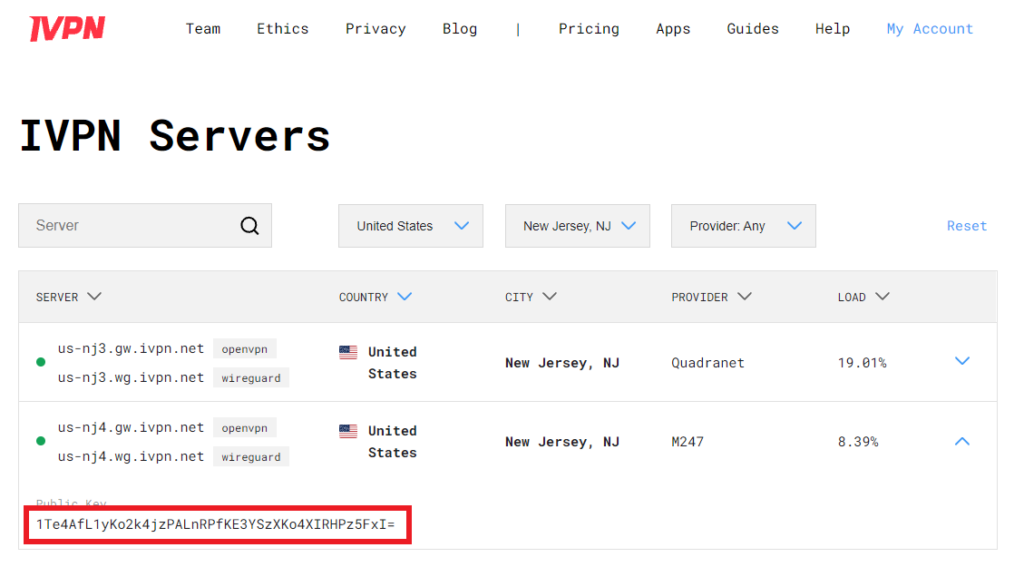
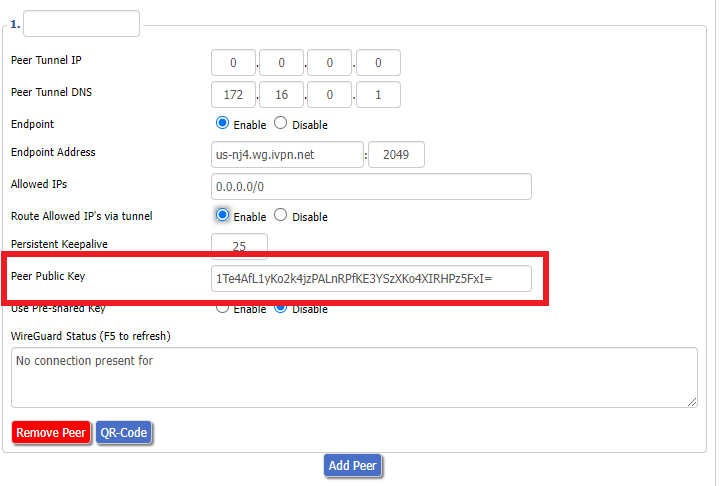
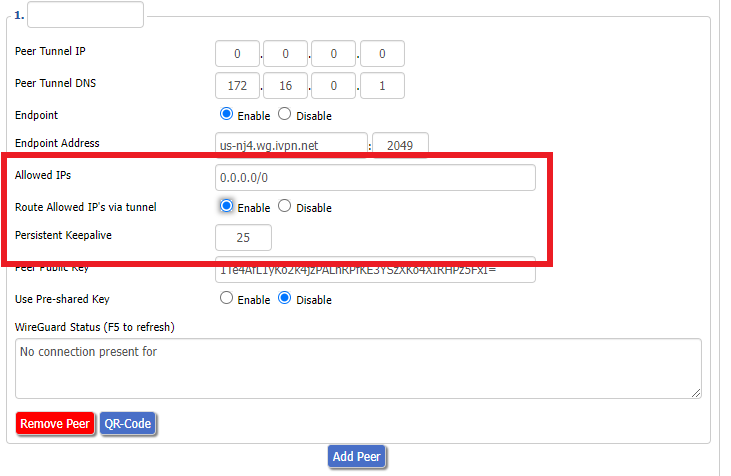
20. Leave Allowed IPs as 0.0.0.0/0. Set Router Allowed IP’s via tunnel to Enable. Set Persistent Keep Alive to 25.
21. At the bottom of the page click Save and then click Apply Settings.
Set IVPN DNS servers
Navigate to Setup > Basic Setup
Set Static DNS 1 to 172.16.0.1
Set Static DNS 2 to 198.245.51.147
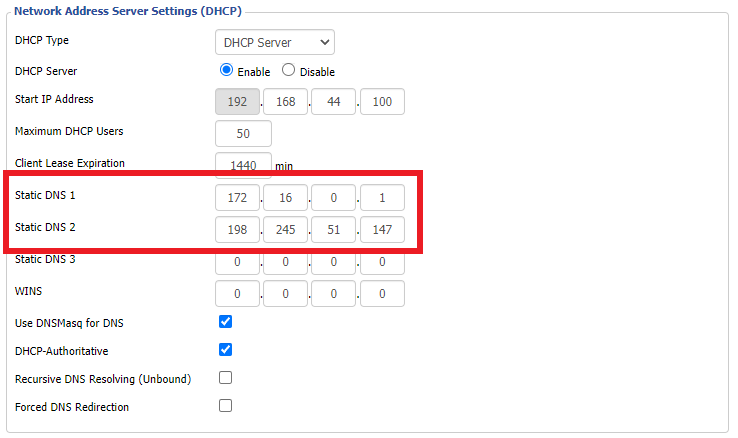
Click Apply Settings.
Reboot the FlashRouter
Navigate to Administration > Management
Scroll to the bottom of the page and click the red Reboot Router button. Wait for the FlashRouter to reboot and then reconnect.
Verify a successful IVPN connection
Navigate to Setup > Tunnels
- You should Endpoint, Latest handshake, and Transfer in the WireGuard status area.
- Visit IVPN’s website to verify your status as using IVPN.
Back up your settings
Navigate to Administration > Backup
- Click the Backup button.
- A file named nvrambak.bin will be saved to your computer.
- You can load nvrambak.bin to restore your settings in the event of a reset.
DD-WRT Router Setup Guide

Quick Start Guide for DD-WRT FlashRouters
Find setup guides, FAQs and troubleshooting tips for DD-WRT configured FlashRouters.

AC1450, R6220, R6230, R6250, R6260, R6300 V1, R6300 V2, R6400 V1, R6400 V2, R6700 V1, R6700 V2, R6700 V3, R7000, R7000P, R7800, R8000, R9000, XR500

RT-AC56U/R, RT-AC68U V1, RT-AC68U V2, RT-AC1900P, RT-AC87U, RT-AC3100, RT-AC5300

WRT1200AC, WRT1900AC V1, WRT1900AC V2, WRT1900ACS V1, WRT1900ACS V2, WRT32X, WRT3200ACM

Search Support Articles
Troubleshooting
- Device Settings That Can Interfere With Your Router VPN
- Why can’t I send emails while connected to VPN?
- What is a DNS leak and how can I prevent a DNS leak in my router?
- My VPN stopped working on my FlashRouter.
- Why is my connection speed slower?
- Why are streaming services blocked while connected to VPN?
- How do I find my router local IP address?
- How do I reset and reconfigure my FlashRouter?
- How do I check for static network settings on my devices?
- Why is my router not connecting to internet?
- How to fix an Unidentified Network or Limited Connection.
- Why are some of my devices not connecting to the internet?
- Why is the internet LED red on my router?
- Why is the power light on my FlashRouter blinking?
- My 2.4GHz network is not showing up
- My 5.0GHz network is not showing up
- My WiFi password is not working
- Why did my WiFi SSID change to ‘dd-wrt’?
- Why are devices disconnecting from Wireless?
- Why is my WiFi signal weak?
