• Skip to primary navigation
  • Skip to main content
  • Skip to primary sidebar
  • Skip to footer

FlashRouters Support Portal

Prioritizing Privacy

  • SETUP GUIDES
    • Privacy Hero Router Setup Guide
    • ASUS-WRT Router Setup Guide
    • AsusWRT-Merlin Router Setup Guide
    • DD-WRT Router Setup Guide
    • ExpressVPN Router Setup Guide
    • GL.iNet Router Setup Guide
    • Roqos Core Router Setup Guide
  • TROUBLESHOOTING
    • Router Access
    • WiFi Connectivity
    • Internet Connection Issues
    • General VPN Issues
    • DD-WRT Firmware
    • TeamViewer Remote Support
  • FAQs
    • Router FAQs
    • VPN FAQs
    • Warranty and Returns FAQs
    • Sales FAQs
    • Shipping FAQs
    • Service Plan FAQs
  • Show Search
Hide Search

Search Results for: setup privacy app

Private Internet Access VPN Setup Guide for Privacy Hero

TeamFlashRouters · Apr 3, 2023 ·

Your Privacy Hero router uses Cloud Based router management which means you can access the router settings from anywhere on any device that has an internet connection. You can follow these steps while connected to your phone, other Wi-Fi network, or the Privacy Hero network

Private Internet Access (PIA) Wireguard Setup for Privacy Hero (recommended)

1. From any device that has a browser such as a computer, smartphone, or tablet visit app.privacyhero.com.

App.PrivacyHero.com

2. Enter your Privacy Hero account email and password. Click Login.

Privacy Hero Access Settings

3. Click the VPN symbol.

Privacy Hero Setup VPN

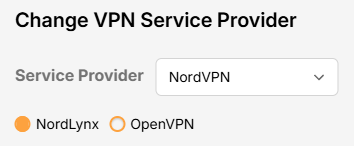
4. Click the Change button and select Private Internet Access from the dropdown.

Privacy Hero Change VPN Providers

5. Enter your correct PIA account login username and password and click Save.

Privacy Hero select Private Internet Access
Privacy Hero Private Internet Access enter login

6. Click Save if you want to automatically connect to the ideal server location as recommended by Private Internet Access.

Or, connect to a specific server location click Advanced Options and then type in the PIA server name you would like to use. (All server names are noted below).

Then click Save.

Privacy Hero Private Internet Access enter VPN location

North America

bahamas.privacy.network
ca-ontario.privacy.network
ca-toronto.privacy.network
ca-vancouver.privacy.network
ca-montreal.privacy.network
greenland.privacy.network
gt-guatemala-pf.privacy.network
mexico.privacy.network
panama.privacy.network
sanjose.privacy.network
us-alabama-pf.privacy.network
us-alaska-pf.privacy.network
us-arkansas-pf.privacy.network
us-atlanta.privacy.network
us-california.privacy.network
us-chicago.privacy.network
us-connecticut-pf.privacy.network
us-denver.privacy.network
us-florida.privacy.network
us-houston.privacy.network
us-idaho-pf.privacy.network
us-indiana-pf.privacy.network
us-iowa-pf.privacy.network
us-kansas-pf.privacy.network
us-kentucky-pf.privacy.network
us-lasvegas.privacy.network
us-louisiana-pf.privacy.network
us-maine-pf.privacy.network
us-massachusetts-pf.privacy.network
us-michigan-pf.privacy.network
us-minnesota-pf.privacy.network
us-mississippi-pf.privacy.network
us-missouri-pf.privacy.network
us-montana-pf.privacy.network
us-nebraska-pf.privacy.network
us-new-hampshire-pf.privacy.network
us-new-mexico-pf.privacy.network
us-newyorkcity.privacy.network
us-north-carolina-pf.privacy.network
us-north-dakota-pf.privacy.network
us-ohio-pf.privacy.network
us-oklahoma-pf.privacy.network
us-oregon-pf.privacy.network
us-pennsylvania-pf.privacy.network
us-rhode-island-pf.privacy.network
us-seattle.privacy.network
us-siliconvalley.privacy.network
us-south-carolina-pf.privacy.network
us-south-dakota-pf.privacy.network
us-texas.privacy.network
us-tennessee-pf.privacy.network
us-vermont-pf.privacy.network
us-virginia-pf.privacy.network
us-washingtondc.privacy.network
us-west-virginia-pf.privacy.network
us-wisconsin-pf.privacy.network
us-wyoming-pf.privacy.network
us3.privacy.network
us-baltimore.privacy.network
us-honolulu.privacy.network
us-newjersey.privacy.network
us-saltlakecity.privacy.network
us-streaming-2.privacy.network
us-streaming.privacy.network
us-wilmington.privacy.network

South America

ar.privacy.network
bo-bolivia-pf.privacy.network
bogota.privacy.network
br.privacy.network
ec-ecuador-pf.privacy.network
pe-peru-pf.privacy.network
santiago.privacy.network
uy-uruguay-pf.privacy.network
venezuela.privacy.network

Europe

al.privacy.network
ad.privacy.network
austria.privacy.network
brussels.privacy.network
ba.privacy.network
sofia.privacy.network
zagreb.privacy.network
czech.privacy.network
de-berlin.privacy.network
de-frankfurt.privacy.network
denmark.privacy.network
denmark-2.privacy.network
spain.privacy.network
es-valencia.privacy.network
ee.privacy.network
fi.privacy.network
fi-2.privacy.network
france.privacy.network
gr.privacy.network
hungary.privacy.network
italy.privacy.network
italy-2.privacy.network
is.privacy.network
ireland.privacy.network
man.privacy.network
lv.privacy.network
liechtenstein.privacy.network
lt.privacy.network
lu.privacy.network
malta.privacy.network
md.privacy.network
monaco.privacy.network
montenegro.privacy.network
nl-amsterdam.privacy.network
mk.privacy.network
no.privacy.network
poland.privacy.network
pt.privacy.network
ro.privacy.network
sweden.privacy.network
sweden-2.privacy.network
rs.privacy.network
sk.privacy.network
slovenia.privacy.network
swiss.privacy.network
tr.privacy.network
uk-london.privacy.network
uk-manchester.privacy.network
uk-southampton.privacy.network
uk-2.privacy.network
ua.privacy.network

Asia

ae.privacy.network
bangladesh.privacy.network
cambodia.privacy.network
china.privacy.network
cyprus.privacy.network
georgia.privacy.network
hk.privacy.network
in.privacy.network
israel.privacy.network
jakarta.privacy.network
japan.privacy.network
japan-2.privacy.network
kazakhstan.privacy.network
kr-south-korea-pf.privacy.network
kualalumpur.privacy.network
macau.privacy.network
mongolia.privacy.network
np-nepal-pf.privacy.network
philippines.privacy.network
qatar.privacy.network
saudiarabia.privacy.network
sg.privacy.network
srilanka.privacy.network
taiwan.privacy.network
vietnam.privacy.network
yerevan.privacy.network

Oceania

au-adelaide-pf.privacy.network
au-australia-so.privacy.network
au-brisbane-pf.privacy.network
aus-melbourne.privacy.network
aus-perth.privacy.network
au-sydney.privacy.network
nz.privacy.network

Africa

dz.privacy.network
egypt.privacy.network
morocco.privacy.network
nigeria.privacy.network
za.privacy.network

8. Your Privacy Hero settings should now show a Connected message, indicating you have successfully signed in to your PIA VPN server!

Private Internet Access (PIA) OpenVPN Setup for Privacy Hero

1. From any device that has a browser such as a computer, smartphone, or tablet visit app.privacyhero.com.

App.PrivacyHero.com

2. Enter your Privacy Hero account email and password. Click Login.

Privacy Hero Access Settings

3. Click the VPN symbol.

Privacy Hero Setup VPN

4. Click the Change button and select Custom from the dropdown and choose the OpenVPN option.

5. Enter your PIA Account login as the Username and Password.

6. Now log in to your PIA Account page.

7. Go to the Downloads section.

8. Scroll down to the bottom of the page, and go to OpenVPN Configuration Generator.

9. Choose OpenVPN 2.4 or newer and Linux.

10. From the Select Port section, choose UDP/1198 AES-128-CBC for a faster connection or choose UDP/1197 AES-256-CBC for stronger security as shown in the image below then Click Generate to download the server configuration file.

11. Drag and drop or click to Upload the server file into the Custom box on your Privacy Hero settings page then click Save.

12. Your Privacy Hero settings should now show a Connected message, indicating you have successfully signed in to your PIA VPN server!

Privacy Hero’s cloud based router settings access makes it so you can change settings while not connected to the Privacy Hero network. Visit the Private Internet Access IP Check to verify your VPN IP address. If it has not changed be sure to double check that you are indeed connected to the Privacy Hero network.

Keep in mind that the VPN connection will not change the location of the streaming services listed in the Streaming Relocation area of the Privacy Hero settings.

TROUBLESHOOTING

Still having issues? Visit the VPN Troubleshooting section.

Troubleshoot Here

Privacy Hero VPN Kill Switch Troubleshooting: No Internet or WiFi

Dave · Oct 8, 2026 ·

If your Privacy Hero router suddenly loses internet access, devices report that WiFi has no internet, or devices will not stay connected after a VPN failure, the VPN Kill Switch may be blocking normal internet traffic.

The VPN Kill Switch is designed to prevent traffic from passing through Privacy Hero without VPN protection. If the VPN disconnects or fails while the Kill Switch is enabled, normal internet access is intentionally blocked.

Important: You can still access app.privacyhero.com to manage Privacy Hero, turn off the Kill Switch, or repair the VPN connection.

Privacy Hero is cloud-managed, so you do not need to be connected to the Privacy Hero WiFi to change these settings. You can also access the dashboard using cellular data, your main router’s WiFi, or another internet connection as long as Privacy Hero remains connected to the internet and Privacy Hero cloud.


Jump to a Section

  • Common Kill Switch Symptoms
  • Restore Internet Access
  • VPN Still Fails to Connect
  • Privacy Hero Appears Offline
  • Kill Switch, WiFi, or WAN Problem?
  • Frequently Asked Questions

Common Privacy Hero Kill Switch Symptoms

A failed VPN connection combined with an enabled Kill Switch can make the Privacy Hero network appear unavailable even though the router itself may still be functioning.

Common symptoms include:

  1. Your device connects to Privacy Hero WiFi but websites and apps will not load.
  2. Your phone, computer, television, or streaming device reports that WiFi has no internet.
  3. A device refuses to remain connected because it detects that the WiFi network does not currently provide normal internet access.
  4. Your phone automatically switches from Privacy Hero WiFi to cellular data or another saved WiFi network.
  5. Your computer displays “No Internet” or “Connected without Internet.”
  6. The VPN displays Failed, Disconnected, Connecting, or a timeout error.
  7. Privacy Hero was working normally and suddenly stopped providing internet access.

If the Privacy Hero WiFi network itself is completely missing and cannot be detected by any device, that is different from normal Kill Switch behavior. Continue with WiFi or router connectivity troubleshooting instead.

Restore Internet Access

The fastest way to determine whether the Kill Switch is responsible is to temporarily disable it and test Privacy Hero without VPN.

  1. Open app.privacyhero.com.
  2. Sign in to your Privacy Hero account.
  3. Open the VPN section.
  4. Check the current VPN status.
  5. If the VPN shows Failed or Disconnected, turn the VPN Kill Switch Off.
  6. Turn the failed VPN connection off.
  7. Connect a device to the Privacy Hero network.
  8. Test normal internet access.

If internet access returns with the VPN and Kill Switch disabled, Privacy Hero’s basic internet connection is working and the problem is isolated to the VPN connection.

Important: Disabling the Kill Switch allows normal non-VPN internet traffic through Privacy Hero. Leave it disabled only while troubleshooting if continuous VPN protection is required.

VPN Still Fails to Connect

Do not turn the Kill Switch back on until the VPN is connected and working.

If you are using NordVPN and the VPN shows Failed, Connecting, or a timeout error, continue with our dedicated Privacy Hero NordVPN Not Connecting or Showing Timeout Errors guide.

That guide covers:

  • Selecting a different NordVPN server.
  • Replacing a failed Auto Country connection with a specific NordVPN server.
  • Generating a new NordVPN NordLynx access token.
  • Verifying NordVPN OpenVPN manual service credentials.
  • Avoiding double-VPN conflicts while testing.

If you use another VPN provider, try another available VPN server or protocol and verify that your VPN account and credentials remain active.

Verify the VPN Before Re-Enabling the Kill Switch

Once the VPN reconnects:

  1. Confirm Privacy Hero displays the VPN as Connected.
  2. Connect a device to the Privacy Hero WiFi.
  3. Make sure a separate VPN application is not connected directly on the testing device.
  4. Check your public IP address.
  5. Confirm the IP address and location reflect the VPN server you selected.
  6. Test normal websites and applications.
  7. Return to Privacy Hero and enable the VPN Kill Switch.

If you enable the Kill Switch while the VPN is still failing, normal internet access will be blocked again.

What If Privacy Hero Appears Offline?

If Privacy Hero shows Offline in the dashboard, the router may not currently be communicating with the Privacy Hero cloud.

  1. Confirm Privacy Hero is powered on.
  2. Confirm the Ethernet cable from your ISP gateway or primary router is connected to the Privacy Hero WAN/Internet port.
  3. Confirm your ISP gateway or primary router has working internet access.
  4. Restart Privacy Hero and allow it to finish booting.
  5. Using another internet connection, open app.privacyhero.com.
  6. Check whether Privacy Hero returns online.

If the router returns online, check the VPN and Kill Switch status before enabling the VPN again.

Privacy Hero Has a WAN IP but Devices Have No Internet

Privacy Hero can receive an IP address from your ISP gateway while the Kill Switch is still blocking normal internet traffic.

Before changing IP Passthrough, bridge mode, firewall settings, or other ISP gateway settings:

  1. Check the VPN status.
  2. Check whether the Kill Switch is enabled.
  3. Disable the VPN and Kill Switch temporarily.
  4. Test internet access again.

If internet access returns, troubleshoot the VPN connection rather than changing the ISP gateway configuration.

Kill Switch, WiFi, or WAN Problem?

WiFi Connects but There Is No Internet

If the VPN shows Failed or Disconnected and the Kill Switch is enabled, the Kill Switch is likely blocking normal internet traffic.

Device Will Not Stay Connected to Privacy Hero WiFi

Some devices automatically leave a WiFi network when they detect that it does not provide internet access. Use cellular data or another internet connection to access app.privacyhero.com and check the VPN and Kill Switch.

Privacy Hero WiFi Is Completely Missing

The Kill Switch does not normally cause the WiFi network itself to stop broadcasting. If no devices can detect the Privacy Hero WiFi network, troubleshoot the WiFi or router connection separately.

Privacy Hero Is Not Receiving a WAN IP Address

Check the Ethernet connection between Privacy Hero and your ISP gateway or primary router and confirm the upstream internet connection is working.

VPN Shows Connected but One Device Has the Wrong IP

If the VPN works correctly on other devices, the Kill Switch is probably not the issue. Check that device’s Privacy Hero VPN assignment and its own VPN, privacy, DNS, or security settings.

See Device Privacy, DNS, VPN, and Security Settings That Can Interfere With Your Router VPN.

Frequently Asked Questions

Why does Privacy Hero WiFi say no internet?

If the VPN has failed while the Kill Switch is enabled, normal internet traffic is intentionally blocked. Your device may therefore report that Privacy Hero WiFi has no internet.

Can I access Privacy Hero settings while the Kill Switch is blocking internet?

Yes. Open app.privacyhero.com. You can use the Privacy Hero network, cellular data, your main router’s WiFi, or another internet connection.

Do I have to be connected to Privacy Hero WiFi to change the settings?

No. Privacy Hero is cloud-managed and can be managed remotely while the router remains connected to the Privacy Hero cloud.

Why does my phone keep leaving the Privacy Hero WiFi?

Some phones automatically switch to cellular data or another saved WiFi network when the current WiFi connection does not provide normal internet access.

Should I turn the Kill Switch back on immediately?

Only after the VPN is connected and you have confirmed that your internet traffic is using the VPN.

Related Privacy Hero Guides

  • Privacy Hero VPN Kill Switch Setup
  • Privacy Hero NordVPN Not Connecting or Showing Timeout Errors
  • Privacy Hero NordVPN / NordLynx Setup
  • Device Privacy, DNS, VPN, and Security Settings That Can Interfere With Your Router VPN
  • Privacy Hero Router Setup Guide

NordVPN Setup for Privacy Hero

TeamFlashRouters · Apr 3, 2023 ·

Privacy Hero supports NordVPN using both NordLynx and OpenVPN.

NordLynx is the recommended option for most NordVPN users. OpenVPN is also available and may be required for NordVPN Dedicated IP connections. Some Dedicated IP configurations require importing a private NordVPN OpenVPN configuration file as a Custom VPN.

Privacy Hero is cloud-managed, so you can complete this setup from any computer, smartphone, or tablet with an internet connection. You do not need to be connected to the Privacy Hero WiFi while changing these settings.


Choose Your NordVPN Setup

  • NordLynx Setup (Recommended)
  • OpenVPN Setup
  • Country & Specific Server Selection
  • NordVPN Dedicated IP Setup
  • Verify Your NordVPN Connection
  • NordVPN Not Connecting?

NordVPN NordLynx Setup

NordLynx provides the primary NordVPN connection method for Privacy Hero. To authenticate NordLynx, you will need a NordVPN access token.

Do not use your normal NordVPN website email and password for NordLynx.

Open the Privacy Hero VPN Settings

1. From a computer, smartphone, or tablet, visit app.privacyhero.com.

2. Enter your Privacy Hero account email and password and click Login.

3. Click the VPN symbol.

Privacy Hero Setup VPN

4. Click Change and select NordVPN.

5. Select NordLynx.

NordVPN Protocol Privacy Hero

Generate Your NordVPN Access Token

6. In a new browser tab, open the NordVPN Access Tokens page and sign in to your NordVPN account.

7. Complete NordVPN’s account verification if requested.

NordVPN Access Token

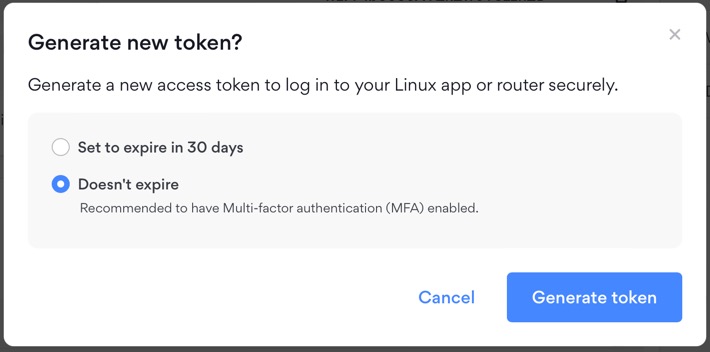
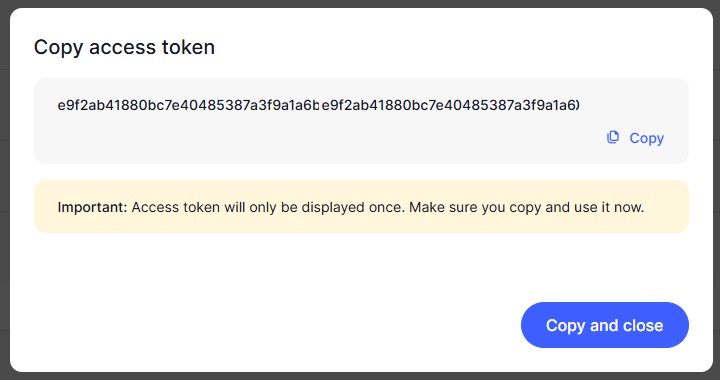
8. Select Generate new token. If available, select Doesn’t expire, then generate and copy the token.

NordVPN Generate new token
NordVPN Copy Token

Important: Your NordVPN access token is a sensitive account credential. Do not post or share it publicly.

Connect Privacy Hero to NordVPN

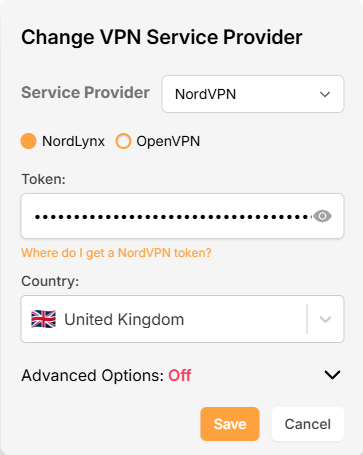
9. Return to the Privacy Hero dashboard and paste the NordVPN access token into the NordLynx token field.

If you leave the normal country selection in place, Privacy Hero will automatically connect using the available NordVPN server selection for that location.

Click Save.

NordVPN Protocols Privacy Hero

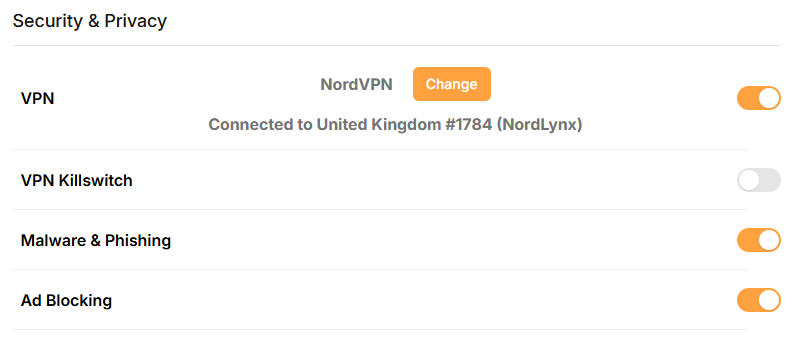
10. Privacy Hero will attempt to establish the NordLynx connection.

Once connected, the VPN status will display Connected.

Privacy Hero Nordlynx Connected

NordVPN OpenVPN Setup

Privacy Hero also supports NordVPN using OpenVPN.

Use OpenVPN if you specifically want to use the OpenVPN protocol or if your NordVPN configuration requires OpenVPN.

OpenVPN requires NordVPN’s Manual Service Credentials. These are not the same as your normal NordVPN website email and password.

Choose OpenVPN in Privacy Hero

1. Visit app.privacyhero.com and sign in.

2. Open the VPN section.

Privacy Hero Setup VPN

3. Click Change and select NordVPN.

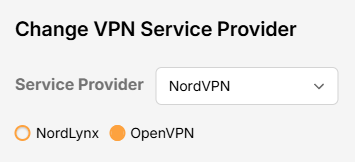
4. Select OpenVPN.

NordVPN Protocol Privacy Hero

Get Your NordVPN Manual Service Credentials

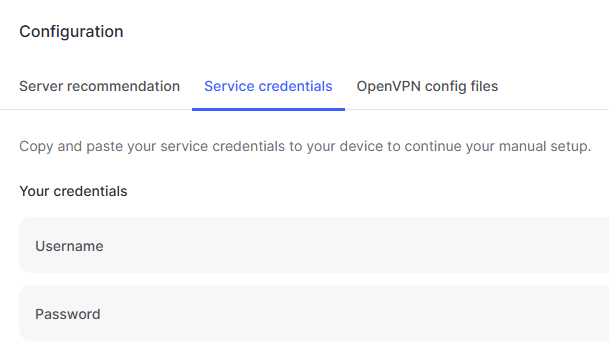
5. In a new browser tab, open NordVPN Manual Service Credentials and sign in to your NordVPN account.

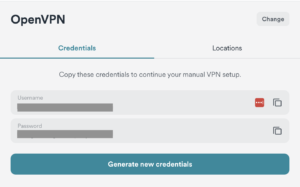
6. Complete NordVPN’s account verification if requested, then copy the current Service Username and Service Password.

NordVPN Manual OpenVPN
NordVPN Service Credentials

Important: Do not enter your normal NordVPN account email and password. Router OpenVPN connections require NordVPN’s Manual Service Credentials.

Connect Privacy Hero Using OpenVPN

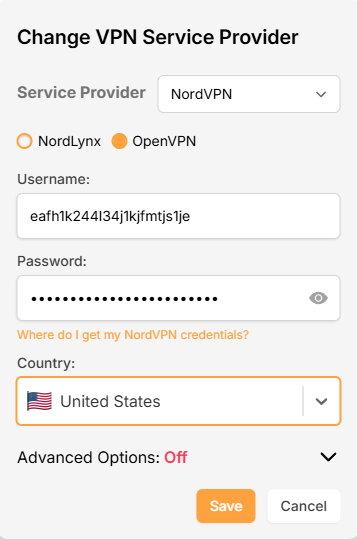
7. Return to the Privacy Hero dashboard and enter the NordVPN Manual Service Username and Password into the OpenVPN credential fields.

Click Save to establish the connection.

NordVPN OpenVPN Privacy Hero

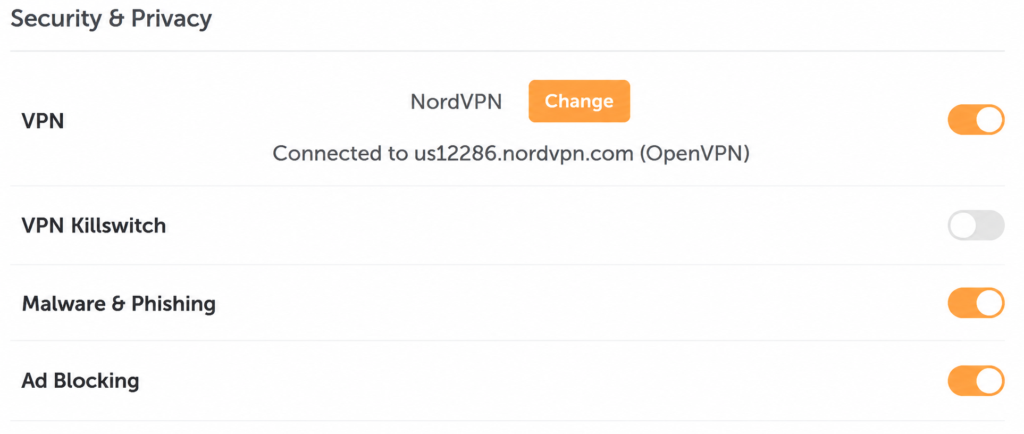
8. Once connected, Privacy Hero will display Connected.

NordVPN OpenVPN USA

Choose a NordVPN Country or Specific Server

Privacy Hero can automatically select a NordVPN server for you, or you can choose a country or enter a specific NordVPN server.

Choose a Country

To connect through a particular country:

  1. Open your NordVPN connection in Privacy Hero.
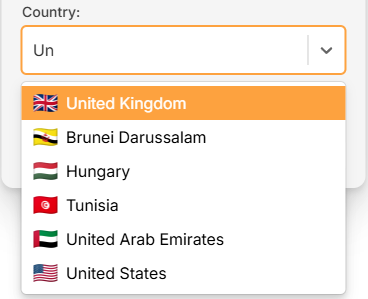
  2. Click the Country dropdown.
  3. Scroll or type to search for the location.
  4. Select the country you want to use.
  5. Click Save.

Privacy Hero will automatically use an available NordVPN server for the selected country.

Nordlynx VPN Country Selection Privacy Hero

Use a Specific NordVPN Server

If you specifically want to use an individual NordVPN server:

  1. Open your NordVPN connection in Privacy Hero.
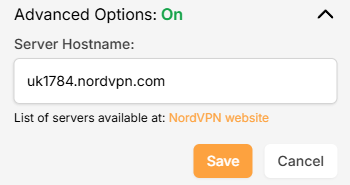
  2. Open Advanced Options.
  3. Enter the complete NordVPN server hostname, such as uk1784.nordvpn.com.
  4. Click Save.
Nordlynx Advanced Privacy Hero

You can use NordVPN’s server recommendation tool when you need a specific server hostname.

Important: NordVPN maintains and changes its server network over time. A specific server that works today may later be placed into maintenance, replaced, or removed. If a manually entered server stops connecting, remove the specific server selection or choose a current server.


NordVPN Dedicated IP Setup

NordVPN Dedicated IP connections can require one of two OpenVPN setup methods depending on the Dedicated IP configuration provided by NordVPN.

First, try the normal NordVPN OpenVPN setup in Privacy Hero using your NordVPN Manual Service Credentials and the Dedicated IP server hostname.

Method 1: NordVPN OpenVPN Advanced Options

  1. Configure NordVPN using OpenVPN and your NordVPN Manual Service Credentials as described above.
  2. Open Advanced Options.
  3. Enter the NordVPN Dedicated IP server hostname assigned to your account.
  4. Click Save.
  5. Check whether Privacy Hero successfully connects to the Dedicated IP server.
Nord US Dedicated OpenVPN

If Privacy Hero displays Connected and your public IP matches your NordVPN Dedicated IP, no additional configuration is required.

NordVPN OpenVPN USA

Method 2: Dedicated IP Using a Custom OpenVPN File

Some NordVPN Dedicated IP configurations use a private OpenVPN configuration file specific to the Dedicated IP server.

If the normal NordVPN OpenVPN Advanced Options method does not connect, download the Dedicated IP OpenVPN configuration file from NordVPN and add it to Privacy Hero as a Custom VPN.

Follow NordVPN’s Manual Dedicated IP Server Setup instructions to locate your Dedicated IP server and download its OpenVPN configuration.

Download the Dedicated IP UDP Configuration

  1. Sign in to the NordVPN account containing your Dedicated IP subscription.
  2. Follow NordVPN’s Dedicated IP manual setup instructions to locate the server assigned to your Dedicated IP.
  3. Download the OpenVPN UDP configuration file for the Dedicated IP server.
  4. Save the .ovpn file to the computer or device you are using to configure Privacy Hero.

Important: Use the OpenVPN configuration file associated with your actual NordVPN Dedicated IP. A normal public NordVPN server configuration file is not the same as your private Dedicated IP configuration.

Add the Dedicated IP as a Custom VPN

When importing the private NordVPN Dedicated IP .ovpn file, select Custom from the Privacy Hero VPN provider dropdown instead of NordVPN.

  1. Open app.privacyhero.com.
  2. Open the VPN section.
  3. Click Change.
  4. Select Custom from the VPN provider dropdown.
  5. Upload the NordVPN Dedicated IP UDP .ovpn configuration file.
  6. Enter your NordVPN Manual Service Username.
  7. Enter your NordVPN Manual Service Password.
  8. Save the VPN configuration.
  9. Enable the VPN and allow Privacy Hero to establish the connection.

If you need the current credentials, open NordVPN Manual Service Credentials.

Do not use your regular NordVPN website email address and password. The Custom OpenVPN connection still requires NordVPN’s Manual Service Credentials.


Verify Your NordVPN Connection

Once Privacy Hero displays the VPN as Connected, verify that your device is actually using the Privacy Hero VPN connection.

  1. Connect your device to the Privacy Hero WiFi.
  2. Make sure the NordVPN application or another VPN application is not connected directly on the device.
  3. Open a fresh private/incognito browser window.
  4. Visit NordVPN What Is My IP.
  5. Confirm that the public IP address and location correspond to your selected NordVPN location.

Do not run the NordVPN application directly on the testing device while also testing NordVPN through Privacy Hero. Running both connections at the same time creates a double-VPN connection and can produce unexpected IP, location, or connectivity results.

Streaming Relocation and Your VPN Location

If Streaming Relocation is enabled for a supported streaming service, that service may use the Streaming Relocation location instead of the location of your selected VPN server.

This is expected behavior.

See Privacy Hero Streaming Relocation for more information.

NordVPN Not Connecting?

If Privacy Hero displays NordVPN as Failed, remains on Connecting, or shows a timeout error, do not repeatedly recreate the entire VPN setup.

Common causes include:

  • A specific NordVPN server that is undergoing maintenance or has been removed.
  • An old, invalid, expired, or revoked NordLynx access token.
  • Outdated NordVPN OpenVPN Manual Service Credentials.
  • Recent changes to your NordVPN account or authentication information.
  • An inactive NordVPN subscription.
  • A protocol-specific connection problem.
  • A Dedicated IP that requires its private OpenVPN configuration file instead of the normal NordVPN OpenVPN server selection.

Follow our Privacy Hero NordVPN Not Connecting or Showing Timeout Errors guide for troubleshooting.

No Internet After NordVPN Disconnects?

If NordVPN disconnects and devices connected to Privacy Hero suddenly report no internet, check whether the VPN Kill Switch is enabled.

The Kill Switch intentionally blocks normal internet traffic when the VPN connection is unavailable.

Follow our Privacy Hero VPN Kill Switch: No Internet or WiFi Troubleshooting guide.

VPN Connected but One Device Shows the Wrong IP?

If Privacy Hero shows NordVPN as Connected and other devices display the correct VPN IP, check the affected device before changing the NordVPN configuration.

Device VPN applications, iCloud Private Relay, Android Private DNS, antivirus software, firewalls, browser settings, and other privacy or security features can interfere with router VPN testing.

See Device Settings That Can Interfere With Your Router VPN.

Related Privacy Hero Guides

  • Privacy Hero NordVPN Not Connecting or Showing Timeout Errors
  • Privacy Hero VPN Kill Switch Setup
  • Privacy Hero VPN Kill Switch: No Internet or WiFi Troubleshooting
  • Privacy Hero Streaming Relocation
  • Device Settings That Can Interfere With Your Router VPN

Privacy Hero NordVPN Not Connecting or Showing Timeout Errors

Dave · Sep 22, 2026 ·

If NordVPN will not connect on Privacy Hero, shows a timeout error, remains stuck on Connecting, or displays Failed, the Privacy Hero router itself may still be working normally.

NordVPN connections can occasionally stop working when servers are placed into maintenance, removed or cycled out of service, account credentials change, or a previously saved NordVPN access token or manual service credential is no longer valid.

Start by confirming that Privacy Hero has normal internet access, then troubleshoot the NordVPN connection.


Jump to a Section

  • Confirm Privacy Hero Has Internet
  • Reconnect NordVPN
  • Try Another NordVPN Server
  • Update Your NordLynx Token
  • Update OpenVPN Credentials
  • Recent NordVPN Account Changes
  • Verify the VPN Connection

First: Confirm Privacy Hero Has Internet

Before changing your NordVPN settings, confirm that Privacy Hero itself has normal internet access.

  1. Open app.privacyhero.com.
  2. Open the VPN section.
  3. If the VPN Kill Switch is enabled, temporarily turn it Off.
  4. Turn the failed NordVPN connection off.
  5. Connect a device to the Privacy Hero network.
  6. Test normal internet access.

If internet access works normally with NordVPN and the Kill Switch disabled, the underlying Privacy Hero internet connection is working. Continue troubleshooting the NordVPN connection.

If your internet stopped working because NordVPN failed while the VPN Kill Switch was enabled, follow our Privacy Hero VPN Kill Switch: No Internet or WiFi Troubleshooting guide.

Reconnect NordVPN

A temporary NordVPN server or connection issue may resolve without changing your account information.

  1. Open the VPN section at app.privacyhero.com.
  2. Turn the NordVPN connection off.
  3. Wait a few seconds.
  4. Turn NordVPN back on.
  5. Allow the connection time to establish.
  6. Check whether the VPN status changes to Connected.

If NordVPN still shows Failed, Connecting, or a timeout error, continue with the steps below.

Try Another NordVPN Server

NordVPN regularly maintains, replaces, and cycles servers in its network. A specific NordVPN server that worked previously may eventually be taken offline, removed, or temporarily unavailable.

If your Privacy Hero NordVPN connection is configured to use a specific server and suddenly stops working, try another server or return to the normal country selection.

  1. Open app.privacyhero.com.
  2. Open the VPN section.
  3. Select your NordVPN connection.
  4. If you previously entered a specific NordVPN server under Advanced Options, remove or replace that server.
  5. Select the country or location you want to use.
  6. Save the settings.
  7. Reconnect NordVPN.
  8. Check whether the status changes to Connected.

If you specifically need to use an individual NordVPN server, make sure that server is still active before continuing to use it.

Important: A previously working specific server should not be assumed to remain available indefinitely. NordVPN may change its server network over time.

Update Your NordVPN Token for NordLynx

Privacy Hero uses a NordVPN access token to authenticate NordLynx connections.

If the saved token is expired, revoked, replaced, or otherwise no longer valid, NordLynx may show Failed, Connecting, or a timeout error.

Generating a new token is a good troubleshooting step if your NordVPN account information has changed or the existing token is no longer working.

  1. Sign in to your NordVPN account.
  2. Open the NordVPN Access Tokens page.
  3. Generate a new access token.
  4. Select Doesn’t expire if NordVPN provides that option.
  5. Copy the new token.
  6. Open app.privacyhero.com.
  7. Open the NordVPN settings.
  8. Confirm that NordLynx is the selected protocol.
  9. Replace the existing token with the newly generated token.
  10. Save the settings.
  11. Reconnect NordVPN.

Important: NordVPN access tokens are sensitive account credentials. Do not post or share your token publicly.

For complete setup instructions, see Privacy Hero NordVPN / NordLynx Setup.

Update NordVPN Manual Service Credentials for OpenVPN

If you are using OpenVPN instead of NordLynx, Privacy Hero uses NordVPN’s Manual Service Credentials.

These are different from the email address and password you normally use to sign in to the NordVPN website or application.

If the saved credentials are no longer valid, update them:

  1. Sign in to your NordVPN account.
  2. Open NordVPN Manual Service Credentials.
  3. Copy the current service username and password.
  4. Open app.privacyhero.com.
  5. Open your NordVPN settings.
  6. Confirm that OpenVPN is the selected protocol.
  7. Replace the existing manual service credentials with the current credentials from NordVPN.
  8. Save the settings.
  9. Reconnect NordVPN.

Do not enter your regular NordVPN website email address and password in place of the manual service credentials.

Did You Recently Change Your NordVPN Account Information?

If NordVPN stopped connecting after an account change, update the authentication information stored in Privacy Hero.

This is especially important after changes such as:

  • Changing your NordVPN account password.
  • Changing or updating NordVPN account security settings.
  • Generating or replacing NordVPN access tokens.
  • Changes to NordVPN manual service credentials.
  • Renewing, changing, or restoring your NordVPN subscription.

The credentials used by Privacy Hero depend on the VPN protocol:

  • NordLynx: Uses a NordVPN access token.
  • OpenVPN: Uses NordVPN manual service credentials.

Your regular NordVPN website login should not be entered as the router’s OpenVPN credentials.

If you are unsure whether the existing authentication information is still valid, retrieve current credentials directly from your NordVPN account and update Privacy Hero.

Confirm Your NordVPN Subscription Is Active

Privacy Hero cannot establish a NordVPN connection if the NordVPN account being used no longer has active VPN service.

Sign in to your NordVPN account and confirm that your subscription is active before continuing with server, token, or credential troubleshooting.

Try Another VPN Protocol

If your NordVPN account, credentials, and server selection are correct but the connection still fails, try another NordVPN protocol available in Privacy Hero.

For example, if NordLynx is not connecting, testing OpenVPN can help determine whether the issue is specific to the protocol or authentication method.

Remember that changing protocols also changes the required NordVPN authentication:

  • NordLynx requires a NordVPN access token.
  • OpenVPN requires NordVPN manual service credentials.

Important: Do Not Run Two VPNs at Once

Do not leave the NordVPN application connected directly on your phone or computer while testing the Privacy Hero VPN.

Running a VPN application on the device while also routing that device through the Privacy Hero VPN creates a double-VPN connection and can cause routing, connectivity, or IP-location problems.

Disconnect the device-level NordVPN app before testing the router VPN.

Verify the NordVPN Connection

Once Privacy Hero displays NordVPN as Connected:

  1. Connect your device to the Privacy Hero WiFi.
  2. Make sure the NordVPN app on the device is disconnected.
  3. Open a fresh private/incognito browser window.
  4. Visit NordVPN What Is My IP.
  5. Confirm that the public IP address and location correspond to your selected NordVPN location.
  6. Test several websites or applications.

If you use the Privacy Hero VPN Kill Switch, enable it only after confirming that NordVPN is connected and working.

NordVPN Is Connected but One Device Shows the Wrong IP

If Privacy Hero shows NordVPN as Connected and other devices display the correct VPN IP, the NordVPN connection itself is likely working.

Check the affected device’s Privacy Hero VPN assignment and review any VPN, privacy, DNS, browser, antivirus, firewall, or security settings running directly on that device.

See Device Privacy, DNS, VPN, and Security Settings That Can Interfere With Your Router VPN.

Related Privacy Hero Guides

  • Privacy Hero VPN Kill Switch: No Internet or WiFi Troubleshooting
  • Privacy Hero VPN Kill Switch Setup
  • Privacy Hero NordVPN / NordLynx Setup
  • Device Privacy, DNS, VPN, and Security Settings That Can Interfere With Your Router VPN

Privacy Hero Dashboard Not Updating or Showing Old Information

Dave · Oct 8, 2026 ·

If the Privacy Hero dashboard is showing old information, a VPN status does not appear to update, settings you changed are not displaying correctly, or the dashboard behaves unexpectedly, your browser may be displaying cached Privacy Hero website data.

Before changing your router or VPN configuration again, open a fresh browser session and confirm that the dashboard is displaying the current information.

Start With a Private or Incognito Browser Window

The fastest test is to open the Privacy Hero dashboard in a new private or incognito browser window.

  1. Close any existing Privacy Hero dashboard tabs.
  2. Open a new private or incognito browser window.
  3. Visit app.privacyhero.com.
  4. Sign in to your Privacy Hero account.
  5. Check the router, VPN, device, or setting again.

If the correct information appears in the private browser window, the original browser session was likely displaying cached or stale website information.

Refresh the Privacy Hero Dashboard

If the dashboard has been open while you are changing VPN or router settings, refresh the page before assuming that a change failed.

  1. Refresh the Privacy Hero dashboard.
  2. Allow the page to finish loading.
  3. Return to the section you were changing.
  4. Check the current status again.

If the information still appears incorrect, sign out of Privacy Hero, close the browser tab, and sign back in through a fresh browser session.

Clear Cached Privacy Hero Site Data

If Privacy Hero works correctly in a private/incognito window but not in your normal browser window, clear the cached website data for Privacy Hero.

Browser menus vary, but look for settings related to:

  • Cached files and images.
  • Cookies and site data.
  • Website data.
  • Privacy and browsing data.

If your browser allows you to remove data for an individual website, clear the stored data for app.privacyhero.com rather than clearing your entire browser history.

Then reopen app.privacyhero.com, sign in again, and check the dashboard.

Try Another Browser or Device

If the dashboard still behaves unexpectedly, test it from another browser or device.

  1. Open app.privacyhero.com in another browser.
  2. Sign in using the same Privacy Hero account.
  3. Check whether the same router and settings appear correctly.

You can also test from another computer, phone, or tablet.

Privacy Hero is cloud-managed, so you do not need to be connected to the Privacy Hero WiFi to access the dashboard. You can use cellular data, another WiFi network, or another internet connection.

Disable Browser Extensions While Testing

Browser extensions can sometimes interfere with website login, scripts, or dashboard functions.

If the problem occurs only in one browser, temporarily test without extensions such as:

  • Ad blockers.
  • Privacy extensions.
  • Script blockers.
  • VPN or proxy extensions.
  • Security or filtering extensions.

A private/incognito window may disable some extensions automatically, depending on your browser configuration.

VPN Status Still Shows Failed or Connecting?

If a fresh browser session confirms that Privacy Hero is actually reporting the VPN as Failed, Connecting, Disconnected, or showing a timeout error, the problem is no longer just a browser display issue.

NordVPN users should continue with Privacy Hero NordVPN Not Connecting or Showing Timeout Errors.

No Internet After the VPN Failed?

If the dashboard confirms that the VPN has failed and your Privacy Hero network also has no internet access, check whether the VPN Kill Switch is enabled.

See Privacy Hero VPN Kill Switch: No Internet or WiFi Troubleshooting.

One Device Shows the Wrong VPN IP?

If Privacy Hero shows the VPN as connected and working but only one device shows an unexpected IP address or location, the browser cache is probably not the main issue.

Check the device for its own VPN application, Private Relay, Private DNS, browser Secure DNS, antivirus, firewall, or other network settings.

See Device Settings That Can Interfere With Your Router VPN.

Related Privacy Hero Guides

  • Privacy Hero VPN Kill Switch: No Internet or WiFi Troubleshooting
  • Privacy Hero NordVPN Not Connecting or Showing Timeout Errors
  • Privacy Hero VPN Kill Switch Setup
  • Device Settings That Can Interfere With Your Router VPN

ExpressVPN Setup for Privacy Hero

TeamFlashRouters · Aug 14, 2025 ·

Privacy Hero supports ExpressVPN using OpenVPN. To connect, you will need your ExpressVPN Manual Configuration username and password and an OpenVPN (.ovpn) file for your preferred server location.

Important: In Privacy Hero, select Custom as the VPN provider when using ExpressVPN. Upload the ExpressVPN OpenVPN configuration file and enter the separate manual configuration credentials. Do not use your normal ExpressVPN website login.

Privacy Hero is cloud-managed, so you can complete setup from a computer, smartphone, or tablet with an internet connection. You do not need to be connected to Privacy Hero WiFi to change these settings.


ExpressVPN Setup Guide

  • Get Your ExpressVPN Manual Configuration
  • Download Your OpenVPN Server File
  • Add ExpressVPN to Privacy Hero
  • Verify Your VPN Connection
  • ExpressVPN Not Connecting?

Get Your ExpressVPN Manual Configuration Credentials

ExpressVPN provides a separate username and password for manual OpenVPN connections. These are different from the email address and password you use to sign in to the ExpressVPN website.

1. Open ExpressVPN Set Up Devices and sign in to your ExpressVPN account.

2. In the left navigation, click Set Up Devices.

3. Under Applications, expand Advanced setup, then select Manual Configuration.

4. Under Manual configuration, locate the unique Username and Password provided for OpenVPN. Keep this tab open so you can copy them into Privacy Hero later.

Important: These OpenVPN credentials are not your regular ExpressVPN account password. Do not share or post your actual manual configuration credentials.

Download an ExpressVPN OpenVPN Configuration File

The OpenVPN file contains the settings for the ExpressVPN server location you select. Each location may have a different configuration file.

5. On the same Manual Configuration page, scroll down to the available regions, including Americas, Europe, Asia Pacific, and Middle East & Africa.

6. Expand the region you want and download the UDP .ovpn configuration file for your preferred available location. Save it to the device you are using to access the Privacy Hero dashboard.

Only the locations displayed on your ExpressVPN Manual Configuration page are available for this setup. For a different ExpressVPN location, download its corresponding .ovpn file if available.


Add ExpressVPN to Privacy Hero as a Custom VPN

Open the VPN Settings

7. Open app.privacyhero.com and sign in to your Privacy Hero account.

8. Select the VPN section.

Privacy Hero dashboard VPN navigation icon

9. Click Change beside the VPN provider and select Custom from the provider dropdown.

Privacy Hero Change VPN provider button

Upload the OpenVPN File and Enter Credentials

10. In the Custom VPN setup, choose OpenVPN. Upload the UDP .ovpn file you downloaded from ExpressVPN.

11. Copy the separate Manual Configuration Username and Password from your ExpressVPN account into the corresponding Privacy Hero fields.

Privacy Hero Custom OpenVPN setup with username password and configuration file upload

Check the OpenVPN Configuration

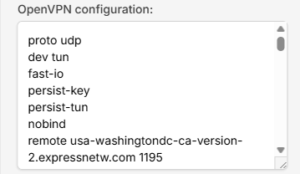
12. If Privacy Hero displays the OpenVPN configuration in an editor, check that the file specifies the UDP protocol. If the proto udp directive is missing, add the following line at the beginning of the configuration:

proto udp

Do not add a second conflicting protocol directive if proto udp already appears in the configuration.

Privacy Hero Custom OpenVPN configuration editor showing proto udp directive

13. Click Save to apply the settings and connect to ExpressVPN.

14. Once the connection is established, Privacy Hero should display Connected for the Custom OpenVPN connection.

Privacy Hero dashboard showing Custom OpenVPN connected


Verify Your ExpressVPN Connection

Once Privacy Hero displays the VPN as Connected, confirm that traffic from your device is using the VPN.

  1. Connect the device to the Privacy Hero WiFi or LAN network.
  2. Disconnect any ExpressVPN app or other VPN application running directly on that device.
  3. Open a fresh private/incognito browser window.
  4. Visit ExpressVPN What Is My IP.
  5. Confirm that the public IP address and location reflect the ExpressVPN server selected in your .ovpn file.

Important: Because Privacy Hero is cloud-managed, you can change the VPN settings from another network or cellular data. However, to verify the router VPN IP, the device performing the IP test must actually be connected to the Privacy Hero network.

Streaming Relocation and Your VPN Location

If Privacy Hero Streaming Relocation is enabled for a supported streaming service, that service may use its Streaming Relocation location instead of the location selected in your ExpressVPN OpenVPN file.

See Privacy Hero Streaming Relocation for more information.

ExpressVPN Not Connecting?

If Privacy Hero displays Failed, remains on Connecting, or shows a timeout error, check the following:

  1. Confirm that your ExpressVPN subscription is active and that you entered its separate Manual Configuration username and password.
  2. Make sure you selected Custom, not another VPN provider, in Privacy Hero.
  3. Download a fresh UDP .ovpn file for an available ExpressVPN location and upload it again. Server configurations can change.
  4. Confirm that the configuration specifies proto udp and does not contain conflicting protocol directives.
  5. Temporarily disable the VPN Kill Switch while determining whether normal internet access works without the VPN.
  6. Try a different ExpressVPN server location or restart the VPN connection.

If the VPN fails and connected devices report no internet, check whether the VPN Kill Switch is blocking normal traffic. See Privacy Hero VPN Kill Switch: No Internet or WiFi Troubleshooting.

VPN Connected but One Device Shows the Wrong IP?

If the VPN is connected and works on other devices, check the affected device for VPN applications, iCloud Private Relay, Private DNS, browser proxy/DNS settings, antivirus filtering, or other security software.

See Device Settings That Can Interfere With Your Router VPN.

Related Privacy Hero Guides

  • Privacy Hero VPN Kill Switch Setup
  • Privacy Hero VPN Kill Switch: No Internet or WiFi Troubleshooting
  • Privacy Hero Streaming Relocation
  • Device Settings That Can Interfere With Your Router VPN
  • FlashRouters Router Troubleshooting

Privacy Hero Activation and Setup

TeamFlashRouters · Feb 8, 2023 ·

Follow this article when you receive your new Privacy Hero router to create your Privacy Hero account, connect your Privacy Hero to the Internet, and customize your network so it is ready to use.

Your Privacy Hero router uses Cloud Based router management which means you can access the router settings from anywhere on any device that has an internet connection. You can follow these steps while connected to your phone or your other Wi-Fi network.

Create your Privacy Hero account

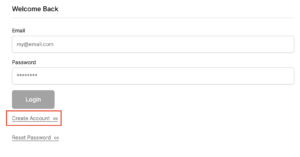
1. From any device that has a browser such as a computer, smartphone, or tablet visit app.privacyhero.com

App.PrivacyHero.com

2. Select Create Account.

Privacy Hero create Account

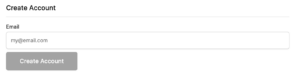
3. Enter the Email address you want to set for your Privacy Hero account. This will be your login to the Privacy Hero settings moving forward. Click Create Account.

Privacy Hero Enter account email

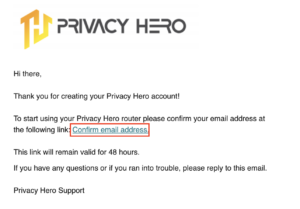
4. Go to your Email inbox and check for an email from Privacy Hero and click the Confirm email address link. This email may be in your Promotions or Spam inbox if it is not appearing in your main inbox.

Privacy Hero Confirm Email

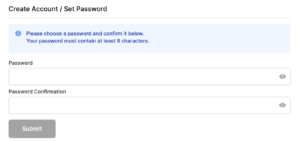
5. Enter the password that you want to use for your Privacy Hero account. Be sure to note this in a secure location so you do not forget. Click Submit.

Privacy Hero create password

6. You have now created your Privacy Hero account. You will use this login to access the Privacy Hero router settings.

Activate your Privacy Hero Internet and setup Wi-Fi

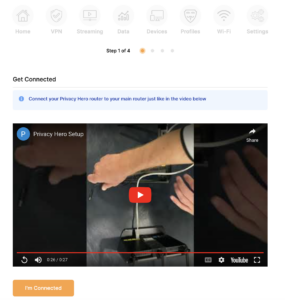
1. You will then be taken to the Router Activation steps. Connect the ethernet cable that the Privacy Hero came with from an open Ethernet port on your ISP modem or other router to the WAN/Internet (blue) port of the Privacy Hero.

Then power the Privacy Hero device on by connecting the power supply. This is shown in the video on the page as well. Wait about a minute or so for the Privacy Hero router to fully boot up and then click I’m Connected.

Wire Up Privacy Hero

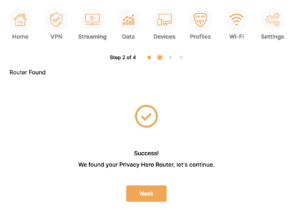
2. The next page may say Router Found or ask you to enter the Activation Code. If it asks for the Activation Code that will be the code printed on the bottom of the Privacy Hero. Enter this code and click Next.

Privacy Hero Router Found

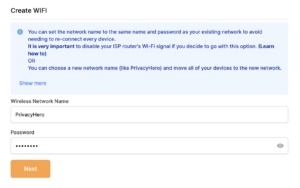
3. Set the Wi-Fi name and password for connecting your devices to the Privacy Hero network. Make sure it is not a duplicate name of an existing Wi-Fi network. Click Next.

Privacy Hero Set wifi name and password

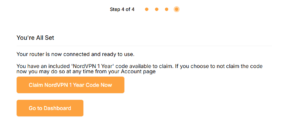
4. To activate your 1 Year NordVPN code:

Click on Claim NordVPN 1 Year Code Now

NordVPN Claim Code

Go to the Account section of your router settings.

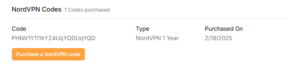
Copy the NordVPN code shown under Claim NordVPN 1 Year Code.

PH Nord Code

Go to the NordVPN activation page.

This code can be used with a new or existing NordVPN account.

NordVPN Activate Page

5. You are now all set to begin joining your devices to the new Privacy Hero network with the Wi-Fi name and password you entered and setting up some of the Privacy Hero features.

TROUBLESHOOTING

Still having issues? Visit the VPN Troubleshooting section.

Troubleshoot Here

Privacy Hero VPN Kill Switch Setup

TeamFlashRouters · Apr 3, 2023 ·

Privacy Hero’s VPN Kill Switch prevents normal internet traffic from passing through your router when the VPN is disconnected or fails to connect.

Privacy Hero uses cloud-based management, so you can change this setting from any device with an internet connection. You can be connected to the Privacy Hero WiFi, another WiFi network, or cellular data.

Before enabling the VPN Kill Switch, make sure your VPN is connected and working.

Enable the Privacy Hero VPN Kill Switch

1. From a computer, smartphone, or tablet, open app.privacyhero.com.

App.PrivacyHero.com

2. Enter your Privacy Hero account email and password, then click Login.

Privacy Hero Access Settings

Note: If you have not activated your Privacy Hero account yet, follow the Privacy Hero Activation and Setup instructions.

3. Click the VPN symbol.

Privacy Hero Setup VPN

4. Confirm that your VPN connection is active and working.

5. Toggle VPN Kill Switch to On.

Privacy Hero VPN Kill Switch

What Happens When the Kill Switch Is Enabled?

When the VPN Kill Switch is enabled, Privacy Hero allows normal internet traffic only while the VPN connection is active.

  • VPN Connected + Kill Switch On: Internet traffic passes through the VPN.
  • VPN Disconnected + Kill Switch On: Normal internet traffic is blocked.
  • VPN Connection Failed + Kill Switch On: Normal internet traffic is blocked.

This is the intended behavior of the Kill Switch. It prevents connected devices from accidentally using your regular ISP connection if VPN protection is lost.

WiFi Connected but No Internet?

If your VPN disconnects or fails while the Kill Switch is enabled, your devices may report No Internet, Connected Without Internet, or may automatically switch to another WiFi network or cellular data.

You can still manage Privacy Hero through app.privacyhero.com. Because Privacy Hero is cloud-managed, you can also access the dashboard from cellular data or another internet connection.

Follow our Privacy Hero VPN Kill Switch: No Internet or WiFi Troubleshooting guide to restore the connection.

NordVPN Failed or Showing a Timeout?

If the Kill Switch is working correctly but NordVPN itself will not connect, troubleshoot the VPN connection before re-enabling the Kill Switch.

See Privacy Hero NordVPN Not Connecting or Showing Timeout Errors.

Related Privacy Hero Guides

  • Privacy Hero VPN Kill Switch: No Internet or WiFi Troubleshooting
  • Privacy Hero NordVPN Not Connecting or Showing Timeout Errors
  • Privacy Hero NordVPN / NordLynx Setup

Surfshark VPN Setup Guide for Privacy Hero

TeamFlashRouters · Sep 23, 2025 ·

Your Privacy Hero NordVPN Router uses cloud-based management, which means you can securely access and adjust your router settings from anywhere, on any device with an internet connection. Whether you’re connected through your phone, another Wi-Fi network, or directly to the Privacy Hero network, setup and management are always within reach.

Follow the steps below to connect your Privacy Hero to Surfshark WireGuard® or OpenVPN servers.

:point_right: Don’t have a Privacy Hero yet? Get your Privacy Hero Router for Surfshark here

Surfshark Wireguard Setup for Privacy Hero (recommended)

1. From any device that has a browser such as a computer, smartphone, or tablet visit app.privacyhero.com.

App.PrivacyHero.com

2. Enter your Privacy Hero account email and password. Click Login.

Privacy Hero Access Settings

3. Click the VPN symbol.

Privacy Hero Setup VPN

4. Click the Change button and select Custom from the dropdown and choose the Wireguard option.

Privacy Hero Change VPN Providers

5. In a new tab login to your Surfshark account.

6. Navigate to the VPN > Manual Setup tab.

7. Now choose Wireguard and go to the Router section.

8. Now go to Locations, and click on the server location you wish to use. Then, download the server file.

9. Drag and drop or click to Upload the server file into the Custom box on your Privacy Hero settings page. Then press Save.

10. Your Privacy Hero settings should now show a Connected message, indicating you have successfully signed in to your Surfshark VPN server!

Surfshark OpenVPN Setup for Privacy Hero

1. From any device that has a browser such as a computer, smartphone, or tablet visit app.privacyhero.com.

App.PrivacyHero.com

2. Enter your Privacy Hero account email and password. Click Login.

Privacy Hero Access Settings

3. Click the VPN symbol.

Privacy Hero Setup VPN

4. Click the Change button and select Custom from the dropdown and choose the OpenVPN option.

Privacy Hero Change VPN Providers

5. In a new tab login to your Surfshark account.

6. Navigate to the VPN > Manual Setup tab.

7. Now choose OpenVPN and go to the Router section.

8. Now go to Credentials and find your OpenVPN specific Username and Password.

9. Copy and paste the username and password from previous step into the Custom box on your Privacy Hero settings page.

10. Now go back to the Surfshark account page, and press Locations. 

11. Click on the country name that you want to choose, and Download any of the available server files from the list. (We recommend download the UDP version of the server file).

12. Drag and drop or click to Upload the server file into the Custom box on your Privacy Hero settings page. Then press Save.

13. Your Privacy Hero settings should now show a Connected message, indicating you have successfully signed in to your Surfshark VPN server!

Privacy Hero’s cloud based router settings access makes it so you can change settings while not connected to the Privacy Hero network. Visit the Surfshark IP Check to verify your VPN IP address. If it has not changed be sure to double check that you are indeed connected to the Privacy Hero network.

Keep in mind that the VPN connection will not change the location of the streaming services listed in the Streaming Relocation area of the Privacy Hero settings if the Streaming Relocation feature is Enabled.

TROUBLESHOOTING

Still having issues? Visit the VPN Troubleshooting section.

Troubleshoot Here

ProtonVPN Setup Guide for Privacy Hero

TeamFlashRouters · Sep 17, 2025 ·

Your Privacy Hero router uses Cloud Based router management which means you can access the router settings from anywhere on any device that has an internet connection. You can follow these steps while connected to your phone, other Wi-Fi network, or the Privacy Hero network.

ProtonVPN Wireguard Setup for Privacy Hero (recommended)

1. From any device that has a browser such as a computer, smartphone, or tablet visit app.privacyhero.com.

App.PrivacyHero.com

2. Enter your Privacy Hero account email and password. Click Login.

Privacy Hero Access Settings

3. Click the VPN symbol.

Privacy Hero Setup VPN

4. Click the Change button and select Custom from the dropdown and choose the Wireguard option.

Privacy Hero Change VPN Providers

5. In a new tab login to your ProtonVPN account.

6. Go to the Downloads section of your ProtonVPN account page.

7. Scroll down to find the WireGuard configuration section. Name your configuration and then select Router as the platform, and select Standard server configs.

8. Click on the country name that you want to choose, and Download any of the available server files from the list.

9. Drag and drop or click to Upload the server file into the Custom box on your Privacy Hero settings page. Then press Save.

10. Your Privacy Hero settings should now show a Connected message, indicating you have successfully signed in to your ProtonVPN server!

Wireguard connection

ProtonVPN OpenVPN Setup for Privacy Hero

1. From any device that has a browser such as a computer, smartphone, or tablet visit app.privacyhero.com.

App.PrivacyHero.com

2. Enter your Privacy Hero account email and password. Click Login.

Privacy Hero Access Settings

3. Click the VPN symbol.

Privacy Hero Setup VPN

4. Click the Change button and select Custom from the dropdown and choose the OpenVPN option.

Privacy Hero Change VPN Providers

5. In a new tab login to your ProtonVPN account.

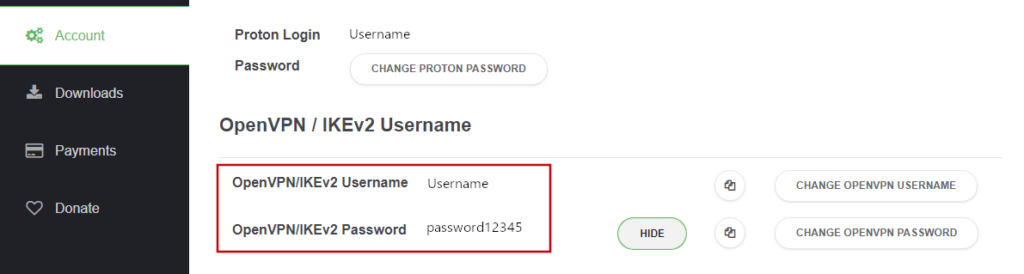
6. Navigate to the Account tab and find your OpenVPN specific Username and Password.

FlashRouters DD-WRT Privacy APP ProtonVPN OpenVPN Specific Username and Password

7. Copy and paste the username and password from previous step into the Custom box on your Privacy Hero settings page.

8. Go to the Downloads section of your ProtonVPN account page.

9. Scroll down to find the OpenVPN Configuration Files section. Then select “Router” as the platform, and select “Standard Server Configs.”

10. Click on the country name that you want to choose, and Download any of the available server files from the list.

11. Drag and drop or click to Upload the server file into the Custom box on your Privacy Hero settings page. Then press Save.

12. Your Privacy Hero settings should now show a Connected message, indicating you have successfully signed in to your ProtonVPN server!

Privacy Hero’s cloud based router settings access makes it so you can change settings while not connected to the Privacy Hero network. Visit the ProtonVPN IP Check to verify your VPN IP address. If it has not changed be sure to double check that you are indeed connected to the Privacy Hero network.

Keep in mind that the VPN connection will not change the location of the streaming services listed in the Streaming Relocation area of the Privacy Hero settings if the Streaming Relocation feature is Enabled.

TROUBLESHOOTING

Still having issues? Contact our Support Team.

Troubleshoot Here

Privacy Hero VPN Setup Guide for Privacy Hero

TeamFlashRouters · Apr 3, 2023 ·

Your Privacy Hero router uses Cloud Based router management which means you can access the router settings from anywhere on any device that has an internet connection. You can follow these steps while connected to your phone, other Wi-Fi network, or the Privacy Hero network.

Use these steps to connect to Privacy Hero’s own WireGuard VPN servers. You will automatically be connected to the ideal USA or Canada server based on your location.

1. From any device that has a browser such as a computer, smartphone, or tablet visit app.privacyhero.com

App.PrivacyHero.com

2. Enter your Privacy Hero account email and password. Click Login.

Privacy Hero Access Settings

If you have not created your Privacy Hero account yet please follow these instructions.

3. Click the VPN symbol.

Privacy Hero Setup VPN

4. Set the VPN toggle to On.

Privacy Hero Enable VPN

5. Connect to the Privacy Hero’s via wireless or ethernet connection on your device and visit What is my IP Address from a private/incognito browser to verify your new IP address and virtual location.

Privacy Hero’s cloud based router settings access makes it so you can change settings while not connected to the Privacy Hero network so if your IP Address has not changed be sure to double check that you are indeed connected to the Privacy Hero network on the device you are checking your IP from.

Keep in mind that the VPN connection will not change the location of the streaming services listed in the Streaming Relocation area of the Privacy Hero settings.

TROUBLESHOOTING

Still having issues? Visit the VPN Troubleshooting section.

Troubleshoot Here

IPVanish VPN Setup Guide for Privacy Hero

TeamFlashRouters · Sep 23, 2025 ·

Your Privacy Hero router uses Cloud Based router management which means you can access the router settings from anywhere on any device that has an internet connection. You can follow these steps while connected to your phone, other Wi-Fi network, or the Privacy Hero network.

IPVanish Wireguard Setup for Privacy Hero (recommended)

1. From any device that has a browser such as a computer, smartphone, or tablet visit app.privacyhero.com.

App.PrivacyHero.com

2. Enter your Privacy Hero account email and password. Click Login.

Privacy Hero Access Settings

3. Click the VPN symbol.

Privacy Hero Setup VPN

4. Click the Change button and select Custom from the dropdown and choose the Wireguard option.

Privacy Hero Change VPN Providers

5. In a new tab login to your IPVanish account.

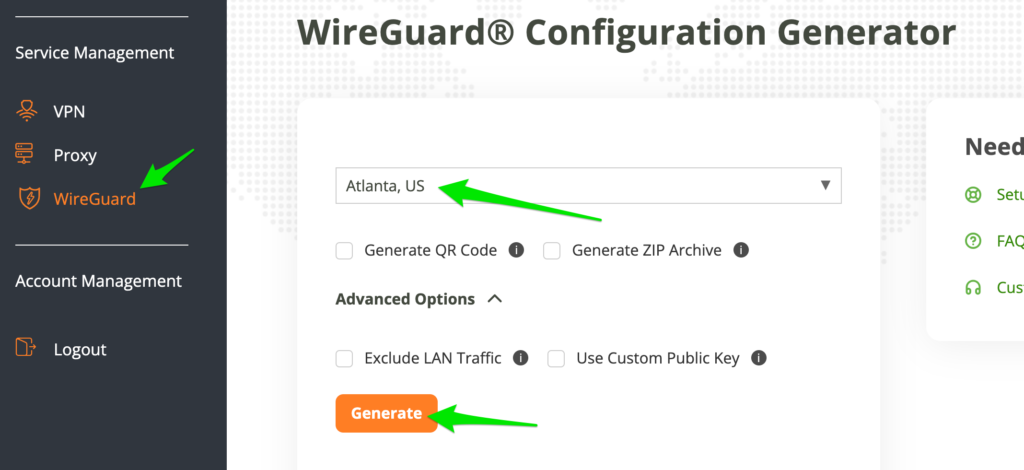
6. Click WireGuard on the left menu to access the WireGuard Configuration Generator.

Then select the server location and click Generate to download the WireGuard configuration file.

7. Drag and drop or click to Upload the server file into the Custom box on your Privacy Hero settings page. Then press Save.

8. Your Privacy Hero settings should now show a Connected message, indicating you have successfully signed in to your IPVanish VPN server!

IPVanish OpenVPN Setup for Privacy Hero

1. From any device that has a browser such as a computer, smartphone, or tablet visit app.privacyhero.com.

App.PrivacyHero.com

2. Enter your Privacy Hero account email and password. Click Login.

Privacy Hero Access Settings

3. Click the VPN symbol.

Privacy Hero Setup VPN

4. Click the Change button and select Custom from the dropdown and choose the OpenVPN option.

Privacy Hero Change VPN Providers

5. Download an .ovpn file from the IPVanish server list.

6. Drag and drop or click to Upload the server file into the Custom box on your Privacy Hero settings page.

7. Enter your IPVanish account login as the Username and Password. Then press Save.

8. Your Privacy Hero settings should now show a Connected message, indicating you have successfully signed in to your IPVanish VPN server!

Privacy Hero’s cloud based router settings access makes it so you can change settings while not connected to the Privacy Hero network. Visit the IPVanish IP Check to verify your VPN IP address. If it has not changed be sure to double check that you are indeed connected to the Privacy Hero network.

Keep in mind that the VPN connection will not change the location of the streaming services listed in the Streaming Relocation area of the Privacy Hero settings if the Streaming Relocation feature is Enabled.

TROUBLESHOOTING

Still having issues? Visit the VPN Troubleshooting section.

Troubleshoot Here

Device Settings That Can Interfere With Your Router VPN

Dave · Oct 6, 2026 ·

If your router VPN is connected and working on other devices but one phone, tablet, computer, or streaming device shows the wrong IP address, wrong location, cannot access certain websites, or behaves differently, check the affected device before changing the router.

VPN applications, privacy features, custom DNS settings, antivirus software, firewalls, browser settings, and corporate security software can all change how traffic is handled directly on a device.

This guide applies to all FlashRouter types and VPN providers.


Jump to a Section

  • Start Here: Router or Device?
  • Device VPN Applications
  • iPhone & iPad Privacy Settings
  • Android VPN & DNS Settings
  • Security, Firewall & Browser Settings
  • Run a Clean VPN Test

Start Here: Is the Problem the Router or One Device?

Before changing your router VPN configuration, compare the affected device with another device connected to the same FlashRouter.

If several devices show the correct VPN IP and location while only one device does not, the router VPN is already demonstrating that it can route traffic through the VPN.

Focus troubleshooting on the affected device.

If every device connected to the FlashRouter has the same VPN problem, continue with router-level VPN troubleshooting instead.

Privacy Hero users should also check the Privacy Hero dashboard. If the VPN itself displays Failed, Disconnected, Connecting, or a timeout error, troubleshoot that connection before changing device settings.

  • Privacy Hero VPN Kill Switch: No Internet or WiFi Troubleshooting
  • Privacy Hero NordVPN Not Connecting or Showing Timeout Errors

Disconnect VPN Applications Running on the Device

Do not run a VPN application directly on the device while troubleshooting a VPN running on your router.

This includes applications from NordVPN, ExpressVPN, Surfshark, Proton VPN, IPVanish, Private Internet Access, Mullvad, corporate VPN providers, and other VPN services.

If both the router VPN and device VPN are active, the device VPN can take control of that device’s traffic after it passes through the router.

This can cause:

  • An unexpected public IP address.
  • An unexpected VPN location.
  • Websites or applications not loading.
  • Streaming region problems.
  • DNS problems.
  • Slow or unstable connections.
  • One device behaving differently from other devices on the same router.

Disconnect the VPN application completely before testing the router VPN.

Closing the VPN app window may not disconnect the VPN. Confirm in the application or device network settings that the device-level VPN is actually disconnected.

iPhone and iPad: Check Private Relay and Limit IP Address Tracking

Apple devices include privacy features that can change how supported internet traffic is handled and make router VPN testing more difficult.

Limit IP Address Tracking

To temporarily disable Limit IP Address Tracking for your FlashRouter WiFi network:

  1. Open Settings.
  2. Select Wi-Fi.
  3. Tap the information button next to the FlashRouter WiFi network.
  4. Find Limit IP Address Tracking.
  5. Turn it Off.
  6. Disconnect from WiFi and reconnect.
  7. Test the connection again.

This setting is configured per WiFi network, so make sure you are changing it for the FlashRouter network being tested.

iCloud Private Relay

iCloud Private Relay can also alter IP address visibility for supported traffic.

For troubleshooting:

  1. Open Settings.
  2. Tap your Apple Account/name.
  3. Select iCloud.
  4. Select Private Relay.
  5. Temporarily turn Private Relay Off.
  6. Reconnect to the FlashRouter.
  7. Test the IP address and connection again.

These settings can be restored after testing.

Android: Check Private DNS and Always-On VPN

Android devices can have DNS and VPN settings that operate independently of the router.

Private DNS

Android Private DNS can send DNS requests to a selected DNS provider instead of relying solely on the DNS configuration supplied by the router.

If you are troubleshooting DNS, website access, streaming, filtering, or location behavior:

  1. Open Settings.
  2. Select Network & internet.
  3. Select Private DNS.
  4. Temporarily select Off.
  5. Save the setting.
  6. Reconnect to the FlashRouter WiFi.
  7. Test again.

Android menus vary by manufacturer and Android version. Search the device Settings for Private DNS if necessary.

Always-On VPN

An Android VPN application can be configured to automatically reconnect even after you believe the VPN has been disconnected.

  1. Open Settings.
  2. Select Network & internet.
  3. Select VPN.
  4. Select the configured VPN.
  5. Disable Always-on VPN while testing.
  6. Check whether Block connections without VPN is enabled and temporarily disable it if necessary for testing.

Then reconnect to the FlashRouter and test the router VPN again.

Check Antivirus, Firewall, Browser, and Work Security Settings

If the problem affects a computer or only occurs in one browser, check for software that modifies network traffic directly on the device.

Antivirus and Internet Security Software

Security applications may include network features such as:

  • Web Protection.
  • Safe Browsing or Secure Web.
  • Network Protection.
  • DNS Protection.
  • HTTPS scanning.
  • Tracking protection.
  • Built-in VPN services.
  • Firewall controls.

Temporarily disable the relevant network protection feature and test again. You do not normally need to disable the entire antivirus product.

Third-Party Firewalls

A third-party firewall can block applications, DNS requests, VPN-related traffic, or specific network interfaces.

Temporarily disable the firewall and test the connection. If the problem disappears, re-enable the firewall and review its network rules.

Browser VPN, Proxy, and Secure DNS

Browsers and browser extensions can also use their own:

  • VPN services.
  • Proxy connections.
  • Secure DNS or DNS-over-HTTPS.
  • Privacy or filtering extensions.
  • Location-changing extensions.

If the problem occurs only in one browser, test another browser without extensions or custom networking settings.

Work and Corporate Devices

Company-managed computers and mobile devices may use corporate VPN clients, DNS filtering, web filtering, endpoint security, device-management profiles, or zero-trust networking software.

These systems may intentionally override the local router’s network behavior.

If a personal device works correctly on the same FlashRouter while a company-managed device does not, the company security configuration may be responsible.

Run a Clean Router VPN Test

For the cleanest test, temporarily remove device-level networking variables and let the FlashRouter VPN handle the connection.

  • FlashRouter VPN: On
  • Device VPN: Off
  • iCloud Private Relay: Off while testing
  • Limit IP Address Tracking: Off while testing
  • Android Private DNS/custom DNS: Off while testing
  • Always-On VPN: Off while testing
  • Third-party network filtering: Off while testing

Then:

  1. Disconnect the affected device from WiFi.
  2. Reconnect it to the FlashRouter.
  3. Open a fresh private/incognito browser window.
  4. Check the device’s public IP address and location.
  5. Compare the result with another device connected to the same FlashRouter.

If the second device shows the correct VPN IP but the affected device does not, continue troubleshooting settings or software on the affected device.

If all devices show the same incorrect IP address or all devices fail to use the VPN, continue with router-level VPN troubleshooting.

Privacy Hero VPN Connected but Device Still Shows the Wrong IP?

Privacy Hero provides device-level VPN controls. Make sure the affected device is actually assigned to use the VPN.

  1. Open app.privacyhero.com.
  2. Open the Devices section.
  3. Select the affected device.
  4. Confirm VPN protection is enabled for that device.
  5. Disconnect any VPN application running directly on the device.
  6. Test the public IP address again.

If other Privacy Hero devices show the correct VPN IP and only one device remains incorrect, continue with the device-level checks above.


Related FlashRouters Guides

  • Should I Be Using My Computer, Phone, or Tablet VPN App While Connected to the FlashRouter?
  • What Is a DNS Leak and How Can I Prevent a DNS Leak in My Router?
  • FlashRouters VPN FAQs
  • FlashRouters Router Troubleshooting
  • Privacy Hero VPN Kill Switch: No Internet or WiFi Troubleshooting
  • Privacy Hero NordVPN Not Connecting or Showing Timeout Errors
  • Privacy Hero VPN Kill Switch Setup

Privacy Hero Creating User Profiles and Adding Devices to Profiles

TeamFlashRouters · Apr 3, 2023 ·

Your Privacy Hero router uses Cloud Based router management which means you can access the router settings from anywhere on any device that has an internet connection. You can follow these steps while connected to your phone, other Wi-Fi network, or the Privacy Hero network.

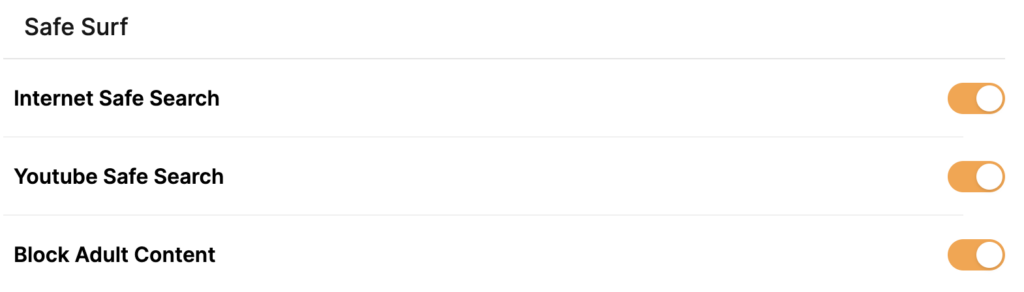
The Privacy Hero router allows for User Profile creation. Doing so allows you to group different user’s devices together to customize the following rules:

  • Internet access scheduler (Bedtime settings)
  • Internet Safe Search
  • Youtube Safe Search
  • Block Adult Content

This makes the Privacy Hero a great router option for families and internet addicts.

1. From any device that has a browser such as a computer, smartphone, or tablet visit app.privacyhero.com

App.PrivacyHero.com

2. Enter your Privacy Hero account email and password. Click Login.

Privacy Hero Access Settings

If you have not created your Privacy Hero account yet please follow these instructions.

3. Click the Profiles symbol.

Privacy Hero Profiles

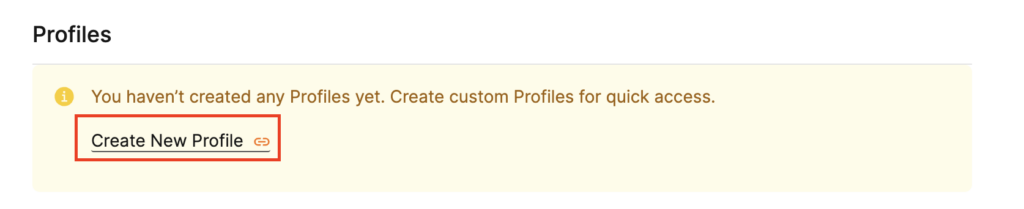
4. Click Create New Profile.

Privacy Hero Create New Profile

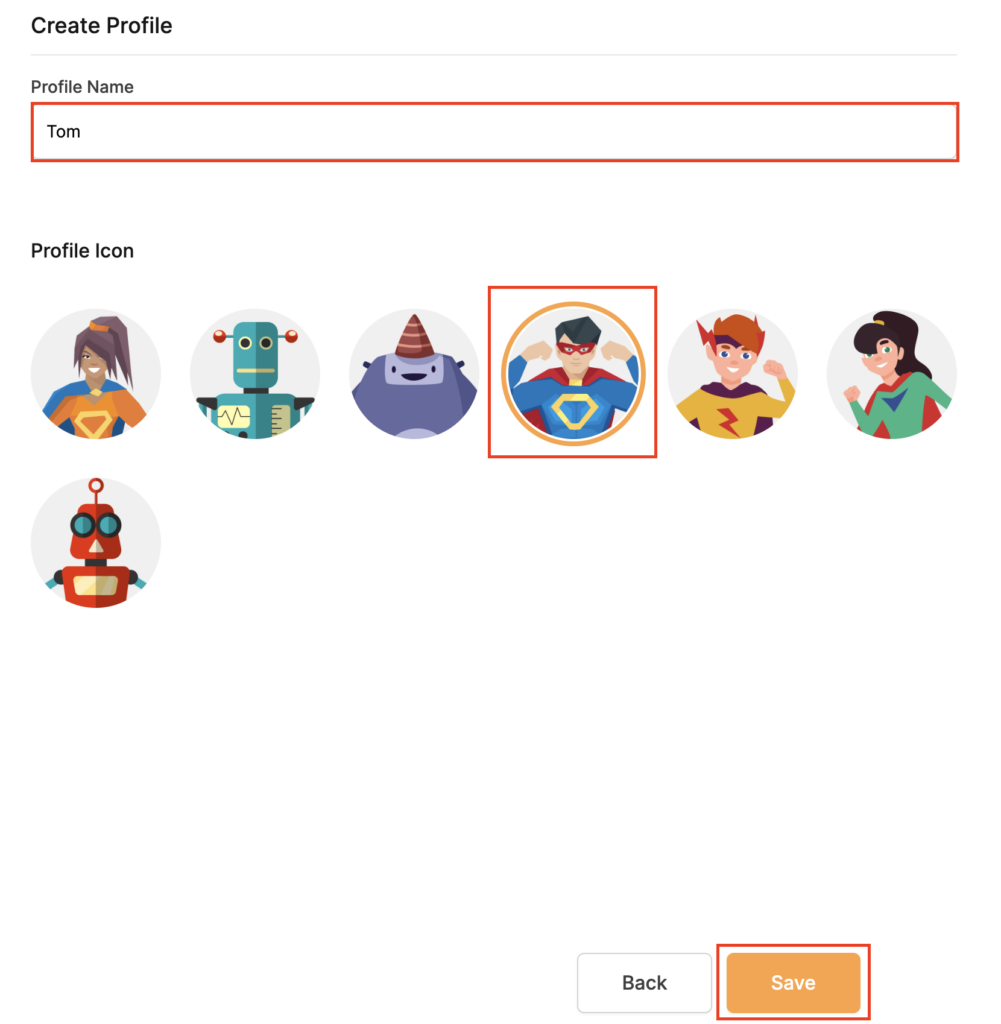
5. Set the Profile Name, select the Profile Icon, and click Save.

Privacy Hero Set Profile Name

6. Click the name of the User Profile.

Privacy Hero Select Profile

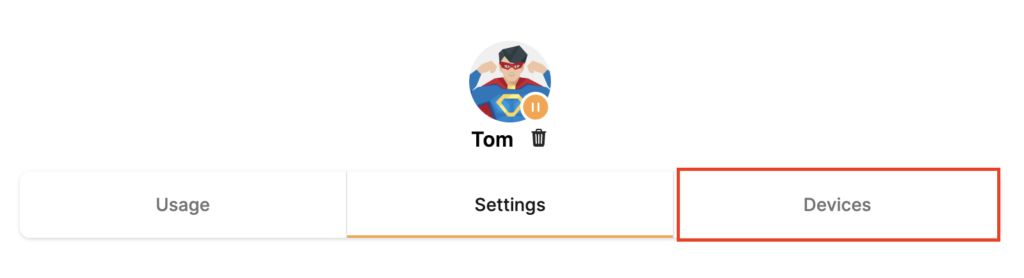
7. Select Devices.

Privacy Hero Select Devices

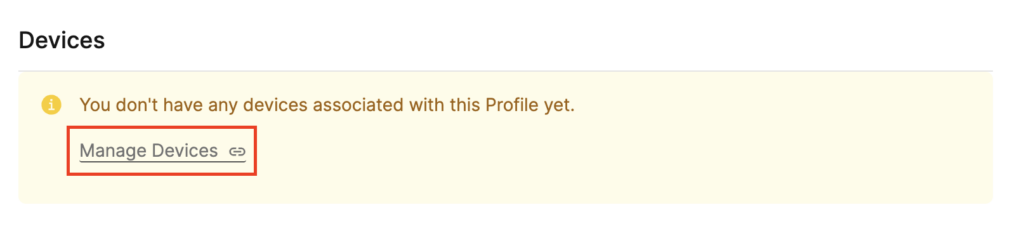
8. Select Manage Devices.

Privacy Hero Select Manage Devices

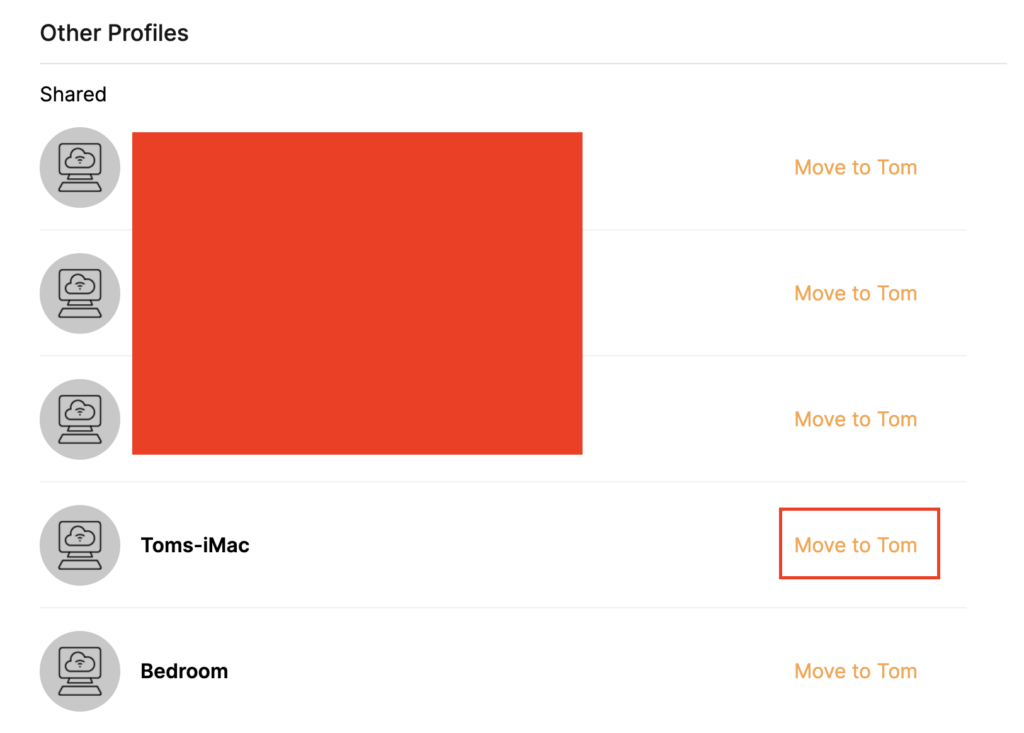
9. If you have not already connected your devices to the Privacy Hero network via wireless or ethernet you can do so now. Refresh the page after connecting a new device and it will appear in the list where you can select Move to “Profile Name” to move the device to the appropriate profile. By default new devices are in the Shared profile.

Privacy Hero Move to User Profile

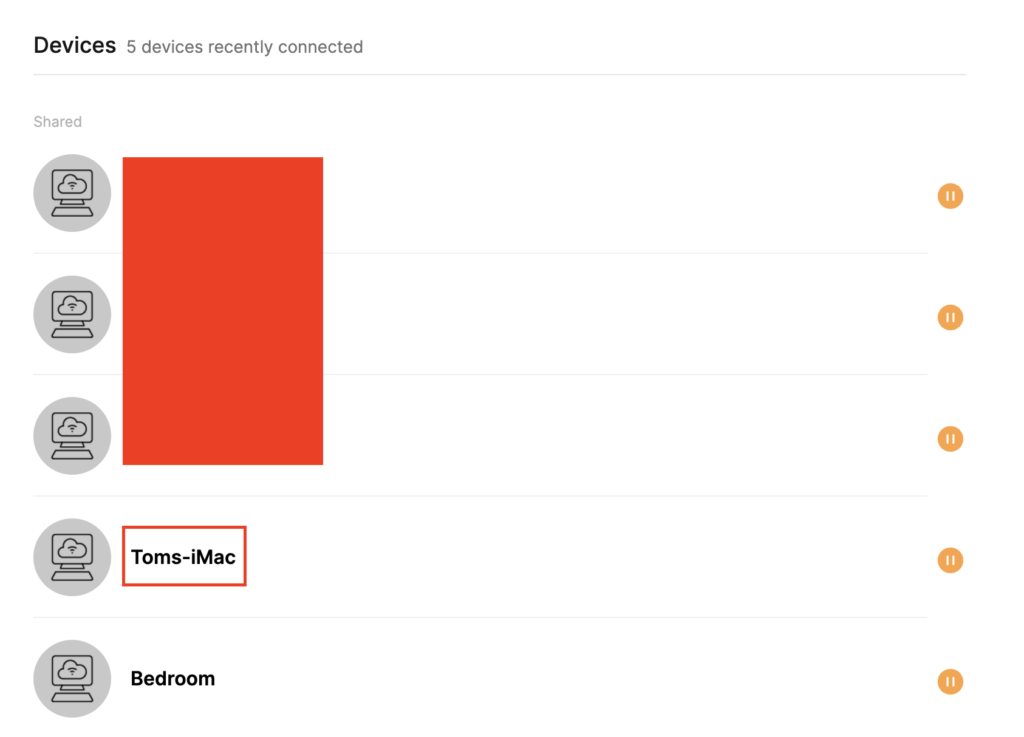
If your devices were already connected to the Privacy Hero network and you are having issues identifying them I would recommend the following steps:

  1. Click the Devices icon.
  2. Select the device in question.
  3. Click Nerd and note down the IP Address of the device.
  4. Go to the network settings of your device where it will display the local IP Address and match that to the IP Address noted in Privacy Hero.

This is how you can identify a device that is not properly named.

10. Now that your devices are assigned you can set the Bedtime Settings (Internet Scheduler) and Safe Surf settings for your new Profile.

TROUBLESHOOTING

Still having issues? Visit the VPN Troubleshooting section.

Troubleshoot Here

Sales FAQs

admin · Jan 29, 2019 ·

Sales FAQs

Can My Router Be Preconfigured With My VPN Information?

Plug and Play VPN Support

Yes you can!

To receive a plug and play with VPN device, you will need to provide our team with the credentials from your VPN provider subscription.

IMPORTANT NOTE: This is not required but recommended for users who wish to have the simplest, most seamless experience when the FlashRouter arrives. You can always change the password when the device arrives if you wish as well.


To have your router VPN preconfigured:

  1. Check the “Connect To VPN For Me” box under VPN – Preconfiguration on the Product Page during check out.
  2. Select your VPN provider. If you don’t see your VPN listed select “Other” and you will see an additional field to input who your provider is.
  3. You’ll receive an email after purchase with detailed instructions. If you have any questions our team is happy to help!
Please note:  If you do give a server location, we will automatically start the device with the closest/optimal server for the location we are shipping the device by default. A location has to be added to the initial configuration for plug and play encryption security to occur on the device.


Privacy Hero 2 Only:

While our team isn’t able to pre-configure the Privacy Hero 2 VPN Router before shipping it out since you’ll have to make a Privacy Hero user account and register your router, we can assist you with the VPN set up process once you receive the router and create your Privacy Hero user account via 1-on-1 remote session, email, or live chat on our site.

You can also use our step-by-step Privacy Hero VPN Router Setup Guide to complete the process.

Can I Use My Dedicated IP Address With A FlashRouter?

Dedicated IP Addresses from NordVPN, SurfShark, & TorGuard are supported on almost all of our FlashRouter options.

Check out our Dedicated IP Addresses Blog Post for more details!

Can I Use A FlashRouter With My Current Mesh System?

Yes!

You will be able to connect the FlashRouter of your choosing to your current mesh router via ethernet port as shown below:

ISP Modem/Router —- FlashRouter (VPN) —- Main Mesh Router (VPN from FlashRouter) 

This setup will allow you to keep your mesh network with added VPN protection, as well as add the FlashRouter wireless network for your devices.

You can disable the wifi on the FlashRouter also if you only wanted to use the mesh network for wifi.

Can You Flash My Router and Connect me to VPN?

At FlashRouters, we offer expert router flashing and VPN configuration services through our Flash My Router plans. Whether your router needs custom firmware flashing or just a VPN configuration, we ensure it’s set up for maximum security, privacy, and streaming performance with your chosen VPN provider.

The appointment will take place via remote software. During the appointment, our team will also answer any questions you may have about using the VPN on the router. Flashing is done out of the East Coast of the United States – we will do our best to accommodate your time zone difference if you are located in another part of the United States or another country.

👉 Explore our Flash My Router plans:
🔗 Flash My Router Plans


🔹 How It Works

✅ Flashing vs. Configuration: Some routers require custom firmware (flashing) to enable VPN, while others can be configured without flashing.
✅ Fully Optimized: Our team ensures your router is ready to securely connect to your VPN, block ISP tracking, and enhance your streaming experience.
✅ Remote Assistance Available: Get expert help setting up your VPN connection remotely if needed.


Flashing vs. Configuration: Router Compatibility

At FlashRouters, we handle VPN setup differently based on your router brand and model. Some routers require flashing custom firmware (like DD-WRT or AsusWRT-Merlin), while others can be configured without flashing.

🛠 Router Setup Types by Brand

🔹 Flashing Required (Custom Firmware Installation)

These routers require firmware flashing (DD-WRT or AsusWRT-Merlin) to enable VPN compatibility.

  • Asus – Flashed with AsusWRT-Merlin or updated to the latest AsusWRT build. Some models only require configuration.
  • Linksys – Flashed with DD-WRT firmware.
  • Netgear – Flashed with DD-WRT firmware.

🔹 Configuration Only (No Flashing Required)

These routers have built-in VPN support and only require proper setup.

  • TP-Link – Configured without flashing.
  • GL.iNet – Configured without flashing.
  • Cudy – Configured without flashing.

📌 Other brands are not supported at this time. If you have a different router, we recommend checking out our pre-flashed router options.


✅ Supported VPN Providers

We work with a wide range of VPN providers, including:

  • NordVPN
  • ExpressVPN
  • Surfshark
  • CyberGhost
  • IPVanish
  • Private Internet Access (PIA)
  • VyprVPN
  • ProtonVPN
  • PureVPN
  • Windscribe
  • IVPN
  • Mullvad
  • StrongVPN
  • AzireVPN
  • AstrillVPN
  • HotspotShield VPN

(If your provider isn’t listed, reach out – we may still be able to support it!)


🔗 Get Started Today!

👉 Explore our Flash My Router plans:
🔗 Flash My Router Plans

🔹 Need help selecting the right option? Contact our support team! We’re happy to assist.

How Can I Add The 1 Year NordVPN Service From My FlashRouters.com Order To My Current NordVPN Account?

You can easily combine the free 1 year of NordVPN included with your FlashRouter purchase once you receive the NordVPN Activation Code Email from FlashRouters.com. The email is typically received within 24 hours of order completion and will contain a link as well as an activation code.

This code can be entered at nordvpn.com/activate with the email address associated with your current NordVPN account to add the 1 year of free service to your existing service.


Privacy Hero 2 Only:

You can easily combine the free 1 year of NordVPN included with the Privacy Hero 2 VPN Router during the router activation process.

After activating the router, you’ll receive a NordVPN activation code within your privacy hero account dashboard. This code can be entered at nordvpn.com/activate with the email address associated with your current NordVPN account to add the 1 year of free service to your existing service.

What Are the Differences Between New, Recertified, And Open Box FlashRouters?

New

  • Direct from manufacturer, in new box.
  • Custom flashed on demand at time of the order.
  • 30 Day Satisfaction Guarantee / 1 Year Warranty.

Recertified (RM)

  • Direct from manufacturer/reseller, may be reboxed.
  • Custom flashed on demand at time of the order.
  • Specialists tested to guarantee same functionality as NEW routers.
  • 30 Day Satisfaction Guarantee / 1 Year Warranty.

Open Box

  • Limited quantity, discount items reboxed that may have cosmetic imperfections.
  • Same testing and functionality level and New and RM.
  • 30 Day Satisfaction Guarantee / No Warranty.

Will a FlashRouter Work With My Internet Service Provider?

US Customers (Single Router Solution):

Almost all Internet Service Providers(ISPs) require a modem in place to establish a connection to their service, however a modem by itself doesn’t provide the wifi connectivity needed in the home or office. A FlashRouter can connect directly to all known modems provided by major ISPs to create a wireless network so long as there is an Ethernet port on the modem to connect to the FlashRouter Internet port. 

US Customers (Dual Router Solution): 

Yes, FlashRouters are compatible with your ISP in what is called a Dual Router Set Up.

For this type of setup, you would use your current router or modem router to connect to your local ISP while using a FlashRouter to connect to your VPN. This is recommended as you will not overhaul your network with a new router, and you will be able to use your selected VPN service on the devices you wish to use it with.

This set up would result in the creation of two networks, which can be seen as the “Local Network” and the “FlashRouter Network”. All devices connected to the FlashRouter Network will go through the VPN service. 

For any device you would prefer to use without a VPN, you can connect to the local network. The chain of devices would be connected from LAN ton your modem or modem/router to WAN on the FlashRouter, with your current router connected to the FlashRouter via Ethernet cable. 


International Customers (Single Router Solution):

Almost all Internet Service Providers (ISPs) require a modem in place to establish a connection to their service, however a modem by itself doesn’t provide the wifi connectivity needed in the home or office. A FlashRouter can connect directly to all known modems provided by major ISPs to create a wireless network so long as there is an Ethernet port on the modem to connect to the FlashRouter Internet port. 

International Customers (Dual Router Solution):

ISPs should all be compatible. Some providers require VLAN tagging/VID settings when wiring directly from modem to FlashRouter. 

For this type of setup, you would use your current router or modem router to connect to your local ISP while using a FlashRouter to connect to your VPN. This is recommended as you will not overhaul your network with a new router, and you will be able to use your selected VPN service on the devices you wish to use it with.

This set up would result in the creation of two networks, which can be seen as the “Local Network” and the “FlashRouter Network”. All devices connected to the FlashRouter Network will go through the VPN service. 

For any device you would prefer to use without a VPN, you can connect to the local network. The chain of devices would be connected from LAN ton your modem or modem/router to WAN on the FlashRouter, with your current router connected to the FlashRouter via Ethernet cable. 

What Stock Firmware Features Will I Lose If I Flash My Router

Open Source firmware like DD-WRT or Assu Merlin has many features equivalent to what stock firmware has, in addition to adding new features to a router. However, some features are lost from the stock firmware when a router is flashed.

These are typically features that are put into the stock firmware by the manufacturers themselves. Things like the Linksys App and the NetGear Genie are examples of what would not be available or compatible on the router after flashing.

Most routers also have a WPS button. By default, the WPS button’s functionality is disabled when a router is flashed as it can be vulnerable and a security risk. It can be re-enabled by following this guide but we do not recommend it.

Does a FlashRouter or Service Plan Purchase Include a VPN Subscription?

A subscription to a VPN does not come with a FlashRouter or Service plan. If you are planning to use a VPN, you would need to sign up for one separately, directly from a provider.

Need assistance in finding a VPN Provider? Please visit our recent VPN Provider Best Seller List.

Plug and Play VPN Support

Unlike other VPN Router providers, FlashRouters is proud to offer free VPN service integration with any purchase.

To receive a plug and play with VPN device, you will need to provide our team with the credentials from your VPN provider subscription.

IMPORTANT NOTE: This is not required but recommended for users who wish to have the simplest, most seamless experience when the FlashRouter arrives. You can always change the password when the device arrives if you wish as well.

Shows what to look for when you want to preconfigure your router.

To have your router VPN pre-configured:

  1. Select Yes from the “Want Your Router Preconfigured?” on the Payment Page during checkout.
  2. Select your VPN provider. If you don’t see your VPN listed select “Other” and you will see an additional field to input who your provider is.
  3. Enter your your VPN username and password
  4. For ExpressVPN Firmware Routers there will be an additional box for your activation code.

Please note:  If you do not enter a server location request in “Order Comments”, we will automatically start the device with the closest/optimal server for the location we are shipping the device by default. A location has to be added to the initial configuration for plug and play encryption security to occur on the device.

Can I Use A FlashRouter To Work From Home?

Yes! A large number of our customers use their FlashRouters to “work from home” no matter where your travels take you. Check out our Working Remotely Blog Post for more details.

What is the Difference Between Business VPNs and VPN Services?

Location: VPN Services offer many server locations to encrypt your traffic through. They are located in several countries worldwide for creating a private VPN tunnel for your online activities. A business VPN connects to specific central servers for data or directly to your office, creating a direct tunnel for accessing sensitive work documents and information.

Logging: Most VPN services offer log-free connections for total anonymity and security when connected (it is important to check out their terms of service and privacy policy for full details). A business VPN is monitored and maintained by employers such as corporations, hospitals or universities.

Protection: VPN services secure your family’s personal data while using computers, SmartTVs and various Internet of Things devices. Business VPNs protect the data of the company while you are tunneling into work.

Are There VPN Service Providers That Offer VPN for Business?

There are in fact several trusted VPN providers that have services specially tailored for business use. NordVPN Teams and VyprVPN for Business offer a full suite of solutions like user management tools, dedicated IPs, personal product managers, global server access, business pricing, and more.

These solutions allow you to quickly deploy a safe and secure corporate network without building and maintaining your own servers. If you are a small business looking to quickly secure remote workers as they shift to work from home, and you do not have an in-house IT expert, then you should consider NordVPN Teams or VyprVPN for Business.

Even better, when choosing a business VPN provider like NordVPN or VyprVPN, employees can use routers with direct NordVPN and VyprVPN integration already included through the FR Privacy App. Meaning that a full network kill switch, routing by device, automatic connections, and more are all included as features with your business VPN connection.

Can I use a VPN on a FlashRouter With My Work/Corporate VPN?

Many of our customers have found that they can connect to both their corporate and personal VPN, however due to the variables beyond our control, we cannot guarantee this for every unique situation.

Using two VPNs at once can lead to unpredictable results. Bouncing your network traffic to multiple servers before finally arriving at it’s intended destination can sometimes introduce speed and connection issues.

Please consider that some employers and agencies are more vigilant regarding third party VPN use than others. There are tools readily available that detect the use of VPN services.

While these tools cannot decrypt and view your network traffic, they can tell your employer that you are potentially using a VPN, which can be against company policy.

If your corporate and personal VPN do not work together, then you can always set the computer using your work VPN to bypass the FlashRouter’s VPN tunnel by accessing the router admin panel for your device.

This way, your computer would only use the work VPN. Keep in mind however, your location would appear as your actual location to your work.

Every FlashRouter also comes with a 30 Day Satisfaction Guarantee.

If in the event you determine the FlashRouter is not working out for you, you can return the device within the first 30 Days. A $25 restocking fee does apply.

Can I Use a FlashRouter to Connect to a Dedicated Business VPN Network?

Of course! If you have an OpenVPN server running on a local machine or hosted on a cloud provider like Amazon Web Services (AWS), FlashRouters can create a custom router client configuration to connect the entire router and all connected devices to your OpenVPN server. Instead of employees connecting device-by-device, a router-based VPN connection allows for always-on secure VPN tunneling.

Our service team is here to work with you to test and ensure compatibility before purchasing. Interested in a router based custom client VPN solution for your remote workers? Please do not hesitate to contact us.

And, if you’re looking for a specific router, take a look at some of our most popular options!

How can I Reset the Password for My FlashRouters.com Customer Account?

To reset your password, you’ll want to click the “Account” icon in the upper right hand corner on our main website (Flashrouters.com). Once clicked, a menu will open where you can enter your login information, or select the “Forgot Password” button to trigger a reset email.

If you’re still having issues accessing your FlashRouters.com customer account after attempting a password reset, please reach out to us at support@flashrouters.com for further assistance.

What Payment Methods does FlashRouters Accept?

We accept Apple Pay, Google Pay, and all major cred/debit card providers on our payment method options page during checkout.


If you’d like to complete a purchase using PayPal as a payment method, please contact our team at support@flashrouters.com to request an invoice.

Can I Make Change/Update/Cancel My Order?

We strive to process and ship all orders within one business day. If you wish to make changes or cancellations, please contact us within 24 hours of placing your order at support@flashrouters.com with your order number and the changes you’d like to make.

While we will do our best to accommodate your request, please note that we cannot guarantee changes or cancellations.

Please note that if you need to update the shipping address, the order will require reapproval through our fraud prevention system with the new address.

Trouble Checking Out

Some customers have found that trying the methods below have helped solve any checkout errors they may have encountered:

⚡️Clearing cache
⚡️Refreshing web page
⚡️Switching web browsers
⚡️Using an incognito/private window
⚡️Confirming all billing information is accurate
⚡️Disable VPN if one is enabled
⚡️Disable Ad & Script Blockers if enabled
⚡️If you’re using a mobile device, switching to a computer or laptop would be ideal.

Privacy Hero Change VPN Providers

TeamFlashRouters · Apr 3, 2023 ·

Your Privacy Hero router uses Cloud Based router management which means you can access the router settings from anywhere on any device that has an internet connection. You can follow these steps while connected to your phone, other Wi-Fi network, or the Privacy Hero network.

Each Privacy Hero router comes with a year free of Privacy Hero WireGuard VPN and can be setup for NordVPN and Surfshark users as well. Use these steps to change between the VPN providers to find the best connection for your needs.

1. From any device that has a browser such as a computer, smartphone, or tablet visit app.privacyhero.com

App.PrivacyHero.com

2. Enter your Privacy Hero account email and password. Click Login.

Privacy Hero Access Settings

If you have not created your Privacy Hero account yet please follow these instructions.

3. Click the VPN symbol.

Privacy Hero Setup VPN

4. Click the Change button and select the VPN provider that you want to use.

Privacy Hero Change VPN Providers

Follow our guides for connecting to NordVPN or Surfshark. If you are switching to Privacy Hero VPN just select it from dropdown and toggle the VPN switch to On.

TROUBLESHOOTING

Still having issues? Visit the VPN Troubleshooting section.

Troubleshoot Here

Privacy Hero Bypass certain devices from VPN

TeamFlashRouters · Apr 3, 2023 ·

Your Privacy Hero router uses Cloud Based router management which means you can access the router settings from anywhere on any device that has an internet connection. You can follow these steps while connected to your phone, other Wi-Fi network, or the Privacy Hero network.

If you have certain devices in your network that you do NOT want connecting to VPN you can follow these steps to bypass these devices from the Privacy Hero’s VPN connection.

1. From any device that has a browser such as a computer, smartphone, or tablet visit app.privacyhero.com

App.PrivacyHero.com

2. Enter your Privacy Hero account email and password. Click Login.

Privacy Hero Access Settings

If you have not created your Privacy Hero account yet please follow these instructions.

3. Click the Devices symbol.

Privacy Hero Devices

4. Click the name of the Device you want to bypass from VPN.

Privacy Hero Select Device

5. Set the VPN toggle to Off. You can also do the same for Adblocking and Device Protection as needed.

Privacy Hero VPN off by device

TROUBLESHOOTING

Still having issues? Visit the VPN Troubleshooting section.

Troubleshoot Here

Privacy Hero Change Wi-Fi Name and Password

TeamFlashRouters · Feb 8, 2023 ·

Your Privacy Hero router uses Cloud Based router management which means you can access the router settings from anywhere on any device that has an internet connection. You can follow these steps while connected to your phone, other Wi-Fi network, or the Privacy Hero network.

Use these steps to change your Privacy Hero WiFi name and password.

1. From any device that has a browser such as a computer, smartphone, or tablet visit app.privacyhero.com

App.PrivacyHero.com

2. Enter your Privacy Hero account email and password. Click Login.

Privacy Hero Access Settings

If you have not created your Privacy Hero account yet please follow these instructions.

3. Click the Wi-Fi symbol.

Privacy Hero Select Wifi

4. Click the edit box for the 5GHz network or the 2.4GHz network.

Privacy Hero Edit Wifi network

5. Enter the new Wi-Fi name and password you’d like to set. Click Save at the bottom of the page.

Privacy Hero enter new wifi name and password

TROUBLESHOOTING

Still having issues? Visit the VPN Troubleshooting section.

Troubleshoot Here

Privacy Hero Change Wireless Channel

TeamFlashRouters · Feb 8, 2023 ·

Your Privacy Hero router uses Cloud Based router management which means you can access the router settings from anywhere on any device that has an internet connection. You can follow these steps while connected to your phone, other Wi-Fi network, or the Privacy Hero network.

Use these steps to change your Privacy Hero wireless channel.

1. From any device that has a browser such as a computer, smartphone, or tablet visit app.privacyhero.com

App.PrivacyHero.com

2. Enter your Privacy Hero account email and password. Click Login.

Privacy Hero Access Settings

If you have not created your Privacy Hero account yet please follow these instructions.

3. Click the Wi-Fi symbol.

Privacy Hero Select Wifi

4. Click the edit box for the 5GHz network or the 2.4GHz network.

Privacy Hero Edit Wifi network

5. Select the new Wireless Channel that you would like to use. Click Save at the bottom of the page.

Privacy Hero enter new wifi name and password

TROUBLESHOOTING

Still having issues? Visit the VPN Troubleshooting section.

Troubleshoot Here

Privacy Hero Disable Wi-Fi

TeamFlashRouters · Feb 8, 2023 ·

Your Privacy Hero router uses Cloud Based router management which means you can access the router settings from anywhere on any device that has an internet connection. You can follow these steps while connected to your phone, other Wi-Fi network, or the Privacy Hero network.

Use these steps to disable your Privacy Hero Wi-Fi so only ethernet connections are active. This is not a required step just a preference.

1. From any device that has a browser such as a computer, smartphone, or tablet visit app.privacyhero.com

App.PrivacyHero.com

2. Enter your Privacy Hero account email and password. Click Login.

Privacy Hero Access Settings

If you have not created your Privacy Hero account yet please follow these instructions.

3. Click the Wi-Fi symbol.

Privacy Hero Select Wifi

4. Set the toggle switches to the off position for the Wi-Fi bands you want to disable.

Privacy Hero Disable Wifi

TROUBLESHOOTING

Still having issues? Visit the VPN Troubleshooting section.

Troubleshoot Here

Privacy Hero Streaming Relocation

TeamFlashRouters · Apr 3, 2023 ·

Your Privacy Hero router uses Cloud Based router management which means you can access the router settings from anywhere on any device that has an internet connection. You can follow these steps while connected to your phone, other Wi-Fi network, or the Privacy Hero network.

Use these steps change your location for popular streaming services allowing you to access to regionally restricted content. Privacy Hero uses DNS routing to change your location which is a great way around VPN streaming blocks.

1. From any device that has a browser such as a computer, smartphone, or tablet visit app.privacyhero.com

App.PrivacyHero.com

2. Enter your Privacy Hero account email and password. Click Login.

Privacy Hero Access Settings

3. Click the Streaming symbol.

Privacy Hero Streaming

4. Set the Streaming Relocation toggle to On.

Privacy Hero enable Streaming Relocation

5. Click the flag of the country you would like the listed streaming service to use.

Privacy Hero select Region

This streaming relocation feature will not change your IP address in the way that a VPN does. This is why it is not able to be blocked in the same way that a VPN connection can be.

The listed services on the streaming relocation page will not be connected to VPN even if the Privacy Hero has an active VPN connection. These services are set to bypass the router’s VPN tunnel to avoid streaming blocks.

Toggling the streaming relocation feature On will also relocate many other streaming services automatically. They will be automatically optimized for the best connection with no manual selection needed for:
ABC
Adult Swim
All 4
Apple TV Channels
BBC
Britbox
CBC Gem
CBS Sports
Crackle
DirecTV Stream
DSTV Now
Filmrise
Freeform
Freevee
Frndly TV
F1 TV
FX Now
ITV
MGM+
Molotov.TV
My 5
NBC
NBC Sports
Now E
Now TV
Pandora
Paramount+
PBS
Peacock
Philo
Pluto TV
Showmax
Sling
SonyLIV
S Sports Plus
Starz
Stirr
TBS
Tennis Channel
The CW
Tubi
TVPlayer
Vudu
Xumo
Zattoo

TROUBLESHOOTING

Still having issues? Visit the VPN Troubleshooting section.

Troubleshoot Here

Privacy Hero Adblocking Malware and Phishing Prevention Setup

TeamFlashRouters · Apr 3, 2023 ·

Your Privacy Hero router uses Cloud Based router management which means you can access the router settings from anywhere on any device that has an internet connection. You can follow these steps while connected to your phone, other Wi-Fi network, or the Privacy Hero network.

Use these steps to enable Privacy Hero’s adblocking, malware, and phishing prevention settings to add extra security to your network.

1. From any device that has a browser such as a computer, smartphone, or tablet visit app.privacyhero.com

App.PrivacyHero.com

2. Enter your Privacy Hero account email and password. Click Login.

Privacy Hero Access Settings

If you have not created your Privacy Hero account yet please follow these instructions.

3. Click the VPN symbol.

Privacy Hero Setup VPN

4. Toggle the Adblocking and Malware & Phishing switches to On.

Privacy Hero Adblocking Malware and Phishing

TROUBLESHOOTING

Still having issues? Visit the VPN Troubleshooting section.

Troubleshoot Here

Privacy Hero Access Router Settings

TeamFlashRouters · Feb 8, 2023 ·

Your Privacy Hero router uses Cloud Based router management which means you can access the router settings from anywhere on any device that has an internet connection. You can follow these steps while connected to your phone, other Wi-Fi network, or the Privacy Hero network.

1. From any device that has a browser such as a computer, smartphone, or tablet visit app.privacyhero.com

App.PrivacyHero.com

2. Enter your Privacy Hero account email and password. Click Login.

Privacy Hero Access Settings

If you have not created your Privacy Hero account yet please follow these instructions.

TROUBLESHOOTING

Still having issues? Visit the VPN Troubleshooting section.

Troubleshoot Here

Privacy Hero Bedtime Settings (Internet Scheduler)

TeamFlashRouters · Apr 3, 2023 ·

Your Privacy Hero router uses Cloud Based router management which means you can access the router settings from anywhere on any device that has an internet connection. You can follow these steps while connected to your phone, other Wi-Fi network, or the Privacy Hero network.

The Bedtime settings feature allows users to schedule when internet access will be turned off for specific user profiles. All devices assigned to this profile will have these rules applied.

1. From any device that has a browser such as a computer, smartphone, or tablet visit app.privacyhero.com

App.PrivacyHero.com

2. Enter your Privacy Hero account email and password. Click Login.

Privacy Hero Access Settings

If you have not created your Privacy Hero account yet please follow these instructions.

3. Click the Profiles symbol.

Privacy Hero Profiles

4. Click the name of the User Profile.

Privacy Hero Select Profile

5. Click Schoolnights or Weekends depending on which you need to set rules for.

Privacy Hero Bedtime School Nights Weekends

6. Select the time that you want the Internet to turn off and the days you want this rule to apply to. Click Save.

Privacy Hero Set Bedtime

7. Set the Bedtime toggle to On.

Privacy Hero Enable Bedtime

TROUBLESHOOTING

Still having issues? Visit the VPN Troubleshooting section.

Troubleshoot Here

Privacy Hero Safe Surf

TeamFlashRouters · Apr 3, 2023 ·

Your Privacy Hero router uses Cloud Based router management which means you can access the router settings from anywhere on any device that has an internet connection. You can follow these steps while connected to your phone, other Wi-Fi network, or the Privacy Hero network.

The Safe Surf settings feature allows users to block inappropriate search results, YouTube videos, and adult content. All devices assigned to this profile will have these rules applied.

1. From any device that has a browser such as a computer, smartphone, or tablet visit app.privacyhero.com

App.PrivacyHero.com

2. Enter your Privacy Hero account email and password. Click Login.

Privacy Hero Access Settings

If you have not created your Privacy Hero account yet please follow these instructions.

3. Click the Profiles symbol.

Privacy Hero Profiles

4. Click the name of the User Profile.

Privacy Hero Select Profile

5. Toggle On the settings for Internet Safe Search, YouTube Safe Search, and Block Adult Content as needed.

Privacy Hero Safe Search

TROUBLESHOOTING

Still having issues? Visit the VPN Troubleshooting section.

Troubleshoot Here

My VPN stopped working on my FlashRouter.

TeamFlashRouters · Jun 4, 2019 ·

The VPN connection on the FlashRouter will not drop in most instances however if the VPN stopped working follow the steps below.

In order to use the FlashRouters Privacy App you need DD-WRT build 02/15/22 r48362 or 2/10/20 r42335.

Follow these instructions to upgrade the firmware to 02/15/22 r48362: How do I upgrade the DD-WRT firmware of my FlashRouter?

If you would like the fully featured FR Privacy App version with Simple Setup you must use firmware builds from 2/10/20 r42335.

FlashRouters Privacy App

Navigate to Status > MyPage

  1. If MyPage is not properly loading the FlashRouters Privacy App try reinstalling the FlashRouters Privacy App.
  2. With the Auto Connect to VPN box checked simply power off the FlashRouter and power it back on to connect back to VPN.
  3. Verify that you have the correct settings entered for your provider. A change in the user information used to authenticate the VPN connection will cause a disconnect.
  4. Try a different VPN server location.
  5. If applicable, switch from UDP to TCP or vice versa.
  6. Make sure that you have any VPN/proxy apps and extensions turned off on all devices connected to the FlashRouter.

DD-WRT Manual VPN

Navigate to Services > VPN

  1. Verify that you have the correct settings entered for your provider. A change in the user information used to authenticate the VPN connection will cause a disconnect.
  2. Scroll to the bottom of the page and click Apply Settings.
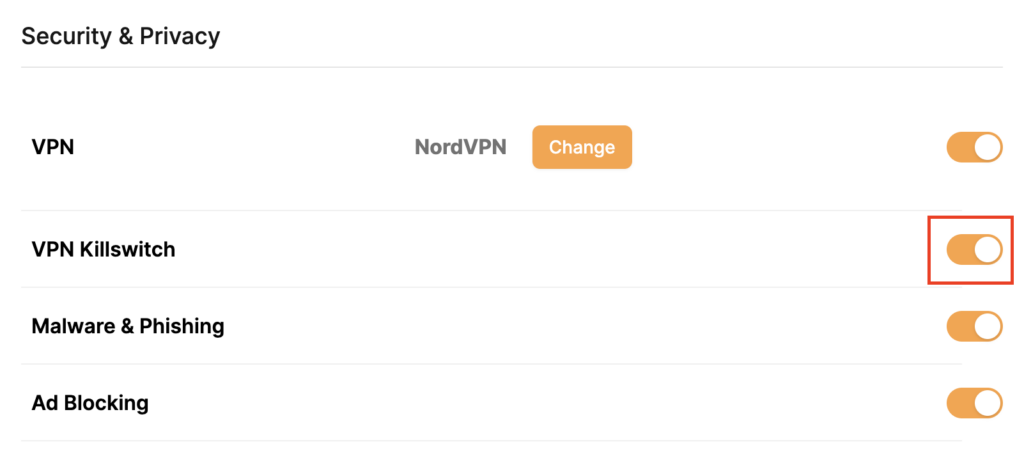
  3. Try a different VPN server location.
  4. If applicable, switch from UDP to TCP or vice versa. Check your VPN provider’s website to see if the port needs to change with the protocol.
  5. Make sure that you have any VPN/proxy apps and extensions turned off on all devices connected to the FlashRouter.

Number test

admin · Oct 23, 2019 ·

  1. Visit ExpressVPN’s website login page
    ExpressVPN on FlashRouters Privacy App Setup - Sign Into ExpressVPN Dashboard
  2. Successfully log in with your account information. Select Setup on More Devices.
    ExpressVPN on FlashRouters Privacy App Setup - Setup On More Devices
  3. Select Manual Config and copy the Username and Password that are displayed on the right hand side of the screen.
    ExpressVPN on FlashRouters Privacy App Setup - OpenVPN Specific Username and Password

CyberGhost Merlin OpenVPN Setup

TeamFlashRouters · Mar 30, 2023 ·

Preparing for CyberGhost Setup

Obtain your CyberGhost OpenVPN information

If you are not already a CyberGhost user Sign Up Now.

1. Log in to your account on the CyberGhost website.

CyberGhost Website Login

2. Select VPN.

CyberGhost VPN

3. Click Configure New Device.

CyberGhost Configure Device

4. Set Protocol to OpenVPN. Select the Country you would like to connect to. Select the Server Group. Name the device in the Device Name field. Click Save Configuration.

CyberGhost protocol and location

5. Press View configuration.

CyberGhost view configuration

6. Copy the Username, and Password that appear to a notepad, since you will need this information later in the setup process. Click Download Configuration.

CyberGhost Website OpenVPN Configuration Files Generator 1

Open the folder that was downloaded. Then open the ca.crt the client.crt, and client.key files with NotePad++ for Windows or TextEdit for Apple. All CyberGhost servers have different keys and certificates.

Merlin Router Setup for CyberGhost

Login to Asus Merlin firmware settings in a browser on any computer or smart device connected to the Merlin FlashRouter’s network.

1. Navigate to the VPN tab.

Merlin VPN Tab

2. Navigate to the VPN Client tab.

Merlin VPN Client Tab

3. Click Choose file and select the .ovpn file from the folder you downloaded earlier. Then click Upload.

Merlin Choose File Upload

4. Set Automatic Start at boot time to Yes if you want the VPN connection to begin automatically when the router is powered off and back on.

Merlin Automatic Start at boot time

5. In the Description field enter in the name you’d like to use for this OpenVPN Client profile. We typically advise entering in the location here. Our example server was in USA so I have entered in CyberGhost USA.

Merlin CyberGhost Description field

6. Set Accept DNS Configuration to Strict. Set Redirect Internet traffic through tunnel to Yes (all). Set Kill Switch to Yes or No depending on if you want the Internet to be killed if the VPN connection drops.

Merlin Accept DNS configuration Redirect Internet and Kill Switch

If you only want certain devices to connect to the OpenVPN Client profile you are setting up instead of all the devices connected to the FlashRouter’s network please set the Redirect Internet traffic through tunnel to VPN Director. Then complete the instructions on this page and then view our VPN Director guide.

7. Enter your CyberGhost OpenVPN username and password that you obtained earlier. Do not enter your account login.

Merlin VPN Username and Password

8. Click the Edit button in the Keys and Certificates area.

Merlin Keys and Certificates Edit button

9. In the Certificate Authority field paste in the entire content of the ca.crt file.

—– BEGIN xxx —– / —– END xxx —– block (including those two lines).

Merlin Certificate Authority

10. In the Client Certificate field paste in the entire content of the client.crt file.

—– BEGIN xxx —– / —– END xxx —– block (including those two lines).

Merlin Client Certificate

11. In the Client Key field paste in the entire content of the client.key file.

—– BEGIN xxx —– / —– END xxx —– block (including those two lines).

Merlin Client Key

12. Click Save at the bottom of that window.

13. Click Apply at the bottom of the page.

14. At the top of the page set the Service State toggle to ON to activate the VPN connection.

Merlin Service State All Providers

Verify a successful CyberGhost connection

  1. You should now see a CONNECTED message.
  2. Visit What is my IP Address from a private/incognito browser to verify your new IP address and virtual location.

TROUBLESHOOTING

Still having issues? Visit the FR Privacy App Troubleshooting section.

Troubleshoot Here

Service Plan FAQs
admin · May 25, 2021 ·

Service Plan FAQs
Is the service plan a one time purchase or does it renew?
All FR service plans automatically renew on a quarterly or annual basis based on the term initially purchased. A reminder e-mail will be sent one week prior to renewal. In your FlashRouter account panel, you can cancel the plan at any time to stop any further renewals.

What is included with a FlashRouter?

  • On-demand Installation of enhanced firmware and our exclusive FlashRouters VPN Privacy App.
  • Custom setup guide.
  • Power cord and an ethernet cable.
  • Individual VPN Account Setup/Pre-configuration (On Request)
  • 1 year open source hardware warranty.
  • 30 day satisfaction guarantee.
  • Initial basic setup assistance via e-mail. For any advanced setups/configurations, live chat or remote assistance, a service plan purchase is required.

Does the service plan include a VPN subscription?

A subscription to a VPN does not come with a FlashRouter or Service plan. If you are planning to use a VPN, you would need to sign up for one separately, directly from a provider.

Need assistance in finding a VPN Provider? Please visit our recent VPN Provider Best Seller List.

Plug and Play VPN Support

Unlike other VPN Router providers, FlashRouters is proud to offer free VPN service integration with any purchase.

To receive a plug and play with VPN device, you will need to provide our team with the credentials from your VPN provider subscription.

IMPORTANT NOTE: This is not required but recommended for users who wish to have the simplest, most seamless experience when the FlashRouter arrives. You can always change the password when the device arrives if you wish as well.

Shows what to look for when you want to preconfigure your router.

To have your router VPN pre-configured:

  1. Select Yes from the “Want Your Router Preconfigured?” on the Payment Page during check out.
  2. Select your VPN provider. If you don’t see your VPN listed select “Other” and you will see an additional field to input who your provider is.
  3. Enter your your VPN username and password
  4. For ExpressVPN Firmware Routers there will be an additional box for your activation code.

Please note:  If you do not enter a server location request in “Order Comments”, we will automatically start the device with the closest/optimal server for the location we are shipping the device by default. A location has to be added to the initial configuration for plug and play encryption security to occur on the device.

Do I have to buy a service plan?

Our routers are priced for the custom upgrades performed at our warehouse, testing expenses and keeping the FlashRouter App update to date.

Our service plan has three levels as an optional add-on with your purchase to get continued direct assistance from our team. This is especially useful to customers who are less tech savvy and want direct access to our support team to make sure their network is running exactly how they desire. Here is how these plans differ

Bronze – Basic E-mail Support
Silver – E-mail and Live Chat Support.
Gold – E-mail, Live Chat, and Remote One-on-One Sessions

Each situation and user has different needs and expertise. Our team of US-based support agents are highly trained specialists in VPN and DD-WRT router setup. From firmware updates to networking configuration/troubleshooting,solutions, the purpose of our Service Plans is to help our customers in whatever level they deem necessary.

Does FlashRouters offer phone support?

At this time, we do not provide phone support with our service plans. We have tested phone support for networking troubleshooting in the past but have found that on average caused us to help less customers in a less efficient manner. However, with a purchase of a Gold Service Plan, customers can schedule 1-on-1 remote support sessions via Teamviewer with our engineers and they will provide a hands-on, personal solution, to any problems you may be facing.

Do I need a Service Plan for a firmware upgrade?

Firmware upgrades are free of charge to any FlashRouter customer!

You can visit our support center and select your specific router model to upgrade your firmware based on the recommendations provided.

If you want the help of our Support Team to assist in this upgrade, you can always sign up for our Gold Service Plan and schedule a 1-on-1 Teamviewer session in which our trained engineers will take care of the upgrade for you!

What does the warranty cover?

Our complimentary 1-year hardware warranty does not include tech support outside. If your router suffers hardware failure within 365 days from the date you received the unit, then we will gladly replace your router with another fully tested one. For more information regarding our warranty and return policy, please check out our warranty and return section.

Can I purchase a router without a service plan and subscribe later?

Yes, you may purchase a service plan at any time. However, we can’t guarantee any pricing, or apply any previously offered discounts or specific features at that later date.

Getting Started With Your FlashRouter

Getting Started With Your FlashRouter

  1. Connect FlashRouter to Internet
  2. Access FlashRouter DD-WRT firmware settings
  3. Connect FlashRouter to VPN 
VIEW ALL SETUP GUIDES
TROUBLESHOOTING
FAQS

Setting Up Your VPN Service

Select your operating system below to setup the FlashRouters Privacy App on your router, the easiest way to connect to the best VPN services.  For ExpressVPN FlashRouter users, please view the following section for setting up the ExpressVPN app.

Windows

Mac

Android

iPhone

ExpressVPN NETGEAR ROUTERS
ExpressVPN LINKSYS ROUTERS

More Ways to Get Help

Can’t find the answer you are looking for? Open a support ticket and our support team will be there to assist you.

Next Page »

Primary Sidebar

  • Troubleshooting
  • Router Access
  • Internet Connection Issues
  • WiFi Connectivity
  • General VPN Issues
  • TeamViewer Remote Support
  • DD-WRT Firmware
  • Facebook
  • Twitter
  • Instagram
  • Pinterest
  • YouTube

Footer