Login to Roqos Core UI web app in a browser on any computer or smart device.
1. Click the navigation menu and select Cybersecurity > Intrusion Prevention.

2. Set Intrusion Prevention to Enabled.

Prioritizing Privacy
Dave · ·
Login to Roqos Core UI web app in a browser on any computer or smart device.
1. Click the navigation menu and select Cybersecurity > Intrusion Prevention.

2. Set Intrusion Prevention to Enabled.

TeamFlashRouters · ·
Getflix offers a SmartDNS service for unblocking geo-restricted content without the encryption of a VPN service. SmartDNS routes DNS servers to different regions which “tricks” the website to allow access to previously restricted content.
SmartDNS does not change your IP Address or provide the encryption that a VPN connection does. This can result in faster speeds and unblocked content.
SmartDNS and VPN should not both be configured at the same time. When using a SmartDNS connection make sure to disable your VPN connection on the FlashRouter.
If you are not already a Getflix user Sign Up Now.

Login to Getflix’s website login page.
Visit Getflix’s DNS servers list page and note the DNS servers of the location you would like to access content from.

Navigate to Setup > Basic Setup
When the router is fully booted back up visit your Getflix user dashboard and make sure your IP Address is registered with Getflix. If it is not click Force IP Update.

Once you are successfully registered you can now access your desired regional content on any device that connects to the FlashRouter’s network.
TeamFlashRouters · ·
If you are not already an ExpressVPN user Sign Up Now.
1. Log in to your account on the ExpressVPN website.

2. Successfully log in with your account information. Select More.

3. Select Manual Configuration and copy the Username and Password that are displayed on the right hand side of the screen.


4. Click the Server Location that you want to connect to. This will download a .ovpn file to your computer that we will use later on. There is no need to open the file. For this example I have selected New York but feel free to select any server listed there.

Login to Cudy firmware settings in a browser on any computer or smart device connected to the Cudy FlashRouter’s network.
1. Click General Settings.

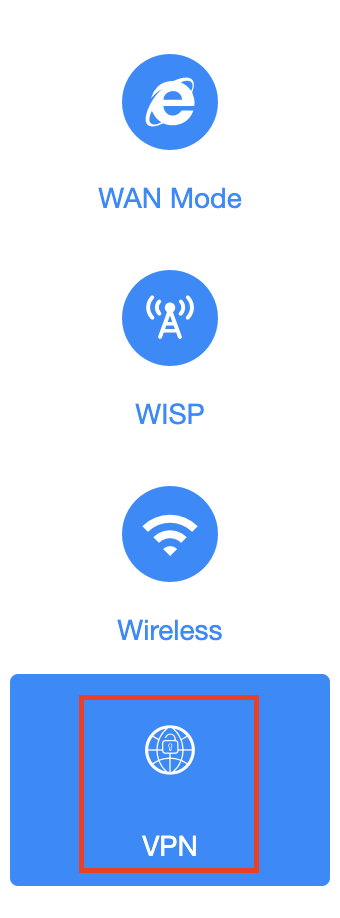
2. Click VPN.

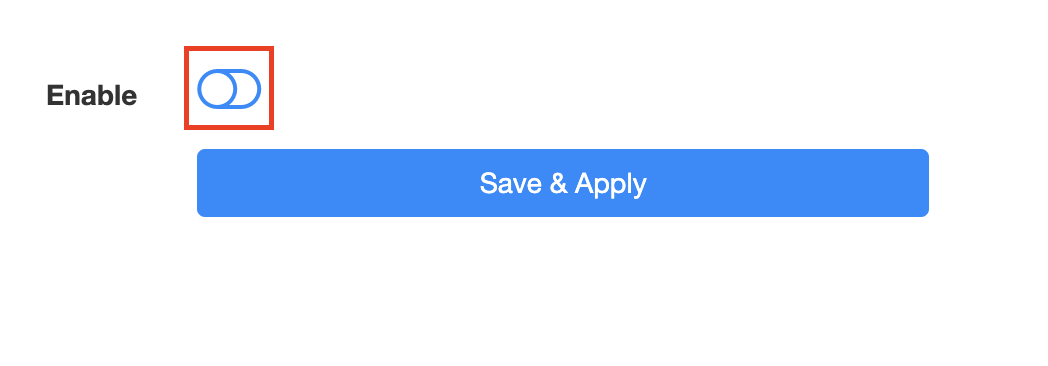
3. Toggle the Enable switch to On.

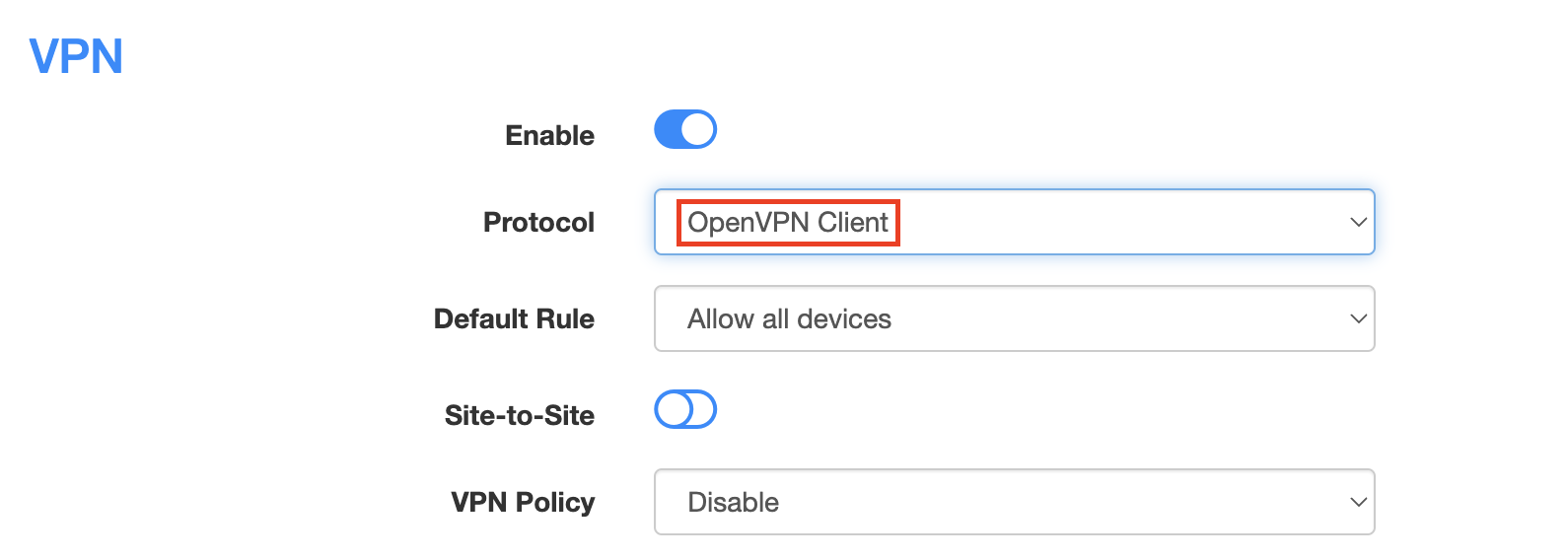
4. Select OpenVPN Client from the Protocol dropdown.

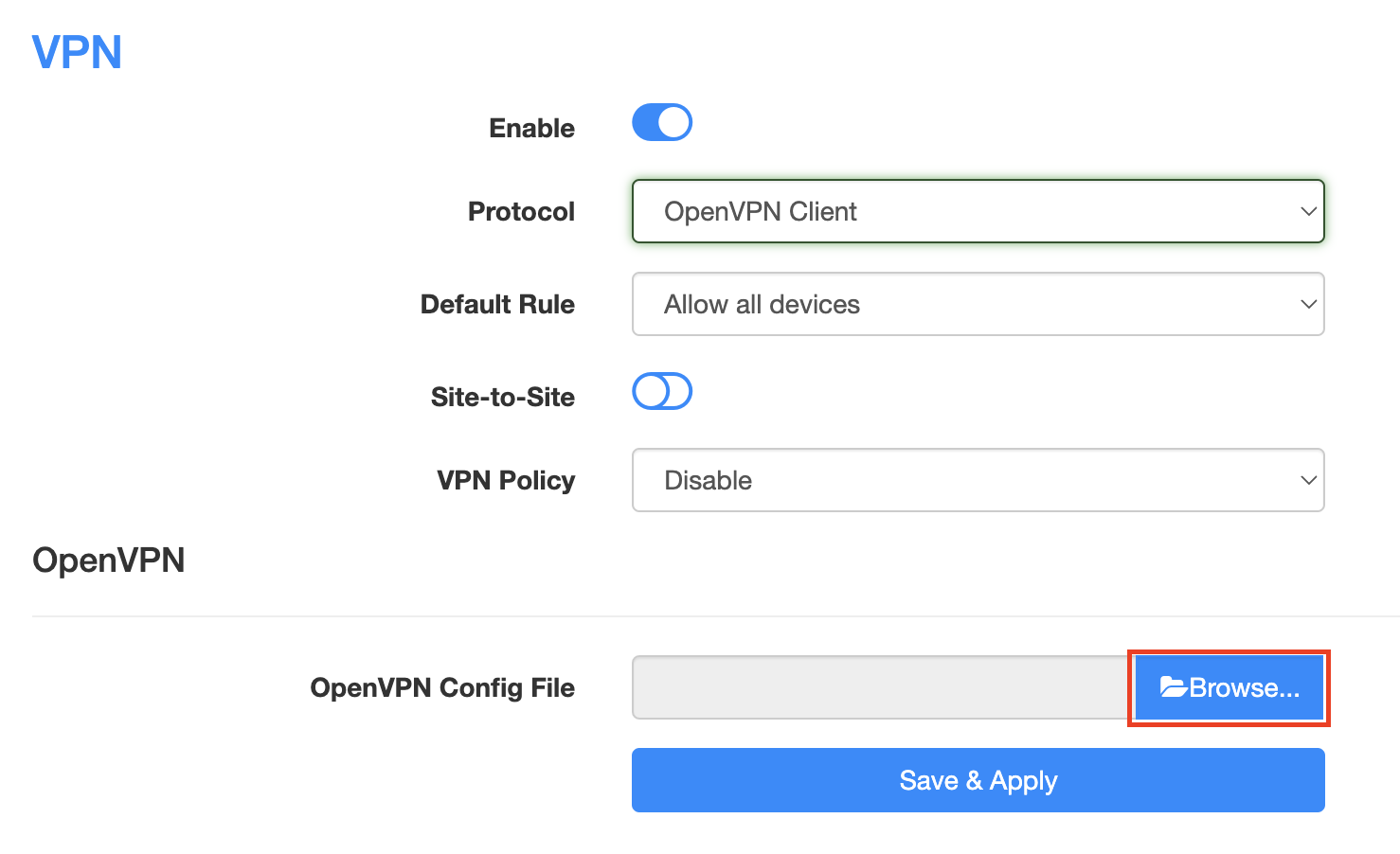
5. Click Browse and select the .ovpn file you downloaded earlier. You should see the server file name listed next to Current Config File after doing so.

6. Enter your ExpressVPN username and password that you obtained earlier in the Username and Password. Note that these are different from your ExpressVPN email login and password.

7. Click Save & Apply at the bottom of the page.
In some cases you may notice that the location is not showing the same location as the server you have input in your router settings; this is because geo tracking tools are often tricked by VPN connections. As long as you see an IP address that is not the same as your normal Internet IP address then you are indeed connected to ExpressVPN.
Still having issues? Visit the VPN Troubleshooting section.
TeamFlashRouters · ·
If you are not already an ExpressVPN user Sign Up Now.
1. Log in to your account on the ExpressVPN website.

2. Successfully log in with your account information. Select More.

3. Select Manual Configuration and copy the Username and Password that are displayed on the right hand side of the screen.


4. Click the Server Location that you want to connect to. This will download a .ovpn file to your computer that we will use later on. There is no need to open the file. For this example I have selected New York but feel free to select any server listed there.

Login to TP-Link firmware settings in a browser on any computer or smart device connected to the FlashRouter’s network.
1. Navigate to the Advanced tab.

2. Navigate to the VPN Client tab.

3. Check the Enable box next to VPN Client. Then click Save at the bottom of the page.

4. Click the Add button in the Server List area.

5. In the Description field enter in the name you’d like to use for this OpenVPN Client profile. We typically advise entering in the location or server number here. Our example server was in New York so I have entered in ExpressVPN New York.
Set the VPN Type to OpenVPN.
In the Username and Password fields paste in the ExpressVPN username and password we obtained earlier.
Click Browse and select the .ovpn file you downloaded earlier. Then click Save.

By default no devices will be assigned to the VPN Tunnel. With TP-Link firmware you must manually assign the devices that you want connected to the VPN tunnel. Proceed with the next steps to do so for all devices you want connected to VPN.
6. Click the Add button in the Device List area.

7. A list of devices connected to the FlashRouter’s network will appear. Check the devices that you want to connect to VPN. Then click OK.

8. Now that the devices have been assigned to the VPN connection click the Enable toggle in the Server List area.

In some cases you may notice that the location is not showing the same location as the server you have input in your router settings; this is because geo tracking tools are often tricked by VPN connections. As long as you see an IP address that is not the same as your normal Internet IP address then you are indeed connected to ExpressVPN.
Still having issues? Visit the VPN Troubleshooting section.
TeamFlashRouters · ·
If you are not already a PIA user Sign Up Now.
Log in to your account on the PIA website.

The below servers are the only servers compatible with PIA router connections. Dedicated IP Addresses are not able to connect via routers.
us-california.privacy.network
us-newjersey.privacy.network
us-chicago.privacy.network
us-texas.privacy.network
us-florida.privacy.network
us-seattle.privacy.network
us3.privacy.network
us-siliconvalley.privacy.network
us-newyorkcity.privacy.network
us-washingtondc.privacy.network
us-atlanta.privacy.network
us-houston.privacy.network
us-denver.privacy.network
uk-london.privacy.network
uk-manchester.privacy.network
ca-toronto.privacy.network
ca-montreal.privacy.network
au-sydney.privacy.network
aus-melbourne.privacy.network
aus-perth.privacy.network
de-berlin.privacy.network
de-frankfurt.privacy.network
ae.privacy.network
austria.privacy.network
dz.privacy.network
ad.privacy.network
ar.privacy.network
yerevan.privacy.network
bahamas.privacy.network
bangladesh.privacy.network
brussels.privacy.network
sofia.privacy.network
cambodia.privacy.network
china.privacy.network
cyprus.privacy.network
czech.privacy.network
denmark.privacy.network
egypt.privacy.network
fi.privacy.network
france.privacy.network
georgia.privacy.network
greenland.privacy.network
hungary.privacy.network
is.privacy.network
in.privacy.network
iran.privacy.network
ireland.privacy.network
man.privacy.network
israel.privacy.network
italy.privacy.network
japan.privacy.network
kazakhstan.privacy.network
liechtenstein.privacy.network
lu.privacy.network
macau.privacy.network
malta.privacy.network
mexico.privacy.network
md.privacy.network
monaco.privacy.network
mongolia.privacy.network
montenegro.privacy.network
morocco.privacy.network
nl-amsterdam.privacy.network
nz.privacy.network
nigeria.privacy.network
no.privacy.network
panama.privacy.network
philippines.privacy.network
poland.privacy.network
qatar.privacy.network
ro.privacy.network
rs.privacy.network
saudiarabia.privacy.network
spain.privacy.network
srilanka.privacy.network
sweden.privacy.network
swiss.privacy.network
sg.privacy.network
tr.privacy.network
taiwan.privacy.network
ua.privacy.network
venezuela.privacy.network
vietnam.privacy.network
za.privacy.network
Navigate to Services > VPN
PIA offers two different Encryption levels.
Default Encryption (AES-128) typically provides faster speeds.
Strong Encryption (AES-256) provides stronger encryption.
Follow the table below of the one that fits your needs.
Start OpenVPN Client
If you wish to disable your VPN connection simply set this to Disable at any time and click Apply Settings.
Server IP/Name
Copy and paste the server you would like to connect to from the server list above. Be sure there are no extra spaces or characters.
If you wish to change PIA connection locations, THIS IS THE ONLY FIELD YOU NEED TO CHANGE.
Port
1198
Tunnel Device
TUN
Tunnel Protocol
UDP
Encryption cipher
AES-128-CBC
Hash Algorithm
SHA1
First Data Cipher
Not set
Second Data Cipher
Not set
Third Data Cipher
Not set
Userpass Authentication
Enable
Username
Enter the Username you successfully logged in to your PIA account with.
Password
Enter the Password you successfully logged in to your PIA account with.
Advanced Options
Enable
TLS Cipher
None
LZO Compression
Disabled
NAT
Enable
Firewall Protection
Enable
Additional Config
persist-key
persist-tun
Policy Based Routing
This field can be used for split VPN and Dual Gateway routing.
CA Cert
-----BEGIN CERTIFICATE----- MIIFqzCCBJOgAwIBAgIJAKZ7D5Yv87qDMA0GCSqGSIb3DQEBDQUAMIHoMQswCQYD VQQGEwJVUzELMAkGA1UECBMCQ0ExEzARBgNVBAcTCkxvc0FuZ2VsZXMxIDAeBgNV BAoTF1ByaXZhdGUgSW50ZXJuZXQgQWNjZXNzMSAwHgYDVQQLExdQcml2YXRlIElu dGVybmV0IEFjY2VzczEgMB4GA1UEAxMXUHJpdmF0ZSBJbnRlcm5ldCBBY2Nlc3Mx IDAeBgNVBCkTF1ByaXZhdGUgSW50ZXJuZXQgQWNjZXNzMS8wLQYJKoZIhvcNAQkB FiBzZWN1cmVAcHJpdmF0ZWludGVybmV0YWNjZXNzLmNvbTAeFw0xNDA0MTcxNzM1 MThaFw0zNDA0MTIxNzM1MThaMIHoMQswCQYDVQQGEwJVUzELMAkGA1UECBMCQ0Ex EzARBgNVBAcTCkxvc0FuZ2VsZXMxIDAeBgNVBAoTF1ByaXZhdGUgSW50ZXJuZXQg QWNjZXNzMSAwHgYDVQQLExdQcml2YXRlIEludGVybmV0IEFjY2VzczEgMB4GA1UE AxMXUHJpdmF0ZSBJbnRlcm5ldCBBY2Nlc3MxIDAeBgNVBCkTF1ByaXZhdGUgSW50 ZXJuZXQgQWNjZXNzMS8wLQYJKoZIhvcNAQkBFiBzZWN1cmVAcHJpdmF0ZWludGVy bmV0YWNjZXNzLmNvbTCCASIwDQYJKoZIhvcNAQEBBQADggEPADCCAQoCggEBAPXD L1L9tX6DGf36liA7UBTy5I869z0UVo3lImfOs/GSiFKPtInlesP65577nd7UNzzX lH/P/CnFPdBWlLp5ze3HRBCc/Avgr5CdMRkEsySL5GHBZsx6w2cayQ2EcRhVTwWp cdldeNO+pPr9rIgPrtXqT4SWViTQRBeGM8CDxAyTopTsobjSiYZCF9Ta1gunl0G/ 8Vfp+SXfYCC+ZzWvP+L1pFhPRqzQQ8k+wMZIovObK1s+nlwPaLyayzw9a8sUnvWB /5rGPdIYnQWPgoNlLN9HpSmsAcw2z8DXI9pIxbr74cb3/HSfuYGOLkRqrOk6h4RC OfuWoTrZup1uEOn+fw8CAwEAAaOCAVQwggFQMB0GA1UdDgQWBBQv63nQ/pJAt5tL y8VJcbHe22ZOsjCCAR8GA1UdIwSCARYwggESgBQv63nQ/pJAt5tLy8VJcbHe22ZO sqGB7qSB6zCB6DELMAkGA1UEBhMCVVMxCzAJBgNVBAgTAkNBMRMwEQYDVQQHEwpM b3NBbmdlbGVzMSAwHgYDVQQKExdQcml2YXRlIEludGVybmV0IEFjY2VzczEgMB4G A1UECxMXUHJpdmF0ZSBJbnRlcm5ldCBBY2Nlc3MxIDAeBgNVBAMTF1ByaXZhdGUg SW50ZXJuZXQgQWNjZXNzMSAwHgYDVQQpExdQcml2YXRlIEludGVybmV0IEFjY2Vz czEvMC0GCSqGSIb3DQEJARYgc2VjdXJlQHByaXZhdGVpbnRlcm5ldGFjY2Vzcy5j b22CCQCmew+WL/O6gzAMBgNVHRMEBTADAQH/MA0GCSqGSIb3DQEBDQUAA4IBAQAn a5PgrtxfwTumD4+3/SYvwoD66cB8IcK//h1mCzAduU8KgUXocLx7QgJWo9lnZ8xU ryXvWab2usg4fqk7FPi00bED4f4qVQFVfGfPZIH9QQ7/48bPM9RyfzImZWUCenK3 7pdw4Bvgoys2rHLHbGen7f28knT2j/cbMxd78tQc20TIObGjo8+ISTRclSTRBtyC GohseKYpTS9himFERpUgNtefvYHbn70mIOzfOJFTVqfrptf9jXa9N8Mpy3ayfodz 1wiqdteqFXkTYoSDctgKMiZ6GdocK9nMroQipIQtpnwd4yBDWIyC6Bvlkrq5TQUt YDQ8z9v+DMO6iwyIDRiU -----END CERTIFICATE-----
CLICK APPLY SETTINGS
Leave all settings not mentioned above as their default setting.
Start OpenVPN Client
If you wish to disable your VPN connection simply set this to Disable at any time and click Apply Settings.
Server IP/Name
Copy and paste the server you would like to connect to from the server list above. Be sure there are no extra spaces or characters.
If you wish to change PIA connection locations, THIS IS THE ONLY FIELD YOU NEED TO CHANGE.
Port
1197
Tunnel Device
TUN
Tunnel Protocol
UDP
Encryption cipher
AES-256-CBC
Hash Algorithm
SHA256
First Data Cipher
Not set
Second Data Cipher
Not set
Third Data Cipher
Not set
Userpass Authentication
Enable
Username
Enter the Username you successfully logged in to your PIA account with.
Password
Enter the Password you successfully logged in to your PIA account with.
Advanced Options
Enable
TLS Cipher
None
LZO Compression
Adaptive
NAT
Enable
Firewall Protection
Enable
Additional Config
persist-key
persist-tun
Policy Based Routing
This field can be used for split VPN and Dual Gateway routing.
CA Cert
-----BEGIN CERTIFICATE----- MIIHqzCCBZOgAwIBAgIJAJ0u+vODZJntMA0GCSqGSIb3DQEBDQUAMIHoMQswCQYD VQQGEwJVUzELMAkGA1UECBMCQ0ExEzARBgNVBAcTCkxvc0FuZ2VsZXMxIDAeBgNV BAoTF1ByaXZhdGUgSW50ZXJuZXQgQWNjZXNzMSAwHgYDVQQLExdQcml2YXRlIElu dGVybmV0IEFjY2VzczEgMB4GA1UEAxMXUHJpdmF0ZSBJbnRlcm5ldCBBY2Nlc3Mx IDAeBgNVBCkTF1ByaXZhdGUgSW50ZXJuZXQgQWNjZXNzMS8wLQYJKoZIhvcNAQkB FiBzZWN1cmVAcHJpdmF0ZWludGVybmV0YWNjZXNzLmNvbTAeFw0xNDA0MTcxNzQw MzNaFw0zNDA0MTIxNzQwMzNaMIHoMQswCQYDVQQGEwJVUzELMAkGA1UECBMCQ0Ex EzARBgNVBAcTCkxvc0FuZ2VsZXMxIDAeBgNVBAoTF1ByaXZhdGUgSW50ZXJuZXQg QWNjZXNzMSAwHgYDVQQLExdQcml2YXRlIEludGVybmV0IEFjY2VzczEgMB4GA1UE AxMXUHJpdmF0ZSBJbnRlcm5ldCBBY2Nlc3MxIDAeBgNVBCkTF1ByaXZhdGUgSW50 ZXJuZXQgQWNjZXNzMS8wLQYJKoZIhvcNAQkBFiBzZWN1cmVAcHJpdmF0ZWludGVy bmV0YWNjZXNzLmNvbTCCAiIwDQYJKoZIhvcNAQEBBQADggIPADCCAgoCggIBALVk hjumaqBbL8aSgj6xbX1QPTfTd1qHsAZd2B97m8Vw31c/2yQgZNf5qZY0+jOIHULN De4R9TIvyBEbvnAg/OkPw8n/+ScgYOeH876VUXzjLDBnDb8DLr/+w9oVsuDeFJ9K V2UFM1OYX0SnkHnrYAN2QLF98ESK4NCSU01h5zkcgmQ+qKSfA9Ny0/UpsKPBFqsQ 25NvjDWFhCpeqCHKUJ4Be27CDbSl7lAkBuHMPHJs8f8xPgAbHRXZOxVCpayZ2SND fCwsnGWpWFoMGvdMbygngCn6jA/W1VSFOlRlfLuuGe7QFfDwA0jaLCxuWt/BgZyl p7tAzYKR8lnWmtUCPm4+BtjyVDYtDCiGBD9Z4P13RFWvJHw5aapx/5W/CuvVyI7p Kwvc2IT+KPxCUhH1XI8ca5RN3C9NoPJJf6qpg4g0rJH3aaWkoMRrYvQ+5PXXYUzj tRHImghRGd/ydERYoAZXuGSbPkm9Y/p2X8unLcW+F0xpJD98+ZI+tzSsI99Zs5wi jSUGYr9/j18KHFTMQ8n+1jauc5bCCegN27dPeKXNSZ5riXFL2XX6BkY68y58UaNz meGMiUL9BOV1iV+PMb7B7PYs7oFLjAhh0EdyvfHkrh/ZV9BEhtFa7yXp8XR0J6vz 1YV9R6DYJmLjOEbhU8N0gc3tZm4Qz39lIIG6w3FDAgMBAAGjggFUMIIBUDAdBgNV HQ4EFgQUrsRtyWJftjpdRM0+925Y6Cl08SUwggEfBgNVHSMEggEWMIIBEoAUrsRt yWJftjpdRM0+925Y6Cl08SWhge6kgeswgegxCzAJBgNVBAYTAlVTMQswCQYDVQQI EwJDQTETMBEGA1UEBxMKTG9zQW5nZWxlczEgMB4GA1UEChMXUHJpdmF0ZSBJbnRl cm5ldCBBY2Nlc3MxIDAeBgNVBAsTF1ByaXZhdGUgSW50ZXJuZXQgQWNjZXNzMSAw HgYDVQQDExdQcml2YXRlIEludGVybmV0IEFjY2VzczEgMB4GA1UEKRMXUHJpdmF0 ZSBJbnRlcm5ldCBBY2Nlc3MxLzAtBgkqhkiG9w0BCQEWIHNlY3VyZUBwcml2YXRl aW50ZXJuZXRhY2Nlc3MuY29tggkAnS7684Nkme0wDAYDVR0TBAUwAwEB/zANBgkq hkiG9w0BAQ0FAAOCAgEAJsfhsPk3r8kLXLxY+v+vHzbr4ufNtqnL9/1Uuf8NrsCt pXAoyZ0YqfbkWx3NHTZ7OE9ZRhdMP/RqHQE1p4N4Sa1nZKhTKasV6KhHDqSCt/dv Em89xWm2MVA7nyzQxVlHa9AkcBaemcXEiyT19XdpiXOP4Vhs+J1R5m8zQOxZlV1G tF9vsXmJqWZpOVPmZ8f35BCsYPvv4yMewnrtAC8PFEK/bOPeYcKN50bol22QYaZu LfpkHfNiFTnfMh8sl/ablPyNY7DUNiP5DRcMdIwmfGQxR5WEQoHL3yPJ42LkB5zs 6jIm26DGNXfwura/mi105+ENH1CaROtRYwkiHb08U6qLXXJz80mWJkT90nr8Asj3 5xN2cUppg74nG3YVav/38P48T56hG1NHbYF5uOCske19F6wi9maUoto/3vEr0rnX JUp2KODmKdvBI7co245lHBABWikk8VfejQSlCtDBXn644ZMtAdoxKNfR2WTFVEwJ iyd1Fzx0yujuiXDROLhISLQDRjVVAvawrAtLZWYK31bY7KlezPlQnl/D9Asxe85l 8jO5+0LdJ6VyOs/Hd4w52alDW/MFySDZSfQHMTIc30hLBJ8OnCEIvluVQQ2UQvoW +no177N9L2Y+M9TcTA62ZyMXShHQGeh20rb4kK8f+iFX8NxtdHVSkxMEFSfDDyQ= -----END CERTIFICATE-----
CLICK APPLY SETTINGS
Leave all settings not mentioned above as their default setting.
Navigate to Status > OpenVPN
In some cases you may notice that the location is not showing the same location as the server you have input in your router settings; this is because geo tracking tools are often tricked by VPN connections. As long as you see an IP address that is not the same as your normal Internet IP address then you are indeed connected to PIA.
Navigate to Administration > Backup
Still having issues? Visit the VPN Troubleshooting section.
TeamFlashRouters · ·
Your Privacy Hero router uses Cloud Based router management which means you can access the router settings from anywhere on any device that has an internet connection. You can follow these steps while connected to your phone, other Wi-Fi network, or the Privacy Hero network.
Use these steps change your location for popular streaming services allowing you to access to regionally restricted content. Privacy Hero uses DNS routing to change your location which is a great way around VPN streaming blocks.
1. From any device that has a browser such as a computer, smartphone, or tablet visit app.privacyhero.com

2. Enter your Privacy Hero account email and password. Click Login.

3. Click the Streaming symbol.

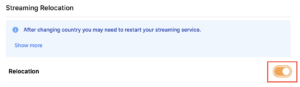
4. Set the Streaming Relocation toggle to On.

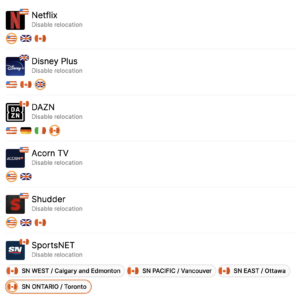
5. Click the flag of the country you would like the listed streaming service to use.

This streaming relocation feature will not change your IP address in the way that a VPN does. This is why it is not able to be blocked in the same way that a VPN connection can be.
The listed services on the streaming relocation page will not be connected to VPN even if the Privacy Hero has an active VPN connection. These services are set to bypass the router’s VPN tunnel to avoid streaming blocks.
Toggling the streaming relocation feature On will also relocate many other streaming services automatically. They will be automatically optimized for the best connection with no manual selection needed for:
ABC
Adult Swim
All 4
Apple TV Channels
BBC
Britbox
CBC Gem
CBS Sports
Crackle
DirecTV Stream
DSTV Now
Filmrise
Freeform
Freevee
Frndly TV
F1 TV
FX Now
ITV
MGM+
Molotov.TV
My 5
NBC
NBC Sports
Now E
Now TV
Pandora
Paramount+
PBS
Peacock
Philo
Pluto TV
Showmax
Sling
SonyLIV
S Sports Plus
Starz
Stirr
TBS
Tennis Channel
The CW
Tubi
TVPlayer
Vudu
Xumo
Zattoo
Still having issues? Visit the VPN Troubleshooting section.
TeamFlashRouters · ·
Your Privacy Hero router uses Cloud Based router management which means you can access the router settings from anywhere on any device that has an internet connection. You can follow these steps while connected to your phone, other Wi-Fi network, or the Privacy Hero network.
Use these steps to connect to Privacy Hero’s own WireGuard VPN servers. You will automatically be connected to the ideal USA or Canada server based on your location.
1. From any device that has a browser such as a computer, smartphone, or tablet visit app.privacyhero.com

2. Enter your Privacy Hero account email and password. Click Login.

If you have not created your Privacy Hero account yet please follow these instructions.
3. Click the VPN symbol.

4. Set the VPN toggle to On.

5. Connect to the Privacy Hero’s via wireless or ethernet connection on your device and visit What is my IP Address from a private/incognito browser to verify your new IP address and virtual location.
Privacy Hero’s cloud based router settings access makes it so you can change settings while not connected to the Privacy Hero network so if your IP Address has not changed be sure to double check that you are indeed connected to the Privacy Hero network on the device you are checking your IP from.
Keep in mind that the VPN connection will not change the location of the streaming services listed in the Streaming Relocation area of the Privacy Hero settings.
Still having issues? Visit the VPN Troubleshooting section.
TeamFlashRouters · ·
DD-WRT open source firmware removes many firmware vulnerabilities and backdoor access issues that may cause problems in stock firmware. DD-WRT is also updated more frequently than stock firmware, so be sure to always check with the FlashRouter support team to see which DD-WRT build we recommend for the highest level of security for your router at any time.
Aside from avoiding common issues and flaws with stock firmware, DD-WRT give you more control over the firmware settings and allows you to take some extra steps to really lock down your network security. In this article we highlight additional options for WiFi network security and also preventative measures for remote execution attacks.
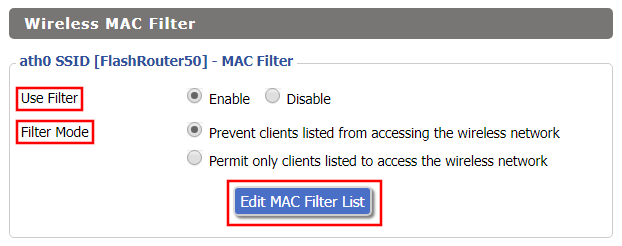
Navigate to Wireless > MAC Filter

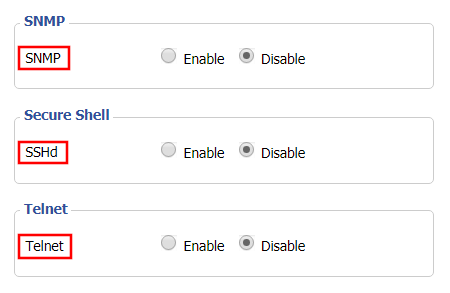
Navigate to Services > Services

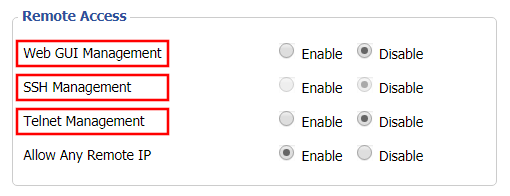
Navigate to Administration > Management

TeamFlashRouters · ·
Your Privacy Hero router uses Cloud Based router management which means you can access the router settings from anywhere on any device that has an internet connection. You can follow these steps while connected to your phone, other Wi-Fi network, or the Privacy Hero network.
Use these steps to enable Privacy Hero’s adblocking, malware, and phishing prevention settings to add extra security to your network.
1. From any device that has a browser such as a computer, smartphone, or tablet visit app.privacyhero.com

2. Enter your Privacy Hero account email and password. Click Login.

If you have not created your Privacy Hero account yet please follow these instructions.
3. Click the VPN symbol.

4. Toggle the Adblocking and Malware & Phishing switches to On.

Still having issues? Visit the VPN Troubleshooting section.
TeamFlashRouters · ·
Privacy Hero supports ExpressVPN using OpenVPN. To connect, you need your ExpressVPN Manual Configuration username and password and an OpenVPN (.ovpn) configuration file for your preferred server location.
Important: In Privacy Hero, choose Custom as the VPN provider. Upload the ExpressVPN .ovpn file and enter your separate Manual Configuration credentials, not your regular ExpressVPN website login.
Privacy Hero is cloud-managed, so you can complete setup from any computer, smartphone, or tablet with an internet connection. You do not need to be connected to Privacy Hero WiFi while changing the settings.
ExpressVPN provides separate credentials for manual OpenVPN connections. These are different from your normal ExpressVPN website email and password.
Important: Do not use your regular ExpressVPN account password, and do not share your manual configuration credentials publicly.
Each available ExpressVPN location has its own OpenVPN configuration file. The file determines the server location used by Privacy Hero.
Only locations offered on your ExpressVPN Manual Configuration page can be used for this setup. To change locations later, download the corresponding .ovpn file and upload it to Privacy Hero.
ExpressVPN uses Privacy Hero’s Custom VPN configuration rather than a dedicated ExpressVPN provider option.
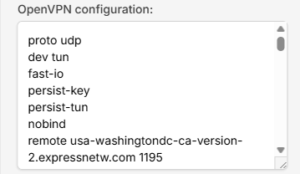
proto udp. If the directive is missing, add proto udp at the beginning of the configuration. Do not add a conflicting second protocol directive.
After Privacy Hero reports Connected, check that devices on the Privacy Hero network are actually using the VPN.
Important: You can manage Privacy Hero’s VPN settings from another network or cellular data. However, to verify the router’s VPN IP, the testing device must be connected to the Privacy Hero network. Running another VPN app on the device can produce double-VPN results.
If Streaming Relocation is enabled for a supported streaming service, that service may use its Streaming Relocation region instead of the location defined in the ExpressVPN configuration file. See Privacy Hero Streaming Relocation.
If Privacy Hero shows Failed, stays on Connecting, or displays a timeout error, try these checks:
proto udp without conflicting protocol directives.The Privacy Hero VPN Kill Switch may intentionally block normal internet traffic when the VPN connection is unavailable. See Privacy Hero VPN Kill Switch: No Internet or WiFi Troubleshooting.
If other devices show the correct VPN IP, check the affected device’s VPN apps, iCloud Private Relay, Private DNS, antivirus filtering, browser proxy/DNS settings, or other security software. See Device Settings That Can Interfere With Your Router VPN.
TeamFlashRouters · ·
Your Privacy Hero router uses Cloud Based router management which means you can access the router settings from anywhere on any device that has an internet connection. You can follow these steps while connected to your phone, other Wi-Fi network, or the Privacy Hero network.
The Privacy Hero router allows for User Profile creation. Doing so allows you to group different user’s devices together to customize the following rules:
This makes the Privacy Hero a great router option for families and internet addicts.
1. From any device that has a browser such as a computer, smartphone, or tablet visit app.privacyhero.com

2. Enter your Privacy Hero account email and password. Click Login.

If you have not created your Privacy Hero account yet please follow these instructions.
3. Click the Profiles symbol.

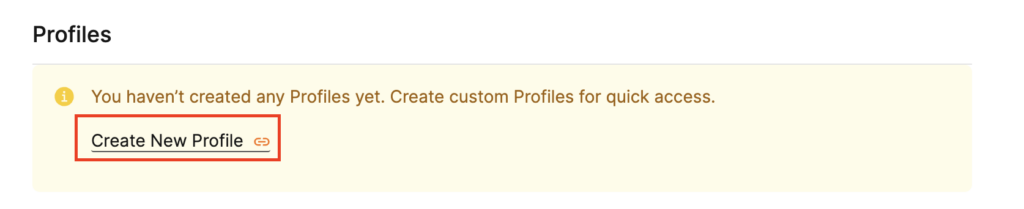
4. Click Create New Profile.

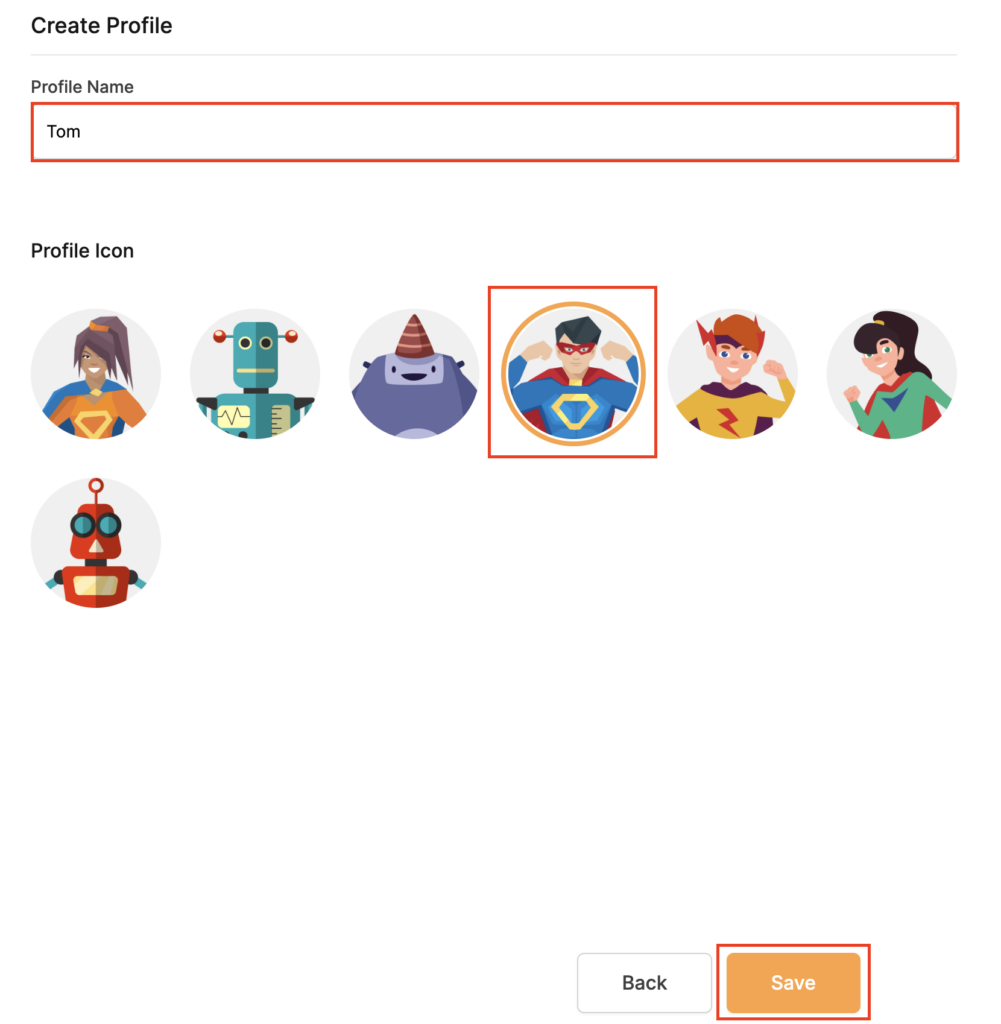
5. Set the Profile Name, select the Profile Icon, and click Save.

6. Click the name of the User Profile.

7. Select Devices.

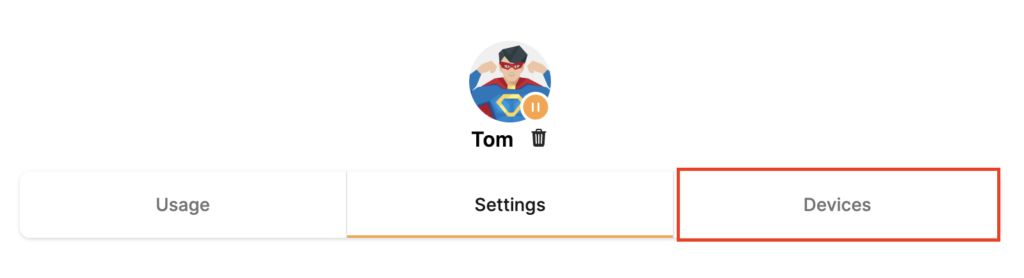
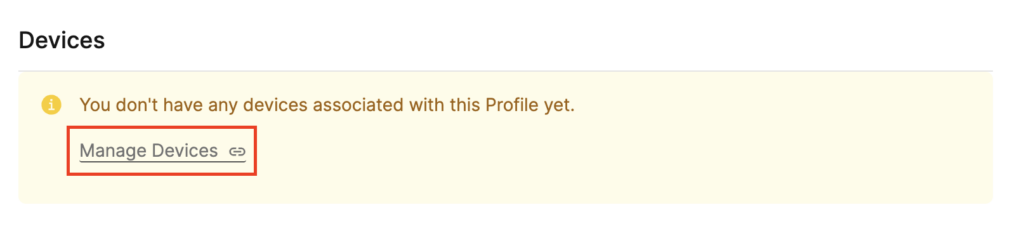
8. Select Manage Devices.

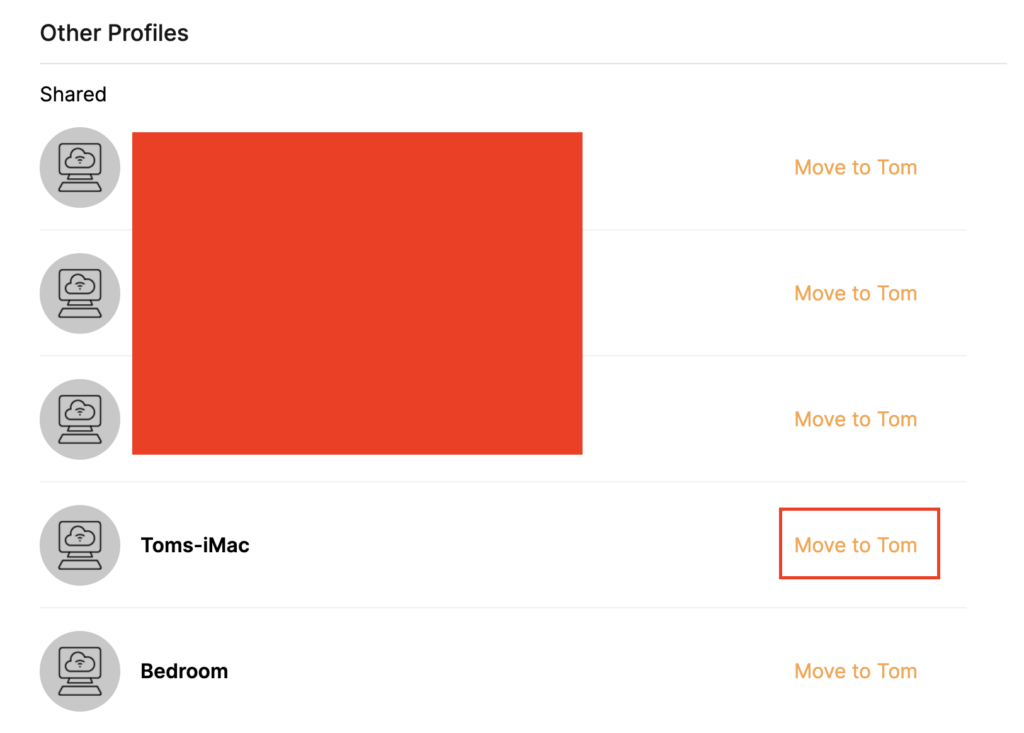
9. If you have not already connected your devices to the Privacy Hero network via wireless or ethernet you can do so now. Refresh the page after connecting a new device and it will appear in the list where you can select Move to “Profile Name” to move the device to the appropriate profile. By default new devices are in the Shared profile.

If your devices were already connected to the Privacy Hero network and you are having issues identifying them I would recommend the following steps:
This is how you can identify a device that is not properly named.

10. Now that your devices are assigned you can set the Bedtime Settings (Internet Scheduler) and Safe Surf settings for your new Profile.
Still having issues? Visit the VPN Troubleshooting section.
TeamFlashRouters · ·
Privacy Hero supports Proton VPN through WireGuard and OpenVPN using the Custom VPN provider option.
WireGuard is recommended for most users. It uses a downloadable .conf configuration file. OpenVPN uses a downloadable .ovpn file and a separate Proton VPN OpenVPN username and password (not your regular Proton Account login).
Privacy Hero is cloud-managed. You can configure the VPN from a computer, smartphone, or tablet connected to any internet network; you do not need to be on the Privacy Hero WiFi to change settings.

WireGuard uses a configuration file generated by Proton VPN. You do not need an OpenVPN username and password for this method.
Important: A WireGuard configuration contains a private key. Keep the downloaded file private; do not paste its contents into public posts or unprotected support messages. For detailed Proton account instructions, see Proton VPN: Download WireGuard Configuration Files.

OpenVPN is an alternative to WireGuard. You need a Proton VPN OpenVPN-specific username and password and a server .ovpn configuration file.
For help locating these credentials, see Proton VPN: How to Sign In / OpenVPN Credentials.
For additional details about the file download options, see Proton VPN: Download OpenVPN Configuration Files.

After Privacy Hero reports Connected, confirm that a device on the router network is using your Proton VPN connection.
Important: You can manage Privacy Hero from another WiFi network or cellular data. However, the device performing the VPN IP test must be connected to the Privacy Hero network.
If Privacy Hero Streaming Relocation is enabled for a supported streaming service, that service may use its Streaming Relocation location rather than the country selected in your Proton VPN configuration. See Privacy Hero Streaming Relocation.
If Privacy Hero displays Failed, remains on Connecting, or reports a timeout, work through these checks:
The VPN Kill Switch may be intentionally blocking normal internet traffic when the VPN connection is unavailable. See Privacy Hero VPN Kill Switch: No Internet or WiFi Troubleshooting.
Check the affected device for a second VPN app, iCloud Private Relay, Private DNS, browser proxy settings, or filtering software. See Device Settings That Can Interfere With Your Router VPN.
TeamFlashRouters · ·
Your Privacy Hero router uses Cloud Based router management which means you can access the router settings from anywhere on any device that has an internet connection. You can follow these steps while connected to your phone, other Wi-Fi network, or the Privacy Hero network.
The Bedtime settings feature allows users to schedule when internet access will be turned off for specific user profiles. All devices assigned to this profile will have these rules applied.
1. From any device that has a browser such as a computer, smartphone, or tablet visit app.privacyhero.com

2. Enter your Privacy Hero account email and password. Click Login.
If you have not created your Privacy Hero account yet please follow these instructions.
3. Click the Profiles symbol.

4. Click the name of the User Profile.

5. Click Schoolnights or Weekends depending on which you need to set rules for.

6. Select the time that you want the Internet to turn off and the days you want this rule to apply to. Click Save.

7. Set the Bedtime toggle to On.

Still having issues? Visit the VPN Troubleshooting section.
TeamFlashRouters · ·
If you would like to prevent visitors from connecting to your main WiFi network then you can create a Bridged Guest Network that will prevent access to the main router. This setup also allows you to create different rules for different WiFi SSID’s in your home ranging from QoS controls, access restrictions, VPN network segmentation, and more.
If you have a Dual-band or Tri-Band router you can setup a WiFi Guest Network, creating a separate VLAN (virtual local area network) for your visitors, or in order to segment your VPN networks on any band you like. We recommend using the 2.4GHz network for your DD-WRT Guest Wireless Network so it is compatible with the most possible WiFi devices. Setting up a guest network for visitors in your home allows you to keep them off of your main WiFi network.
We recommend performing this setup while connected to the FlashRouter via ethernet cable. If your computer does not have an ethernet port and you must proceed via wireless connection to the FlashRouter pay attention to the wireless connection as you may need to rejoin the FlashRouter’s network after making changes.
Navigate to Wireless > Basic Settings

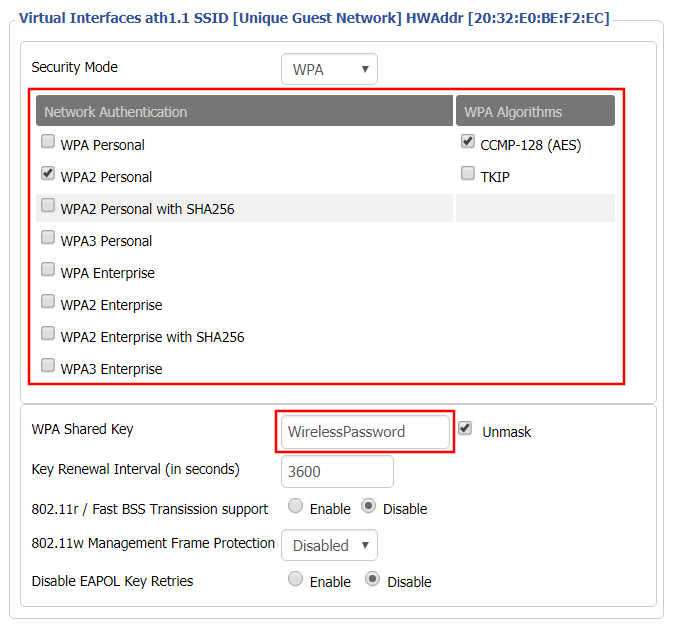
Navigate to Wireless > Wireless Security

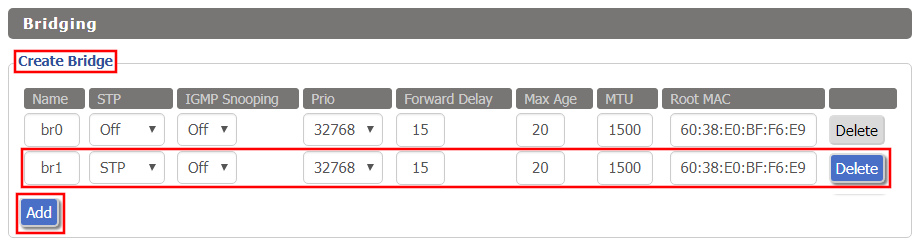
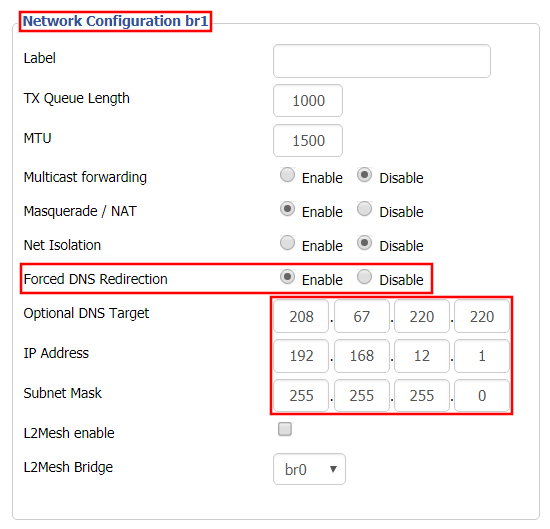
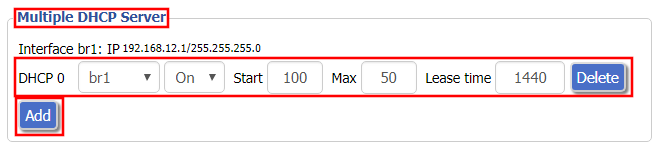
Navigate to Setup > Networking


Depending on the router model and WiFi band you are using, the wireless interfaces will be labelled differently.
This setting can be labelled wl1.1, ath0.1, wl2.1, and so on. Make sure when you get up to the bridge assignment section that you are using the correct guest network Virtual Interface.


Navigate to Administration > Commands
iptables -I FORWARD -i br1 -o br0 -m state –state NEW -j DROP
iptables -I FORWARD -i br0 -o br1 -m state –state NEW -j DROP
iptables -I INPUT -i br1 -p tcp –dport telnet -j REJECT –reject-with tcp-reset
iptables -I INPUT -i br1 -p tcp –dport ssh -j REJECT –reject-with tcp-reset
iptables -I INPUT -i br1 -p tcp –dport www -j REJECT –reject-with tcp-reset
iptables -I INPUT -i br1 -p tcp –dport https -j REJECT –reject-with tcp-reset
You will now have a working Bridged Guest Network on the FlashRouter. By inputting the firewall rules, this will also prevent any guests on your network from gaining access to your router settings.
Navigate to Administration > Backup
Still having issues? Visit our Troubleshooting section to diagnose common problems here.
TeamFlashRouters · ·
Your Privacy Hero router uses Cloud Based router management which means you can access the router settings from anywhere on any device that has an internet connection. You can follow these steps while connected to your phone, other Wi-Fi network, or the Privacy Hero network.
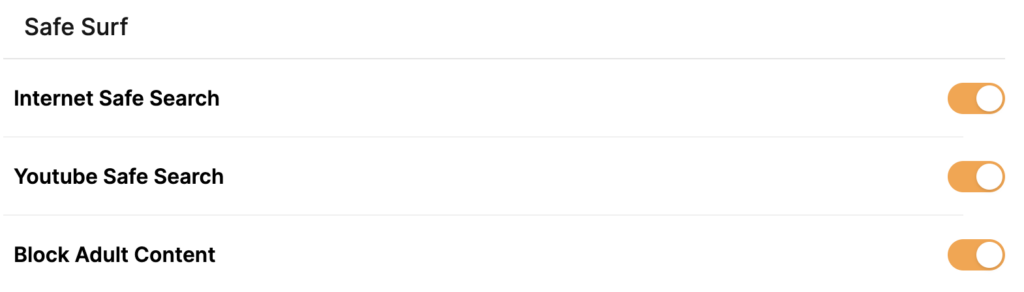
The Safe Surf settings feature allows users to block inappropriate search results, YouTube videos, and adult content. All devices assigned to this profile will have these rules applied.
1. From any device that has a browser such as a computer, smartphone, or tablet visit app.privacyhero.com

2. Enter your Privacy Hero account email and password. Click Login.

If you have not created your Privacy Hero account yet please follow these instructions.
3. Click the Profiles symbol.

4. Click the name of the User Profile.

5. Toggle On the settings for Internet Safe Search, YouTube Safe Search, and Block Adult Content as needed.

Still having issues? Visit the VPN Troubleshooting section.
TeamFlashRouters · ·
By assigning specific Static IP addresses to your devices you can better manage your network and make sure they connect with the same Local IP Address each time they connect to your Roqos.
Login to Roqos Core UI web app in a browser on any computer or smart device.
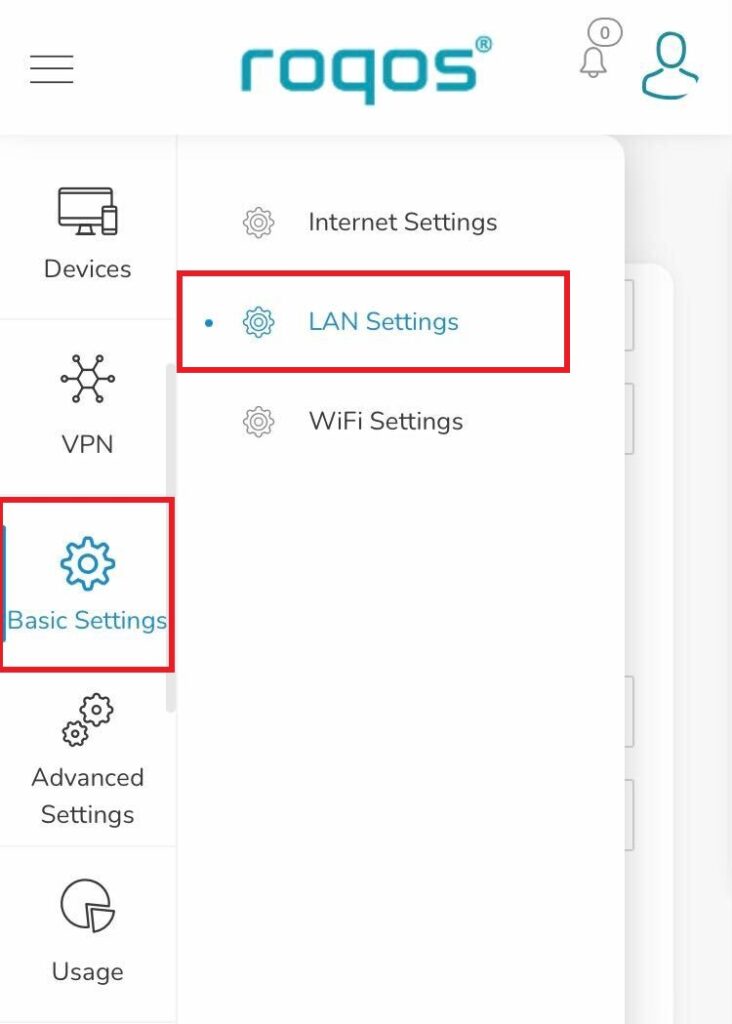
1. Click the navigation menu and select Basic Settings > LAN Settings.

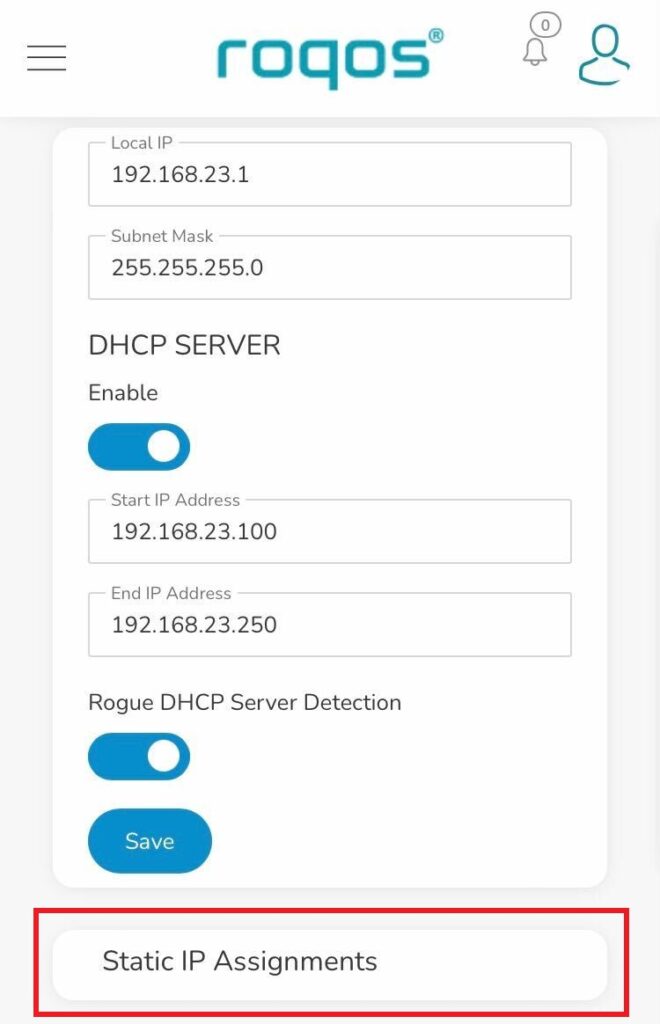
2. Click Static IP Assignments.

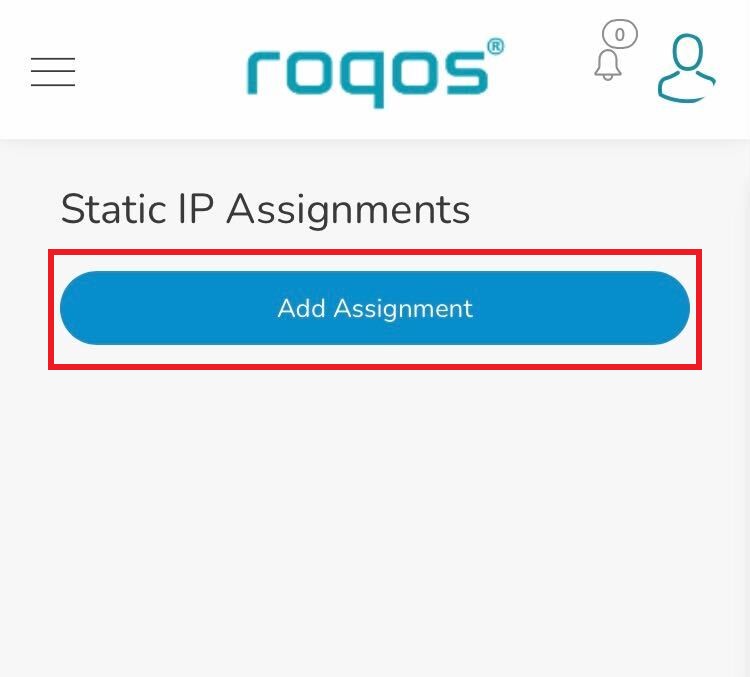
3. Click Add Assignment.

4. Toggle the device hat you want to set a Static IP for and then enter 192.168.23.x with x being any number between 2 and 254. Click Save.
Now, every time the device connects to the Roqos network it will be assigned the same Static IP address on the Local network.
TeamFlashRouters · ·
If you are not already an IPVanish user Sign Up Now.
1. Log in to your account on the IPVanish website.

2. Successfully log in with your account information then go to IPVanish .ovpn file page.
3. Click on the .ovpn file for the server location you want to use to dowloand the .ovpn file. Do not open this file.

Login to AsusWRT firmware settings in a browser on any computer or smart device connected to the AsusWRT FlashRouter’s network.
1. Navigate to the VPN tab.

2. Navigate to the VPN Fusion tab.

3. Click Add profile.

4. In the Connection Name field enter in the name you’d like to use for this OpenVPN Client profile. We typically advise entering in the location or server number here. Our example server was in New York so I have entered in IPVanish New York.
5. In the VPN Type dropdown select OpenVPN.
6. Click Import .ovpn file and select the .ovpn file you downloaded earlier. Then click Upload.
7. In the Username and Password fields paste in the IPVanish email and password you use to successfully login to your IPVanish website account.
8. Click Apply and Enable at the bottom of the page.

If you only want certain devices to connect to the OpenVPN Client profile you are setting up instead of all the devices connected to the FlashRouter’s network click into the profile and disable Apply to all devices. Then click Devices and select the devices that you want to connect to VPN.


9. At the top of the page set the Service State toggle to ON to activate the VPN connection.

In some cases you may notice that the location is not showing the same location as the server you have input in your router settings; this is because geo tracking tools are often tricked by VPN connections. As long as you see an IP address that is not the same as your normal Internet IP address then you are indeed connected to IPVanish.
Still having issues? Visit the VPN Troubleshooting section.
TeamFlashRouters · ·
If you are not already a Surfshark user Sign Up Now.
1. Log in to your account on the Surfshark website.

2. Click VPN Manual Setup.

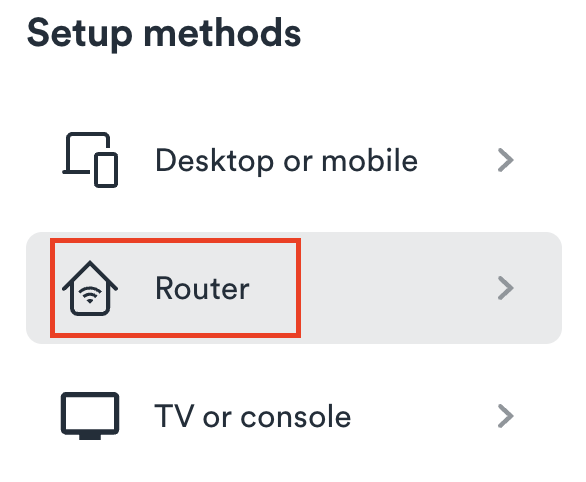
3. Select Router as the Setup method.

4. Select WireGuard as the Protocol.

5. Select I don’t have a key pair.

6. Enter FlashRouter as the name of the connection and click Next.

7. Click Generate a new key pair.

8. A Public Key and Private Key will then appear. Use the copy box to copy the Private Key. You will not need the public key.

Login to AsusWRT firmware settings in a browser on any computer or smart device connected to the AsusWRT FlashRouter’s network.
1. Navigate to the VPN tab.

2. Navigate to the VPN Fusion tab.

3. Click Add profile.

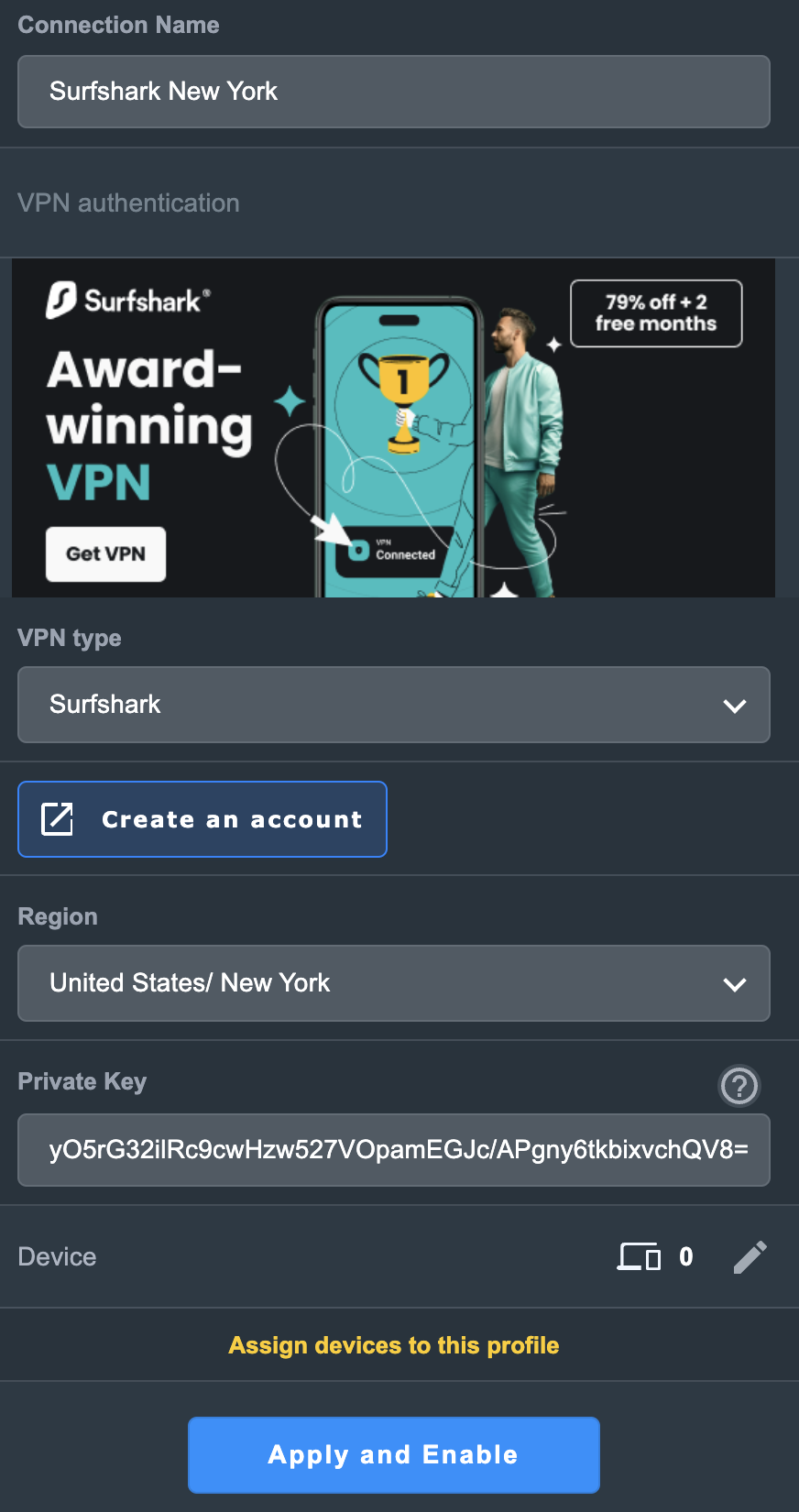
4. In the Connection Name field enter in Surfshark.
5. In the VPN Type dropdown select Surfshark.
6. In the Region dropdown select the Surfshark location you want to connect to.
7. In the Private Key field paste in the Surfshark Private Key obtained earlier.
8. Click Apply and Enable at the bottom of the page.

If you only want certain devices to connect to the Surfshark profile you are setting up instead of all the devices connected to the FlashRouter’s network click into the profile and disable Apply to all devices. Then click Devices and select the devices that you want to connect to VPN.


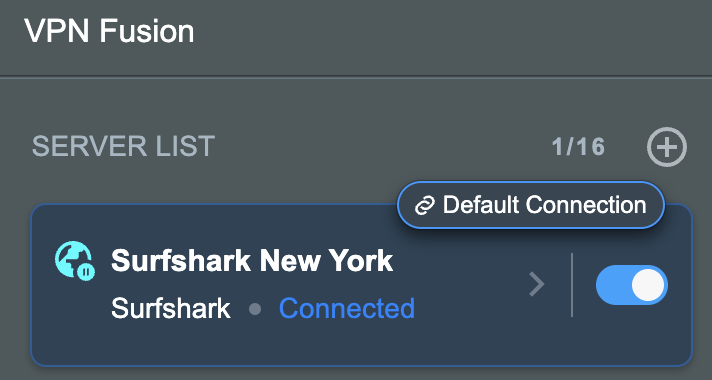
9. At the top of the page set the Service State toggle to ON to activate the VPN connection.

In some cases you may notice that the location is not showing the same location as the server you have input in your router settings; this is because geo tracking tools are often tricked by VPN connections. As long as you see an IP address that is not the same as your normal Internet IP address then you are indeed connected to Surfshark.
Still having issues? Visit the VPN Troubleshooting section.
TeamFlashRouters · ·
If you are not already a CyberGhost user Sign Up Now.
1. Log in to your account on the CyberGhost website.

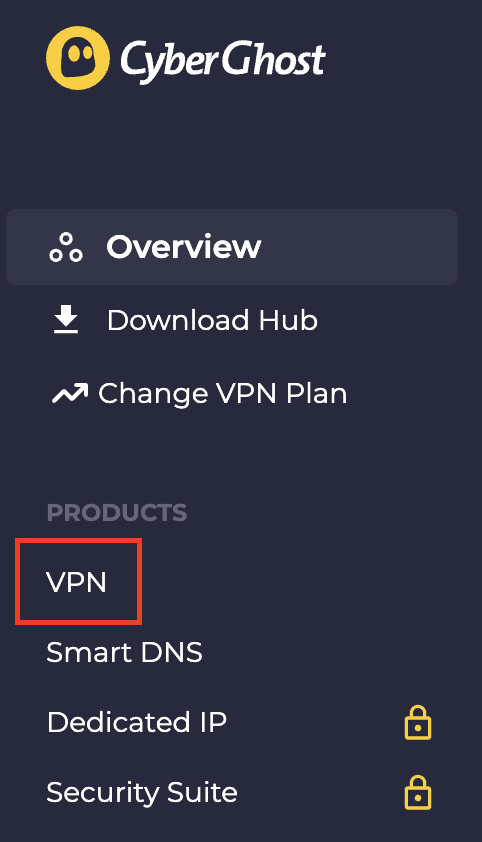
2. Select VPN.

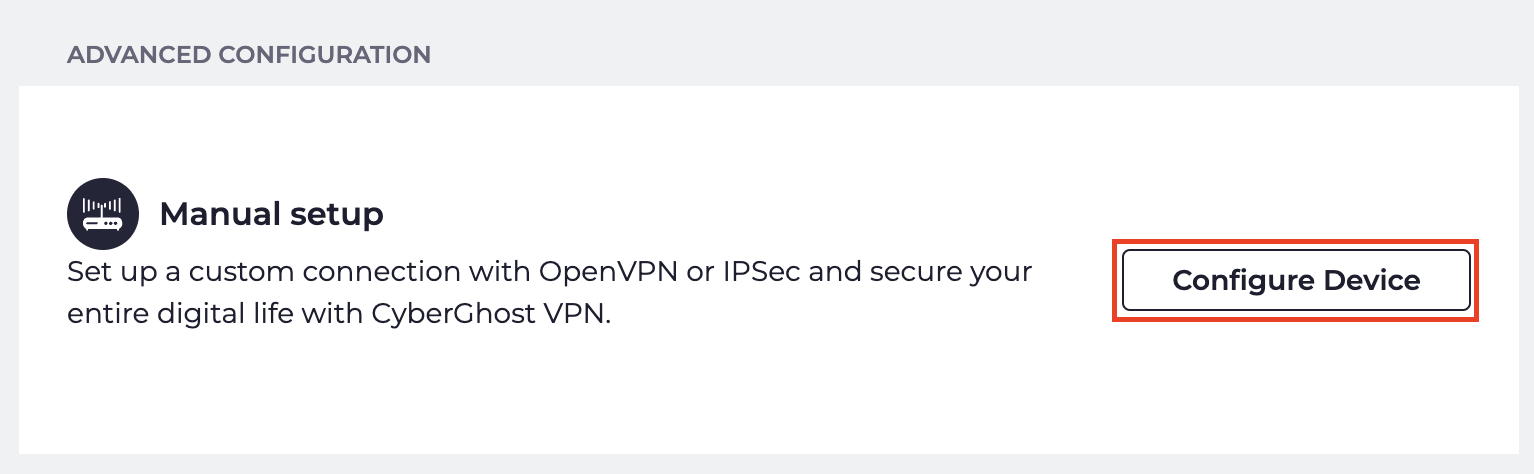
3. Click Configure New Device.

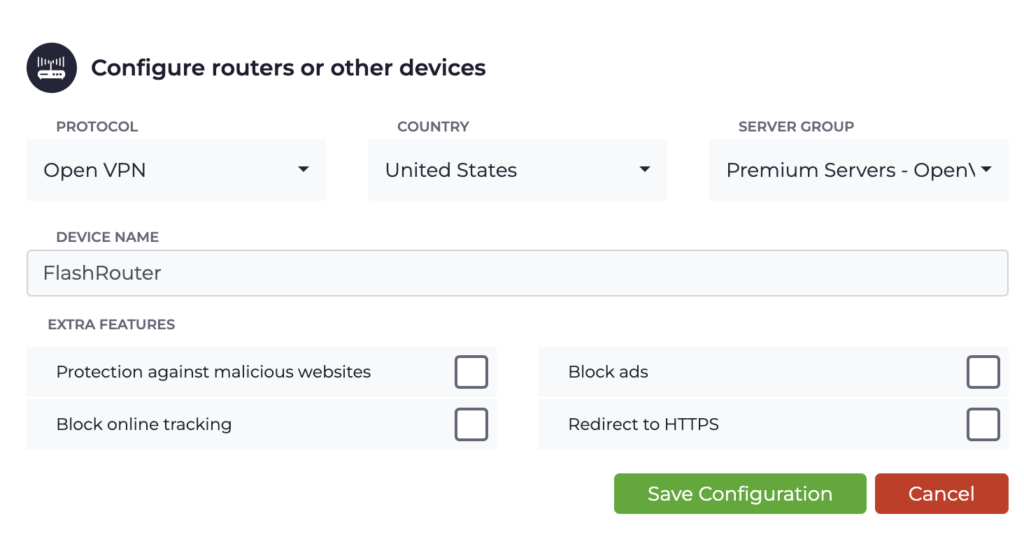
4. Set Protocol to OpenVPN. Select the Country you would like to connect to. Select the Server Group. Name the device in the Device Name field. Click Save Configuration.

5. Press View configuration.

6. Copy the Username, and Password that appear to a notepad, since you will need this information later in the setup process. Click Download Configuration.

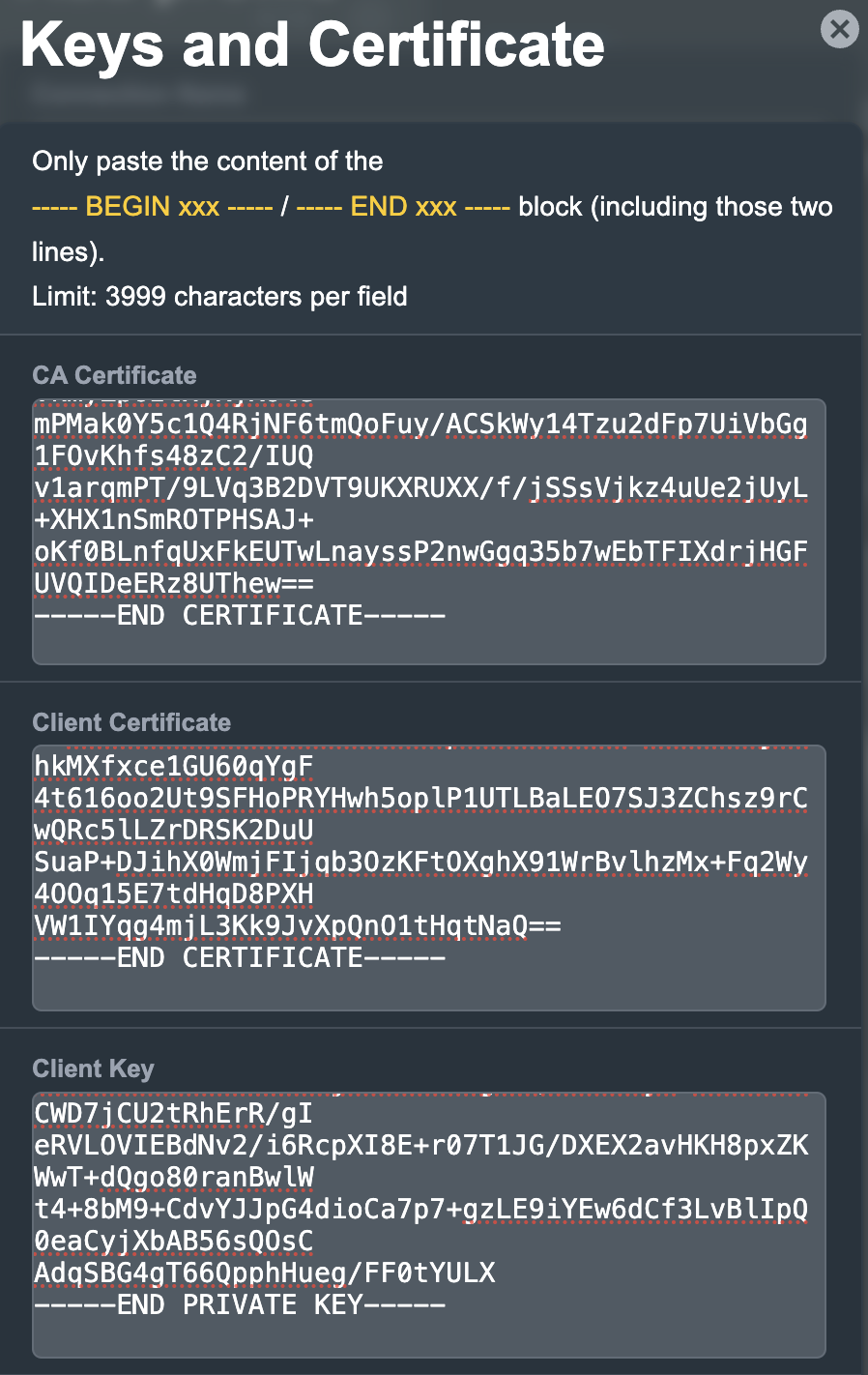
Open the folder that was downloaded. Then open the ca.crt the client.crt, and client.key files with NotePad++ for Windows or TextEdit for Apple. All CyberGhost servers have different keys and certificates.
Login to AsusWRT firmware settings in a browser on any computer or smart device connected to the AsusWRT FlashRouter’s network.
1. Navigate to the VPN tab.

2. Navigate to the VPN Fusion tab.

3. Click Add profile.

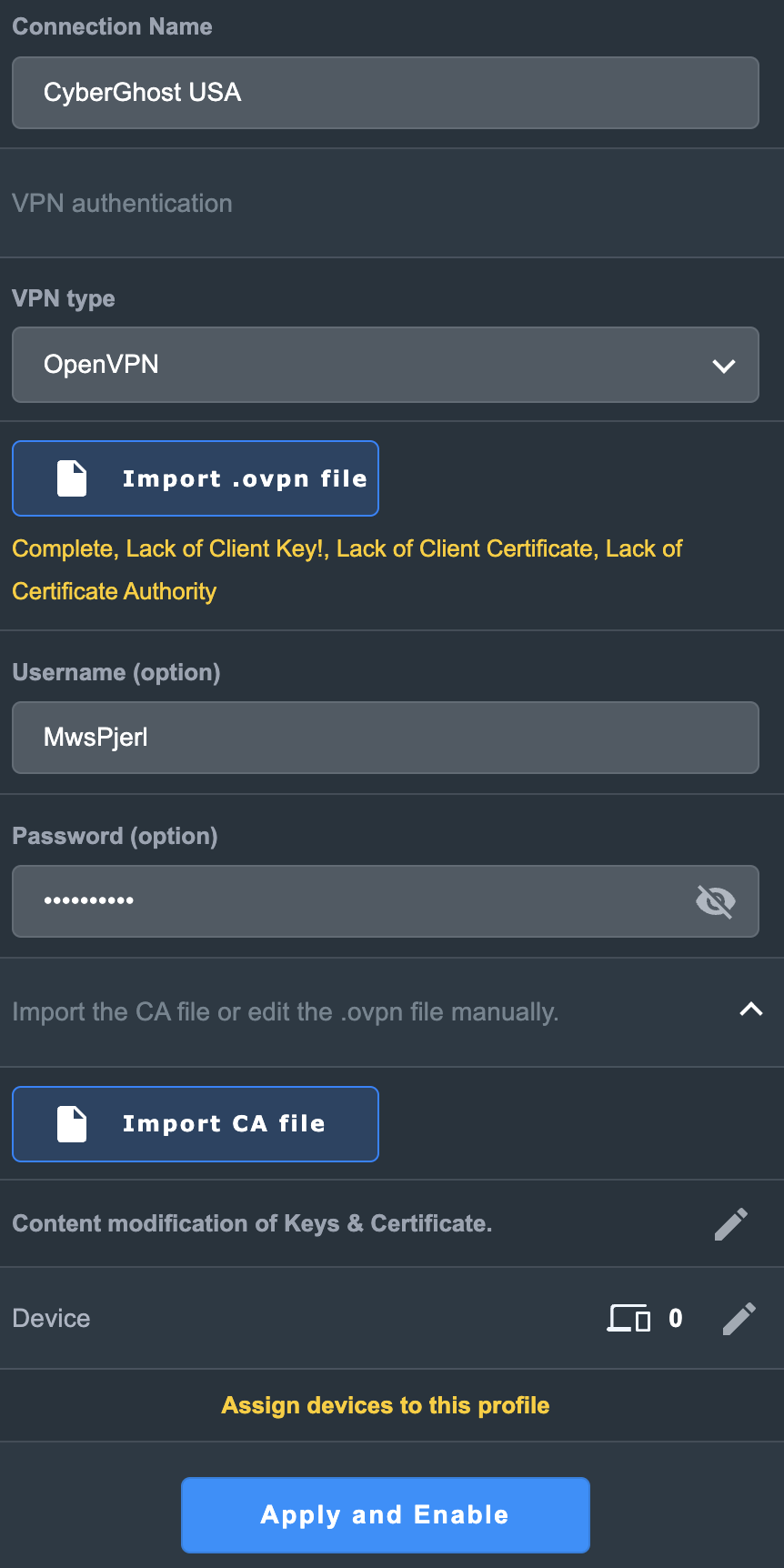
4. In the Connection Name field enter in the name you’d like to use for this OpenVPN Client profile. We typically advise entering in the location or server number here. Our example server was in USA so I have entered in CyberGhost USA.
5. In the VPN Type dropdown select OpenVPN.
6. Click Import .ovpn file and select the openvpn.ovpn file from the folder you downloaded earlier. Then click Upload.
7. In the Username and Password fields enter in the CyberGhost assigned username and password that you obtained earlier.
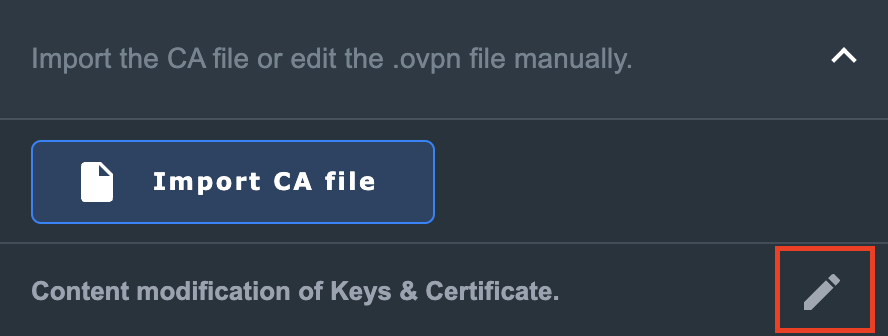
8. After uploading the openvpn.ovpn file you will get a message that says “Complete, Lack of Client Key!, Lack of Client Certificate, Lack of Certificate Authority”. For CyberGhost you need to enter in these details manually. Click Import the CA file or edit the .ovpn file manually and then click the edit icon next to Content modification of Keys and Certificate.

9. In the Certificate Authority field paste in the entire content of the ca.crt file.
—– BEGIN xxx —– / —– END xxx —– block (including those two lines).
10. In the Client Certificate field paste in the entire content of the client.crt file.
—– BEGIN xxx —– / —– END xxx —– block (including those two lines).
11. In the Client Key field paste in the entire content of the client.key file.
—– BEGIN xxx —– / —– END xxx —– block (including those two lines).
Then click OK.

8. Click Apply and Enable at the bottom of the page.

If you only want certain devices to connect to the OpenVPN Client profile you are setting up instead of all the devices connected to the FlashRouter’s network click into the profile and disable Apply to all devices. Then click Devices and select the devices that you want to connect to VPN.


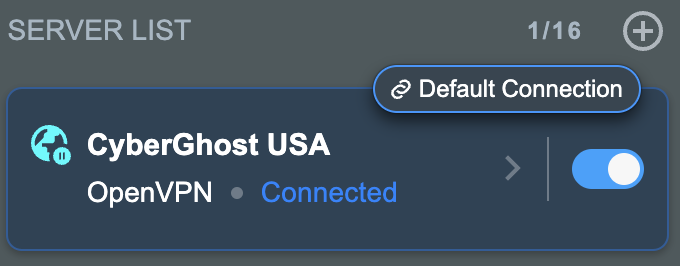
9. At the top of the page set the Service State toggle to ON to activate the VPN connection.

In some cases you may notice that the location is not showing the same location as the server you have input in your router settings; this is because geo tracking tools are often tricked by VPN connections. As long as you see an IP address that is not the same as your normal Internet IP address then you are indeed connected to CyberGhost.
Still having issues? Visit the VPN Troubleshooting section.
TeamFlashRouters · ·
All FlashRouters are compatible with all ISP service types such as fiber, cable, DSL, and satellite. As long as you have a modem, modem/router, or router capable of an ethernet connection your FlashRouter will have no problems connecting to the internet.
Internet Service Providers (ISP) include a modem or modem/router combo to connect your network devices to the internet. In some instances your ISP will provide a separate router as well as the modem. You can replace this router with a FlashRouter or use both in a dual router setup.
If you would like to replace your outdated router or avoid paying to rent a router from your ISP then you should use a FlashRouter as the only WiFi device in your network.
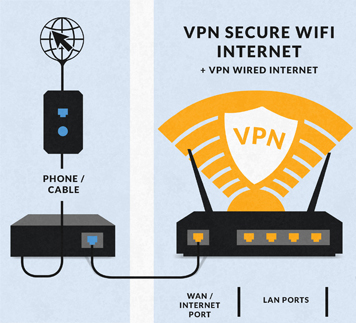
In a single router setup the FlashRouter will be wired directly to your modem via ethernet cable and will be the only router in the setup.
Wire an ethernet cable from an open ethernet port on your modem to the WAN/internet port of the FlashRouter.

On Asus FlashRouters the WAN/internet port will be blue.

On Linksys FlashRouters the WAN/internet port will be yellow.

On Netgear FlashRouters the WAN/internet port will be yellow.

Once you have properly connected an ethernet cable from your modem into the FlashRouter internet port you must power cycle your network devices to establish an internet connection.
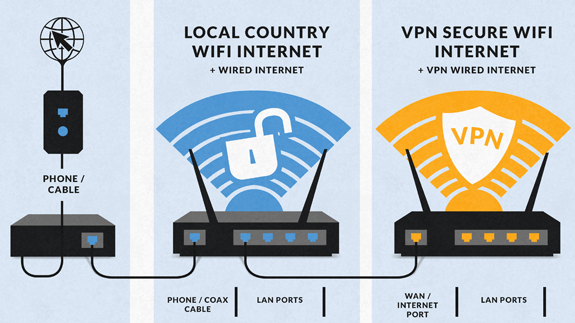
If you would like to keep your existing WiFi network in place, and simply want to add in a VPN WiFi network with a FlashRouter then you can do so using a dual router setup. No settings in your existing network router need to change to add a FlashRouter in a dual router setup. Since we preset all FlashRouters to a unique Local IP Address, there won’t be a conflict with your existing router.
In a dual router setup the FlashRouter is wired to your existing router via ethernet cable and you will have two completely segmented WiFi networks available.
Remember if your existing router is connecting to the internet without issue already, make sure to keep the ethernet cable between your modem and existing router internet port in place.
Now connect another ethernet cable from a LAN/numbered port on your existing router to the WAN/internet port of the FlashRouter.
Reference the images above to see your WAN/internet port color.

Once you have properly connected an ethernet cable from your existing router into the FlashRouter internet port you must power cycle your network devices to establish an internet connection.
Once the power cycling steps are complete and the FlashRouter is powered up, start connecting your internet capable devices via ethernet or WiFi. Visit any website and make sure the page fully loads.
If you want to check your internet IP address that is visible to websites and services that you visit over the internet check out WhatIsMyIPAddress.com.
Still having issues? Visit our Troubleshooting section to diagnose common problems here.
TeamFlashRouters · ·
If you are not already an SaferVPN user Sign Up Now.
Log in to your account on the SaferVPN website.

View a full list of SaferVPN servers.
East Coast:
us1.safervpn.net
West Coast:
us2.safervpn.net
uk1.safervpn.net
Navigate to Services > VPN
Start OpenVPN Client
If you wish to disable your VPN connection simply set this to Disable at any time and click Apply Settings.
Server IP/Name
Copy and paste the server you would like to connect to from the server list above. Be sure there are no extra spaces or characters.
If you wish to change SaferVPN connection locations, THIS IS THE ONLY FIELD YOU NEED TO CHANGE.
Port
1194
Tunnel Device
TUN
Tunnel Protocol
UDP
Encryption cipher
AES-256-CBC
Hash Algorithm
SHA1
User Pass Authentication
Enable
Username
Enter the Username you successfully logged in to your SaferVPN account with.
Password
Enter the Password you successfully logged in to your SaferVPN account with.
Advanced Options
Enable
TLS Cipher
None
LZO Compression
Adaptive
NAT
Enable
Additional Config
persist-key
persist-tun
tun-mtu-extra 32
mssfix 1450
Policy Based Routing
This field can be used for split VPN and Dual Gateway routing.
CA Cert
-----BEGIN CERTIFICATE----- MIIE1jCCA76gAwIBAgIJAOnRq4FWsZgYMA0GCSqGSIb3DQEBCwUAMIGiMQswCQYD VQQGEwJVUzELMAkGA1UECBMCQ0ExFTATBgNVBAcTDFNhbkZyYW5jaXNjbzERMA8G A1UEChMIU2FmZXJWUE4xETAPBgNVBAsTCFNhZmVyVlBOMREwDwYDVQQDEwhTYWZl clZQTjERMA8GA1UEKRMIU2FmZXJWUE4xIzAhBgkqhkiG9w0BCQEWFHN1cHBvcnRA c2FmZXJ2cG4uY29tMB4XDTE3MDgzMTA5NDEyM1oXDTI3MDgyOTA5NDEyM1owgaIx CzAJBgNVBAYTAlVTMQswCQYDVQQIEwJDQTEVMBMGA1UEBxMMU2FuRnJhbmNpc2Nv MREwDwYDVQQKEwhTYWZlclZQTjERMA8GA1UECxMIU2FmZXJWUE4xETAPBgNVBAMT CFNhZmVyVlBOMREwDwYDVQQpEwhTYWZlclZQTjEjMCEGCSqGSIb3DQEJARYUc3Vw cG9ydEBzYWZlcnZwbi5jb20wggEiMA0GCSqGSIb3DQEBAQUAA4IBDwAwggEKAoIB AQCqNV7oJZrUqD/mBSWlKi/sGRE2y3Yphs5m/vmmS4GPrc8lyaI1idhv44MGZ0i1 XCkJFZmaVQk7NUz5npz9hcnxN3MiZd/5Kv8Vo4aQkL0xQ7euto71LIgTqbJvTJjW kowsVVgartGK2ewfCd+KV6k5oBImlDdSnLW1pq82Kg+YcnXxdaFc8RpNWdBbdxBe tb4k6JcoZHuk9Zq5gi5Nnhtjc6lheCRzTGZ2hslDfJ58yMpR0jTMC3Rd+G+sM0q3 /gEEEW34ckUgCb5j6Kq35LUlnuonnViBnEzFR/MTizMARFj7VYkzOpxSsxJ6Epan JP8Zgbz81z4A822hosakl7kTAgMBAAGjggELMIIBBzAdBgNVHQ4EFgQUKSnUrJLQ omrGvdncxKkKT7Rxrj8wgdcGA1UdIwSBzzCBzIAUKSnUrJLQomrGvdncxKkKT7Rx rj+hgaikgaUwgaIxCzAJBgNVBAYTAlVTMQswCQYDVQQIEwJDQTEVMBMGA1UEBxMM U2FuRnJhbmNpc2NvMREwDwYDVQQKEwhTYWZlclZQTjERMA8GA1UECxMIU2FmZXJW UE4xETAPBgNVBAMTCFNhZmVyVlBOMREwDwYDVQQpEwhTYWZlclZQTjEjMCEGCSqG SIb3DQEJARYUc3VwcG9ydEBzYWZlcnZwbi5jb22CCQDp0auBVrGYGDAMBgNVHRME BTADAQH/MA0GCSqGSIb3DQEBCwUAA4IBAQB704c0nixfDuJ7OiFBUmkhmDUFEIhl D35wxlthKYRs8tBzetZEipFGdyUOwuWiuwG/BuOwuP7fPS9uP4u4EPKjA5kL/Z/V E743q50PS4L/kT3ZFyUrcisUKajAr5Gu+o6rzA6F4+QYu26iBbKewNrrb+riF1wR GKthc6W++Awt+oVyKtVNyS2QokuBFcSu5IiVsfGqJ8TmffvFBqKUUjWopmP+qiYR 8+0qwHing/S/C9S72ZxhM9DF3et1dXFuHf/69YL8/u36tyKMqy/JVhByAlc87cRI tcRGaviUttBeSw4j1Y6XrycVkhn4LzizWrqrmfCikhx26MrIeWK5JxYL -----END CERTIFICATE-----
CLICK APPLY SETTINGS
Leave all settings not mentioned above as their default setting.
Navigate to Status > OpenVPN
In some cases you may notice that the location is not showing the same location as the server you have input in your router settings; this is because geo tracking tools are often tricked by VPN connections. As long as you see an IP address that is not the same as your normal Internet IP address then you are indeed connected to SaferVPN.
Navigate to Administration > Backup
Still having issues? Visit the VPN Troubleshooting section.
TeamFlashRouters · ·
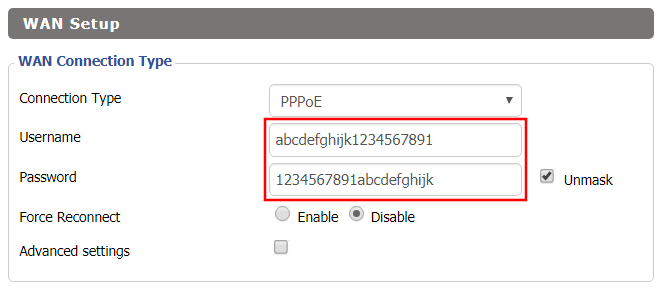
Most ISPs do not require PPPoE credentials. If you are certain this is an ISP requirement in your setup, we kindly ask that you get in touch with your ISP to verify that they do in fact require PPPoE authentication and to provide you with the correct credentials to enter into your FlashRouter.
Before you enter your PPPoE credentials, you should have already setup your FlashRouter in a Single Router Setup with correct wiring. Once you enter PPPoE credentials you should then be able to connect to the internet.
If you are using a Dual Router Setup there is no need to enter PPPoE credentials if they are already entered in the existing router. You can disregard this article.
Navigate to Setup > Basic Setup

Once the FlashRouter is booted up connect one of your devices to the FlashRouter via Ethernet or Wireless.
Visit any website and make sure the page fully loads. Once you have verified a successful Internet connection, begin connecting your network devices to the FlashRouter via wired or WiFi.
Please be aware that our support is not able to replicate PPPoE issues on our end, which makes them challenging to troubleshoot. In the event of an issue we recommend using a Dual Router Setup.
TeamFlashRouters · ·
If you are not already a VPN Unlimited user Sign Up Now.
Log in to your account on the VPN Unlimited website.

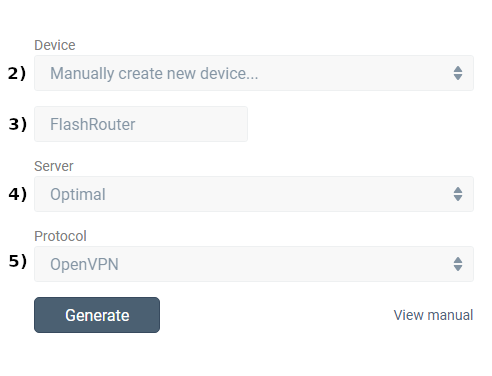
1. Navigate to the VPN Unlimited section in the dropdown on the top left.

2. Set Device to “Manually create new device…”
3. Name your device.
4. Select Server.
5. Set Protocol to OpenVPN.

6. Open the ‘.OVPN’ file in a word processing program.
NOTE: We highly recommend using Notepad++ for Windows or TextEdit for Apple to open these files in order to preserve text format.
Navigate to the Services > VPN
Start OpenVPN Client
If you wish to disable your VPN connection simply set this to Disable at any time and click Apply Settings.
Server IP/Name
At the bottom of the .ovpn file you downloaded above, you can find your server address, it should look something like us-la.vpnunlimitedapp.com
Port
1194 for Tunnel Protocol UDP
80 for Tunnel Protocol TCP
Tunnel Device
TUN
Tunnel Protocol
UDP or TCP
Encryption cipher
Blowfish-CBC
Hash Algorithm
SHA1
User Pass Authentication
Disabled
Advanced Options
Enable
TLS Cipher
None
LZO Compression
Adaptive
NAT
Enable
Firewall Protection
Enable
nsCertType verification
Checked
Additional Config
persist-key
persist-tun
Policy Based Routing
This field can be used for split VPN and Dual Gateway routing.
CA Cert
—–BEGIN CERTIFICATE—–
MIIEjjCCA/egAwIBAgIJAKsVbHBdakXuMA0GCSqGSIb3DQEBBQUAMIHgMQswCQYD
VQQGEwJVUzELMAkGA1UECBMCTlkxETAPBgNVBAcTCE5ldyBZb3JrMR8wHQYDVQQK
ExZTaW1wbGV4IFNvbHV0aW9ucyBJbmMuMRYwFAYDVQQLEw1WcG4gVW5saW1pdGVk
MSMwIQYDVQQDExpzZXJ2ZXIudnBudW5saW1pdGVkYXBwLmNvbTEjMCEGA1UEKRMa
c2VydmVyLnZwbnVubGltaXRlZGFwcC5jb20xLjAsBgkqhkiG9w0BCQEWH3N1cHBv
cnRAc2ltcGxleHNvbHV0aW9uc2luYy5jb20wHhcNMTMxMjE2MTM1OTQ0WhcNMjMx
MjE0MTM1OTQ0WjCB4DELMAkGA1UEBhMCVVMxCzAJBgNVBAgTAk5ZMREwDwYDVQQH
EwhOZXcgWW9yazEfMB0GA1UEChMWU2ltcGxleCBTb2x1dGlvbnMgSW5jLjEWMBQG
A1UECxMNVnBuIFVubGltaXRlZDEjMCEGA1UEAxMac2VydmVyLnZwbnVubGltaXRl
ZGFwcC5jb20xIzAhBgNVBCkTGnNlcnZlci52cG51bmxpbWl0ZWRhcHAuY29tMS4w
LAYJKoZIhvcNAQkBFh9zdXBwb3J0QHNpbXBsZXhzb2x1dGlvbnNpbmMuY29tMIGf
MA0GCSqGSIb3DQEBAQUAA4GNADCBiQKBgQDADUzS8QWGvdhLFKsEzAiq5+b0ukKj
Bza0k6/dmCeYTvCVqGKg/h1IAtQdVVLAkmEp0zvGH7PuOhXm7zZrCouBr/RiG4tE
coRHwc6AJmowkYERlY7+xGx3OuNrD00QceNTsan0bn78jwt0zhFNmHdoTtFjgK3o
qmQYSAtbEVWYgwIDAQABo4IBTDCCAUgwHQYDVR0OBBYEFKClmYP+tMNgWagUJCCH
jtaui2k+MIIBFwYDVR0jBIIBDjCCAQqAFKClmYP+tMNgWagUJCCHjtaui2k+oYHm
pIHjMIHgMQswCQYDVQQGEwJVUzELMAkGA1UECBMCTlkxETAPBgNVBAcTCE5ldyBZ
b3JrMR8wHQYDVQQKExZTaW1wbGV4IFNvbHV0aW9ucyBJbmMuMRYwFAYDVQQLEw1W
cG4gVW5saW1pdGVkMSMwIQYDVQQDExpzZXJ2ZXIudnBudW5saW1pdGVkYXBwLmNv
bTEjMCEGA1UEKRMac2VydmVyLnZwbnVubGltaXRlZGFwcC5jb20xLjAsBgkqhkiG
9w0BCQEWH3N1cHBvcnRAc2ltcGxleHNvbHV0aW9uc2luYy5jb22CCQCrFWxwXWpF
7jAMBgNVHRMEBTADAQH/MA0GCSqGSIb3DQEBBQUAA4GBALkWhfw7SSV7it+ZYZmT
+cQbExjlYgQ40zae2J2CqIYACRcfsDHvh7Q+fiwSocevv2NE0dWi6WB2H6SiudYj
vDvubAX/QbzfBxtbxCCoAIlfPCm8xOnWFN7TUJAzWwHJkKgEnu29GZHu2x8J+7Ve
DbKH5RTMHHe8FkSxh6Zz/BMN
—–END CERTIFICATE—–
Public Client Cert
Copy and Paste all contents in between the <cert> and </cert> lines from your .ovpn file starting and ending with:
—–BEGIN CERTIFICATE—–
…
—–END CERTIFICATE—–
Private Client Key
| Copy and Paste all contents in between the <key> and </key> lines from your .ovpn file starting and ending with: —–BEGIN RSA PRIVATE KEY—– … —–END RSA PRIVATE KEY—– |
CLICK APPLY SETTINGS
Leave all settings not mentioned above as their default setting.
Navigate to the Status > OpenVPN
In some cases you may notice that the location is not showing the same location as the server you have input in your router settings; this is because geo tracking tools are often tricked by VPN connections. As long as you see an IP address that is not the same as your normal Internet IP address then you are indeed connected to VPN Unlimited.
Navigate to the Administration > Backup
Still having issues? Visit the VPN Troubleshooting section.
TeamFlashRouters · ·
If you are not already an PureVPN user Sign Up Now.
Log in to your account on the PureVPN website.

Navigate to the Home page and note the VPN username on this page. You will need this specific username later on in the configuration process.
Ex: purevpn0s1234567
View a full list of PureVPN servers.
Miami:
usfl1-ovpn-udp.pointtoserver.com
Seattle:
ussa-ovpn-udp.pointtoserver.com
Houston:
ustx1-ovpn-tcp.pointtoserver.com
Georgia:
usga1-ovpn-udp.pointtoserver.com
New Jersey:
usnj1-ovpn-udp.pointtoserver.com
Washington:
uswdc1-ovpn-udp.pointtoserver.com
Chicago:
usil1-ovpn-udp.pointtoserver.com
Phoenix:
usphx1-ovpn-udp.pointtoserver.com
Los Angeles:
usla1-ovpn-udp.pointtoserver.com
Virginia:
vlbr-usvc1-ovpn-udp.pointtoserver.com
San Francisco:
vlsa-ussf1-ovpn-udp.pointtoserver.com
New York:
usny1-ovpn-udp.pointtoserver.com
Ohio:
vleu-usoh1-ovpn-udp.pointtoserver.com
London:
ukl1-ovpn-udp.pointtoserver.com
Gosport:
ukg1-ovpn-udp.pointtoserver.com
Maidenhead:
ukm1-ovpn-udp.pointtoserver.com
Manchester:
vlus-uk-man1-ovpn-udp.pointtoserver.com
Leicester:
vlap-ukle1-ovpn-udp.pointtoserver.com
Navigate to Services > VPN
Start OpenVPN Client
If you wish to disable your VPN connection simply set this to Disable at any time and click Apply Settings.
Server IP/Name
Copy and paste the server you would like to connect to from the server list above. Be sure there are no extra spaces or characters.
If you wish to change PureVPN connection locations, THIS IS THE ONLY FIELD YOU NEED TO CHANGE.
Port
53
Tunnel Device
TUN
Tunnel Protocol
UDP
Encryption cipher
AES-256-CBC
Hash Algorithm
SHA1
Userpass Authentication
Enable
Username
Enter the Username you noted from the Home page above.
Ex: purevpn0s1234567
Password
Enter the Password you successfully logged in to your PureVPN account with.
Advanced Options
Enable
TLS Cipher
None
LZO Compression
Adaptive
NAT
Enable
Firewall Protection
Enable
TLS Auth Key
-----BEGIN OpenVPN Static key V1----- e30af995f56d07426d9ba1f824730521 d4283db4b4d0cdda9c6e8759a3799dcb 7939b6a5989160c9660de0f6125cbb1f 585b41c074b2fe88ecfcf17eab9a33be 1352379cdf74952b588fb161a93e13df 9135b2b29038231e02d657a6225705e6 868ccb0c384ed11614690a1894bfbeb2 74cebf1fe9c2329bdd5c8a40fe882062 4d2ea7540cd79ab76892db51fc371a3a c5fc9573afecb3fffe3281e61d72e915 79d9b03d8cbf7909b3aebf4d90850321 ee6b7d0a7846d15c27d8290e031e951e 19438a4654663cad975e138f5bc5af89 c737ad822f27e19057731f41e1e254cc 9c95b7175c622422cde9f1f2cfd3510a dd94498b4d7133d3729dd214a16b27fb -----END OpenVPN Static key V1-----
Additional Config
tls-cipher “DEFAULT:@SECLEVEL=0”
Policy Based Routing
This field can be used for split VPN and Dual Gateway routing.
CA Cert
-----BEGIN CERTIFICATE----- MIIEoTCCA4mgAwIBAgIJANysBdFD6U2oMA0GCSqGSIb3DQEBBQUAMIGRMQswCQYD VQQGEwJISzELMAkGA1UECBMCSEsxETAPBgNVBAcTCEhvbmdLb25nMRAwDgYDVQQK EwdQdXJlVlBOMQswCQYDVQQLEwJJVDEQMA4GA1UEAxMHUHVyZVZQTjEQMA4GA1UE KRMHUHVyZVZQTjEfMB0GCSqGSIb3DQEJARYQbWFpbEBob3N0LmRvbWFpbjAeFw0x NDA0MTAwNzI5NDlaFw0yNDA0MDcwNzI5NDlaMIGRMQswCQYDVQQGEwJISzELMAkG A1UECBMCSEsxETAPBgNVBAcTCEhvbmdLb25nMRAwDgYDVQQKEwdQdXJlVlBOMQsw CQYDVQQLEwJJVDEQMA4GA1UEAxMHUHVyZVZQTjEQMA4GA1UEKRMHUHVyZVZQTjEf MB0GCSqGSIb3DQEJARYQbWFpbEBob3N0LmRvbWFpbjCCASIwDQYJKoZIhvcNAQEB BQADggEPADCCAQoCggEBAJYqtUkQTlf/pHcGXuuII8S3pfI0fwFbs7l/1RP3nX3n v1vyuvLi7h0jWsgJU0XM7LJywiRFJ8zsMLH7KZnIg7bscb50GY75WIq7C2NnWnnS 7zzyCCm2XD/2xZPym2lVRytpnWJbpemSS6Hdz7xI3q2FmixuBa1t5FeKsXfeaGGg +ohwLvamnGHJYUYu3Nu0EWVzzy5wgT0c2C5jleGxl3kxRimD8FpnlAVdqyt0ib/f f9XanaotSopIHUZmpYjT+udRC2+harlNKvOXYgDRl1mpimCvlzEWpZAo8dyBCxWl xlBIT8OA8rimGi1XviknuOlWu2cGi13Ug8mCG0MjOQ0CAwEAAaOB+TCB9jAdBgNV HQ4EFgQUt+1vJ2X2ho12PUDhdo2CsSHYXbYwgcYGA1UdIwSBvjCBu4AUt+1vJ2X2 ho12PUDhdo2CsSHYXbahgZekgZQwgZExCzAJBgNVBAYTAkhLMQswCQYDVQQIEwJI SzERMA8GA1UEBxMISG9uZ0tvbmcxEDAOBgNVBAoTB1B1cmVWUE4xCzAJBgNVBAsT AklUMRAwDgYDVQQDEwdQdXJlVlBOMRAwDgYDVQQpEwdQdXJlVlBOMR8wHQYJKoZI hvcNAQkBFhBtYWlsQGhvc3QuZG9tYWluggkA3KwF0UPpTagwDAYDVR0TBAUwAwEB /zANBgkqhkiG9w0BAQUFAAOCAQEAAhLQQmkKWJdyGqgMSKOWXSKN2WXTDjIdb9bK Q8uHeq0LYCcPoRh8VYJg2X4UWR/KO9pKaG+iZJw4Jqz4GQJjjJLKHfsWwj790ay0 7U5KT08qmxFaxZUYn663H9b0+Zud1spTsTJjVe1eoRk6IDbbB4OMUzN9zyWEn6er xi6llIAjQX1qtlBQasmTAbRtbSsCsZAxL2kXysULIdLrQP0iTgMQqqkv5zvpdEKN 3ciKCd8OHEhHOlAwA0/DNy3dg3Et0F2hNMDJhqMpxXsbKtGJ/rzGXQF2geEVzLZA o42I1wBOSZLTX1fO1gl3gAGS9aYg5o31rrpBKzQewitJgIuc+Q== -----END CERTIFICATE-----
CLICK APPLY SETTINGS
Leave all settings not mentioned above as their default setting.
Navigate to Status > OpenVPN
In some cases you may notice that the location is not showing the same location as the server you have input in your router settings; this is because geo tracking tools are often tricked by VPN connections. As long as you see an IP address that is not the same as your normal Internet IP address then you are indeed connected to PureVPN.
Navigate to Administration > Backup
Still having issues? Visit the VPN Troubleshooting section.
Dave · ·
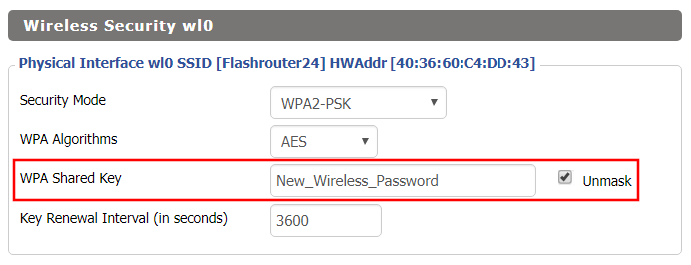
Change the FlashRouter’s wireless network password to any password you like.
Navigate to Wireless > Wireless Security

TeamFlashRouters · ·
If you are not already an NordVPN user Sign Up Now.
1. Log in to your account on the NordVPN website.

2. Click NordVPN on the left hand side and then click Setup NordVPN manually.

3. Enter in the verification code that was sent to your email.

4. Copy and paste your NordVPN manual username and password to a secure location. This is the username and password you will enter into the router settings to connect to NordVPN.

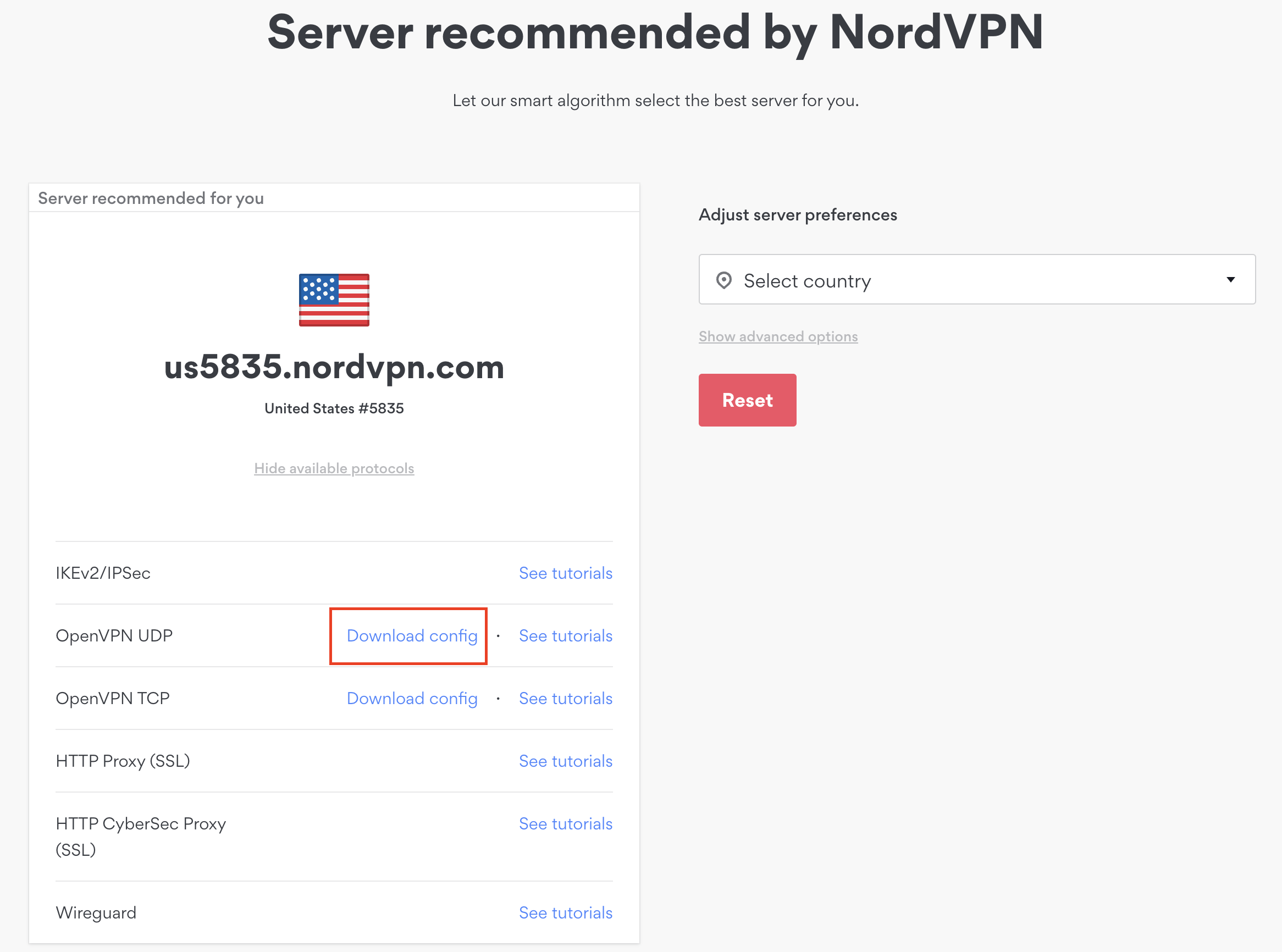
1. There are two options for obtaining the .ovpn file. The first and recommended is to navigate to NordVPN’s server recommendation page. Click Recommended Server to display the fastest server based on your actual location. You can adjust the country if you don’t want to connect to the recommended country.
Then click Show Available Protocols. Click Download Config next to OpenVPN UDP. This will download the .ovpn file to your computer for this server. Do not open this file.

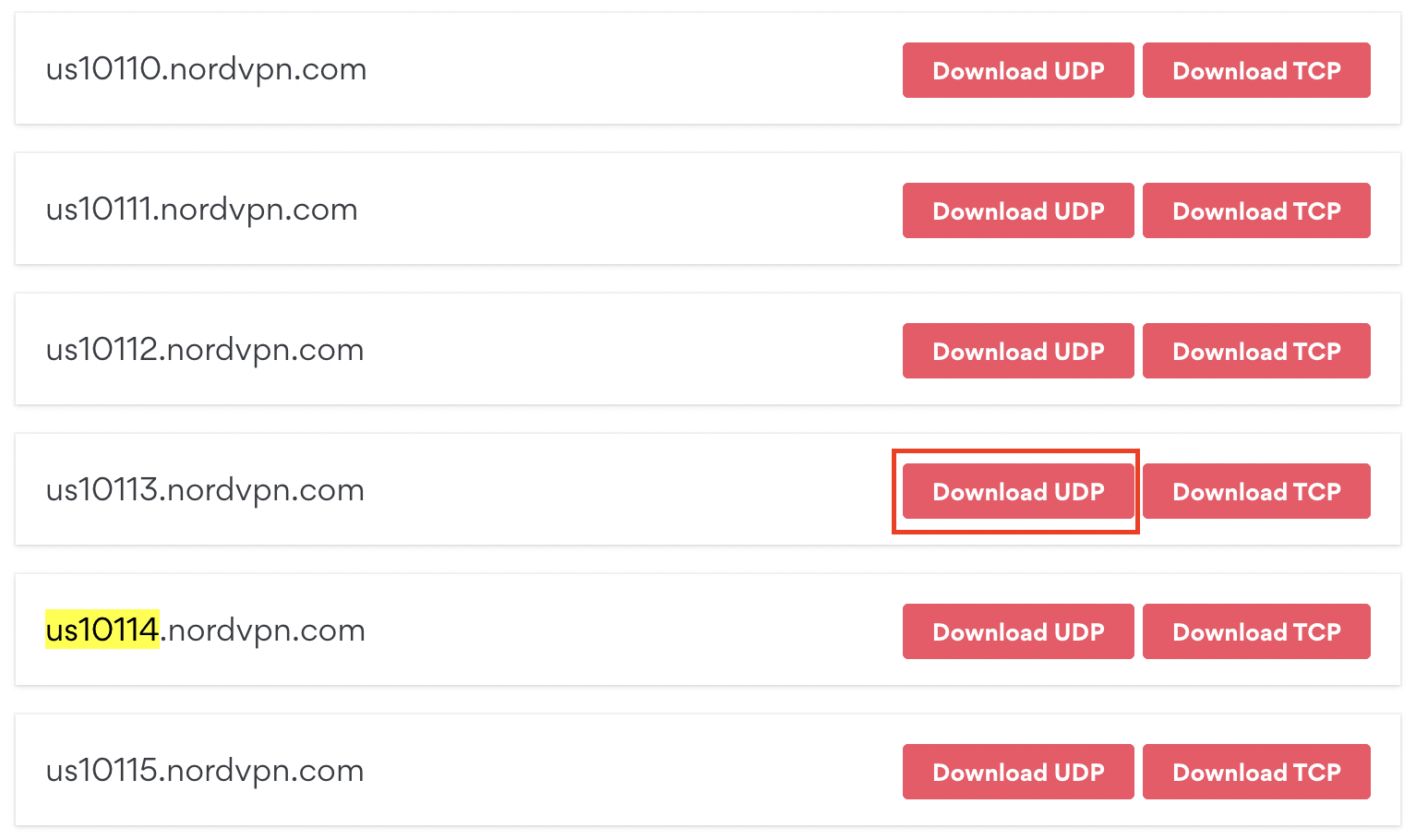
The second method to obtain a server is for connecting to a specific server number that you know you want to use. This applies to NordVPN Dedicated IP servers if you are signed up for that service. Go to NordVPN’s .ovpn file page. Then search for the server number that you want to use and click Download UDP.

Login to Asus Merlin firmware settings in a browser on any computer or smart device connected to the Merlin FlashRouter’s network.
1. Navigate to the VPN tab.

2. Navigate to the VPN Client tab.

3. Click Choose file and select the .ovpn file you downloaded earlier. Then click Upload.

4. Set Automatic Start at boot time to Yes if you want the VPN connection to begin automatically when the router is powered off and back on.

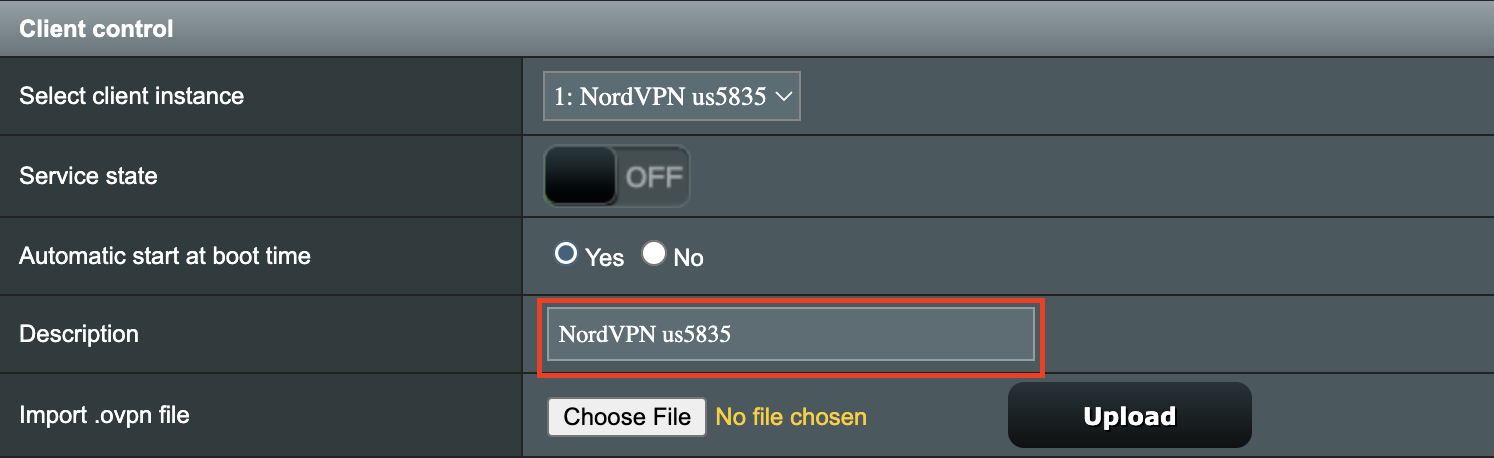
5. In the Description field enter in the name you’d like to use for this OpenVPN Client profile. We typically advise entering in the location or server number here. Our example server was in us5835.nordvpn.com so I have entered in NordVPN us5835.

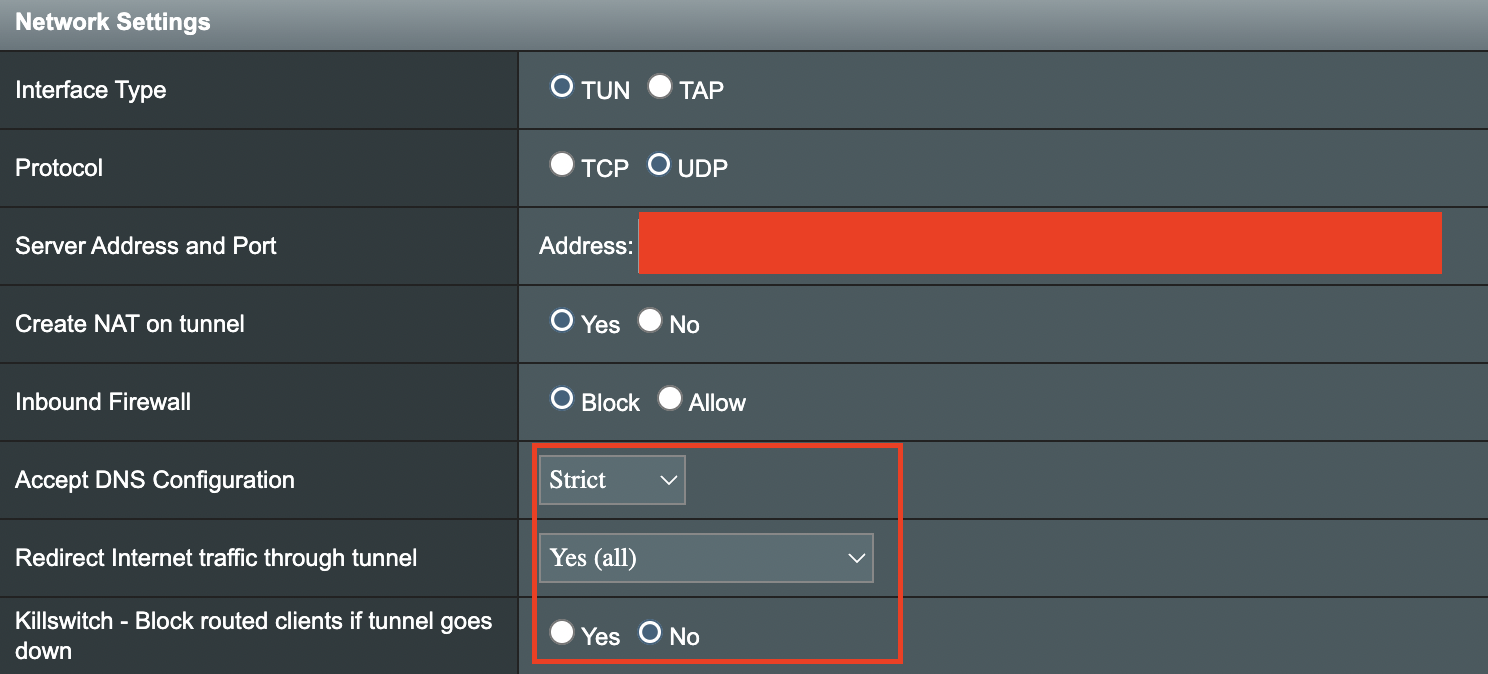
6. Set Accept DNS Configuration to Strict. Set Redirect Internet traffic through tunnel to Yes (all). Set Kill Switch to Yes or No depending on if you want the Internet to be killed if the VPN connection drops.

If you only want certain devices to connect to the OpenVPN Client profile you are setting up instead of all the devices connected to the FlashRouter’s network please set the Redirect Internet traffic through tunnel to VPN Director. Then complete the instructions on this page and then view our VPN Director guide.
7. Enter your NordVPN username and password that you obtained earlier in the Username and Password. Note that these are different from your NordVPN email login and password.

8. Click Apply at the bottom of the page.
9. At the top of the page set the Service State toggle to ON to activate the VPN connection.

In some cases you may notice that the location is not showing the same location as the server you have input in your router settings; this is because geo tracking tools are often tricked by VPN connections. As long as you see an IP address that is not the same as your normal Internet IP address then you are indeed connected to NordVPN.
Still having issues? Visit the VPN Troubleshooting section.
TeamFlashRouters · ·
If you are not already an IVPN user Sign Up Now.
Log in to your account on the IVPN website.

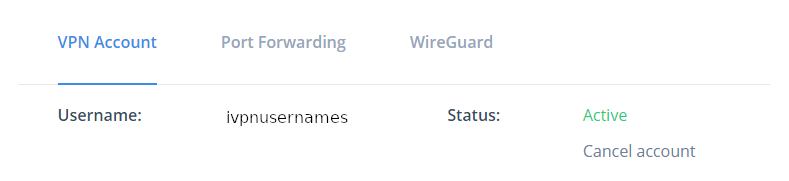
Locate and Copy the Username displayed on the VPN Accounts page.

View a full list of IVPN servers.
Atlanta:
us-ga.gw.ivpn.net
Dallas:
us-tx.gw.ivpn.net
Los Angeles:
us-ca.gw.ivpn.net
Miami:
us-fl.gw.ivpn.net
New Jersey:
us-nj.gw.ivpn.net
Salt Lake City:
us-ut.gw.ivpn.net
Navigate to Services > VPN
Start OpenVPN Client
If you wish to disable your VPN connection simply set this to Disable at any time and click Apply Settings.
Server IP/Name
Copy and paste the server you would like to connect to from the server list above. Be sure there are no extra spaces or characters.
If you wish to change PureVPN connection locations, THIS IS THE ONLY FIELD YOU NEED TO CHANGE.
Port
443 for TCP
2049 for UDP
Tunnel Device
TUN
Tunnel Protocol
TCP or UDP
Encryption cipher
AES-256-CBC
Hash Algorithm
SHA1
User Pass Authentication
Enable
Username
Enter the Username you noted from the Home page above.
eg. ivpn1234567
Password
Enter the Password you successfully logged in to your IVPN account with.
Advanced Options
Enable
TLS Cipher
None
LZO Compression
Adaptive
NAT
Enable
Firewall Protection
Enable
TLS Auth Key
-----BEGIN OpenVPN Static key V1----- ac470c93ff9f5602a8aab37dee84a528 14d10f20490ad23c47d5d82120c1bf85 9e93d0696b455d4a1b8d55d40c2685c4 1ca1d0aef29a3efd27274c4ef09020a3 978fe45784b335da6df2d12db97bbb83 8416515f2a96f04715fd28949c6fe296 a925cfada3f8b8928ed7fc963c156327 2f5cf46e5e1d9c845d7703ca881497b7 e6564a9d1dea9358adffd435295479f4 7d5298fabf5359613ff5992cb57ff081 a04dfb81a26513a6b44a9b5490ad265f 8a02384832a59cc3e075ad545461060b 7bcab49bac815163cb80983dd51d5b1f d76170ffd904d8291071e96efc3fb777 856c717b148d08a510f5687b8a8285dc ffe737b98916dd15ef6235dee4266d3b -----END OpenVPN Static key V1-----
Additional Config
tls-client
tls-cipher TLS-DHE-RSA-WITH-AES-256-CBC-SHA
resolv-retry infinite
keepalive 10 60
nobind
persist-key
persist-tun
persist-remote-ip
verb 3
Policy Based Routing
This field can be used for split VPN and Dual Gateway routing.
CA Cert
-----BEGIN CERTIFICATE----- MIIGoDCCBIigAwIBAgIJAJjvUclXmxtnMA0GCSqGSIb3DQEBCwUAMIGMMQswCQYD VQQGEwJDSDEPMA0GA1UECAwGWnVyaWNoMQ8wDQYDVQQHDAZadXJpY2gxETAPBgNV BAoMCElWUE4ubmV0MQ0wCwYDVQQLDARJVlBOMRgwFgYDVQQDDA9JVlBOIFJvb3Qg Q0EgdjIxHzAdBgkqhkiG9w0BCQEWEHN1cHBvcnRAaXZwbi5uZXQwHhcNMjAwMjI2 MTA1MjI5WhcNNDAwMjIxMTA1MjI5WjCBjDELMAkGA1UEBhMCQ0gxDzANBgNVBAgM Blp1cmljaDEPMA0GA1UEBwwGWnVyaWNoMREwDwYDVQQKDAhJVlBOLm5ldDENMAsG A1UECwwESVZQTjEYMBYGA1UEAwwPSVZQTiBSb290IENBIHYyMR8wHQYJKoZIhvcN AQkBFhBzdXBwb3J0QGl2cG4ubmV0MIICIjANBgkqhkiG9w0BAQEFAAOCAg8AMIIC CgKCAgEAxHVeaQN3nYCLnGoEg6cY44AExbQ3W6XGKYwC9vI+HJbb1o0tAv56ryvc 6eS6BdG5q9M8fHaHEE/jw9rtznioiXPwIEmqMqFPA9k1oRIQTGX73m+zHGtRpt9P 4tGYhkvbqnN0OGI0H+j9R6cwKi7KpWIoTVibtyI7uuwgzC2nvDzVkLi63uvnCKRX cGy3VWC06uWFbqI9+QDrHHgdJA1F0wRfg0Iac7TE75yXItBMvNLbdZpge9SmplYW FQ2rVPG+n75KepJ+KW7PYfTP4Mh3R8A7h3/WRm03o3spf2aYw71t44voZ6agvslv wqGyczDytsLUny0U2zR7/mfEAyVbL8jqcWr2Df0m3TA0WxwdWvA51/RflVk9G96L ncUkoxuBT56QSMtdjbMSqRgLfz1iPsglQEaCzUSqHfQExvONhXtNgy+Pr2+wGrEu SlLMee7aUEMTFEX/vHPZanCrUVYf5Vs8vDOirZjQSHJfgZfwj3nL5VLtIq6ekDhS AdrqCTILP3V2HbgdZGWPVQxl4YmQPKo0IJpse5Kb6TF2o0i90KhORcKg7qZA40sE bYLEwqTM7VBs1FahTXsOPAoMa7xZWV1TnigF5pdVS1l51dy5S8L4ErHFEnAp242B DuTClSLVnWDdofW0EZ0OkK7V9zKyVl75dlBgxMIS0y5MsK7IWicCAwEAAaOCAQEw gf4wHQYDVR0OBBYEFHUDcMOMo35yg2A/v0uYfkDE11CXMIHBBgNVHSMEgbkwgbaA FHUDcMOMo35yg2A/v0uYfkDE11CXoYGSpIGPMIGMMQswCQYDVQQGEwJDSDEPMA0G A1UECAwGWnVyaWNoMQ8wDQYDVQQHDAZadXJpY2gxETAPBgNVBAoMCElWUE4ubmV0 MQ0wCwYDVQQLDARJVlBOMRgwFgYDVQQDDA9JVlBOIFJvb3QgQ0EgdjIxHzAdBgkq hkiG9w0BCQEWEHN1cHBvcnRAaXZwbi5uZXSCCQCY71HJV5sbZzAMBgNVHRMEBTAD AQH/MAsGA1UdDwQEAwIBBjANBgkqhkiG9w0BAQsFAAOCAgEAABAjRMJy+mXFLezA Z8iUgxOjNtSqkCv1aU78K1XkYUzbwNNrSIVGKfP9cqOEiComXY6nniws7QEV2IWi lcdPKm0x57recrr9TExGGOTVGB/WdmsFfn0g/HgmxNvXypzG3qulBk4qQTymICds l9vIPb1l9FSjKw1KgUVuCPaYq7xiXbZ/kZdZX49xeKtoDBrXKKhXVYoWus/S+k2I S8iCxvcp599y7LQJg5DOGlbaxFhsW4R+kfGOaegyhPvpaznguv02i7NLd99XqJhp v2jTUF5F3T23Z4KkL/wTo4zxz09DKOlELrE4ai++ilCt/mXWECXNOSNXzgszpe6W As0h9R++sH+AzJyhBfIGgPUTxHHHvxBVLj3k6VCgF7mRP2Y+rTWa6d8AGI2+Raey V9DVVH9UeSoU0Hv2JHiZL6dRERnyg8dyzKeTCke8poLIjXF+gyvI+22/xsL8jcNH i9Kji3Vpc3i0Mxzx3gu2N+PL71CwJilgqBgxj0firr3k8sFcWVSGos6RJ3IvFvTh xYx0p255WrWM01fR9TktPYEfjDT9qpIJ8OrGlNOhWhYj+a45qibXDpaDdb/uBEmf 2sSXNifjSeUyqu6cKfZvMqB7pS3l/AhuAOTT80E4sXLEoDxkFD4C78swZ8wyWRKw sWGIGABGAHwXEAoDiZ/jjFrEZT0= -----END CERTIFICATE-----
CLICK APPLY SETTINGS
Leave all settings not mentioned above as their default setting.
Navigate to Status > OpenVPN
In some cases you may notice that the location is not showing the same location as the server you have input in your router settings; this is because geo tracking tools are often tricked by VPN connections. As long as you see an IP address that is not the same as your normal Internet IP address then you are indeed connected to IVPN.
Navigate to Administration > Backup
Still having issues? Visit the VPN Troubleshooting section.
Dave · ·
DD-WRT firmware automatically disables the WPS feature as it is a known security vulnerability. This makes your router more secure with DD-WRT than with factory firmware.
For any device that uses a WPS WiFi connection there should always be an alternate method to connect the device via WiFi.
TeamFlashRouters · ·
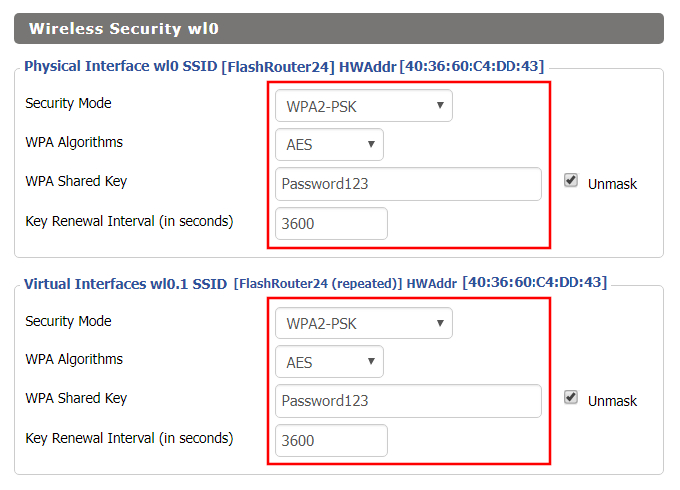
If you need to extend your connection capabilities and you are not able to wire directly into your main router, you can setup a FlashRouter as a Wireless Repeater Bridge. In Wireless Repeater Bridge mode the FlashRouter connects to your main router on the same subnet via WiFi, and then transmits your internet signal via the FlashRouter for internet access anywhere in your home or office.
In order to setup your FlashRouter as a Wireless Repeater Bridge, you will need the exact SSID and password of your existing wireless network. Make sure you have this information before proceeding.
We recommend using a 2.4GHz network to repeat as this network will have more range. Be sure to click Add under the 2.4GHz settings and not the 5GHz settings.
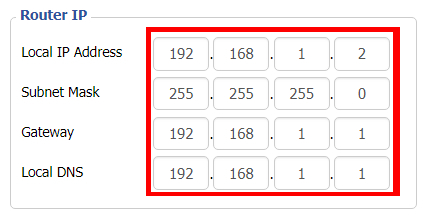
Locate the Local IP Address of the existing router that the FlashRouter will be bridged to.
Navigate to Security > Firewall

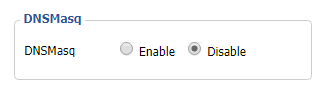
Navigate to Services > Services

Navigate to Wireless > Basic Settings
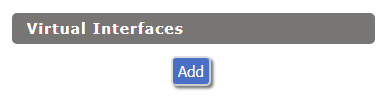
Select Add in the Virtual Interface area.

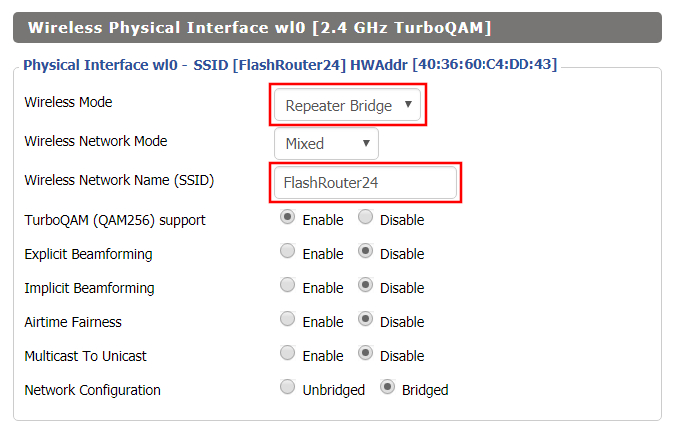
In the Wireless Physical Interface settings for the 2.4GHz network set the Wireless Mode to Repeater Bridge.
Change the Wireless Network Name (SSID) to match exactly with the Wireless Network Name of the network that you will bridge to.

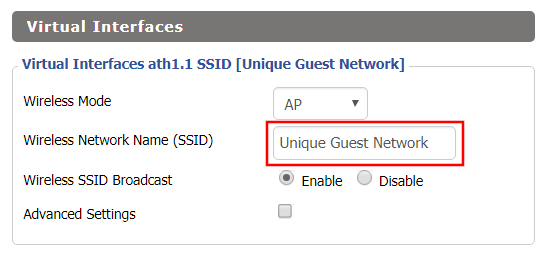
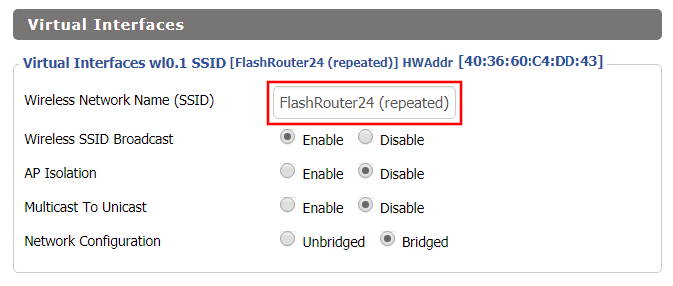
In the Virtual Interfaces settings change the Wireless Network Name (SSID) to FlashRouter24 or any other unique SSID.

CLICK SAVE
Navigate to Wireless > Wireless Security

Navigate to Setup > Basic Setup

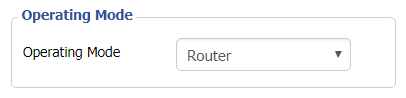
Navigate to Setup > Advanced Routing

Power off the FlashRouter for 30 seconds and then power it back on. When it boots back up you will be able to access the FlashRouter’s settings at the new Local IP Address that you set. Your existing network and the FlashRouter’s network will now be bridged wirelessly.
Navigate to Administration > Backup
Still having issues? Visit our Troubleshooting section to diagnose common problems here.
TeamFlashRouters · ·
Log in to your account on the OverPlay website.
View a full list of OverPlay servers.
Ashburn:
iad-a01.wlvpn.com
Atlanta:
atl-a01.wlvpn.com
Chicago:
chi-a01.wlvpn.com
Dallas:
dal-a02.wlvpn.com
Las Vegas:
las-c11.wlvpn.com
Los Angeles:
lax-a01.wlvpn.com
Miami:
mia-a01.wlvpn.com
New York:
nyc-a01.wlvpn.com
Phoenix:
phx-a01.wlvpn.com
Salt Lake City:
slc-c01.wlvpn.com
San Jose:
sjc-a01.wlvpn.com
Seattle:
sea-a01.wlvpn.com
Navigate to Services > VPN
Start OpenVPN Client
If you wish to disable your VPN connection simply set this to Disable at any time and click Apply Settings.
Server IP/Name
Copy and paste the server you would like to connect to from the server list above. Be sure there are no extra spaces or characters.
If you wish to change OverPlay connection locations, THIS IS THE ONLY FIELD YOU NEED TO CHANGE.
Port
1194 for UDP
443 for TCP
Tunnel Device
TUN
Tunnel Protocol
UDP or TCP
Encryption cipher
AES-256-CBC
Hash Algorithm
SHA256
User Pass Authentication
Enable
Username
Enter the username that you use to login to the OverPlay website. Make sure to add @overplay after your username.
Hint: For example, if your OverPlay username is “flashrouters” enter “flashrouters@overplay” as your username.
Password
Enter the Password you successfully logged in to your OverPlay account with.
Advanced Options
Enable
TLS Cipher
None
LZO Compression
Adaptive
NAT
Enable
Firewall Protection
Enable
Policy Based Routing
This field can be used for split VPN and Dual Gateway routing.
CA Cert
-----BEGIN CERTIFICATE----- MIIESDCCAzCgAwIBAgIJAKSqvk2CSdJGMA0GCSqGSIb3DQEBBQUAMHUxCzAJBgNV BAYTAlVTMQwwCgYDVQQIEwNWUE4xDDAKBgNVBAcTA1ZQTjEMMAoGA1UEChMDVlBO MQwwCgYDVQQLEwNWUE4xDDAKBgNVBAMTA1ZQTjEMMAoGA1UEKRMDVlBOMRIwEAYJ KoZIhvcNAQkBFgNWUE4wHhcNMTMwNDI1MDIzMjQ3WhcNMjMwNDI3MDIzMjQ3WjB1 MQswCQYDVQQGEwJVUzEMMAoGA1UECBMDVlBOMQwwCgYDVQQHEwNWUE4xDDAKBgNV BAoTA1ZQTjEMMAoGA1UECxMDVlBOMQwwCgYDVQQDEwNWUE4xDDAKBgNVBCkTA1ZQ TjESMBAGCSqGSIb3DQEJARYDVlBOMIIBIjANBgkqhkiG9w0BAQEFAAOCAQ8AMIIB CgKCAQEAyUr2BAz2gHGaXri6rWMpKqcvVTX3IOSLEfBWf1fb2zCwx0+GFMG258Yk OCiQho/YOX58bJpssGI42OzZitSisTVpXNIBelzGUPdKgx0qURGgDW+7eOySJYCn 1EUncElJCHt1so0SbfdQpxA88VZMH9fFOKtLY5qHHi0drXm/wZy+zW7TfV5Lce04 6vv2M9I5/Ko4zZ5Vh6jTo2VrCQRw8goXB5NAdU5D76lVhWK4Zzt4woI8nRW5Ev3A WEw5oX85j5B0TY9nEi5j0vNYBuMxf/GiLO8M8LCHPX0HYBiLDjZesJCvuG3vfwnA Y5CJQqNjufpmnF3ivsaF0dGeo54kWQIDAQABo4HaMIHXMB0GA1UdDgQWBBQXnwHk vpHSf/lMacKoKshAcGM2qTCBpwYDVR0jBIGfMIGcgBQXnwHkvpHSf/lMacKoKshA cGM2qaF5pHcwdTELMAkGA1UEBhMCVVMxDDAKBgNVBAgTA1ZQTjEMMAoGA1UEBxMD VlBOMQwwCgYDVQQKEwNWUE4xDDAKBgNVBAsTA1ZQTjEMMAoGA1UEAxMDVlBOMQww CgYDVQQpEwNWUE4xEjAQBgkqhkiG9w0BCQEWA1ZQToIJAKSqvk2CSdJGMAwGA1Ud EwQFMAMBAf8wDQYJKoZIhvcNAQEFBQADggEBADAbNIIHF5vtCA+69/oipQ6niZit Q+mnCNX5bxiF4xtw9qOQ90vLDc/ocbAGGP4Sub3hEkOoQlv9DHH56HVq1g9+L/Y7 RoneRykZ+GSPj2NlkobrPA7ZxAsLdFwM9Y+Fkql7cAHHLUCKh7H1IKidhTDHPCUj hs4ZstNRckPd6wxlGGOP/Yf5sVse3pJwa0HyMYhI8pdTVJIHnFSy9vTPjVf3oWiz Trci0+SkYKQE//5pE5wsYe0uB5wvQJslq/eEWfczg0l9biwJxG/qwxsVBkRgw5q6 defHWGj1eucVyy9fxKMcX89gjstQZDmsINNtG1C78/+nYS65rqaBaq+rqpA= -----END CERTIFICATE-----
CLICK APPLY SETTINGS
Leave all settings not mentioned above as their default setting.
Navigate to Status > OpenVPN
In some cases you may notice that the location is not showing the same location as the server you have input in your router settings; this is because geo tracking tools are often tricked by VPN connections. As long as you see an IP address that is not the same as your normal Internet IP address then you are indeed connected to OverPlay.
Navigate to Administration > Backup
Still having issues? Visit the VPN Troubleshooting section.