OPEN SUPPORT TICKET
Please fill out the form below and be sure to use the same e-mail on file so we can streamline our diagnoses of your issue.
[zendesk_request_form]
Prioritizing Privacy
[zendesk_request_form]
If you are not already an PIA user Sign Up Now.
1. Visit PIA’s website login page.
2. Successfully log in with your account information.
1. Login to the Roqos Core web app in a browser on any computer or smart device.
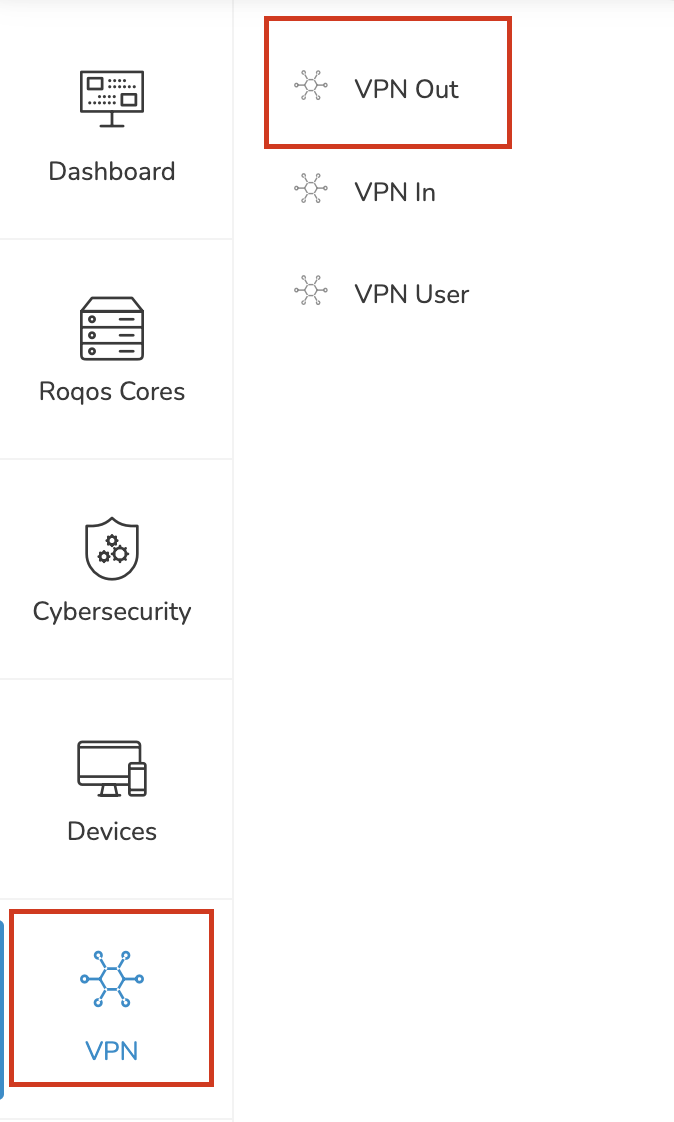
2. Click VPN from the navigation menu and then click VPN OUT.
3. Click the Connect to box.
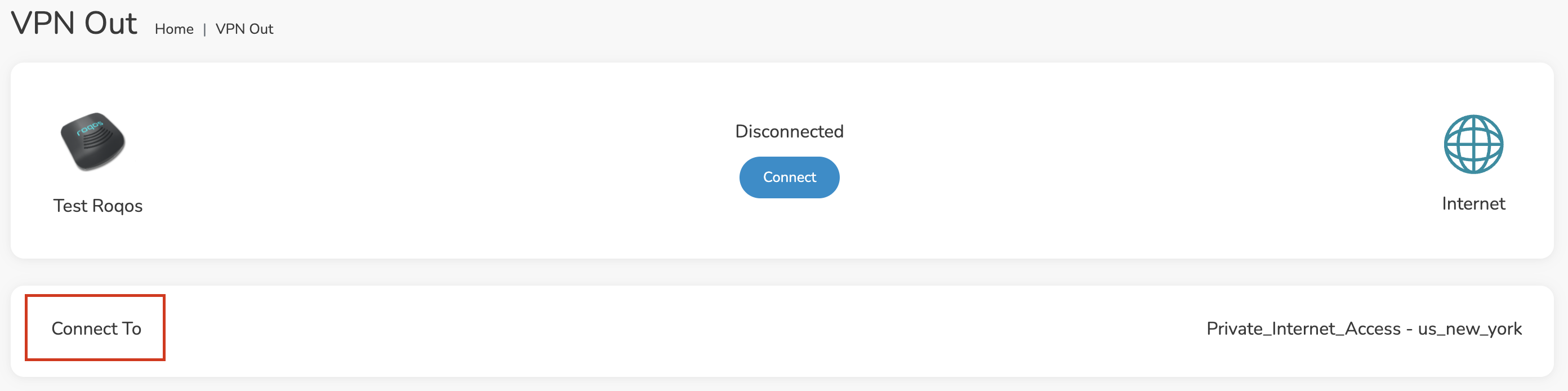
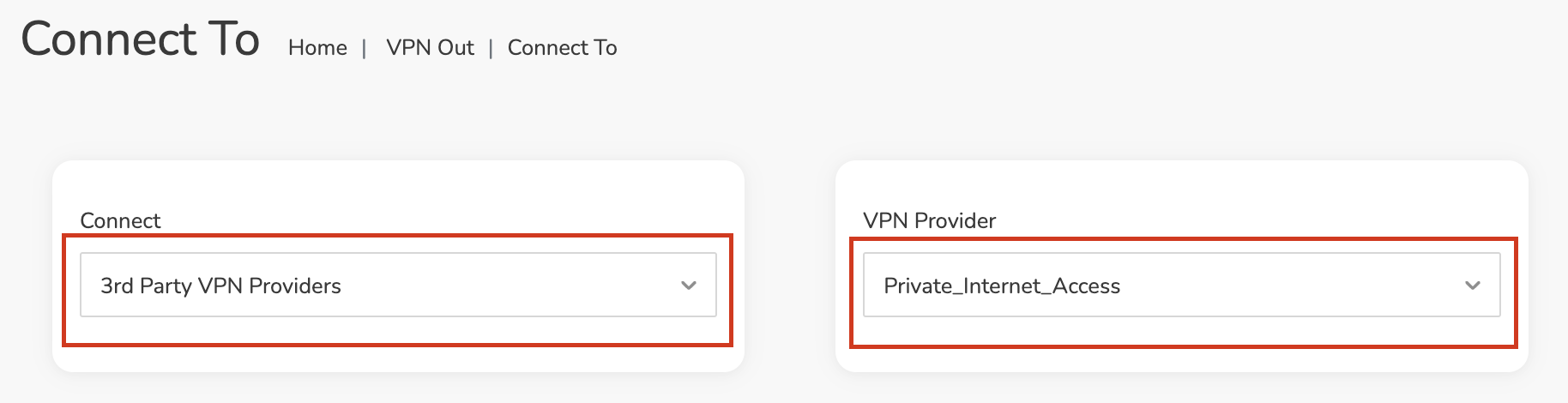
4. In the Connect dropdown choose 3rd Party VPN Providers and for the VPN Provider dropdown choose Private_Internet_Access.
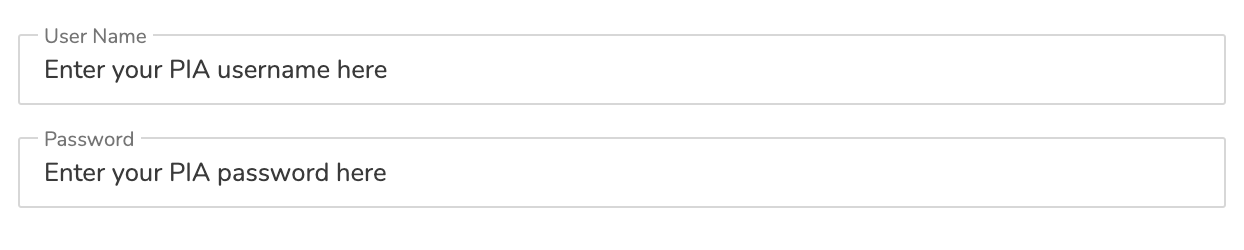
In the Username and Password field enter the PIA Username and Password that you logged in with.
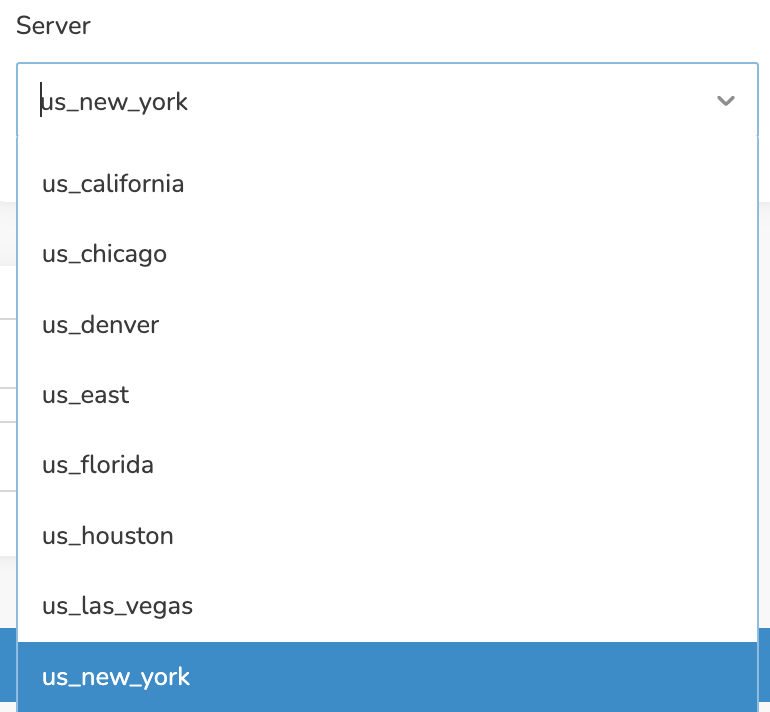
Click the Server dropdown and type in or scroll to your preferred server location.
Click the Save button.
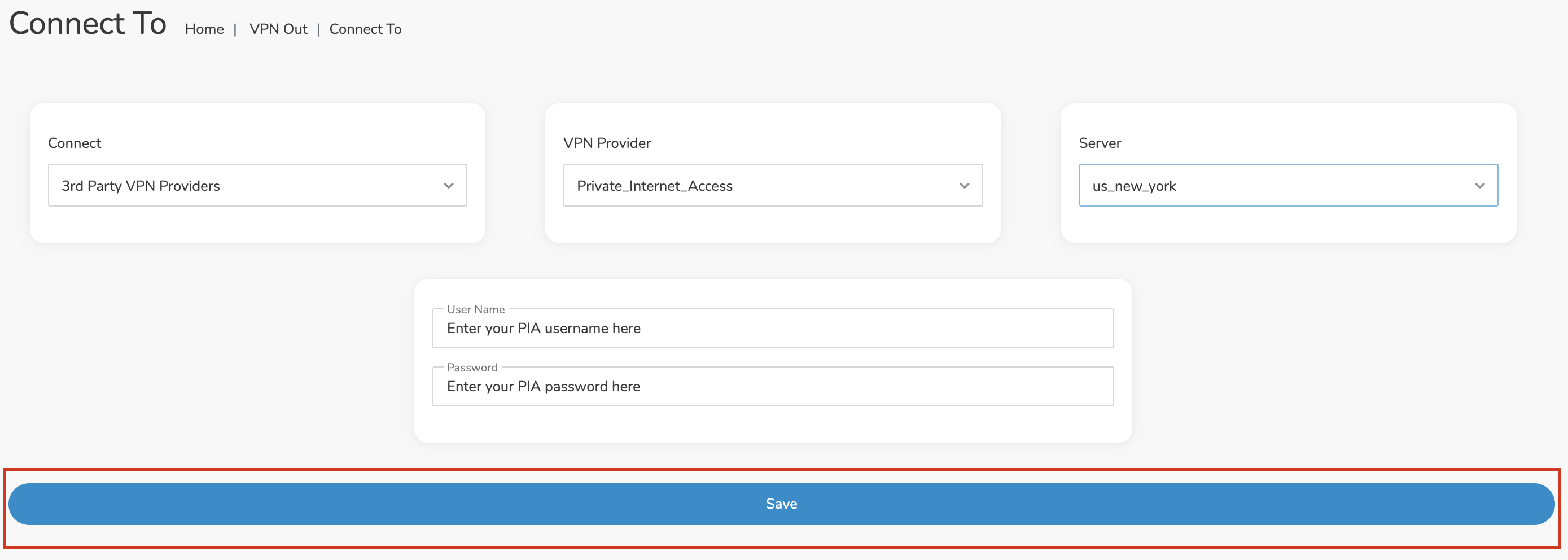
Once you click Save you will be returned to the VPN OUT menu.
Click the Connect button to start your PIA connection. Please be patient as the router connects your entire network through VPN.

By default there are no devices assigned to the VPN tunnel. Click Included Devices. From this page you can choose if all devices should connect to PIA or only certain devices.
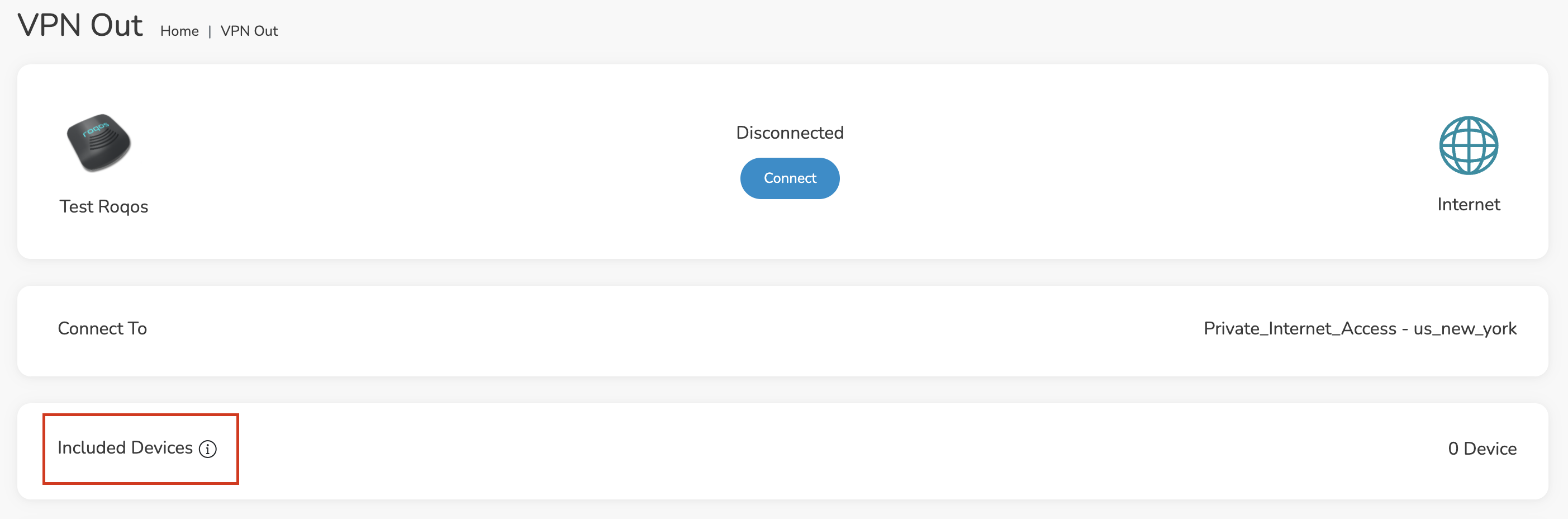
From the dropdown select Include all devices if you want every device that connects to the Roqos to connect to PIA. Then click Save.

If you only want specific devices to connect to PIA while others bypass the VPN connection select Include selected devices from the dropdown and then toggle the sliders for the devices you want connected to VPN. Click Save.
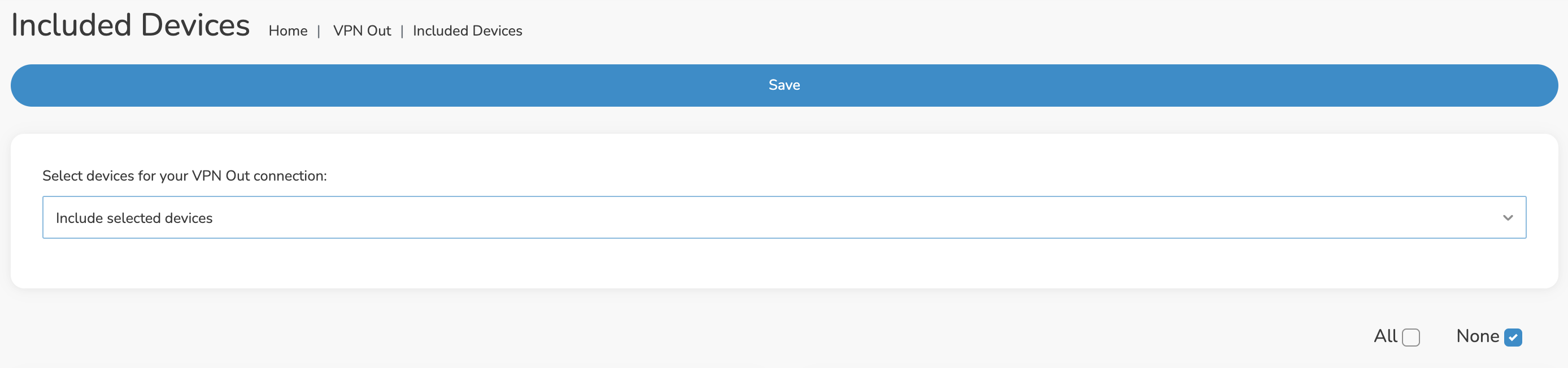
Make sure you are connected to the Roqos network via WiFi or ethernet connection on your device.
Visit PIA’s IP Check to verify your new IP Address and virtual location.
You should see Connected at the top of the page underneath Private_Internet_Access.
To change your server click Disconnect on the VPN OUT page then return to the Connect To section to select a new server from the Server dropdown and click Save. Now click Connect once again on the VPN Out page.
To disconnect from PIA click the Disconnect button.
Recommended DD-WRT WiFi settings for the Netgear R6700V3 are based on extensive testing by FlashRouters. Please note that optimal settings may vary depending on external factors such as home size, interference, and the types of WiFi devices you are connecting in your network.
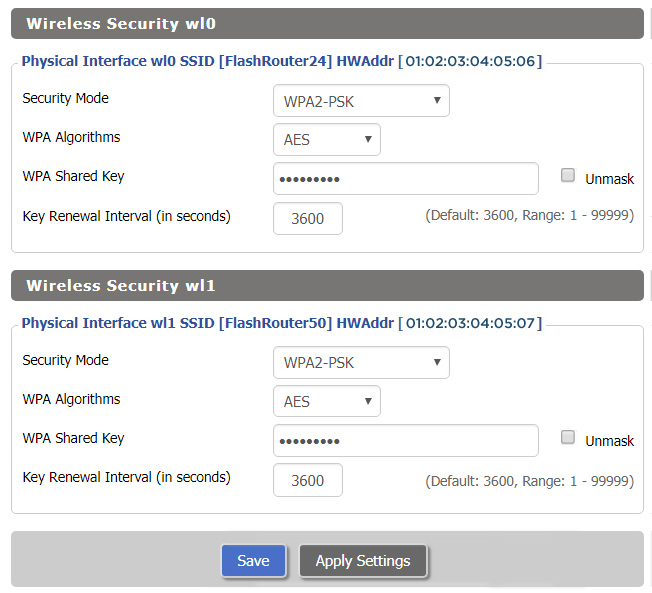
Screenshots below provide a visual display of recommended WiFi and encryption settings exactly as they appear in the Netgear R6700V3 with DD-WRT firmware.
Navigate to the Wireless > Basic Settings to view or edit WiFi network settings.

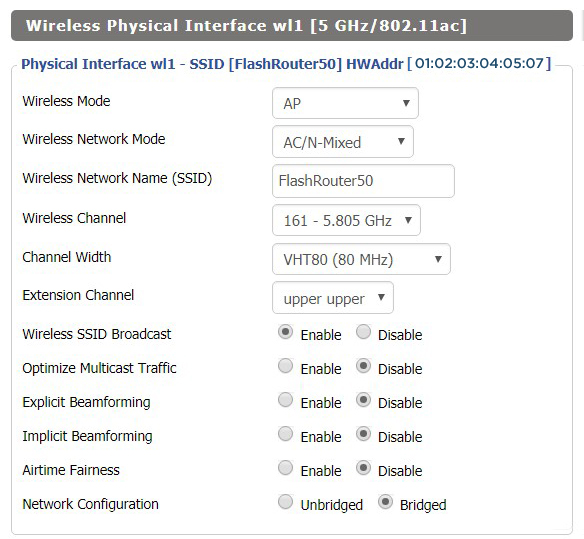
Intimidated by all the available WiFi settings? The DD-WRT website provides extensive information about all of the available configuration options in the firmware. Learn about everything from Wireless channels to channel widths and more in the Basic Wireless Settings – DD-WRT Wiki.
The preset R6700V3 FlashRouter WiFi password is Wireless#[First 5 characters of your router MAC]. The router MAC can be found on the bottom of your router. For e.g. if your MAC is 1459C07E70A8 then your WiFi password is Wireless#1459C
Navigate to the Wireless > Wireless Security to view or edit WiFi passwords.

Recommended DD-WRT WiFi settings for the Asus RT-AC68U are based on extensive testing by FlashRouters. Please note that optimal settings may vary depending on external factors such as home size, interference, and the types of WiFi devices you are connecting in your network.
Screenshots below provide a visual display of recommended WiFi and encryption settings exactly as they appear in the Asus RT-AC68U with DD-WRT firmware.
Navigate to the Wireless > Basic Settings to view or edit WiFi network settings.


Intimidated by all the available WiFi settings? The DD-WRT website provides extensive information about all of the available configuration options in the firmware. Learn about everything from Wireless channels to channel widths and more in the Basic Wireless Settings – DD-WRT Wiki.
The preset RT-AC68U FlashRouter WiFi password is Wireless#[First 5 characters of your router MAC]. The router MAC can be found on the bottom of your router. For e.g. if your MAC is 1459C07E70A8 then your WiFi password is Wireless#1459C
Navigate to the Wireless > Wireless Security to view or edit WiFi passwords.

Recommended DD-WRT WiFi settings for the Asus RT-AC66U are based on extensive testing by FlashRouters. Please note that optimal settings may vary depending on external factors such as home size, interference, and the types of WiFi devices you are connecting in your network.
Screenshots below provide a visual display of recommended WiFi and encryption settings exactly as they appear in the Asus RT-AC66U with DD-WRT firmware.
Navigate to the Wireless > Basic Settings to view or edit WiFi network settings.


Intimidated by all the available WiFi settings? The DD-WRT website provides extensive information about all of the available configuration options in the firmware. Learn about everything from Wireless channels to channel widths and more in the Basic Wireless Settings – DD-WRT Wiki.
The preset RT-AC66U FlashRouter WiFi password is Wireless#[First 5 characters of your router MAC]. The router MAC can be found on the bottom of your router. For e.g. if your MAC is 1459C07E70A8 then your WiFi password is Wireless#1459C
Navigate to the Wireless > Wireless Security to view or edit WiFi passwords.
Recommended DD-WRT WiFi settings for the Asus RT-AC56U are based on extensive testing by FlashRouters. Please note that optimal settings may vary depending on external factors such as home size, interference, and the types of WiFi devices you are connecting in your network.
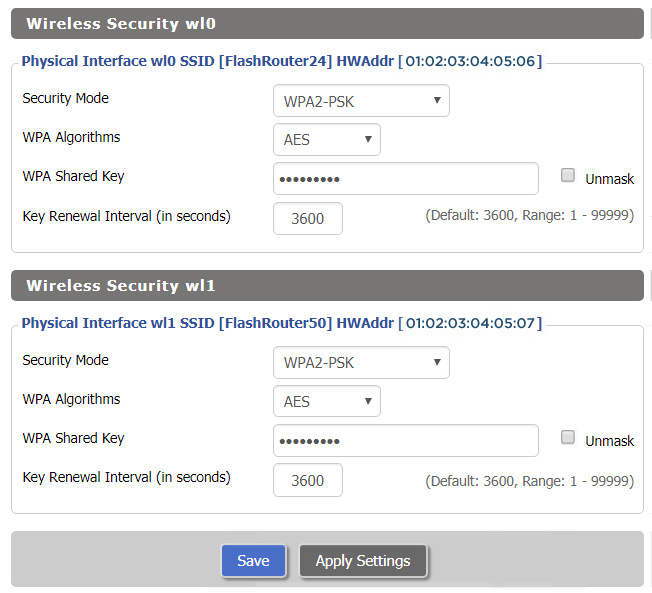
Screenshots below provide a visual display of recommended WiFi and encryption settings exactly as they appear in the Asus RT-AC56U with DD-WRT firmware.
Navigate to the Wireless > Basic Settings to view or edit WiFi network settings.


Intimidated by all the available WiFi settings? The DD-WRT website provides extensive information about all of the available configuration options in the firmware. Learn about everything from Wireless channels to channel widths and more in the Basic Wireless Settings – DD-WRT Wiki.
The preset RT-AC56U FlashRouter WiFi password is Wireless#[First 5 characters of your router MAC]. The router MAC can be found on the bottom of your router. For e.g. if your MAC is 1459C07E70A8 then your WiFi password is Wireless#1459C
Navigate to the Wireless > Wireless Security to view or edit WiFi passwords.
If your Privacy Hero VPN connection shows Failed, you can use the new Reset button to clear the saved third-party VPN settings and return the router to its available default connection. This is useful when a VPN setup is stuck or you want to start again without manually removing the existing third-party VPN configuration.
Important: A VPN reset removes all saved third-party VPN settings from Privacy Hero. You will need to configure that provider again if you want to use it later. The connection Privacy Hero uses after resetting depends on your subscription plan.
Use Reset when the current VPN connection is in a Failed state and you want to remove the third-party VPN setup and restore a working default connection. It is a more complete action than simply retrying the same VPN server.
The Reset action addresses the VPN configuration. It does not repair a disconnected WAN cable, an ISP outage, or a router that cannot reach the Privacy Hero cloud.
Dashboard access during a Kill Switch block: Privacy Hero permits access to app.privacyhero.com over its WiFi or LAN even when the VPN Kill Switch blocks ordinary internet traffic, as long as the router maintains its upstream/cloud connection. You can also manage the router from cellular data or another working internet connection.
| Privacy Premium Active subscription | Privacy Core |
|---|---|
| Third-party VPN settingsRemoved | Third-party VPN settingsRemoved |
| Connection after resetBuilt-in Privacy Hero VPN | Connection after resetNormal ISP internet |
| VPN protection afterwardYes, when the built-in VPN is connected | VPN protection afterwardNo router VPN is active |
Privacy Core users: After resetting, your normal internet access is not VPN-protected by Privacy Hero. If you want a third-party VPN again, you must configure it again in Privacy Hero.
Privacy Premium users: Check that the built-in Privacy Hero VPN shows Connected before assuming your traffic is going through the VPN. A working upstream internet connection and active Premium subscription are still required.
The VPN Reset button clears the third-party VPN configuration stored in Privacy Hero. This means any saved third-party provider details will need to be entered or imported again before that provider can be used.
Depending on the provider and protocol you had configured, this may include the saved VPN provider selection, server details, credentials or tokens, and custom OpenVPN or WireGuard settings. Have your provider login or configuration materials available if you plan to set up that VPN again.
This is a VPN configuration reset, not a request to cancel your third-party VPN subscription. It should not be confused with a full router factory reset.
If you have Streaming Relocation enabled, some streaming services may use their separately selected location; that is not necessarily the same location shown by a general public IP check.
For Kill Switch behavior and restoring internet, see Privacy Hero VPN Kill Switch: No Internet or WiFi Troubleshooting. To learn when to enable the feature, see Privacy Hero VPN Kill Switch Setup.
All FlashRouters are compatible with all ISP service types such as fiber, cable, DSL, and satellite. As long as you have a modem, modem/router, or router capable of an ethernet connection your FlashRouter will have no problems connecting to the internet.
Internet Service Providers (ISP) include a modem or modem/router combo to connect your network devices to the internet. In some instances your ISP will provide a separate router as well as the modem. You can replace this router with a FlashRouter or use both in a dual router setup.
If you would like to replace your outdated router or avoid paying to rent a router from your ISP then you should use a FlashRouter as the only WiFi device in your network.
In a single router setup the FlashRouter will be wired directly to your modem via ethernet cable and will be the only router in the setup.
Wire an ethernet cable from an open ethernet port on your modem to the WAN/internet port of the FlashRouter.
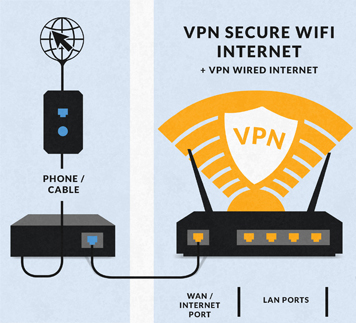
On Asus FlashRouters the WAN/internet port will be blue.

On Linksys FlashRouters the WAN/internet port will be yellow.

On Netgear FlashRouters the WAN/internet port will be yellow.

Once you have properly connected an ethernet cable from your modem into the FlashRouter internet port you must power cycle your network devices to establish an internet connection.
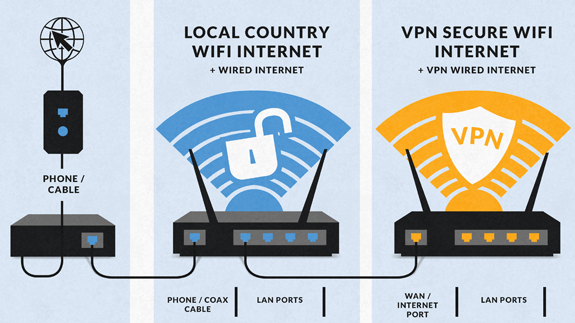
If you would like to keep your existing WiFi network in place, and simply want to add in a VPN WiFi network with a FlashRouter then you can do so using a dual router setup. No settings in your existing network router need to change to add a FlashRouter in a dual router setup. Since we preset all FlashRouters to a unique Local IP Address, there won’t be a conflict with your existing router.
In a dual router setup the FlashRouter is wired to your existing router via ethernet cable and you will have two completely segmented WiFi networks available.
Remember if your existing router is connecting to the internet without issue already, make sure to keep the ethernet cable between your modem and existing router internet port in place.
Now connect another ethernet cable from a LAN/numbered port on your existing router to the WAN/internet port of the FlashRouter.
Reference the images above to see your WAN/internet port color.
Once you have properly connected an ethernet cable from your existing router into the FlashRouter internet port you must power cycle your network devices to establish an internet connection.
Once the power cycling steps are complete and the FlashRouter is powered up, start connecting your internet capable devices via ethernet or WiFi. Visit any website and make sure the page fully loads.
If you want to check your internet IP address that is visible to websites and services that you visit over the internet check out WhatIsMyIPAddress.com.
If you are seeing ‘dd-wrt’ in your available wireless networks instead of your regular FlashRouter24 and FlashRouter50 wireless network names (SSID) this means the router has been reset to default DD-WRT firmware settings.
Follow our instructions for Resetting and Reconfiguring your FlashRouter to get setup again.
Do not confuse your SSID being replaced by ‘dd-wrt’ with ‘dd-wrt vap’ appearing alongside your regular wireless network names.
If you are seeing ‘dd-wrt vap’ it likely means you did not rename your network when attempting to setup a guest network.
ASUS VPN Fusion lets supported AsusWRT routers run VPN client profiles and decide which connected devices use each VPN connection. You can send the entire network through one VPN, use separate VPN profiles for selected devices, or leave certain devices on the regular ISP connection.
This guide covers how to use ASUS VPN Fusion to assign devices to specific VPN connections, manage multiple VPN profiles simultaneously, and choose which devices use a VPN or connect directly through your ISP. These features work with supported VPN providers and protocols, including WireGuard and OpenVPN.

Use this option when you want the selected VPN profile to be your router’s default connection.

Important: A device being connected to ASUS WiFi does not guarantee that it is assigned to the desired VPN. Check the assigned profile and the actual public IP.
On supported models, VPN Fusion can keep several VPN connections active and route different devices through different providers at the same time. For example:
You may be able to run one WireGuard profile and multiple OpenVPN profiles concurrently, but connection limits and supported combinations vary by ASUS router model and firmware. Adding many saved OpenVPN profiles is not the same as having all of them connected at once.
ASUS reference: How VPN Fusion handles multiple tunnels and devices.
Rather than selecting devices one at a time, supported ASUS routers offer Guest Network Pro or Network > VPN Network features that can associate a WiFi SSID with VPN routing. See ASUS Guest WiFi With or Without VPN: Setup Guide.
On routers with only the traditional Guest Network feature, available VPN-by-SSID behavior may differ; do not assume the standard guest SSID bypasses a network-wide VPN default.
Upgrade your ASUS router
Looking for a newer ASUS router? Browse WiFi 7 models available from FlashRouters and compare features to find the right fit for your home or office. VPN Fusion and other features vary by router model and firmware.
A reset of the FlashRouter should only be performed in the following instances:
Asus FlashRouters:
Linksys and Netgear FlashRouters:
1. Connect to the FlashRouter’s network via ethernet cable or wireless.
The wireless network will appear as “dd-wrt” and will likely not require a password to join. If it does require a password to join the password will be the default wireless password found on the bottom of the router.
2. Open your web browser and enter 192.168.1.1 in the URL.
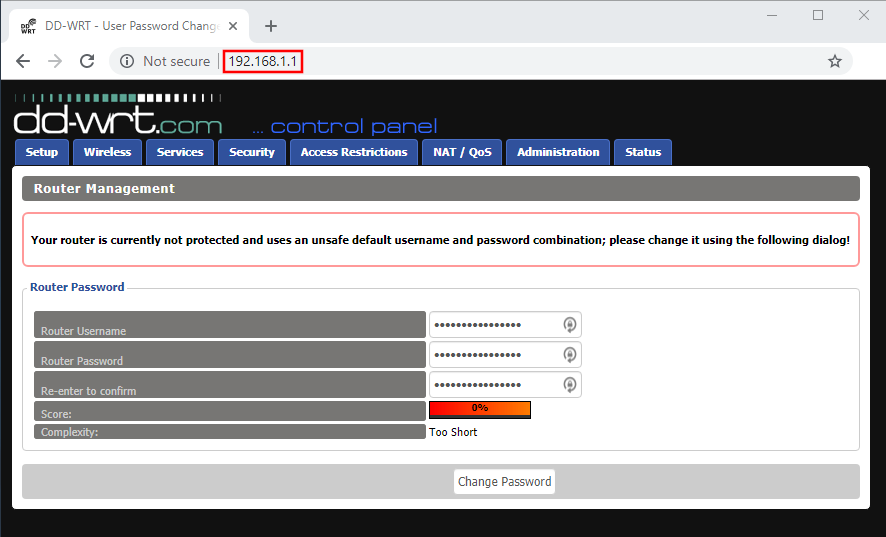
3. Delete the dots and enter the new administration login in the Router Username, Router Password, and Re-enter to confirm fields.
TYPE CAREFULLY when setting the administration login as a typo will result in needing to reset the router again.
Navigate to Setup > Basic Setup
1. Set the Local IP Address to 192.168.11.1
2. Set the Static DNS 1 to 8.8.8.8
3. Set the Static DNS 2 to 8.8.4.4
4. Set the Static DNS 3 to 208.67.220.220
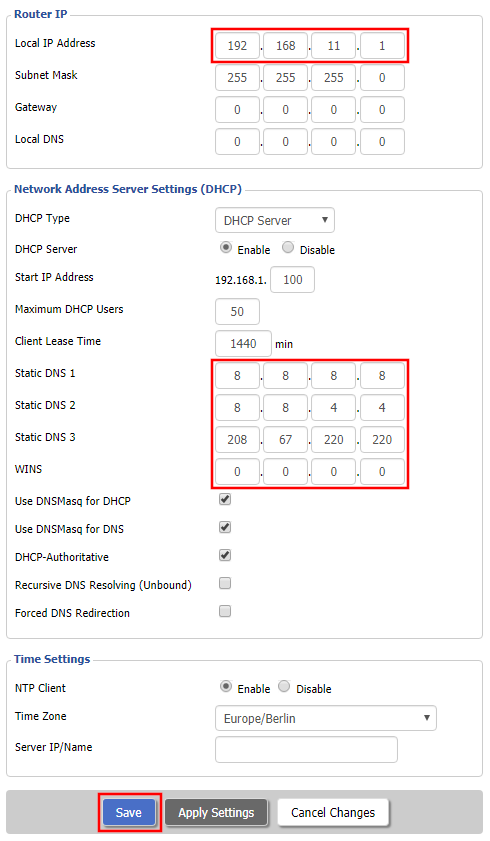
CLICK SAVE
Navigate to Wireless > Basic Settings
Find your FlashRouter model in the WiFi Setup section and replicate the wireless settings on this page.
CLICK APPLY SETTINGS
REBOOT ROUTER
You will be able to connect to the newly setup wireless network using the details you set. The router will now be accessible at 192.168.11.1
Most ISPs do not require PPPoE credentials. If you are certain this is an ISP requirement in your setup, we kindly ask that you get in touch with your ISP to verify that they do in fact require PPPoE authentication and to provide you with the correct credentials to enter into your FlashRouter.
Before you enter your PPPoE credentials, you should have already setup your FlashRouter in a Single Router Setup with correct wiring. Once you enter PPPoE credentials you should then be able to connect to the internet.
If you are using a Dual Router Setup there is no need to enter PPPoE credentials if they are already entered in the existing router. You can disregard this article.
Navigate to Setup > Basic Setup
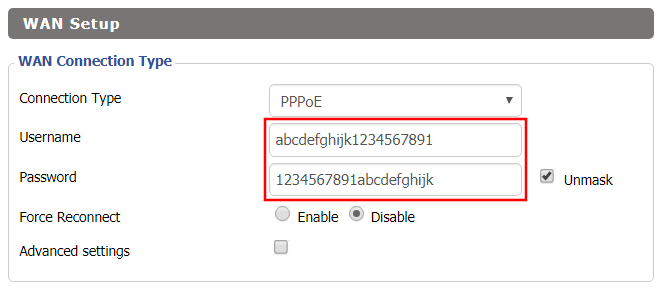
Once the FlashRouter is booted up connect one of your devices to the FlashRouter via Ethernet or Wireless.
Visit any website and make sure the page fully loads. Once you have verified a successful Internet connection, begin connecting your network devices to the FlashRouter via wired or WiFi.
Please be aware that our support is not able to replicate PPPoE issues on our end, which makes them challenging to troubleshoot. In the event of an issue we recommend using a Dual Router Setup.
Keep in mind that passwords are case sensitive.
The preset DD-WRT FlashRouter WiFi password is Wireless#[First 5 characters of your router MAC]. The router MAC can be found on the bottom of your router. For e.g. if your MAC is 1459C07E70A8 then your WiFi password is Wireless#1459C
Connect an ethernet cable from a numbered port on the FlashRouter to a computer and access the FlashRouter’s settings.
Navigate to Wireless > Wireless Security
Check the Unmask box and note the wireless password that is entered.
Make sure that you have WPA2 Personal / AES set as the security settings for all bands. For some router models make sure the CCMP-128 (AES) box is checked for all bands.
Wireless devices usually offer a “forget” network feature to remove a wireless network from the saved information of the wireless adapter. If you have updated your WiFi password and are trying to connect on a device that previously used the old WiFi password then removing the wireless network and then trying to connect fresh can help with this issue.
Change the FlashRouter’s wireless network password to any password you like.
Navigate to Wireless > Wireless Security
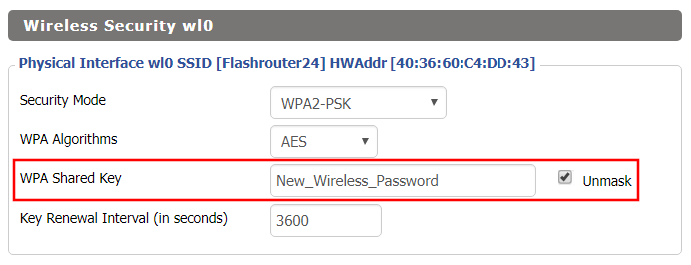
Boost the wireless transmission power if you need to increase the wireless range of the FlashRouter.
We recommend reading the entry in the DD-WRT Wiki to familiarize yourself with what TX Power values represent.
Navigate to Wireless > WL# or ath# Advanced

Navigate to Wireless > Basic Settings

We advise to proceed with caution when setting the TX Power. This has been known to negatively effect the hardware if set too high.
You must be connected to the FlashRouter network via ethernet or WiFi connection on your device in order to be able to access the FlashRouter’s firmware settings.
We recommend using a computer, tablet, or phone to access your FlashRouter firmware settings. You can connect your device to the FlashRouter via Ethernet Cable or Wireless connection.
Please note, you will NOT be able access the firmware settings unless you connect your device to the FlashRouter Network.
Connect an Ethernet cable to your device’s Ethernet port.
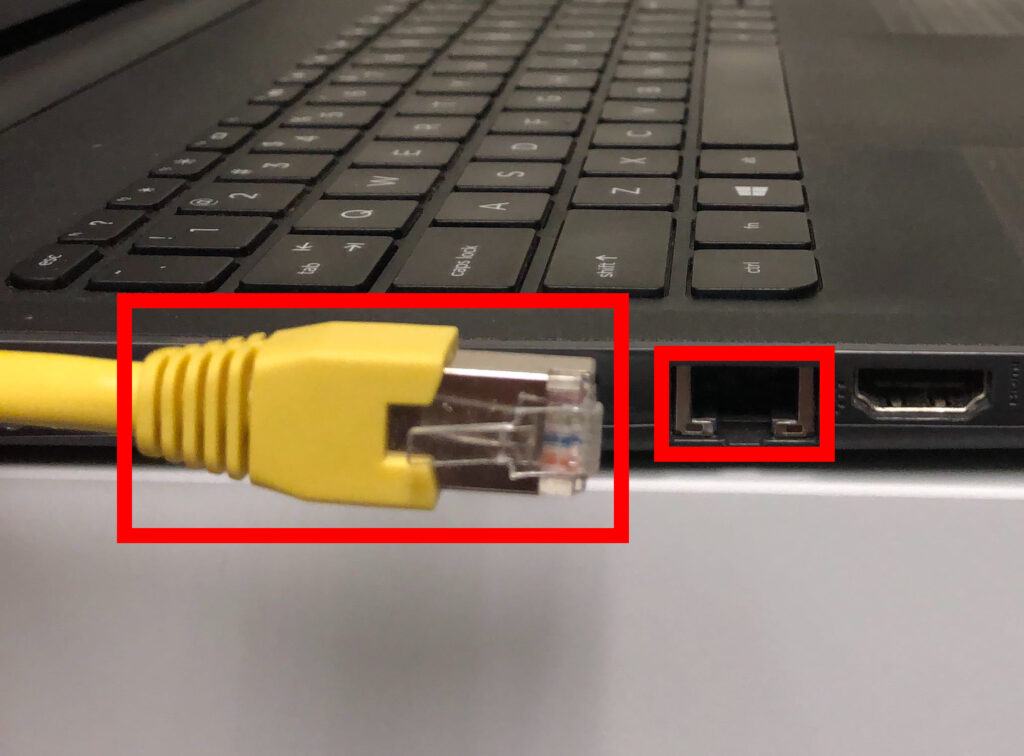
Connect the other end of that Ethernet cable to a FlashRouter LAN/numbered port.
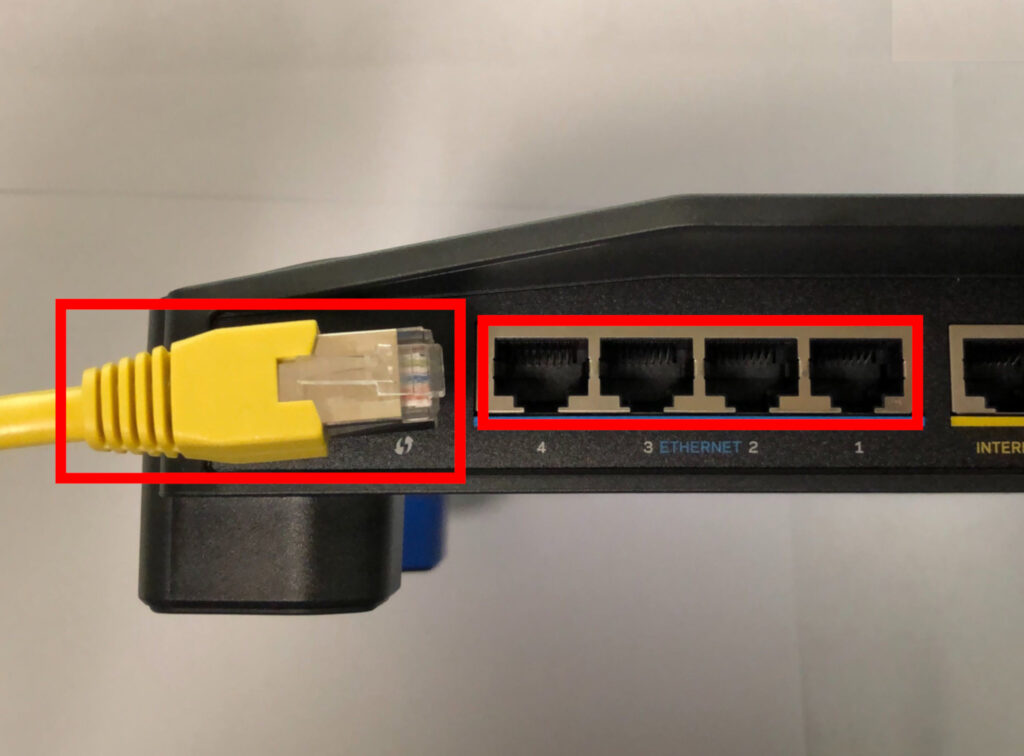
Be sure NOT to connect your device to the WAN/internet port of the FlashRouter. Please use the LAN/numbered ports to connect your devices.
Navigate to the available wireless networks in your device network settings and join any of the available FlashRouter networks – FlashRouter24, FlashRouter50, or FlashRouter80 (if you have a tri-band router).
We recommend using a Google Chrome or Mozilla Firefox incognito/private browsing window to access the FlashRouter firmware settings. You can access the main DD-WRT firmware GUI or you can go directly into the FlashRouters Privacy App settings to manage your basic router settings and VPN connection settings right away.
Please note, after accessing the FlashRouter Settings at the Local IP Address, you will be prompted to enter an admin username and password. You can find this information in the subsections below.
Local IP Address: 192.168.11.1
Username: flashrouter
Password: ddwrt
Keep in mind that if you enable HTTPS and disable HTTP access you will need to add https:// in front of the Local IP Address to access your FlashRouter’s firmware settings.
If your router has been reset for any reason then you can access the router at a local IP address of 192.168.1.1.
Please note you will be required to set the administration username and password as well as your WiFi and VPN network settings after a reset.
DD-WRT firmware automatically disables the WPS feature as it is a known security vulnerability. This makes your router more secure with DD-WRT than with factory firmware.
For any device that uses a WPS WiFi connection there should always be an alternate method to connect the device via WiFi.
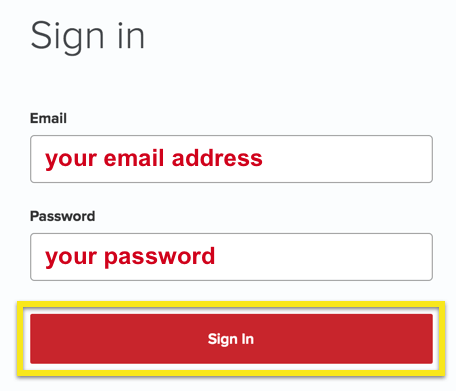
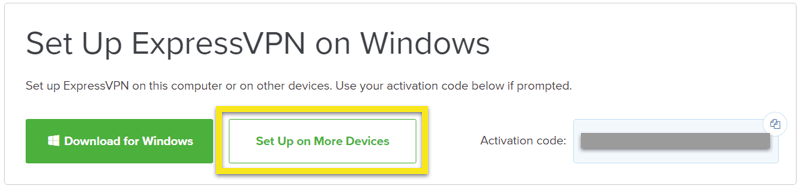
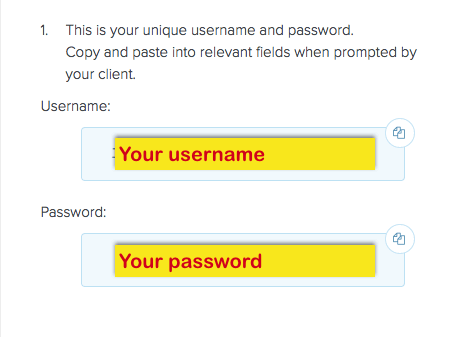
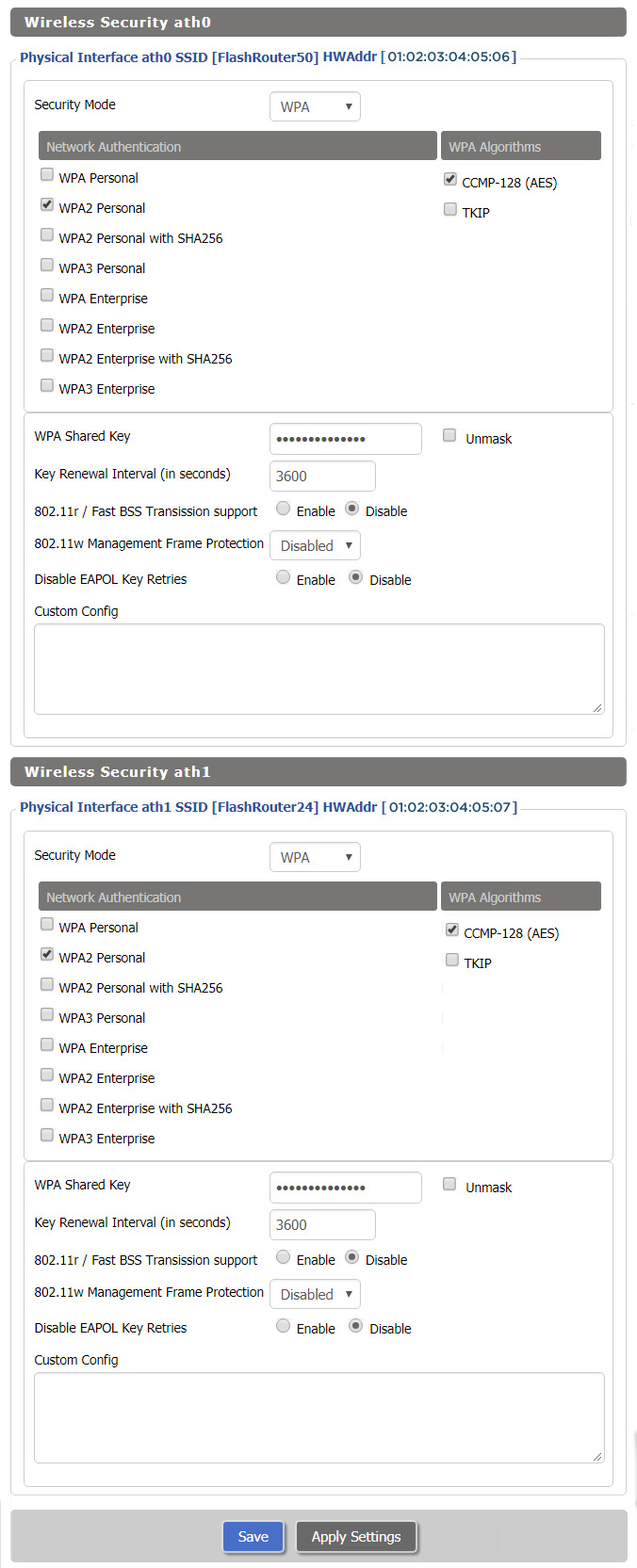
Recommended DD-WRT WiFi settings for the Linksys WRT1200AC are based on extensive testing by FlashRouters. Please note that optimal settings may vary depending on external factors such as home size, interference, and the types of WiFi devices you are connecting in your network.
Screenshots below provide a visual display of recommended WiFi and encryption settings exactly as they appear in the Linksys WRT1200AC with DD-WRT firmware.
Navigate to the Wireless > Basic Settings to view or edit WiFi network settings.
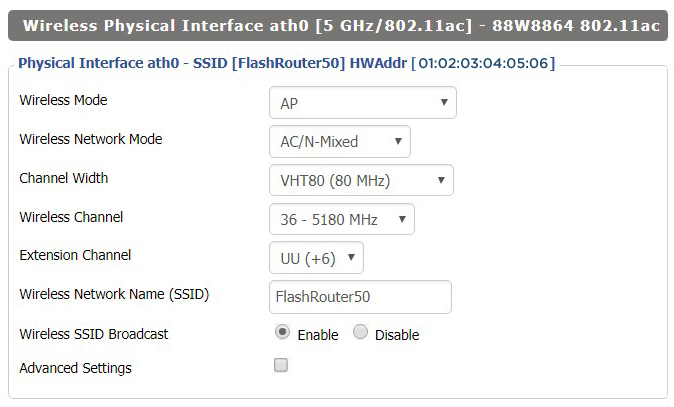
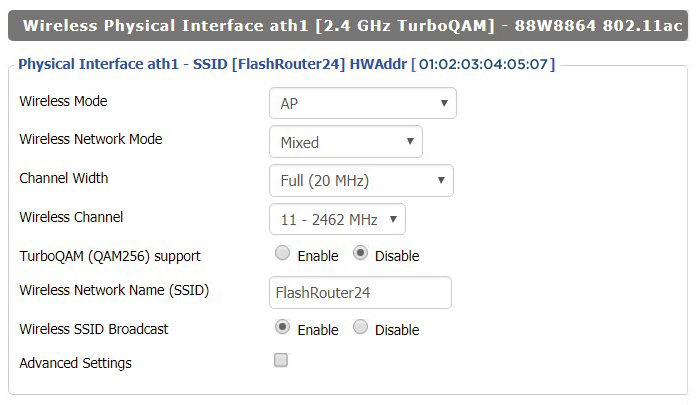
Intimidated by all the available WiFi settings? The DD-WRT website provides extensive information about all of the available configuration options in the firmware. Learn about everything from Wireless channels to channel widths and more in the Basic Wireless Settings – DD-WRT Wiki.
The preset WRT1200AC FlashRouter WiFi password is Wireless#[First 5 characters of your router MAC]. The router MAC can be found on the bottom of your router. For e.g. if your MAC is 1459C07E70A8 then your WiFi password is Wireless#1459C
Navigate to the Wireless > Wireless Security to view or edit WiFi passwords.
If you are not already an ExpressVPN user Sign Up Now.
1. Visit ExpressVPN’s website login page.

2. Successfully log in with your account information. Select More.
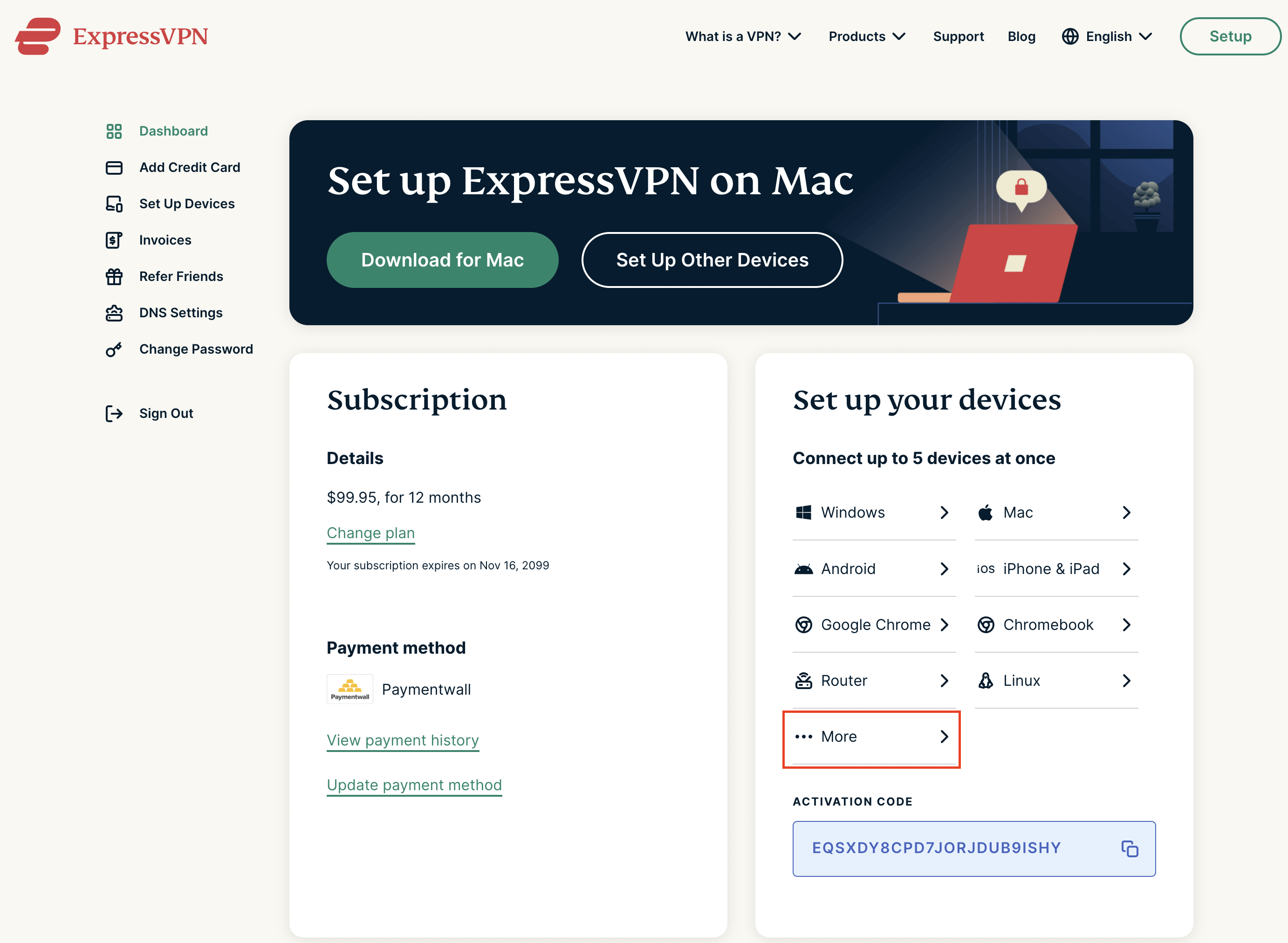
3. Select Manual Configuration and copy the Username and Password that are displayed on the right hand side of the screen.


1. Login to the Roqos Core web app in a browser on any computer or smart device.
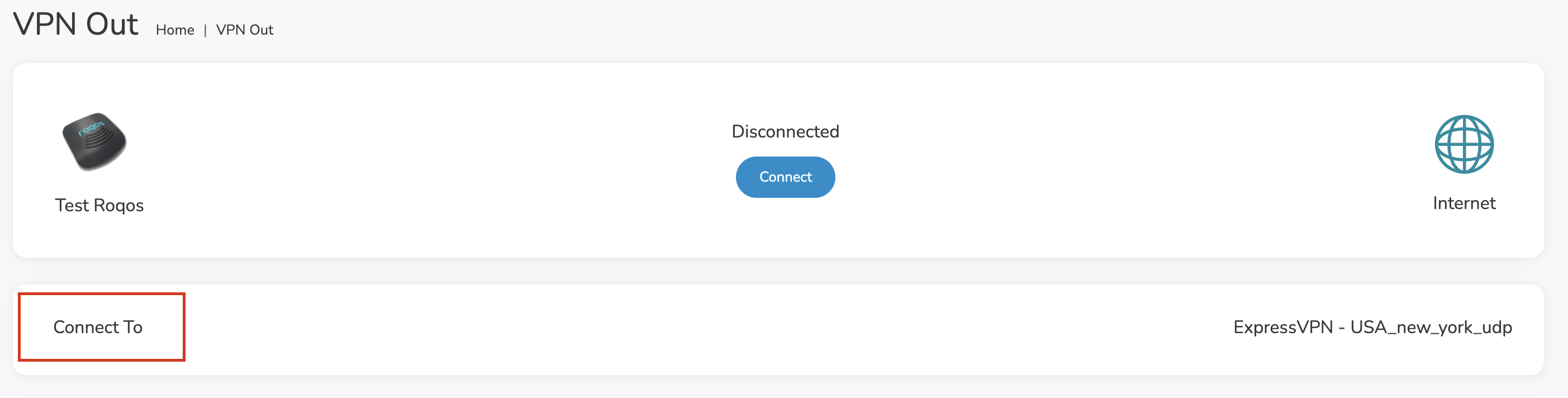
2. Click VPN from the navigation menu and then click VPN OUT.
3. Click the Connect to box.
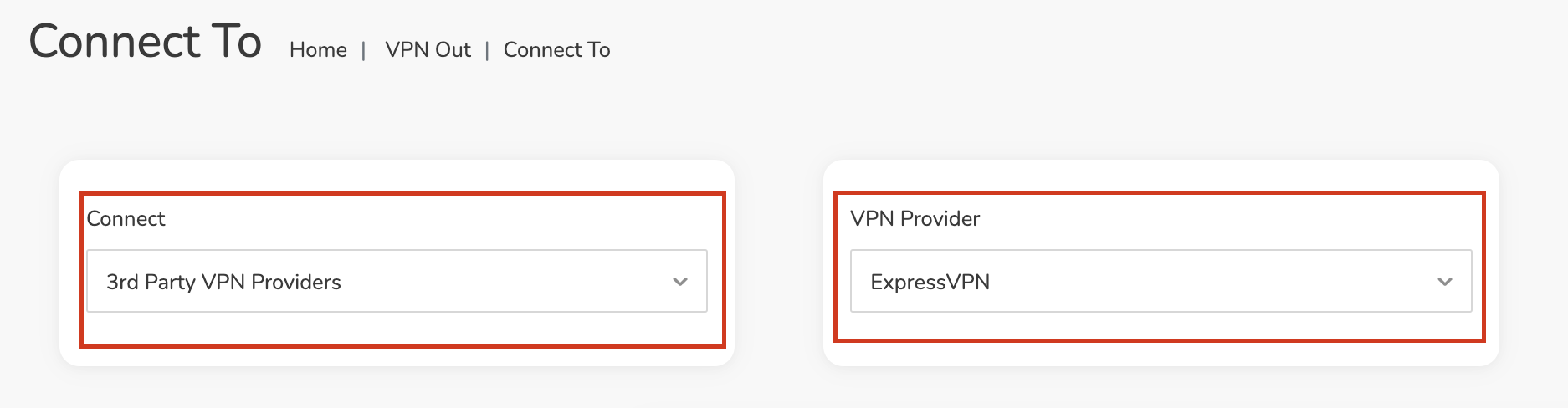
4. In the Connect dropdown choose 3rd Party VPN Providers and for the VPN Provider dropdown choose ExpressVPN.
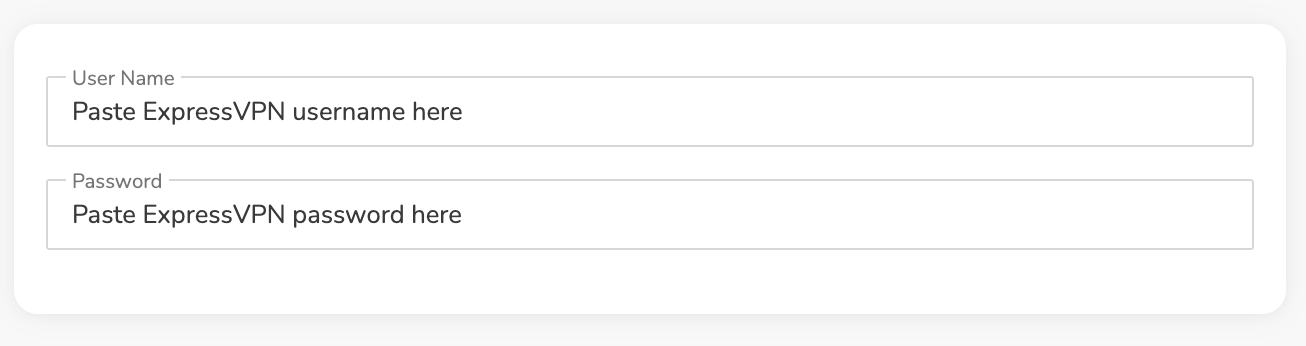
In the Username and Password field enter the ExpressVPN OpenVPN Username and Password that you obtained.
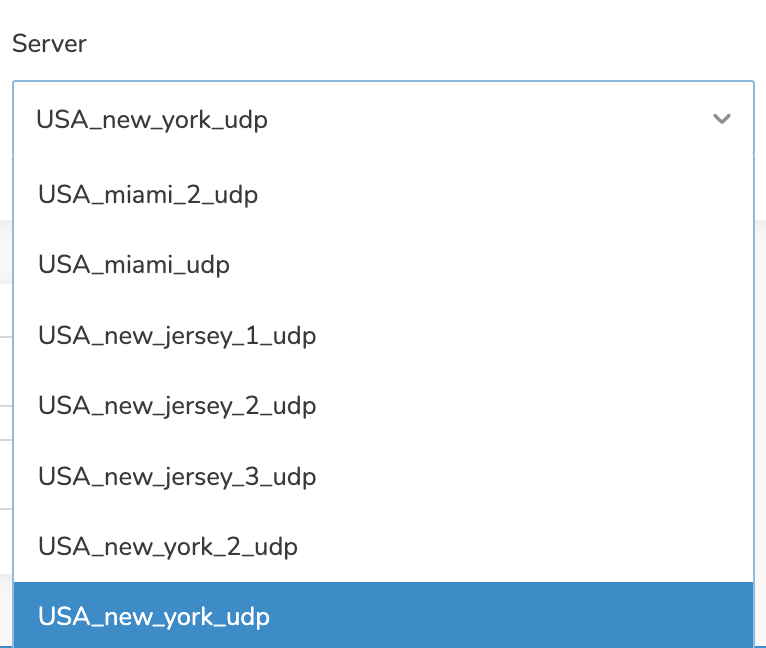
Click the Server dropdown and type in or scroll to your preferred server location.
Click the Save button.
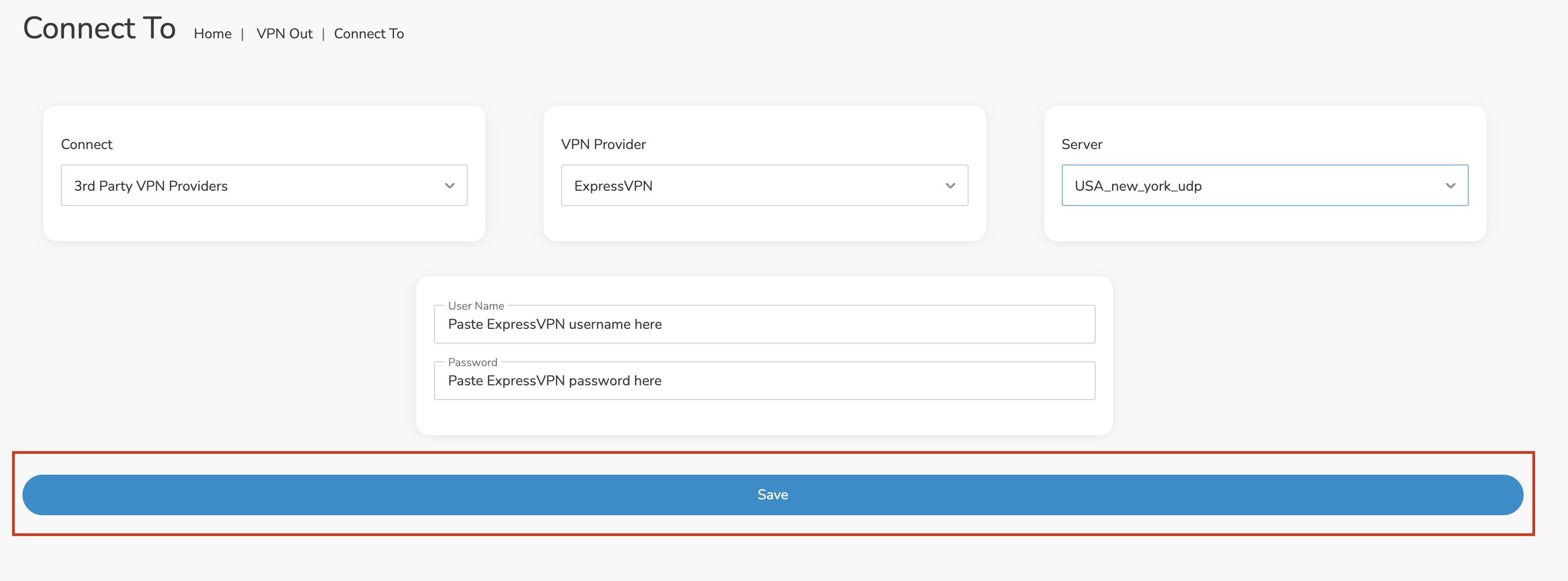
Once you click Save you will be returned to the VPN OUT menu.
Click the Connect button to start your ExpressVPN connection. Please be patient as the router connects your entire network through VPN.
By default there are no devices assigned to the VPN tunnel. Click Included Devices. From this page you can choose if all devices should connect to ExpressVPN or only certain devices.
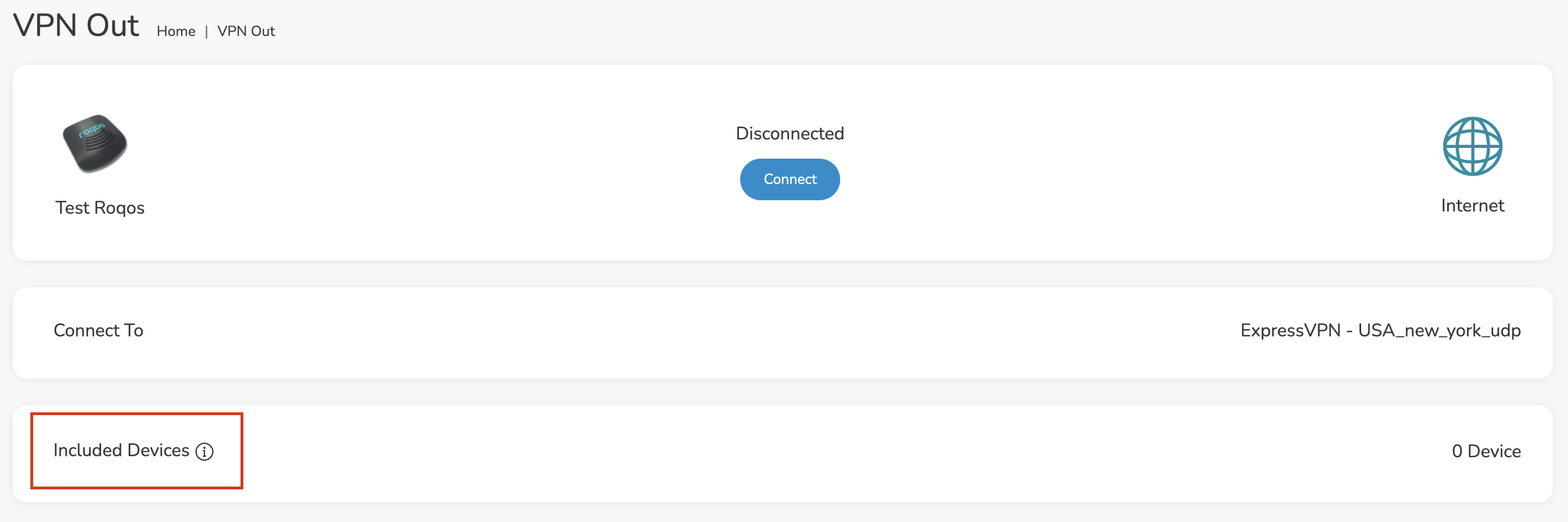
From the dropdown select Include all devices if you want every device that connects to the Roqos to connect to ExpressVPN. Then click Save.
If you only want specific devices to connect to ExpressVPN while others bypass the VPN connection select Include selected devices from the dropdown and then toggle the sliders for the devices you want connected to VPN. Click Save.
Make sure you are connected to the Roqos network via WiFi or ethernet connection on your device.
Visit ExpressVPN’s IP Check to verify your new IP Address and virtual location.
You should see Connected at the top of the page underneath ExpressVPN.
To change your server click Disconnect on the VPN OUT page then return to the Connect To section to select a new server from the Server dropdown and click Save. Now click Connect once again on the VPN Out page.
To disconnect from ExpressVPN click the Disconnect button.
The VPN connection on the FlashRouter will not drop in most instances however if the VPN stopped working follow the steps below.
In order to use the FlashRouters Privacy App you need DD-WRT build 02/15/22 r48362 or 2/10/20 r42335.
Follow these instructions to upgrade the firmware to 02/15/22 r48362: How do I upgrade the DD-WRT firmware of my FlashRouter?
If you would like the fully featured FR Privacy App version with Simple Setup you must use firmware builds from 2/10/20 r42335.
Navigate to Status > MyPage
Navigate to Services > VPN
Select specific devices that you want to pass through the Roqos Core’s VPN tunnel. This is a great solution in instances of streaming services blocking incoming VPN connections or other VPN related service interruptions.
Login to Roqos Core UI web app in a browser on any computer or smart device.
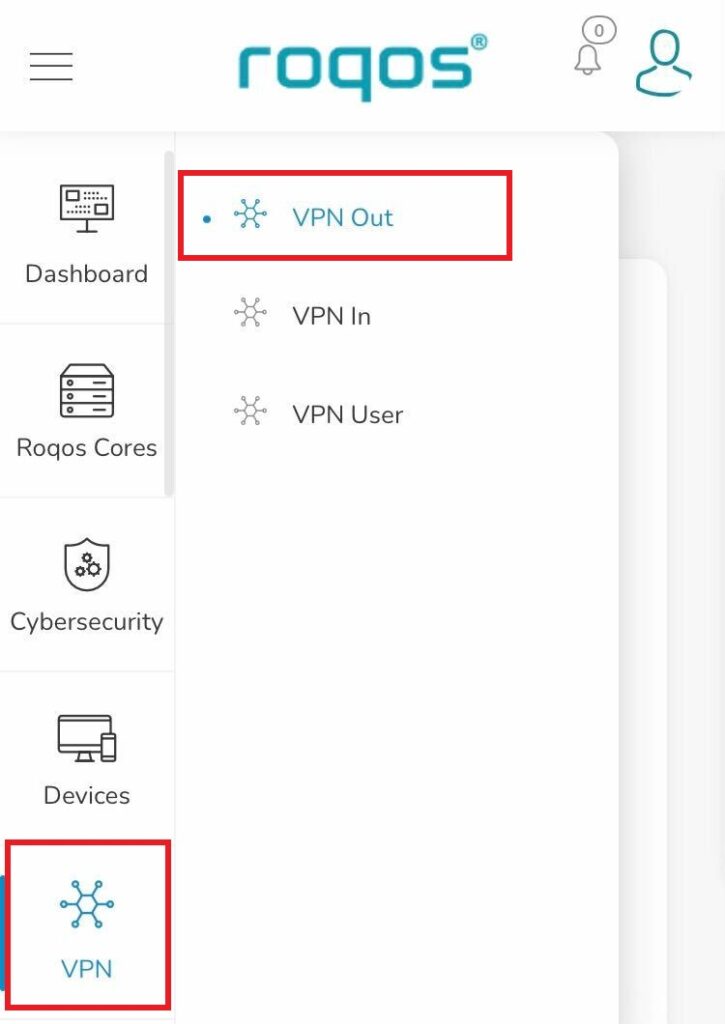
1. Click the navigation menu and select VPN > VPN Out.
2. Select Included Devices.
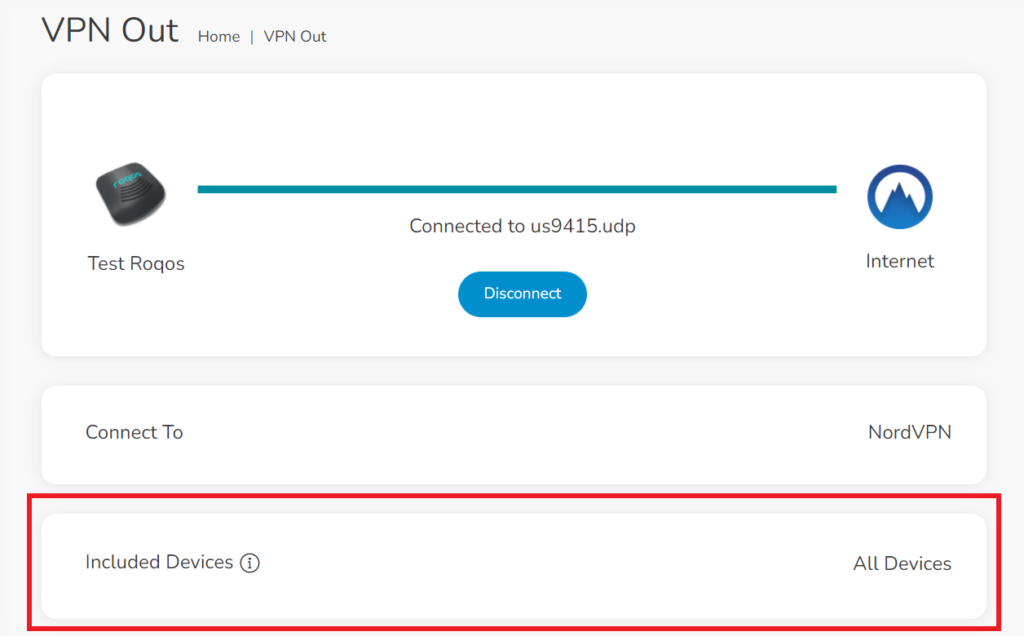
3. In the Select devices for your VPN Out connection dropdown select Include selected devices and check the devices you want to connect to VPN. Click Save.
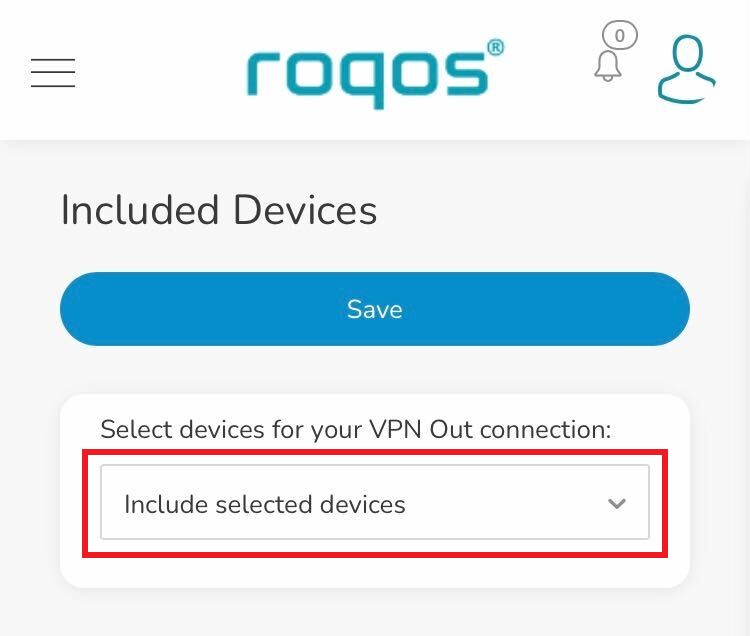
Now these devices will be connected to the VPN tunnel. All other devices will bypass the VPN tunnel and use your ISP’s IP Address.

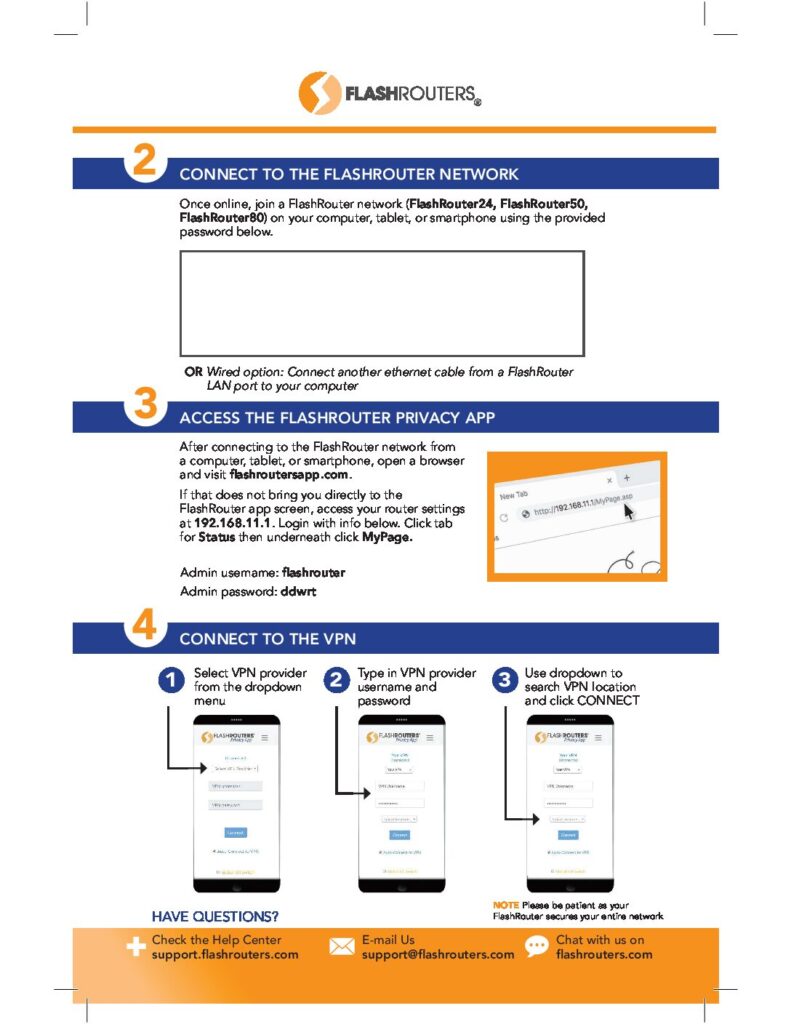


To setup VPN on your Asuswrt Merlin router, you will need to first download an OpenVPN (.ovpn) file from your VPN service provider and load it onto your router.
Review your specific VPN service instructions below. Follow these instructions to locate and upload your OpenVPN file. Depending on the VPN service, there may be additional steps and configurations required to complete the setup.
Using Asuswrt Merlin’s VPN Director, your router can store up to five different VPN connections and switch between them at will.
We do NOT offer phone support here at FlashRouters. You will not receive a phone call to begin your session. Please read the information below for how to get connected during your session time.
A Teamviewer session is the most hands on method of receiving support from FlashRouters.
A support agent will connect directly to your computer and proceed to configure or troubleshoot your FlashRouter with you present.
We use Teamviewer sessions to troubleshoot any issue an eligible customer may have with a FlashRouter that was purchased from us or to configure a compatible router that your purchased independently along with a FlashRouters Support Plan.
In the session a chat window will appear so we can communicate directly with you in real time.
If you follow the information below prior to your session and all goes smoothly a Teamviewer session typically takes anywhere from 15 to 45 minutes.
When purchasing a FlashRouter you are able to select a Quarterly or Yearly Bronze, Silver or Gold subscription plan.
Silver Yearly plan comes with one Teamviewer remote support session a year.
Gold Quarterly and Yearly plans come with one session per quarter.
If you support plan has expired or you are signed up for Bronze and you’d like to receive Teamviewer remote support assistance please email support@flashrouters.com
We are available for scheduled Teamviewer sessions from 10AM – 6:00PM ET Monday through Saturday.
To schedule a session with us open a support ticket or contact us via our live chat. We do not perform sessions that are not scheduled.
If we are available off hours we do our best to accommodate off hours session times with at least 24 hours notification.
Teamviewer sessions can not be performed on phones or tablets at this time. We require a Windows or Mac computer to successfully connect and configure your FlashRouter.
Below are the different scenarios from most ideal to least ideal.
If you have an available wireless network NOT coming from the FlashRouter and have a computer that has wireless AND Ethernet capabilities you should be setup as follows:
If you have an available wireless network NOT coming from the FlashRouter and have a computer that has wireless only you should be setup as follows:
Session disconnects may occur with no backup Internet connection.
If the FlashRouter is your only wireless network and your computer has wireless and Ethernet capabilities you should be setup as follows:
If the FlashRouter if your only wireless network and your computer is wireless only you should be setup as follows:
Session disconnects may occur with no backup Internet connection.


About 15 minutes before your scheduled session time update your support ticket e-mail the User ID and Password to your existing email thread, or send via our live chat.
Recommended DD-WRT WiFi settings for the Linksys WRT32X are based on extensive testing by FlashRouters. Please note that optimal settings may vary depending on external factors such as home size, interference, and the types of WiFi devices you are connecting in your network.
Screenshots below provide a visual display of recommended WiFi and encryption settings exactly as they appear in the Linksys WRT32X with DD-WRT firmware.
Navigate to the Wireless > Basic Settings to view or edit WiFi network settings.
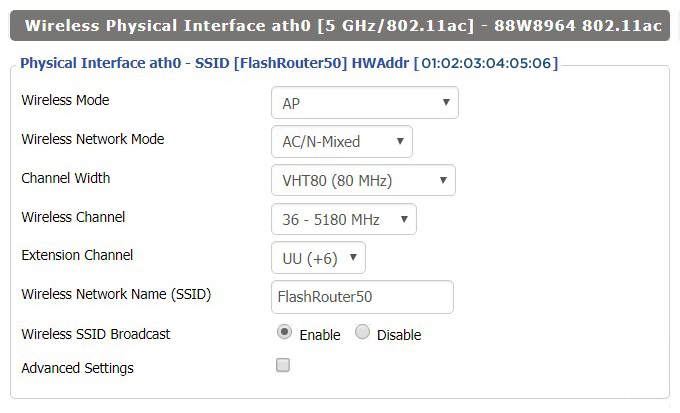
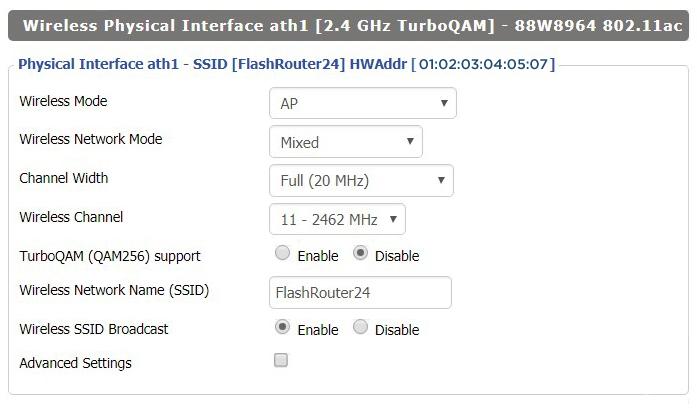
Intimidated by all the available WiFi settings? The DD-WRT website provides extensive information about all of the available configuration options in the firmware. Learn about everything from Wireless channels to channel widths and more in the Basic Wireless Settings – DD-WRT Wiki.
The preset WRT32X FlashRouter WiFi password is Wireless#[First 5 characters of your router MAC]. The router MAC can be found on the bottom of your router. For e.g. if your MAC is 1459C07E70A8 then your WiFi password is Wireless#1459C
Navigate to the Wireless > Wireless Security to view or edit WiFi passwords.

If NordVPN will not connect on Privacy Hero, shows a timeout error, remains stuck on Connecting, or displays Failed, the Privacy Hero router itself may still be working normally.
NordVPN connections can occasionally stop working when servers are placed into maintenance, removed or cycled out of service, account credentials change, or a previously saved NordVPN access token or manual service credential is no longer valid.
Start by confirming that Privacy Hero has normal internet access, then troubleshoot the NordVPN connection.
Before changing your NordVPN settings, confirm that Privacy Hero itself has normal internet access.
If internet access works normally with NordVPN and the Kill Switch disabled, the underlying Privacy Hero internet connection is working. Continue troubleshooting the NordVPN connection.
If your internet stopped working because NordVPN failed while the VPN Kill Switch was enabled, follow our Privacy Hero VPN Kill Switch: No Internet or WiFi Troubleshooting guide.
A temporary NordVPN server or connection issue may resolve without changing your account information.
If NordVPN still shows Failed, Connecting, or a timeout error, continue with the steps below.
NordVPN regularly maintains, replaces, and cycles servers in its network. A specific NordVPN server that worked previously may eventually be taken offline, removed, or temporarily unavailable.
If your Privacy Hero NordVPN connection is configured to use a specific server and suddenly stops working, try another server or return to the normal country selection.
If you specifically need to use an individual NordVPN server, make sure that server is still active before continuing to use it.
Important: A previously working specific server should not be assumed to remain available indefinitely. NordVPN may change its server network over time.
Privacy Hero uses a NordVPN access token to authenticate NordLynx connections.
If the saved token is expired, revoked, replaced, or otherwise no longer valid, NordLynx may show Failed, Connecting, or a timeout error.
Generating a new token is a good troubleshooting step if your NordVPN account information has changed or the existing token is no longer working.
Important: NordVPN access tokens are sensitive account credentials. Do not post or share your token publicly.
For complete setup instructions, see Privacy Hero NordVPN / NordLynx Setup.
If you are using OpenVPN instead of NordLynx, Privacy Hero uses NordVPN’s Manual Service Credentials.
These are different from the email address and password you normally use to sign in to the NordVPN website or application.
If the saved credentials are no longer valid, update them:
Do not enter your regular NordVPN website email address and password in place of the manual service credentials.
If NordVPN stopped connecting after an account change, update the authentication information stored in Privacy Hero.
This is especially important after changes such as:
The credentials used by Privacy Hero depend on the VPN protocol:
Your regular NordVPN website login should not be entered as the router’s OpenVPN credentials.
If you are unsure whether the existing authentication information is still valid, retrieve current credentials directly from your NordVPN account and update Privacy Hero.
Privacy Hero cannot establish a NordVPN connection if the NordVPN account being used no longer has active VPN service.
Sign in to your NordVPN account and confirm that your subscription is active before continuing with server, token, or credential troubleshooting.
If your NordVPN account, credentials, and server selection are correct but the connection still fails, try another NordVPN protocol available in Privacy Hero.
For example, if NordLynx is not connecting, testing OpenVPN can help determine whether the issue is specific to the protocol or authentication method.
Remember that changing protocols also changes the required NordVPN authentication:
Do not leave the NordVPN application connected directly on your phone or computer while testing the Privacy Hero VPN.
Running a VPN application on the device while also routing that device through the Privacy Hero VPN creates a double-VPN connection and can cause routing, connectivity, or IP-location problems.
Disconnect the device-level NordVPN app before testing the router VPN.
Once Privacy Hero displays NordVPN as Connected:
If you use the Privacy Hero VPN Kill Switch, enable it only after confirming that NordVPN is connected and working.
If Privacy Hero shows NordVPN as Connected and other devices display the correct VPN IP, the NordVPN connection itself is likely working.
Check the affected device’s Privacy Hero VPN assignment and review any VPN, privacy, DNS, browser, antivirus, firewall, or security settings running directly on that device.
See Device Privacy, DNS, VPN, and Security Settings That Can Interfere With Your Router VPN.
When connected to a FlashRouter’s network the DNS settings of the devices will be reporting as 192.168.11.1. This means that the router is handling DNS internally through the servers you have set in the Setup > Basic Setup section of the router. If you did not set any custom DNS here, then you will using your ISP or VPN DNS servers automatically.
You can always customize the DNS servers in the router to your preferred servers and through DNSmasq the router will use 192.168.11.1 to route these servers to your connected devices.
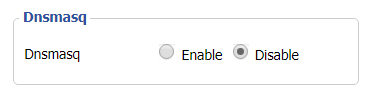
In some instances disabling DNSMasq in the DD-WRT settings can help unblock previously blocked websites while connected to VPN. This will force devices to report the DNS servers set in the router directly as opposed to 192.168.11.1.
Disabling DNSMasq is not recommended unless FlashRouters specifically advises you but we have seen this work for certain VPN providers. To disable the DNSMasq do the following.
Navigate to Setup > Basic Setup
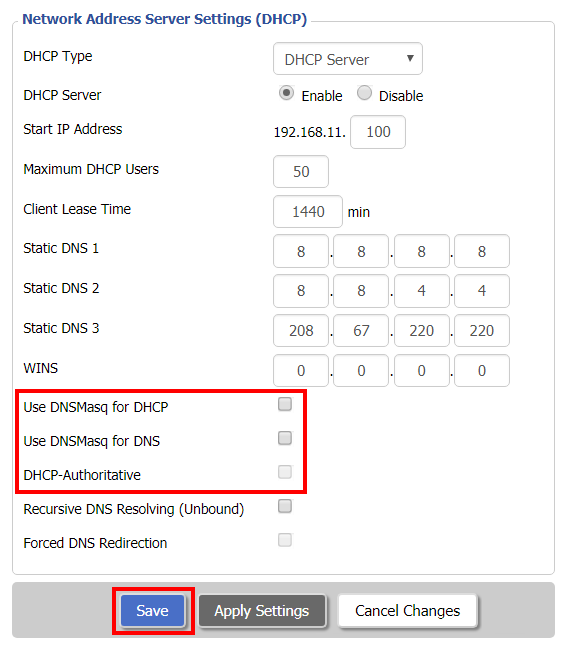
Navigate to Services > Services
DD-WRT open source firmware removes many firmware vulnerabilities and backdoor access issues that may cause problems in stock firmware. DD-WRT is also updated more frequently than stock firmware, so be sure to always check with the FlashRouter support team to see which DD-WRT build we recommend for the highest level of security for your router at any time.
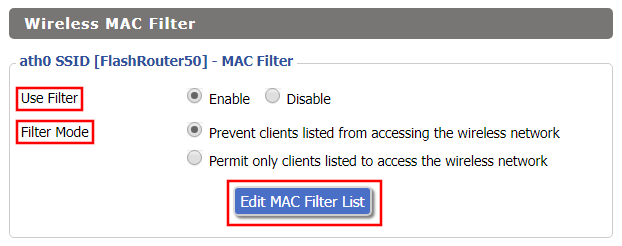
Aside from avoiding common issues and flaws with stock firmware, DD-WRT give you more control over the firmware settings and allows you to take some extra steps to really lock down your network security. In this article we highlight additional options for WiFi network security and also preventative measures for remote execution attacks.
Navigate to Wireless > MAC Filter
Navigate to Services > Services
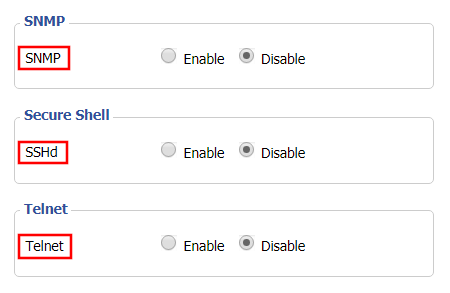
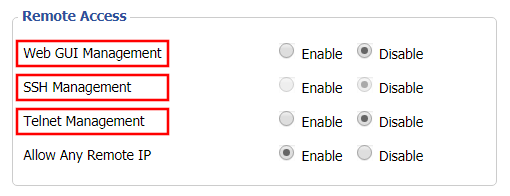
Navigate to Administration > Management