Listed below are important links to setup instructions for connecting an Asus Merlin firmware router to the internet and WiFi.
Search Results for: loca web login
How do I reset and reconfigure my ExpressVPN/Aircove FlashRouter?
When is a router reset needed?
A reset of the FlashRouter should only be performed in the following instances:
- You have exhausted all other troubleshooting methods and cannot access your router settings.
- Password to access the FlashRouter’s settings are not working.
- Power light on the router is blinking steadily.
- Router is not accessible after upgrading the firmware
Reset Router
Asus FlashRouters:
- While the router is powered off press and hold the WPS button on the back or side of the router. Power up the router while continuing to hold the WPS. Continue to hold for 15 seconds as the router powers on (note this could be up to 45 seconds on some models before lights flash).
- You will see the lights on the router flashing steadily and this is how you know you have reset the router.
- Let the router sit for about a minute and then reboot the router.
Aircove, Linksys and Netgear FlashRouters:
- While the router is plugged in, find the reset button located on the back of the router. You will need a pin or pencil to hold down the button for 15 seconds.
- You will see the lights on the back of the router flash simultaneously and this is how you know you have reset the router.
- Let the router sit for about a minute and then reboot the router.
Access Router Settings
1. Connect to the FlashRouter’s network via ethernet cable or wireless.
The wireless network will appear as “Aircove”, “Linksys##”, “Netgear##”, or “Asus” and the password to join the network will be the default wireless password printed on the bottom of the router.
2. Open your web browser and enter expressvpnrouter.com or 192.168.132.1 in the URL.


3. Click Get Started on the ExpressVPN page that is displayed.
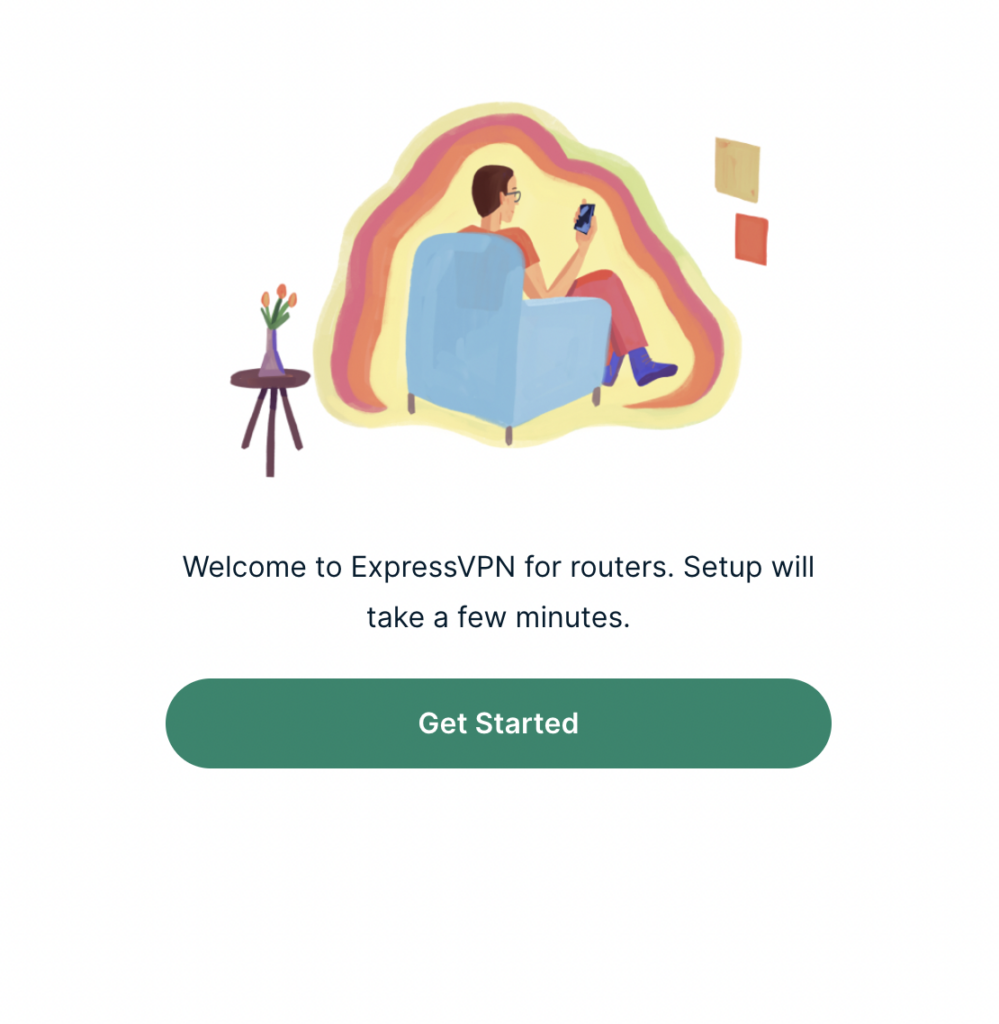
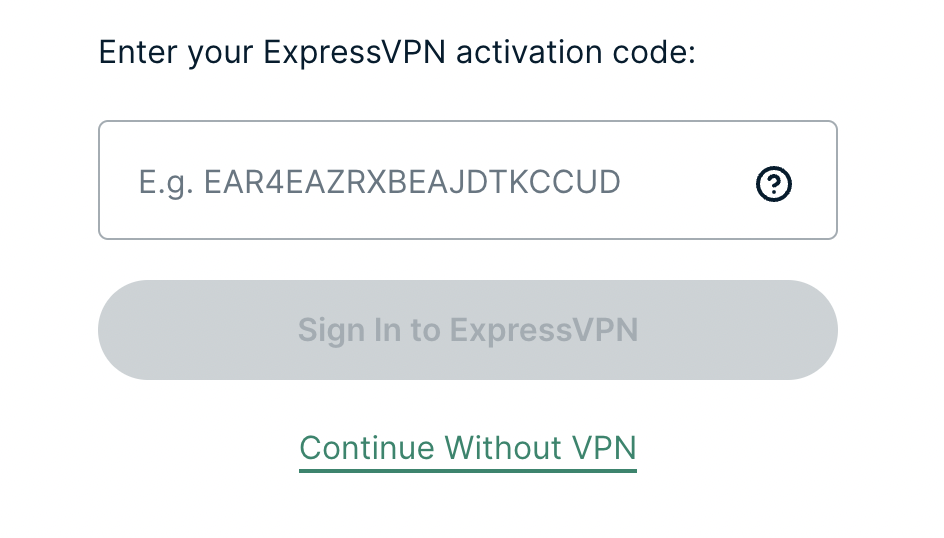
4a. If your FlashRouter is wired to the Internet correctly then you will be prompted to enter your ExpressVPN Activation Code found in your ExpressVPN account. Paste that in and click Sign in to ExpressVPN.
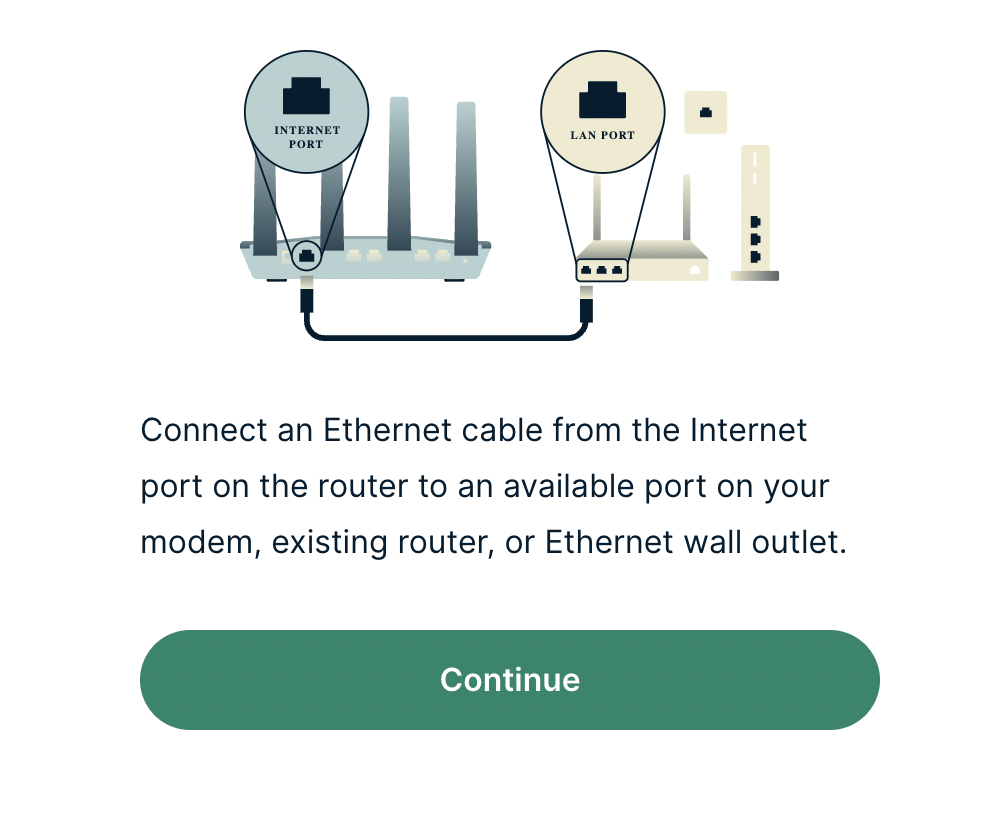
4b. If your FlashRouter is not wired correctly or is not receiving Internet properly make sure you are wired as detailed in the diagram that appears. If you are stuck at this screen we recommend powering off your ISP modem and any other router that the ExpressVPN FlashRouter is wired to and then powering them back up one by one.
Proceed with step “4a” above once the router is receiving Internet and you are prompted to enter the Activation Code.
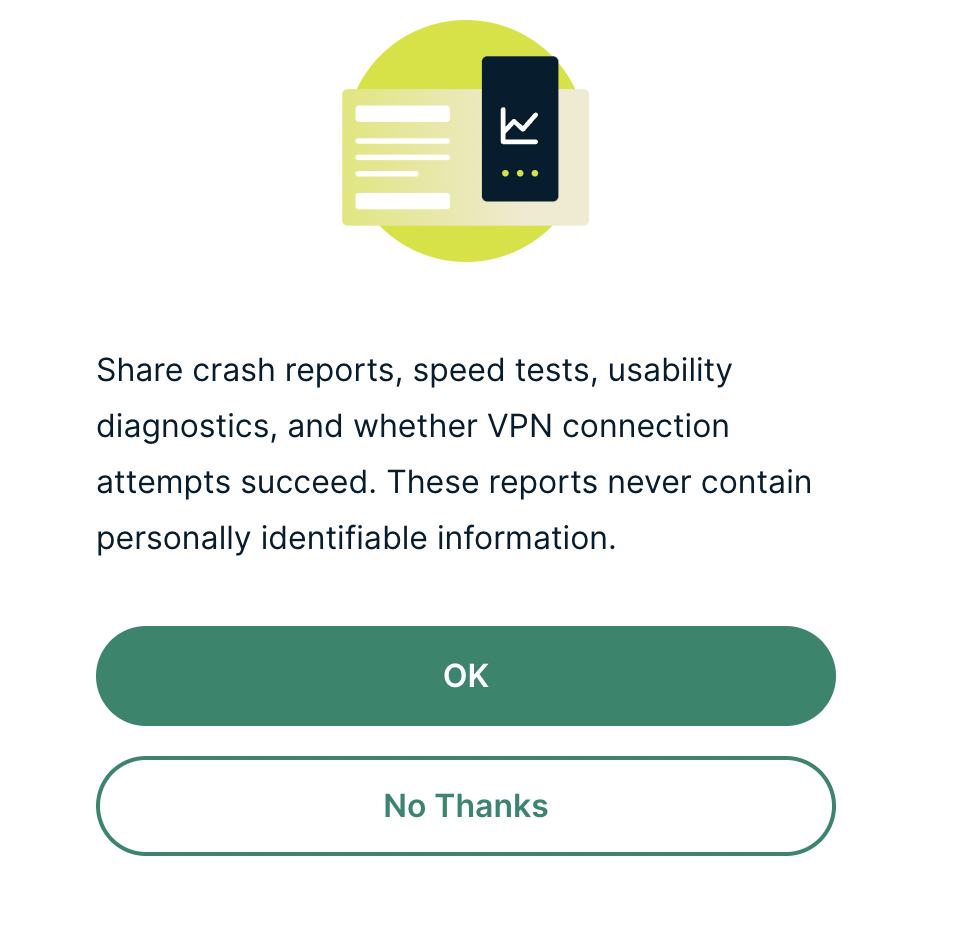
5. Select if you want to share anonymous crash report data with ExpressVPN to help them improve the firmware for future releases.
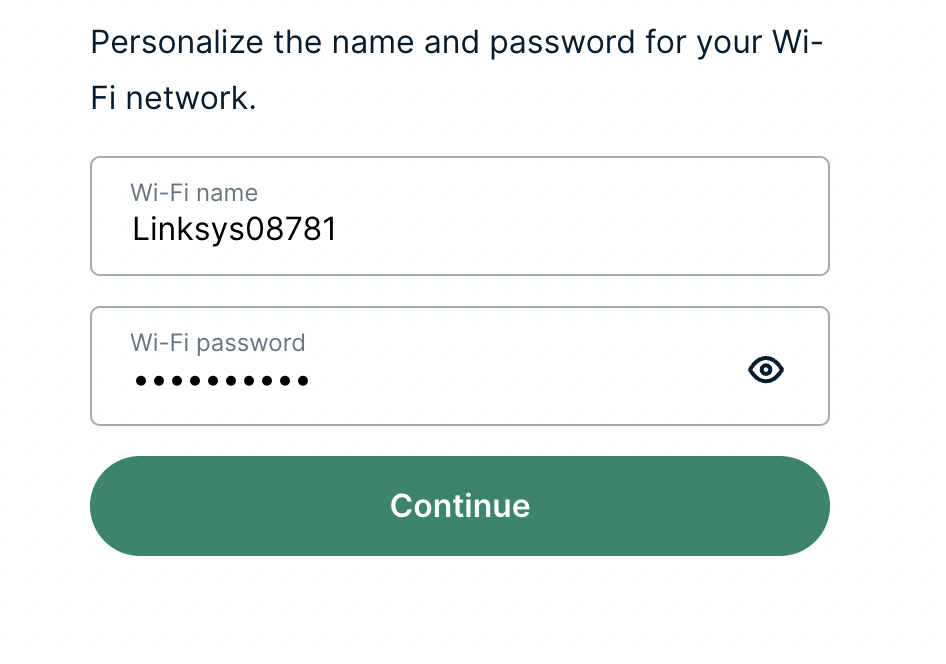
6. Set the WiFi name and password your wireless devices will use to connect to the FlashRouter’s network. Make sure the WiFi name is unique and not a duplicate of an existing WiFi name if you change it. You can also leave it as the default information if you like. Click Continue.
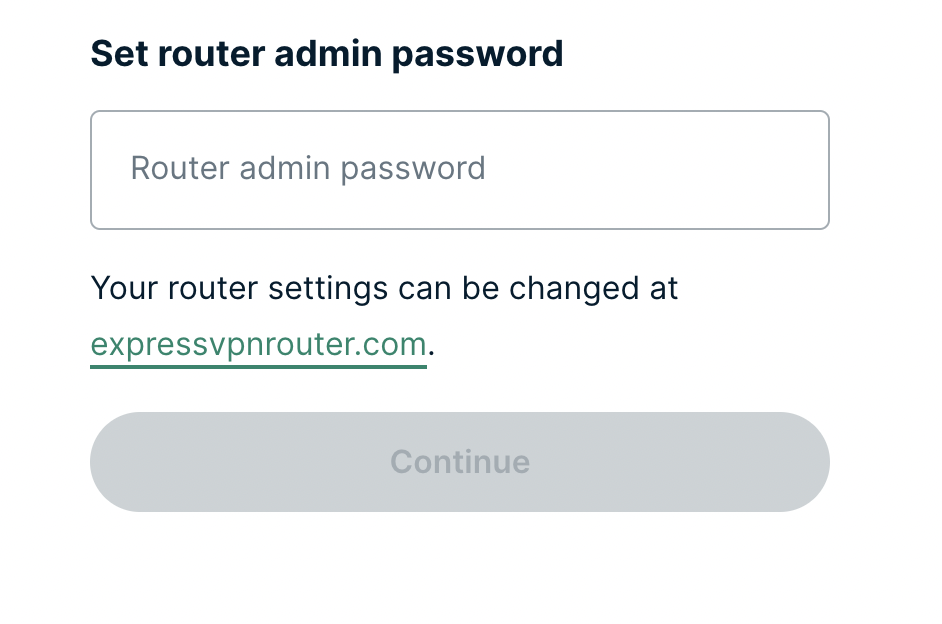
7. Enter the admin password you will use to access the ExpressVPN router settings. Be sure to TYPE CAREFULLY when setting the admin password as a typo will result in needing to reset the router again. Note this password in a secure location or commit it to memory.
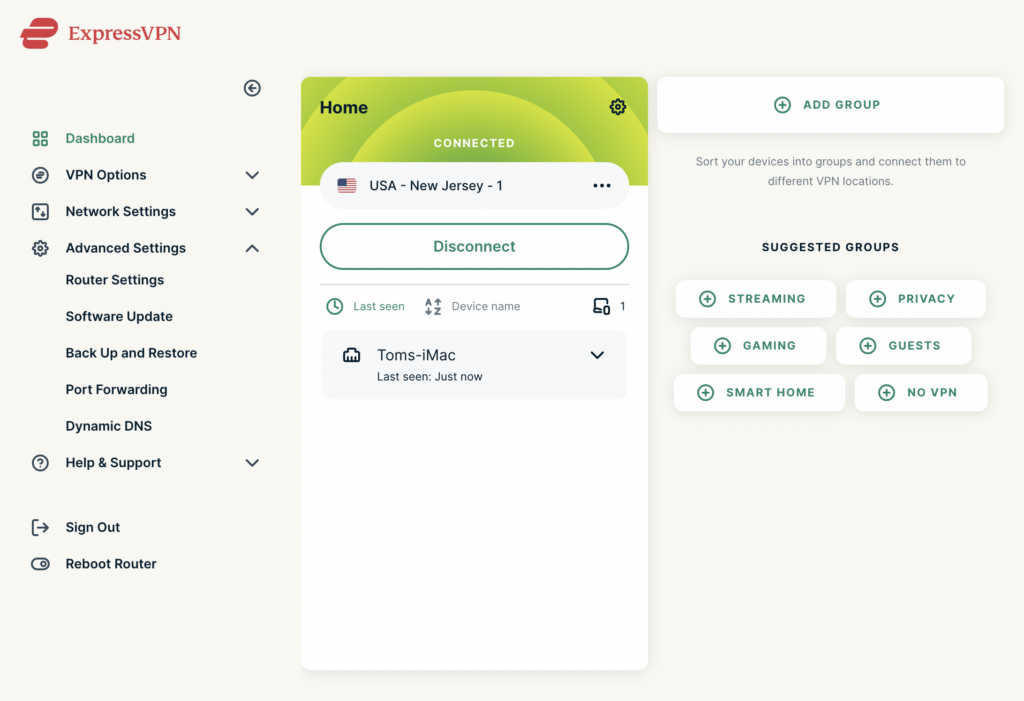
8. Your ExpressVPN FlashRouter is now fully setup!
Router FAQs
 Router FAQs
What is an IP Address?
An IP (Internet Protocol) Address is a numerical assignment for each device (cell phone, iPad, laptop computer, printer etc) inside a network that uses the Internet Protocol for communication. Internet Protocol is responsible for routing information packets across network boundaries. It is the main protocol establishing the Internet.
An IP address serves two predominant functions. First is to host or network interface identification. Second, it provides location addressing. To put it bluntly, an IP address tells wherever you are connecting, to whom you are visiting, and where you are located.
What is DNS?
DNS (Domain Name System) is a protocol within the TCP/IP protocol that uses a set of standards for how computers exchange data on the Internet and on many private networks.
The basic job of DNS is to convert a user-friendly domain name into an IP address that computers use to identify one another. Think of DNS like your cellphone contact list; you tap the name and the phone contacts to a phone number.
It is easier to remember flashrouters.com, rather than its IP address. Imagine if you had to remember all of the IP addresses of your favorite websites!
What is DNSMasq?
DNSMasq is a local DNS server that speeds up host-name searches from your computer/Internet connection after pressing enter.
Basically, DNSMasq gives the router some advanced enterprise functionality – caching DNS records locally so you have a faster browsing experience. Your computer only has to go to the router instead of repeatedly scouring the web for a commonly visited site.
What is Throughput and How Do I Improve it?
Throughput is the average rate of successful delivery of messages through a network. Simply put, throughput measures the speed of message delivery inside a network. If you think about it in relationship to networks and Internet connections, throughput defines the user experience. The key to a pleasing user experience is uninterrupted service and smooth data transfer.
In order to improve throughput, you should get a router with more memory. If you notice that your network is running slowly due to congestion, you could probably benefit by upgrading your router to one with more memory. FlashMemory and RAM on a router add more room to prevent network congestion and improve throughput.
Most of FlashRouters‘ high-end units come with at least 8 MB of Flash memory and 64 MB of RAM which should be more than capable for providing for the average home users’ or small business will need in the future.
What is PPPoE?
PPPoE stands for Point-to-Point Protocol over Ethernet, a network protocol for encapsulating Point-to-Point Protocol (PPP) frames inside Ethernet frames. It is used mainly with DSL services where individual users connect to a DSL modem over Ethernet.
With PPPoE, users virtually “dial” from one machine to another over an Ethernet network, establish a point-to-point connection and then data packets are securely transported through the connection.
PPPoE offers an Internet service provider (ISP) an easier way to track exactly how much bandwidth you are using in case they want to charge for it in the future.
What is the Difference Between VPN Encryption and Wireless Network Security?
VPN Encryption: If you are connected to the VPN on your home network, then any data that flows over the Internet is entirely encrypted whether you are connected to the Internet either wired or wirelessly. This means that if your Local ISP was trying to see what you are browsing or downloading, they would not be able to see your data.
Wireless Network Security: If you leave your wireless network open or insecure, it does not matter whether Internet traffic is encrypted, because someone can directly see what you are doing on your network, or even worse, can go in and put a wireless password on your network, locking you out. They may also be able to access folders and files on your computer without your control.
Best thing to do is protect your wireless network with a WPA secured password along with your VPN connection.
Are FlashRouters Affected By the Shellshock Bug?
No.
According to our in-house testing and multiple DD-WRT community reports, we have found that the Shellshock vulnerability will not work on with DD-WRT or TomatoUSB installed router. The vulnerability is based on a shell called BASH (Bourne Again Shell) but DD-WRT & Tomato firmware use BusyBox which is confirmed to not have this issue.
Please be advised that if you are using Optware on your DD-WRT router there is a chance that implementation is BASH based. Only used trusted optware on your router.
IPVanish Setup for Privacy Hero
Privacy Hero supports IPVanish VPN through WireGuard (recommended) and OpenVPN. Both are configured in Privacy Hero using the Custom VPN provider option. You will need an active IPVanish VPN subscription and the configuration file for the protocol and server location you select.
Choose your method: WireGuard uses a generated .conf file and generally provides better performance. OpenVPN uses a downloaded .ovpn file plus your IPVanish VPN username and password.
Privacy Hero is cloud-managed. You can sign in and adjust VPN settings from a computer, phone, or tablet connected to any internet connection. You do not need to be on the Privacy Hero WiFi network to configure the router.
Download an IPVanish WireGuard Configuration (Recommended)
Use the WireGuard configuration generator in your IPVanish account to create a server file for your router. A generated WireGuard file contains the connection keys and server details, so keep it private.
- Open the IPVanish account sign-in page and log in.
- Open WireGuard in the account navigation to access the WireGuard Configuration Generator.
- Select your preferred IPVanish server location and choose Generate to download the WireGuard configuration file. Save the downloaded .conf file to the device you are using for setup.
Important: Do not publicly share your WireGuard configuration file. To switch server locations later, generate and upload a new configuration.
Add IPVanish WireGuard to Privacy Hero
- Sign in to the Privacy Hero dashboard at app.privacyhero.com.
- Open the VPN section, select Change beside the provider, and choose Custom.
- Choose WireGuard and upload the IPVanish .conf file you just generated.
- Click Save to apply the settings. Wait for Privacy Hero to report Connected.

WireGuard authentication is contained in the generated configuration file; there is no separate OpenVPN username/password step in this method.
Download an IPVanish OpenVPN Configuration File
OpenVPN is a good alternative if WireGuard is unavailable or fails to connect on your network. It requires an IPVanish .ovpn configuration file and VPN login credentials.
- Open the IPVanish OpenVPN server configuration list.
- Download an .ovpn file for your preferred available server location. If IPVanish provides both UDP and TCP files, start with UDP and keep a TCP file as a fallback.
- Have your IPVanish account username and password available for the OpenVPN setup. Use the credentials accepted by your IPVanish VPN account; these are not Privacy Hero login credentials.
If the linked server directory has changed, check the latest manual OpenVPN configuration downloads offered by IPVanish before selecting a file.
Add IPVanish OpenVPN to Privacy Hero
- Sign in at app.privacyhero.com and open VPN.
- Select Change, choose Custom, and select OpenVPN.
- Upload the IPVanish .ovpn file you downloaded.
- Enter your IPVanish username and password in the Custom OpenVPN fields. Do not enter the Privacy Hero account login.
- Click Save and wait for the connection status to show Connected.

Tip: If OpenVPN UDP times out or cannot connect, try an available IPVanish OpenVPN TCP configuration or another server location.
Verify Your IPVanish VPN Connection
After Privacy Hero displays Connected, verify that a device on the router is actually using IPVanish.
- Connect the device you want to test to the Privacy Hero WiFi or LAN network.
- Temporarily disconnect any IPVanish app, other VPN app, or device-level VPN connection on that device so you test the router VPN alone.
- Open a new private/incognito browser window and visit IPVanish What Is My IP Address.
- Confirm that your public IP address and approximate location correspond to the VPN server you selected.
Note: Privacy Hero settings can be managed remotely, but the device used for this IP test must be on the Privacy Hero network.
Streaming Relocation and Your VPN Location
If Streaming Relocation is enabled for a supported streaming service, that service may use the configured Streaming Relocation location instead of the IPVanish server location. See Privacy Hero Streaming Relocation.
IPVanish Not Connecting?
If Privacy Hero remains on Connecting, displays Failed, or reports a timeout, check the following:
- Make sure your IPVanish subscription is active and that Custom is selected as the VPN provider in Privacy Hero.
- For WireGuard, generate a fresh configuration from your IPVanish account and upload that .conf file again.
- For OpenVPN, confirm your IPVanish username/password and upload a fresh .ovpn file for a different server.
- Try a different server location. With OpenVPN, also try switching between available UDP and TCP files.
- Temporarily disable the Privacy Hero VPN connection and test normal internet access. If enabled, temporarily turn off the VPN Kill Switch for this test, then restore your preferred Kill Switch setting.
- Check whether a device-level VPN app, private DNS, proxy, or security software is interfering with the router VPN connection.
VPN Disconnected and No Internet?
The VPN Kill Switch can intentionally block internet access when the VPN disconnects. Review Privacy Hero VPN Kill Switch Setup.
VPN Connected but One Device Shows the Wrong IP?
If only one device shows an unexpected IP address, look for another VPN app, iCloud Private Relay, Private DNS, browser proxy/DNS settings, or security software on that device. See Device Settings That Can Interfere With Your Router VPN.
Related Privacy Hero Guides
ProtonVPN Setup Guide for GL.iNet Routers
You can connect to ProtonVPN on your GL.iNet router using Wireguard or OpenVPN.
Quick Options
-
Wireguard: Download your preferred server .conf configuration file from the ProtonVPN website.
-
OpenVPN: Download your preferred server .ovpn configuration file from the ProtonVPN website.
 If you are not already a ProtonVPN user Sign Up Now.
1. Login to your ProtonVPN account and go to the Downloads section of your ProtonVPN account page
2. Scroll down to find the WireGuard configuration section. Name your configuration and then select Router as the platform, and select Standard server configs.
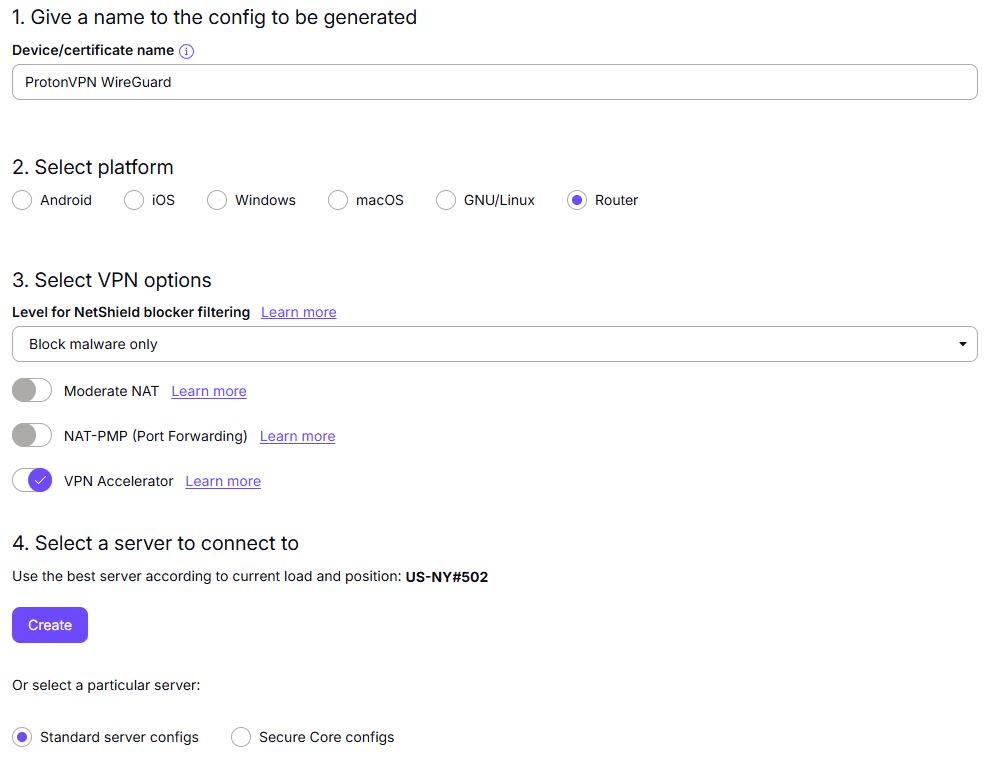
3. Click Create button to choose the recommended server or scroll down to choose and Download any of the available server files from the list.

4. Login to GL.iNet firmware settings (usually 192.168.8.1) in a browser on any computer or smart device connected to the GL.iNet FlashRouter’s network.
View our guide for more instructions on how to access GL.iNet firmware settings.
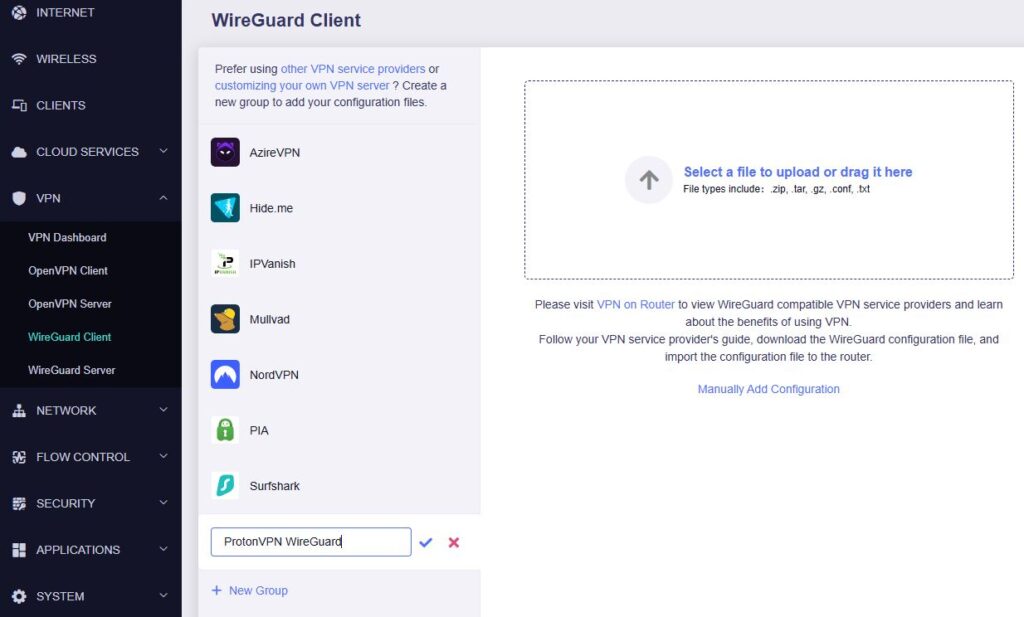
5. Navigate to the VPN tab and select WireGuard Client then click + New Group and name your connection and click the check to save.
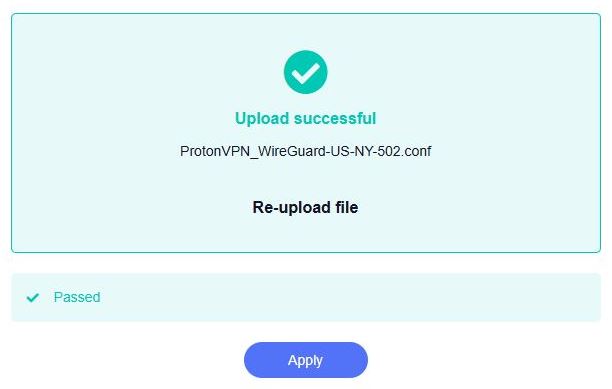
6. Upload the configuration file and click Apply.
7. Start a connection by clicking the 3 dots (…) > Start next to your chosen server.
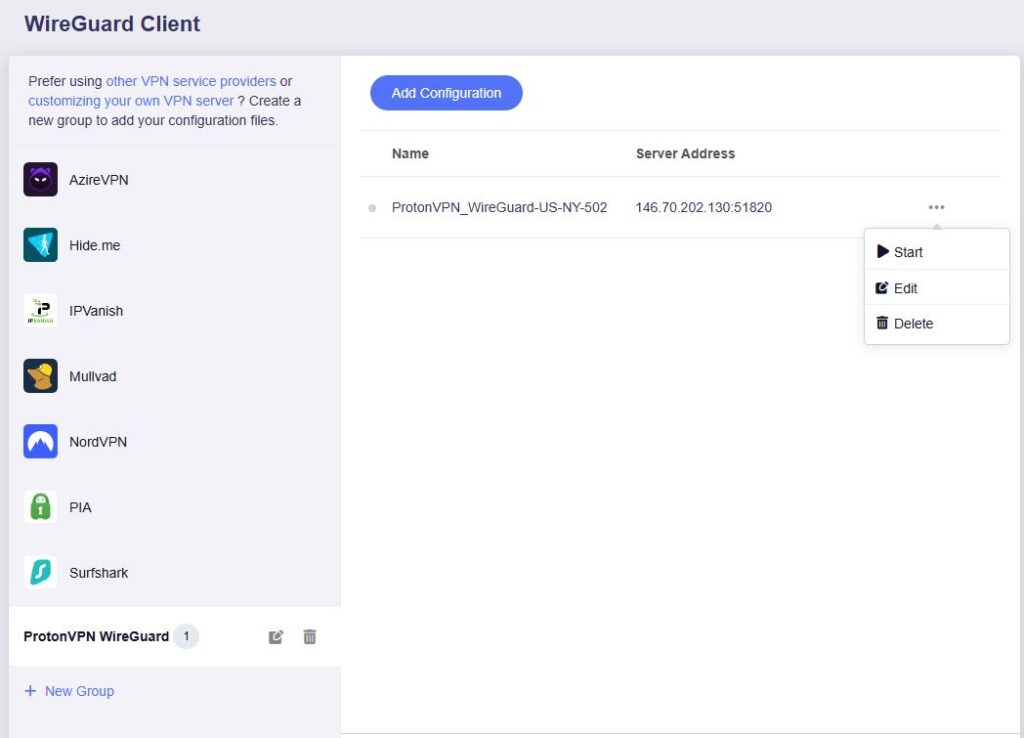
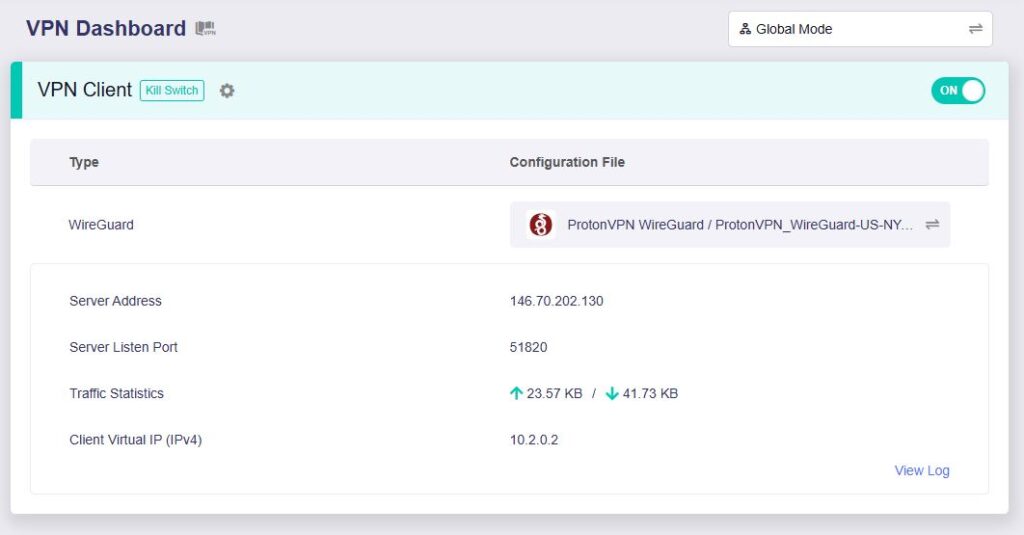
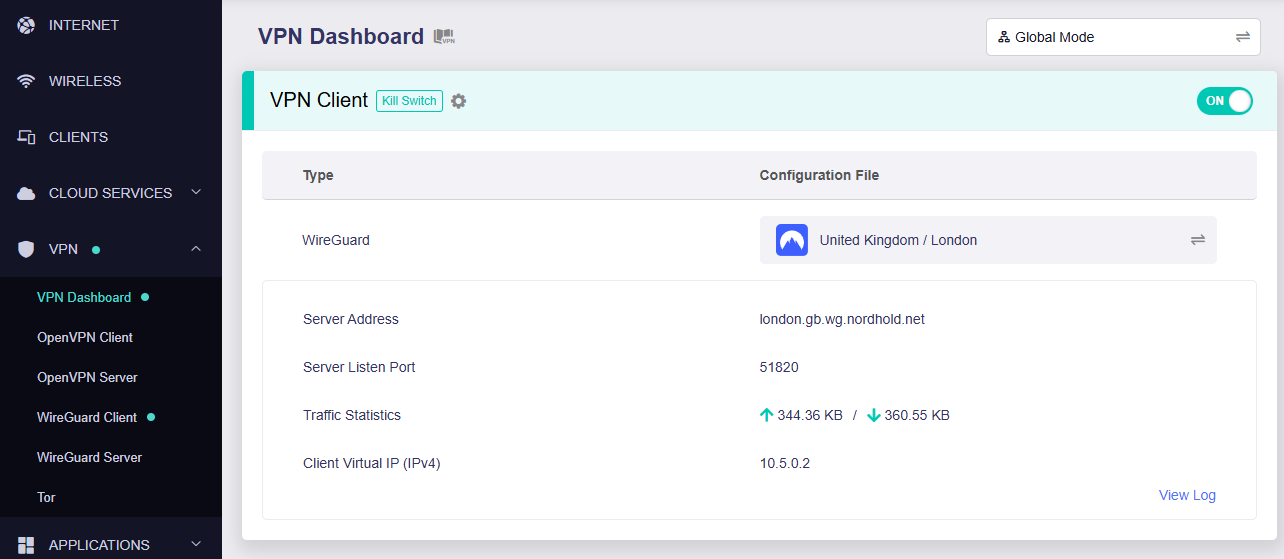
8. A green dot confirms success. You can also switch between Global Mode or Policy Mode for routing in the VPN Dashboard.
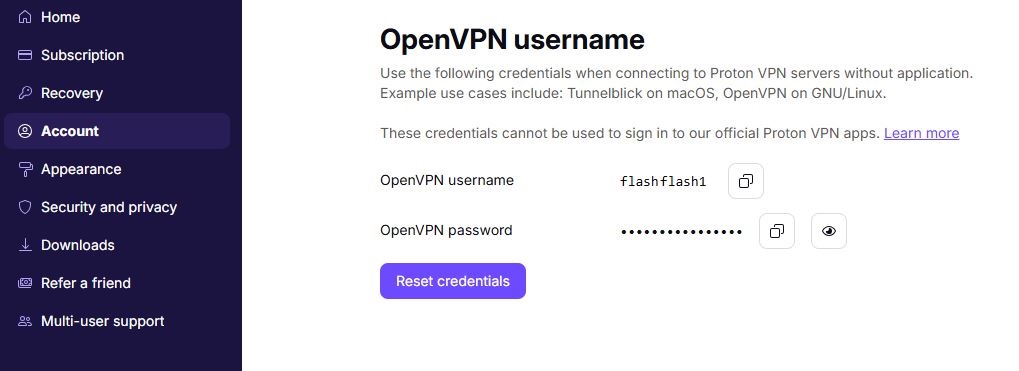
1. Log in to your ProtonVPN account and navigate to the Account tab. Scroll down to find your OpenVPN specific Username and Password.
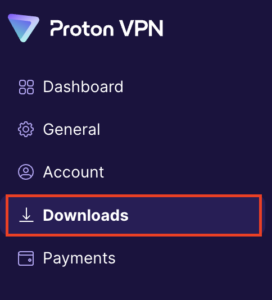
2. Go to the Downloads section of your ProtonVPN account page
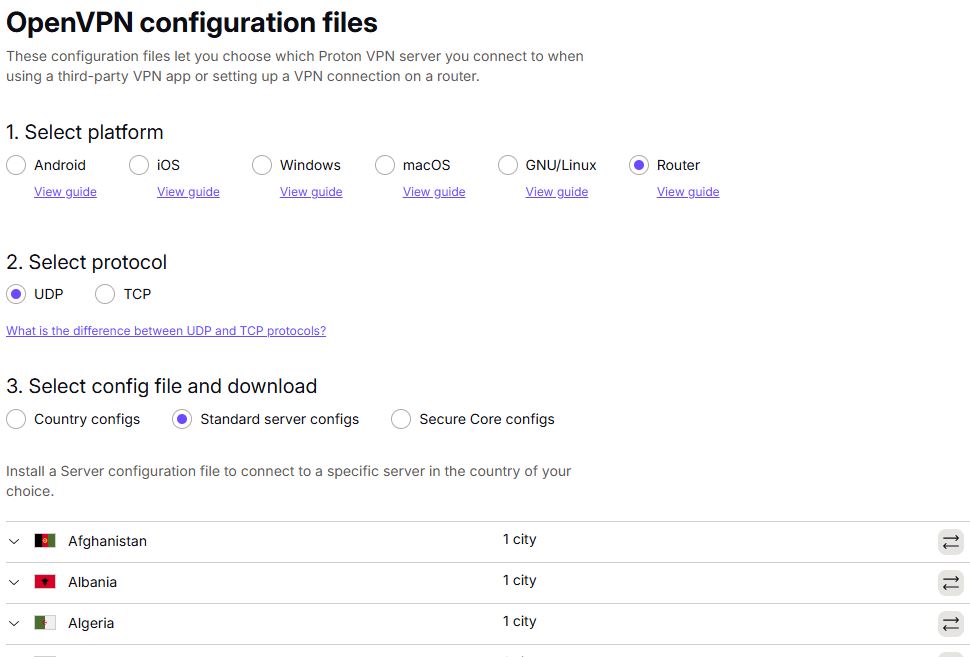
3. Scroll down to find the OpenVPN configuration Files. Select Router as the platform, UDP as the protocol, and select Standard server configs. Choose your preferred country and download the configuration file.
4. Login to GL.iNet firmware settings (usually 192.168.8.1) in a browser on any computer or smart device connected to the GL.iNet FlashRouter’s network.
View our guide for more instructions on how to access GL.iNet firmware settings.
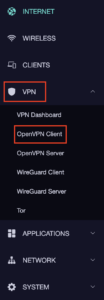
5. Navigate to the VPN tab and select OpenVPN Client.
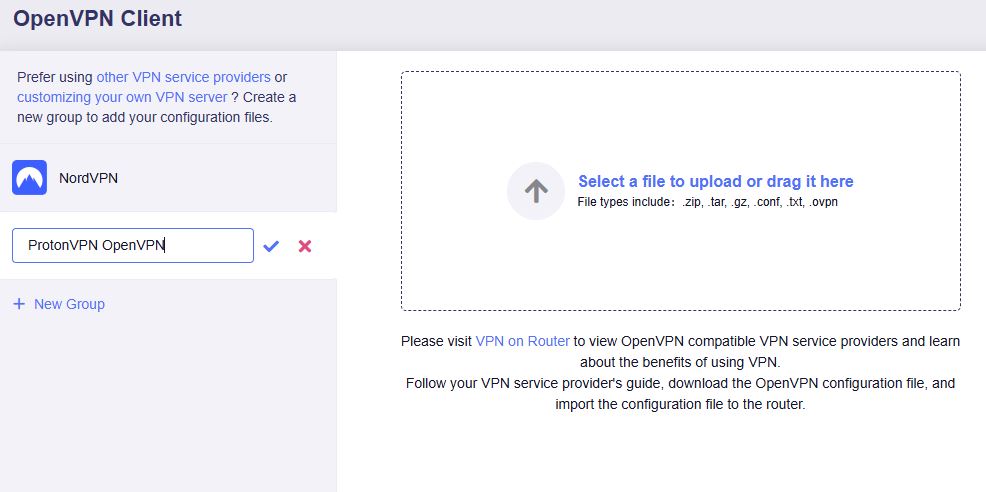
6. Select Add Manually then click + New Group and name your connection and click the check to save.
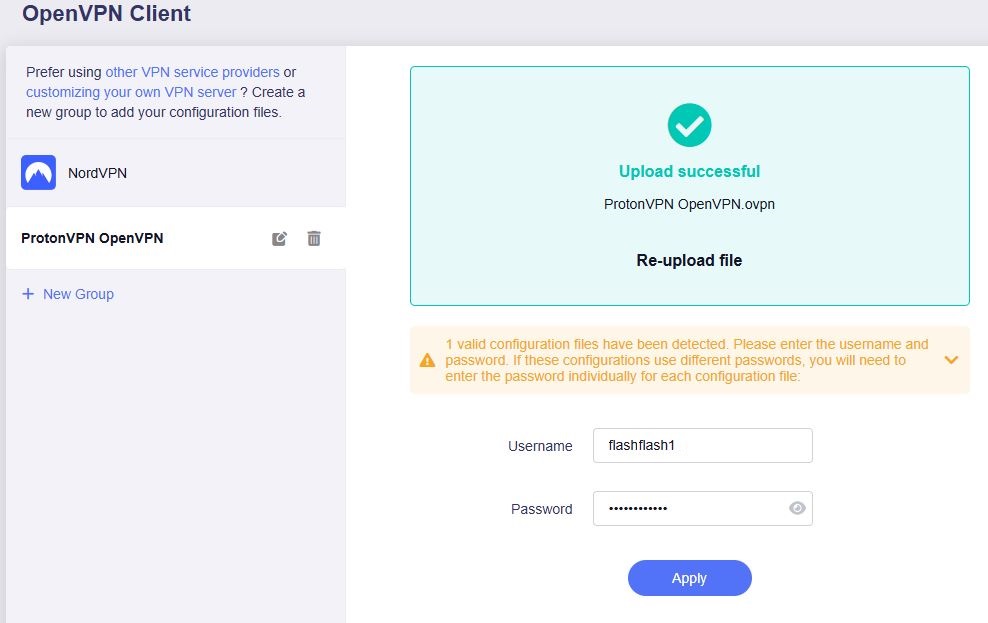
7. Upload the configuration file and input your username and password, click Apply.
8. Start a connection by clicking the 3 dots (…) > Start next to your chosen server.
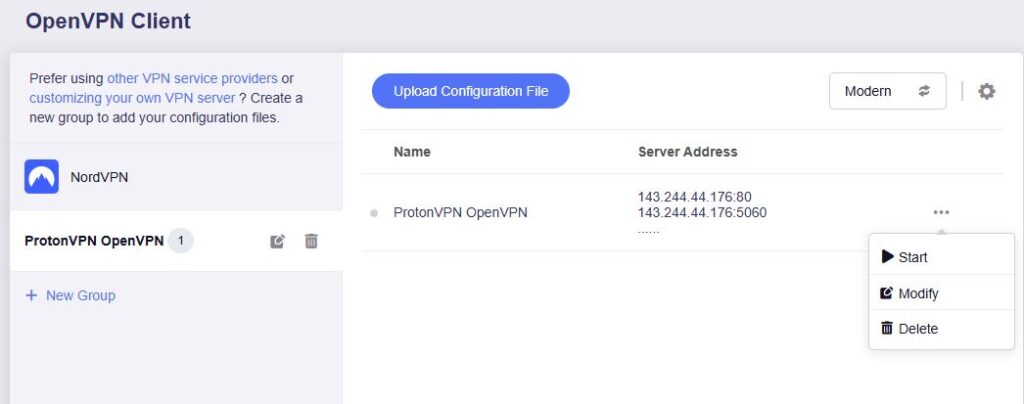
9. A green dot confirms success. You can also switch between Global Mode or Policy Mode for routing in the VPN Dashboard.
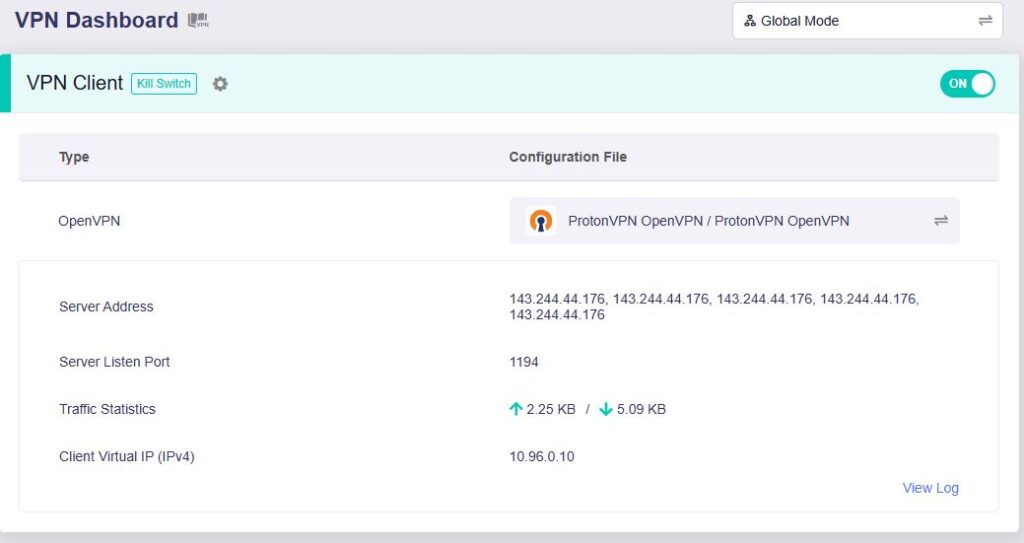
- You should now see information appear in the Server Address, Server Listen Port, Traffic Statistics, and Client Virtual IP areas.
- Visit ProtonVPN’s IP Check to verify your new IP address and virtual location.
In some cases you may notice that the location is not showing the same location as the server you have input in your router settings; this is because geo tracking tools are often tricked by VPN connections. As long as you see an IP address that is not the same as your normal Internet IP address then you are indeed connected to ProtonVPN.
🚫📱Do not run ProtonVPN apps on devices connected to your ProtonVPN router. Using the app at the same time as the router VPN may cause conflicts and connection issues.
NordVPN Setup for GL.iNet Routers
You can connect to NordVPN on your GL.iNet router using NordLynx, OpenVPN, or a Dedicated IP.
Quick Options
-
NordLynx: Choose your preferred city or country from NordVPN’s server list
-
OpenVPN: Choose your preferred city or country from NordVPN’s server list.
-
Dedicated IP (optional): Enter your unique configuration file if you’ve been assigned a static NordVPN IP.
If you are not already a NordVPN user Sign Up Now.
1. Get your NordVPN Access Token for NordLynx connections. Log in to your NordVPN account and select NordVPN from your list of Services.
2. At the bottom of the page click Get Access token and you will receive a code via email. Enter this code to proceed.

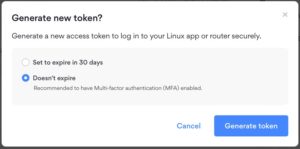
3. After you enter the email code select Generate new token and set it to Doesn’t expire. Copy this token.
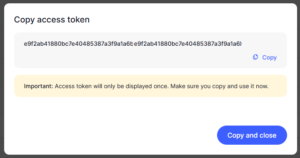
4. Login to GL.iNet firmware settings (usually 192.168.8.1) in a browser on any computer or smart device connected to the GL.iNet FlashRouter’s network.
View our guide for more instructions on how to access GL.iNet firmware settings.
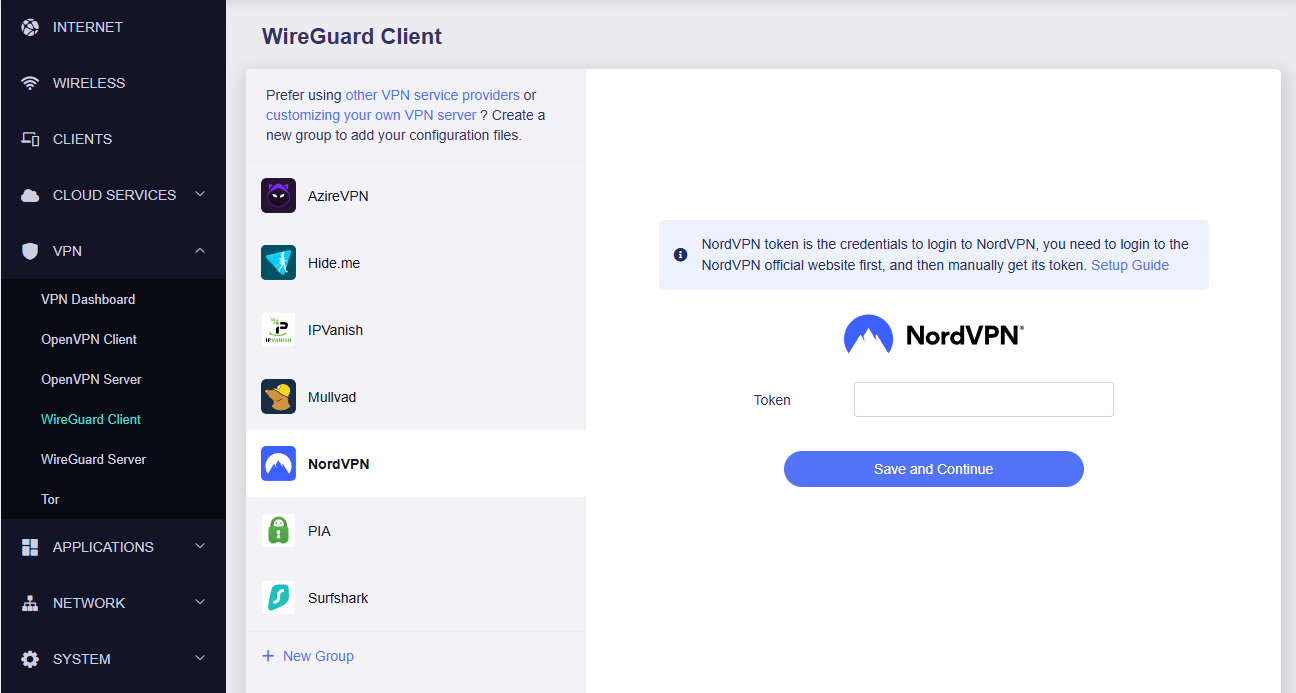
5. Navigate to the VPN tab and select Wireguard Client then choose NordVPN. Enter your Token then click Save and Continue
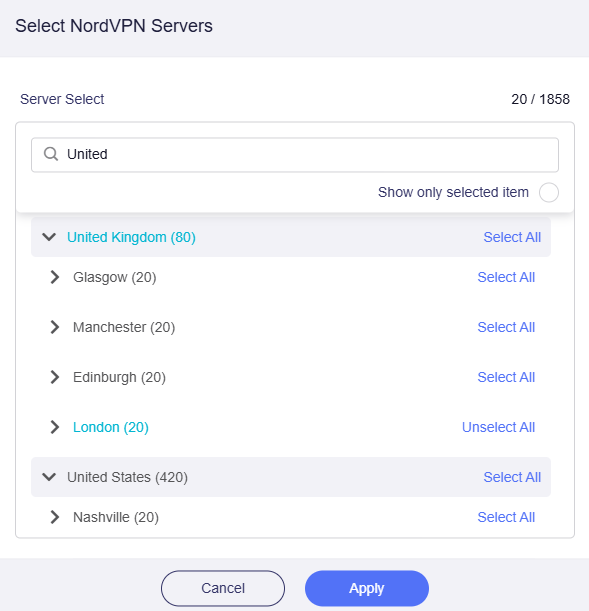
6. Select your preferred server locations, and click Apply.
7. Start a connection by clicking the 3 dots (…) > Start next to your chosen server.
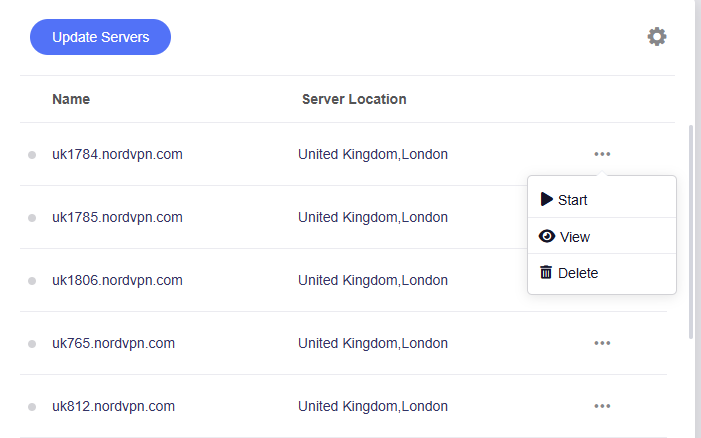
8. A green dot confirms success. You can also switch between Global Mode or Policy Mode for routing in the VPN Dashboard.
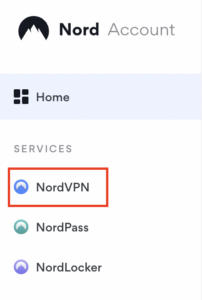
1. Get your NordVPN manual service credentials for OpenVPN connections. Log in to your NordVPN account and select NordVPN from your list of Services.
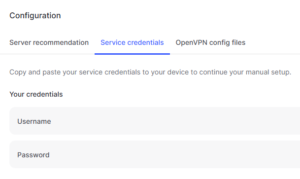
2. At the bottom of the page in the Manual Setup section click Setup NordVPN manually then under the Configuration section go to Service credentials. Click Verify email to receive a code via email and enter the code to view and copy your credentials.

3. Login to GL.iNet firmware settings (usually 192.168.8.1) in a browser on any computer or smart device connected to the GL.iNet FlashRouter’s network.
View our guide for more instructions on how to access GL.iNet firmware settings.
4. Navigate to the VPN tab and select OpenVPN Client.
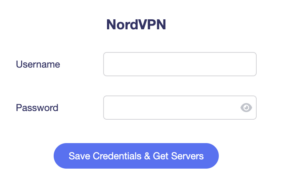
5. Select the NordVPN group, enter your manual credentials, then click Save Credentials & Get Servers.
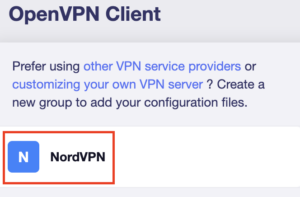
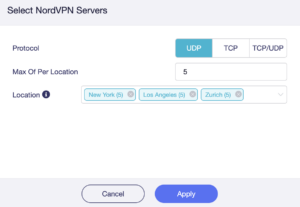
6. Choose UDP (recommended), select your preferred server locations, and click Apply.
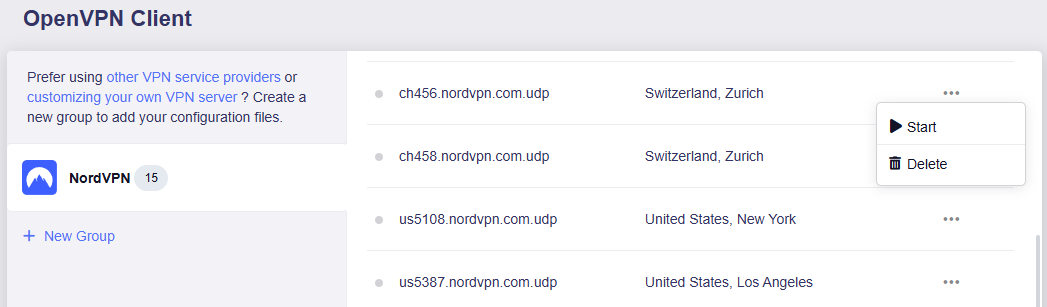
7. Start a connection by clicking the 3 dots (…) > Start next to your chosen server.
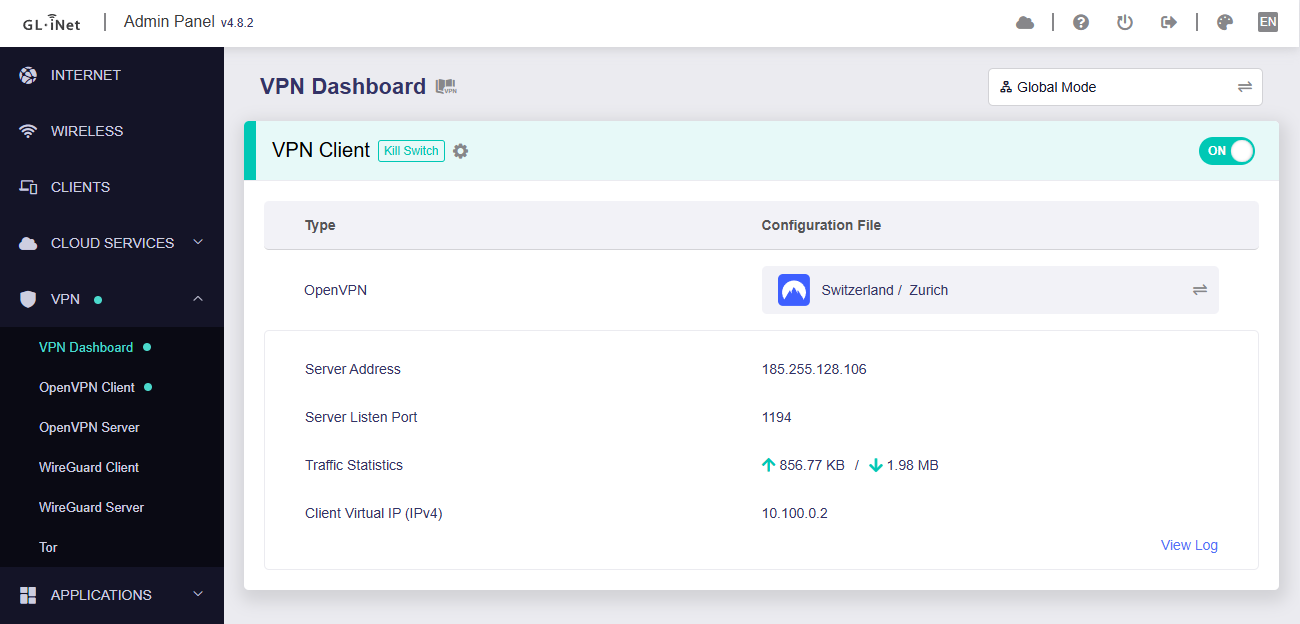
8. A green dot confirms success. You can also switch between Global Mode or Policy Mode for routing in the VPN Dashboard.
1. Get your NordVPN manual service credentials for OpenVPN connections. Log in to your NordVPN account and select NordVPN from your list of Services.
2. At the bottom of the page in the Manual Setup section click Setup NordVPN manually then under the Configuration section go to Service credentials. Click Verify email to receive a code via email and enter the code to view and copy your credentials.
3. Login to GL.iNet firmware settings (usually 192.168.8.1) in a browser on any computer or smart device connected to the GL.iNet FlashRouter’s network.
View our guide for more instructions on how to access GL.iNet firmware settings.
4. Navigate to the VPN tab and select OpenVPN Client.
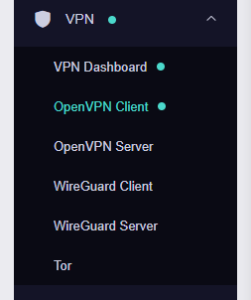
5. Download your Dedicated IP configuration file from the NordVPN website.
6. Click +New Group and name your NordVPN Dedicated IP connection, then upload the configuration file, enter your manual service credentials and click Apply.
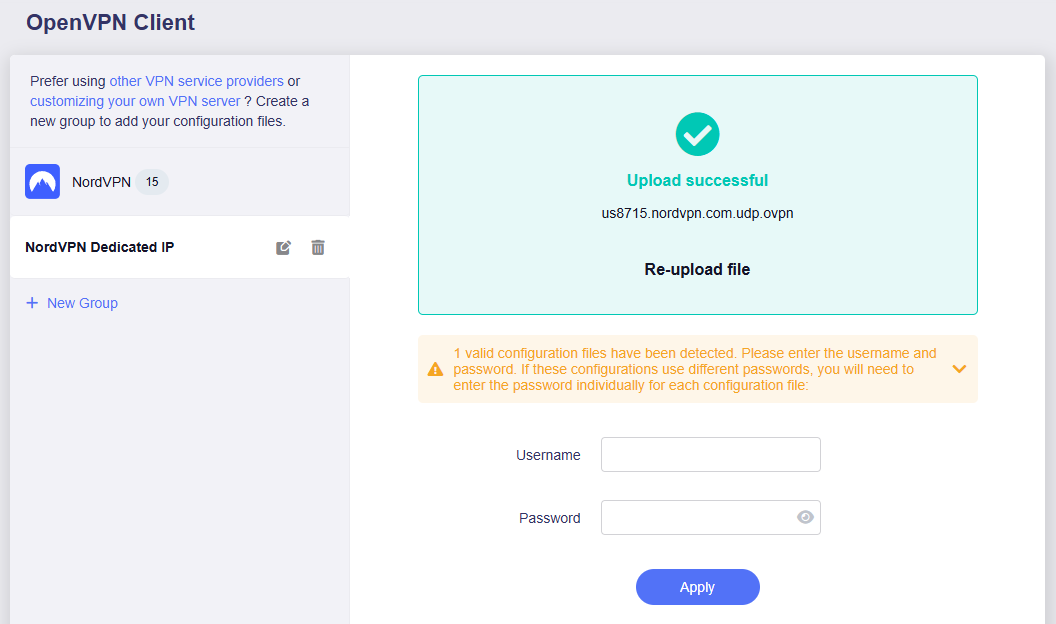
7. Start a connection by clicking the 3 dots (…) > Start next to your chosen server.
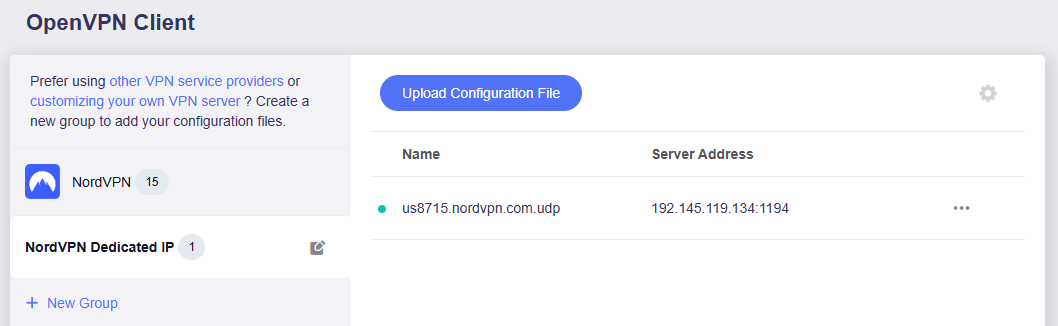
8. A green dot confirms success. You can also switch between Global Mode or Policy Mode for routing in the VPN Dashboard.
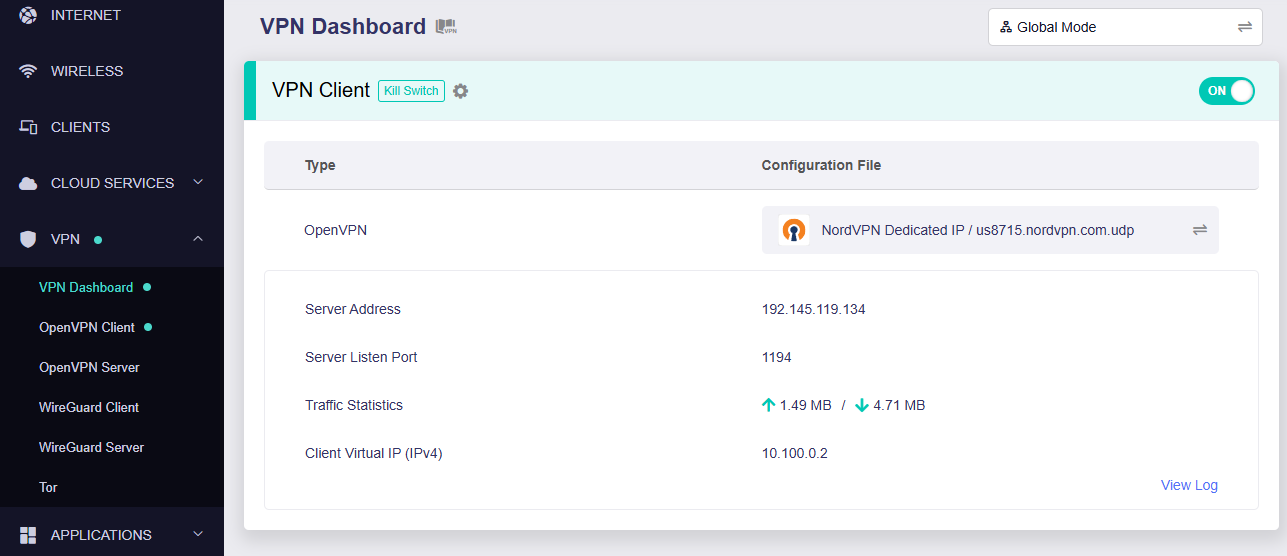
- You should now see information appear in the Server Address, Server Listen Port, Traffic Statistics, and Client Virtual IP areas.
- Visit NordVPN’s IP Check to verify your new IP address and virtual location.
In some cases you may notice that the location is not showing the same location as the server you have input in your router settings; this is because geo tracking tools are often tricked by VPN connections. As long as you see an IP address that is not the same as your normal Internet IP address then you are indeed connected to NordVPN.
🚫📱Do not run NordVPN apps on devices connected to your NordVPN router. Using the app at the same time as the router VPN may cause conflicts and connection issues.
Getflix SmartDNS Setup
Getflix offers a SmartDNS service for unblocking geo-restricted content without the encryption of a VPN service. SmartDNS routes DNS servers to different regions which “tricks” the website to allow access to previously restricted content.
SmartDNS does not change your IP Address or provide the encryption that a VPN connection does. This can result in faster speeds and unblocked content.
SmartDNS and VPN should not both be configured at the same time. When using a SmartDNS connection make sure to disable your VPN connection on the FlashRouter.
Login to Getflix
If you are not already a Getflix user Sign Up Now.

Login to Getflix’s website login page.
Visit Getflix’s DNS servers list page and note the DNS servers of the location you would like to access content from.

Enter Getflix SmartDNS servers on your FlashRouter
Navigate to Setup > Basic Setup
- Scroll down to Network Address Server Settings (DHCP).
- Enter in any combination of Getflix SmartDNS servers you noted into Static DNS fields 1 and 2.
- Click Apply Settings at the bottom of the page.
- Reboot the FlashRouter.
Register your IP Address
When the router is fully booted back up visit your Getflix user dashboard and make sure your IP Address is registered with Getflix. If it is not click Force IP Update.

Once you are successfully registered you can now access your desired regional content on any device that connects to the FlashRouter’s network.
Surfshark Setup for Privacy Hero
Privacy Hero supports Surfshark through WireGuard and OpenVPN using the Custom VPN provider option.
WireGuard is recommended for most users. It requires a Surfshark WireGuard key pair and a downloaded server configuration file. OpenVPN uses a downloaded .ovpn file and Surfshark’s separate Manual Setup credentials, not your usual Surfshark login email and password.
Privacy Hero is cloud-managed. You can change these settings from any computer, smartphone, or tablet with an internet connection; you do not need to be on the Privacy Hero WiFi to configure the VPN.
Surfshark WireGuard Setup (Recommended)
WireGuard uses a key pair for authentication. A separate Surfshark username and password is not needed for the WireGuard configuration.
Create or Select Your Surfshark WireGuard Key Pair
- Sign in to your Surfshark account.
- Open VPN → Manual Setup, choose the Router setup option, and select WireGuard.
- If you already registered a key pair with Surfshark, select I have a key pair and follow the prompts to register your public key. Otherwise, select I don’t have a key pair.
- If generating a new key pair, enter a name and choose Generate a new key pair. Save the generated keys securely when prompted.
Important: Your WireGuard private key is sensitive. Do not publish or send it in a support ticket. Surfshark notes that you may not be able to view the generated keys again after leaving that screen.
Download a Surfshark WireGuard Server File
- After setting up the key pair, select Choose a location or open the Locations section.
- Choose an available Surfshark server and download its WireGuard configuration file to your device.
Do not download the WireGuard configuration before setting up the key pair. Surfshark warns that a file downloaded too early can be missing the required key information. For more detail, see Surfshark’s manual WireGuard router instructions.
Upload WireGuard to Privacy Hero
- Open app.privacyhero.com and log in to your Privacy Hero account.
- Open the VPN section, click Change, and choose Custom as the VPN provider.
- Select WireGuard and upload the Surfshark WireGuard configuration file you downloaded.
- Click Save and allow Privacy Hero to establish the connection. Confirm the VPN status shows Connected.
Surfshark OpenVPN Setup
OpenVPN is an alternative to WireGuard. It requires a Surfshark Manual Setup username and password and a downloaded OpenVPN configuration (.ovpn) file.
Get Your Surfshark OpenVPN Credentials
- Sign in to your Surfshark account.
- Open VPN → Manual Setup, choose Router, and select OpenVPN.
- Open the Credentials tab. If credentials are not yet available, select Generate credentials.
- Copy the Manual Setup username and password, or keep the tab open to enter them into Privacy Hero later.
Important: These are not your regular Surfshark website email and password. Keep the service credentials private.
Download a Surfshark OpenVPN Server File
- In Surfshark’s OpenVPN Manual Setup area, open the Locations tab.
- Select a country or server and download its UDP .ovpn configuration file. UDP is the recommended starting option; a TCP configuration may be worth trying later if needed.
Download a new .ovpn file whenever you want to switch to a different Surfshark server location. See Surfshark’s manual server selection instructions.
Upload OpenVPN to Privacy Hero
- Open app.privacyhero.com, sign in, and select the VPN section.
- Click Change, select Custom, and choose OpenVPN.
- Upload the Surfshark UDP .ovpn file you downloaded.
- Enter the Surfshark Manual Setup username and password into the Custom OpenVPN fields.
- Click Save, then confirm the VPN status shows Connected.
Verify Your Surfshark Connection
Privacy Hero showing Connected confirms the router connection status. Test a device on the Privacy Hero network to confirm it is using Surfshark.
- Connect your device to the Privacy Hero WiFi or LAN.
- Disconnect the Surfshark app or any other VPN app running directly on the testing device.
- Open a fresh private/incognito browser window.
- Visit Surfshark’s IP address checker.
- Confirm the displayed public IP and approximate location correspond to your selected Surfshark server.
You can change Privacy Hero settings while using another WiFi network or cellular data, but the device performing this VPN IP test must be connected to Privacy Hero. Avoid running a separate VPN app on the same testing device, as that creates a double-VPN connection.
Streaming Relocation and Your VPN Location
When Streaming Relocation is enabled for a supported streaming service, that service may use its Streaming Relocation region instead of the Surfshark VPN server region. See Privacy Hero Streaming Relocation.
Surfshark Not Connecting?
If Privacy Hero displays Failed, remains on Connecting, or reports a timeout, try these steps:
- Confirm your Surfshark subscription is active and that Custom is selected as the VPN provider in Privacy Hero.
- If using WireGuard, confirm that the key pair was created or registered before downloading the server file. If necessary, generate a new key pair, download a fresh configuration, and upload it again.
- If using OpenVPN, double-check your separate Surfshark Manual Setup username and password, not your regular website login.
- Download a fresh server configuration for another available Surfshark location and try again.
- If OpenVPN UDP continues to fail, try a Surfshark TCP .ovpn configuration file to check for a protocol-specific issue.
- Temporarily disable the VPN Kill Switch while checking whether internet access works without the VPN, then restore your preferred Kill Switch setting.
No Internet After Surfshark Disconnects?
The VPN Kill Switch may intentionally block normal internet traffic when the VPN connection is unavailable. See Privacy Hero VPN Kill Switch: No Internet or WiFi Troubleshooting.
VPN Connected but One Device Shows the Wrong IP?
If other Privacy Hero devices display the expected Surfshark VPN IP, review the affected device for VPN apps, iCloud Private Relay, Private DNS, proxy settings, antivirus filtering, or other security software. See Device Settings That Can Interfere With Your Router VPN.
Related Privacy Hero Guides
IPVanish AsusWRT OpenVPN Setup
Preparing for IPVanish AsusWRT Setup
Download your IPVanish .ovpn file
If you are not already an IPVanish user Sign Up Now.
1. Log in to your account on the IPVanish website.

2. Successfully log in with your account information then go to IPVanish .ovpn file page.
3. Click on the .ovpn file for the server location you want to use to dowloand the .ovpn file. Do not open this file.

AsusWRT Router Setup for IPVanish
Login to AsusWRT firmware settings in a browser on any computer or smart device connected to the AsusWRT FlashRouter’s network.
1. Navigate to the VPN tab.

2. Navigate to the VPN Fusion tab.

3. Click Add profile.

4. In the Connection Name field enter in the name you’d like to use for this OpenVPN Client profile. We typically advise entering in the location or server number here. Our example server was in New York so I have entered in IPVanish New York.
5. In the VPN Type dropdown select OpenVPN.
6. Click Import .ovpn file and select the .ovpn file you downloaded earlier. Then click Upload.
7. In the Username and Password fields paste in the IPVanish email and password you use to successfully login to your IPVanish website account.
8. Click Apply and Enable at the bottom of the page.

If you only want certain devices to connect to the OpenVPN Client profile you are setting up instead of all the devices connected to the FlashRouter’s network click into the profile and disable Apply to all devices. Then click Devices and select the devices that you want to connect to VPN.


9. At the top of the page set the Service State toggle to ON to activate the VPN connection.

Verify a successful IPVanish connection
- You should now see a CONNECTED message.
- Visit IPVanish’s IP Check to verify your new IP address and virtual location.
In some cases you may notice that the location is not showing the same location as the server you have input in your router settings; this is because geo tracking tools are often tricked by VPN connections. As long as you see an IP address that is not the same as your normal Internet IP address then you are indeed connected to IPVanish.
How to change the IPVanish server
- Follow the steps at the top of the page to obtain a new .ovpn file.
- Then proceed with the settings same as initial setup.
ExpressVPN Merlin OpenVPN Setup
Preparing for ExpressVPN Merlin Setup
Obtain your ExpressVPN OpenVPN Information
If you are not already an ExpressVPN user Sign Up Now.
1. Log in to your account on the ExpressVPN website.

2. Successfully log in with your account information. Select More.

3. Select Manual Configuration and copy the Username and Password that are displayed on the right hand side of the screen.


4. Click the Server Location that you want to connect to. This will download a .ovpn file to your computer that we will use later on. There is no need to open the file. For this example I have selected New York but feel free to select any server listed there.

Merlin Router Setup for ExpressVPN
Login to Asus Merlin firmware settings in a browser on any computer or smart device connected to the Merlin FlashRouter’s network.
1. Navigate to the VPN tab.
2. Navigate to the VPN Client tab.

3. Click Choose file and select the .ovpn file you downloaded earlier. Then click Upload.

4. Set Automatic Start at boot time to Yes if you want the VPN connection to begin automatically when the router is powered off and back on.

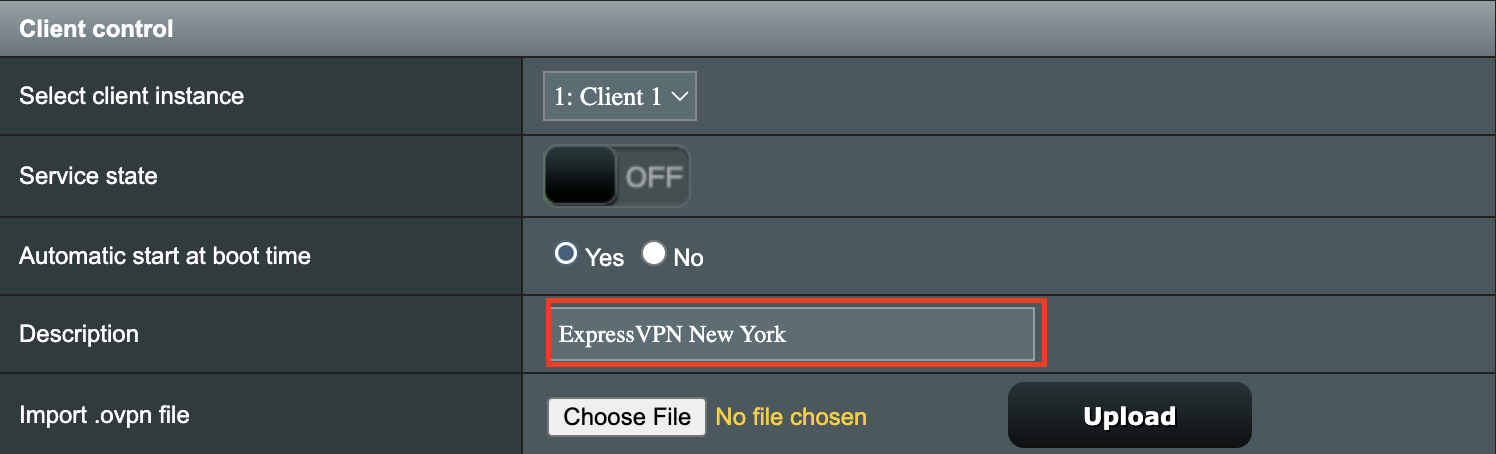
5. In the Description field enter in the name you’d like to use for this OpenVPN Client profile. We typically advise entering in the location or server number here. Our example server was in New York so I have entered in ExpressVPN New York.
6. Set Accept DNS Configuration to Strict. Set Redirect Internet traffic through tunnel to Yes (all). Set Kill Switch to Yes or No depending on if you want the Internet to be killed if the VPN connection drops.
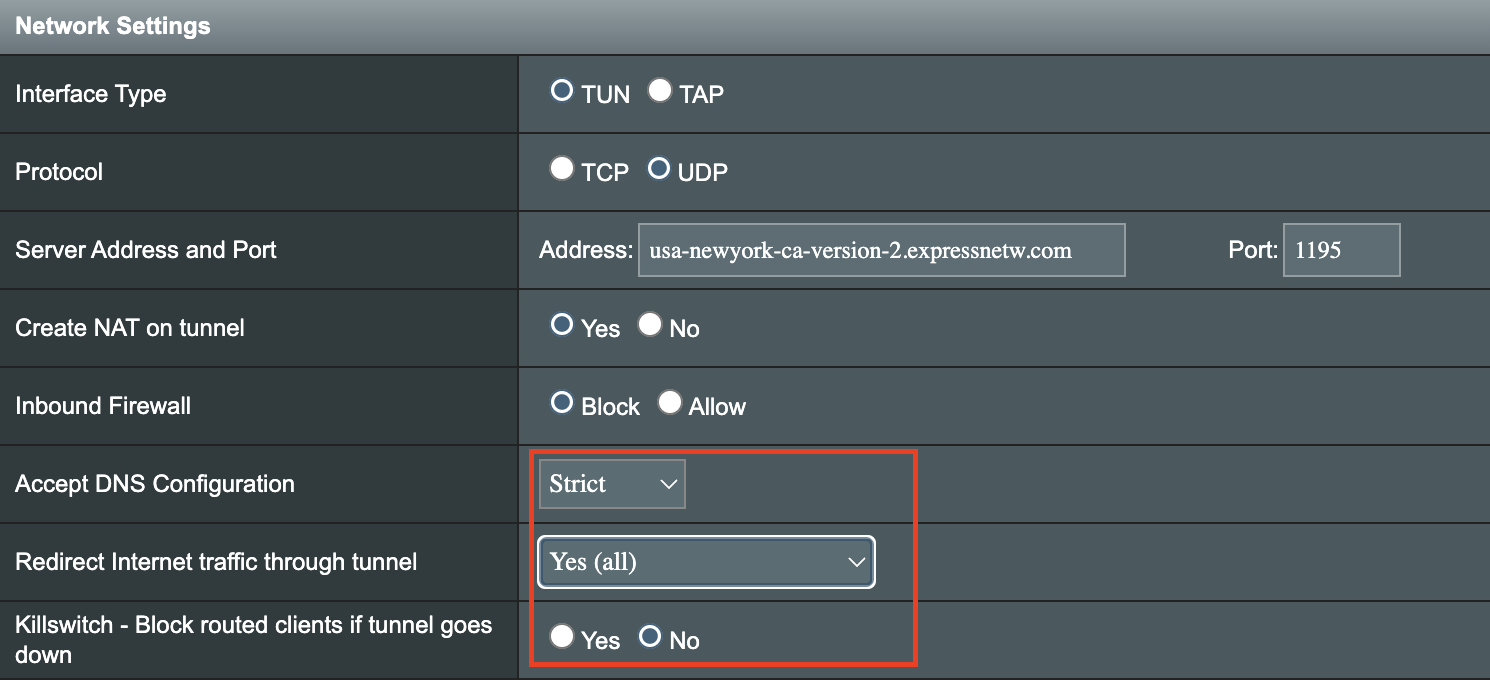
If you only want certain devices to connect to the OpenVPN Client profile you are setting up instead of all the devices connected to the FlashRouter’s network please set the Redirect Internet traffic through tunnel to VPN Director. Then complete the instructions on this page and then view our VPN Director guide.
7. Enter your ExpressVPN username and password that you obtained earlier in the Username and Password. Note that these are different from your ExpressVPN email login and password.

8. Click Apply at the bottom of the page.
9. At the top of the page set the Service State toggle to ON to activate the VPN connection.

Verify a successful ExpressVPN connection
- You should now see a CONNECTED message.
- Visit ExpressVPN’s IP Check to verify your new IP address and virtual location.
In some cases you may notice that the location is not showing the same location as the server you have input in your router settings; this is because geo tracking tools are often tricked by VPN connections. As long as you see an IP address that is not the same as your normal Internet IP address then you are indeed connected to ExpressVPN.
How to change the ExpressVPN server
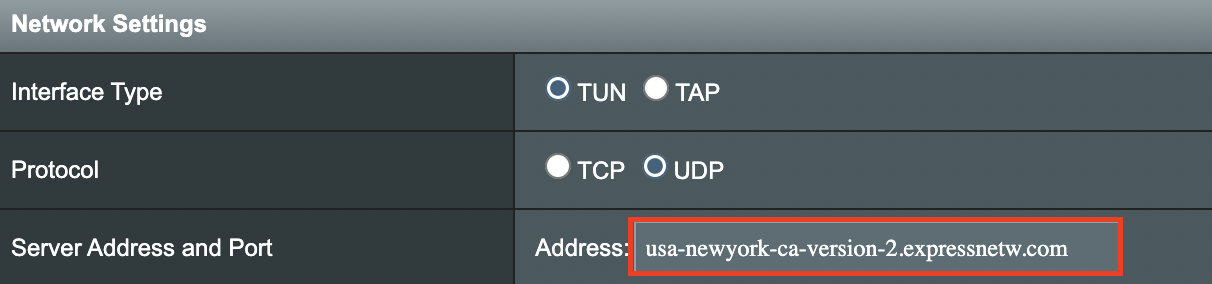
- Copy the new ExpressVPN server address from the below server list.
- Paste the server into the Server Address field.
- Click Apply at the bottom of the page.
ExpressVPN Server Addresses
Americas
usa-atlanta-ca-version-2.expressnetw.com
usa-boston-ca-version-2.expressnetw.com
usa-chicago-ca-version-2.expressnetw.com
usa-dallas-ca-version-2.expressnetw.com
usa-dallas-2-ca-version-2.expressnetw.com
usa-denver-ca-version-2.expressnetw.com
usa-kansascity-ca-version-2.expressnetw.com
usa-losangeles-ca-version-2.expressnetw.com
usa-losangeles-1-ca-version-2.expressnetw.com
usa-losangeles-2-ca-version-2.expressnetw.com
usa-losangeles-3-ca-version-2.expressnetw.com
usa-los-angeles-4-ca-version-2.expressnetw.com
usa-miami-ca-version-2.expressnetw.com
usa-miami-2-ca-version-2.expressnetw.com
usa-minneapolis-ca-version-2.expressnetw.com
usa-newjersey-1-ca-version-2.expressnetw.com
usa-newjersey-3-ca-version-2.expressnetw.com
usa-newyork-ca-version-2.expressnetw.com
us-new-york-2-ca-version-2.expressnetw.com
usa-phoenix-ca-version-2.expressnetw.com
usa-saltlakecity-ca-version-2.expressnetw.com
usa-sanfrancisco-ca-version-2.expressnetw.com
usa-sanjose-ca-version-2.expressnetw.com
usa-seattle-ca-version-2.expressnetw.com
usa-tampa-1-ca-version-2.expressnetw.com
usa-virginia-ca-version-2.expressnetw.com
usa-washingtondc-ca-version-2.expressnetw.com
usa-washingtondc-2-ca-version-2.expressnetw.com
canada-montreal-ca-version-2.expressnetw.com
canada-toronto-ca-version-2.expressnetw.com
canada-toronto-2-ca-version-2.expressnetw.com
canada-vancouver-ca-version-2.expressnetw.com
mexico-ca-version-2.expressnetw.com
argentina-ca-version-2.expressnetw.com
brazil-ca-version-2.expressnetw.com
brazil-2-ca-version-2.expressnetw.com
chile-ca-version-2.expressnetw.com
colombia-ca-version-2.expressnetw.com
costarica-ca-version-2.expressnetw.com
ecuador-ca-version-2.expressnetw.com
guatemala-ca-version-2.expressnetw.com
panama-ca-version-2.expressnetw.com
peru-ca-version-2.expressnetw.com
uruguay-ca-version-2.expressnetw.com
venezuela-ca-version-2.expressnetw.com
Europe
uk-berkshire-ca-version-2.expressnetw.com
uk-berkshire-2-ca-version-2.expressnetw.com
uk-docklands-ca-version-2.expressnetw.com
uk-east-london-ca-version-2.expressnetw.com
uk-kent-ca-version-2.expressnetw.com
uk-london-ca-version-2.expressnetw.com
france-paris-1-ca-version-2.expressnetw.com
france-paris-2-ca-version-2.expressnetw.com
france-strasbourg-ca-version-2.expressnetw.com
germany-darmstadt-ca-version-2.expressnetw.com
germany-frankfurt-1-ca-version-2.expressnetw.com
germany-frankfurt-2-ca-version-2.expressnetw.com
germany-nuremberg-ca-version-2.expressnetw.com
italy-cosenza-ca-version-2.expressnetw.com
italy-milan-ca-version-2.expressnetw.com
netherlands-amsterdam-ca-version-2.expressnetw.com
netherlands-rotterdam-ca-version-2.expressnetw.com
netherlands-thehague-ca-version-2.expressnetw.com
spain-barcelona-ca-version-2.expressnetw.com
spain-ca-version-2.expressnetw.com
sweden-ca-version-2.expressnetw.com
sweden-2-ca-version-2.expressnetw.com
switzerland-ca-version-2.expressnetw.com
switzerland-2-ca-version-2.expressnetw.com
albania-ca-version-2.expressnetw.com
andorra-ca-version-2.expressnetw.com
armenia-ca-version-2.expressnetw.com
austria-ca-version-2.expressnetw.com
azerbaijan-ca-version-2.expressnetw.com
belarus-ca-version-2.expressnetw.com
belgium-ca-version-2.expressnetw.com
bosniaandherzegovina-ca-version-2.expressnetw.com
bulgaria-ca-version-2.expressnetw.com
croatia-ca-version-2.expressnetw.com
cyprus-ca-version-2.expressnetw.com
czechrepublic-ca-version-2.expressnetw.com
denmark-ca-version-2.expressnetw.com
estonia-ca-version-2.expressnetw.com
finland-ca-version-2.expressnetw.com
georgia-ca-version-2.expressnetw.com
greece-ca-version-2.expressnetw.com
hungary-ca-version-2.expressnetw.com
iceland-ca-version-2.expressnetw.com
ireland-ca-version-2.expressnetw.com
isleofman-ca-version-2.expressnetw.com
jersey-ca-version-2.expressnetw.com
latvia-ca-version-2.expressnetw.com
liechtenstein-ca-version-2.expressnetw.com
lithuania-ca-version-2.expressnetw.com
luxembourg-ca-version-2.expressnetw.com
macedonia-ca-version-2.expressnetw.com
malta-ca-version-2.expressnetw.com
moldova-ca-version-2.expressnetw.com
monaco-ca-version-2.expressnetw.com
montenegro-ca-version-2.expressnetw.com
norway-ca-version-2.expressnetw.com
poland-ca-version-2.expressnetw.com
portugal-ca-version-2.expressnetw.com
romania-ca-version-2.expressnetw.com
serbia-ca-version-2.expressnetw.com
slovakia-ca-version-2.expressnetw.com
slovenia-ca-version-2.expressnetw.com
ukraine-ca-version-2.expressnetw.com
Asia Pacific
australia-brisbane-ca-version-2.expressnetw.com
australia-melbourne-ca-version-2.expressnetw.com
australia-perth-ca-version-2.expressnetw.com
australia-sydney-ca-version-2.expressnetw.com
australia-sydney-2-ca-version-2.expressnetw.com
australia-sydney-3-ca-version-2.expressnetw.com
hongkong-2-ca-version-2.expressnetw.com
hongkong4-ca-version-2.expressnetw.com
hongkong-1-ca-version-2.expressnetw.com
japan-tokyo-1-ca-version-2.expressnetw.com
japan-tokyo-2-ca-version-2.expressnetw.com
india-chennai-ca-version-2.expressnetw.com
india-mumbai-1-ca-version-2.expressnetw.com
singapore-cbd-ca-version-2.expressnetw.com
singapore-jurong-ca-version-2.expressnetw.com
southkorea-ca-version-2.expressnetw.com
southkorea2-ca-version-2.expressnetw.com
bangladesh-ca-version-2.expressnetw.com
bhutan-ca-version-2.expressnetw.com
brunei-ca-version-2.expressnetw.com
cambodia-ca-version-2.expressnetw.com
indonesia-ca-version-2.expressnetw.com
kazakhstan-ca-version-2.expressnetw.com
kyrgyzstan-ca-version-2.expressnetw.com
laos-ca-version-2.expressnetw.com
macau-ca-version-2.expressnetw.com
malaysia-ca-version-2.expressnetw.com
mongolia-ca-version-2.expressnetw.com
myanmar-ca-version-2.expressnetw.com
nepal-ca-version-2.expressnetw.com
newzealand-ca-version-2.expressnetw.com
pakistan-ca-version-2.expressnetw.com
ph-via-sing-ca-version-2.expressnetw.com
srilanka-ca-version-2.expressnetw.com
taiwan-3-ca-version-2.expressnetw.com
thailand-ca-version-2.expressnetw.com
vietnam-ca-version-2.expressnetw.com
Middle East and Africa
algeria-ca-version-2.expressnetw.com
israel-ca-version-2.expressnetw.com
kenya-ca-version-2.expressnetw.com
southafrica-ca-version-2.expressnetw.com
NordVPN Merlin OpenVPN Setup
Preparing for NordVPN Merlin Setup
Obtain your NordVPN manual Username and Password
If you are not already an NordVPN user Sign Up Now.
1. Log in to your account on the NordVPN website.

2. Click NordVPN on the left hand side and then click Setup NordVPN manually.

3. Enter in the verification code that was sent to your email.

4. Copy and paste your NordVPN manual username and password to a secure location. This is the username and password you will enter into the router settings to connect to NordVPN.

Download your NordVPN .ovpn file
1. There are two options for obtaining the .ovpn file. The first and recommended is to navigate to NordVPN’s server recommendation page. Click Recommended Server to display the fastest server based on your actual location. You can adjust the country if you don’t want to connect to the recommended country.
Then click Show Available Protocols. Click Download Config next to OpenVPN UDP. This will download the .ovpn file to your computer for this server. Do not open this file.
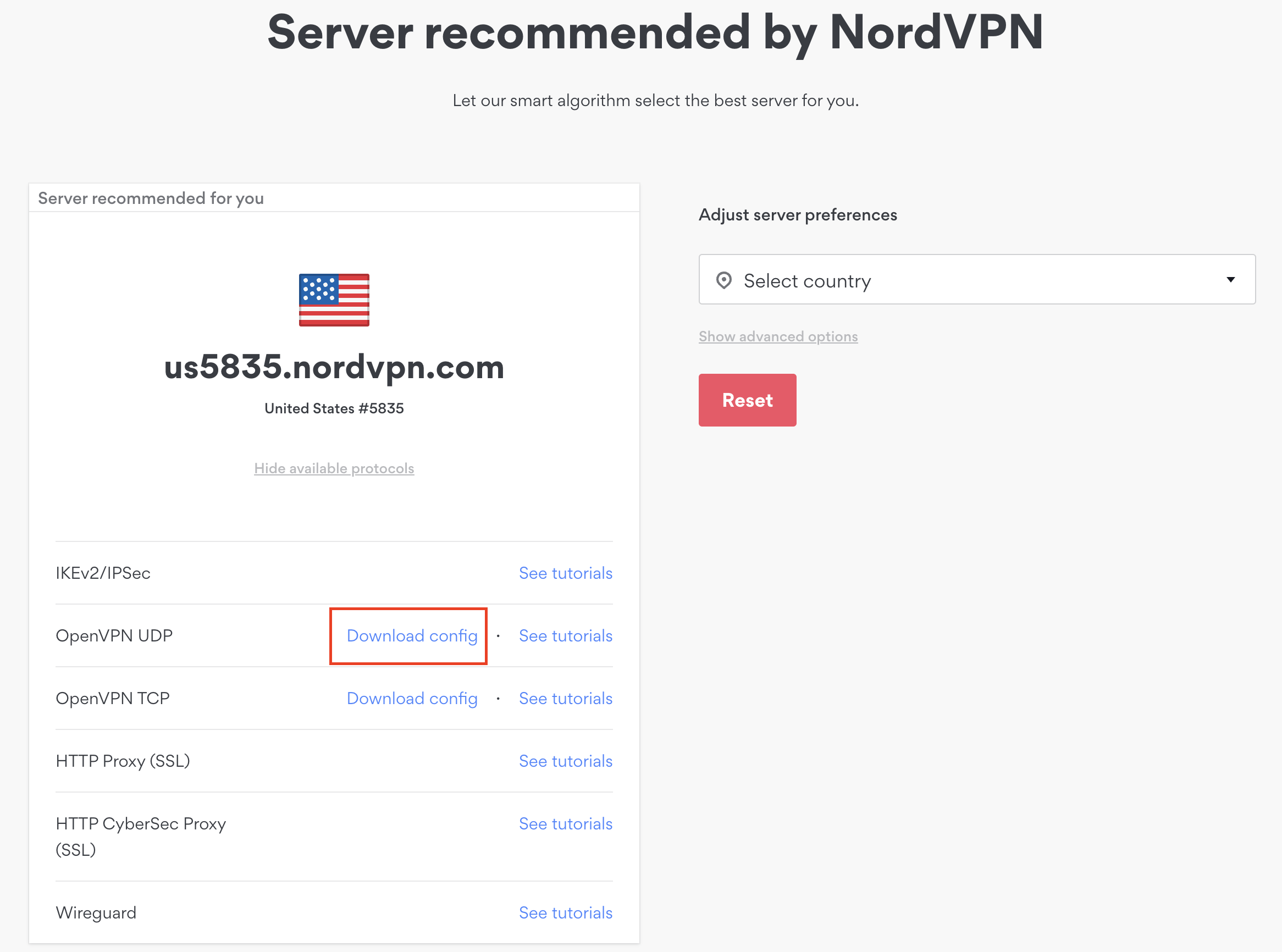
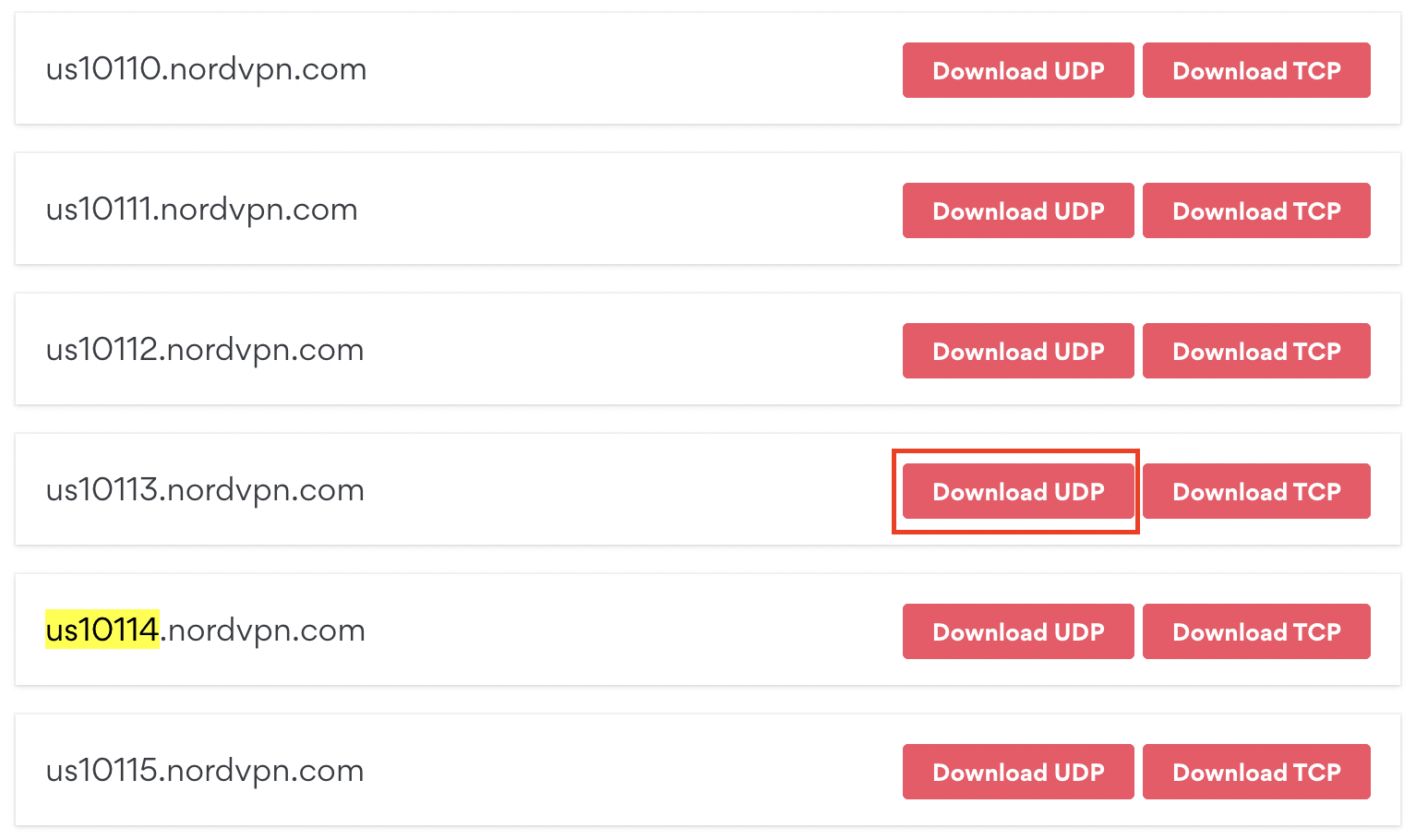
The second method to obtain a server is for connecting to a specific server number that you know you want to use. This applies to NordVPN Dedicated IP servers if you are signed up for that service. Go to NordVPN’s .ovpn file page. Then search for the server number that you want to use and click Download UDP.
Merlin Router Setup for NordVPN
Login to Asus Merlin firmware settings in a browser on any computer or smart device connected to the Merlin FlashRouter’s network.
1. Navigate to the VPN tab.
2. Navigate to the VPN Client tab.
3. Click Choose file and select the .ovpn file you downloaded earlier. Then click Upload.
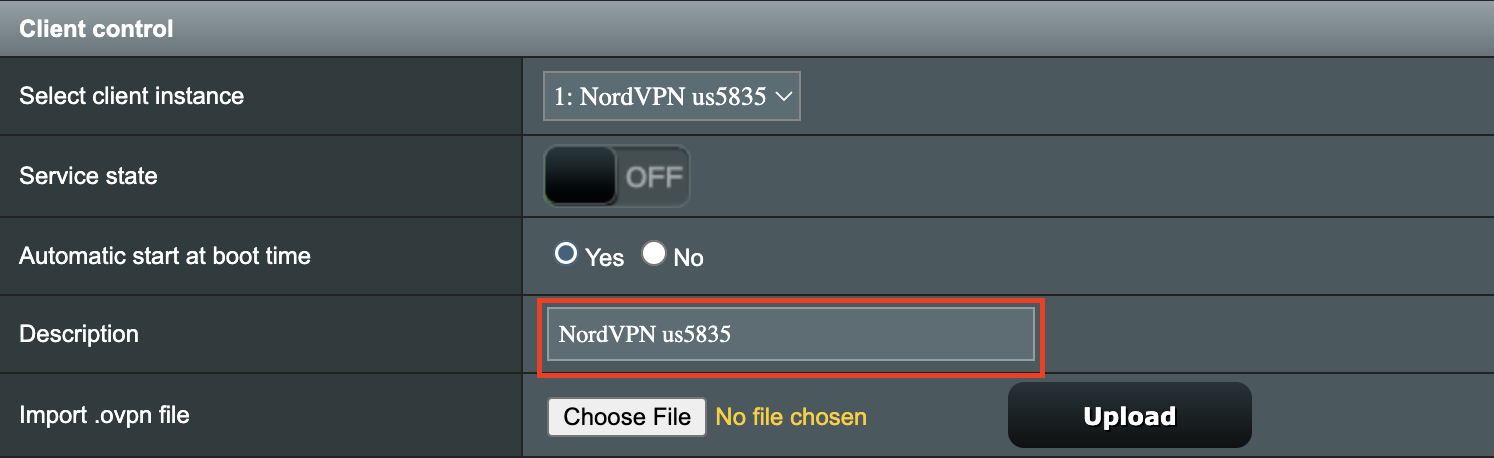
4. Set Automatic Start at boot time to Yes if you want the VPN connection to begin automatically when the router is powered off and back on.
5. In the Description field enter in the name you’d like to use for this OpenVPN Client profile. We typically advise entering in the location or server number here. Our example server was in us5835.nordvpn.com so I have entered in NordVPN us5835.
6. Set Accept DNS Configuration to Strict. Set Redirect Internet traffic through tunnel to Yes (all). Set Kill Switch to Yes or No depending on if you want the Internet to be killed if the VPN connection drops.
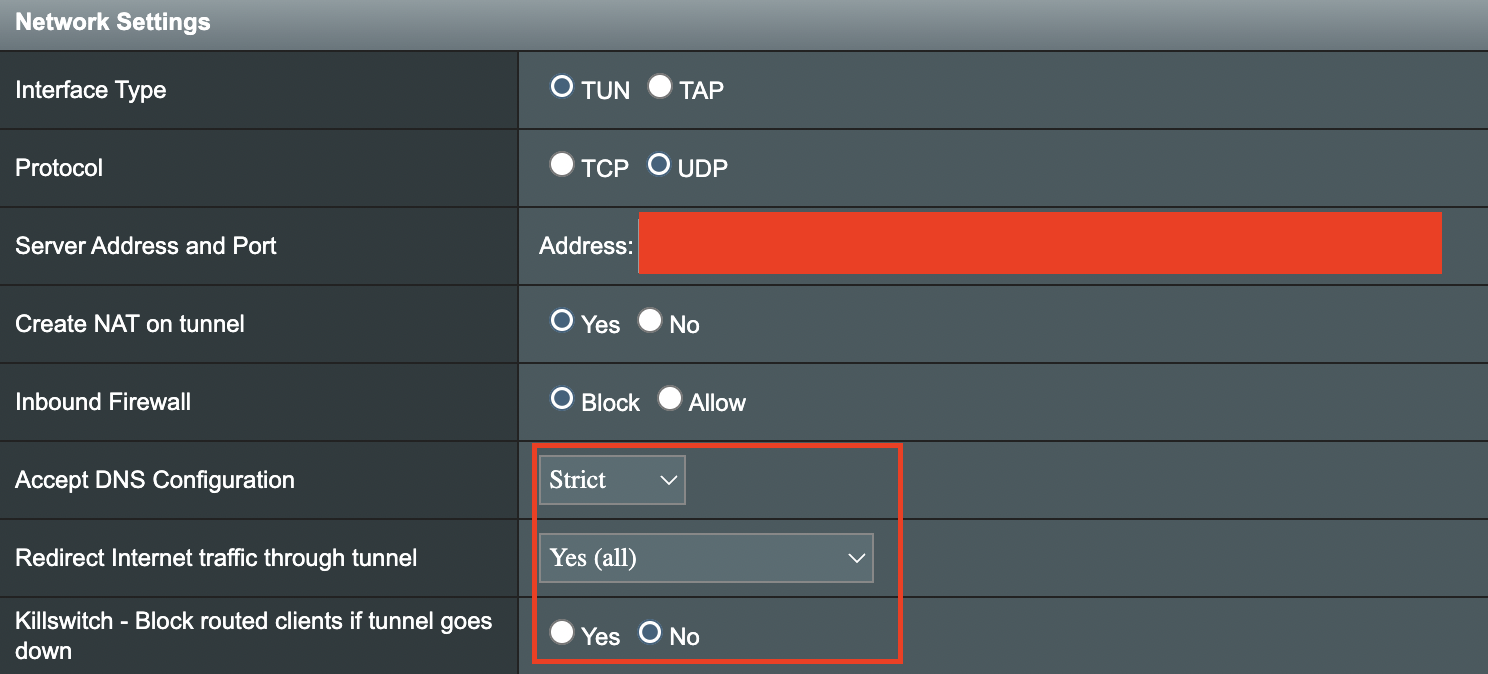
If you only want certain devices to connect to the OpenVPN Client profile you are setting up instead of all the devices connected to the FlashRouter’s network please set the Redirect Internet traffic through tunnel to VPN Director. Then complete the instructions on this page and then view our VPN Director guide.
7. Enter your NordVPN username and password that you obtained earlier in the Username and Password. Note that these are different from your NordVPN email login and password.
8. Click Apply at the bottom of the page.
9. At the top of the page set the Service State toggle to ON to activate the VPN connection.

Verify a successful NordVPN connection
- You should now see a CONNECTED message.
- Visit NordVPN’s IP Check to verify your new IP address and virtual location.
In some cases you may notice that the location is not showing the same location as the server you have input in your router settings; this is because geo tracking tools are often tricked by VPN connections. As long as you see an IP address that is not the same as your normal Internet IP address then you are indeed connected to NordVPN.
How to change the NordVPN server
- Follow the steps at the top of the page to obtain a new .ovpn file.
- Then proceed with the settings same as initial setup.
OverPlay Manual OpenVPN Setup
Preparing for Manual OverPlay Setup
Verify your OverPlay login information
Log in to your account on the OverPlay website.
OverPlay Server Addresses
View a full list of OverPlay servers.
United States
Ashburn:
iad-a01.wlvpn.com
Atlanta:
atl-a01.wlvpn.com
Chicago:
chi-a01.wlvpn.com
Dallas:
dal-a02.wlvpn.com
Las Vegas:
las-c11.wlvpn.com
Los Angeles:
lax-a01.wlvpn.com
Miami:
mia-a01.wlvpn.com
New York:
nyc-a01.wlvpn.com
Phoenix:
phx-a01.wlvpn.com
Salt Lake City:
slc-c01.wlvpn.com
San Jose:
sjc-a01.wlvpn.com
Seattle:
sea-a01.wlvpn.com
DD-WRT Router Setup for OverPlay
Navigate to Services > VPN
Enter OverPlay settings
OpenVPN Client
Start OpenVPN Client
If you wish to disable your VPN connection simply set this to Disable at any time and click Apply Settings.
Server IP/Name
Copy and paste the server you would like to connect to from the server list above. Be sure there are no extra spaces or characters.
If you wish to change OverPlay connection locations, THIS IS THE ONLY FIELD YOU NEED TO CHANGE.
Port
1194 for UDP
443 for TCP
Tunnel Device
TUN
Tunnel Protocol
UDP or TCP
Encryption cipher
AES-256-CBC
Hash Algorithm
SHA256
User Pass Authentication
Enable
Username
Enter the username that you use to login to the OverPlay website. Make sure to add @overplay after your username.
Hint: For example, if your OverPlay username is “flashrouters” enter “flashrouters@overplay” as your username.
Password
Enter the Password you successfully logged in to your OverPlay account with.
Advanced Options
Enable
TLS Cipher
None
LZO Compression
Adaptive
NAT
Enable
Firewall Protection
Enable
Policy Based Routing
This field can be used for split VPN and Dual Gateway routing.
CA Cert
-----BEGIN CERTIFICATE-----
MIIESDCCAzCgAwIBAgIJAKSqvk2CSdJGMA0GCSqGSIb3DQEBBQUAMHUxCzAJBgNV
BAYTAlVTMQwwCgYDVQQIEwNWUE4xDDAKBgNVBAcTA1ZQTjEMMAoGA1UEChMDVlBO
MQwwCgYDVQQLEwNWUE4xDDAKBgNVBAMTA1ZQTjEMMAoGA1UEKRMDVlBOMRIwEAYJ
KoZIhvcNAQkBFgNWUE4wHhcNMTMwNDI1MDIzMjQ3WhcNMjMwNDI3MDIzMjQ3WjB1
MQswCQYDVQQGEwJVUzEMMAoGA1UECBMDVlBOMQwwCgYDVQQHEwNWUE4xDDAKBgNV
BAoTA1ZQTjEMMAoGA1UECxMDVlBOMQwwCgYDVQQDEwNWUE4xDDAKBgNVBCkTA1ZQ
TjESMBAGCSqGSIb3DQEJARYDVlBOMIIBIjANBgkqhkiG9w0BAQEFAAOCAQ8AMIIB
CgKCAQEAyUr2BAz2gHGaXri6rWMpKqcvVTX3IOSLEfBWf1fb2zCwx0+GFMG258Yk
OCiQho/YOX58bJpssGI42OzZitSisTVpXNIBelzGUPdKgx0qURGgDW+7eOySJYCn
1EUncElJCHt1so0SbfdQpxA88VZMH9fFOKtLY5qHHi0drXm/wZy+zW7TfV5Lce04
6vv2M9I5/Ko4zZ5Vh6jTo2VrCQRw8goXB5NAdU5D76lVhWK4Zzt4woI8nRW5Ev3A
WEw5oX85j5B0TY9nEi5j0vNYBuMxf/GiLO8M8LCHPX0HYBiLDjZesJCvuG3vfwnA
Y5CJQqNjufpmnF3ivsaF0dGeo54kWQIDAQABo4HaMIHXMB0GA1UdDgQWBBQXnwHk
vpHSf/lMacKoKshAcGM2qTCBpwYDVR0jBIGfMIGcgBQXnwHkvpHSf/lMacKoKshA
cGM2qaF5pHcwdTELMAkGA1UEBhMCVVMxDDAKBgNVBAgTA1ZQTjEMMAoGA1UEBxMD
VlBOMQwwCgYDVQQKEwNWUE4xDDAKBgNVBAsTA1ZQTjEMMAoGA1UEAxMDVlBOMQww
CgYDVQQpEwNWUE4xEjAQBgkqhkiG9w0BCQEWA1ZQToIJAKSqvk2CSdJGMAwGA1Ud
EwQFMAMBAf8wDQYJKoZIhvcNAQEFBQADggEBADAbNIIHF5vtCA+69/oipQ6niZit
Q+mnCNX5bxiF4xtw9qOQ90vLDc/ocbAGGP4Sub3hEkOoQlv9DHH56HVq1g9+L/Y7
RoneRykZ+GSPj2NlkobrPA7ZxAsLdFwM9Y+Fkql7cAHHLUCKh7H1IKidhTDHPCUj
hs4ZstNRckPd6wxlGGOP/Yf5sVse3pJwa0HyMYhI8pdTVJIHnFSy9vTPjVf3oWiz
Trci0+SkYKQE//5pE5wsYe0uB5wvQJslq/eEWfczg0l9biwJxG/qwxsVBkRgw5q6
defHWGj1eucVyy9fxKMcX89gjstQZDmsINNtG1C78/+nYS65rqaBaq+rqpA=
-----END CERTIFICATE-----
CLICK APPLY SETTINGS
Leave all settings not mentioned above as their default setting.
Verify a successful VPN connection
Navigate to Status > OpenVPN
- You should now see a CONNECTED SUCCESS message.
- Visit OverPlay’s website to verify your new IP address and virtual location.
In some cases you may notice that the location is not showing the same location as the server you have input in your router settings; this is because geo tracking tools are often tricked by VPN connections. As long as you see an IP address that is not the same as your normal Internet IP address then you are indeed connected to OverPlay.
Back up your settings
Navigate to Administration > Backup
- Click the Backup button.
- A file named nvrambak.bin will be saved to your computer.
- You can load nvrambak.bin to restore your settings in the event of a reset.
How to change the OverPlay server
- Copy the new OverPlay server address from the above server list.
- Paste the server into the Server IP/Name field.
- Click Apply Settings.
Privacy Hero Activation and Setup
Follow this article when you receive your new Privacy Hero router to create your Privacy Hero account, connect your Privacy Hero to the Internet, and customize your network so it is ready to use.
Your Privacy Hero router uses Cloud Based router management which means you can access the router settings from anywhere on any device that has an internet connection. You can follow these steps while connected to your phone or your other Wi-Fi network.
Create your Privacy Hero account
1. From any device that has a browser such as a computer, smartphone, or tablet visit app.privacyhero.com

2. Select Create Account.
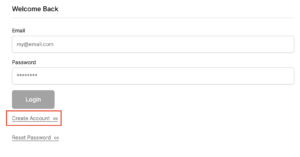
3. Enter the Email address you want to set for your Privacy Hero account. This will be your login to the Privacy Hero settings moving forward. Click Create Account.
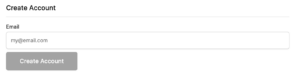
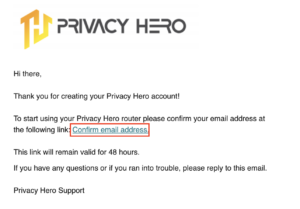
4. Go to your Email inbox and check for an email from Privacy Hero and click the Confirm email address link. This email may be in your Promotions or Spam inbox if it is not appearing in your main inbox.
5. Enter the password that you want to use for your Privacy Hero account. Be sure to note this in a secure location so you do not forget. Click Submit.
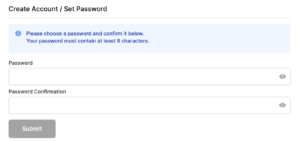
6. You have now created your Privacy Hero account. You will use this login to access the Privacy Hero router settings.
Activate your Privacy Hero Internet and setup Wi-Fi
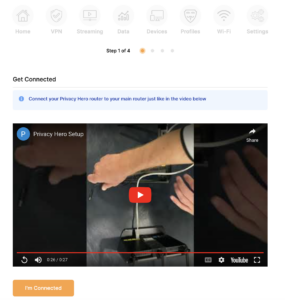
1. You will then be taken to the Router Activation steps. Connect the ethernet cable that the Privacy Hero came with from an open Ethernet port on your ISP modem or other router to the WAN/Internet (blue) port of the Privacy Hero.
Then power the Privacy Hero device on by connecting the power supply. This is shown in the video on the page as well. Wait about a minute or so for the Privacy Hero router to fully boot up and then click I’m Connected.
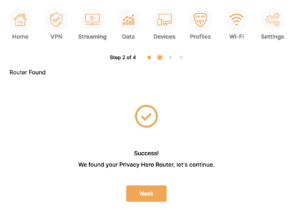
2. The next page may say Router Found or ask you to enter the Activation Code. If it asks for the Activation Code that will be the code printed on the bottom of the Privacy Hero. Enter this code and click Next.
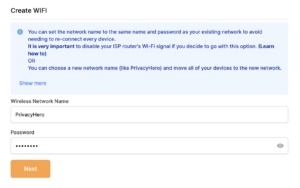
3. Set the Wi-Fi name and password for connecting your devices to the Privacy Hero network. Make sure it is not a duplicate name of an existing Wi-Fi network. Click Next.
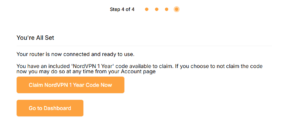
4. To activate your 1 Year NordVPN code:
Click on Claim NordVPN 1 Year Code Now
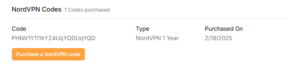
Go to the Account section of your router settings.

Copy the NordVPN code shown under Claim NordVPN 1 Year Code.
Go to the NordVPN activation page.
This code can be used with a new or existing NordVPN account.

5. You are now all set to begin joining your devices to the new Privacy Hero network with the Wi-Fi name and password you entered and setting up some of the Privacy Hero features.
NordVPN Asus AX1800S OpenVPN Setup
Preparing for NordVPN Asus AX1800S Setup
Obtain your NordVPN manual Username and Password
If you are not already an NordVPN user Sign Up Now.
1. Log in to your account on the NordVPN website.
2. Click NordVPN on the left hand side and then click Setup NordVPN manually.
3. Enter in the verification code that was sent to your email.
4. Copy and paste your NordVPN manual username and password to a secure location. This is the username and password you will enter into the router settings to connect to NordVPN.
Download your NordVPN .ovpn file
1. There are two options for obtaining the .ovpn file. The first and recommended is to navigate to NordVPN’s server recommendation page. Click Recommended Server to display the fastest server based on your actual location. You can adjust the country if you don’t want to connect to the recommended country.
Then click Show Available Protocols. Click Download Config next to OpenVPN UDP. This will download the .ovpn file to your computer for this server. Do not open this file.
The second method to obtain a server is for connecting to a specific server number that you know you want to use. This applies to NordVPN Dedicated IP servers if you are signed up for that service. Go to NordVPN’s .ovpn file page. Then search for the server number that you want to use and click Download UDP.
Asus AX1800S Router Setup for NordVPN
Login to Asus firmware settings in a browser on any computer or smart device connected to the FlashRouter’s network.
1. Navigate to the VPN tab.
2. Navigate to the VPN Client tab.
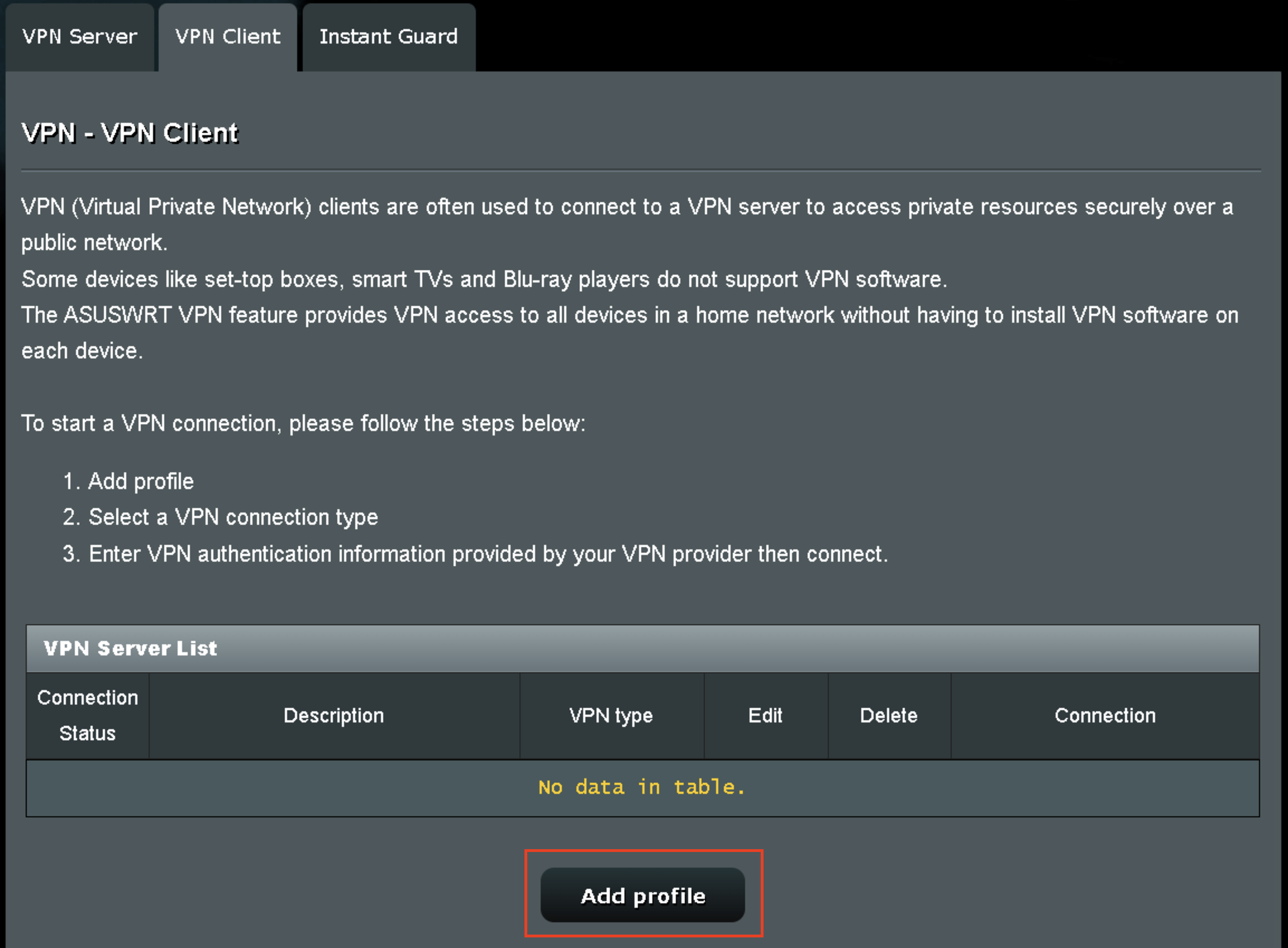
3. Click Add Profile.
4. Click Choose file and select the .ovpn file you downloaded earlier. Then click Upload.
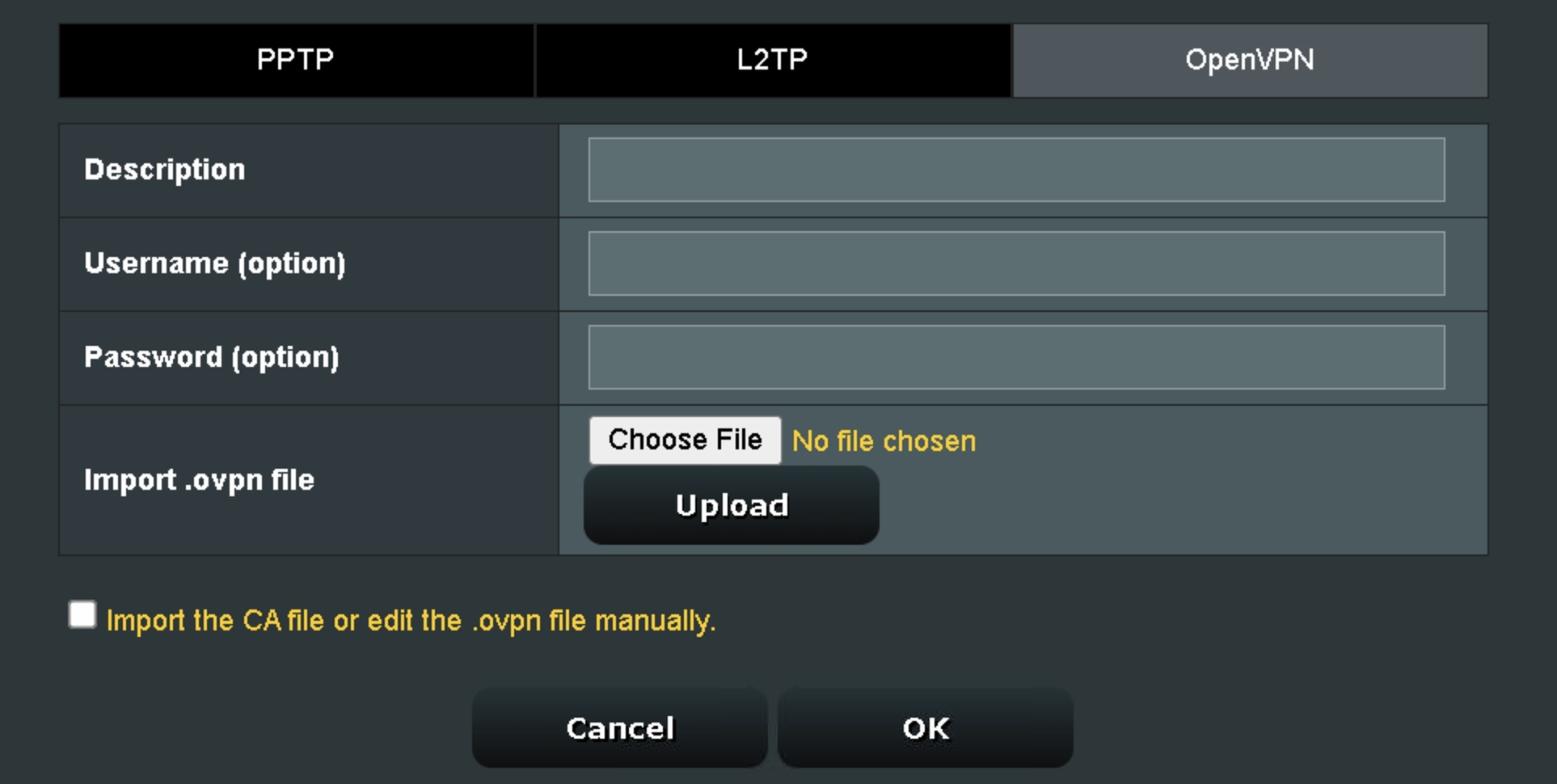
5. In the Description field enter in the name you’d like to use for this OpenVPN Client profile. We typically advise entering in the location or server number here.
6. Enter your NordVPN username and password that you obtained earlier in the Username and Password. Note that these are different from your NordVPN email login and password. Click OK.
7. Click the Activate button.
Verify a successful NordVPN connection
- You should now see a check mark in the Connection Status area.
- Visit NordVPN’s IP Check to verify your new IP address and virtual location.
In some cases you may notice that the location is not showing the same location as the server you have input in your router settings; this is because geo tracking tools are often tricked by VPN connections. As long as you see an IP address that is not the same as your normal Internet IP address then you are indeed connected to NordVPN.
How to change the NordVPN server
- Follow the steps at the top of the page to obtain a new .ovpn file.
- Then proceed with the settings same as initial setup.
- Be sure to deactivate a previously active connection before activating the new one. You do not want to connect to two at the same time.
ExpressVPN Asus AX1800S OpenVPN Setup
Preparing for ExpressVPN Asus AX1800S Setup
Obtain your ExpressVPN OpenVPN Information
If you are not already an ExpressVPN user Sign Up Now.
1. Log in to your account on the ExpressVPN website.
2. Successfully log in with your account information. Select More.
3. Select Manual Configuration and copy the Username and Password that are displayed on the right hand side of the screen.
4. Click the Server Location that you want to connect to. This will download a .ovpn file to your computer that we will use later on. There is no need to open the file. For this example I have selected New York but feel free to select any server listed there.
Asus AX1800S Router Setup for ExpressVPN
Login to Asus firmware settings in a browser on any computer or smart device connected to the FlashRouter’s network.
1. Navigate to the VPN tab.
2. Navigate to the VPN Client tab.
3. Click Add Profile.
4. Click Choose file and select the .ovpn file you downloaded earlier. Then click Upload.
5. In the Description field enter in the name you’d like to use for this OpenVPN Client profile. We typically advise entering in the location or server number here.
6. Enter your ExpressVPN username and password that you obtained earlier in the Username and Password. Note that these are different from your ExpressVPN email login and password.
7. Click the Activate button.
Verify a successful ExpressVPN connection
- You should now see a check mark in the Connection Status area.
- Visit ExpressVPN’s IP Check to verify your new IP address and virtual location.
In some cases you may notice that the location is not showing the same location as the server you have input in your router settings; this is because geo tracking tools are often tricked by VPN connections. As long as you see an IP address that is not the same as your normal Internet IP address then you are indeed connected to ExpressVPN.
How to change the ExpressVPN server
- Follow the steps at the top of the page to obtain a new .ovpn file.
- Then proceed with the settings same as initial setup.
- Be sure to deactivate a previously active connection before activating the new one. You do not want to connect to two at the same time.
ExpressVPN MediaStreamer SmartDNS Setup
ExpressVPN offers a SmartDNS service known as MediaStreamer for unblocking geo-restricted content without the encryption of a VPN service. SmartDNS routes DNS servers to different regions which “tricks” the website to allow access to previously restricted content.
SmartDNS does not change your IP Address or provide the encryption that a VPN connection does. This can result in faster speeds and unblocked content.
SmartDNS and VPN should not both be configured at the same time. When using a SmartDNS connection make sure to disable your VPN connection on the FlashRouter.
Login to ExpressVPN
If you are not already a ExpressVPN user Sign Up Now.
Visit ExpressVPN website login page and successfully login.
Register your IP with ExpressVPN
Navigate to the DNS Settings tab on top right of the ExpressVPN Dashboard.
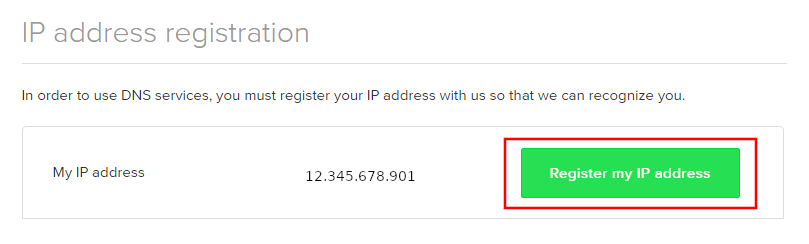
Click on Register my IP address.
Navigate to the ExpressVPN Dashboard.

Click on Set Up on More Devices.
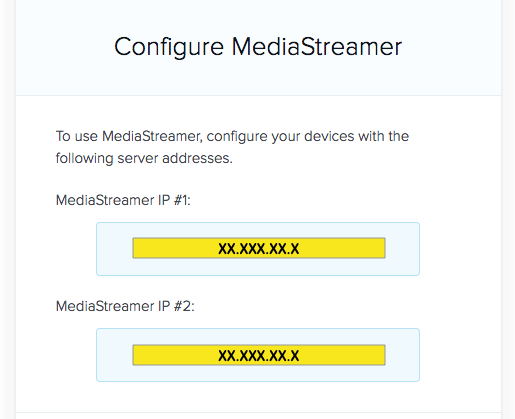
Scroll down and click on MediaStreamer and note the DNS servers that appear on the right side of the page.
Enter MediaStreamer SmartDNS servers on your FlashRouter
Navigate to Setup > Basic Setup
- Scroll down to Network Address Server Settings (DHCP).
- Enter in the MediaStreamer SmartDNS servers you noted into Static DNS fields 1 and 2.
- Click Apply Settings at the bottom of the page.
- Reboot the FlashRouter.
Once the FlashRouter has fully rebooted, you can now access your desired regional content on any device that connects to the FlashRouter’s network.
Flint/Slate GL.iNet ExpressVPN OpenVPN Setup
Preparing for ExpressVPN GL.iNet Setup
Obtain your ExpressVPN OpenVPN Information
If you are not already an ExpressVPN user Sign Up Now.
1. Log in to your account on the ExpressVPN website.
2. Successfully log in with your account information. Select More.
3. Select Manual Configuration and copy the Username and Password that are displayed on the right hand side of the screen.
4. Click the Server Location(s) that you want to connect to. This will download a .ovpn file to your computer that we will use later on. There is no need to open the file. For this example I have selected New York but feel free to select any server listed there or multiple servers.
GL.iNet Router Setup for ExpressVPN
Login to GL.iNet firmware settings in a browser on any computer or smart device connected to the GL.iNet FlashRouter’s network. For more instructions on how to access the firmware settings view our guide here.
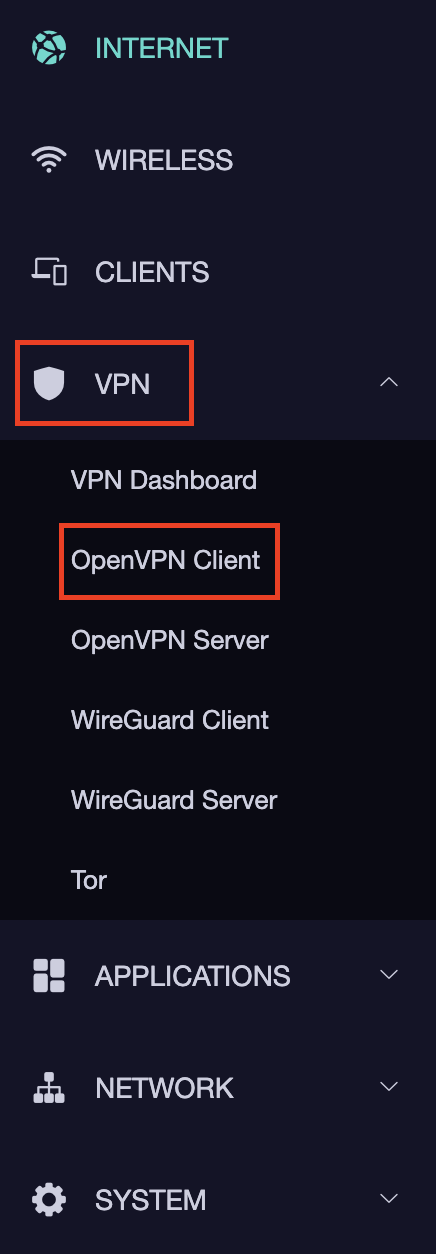
1. Navigate to the VPN tab and select OpenVPN Client.
2. Click New Group.
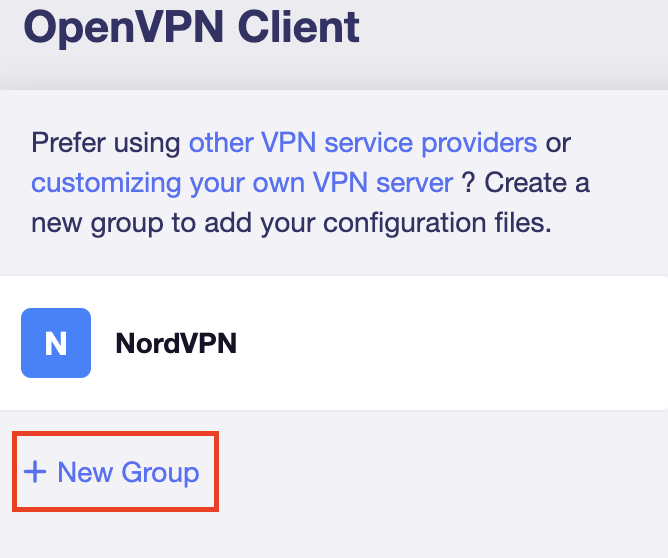
3. Enter ExpressVPN and click the check mark.

4. Select the .ovpn file(s) you downloaded earlier and upload them here.
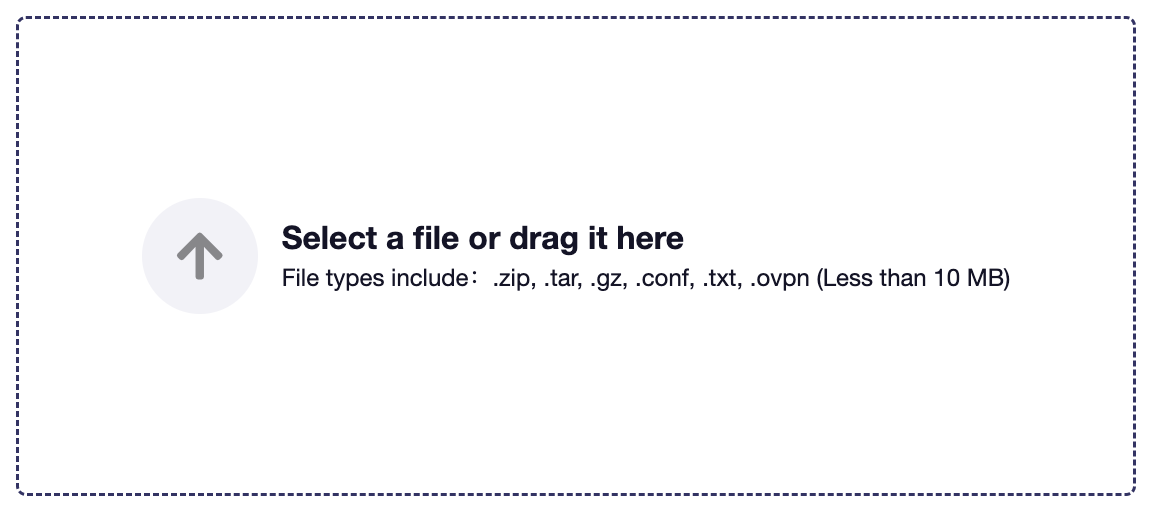
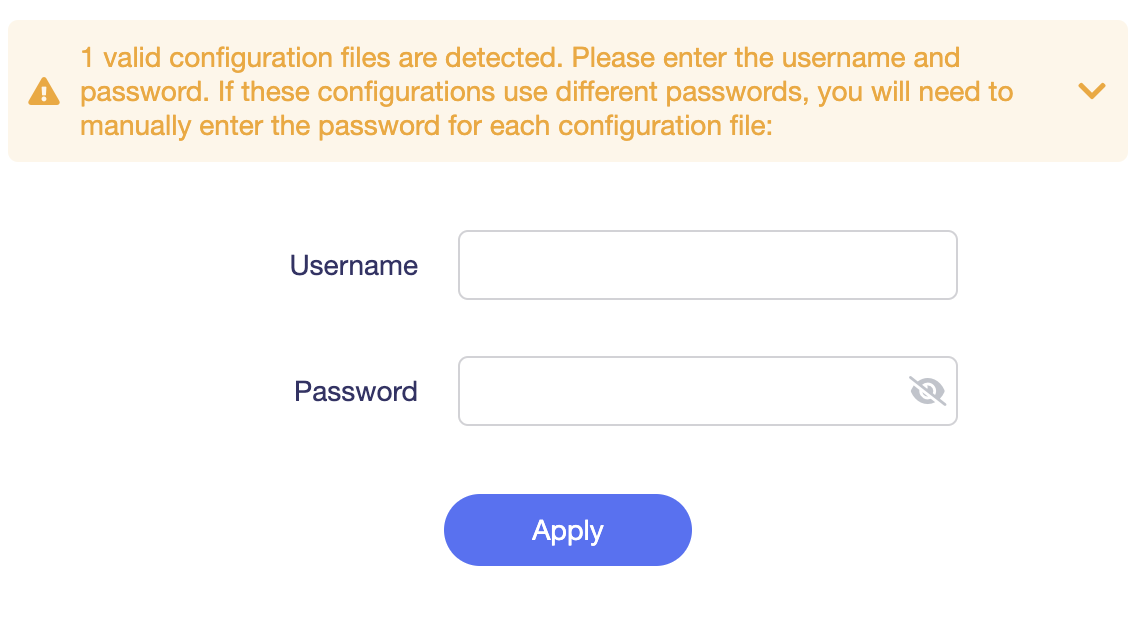
5. Enter in the ExpressVPN username and password that you obtained earlier. Do NOT enter your ExpressVPN account email and password login. Click Apply.
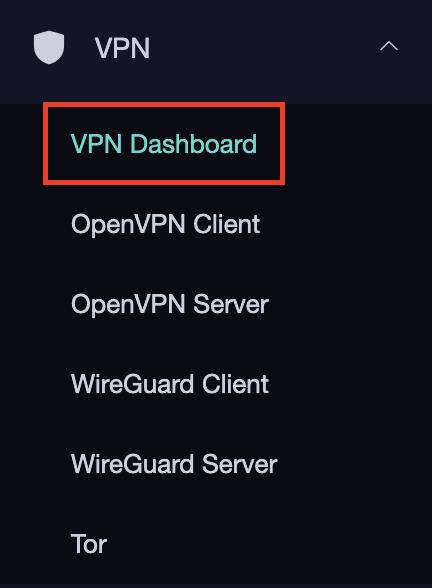
6. Select VPN Dashboard.
7. Set the Enable toggle to On to begin the ExpressVPN connection.
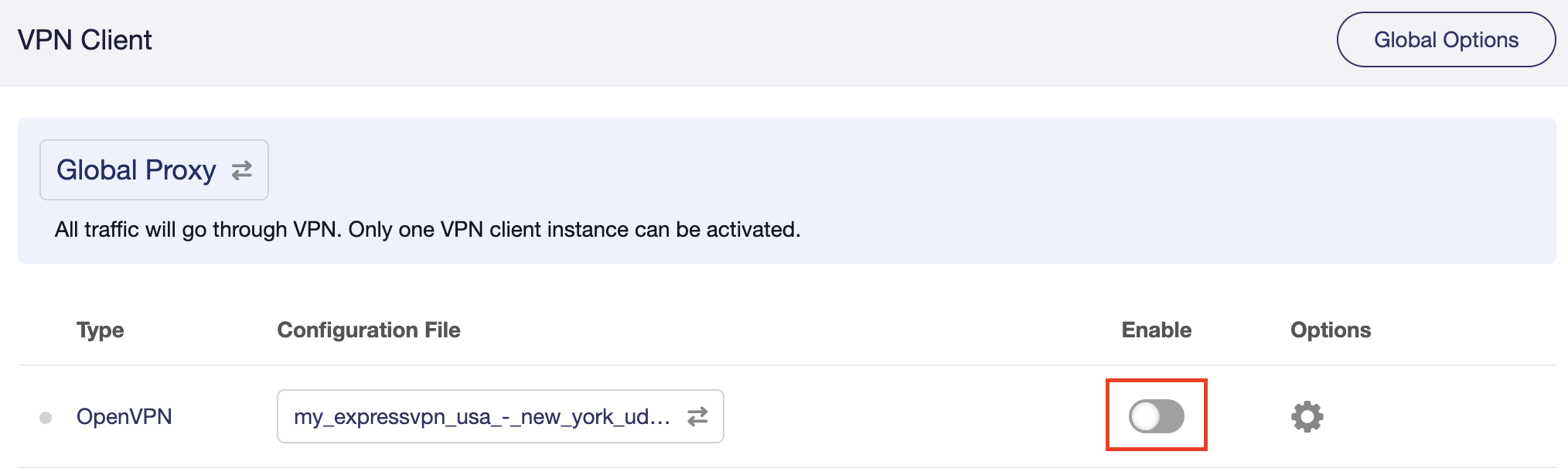
Verify a successful ExpressVPN connection
- You should now see information appear in the Server Address, Server Listen Port, Traffic Statistics, and Client Virtual IP areas.
- Visit ExpressVPN’s IP Check to verify your new IP address and virtual location.
In some cases you may notice that the location is not showing the same location as the server you have input in your router settings; this is because geo tracking tools are often tricked by VPN connections. As long as you see an IP address that is not the same as your normal Internet IP address then you are indeed connected to ExpressVPN.
How to change the ExpressVPN server
- Download a new .ovpn file location as detailed above.
- In the ExpressVPN Group on the OpenVPN Client area click Upload Configuration File and select the new .ovpn file.
- Click VPN Dashboard and then click the Configuration File area and select the new location that you added.
- Click Apply.
NordVPN Cudy OpenVPN Setup
Preparing for NordVPN Cudy Setup
Obtain your NordVPN manual Username and Password
If you are not already an NordVPN user Sign Up Now.
1. Log in to your account on the NordVPN website.
2. Click NordVPN on the left hand side and then click Setup NordVPN manually.
3. Enter in the verification code that was sent to your email.
4. Copy and paste your NordVPN manual username and password to a secure location. This is the username and password you will enter into the router settings to connect to NordVPN.
Download your NordVPN .ovpn file
1. There are two options for obtaining the .ovpn file. The first and recommended is to navigate to NordVPN’s server recommendation page. Click Recommended Server to display the fastest server based on your actual location. You can adjust the country if you don’t want to connect to the recommended country.
Then click Show Available Protocols. Click Download Config next to OpenVPN UDP. This will download the .ovpn file to your computer for this server. Do not open this file.
The second method to obtain a server is for connecting to a specific server number that you know you want to use. This applies to NordVPN Dedicated IP servers if you are signed up for that service. Go to NordVPN’s .ovpn file page. Then search for the server number that you want to use and click Download UDP.
Cudy Router Setup for NordVPN
Login to Cudy firmware settings in a browser on any computer or smart device connected to the Cudy FlashRouter’s network.
1. Click General Settings.

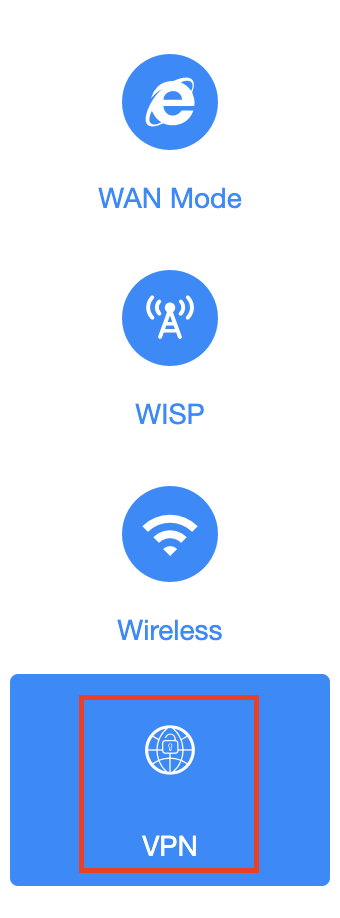
2. Click VPN.
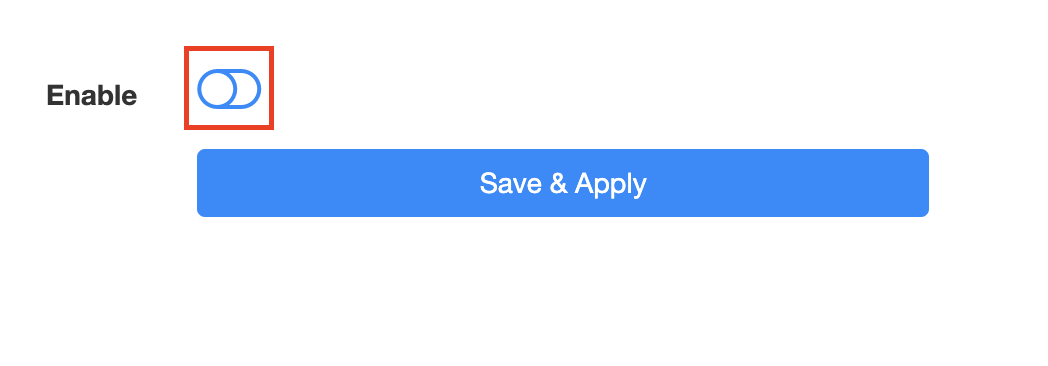
3. Toggle the Enable switch to On.
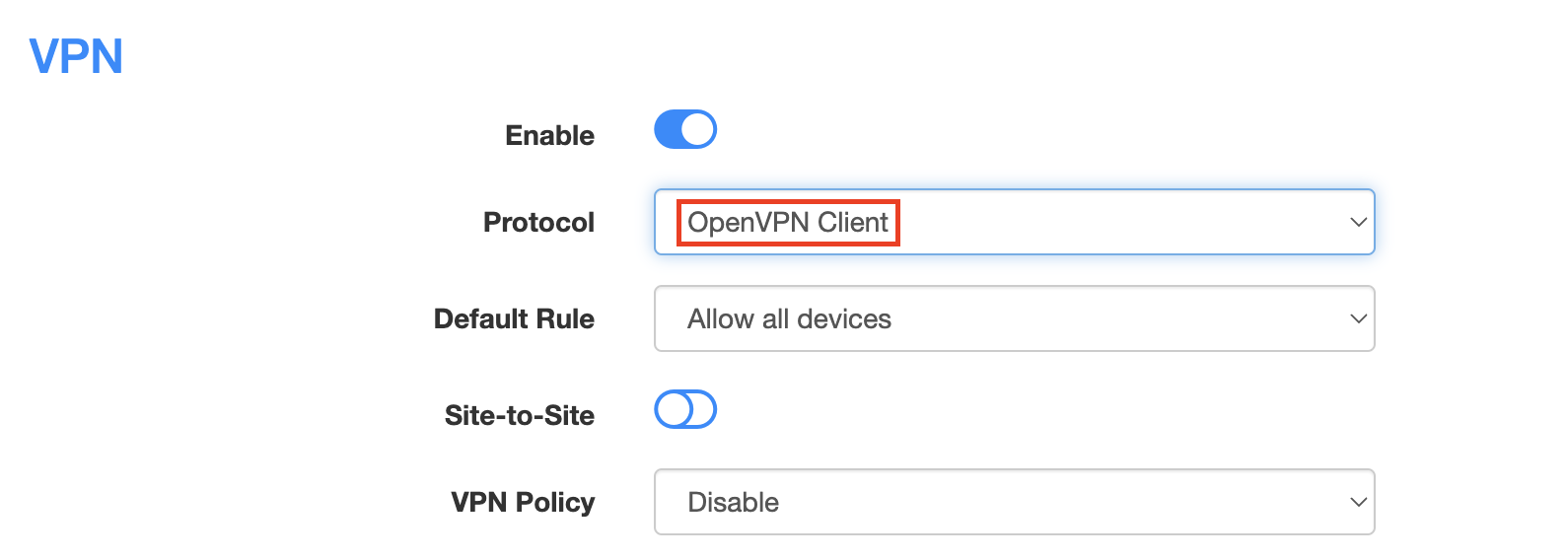
4. Select OpenVPN Client from the Protocol dropdown.
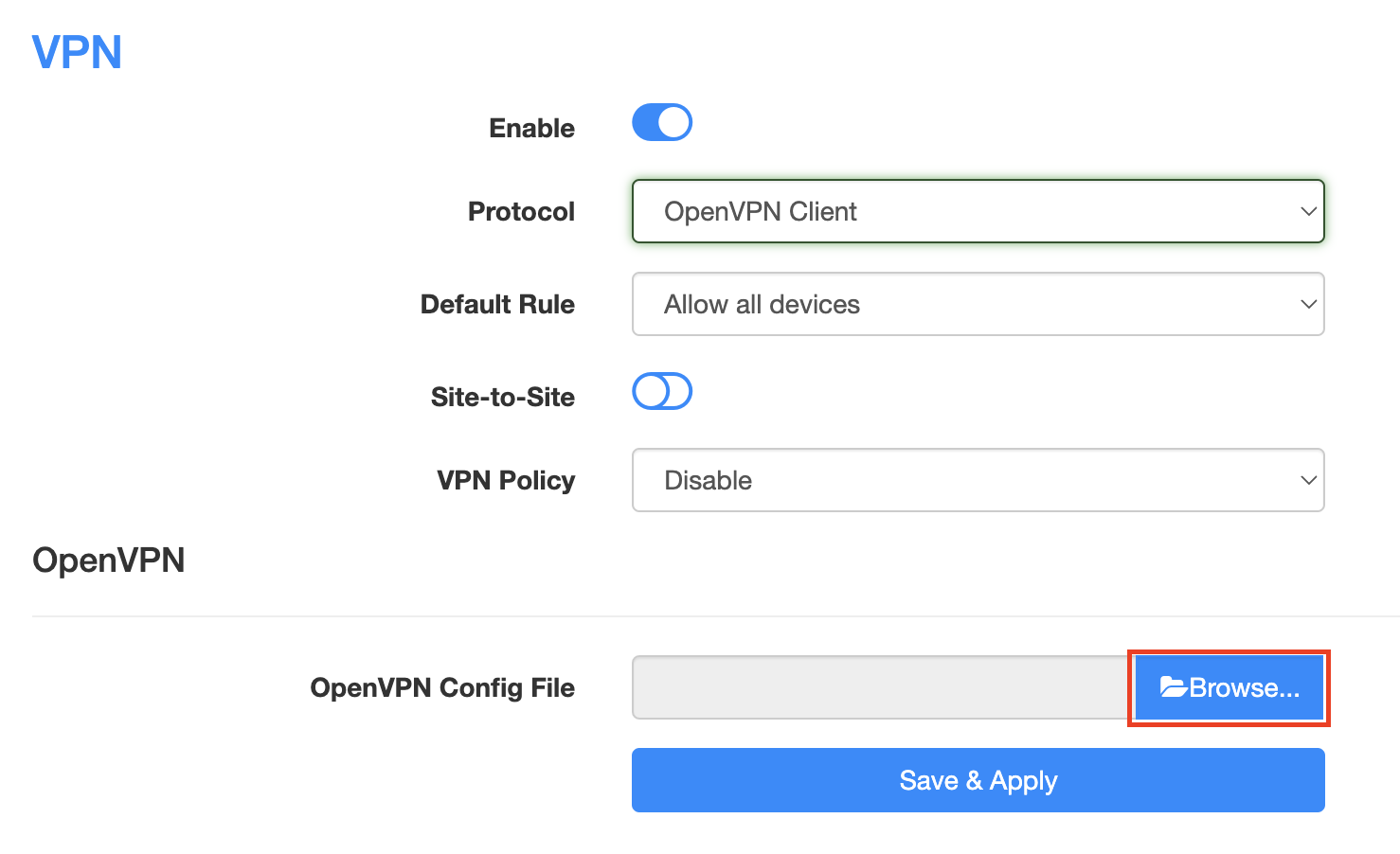
5. Click Browse and select the .ovpn file you downloaded earlier. You should see the server file name listed next to Current Config File after doing so.
6. Enter your NordVPN username and password that you obtained earlier in the Username and Password. Note that these are different from your NordVPN email login and password.
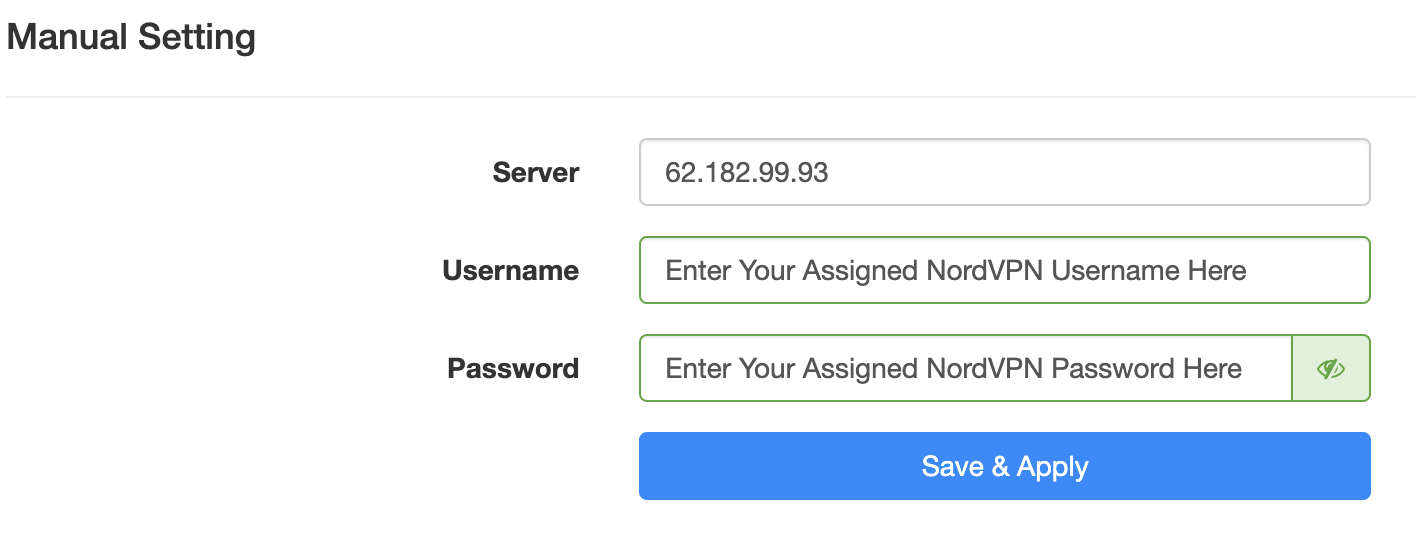
7. Click Save & Apply at the bottom of the page.
Verify a successful NordVPN connection
- You should now see a CONNECTED message.
- Visit NordVPN’s IP Check to verify your new IP address and virtual location.
In some cases you may notice that the location is not showing the same location as the server you have input in your router settings; this is because geo tracking tools are often tricked by VPN connections. As long as you see an IP address that is not the same as your normal Internet IP address then you are indeed connected to NordVPN.
How to change the NordVPN server
- Follow the steps at the top of the page to obtain a new .ovpn file.
- Then proceed with the settings same as initial setup.
CyberGhost Merlin OpenVPN Setup
Preparing for CyberGhost Setup
Obtain your CyberGhost OpenVPN information
If you are not already a CyberGhost user Sign Up Now.
1. Log in to your account on the CyberGhost website.
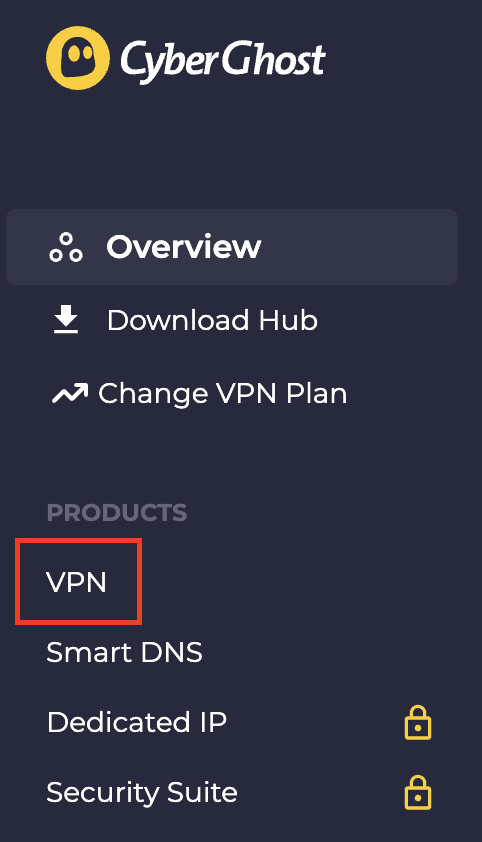
2. Select VPN.
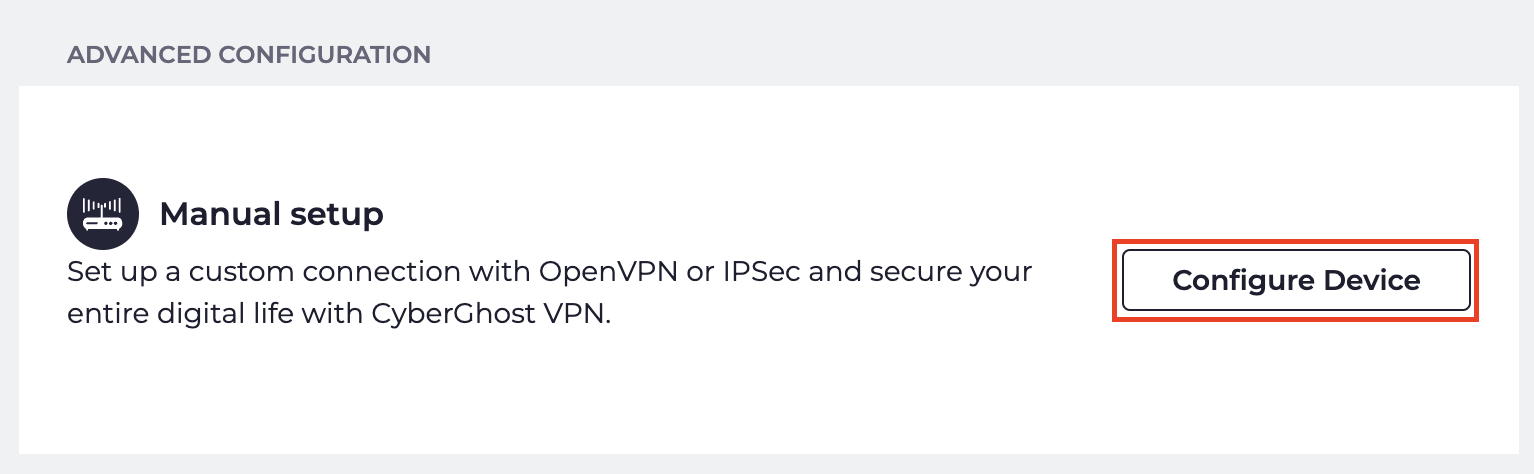
3. Click Configure New Device.
4. Set Protocol to OpenVPN. Select the Country you would like to connect to. Select the Server Group. Name the device in the Device Name field. Click Save Configuration.
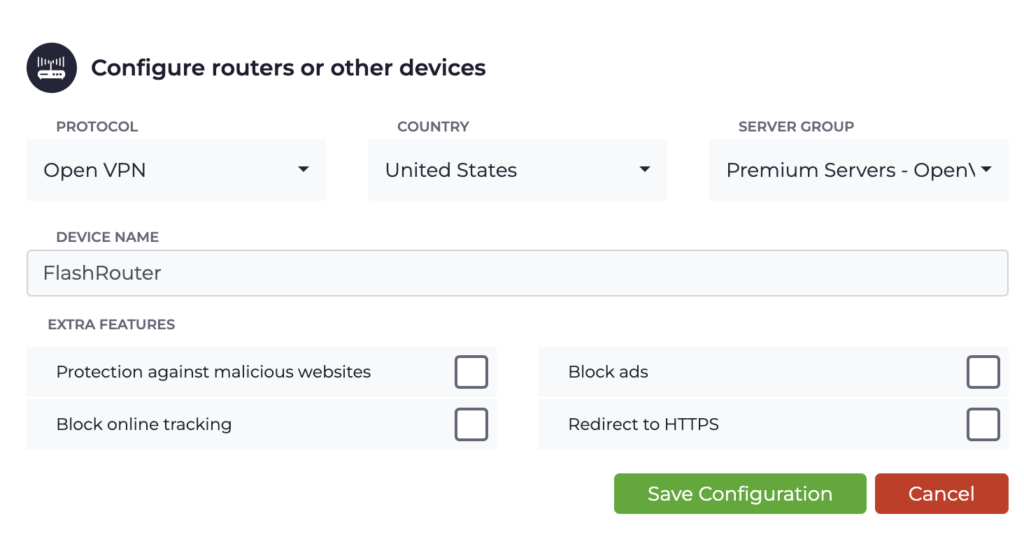
5. Press View configuration.

6. Copy the Username, and Password that appear to a notepad, since you will need this information later in the setup process. Click Download Configuration.

Open the folder that was downloaded. Then open the ca.crt the client.crt, and client.key files with NotePad++ for Windows or TextEdit for Apple. All CyberGhost servers have different keys and certificates.
Merlin Router Setup for CyberGhost
Login to Asus Merlin firmware settings in a browser on any computer or smart device connected to the Merlin FlashRouter’s network.
1. Navigate to the VPN tab.
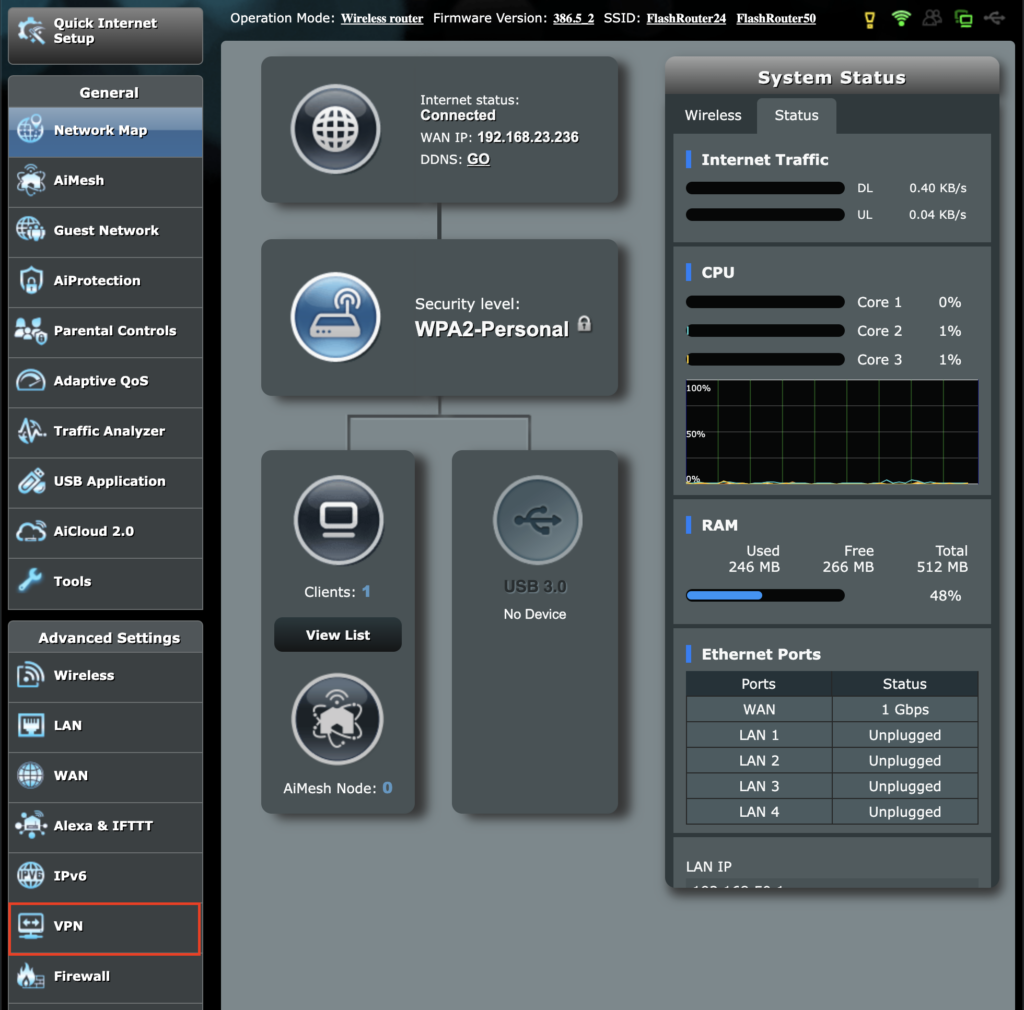
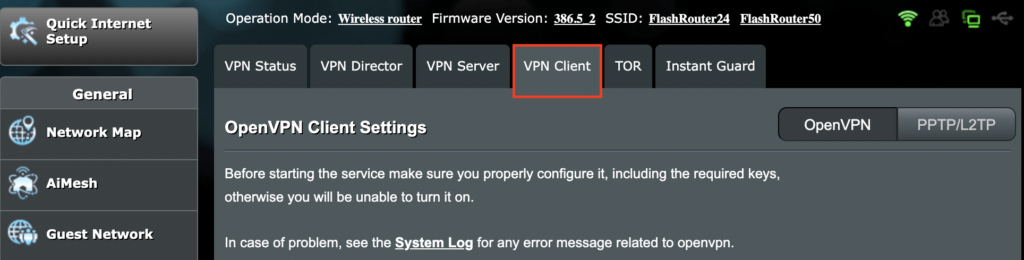
2. Navigate to the VPN Client tab.
3. Click Choose file and select the .ovpn file from the folder you downloaded earlier. Then click Upload.
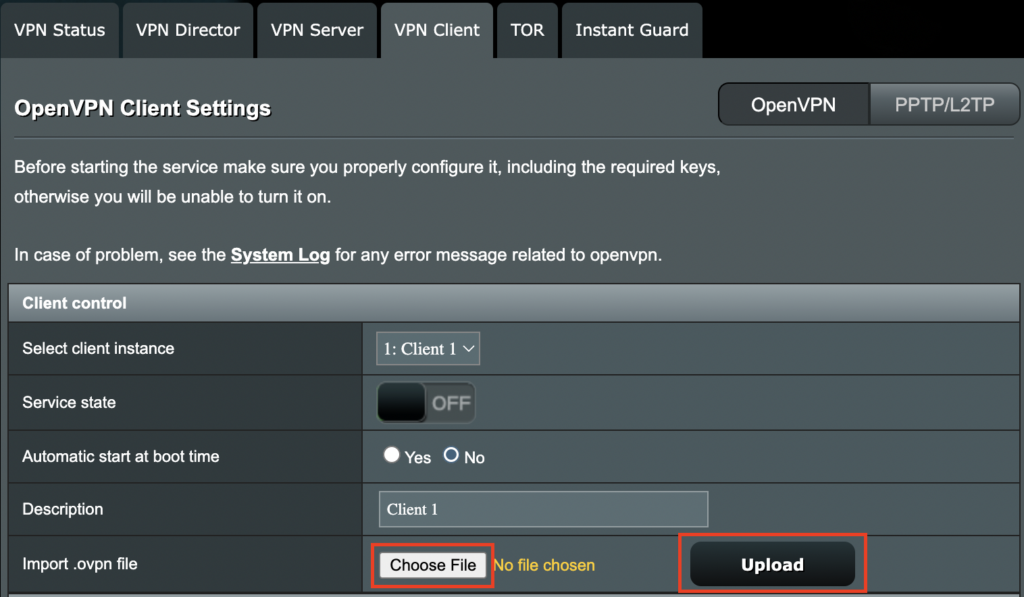
4. Set Automatic Start at boot time to Yes if you want the VPN connection to begin automatically when the router is powered off and back on.
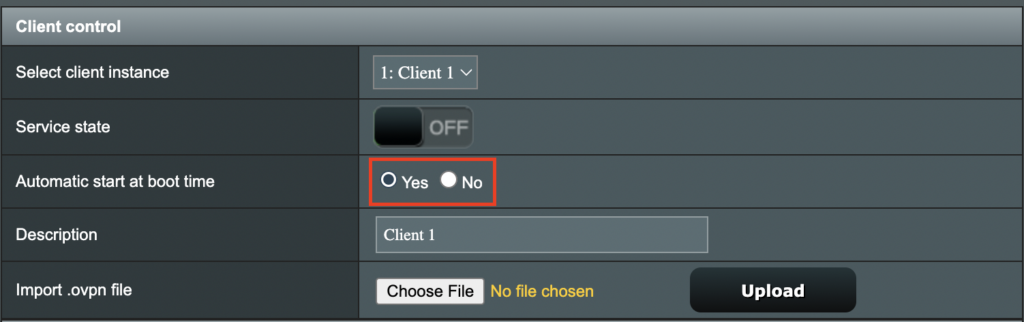
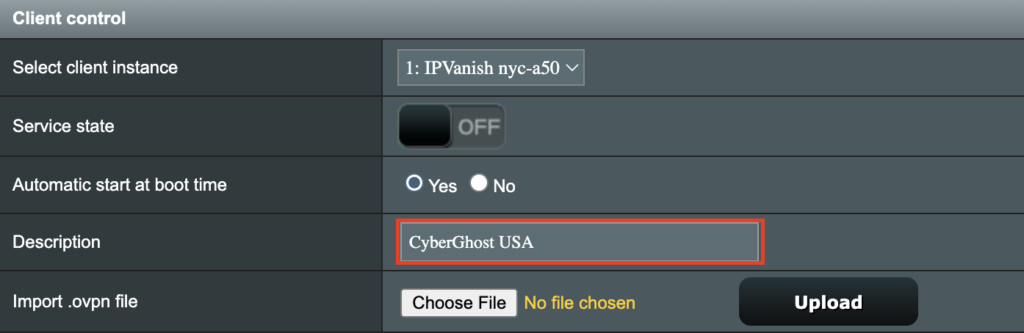
5. In the Description field enter in the name you’d like to use for this OpenVPN Client profile. We typically advise entering in the location here. Our example server was in USA so I have entered in CyberGhost USA.
6. Set Accept DNS Configuration to Strict. Set Redirect Internet traffic through tunnel to Yes (all). Set Kill Switch to Yes or No depending on if you want the Internet to be killed if the VPN connection drops.
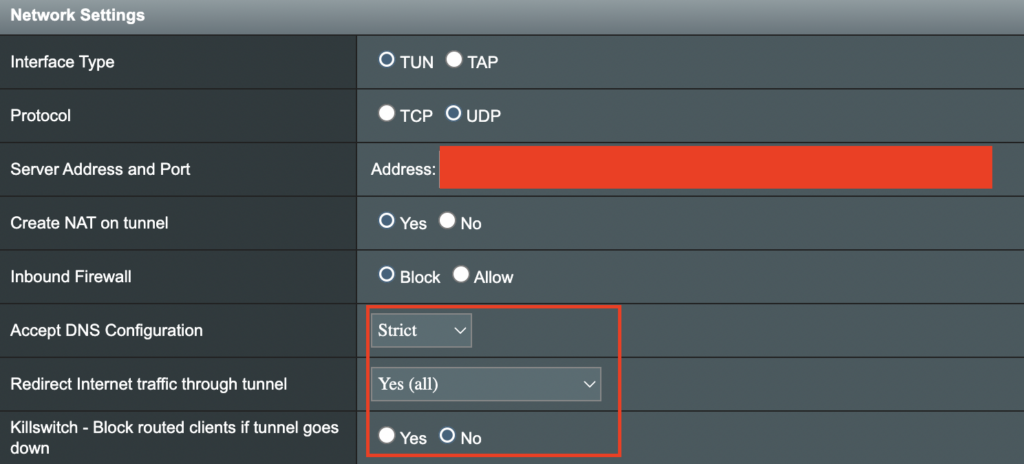
If you only want certain devices to connect to the OpenVPN Client profile you are setting up instead of all the devices connected to the FlashRouter’s network please set the Redirect Internet traffic through tunnel to VPN Director. Then complete the instructions on this page and then view our VPN Director guide.
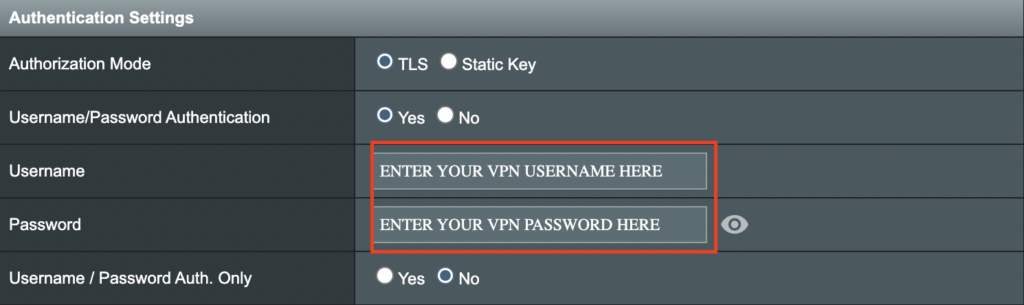
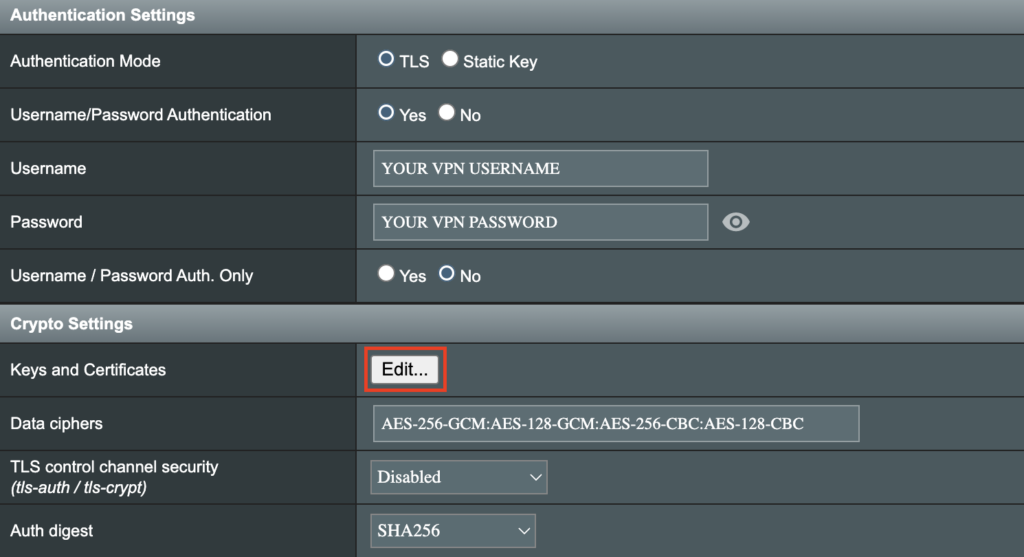
7. Enter your CyberGhost OpenVPN username and password that you obtained earlier. Do not enter your account login.
8. Click the Edit button in the Keys and Certificates area.
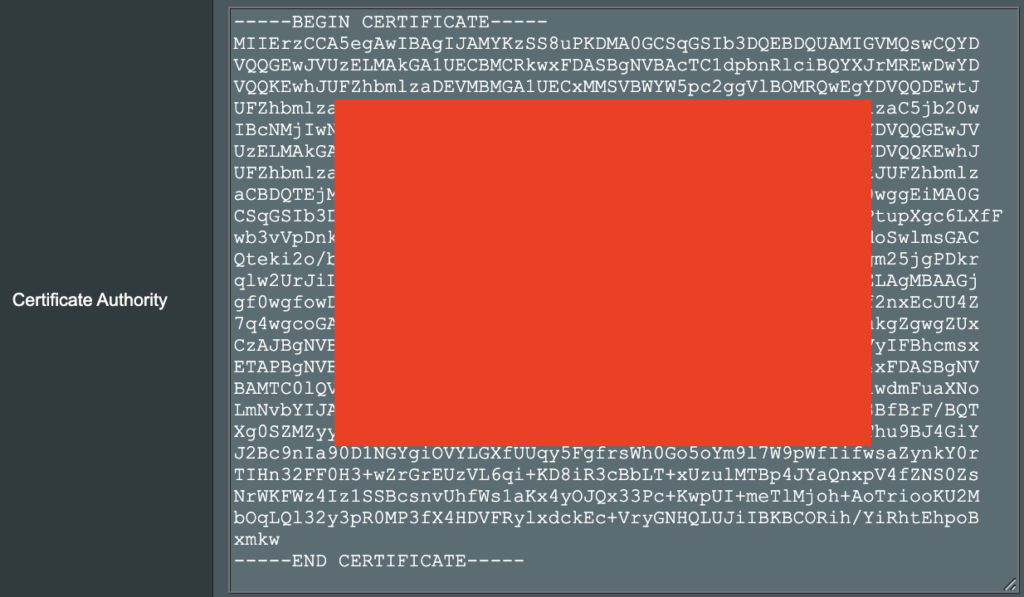
9. In the Certificate Authority field paste in the entire content of the ca.crt file.
—– BEGIN xxx —– / —– END xxx —– block (including those two lines).
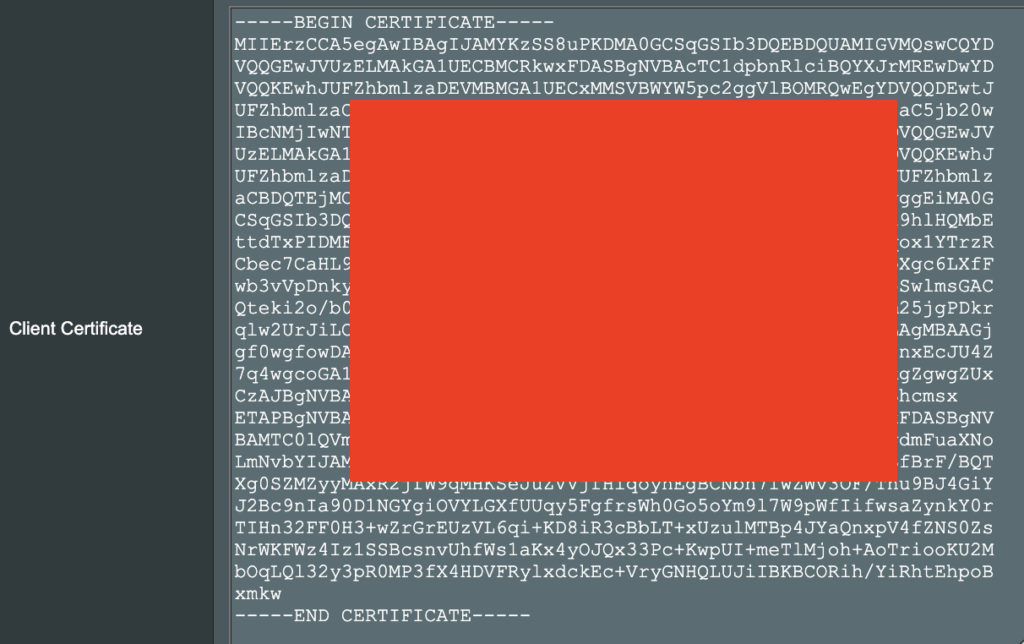
10. In the Client Certificate field paste in the entire content of the client.crt file.
—– BEGIN xxx —– / —– END xxx —– block (including those two lines).
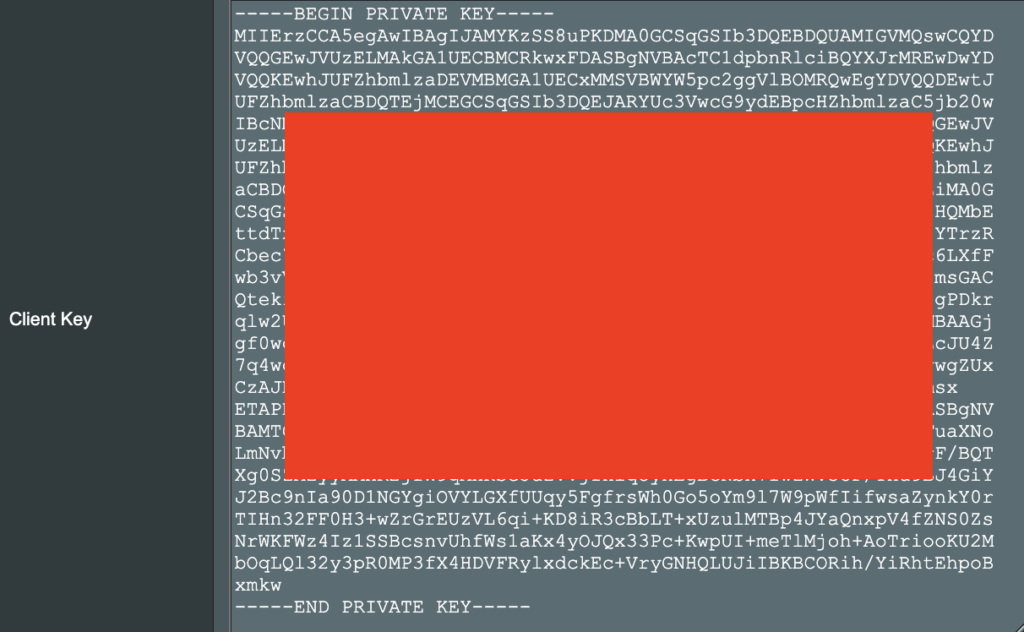
11. In the Client Key field paste in the entire content of the client.key file.
—– BEGIN xxx —– / —– END xxx —– block (including those two lines).
12. Click Save at the bottom of that window.
13. Click Apply at the bottom of the page.
14. At the top of the page set the Service State toggle to ON to activate the VPN connection.

Verify a successful CyberGhost connection
- You should now see a CONNECTED message.
- Visit What is my IP Address from a private/incognito browser to verify your new IP address and virtual location.
ExpressVPN Cudy OpenVPN Setup
Preparing for ExpressVPN Cudy Setup
Obtain your ExpressVPN OpenVPN Information
If you are not already an ExpressVPN user Sign Up Now.
1. Log in to your account on the ExpressVPN website.
2. Successfully log in with your account information. Select More.
3. Select Manual Configuration and copy the Username and Password that are displayed on the right hand side of the screen.
4. Click the Server Location that you want to connect to. This will download a .ovpn file to your computer that we will use later on. There is no need to open the file. For this example I have selected New York but feel free to select any server listed there.
Cudy Router Setup for ExpressVPN
Login to Cudy firmware settings in a browser on any computer or smart device connected to the Cudy FlashRouter’s network.
1. Click General Settings.
2. Click VPN.
3. Toggle the Enable switch to On.
4. Select OpenVPN Client from the Protocol dropdown.
5. Click Browse and select the .ovpn file you downloaded earlier. You should see the server file name listed next to Current Config File after doing so.
6. Enter your ExpressVPN username and password that you obtained earlier in the Username and Password. Note that these are different from your ExpressVPN email login and password.

7. Click Save & Apply at the bottom of the page.
Verify a successful ExpressVPN connection
- You should now see a CONNECTED message.
- Visit ExpressVPN’s IP Check to verify your new IP address and virtual location.
In some cases you may notice that the location is not showing the same location as the server you have input in your router settings; this is because geo tracking tools are often tricked by VPN connections. As long as you see an IP address that is not the same as your normal Internet IP address then you are indeed connected to ExpressVPN.
How to change the ExpressVPN server
- Follow the steps at the top of the page to obtain a new .ovpn file.
- Then proceed with the settings same as initial setup.
IPVanish Cudy OpenVPN Setup
Preparing for IPVanish Cudy Setup
Download your IPVanish .ovpn file
If you are not already an IPVanish user Sign Up Now.
1. Log in to your account on the IPVanish website.
2. Successfully log in with your account information then go to IPVanish .ovpn file page.
3. Click on the .ovpn file for the server location you want to use to dowloand the .ovpn file. Do not open this file.
Cudy Router Setup for IPVanish
Login to Cudy firmware settings in a browser on any computer or smart device connected to the Cudy FlashRouter’s network.
1. Click General Settings.
2. Click VPN.
3. Toggle the Enable switch to On.
4. Select OpenVPN Client from the Protocol dropdown.
5. Click Browse and select the .ovpn file you downloaded earlier. You should see the server file name listed next to Current Config File after doing so.
6. Enter your IPVanish account login email and password that you obtained earlier in the Username and Password.

7. Click Save & Apply at the bottom of the page.
Verify a successful IPVanish connection
- You should now see a CONNECTED message.
- Visit IPVanish’s IP Check to verify your new IP address and virtual location.
In some cases you may notice that the location is not showing the same location as the server you have input in your router settings; this is because geo tracking tools are often tricked by VPN connections. As long as you see an IP address that is not the same as your normal Internet IP address then you are indeed connected to IPVanish.
How to change the IPVanish server
- Follow the steps at the top of the page to obtain a new .ovpn file.
- Then proceed with the settings same as initial setup.
PrivateInternetAccess (PIA) Cudy OpenVPN Setup
Preparing for PIA Cudy Setup
Download your PIA .ovpn file
If you are not already a PIA user Sign Up Now.
1. Log in to your account on the PIA website.

2. Successfully log in with your account information then go to PIA’s OpenVPN Config Generator.
3. On the OpenVPN Configuration Generator select the following:
OpenVPN Version: OpenVPN 2.4 or newer
Select Platform: Linux
Select Region: Choose the server location you’d like to connect to
Select Port: Typically we recommend UDP/1198 RSA-2048 AES-128-CBC SHA1 for best speeds but feel free to select the one you want to use.
4. Click Generate to download the .ovpn file. Do not open this file once it is downloaded.

Cudy Router Setup for PIA
Login to Cudy firmware settings in a browser on any computer or smart device connected to the Cudy FlashRouter’s network.
1. Click General Settings.
2. Click VPN.
3. Toggle the Enable switch to On.
4. Select OpenVPN Client from the Protocol dropdown.
5. Click Browse and select the .ovpn file you downloaded earlier. You should see the server file name listed next to Current Config File after doing so.
6. Enter your PIA account login username and password in the Username and Password.
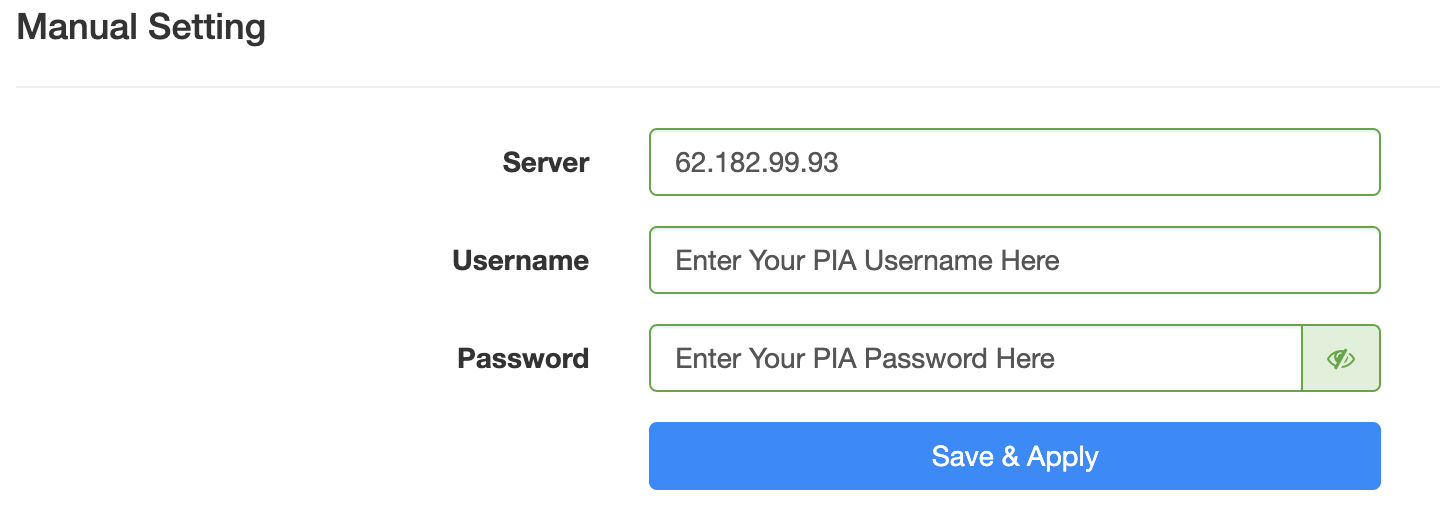
7. Click Save & Apply at the bottom of the page.
Verify a successful PIA connection
- You should now see a CONNECTED message.
- Visit PIA’s IP Check to verify your new IP address and virtual location.
In some cases you may notice that the location is not showing the same location as the server you have input in your router settings; this is because geo tracking tools are often tricked by VPN connections. As long as you see an IP address that is not the same as your normal Internet IP address then you are indeed connected to PIA.
How to change the PIA server
- Follow the steps at the top of the page to obtain a new .ovpn file.
- Then proceed with the settings same as initial setup.
Roqos Core Internet Setup and Activation
Follow this article when you receive your new Roqos Core router to create your Roqos account, connect your Roqos to the Internet, and customize your network so it is ready to use.
Create your Roqos account
1. From any device that has a browser such as a computer, smartphone, or tablet visit login.roqos.com

2. Select Create Account.
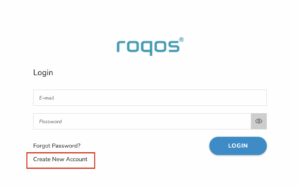
3. Enter the Email address and password you want to set for your Roqos account. This will be your login to the Roqos settings moving forward. Click Next.
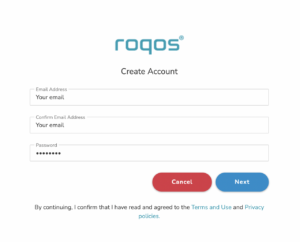
4. Enter the name and phone number you want associated with your Roqos. Click Next.
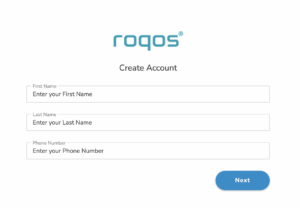
5. Enter the address where your Roqos is located. This section may require a CAPTCHA to be completed to authenticate you are human. Click Create Account.
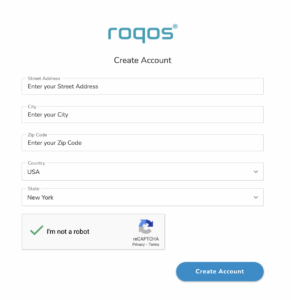
6. You have now created your Roqos account. In a new tab proceed to open the email from Roqos and click the Activate account button.
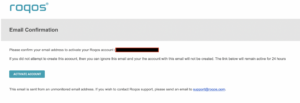
Activate your Roqos Internet
1. From the Account created page click Next to begin the Internet Setup of the Roqos.
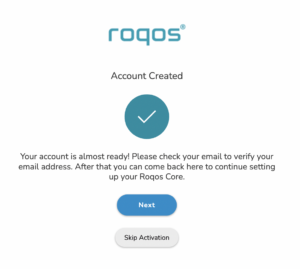
2. Select the Roqos model Teal RC10-P. Click Next.
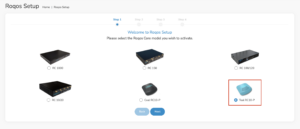
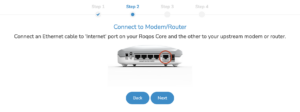
3. Connect the ethernet cable that came with your Roqos from the port labeled INTERNET on the back of your Roqos to an open ethernet port on your ISP Modem or other router in your network.
4. Then connect the power adapter that came with the Roqos to the back of the Roqos. Wait for the light on the Roqos to begin blinking blue. Once your see the blinking blue lights on the Roqos click Next.
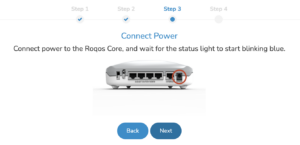
If your Roqos lights does not begin blinking blue after a long while please see the steps in this article and contact us.
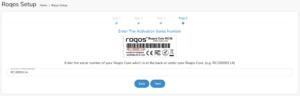
5. Enter in the Roqos serial number found on the bottom of the device exactly as it appears there. Click Next.
Setup your Roqos Network
1. Enter in a name that you would like to call the Roqos. This is just the Roqo’s device name and it is not the WiFi network name. Click Next.

2. Select the Time Zone of your actual location from the dropdown. Click Next.

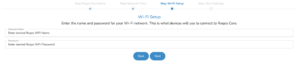
3. Set the WiFi name and password for the Roqos. The WiFi name should be unique and not a duplicate of an existing wireless network. This will be the name that appears in your wireless devices available network list and the password to join the devices to the network. Click Next.
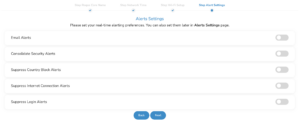
4. Select the custom alert settings as you best see fit using the toggle switches. We typically recommend having the first two toggles selected for Email Alerts and Consolidate Security Alerts. Click Next.
Begin connecting your devices to the Roqos network
You are now done setting up your Roqos to connect to the Internet and can begin joining your wireless devices to the Roqos network and exploring the Roqos Core Features.

NordVPN Setup for Privacy Hero
Privacy Hero supports NordVPN using both NordLynx and OpenVPN.
NordLynx is recommended for most users. OpenVPN is also available and may be required for NordVPN Dedicated IP connections. Some Dedicated IP configurations require a private OpenVPN file imported as a Custom VPN.
Privacy Hero is cloud-managed, so you can complete the setup from any device with an internet connection. You do not need to be connected to Privacy Hero WiFi to change these settings.
NordVPN NordLynx Setup
NordLynx uses a NordVPN access token, not your regular NordVPN website email and password.
Open Privacy Hero and Select NordLynx
- From a computer, smartphone, or tablet, open app.privacyhero.com.
- Sign in with your Privacy Hero account email and password.
- Open the VPN section.
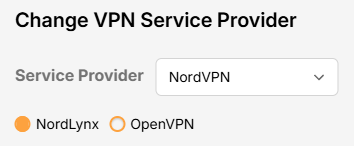
- Click Change and select NordVPN.
- Choose NordLynx.
Generate Your NordVPN Access Token
- In another browser tab, open NordVPN Access Tokens and sign in to your NordVPN account.
- Complete any account or email verification requested by NordVPN.
- Select Generate new token; choose Doesn’t expire if available, then copy the token.
Important: Treat your NordVPN token as a password. Do not share it publicly.
Connect Privacy Hero to NordVPN
- Return to Privacy Hero, paste the token into the NordLynx token field, and click Save. The default country selection automatically chooses an available NordVPN server for that location.
- Wait for the VPN status to show Connected.
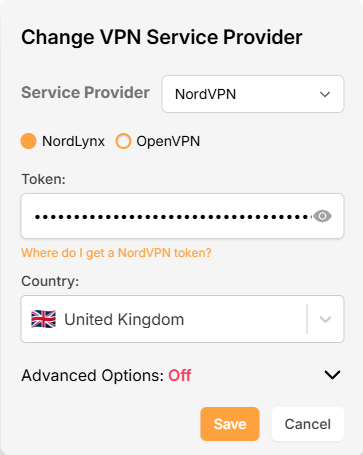
NordVPN OpenVPN Setup
Use OpenVPN if you prefer the OpenVPN protocol or if your configuration requires it. OpenVPN requires NordVPN Manual Service Credentials, which are different from your website login email and password.
Select OpenVPN in Privacy Hero
- Open app.privacyhero.com and sign in.
- Open the VPN section.
- Click Change and select NordVPN.
- Select OpenVPN.
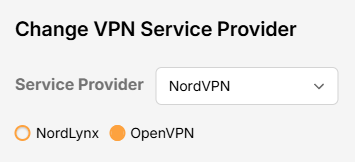
Get Your Manual Service Credentials
- Open NordVPN Manual Service Credentials and sign in.
- Complete NordVPN’s verification if prompted, then copy the current Service Username and Service Password.
Important: Do not enter your normal NordVPN website email and password into Privacy Hero’s OpenVPN fields.
Save Your OpenVPN Connection
- Return to Privacy Hero and enter the manual service username and password in the OpenVPN credential fields. Click Save.
- Confirm Privacy Hero shows the connection as Connected.
Choose a NordVPN Country or Specific Server
Privacy Hero can select a NordVPN server automatically, or you can choose a country or specify a server hostname.
Choose a Country
- Open your NordVPN connection in Privacy Hero.
- Open the Country dropdown.
- Search for and select your preferred country.
- Click Save. Privacy Hero will use an available NordVPN server for the selected country.
Use a Specific NordVPN Server
- Open your NordVPN connection in Privacy Hero.
- Open Advanced Options.
- Enter the NordVPN server hostname, for example us12286.nordvpn.com.
- Click Save.
Use NordVPN’s server recommendation tool if you need a hostname. NordVPN servers can be retired or taken offline for maintenance; if your specific server stops working, choose another server or return to country selection.
NordVPN Dedicated IP Setup
NordVPN Dedicated IP can require either the regular NordVPN OpenVPN connection or a private .ovpn file imported as a Custom VPN.
Method 1: OpenVPN Advanced Options
Try this first if your Dedicated IP works with the standard NordVPN OpenVPN setup.
- Set up NordVPN → OpenVPN using your NordVPN Manual Service Credentials as described above.
- Open Advanced Options.
- Enter the Dedicated IP server hostname assigned to your account.
- Click Save and check whether the VPN connects.
- Verify that your public IP matches your assigned Dedicated IP.
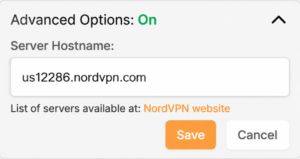
If connected and the public IP matches, no additional configuration is needed.
Method 2: Custom VPN With a Private OpenVPN File
Some Dedicated IP servers require a private OpenVPN configuration file. If Method 1 does not connect, follow NordVPN’s Manual Dedicated IP Server Setup instructions.
Download Your Dedicated IP Configuration
- Sign in to the NordVPN account associated with the Dedicated IP.
- Locate your assigned Dedicated IP server using NordVPN’s manual setup instructions.
- Download its OpenVPN UDP configuration file.
- Save the .ovpn file to your computer or device.
Important: Use the private configuration file for your actual Dedicated IP, not a public NordVPN server file.
Upload the File as a Custom VPN
- Open app.privacyhero.com and select VPN → Change.
- Select Custom from the VPN provider dropdown, not NordVPN.
- Upload your Dedicated IP UDP .ovpn file.
- Enter your NordVPN Manual Service Username and Password.
- Save the configuration, enable the VPN, and wait for Connected.
- Verify the public IP matches your NordVPN Dedicated IP.
These are NordVPN’s separate manual service credentials, not your regular website login.
Verify Your NordVPN Connection
- Connect your testing device to the Privacy Hero WiFi.
- Disconnect any NordVPN or other VPN app running directly on that device.
- Open a fresh private/incognito browser window.
- Visit NordVPN What Is My IP.
- Confirm the public IP and location match your selected NordVPN server (or assigned Dedicated IP).
Running a VPN application directly on the device at the same time as the router VPN can produce double-VPN conflicts and unexpected IP or location results.
Streaming Relocation and VPN Location
If Streaming Relocation is enabled for a supported service, that service may use the Streaming Relocation region instead of your VPN server region. See Privacy Hero Streaming Relocation.
NordVPN Not Connecting?
If the VPN displays Failed, Connecting, or a timeout error, check for:
- A server undergoing maintenance or no longer available.
- An expired, revoked, or outdated NordLynx access token.
- Incorrect or changed OpenVPN Manual Service Credentials.
- Recent account changes or an inactive NordVPN subscription.
- A protocol-specific issue.
- A Dedicated IP that requires a private .ovpn file and Custom provider selection.
Follow Privacy Hero NordVPN Not Connecting or Showing Timeout Errors for troubleshooting.
No Internet After NordVPN Disconnects?
If internet access stops when the VPN disconnects, the VPN Kill Switch may be blocking normal traffic as intended. See Privacy Hero VPN Kill Switch: No Internet or WiFi Troubleshooting.
VPN Connected, but One Device Shows the Wrong IP?
If other devices show the correct VPN IP, check the affected device’s VPN apps, Private Relay, Private DNS, antivirus, and browser settings. See Device Settings That Can Interfere With Your Router VPN.
Related Privacy Hero Guides
PrivateInternetAccess (PIA) TP-Link OpenVPN Setup
Preparing for PIA TP-Link Setup
Download your PIA .ovpn file
If you are not already a PIA user Sign Up Now.
1. Log in to your account on the PIA website.
2. Successfully log in with your account information then go to PIA’s OpenVPN Config Generator.
3. On the OpenVPN Configuration Generator select the following:
OpenVPN Version: OpenVPN 2.4 or newer
Select Platform: Linux
Select Region: Choose the server location you’d like to connect to
Select Port: Typically we recommend UDP/1198 RSA-2048 AES-128-CBC SHA1 for best speeds but feel free to select the one you want to use.
4. Click Generate to download the .ovpn file. Do not open this file once it is downloaded.
TP-Link Router Setup for PIA
Login to TP-Link firmware settings in a browser on any computer or smart device connected to the FlashRouter’s network.
1. Navigate to the Advanced tab.

2. Navigate to the VPN Client tab.

3. Check the Enable box next to VPN Client. Then click Save at the bottom of the page.

4. Click the Add button in the Server List area.

5. In the Description field enter in the name you’d like to use for this OpenVPN Client profile. We typically advise entering in the location. Our example server was New York so I have entered in PIA New York.
Set the VPN Type to OpenVPN.
In the Username and Password fields paste in the PIA username and password you use to successfully login to your PIA website account.
Click Browse and select the .ovpn file you downloaded earlier. Then click Save.

By default no devices will be assigned to the VPN Tunnel. With TP-Link firmware you must manually assign the devices that you want connected to the VPN tunnel. Proceed with the next steps to do so for all devices you want connected to VPN.
6. Click the Add button in the Device List area.

7. A list of devices connected to the FlashRouter’s network will appear. Check the devices that you want to connect to VPN. Then click OK.

8. Now that the devices have been assigned to the VPN connection click the Enable toggle in the Server List area.

Verify a successful PIA connection
- You should now see a CONNECTED message.
- Visit PIA’s IP Check to verify your new IP address and virtual location.
In some cases you may notice that the location is not showing the same location as the server you have input in your router settings; this is because geo tracking tools are often tricked by VPN connections. As long as you see an IP address that is not the same as your normal Internet IP address then you are indeed connected to PIA.
How to change the PIA server
- Follow the steps at the top of the page to obtain a new .ovpn file.
- Then proceed with the settings same as initial setup.
IPVanish TP-Link OpenVPN Setup
Preparing for IPVanish TP-Link Setup
Download your IPVanish .ovpn file
If you are not already an IPVanish user Sign Up Now.
1. Log in to your account on the IPVanish website.
2. Successfully log in with your account information then go to IPVanish .ovpn file page.
3. Click on the .ovpn file for the server location you want to use to dowloand the .ovpn file. Do not open this file.
TP-Link Router Setup for IPVanish
Login to TP-Link firmware settings in a browser on any computer or smart device connected to the FlashRouter’s network.
1. Navigate to the Advanced tab.
2. Navigate to the VPN Client tab.
3. Check the Enable box next to VPN Client. Then click Save at the bottom of the page.
4. Click the Add button in the Server List area.
5. In the Description field enter in the name you’d like to use for this OpenVPN Client profile. We typically advise entering in the location. Our example server was New York so I have entered in IPVanish New York.
Set the VPN Type to OpenVPN.
In the Username and Password fields paste in the IPVanish email and password you use to successfully login to your IPVanish website account.
Click Browse and select the .ovpn file you downloaded earlier. Then click Save.

By default no devices will be assigned to the VPN Tunnel. With TP-Link firmware you must manually assign the devices that you want connected to the VPN tunnel. Proceed with the next steps to do so for all devices you want connected to VPN.
6. Click the Add button in the Device List area.
7. A list of devices connected to the FlashRouter’s network will appear. Check the devices that you want to connect to VPN. Then click OK.
8. Now that the devices have been assigned to the VPN connection click the Enable toggle in the Server List area.

Verify a successful IPVanish connection
- You should now see a CONNECTED message.
- Visit IPVanish’s IP Check to verify your new IP address and virtual location.
In some cases you may notice that the location is not showing the same location as the server you have input in your router settings; this is because geo tracking tools are often tricked by VPN connections. As long as you see an IP address that is not the same as your normal Internet IP address then you are indeed connected to IPVanish.
How to change the IPVanish server
- Follow the steps at the top of the page to obtain a new .ovpn file.
- Then proceed with the settings same as initial setup.
ProtonVPN Setup for Privacy Hero
Privacy Hero supports Proton VPN through WireGuard and OpenVPN using the Custom VPN provider option.
WireGuard is recommended for most users. It uses a downloadable .conf configuration file. OpenVPN uses a downloadable .ovpn file and a separate Proton VPN OpenVPN username and password (not your regular Proton Account login).
Privacy Hero is cloud-managed. You can configure the VPN from a computer, smartphone, or tablet connected to any internet network; you do not need to be on the Privacy Hero WiFi to change settings.
Proton VPN WireGuard Setup (Recommended)
WireGuard uses a configuration file generated by Proton VPN. You do not need an OpenVPN username and password for this method.
Generate Your Proton VPN WireGuard Configuration
- Open your Proton VPN account and sign in.
- Go to Downloads → WireGuard configuration.
- Enter a recognizable configuration name and select Router as the platform.
- Choose your preferred VPN options and an available server or country. For a straightforward setup, select a standard server configuration.
- Click Create, then Download to save the generated WireGuard .conf file to your device.
Important: A WireGuard configuration contains a private key. Keep the downloaded file private; do not paste its contents into public posts or unprotected support messages. For detailed Proton account instructions, see Proton VPN: Download WireGuard Configuration Files.
Upload WireGuard to Privacy Hero
- Open app.privacyhero.com and log in to your Privacy Hero account.
- Open the VPN section, click Change beside the VPN provider, and choose Custom.
- Select WireGuard and upload the Proton VPN .conf file you downloaded.
- Click Save to apply the configuration and connect. Confirm that Privacy Hero reports Connected.
Proton VPN OpenVPN Setup
OpenVPN is an alternative to WireGuard. You need a Proton VPN OpenVPN-specific username and password and a server .ovpn configuration file.
Get Your Proton VPN OpenVPN Credentials
- Sign in to your Proton VPN account.
- Open Account → OpenVPN username to find your separate OpenVPN username and password.
- Copy these credentials or keep the page open. Do not use your usual Proton Account email and password for the manual OpenVPN connection.
For help locating these credentials, see Proton VPN: How to Sign In / OpenVPN Credentials.
Download Your Proton VPN OpenVPN Server File
- In your Proton VPN account, go to Downloads → OpenVPN configuration files.
- Select Router as the platform and UDP as the protocol (recommended starting point). If UDP does not work on your network, you can try a TCP configuration later.
- Select an available country or individual server from the standard configuration list, then click Download to save its .ovpn file.
For additional details about the file download options, see Proton VPN: Download OpenVPN Configuration Files.
Upload OpenVPN to Privacy Hero
- Open app.privacyhero.com and sign in to your Privacy Hero account.
- Open the VPN section, click Change, and select Custom as the VPN provider.
- Choose OpenVPN and upload the Proton VPN .ovpn file you downloaded.
- Enter your separate Proton VPN OpenVPN username and password into the Custom VPN fields.
- Click Save, then confirm Privacy Hero displays Connected.
Verify Your Proton VPN Connection
After Privacy Hero reports Connected, confirm that a device on the router network is using your Proton VPN connection.
- Connect your testing device to the Privacy Hero WiFi or LAN network.
- Disable any Proton VPN app or other VPN application running directly on that device, so it does not create a second VPN connection.
- Open a private/incognito browser window.
- Visit Proton VPN’s IP Address Checker.
- Verify that the public IP address and approximate location correspond to the Proton VPN server configured in Privacy Hero.
Important: You can manage Privacy Hero from another WiFi network or cellular data. However, the device performing the VPN IP test must be connected to the Privacy Hero network.
Streaming Relocation and VPN Location
If Privacy Hero Streaming Relocation is enabled for a supported streaming service, that service may use its Streaming Relocation location rather than the country selected in your Proton VPN configuration. See Privacy Hero Streaming Relocation.
Proton VPN Not Connecting?
If Privacy Hero displays Failed, remains on Connecting, or reports a timeout, work through these checks:
- Confirm that you selected Custom as the VPN provider in Privacy Hero and chose the protocol that matches your configuration file.
- For WireGuard, create and download a fresh Proton VPN .conf file for an available server, then upload it again. Do not use an OpenVPN .ovpn file in the WireGuard section.
- For OpenVPN, verify that you entered Proton VPN’s separate OpenVPN username and password, not your regular Proton Account login.
- Download a fresh configuration for a different Proton VPN server and reconnect. Proton VPN occasionally changes server configurations.
- If using OpenVPN UDP and the connection still fails, download and try a TCP .ovpn configuration file to test for a protocol-related issue.
- Temporarily disable the VPN Kill Switch while checking whether internet works without the VPN. Re-enable your preferred Kill Switch setting once testing is complete.
VPN Disconnects and Devices Have No Internet?
The VPN Kill Switch may be intentionally blocking normal internet traffic when the VPN connection is unavailable. See Privacy Hero VPN Kill Switch: No Internet or WiFi Troubleshooting.
VPN Connected but One Device Shows the Wrong IP?
Check the affected device for a second VPN app, iCloud Private Relay, Private DNS, browser proxy settings, or filtering software. See Device Settings That Can Interfere With Your Router VPN.
Related Privacy Hero Guides
PrivateInternetAccess (PIA) AsusWRT OpenVPN Setup
Preparing for PIA AsusWRT Setup
Download your PIA .ovpn file
If you are not already a PIA user Sign Up Now.
1. Log in to your account on the PIA website.
2. Successfully log in with your account information then go to PIA’s OpenVPN Config Generator.
3. On the OpenVPN Configuration Generator select the following:
OpenVPN Version: OpenVPN 2.4 or newer
Select Platform: Linux
Select Region: Choose the server location you’d like to connect to
Select Port: Typically we recommend UDP/1198 RSA-2048 AES-128-CBC SHA1 for best speeds but feel free to select the one you want to use.
4. Click Generate to download the .ovpn file. Do not open this file once it is downloaded.
AsusWRT Router Setup for PIA
Login to AsusWRT firmware settings in a browser on any computer or smart device connected to the AsusWRT FlashRouter’s network.
1. Navigate to the VPN tab.
2. Navigate to the VPN Fusion tab.
3. Click Add profile.
4. In the Connection Name field enter in the name you’d like to use for this OpenVPN Client profile. We typically advise entering in the location or server number here. Our example server was in New York so I have entered in PIA New York.
5. In the VPN Type dropdown select OpenVPN.
6. Click Import .ovpn file and select the .ovpn file you downloaded earlier. Then click Upload.
7. In the Username and Password fields paste in the PIA username and password you use to successfully login to your PIA website account.
8. Click Apply and Enable at the bottom of the page.
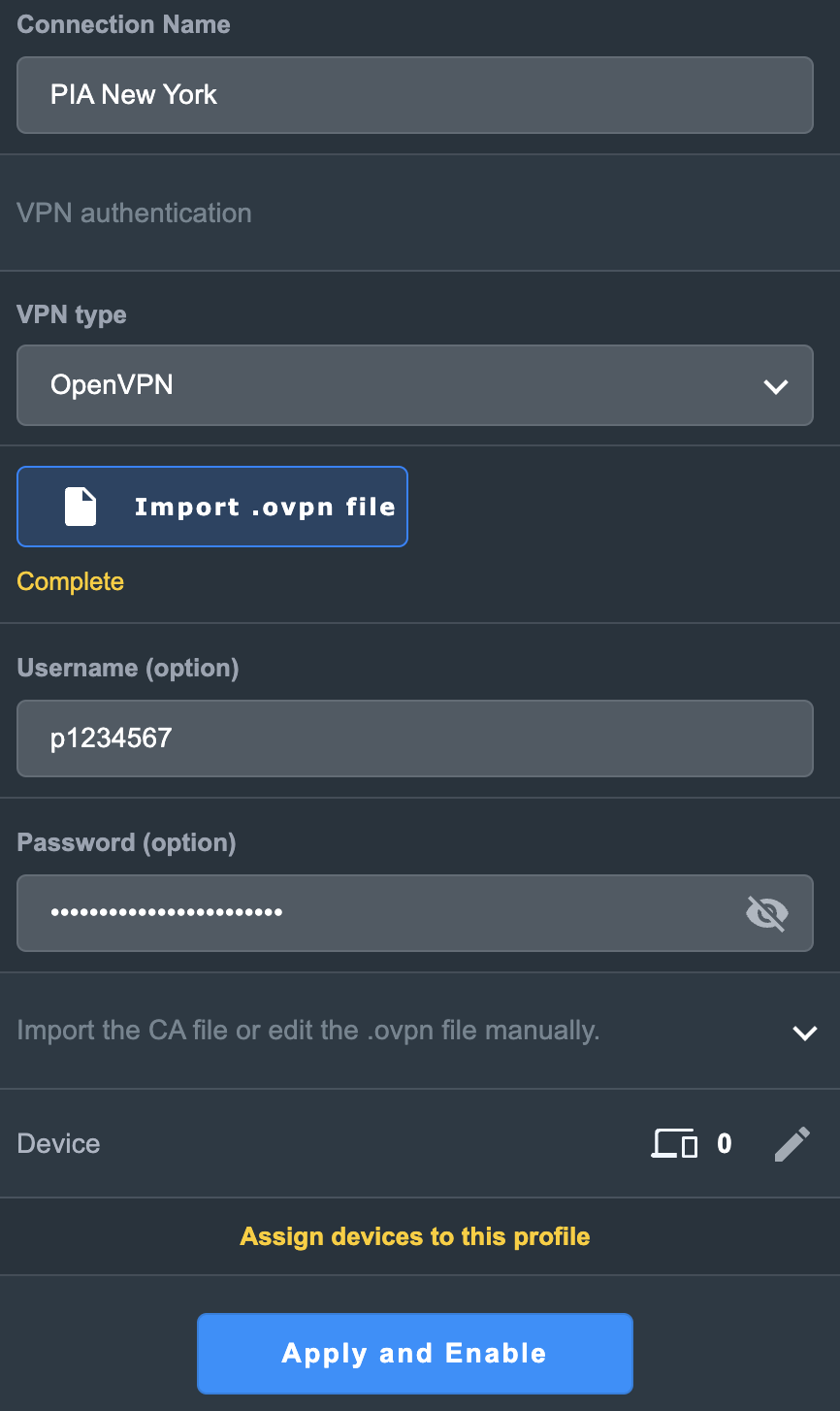
If you only want certain devices to connect to the OpenVPN Client profile you are setting up instead of all the devices connected to the FlashRouter’s network click into the profile and disable Apply to all devices. Then click Devices and select the devices that you want to connect to VPN.
9. At the top of the page set the Service State toggle to ON to activate the VPN connection.
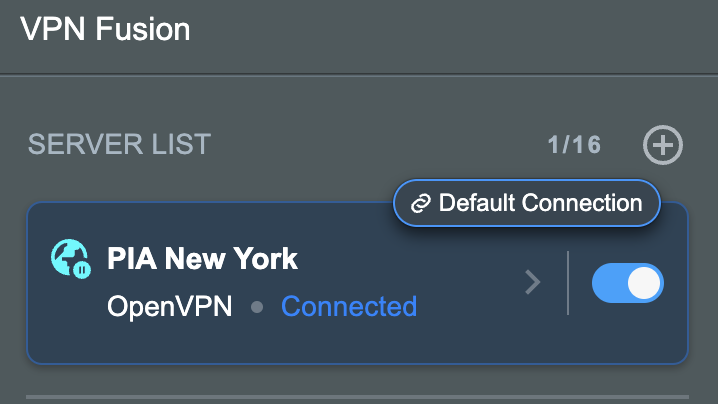
Verify a successful PIA connection
- You should now see a CONNECTED message.
- Visit PIA’s IP Check to verify your new IP address and virtual location.
In some cases you may notice that the location is not showing the same location as the server you have input in your router settings; this is because geo tracking tools are often tricked by VPN connections. As long as you see an IP address that is not the same as your normal Internet IP address then you are indeed connected to PIA.
How to change the PIA server
- Follow the steps at the top of the page to obtain a new .ovpn file.
- Then proceed with the settings same as initial setup.
Privacy Hero Bypass certain devices from VPN
Your Privacy Hero router uses Cloud Based router management which means you can access the router settings from anywhere on any device that has an internet connection. You can follow these steps while connected to your phone, other Wi-Fi network, or the Privacy Hero network.
If you have certain devices in your network that you do NOT want connecting to VPN you can follow these steps to bypass these devices from the Privacy Hero’s VPN connection.
1. From any device that has a browser such as a computer, smartphone, or tablet visit app.privacyhero.com

2. Enter your Privacy Hero account email and password. Click Login.

If you have not created your Privacy Hero account yet please follow these instructions.
3. Click the Devices symbol.

4. Click the name of the Device you want to bypass from VPN.
5. Set the VPN toggle to Off. You can also do the same for Adblocking and Device Protection as needed.
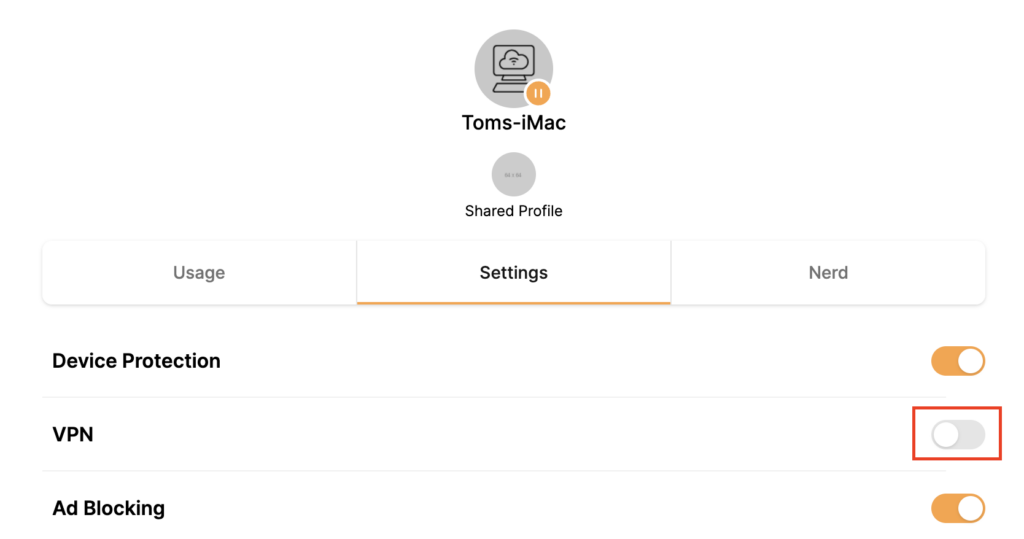
Surfshark AsusWRT WireGuard Setup
Preparing for Surfshark AsusWRT Setup
Copy your Surfshark Private Key
If you are not already a Surfshark user Sign Up Now.
1. Log in to your account on the Surfshark website.

2. Click VPN Manual Setup.

3. Select Router as the Setup method.
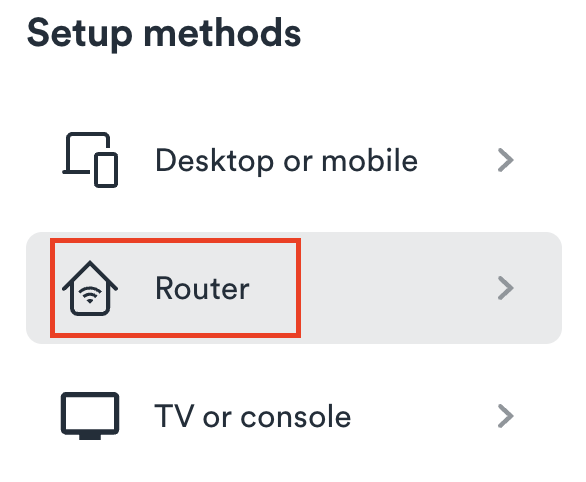
4. Select WireGuard as the Protocol.

5. Select I don’t have a key pair.

6. Enter FlashRouter as the name of the connection and click Next.

7. Click Generate a new key pair.

8. A Public Key and Private Key will then appear. Use the copy box to copy the Private Key. You will not need the public key.

AsusWRT Router Setup for Surfshark
Login to AsusWRT firmware settings in a browser on any computer or smart device connected to the AsusWRT FlashRouter’s network.
1. Navigate to the VPN tab.
2. Navigate to the VPN Fusion tab.
3. Click Add profile.
4. In the Connection Name field enter in Surfshark.
5. In the VPN Type dropdown select Surfshark.
6. In the Region dropdown select the Surfshark location you want to connect to.
7. In the Private Key field paste in the Surfshark Private Key obtained earlier.
8. Click Apply and Enable at the bottom of the page.
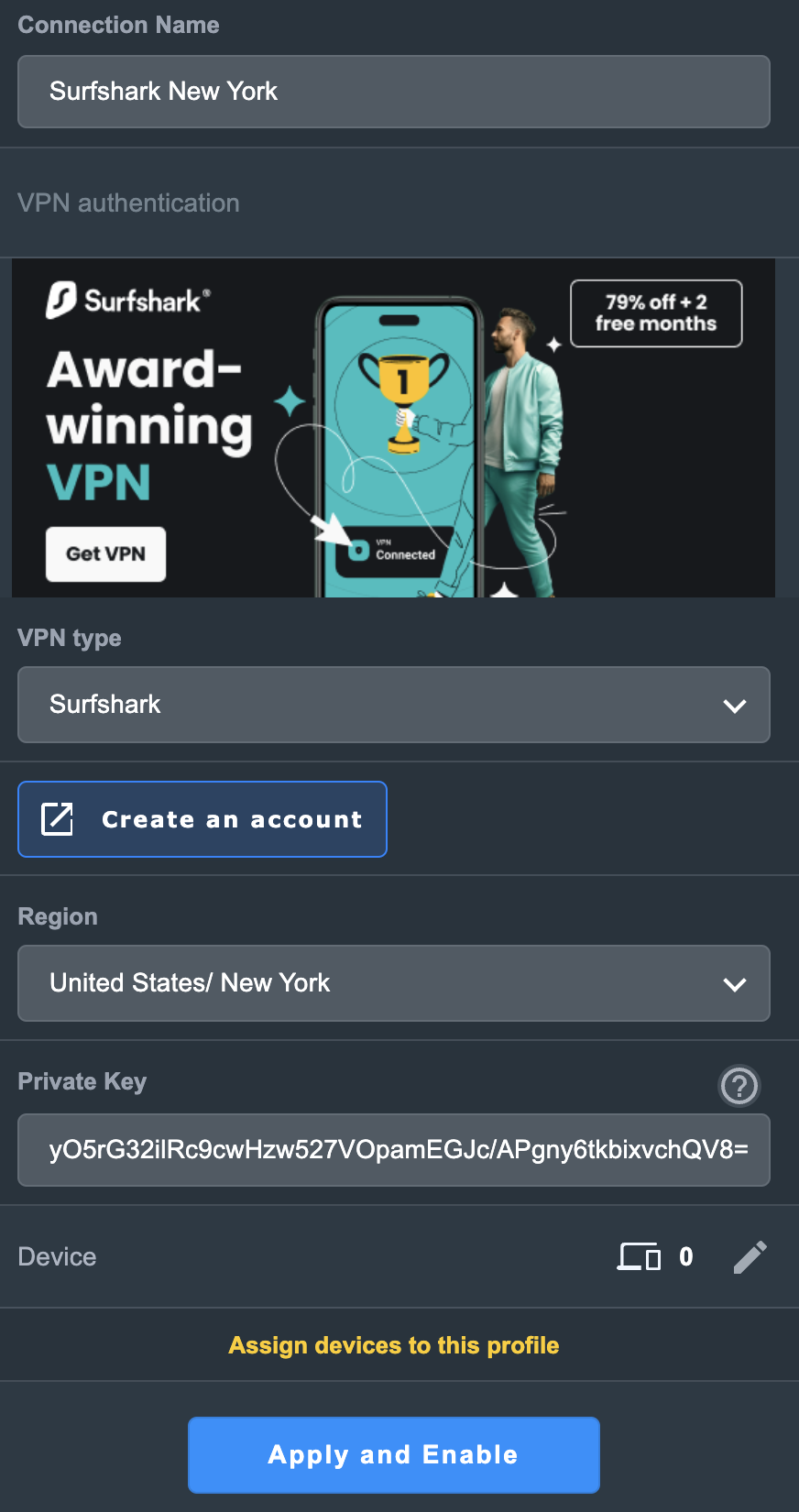
If you only want certain devices to connect to the Surfshark profile you are setting up instead of all the devices connected to the FlashRouter’s network click into the profile and disable Apply to all devices. Then click Devices and select the devices that you want to connect to VPN.
9. At the top of the page set the Service State toggle to ON to activate the VPN connection.
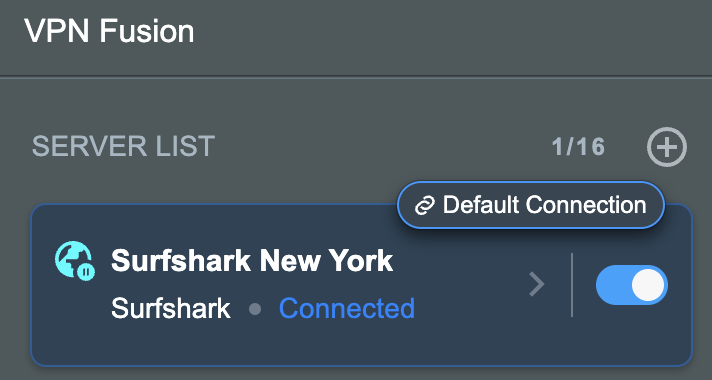
Verify a successful Surfshark connection
- You should now see a CONNECTED message.
- Visit Surfshark’s IP Check to verify your new IP address and virtual location.
In some cases you may notice that the location is not showing the same location as the server you have input in your router settings; this is because geo tracking tools are often tricked by VPN connections. As long as you see an IP address that is not the same as your normal Internet IP address then you are indeed connected to Surfshark.
How to change the Surfshark server
- Use the profile service state toggle to disconnect the currently connected location.
- Then click into the Surfshark profile in the router’s settings.
- Then adjust the Region dropdown to a new location.
- Click Apply all settings.
- Use the profile service state toggle to connect the new location.