- Make sure you are not using any device VPN device application or proxy on devices that are connected to the FlashRouter’s network as this can cause a conflict. Make sure the FlashRouter’s VPN connection is the only active VPN connection in your network.
- Check that static settings are not configured on your device.
- Certain devices require port forwarding rules to be properly setup before full connectivity. This may apply to devices like VOIP or smart cameras. If this is the case you may need to contact the manufacturer for more specific information.
- Check that the FR Privacy App feature for a device specific Kill Switch is not set for the device, and if kill switch is setup, then make sure the VPN connection is active.
Search Results for: install+routers+app
Privacy Hero Streaming Relocation
Your Privacy Hero router uses Cloud Based router management which means you can access the router settings from anywhere on any device that has an internet connection. You can follow these steps while connected to your phone, other Wi-Fi network, or the Privacy Hero network.
Use these steps change your location for popular streaming services allowing you to access to regionally restricted content. Privacy Hero uses DNS routing to change your location which is a great way around VPN streaming blocks.
1. From any device that has a browser such as a computer, smartphone, or tablet visit app.privacyhero.com

2. Enter your Privacy Hero account email and password. Click Login.

3. Click the Streaming symbol.

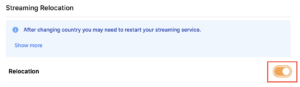
4. Set the Streaming Relocation toggle to On.
5. Click the flag of the country you would like the listed streaming service to use.
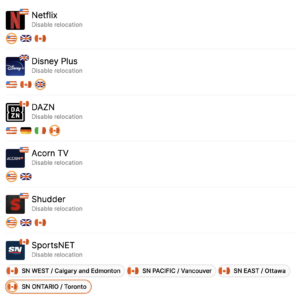
This streaming relocation feature will not change your IP address in the way that a VPN does. This is why it is not able to be blocked in the same way that a VPN connection can be.
The listed services on the streaming relocation page will not be connected to VPN even if the Privacy Hero has an active VPN connection. These services are set to bypass the router’s VPN tunnel to avoid streaming blocks.
Toggling the streaming relocation feature On will also relocate many other streaming services automatically. They will be automatically optimized for the best connection with no manual selection needed for:
ABC
Adult Swim
All 4
Apple TV Channels
BBC
Britbox
CBC Gem
CBS Sports
Crackle
DirecTV Stream
DSTV Now
Filmrise
Freeform
Freevee
Frndly TV
F1 TV
FX Now
ITV
MGM+
Molotov.TV
My 5
NBC
NBC Sports
Now E
Now TV
Pandora
Paramount+
PBS
Peacock
Philo
Pluto TV
Showmax
Sling
SonyLIV
S Sports Plus
Starz
Stirr
TBS
Tennis Channel
The CW
Tubi
TVPlayer
Vudu
Xumo
Zattoo
Privacy Hero VPN Setup Guide for Privacy Hero
Your Privacy Hero router uses Cloud Based router management which means you can access the router settings from anywhere on any device that has an internet connection. You can follow these steps while connected to your phone, other Wi-Fi network, or the Privacy Hero network.
Use these steps to connect to Privacy Hero’s own WireGuard VPN servers. You will automatically be connected to the ideal USA or Canada server based on your location.
1. From any device that has a browser such as a computer, smartphone, or tablet visit app.privacyhero.com
2. Enter your Privacy Hero account email and password. Click Login.
If you have not created your Privacy Hero account yet please follow these instructions.
3. Click the VPN symbol.

4. Set the VPN toggle to On.

5. Connect to the Privacy Hero’s via wireless or ethernet connection on your device and visit What is my IP Address from a private/incognito browser to verify your new IP address and virtual location.
Privacy Hero’s cloud based router settings access makes it so you can change settings while not connected to the Privacy Hero network so if your IP Address has not changed be sure to double check that you are indeed connected to the Privacy Hero network on the device you are checking your IP from.
Keep in mind that the VPN connection will not change the location of the streaming services listed in the Streaming Relocation area of the Privacy Hero settings.
Privacy Hero Adblocking Malware and Phishing Prevention Setup
Your Privacy Hero router uses Cloud Based router management which means you can access the router settings from anywhere on any device that has an internet connection. You can follow these steps while connected to your phone, other Wi-Fi network, or the Privacy Hero network.
Use these steps to enable Privacy Hero’s adblocking, malware, and phishing prevention settings to add extra security to your network.
1. From any device that has a browser such as a computer, smartphone, or tablet visit app.privacyhero.com

2. Enter your Privacy Hero account email and password. Click Login.

If you have not created your Privacy Hero account yet please follow these instructions.
3. Click the VPN symbol.

4. Toggle the Adblocking and Malware & Phishing switches to On.

Privacy Hero Creating User Profiles and Adding Devices to Profiles
Your Privacy Hero router uses Cloud Based router management which means you can access the router settings from anywhere on any device that has an internet connection. You can follow these steps while connected to your phone, other Wi-Fi network, or the Privacy Hero network.
The Privacy Hero router allows for User Profile creation. Doing so allows you to group different user’s devices together to customize the following rules:
- Internet access scheduler (Bedtime settings)
- Internet Safe Search
- Youtube Safe Search
- Block Adult Content
This makes the Privacy Hero a great router option for families and internet addicts.
1. From any device that has a browser such as a computer, smartphone, or tablet visit app.privacyhero.com
2. Enter your Privacy Hero account email and password. Click Login.
If you have not created your Privacy Hero account yet please follow these instructions.
3. Click the Profiles symbol.

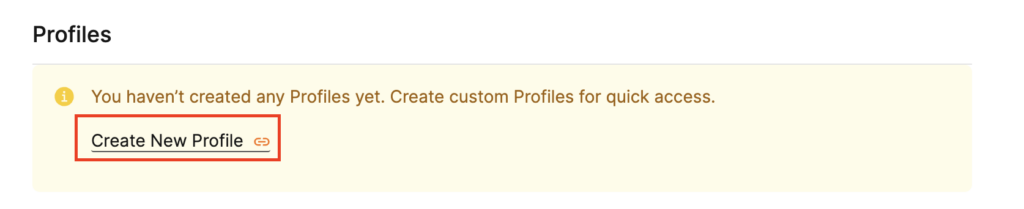
4. Click Create New Profile.
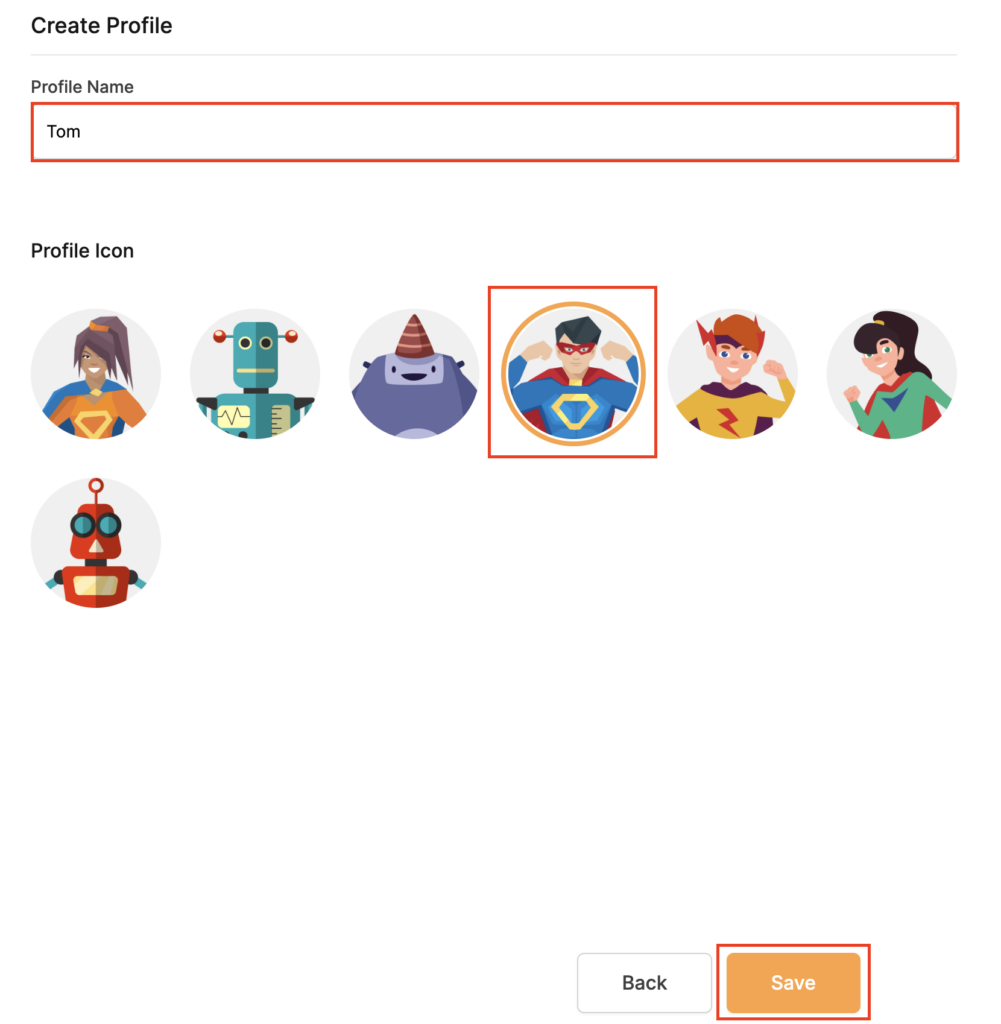
5. Set the Profile Name, select the Profile Icon, and click Save.
6. Click the name of the User Profile.

7. Select Devices.
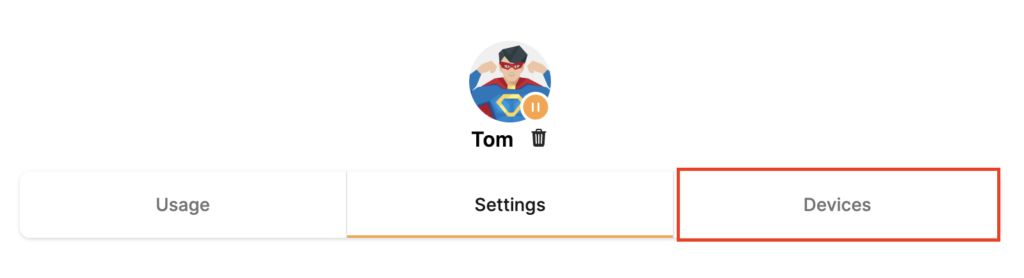
8. Select Manage Devices.
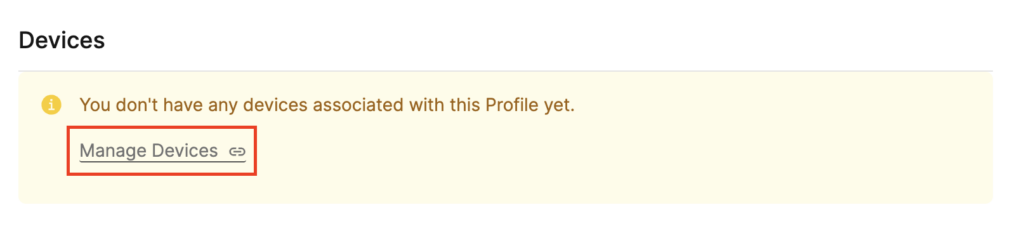
9. If you have not already connected your devices to the Privacy Hero network via wireless or ethernet you can do so now. Refresh the page after connecting a new device and it will appear in the list where you can select Move to “Profile Name” to move the device to the appropriate profile. By default new devices are in the Shared profile.
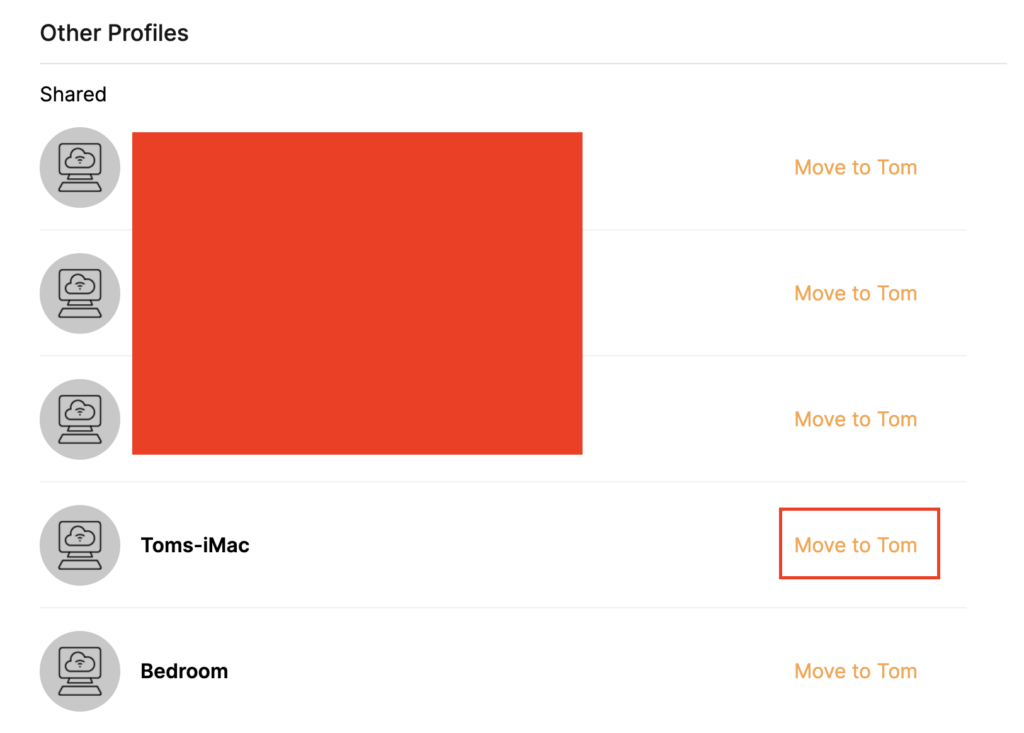
If your devices were already connected to the Privacy Hero network and you are having issues identifying them I would recommend the following steps:
- Click the Devices icon.
- Select the device in question.
- Click Nerd and note down the IP Address of the device.
- Go to the network settings of your device where it will display the local IP Address and match that to the IP Address noted in Privacy Hero.
This is how you can identify a device that is not properly named.
10. Now that your devices are assigned you can set the Bedtime Settings (Internet Scheduler) and Safe Surf settings for your new Profile.
Change WiFi name and password on Roqos
Change your Roqos’ WiFi Network Name and Password to anything you like. Make sure it is not a duplicate of an existing WiFi name.
Login to Roqos Core UI web app in a browser on any computer or smart device.
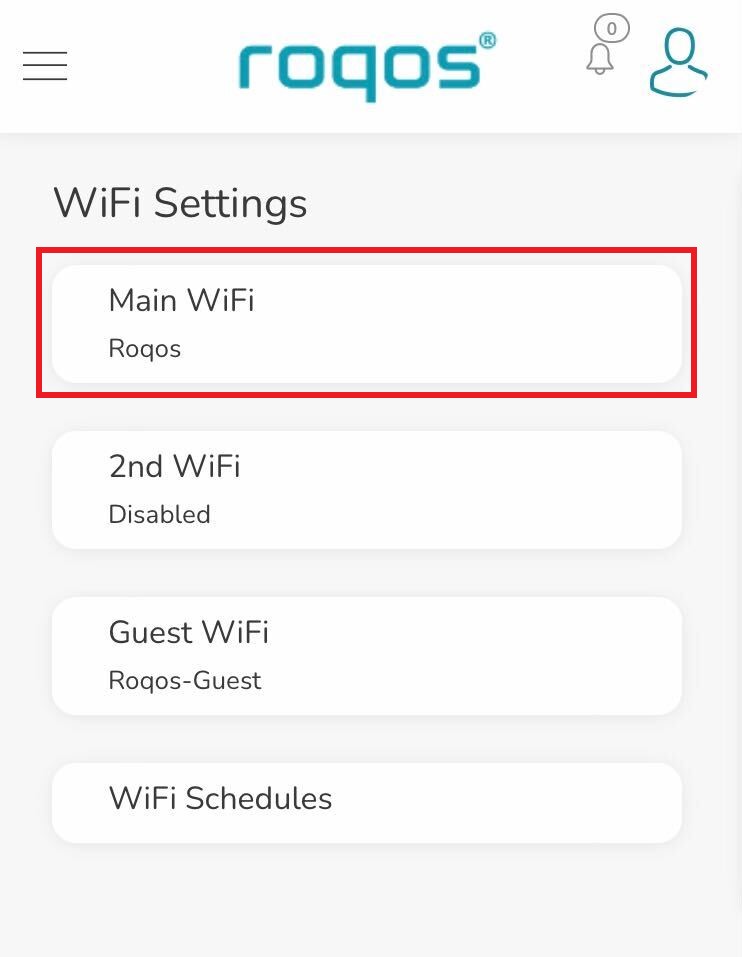
1. Click the navigation menu and select Basic Settings > WiFi Settings.
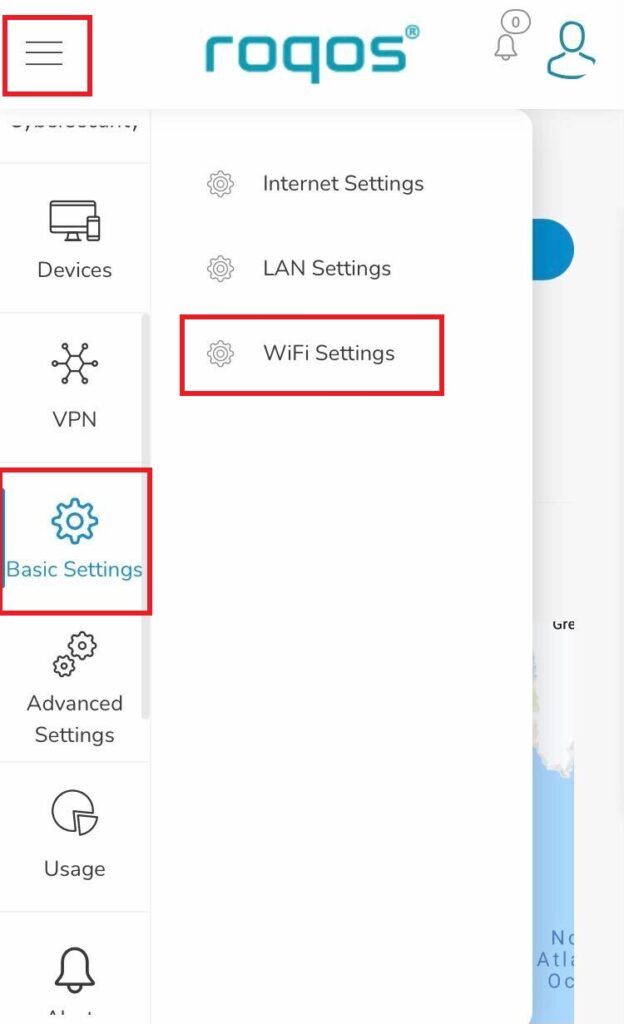
2. Click Main WiFi.
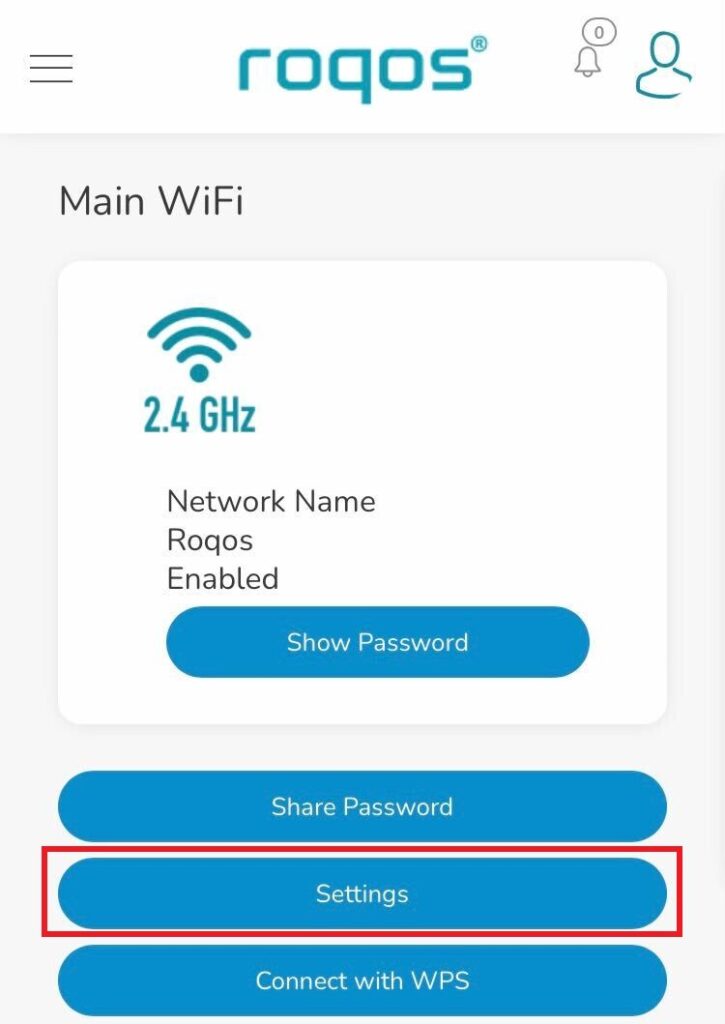
3. Click Settings.
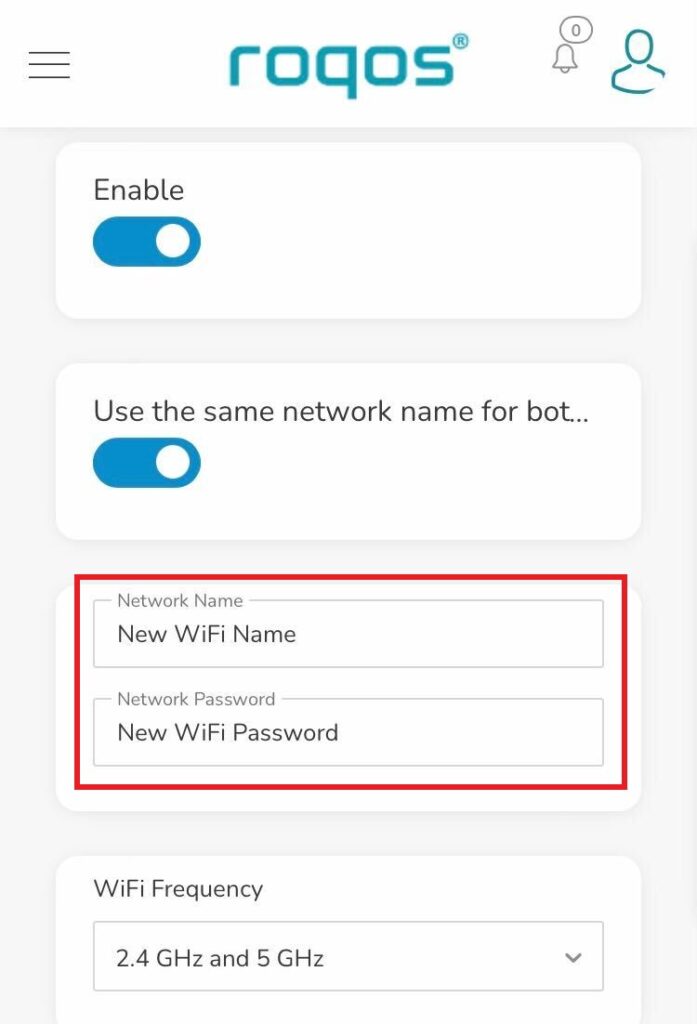
4. Enter the new Network Name and Network Password. Click Save.
5. Reconnect your WiFi devices to the new network with the password you just set.
Privacy Hero Bedtime Settings (Internet Scheduler)
Your Privacy Hero router uses Cloud Based router management which means you can access the router settings from anywhere on any device that has an internet connection. You can follow these steps while connected to your phone, other Wi-Fi network, or the Privacy Hero network.
The Bedtime settings feature allows users to schedule when internet access will be turned off for specific user profiles. All devices assigned to this profile will have these rules applied.
1. From any device that has a browser such as a computer, smartphone, or tablet visit app.privacyhero.com
2. Enter your Privacy Hero account email and password. Click Login.
If you have not created your Privacy Hero account yet please follow these instructions.
3. Click the Profiles symbol.
4. Click the name of the User Profile.
5. Click Schoolnights or Weekends depending on which you need to set rules for.

6. Select the time that you want the Internet to turn off and the days you want this rule to apply to. Click Save.

7. Set the Bedtime toggle to On.

Setting up a Guest WiFi Network on Roqos
Create a Guest WiFi network on your Roqos to segment certain devices from the main network and set custom content filters as you see fit. Note that this is only for 2.4GHz wireless.
Login to Roqos Core UI web app in a browser on any computer or smart device.
1. Click the navigation menu and select Basic Settings > WiFi Settings.
2. Click Guest WiFi.
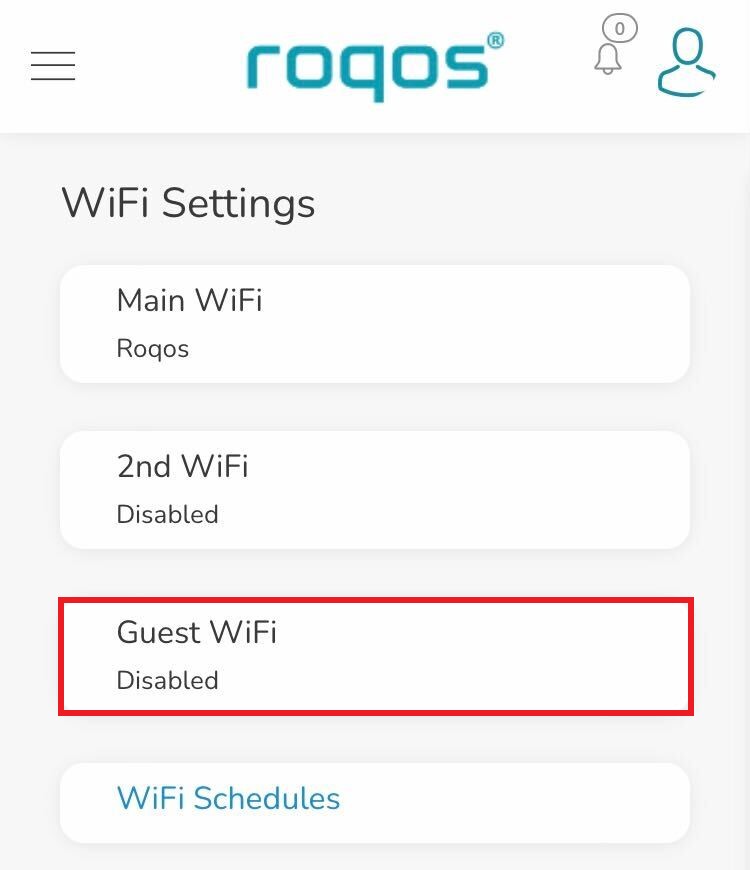
3. Toggle the Enable slider and set the Network Name and Guest WiFi Password. Click Save.
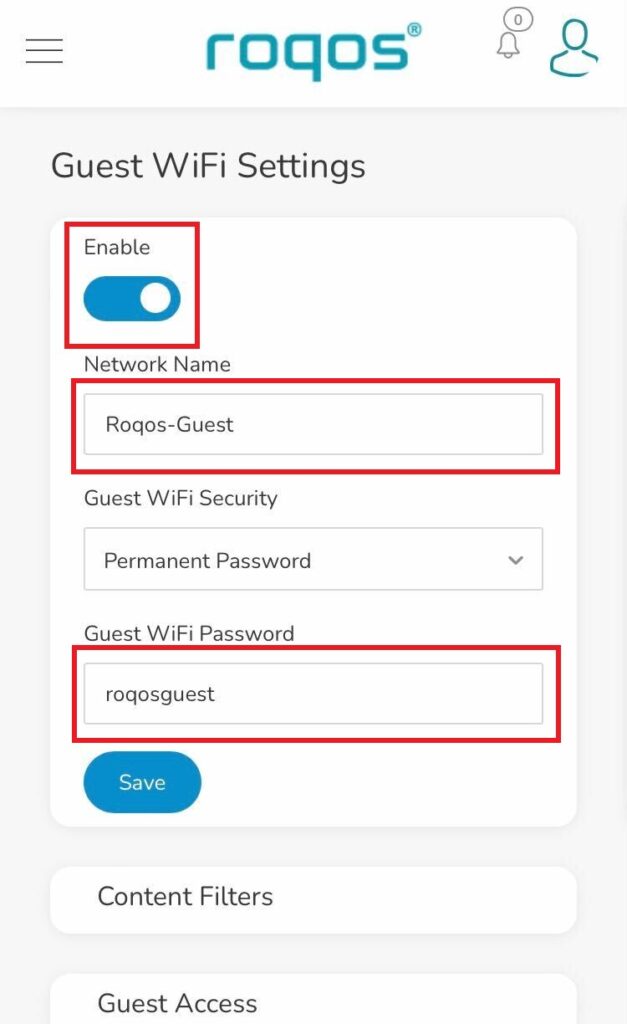
4. Optional: If you wish to set specific Content Filters for the Guest Network and set the Filters that you see fit.
Privacy Hero Safe Surf
Your Privacy Hero router uses Cloud Based router management which means you can access the router settings from anywhere on any device that has an internet connection. You can follow these steps while connected to your phone, other Wi-Fi network, or the Privacy Hero network.
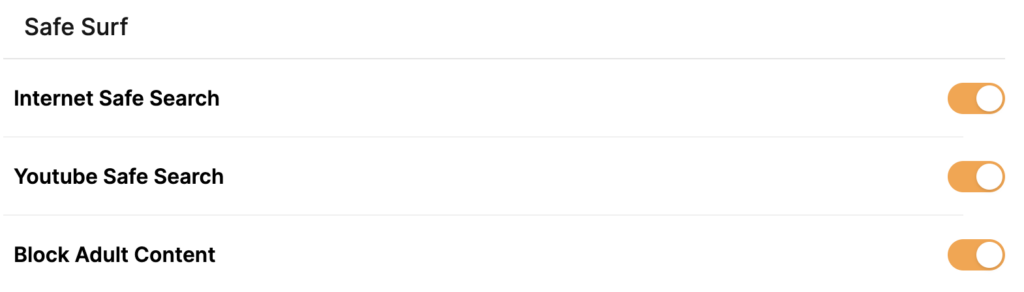
The Safe Surf settings feature allows users to block inappropriate search results, YouTube videos, and adult content. All devices assigned to this profile will have these rules applied.
1. From any device that has a browser such as a computer, smartphone, or tablet visit app.privacyhero.com
2. Enter your Privacy Hero account email and password. Click Login.
If you have not created your Privacy Hero account yet please follow these instructions.
3. Click the Profiles symbol.
4. Click the name of the User Profile.
5. Toggle On the settings for Internet Safe Search, YouTube Safe Search, and Block Adult Content as needed.
Set a Static IP for your connected devices on Roqos
By assigning specific Static IP addresses to your devices you can better manage your network and make sure they connect with the same Local IP Address each time they connect to your Roqos.
Login to Roqos Core UI web app in a browser on any computer or smart device.
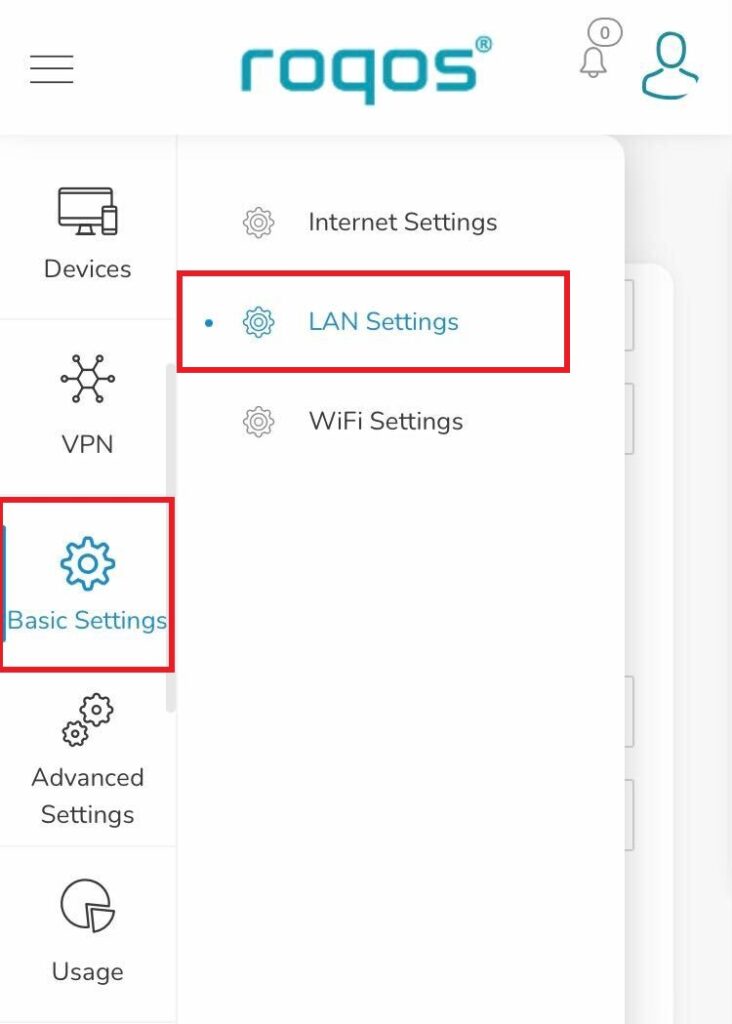
1. Click the navigation menu and select Basic Settings > LAN Settings.
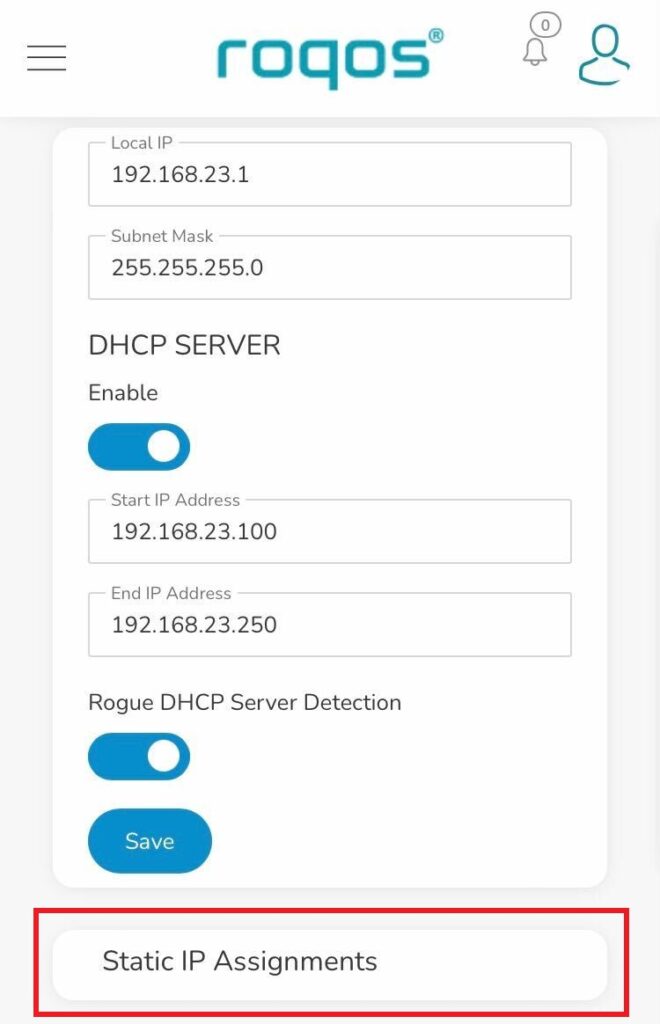
2. Click Static IP Assignments.
3. Click Add Assignment.
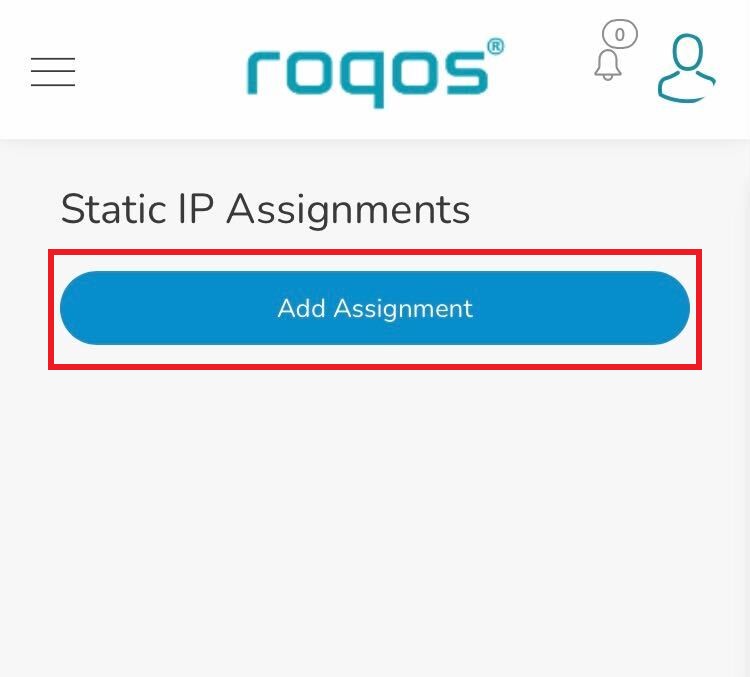
4. Toggle the device hat you want to set a Static IP for and then enter 192.168.23.x with x being any number between 2 and 254. Click Save.
Now, every time the device connects to the Roqos network it will be assigned the same Static IP address on the Local network.