• Skip to primary navigation
  • Skip to main content
  • Skip to primary sidebar
  • Skip to footer

FlashRouters Support Portal

Prioritizing Privacy

  • SETUP GUIDES
    • Privacy Hero Router Setup Guide
    • ASUS-WRT Router Setup Guide
    • AsusWRT-Merlin Router Setup Guide
    • DD-WRT Router Setup Guide
    • ExpressVPN Router Setup Guide
    • GL.iNet Router Setup Guide
    • Roqos Core Router Setup Guide
  • TROUBLESHOOTING
    • Router Access
    • WiFi Connectivity
    • Internet Connection Issues
    • General VPN Issues
    • DD-WRT Firmware
    • TeamViewer Remote Support
  • FAQs
    • Router FAQs
    • VPN FAQs
    • Warranty and Returns FAQs
    • Sales FAQs
    • Shipping FAQs
    • Service Plan FAQs
  • Show Search
Hide Search

Search Results for: asuswrt wireguard

Surfshark AsusWRT WireGuard Setup

TeamFlashRouters · Apr 29, 2024 ·

Preparing for Surfshark AsusWRT Setup

Copy your Surfshark Private Key

If you are not already a Surfshark user Sign Up Now.

1. Log in to your account on the Surfshark website.

Surfshark Account Login

2. Click VPN Manual Setup.

Surfshark VPN Manual Setup

3. Select Router as the Setup method.
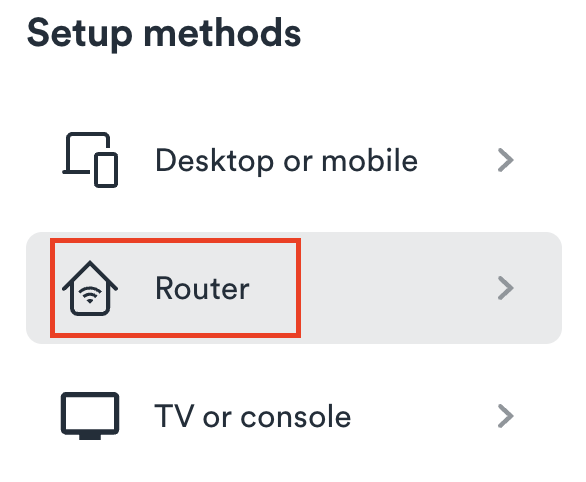
Surfshark setup method Router

4. Select WireGuard as the Protocol.

Surfshark select WireGuard

5. Select I don’t have a key pair.

Surfshark No Key Pair

6. Enter FlashRouter as the name of the connection and click Next.

Surfshark Connection Name

7. Click Generate a new key pair.

Surfshark Generate new Key Pair

8. A Public Key and Private Key will then appear. Use the copy box to copy the Private Key. You will not need the public key.

Surfshark Private Key

AsusWRT Router Setup for Surfshark

Login to AsusWRT firmware settings in a browser on any computer or smart device connected to the AsusWRT FlashRouter’s network.

1. Navigate to the VPN tab.

Merlin VPN Tab

2. Navigate to the VPN Fusion tab.

Asus VPN Fusion

3. Click Add profile.

Asus Add profile

4. In the Connection Name field enter in Surfshark.

5. In the VPN Type dropdown select Surfshark.

6. In the Region dropdown select the Surfshark location you want to connect to.

7. In the Private Key field paste in the Surfshark Private Key obtained earlier.

8. Click Apply and Enable at the bottom of the page.
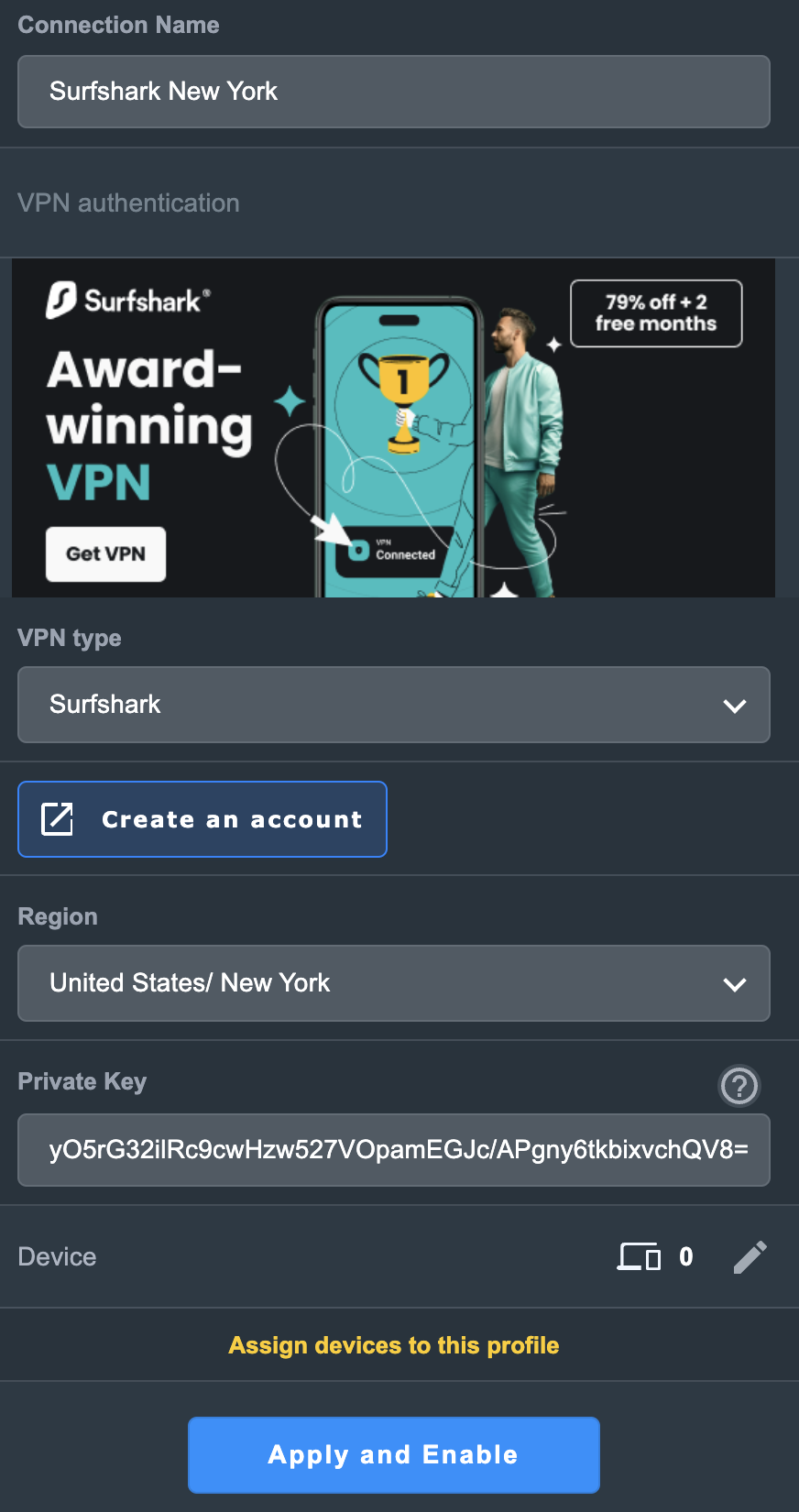
Asus Surfshark profile

If you only want certain devices to connect to the Surfshark profile you are setting up instead of all the devices connected to the FlashRouter’s network click into the profile and disable Apply to all devices. Then click Devices and select the devices that you want to connect to VPN.

Asus VPN devices
Asus VPN select devices

9. At the top of the page set the Service State toggle to ON to activate the VPN connection.
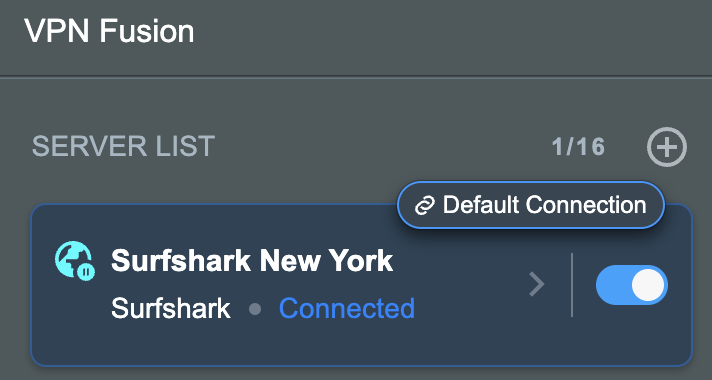
Asus Surfshark Connected

Verify a successful Surfshark connection

  1. You should now see a CONNECTED message.
  2. Visit Surfshark’s IP Check to verify your new IP address and virtual location.

In some cases you may notice that the location is not showing the same location as the server you have input in your router settings; this is because geo tracking tools are often tricked by VPN connections. As long as you see an IP address that is not the same as your normal Internet IP address then you are indeed connected to Surfshark.

How to change the Surfshark server

  1. Use the profile service state toggle to disconnect the currently connected location.
  2. Then click into the Surfshark profile in the router’s settings.
  3. Then adjust the Region dropdown to a new location.
  4. Click Apply all settings.
  5. Use the profile service state toggle to connect the new location.
TROUBLESHOOTING

Still having issues? Visit the VPN Troubleshooting section.

Troubleshoot Here

NordVPN Setup for AsusWRT: Token, WireGuard & OpenVPN

TeamFlashRouters · Oct 15, 2025 ·

Set up NordVPN on an ASUS router using AsusWRT VPN Fusion. Supported ASUS firmware offers three different VPN types: NordVPN (access-token integration), WireGuard (downloadable .conf file), and OpenVPN (manual service credentials plus an .ovpn file). Choose the method that matches your needs and your router’s available options.

All configuration is completed directly through your ASUS router’s administration interface using VPN Fusion. Before starting, make sure your router is connected to the internet, your firmware supports VPN Fusion, and you have an active NordVPN subscription.

Before starting, join the ASUS router WiFi or LAN and sign in to http://www.asusrouter.com or your router’s LAN IP (commonly 192.168.50.1). Open VPN > VPN Fusion > Add profile. Router model, firmware, and region affect which VPN types appear. See How to Access Your AsusWRT FlashRouter Settings.

In This Guide

Choose a VPN Type →NordVPN, WireGuard, or OpenVPNNordVPN Token Setup →Built-in NordLynx integrationWireGuard File Setup →Download and import a .confOpenVPN Setup →Manual credentials and .ovpnDedicated IP Setup →OpenVPN onlyDevices & Troubleshooting →Route devices and verify IP

Which NordVPN Option Should You Choose?

1. NordVPN

NordVPN access token and a country/region dropdown. The built-in ASUS/NordVPN integration is the simplest approach if you only need a country, not an exact server file.

Follow token setup →

2. WireGuard

Import a NordVPN .conf configuration file for a server selected in Nord Account. Useful when you want a downloaded profile for a particular server.

Follow WireGuard setup →

3. OpenVPN

Import a NordVPN .ovpn server file and enter your separate manual service username and password. Also used for NordVPN Dedicated IP.

Follow OpenVPN setup →

Dedicated IP uses OpenVPN only in this guide. Select OpenVPN in VPN Fusion and import your Dedicated IP .ovpn file. Do not use the standard NordVPN token/region dropdown for a Dedicated IP.

Option 1: NordVPN Dropdown — Token-Based NordLynx

Select the NordVPN type inside VPN Fusion. This is the integrated token-based setup and offers a country/region selection, rather than a manually imported server file.

  1. In Nord Account, open NordVPN Access Tokens and complete email/account verification if requested.
  2. Generate an access token, choose an expiry period if NordVPN offers that setting, and copy the token immediately (it may only be displayed once).
  3. On your ASUS router, open VPN > VPN Fusion > Add profile.
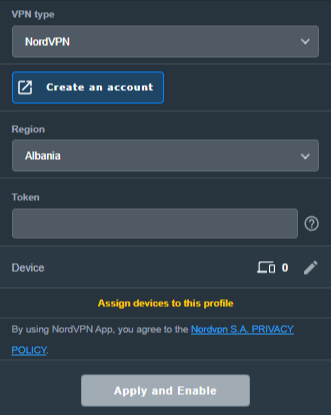
  4. Set VPN Type to NordVPN. Name the profile, select your preferred Region, and paste the token.
  5. Choose Apply to all devices if you want it as the default route, or assign only selected devices (see the VPN Fusion guide below).
  6. Click Apply and Enable / Apply all settings, as shown in your firmware, and verify the profile connects.
ASUS VPN Fusion NordVPN VPN type with Region and Token fields
In VPN Fusion, select NordVPN, choose a region, and enter your NordVPN access token.

Need a specific server? Use the separate WireGuard file method below or the OpenVPN configuration-file method. Do not expect the token-based country dropdown to accept a .conf or .ovpn file.

Option 2: WireGuard Dropdown — Import a NordVPN .conf File

NordVPN provides downloadable WireGuard configuration files through its manual server recommendation page. This is different from the built-in NordVPN token option in VPN Fusion.

Download the NordVPN WireGuard configuration

  1. Sign in to Nord Account and open NordVPN Server Recommendation.
  2. Choose your preferred country and server. Use the available filters to narrow the list if needed.
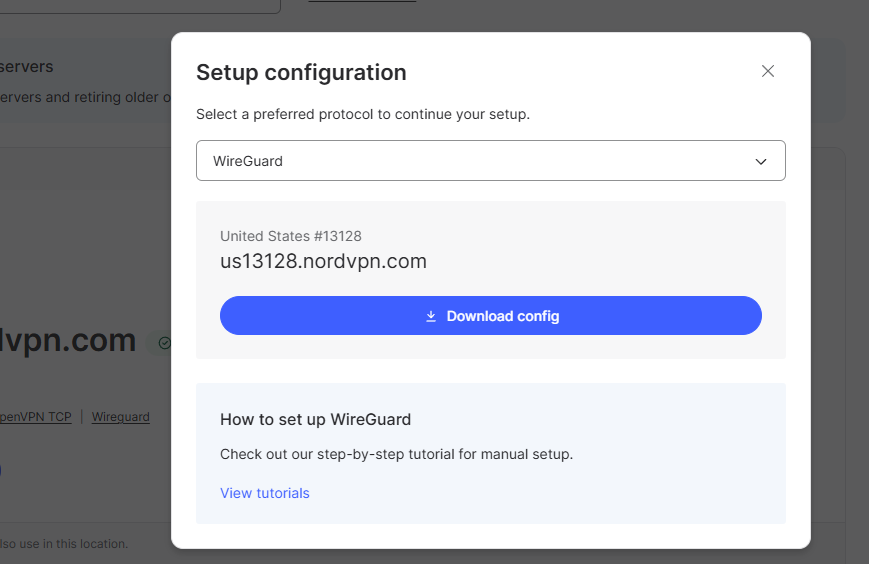
  3. Choose Get setup configuration, select WireGuard, and click Download config. Save the downloaded .conf file.
NordVPN server recommendation showing WireGuard protocol selected and Download config button
Download the WireGuard configuration file for your selected NordVPN server.

Import the configuration into ASUS VPN Fusion

  1. On your ASUS router, open VPN > VPN Fusion > Add profile, then select WireGuard as the VPN type (not NordVPN).
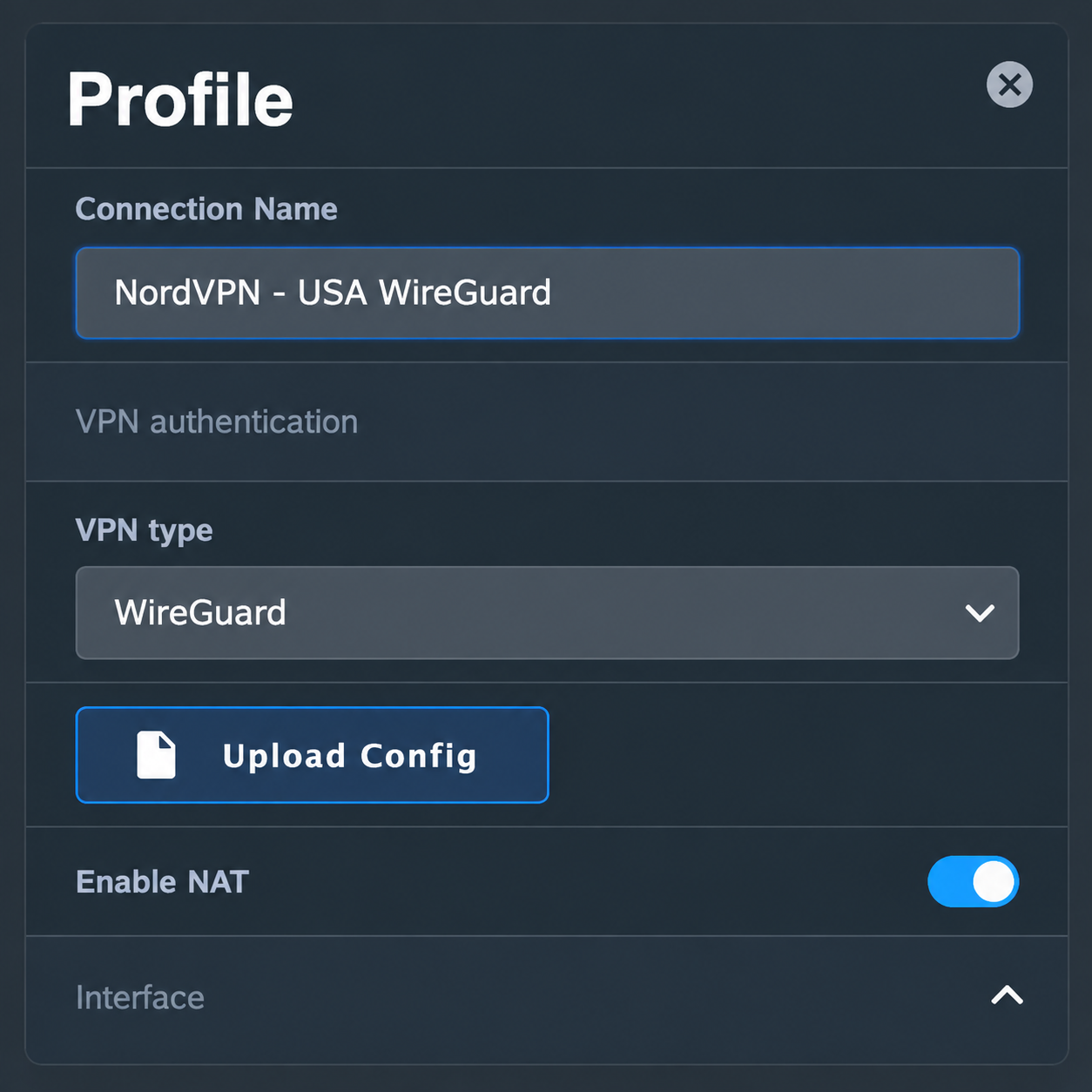
  2. Enter a recognizable connection name, such as NordVPN – USA WireGuard. Click Upload Config and select the .conf file you downloaded from NordVPN.
  3. Save the profile, choose which devices should use it (or apply it to all devices), and enable the VPN. Confirm the profile connects and check the public IP of a device using that profile.
ASUS VPN Fusion WireGuard profile showing NordVPN USA connection name and Upload Config button
In ASUS VPN Fusion, select WireGuard and upload your downloaded NordVPN configuration file.

WireGuard configuration files may contain a private key. Do not share a customer .conf file or publish screenshots exposing its key material. To change servers, download and import a different configuration file.

NordVPN’s official instructions: How to download WireGuard and OpenVPN configuration files.

Option 3: OpenVPN Dropdown — Credentials + .ovpn File

OpenVPN requires two separate items: the configuration file for your desired server and NordVPN’s manual service credentials. Your normal Nord Account email/password is not the correct credential pair for this method.

  1. Open NordVPN Manual Service Credentials and copy the service username and service password after any required verification.
  2. Open NordVPN OpenVPN Configuration Files and choose a server/location. Download its UDP .ovpn file, or TCP .ovpn if UDP does not work on your network.
  3. On ASUS, go to VPN > VPN Fusion > Add profile and set VPN Type to OpenVPN.
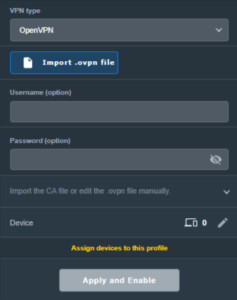
  4. Enter a connection name, Import .ovpn file, and paste the NordVPN manual service username and password in the corresponding fields.
  5. Choose devices or Apply to all devices, then click Apply and Enable. Confirm VPN Fusion shows a successful connection.
ASUS VPN Fusion OpenVPN VPN type with OVPN import and username password fields
Select OpenVPN, import the server configuration file, and enter your NordVPN manual service credentials.

Server selection: The location is controlled by the server named in the imported .ovpn file. To switch locations, import another server file or use a separate OpenVPN profile.

NordVPN Dedicated IP — OpenVPN Only

If you have purchased and activated the NordVPN Dedicated IP add-on, use your specific Dedicated IP OpenVPN configuration file. Do not select the ordinary NordVPN token integration or a regular shared server.

  1. In your Nord Account, open the Dedicated IP details and download the assigned server’s OpenVPN UDP or TCP configuration file, following NordVPN Dedicated IP manual configuration instructions.
  2. Open NordVPN Manual Service Credentials and copy the manual username and password.
  3. In ASUS VPN Fusion > Add profile, choose OpenVPN.
  4. Import the Dedicated IP .ovpn file, enter manual service credentials, save, enable, and verify the public IP matches your assigned Dedicated IP.

The Dedicated IP add-on must be active on the NordVPN account. A regular shared-server .ovpn file will not give you the Dedicated IP.

Assign Devices, Verify the VPN, and Troubleshoot

One VPN for everyone, or different VPNs for different devices?

VPN Fusion lets you use a VPN profile as the default connection for all devices or assign specific client devices to different profiles. Some supported ASUS models can maintain one WireGuard tunnel alongside multiple OpenVPN profiles, but the number of simultaneous tunnels is model/firmware dependent; creating multiple profiles does not mean all can be active simultaneously.

For step-by-step device assignments, default routing, profile conflicts, and bypassing the VPN, see How to Use ASUS VPN Fusion: Assign Devices and Multiple VPNs. For a dedicated WiFi network with VPN or ISP routing, see ASUS Guest WiFi With or Without VPN: Setup Guide.

Verify the IP of the actual device

  1. Confirm your chosen profile shows Connected in VPN Fusion.
  2. Join the ASUS WiFi or LAN using a device that is actually assigned to that VPN profile.
  3. Open NordVPN IP Address Check and compare the public IP/location with the intended server or Dedicated IP.
  4. If the device shows an ISP IP, first check Apply to all devices and the per-device assignments in VPN Fusion.
  5. Disconnect a NordVPN app, Apple iCloud Private Relay, browser VPN/proxy, or other device-level network service during testing. Follow Device Settings That Can Interfere With Your Router VPN.

If VPN Fusion will not connect

  1. Temporarily disable the failing profile and confirm the ASUS router works using its normal ISP internet connection.
  2. For NordVPN type, check that the access token is valid and hasn’t expired; regenerate if needed.
  3. For WireGuard, import a fresh .conf from the Nord server recommendation page and make sure the profile is enabled.
  4. For OpenVPN, double-check manual service credentials (not website credentials) and try a different server file or TCP instead of UDP.
  5. Check that device-assignment rules point to the intended active profile, then retest with one clean device.

NordVPN Routers & Offers

Shop NordVPN-Ready FlashRouters

Compare NordVPN-ready router options and choose the hardware that fits your VPN and network requirements.

Browse NordVPN Routers →

NordVPN Partner Offer

Need NordVPN service? See the current FlashRouters NordVPN promotional offer. Subscription pricing and terms are shown on the offer page.

See NordVPN Offer →

Related AsusWRT Guides

  • How to Use ASUS VPN Fusion: Assign Devices and Multiple VPNs
  • ASUS Guest WiFi With or Without VPN: Setup Guide
  • How to Access Your AsusWRT FlashRouter Settings
  • Device Settings That Can Interfere With Your Router VPN

Upgrade your ASUS router

Explore the Latest WiFi 7 ASUS FlashRouters

Looking for a newer ASUS router? Browse WiFi 7 models available from FlashRouters and compare features to find the right fit for your home or office. VPN Fusion and other features vary by router model and firmware.

Shop ASUS WiFi 7 Routers →

How to Use ASUS VPN Fusion: Assign Devices and Multiple VPNs

Dave · Oct 26, 2026 ·

ASUS VPN Fusion lets supported AsusWRT routers run VPN client profiles and decide which connected devices use each VPN connection. You can send the entire network through one VPN, use separate VPN profiles for selected devices, or leave certain devices on the regular ISP connection.

This guide covers how to use ASUS VPN Fusion to assign devices to specific VPN connections, manage multiple VPN profiles simultaneously, and choose which devices use a VPN or connect directly through your ISP. These features work with supported VPN providers and protocols, including WireGuard and OpenVPN.

In This Guide

Before You Start →Connect and open VPN FusionApply VPN to All Devices →Default VPN routeAssign Selected Devices →Per-device VPN or ISPMultiple VPN Profiles →WireGuard and OpenVPNVerify & Troubleshoot →Check each device’s public IPGuest Network Routing →VPN WiFi and ISP WiFi

Open VPN Fusion

  1. Connect your computer or phone to your ASUS FlashRouter’s WiFi or LAN.
  2. Open http://www.asusrouter.com or the router’s LAN IP (often 192.168.50.1) and log in. See How to Access Your AsusWRT FlashRouter Settings.
  3. Go to VPN > VPN Fusion. Add and configure at least one working VPN client profile before assigning devices.
ASUS VPN Fusion page with Add Profile and Internet Connection
VPN Fusion displays your saved VPN profiles and the Add Profile option.

The exact menu names, profile limits, and available VPN types depend on your ASUS model and firmware. Some older ASUS routers use a different VPN Client interface and do not have the full VPN Fusion controls.

Method 1: Apply One VPN to All Devices

Use this option when you want the selected VPN profile to be your router’s default connection.

  1. In VPN Fusion, open the VPN profile that should provide the default internet route.
  2. Enable Apply to all devices (or Default Connection in firmware that uses that label).
  3. Click Apply all settings, then enable the VPN profile.
  4. Connect a test device to the router and check its IP. If you use per-device overrides, verify those rules separately.
ASUS VPN Fusion Apply to all devices setting and device count
Enable Apply to all devices to use the selected VPN as the default connection.

Do not assume every active VPN profile applies to every device. The default route and any device-specific policies determine which connection a device uses.

Method 2: Send Only Selected Devices Through a VPN

  1. In VPN Fusion, turn off Apply to all devices for a profile when you do not want that VPN used network-wide.
  2. Open the profile’s Device area using the pencil/edit icon or the firmware’s device-assignment control.
  3. Select the intended devices (for example, a TV and streaming box), confirm with OK, then click Apply all settings.
  4. Enable the VPN profile and verify the selected devices’ public IPs.
  5. For devices that should use the normal ISP internet, leave them on the Internet Connection route or explicitly set the Internet/bypass rule available in your firmware. Remove any conflicting VPN assignments.

Important: A device being connected to ASUS WiFi does not guarantee that it is assigned to the desired VPN. Check the assigned profile and the actual public IP.

How Multiple VPN Connections Work

On supported models, VPN Fusion can keep several VPN connections active and route different devices through different providers at the same time. For example:

TVNordVPN — WireGuard
LaptopProton VPN — OpenVPN
Streaming deviceSurfshark — OpenVPN
Work computerRegular ISP connection

You may be able to run one WireGuard profile and multiple OpenVPN profiles concurrently, but connection limits and supported combinations vary by ASUS router model and firmware. Adding many saved OpenVPN profiles is not the same as having all of them connected at once.

  1. Create separate profiles with clear names, such as Nord-US-WG, Proton-US-OVPN, and Surfshark-UK-OVPN.
  2. Enable only the profiles you need and confirm each shows connected.
  3. Assign each client device to the appropriate active profile; avoid applying conflicting default routes.
  4. Verify each device’s observed IP and server country. If one tunnel fails, test it individually with the other profiles temporarily disabled.

ASUS reference: How VPN Fusion handles multiple tunnels and devices.

Confirm a Device Is Actually Using the VPN

  1. In VPN Fusion, confirm the target profile’s connection status is active.
  2. Check the device’s assignment in the ASUS VPN Fusion interface.
  3. On that same device, visit IPLeak.net or another public-IP checker.
  4. Compare the reported public IP and location with the VPN server assigned to that device.
  5. If the device still shows your ISP IP, test with its own VPN app and iCloud Private Relay / Private DNS / browser proxy disabled. Use Device Settings That Can Interfere With Your Router VPN.

Quick isolation test

  1. Turn off VPN Fusion routing for a test device and confirm ISP internet works.
  2. Turn on just one known-working VPN profile for that device.
  3. Recheck public IP. If it now works, reintroduce other profiles/assignments individually.

Want a Separate WiFi Network With or Without VPN?

Rather than selecting devices one at a time, supported ASUS routers offer Guest Network Pro or Network > VPN Network features that can associate a WiFi SSID with VPN routing. See ASUS Guest WiFi With or Without VPN: Setup Guide.

On routers with only the traditional Guest Network feature, available VPN-by-SSID behavior may differ; do not assume the standard guest SSID bypasses a network-wide VPN default.

Related AsusWRT Guides

  • NordVPN Setup for AsusWRT: Token, WireGuard & OpenVPN
  • ASUS Guest WiFi With or Without VPN: Setup Guide
  • Device Settings That Can Interfere With Your Router VPN
  • How to Access Your AsusWRT FlashRouter Settings

Upgrade your ASUS router

Explore the Latest WiFi 7 ASUS FlashRouters

Looking for a newer ASUS router? Browse WiFi 7 models available from FlashRouters and compare features to find the right fit for your home or office. VPN Fusion and other features vary by router model and firmware.

Shop ASUS WiFi 7 Routers →

ASUS-WRT Router Setup Guide

ASUSWRT Routers

Quick Start Guide for ASUS-WRT FlashRouters

Find setup guides, FAQs and troubleshooting tips for ASUSWRT configured FlashRouters.

VIEW SUPPORTED ROUTER MODELS

Asus Logo
  • ROG series: GT-BE98 Pro
  • GT series: GT6, GT-AXE16000, GT-AX11000 Pro, GT-AXE11000, GT-AX6000, GT-AX11000, GS-AX5400, GS-AX3000
  • ZenWiFi: ZenWiFi Pro XT12, ZenWiFi Pro ET12, ZenWiFi XT9, ZenWiFi AX (XT8), ZenWiFi ET8, ZenWiFi XD6, ZenWiFi XD5
  • RT series: RT-BE96U, RT-BE88U, RT-BE58U, RT-AXE7800, RT-AX88U Pro, RT-AX88U, RT-AX86U Pro, RT-AX86U, RT-AX86S, RT-AX68U, RT-AX82U, RT-AX58U, RT-AX3000, RT-AX59U, RT-AX92U
  • TUF series: TUF-AX5400, TUF-AX3000_V2, TUF-AX3000, TUF Gaming AX6000, TUF Gaming AX4200

Internet Setup

  • How to Access Your AsusWRT FlashRouter Settings

WiFi Setup

  • ASUS Guest WiFi With or Without VPN: Setup Guide
  • Change WiFi name and password on Asus

VPN Setup

  • CyberGhost AsusWRT OpenVPN Setup
  • Surfshark AsusWRT WireGuard Setup
  • NordVPN Setup for AsusWRT: Token, WireGuard & OpenVPN
  • IPVanish AsusWRT OpenVPN Setup
  • PrivateInternetAccess (PIA) AsusWRT OpenVPN Setup
  • ExpressVPN Setup for AsusWRT Firmware Routers
  • PrivateInternetAccess (PIA) Asus AX1800S OpenVPN Setup
  • IPVanish Asus AX1800S OpenVPN Setup
  • ExpressVPN Asus AX1800S OpenVPN Setup
  • NordVPN Asus AX1800S OpenVPN Setup

Asus-WRT Features

  • How to Use ASUS VPN Fusion: Assign Devices and Multiple VPNs

Search Support Articles

Troubleshooting

  • Device Settings That Can Interfere With Your Router VPN

More Ways to Get Help

GET IN TOUCH

BUY SUPPORT
BROWSE FAQs

AsusWRT-Merlin Router Setup Guide

Asus-Merlin Router Setup

Quick Start Guide for AsusWRT-Merlin FlashRouters

Find setup guides, FAQs and troubleshooting tips for Asus-Merlin configured FlashRouters.

VIEW SUPPORTED ROUTER MODELS

Asus Logo
  • RT-BE88U (BE7200), RT-AC68U, RT-AC88U, RT-AC3100, RT-AC5300, RT-AC86U, RT-AX56U, RT-AX58U, RT-AX68U, RT-AX86U. RT-AX86U-PRO, RT-AX88U, RT-AX88U-PRO
  • GT-AC2900, GT-AX6000, GT-AX11000, GT-AXE11000,GT-AXE11000-PRO,  GT-AXE16000
  • ZenWiFi Pro XT12

Internet Setup

  • Internet and Wifi Setup on Asus Merlin Firmware
  • DNS Setup for Asus Merlin

WiFi Setup

  • Change WiFi name and password on Merlin
  • Separate your WiFi 2.4GHz and 5GHz Merlin networks

VPN Setup

  • Connecting to OpenVPN on Asus Merlin Firmware
  • PureVPN Merlin WireGuard Setup
  • Surfshark Merlin WireGuard Setup
  • ProtonVPN Merlin WireGuard Setup
  • IPVanish Merlin OpenVPN Setup
  • PrivateInternetAccess (PIA) Merlin OpenVPN Setup
  • NordVPN Merlin OpenVPN Setup
  • ExpressVPN Merlin OpenVPN Setup
  • CyberGhost Merlin OpenVPN Setup

AsusWRT-Merlin Features

  • VPN Director for Asus Merlin
  • VPN Killswitch for Asus Merlin

Search Support Articles

Troubleshooting

  • Device Settings That Can Interfere With Your Router VPN
  • How do I find my router local IP address?

More Ways to Get Help

GET IN TOUCH

BUY SUPPORT
BROWSE FAQs

Primary Sidebar

  • Troubleshooting
  • Router Access
  • Internet Connection Issues
  • WiFi Connectivity
  • General VPN Issues
  • TeamViewer Remote Support
  • DD-WRT Firmware
  • Facebook
  • Twitter
  • Instagram
  • Pinterest
  • YouTube

Footer