
Quick Start Guide for OpenWRT Routers
Find setup guides, FAQs and troubleshooting tips for the FlashRouters OpenWRT Routers.

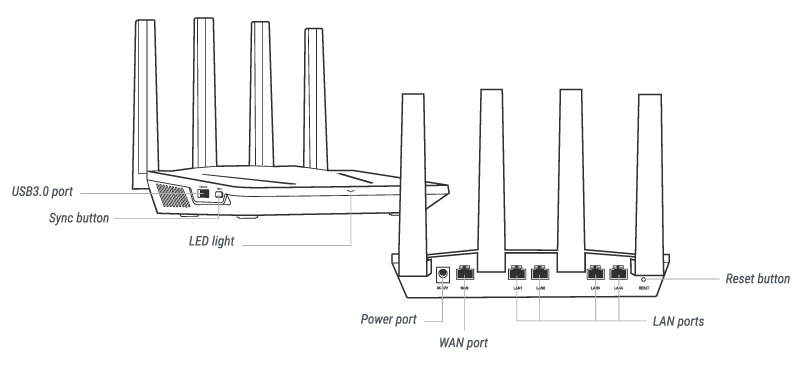
Flint WiFi 6 AX1800 VPN Router
Internet Setup
Prioritizing Privacy
Flint WiFi 6 AX1800 VPN Router



Once you have OpenVPN connected on your Merlin FlashRouter you can enable the VPN Killswitch so that no internet traffic passes through your router that is not encrypted by the VPN tunnel.
Login to Asus Merlin firmware settings in a browser on any computer or smart device.
1. Under Advanced Settings select VPN.
2. Click the VPN Client tab.
3. Set Killswitch – Block routed clients if tunnel goes down to Yes.

4. Click Apply.
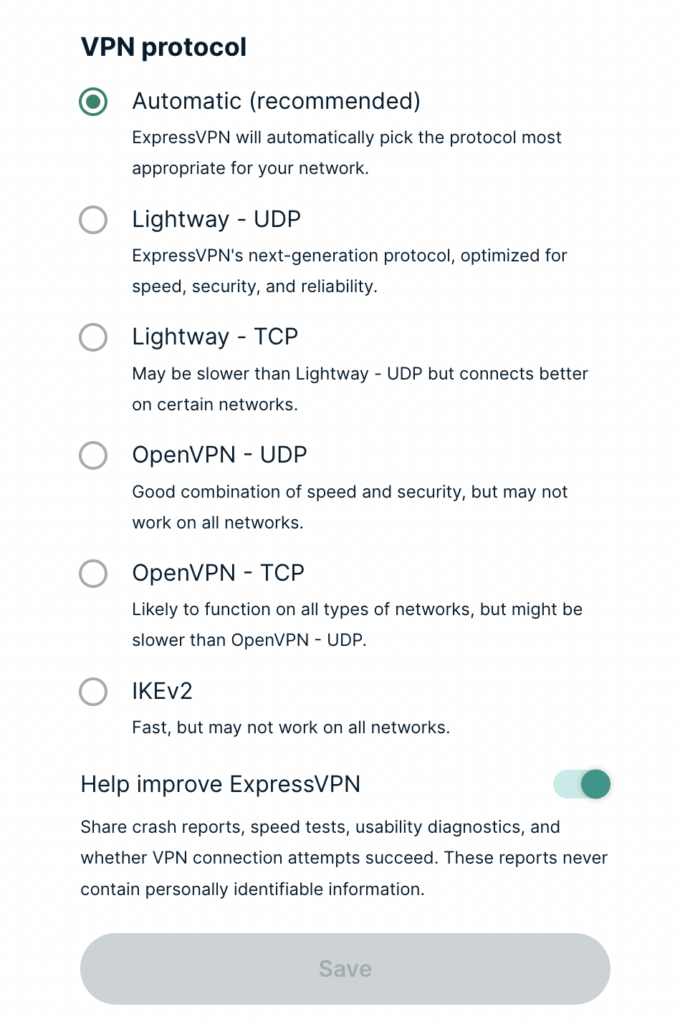
Changing the VPN protocol your ExpressVPN FlashRouter is using can help with obtaining faster speeds while connected to VPN and connectivity issues in some regions of the world. A great advantage of using ExpressVPN firmware is the ability to use multiple protocols such as OpenVPN, IKEv2, and ExpressVPN’s own protocol Lightway.
1. Connect to the FlashRouter’s network via ethernet cable or wireless.
2. Open your web browser and enter expressvpnrouter.com or 192.168.132.1 in the URL.


3. Login with your ExpressVPN FlashRouter admin password.

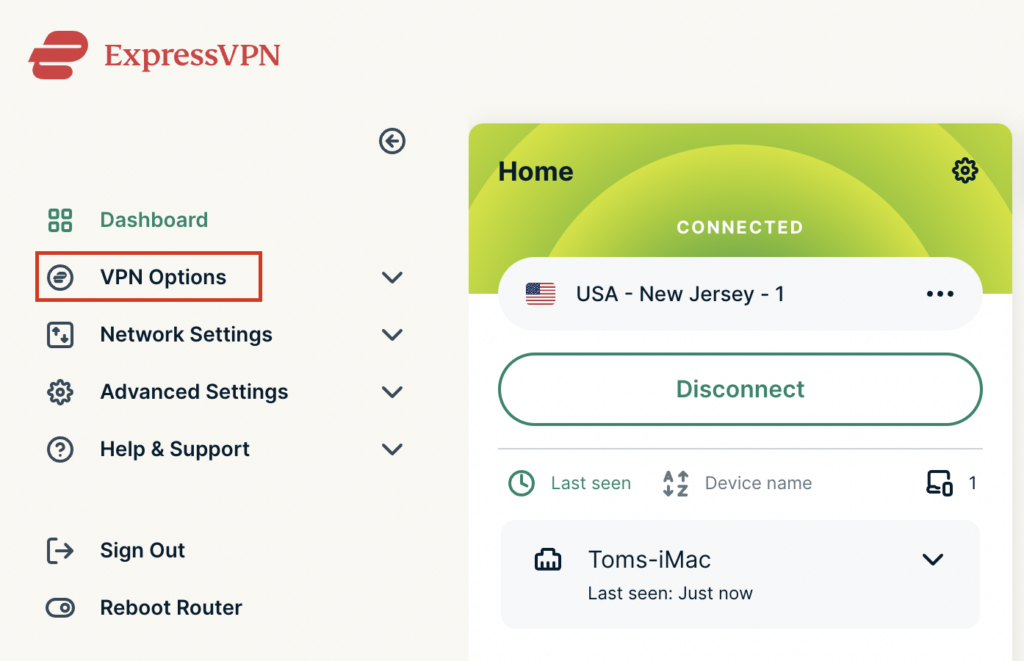
4. Select VPN Options on the left hand side of the menu.
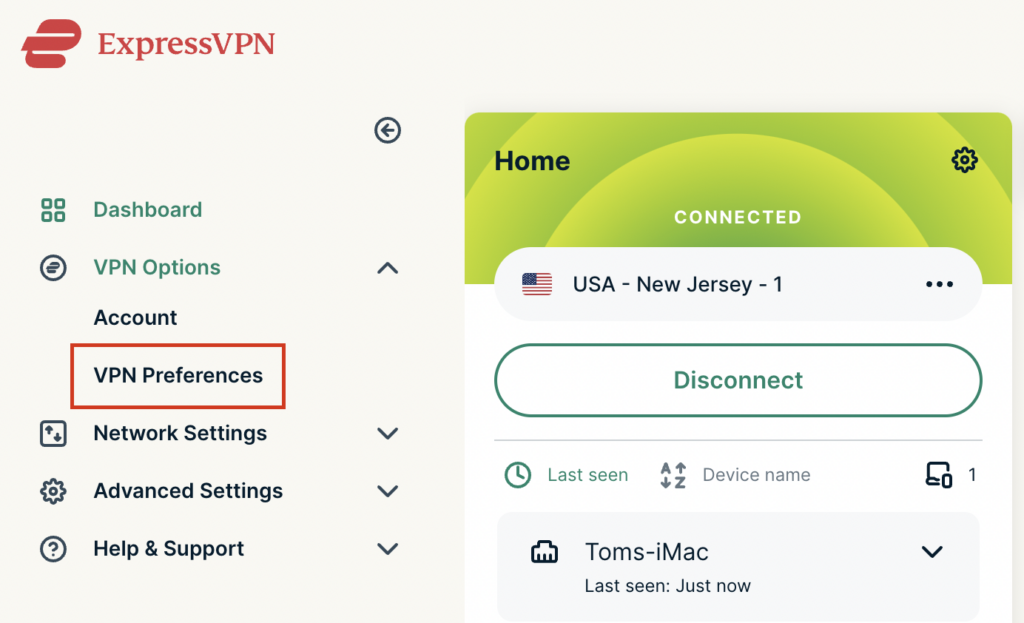
5. Select VPN Preferences on the left hand side of the menu.
6. Choose the VPN protocol that best suits your needs. We typically see the fastest speeds while using the Lightway – UDP or IKEv2 protocols. Click Save.
7. Click OK and then select Dashboard.
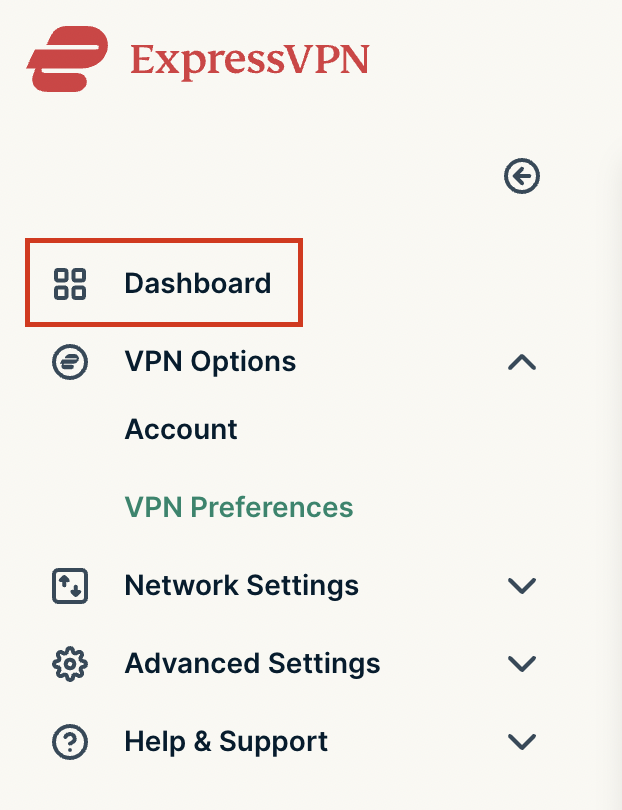
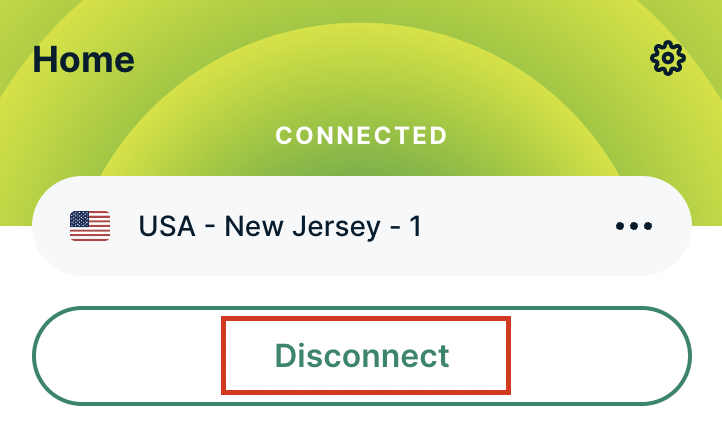
8. Click Disconnect to turn the VPN connection off.
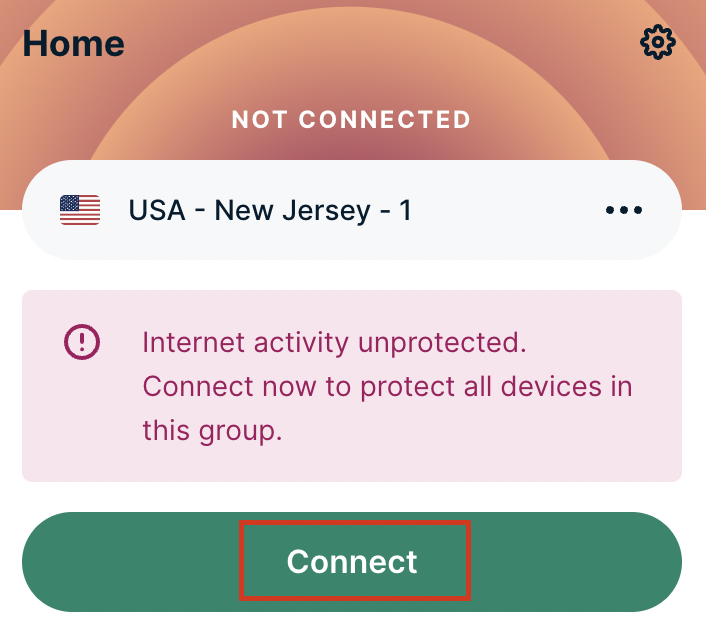
9. Click Connect to turn the VPN connection back on so it is using the new Protocol you selected.
Once you have OpenVPN connected on your Merlin FlashRouter you can manage your VPN connections by device or by VPN servers or even VPN providers. This is a major advantage of Asus Merlin firmware as it allows up to 5 VPN connections at the same.
Login to Asus Merlin firmware settings in a browser on any computer or smart device.
1. Under Advanced Settings select VPN.
2. Click the VPN Client tab.
3. In the Select Client instance dropdown select a new client instance to setup and follow your VPN providers setup guide.
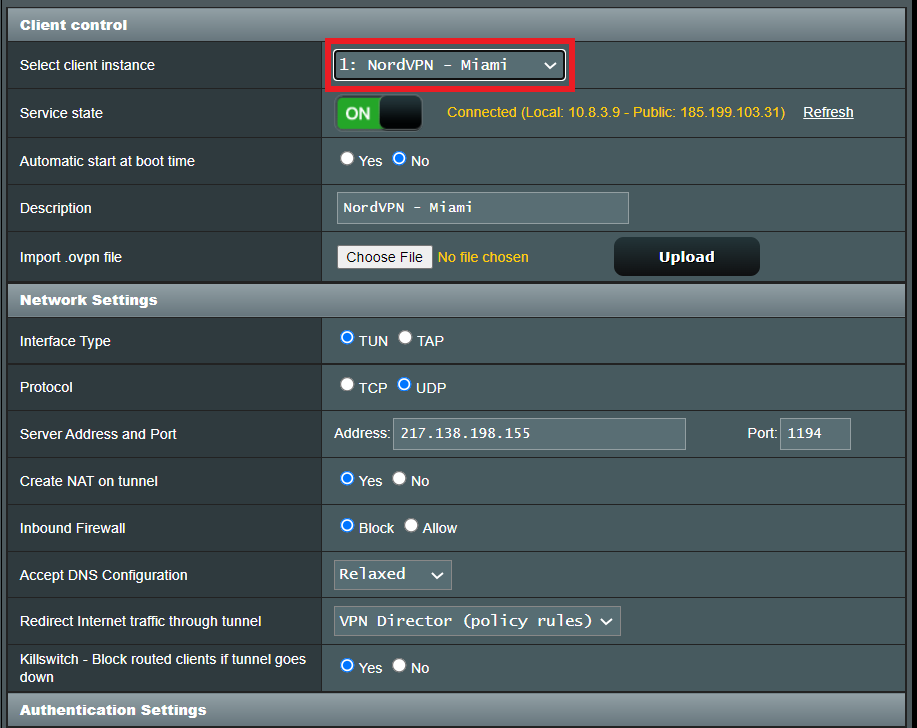
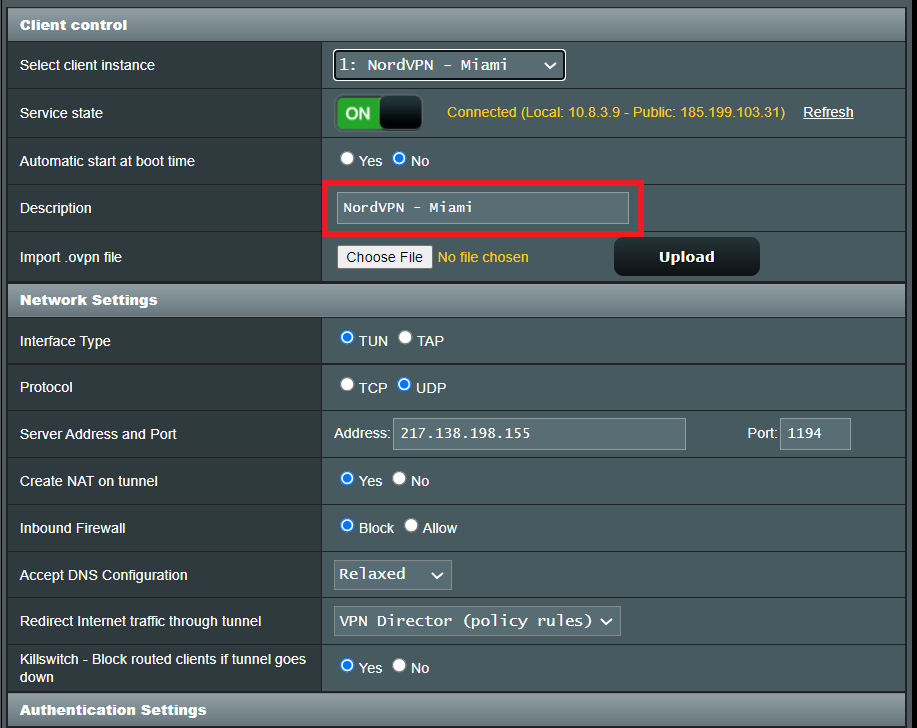
4. Name the client in the Description field for more clarity for which server or provider is being setup.
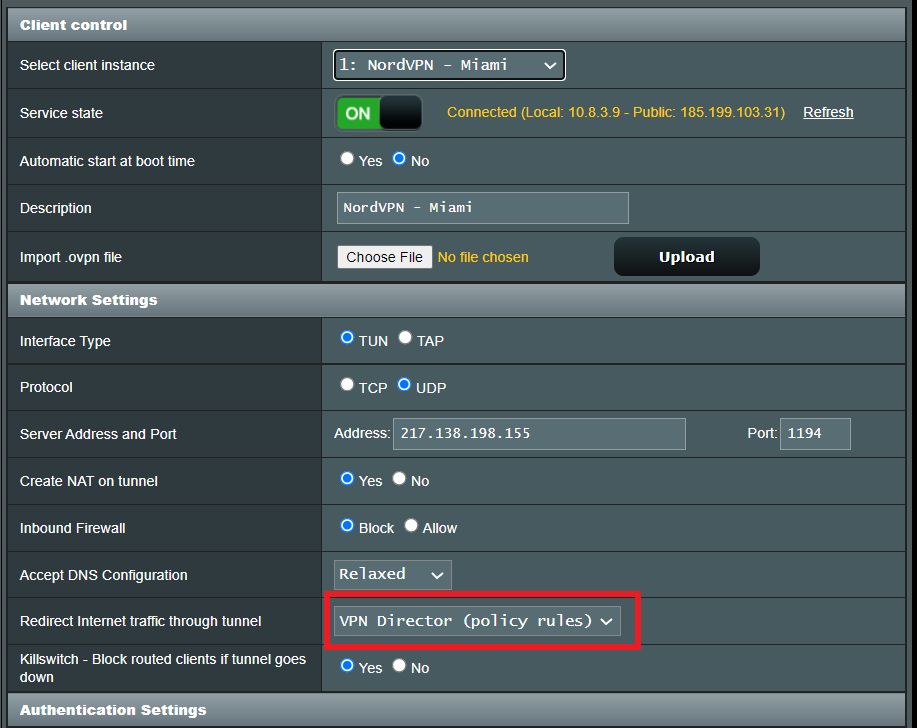
5. Set the Redirect Internet traffic through tunnel dropdown to VPN Director.
1. Under Advanced Settings select VPN.
2. Click the VPN Director tab.
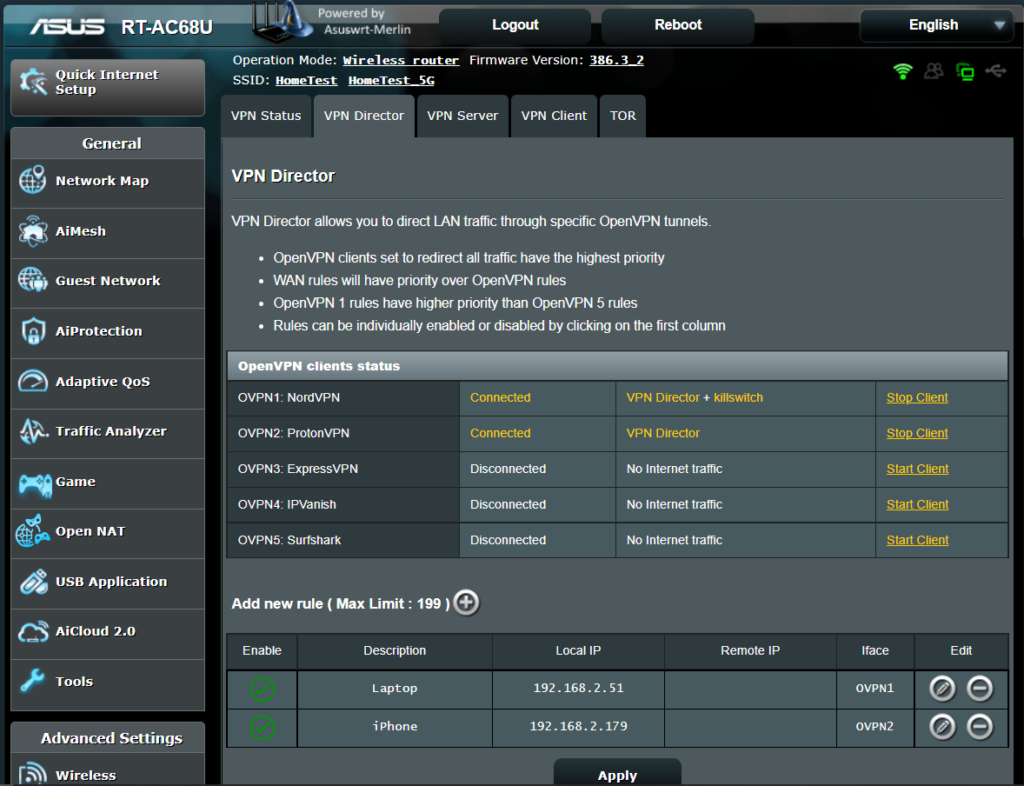
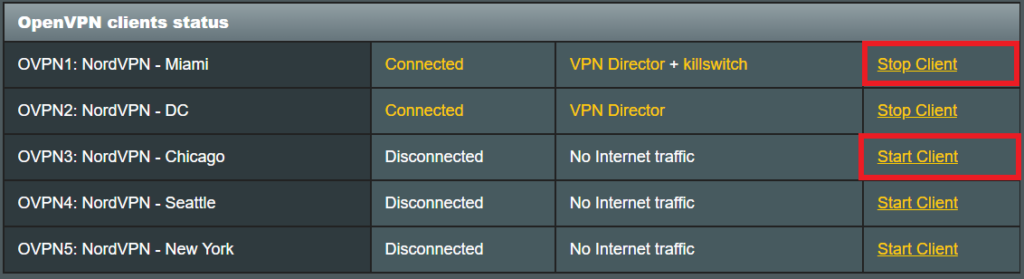
3. With multiple VPN clients connected you can start and stop them as needed from this page.
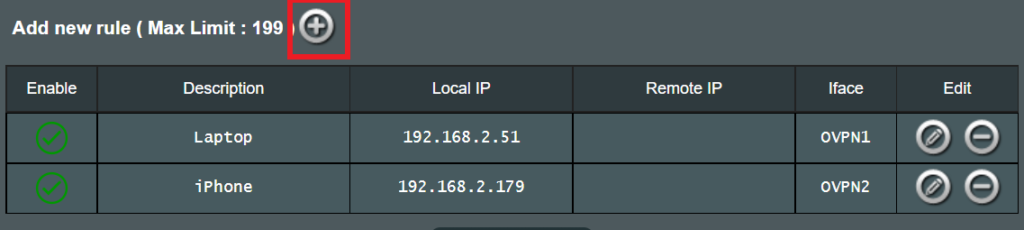
1. On the VPN Director page click the + symbol next to Add new rule.
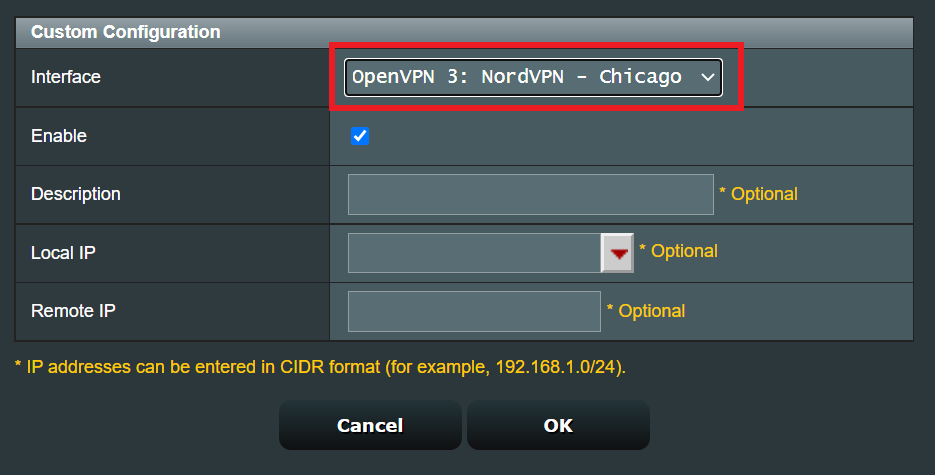
2. Select the Interface that you want to add the device to.
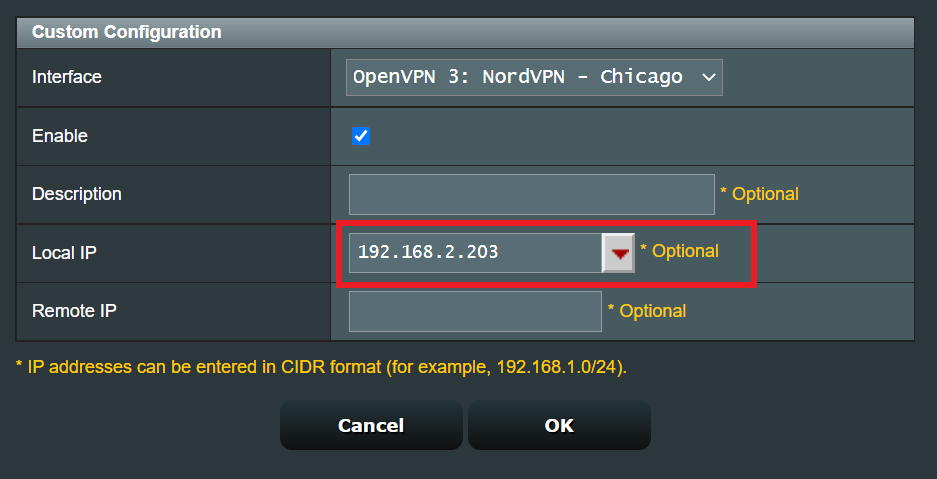
3. Click the Local IP dropdown and a full list of devices connected to the Merlin FlashRouter should appear. Select the device you want to assign to this VPN client.
4. Click OK and click Apply.
If you are not already a IVPN user Sign Up Now.
Log in to your account on the IVPN website.
Navigate to Setup > Tunnels
1. Click Add Tunnel.
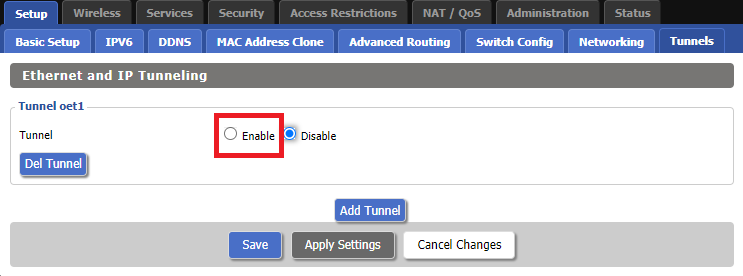
2. Set Tunnel to Enable.
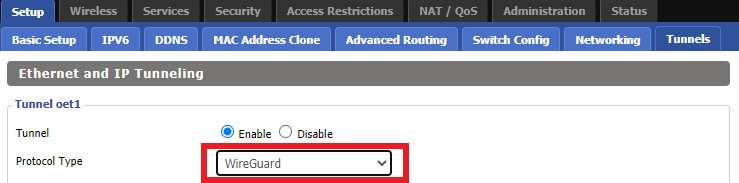
3. Select Wireguard from the dropdown.
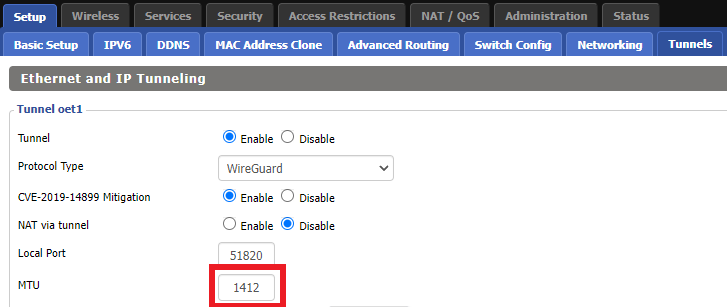
3. Set MTU to 1412.
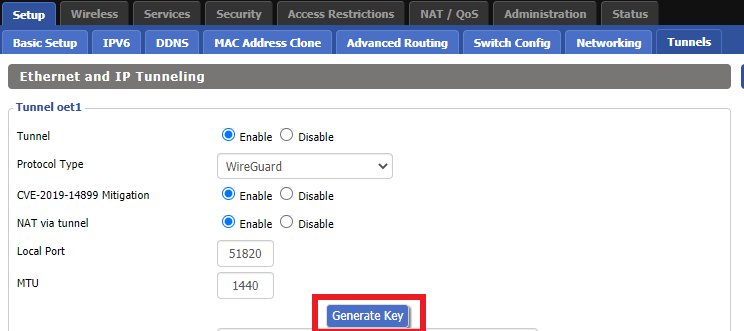
4. Click Generate Key.
9. Copy the Local Public Key.
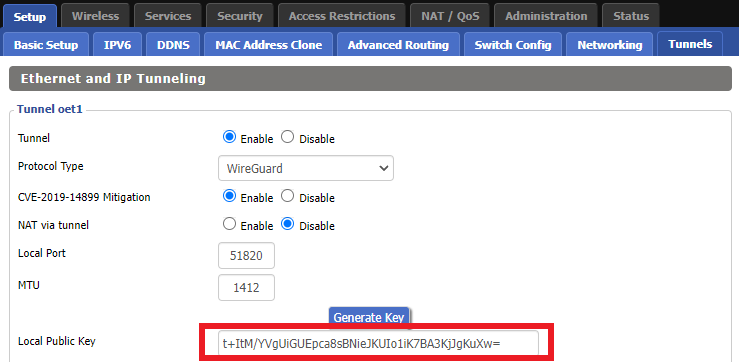
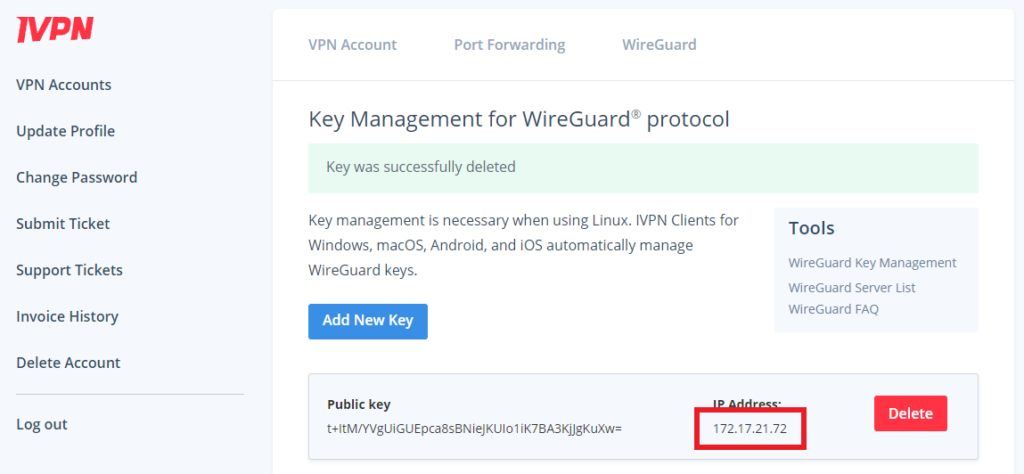
10. In a new tab (leave the DD-WRT settings opened), go to your IVPN Account and click WireGuard and then click WireGuard Key Management.
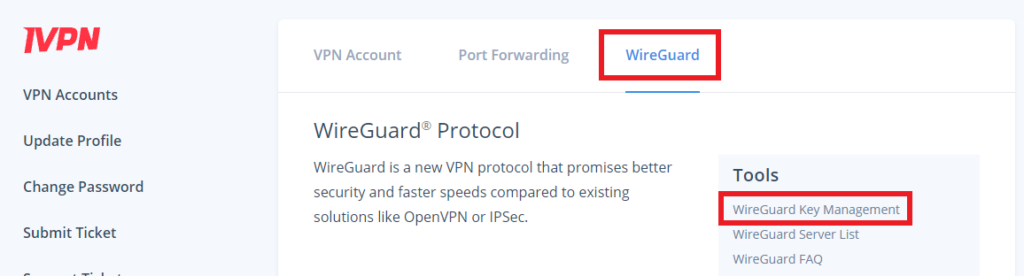
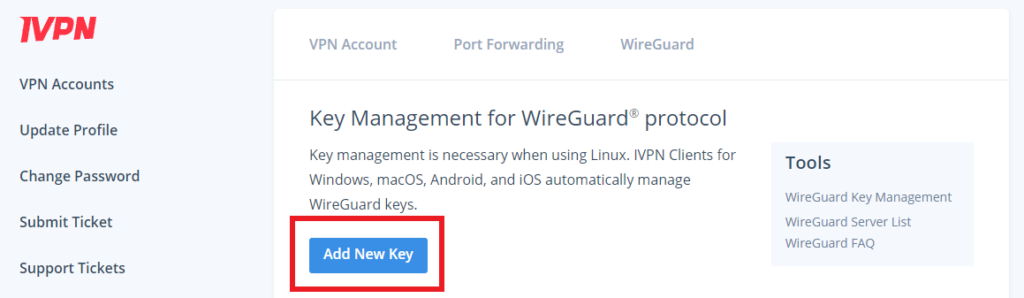
11. Click Add New Key.
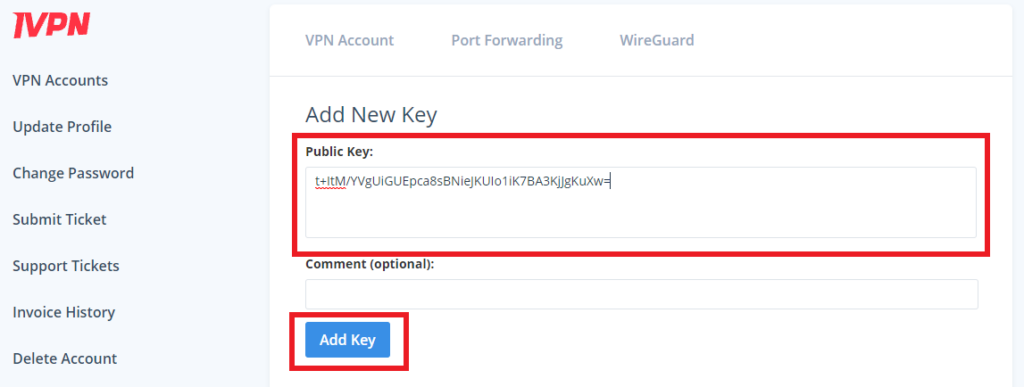
12. Paste the copied Local Public key to the Public Key field and click Add Key.
13.Copy the IP Address assigned to your public key and add it to the IP Addresses/Netmask(CIDR) field followed by a /32 subnet mask.
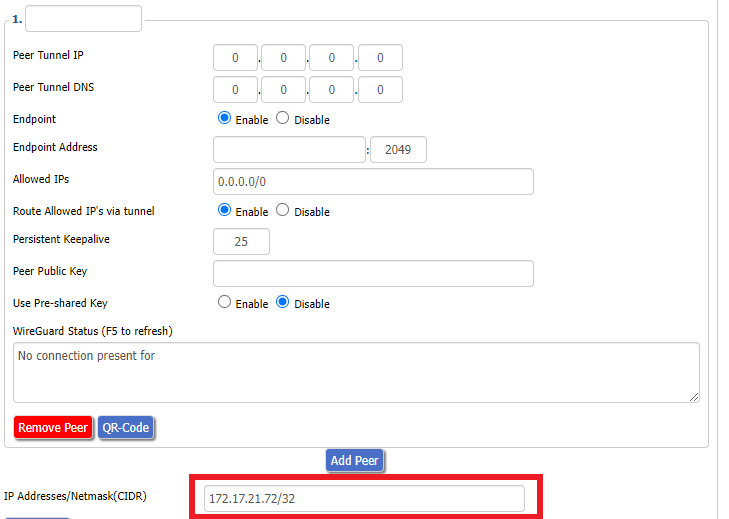
Certain DD-WRT builds will show two separate fields here: IP Address and Subnet Mask. If that is the case set the IP Address field to the Address without the /32 added and set the Subnet Mask to 255.255.255.255
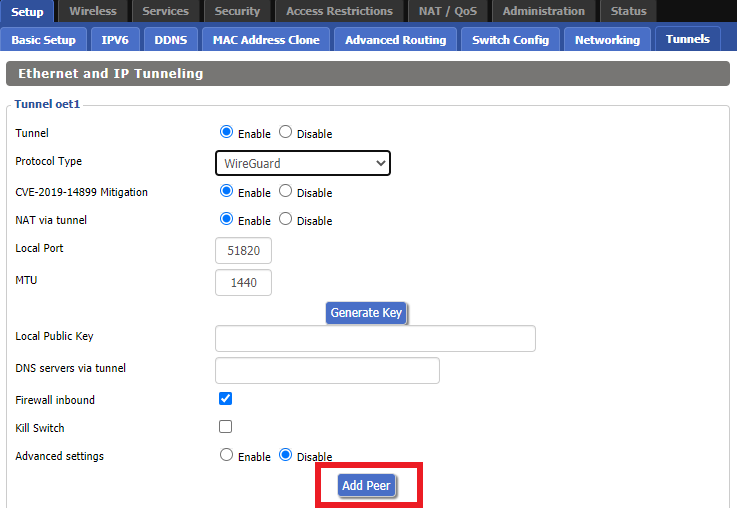
14. Click Add Peer.
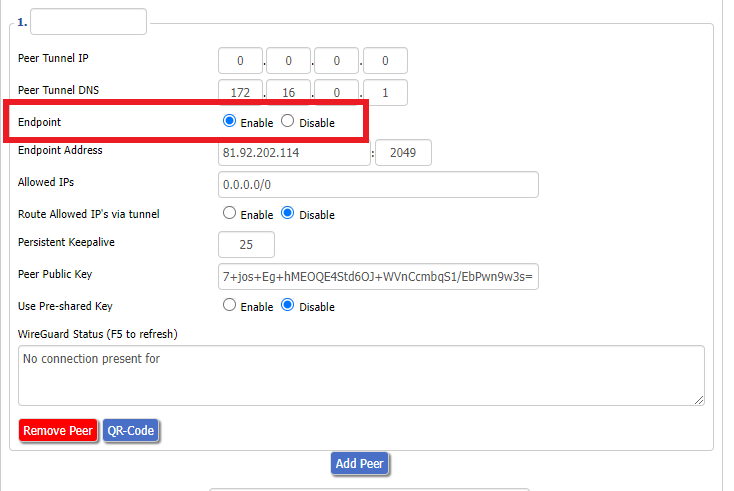
15. Set the Peer Tunnel IP to 0.0.0.0. Set Peer Tunnel DNS to 172.16.0.1
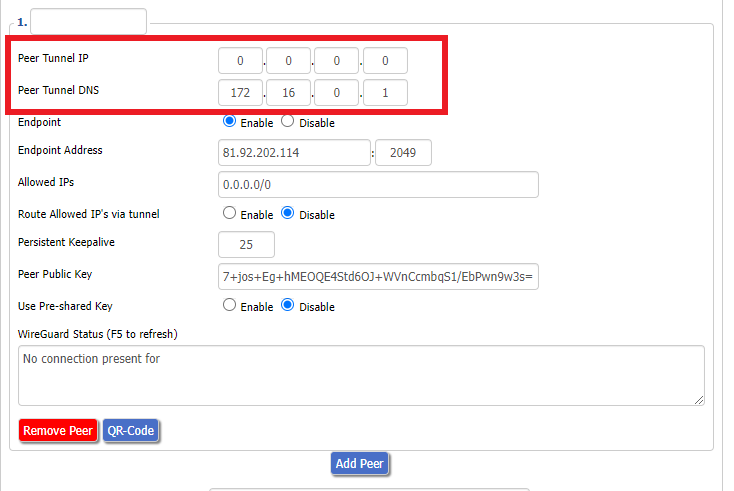
16. Set Endpoint to Enable.
17. Go to the IVPN Server Status page and copy the server name for the WireGuard server location you want to connect to.
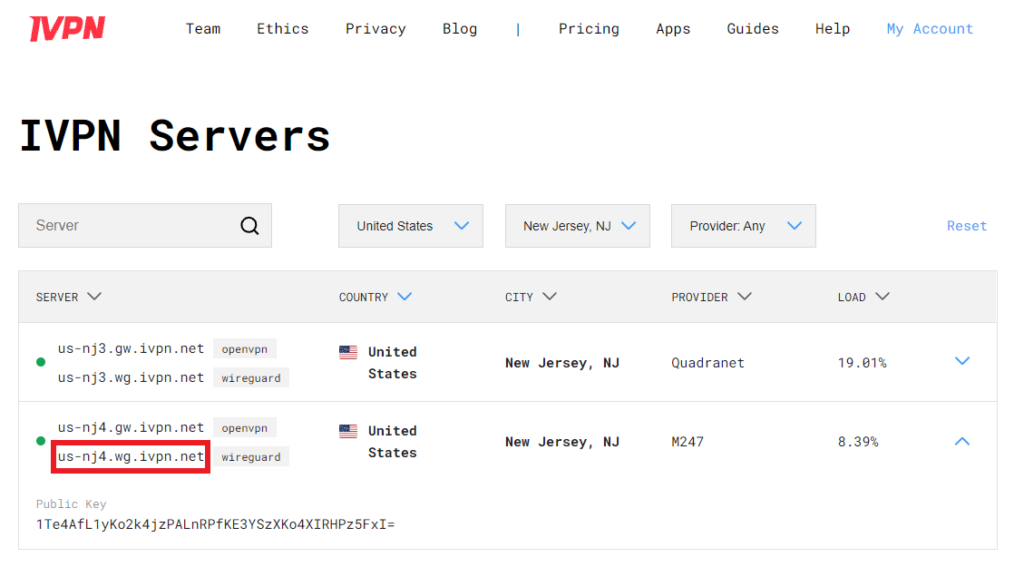
Be sure to copy the WireGuard server address and not the OpenVPN server address.
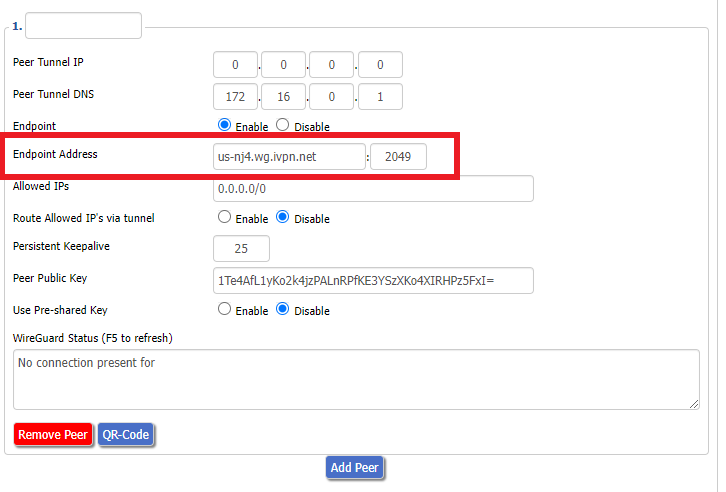
18. Paste the server name you copied into the Endpoint Address field and set the Port to 2049.
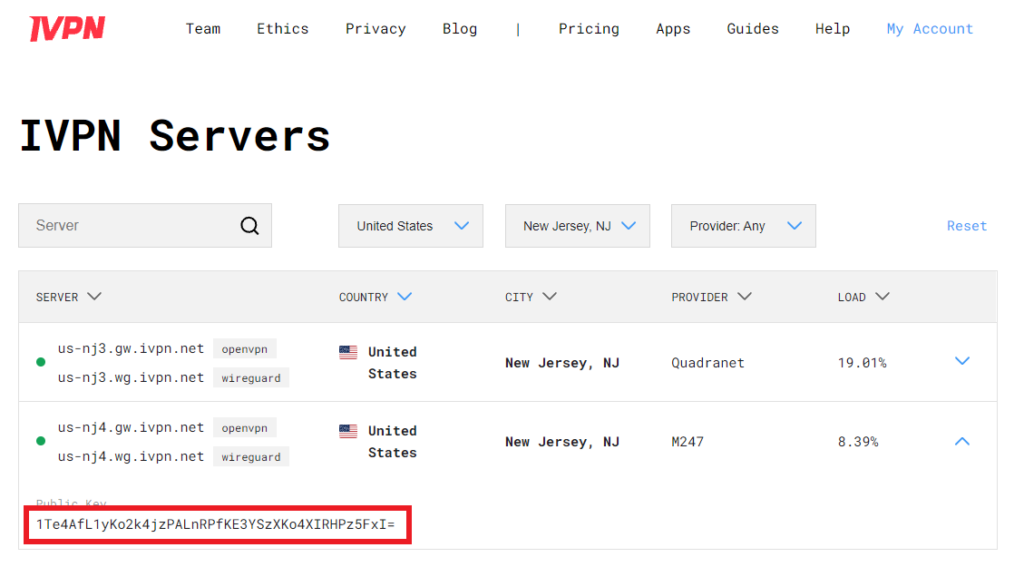
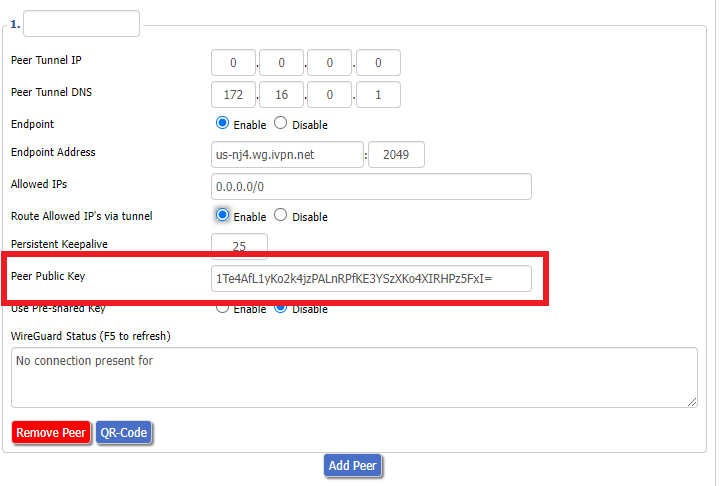
19. On the IVPN Server Status page copy the Public Key of the server location you entered. Paste the Public Key into the Peer Public Key field.
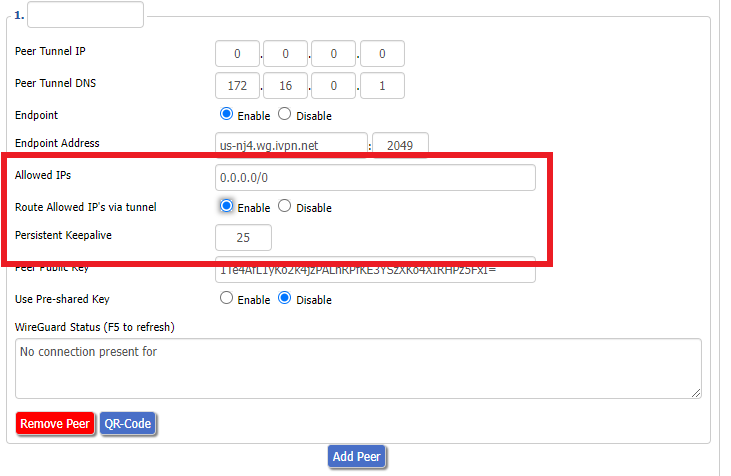
20. Leave Allowed IPs as 0.0.0.0/0. Set Router Allowed IP’s via tunnel to Enable. Set Persistent Keep Alive to 25.
21. At the bottom of the page click Save and then click Apply Settings.
Navigate to Setup > Basic Setup
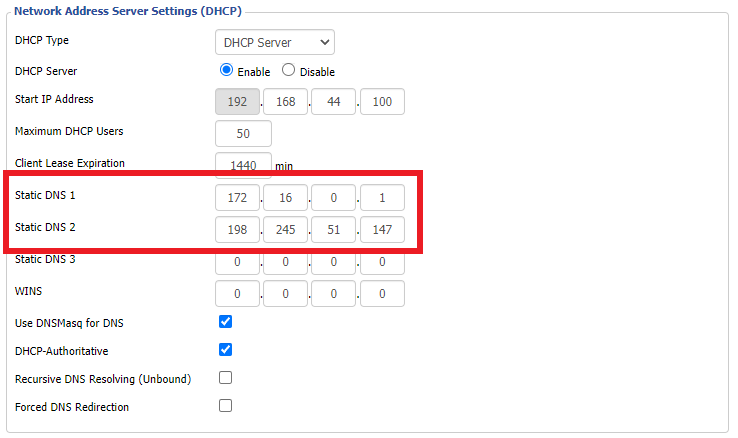
Set Static DNS 1 to 172.16.0.1
Set Static DNS 2 to 198.245.51.147
Click Apply Settings.
Navigate to Administration > Management
Scroll to the bottom of the page and click the red Reboot Router button. Wait for the FlashRouter to reboot and then reconnect.
Navigate to Setup > Tunnels
Navigate to Administration > Backup
If you are not already a NordVPN user Sign Up Now.
1. Log in to your account on the NordVPN website.

2. Click NordVPN on the left hand side and then click Setup NordVPN manually.

3. Enter in the verification code that was sent to your email.

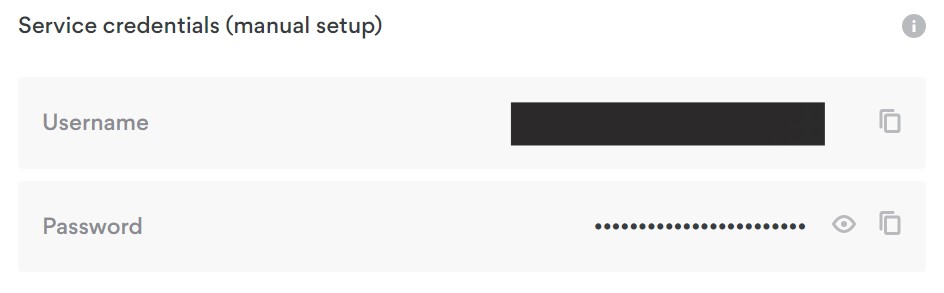
4. Copy and paste your NordVPN manual username and password to a secure location. This is the username and password you will enter into the router settings to connect to NordVPN.

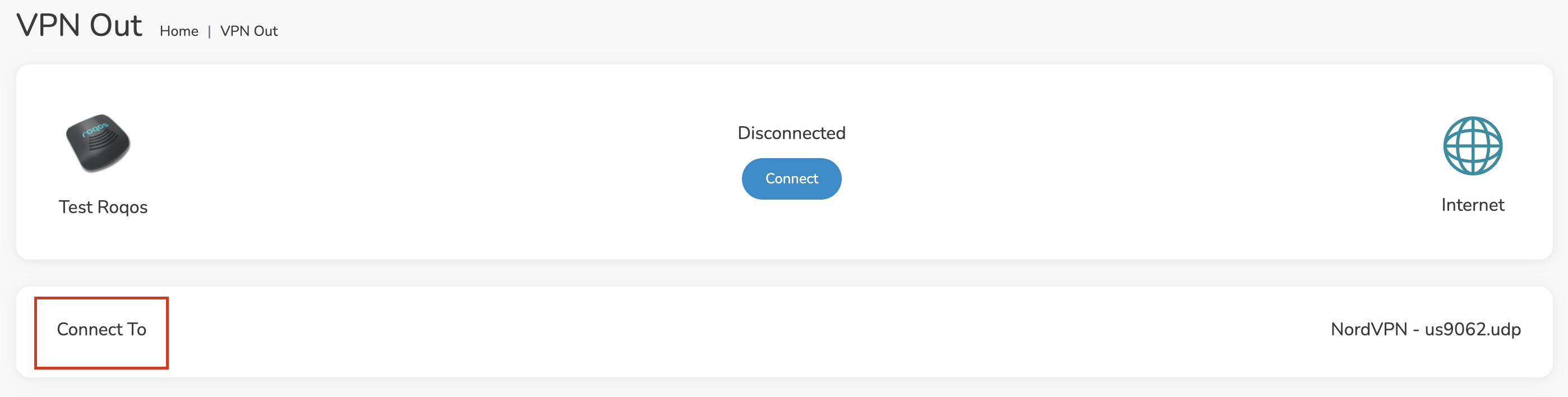
1. Login to the Roqos Core web app in a browser on any computer or smart device.
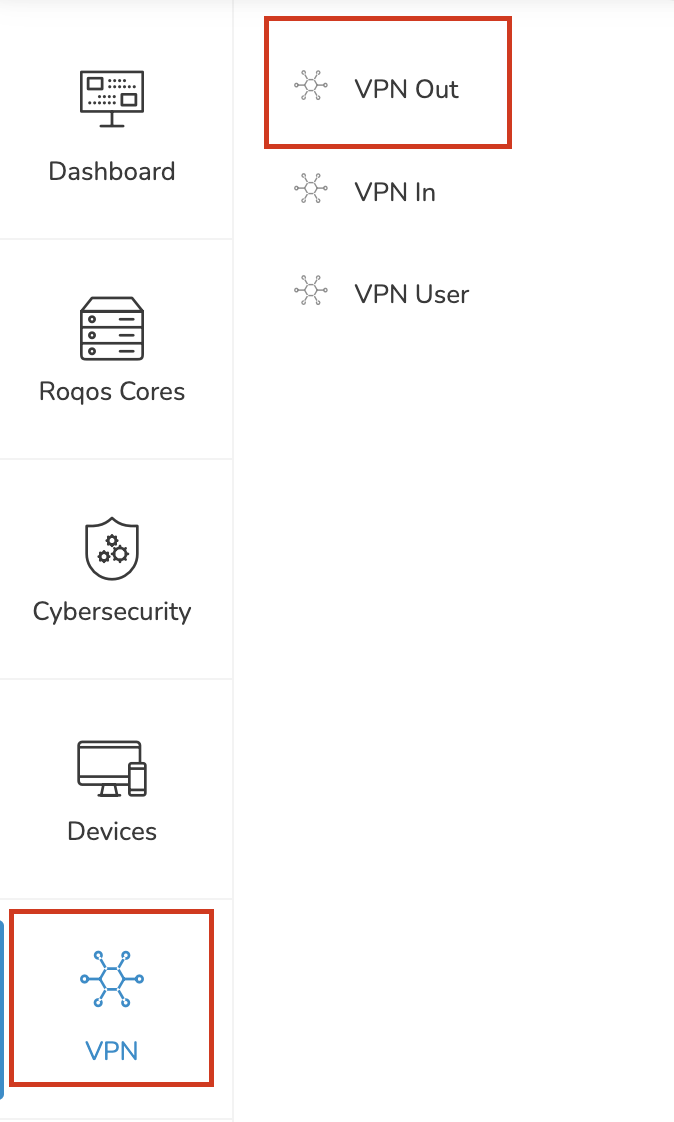
2. Click VPN from the navigation menu and then click VPN OUT.
3. Click the Connect to box.
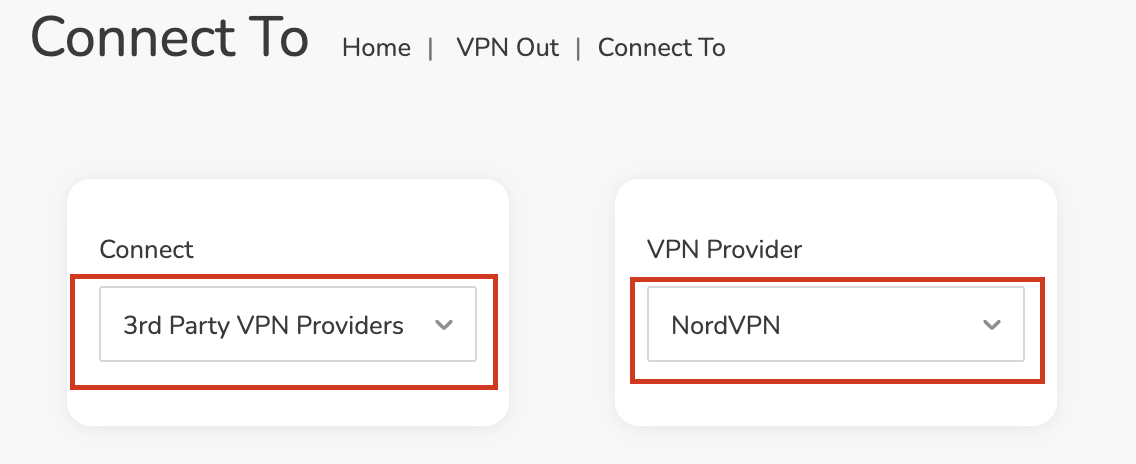
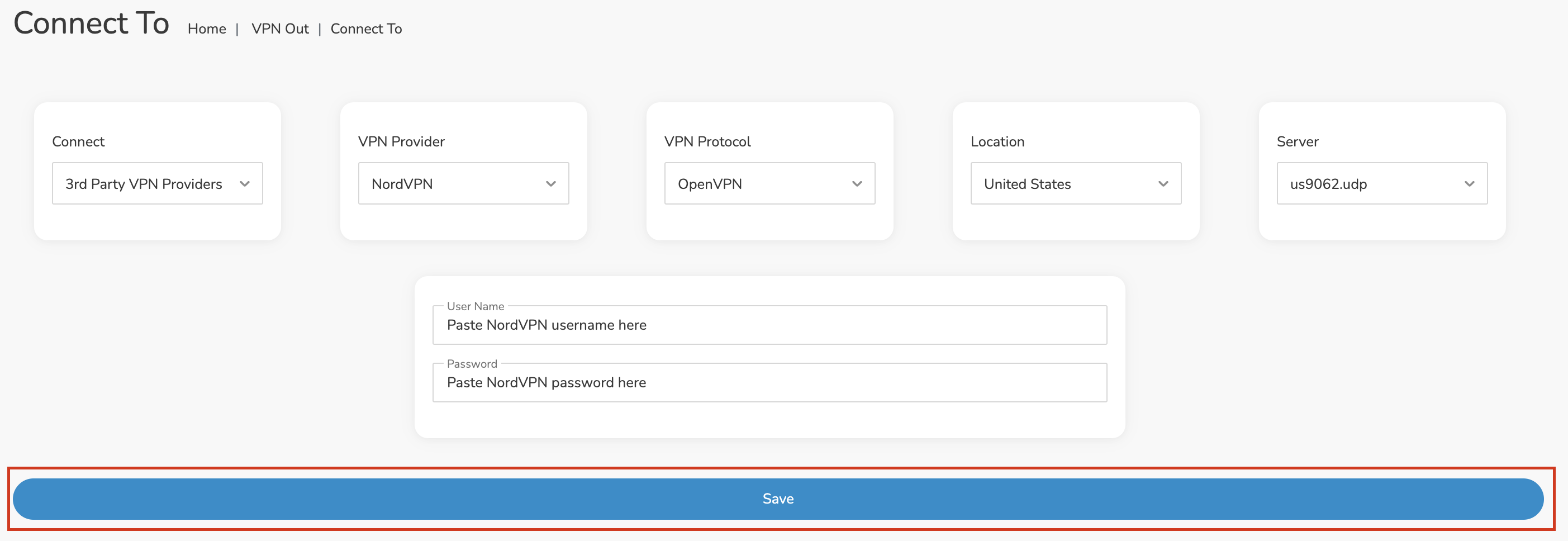
4. In the Connect dropdown choose 3rd Party VPN Providers and for the VPN Provider dropdown choose NordVPN.
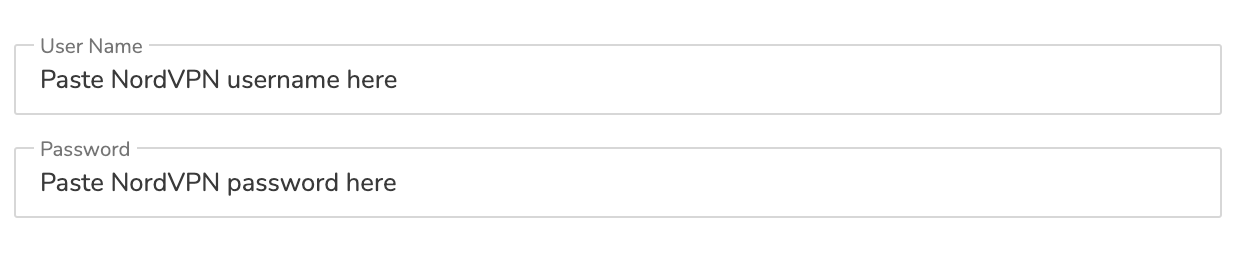
In the Username and Password field enter the NordVPN OpenVPN Username and Password that you obtained.
Navigate to NordVPN server recommendation page. Click Recommended server and select the country you want to connect to and note the server number that appears.
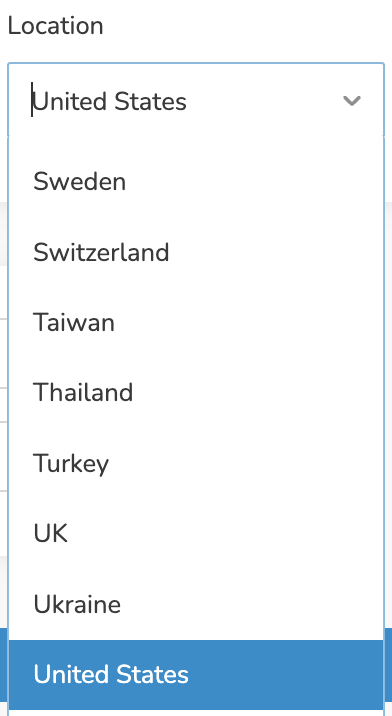
Click the Location dropdown and type in or scroll to the preferred server country.
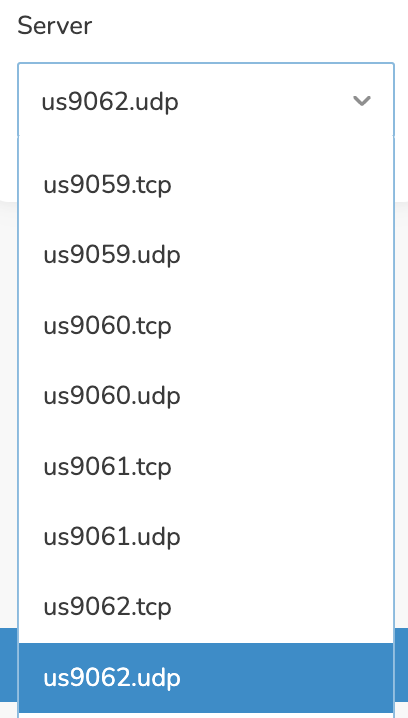
Click the Server dropdown and type in or scroll to the server number that was recommended. Select the UDP version of the server.
Click the Save button.
Once you click Save you will be returned to the VPN OUT menu.
Click the Connect button to start your NordVPN connection. Please be patient as the router connects your entire network through VPN.

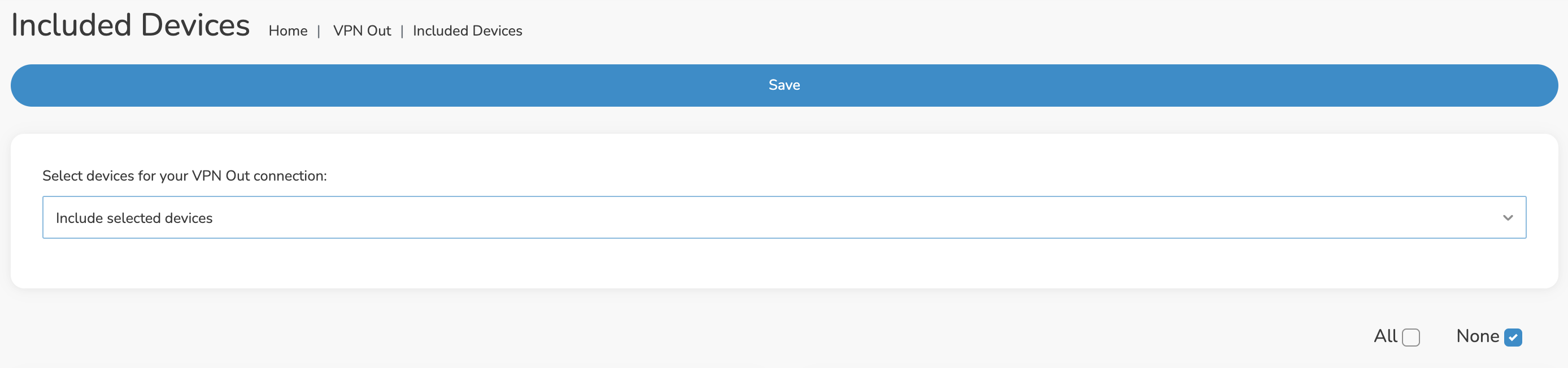
By default there are no devices assigned to the VPN tunnel. Click Included Devices. From this page you can choose if all devices should connect to NordVPN or only certain devices.
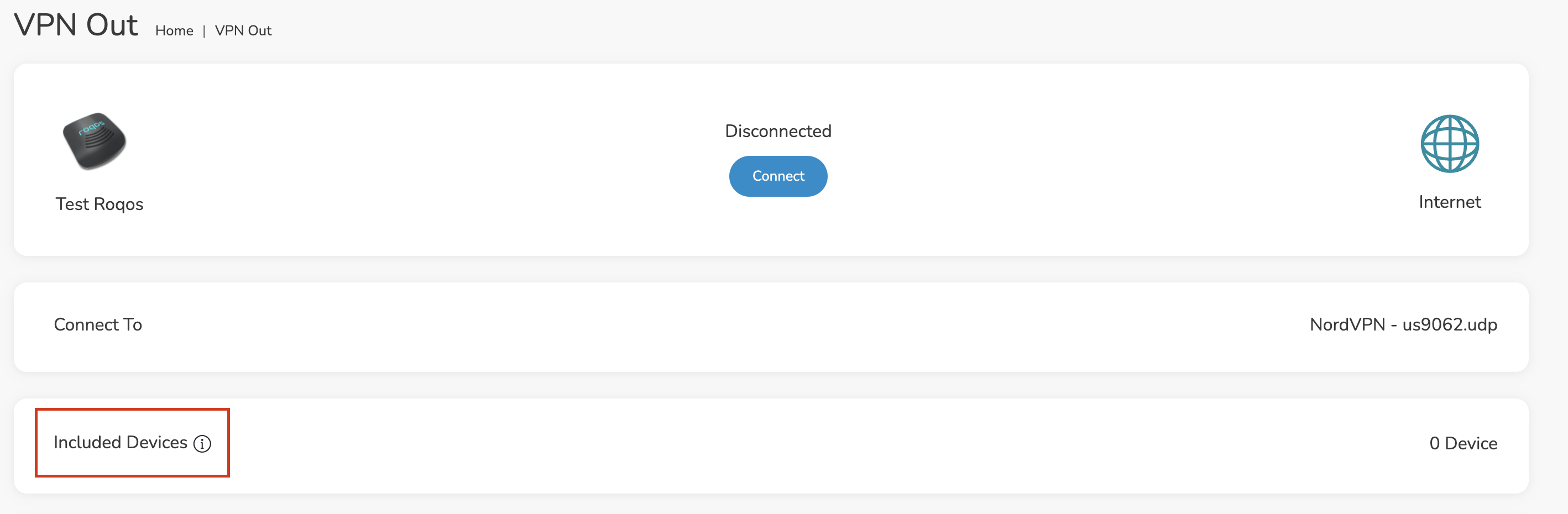
From the dropdown select Include all devices if you want every device that connects to the Roqos to connect to NordVPN. Then click Save.

If you only want specific devices to connect to NordVPN while others bypass the VPN connection select Include selected devices from the dropdown and then toggle the sliders for the devices you want connected to VPN. Click Save.
Make sure you are connected to the Roqos network via WiFi or ethernet connection on your device.
Visit NordVPN’s website to verify your new IP Address and Protected Status at the top of the page.
You should see Connected at the top of the page underneath NordVPN.
To change your server click Disconnect on the VPN OUT page then return to the Connect To section to select a new server from the Server dropdown and click Save. Now click Connect once again on the VPN Out page.
To disconnect from NordVPN click the Disconnect button.
If your Privacy Hero router suddenly loses internet access, devices report that WiFi has no internet, or devices will not stay connected after a VPN failure, the VPN Kill Switch may be blocking normal internet traffic.
The VPN Kill Switch is designed to prevent traffic from passing through Privacy Hero without VPN protection. If the VPN disconnects or fails while the Kill Switch is enabled, normal internet access is intentionally blocked.
Important: You can still access app.privacyhero.com to manage Privacy Hero, turn off the Kill Switch, or repair the VPN connection.
Privacy Hero is cloud-managed, so you do not need to be connected to the Privacy Hero WiFi to change these settings. You can also access the dashboard using cellular data, your main router’s WiFi, or another internet connection as long as Privacy Hero remains connected to the internet and Privacy Hero cloud.
A failed VPN connection combined with an enabled Kill Switch can make the Privacy Hero network appear unavailable even though the router itself may still be functioning.
Common symptoms include:
If the Privacy Hero WiFi network itself is completely missing and cannot be detected by any device, that is different from normal Kill Switch behavior. Continue with WiFi or router connectivity troubleshooting instead.
The fastest way to determine whether the Kill Switch is responsible is to temporarily disable it and test Privacy Hero without VPN.
If internet access returns with the VPN and Kill Switch disabled, Privacy Hero’s basic internet connection is working and the problem is isolated to the VPN connection.
Important: Disabling the Kill Switch allows normal non-VPN internet traffic through Privacy Hero. Leave it disabled only while troubleshooting if continuous VPN protection is required.
Do not turn the Kill Switch back on until the VPN is connected and working.
If you are using NordVPN and the VPN shows Failed, Connecting, or a timeout error, continue with our dedicated Privacy Hero NordVPN Not Connecting or Showing Timeout Errors guide.
That guide covers:
If you use another VPN provider, try another available VPN server or protocol and verify that your VPN account and credentials remain active.
Once the VPN reconnects:
If you enable the Kill Switch while the VPN is still failing, normal internet access will be blocked again.
If Privacy Hero shows Offline in the dashboard, the router may not currently be communicating with the Privacy Hero cloud.
If the router returns online, check the VPN and Kill Switch status before enabling the VPN again.
Privacy Hero can receive an IP address from your ISP gateway while the Kill Switch is still blocking normal internet traffic.
Before changing IP Passthrough, bridge mode, firewall settings, or other ISP gateway settings:
If internet access returns, troubleshoot the VPN connection rather than changing the ISP gateway configuration.
If the VPN shows Failed or Disconnected and the Kill Switch is enabled, the Kill Switch is likely blocking normal internet traffic.
Some devices automatically leave a WiFi network when they detect that it does not provide internet access. Use cellular data or another internet connection to access app.privacyhero.com and check the VPN and Kill Switch.
The Kill Switch does not normally cause the WiFi network itself to stop broadcasting. If no devices can detect the Privacy Hero WiFi network, troubleshoot the WiFi or router connection separately.
Check the Ethernet connection between Privacy Hero and your ISP gateway or primary router and confirm the upstream internet connection is working.
If the VPN works correctly on other devices, the Kill Switch is probably not the issue. Check that device’s Privacy Hero VPN assignment and its own VPN, privacy, DNS, or security settings.
See Device Privacy, DNS, VPN, and Security Settings That Can Interfere With Your Router VPN.
If the VPN has failed while the Kill Switch is enabled, normal internet traffic is intentionally blocked. Your device may therefore report that Privacy Hero WiFi has no internet.
Yes. Open app.privacyhero.com. You can use the Privacy Hero network, cellular data, your main router’s WiFi, or another internet connection.
No. Privacy Hero is cloud-managed and can be managed remotely while the router remains connected to the Privacy Hero cloud.
Some phones automatically switch to cellular data or another saved WiFi network when the current WiFi connection does not provide normal internet access.
Only after the VPN is connected and you have confirmed that your internet traffic is using the VPN.
 VPN FAQs
VPN is an acronym for ‘Virtual Private Network’, historically used by private organizations to seamlessly link geographically diverse locations via the Internet. A VPN ‘tunnels’ traffic between two devices by transmitting it over a secure network. There are also clearly identifiable benefits to individual Internet users accessing a VPN.
FlashRouters are relatively new models that may enhance data transfers across your home network or extend the range of your Wireless signal. However, the speed at which you download or stream content can not exceed the speed of the connection you pay for through your ISP. Purchasing a FlashRouter or signing up for VPN service WILL NOT transform your regular connection into a high-speed broadband connection.
At the same time, if you do have a broadband connection, a FlashRouter with a VPN connection may slow down your transfer speeds due to the processor encrypting all of your data. In certain cases a FlashRouter with a VPN can also prevent throttling by an ISP of specific service like Netflix or Amazon Video.
Our routers have been tested to perform with many of the most popular VPN providers such as ExpressVPN, NordVPN, IPVanish, PrivateInternetAccess & CyberGhost among 50+ VPN providers so that subscribers can get the maximum benefit from their VPN service. If you prefer another provider, that is not an issue at all. You can still use a DD-WRT VPN FlashRouter with any VPN provider that offers DD-WRT router integration support. Contact our team for further information about using our routers with your VPN service of choice or if you need a VPN provider recommendation based on your location.
A FlashRouter will work as a standalone router by connecting your modem to its Wide Area Network (WAN) port, or using it in a Dual Router Network by connecting it to your existing router through a Local Area Network (LAN)/Ethernet port. Either way a FlashRouter can be configured to tunnel all traffic through the VPN server of your choosing.
If you would like to set up your Home Network so that some devices are being tunneled through a VPN server, and others are connecting to your Internet Service Provider (ISP) within your home country, then using your FlashRouter as an auxiliary device is recommended.
YES! The countries that you can change your IP address to depend on the offerings of your specific VPN providers. Prices and server locations vary across all VPN providers.
If you choose to purchase a FlashRouter then you will not have to install any VPN client software on your computer to change your IP address; the VPN will already be configured within the router. Therefore, any device you plug into this FlashRouter is automatically assigned the IP address of your selected VPN server.
As long as the VPN account preset into your FlashRouter is active, any device that is connected to the Internet through this router has its network traffic encrypted, and IP address masked. With a FlashRouter you never have to physically login to your VPN account, as the settings have been stored in the router’s DD-WRT firmware.
Don’t worry though! If you are not at home, and using Wi-Fi in a public location, you can still use your VPN account on a laptop or mobile device through various other methods.
In order to make sure that the connection on your FlashRouter is being rerouted appropriately through your VPN service, visit What is my IP address and make sure the location listed is the one you have chosen in your VPN settings, NOT your actual location.
If you wish, there is an Internet Kill Switch available as well for your router which will block the internet whenever you disconnect from VPN.
Currently we support the OpenVPN protocol for VPN client connections. PPTP VPN has been deemed as insecure by the privacy community and so we no longer offer support for PPTP VPN connections.
A FlashRouter can be used with any operating system, be it Windows, Mac OS or Linux. A FlashRouter can also be used as a wireless access point for iPhones, iPads, and Android devices.
Our routers also work in conjunction with any other brand of router of ADSL or DSL modem/router combo from ISPs across the world.
THAT’S WHAT WE ARE HERE FOR!
If you purchase one of our FlashRouters loaded with DD-WRT firmware, you can run the client VPN connection from your router. Once you do this every device connected to the router will tunnel through the VPN.
Now you can stream content like Netflix, BBC iPlayer, Pandora Hulu, or Amazon Instant to your TV through any of these devices, instead of being constrained to streaming content on your computer!
If you need a recommendation for a VPN service with a specific streaming platform do not hesitate to contact our support team.
If you are not already a Surfshark user Sign Up Now.
1. Log in to your account on the Surfshark website.

2. Click VPN Manual Setup.

3. Select Router as the Setup method.
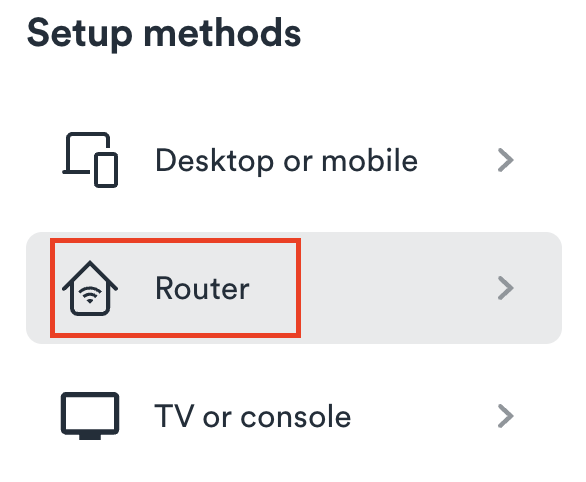
4. Select WireGuard as the Protocol.

5. Select I don’t have a key pair.

6. Enter FlashRouter as the name of the connection and click Next.

7. Click Generate a new key pair.

8. A Public Key and Private Key will then appear. Use the copy box to copy the Private Key. You will not need the public key.

Login to AsusWRT firmware settings in a browser on any computer or smart device connected to the AsusWRT FlashRouter’s network.
1. Navigate to the VPN tab.

2. Navigate to the VPN Fusion tab.

3. Click Add profile.

4. In the Connection Name field enter in Surfshark.
5. In the VPN Type dropdown select Surfshark.
6. In the Region dropdown select the Surfshark location you want to connect to.
7. In the Private Key field paste in the Surfshark Private Key obtained earlier.
8. Click Apply and Enable at the bottom of the page.
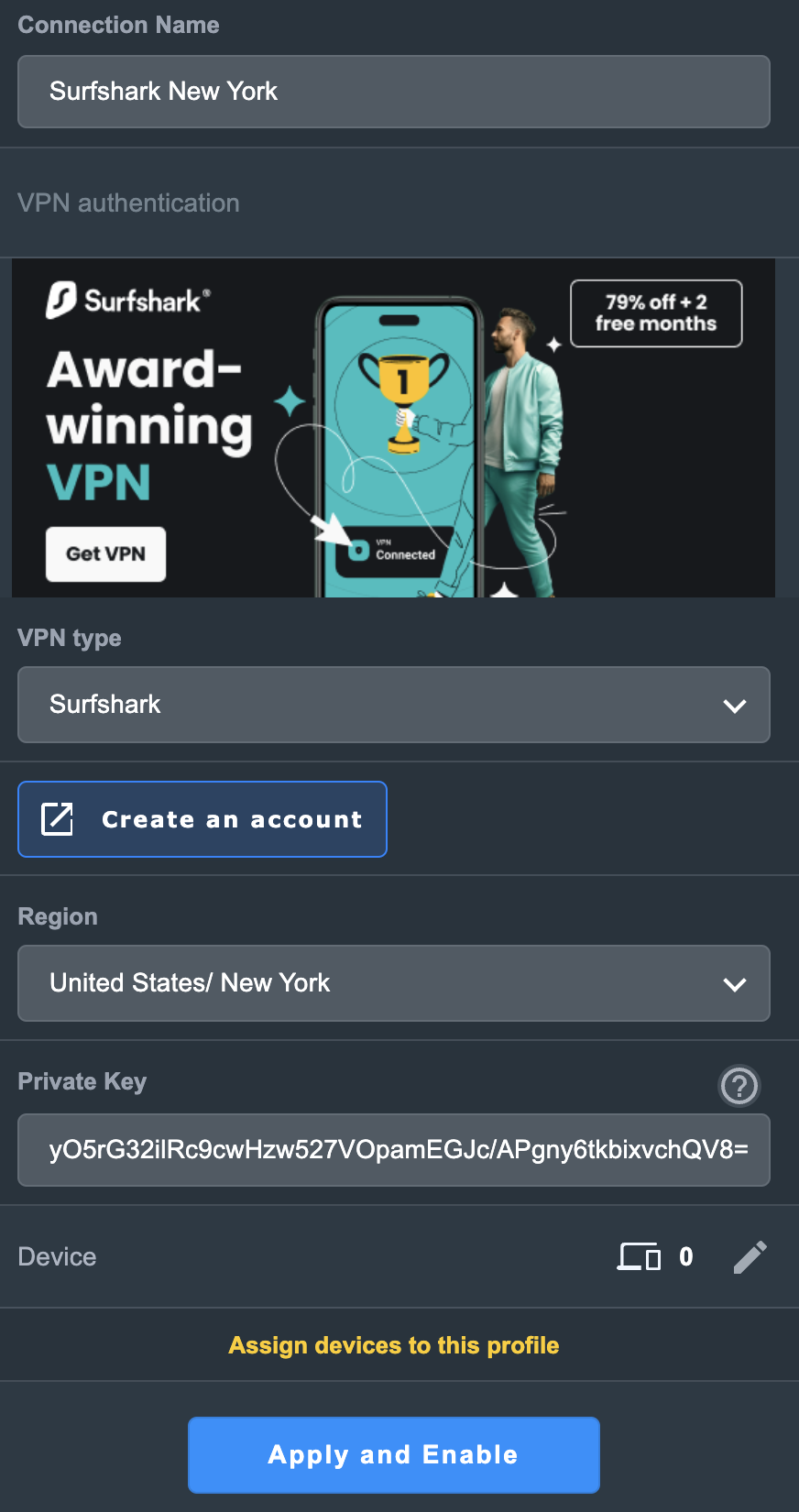
If you only want certain devices to connect to the Surfshark profile you are setting up instead of all the devices connected to the FlashRouter’s network click into the profile and disable Apply to all devices. Then click Devices and select the devices that you want to connect to VPN.


9. At the top of the page set the Service State toggle to ON to activate the VPN connection.
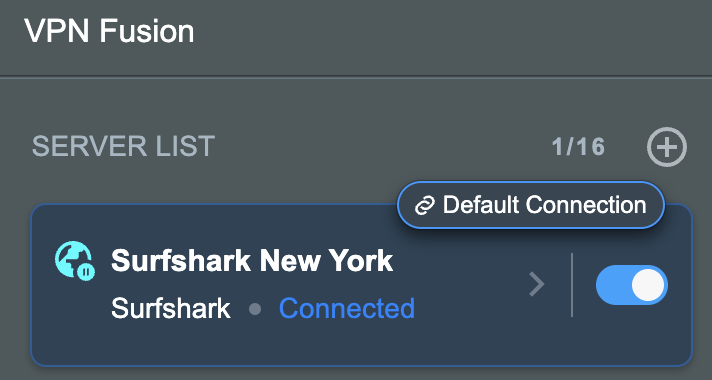
In some cases you may notice that the location is not showing the same location as the server you have input in your router settings; this is because geo tracking tools are often tricked by VPN connections. As long as you see an IP address that is not the same as your normal Internet IP address then you are indeed connected to Surfshark.
Listed below are important links to setup instructions for connecting an Asus Merlin firmware router to the internet and WiFi.
If you are not already a Surfshark user Sign Up Now.
1. Log in to your account on the Surfshark website.
2. Click VPN Manual Setup.
3. Select Router as the Setup method.
4. Select WireGuard as the Protocol.
5. Select I don’t have a key pair.
6. Enter FlashRouter as the name of the connection and click Next.
7. Click Generate a new key pair.
8. Click Choose a location.
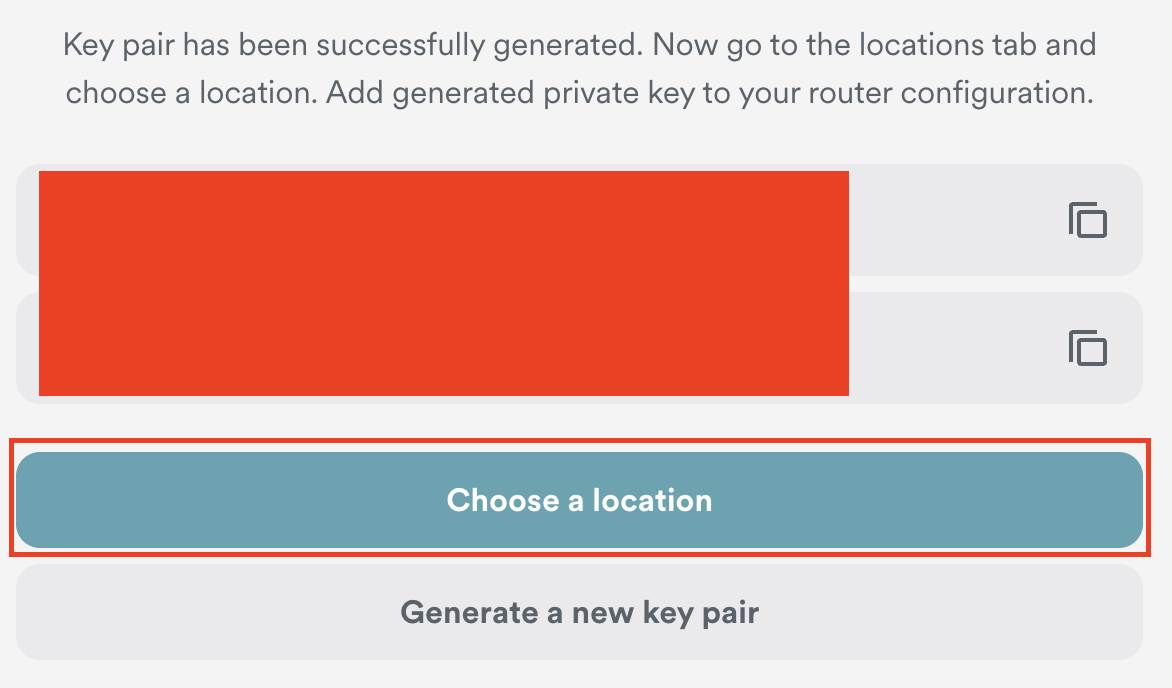
9. Select the server location you want to connect to. Unless you need a specific location we recommend using Surfshark’s recommended Fastest server. Click Download to download the .conf file for this Surfshark server location.
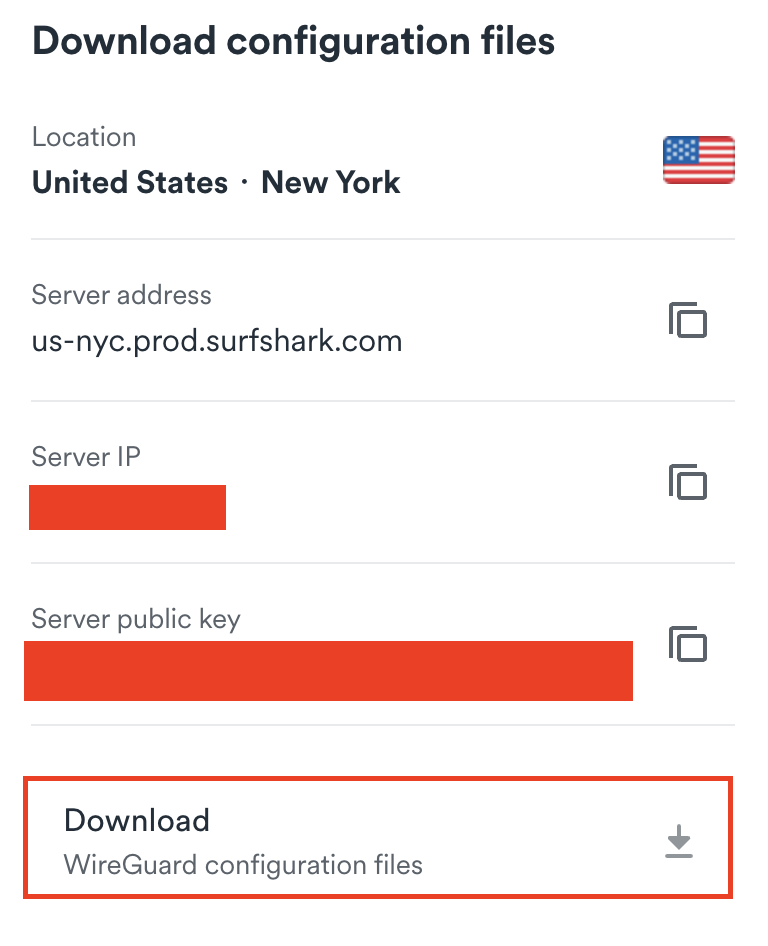
Login to TP-Link firmware settings in a browser on any computer or smart device connected to the FlashRouter’s network.
1. Navigate to the Advanced tab.

2. Navigate to the VPN Client tab.

3. Check the Enable box next to VPN Client. Then click Save at the bottom of the page.

4. Click the Add button in the Server List area.

5. In the Description field enter in the name you’d like to use for this WireGuard Client profile. We typically advise entering in the location. Our example server was New York so I have entered in Surfshark New York.
Set the VPN Type to WireGuard.
Click Browse and select the .conf file you downloaded earlier. Then click Save.
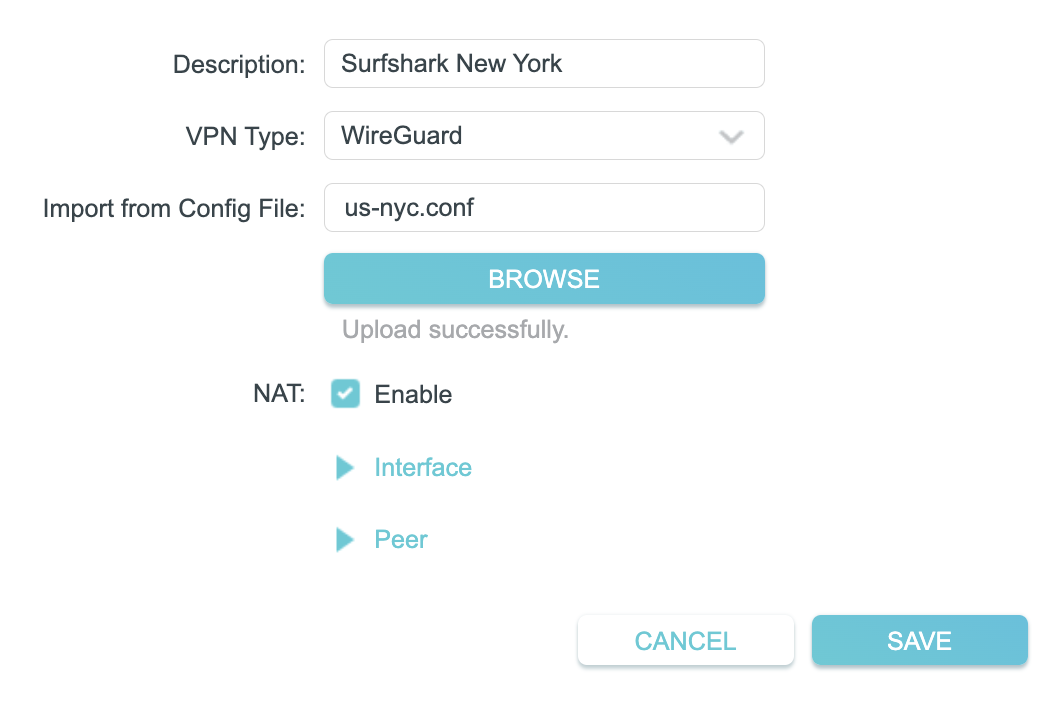
By default no devices will be assigned to the VPN Tunnel. With TP-Link firmware you must manually assign the devices that you want connected to the VPN tunnel. Proceed with the next steps to do so for all devices you want connected to VPN.
6. Click the Add button in the Device List area.

7. A list of devices connected to the FlashRouter’s network will appear. Check the devices that you want to connect to VPN. Then click OK.

8. Now that the devices have been assigned to the VPN connection click the Enable toggle in the Server List area.
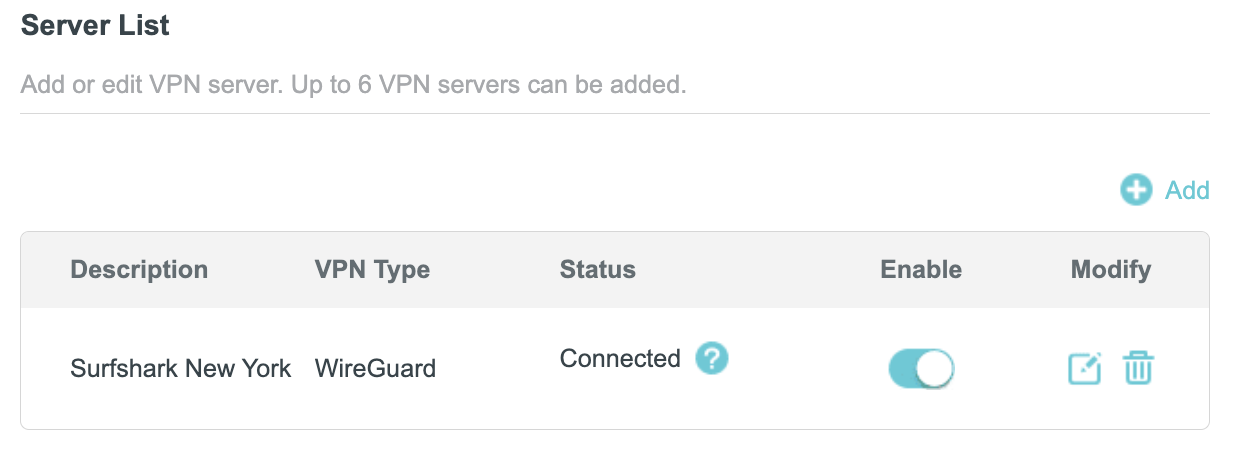
In some cases you may notice that the location is not showing the same location as the server you have input in your router settings; this is because geo tracking tools are often tricked by VPN connections. As long as you see an IP address that is not the same as your normal Internet IP address then you are indeed connected to Surfshark.
If you are not already an ProtonVPN user Sign Up Now.
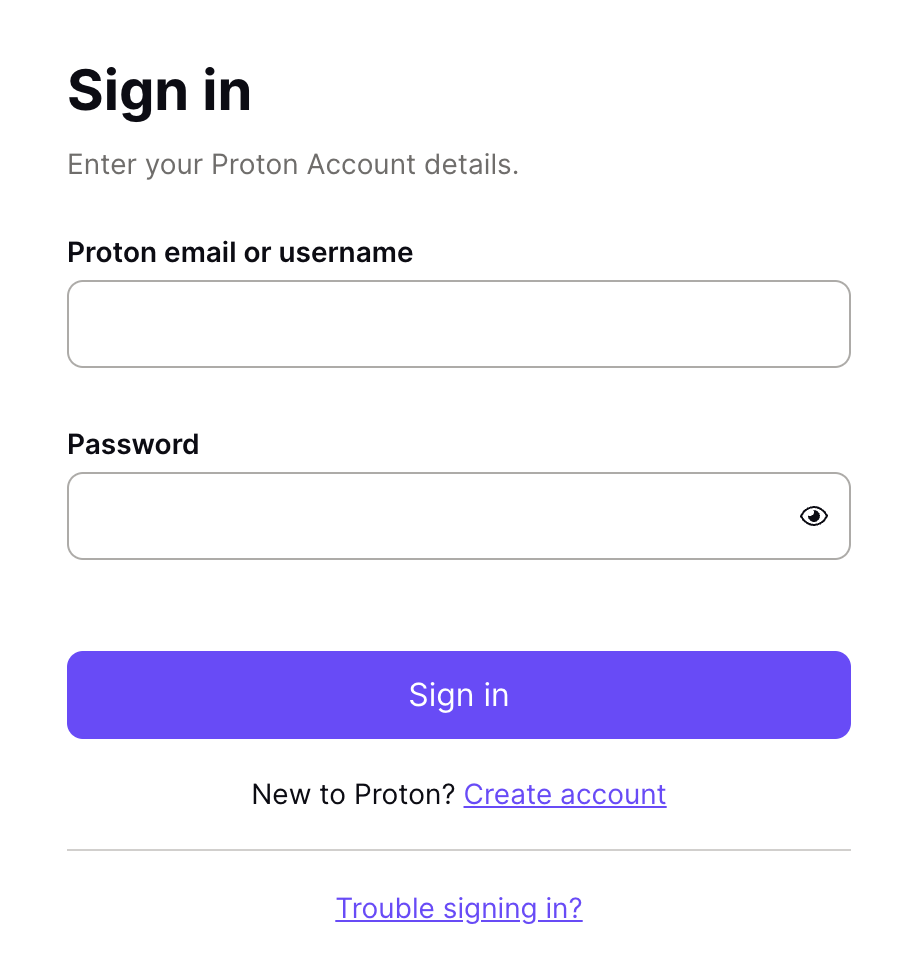
1. Log in to your account on the ProtonVPN website.
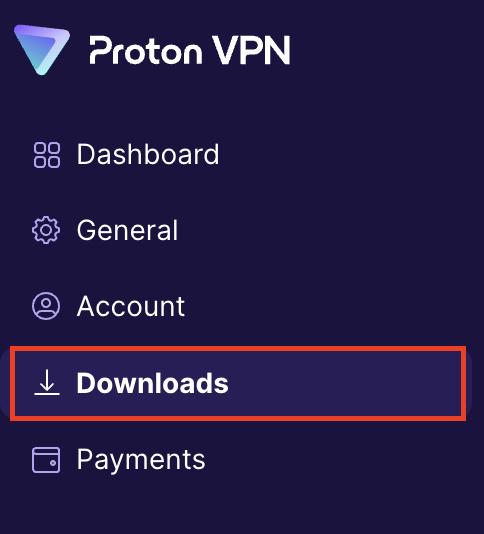
2. Click Downloads.
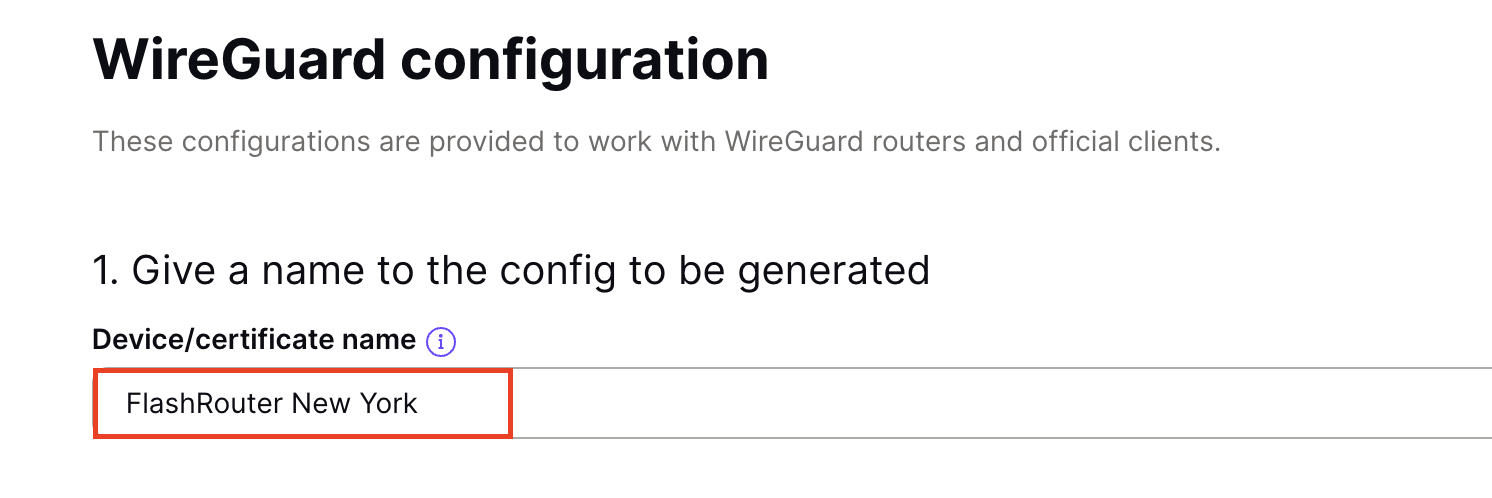
3. Scroll down to WireGuard configuration and name the device FlashRouter.
4. Select Router as the platform.

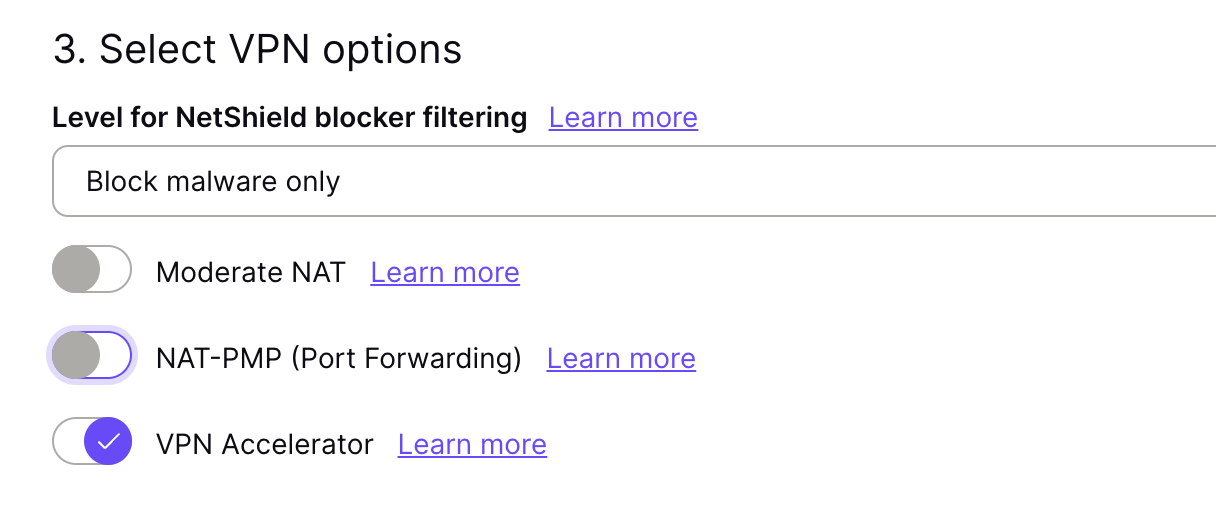
5. Select the VPN options that best fit your needs. We typically use the settings as seen in the screenshot here if you are unsure.
6. Next select the server that you would like to connect to and click Create. At the top of the page you’ll see ProtonVPN’s recommended server which we recommend using unless you need to connect to a specific location.
If you need a specific server location find it in the list and click Create.
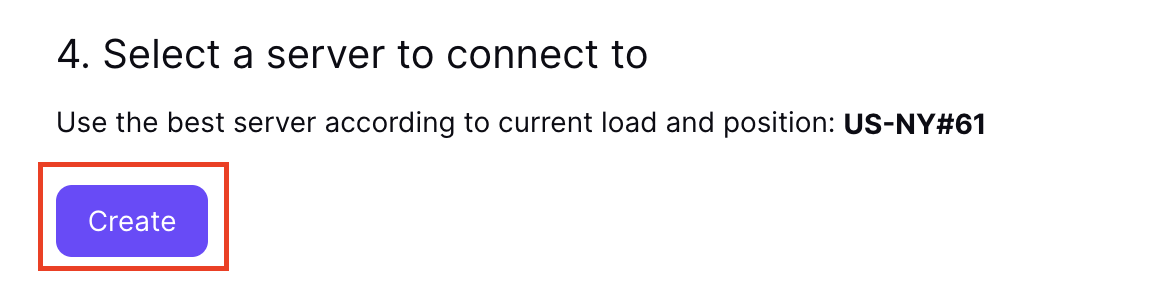
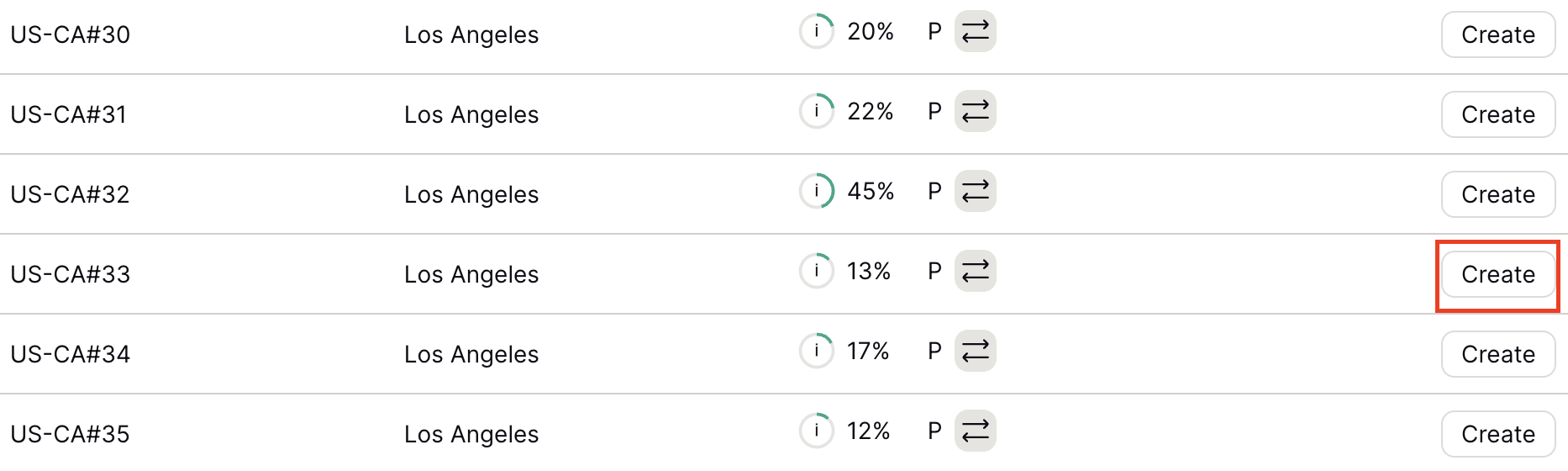
7. After clicking Create a new window will appear. Click Download to download the .conf file to your computer.
Login to TP-Link firmware settings in a browser on any computer or smart device connected to the FlashRouter’s network.
1. Navigate to the Advanced tab.
2. Navigate to the VPN Client tab.
3. Check the Enable box next to VPN Client. Then click Save at the bottom of the page.
4. Click the Add button in the Server List area.
5. In the Description field enter in the name you’d like to use for this WireGuard Client profile. We typically advise entering in the location. Our example server was New York so I have entered in ProtonVPN New York.
Set the VPN Type to WireGuard.
Click Browse and select the .conf file you downloaded earlier. Then click Save.
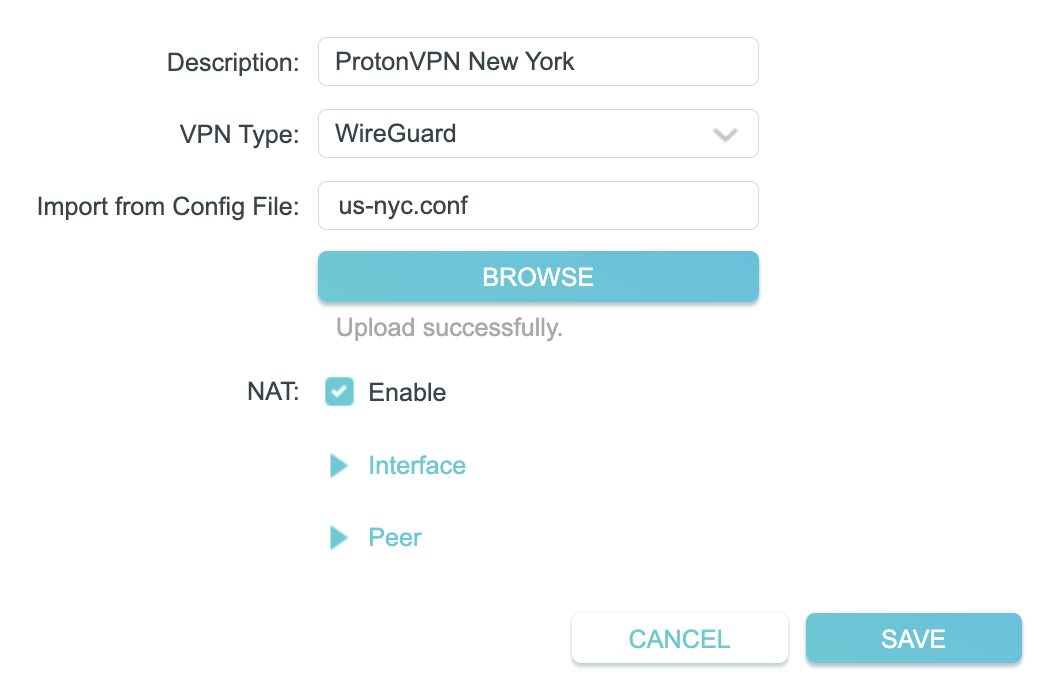
By default no devices will be assigned to the VPN Tunnel. With TP-Link firmware you must manually assign the devices that you want connected to the VPN tunnel. Proceed with the next steps to do so for all devices you want connected to VPN.
6. Click the Add button in the Device List area.
7. A list of devices connected to the FlashRouter’s network will appear. Check the devices that you want to connect to VPN. Then click OK.
8. Now that the devices have been assigned to the VPN connection click the Enable toggle in the Server List area.
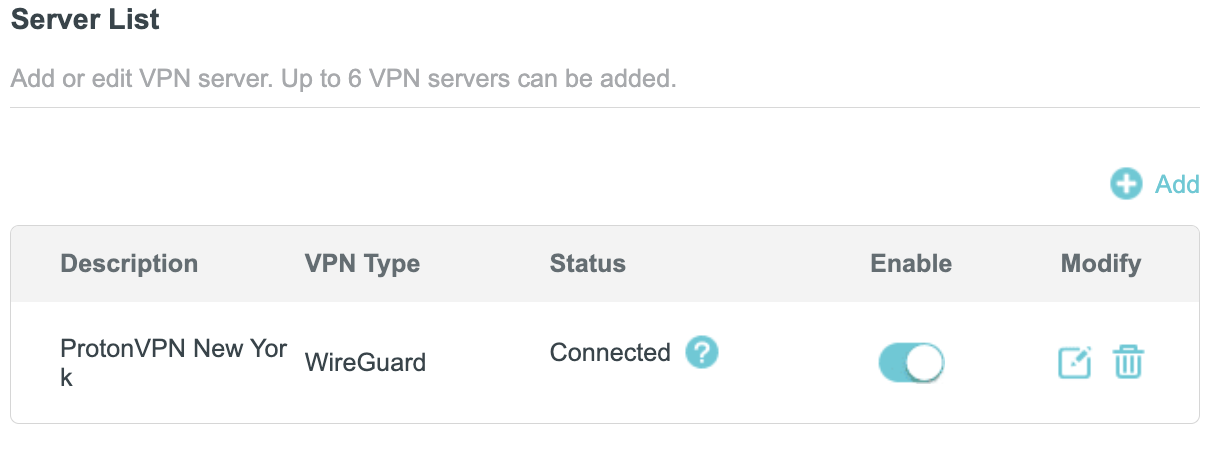
In some cases you may notice that the location is not showing the same location as the server you have input in your router settings; this is because geo tracking tools are often tricked by VPN connections. As long as you see an IP address that is not the same as your normal Internet IP address then you are indeed connected to ProtonVPN.
