Quick Start Guide for OpenWRT Routers
Find setup guides, FAQs and troubleshooting tips for the FlashRouters OpenWRT Routers.

Flint WiFi 6 AX1800 VPN Router
Internet Setup
Prioritizing Privacy
Flint WiFi 6 AX1800 VPN Router
ExpressVPN offers a SmartDNS service known as MediaStreamer for unblocking geo-restricted content without the encryption of a VPN service. SmartDNS routes DNS servers to different regions which “tricks” the website to allow access to previously restricted content.
SmartDNS does not change your IP Address or provide the encryption that a VPN connection does. This can result in faster speeds and unblocked content.
SmartDNS and VPN should not both be configured at the same time. When using a SmartDNS connection make sure to disable your VPN connection on the FlashRouter.
If you are not already a ExpressVPN user Sign Up Now.
Visit ExpressVPN website login page and successfully login.
Navigate to the DNS Settings tab on top right of the ExpressVPN Dashboard.
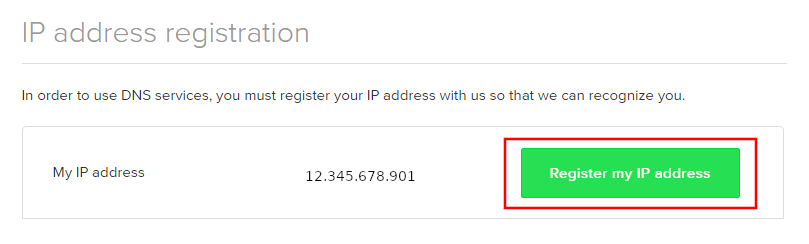
Click on Register my IP address.
Navigate to the ExpressVPN Dashboard.

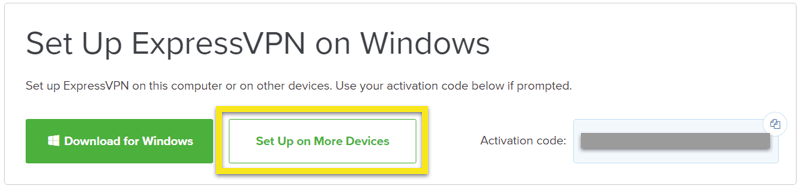
Click on Set Up on More Devices.
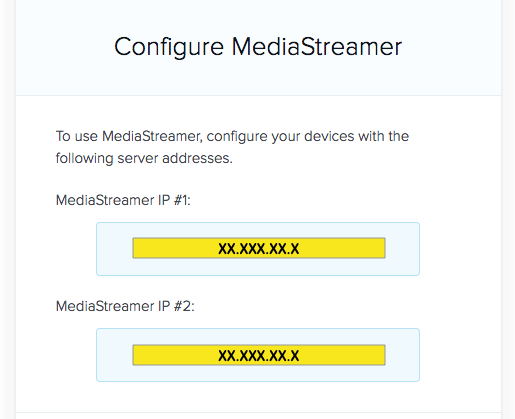
Scroll down and click on MediaStreamer and note the DNS servers that appear on the right side of the page.
Navigate to Setup > Basic Setup
Once the FlashRouter has fully rebooted, you can now access your desired regional content on any device that connects to the FlashRouter’s network.
Static network settings set on a device from a previous connection will interfere with the FlashRouter’s network. Typically the FlashRouter’s network performs best when connected devices are set to automatically use the FlashRouter’s IP Address and DNS.
Make sure you are connected to the FlashRouter’s network via ethernet or WiFi. Keep in mind these instructions may vary based on your current software version.
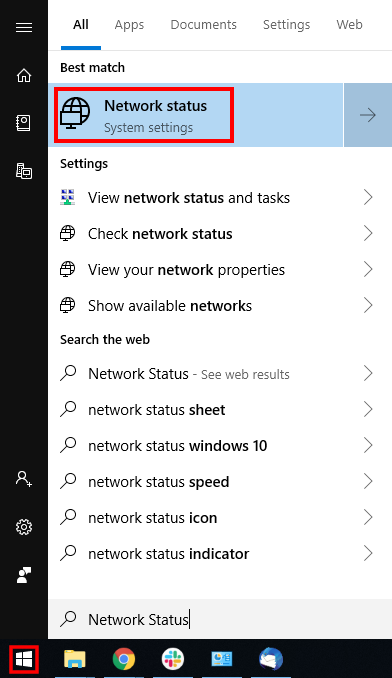
1. Open the Window search box, and search “Network Status”
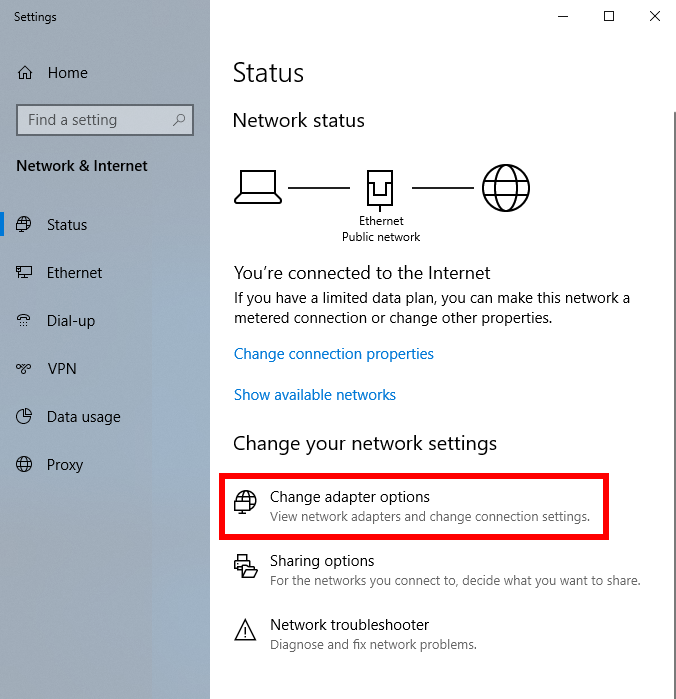
2. Select “Change adapter optons”
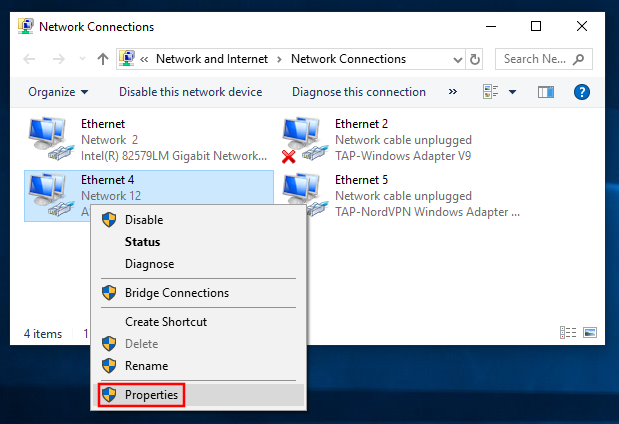
3. Right click on the WiFi and/or ethernet adapter and select Properties.
4. Highlight Internet Protocol Version 4 (TCP/IPv4) and click Properties.
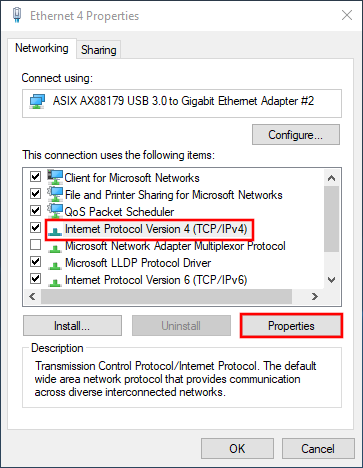
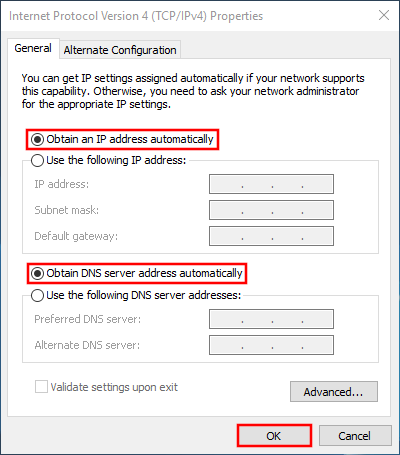
5. Delete the values entered for IP address, Subnet mask, Default gateway, Preferred DNS server, and Alternate DNS server.
6. Select Obtain an IP address automatically and Obtain DNS server address automatically.
7. Click OK.
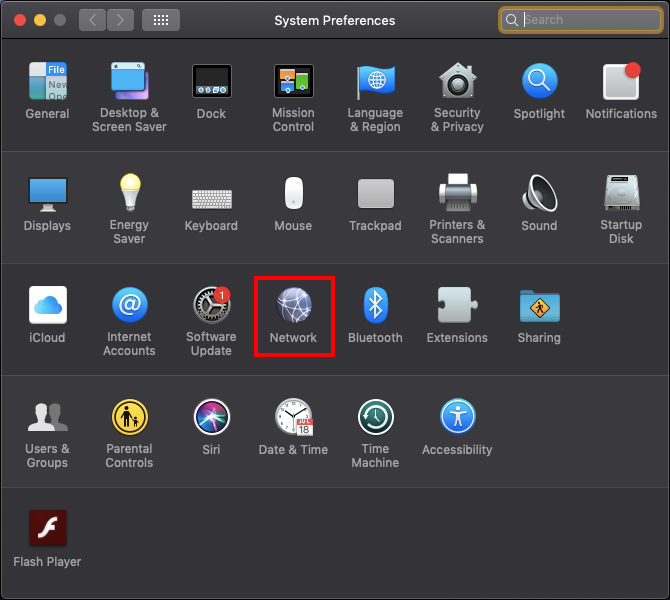
1. Open System Preferences, and select Network.
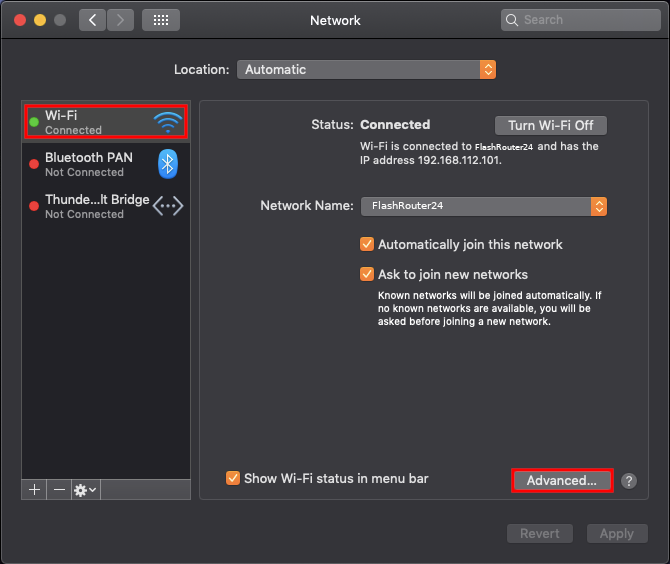
2. Select the adapter that is connected via ethernet or wireless. This will vary based on your current connection.
3. Select Advanced.
4. Select the TCP/IP tab.
5. Set Configure IPv4 to Automatically.
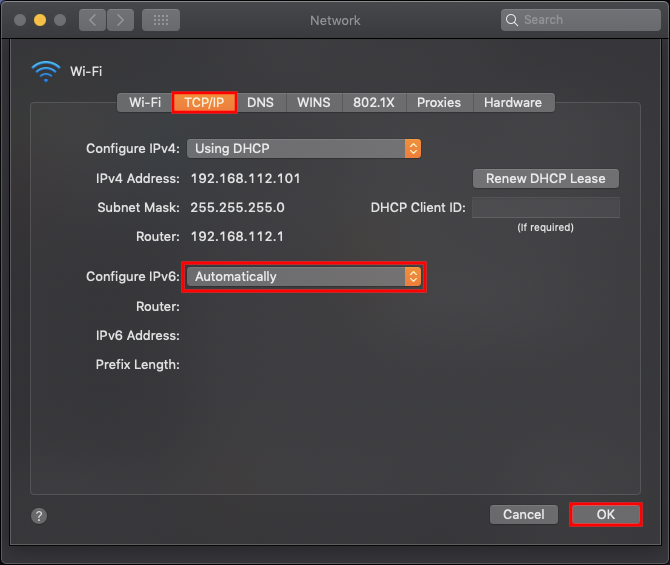
6. Select the DNS field and highlight any DNS servers you see there. If they can be removed you should click the minus symbol below.
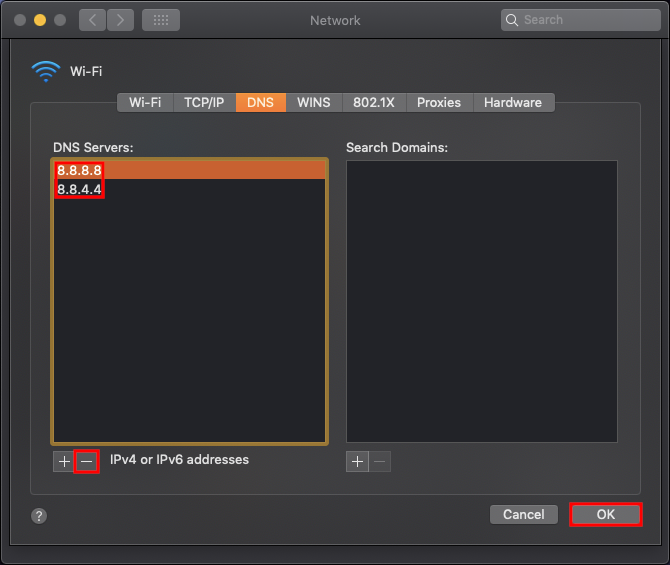
7. Click OK.
8. Click Apply.
1. Open Settings 
2. Select WiFi, and select the blue icon next to your current connection.
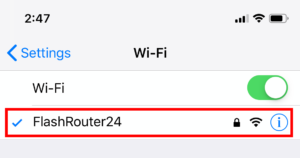
3. Make sure Configure IP is set to Automatically.
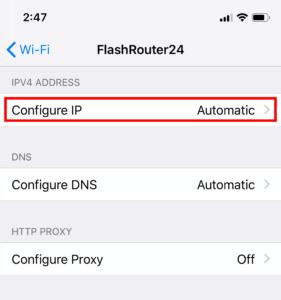
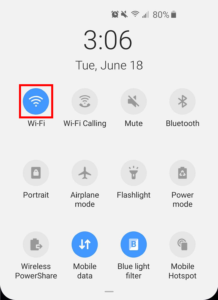
1. From the top of the screen, swipe down to display settings.
2. Select WiFi.
3. Select your current network.
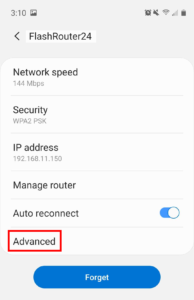
4. Select Advanced.
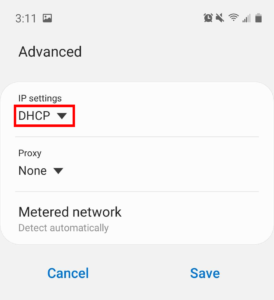
5. Make sure that IP settings is set to DHCP.
A Wireless Access Point is a setup that has the FlashRouter using an existing network’s DHCP instead of assigning its own. The FlashRouter’s WAN/Internet port should be not be connected to your modem or other router while performing this setup.
Locate the Local IP Address of the existing router that the FlashRouter will be bridged to.
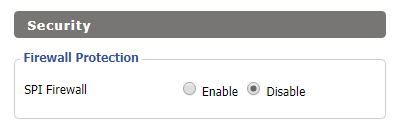
Navigate to Security > Firewall
Navigate to Services > Services
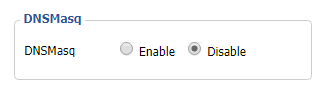
Navigate to Setup > Basic Setup
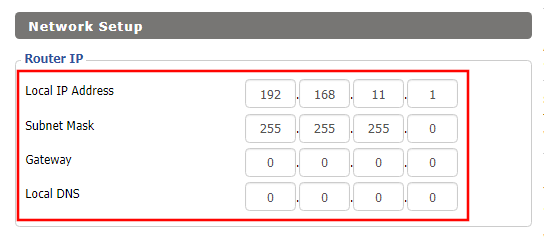
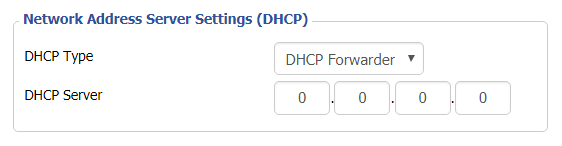
Navigate to Setup > Advanced Routing
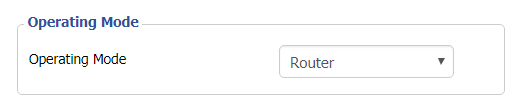
Navigate to the Administration > Backup page.
If you are not already an NordVPN user Sign Up Now.
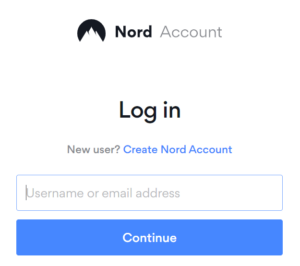
1. Log in to your account on the NordVPN website.
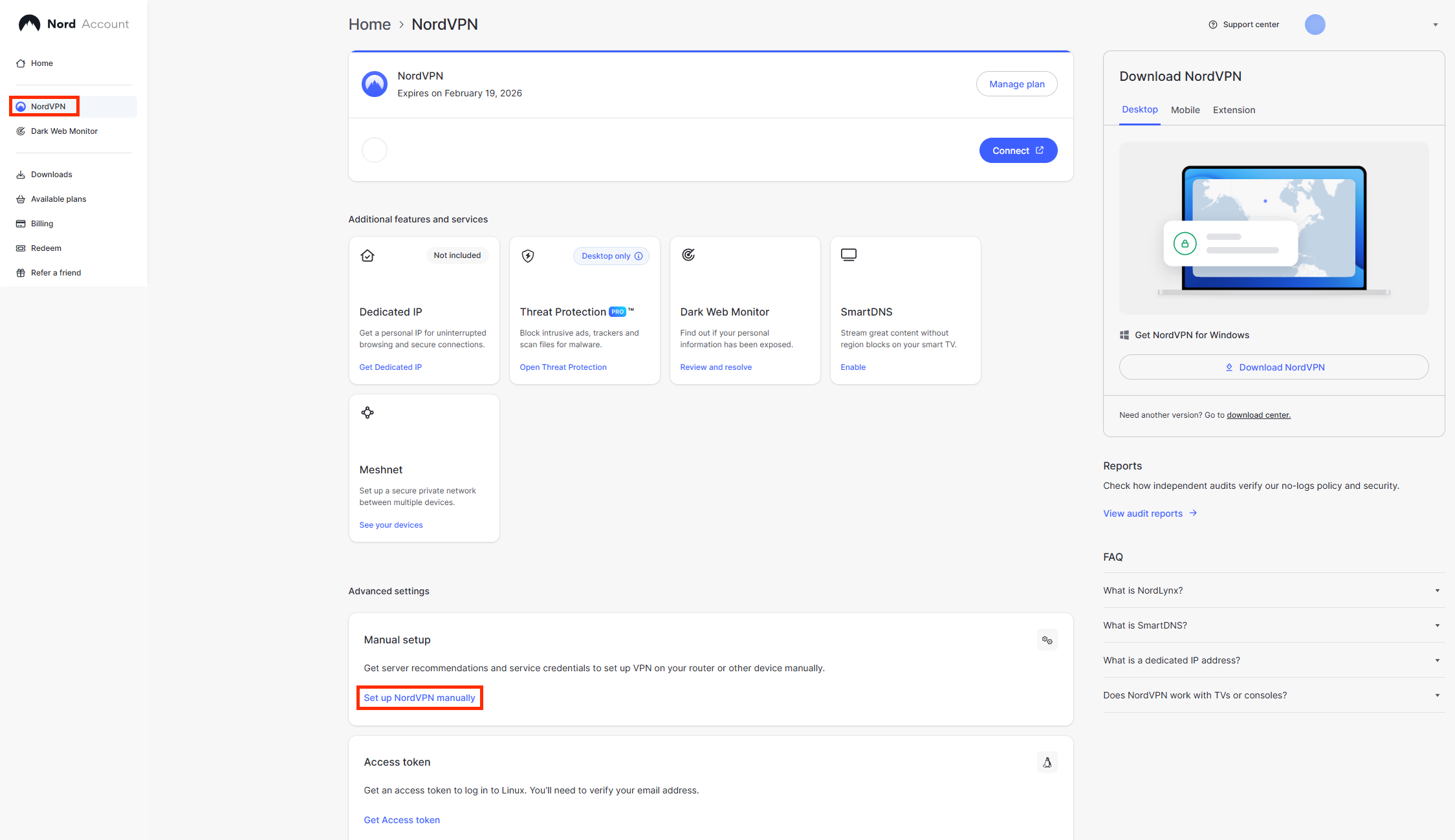
2. Click NordVPN on the left hand side and then click Setup NordVPN manually.
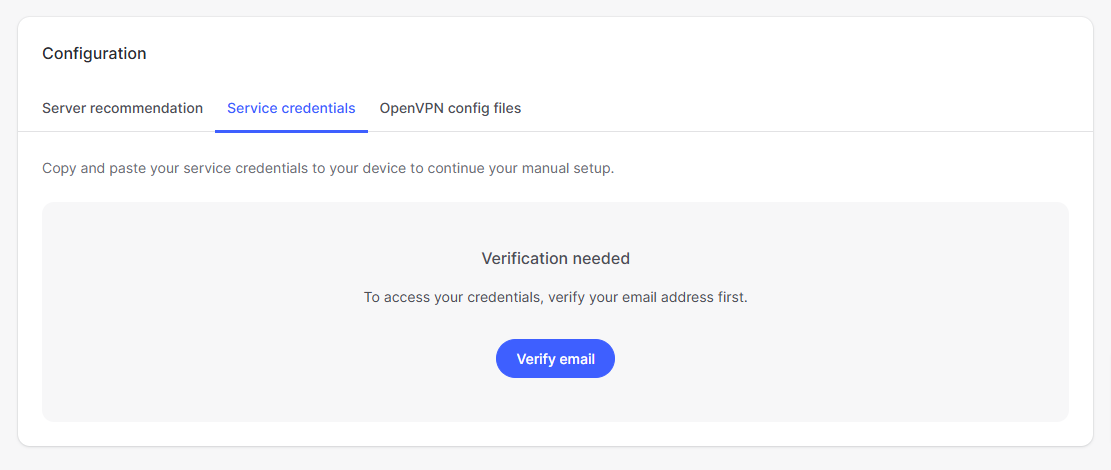
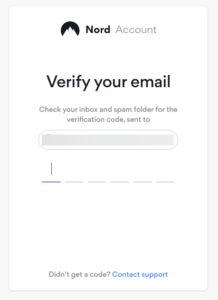
3. Go to the Service Credentials section and click Verify email. Enter in the verification code that was sent to your email.
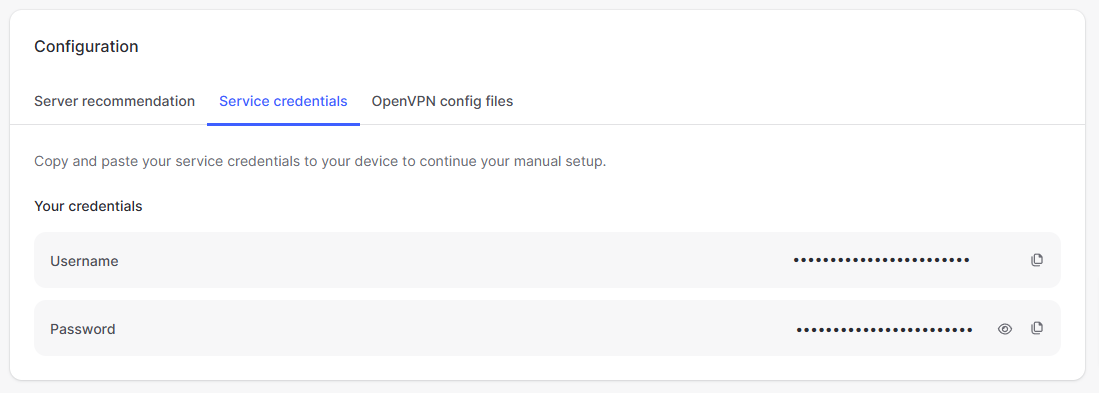
4. Copy and paste your NordVPN manual username and password to a secure location. This is the username and password you will enter into the router settings to connect to NordVPN OpenVPN.
If you are seeing ‘dd-wrt’ in your available wireless networks instead of your regular FlashRouter24 and FlashRouter50 wireless network names (SSID) this means the router has been reset to default DD-WRT firmware settings.
Follow our instructions for Resetting and Reconfiguring your FlashRouter to get setup again.
Do not confuse your SSID being replaced by ‘dd-wrt’ with ‘dd-wrt vap’ appearing alongside your regular wireless network names.
If you are seeing ‘dd-wrt vap’ it likely means you did not rename your network when attempting to setup a guest network.
If you find that wireless signal strength is weak while connected to the FlashRouter’s network we recommend that you do the following:
If you need to extend your wireless and wired connection capabilities, you can setup a FlashRouter as a Wireless Repeater. In Wireless Repeater mode the FlashRouter connects to your main router via WiFi and then creates a completely separate network segment for you. This new “repeater” network then transmits your internet signal via FlashRouter LAN ports for wired internet access while also creating a new Wireless Extender network that will expand your wireless network range throughout your home or office just like a mesh network.
To connect your FlashRouter wirelessly to your existing wireless network you will need the Wireless Network Name (SSID) and Wireless Password of the existing wireless network that you will repeat. Verify and note this information.
We recommend using a 2.4GHz network to repeat as this network will have more range. Be sure to click Add under the 2.4GHz settings and not the 5GHz settings.
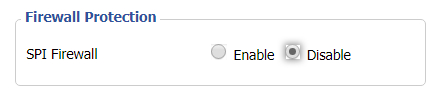
Navigate to Security > Firewall
Navigate to Wireless > Basic Settings
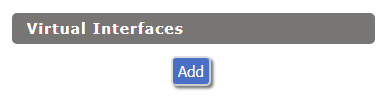
Select Add in the Virtual Interface area.
In the Wireless Physical Interface settings for the 2.4GHz network set the Wireless Mode to Repeater.
FlashRouters with a Broadcom chipset will have Repeater as an option in the dropdown but FlashRouters with an Atheroes chipset will not. Select Client or Client (Routed) if Repeater is not listed for your FlashRouter.
Change the Wireless Network Name (SSID) to match exactly with the Wireless Network Name of the network that you will repeat.
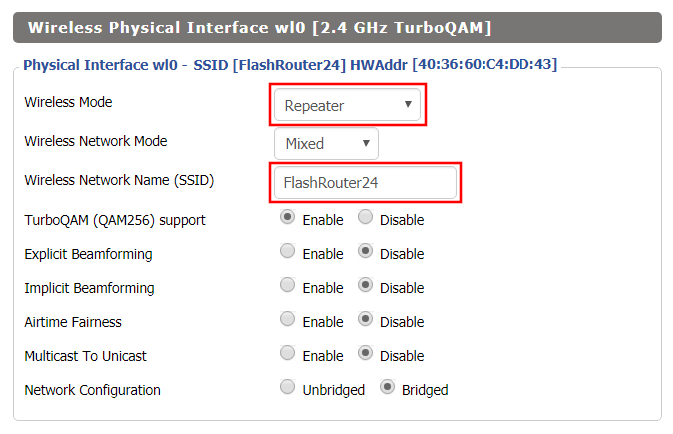
In the Virtual Interfaces settings change the Wireless Network Name (SSID) to FlashRouter24 or any other unique SSID.
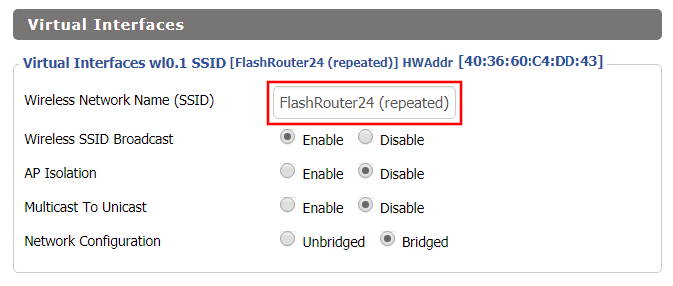
CLICK SAVE
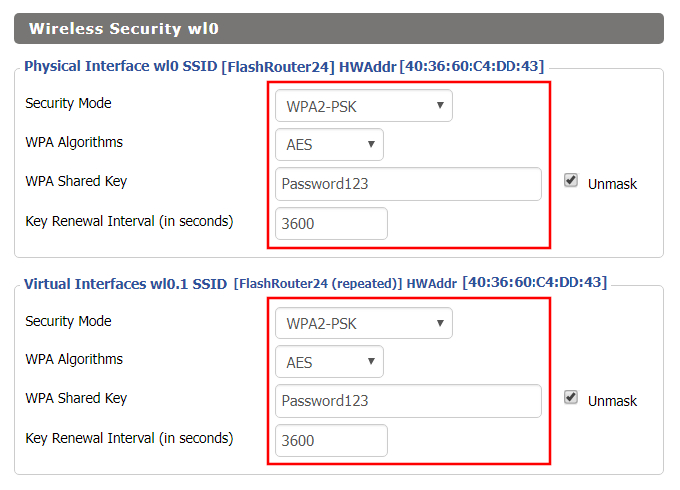
Navigate to Wireless > Wireless Security
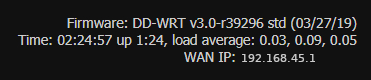
In the top right hand corner of the DD-WRT you should see the WAN IP change from 0.0.0.0 to an actual IP Address. Once this changes navigate to any website to test your Internet connection.
Navigate to the Administration > Backup page.
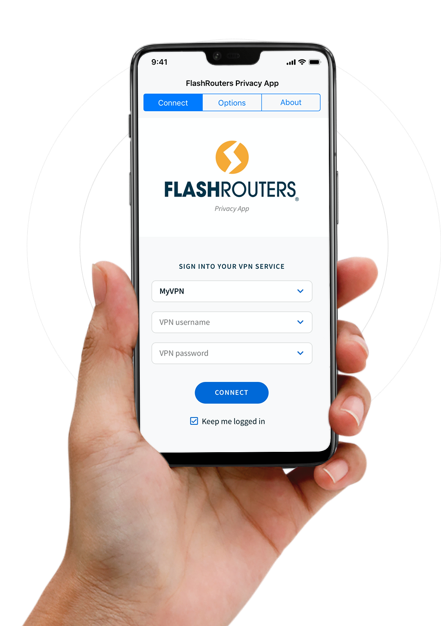
Select your operating system below to setup the FlashRouters Privacy App on your router, the easiest way to connect to the best VPN services. For ExpressVPN FlashRouter users, please view the following section for setting up the ExpressVPN app.
There are several common reasons that an Unidentified Network or Limited connection message may appear in your device’s network adapter.
DD-WRT open source firmware removes many firmware vulnerabilities and backdoor access issues that may cause problems in stock firmware. DD-WRT is also updated more frequently than stock firmware, so be sure to always check with the FlashRouter support team to see which DD-WRT build we recommend for the highest level of security for your router at any time.
Aside from avoiding common issues and flaws with stock firmware, DD-WRT give you more control over the firmware settings and allows you to take some extra steps to really lock down your network security. In this article we highlight additional options for WiFi network security and also preventative measures for remote execution attacks.
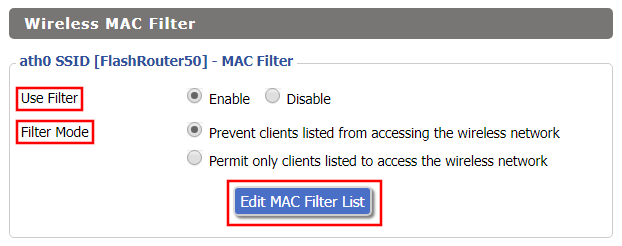
Navigate to Wireless > MAC Filter
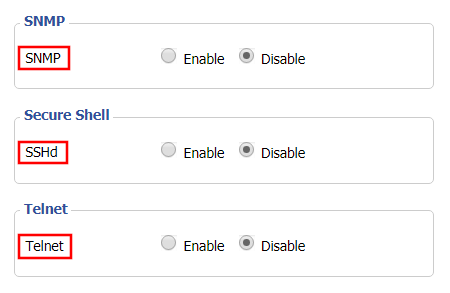
Navigate to Services > Services
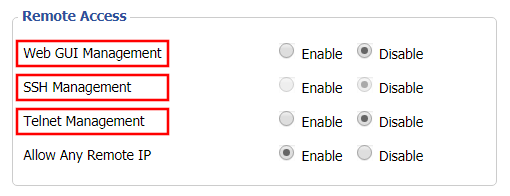
Navigate to Administration > Management
The settings of your FlashRouter do not need to change to connect an extender to the FlashRouter’s network. Simply access the settings of the extender device and enter the FlashRouter’s wireless network name and the correct wireless password.
The extender will then connect via wireless to the FlashRouter and add wireless range to your network.
To use a DD-WRT router as an extender follow our Advanced Wireless Setup Guides.
It is also easy to setup a Mesh system like Orbi or Velop and send your entire Mesh network through the FlashRouter VPN Network, for a VPN connected Mesh Network.
Simply connect from an open LAN port on your FlashRouter to the WAN port on your Mesh base station and then use your Mesh smart apps to complete the setup from there.
If you are not already a ProtonVPN user Sign Up Now.
Log in to your account on the ProtonVPN website.
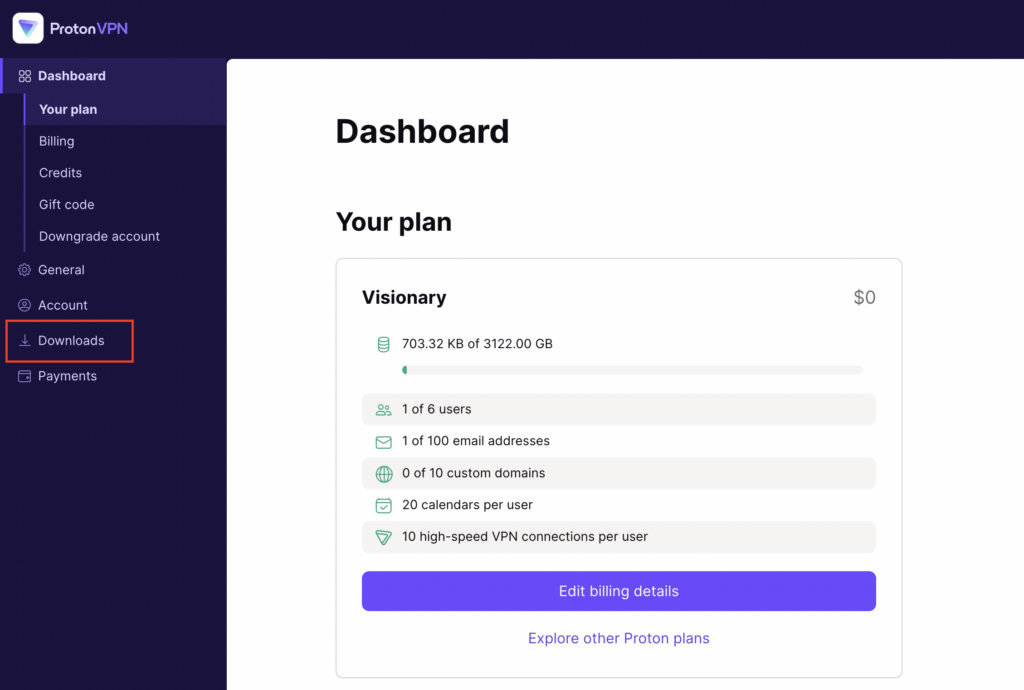
1. On the left hand side select Downloads.
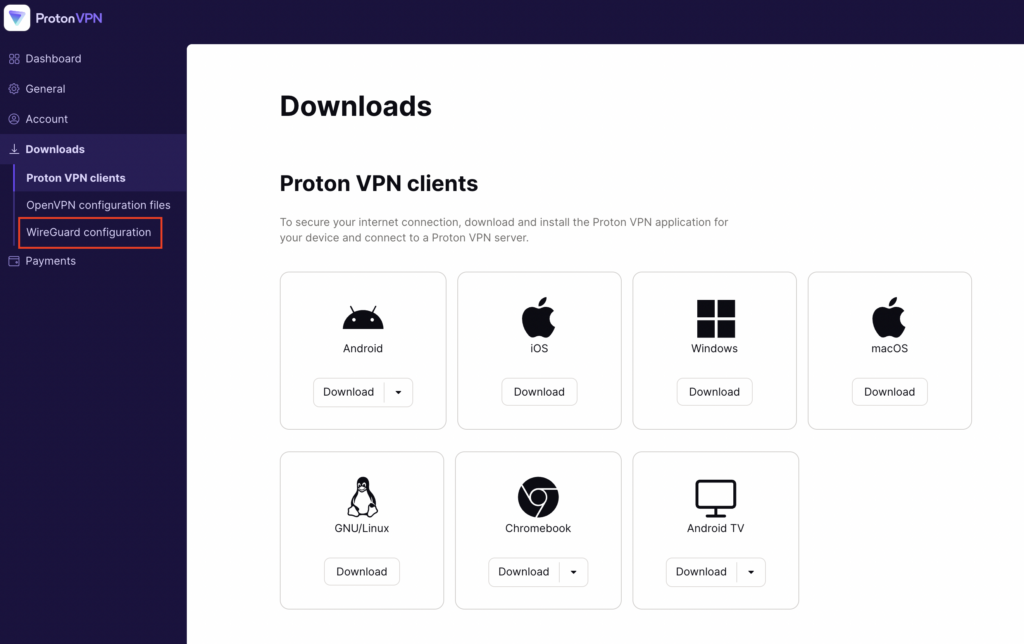
2. Then select WireGuard Configuration.
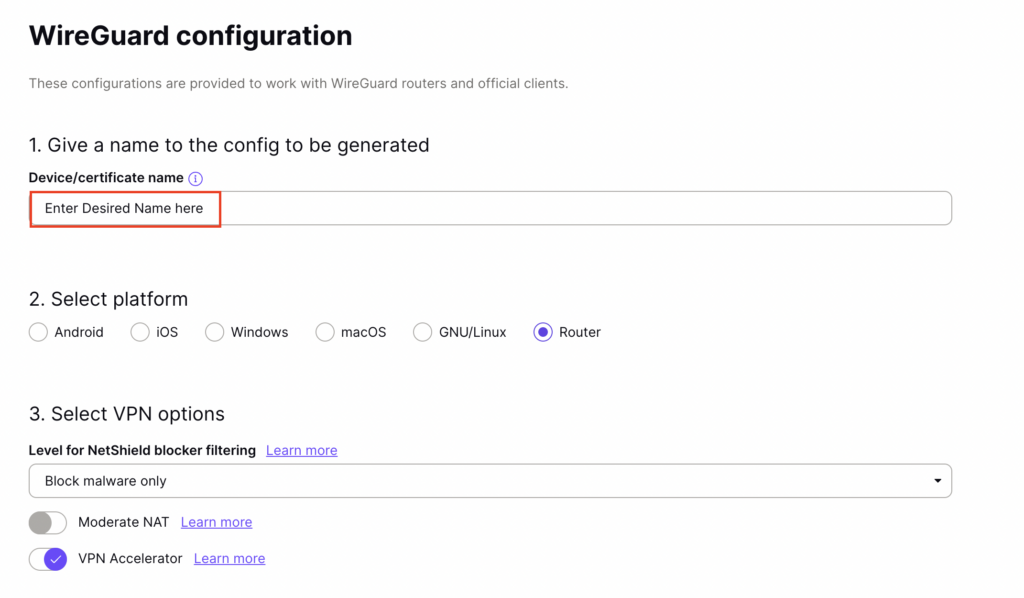
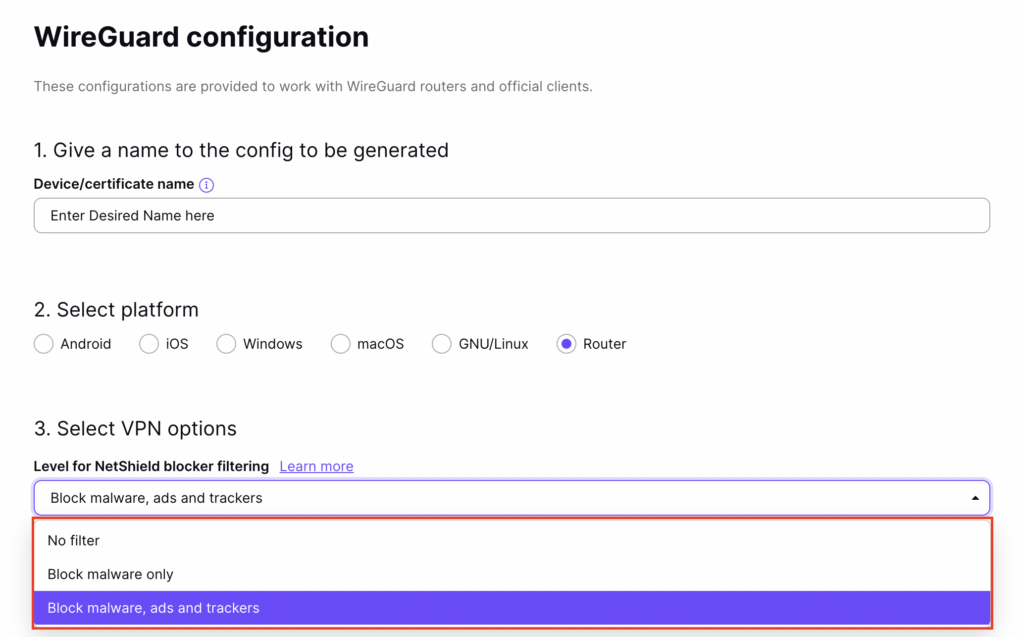
3. Enter the Device Name to assign the FlashRouter to identify it among your ProtonVPN connections.
4. Set the Device platform as Router.
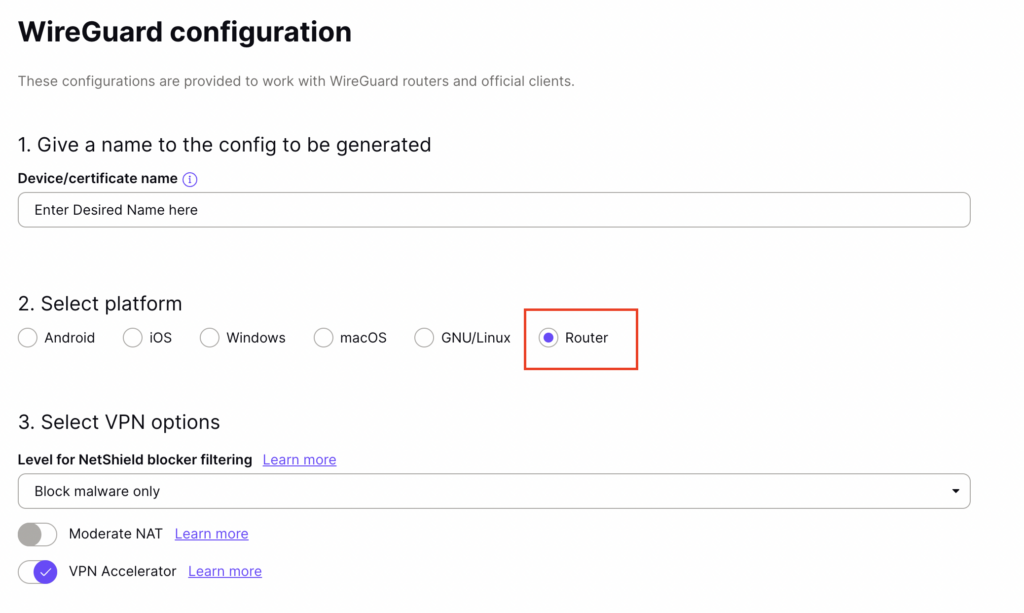
5. Select the VPN Options that you would like to connect with.
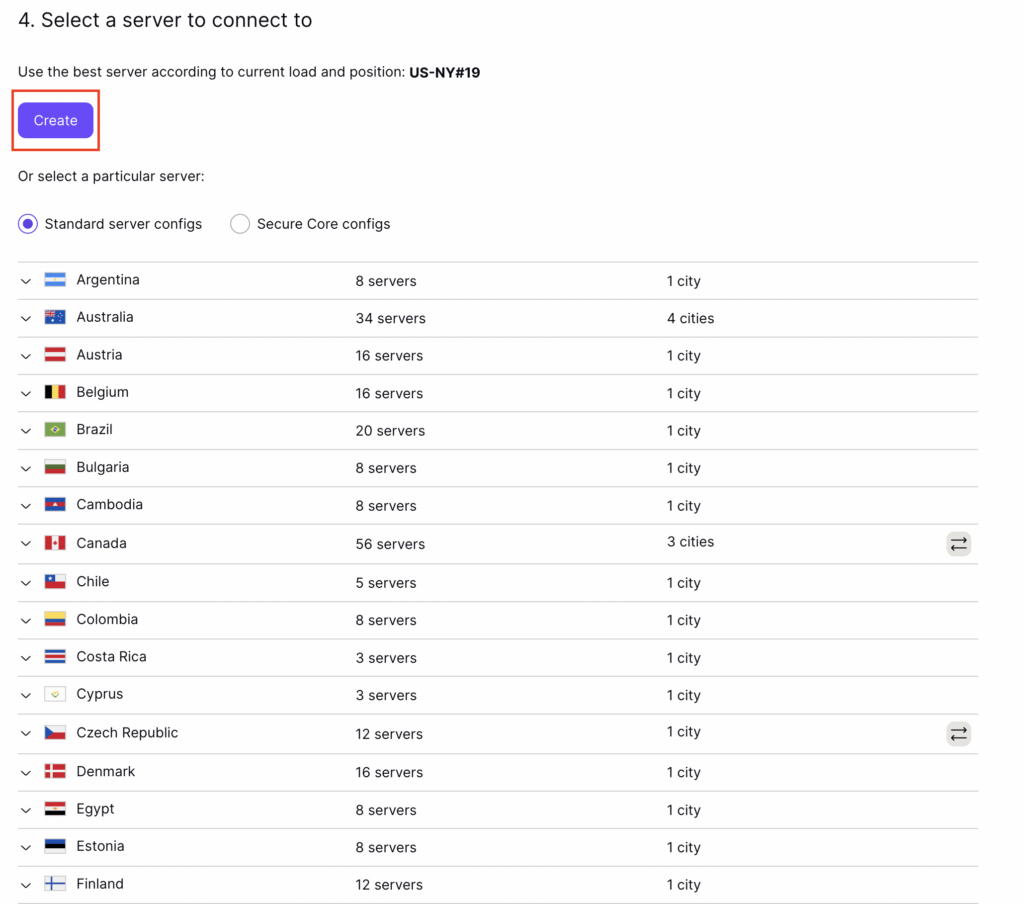
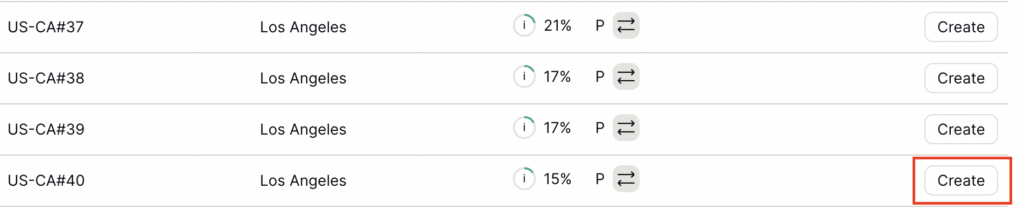
6. ProtonVPN will recommend the ideal server for you to connect to based on your location. Click Create or scroll down and select the server you wish to connect to and click Create next to the server number.
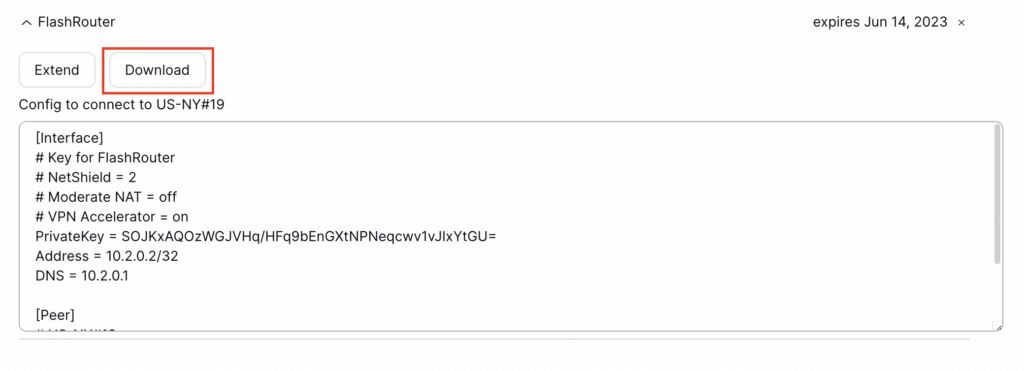
7. Click Download to download the .conf file of the server you selected.
Navigate to Setup > Tunnels
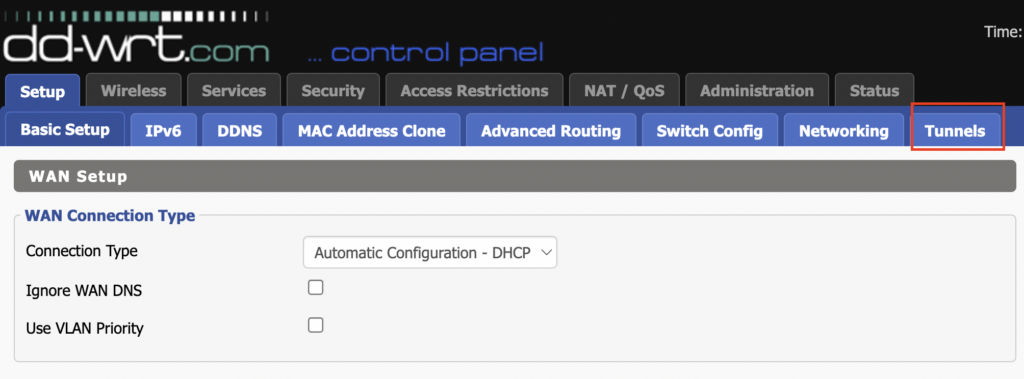
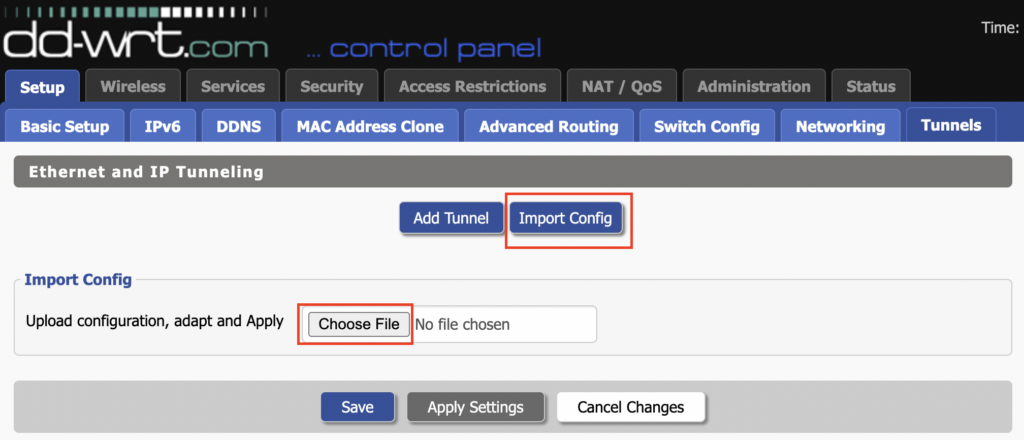
1. Click Import Config and then select Choose file. Select the .conf file that was downloaded earlier.
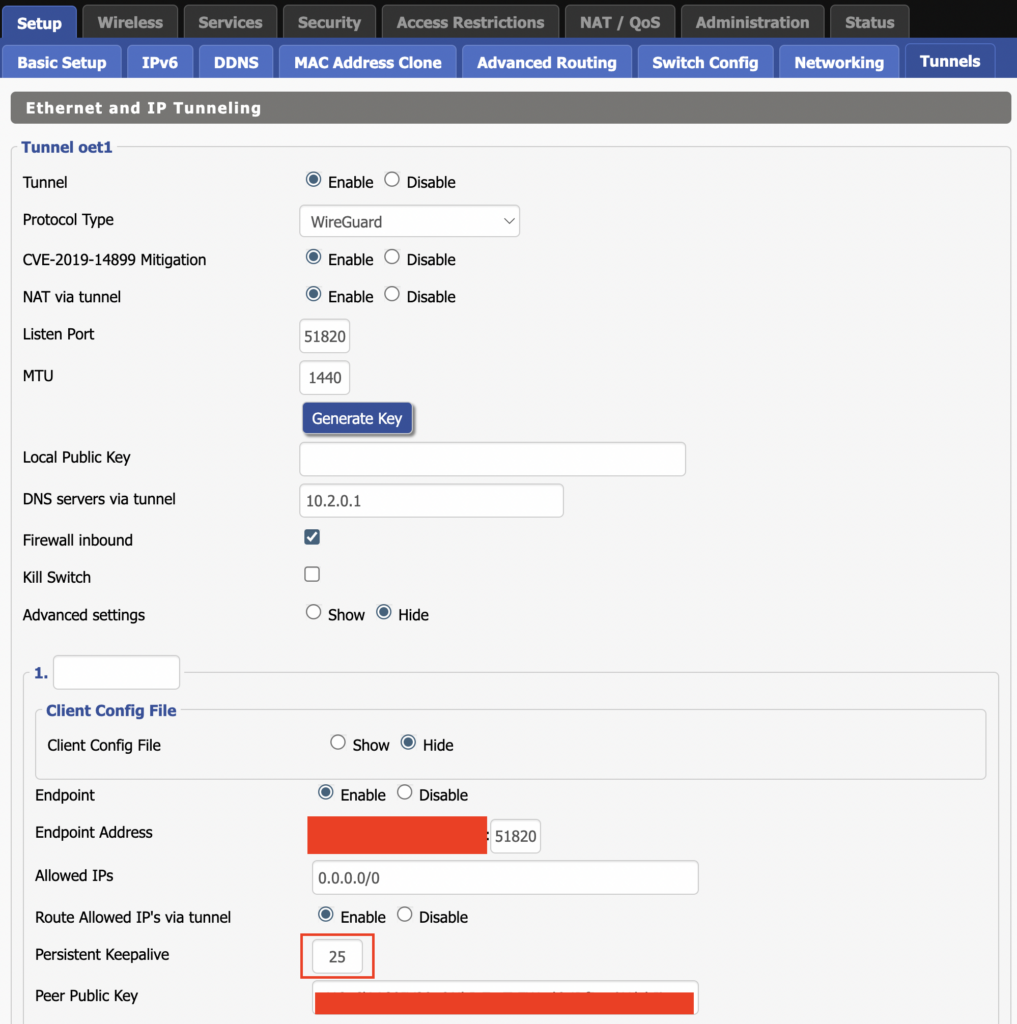
2. All settings will be loaded into the DD-WRT firmware the only field that needs to be adjusted is setting Persistent Keepalive to 25.
3. Click Apply Settings at the bottom of the page.
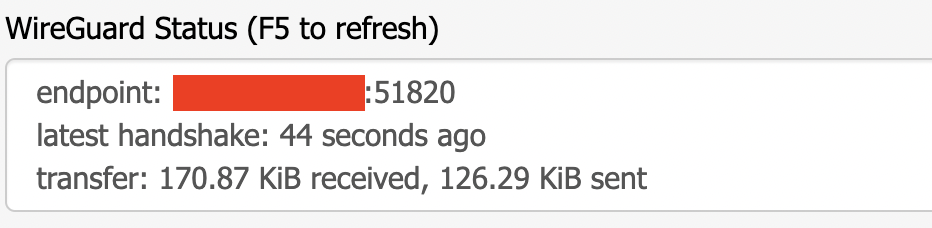
4. After 30 seconds or so refresh the page until you see the WireGuard Status on the page is populated as seen below.
Navigate to Setup > Tunnels
Navigate to Administration > Backup
If you are not already a Mullvad user Sign Up Now.
Log in to your account on the Mullvad website.
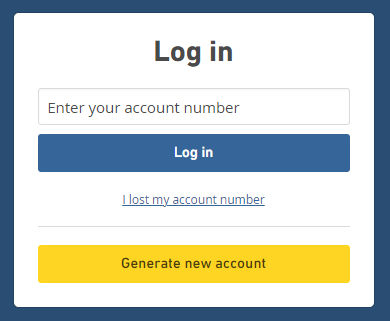
Select Manage ports and WireGuard Keys displayed on the account page.

Navigate to Setup > Tunnels
1. Click Add Tunnel.
2. Set Tunnel to Enable.
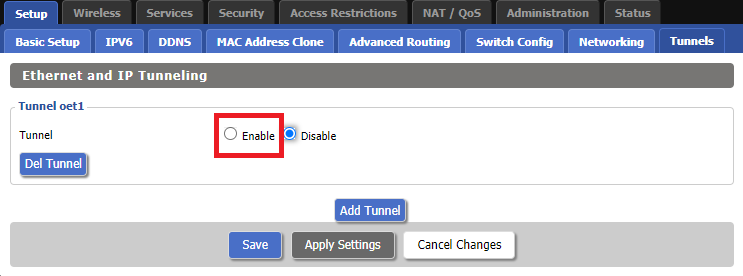
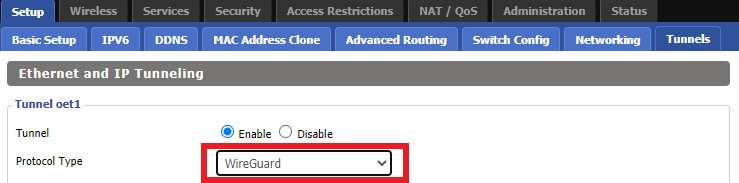
3. Select Wireguard from the dropdown.
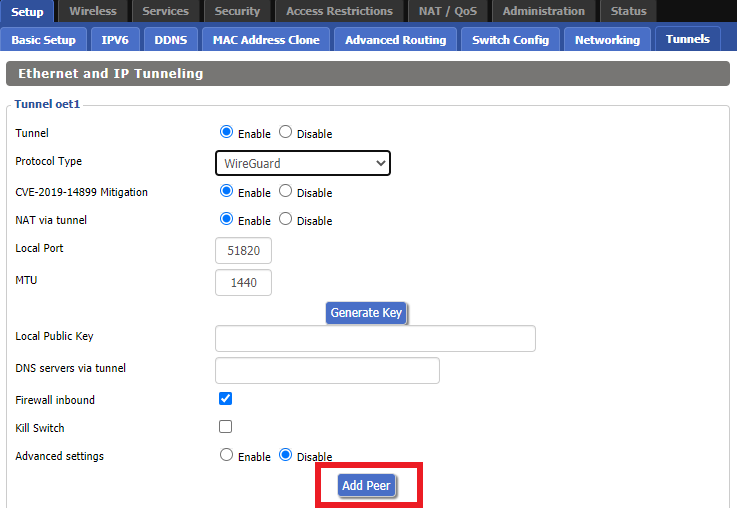
4. Click Add Peer.
5. Set Endpoint to Enable.
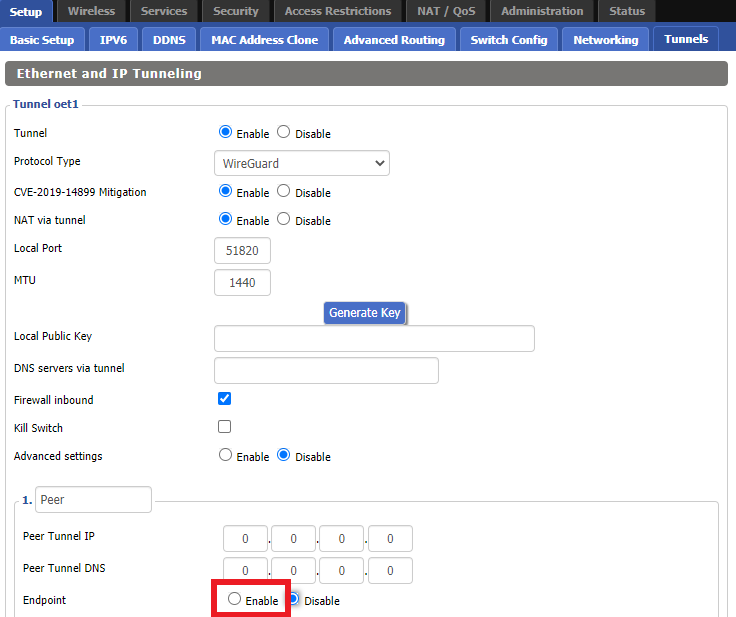
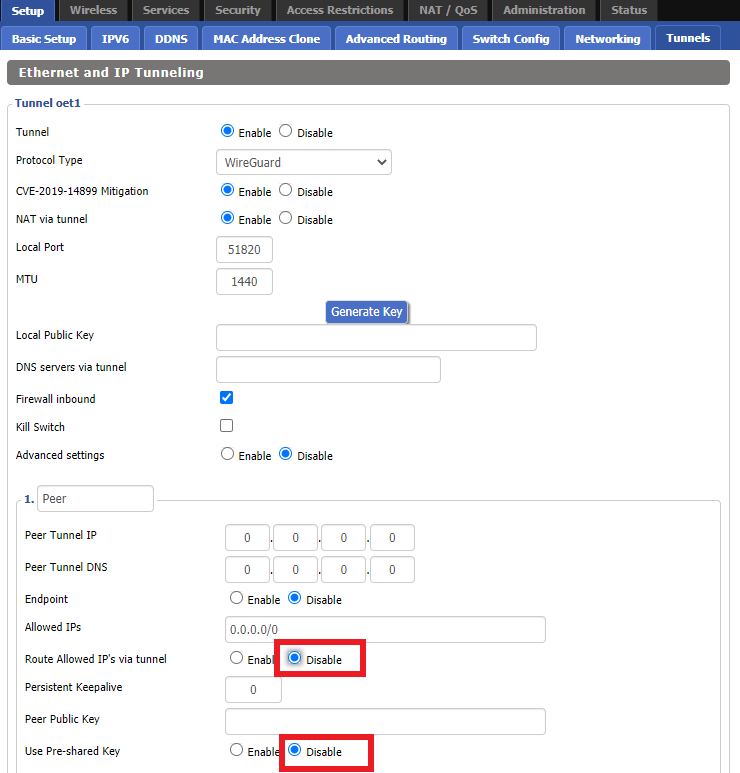
6. Set Router Allowed IP’s via tunnel and Use Pre-shared Key to Disable.
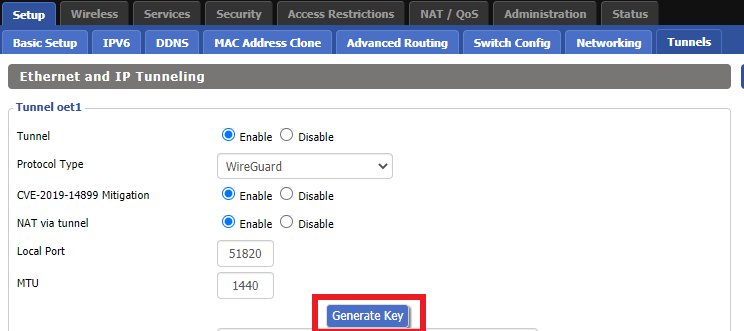
7. Click Generate Key.
8. Set Advanced Settings to Enable.
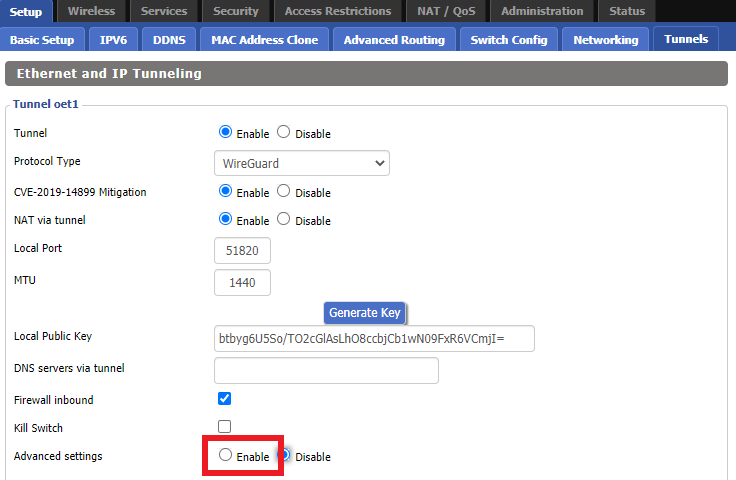
9. Copy the Local Private Key.
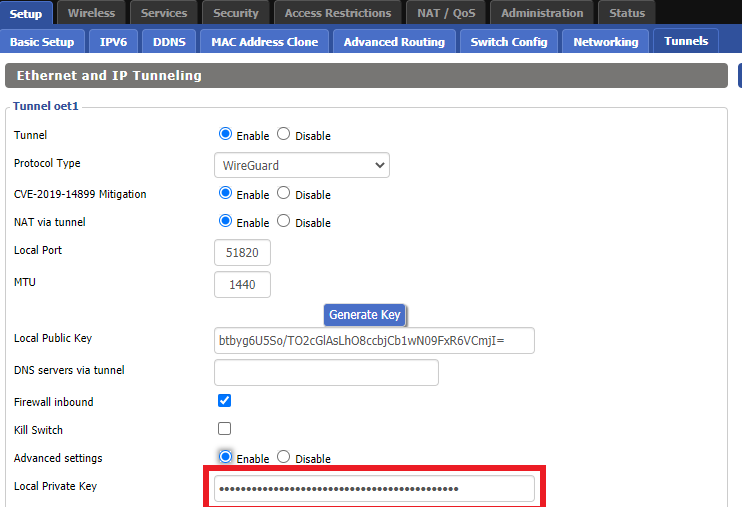
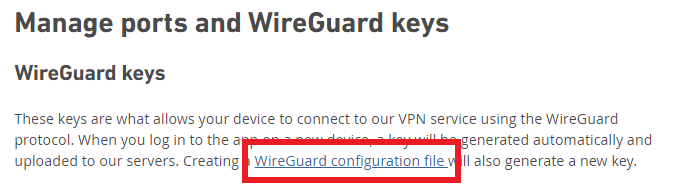
10. In a new tab (leave the DD-WRT settings opened), go to your Mullvad Account and click Manage Ports and WireGuard Keys.

11. Click WireGuard configuration file.
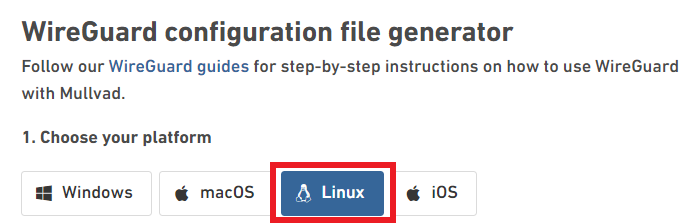
12. Select Linux as your Platform.
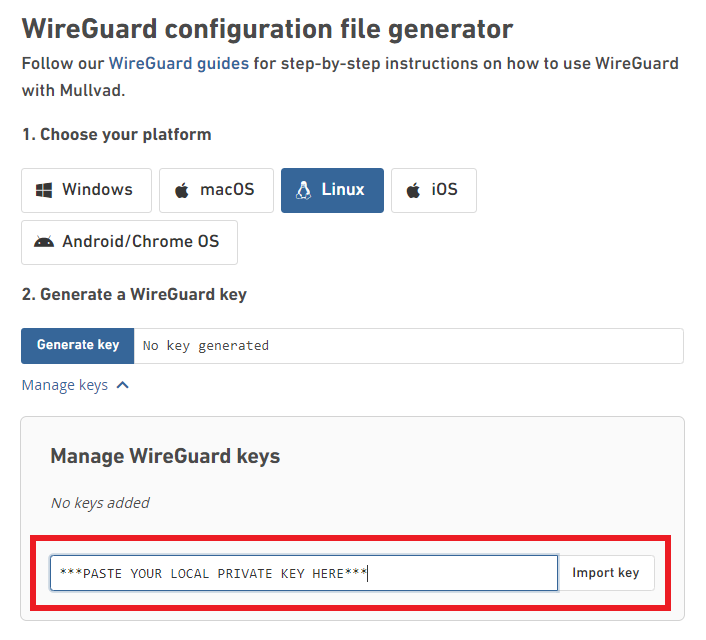
13. Click Manage Keys.
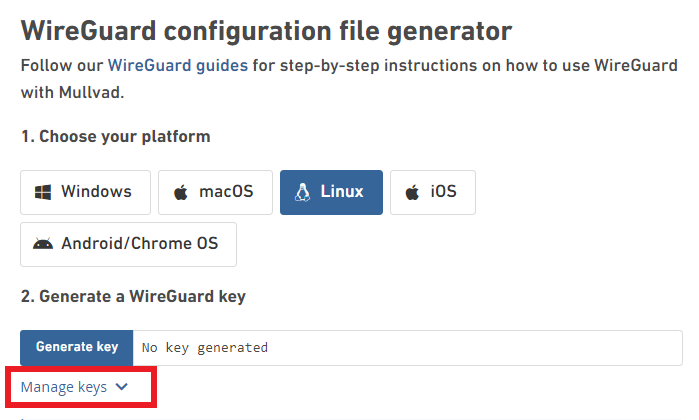
14. Paste the copied Local Private key to the Manage WireGuard Keys field and click Import Keys.
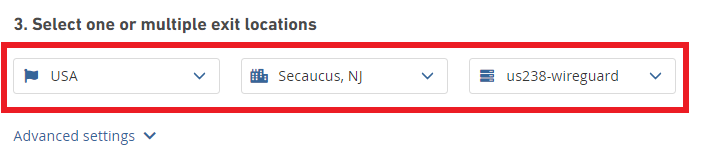
15. Select your Country, City, and Server number that you want to connect to.
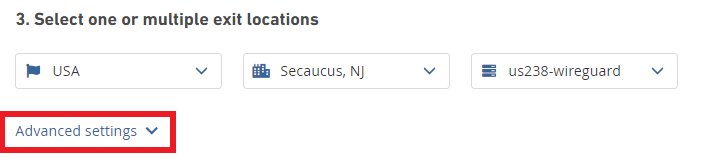
16. Click Advanced Settings.
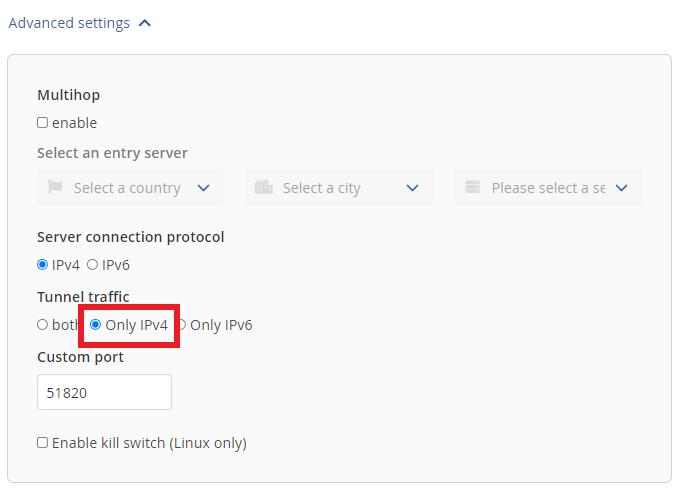
17. Set the Tunnel Traffic to Only IPv4.
18. Click Download File.
19. Open the config file that was downloaded to your computer with NotePad or Notepad++ for Windows or TextEdit for Mac.
20. In the downloaded config file under [Interface] enter the Address into the IP Addresses/Netmask(CIDR) field in the DD-WRT settings.
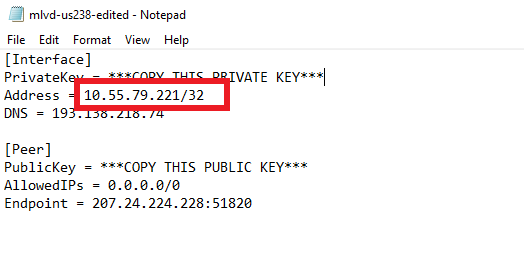
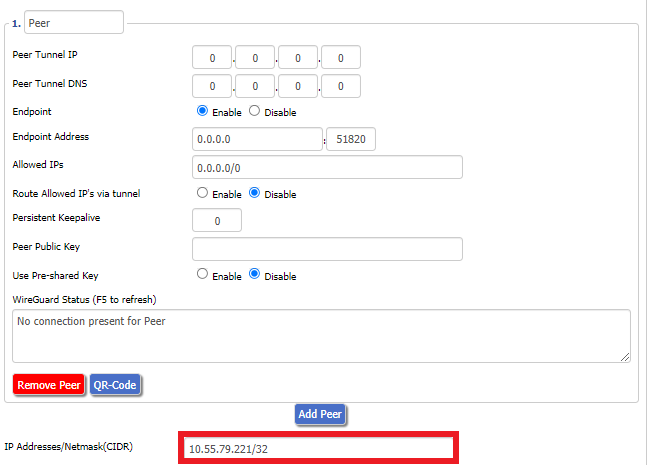
Certain DD-WRT builds will show two separate fields here: IP Address and Subnet Mask. If that is the case set the IP Address field to the Address without the /32 added and set the Subnet Mask to 255.255.255.255
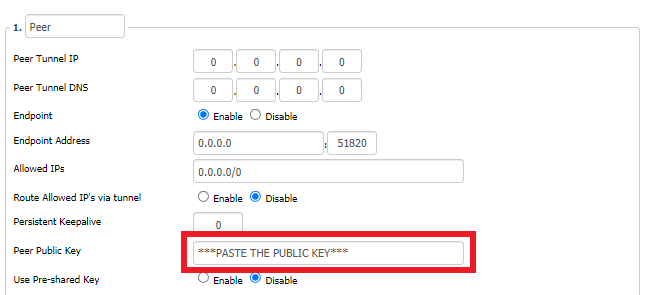
21. In the config file under [Peer] copy the PublicKey and paste it into the Peer Public Key field in the DD-WRT Settings.
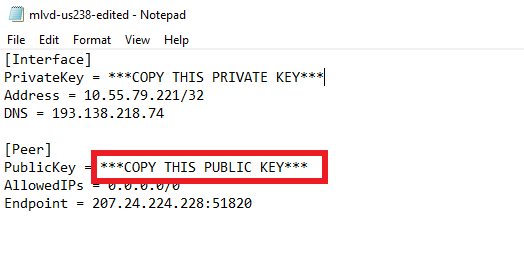
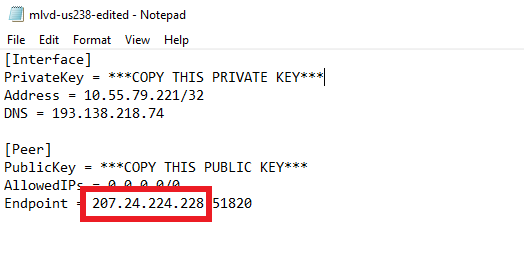
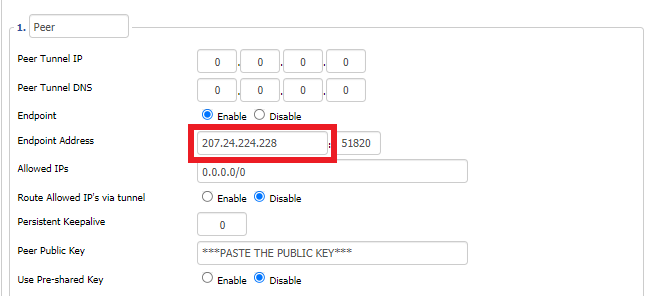
22. In the config file under [Peer] copy the Endpoint and paste it into the Endpoint Address field.
23. At the bottom of the page click Save and then click Apply Settings.
Navigate to Administration > Commands
1. Copy and paste the text below and click Save Startup.
sleep 30
echo "Update route table on startup..."
WGSERVER=$(/usr/sbin/nvram get oet1_rem0)
WANGW=$(/usr/sbin/nvram get wan_gateway)
WANIF=$(/usr/sbin/nvram get wan_iface)
route add -host $WGSERVER gw $WANGW dev $WANIF
route del default
route add default dev oet1
ip route flush cache
mkdir -p /tmp/etc/config
ln -s /tmp/custom.sh /tmp/etc/config/wg-route-fix.wanup
echo "... Done route table update."
2. Copy and paste the text below and click Save Custom.
#!/bin/sh
sleep 5
echo "Update route table on wanup ..."
WGSERVER=$(/usr/sbin/nvram get oet1_rem0)
WANGW=$(/usr/sbin/nvram get wan_gateway)
WANIF=$(/usr/sbin/nvram get wan_iface)
route add -host $WGSERVER gw $WANGW dev $WANIF
route del default
route add default dev oet1
ip route flush cache
echo "... Done route table update."
3. Copy and paste the text below and click Save Firewall.
WANIF=$(/usr/sbin/nvram get wan_iface)
iptables -t nat -I POSTROUTING -o oet1 -j MASQUERADE
iptables -I FORWARD -i br0 -o $WANIF -m state –state NEW -j REJECT –reject-with icmp-host-prohibited
iptables -I FORWARD -i br0 -p tcp -o $WANIF -m state –state NEW -j REJECT –reject-with tcp-reset
Navigate to Setup > Basic Setup
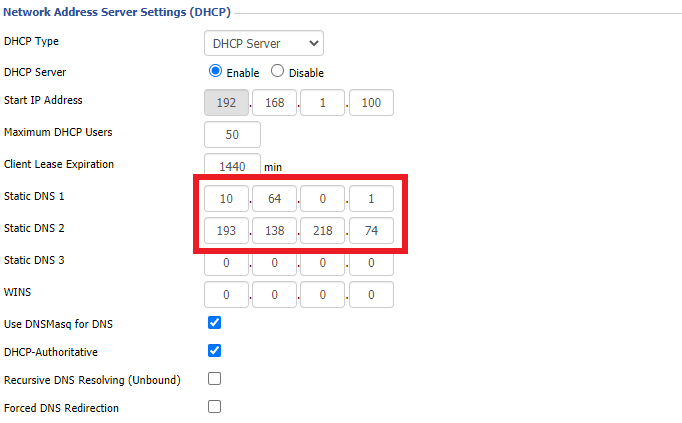
Set Static DNS 1 to 10.64.0.1
Set Static DNS 2 to 193.138.218.74
Click Apply Settings.
Navigate to Administration > Management
Scroll to the bottom of the page and click the red Reboot Router button. Wait for the FlashRouter to reboot and then reconnect.
Navigate to Setup > Tunnels
Navigate to Administration > Backup
It can be very useful to setup static local IP addresses for devices on your FlashRouter network. By assigning specific IP’s to specific devices you can better control and manage how your network and the internet interacts with each device.
Once you setup a static IP you can set access restrictions, monitor and control bandwidth, as well as bypass a router VPN connection or setup a device specific Kill Switch. Without a static IP assignment you may lose device specific settings when the DHCP lease to the router expires.
Navigate to Services > Services
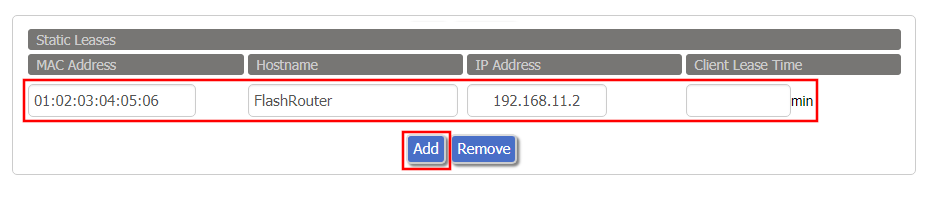
If a device has wireless and ethernet capabilities the MAC Addresses will be different for a wireless connection and an ethernet connection. Make sure to set a static IP for both MAC Addresses in this case.
If you are not already a IVPN user Sign Up Now.
Log in to your account on the IVPN website.
Navigate to Setup > Tunnels
1. Click Add Tunnel.
2. Set Tunnel to Enable.
3. Select Wireguard from the dropdown.
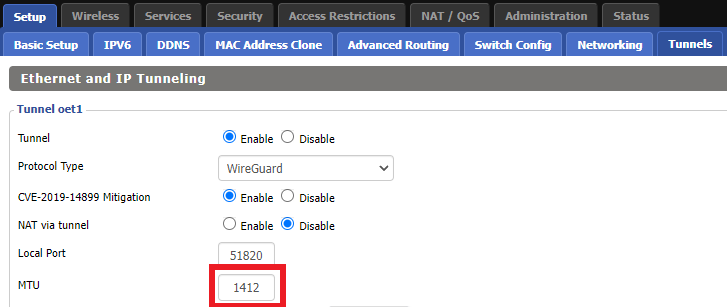
3. Set MTU to 1412.
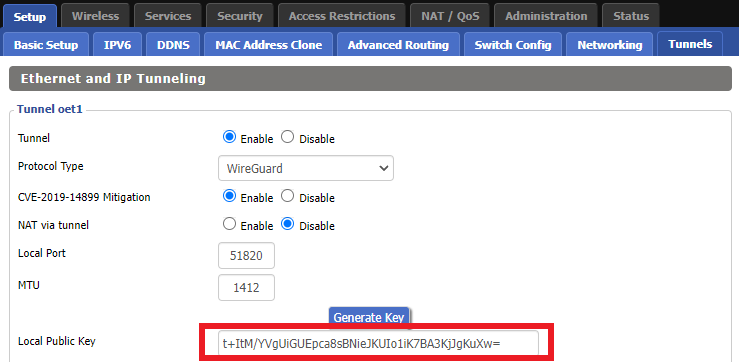
4. Click Generate Key.
9. Copy the Local Public Key.
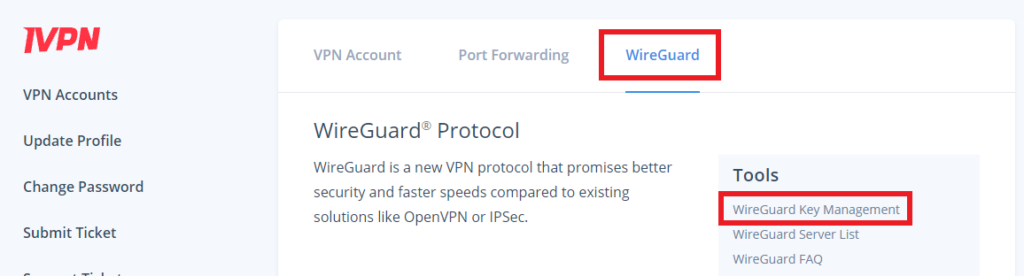
10. In a new tab (leave the DD-WRT settings opened), go to your IVPN Account and click WireGuard and then click WireGuard Key Management.
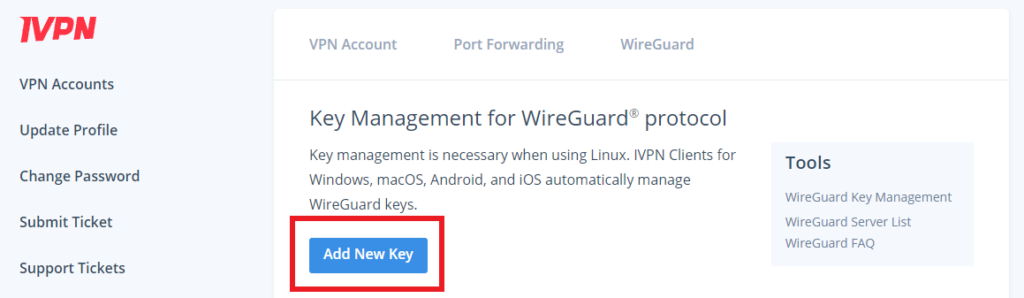
11. Click Add New Key.
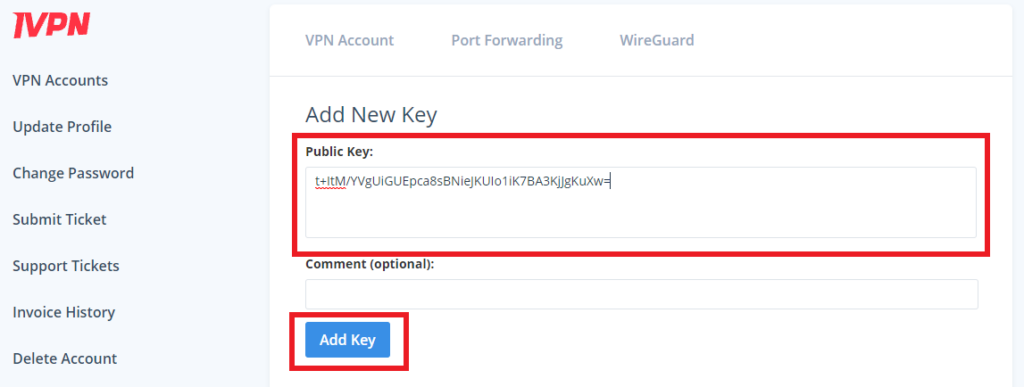
12. Paste the copied Local Public key to the Public Key field and click Add Key.
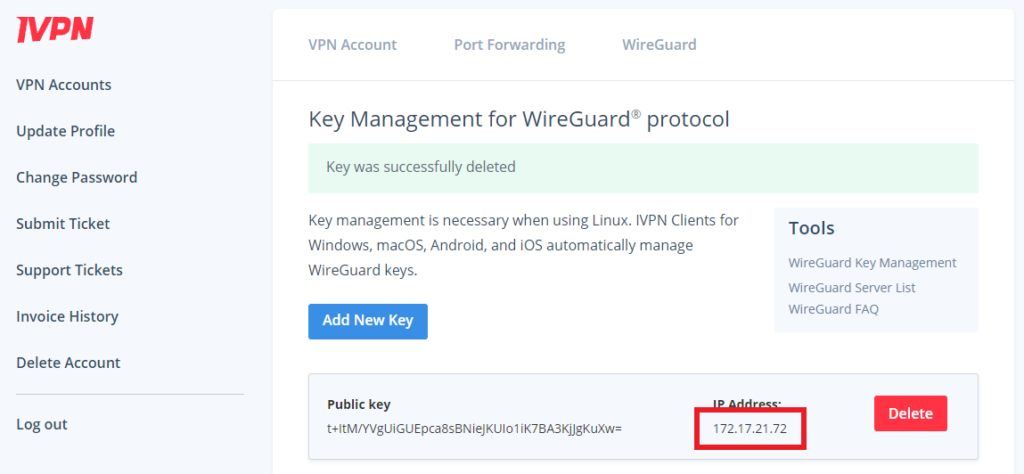
13.Copy the IP Address assigned to your public key and add it to the IP Addresses/Netmask(CIDR) field followed by a /32 subnet mask.
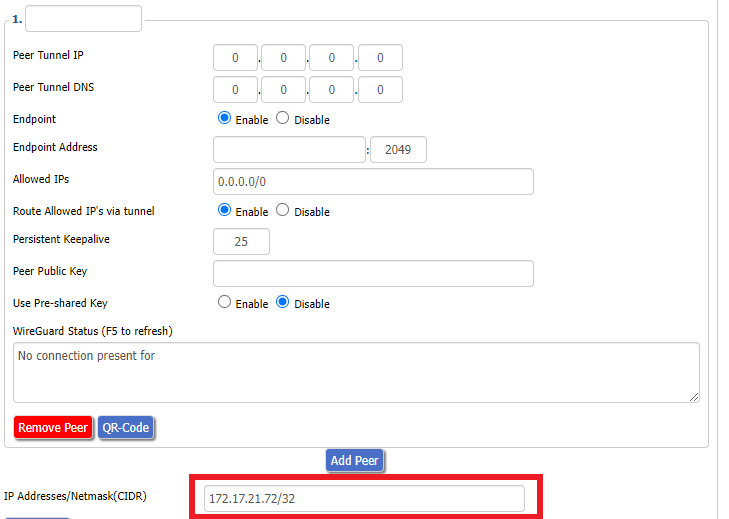
Certain DD-WRT builds will show two separate fields here: IP Address and Subnet Mask. If that is the case set the IP Address field to the Address without the /32 added and set the Subnet Mask to 255.255.255.255
14. Click Add Peer.
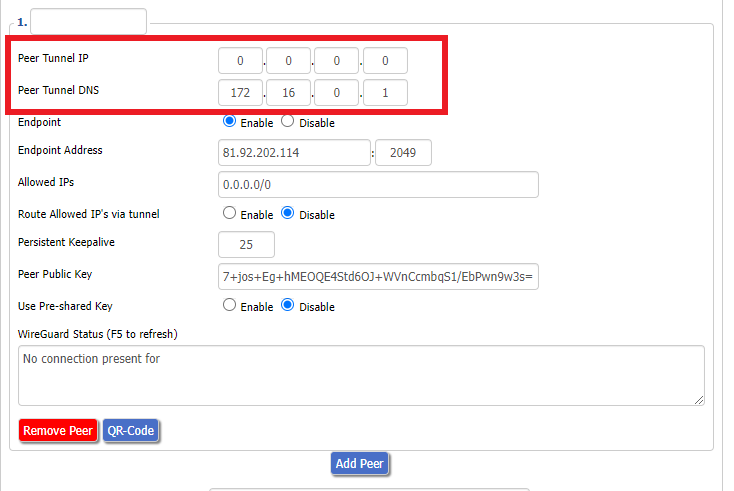
15. Set the Peer Tunnel IP to 0.0.0.0. Set Peer Tunnel DNS to 172.16.0.1
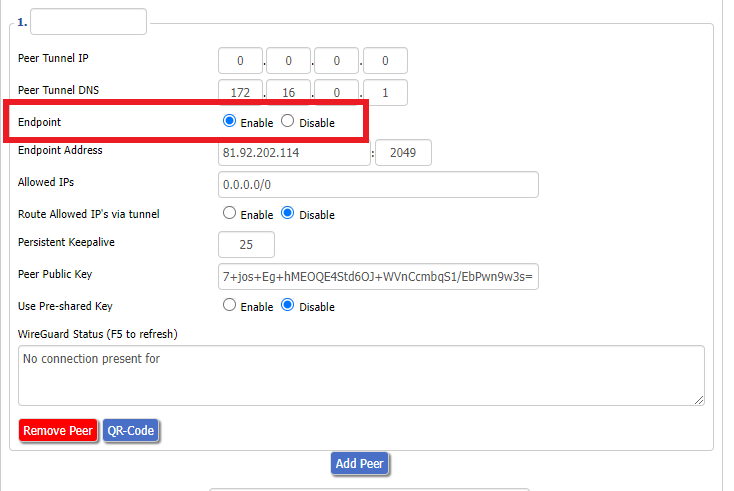
16. Set Endpoint to Enable.
17. Go to the IVPN Server Status page and copy the server name for the WireGuard server location you want to connect to.
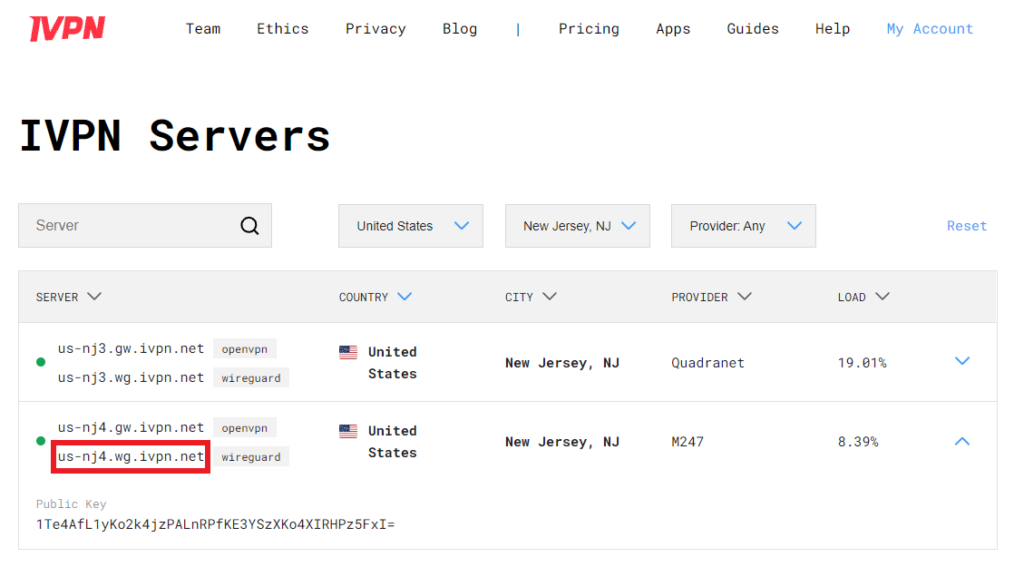
Be sure to copy the WireGuard server address and not the OpenVPN server address.
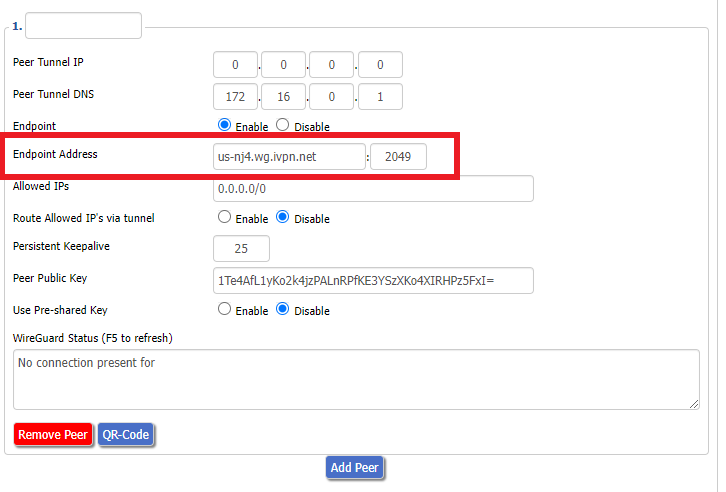
18. Paste the server name you copied into the Endpoint Address field and set the Port to 2049.
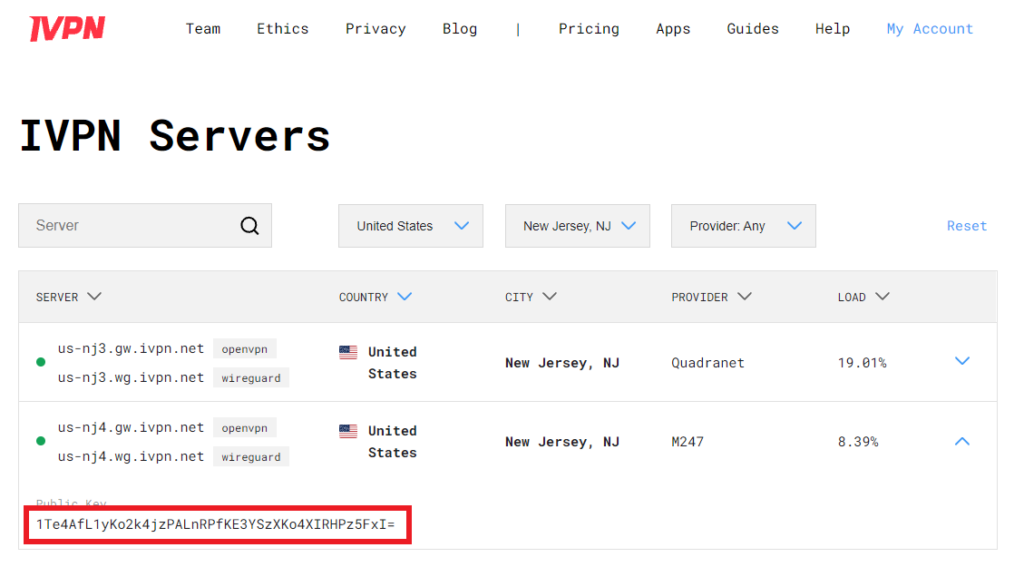
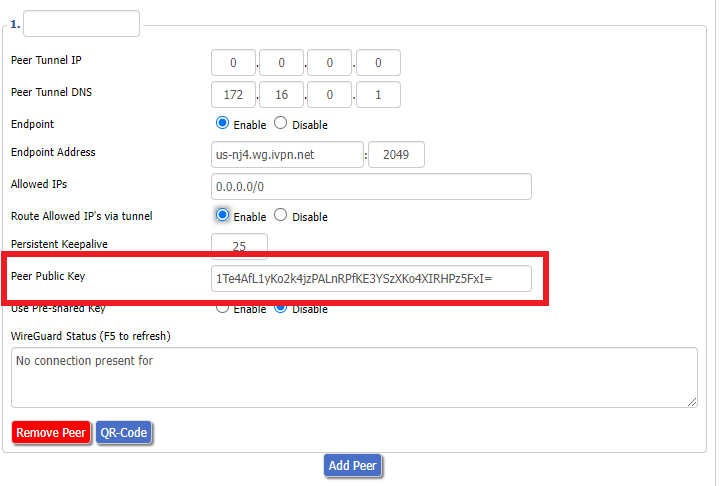
19. On the IVPN Server Status page copy the Public Key of the server location you entered. Paste the Public Key into the Peer Public Key field.
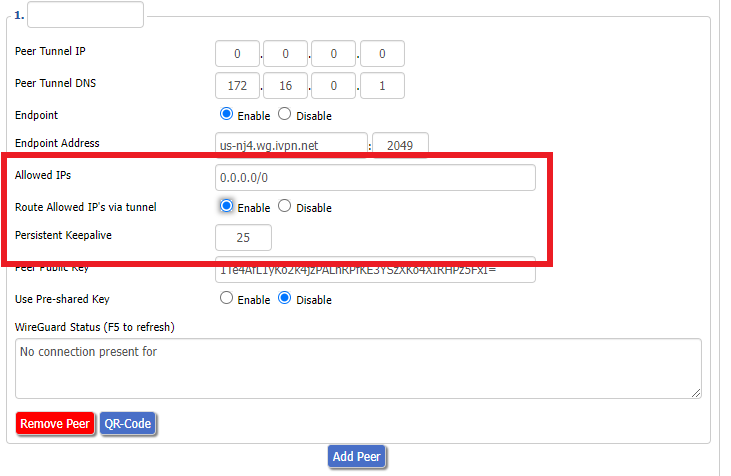
20. Leave Allowed IPs as 0.0.0.0/0. Set Router Allowed IP’s via tunnel to Enable. Set Persistent Keep Alive to 25.
21. At the bottom of the page click Save and then click Apply Settings.
Navigate to Setup > Basic Setup
Set Static DNS 1 to 172.16.0.1
Set Static DNS 2 to 198.245.51.147
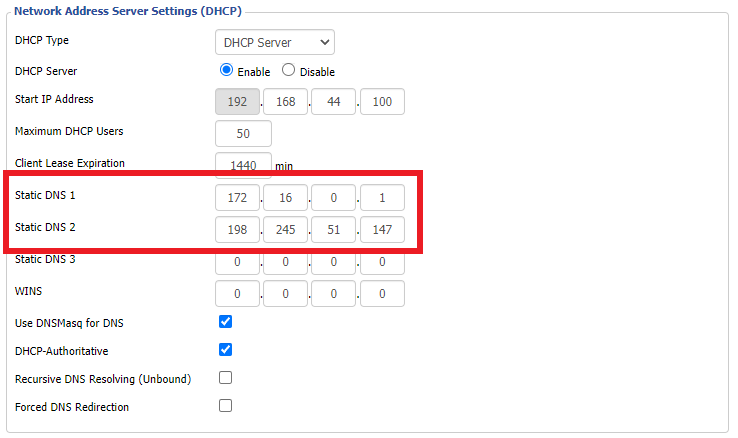
Click Apply Settings.
Navigate to Administration > Management
Scroll to the bottom of the page and click the red Reboot Router button. Wait for the FlashRouter to reboot and then reconnect.
Navigate to Setup > Tunnels
Navigate to Administration > Backup
Support for Untangle Router NG Firewall features is provided by the Untangle Support team and not the FlashRouter support team.
We recommend reviewing these excellent resources that Untangle has created to get you setup as desired.
To contact Untangle directly you can email them at support@untangle.com and their team would be happy to assist you with getting setup to use their NG Firewall settings such as Web Monitor, Captive Portal, Intrusion Prevention, and many other features supported by the Untangle firmware running on your FlashRouter.
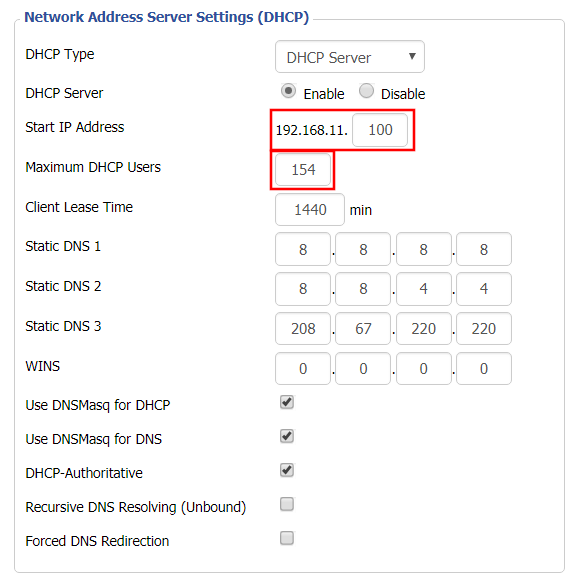
Whenever a device joins the FlashRouter network via wired or WiFi connection the DHCP server on the router gives out a local IP address to each device so all these devices can interact on your local network.
Increase the DHCP range to allow more users to automatically be assigned an IP address or decrease the DHCP range to limit the users that are automatically assigned an IP address.
Navigate to Setup > Basic Setup
The Domain Name System (DNS) is the phonebook of the Internet. DNS resolves website domain names (www.website.com) to IP Addresses so you don’t have to remember the IP Address of every site you visit.
We setup each FlashRouter with Google DNS (8.8.8.8 , 8.8.4.4) and/or OpenDNS (208.67.220.220 , 208.67.222.222) to prevent your ISP DNS from leaking when connected to the FlashRouter.
By using a trusted DNS server like those listed below, or from your trusted VPN service provider, you can prevent ISP’S from compiling your browsing data and selling it to third parties without your consent.
Primary DNS: 8.8.8.8
Secondary DNS: 8.8.4.4
Primary DNS: 208.67.220.220
Secondary DNS: 208.67.222.222
Primary DNS: 1.1.1.1
Secondary DNS: 1.0.0.1
Primary DNS: 209.244.0.3
Secondary DNS: 209.244.0.4
We preset each FlashRouter with GoogleDNS and OpenDNS so there is no need to change the DNS servers unless you have reset the FlashRouter or want to use different DNS servers.
Navigate to Setup > Basic Setup

We recommend checking to see if your DNS is leaking when using VPN.
If you are not already a Windscribe user Sign Up Now.
Log in to your account on the Windscribe website.
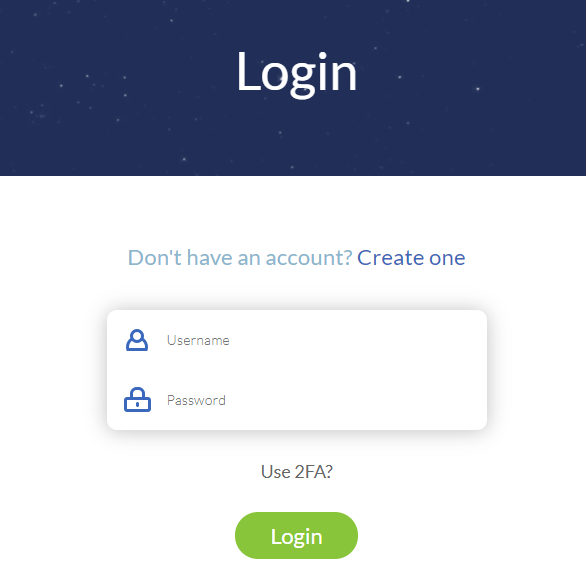
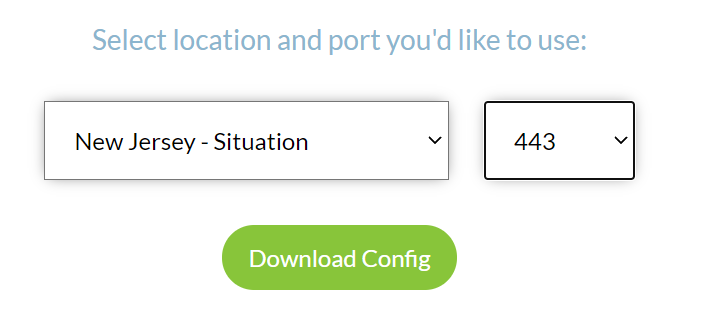
Go to the Windscribe WireGuard config generator page and select the Server location and Port you would like to use. Click Download Config.
Open the .conf file that is downloaded using Notepad in Windows or TextEdit in Mac.
Navigate to Setup > Tunnels
1. Click Add Tunnel.
2. Set Tunnel to Enable.
3. Select Wireguard from the dropdown.
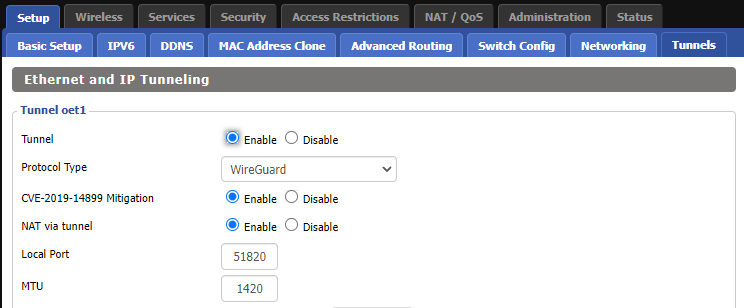
3. Set CVE-2019-14899 Mitigation to Enable. Set NAT via Tunnel to Enable. Set Local Port to 51820. Set MTU to 1420.
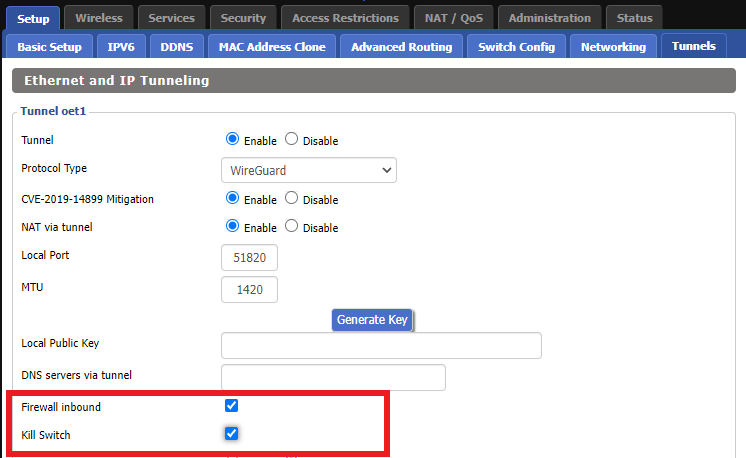
4. Check Firewall inbound and Kill Switch.
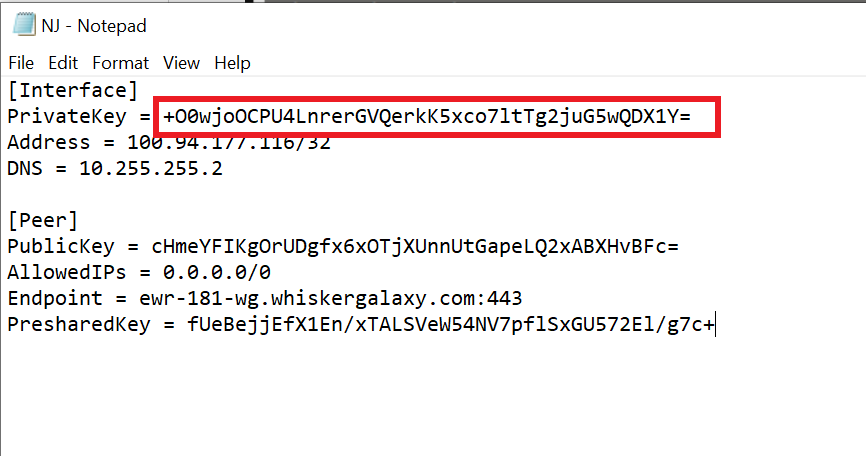
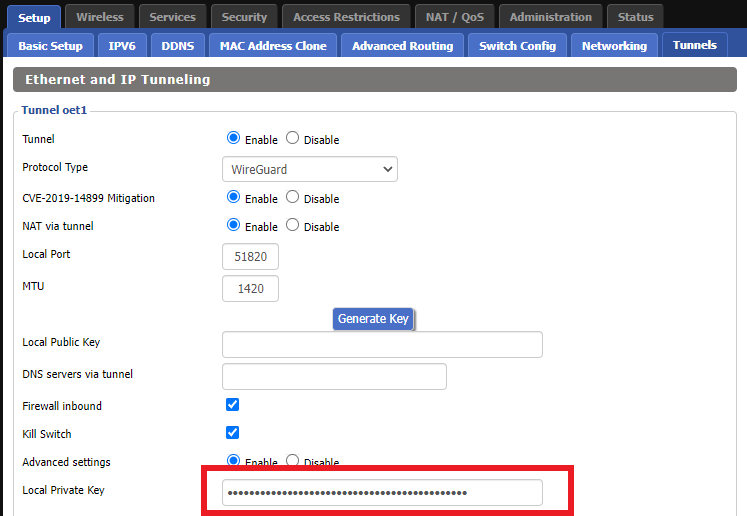
5. Set Advanced Settings to Enable and copy the PrivateKey from the .conf file and paste it into the Local Private Key field.
6. Click Add Peer.
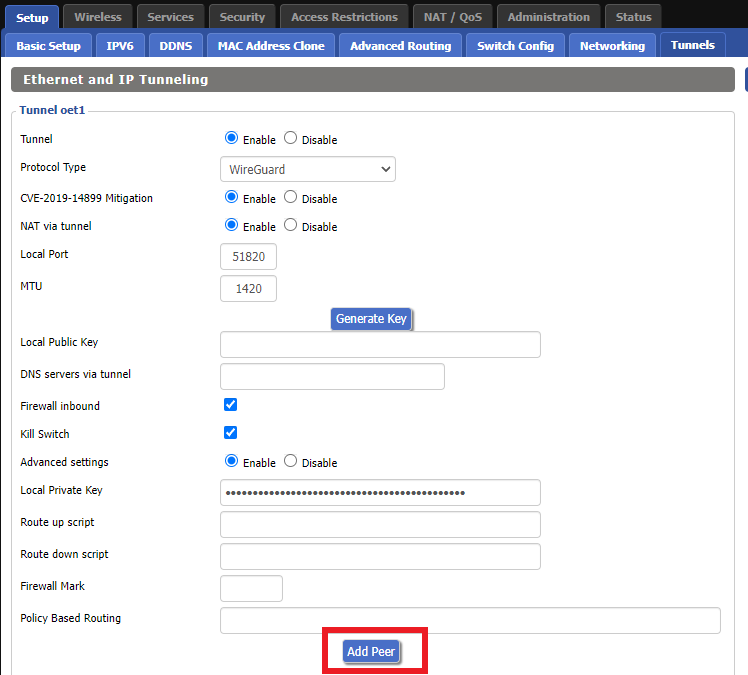
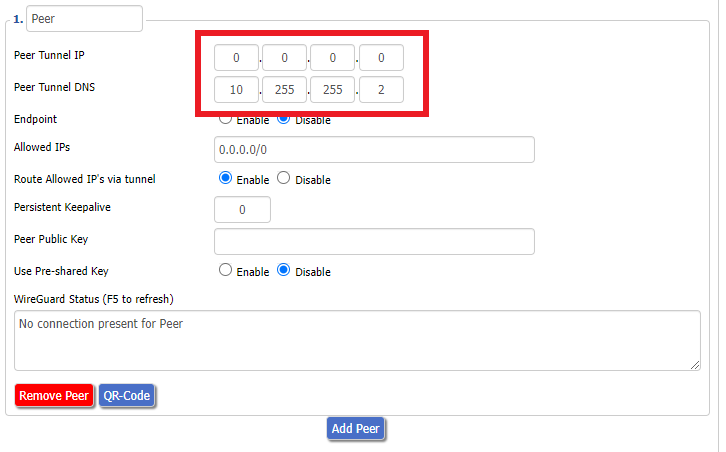
7. Set Peer Tunnel IP to 0.0.0.0. Set Peer Tunnel DNS to the DNS found in the .conf file.
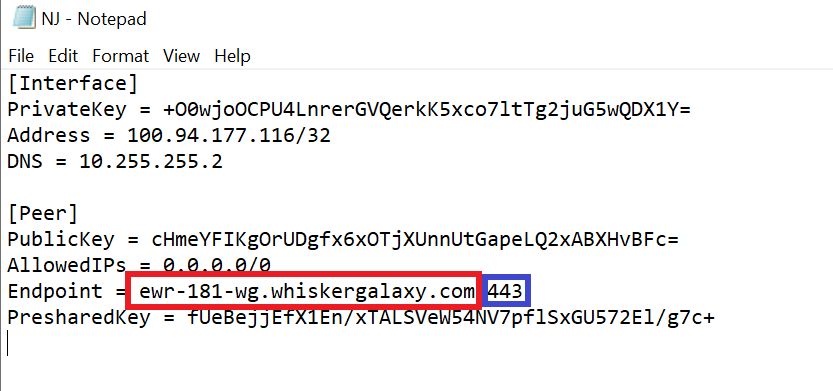
8. Set Endpoint to Enable. Copy and Paste the Endpoint from the .conf file and paste it into the Endpoint Address field. Enter the same Port that appears next to the Endpoint.
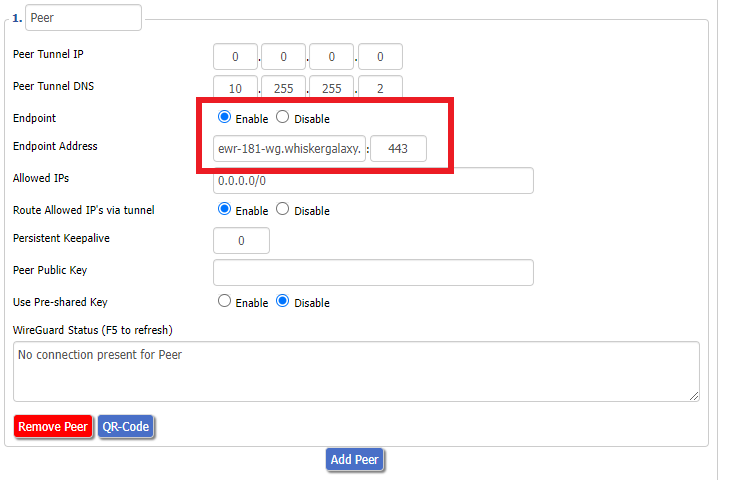
9. Leave Allowed IPs as 0.0.0.0/0. Set Router Allowed IP’s via tunnel to Enable. Set Persistent Keep Alive to 25.
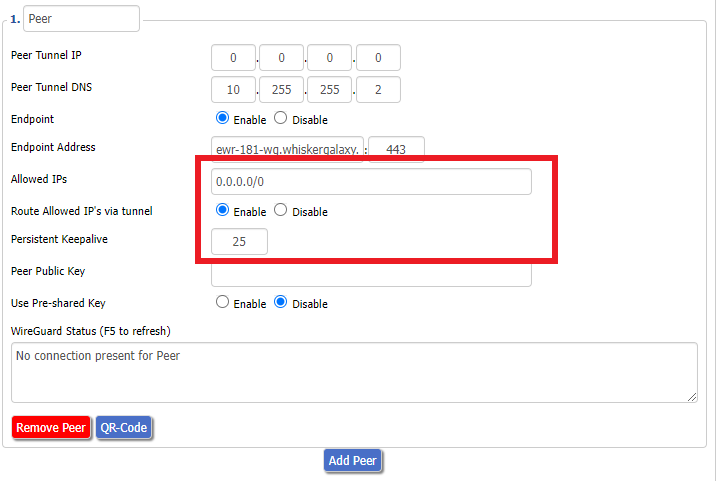
10. Copy and Paste the PublicKey from the .conf file and paste it into the Peer Public Key field.
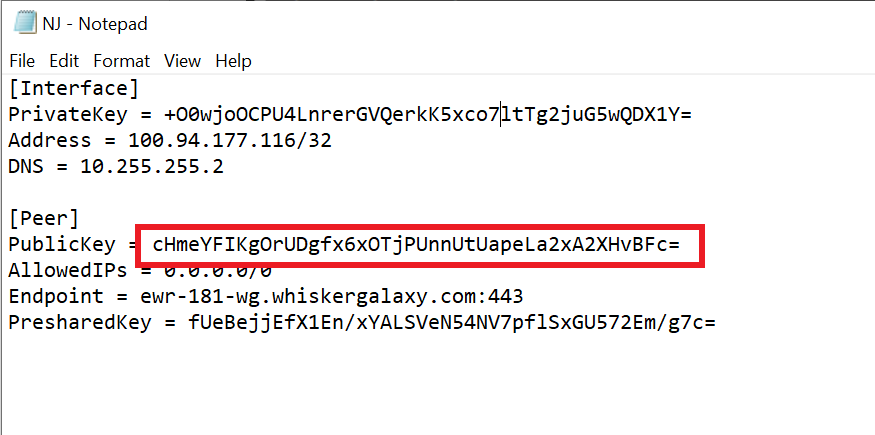
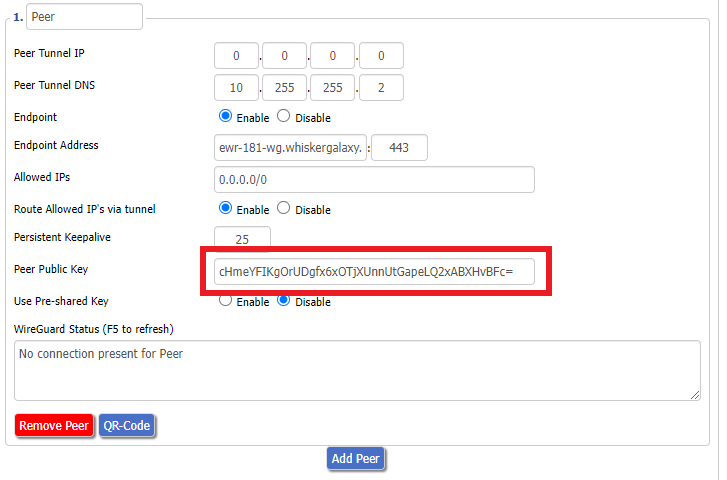
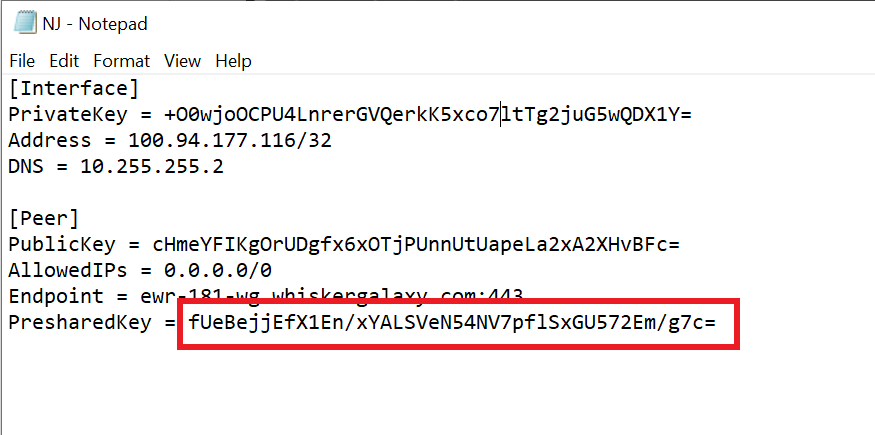
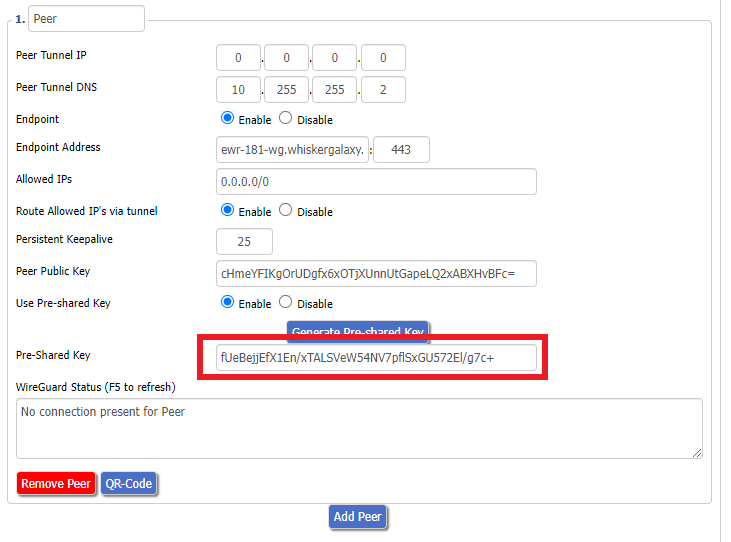
11. Set Use Pre-shared Key to Enable. Copy and Paste the Presharedkey from the .conf file and paste it into the Pre-Shared Key field.
12. Copy the Address from the .conf file and paste it into the IP Addresses/Netmask(CIDR) field.
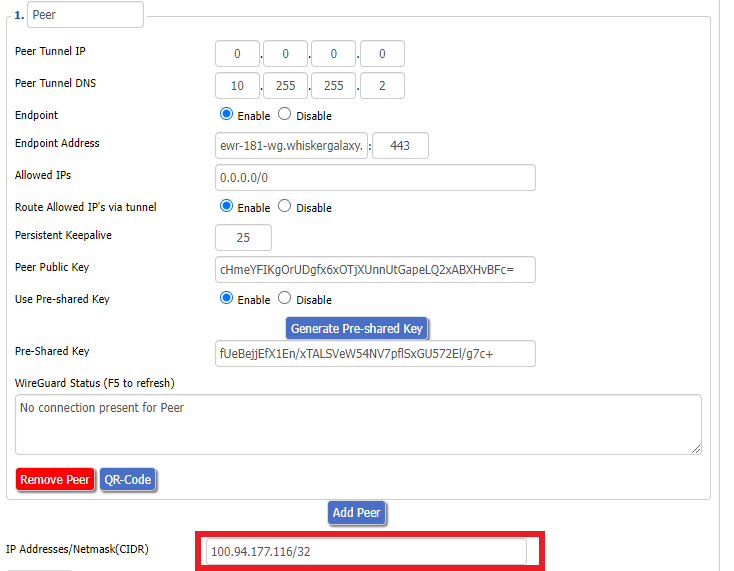
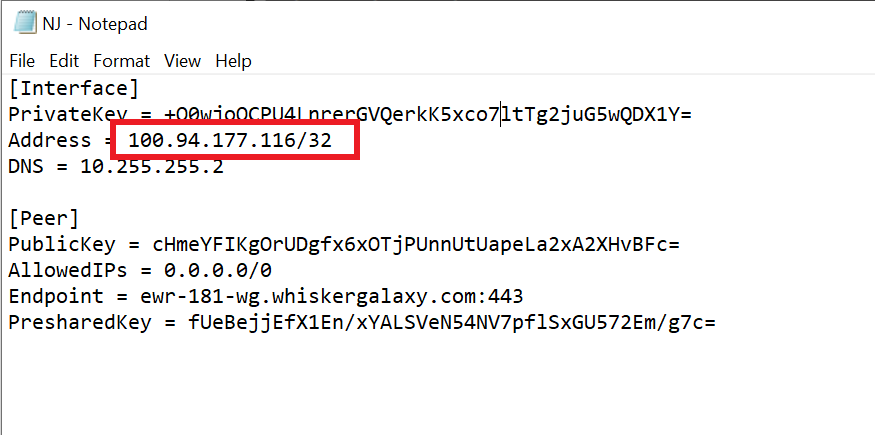
Certain DD-WRT builds will show two separate fields here: IP Address and Subnet Mask. If that is the case set the IP Address field to the Address without the /32 added and set the Subnet Mask to 255.255.255.255
21. At the bottom of the page click Save and then click Apply Settings.
Navigate to Setup > Tunnels
Navigate to Administration > Backup
We do NOT offer phone support here at FlashRouters. You will not receive a phone call to begin your session. Please read the information below for how to get connected during your session time.
A Teamviewer session is the most hands on method of receiving support from FlashRouters.
A support agent will connect directly to your computer and proceed to configure or troubleshoot your FlashRouter with you present.
We use Teamviewer sessions to troubleshoot any issue an eligible customer may have with a FlashRouter that was purchased from us or to configure a compatible router that your purchased independently along with a FlashRouters Support Plan.
In the session a chat window will appear so we can communicate directly with you in real time.
If you follow the information below prior to your session and all goes smoothly a Teamviewer session typically takes anywhere from 15 to 45 minutes.
When purchasing a FlashRouter you are able to select a Quarterly or Yearly Bronze, Silver or Gold subscription plan.
Silver Yearly plan comes with one Teamviewer remote support session a year.
Gold Quarterly and Yearly plans come with one session per quarter.
If you support plan has expired or you are signed up for Bronze and you’d like to receive Teamviewer remote support assistance please email support@flashrouters.com
We are available for scheduled Teamviewer sessions from 10AM – 6:00PM ET Monday through Saturday.
To schedule a session with us open a support ticket or contact us via our live chat. We do not perform sessions that are not scheduled.
If we are available off hours we do our best to accommodate off hours session times with at least 24 hours notification.
Teamviewer sessions can not be performed on phones or tablets at this time. We require a Windows or Mac computer to successfully connect and configure your FlashRouter.
Below are the different scenarios from most ideal to least ideal.
If you have an available wireless network NOT coming from the FlashRouter and have a computer that has wireless AND Ethernet capabilities you should be setup as follows:
If you have an available wireless network NOT coming from the FlashRouter and have a computer that has wireless only you should be setup as follows:
Session disconnects may occur with no backup Internet connection.
If the FlashRouter is your only wireless network and your computer has wireless and Ethernet capabilities you should be setup as follows:
If the FlashRouter if your only wireless network and your computer is wireless only you should be setup as follows:
Session disconnects may occur with no backup Internet connection.


About 15 minutes before your scheduled session time update your support ticket e-mail the User ID and Password to your existing email thread, or send via our live chat.
Enter custom DNS servers in your Asus Merlin firmware to avoid using your ISP DNS, which will steal and collect your browsing data.
Login to Asus Merlin firmware settings in a browser on any computer or smart device.
1. Under Advanced Settings select LAN.
2. Click the DHCP Server tab.
3. In the DNS Server 1 and DNS Server 2 fields enter the DNS server that you wish to use.
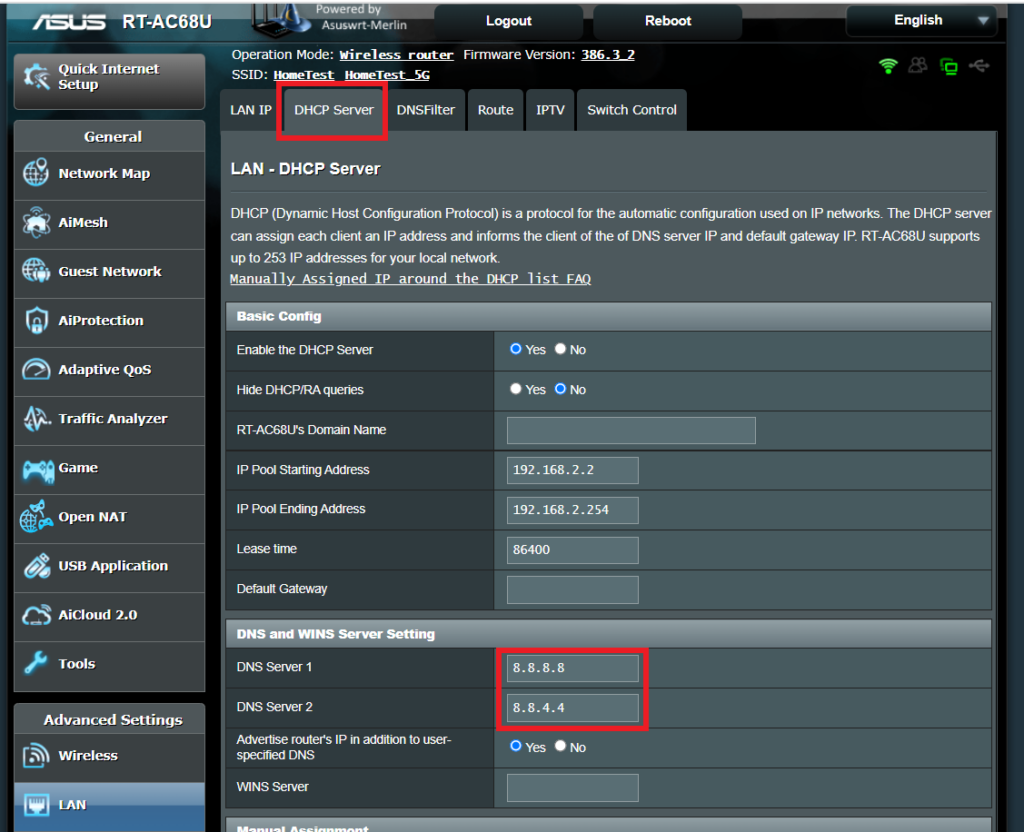
4. Click Apply and then reboot the router and reconnect to the network.
5.0GHz networks are not compatible with all devices so first make sure that you device’s wireless adapter supports 5GHz wireless frequencies.
If you are not sure, find out if your device support 5 GHz via Google search or by looking in the wireless hardware details in the device’s network settings. If you see Wireless a/b/g/n support then you have a compatible device. If you are missing the Wireless a then this means there is no 5 GHz support.
Our team has tested the wireless functionality for each FlashRouter that we offer and shared our recommended wireless settings in our Wifi Setup area. Replicate the settings for your FlashRouter model found on that page.
Some devices do support 5.0GHz connections but not the higher channels that DD-WRT firmware offers.
Navigate to Wireless > Basic Settings
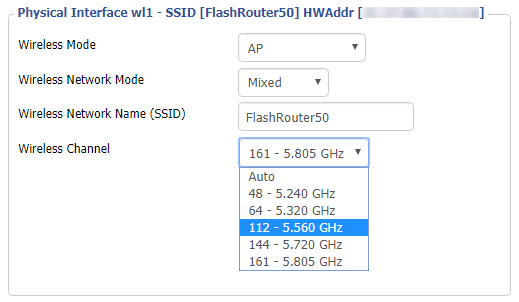
Lower the wireless channel setting for the 5.0GHz band that is not showing. Based on our tests the most broadly compatible channels are 36, 48 and 161.
CLICK APPLY SETTINGS
The easiest way to accomplish this is by rebooting your device as the settings to reset your adapter may vary on all types of internet connected devices.
Navigate to Status > Wireless
The readouts on this page can help tell if there are errors with the FlashRouter’s wireless. View our article on how to read the Wireless Status page for more information.
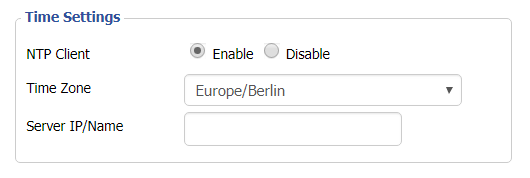
Europe/Berlin is the default Time Zone setting for DD-WRT firmware.
To change this to your location’s actual Time Zone do the following.
Navigate to Setup > Basic Setup
Select your actual Time Zone from the dropdown field. Leave the Server IP/Name field blank.
CLICK APPLY SETTINGS
The network may reboot for a moment. Simply reconnect when it is back up.
Disabling the NTP Client setting will result in the VPN connection not working so we ask that you please leave it enabled at all times.
A slowly blinking power light means that the FlashRouter was somehow put into Rescue/Restore/Recovery Mode. This usually happens if the reset button was held down for too long.
This may also happen if you have incorrectly tried to update the firmware on your FlashRouter. The first thing to try is a simple reboot of the router to see if it exits restore mode.
If a reboot does not clear up the issue then try to reset and reconfigure your FlashRouter.