
Quick Start Guide for OpenWRT Routers
Find setup guides, FAQs and troubleshooting tips for the FlashRouters OpenWRT Routers.

Flint WiFi 6 AX1800 VPN Router
Internet Setup
Prioritizing Privacy
Flint WiFi 6 AX1800 VPN Router
Follow this article when you receive your new Flint or Slate GL.iNet router to connect it to the Internet.
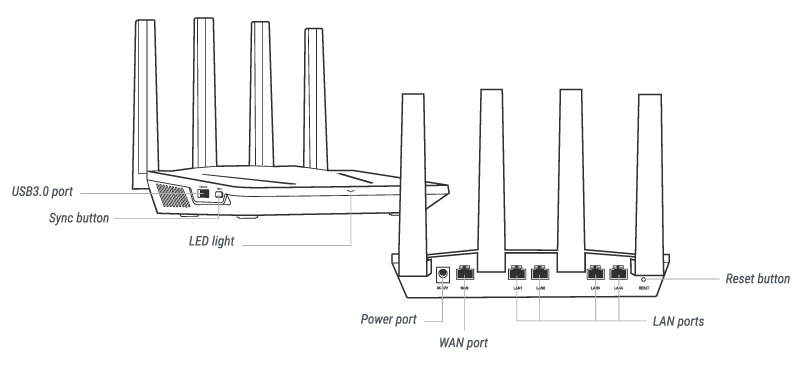
1. Connect the ethernet cable that came with the router from an open LAN ethernet port on your ISP modem or other router to the WAN port of the Flint or Slate GL.iNet router.
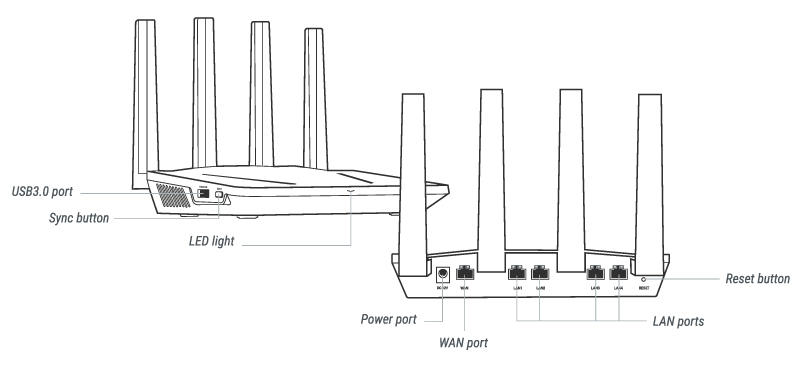
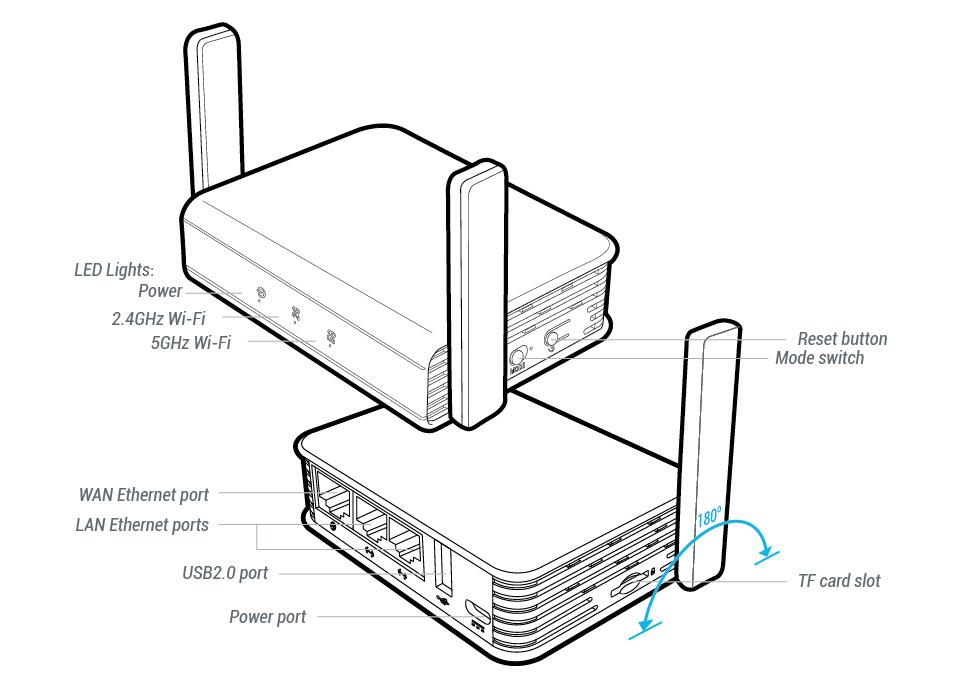
2. Connect the power to the router and wait about 2 minutes for the router to fully boot up.
3. Connect your computer, phone, or tablet to the GL.iNet router via wireless (FlashRouter24 / FlashRouter50) or via ethernet cable to one of the LAN ports on the router.
The FlashRouter WiFi password is printed on the sheet that came with the router and is set to Wireless#[First 5 characters of your router MAC]. The router MAC can be found on the bottom of your router if you cannot locate the sheet. For e.g. if your MAC is 1459C07E70A8 then your WiFi password is Wireless#1459C
Be sure to capitalize the W.
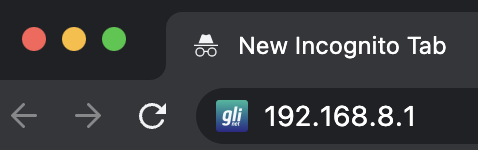
4. Once connected via wireless or ethernet on your device open your browser and go to 192.168.8.1
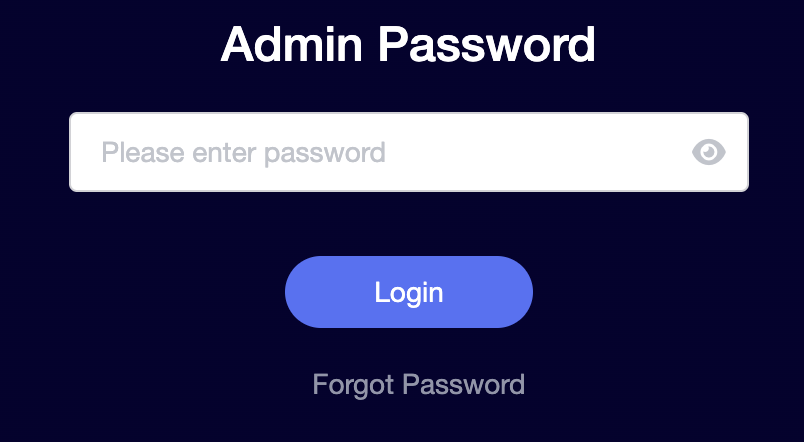
5. Enter openwrt as the admin password to access the GL.iNet firmware settings.
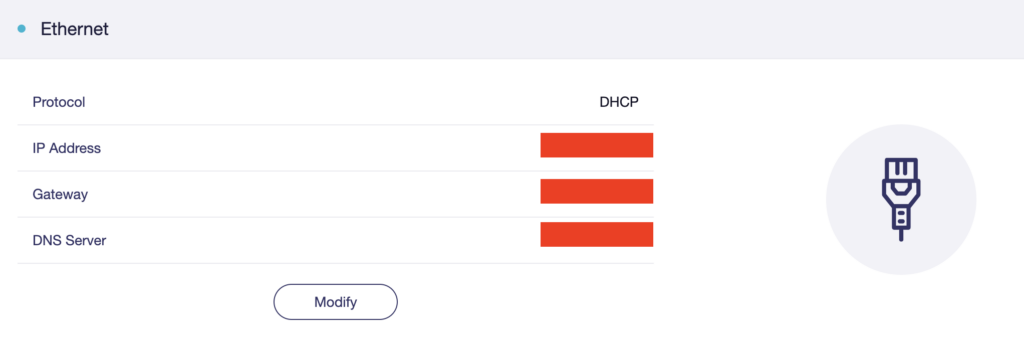
6. Verify that your Flint/Slate GL.iNet router is receiving a WAN IP Address and webpages are loading while connected to its network.
Follow this guide to upgrade the firmware of your GL.iNet FlashRouter.
1. Connect your computer, phone, or tablet to the GL.iNet router via wireless (FlashRouter24 / FlashRouter50) or via ethernet cable to one of the LAN ports on the router.
The FlashRouter WiFi password is printed on the sheet that came with the router and is set to Wireless#[First 5 characters of your router MAC]. The router MAC can be found on the bottom of your router if you cannot locate the sheet. For e.g. if your MAC is 9483C07E70A8 then your WiFi password is Wireless#9483C
Be sure to capitalize the W.
2. Once connected via wireless or ethernet on your device open your browser and go to 192.168.8.1
3. Enter openwrt as the admin password to access the GL.iNet firmware settings. Newer devices may have a different admin password set as openwrt1 or glopenwrt1
3. If a new firmware upgrade is available the router settings will either display a banner when you first access the router or a header. Click Install or the Upgrade arrow depending on which appears for you.


4. Make sure the Keep Settings toggle is pushed to the right so your router does not get reset. Click the Install button to begin the firmware upgrade.

5. The firmware update should take about 2-3 minutes. You may need to reconnect your wireless devices after the network comes back up in your available networks.
Follow this guide to change the Wi-Fi name and password on your GL.iNet FlashRouter.
1. Connect your computer, phone, or tablet to the GL.iNet router via wireless (FlashRouter24 / FlashRouter50) or via ethernet cable to one of the LAN ports on the router.
The FlashRouter WiFi password is printed on the sheet that came with the router and is set to Wireless#[First 5 characters of your router MAC]. The router MAC can be found on the bottom of your router if you cannot locate the sheet. For e.g. if your MAC is 1459C07E70A8 then your WiFi password is Wireless#1459C
Be sure to capitalize the W.
2. Once connected via wireless or ethernet on your device open your browser and go to 192.168.8.1
3. Enter openwrt as the admin password to access the GL.iNet firmware settings.
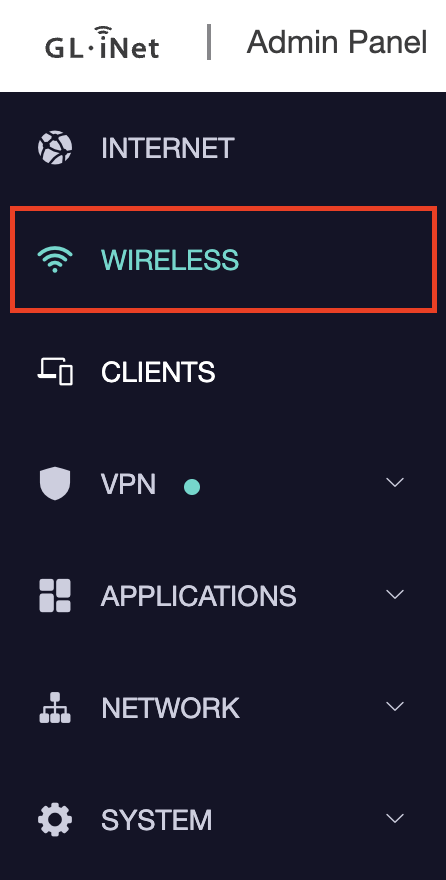
4. Click Wireless.
5. Click Modify under the 5GHz or 2.4GHz band.
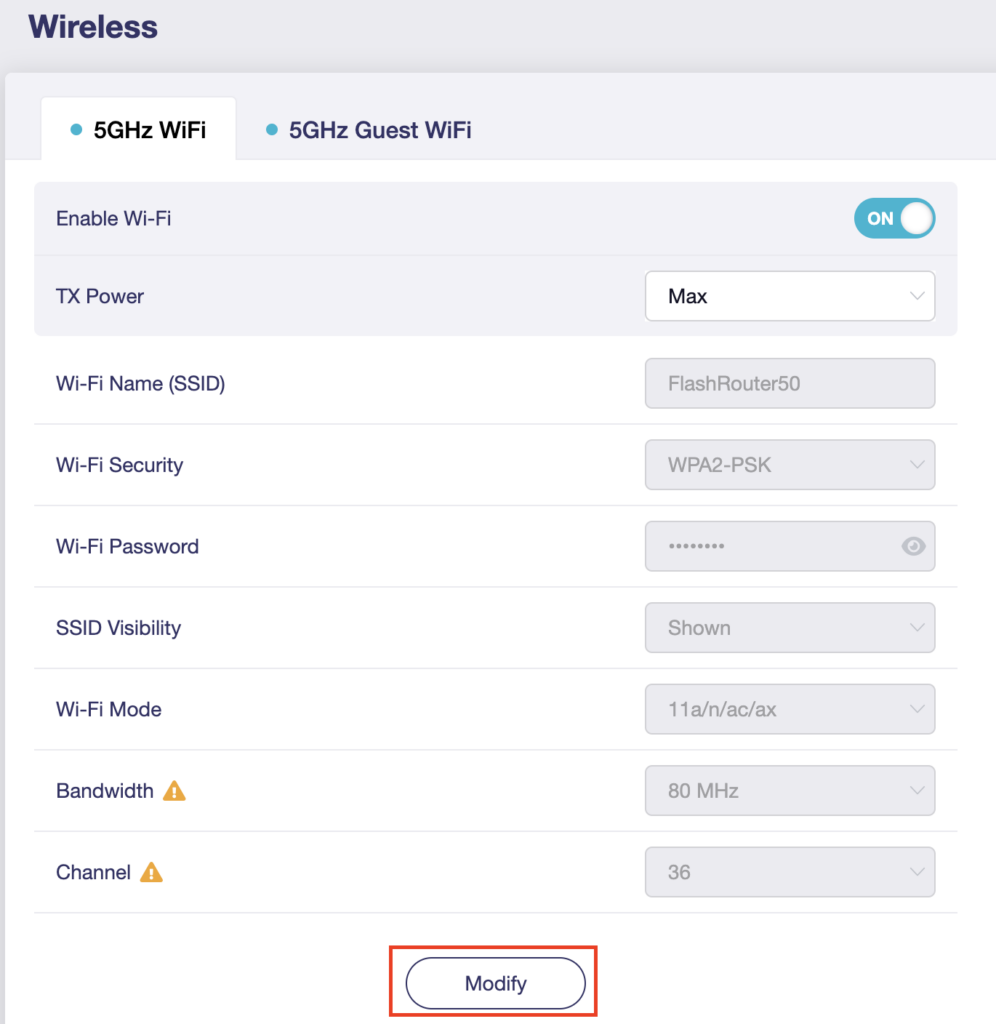
The 5GHz and 2.4GHz information must be changed at separate times. Keep in mind that if you are connected to wireless when changing one band you may need to reconnect with the new info you set to be on the network again to make changes to the other band.
6. Change the Wi-Fi Name (SSID) and Wi-Fi Password fields to what you want to use. The SSID should be unique and NOT a duplicate of an existing network. Click Apply.
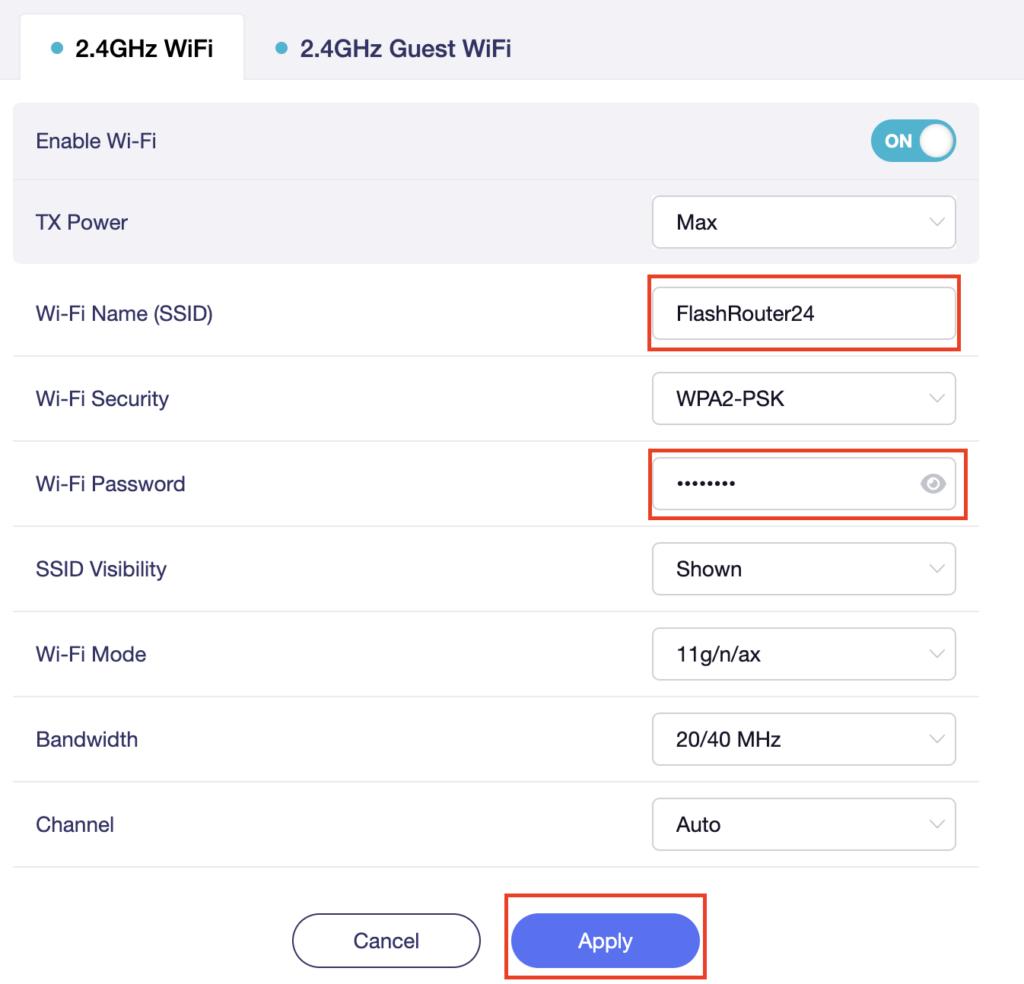
7. Connect your devices to the new wireless network.
Follow this guide to disable Wi-Fi network on your GL.iNet FlashRouter.
1. Connect your computer, phone, or tablet to the GL.iNet router via wireless (FlashRouter24 / FlashRouter50) or via ethernet cable to one of the LAN ports on the router.
The FlashRouter WiFi password is printed on the sheet that came with the router and is set to Wireless#[First 5 characters of your router MAC]. The router MAC can be found on the bottom of your router if you cannot locate the sheet. For e.g. if your MAC is 1459C07E70A8 then your WiFi password is Wireless#1459C
Be sure to capitalize the W.
2. Once connected via wireless or ethernet on your device open your browser and go to 192.168.8.1
3. Enter openwrt as the admin password to access the GL.iNet firmware settings.
4. Click Wireless.
5. Click Modify under the 5GHz or 2.4GHz band.
The 5GHz and 2.4GHz bands must be disabled at separate times. Keep in mind that if you are connected to wireless when disabling one band you may need to reconnect with the other band to disable it. Also make sure you have a device that has ethernet capabilities so you can still access the settings with wireless disabled.
6. Set the Enable Wi-Fi toggle to the OFF position and click Apply.
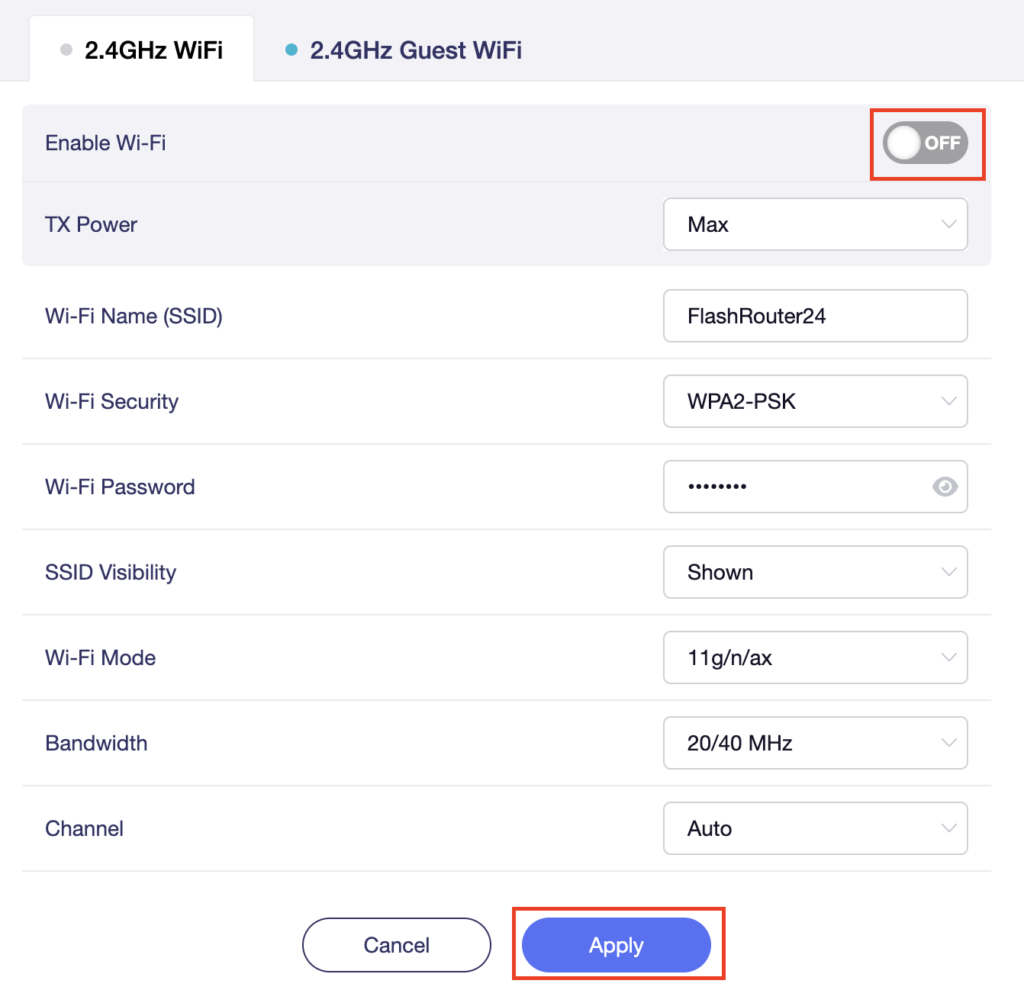
Follow this guide to setup a Guest Network on your GL.iNet FlashRouter. Devices connected to the guest network will be on a separate subnet and will not have access to the router settings or be able to talk to devices on the main network.
1. Connect your computer, phone, or tablet to the GL.iNet router via wireless (FlashRouter24 / FlashRouter50) or via ethernet cable to one of the LAN ports on the router.
The FlashRouter WiFi password is printed on the sheet that came with the router and is set to Wireless#[First 5 characters of your router MAC]. The router MAC can be found on the bottom of your router if you cannot locate the sheet. For e.g. if your MAC is 1459C07E70A8 then your WiFi password is Wireless#1459C
Be sure to capitalize the W.
2. Once connected via wireless or ethernet on your device open your browser and go to 192.168.8.1
3. Enter openwrt as the admin password to access the GL.iNet firmware settings.
4. Click Wireless.
5. Click 5GHz Guest Wi-Fi or 2.4GHz Guest Wi-Fi.
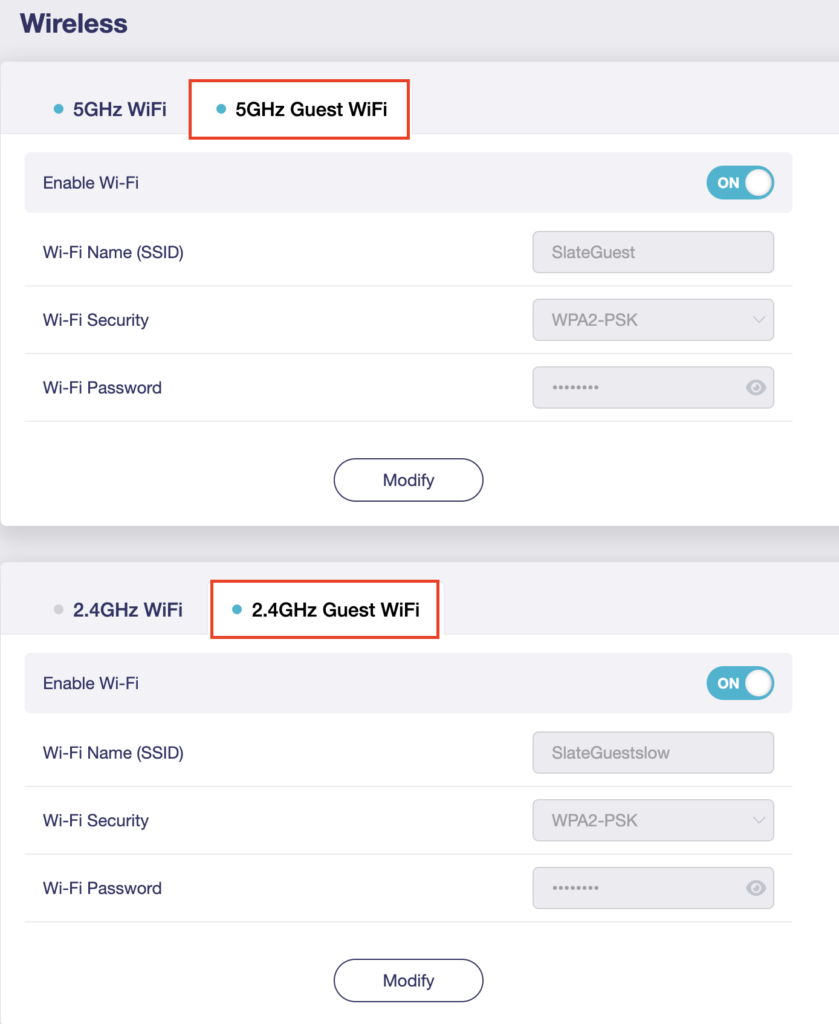
6. Click Modify.
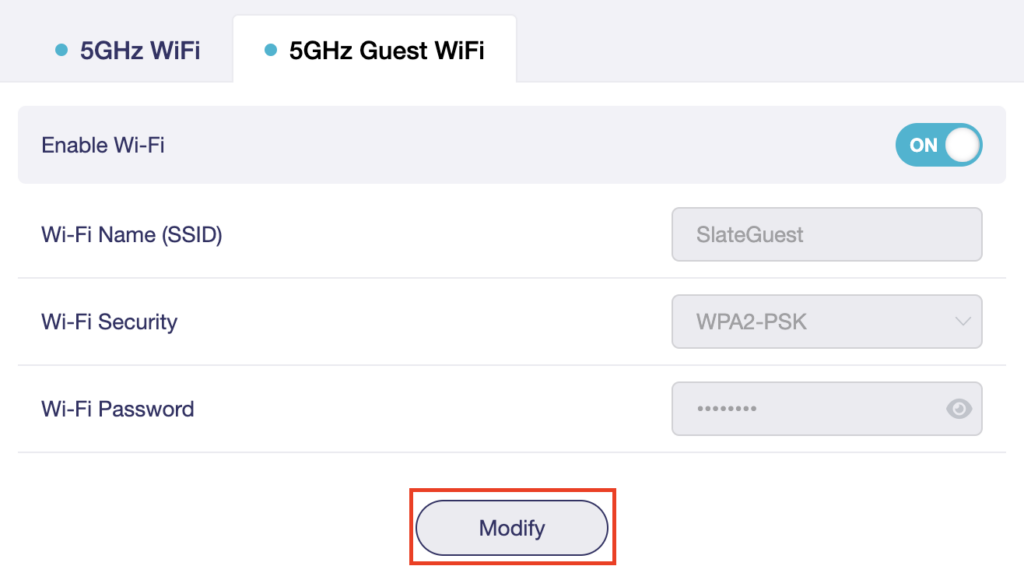
7. Set the Enable Wi-Fi toggle to the ON position.
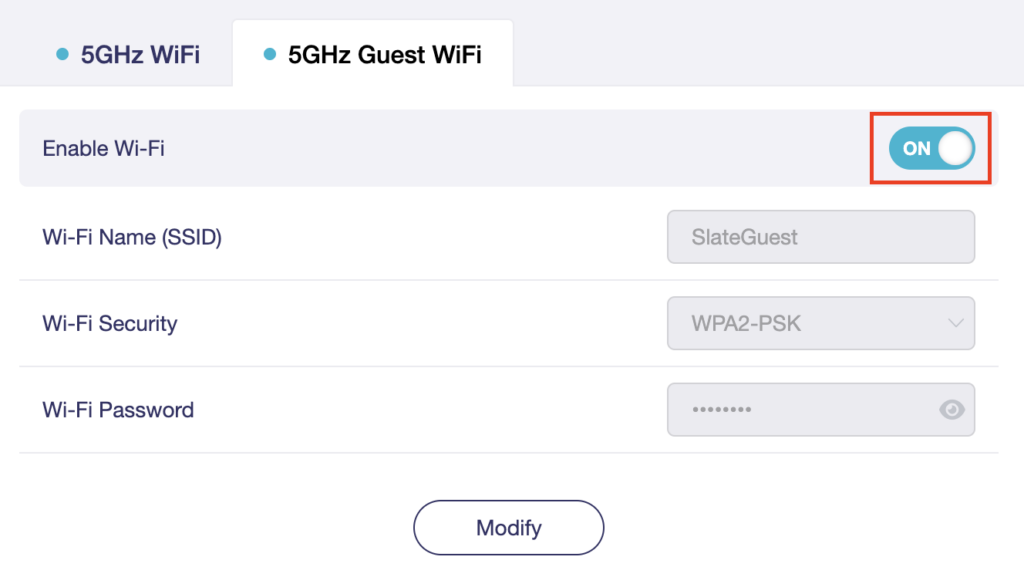
8. Change the Wi-Fi Name (SSID) and Wi-Fi Password fields to what you want to use. The SSID should be unique and NOT a duplicate of an existing network. Click Apply.
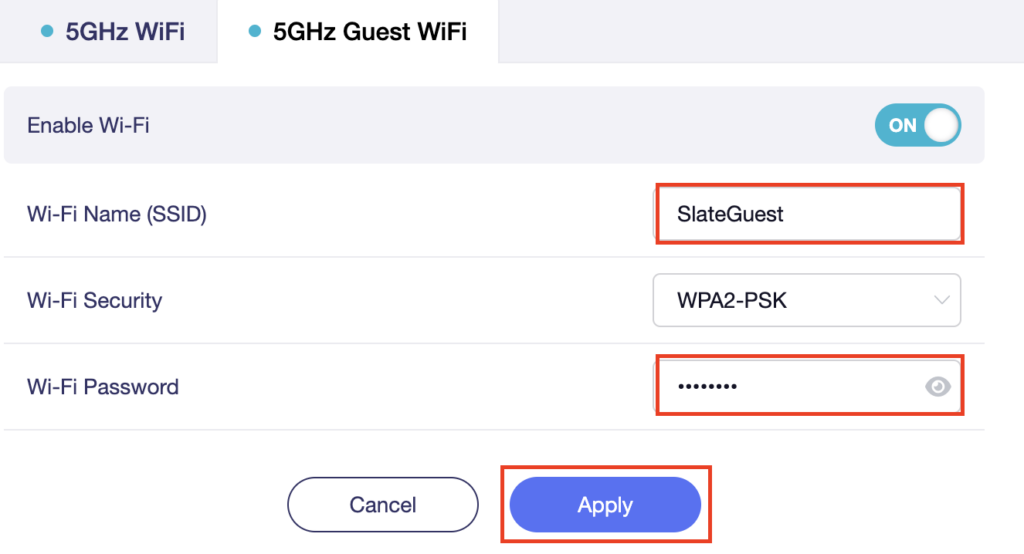
9. Connect your devices to the new guest wireless network.
If you want to connect your FlashRouter to the Internet via Wi-Fi instead of an ethernet cable you can setup a FlashRouter as a Wireless Repeater. In Wireless Repeater mode the FlashRouter connects to an available network via WiFi and then creates a completely separate network segment for you.
1. Connect your computer, phone, or tablet to the GL.iNet router via wireless (FlashRouter24 / FlashRouter50) or via ethernet cable to one of the LAN ports on the router.
The FlashRouter WiFi password is printed on the sheet that came with the router and is set to Wireless#[First 5 characters of your router MAC]. The router MAC can be found on the bottom of your router if you cannot locate the sheet. For e.g. if your MAC is 1459C07E70A8 then your WiFi password is Wireless#1459C
Be sure to capitalize the W.
2. Once connected via wireless or ethernet on your device open your browser and go to 192.168.8.1
3. Enter openwrt as the admin password to access the GL.iNet firmware settings.
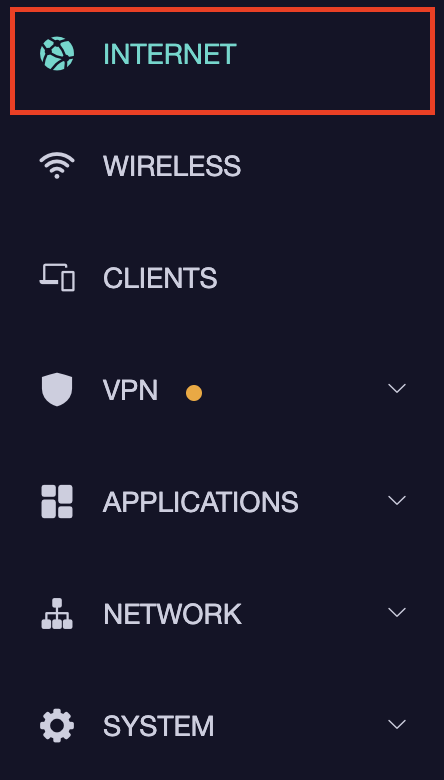
4. Select the Internet tab.
5. In the Repeater area select Connect.
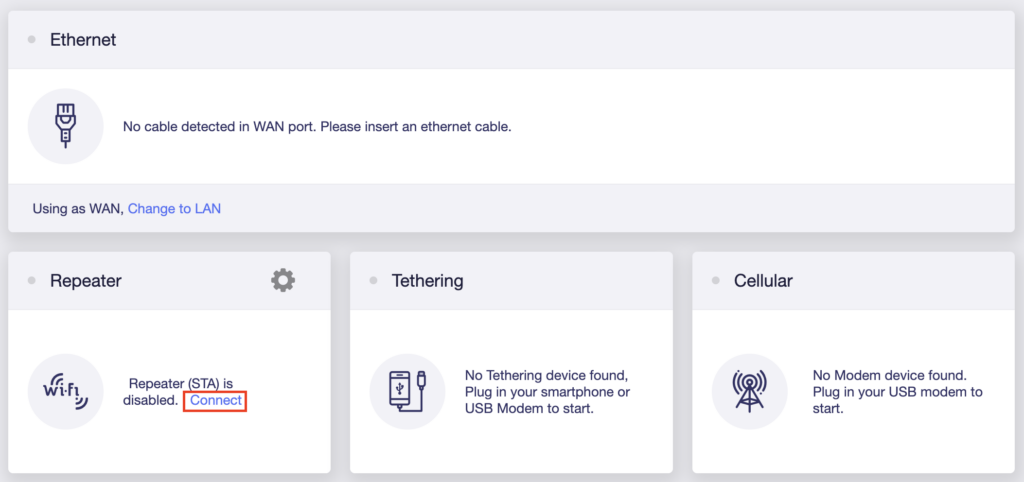
6. Select the available Wi-Fi network you want the FlashRouter to use for Internet from the list. You can use a 2.4GHz and/or 5GHz network to connect.
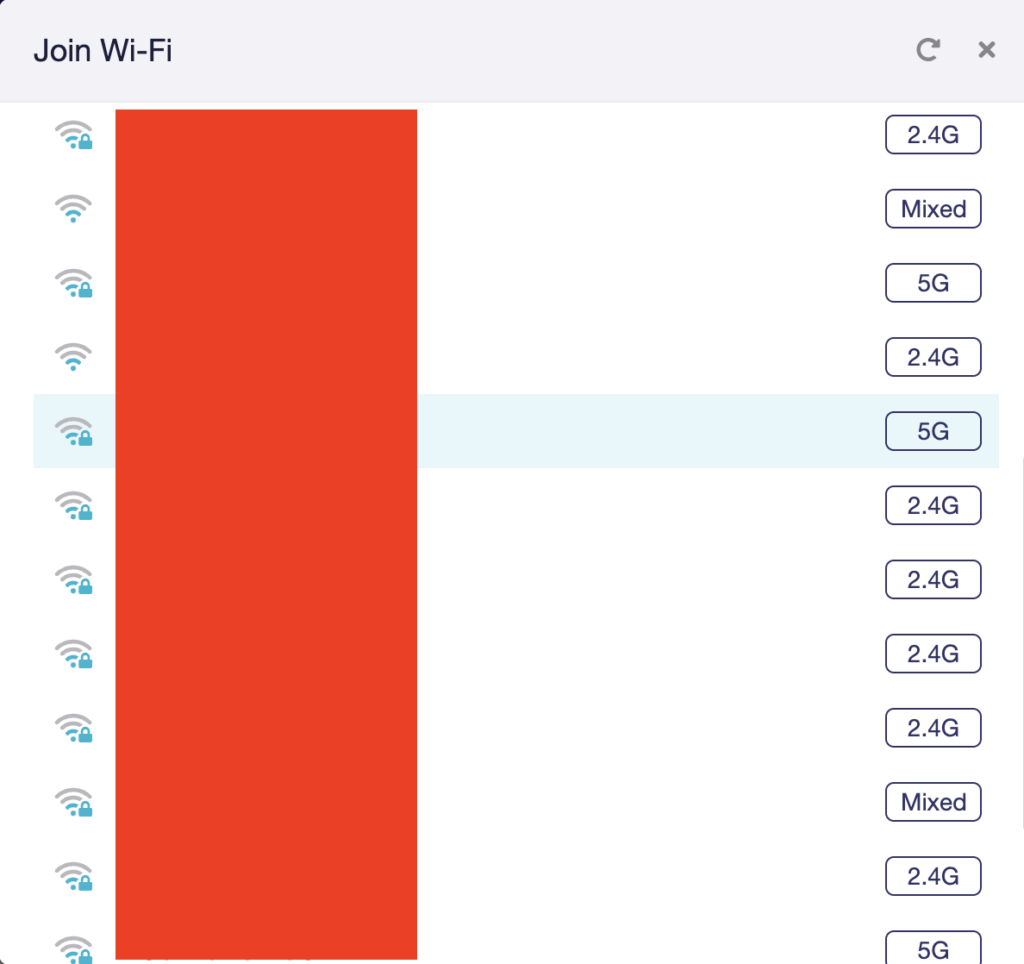
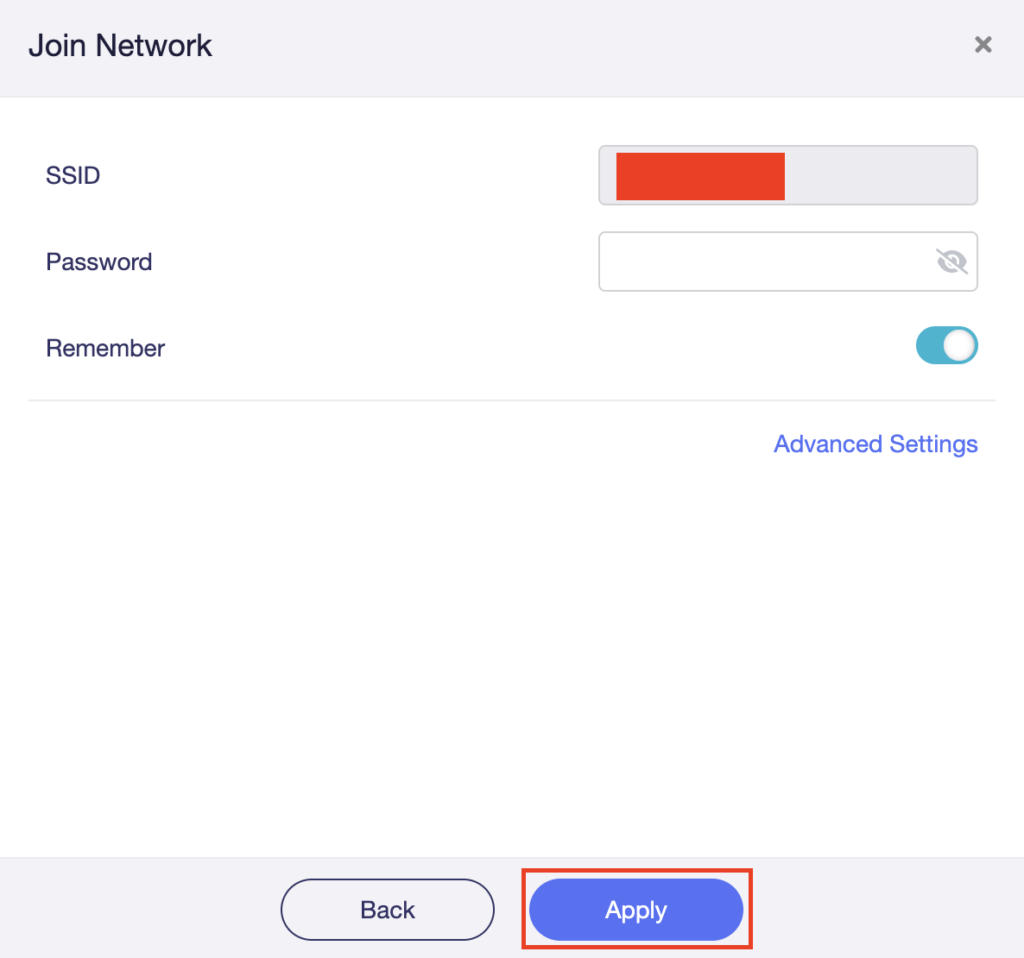
7. Enter the correct Wi-Fi password in the Password field for the network you selected. Then click Apply.
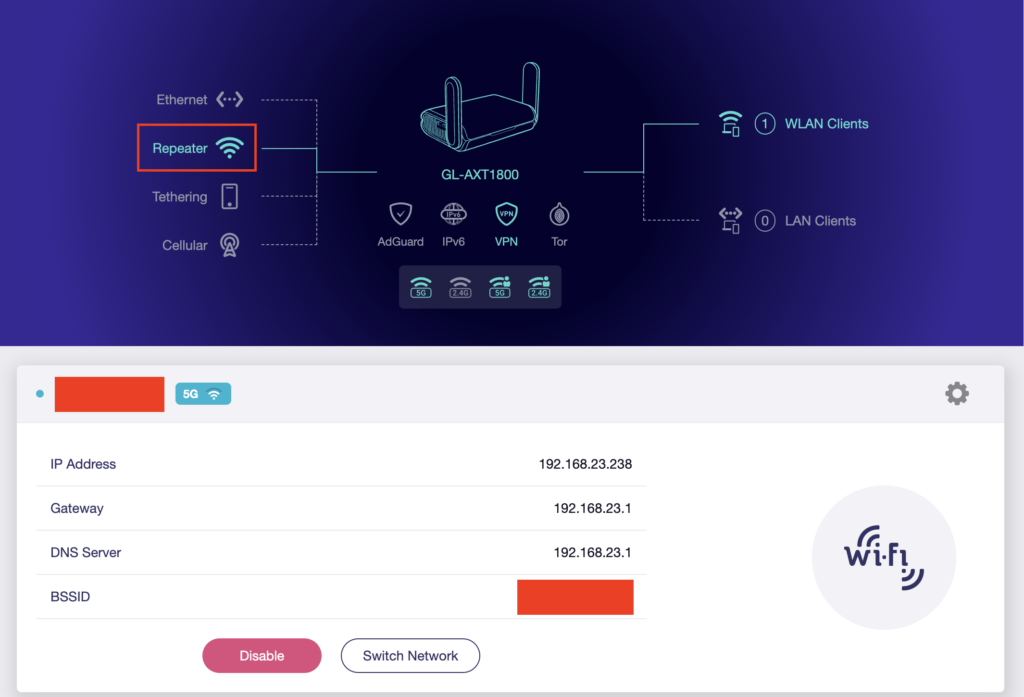
8. You are now setup with the GL.iNet FlashRouter receiving Internet via Wi-Fi. The Repeater area should now be filled in with the network information of the connection as shown below.
This quick guide walk you through connecting to your GL.iNet FlashRouter (Flint, Slate, Beryl, or Marble) and logging into the admin settings page. You’ll use either WiFi or an Ethernet cable, then access the router dashboard through your browser.
You can connect by WiFi or Ethernet:
👉 Pro tip: Disconnect from any other WiFi networks during setup.
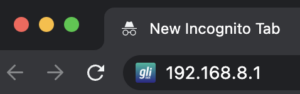
This is the local router dashboard address (not a public website). If the page doesn’t load:
glopenwrt1 or openwrt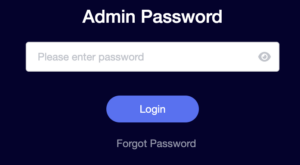
💡 Once you’re in, you can update your admin password in the settings for extra security.
Now that you’ve accessed your GL.iNet FlashRouter, you can:
Check our support library for your specific VPN setup guide.
Follow this article when you receive your new Cudy FlashRouter to connect it to the Internet.
1. Connect the ethernet cable that came with the router from an open LAN ethernet port on your ISP modem or other router to the WAN port if you purchased a Cudy AX3000 or to ethernet port #1 of the device marked Primary if you purchased a Cudy M1800 or Cudy M3000.

2. Connect the power to the router and wait about 2 minutes for the router to fully boot up.
3. Connect your computer, phone, or tablet to the Cudy router via wireless (FlashRouter24 / FlashRouter50) or via ethernet cable to one of the LAN ports on the router.
The FlashRouter WiFi password is printed on the sheet that came with the router and is set to Wireless#[First 5 characters of your router MAC]. The router MAC can be found on the bottom of your router if you cannot locate the sheet. For e.g. if your MAC is 1459C07E70A8 then your WiFi password is Wireless#1459C
Be sure to capitalize the W.
4. Once connected via wireless or ethernet on your device open your browser and go to 192.168.10.1

5. Enter openwrt as the admin password to access the Cudy firmware settings.

6. Verify that your Cudy FlashRouter is reporting as Internet and WAN Connected.

6. Verify that your Cudy FlashRouter is reporting as Internet and WAN Connected.
7. If you purchased a Cudy M1800 or Cudy M3000 mesh package you can now take the unit labeled Node to the location you want it connecting from and power it up. It will connect to the Primary network that was just setup automatically. You will then see the Mesh Units number increase according to the number that you have purchased shortly.

Follow this guide to access the router settings of your Cudy FlashRouter.
1. Connect your computer, phone, or tablet to the Cudy router via wireless (FlashRouter24 / FlashRouter50) or via ethernet cable to one of the LAN ports on the router.
The FlashRouter WiFi password is printed on the sheet that came with the router and is set to Wireless#[First 5 characters of your router MAC]. The router MAC can be found on the bottom of your router if you cannot locate the sheet. For e.g. if your MAC is 1459C07E70A8 then your WiFi password is Wireless#1459C
Be sure to capitalize the W.
2. Once connected via wireless or ethernet on your device open your browser and go to 192.168.10.1
3. Enter openwrt1 or openwrt as the admin password to access the Cudy firmware settings.
Follow this guide to change the Wi-Fi name and password on your Cudy FlashRouter.
1. Connect your computer, phone, or tablet to the Cudy router via wireless (FlashRouter24 / FlashRouter50) or via ethernet cable to one of the LAN ports on the router.
The FlashRouter WiFi password is printed on the sheet that came with the router and is set to Wireless#[First 5 characters of your router MAC]. The router MAC can be found on the bottom of your router if you cannot locate the sheet. For e.g. if your MAC is 1459C07E70A8 then your WiFi password is Wireless#1459C
Be sure to capitalize the W.
2. Once connected via wireless or ethernet on your device open your browser and go to 192.168.10.1
3. Enter openwrt as the admin password to access the Cudy firmware settings.
3. Click General Settings.

4. Click Wireless.

5. Change the SSID and Password fields for both 2.4GHz and 5GHz bands.The SSIDs should be unique and NOT a duplicate of an existing network. Click Save & Apply.

