• Skip to primary navigation
  • Skip to main content
  • Skip to primary sidebar
  • Skip to footer

FlashRouters Support Portal

Prioritizing Privacy

  • SETUP GUIDES
    • Privacy Hero Router Setup Guide
    • ASUS-WRT Router Setup Guide
    • AsusWRT-Merlin Router Setup Guide
    • DD-WRT Router Setup Guide
    • ExpressVPN Router Setup Guide
    • GL.iNet Router Setup Guide
    • Roqos Core Router Setup Guide
  • TROUBLESHOOTING
    • Router Access
    • WiFi Connectivity
    • Internet Connection Issues
    • General VPN Issues
    • DD-WRT Firmware
    • TeamViewer Remote Support
  • FAQs
    • Router FAQs
    • VPN FAQs
    • Warranty and Returns FAQs
    • Sales FAQs
    • Shipping FAQs
    • Service Plan FAQs
  • Show Search
Hide Search

Search Results for: know what you w

My VPN stopped working on my FlashRouter.

TeamFlashRouters · Jun 4, 2019 ·

The VPN connection on the FlashRouter will not drop in most instances however if the VPN stopped working follow the steps below.

In order to use the FlashRouters Privacy App you need DD-WRT build 02/15/22 r48362 or 2/10/20 r42335.

Follow these instructions to upgrade the firmware to 02/15/22 r48362: How do I upgrade the DD-WRT firmware of my FlashRouter?

If you would like the fully featured FR Privacy App version with Simple Setup you must use firmware builds from 2/10/20 r42335.

FlashRouters Privacy App

Navigate to Status > MyPage

  1. If MyPage is not properly loading the FlashRouters Privacy App try reinstalling the FlashRouters Privacy App.
  2. With the Auto Connect to VPN box checked simply power off the FlashRouter and power it back on to connect back to VPN.
  3. Verify that you have the correct settings entered for your provider. A change in the user information used to authenticate the VPN connection will cause a disconnect.
  4. Try a different VPN server location.
  5. If applicable, switch from UDP to TCP or vice versa.
  6. Make sure that you have any VPN/proxy apps and extensions turned off on all devices connected to the FlashRouter.
DD-WRT Manual VPN

Navigate to Services > VPN

  1. Verify that you have the correct settings entered for your provider. A change in the user information used to authenticate the VPN connection will cause a disconnect.
  2. Scroll to the bottom of the page and click Apply Settings.
  3. Try a different VPN server location.
  4. If applicable, switch from UDP to TCP or vice versa. Check your VPN provider’s website to see if the port needs to change with the protocol.
  5. Make sure that you have any VPN/proxy apps and extensions turned off on all devices connected to the FlashRouter.
My 5.0GHz network is not showing up

TeamFlashRouters · May 2, 2019 ·

Verify the device supports 5GHz

5.0GHz networks are not compatible with all devices so first make sure that you device’s wireless adapter supports 5GHz wireless frequencies.

If you are not sure, find out if your device support 5 GHz via Google search or by looking in the wireless hardware details in the device’s network settings. If you see Wireless a/b/g/n support then you have a compatible device. If you are missing the Wireless a then this means there is no 5 GHz support.

Enter the recommended wireless settings

Our team has tested the wireless functionality for each FlashRouter that we offer and shared our recommended wireless settings in our Wifi Setup area. Replicate the settings for your FlashRouter model found on that page.

Lower the wireless channel

Some devices do support 5.0GHz connections but not the higher channels that DD-WRT firmware offers.

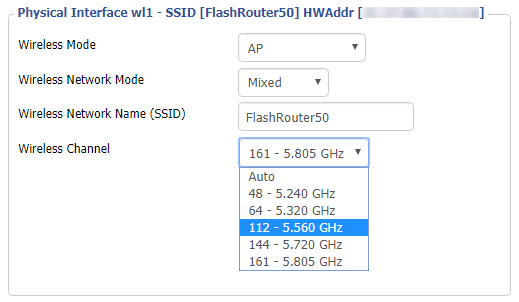
Navigate to Wireless > Basic Settings

Lower the wireless channel setting for the 5.0GHz band that is not showing. Based on our tests the most broadly compatible channels are 36, 48 and 161.

CLICK APPLY SETTINGS

Refresh your device's network adapter

The easiest way to accomplish this is by rebooting your device as the settings to reset your adapter may vary on all types of internet connected devices.

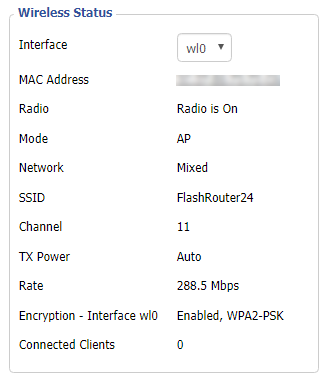
Review wireless Status

Navigate to Status > Wireless

The readouts on this page can help tell if there are errors with the FlashRouter’s wireless. View our article on how to read the Wireless Status page for more information.

My 2.4GHz network is not showing up

TeamFlashRouters · May 2, 2019 ·

If you ever have an issue with WiFi, you can always wire directly into the FlashRouter to verify and/or update your current WiFi settings.

Enter the recommended wireless settings

Our team has tested the wireless functionality for each FlashRouter that we offer and shared our recommended wireless settings in our Wifi Setup area. Replicate the settings for your FlashRouter model found on that page if the 2.4GHz is not showing.

Change the wireless channel

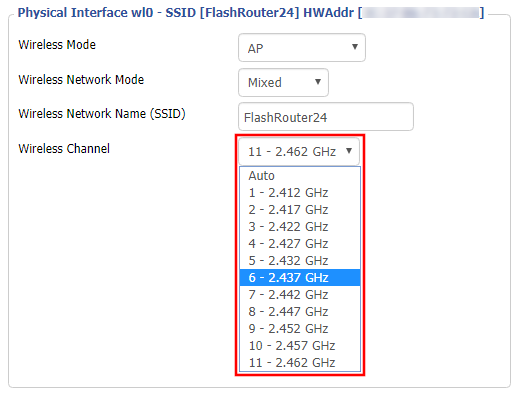
Navigate to Wireless > Basic Settings

Change the wireless channel setting for the 2.4GHz band that is not appearing. The most broadly compatible channels are 6 and 11.

CLICK APPLY SETTINGS

Refresh your device's network adapter

In rare instances the wireless adapter for your device may stop picking up WiFi networks and must be reset. This will be different for each device, that is why the best way to refresh your wireless adapter is to simply reboot any device in question and see if the adapter now picks up your WiFi networks.

Review wireless Status

Navigate to Status > Wireless

The readouts on this page can help tell if there are errors with the FlashRouter’s wireless. View our article on how to read the Wireless Status page for more information.

Why is my router not connecting to internet?

Dave · May 2, 2019 ·

Router not connecting to the internet? Follow these simple steps!

  1. Make sure that you are not setting a WAN IP of 0.0.0.0 in the top right corner of your FlashRouter DD-WRT settings. If you do, then make sure your FlashRouter is wired correctly for Internet.
  2. Try power cycling your ISP modem, FlashRouter and any other router that may be in the setup. Power the modem back on first, wait for it to boot up fully, and then power the FlashRouter back on.
  3. Make sure you do not have Global Kill Switch enabled in the FlashRouters Privacy App and if you do make sure your VPN status is Connected.

Why is the internet LED red on my router?

Dave · May 2, 2019 ·

Upon flashing the router from stock manufacturer firmware to DD-WRT firmware many buttons and lights on the router may have altered functionality. With DD-WRT firmware on certain devices a red internet/WAN light means a successful connection. While in factory firmware a red light denotes an issue with your internet connection. For anyone with DD-WRT firmware, this is not something you need to worry about as long as the internet functionality is in fact working.

Change VPN Protocols on ExpressVPN/Aircove firmware

TeamFlashRouters · Mar 16, 2022 ·

Changing the VPN protocol your ExpressVPN FlashRouter is using can help with obtaining faster speeds while connected to VPN and connectivity issues in some regions of the world. A great advantage of using ExpressVPN firmware is the ability to use multiple protocols such as OpenVPN, IKEv2, and ExpressVPN’s own protocol Lightway.

1. Connect to the FlashRouter’s network via ethernet cable or wireless.

2. Open your web browser and enter expressvpnrouter.com or 192.168.132.1 in the URL.

ExpressVPNrouter.com
192.168.132.1

3. Login with your ExpressVPN FlashRouter admin password.

ExpressVPN Router admin login

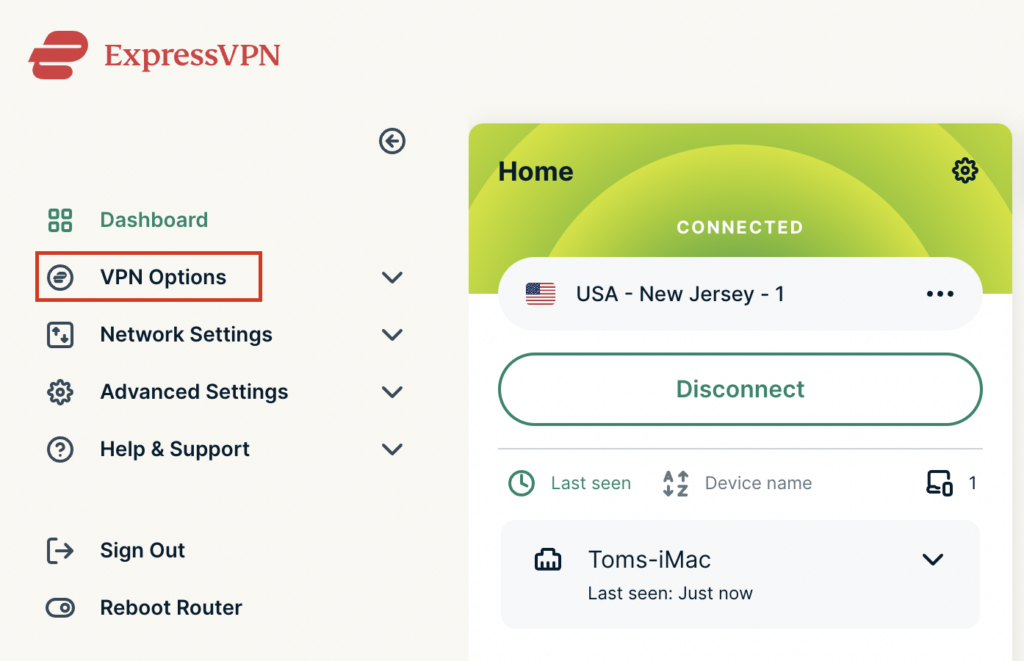
4. Select VPN Options on the left hand side of the menu.

ExpressVPN VPN Options

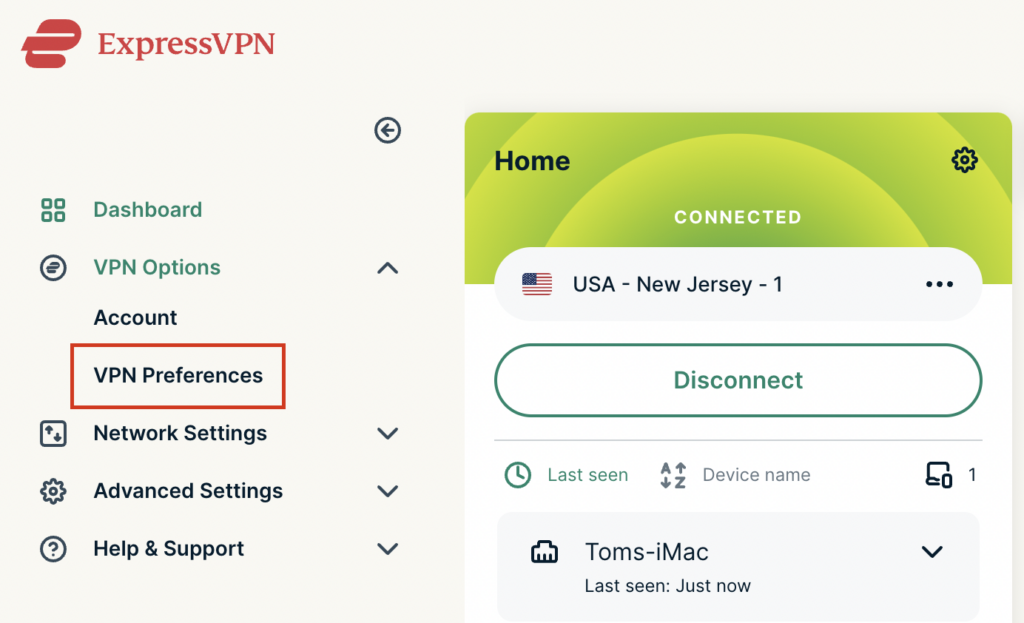
5. Select VPN Preferences on the left hand side of the menu.

ExpressVPN VPN Preferences

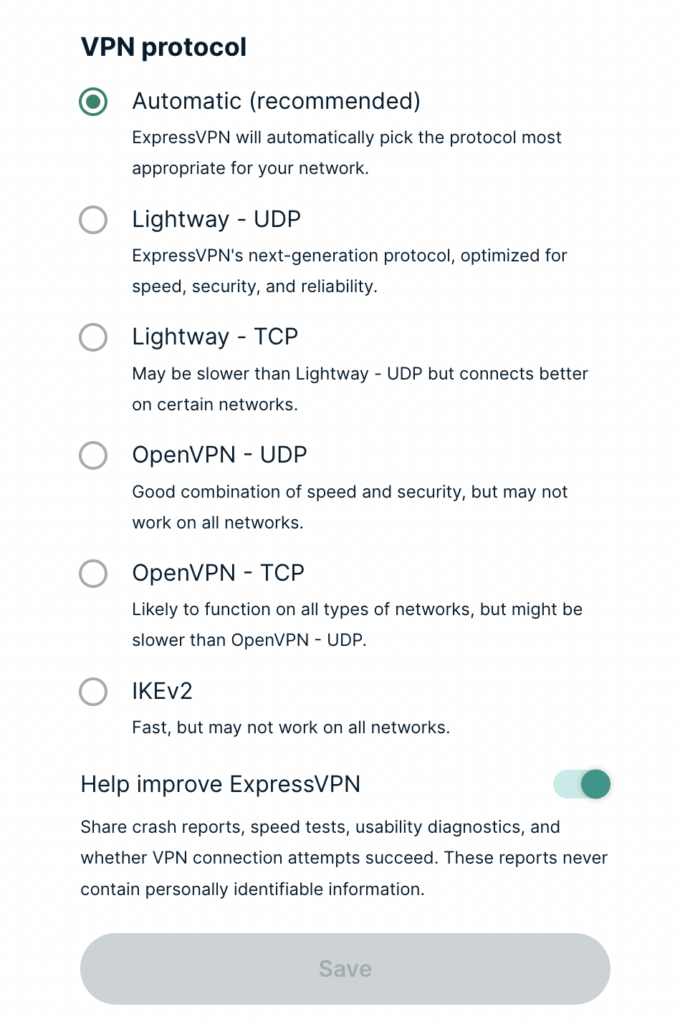
6. Choose the VPN protocol that best suits your needs. We typically see the fastest speeds while using the Lightway – UDP or IKEv2 protocols. Click Save.

ExpressVPN Protocols

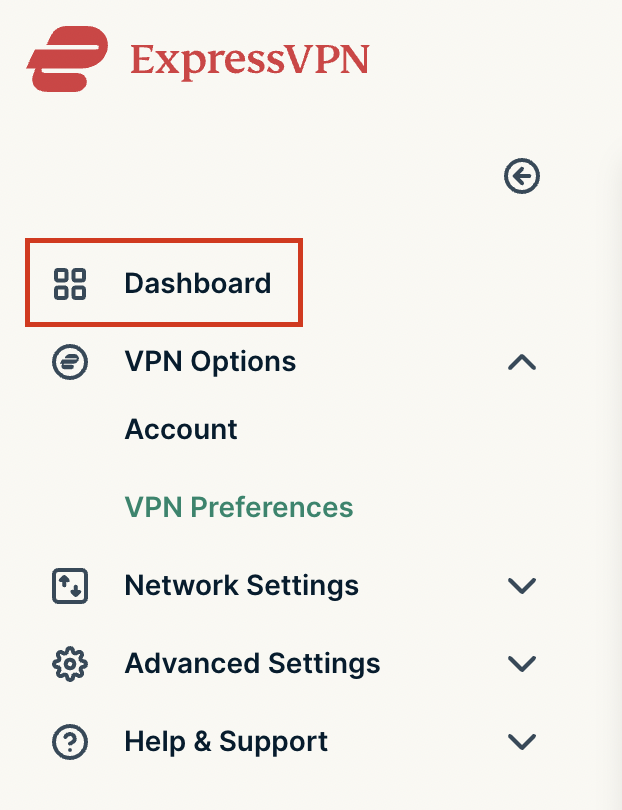
7. Click OK and then select Dashboard.

ExpressVPN Dashboard

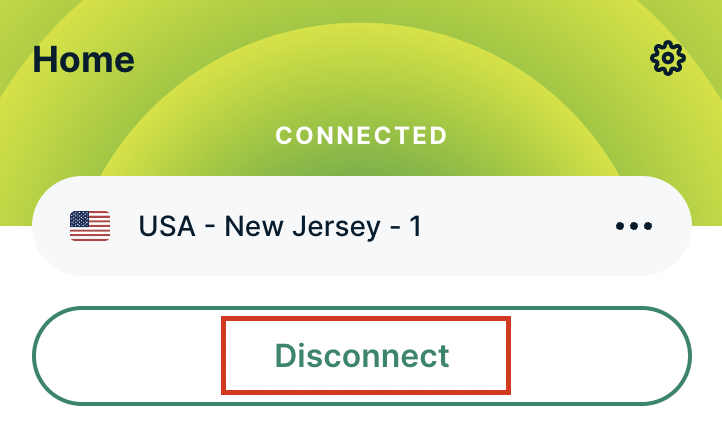
8. Click Disconnect to turn the VPN connection off.

ExpressVPN Disconnect

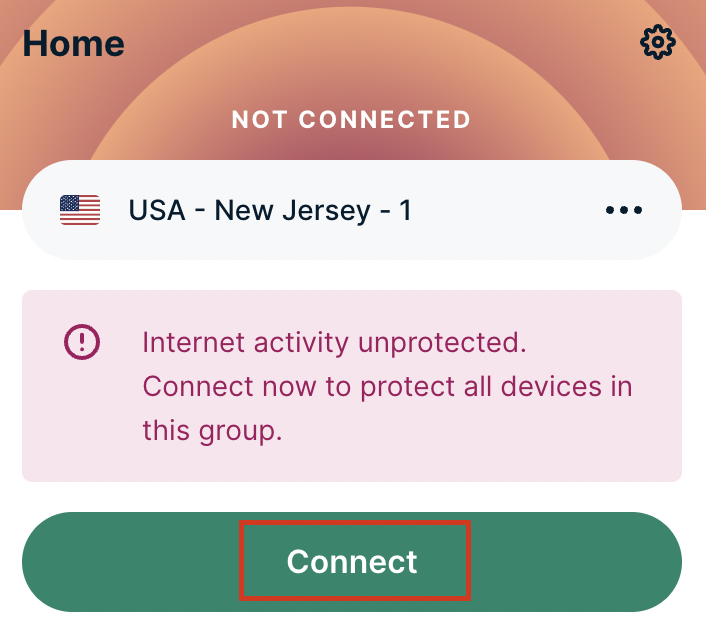
9. Click Connect to turn the VPN connection back on so it is using the new Protocol you selected.

ExpressVPN Connect

How to fix an Unidentified Network or Limited Connection.

Dave · May 2, 2019 ·

There are several common reasons that an Unidentified Network or Limited connection message may appear in your device’s network adapter.

  1. Wire the FlashRouter correctly for Internet access. Incorrect wiring is the most common cause of this issue. Make sure you are not wired into the FlashRouter WAN port for access, and make sure the FlashRouter is wired correctly to your main modem or router.
  2. Check that your connected device does not have static settings configured.
  3. Disable and reenable the wireless and/or ethernet adapter on your computer to refresh the network.
  4. Make sure you are not connected to multiple router networks at the same time, via WiFi and wired connection simultaneously.
« Previous Page

Primary Sidebar

  • Troubleshooting
  • Router Access
  • Internet Connection Issues
  • WiFi Connectivity
  • General VPN Issues
  • TeamViewer Remote Support
  • DD-WRT Firmware
  • Facebook
  • Twitter
  • Instagram
  • Pinterest
  • YouTube

Footer