• Skip to primary navigation
  • Skip to main content
  • Skip to primary sidebar
  • Skip to footer

FlashRouters Support Portal

Prioritizing Privacy

  • SETUP GUIDES
    • Privacy Hero Router Setup Guide
    • ASUS-WRT Router Setup Guide
    • AsusWRT-Merlin Router Setup Guide
    • DD-WRT Router Setup Guide
    • ExpressVPN Router Setup Guide
    • GL.iNet Router Setup Guide
    • Roqos Core Router Setup Guide
  • TROUBLESHOOTING
    • Router Access
    • WiFi Connectivity
    • Internet Connection Issues
    • General VPN Issues
    • DD-WRT Firmware
    • TeamViewer Remote Support
  • FAQs
    • Router FAQs
    • VPN FAQs
    • Warranty and Returns FAQs
    • Sales FAQs
    • Shipping FAQs
    • Service Plan FAQs
  • Show Search
Hide Search

Search Results for: websites i can

Managing User Profiles on Roqos

Dave · Dec 16, 2021 ·

User Profiles allow you to organize your devices connected to the Roqos Core. This allow you to see a user profile’s usage history, set a schedule when devices are allowed to connect to the Internet, and filter out specific content such as explicit websites and games.

Login to Roqos Core UI web app in a browser on any computer or smart device.

Adding new User Profile

1. Click the navigation menu and select Users.

2. To add a new User Profile click Add User.

3. In the Name field enter the name for the User Profile. You can add an image for the User Profile here as well.

4. You will see a list of devices connected to the Roqos Core at the bottom of the page. Check the box of the devices that you would like to add to this User Profile. Then click Save.

Tracking Usage History

1. Click the User Profile that you want to review.

2. Select Usage History.

3. On the new page you can view usage by Top Visited, All Activity, and Activity Graph.

Schedule Pauses

1. Click the User Profile that you want to review.

2. Select Scheduled Pauses.

3. Click Add Schedule.

4. From here you can set the name of the schedule, the days that the schedule will be in effect, and if the schedule should be applied all day or during specific hours. Click Save.

Filters

1. Click the User Profile that you want to review.

2. Select Filters.

3. From here you can use the toggle to Block explicit websites and Block explicit search results.

4. In the Safe Youtube dropdown you can select None, Moderate, or Strict.

5. The Blocked Content area allows you to block specific services such as Games and Social Media.

6. Add specific websites to the Block Sites list if the above policies did not cover them.

7. Add specific websites to the Allowed Sites list if you want to block all websites except for a few.
Device Settings That Can Interfere With Your Router VPN

Dave · Oct 6, 2026 ·

If your router VPN is connected and working on other devices but one phone, tablet, computer, or streaming device shows the wrong IP address, wrong location, cannot access certain websites, or behaves differently, check the affected device before changing the router.

VPN applications, privacy features, custom DNS settings, antivirus software, firewalls, browser settings, and corporate security software can all change how traffic is handled directly on a device.

This guide applies to all FlashRouter types and VPN providers.


Jump to a Section

  • Start Here: Router or Device?
  • Device VPN Applications
  • iPhone & iPad Privacy Settings
  • Android VPN & DNS Settings
  • Security, Firewall & Browser Settings
  • Run a Clean VPN Test

Start Here: Is the Problem the Router or One Device?

Before changing your router VPN configuration, compare the affected device with another device connected to the same FlashRouter.

If several devices show the correct VPN IP and location while only one device does not, the router VPN is already demonstrating that it can route traffic through the VPN.

Focus troubleshooting on the affected device.

If every device connected to the FlashRouter has the same VPN problem, continue with router-level VPN troubleshooting instead.

Privacy Hero users should also check the Privacy Hero dashboard. If the VPN itself displays Failed, Disconnected, Connecting, or a timeout error, troubleshoot that connection before changing device settings.

  • Privacy Hero VPN Kill Switch: No Internet or WiFi Troubleshooting
  • Privacy Hero NordVPN Not Connecting or Showing Timeout Errors

Disconnect VPN Applications Running on the Device

Do not run a VPN application directly on the device while troubleshooting a VPN running on your router.

This includes applications from NordVPN, ExpressVPN, Surfshark, Proton VPN, IPVanish, Private Internet Access, Mullvad, corporate VPN providers, and other VPN services.

If both the router VPN and device VPN are active, the device VPN can take control of that device’s traffic after it passes through the router.

This can cause:

  • An unexpected public IP address.
  • An unexpected VPN location.
  • Websites or applications not loading.
  • Streaming region problems.
  • DNS problems.
  • Slow or unstable connections.
  • One device behaving differently from other devices on the same router.

Disconnect the VPN application completely before testing the router VPN.

Closing the VPN app window may not disconnect the VPN. Confirm in the application or device network settings that the device-level VPN is actually disconnected.

iPhone and iPad: Check Private Relay and Limit IP Address Tracking

Apple devices include privacy features that can change how supported internet traffic is handled and make router VPN testing more difficult.

Limit IP Address Tracking

To temporarily disable Limit IP Address Tracking for your FlashRouter WiFi network:

  1. Open Settings.
  2. Select Wi-Fi.
  3. Tap the information button next to the FlashRouter WiFi network.
  4. Find Limit IP Address Tracking.
  5. Turn it Off.
  6. Disconnect from WiFi and reconnect.
  7. Test the connection again.

This setting is configured per WiFi network, so make sure you are changing it for the FlashRouter network being tested.

iCloud Private Relay

iCloud Private Relay can also alter IP address visibility for supported traffic.

For troubleshooting:

  1. Open Settings.
  2. Tap your Apple Account/name.
  3. Select iCloud.
  4. Select Private Relay.
  5. Temporarily turn Private Relay Off.
  6. Reconnect to the FlashRouter.
  7. Test the IP address and connection again.

These settings can be restored after testing.

Android: Check Private DNS and Always-On VPN

Android devices can have DNS and VPN settings that operate independently of the router.

Private DNS

Android Private DNS can send DNS requests to a selected DNS provider instead of relying solely on the DNS configuration supplied by the router.

If you are troubleshooting DNS, website access, streaming, filtering, or location behavior:

  1. Open Settings.
  2. Select Network & internet.
  3. Select Private DNS.
  4. Temporarily select Off.
  5. Save the setting.
  6. Reconnect to the FlashRouter WiFi.
  7. Test again.

Android menus vary by manufacturer and Android version. Search the device Settings for Private DNS if necessary.

Always-On VPN

An Android VPN application can be configured to automatically reconnect even after you believe the VPN has been disconnected.

  1. Open Settings.
  2. Select Network & internet.
  3. Select VPN.
  4. Select the configured VPN.
  5. Disable Always-on VPN while testing.
  6. Check whether Block connections without VPN is enabled and temporarily disable it if necessary for testing.

Then reconnect to the FlashRouter and test the router VPN again.

Check Antivirus, Firewall, Browser, and Work Security Settings

If the problem affects a computer or only occurs in one browser, check for software that modifies network traffic directly on the device.

Antivirus and Internet Security Software

Security applications may include network features such as:

  • Web Protection.
  • Safe Browsing or Secure Web.
  • Network Protection.
  • DNS Protection.
  • HTTPS scanning.
  • Tracking protection.
  • Built-in VPN services.
  • Firewall controls.

Temporarily disable the relevant network protection feature and test again. You do not normally need to disable the entire antivirus product.

Third-Party Firewalls

A third-party firewall can block applications, DNS requests, VPN-related traffic, or specific network interfaces.

Temporarily disable the firewall and test the connection. If the problem disappears, re-enable the firewall and review its network rules.

Browser VPN, Proxy, and Secure DNS

Browsers and browser extensions can also use their own:

  • VPN services.
  • Proxy connections.
  • Secure DNS or DNS-over-HTTPS.
  • Privacy or filtering extensions.
  • Location-changing extensions.

If the problem occurs only in one browser, test another browser without extensions or custom networking settings.

Work and Corporate Devices

Company-managed computers and mobile devices may use corporate VPN clients, DNS filtering, web filtering, endpoint security, device-management profiles, or zero-trust networking software.

These systems may intentionally override the local router’s network behavior.

If a personal device works correctly on the same FlashRouter while a company-managed device does not, the company security configuration may be responsible.

Run a Clean Router VPN Test

For the cleanest test, temporarily remove device-level networking variables and let the FlashRouter VPN handle the connection.

  • FlashRouter VPN: On
  • Device VPN: Off
  • iCloud Private Relay: Off while testing
  • Limit IP Address Tracking: Off while testing
  • Android Private DNS/custom DNS: Off while testing
  • Always-On VPN: Off while testing
  • Third-party network filtering: Off while testing

Then:

  1. Disconnect the affected device from WiFi.
  2. Reconnect it to the FlashRouter.
  3. Open a fresh private/incognito browser window.
  4. Check the device’s public IP address and location.
  5. Compare the result with another device connected to the same FlashRouter.

If the second device shows the correct VPN IP but the affected device does not, continue troubleshooting settings or software on the affected device.

If all devices show the same incorrect IP address or all devices fail to use the VPN, continue with router-level VPN troubleshooting.

Privacy Hero VPN Connected but Device Still Shows the Wrong IP?

Privacy Hero provides device-level VPN controls. Make sure the affected device is actually assigned to use the VPN.

  1. Open app.privacyhero.com.
  2. Open the Devices section.
  3. Select the affected device.
  4. Confirm VPN protection is enabled for that device.
  5. Disconnect any VPN application running directly on the device.
  6. Test the public IP address again.

If other Privacy Hero devices show the correct VPN IP and only one device remains incorrect, continue with the device-level checks above.


Related FlashRouters Guides

  • Should I Be Using My Computer, Phone, or Tablet VPN App While Connected to the FlashRouter?
  • What Is a DNS Leak and How Can I Prevent a DNS Leak in My Router?
  • FlashRouters VPN FAQs
  • FlashRouters Router Troubleshooting
  • Privacy Hero VPN Kill Switch: No Internet or WiFi Troubleshooting
  • Privacy Hero NordVPN Not Connecting or Showing Timeout Errors
  • Privacy Hero VPN Kill Switch Setup

Block Websites by Country on Roqos

Dave · Dec 16, 2021 ·

Country Block allows you to select countries that you identify to be an unsafe and block internet traffic between your network and those countries.

Login to Roqos Core UI web app in a browser on any computer or smart device.

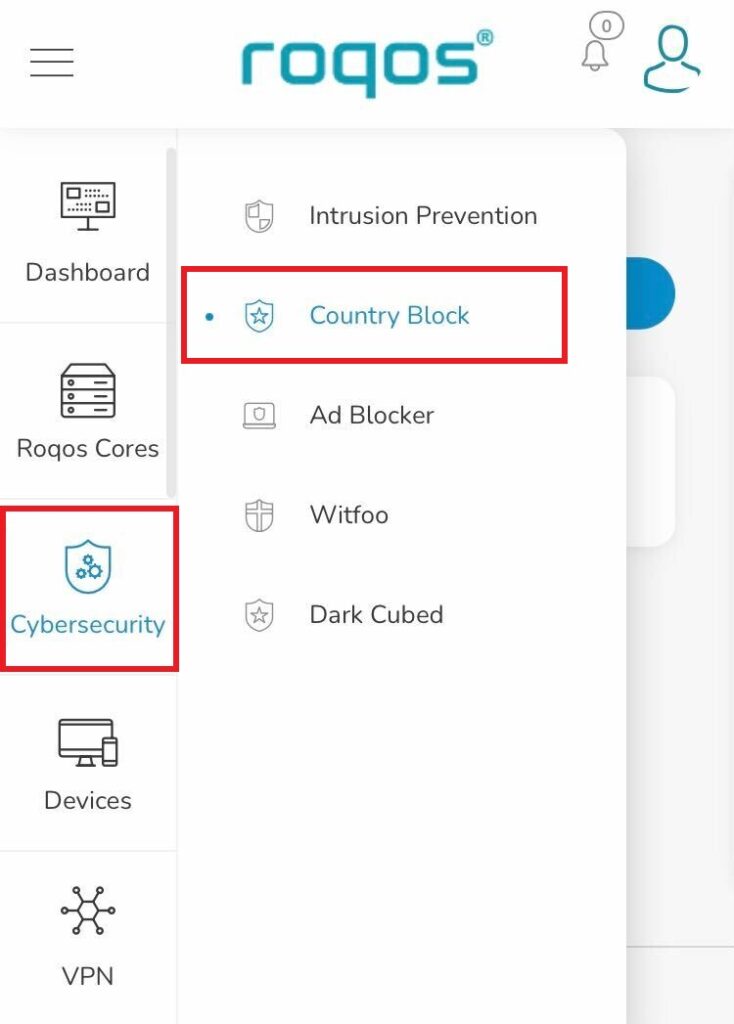
1. Click the navigation menu and select Cybersecurity > Country Block.

Roqos Cybersecurity - Country Block

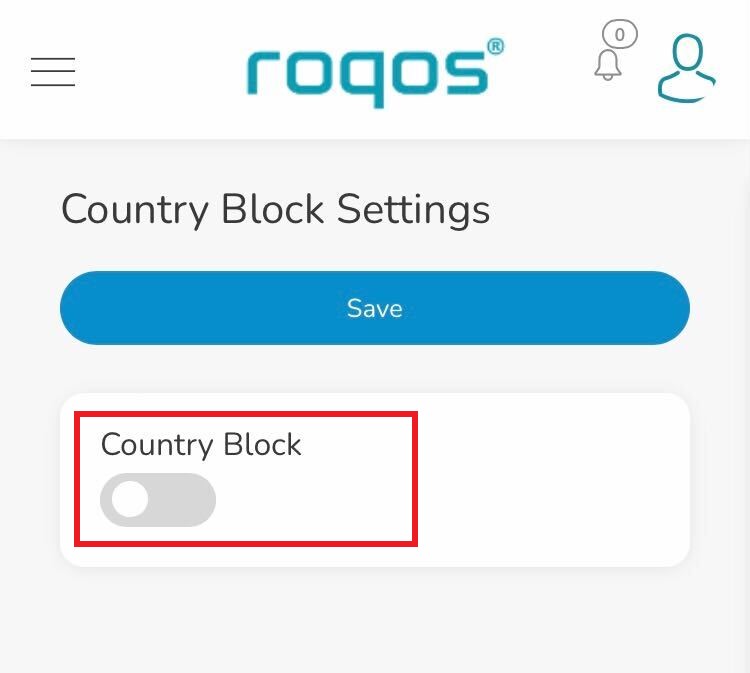
2. Toggle the Country Block setting.

Roqos Cybersecurity - Enable Country Block

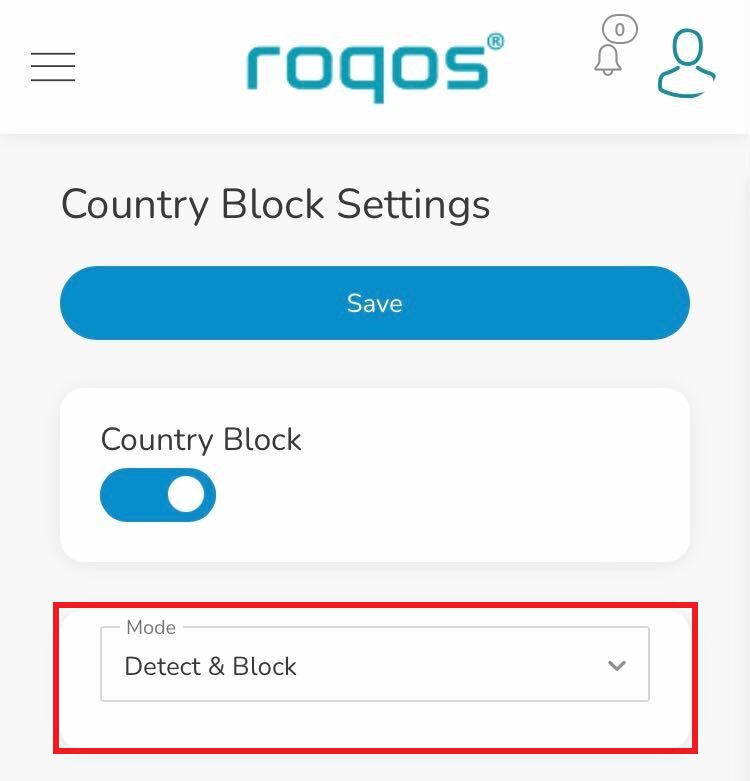
3. In the Mode dropdown select Detect & Block or Detect Only.

Roqos Cybersecurity - Country Block Mode

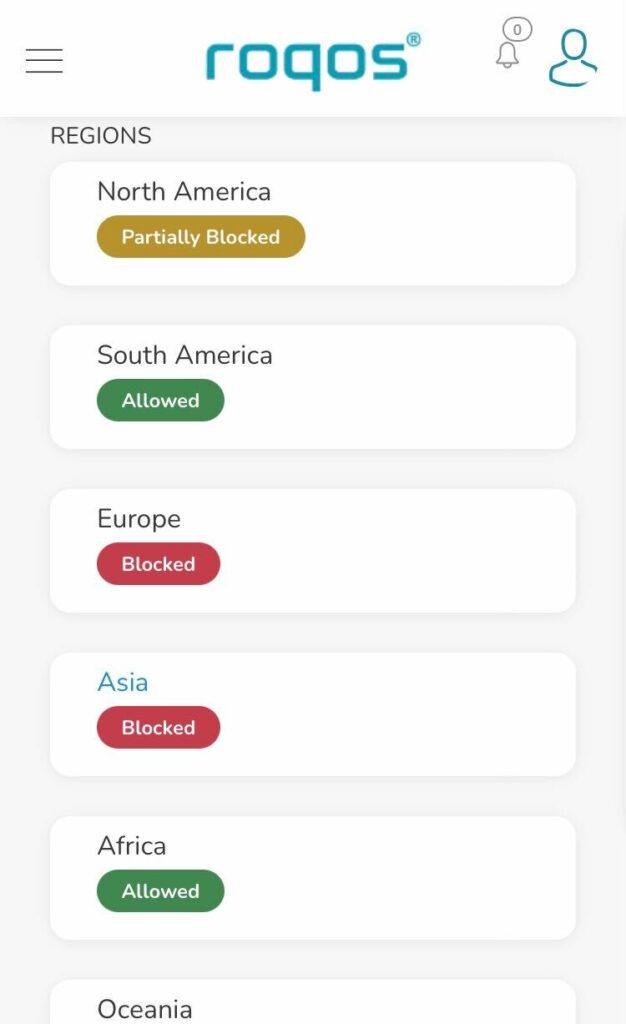
4. Under Regions you can select the regions you want to block or specific countries within that region. Once your selections are made click Save.

Roqos Cybersecurity - Select Blocked Countries

Privacy Hero VPN Kill Switch Troubleshooting: No Internet or WiFi

Dave · Oct 8, 2026 ·

If your Privacy Hero router suddenly loses internet access, devices report that WiFi has no internet, or devices will not stay connected after a VPN failure, the VPN Kill Switch may be blocking normal internet traffic.

The VPN Kill Switch is designed to prevent traffic from passing through Privacy Hero without VPN protection. If the VPN disconnects or fails while the Kill Switch is enabled, normal internet access is intentionally blocked.

Important: You can still access app.privacyhero.com to manage Privacy Hero, turn off the Kill Switch, or repair the VPN connection.

Privacy Hero is cloud-managed, so you do not need to be connected to the Privacy Hero WiFi to change these settings. You can also access the dashboard using cellular data, your main router’s WiFi, or another internet connection as long as Privacy Hero remains connected to the internet and Privacy Hero cloud.


Jump to a Section

  • Common Kill Switch Symptoms
  • Restore Internet Access
  • VPN Still Fails to Connect
  • Privacy Hero Appears Offline
  • Kill Switch, WiFi, or WAN Problem?
  • Frequently Asked Questions

Common Privacy Hero Kill Switch Symptoms

A failed VPN connection combined with an enabled Kill Switch can make the Privacy Hero network appear unavailable even though the router itself may still be functioning.

Common symptoms include:

  1. Your device connects to Privacy Hero WiFi but websites and apps will not load.
  2. Your phone, computer, television, or streaming device reports that WiFi has no internet.
  3. A device refuses to remain connected because it detects that the WiFi network does not currently provide normal internet access.
  4. Your phone automatically switches from Privacy Hero WiFi to cellular data or another saved WiFi network.
  5. Your computer displays “No Internet” or “Connected without Internet.”
  6. The VPN displays Failed, Disconnected, Connecting, or a timeout error.
  7. Privacy Hero was working normally and suddenly stopped providing internet access.

If the Privacy Hero WiFi network itself is completely missing and cannot be detected by any device, that is different from normal Kill Switch behavior. Continue with WiFi or router connectivity troubleshooting instead.

Restore Internet Access

The fastest way to determine whether the Kill Switch is responsible is to temporarily disable it and test Privacy Hero without VPN.

  1. Open app.privacyhero.com.
  2. Sign in to your Privacy Hero account.
  3. Open the VPN section.
  4. Check the current VPN status.
  5. If the VPN shows Failed or Disconnected, turn the VPN Kill Switch Off.
  6. Turn the failed VPN connection off.
  7. Connect a device to the Privacy Hero network.
  8. Test normal internet access.

If internet access returns with the VPN and Kill Switch disabled, Privacy Hero’s basic internet connection is working and the problem is isolated to the VPN connection.

Important: Disabling the Kill Switch allows normal non-VPN internet traffic through Privacy Hero. Leave it disabled only while troubleshooting if continuous VPN protection is required.

VPN Still Fails to Connect

Do not turn the Kill Switch back on until the VPN is connected and working.

If you are using NordVPN and the VPN shows Failed, Connecting, or a timeout error, continue with our dedicated Privacy Hero NordVPN Not Connecting or Showing Timeout Errors guide.

That guide covers:

  • Selecting a different NordVPN server.
  • Replacing a failed Auto Country connection with a specific NordVPN server.
  • Generating a new NordVPN NordLynx access token.
  • Verifying NordVPN OpenVPN manual service credentials.
  • Avoiding double-VPN conflicts while testing.

If you use another VPN provider, try another available VPN server or protocol and verify that your VPN account and credentials remain active.

Verify the VPN Before Re-Enabling the Kill Switch

Once the VPN reconnects:

  1. Confirm Privacy Hero displays the VPN as Connected.
  2. Connect a device to the Privacy Hero WiFi.
  3. Make sure a separate VPN application is not connected directly on the testing device.
  4. Check your public IP address.
  5. Confirm the IP address and location reflect the VPN server you selected.
  6. Test normal websites and applications.
  7. Return to Privacy Hero and enable the VPN Kill Switch.

If you enable the Kill Switch while the VPN is still failing, normal internet access will be blocked again.

What If Privacy Hero Appears Offline?

If Privacy Hero shows Offline in the dashboard, the router may not currently be communicating with the Privacy Hero cloud.

  1. Confirm Privacy Hero is powered on.
  2. Confirm the Ethernet cable from your ISP gateway or primary router is connected to the Privacy Hero WAN/Internet port.
  3. Confirm your ISP gateway or primary router has working internet access.
  4. Restart Privacy Hero and allow it to finish booting.
  5. Using another internet connection, open app.privacyhero.com.
  6. Check whether Privacy Hero returns online.

If the router returns online, check the VPN and Kill Switch status before enabling the VPN again.

Privacy Hero Has a WAN IP but Devices Have No Internet

Privacy Hero can receive an IP address from your ISP gateway while the Kill Switch is still blocking normal internet traffic.

Before changing IP Passthrough, bridge mode, firewall settings, or other ISP gateway settings:

  1. Check the VPN status.
  2. Check whether the Kill Switch is enabled.
  3. Disable the VPN and Kill Switch temporarily.
  4. Test internet access again.

If internet access returns, troubleshoot the VPN connection rather than changing the ISP gateway configuration.

Kill Switch, WiFi, or WAN Problem?

WiFi Connects but There Is No Internet

If the VPN shows Failed or Disconnected and the Kill Switch is enabled, the Kill Switch is likely blocking normal internet traffic.

Device Will Not Stay Connected to Privacy Hero WiFi

Some devices automatically leave a WiFi network when they detect that it does not provide internet access. Use cellular data or another internet connection to access app.privacyhero.com and check the VPN and Kill Switch.

Privacy Hero WiFi Is Completely Missing

The Kill Switch does not normally cause the WiFi network itself to stop broadcasting. If no devices can detect the Privacy Hero WiFi network, troubleshoot the WiFi or router connection separately.

Privacy Hero Is Not Receiving a WAN IP Address

Check the Ethernet connection between Privacy Hero and your ISP gateway or primary router and confirm the upstream internet connection is working.

VPN Shows Connected but One Device Has the Wrong IP

If the VPN works correctly on other devices, the Kill Switch is probably not the issue. Check that device’s Privacy Hero VPN assignment and its own VPN, privacy, DNS, or security settings.

See Device Privacy, DNS, VPN, and Security Settings That Can Interfere With Your Router VPN.

Frequently Asked Questions

Why does Privacy Hero WiFi say no internet?

If the VPN has failed while the Kill Switch is enabled, normal internet traffic is intentionally blocked. Your device may therefore report that Privacy Hero WiFi has no internet.

Can I access Privacy Hero settings while the Kill Switch is blocking internet?

Yes. Open app.privacyhero.com. You can use the Privacy Hero network, cellular data, your main router’s WiFi, or another internet connection.

Do I have to be connected to Privacy Hero WiFi to change the settings?

No. Privacy Hero is cloud-managed and can be managed remotely while the router remains connected to the Privacy Hero cloud.

Why does my phone keep leaving the Privacy Hero WiFi?

Some phones automatically switch to cellular data or another saved WiFi network when the current WiFi connection does not provide normal internet access.

Should I turn the Kill Switch back on immediately?

Only after the VPN is connected and you have confirmed that your internet traffic is using the VPN.

Related Privacy Hero Guides

  • Privacy Hero VPN Kill Switch Setup
  • Privacy Hero NordVPN Not Connecting or Showing Timeout Errors
  • Privacy Hero NordVPN / NordLynx Setup
  • Device Privacy, DNS, VPN, and Security Settings That Can Interfere With Your Router VPN
  • Privacy Hero Router Setup Guide

Parental Controls on Roqos

Dave · Dec 16, 2021 ·

The Roqos Core includes a suite of user access settings which can be used as Parental Controls.
You can create individual user profiles and assign specific devices. Using these profiles you can restrict access, block certain content, or even monitor internet usage if you choose to do so.

Create User Profiles

  1. Using the navigation pane on the left of the screen, select USERS.
  2. Select the ADD USER button at the top of the menu.
  3. Create a name to identify the user. You may also add a photo or picture to associate with this user however this is optional.
  4. Select the SAVE button at the bottom of the menu.

Assign Devices

  1. Once you have created a user, you must assign one or more devices to the user.
  2. Using the navigation pane on the left of the screen, select USERS. Choose a user from the list.
  3. You are now in the USER/GROUP PROFILE menu.
  1. Select DEVICES.
  2. Select ADD DEVICE.
  1. The ADD DEVICES menu lists all devices which are currently or previously connected to the Roqos. You cannot assign a device to a user unless it has been connected to the Roqos. 
  2. Use the check box to select one or more devices and then select the SAVE button to assign the device to the user.

A device can only be assigned to one user. Access restrictions you place on a user such as scheduled internet access or content restriction will apply to all devices assigned to that user regardless of who in your home is actually using the device at that time.

Turn Off Internet Access

  1. Using the navigation pane on the left of the screen, select USERS. Choose a user from the list
  2. You are now in the USER/GROUP PROFILE menu
  3. Use the PAUSE button next to the user’s name to halt all internet access to the devices assigned to this user. Conversely, you can restore internet access by pushing the PLAY button here as well.

Schedule Internet Access

  1. Using the navigation pane on the left of the screen, select USERS. Choose a user from the list.
  2. You are now in the USER/GROUP PROFILE menu.
  3. Select SCHEDULE PAUSES. You can create multiple schedules for each user to pause their internet access on a daily recurring basis for every day of the week.

Enable Content Filters

  1. Using the navigation pane on the left of the screen, select USERS. Choose a user from the list.
  2. You are now in the USER/GROUP PROFILE menu.
  3. Select FILTER. Use existing category and content filters provided by Roqos and customize with your own blocked and allowed site lists.
  4. Select SAVE.

Monitor Internet Usage

  1. Using the navigation pane on the left of the screen, select USERS. Choose a user from the list.
  2. You are now in the USER/GROUP PROFILE menu.
  3. Select USAGE HISTORY. Access usage data for all devices assigned to this user. This includes websites visited and activity times.

Please note that in order to collect device information, you must enable this functionality on your Roqos. It is disabled by default.

  1. Using the navigation pane on the left of the screen, select ADVANCED SETTINGS.
  2. Select MISCELLANEOUS.
  3. Activate the COLLECT USER INTERNET USAGE and COLLECT DEVICE DATA USAGE options.

TROUBLESHOOTING

Still having issues? Visit our Troubleshooting section to diagnose common problems here.

Troubleshoot Here

Privacy Hero NordVPN Not Connecting or Showing Timeout Errors

Dave · Sep 22, 2026 ·

If NordVPN will not connect on Privacy Hero, shows a timeout error, remains stuck on Connecting, or displays Failed, the Privacy Hero router itself may still be working normally.

NordVPN connections can occasionally stop working when servers are placed into maintenance, removed or cycled out of service, account credentials change, or a previously saved NordVPN access token or manual service credential is no longer valid.

Start by confirming that Privacy Hero has normal internet access, then troubleshoot the NordVPN connection.


Jump to a Section

  • Confirm Privacy Hero Has Internet
  • Reconnect NordVPN
  • Try Another NordVPN Server
  • Update Your NordLynx Token
  • Update OpenVPN Credentials
  • Recent NordVPN Account Changes
  • Verify the VPN Connection

First: Confirm Privacy Hero Has Internet

Before changing your NordVPN settings, confirm that Privacy Hero itself has normal internet access.

  1. Open app.privacyhero.com.
  2. Open the VPN section.
  3. If the VPN Kill Switch is enabled, temporarily turn it Off.
  4. Turn the failed NordVPN connection off.
  5. Connect a device to the Privacy Hero network.
  6. Test normal internet access.

If internet access works normally with NordVPN and the Kill Switch disabled, the underlying Privacy Hero internet connection is working. Continue troubleshooting the NordVPN connection.

If your internet stopped working because NordVPN failed while the VPN Kill Switch was enabled, follow our Privacy Hero VPN Kill Switch: No Internet or WiFi Troubleshooting guide.

Reconnect NordVPN

A temporary NordVPN server or connection issue may resolve without changing your account information.

  1. Open the VPN section at app.privacyhero.com.
  2. Turn the NordVPN connection off.
  3. Wait a few seconds.
  4. Turn NordVPN back on.
  5. Allow the connection time to establish.
  6. Check whether the VPN status changes to Connected.

If NordVPN still shows Failed, Connecting, or a timeout error, continue with the steps below.

Try Another NordVPN Server

NordVPN regularly maintains, replaces, and cycles servers in its network. A specific NordVPN server that worked previously may eventually be taken offline, removed, or temporarily unavailable.

If your Privacy Hero NordVPN connection is configured to use a specific server and suddenly stops working, try another server or return to the normal country selection.

  1. Open app.privacyhero.com.
  2. Open the VPN section.
  3. Select your NordVPN connection.
  4. If you previously entered a specific NordVPN server under Advanced Options, remove or replace that server.
  5. Select the country or location you want to use.
  6. Save the settings.
  7. Reconnect NordVPN.
  8. Check whether the status changes to Connected.

If you specifically need to use an individual NordVPN server, make sure that server is still active before continuing to use it.

Important: A previously working specific server should not be assumed to remain available indefinitely. NordVPN may change its server network over time.

Update Your NordVPN Token for NordLynx

Privacy Hero uses a NordVPN access token to authenticate NordLynx connections.

If the saved token is expired, revoked, replaced, or otherwise no longer valid, NordLynx may show Failed, Connecting, or a timeout error.

Generating a new token is a good troubleshooting step if your NordVPN account information has changed or the existing token is no longer working.

  1. Sign in to your NordVPN account.
  2. Open the NordVPN Access Tokens page.
  3. Generate a new access token.
  4. Select Doesn’t expire if NordVPN provides that option.
  5. Copy the new token.
  6. Open app.privacyhero.com.
  7. Open the NordVPN settings.
  8. Confirm that NordLynx is the selected protocol.
  9. Replace the existing token with the newly generated token.
  10. Save the settings.
  11. Reconnect NordVPN.

Important: NordVPN access tokens are sensitive account credentials. Do not post or share your token publicly.

For complete setup instructions, see Privacy Hero NordVPN / NordLynx Setup.

Update NordVPN Manual Service Credentials for OpenVPN

If you are using OpenVPN instead of NordLynx, Privacy Hero uses NordVPN’s Manual Service Credentials.

These are different from the email address and password you normally use to sign in to the NordVPN website or application.

If the saved credentials are no longer valid, update them:

  1. Sign in to your NordVPN account.
  2. Open NordVPN Manual Service Credentials.
  3. Copy the current service username and password.
  4. Open app.privacyhero.com.
  5. Open your NordVPN settings.
  6. Confirm that OpenVPN is the selected protocol.
  7. Replace the existing manual service credentials with the current credentials from NordVPN.
  8. Save the settings.
  9. Reconnect NordVPN.

Do not enter your regular NordVPN website email address and password in place of the manual service credentials.

Did You Recently Change Your NordVPN Account Information?

If NordVPN stopped connecting after an account change, update the authentication information stored in Privacy Hero.

This is especially important after changes such as:

  • Changing your NordVPN account password.
  • Changing or updating NordVPN account security settings.
  • Generating or replacing NordVPN access tokens.
  • Changes to NordVPN manual service credentials.
  • Renewing, changing, or restoring your NordVPN subscription.

The credentials used by Privacy Hero depend on the VPN protocol:

  • NordLynx: Uses a NordVPN access token.
  • OpenVPN: Uses NordVPN manual service credentials.

Your regular NordVPN website login should not be entered as the router’s OpenVPN credentials.

If you are unsure whether the existing authentication information is still valid, retrieve current credentials directly from your NordVPN account and update Privacy Hero.

Confirm Your NordVPN Subscription Is Active

Privacy Hero cannot establish a NordVPN connection if the NordVPN account being used no longer has active VPN service.

Sign in to your NordVPN account and confirm that your subscription is active before continuing with server, token, or credential troubleshooting.

Try Another VPN Protocol

If your NordVPN account, credentials, and server selection are correct but the connection still fails, try another NordVPN protocol available in Privacy Hero.

For example, if NordLynx is not connecting, testing OpenVPN can help determine whether the issue is specific to the protocol or authentication method.

Remember that changing protocols also changes the required NordVPN authentication:

  • NordLynx requires a NordVPN access token.
  • OpenVPN requires NordVPN manual service credentials.

Important: Do Not Run Two VPNs at Once

Do not leave the NordVPN application connected directly on your phone or computer while testing the Privacy Hero VPN.

Running a VPN application on the device while also routing that device through the Privacy Hero VPN creates a double-VPN connection and can cause routing, connectivity, or IP-location problems.

Disconnect the device-level NordVPN app before testing the router VPN.

Verify the NordVPN Connection

Once Privacy Hero displays NordVPN as Connected:

  1. Connect your device to the Privacy Hero WiFi.
  2. Make sure the NordVPN app on the device is disconnected.
  3. Open a fresh private/incognito browser window.
  4. Visit NordVPN What Is My IP.
  5. Confirm that the public IP address and location correspond to your selected NordVPN location.
  6. Test several websites or applications.

If you use the Privacy Hero VPN Kill Switch, enable it only after confirming that NordVPN is connected and working.

NordVPN Is Connected but One Device Shows the Wrong IP

If Privacy Hero shows NordVPN as Connected and other devices display the correct VPN IP, the NordVPN connection itself is likely working.

Check the affected device’s Privacy Hero VPN assignment and review any VPN, privacy, DNS, browser, antivirus, firewall, or security settings running directly on that device.

See Device Privacy, DNS, VPN, and Security Settings That Can Interfere With Your Router VPN.

Related Privacy Hero Guides

  • Privacy Hero VPN Kill Switch: No Internet or WiFi Troubleshooting
  • Privacy Hero VPN Kill Switch Setup
  • Privacy Hero NordVPN / NordLynx Setup
  • Device Privacy, DNS, VPN, and Security Settings That Can Interfere With Your Router VPN

Connect FlashRouter to Internet

TeamFlashRouters · Mar 21, 2019 ·

All FlashRouters are compatible with all ISP service types such as fiber, cable, DSL, and satellite. As long as you have a modem, modem/router, or router capable of an ethernet connection your FlashRouter will have no problems connecting to the internet.

Internet Service Providers (ISP) include a modem or modem/router combo to connect your network devices to the internet. In some instances your ISP will provide a separate router as well as the modem. You can replace this router with a FlashRouter or use both in a dual router setup.

Single router setup

If you would like to replace your outdated router or avoid paying to rent a router from your ISP then you should use a FlashRouter as the only WiFi device in your network.

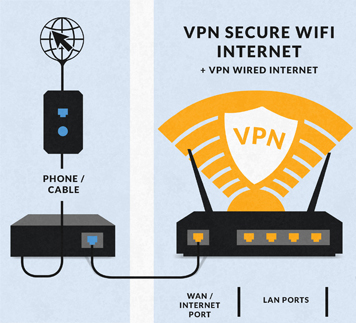
In a single router setup the FlashRouter will be wired directly to your modem via ethernet cable and will be the only router in the setup.

Connect to your ISP modem

Wire an ethernet cable from an open ethernet port on your modem to the WAN/internet port of the FlashRouter.

FlashRouters Single Router Setup

On Asus FlashRouters the WAN/internet port will be blue.

Asus Wifi Setup - back panel

On Linksys FlashRouters the WAN/internet port will be yellow.

Linksys Wifi Setup - back panel

On Netgear FlashRouters the WAN/internet port will be yellow.

Netgear Wifi Setup - back panel

Power cycle modem and router

Once you have properly connected an ethernet cable from your modem into the FlashRouter internet port you must power cycle your network devices to establish an internet connection.

  1. Power off your ISP modem and the FlashRouter.
  2. Power on the ISP modem and wait for it to fully boot up.
  3. Power on the FlashRouter.

Dual router setup

If you would like to keep your existing WiFi network in place, and simply want to add in a VPN WiFi network with a FlashRouter then you can do so using a dual router setup. No settings in your existing network router need to change to add a FlashRouter in a dual router setup. Since we preset all FlashRouters to a unique Local IP Address, there won’t be a conflict with your existing router.

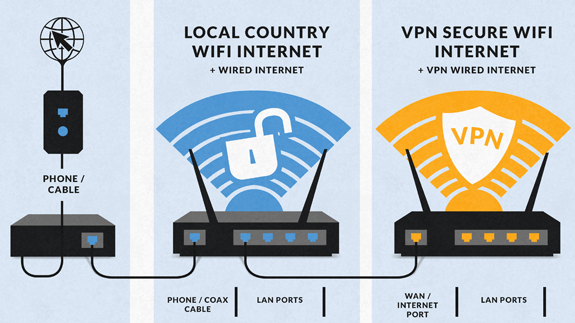
In a dual router setup the FlashRouter is wired to your existing router via ethernet cable and you will have two completely segmented WiFi networks available.

Connect to your existing router

Remember if your existing router is connecting to the internet without issue already, make sure to keep the ethernet cable between your modem and existing router internet port in place.

Now connect another ethernet cable from a LAN/numbered port on your existing router to the WAN/internet port of the FlashRouter.

Reference the images above to see your WAN/internet port color.

FlashRouters Dual Router Setup

Power cycle all network devices

Once you have properly connected an ethernet cable from your existing router into the FlashRouter internet port you must power cycle your network devices to establish an internet connection.

  1. Power off your ISP modem, existing router, and the FlashRouter.
  2. Power on the ISP modem and wait for it to fully boot up.
  3. Power on the existing router and wait for it to fully boot up.
  4. Power on the FlashRouter.

Verify a successful internet connection

Once the power cycling steps are complete and the FlashRouter is powered up, start connecting your internet capable devices via ethernet or WiFi. Visit any website and make sure the page fully loads.

If you want to check your internet IP address that is visible to websites and services that you visit over the internet check out WhatIsMyIPAddress.com.

TROUBLESHOOTING

Still having issues? Visit our Troubleshooting section to diagnose common problems here.

Troubleshoot Here

Why is my DNS showing as 192.168.11.1 on my devices?

TeamFlashRouters · May 30, 2019 ·

When connected to a FlashRouter’s network the DNS settings of the devices will be reporting as 192.168.11.1. This means that the router is handling DNS internally through the servers you have set in the Setup > Basic Setup section of the router. If you did not set any custom DNS here, then you will using your ISP or VPN DNS servers automatically.

You can always customize the DNS servers in the router to your preferred servers and through DNSmasq the router will use 192.168.11.1 to route these servers to your connected devices.

In some instances disabling DNSMasq in the DD-WRT settings can help unblock previously blocked websites while connected to VPN. This will force devices to report the DNS servers set in the router directly as opposed to 192.168.11.1.

Disabling DNSMasq is not recommended unless FlashRouters specifically advises you but we have seen this work for certain VPN providers. To disable the DNSMasq do the following.

Navigate to Setup > Basic Setup

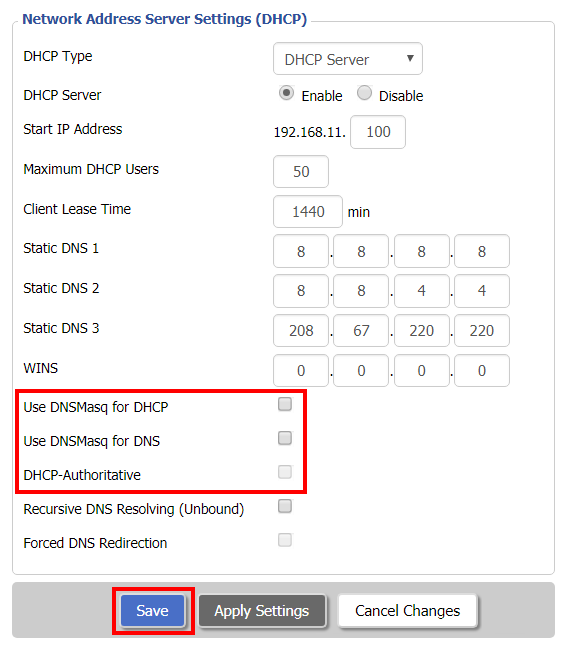
Disable DNSMaq Settings
  1. Uncheck Use DNSMasq for DHCP.
  2. Uncheck Use DNSMasq for DNS.
  3. Uncheck DHCP-Authoritative.
  4. Click Save.

Navigate to Services > Services

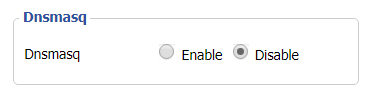
Disable DNSMaq Settings 2
  1. Set DNSMasq to Disable.
  2. Click Apply Settings.
  3. Reboot router.

Router FAQs

admin · Jan 29, 2019 ·

Router FAQs

What is an IP Address?

An IP (Internet Protocol) Address is a numerical assignment for each device (cell phone, iPad, laptop computer, printer etc) inside a network that uses the Internet Protocol for communication. Internet Protocol is responsible for routing information packets across network boundaries. It is the main protocol establishing the Internet.

An IP address serves two predominant functions. First is to host or network interface identification. Second, it provides location addressing. To put it bluntly, an IP address tells wherever you are connecting, to whom you are visiting, and where you are located.

What is DNS?

DNS (Domain Name System) is a protocol within the TCP/IP protocol that uses a set of standards for how computers exchange data on the Internet and on many private networks.

The basic job of DNS is to convert a user-friendly domain name into an IP address that computers use to identify one another. Think of DNS like your cellphone contact list; you tap the name and the phone contacts to a phone number.

It is easier to remember flashrouters.com, rather than its IP address. Imagine if you had to remember all of the IP addresses of your favorite websites!

What is DNSMasq?

DNSMasq is a local DNS server that speeds up host-name searches from your computer/Internet connection after pressing enter.

Basically, DNSMasq gives the router some advanced enterprise functionality – caching DNS records locally so you have a faster browsing experience. Your computer only has to go to the router instead of repeatedly scouring the web for a commonly visited site.

What is Throughput and How Do I Improve it?

Throughput is the average rate of successful delivery of messages through a network. Simply put, throughput measures the speed of message delivery inside a network. If you think about it in relationship to networks and Internet connections, throughput defines the user experience. The key to a pleasing user experience is uninterrupted service and smooth data transfer.

In order to improve throughput,  you should get a router with more memory. If you notice that your network is running slowly due to congestion, you could probably benefit by upgrading your router to one with more memory. FlashMemory and RAM on a router add more room to prevent network congestion and improve throughput.

Most of FlashRouters‘ high-end units come with at least 8 MB of Flash memory and 64 MB of RAM which should be more than capable for providing for the average home users’ or small business will need in the future.

What is PPPoE?

PPPoE stands for Point-to-Point Protocol over Ethernet, a network protocol for encapsulating Point-to-Point Protocol (PPP) frames inside Ethernet frames. It is used mainly with DSL services where individual users connect to a DSL modem over Ethernet.

With PPPoE, users virtually “dial” from one machine to another over an Ethernet network, establish a point-to-point connection and then data packets are securely transported through the connection.

PPPoE offers an Internet service provider (ISP) an easier way to track exactly how much bandwidth you are using in case they want to charge for it in the future.

What is the Difference Between VPN Encryption and Wireless Network Security?

VPN Encryption: If you are connected to the VPN on your home network, then any data that flows over the Internet is entirely encrypted whether you are connected to the Internet either wired or wirelessly. This means that if your Local ISP was trying to see what you are browsing or downloading, they would not be able to see your data.

Wireless Network Security: If you leave your wireless network open or insecure, it does not matter whether Internet traffic is encrypted, because someone can directly see what you are doing on your network, or even worse, can go in and put a wireless password on your network, locking you out. They may also be able to access folders and files on your computer without your control.

Best thing to do is protect your wireless network with a WPA secured password along with your VPN connection.

Are FlashRouters Affected By the Shellshock Bug?

No.

According to our in-house testing and multiple DD-WRT community reports, we have found that the Shellshock vulnerability will not work on with DD-WRT or TomatoUSB installed router. The vulnerability is based on a shell called BASH (Bourne Again Shell) but DD-WRT & Tomato firmware use BusyBox which is confirmed to not have this issue.

Please be advised that if you are using Optware on your DD-WRT router there is a chance that implementation is BASH based. Only used trusted optware on your router.

Primary Sidebar

  • Troubleshooting
  • Router Access
  • Internet Connection Issues
  • WiFi Connectivity
  • General VPN Issues
  • TeamViewer Remote Support
  • DD-WRT Firmware
  • Facebook
  • Twitter
  • Instagram
  • Pinterest
  • YouTube

Footer