• Skip to primary navigation
  • Skip to main content
  • Skip to primary sidebar
  • Skip to footer

FlashRouters Support Portal

Prioritizing Privacy

  • SETUP GUIDES
    • Privacy Hero Router Setup Guide
    • ASUS-WRT Router Setup Guide
    • AsusWRT-Merlin Router Setup Guide
    • DD-WRT Router Setup Guide
    • ExpressVPN Router Setup Guide
    • GL.iNet Router Setup Guide
    • Roqos Core Router Setup Guide
  • TROUBLESHOOTING
    • Router Access
    • WiFi Connectivity
    • Internet Connection Issues
    • General VPN Issues
    • DD-WRT Firmware
    • TeamViewer Remote Support
  • FAQs
    • Router FAQs
    • VPN FAQs
    • Warranty and Returns FAQs
    • Sales FAQs
    • Shipping FAQs
    • Service Plan FAQs
  • Show Search
Hide Search

Search Results for: no one will save you

NordVPN Setup for Privacy Hero

TeamFlashRouters · Apr 3, 2023 ·

Privacy Hero supports NordVPN using both NordLynx and OpenVPN.

NordLynx is recommended for most users. OpenVPN is also available and may be required for NordVPN Dedicated IP connections. Some Dedicated IP configurations require a private OpenVPN file imported as a Custom VPN.

Privacy Hero is cloud-managed, so you can complete the setup from any device with an internet connection. You do not need to be connected to Privacy Hero WiFi to change these settings.

Choose Your NordVPN Setup

Jump straight to the setup or troubleshooting instructions you need.

NordLynx Setup →Recommended · Access token
OpenVPN Setup →Manual service credentials
Country & Server →Select a location or server hostname
Dedicated IP →Advanced Options or Custom .ovpn
Verify Connection →Confirm your VPN IP and location
Troubleshooting →Connection errors and next steps

NordVPN NordLynx Setup

NordLynx uses a NordVPN access token, not your regular NordVPN website email and password.

Open Privacy Hero and Select NordLynx

  1. From a computer, smartphone, or tablet, open app.privacyhero.com.
  2. Sign in with your Privacy Hero account email and password.
  3. Open the VPN section.
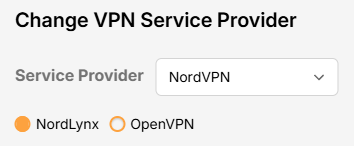
  4. Click Change and select NordVPN.
  5. Choose NordLynx.
NordVPN Protocol Privacy Hero

Generate Your NordVPN Access Token

  1. In another browser tab, open NordVPN Access Tokens and sign in to your NordVPN account.
  2. Complete any account or email verification requested by NordVPN.
  3. Select Generate new token; choose Doesn’t expire if available, then copy the token.

Important: Treat your NordVPN token as a password. Do not share it publicly.

Connect Privacy Hero to NordVPN

  1. Return to Privacy Hero, paste the token into the NordLynx token field, and click Save. The default country selection automatically chooses an available NordVPN server for that location.
  2. Wait for the VPN status to show Connected.
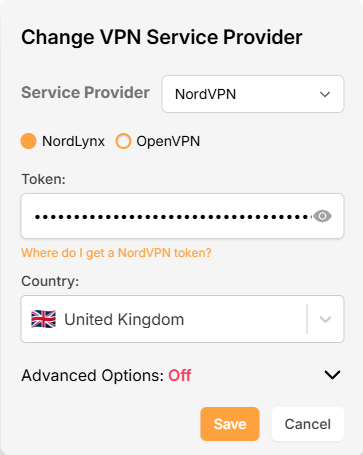
NordVPN Protocols Privacy Hero

NordVPN OpenVPN Setup

Use OpenVPN if you prefer the OpenVPN protocol or if your configuration requires it. OpenVPN requires NordVPN Manual Service Credentials, which are different from your website login email and password.

Select OpenVPN in Privacy Hero

  1. Open app.privacyhero.com and sign in.
  2. Open the VPN section.
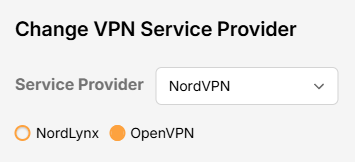
  3. Click Change and select NordVPN.
  4. Select OpenVPN.
NordVPN Protocol Privacy Hero

Get Your Manual Service Credentials

  1. Open NordVPN Manual Service Credentials and sign in.
  2. Complete NordVPN’s verification if prompted, then copy the current Service Username and Service Password.

Important: Do not enter your normal NordVPN website email and password into Privacy Hero’s OpenVPN fields.

Save Your OpenVPN Connection

  1. Return to Privacy Hero and enter the manual service username and password in the OpenVPN credential fields. Click Save.
  2. Confirm Privacy Hero shows the connection as Connected.

Choose a NordVPN Country or Specific Server

Privacy Hero can select a NordVPN server automatically, or you can choose a country or specify a server hostname.

Choose a Country

  1. Open your NordVPN connection in Privacy Hero.
  2. Open the Country dropdown.
  3. Search for and select your preferred country.
  4. Click Save. Privacy Hero will use an available NordVPN server for the selected country.

Use a Specific NordVPN Server

  1. Open your NordVPN connection in Privacy Hero.
  2. Open Advanced Options.
  3. Enter the NordVPN server hostname, for example us12286.nordvpn.com.
  4. Click Save.

Use NordVPN’s server recommendation tool if you need a hostname. NordVPN servers can be retired or taken offline for maintenance; if your specific server stops working, choose another server or return to country selection.


NordVPN Dedicated IP Setup

NordVPN Dedicated IP can require either the regular NordVPN OpenVPN connection or a private .ovpn file imported as a Custom VPN.

Method 1: OpenVPN Advanced Options

Try this first if your Dedicated IP works with the standard NordVPN OpenVPN setup.

  1. Set up NordVPN → OpenVPN using your NordVPN Manual Service Credentials as described above.
  2. Open Advanced Options.
  3. Enter the Dedicated IP server hostname assigned to your account.
  4. Click Save and check whether the VPN connects.
  5. Verify that your public IP matches your assigned Dedicated IP.
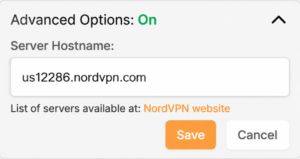
Nord US Dedicated OpenVPN

If connected and the public IP matches, no additional configuration is needed.

Method 2: Custom VPN With a Private OpenVPN File

Some Dedicated IP servers require a private OpenVPN configuration file. If Method 1 does not connect, follow NordVPN’s Manual Dedicated IP Server Setup instructions.

Download Your Dedicated IP Configuration

  1. Sign in to the NordVPN account associated with the Dedicated IP.
  2. Locate your assigned Dedicated IP server using NordVPN’s manual setup instructions.
  3. Download its OpenVPN UDP configuration file.
  4. Save the .ovpn file to your computer or device.

Important: Use the private configuration file for your actual Dedicated IP, not a public NordVPN server file.

Upload the File as a Custom VPN

  1. Open app.privacyhero.com and select VPN → Change.
  2. Select Custom from the VPN provider dropdown, not NordVPN.
  3. Upload your Dedicated IP UDP .ovpn file.
  4. Enter your NordVPN Manual Service Username and Password.
  5. Save the configuration, enable the VPN, and wait for Connected.
  6. Verify the public IP matches your NordVPN Dedicated IP.

These are NordVPN’s separate manual service credentials, not your regular website login.


Verify Your NordVPN Connection

  1. Connect your testing device to the Privacy Hero WiFi.
  2. Disconnect any NordVPN or other VPN app running directly on that device.
  3. Open a fresh private/incognito browser window.
  4. Visit NordVPN What Is My IP.
  5. Confirm the public IP and location match your selected NordVPN server (or assigned Dedicated IP).

Running a VPN application directly on the device at the same time as the router VPN can produce double-VPN conflicts and unexpected IP or location results.

Streaming Relocation and VPN Location

If Streaming Relocation is enabled for a supported service, that service may use the Streaming Relocation region instead of your VPN server region. See Privacy Hero Streaming Relocation.


NordVPN Not Connecting?

If the VPN displays Failed, Connecting, or a timeout error, check for:

  • A server undergoing maintenance or no longer available.
  • An expired, revoked, or outdated NordLynx access token.
  • Incorrect or changed OpenVPN Manual Service Credentials.
  • Recent account changes or an inactive NordVPN subscription.
  • A protocol-specific issue.
  • A Dedicated IP that requires a private .ovpn file and Custom provider selection.

Follow Privacy Hero NordVPN Not Connecting or Showing Timeout Errors for troubleshooting.

No Internet After NordVPN Disconnects?

If internet access stops when the VPN disconnects, the VPN Kill Switch may be blocking normal traffic as intended. See Privacy Hero VPN Kill Switch: No Internet or WiFi Troubleshooting.

VPN Connected, but One Device Shows the Wrong IP?

If other devices show the correct VPN IP, check the affected device’s VPN apps, Private Relay, Private DNS, antivirus, and browser settings. See Device Settings That Can Interfere With Your Router VPN.

Related Privacy Hero Guides

  • NordVPN Not Connecting / Timeout
  • Privacy Hero VPN Kill Switch Setup
  • VPN Kill Switch: No Internet or WiFi
  • Streaming Relocation
  • Device Settings That Can Interfere With Your Router VPN

Parental Controls on Roqos

Dave · Dec 16, 2021 ·

The Roqos Core includes a suite of user access settings which can be used as Parental Controls.
You can create individual user profiles and assign specific devices. Using these profiles you can restrict access, block certain content, or even monitor internet usage if you choose to do so.

Create User Profiles

  1. Using the navigation pane on the left of the screen, select USERS.
  2. Select the ADD USER button at the top of the menu.
  3. Create a name to identify the user. You may also add a photo or picture to associate with this user however this is optional.
  4. Select the SAVE button at the bottom of the menu.

Assign Devices

  1. Once you have created a user, you must assign one or more devices to the user.
  2. Using the navigation pane on the left of the screen, select USERS. Choose a user from the list.
  3. You are now in the USER/GROUP PROFILE menu.
  1. Select DEVICES.
  2. Select ADD DEVICE.
  1. The ADD DEVICES menu lists all devices which are currently or previously connected to the Roqos. You cannot assign a device to a user unless it has been connected to the Roqos. 
  2. Use the check box to select one or more devices and then select the SAVE button to assign the device to the user.

A device can only be assigned to one user. Access restrictions you place on a user such as scheduled internet access or content restriction will apply to all devices assigned to that user regardless of who in your home is actually using the device at that time.

Turn Off Internet Access

  1. Using the navigation pane on the left of the screen, select USERS. Choose a user from the list
  2. You are now in the USER/GROUP PROFILE menu
  3. Use the PAUSE button next to the user’s name to halt all internet access to the devices assigned to this user. Conversely, you can restore internet access by pushing the PLAY button here as well.

Schedule Internet Access

  1. Using the navigation pane on the left of the screen, select USERS. Choose a user from the list.
  2. You are now in the USER/GROUP PROFILE menu.
  3. Select SCHEDULE PAUSES. You can create multiple schedules for each user to pause their internet access on a daily recurring basis for every day of the week.

Enable Content Filters

  1. Using the navigation pane on the left of the screen, select USERS. Choose a user from the list.
  2. You are now in the USER/GROUP PROFILE menu.
  3. Select FILTER. Use existing category and content filters provided by Roqos and customize with your own blocked and allowed site lists.
  4. Select SAVE.

Monitor Internet Usage

  1. Using the navigation pane on the left of the screen, select USERS. Choose a user from the list.
  2. You are now in the USER/GROUP PROFILE menu.
  3. Select USAGE HISTORY. Access usage data for all devices assigned to this user. This includes websites visited and activity times.

Please note that in order to collect device information, you must enable this functionality on your Roqos. It is disabled by default.

  1. Using the navigation pane on the left of the screen, select ADVANCED SETTINGS.
  2. Select MISCELLANEOUS.
  3. Activate the COLLECT USER INTERNET USAGE and COLLECT DEVICE DATA USAGE options.

TROUBLESHOOTING

Still having issues? Visit our Troubleshooting section to diagnose common problems here.

Troubleshoot Here

Wireless Access Point Setup

TeamFlashRouters · Apr 23, 2019 ·

A Wireless Access Point is a setup that has the FlashRouter using an existing network’s DHCP instead of assigning its own. The FlashRouter’s WAN/Internet port should be not be connected to your modem or other router while performing this setup.

Preparing for Wireless Access Point Setup

Locate the Local IP Address of the existing wireless network

Locate the Local IP Address of the existing router that the FlashRouter will be bridged to.

DD-WRT Router Setup for Wireless Access Point

Disable Firewall

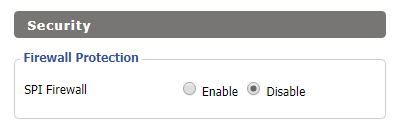
Navigate to Security > Firewall

Wireless Client Bridge Setup on FlashRouter DD-WRT - Disable Firewall
  1. Set SPI Firewall to Disable.
  2. Click Save.

Disable DNSmasq

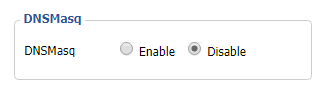
Navigate to Services > Services

Wireless Repeater Bridge Setup on FlashRouter DD-WRT - Disable DNSMasqButton
  1. Set DNSmasq to Disable.
  2. Click Save.

Change the FlashRouter's Local IP Address

Navigate to Setup > Basic Setup

Wireless Client Bridge Setup on FlashRouter DD-WRT - Set Local IP
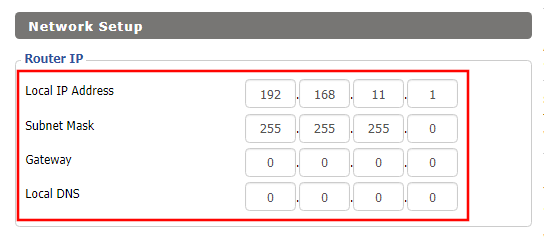
  1. Set the Local IP Address to a different address on the same subnet as the existing network that you noted early. (example: if the existing network is 192.168.1.1 then set the Local IP Address to 192.168.1.2)
  2. Set the Gateway to the Local IP Address of the existing network. (example: 192.168.1.1)
  3. Set the Local DNS to the Local IP Address of the existing network. (example: 192.168.1.1)
  4. Click Save.

Change the FlashRouter's DHCP settings

DHCP Forwarder Setup for DD-WRT
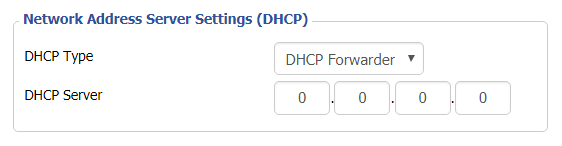
  1. Set the DHCP Type to DHCP Forwarder.
  2. Click Save.

Change the FlashRouter's Operating Mode

Navigate to Setup > Advanced Routing

DHCP Forwarder Setup for DD-WRT
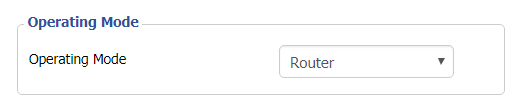
  1. Set the Operating Mode to Router.
  2. Click Apply Settings.

Reboot your FlashRouter

  • Power off the FlashRouter for 30 seconds and connect from the other router’s LAN port to one of the FlashRouter’s LAN port then power it back on.  When it boots back up you will be able to access the FlashRouter’s settings at the new Local IP Address that you set.

Back up your settings

Navigate to the Administration > Backup page.

  1. Click the Backup button.
  2. A file named nvrambak.bin will be saved to your computer.
  3. You can load nvrambak.bin to restore your settings in the event of a reset.

TROUBLESHOOTING

Still having issues? Visit our Troubleshooting section to diagnose common problems here.

Troubleshoot Here

Wireless Guest Network Setup – Bridged (Advanced)

TeamFlashRouters · Jun 12, 2019 ·

If you would like to prevent visitors from connecting to your main WiFi network then you can create a Bridged Guest Network that will prevent access to the main router. This setup also allows you to create different rules for different WiFi SSID’s in your home ranging from QoS controls, access restrictions, VPN network segmentation, and more.

Preparing for Wireless Guest Network Setup

If you have a Dual-band or Tri-Band router you can setup a WiFi Guest Network, creating a separate VLAN (virtual local area network) for your visitors, or in order to segment your VPN networks on any band you like. We recommend using the 2.4GHz network for your DD-WRT Guest Wireless Network so it is compatible with the most possible WiFi devices. Setting up a guest network for visitors in your home allows you to keep them off of your main WiFi network.

We recommend performing this setup while connected to the FlashRouter via ethernet cable. If your computer does not have an ethernet port and you must proceed via wireless connection to the FlashRouter pay attention to the wireless connection as you may need to rejoin the FlashRouter’s network after making changes.

DD-WRT Router Setup for Wireless Guest Network

Enter Wireless settings

Navigate to Wireless > Basic Settings

Bridged Wireless Guest Network Setup on DD-WRT FlashRouter – Setting SSID for Guest Network
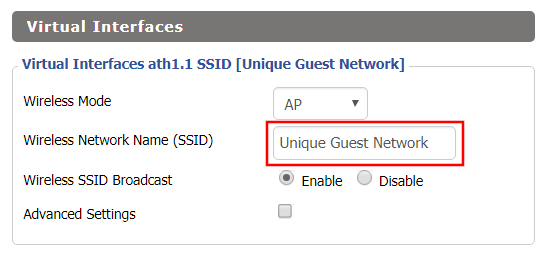
  1. Under the 2.4GHz or 5GHz Interface click the Add button.
  2. In the Wireless Network Name (SSID) field enter the unique network name of the guest network.
  3. Click Save.

Enter Wireless Security settings

Navigate to Wireless > Wireless Security

Bridged Wireless Guest Network Setup on DD-WRT FlashRouter – Setting Guest Network Wireless Password
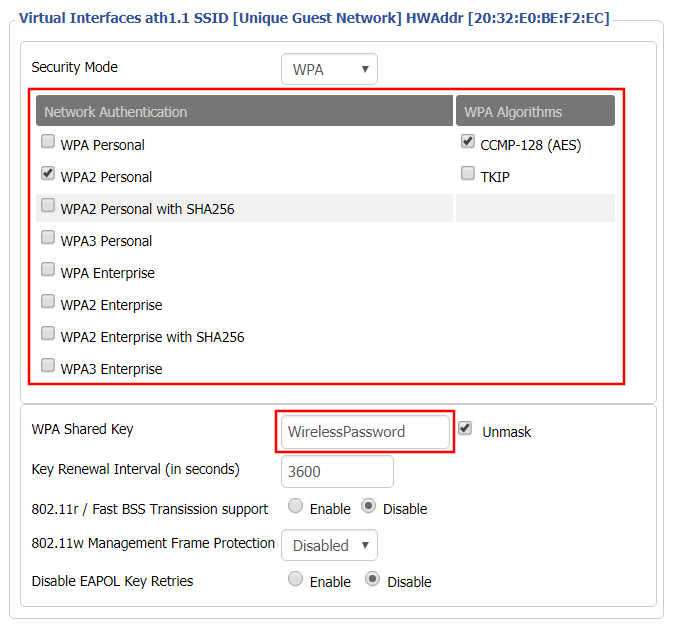
  1. Duplicate the wireless security settings that are set for the other bands for the newly created virtual interface.
  2. Click Apply Settings.
  3. Reboot your router.

Create Bridge

Navigate to Setup > Networking

Bridged Wireless Guest Network Setup on DD-WRT FlashRouter – Create Bridge
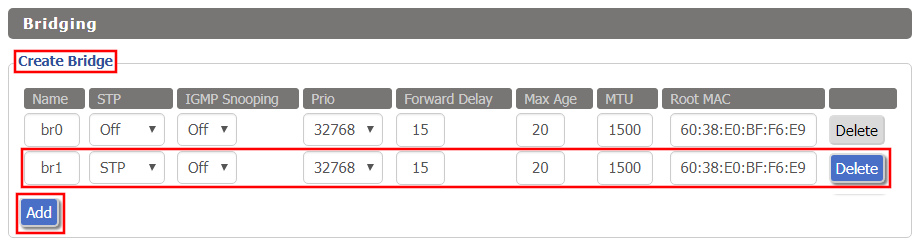
  1. Under Create Bridge click Add. Name the newly created bridge br1.
  2. Click Apply Settings

Assign to Bridge

Bridged Wireless Guest Network Setup on DD-WRT FlashRouter – Assign Bridge
  1. Under Assign to Bridge select br1 from the Assignment dropdown. Select wl1.1 or ath1.1 depending on your router model.
  2. Click Apply Settings.

Depending on the router model and WiFi band you are using, the wireless interfaces will be labelled differently.

This setting can be labelled wl1.1, ath0.1, wl2.1, and so on. Make sure when you get up to the bridge assignment section that you are using the correct guest network Virtual Interface.

Network Configuration br1

Bridged Wireless Guest Network Setup on DD-WRT FlashRouter – Configure Bridge DNS Redirection
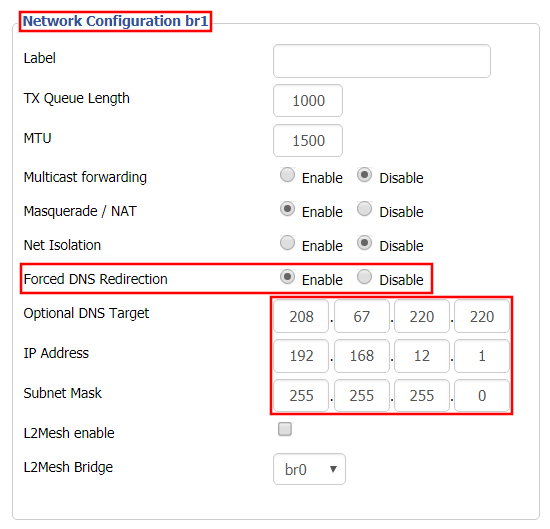
  1. Under Network Configuration br1 select Enable for Forced DNS Redirection.
  2. Set Optional DNS Target to 208.67.220.220
  3. Set IP Address to 192.168.12.1
  4. Set Subnet Mask to 255.255.255.0
  5. Click Apply Settings.

Multiple DHCP Server

Bridged Wireless Guest Network Setup on DD-WRT FlashRouter – Configure DHCP Server Settings
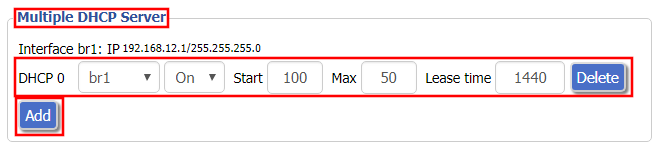
  1. Under Multiple DHCP Server click Add.
  2. Set the first dropdown to br1.
  3. Click Apply Settings.
  4. Reboot your router.

Firewall Rules

Navigate to Administration > Commands

  1. Copy the fire script from below and paste into the empty Commands shell
  2. Click Save Firewall.
  3. Wait one minute and then reboot your router.

iptables -I FORWARD -i br1 -o br0 -m state –state NEW -j DROP
iptables -I FORWARD -i br0 -o br1 -m state –state NEW -j DROP
iptables -I INPUT -i br1 -p tcp –dport telnet -j REJECT –reject-with tcp-reset
iptables -I INPUT -i br1 -p tcp –dport ssh -j REJECT –reject-with tcp-reset
iptables -I INPUT -i br1 -p tcp –dport www -j REJECT –reject-with tcp-reset
iptables -I INPUT -i br1 -p tcp –dport https -j REJECT –reject-with tcp-reset

You will now have a working Bridged Guest Network on the FlashRouter. By inputting the firewall rules, this will also prevent any guests on your network from gaining access to your router settings.

Back up your settings

Navigate to Administration > Backup

  1. Click the Backup button.
  2. A file named nvrambak.bin will be saved to your computer.
  3. You can load nvrambak.bin to restore your settings in the event of a reset.

TROUBLESHOOTING

Still having issues? Visit our Troubleshooting section to diagnose common problems here.

Troubleshoot Here

IPVanish Setup for Privacy Hero

TeamFlashRouters · Sep 23, 2025 ·

Privacy Hero supports IPVanish VPN through WireGuard (recommended) and OpenVPN. Both are configured in Privacy Hero using the Custom VPN provider option. You will need an active IPVanish VPN subscription and the configuration file for the protocol and server location you select.

Choose your method: WireGuard uses a generated .conf file and generally provides better performance. OpenVPN uses a downloaded .ovpn file plus your IPVanish VPN username and password.

Privacy Hero is cloud-managed. You can sign in and adjust VPN settings from a computer, phone, or tablet connected to any internet connection. You do not need to be on the Privacy Hero WiFi network to configure the router.

IPVanish Setup Guide

Jump to the instructions you need.

WireGuard File →Generate a WireGuard server configurationWireGuard Setup →Upload your .conf file to Privacy HeroOpenVPN File →Download an IPVanish .ovpn server fileOpenVPN Setup →Enter credentials and upload the configurationVerify Connection →Check your public VPN IP addressTroubleshooting →Fix connection errors and IP issues

Download an IPVanish WireGuard Configuration (Recommended)

Use the WireGuard configuration generator in your IPVanish account to create a server file for your router. A generated WireGuard file contains the connection keys and server details, so keep it private.

  1. Open the IPVanish account sign-in page and log in.
  2. Open WireGuard in the account navigation to access the WireGuard Configuration Generator.
  3. Select your preferred IPVanish server location and choose Generate to download the WireGuard configuration file. Save the downloaded .conf file to the device you are using for setup.

Important: Do not publicly share your WireGuard configuration file. To switch server locations later, generate and upload a new configuration.

Add IPVanish WireGuard to Privacy Hero

  1. Sign in to the Privacy Hero dashboard at app.privacyhero.com.
  2. Open the VPN section, select Change beside the provider, and choose Custom.
  3. Choose WireGuard and upload the IPVanish .conf file you just generated.
  4. Click Save to apply the settings. Wait for Privacy Hero to report Connected.
Privacy Hero Custom WireGuard configuration with WireGuard file upload

WireGuard authentication is contained in the generated configuration file; there is no separate OpenVPN username/password step in this method.


Download an IPVanish OpenVPN Configuration File

OpenVPN is a good alternative if WireGuard is unavailable or fails to connect on your network. It requires an IPVanish .ovpn configuration file and VPN login credentials.

  1. Open the IPVanish OpenVPN server configuration list.
  2. Download an .ovpn file for your preferred available server location. If IPVanish provides both UDP and TCP files, start with UDP and keep a TCP file as a fallback.
  3. Have your IPVanish account username and password available for the OpenVPN setup. Use the credentials accepted by your IPVanish VPN account; these are not Privacy Hero login credentials.

If the linked server directory has changed, check the latest manual OpenVPN configuration downloads offered by IPVanish before selecting a file.

Add IPVanish OpenVPN to Privacy Hero

  1. Sign in at app.privacyhero.com and open VPN.
  2. Select Change, choose Custom, and select OpenVPN.
  3. Upload the IPVanish .ovpn file you downloaded.
  4. Enter your IPVanish username and password in the Custom OpenVPN fields. Do not enter the Privacy Hero account login.
  5. Click Save and wait for the connection status to show Connected.
Privacy Hero Custom OpenVPN configuration showing server file upload and username and password fields

Tip: If OpenVPN UDP times out or cannot connect, try an available IPVanish OpenVPN TCP configuration or another server location.


Verify Your IPVanish VPN Connection

After Privacy Hero displays Connected, verify that a device on the router is actually using IPVanish.

  1. Connect the device you want to test to the Privacy Hero WiFi or LAN network.
  2. Temporarily disconnect any IPVanish app, other VPN app, or device-level VPN connection on that device so you test the router VPN alone.
  3. Open a new private/incognito browser window and visit IPVanish What Is My IP Address.
  4. Confirm that your public IP address and approximate location correspond to the VPN server you selected.

Note: Privacy Hero settings can be managed remotely, but the device used for this IP test must be on the Privacy Hero network.

Streaming Relocation and Your VPN Location

If Streaming Relocation is enabled for a supported streaming service, that service may use the configured Streaming Relocation location instead of the IPVanish server location. See Privacy Hero Streaming Relocation.


IPVanish Not Connecting?

If Privacy Hero remains on Connecting, displays Failed, or reports a timeout, check the following:

  1. Make sure your IPVanish subscription is active and that Custom is selected as the VPN provider in Privacy Hero.
  2. For WireGuard, generate a fresh configuration from your IPVanish account and upload that .conf file again.
  3. For OpenVPN, confirm your IPVanish username/password and upload a fresh .ovpn file for a different server.
  4. Try a different server location. With OpenVPN, also try switching between available UDP and TCP files.
  5. Temporarily disable the Privacy Hero VPN connection and test normal internet access. If enabled, temporarily turn off the VPN Kill Switch for this test, then restore your preferred Kill Switch setting.
  6. Check whether a device-level VPN app, private DNS, proxy, or security software is interfering with the router VPN connection.

VPN Disconnected and No Internet?

The VPN Kill Switch can intentionally block internet access when the VPN disconnects. Review Privacy Hero VPN Kill Switch Setup.

VPN Connected but One Device Shows the Wrong IP?

If only one device shows an unexpected IP address, look for another VPN app, iCloud Private Relay, Private DNS, browser proxy/DNS settings, or security software on that device. See Device Settings That Can Interfere With Your Router VPN.

Related Privacy Hero Guides

  • Privacy Hero VPN Kill Switch Setup
  • Privacy Hero Streaming Relocation
  • Device Settings That Can Interfere With Your Router VPN
  • FlashRouters Router Troubleshooting

Privacy Hero NordVPN Not Connecting or Showing Timeout Errors

Dave · Sep 22, 2026 ·

If NordVPN will not connect on Privacy Hero, shows a timeout error, remains stuck on Connecting, or displays Failed, the Privacy Hero router itself may still be working normally.

NordVPN connections can occasionally stop working when servers are placed into maintenance, removed or cycled out of service, account credentials change, or a previously saved NordVPN access token or manual service credential is no longer valid.

Start by confirming that Privacy Hero has normal internet access, then troubleshoot the NordVPN connection.


Jump to a Section

  • Confirm Privacy Hero Has Internet
  • Reconnect NordVPN
  • Try Another NordVPN Server
  • Update Your NordLynx Token
  • Update OpenVPN Credentials
  • Recent NordVPN Account Changes
  • Verify the VPN Connection

First: Confirm Privacy Hero Has Internet

Before changing your NordVPN settings, confirm that Privacy Hero itself has normal internet access.

  1. Open app.privacyhero.com.
  2. Open the VPN section.
  3. If the VPN Kill Switch is enabled, temporarily turn it Off.
  4. Turn the failed NordVPN connection off.
  5. Connect a device to the Privacy Hero network.
  6. Test normal internet access.

If internet access works normally with NordVPN and the Kill Switch disabled, the underlying Privacy Hero internet connection is working. Continue troubleshooting the NordVPN connection.

If your internet stopped working because NordVPN failed while the VPN Kill Switch was enabled, follow our Privacy Hero VPN Kill Switch: No Internet or WiFi Troubleshooting guide.

Reconnect NordVPN

A temporary NordVPN server or connection issue may resolve without changing your account information.

  1. Open the VPN section at app.privacyhero.com.
  2. Turn the NordVPN connection off.
  3. Wait a few seconds.
  4. Turn NordVPN back on.
  5. Allow the connection time to establish.
  6. Check whether the VPN status changes to Connected.

If NordVPN still shows Failed, Connecting, or a timeout error, continue with the steps below.

Try Another NordVPN Server

NordVPN regularly maintains, replaces, and cycles servers in its network. A specific NordVPN server that worked previously may eventually be taken offline, removed, or temporarily unavailable.

If your Privacy Hero NordVPN connection is configured to use a specific server and suddenly stops working, try another server or return to the normal country selection.

  1. Open app.privacyhero.com.
  2. Open the VPN section.
  3. Select your NordVPN connection.
  4. If you previously entered a specific NordVPN server under Advanced Options, remove or replace that server.
  5. Select the country or location you want to use.
  6. Save the settings.
  7. Reconnect NordVPN.
  8. Check whether the status changes to Connected.

If you specifically need to use an individual NordVPN server, make sure that server is still active before continuing to use it.

Important: A previously working specific server should not be assumed to remain available indefinitely. NordVPN may change its server network over time.

Update Your NordVPN Token for NordLynx

Privacy Hero uses a NordVPN access token to authenticate NordLynx connections.

If the saved token is expired, revoked, replaced, or otherwise no longer valid, NordLynx may show Failed, Connecting, or a timeout error.

Generating a new token is a good troubleshooting step if your NordVPN account information has changed or the existing token is no longer working.

  1. Sign in to your NordVPN account.
  2. Open the NordVPN Access Tokens page.
  3. Generate a new access token.
  4. Select Doesn’t expire if NordVPN provides that option.
  5. Copy the new token.
  6. Open app.privacyhero.com.
  7. Open the NordVPN settings.
  8. Confirm that NordLynx is the selected protocol.
  9. Replace the existing token with the newly generated token.
  10. Save the settings.
  11. Reconnect NordVPN.

Important: NordVPN access tokens are sensitive account credentials. Do not post or share your token publicly.

For complete setup instructions, see Privacy Hero NordVPN / NordLynx Setup.

Update NordVPN Manual Service Credentials for OpenVPN

If you are using OpenVPN instead of NordLynx, Privacy Hero uses NordVPN’s Manual Service Credentials.

These are different from the email address and password you normally use to sign in to the NordVPN website or application.

If the saved credentials are no longer valid, update them:

  1. Sign in to your NordVPN account.
  2. Open NordVPN Manual Service Credentials.
  3. Copy the current service username and password.
  4. Open app.privacyhero.com.
  5. Open your NordVPN settings.
  6. Confirm that OpenVPN is the selected protocol.
  7. Replace the existing manual service credentials with the current credentials from NordVPN.
  8. Save the settings.
  9. Reconnect NordVPN.

Do not enter your regular NordVPN website email address and password in place of the manual service credentials.

Did You Recently Change Your NordVPN Account Information?

If NordVPN stopped connecting after an account change, update the authentication information stored in Privacy Hero.

This is especially important after changes such as:

  • Changing your NordVPN account password.
  • Changing or updating NordVPN account security settings.
  • Generating or replacing NordVPN access tokens.
  • Changes to NordVPN manual service credentials.
  • Renewing, changing, or restoring your NordVPN subscription.

The credentials used by Privacy Hero depend on the VPN protocol:

  • NordLynx: Uses a NordVPN access token.
  • OpenVPN: Uses NordVPN manual service credentials.

Your regular NordVPN website login should not be entered as the router’s OpenVPN credentials.

If you are unsure whether the existing authentication information is still valid, retrieve current credentials directly from your NordVPN account and update Privacy Hero.

Confirm Your NordVPN Subscription Is Active

Privacy Hero cannot establish a NordVPN connection if the NordVPN account being used no longer has active VPN service.

Sign in to your NordVPN account and confirm that your subscription is active before continuing with server, token, or credential troubleshooting.

Try Another VPN Protocol

If your NordVPN account, credentials, and server selection are correct but the connection still fails, try another NordVPN protocol available in Privacy Hero.

For example, if NordLynx is not connecting, testing OpenVPN can help determine whether the issue is specific to the protocol or authentication method.

Remember that changing protocols also changes the required NordVPN authentication:

  • NordLynx requires a NordVPN access token.
  • OpenVPN requires NordVPN manual service credentials.

Important: Do Not Run Two VPNs at Once

Do not leave the NordVPN application connected directly on your phone or computer while testing the Privacy Hero VPN.

Running a VPN application on the device while also routing that device through the Privacy Hero VPN creates a double-VPN connection and can cause routing, connectivity, or IP-location problems.

Disconnect the device-level NordVPN app before testing the router VPN.

Verify the NordVPN Connection

Once Privacy Hero displays NordVPN as Connected:

  1. Connect your device to the Privacy Hero WiFi.
  2. Make sure the NordVPN app on the device is disconnected.
  3. Open a fresh private/incognito browser window.
  4. Visit NordVPN What Is My IP.
  5. Confirm that the public IP address and location correspond to your selected NordVPN location.
  6. Test several websites or applications.

If you use the Privacy Hero VPN Kill Switch, enable it only after confirming that NordVPN is connected and working.

NordVPN Is Connected but One Device Shows the Wrong IP

If Privacy Hero shows NordVPN as Connected and other devices display the correct VPN IP, the NordVPN connection itself is likely working.

Check the affected device’s Privacy Hero VPN assignment and review any VPN, privacy, DNS, browser, antivirus, firewall, or security settings running directly on that device.

See Device Privacy, DNS, VPN, and Security Settings That Can Interfere With Your Router VPN.

Related Privacy Hero Guides

  • Privacy Hero VPN Kill Switch: No Internet or WiFi Troubleshooting
  • Privacy Hero VPN Kill Switch Setup
  • Privacy Hero NordVPN / NordLynx Setup
  • Device Privacy, DNS, VPN, and Security Settings That Can Interfere With Your Router VPN

Separate 2.4GHz and 5GHz Wi-Fi bands on ExpressVPN/Aircove firmware

TeamFlashRouters · Mar 16, 2022 ·

By default ExpressVPN firmware bonds the 2.4GHz and 5GHz wireless networks to a single wireless network name. Your device will automatically choose which one will provide the best connection. You can separate these networks to have unique Wi-Fi names so you can control which network your devices will use.

1. Connect to the FlashRouter’s network via ethernet cable or wireless.

2. Open your web browser and enter expressvpnrouter.com or 192.168.132.1 in the URL.

ExpressVPNrouter.com
192.168.132.1

3. Login with your ExpressVPN FlashRouter admin password.

ExpressVPN Router admin login

4. Select Network Settings on the left hand side of the menu.

ExpressVPN Network Settings

5. Select Wi-Fi Settings on the left hand side of the menu.

ExpressVPN WiFi Settings

6. Click the toggle for Separate 2.4GHz and 5GHz Wi-Fi.

ExpressVPN Separate 2.4GHz and 5GHz

7. Separate Wi-Fi details for the 5GHz band will now display. You can change the name and password if you so choose or leave it with the default name and password with “-5GHz” added to the name. Click Save. Click Continue.

ExpressVPN 5GHz added

PrivateInternetAccess (PIA) TP-Link OpenVPN Setup

TeamFlashRouters · Apr 29, 2024 ·

Preparing for PIA TP-Link Setup

Download your PIA .ovpn file

If you are not already a PIA user Sign Up Now.

1. Log in to your account on the PIA website.

PIA login

2. Successfully log in with your account information then go to PIA’s OpenVPN Config Generator.

3. On the OpenVPN Configuration Generator select the following:

OpenVPN Version: OpenVPN 2.4 or newer

Select Platform: Linux

Select Region: Choose the server location you’d like to connect to

Select Port: Typically we recommend UDP/1198 RSA-2048 AES-128-CBC SHA1 for best speeds but feel free to select the one you want to use.

4. Click Generate to download the .ovpn file. Do not open this file once it is downloaded.

PIA Generate .ovpn file

TP-Link Router Setup for PIA

Login to TP-Link firmware settings in a browser on any computer or smart device connected to the FlashRouter’s network.

1. Navigate to the Advanced tab.

TP-Link Advanced settings

2. Navigate to the VPN Client tab.

TP-Link VPN Client

3. Check the Enable box next to VPN Client. Then click Save at the bottom of the page.

TP-Link VPN Client enable

4. Click the Add button in the Server List area.

TP-Link Add server button

5. In the Description field enter in the name you’d like to use for this OpenVPN Client profile. We typically advise entering in the location. Our example server was New York so I have entered in PIA New York.

Set the VPN Type to OpenVPN.

In the Username and Password fields paste in the PIA username and password you use to successfully login to your PIA website account.

Click Browse and select the .ovpn file you downloaded earlier. Then click Save.

TP-Link PIA

By default no devices will be assigned to the VPN Tunnel. With TP-Link firmware you must manually assign the devices that you want connected to the VPN tunnel. Proceed with the next steps to do so for all devices you want connected to VPN.

6. Click the Add button in the Device List area.

TP-Link add devices to VPN tunnel

7. A list of devices connected to the FlashRouter’s network will appear. Check the devices that you want to connect to VPN. Then click OK.

TP-Link select devices to add to VPN tunnel

8. Now that the devices have been assigned to the VPN connection click the Enable toggle in the Server List area.

TP-Link PIA Connected

Verify a successful PIA connection

  1. You should now see a CONNECTED message.
  2. Visit PIA’s IP Check to verify your new IP address and virtual location.

In some cases you may notice that the location is not showing the same location as the server you have input in your router settings; this is because geo tracking tools are often tricked by VPN connections. As long as you see an IP address that is not the same as your normal Internet IP address then you are indeed connected to PIA.

How to change the PIA server

  1. Follow the steps at the top of the page to obtain a new .ovpn file.
  2. Then proceed with the settings same as initial setup.

TROUBLESHOOTING

Still having issues? Visit the VPN Troubleshooting section.

Troubleshoot Here

Primary Sidebar

  • Troubleshooting
  • Router Access
  • Internet Connection Issues
  • WiFi Connectivity
  • General VPN Issues
  • TeamViewer Remote Support
  • DD-WRT Firmware
  • Facebook
  • Twitter
  • Instagram
  • Pinterest
  • YouTube

Footer