Learn how to access your AsusWRT-Merlin FlashRouter settings from a computer, phone, or tablet. Connect to your FlashRouter over WiFi or Ethernet, open its local login page, and sign in with the FlashRouters Merlin administrator credentials.
These steps are for AsusWRT-Merlin routers supplied by FlashRouters. You do not need an active VPN connection or working internet service to open the router’s local administration page.
Step 1: Connect to Your Merlin FlashRouter
Connect your computer, phone, or tablet directly to the FlashRouter network, not just the ISP router.
Option A: WiFi
- Open the WiFi network list on your device.
- Select the wireless network provided with your FlashRouter. On some preconfigured routers, the network names are FlashRouter24 and FlashRouter50.
- Enter the WiFi password included with your order. This is separate from the router administrator password.
Option B: Ethernet
- Connect a computer to one of your ASUS FlashRouter’s LAN ports using an Ethernet cable.
- Keep the incoming internet cable in the router’s WAN port. Do not connect your computer to the WAN port.
Step 2: Open the Merlin Router Login Page
- Open a web browser on the device connected to the FlashRouter.
- Enter
http://192.168.50.1in the browser address bar. You can also tryhttp://www.asusrouter.com. - The ASUS router administrator sign-in page should appear.
Step 3: Sign In to AsusWRT-Merlin
Enter your FlashRouters Merlin administrator credentials:
- Username:
flashrouter - Password:
merlin-admin1(unless you changed it)
The router administrator login is different from your WiFi password and your NordVPN, IPVanish, Proton VPN, or Astrill VPN subscription login.

Can’t Access Your Merlin FlashRouter?
The login page does not appear
- Make sure your computer or phone is connected to the FlashRouter WiFi or a FlashRouter LAN port, not the ISP router’s network.
- Try
http://192.168.50.1andhttp://www.asusrouter.comin your browser. - If WiFi is uncertain, connect a computer directly by Ethernet to a FlashRouter LAN port and try again.
- If your router’s LAN address was previously changed, use its current gateway address as shown in your device’s network details.
The login page appears, but the password is rejected
- Enter the router administrator password, not the WiFi password or VPN subscription password.
- If you changed the administrator password, use your updated credentials rather than the original FlashRouters defaults.
- If someone else configured the router, check the credentials supplied with your order or by that administrator.
Step 4: Review Your Administrator Password
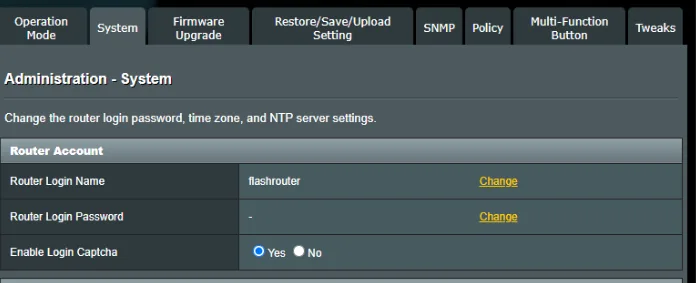
- Once signed in, go to Administration > System and locate the router administrator account settings.
- If you’re using the shipped password, change it to a strong, unique password.
- Save the new login securely. Your router admin password is separate from your WiFi password.