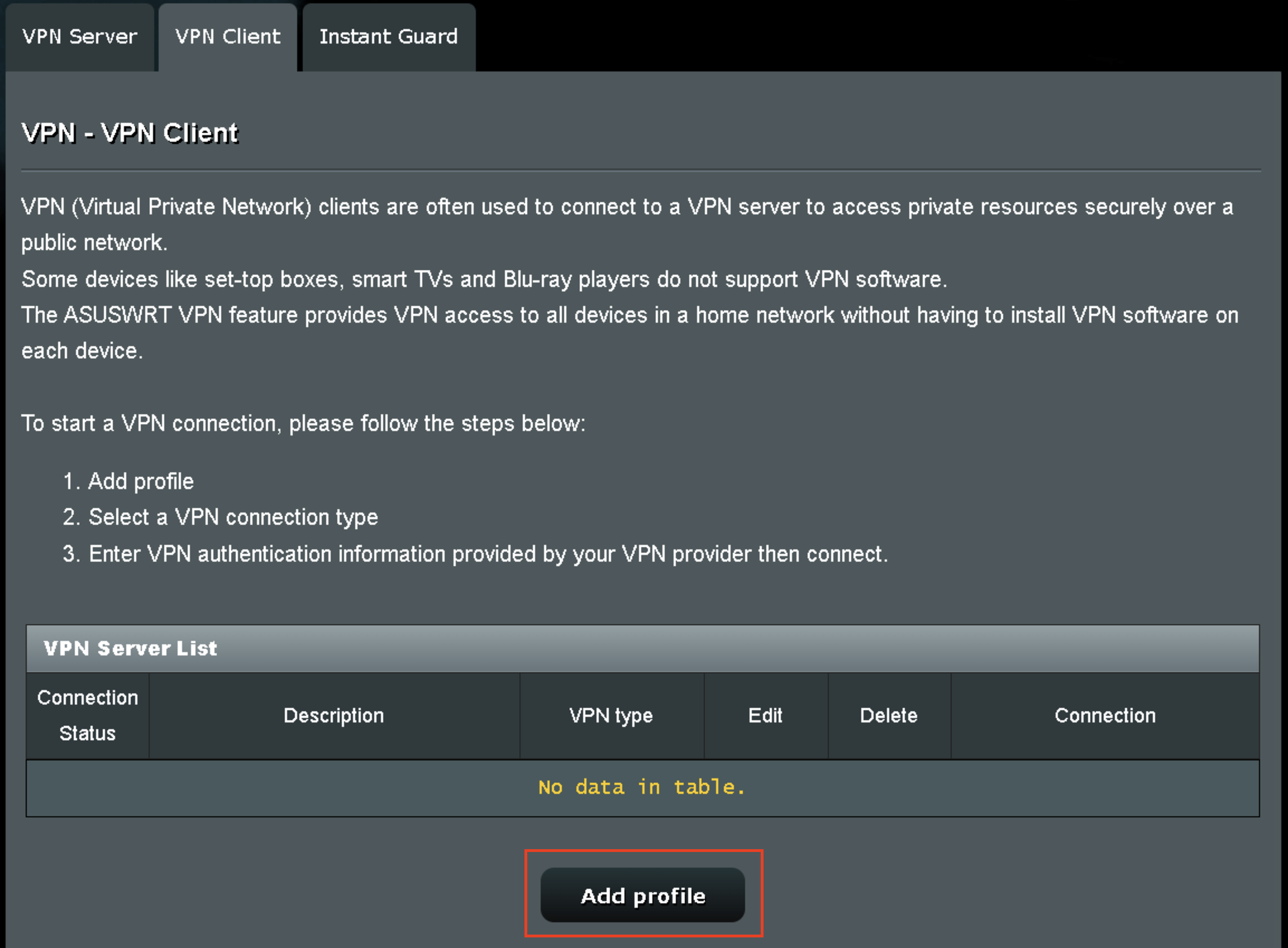
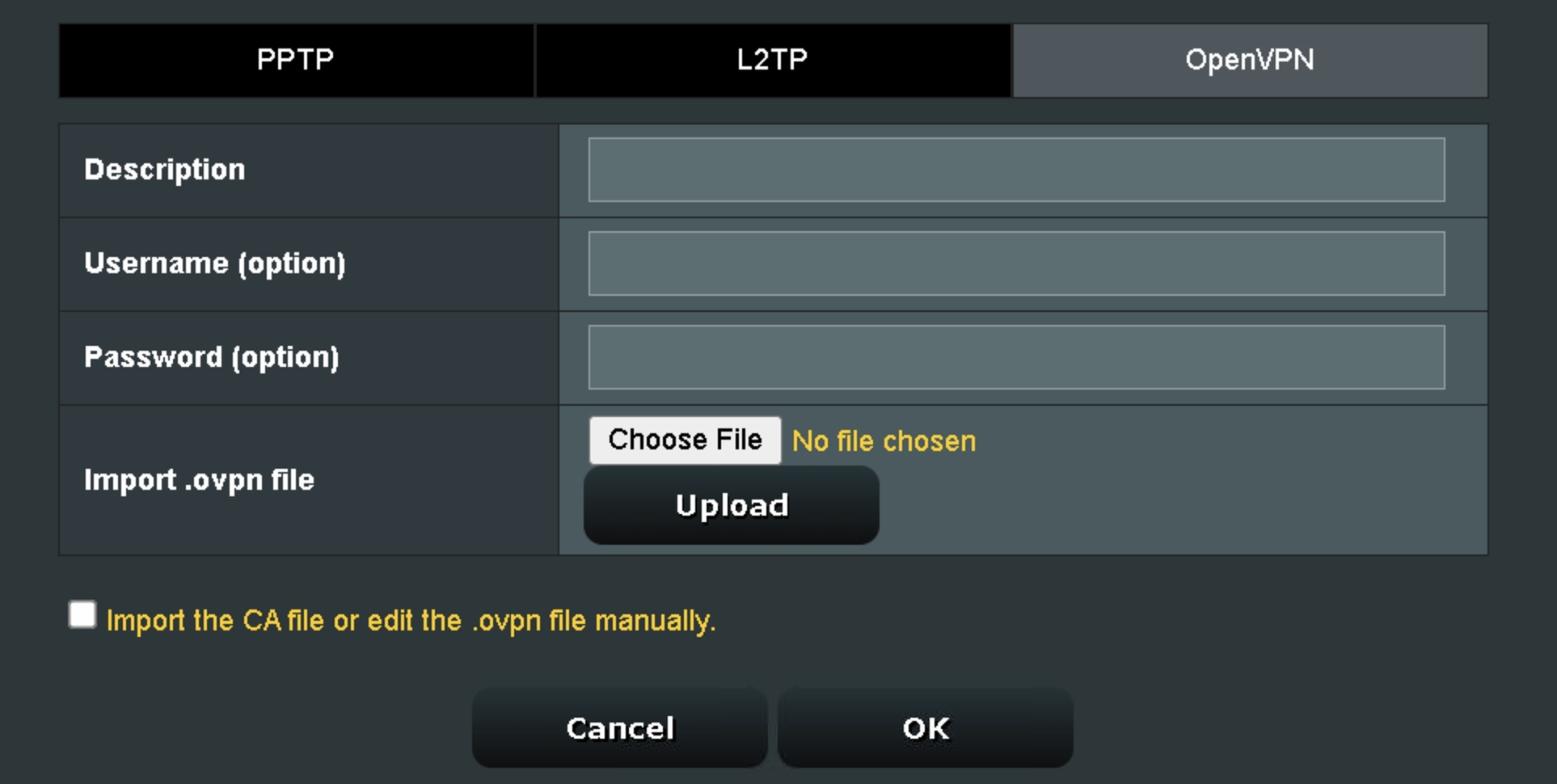
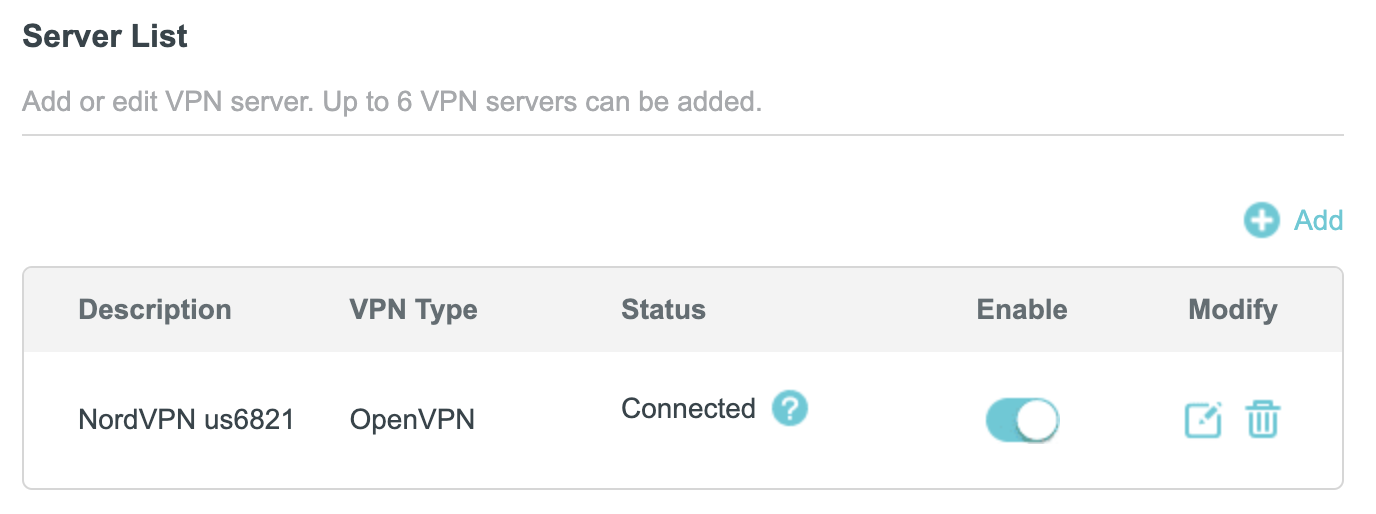
If NordVPN will not connect on Privacy Hero, shows a timeout error, remains stuck on Connecting, or displays Failed, the Privacy Hero router itself may still be working normally.
NordVPN connections can occasionally stop working when servers are placed into maintenance, removed or cycled out of service, account credentials change, or a previously saved NordVPN access token or manual service credential is no longer valid.
Start by confirming that Privacy Hero has normal internet access, then troubleshoot the NordVPN connection.
Jump to a Section
First: Confirm Privacy Hero Has Internet
Before changing your NordVPN settings, confirm that Privacy Hero itself has normal internet access.
- Open app.privacyhero.com.
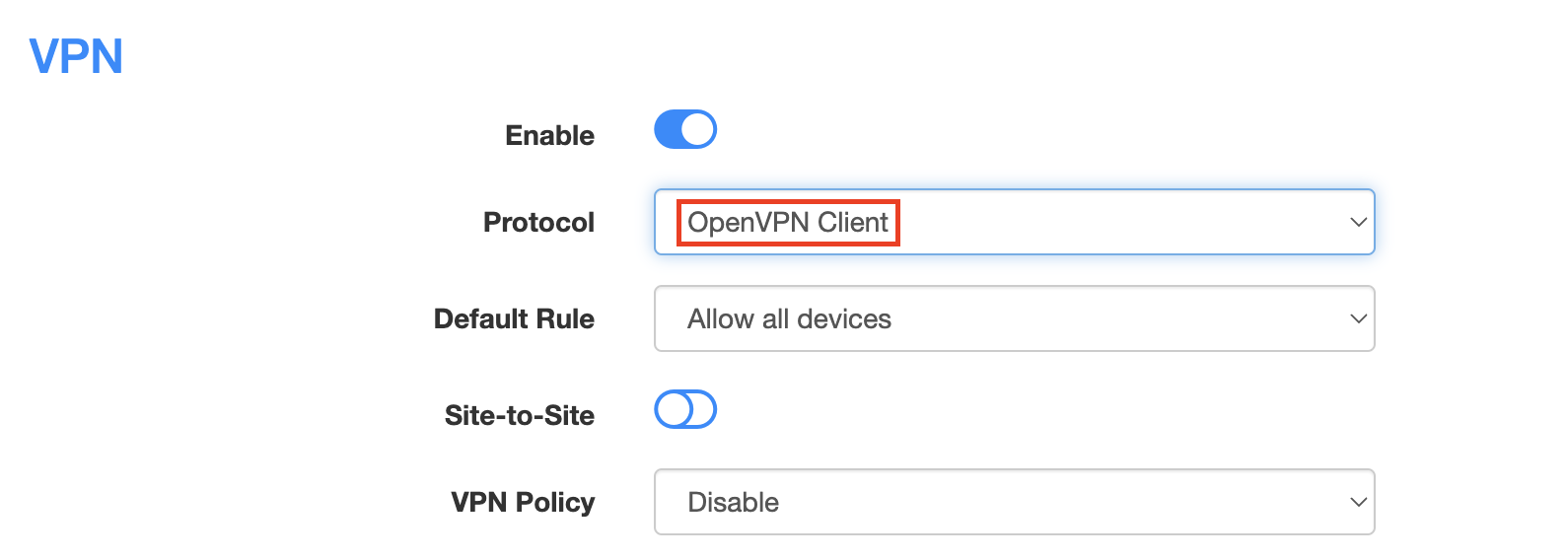
- Open the VPN section.
- If the VPN Kill Switch is enabled, temporarily turn it Off.
- Turn the failed NordVPN connection off.
- Connect a device to the Privacy Hero network.
- Test normal internet access.
If internet access works normally with NordVPN and the Kill Switch disabled, the underlying Privacy Hero internet connection is working. Continue troubleshooting the NordVPN connection.
If your internet stopped working because NordVPN failed while the VPN Kill Switch was enabled, follow our Privacy Hero VPN Kill Switch: No Internet or WiFi Troubleshooting guide.
Reconnect NordVPN
A temporary NordVPN server or connection issue may resolve without changing your account information.
- Open the VPN section at app.privacyhero.com.
- Turn the NordVPN connection off.
- Wait a few seconds.
- Turn NordVPN back on.
- Allow the connection time to establish.
- Check whether the VPN status changes to Connected.
If NordVPN still shows Failed, Connecting, or a timeout error, continue with the steps below.
Try Another NordVPN Server
NordVPN regularly maintains, replaces, and cycles servers in its network. A specific NordVPN server that worked previously may eventually be taken offline, removed, or temporarily unavailable.
If your Privacy Hero NordVPN connection is configured to use a specific server and suddenly stops working, try another server or return to the normal country selection.
- Open app.privacyhero.com.
- Open the VPN section.
- Select your NordVPN connection.
- If you previously entered a specific NordVPN server under Advanced Options, remove or replace that server.
- Select the country or location you want to use.
- Save the settings.
- Reconnect NordVPN.
- Check whether the status changes to Connected.
If you specifically need to use an individual NordVPN server, make sure that server is still active before continuing to use it.
Important: A previously working specific server should not be assumed to remain available indefinitely. NordVPN may change its server network over time.
Update Your NordVPN Token for NordLynx
Privacy Hero uses a NordVPN access token to authenticate NordLynx connections.
If the saved token is expired, revoked, replaced, or otherwise no longer valid, NordLynx may show Failed, Connecting, or a timeout error.
Generating a new token is a good troubleshooting step if your NordVPN account information has changed or the existing token is no longer working.
- Sign in to your NordVPN account.
- Open the NordVPN Access Tokens page.
- Generate a new access token.
- Select Doesn’t expire if NordVPN provides that option.
- Copy the new token.
- Open app.privacyhero.com.
- Open the NordVPN settings.
- Confirm that NordLynx is the selected protocol.
- Replace the existing token with the newly generated token.
- Save the settings.
- Reconnect NordVPN.
Important: NordVPN access tokens are sensitive account credentials. Do not post or share your token publicly.
For complete setup instructions, see Privacy Hero NordVPN / NordLynx Setup.
Update NordVPN Manual Service Credentials for OpenVPN
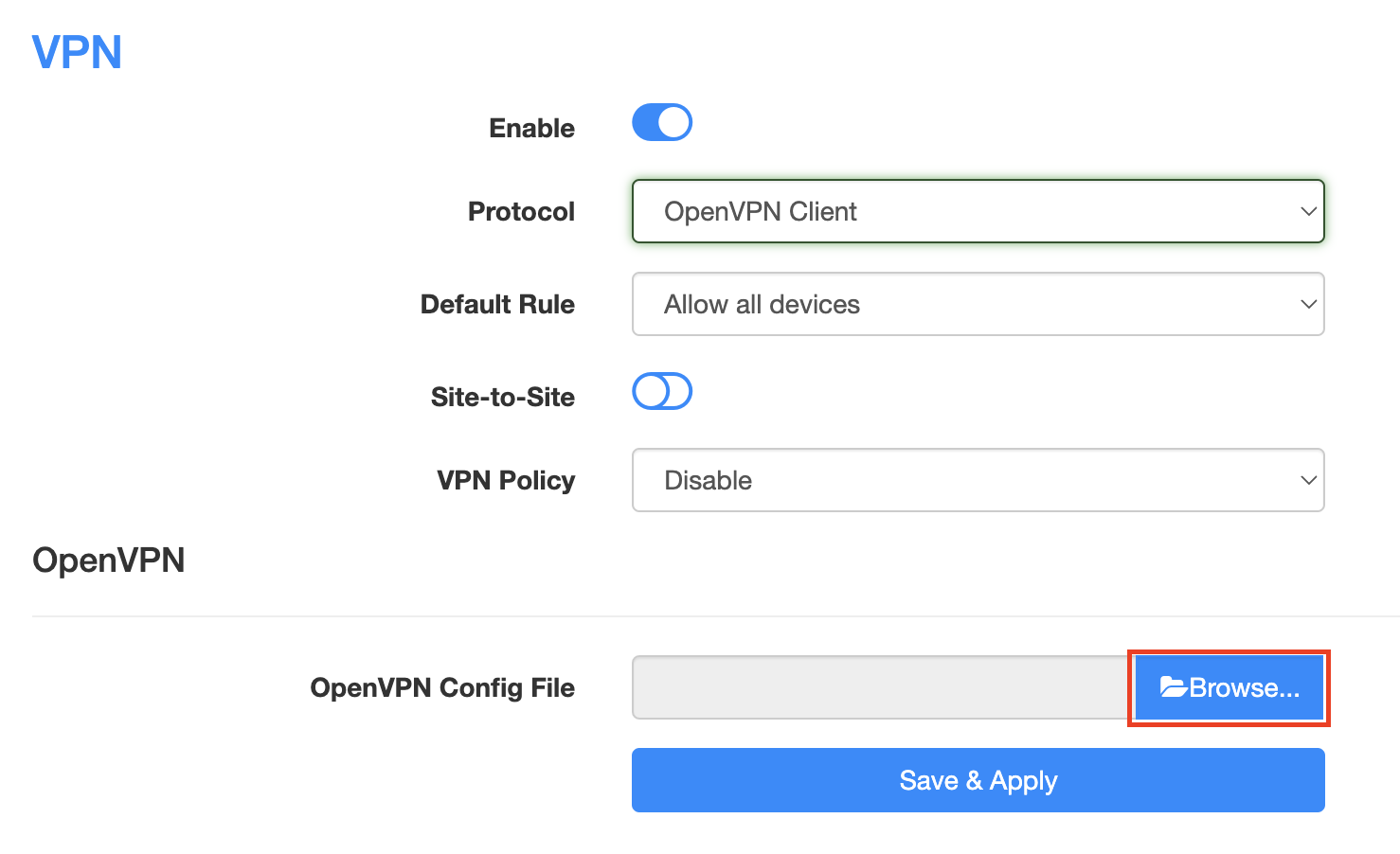
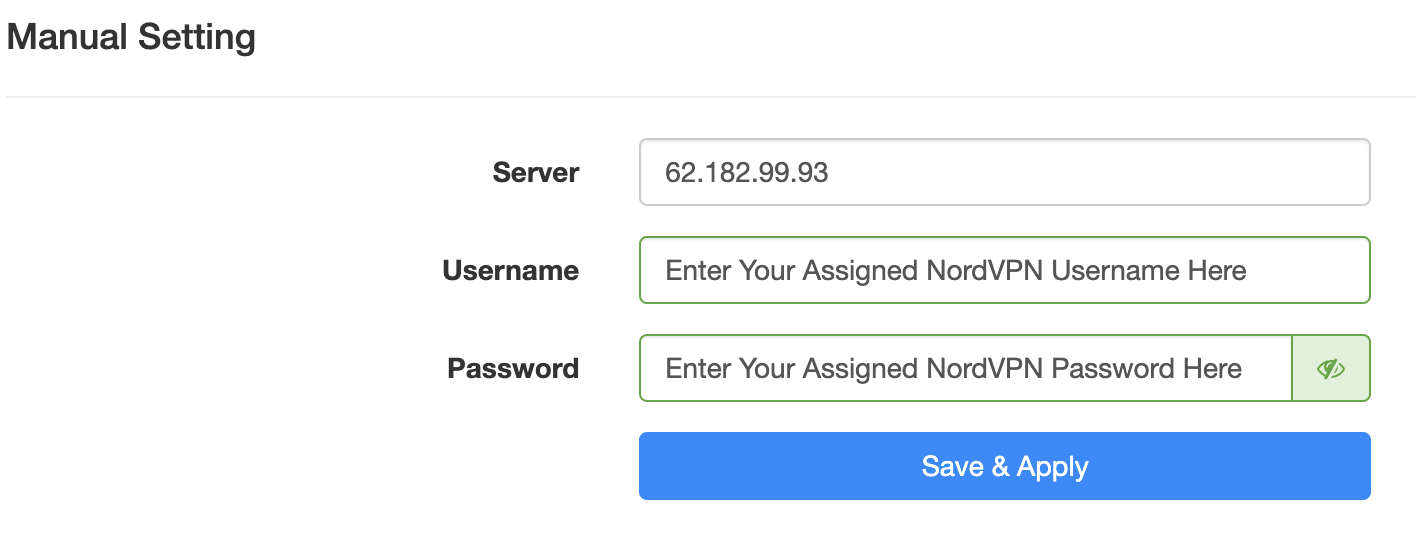
If you are using OpenVPN instead of NordLynx, Privacy Hero uses NordVPN’s Manual Service Credentials.
These are different from the email address and password you normally use to sign in to the NordVPN website or application.
If the saved credentials are no longer valid, update them:
- Sign in to your NordVPN account.
- Open NordVPN Manual Service Credentials.
- Copy the current service username and password.
- Open app.privacyhero.com.
- Open your NordVPN settings.
- Confirm that OpenVPN is the selected protocol.
- Replace the existing manual service credentials with the current credentials from NordVPN.
- Save the settings.
- Reconnect NordVPN.
Do not enter your regular NordVPN website email address and password in place of the manual service credentials.
Did You Recently Change Your NordVPN Account Information?
If NordVPN stopped connecting after an account change, update the authentication information stored in Privacy Hero.
This is especially important after changes such as:
- Changing your NordVPN account password.
- Changing or updating NordVPN account security settings.
- Generating or replacing NordVPN access tokens.
- Changes to NordVPN manual service credentials.
- Renewing, changing, or restoring your NordVPN subscription.
The credentials used by Privacy Hero depend on the VPN protocol:
- NordLynx: Uses a NordVPN access token.
- OpenVPN: Uses NordVPN manual service credentials.
Your regular NordVPN website login should not be entered as the router’s OpenVPN credentials.
If you are unsure whether the existing authentication information is still valid, retrieve current credentials directly from your NordVPN account and update Privacy Hero.
Confirm Your NordVPN Subscription Is Active
Privacy Hero cannot establish a NordVPN connection if the NordVPN account being used no longer has active VPN service.
Sign in to your NordVPN account and confirm that your subscription is active before continuing with server, token, or credential troubleshooting.
Try Another VPN Protocol
If your NordVPN account, credentials, and server selection are correct but the connection still fails, try another NordVPN protocol available in Privacy Hero.
For example, if NordLynx is not connecting, testing OpenVPN can help determine whether the issue is specific to the protocol or authentication method.
Remember that changing protocols also changes the required NordVPN authentication:
- NordLynx requires a NordVPN access token.
- OpenVPN requires NordVPN manual service credentials.
Important: Do Not Run Two VPNs at Once
Do not leave the NordVPN application connected directly on your phone or computer while testing the Privacy Hero VPN.
Running a VPN application on the device while also routing that device through the Privacy Hero VPN creates a double-VPN connection and can cause routing, connectivity, or IP-location problems.
Disconnect the device-level NordVPN app before testing the router VPN.
Verify the NordVPN Connection
Once Privacy Hero displays NordVPN as Connected:
- Connect your device to the Privacy Hero WiFi.
- Make sure the NordVPN app on the device is disconnected.
- Open a fresh private/incognito browser window.
- Visit NordVPN What Is My IP.
- Confirm that the public IP address and location correspond to your selected NordVPN location.
- Test several websites or applications.
If you use the Privacy Hero VPN Kill Switch, enable it only after confirming that NordVPN is connected and working.
NordVPN Is Connected but One Device Shows the Wrong IP
If Privacy Hero shows NordVPN as Connected and other devices display the correct VPN IP, the NordVPN connection itself is likely working.
Check the affected device’s Privacy Hero VPN assignment and review any VPN, privacy, DNS, browser, antivirus, firewall, or security settings running directly on that device.
See Device Privacy, DNS, VPN, and Security Settings That Can Interfere With Your Router VPN.