• Skip to primary navigation
  • Skip to main content
  • Skip to primary sidebar
  • Skip to footer

FlashRouters Support Portal

Prioritizing Privacy

  • SETUP GUIDES
    • Privacy Hero Router Setup Guide
    • ASUS-WRT Router Setup Guide
    • AsusWRT-Merlin Router Setup Guide
    • DD-WRT Router Setup Guide
    • ExpressVPN Router Setup Guide
    • GL.iNet Router Setup Guide
    • Roqos Core Router Setup Guide
  • TROUBLESHOOTING
    • Router Access
    • WiFi Connectivity
    • Internet Connection Issues
    • General VPN Issues
    • DD-WRT Firmware
    • TeamViewer Remote Support
  • FAQs
    • Router FAQs
    • VPN FAQs
    • Warranty and Returns FAQs
    • Sales FAQs
    • Shipping FAQs
    • Service Plan FAQs
  • Show Search
Hide Search

Search Results for: fastest router

Privacy Hero VPN Kill Switch Troubleshooting: No Internet or WiFi

Dave · Oct 8, 2026 ·

If your Privacy Hero router suddenly loses internet access, devices report that WiFi has no internet, or devices will not stay connected after a VPN failure, the VPN Kill Switch may be blocking normal internet traffic.

The VPN Kill Switch is designed to prevent traffic from passing through Privacy Hero without VPN protection. If the VPN disconnects or fails while the Kill Switch is enabled, normal internet access is intentionally blocked.

Important: You can still access app.privacyhero.com to manage Privacy Hero, turn off the Kill Switch, or repair the VPN connection.

Privacy Hero is cloud-managed, so you do not need to be connected to the Privacy Hero WiFi to change these settings. You can also access the dashboard using cellular data, your main router’s WiFi, or another internet connection as long as Privacy Hero remains connected to the internet and Privacy Hero cloud.


Jump to a Section

  • Common Kill Switch Symptoms
  • Restore Internet Access
  • VPN Still Fails to Connect
  • Privacy Hero Appears Offline
  • Kill Switch, WiFi, or WAN Problem?
  • Frequently Asked Questions

Common Privacy Hero Kill Switch Symptoms

A failed VPN connection combined with an enabled Kill Switch can make the Privacy Hero network appear unavailable even though the router itself may still be functioning.

Common symptoms include:

  1. Your device connects to Privacy Hero WiFi but websites and apps will not load.
  2. Your phone, computer, television, or streaming device reports that WiFi has no internet.
  3. A device refuses to remain connected because it detects that the WiFi network does not currently provide normal internet access.
  4. Your phone automatically switches from Privacy Hero WiFi to cellular data or another saved WiFi network.
  5. Your computer displays “No Internet” or “Connected without Internet.”
  6. The VPN displays Failed, Disconnected, Connecting, or a timeout error.
  7. Privacy Hero was working normally and suddenly stopped providing internet access.

If the Privacy Hero WiFi network itself is completely missing and cannot be detected by any device, that is different from normal Kill Switch behavior. Continue with WiFi or router connectivity troubleshooting instead.

Restore Internet Access

The fastest way to determine whether the Kill Switch is responsible is to temporarily disable it and test Privacy Hero without VPN.

  1. Open app.privacyhero.com.
  2. Sign in to your Privacy Hero account.
  3. Open the VPN section.
  4. Check the current VPN status.
  5. If the VPN shows Failed or Disconnected, turn the VPN Kill Switch Off.
  6. Turn the failed VPN connection off.
  7. Connect a device to the Privacy Hero network.
  8. Test normal internet access.

If internet access returns with the VPN and Kill Switch disabled, Privacy Hero’s basic internet connection is working and the problem is isolated to the VPN connection.

Important: Disabling the Kill Switch allows normal non-VPN internet traffic through Privacy Hero. Leave it disabled only while troubleshooting if continuous VPN protection is required.

VPN Still Fails to Connect

Do not turn the Kill Switch back on until the VPN is connected and working.

If you are using NordVPN and the VPN shows Failed, Connecting, or a timeout error, continue with our dedicated Privacy Hero NordVPN Not Connecting or Showing Timeout Errors guide.

That guide covers:

  • Selecting a different NordVPN server.
  • Replacing a failed Auto Country connection with a specific NordVPN server.
  • Generating a new NordVPN NordLynx access token.
  • Verifying NordVPN OpenVPN manual service credentials.
  • Avoiding double-VPN conflicts while testing.

If you use another VPN provider, try another available VPN server or protocol and verify that your VPN account and credentials remain active.

Verify the VPN Before Re-Enabling the Kill Switch

Once the VPN reconnects:

  1. Confirm Privacy Hero displays the VPN as Connected.
  2. Connect a device to the Privacy Hero WiFi.
  3. Make sure a separate VPN application is not connected directly on the testing device.
  4. Check your public IP address.
  5. Confirm the IP address and location reflect the VPN server you selected.
  6. Test normal websites and applications.
  7. Return to Privacy Hero and enable the VPN Kill Switch.

If you enable the Kill Switch while the VPN is still failing, normal internet access will be blocked again.

What If Privacy Hero Appears Offline?

If Privacy Hero shows Offline in the dashboard, the router may not currently be communicating with the Privacy Hero cloud.

  1. Confirm Privacy Hero is powered on.
  2. Confirm the Ethernet cable from your ISP gateway or primary router is connected to the Privacy Hero WAN/Internet port.
  3. Confirm your ISP gateway or primary router has working internet access.
  4. Restart Privacy Hero and allow it to finish booting.
  5. Using another internet connection, open app.privacyhero.com.
  6. Check whether Privacy Hero returns online.

If the router returns online, check the VPN and Kill Switch status before enabling the VPN again.

Privacy Hero Has a WAN IP but Devices Have No Internet

Privacy Hero can receive an IP address from your ISP gateway while the Kill Switch is still blocking normal internet traffic.

Before changing IP Passthrough, bridge mode, firewall settings, or other ISP gateway settings:

  1. Check the VPN status.
  2. Check whether the Kill Switch is enabled.
  3. Disable the VPN and Kill Switch temporarily.
  4. Test internet access again.

If internet access returns, troubleshoot the VPN connection rather than changing the ISP gateway configuration.

Kill Switch, WiFi, or WAN Problem?

WiFi Connects but There Is No Internet

If the VPN shows Failed or Disconnected and the Kill Switch is enabled, the Kill Switch is likely blocking normal internet traffic.

Device Will Not Stay Connected to Privacy Hero WiFi

Some devices automatically leave a WiFi network when they detect that it does not provide internet access. Use cellular data or another internet connection to access app.privacyhero.com and check the VPN and Kill Switch.

Privacy Hero WiFi Is Completely Missing

The Kill Switch does not normally cause the WiFi network itself to stop broadcasting. If no devices can detect the Privacy Hero WiFi network, troubleshoot the WiFi or router connection separately.

Privacy Hero Is Not Receiving a WAN IP Address

Check the Ethernet connection between Privacy Hero and your ISP gateway or primary router and confirm the upstream internet connection is working.

VPN Shows Connected but One Device Has the Wrong IP

If the VPN works correctly on other devices, the Kill Switch is probably not the issue. Check that device’s Privacy Hero VPN assignment and its own VPN, privacy, DNS, or security settings.

See Device Privacy, DNS, VPN, and Security Settings That Can Interfere With Your Router VPN.

Frequently Asked Questions

Why does Privacy Hero WiFi say no internet?

If the VPN has failed while the Kill Switch is enabled, normal internet traffic is intentionally blocked. Your device may therefore report that Privacy Hero WiFi has no internet.

Can I access Privacy Hero settings while the Kill Switch is blocking internet?

Yes. Open app.privacyhero.com. You can use the Privacy Hero network, cellular data, your main router’s WiFi, or another internet connection.

Do I have to be connected to Privacy Hero WiFi to change the settings?

No. Privacy Hero is cloud-managed and can be managed remotely while the router remains connected to the Privacy Hero cloud.

Why does my phone keep leaving the Privacy Hero WiFi?

Some phones automatically switch to cellular data or another saved WiFi network when the current WiFi connection does not provide normal internet access.

Should I turn the Kill Switch back on immediately?

Only after the VPN is connected and you have confirmed that your internet traffic is using the VPN.


Related Privacy Hero Guides

  • Privacy Hero VPN Kill Switch Setup
  • Privacy Hero NordVPN Not Connecting or Showing Timeout Errors
  • Privacy Hero NordVPN / NordLynx Setup
  • Device Privacy, DNS, VPN, and Security Settings That Can Interfere With Your Router VPN
  • Privacy Hero Router Setup Guide

Privacy Hero Dashboard Not Updating or Showing Old Information

Dave · Oct 8, 2026 ·

If the Privacy Hero dashboard is showing old information, a VPN status does not appear to update, settings you changed are not displaying correctly, or the dashboard behaves unexpectedly, your browser may be displaying cached Privacy Hero website data.

Before changing your router or VPN configuration again, open a fresh browser session and confirm that the dashboard is displaying the current information.

Start With a Private or Incognito Browser Window

The fastest test is to open the Privacy Hero dashboard in a new private or incognito browser window.

  1. Close any existing Privacy Hero dashboard tabs.
  2. Open a new private or incognito browser window.
  3. Visit app.privacyhero.com.
  4. Sign in to your Privacy Hero account.
  5. Check the router, VPN, device, or setting again.

If the correct information appears in the private browser window, the original browser session was likely displaying cached or stale website information.

Refresh the Privacy Hero Dashboard

If the dashboard has been open while you are changing VPN or router settings, refresh the page before assuming that a change failed.

  1. Refresh the Privacy Hero dashboard.
  2. Allow the page to finish loading.
  3. Return to the section you were changing.
  4. Check the current status again.

If the information still appears incorrect, sign out of Privacy Hero, close the browser tab, and sign back in through a fresh browser session.

Clear Cached Privacy Hero Site Data

If Privacy Hero works correctly in a private/incognito window but not in your normal browser window, clear the cached website data for Privacy Hero.

Browser menus vary, but look for settings related to:

  • Cached files and images.
  • Cookies and site data.
  • Website data.
  • Privacy and browsing data.

If your browser allows you to remove data for an individual website, clear the stored data for app.privacyhero.com rather than clearing your entire browser history.

Then reopen app.privacyhero.com, sign in again, and check the dashboard.

Try Another Browser or Device

If the dashboard still behaves unexpectedly, test it from another browser or device.

  1. Open app.privacyhero.com in another browser.
  2. Sign in using the same Privacy Hero account.
  3. Check whether the same router and settings appear correctly.

You can also test from another computer, phone, or tablet.

Privacy Hero is cloud-managed, so you do not need to be connected to the Privacy Hero WiFi to access the dashboard. You can use cellular data, another WiFi network, or another internet connection.

Disable Browser Extensions While Testing

Browser extensions can sometimes interfere with website login, scripts, or dashboard functions.

If the problem occurs only in one browser, temporarily test without extensions such as:

  • Ad blockers.
  • Privacy extensions.
  • Script blockers.
  • VPN or proxy extensions.
  • Security or filtering extensions.

A private/incognito window may disable some extensions automatically, depending on your browser configuration.

VPN Status Still Shows Failed or Connecting?

If a fresh browser session confirms that Privacy Hero is actually reporting the VPN as Failed, Connecting, Disconnected, or showing a timeout error, the problem is no longer just a browser display issue.

NordVPN users should continue with Privacy Hero NordVPN Not Connecting or Showing Timeout Errors.

No Internet After the VPN Failed?

If the dashboard confirms that the VPN has failed and your Privacy Hero network also has no internet access, check whether the VPN Kill Switch is enabled.

See Privacy Hero VPN Kill Switch: No Internet or WiFi Troubleshooting.

One Device Shows the Wrong VPN IP?

If Privacy Hero shows the VPN as connected and working but only one device shows an unexpected IP address or location, the browser cache is probably not the main issue.

Check the device for its own VPN application, Private Relay, Private DNS, browser Secure DNS, antivirus, firewall, or other network settings.

See Device Settings That Can Interfere With Your Router VPN.
Related Privacy Hero Guides

  • Privacy Hero VPN Kill Switch: No Internet or WiFi Troubleshooting
  • Privacy Hero NordVPN Not Connecting or Showing Timeout Errors
  • Privacy Hero VPN Kill Switch Setup
  • Device Settings That Can Interfere With Your Router VPN

NordVPN Merlin OpenVPN Setup

TeamFlashRouters · Jan 11, 2023 ·

Preparing for NordVPN Merlin Setup

Obtain your NordVPN manual Username and Password

If you are not already an NordVPN user Sign Up Now.

1. Log in to your account on the NordVPN website.

NordVPN login

2. Click NordVPN on the left hand side and then click Setup NordVPN manually.

NordVPN setup manually

3. Enter in the verification code that was sent to your email.

NordVPN verify code

4. Copy and paste your NordVPN manual username and password to a secure location. This is the username and password you will enter into the router settings to connect to NordVPN.
NordVPN credentials

Download your NordVPN .ovpn file

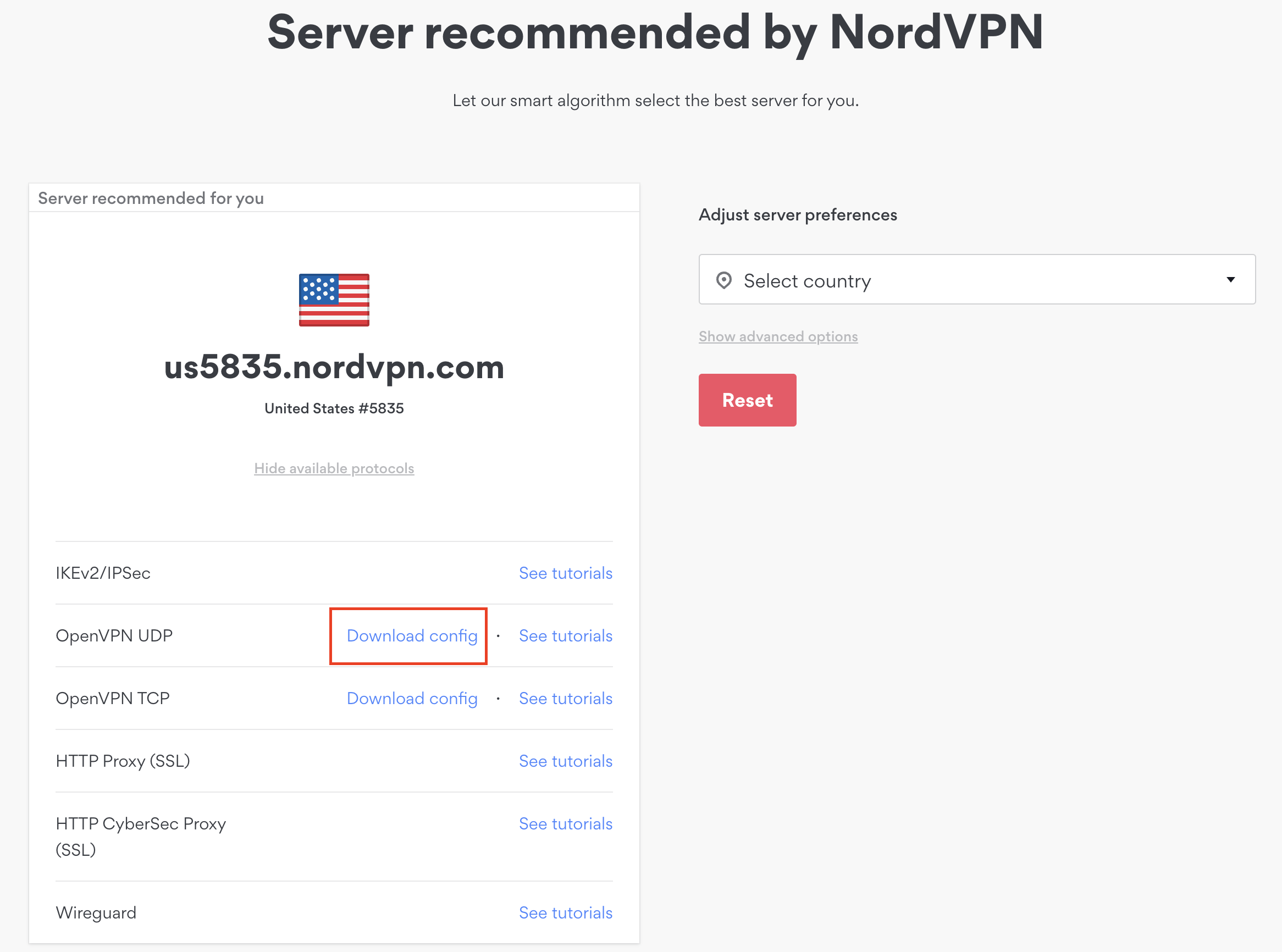
1. There are two options for obtaining the .ovpn file. The first and recommended is to navigate to NordVPN’s server recommendation page. Click Recommended Server to display the fastest server based on your actual location. You can adjust the country if you don’t want to connect to the recommended country.

Then click Show Available Protocols. Click Download Config next to OpenVPN UDP. This will download the .ovpn file to your computer for this server. Do not open this file.

NordVPN Recommended Server

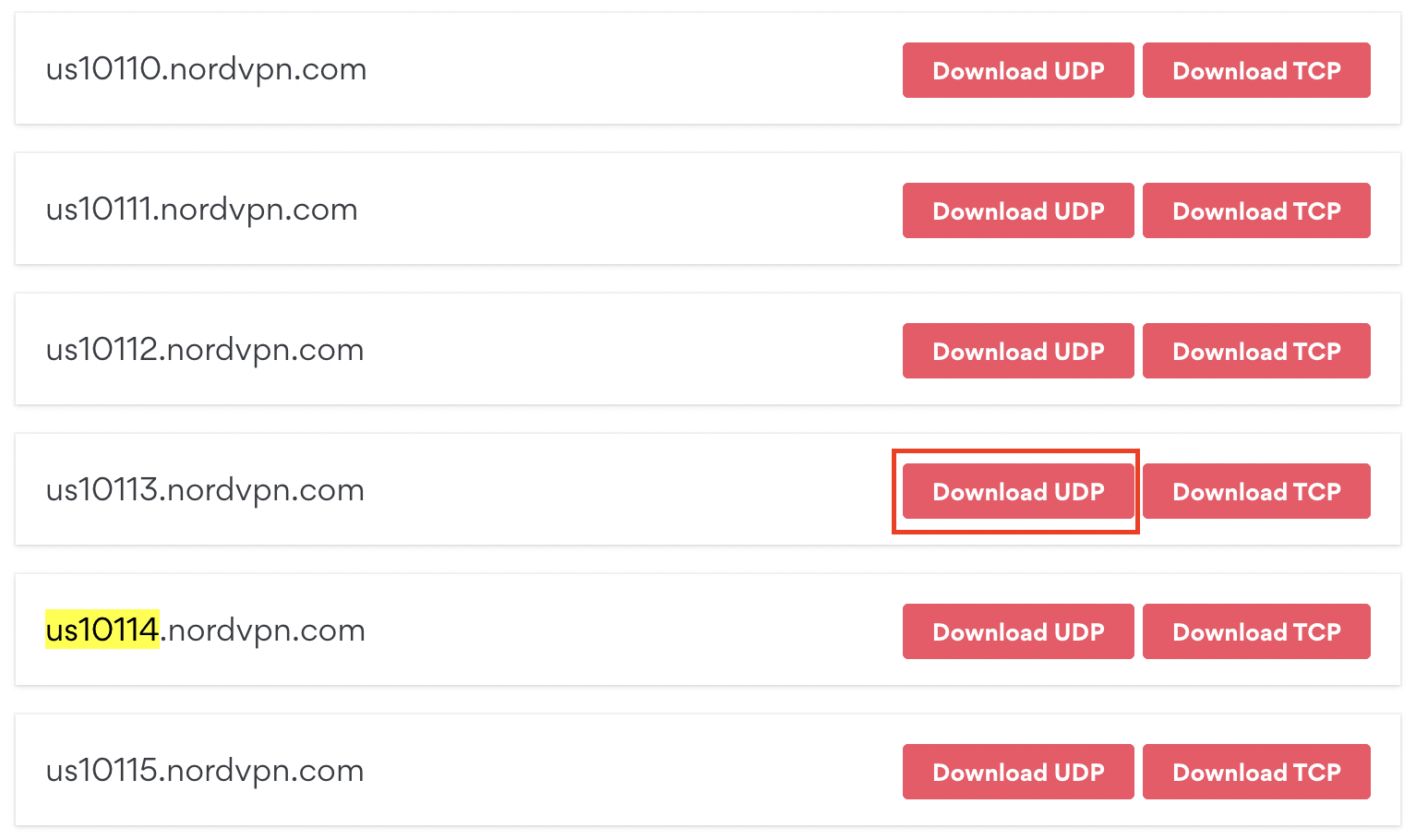
The second method to obtain a server is for connecting to a specific server number that you know you want to use. This applies to NordVPN Dedicated IP servers if you are signed up for that service. Go to NordVPN’s .ovpn file page. Then search for the server number that you want to use and click Download UDP.

NordVPN Download Specific Server

Merlin Router Setup for NordVPN

Login to Asus Merlin firmware settings in a browser on any computer or smart device connected to the Merlin FlashRouter’s network.

1. Navigate to the VPN tab.

Merlin VPN Tab

2. Navigate to the VPN Client tab.

Merlin VPN Client Tab

3. Click Choose file and select the .ovpn file you downloaded earlier. Then click Upload.

Merlin Choose File Upload

4. Set Automatic Start at boot time to Yes if you want the VPN connection to begin automatically when the router is powered off and back on.

Merlin Automatic Start at boot time

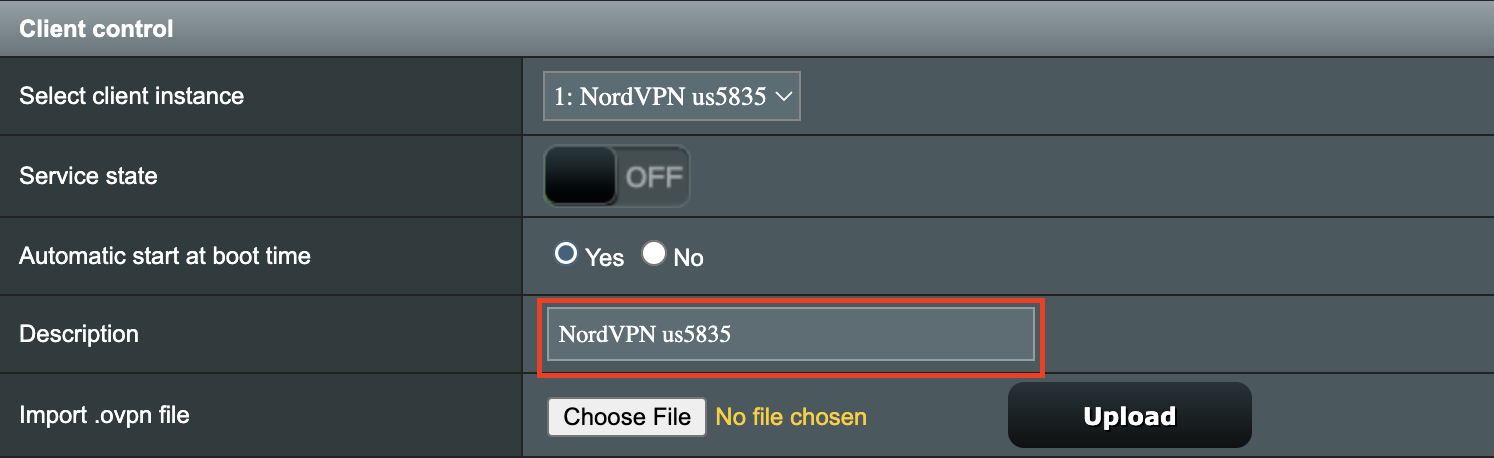
5. In the Description field enter in the name you’d like to use for this OpenVPN Client profile. We typically advise entering in the location or server number here. Our example server was in us5835.nordvpn.com so I have entered in NordVPN us5835.

Merlin NordVPN Description

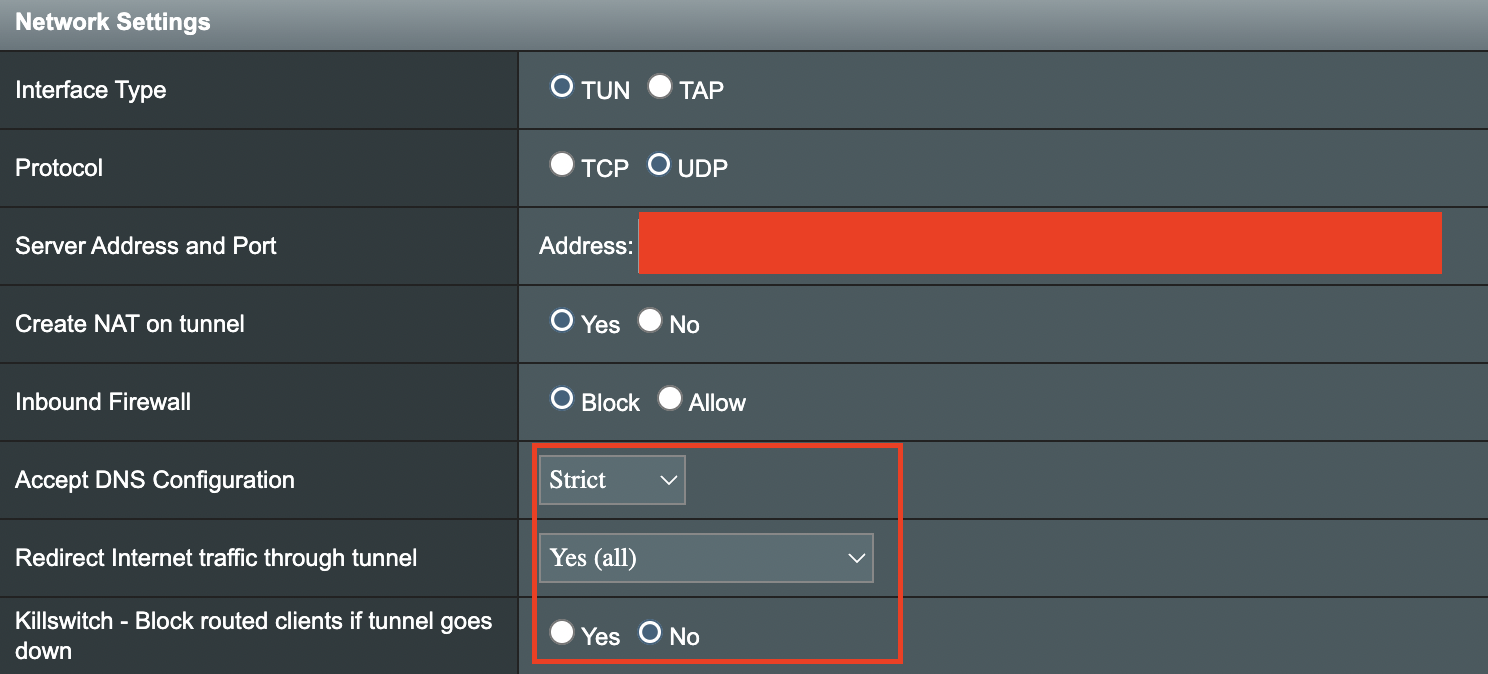
6. Set Accept DNS Configuration to Strict. Set Redirect Internet traffic through tunnel to Yes (all). Set Kill Switch to Yes or No depending on if you want the Internet to be killed if the VPN connection drops.

Merlin Accept DNS configuration Redirect Internet and Kill Switch

If you only want certain devices to connect to the OpenVPN Client profile you are setting up instead of all the devices connected to the FlashRouter’s network please set the Redirect Internet traffic through tunnel to VPN Director. Then complete the instructions on this page and then view our VPN Director guide.

7. Enter your NordVPN username and password that you obtained earlier in the Username and Password. Note that these are different from your NordVPN email login and password.

Merlin VPN Username and Password

8. Click Apply at the bottom of the page.

9. At the top of the page set the Service State toggle to ON to activate the VPN connection.

Merlin Service State All Providers

Verify a successful NordVPN connection

  1. You should now see a CONNECTED message.
  2. Visit NordVPN’s IP Check to verify your new IP address and virtual location.

In some cases you may notice that the location is not showing the same location as the server you have input in your router settings; this is because geo tracking tools are often tricked by VPN connections. As long as you see an IP address that is not the same as your normal Internet IP address then you are indeed connected to NordVPN.
How to change the NordVPN server

  1. Follow the steps at the top of the page to obtain a new .ovpn file.
  2. Then proceed with the settings same as initial setup.

TROUBLESHOOTING

Still having issues? Visit the VPN Troubleshooting section.

Troubleshoot Here

Why is my connection speed slower?

TeamFlashRouters · Jun 4, 2019 ·

The encryption provided by a VPN connection almost always results in slower connection speed. In some cases you may have noticed that your computer or tablet was working faster when running a VPN client application or program, that is because a computer has a processor that is normally about 4-6x times as strong as a the processor on a router, and that is for managing a single VPN connection. A router has a smaller processor and is managing an entire network of devices. Encrypting an entire network does take considerable processing power.

Speed test results while connected to VPN are never going to be accurate. A speed test measures the rate at which a data packet travels from one server to another, however when you are connecting to VPN the data packets travel to an extra server where they are encrypted and then sent back into the route. We strongly recommend disabling the FlashRouter’s VPN connection when testing speeds to make sure there isn’t and issue with the router.

Connection Types

Ethernet: Wired ethernet connections will almost always be the most stable and reliable connection. To speed up your internet connection, use an ethernet cable to wire your devices to the FlashRouter.

Wireless (5.0GHz): The 5.0GHz WiFi frequency has less range than the standard 2.4GHz WiFi, but also transmits your internet connection at a significantly faster speed. If you were previously using the 2.4GHz network and experiencing slow speeds please connect to the 5GHz wireless network which should improve your speed.

Connect to the closest VPN server

Our supported VPN providers offer many servers in different countries and regions. If a server has slower connection speed we recommend connecting to the server closest to your actual location.

The process for changing servers is detailed in your provider’s setup instructions.

FlashRouters Privacy App

DD-WRT Manual VPN Configuration

Select a UDP server

UDP servers do not authenticate every data packets the way TCP servers do which results in faster connection speeds.

VPN provider server recommendation

Contact your VPN provider for a server recommendation that should provide the fastest speeds for you.

Surfshark TP-Link OpenVPN Setup

TeamFlashRouters · Apr 29, 2024 ·

Preparing for Surfshark TP-Link Setup

Download your Surfshark .ovpn file

If you are not already a Surfshark user Sign Up Now.

1. Log in to your account on the Surfshark website.

Surfshark Account Login

2. Click VPN Manual Setup.

Surfshark VPN Manual Setup

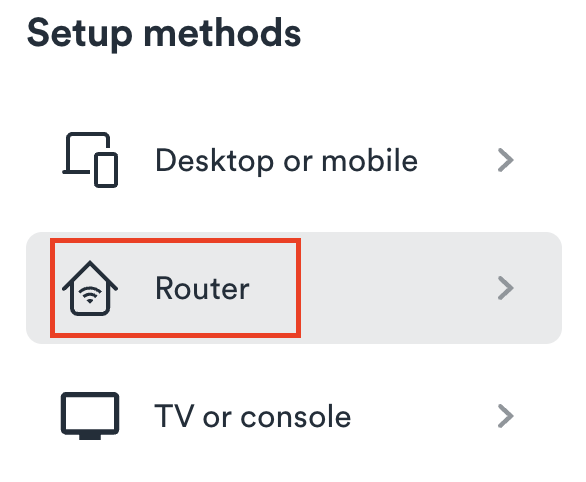
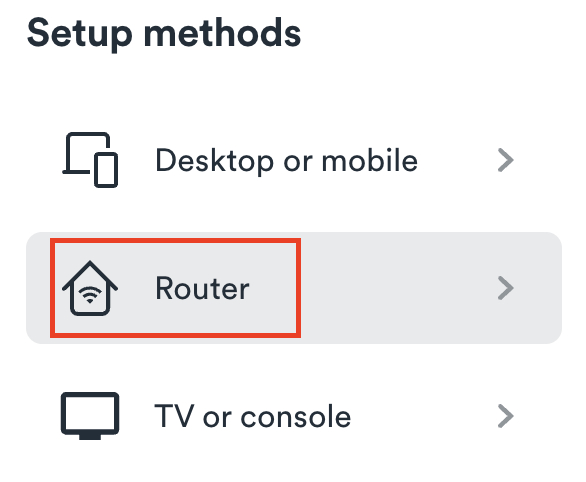
3. Select Router as the Setup method.

Surfshark setup method Router

4. Select OpenVPN as the Protocol.

Surfshark OpenVPN Protocol

5. Copy and paste your Surfshark manual username and password to a secure location. This is the username and password you will enter into the router settings to connect to Surfshark.

Surfshark OpenVPN credentials

6. Click Location and select the server location you want to connect to. Unless you need a specific location we recommend using Surfshark’s recommended Fastest server. Click Download to download the UDP .ovpn file for this Surfshark server location.

Surfshark download .ovpn file

TP-Link Router Setup for Surfshark

Login to TP-Link firmware settings in a browser on any computer or smart device connected to the FlashRouter’s network.

1. Navigate to the Advanced tab.

TP-Link Advanced settings

2. Navigate to the VPN Client tab.

TP-Link VPN Client

3. Check the Enable box next to VPN Client. Then click Save at the bottom of the page.

TP-Link VPN Client enable

4. Click the Add button in the Server List area.

TP-Link Add server button

5. In the Description field enter in the name you’d like to use for this OpenVPN Client profile. We typically advise entering in the location. Our example server was New York so I have entered in Surfshark New York.

Set the VPN Type to OpenVPN.

In the Username and Password fields paste in the Surfshark username and password we obtained earlier.

Click Browse and select the .ovpn file you downloaded earlier. Then click Save.

TP-Link Surfshark OpenVPN

By default no devices will be assigned to the VPN Tunnel. With TP-Link firmware you must manually assign the devices that you want connected to the VPN tunnel. Proceed with the next steps to do so for all devices you want connected to VPN.

6. Click the Add button in the Device List area.

TP-Link add devices to VPN tunnel

7. A list of devices connected to the FlashRouter’s network will appear. Check the devices that you want to connect to VPN. Then click OK.

TP-Link select devices to add to VPN tunnel

8. Now that the devices have been assigned to the VPN connection click the Enable toggle in the Server List area.

TP-Link Surfshark OpenVPN connected

Verify a successful Surfshark connection

  1. You should now see a CONNECTED message.
  2. Visit Surfshark’s IP Check to verify your new IP address and virtual location.

In some cases you may notice that the location is not showing the same location as the server you have input in your router settings; this is because geo tracking tools are often tricked by VPN connections. As long as you see an IP address that is not the same as your normal Internet IP address then you are indeed connected to Surfshark.

How to change the Surfshark server

  1. Follow the steps at the top of the page to obtain a new .ovpn file.
  2. Then proceed with the settings same as initial setup.

TROUBLESHOOTING

Still having issues? Visit the VPN Troubleshooting section.

Troubleshoot Here

NordVPN Asus AX1800S OpenVPN Setup

TeamFlashRouters · Feb 26, 2024 ·

Preparing for NordVPN Asus AX1800S Setup

Obtain your NordVPN manual Username and Password

If you are not already an NordVPN user Sign Up Now.

1. Log in to your account on the NordVPN website.

NordVPN login

2. Click NordVPN on the left hand side and then click Setup NordVPN manually.

NordVPN setup manually

3. Enter in the verification code that was sent to your email.

NordVPN verify code

4. Copy and paste your NordVPN manual username and password to a secure location. This is the username and password you will enter into the router settings to connect to NordVPN.

NordVPN credentials

Download your NordVPN .ovpn file

1. There are two options for obtaining the .ovpn file. The first and recommended is to navigate to NordVPN’s server recommendation page. Click Recommended Server to display the fastest server based on your actual location. You can adjust the country if you don’t want to connect to the recommended country.

Then click Show Available Protocols. Click Download Config next to OpenVPN UDP. This will download the .ovpn file to your computer for this server. Do not open this file.

NordVPN Recommended Server

The second method to obtain a server is for connecting to a specific server number that you know you want to use. This applies to NordVPN Dedicated IP servers if you are signed up for that service. Go to NordVPN’s .ovpn file page. Then search for the server number that you want to use and click Download UDP.

NordVPN Download Specific Server

Asus AX1800S Router Setup for NordVPN

Login to Asus firmware settings in a browser on any computer or smart device connected to the FlashRouter’s network.

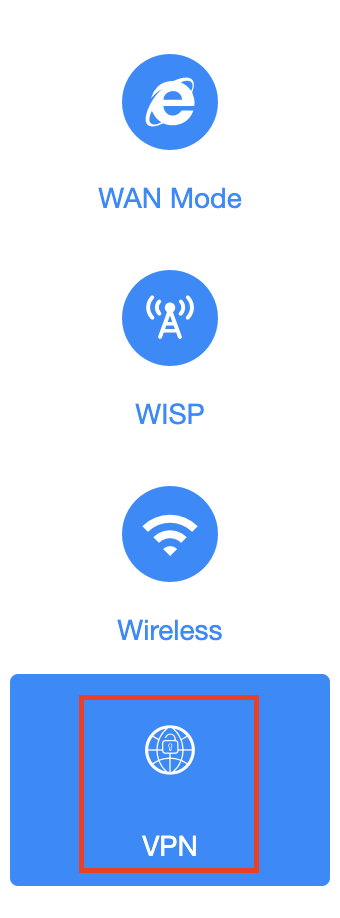
1. Navigate to the VPN tab.

Merlin VPN Tab

2. Navigate to the VPN Client tab.

Asus AX1800S VPN Settings

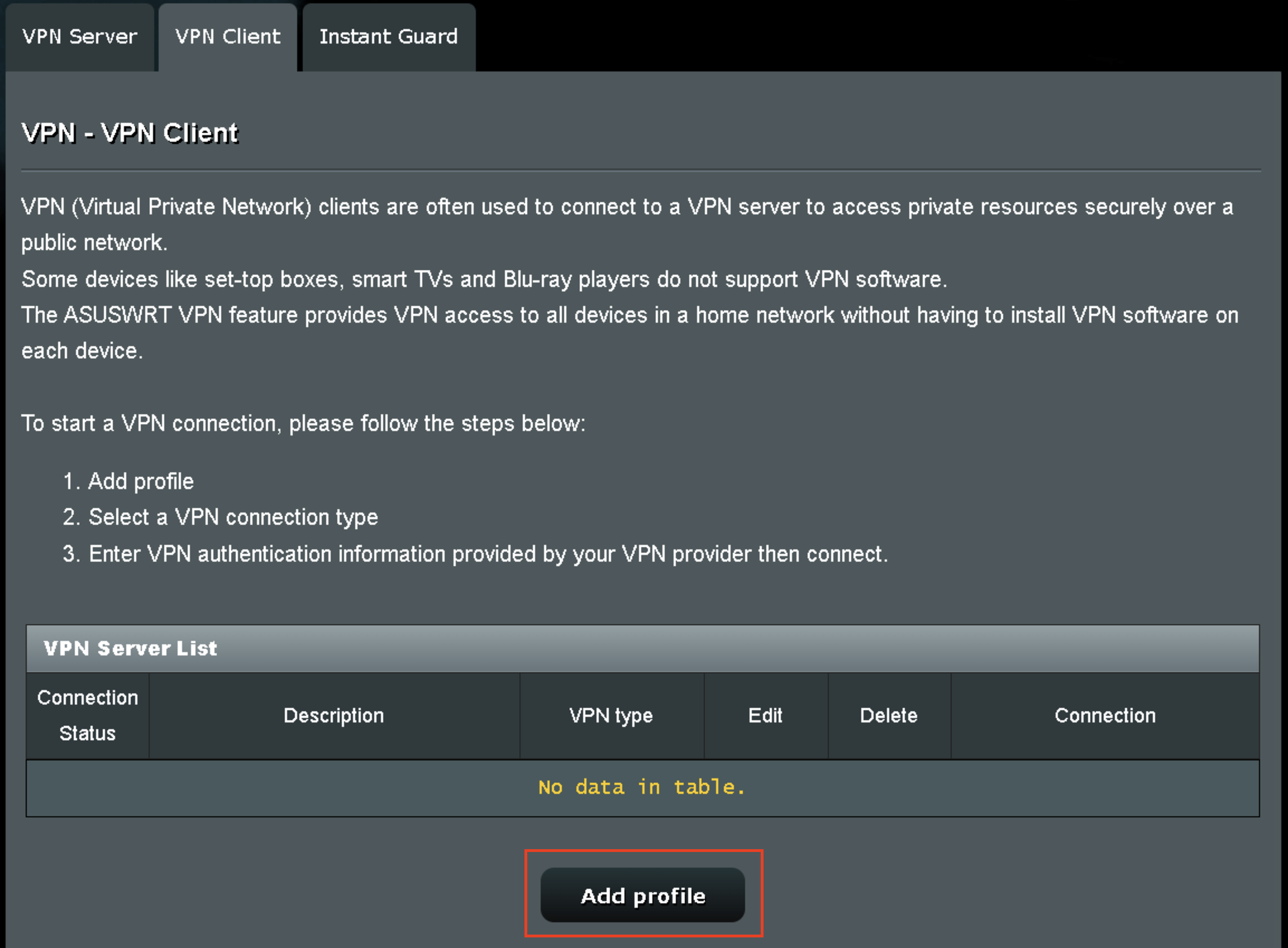
3. Click Add Profile.

Asus AX1800S VPN Settings

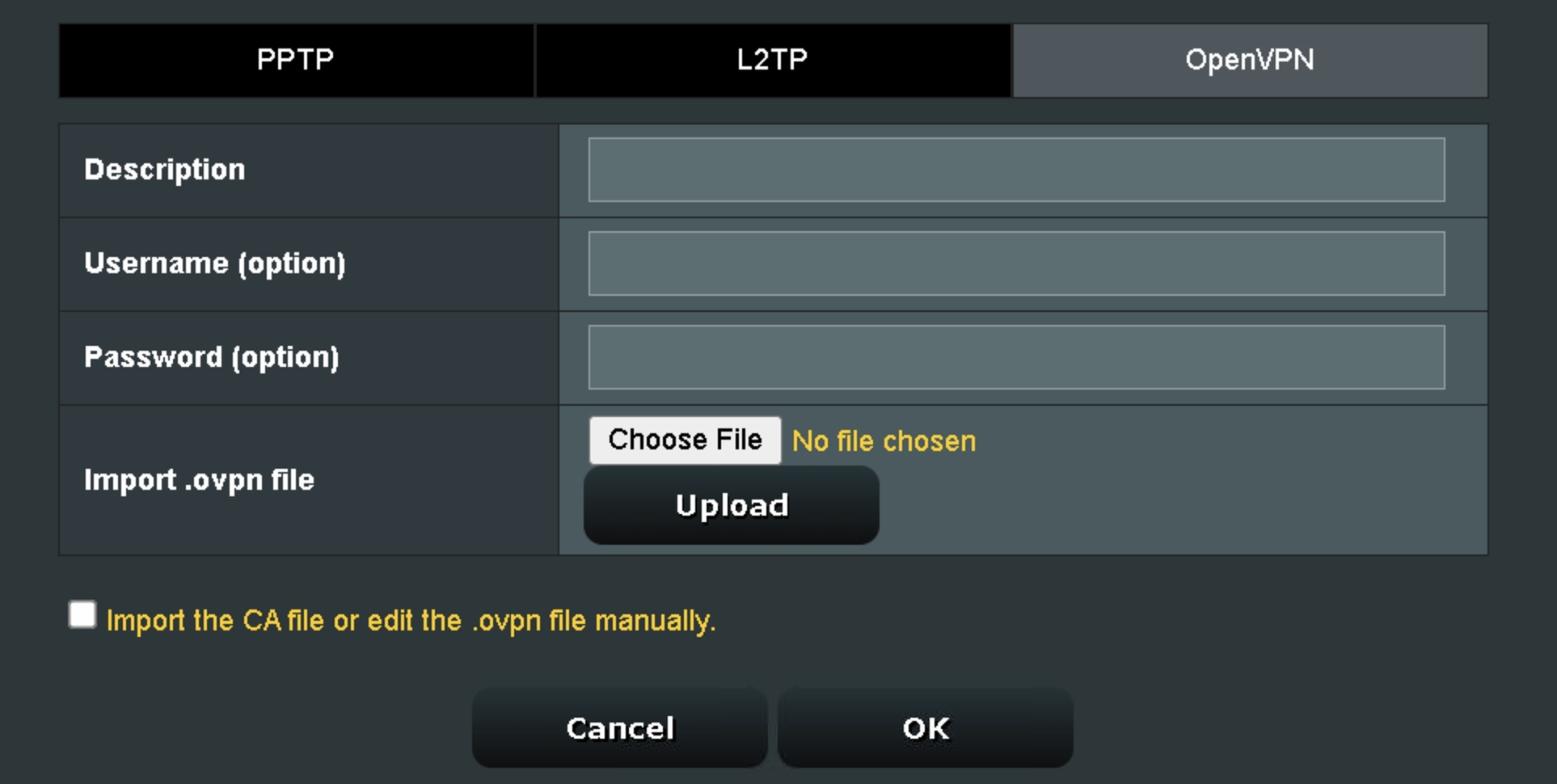
4. Click Choose file and select the .ovpn file you downloaded earlier. Then click Upload.

Asus AX1800S OpenVPN upload

5. In the Description field enter in the name you’d like to use for this OpenVPN Client profile. We typically advise entering in the location or server number here.

6. Enter your NordVPN username and password that you obtained earlier in the Username and Password. Note that these are different from your NordVPN email login and password. Click OK.

7. Click the Activate button.

Verify a successful NordVPN connection

  1. You should now see a check mark in the Connection Status area.
  2. Visit NordVPN’s IP Check to verify your new IP address and virtual location.

In some cases you may notice that the location is not showing the same location as the server you have input in your router settings; this is because geo tracking tools are often tricked by VPN connections. As long as you see an IP address that is not the same as your normal Internet IP address then you are indeed connected to NordVPN.

How to change the NordVPN server

  1. Follow the steps at the top of the page to obtain a new .ovpn file.
  2. Then proceed with the settings same as initial setup.
  3. Be sure to deactivate a previously active connection before activating the new one. You do not want to connect to two at the same time.

TROUBLESHOOTING

Still having issues? Visit the VPN Troubleshooting section.

Troubleshoot Here

NordVPN Cudy OpenVPN Setup

TeamFlashRouters · Feb 29, 2024 ·

Preparing for NordVPN Cudy Setup

Obtain your NordVPN manual Username and Password

If you are not already an NordVPN user Sign Up Now.

1. Log in to your account on the NordVPN website.

NordVPN login

2. Click NordVPN on the left hand side and then click Setup NordVPN manually.

NordVPN setup manually

3. Enter in the verification code that was sent to your email.

NordVPN verify code

4. Copy and paste your NordVPN manual username and password to a secure location. This is the username and password you will enter into the router settings to connect to NordVPN.

NordVPN credentials

Download your NordVPN .ovpn file

1. There are two options for obtaining the .ovpn file. The first and recommended is to navigate to NordVPN’s server recommendation page. Click Recommended Server to display the fastest server based on your actual location. You can adjust the country if you don’t want to connect to the recommended country.

Then click Show Available Protocols. Click Download Config next to OpenVPN UDP. This will download the .ovpn file to your computer for this server. Do not open this file.

NordVPN Recommended Server

The second method to obtain a server is for connecting to a specific server number that you know you want to use. This applies to NordVPN Dedicated IP servers if you are signed up for that service. Go to NordVPN’s .ovpn file page. Then search for the server number that you want to use and click Download UDP.

NordVPN Download Specific Server

Cudy Router Setup for NordVPN

Login to Cudy firmware settings in a browser on any computer or smart device connected to the Cudy FlashRouter’s network.

1. Click General Settings.

Cudy General Settings

2. Click VPN.

Cudy VPN Tab

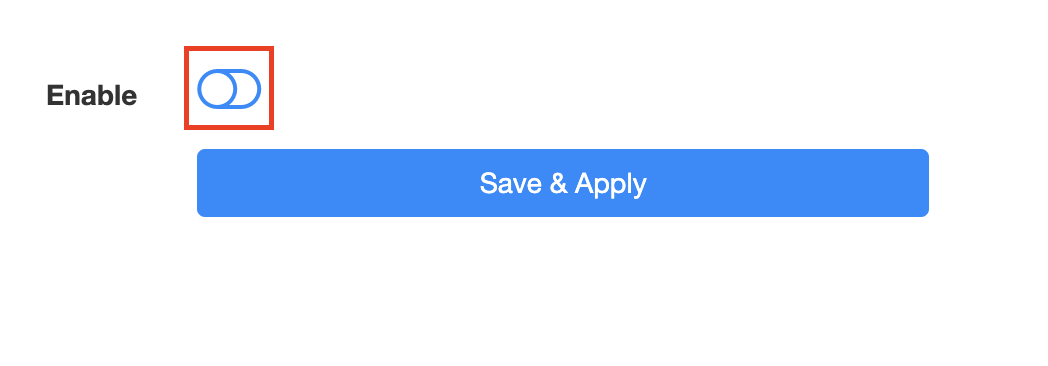
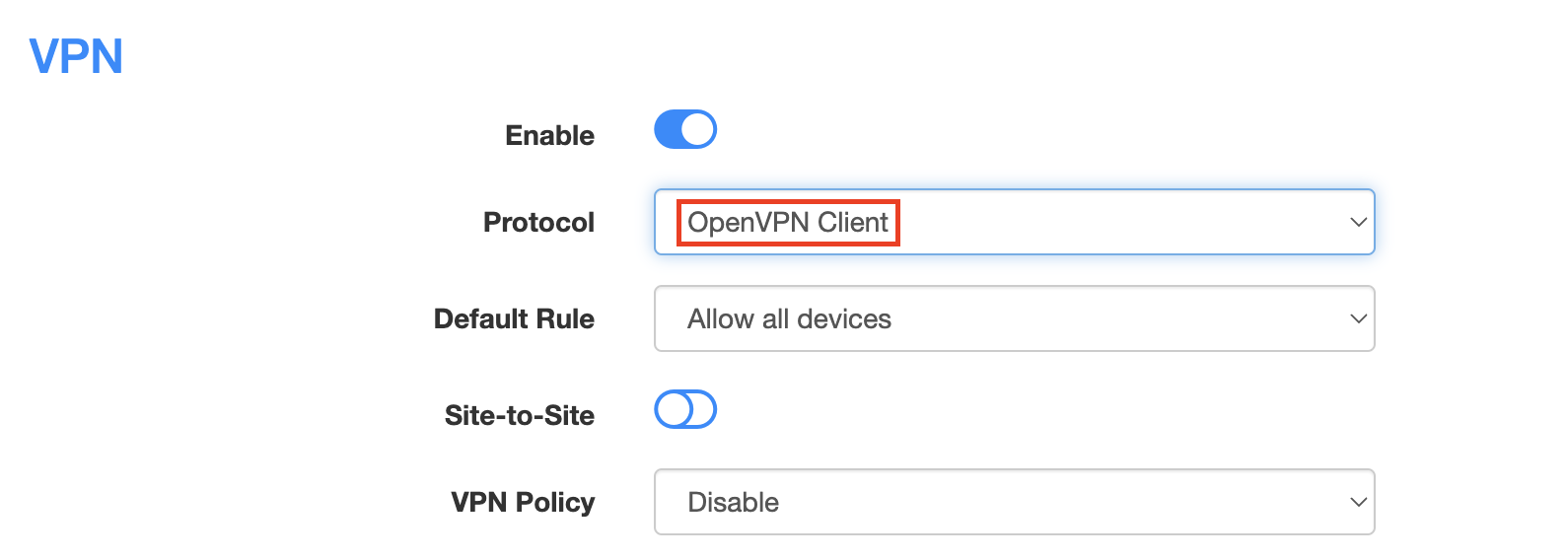
3. Toggle the Enable switch to On.

Cudy enable VPN

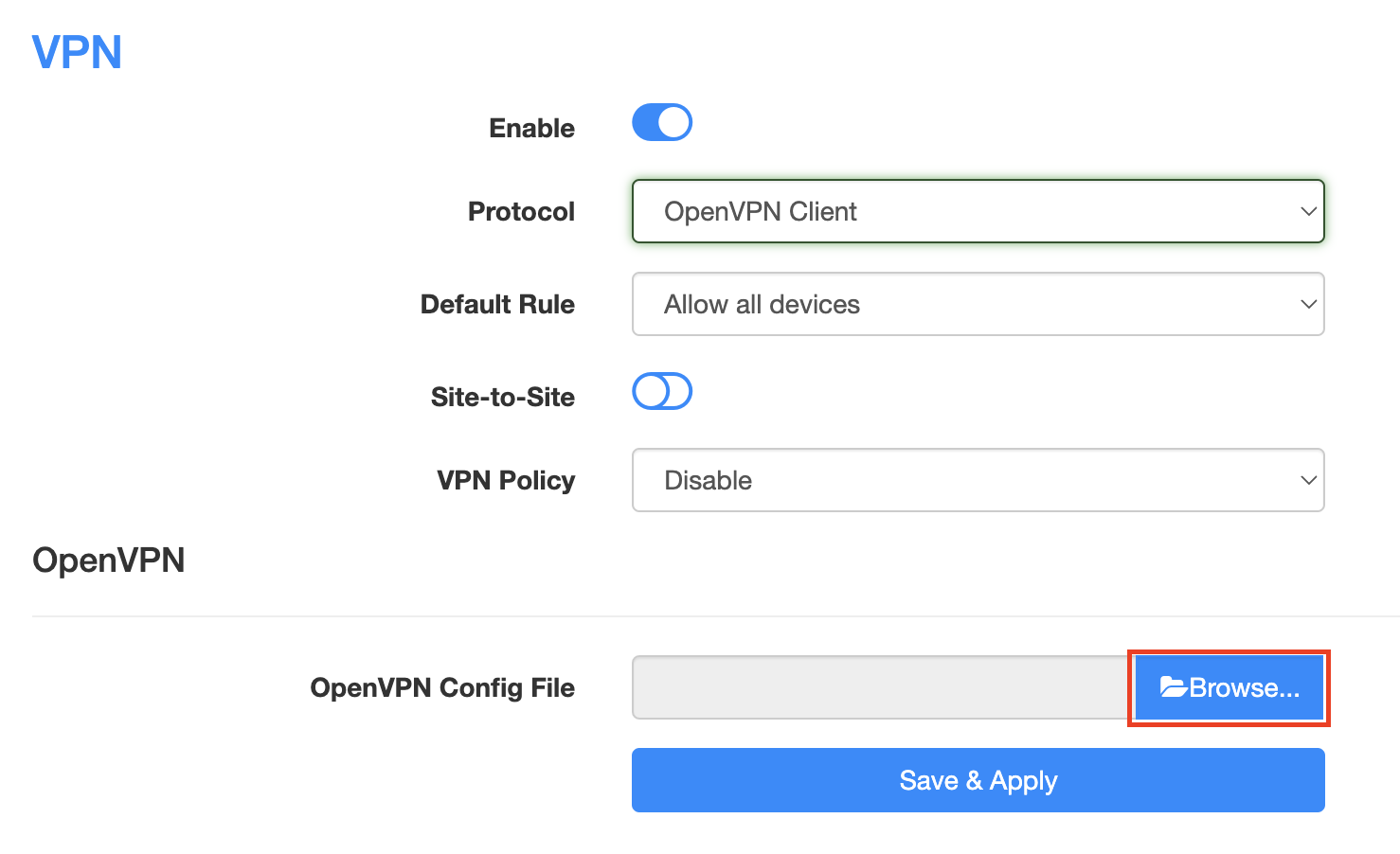
4. Select OpenVPN Client from the Protocol dropdown.

Cudy select OpenVPN Client

5. Click Browse and select the .ovpn file you downloaded earlier. You should see the server file name listed next to Current Config File after doing so.

Cudy OpenVPN Browse button

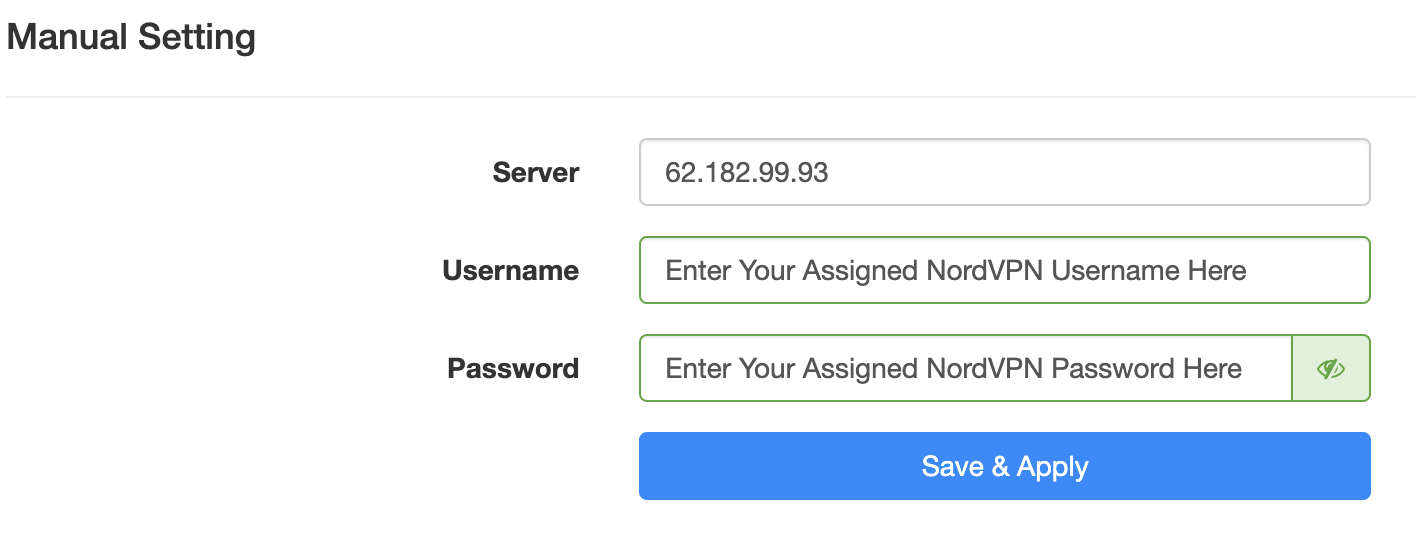
6. Enter your NordVPN username and password that you obtained earlier in the Username and Password. Note that these are different from your NordVPN email login and password.

Cudy NordVPN enter username and password

7. Click Save & Apply at the bottom of the page.

Verify a successful NordVPN connection

  1. You should now see a CONNECTED message.
  2. Visit NordVPN’s IP Check to verify your new IP address and virtual location.

In some cases you may notice that the location is not showing the same location as the server you have input in your router settings; this is because geo tracking tools are often tricked by VPN connections. As long as you see an IP address that is not the same as your normal Internet IP address then you are indeed connected to NordVPN.

How to change the NordVPN server

  1. Follow the steps at the top of the page to obtain a new .ovpn file.
  2. Then proceed with the settings same as initial setup.

TROUBLESHOOTING

Still having issues? Visit the VPN Troubleshooting section.

Troubleshoot Here

Surfshark Merlin WireGuard Setup

TeamFlashRouters · Mar 30, 2023 ·

Preparing for Surfshark Merlin Setup

Download your Surfshark .conf file

If you are not already a Surfshark user Sign Up Now.

1. Log in to your account on the Surfshark website.

Surfshark Account Login

2. Click VPN Manual Setup.

Surfshark VPN Manual Setup

3. Select Router as the Setup Method.

Surfshark setup method Router

4. Select WireGuard as the Protocol.

Surfshark select WireGuard

5. Select I don’t have a key pair.

Surfshark No Key Pair

6. Enter FlashRouter as the name of the connection and click Next.

Surfshark Connection Name

7. Click Generate a new key pair.

Surfshark Generate new Key Pair

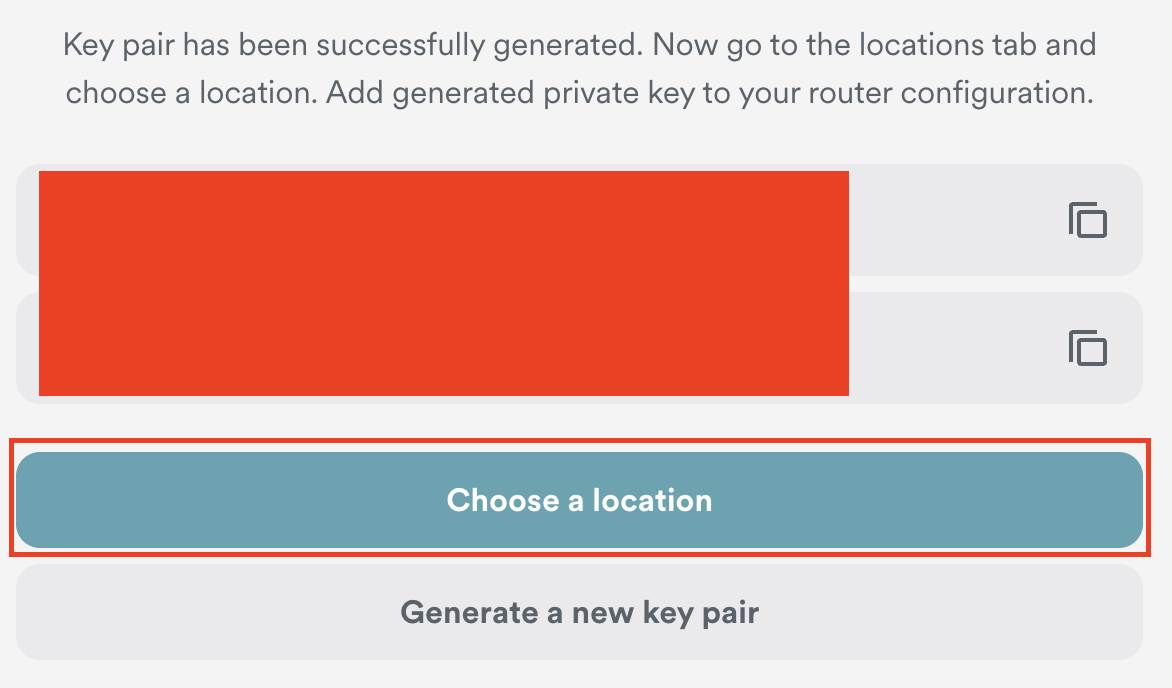
8. Click Choose a location.

Surfshark Choose a Location

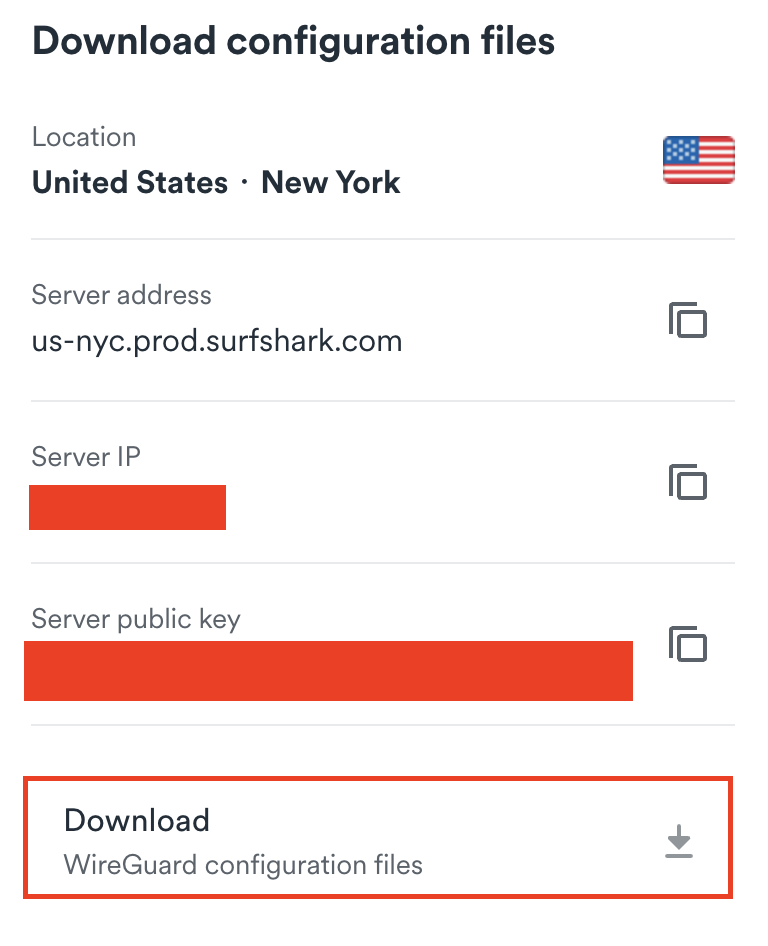
9. Select the server location you want to connect to. Unless you need a specific location we recommend using Surfshark’s recommended Fastest server. Click Download to download the .conf file for this Surfshark server location.

Surfshark download conf file

Merlin Router Setup for Surfshark

Login to Asus Merlin firmware settings in a browser on any computer or smart device connected to the Merlin FlashRouter’s network.

1. Navigate to the VPN tab.

Merlin VPN Tab

2. Navigate to the VPN Client tab.

Merlin VPN Client Tab

3. Select WireGuard as the VPN Protocol.

Merlin VPN Client WireGuard

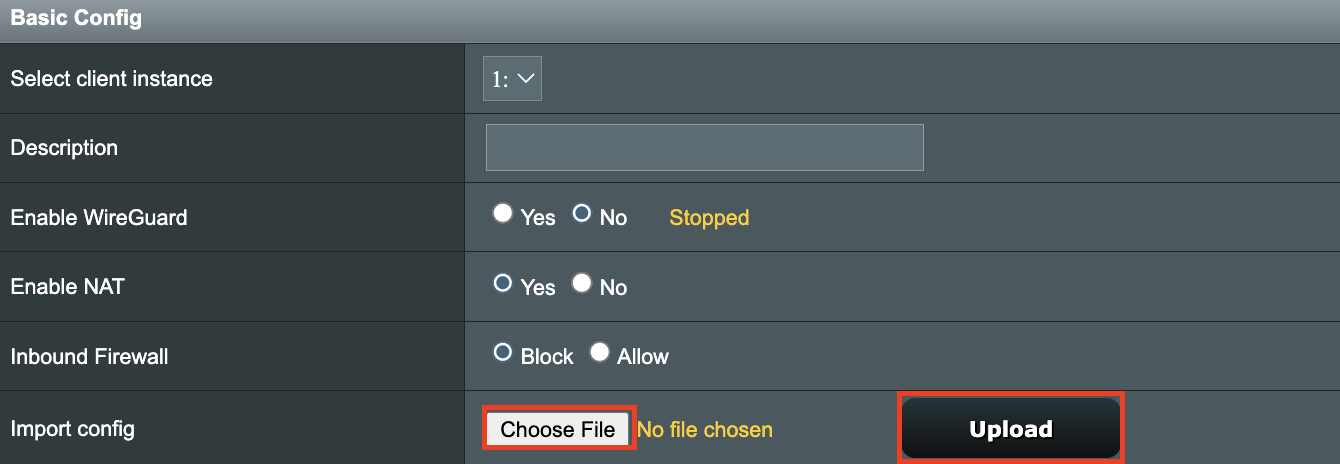
4. Click Choose file and select the .conf file you downloaded earlier. Then click Upload.

Merlin WireGuard Choose File Upload

5. In the Description field enter in the name you’d like to use for this WireGuard Client profile. We typically advise entering in the location here. Our example server was in New York so I have entered in Surfshark New York.

Merlin WireGuard ProtonVPN Description

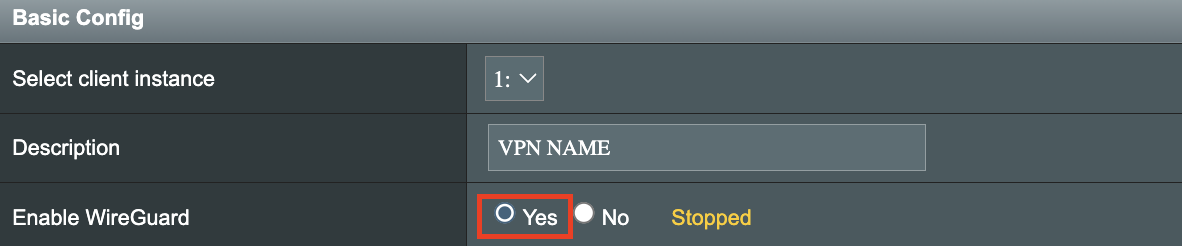
6. Set Enable WireGuard to Yes.

Merlin Enable WireGuard

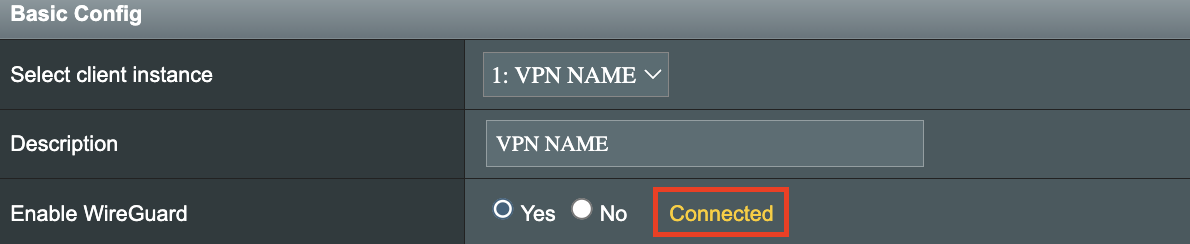
7. Click Apply at the bottom of the page and you should then see a Connected message appear.

Merlin WireGuard Connected

8. By default no devices are assigned to the new active WireGuard connection profile. Click the VPN Director tab to assign specific devices to the new WireGuard profile. Your IP will not be changed on your devices yet.

WireGuard select VPN Director

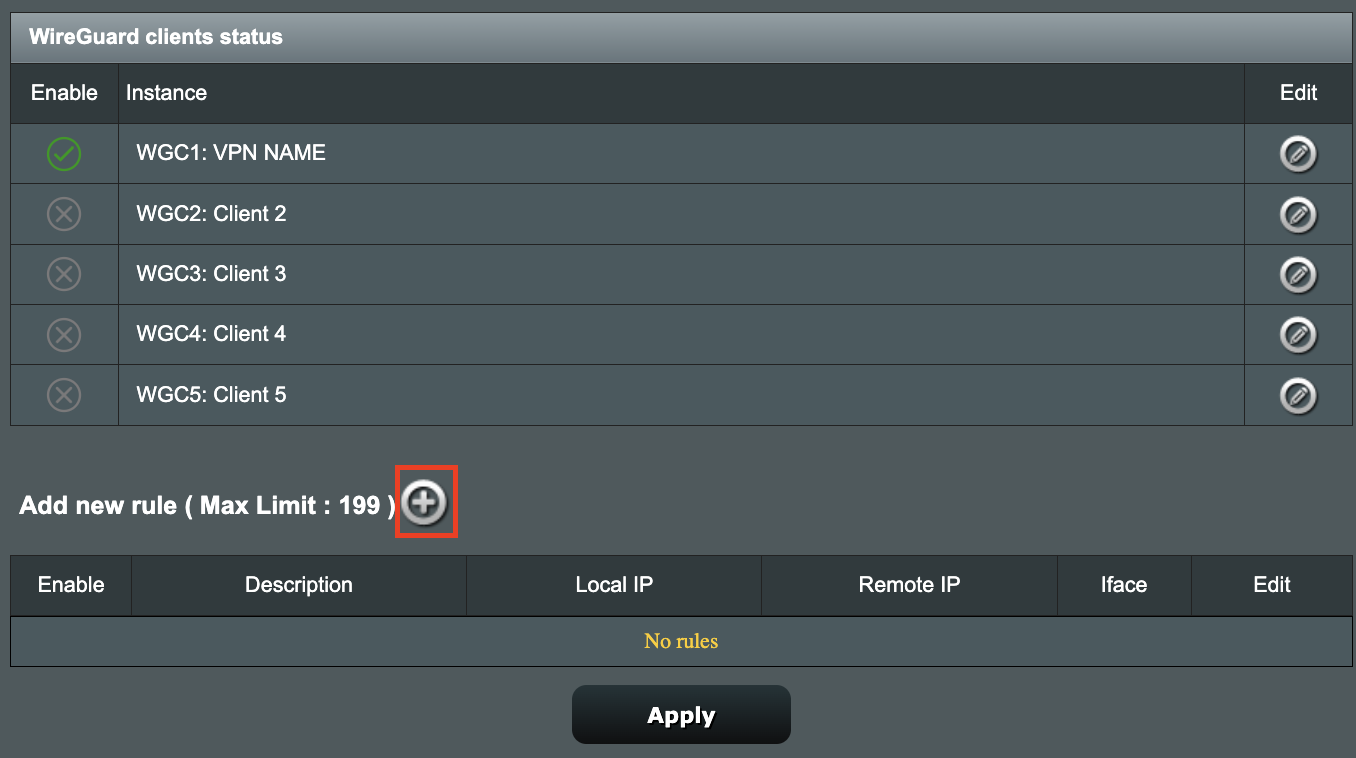
9. On the VPN Director page click the + symbol next to Add new rule.

WireGuard VPN Director Add new rule

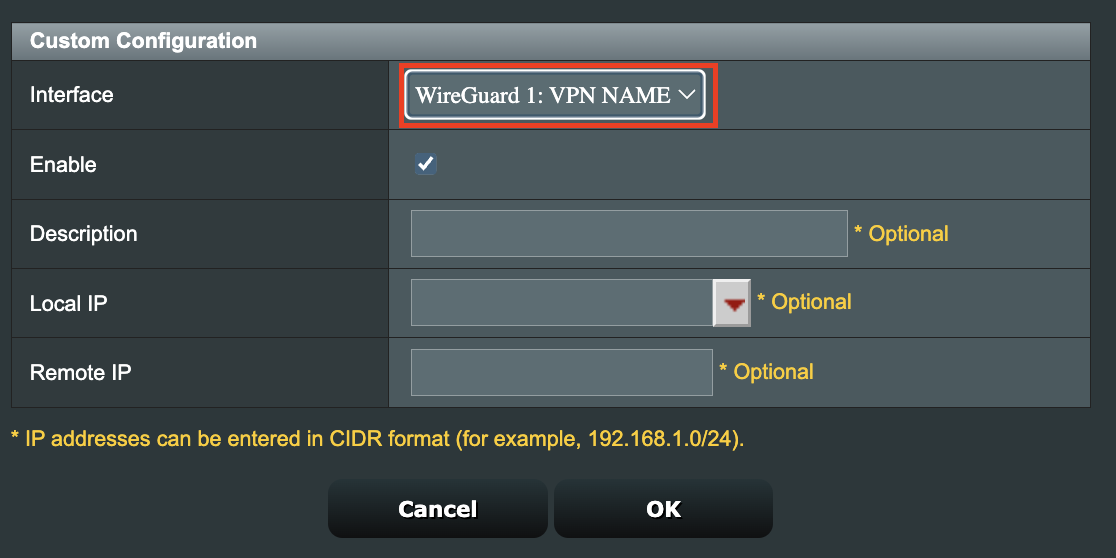
10. Select the new WireGuard profile in the Interface dropdown.

WireGuard VPN Director select Interface

11. In the Local IP field enter in 192.168.50.0/24 if you want ALL devices connected to the FlashRouter’s network to use the WireGuard VPN connection. Click OK.

If you only want certain devices to connect to the WireGuard Client profile you have setting up instead of all the devices connected to the FlashRouter’s network please complete the instructions on our VPN Director guide.

12. Then click Apply at the bottom of the page.

Verify a successful Surfshark connection

Visit Surfshark’s IP Check from a private/incognito browsing window to verify your new IP address and virtual location.

In some cases you may notice that the location is not showing the same location as the server you have input in your router settings; this is because geo tracking tools are often tricked by VPN connections. As long as you see an IP address that is not the same as your normal Internet IP address then you are indeed connected to Surfshark.

How to change the Surfshark server

  1. Follow the steps at the top of the page to obtain a new .conf file.
  2. Then proceed with the settings same as initial setup.

TROUBLESHOOTING

Still having issues? Visit the VPN Troubleshooting section.

Troubleshoot Here

NordVPN TP-Link OpenVPN Setup

TeamFlashRouters · Apr 16, 2024 ·

Preparing for NordVPN TP-Link Setup

Obtain your NordVPN manual Username and Password

If you are not already an NordVPN user Sign Up Now.

1. Log in to your account on the NordVPN website.

NordVPN login

2. Click NordVPN on the left hand side and then click Setup NordVPN manually.

NordVPN setup manually

3. Enter in the verification code that was sent to your email.

NordVPN verify code

4. Copy and paste your NordVPN manual username and password to a secure location. This is the username and password you will enter into the router settings to connect to NordVPN.

NordVPN credentials

Download your NordVPN .ovpn file

1. There are two options for obtaining the .ovpn file. The first and recommended is to navigate to NordVPN’s server recommendation page. Click Recommended Server to display the fastest server based on your actual location. You can adjust the country if you don’t want to connect to the recommended country.

Then click Show Available Protocols. Click Download Config next to OpenVPN UDP. This will download the .ovpn file to your computer for this server. Do not open this file.

NordVPN Recommended Server

The second method to obtain a server is for connecting to a specific server number that you know you want to use. This applies to NordVPN Dedicated IP servers if you are signed up for that service. Go to NordVPN’s .ovpn file page. Then search for the server number that you want to use and click Download UDP.

NordVPN Download Specific Server

TP-Link Router Setup for NordVPN

Login to TP-Link firmware settings in a browser on any computer or smart device connected to the FlashRouter’s network.

1. Navigate to the Advanced tab.

TP-Link Advanced settings

2. Navigate to the VPN Client tab.

TP-Link VPN Client

3. Check the Enable box next to VPN Client. Then click Save at the bottom of the page.

TP-Link VPN Client enable

4. Click the Add button in the Server List area.

TP-Link Add server button

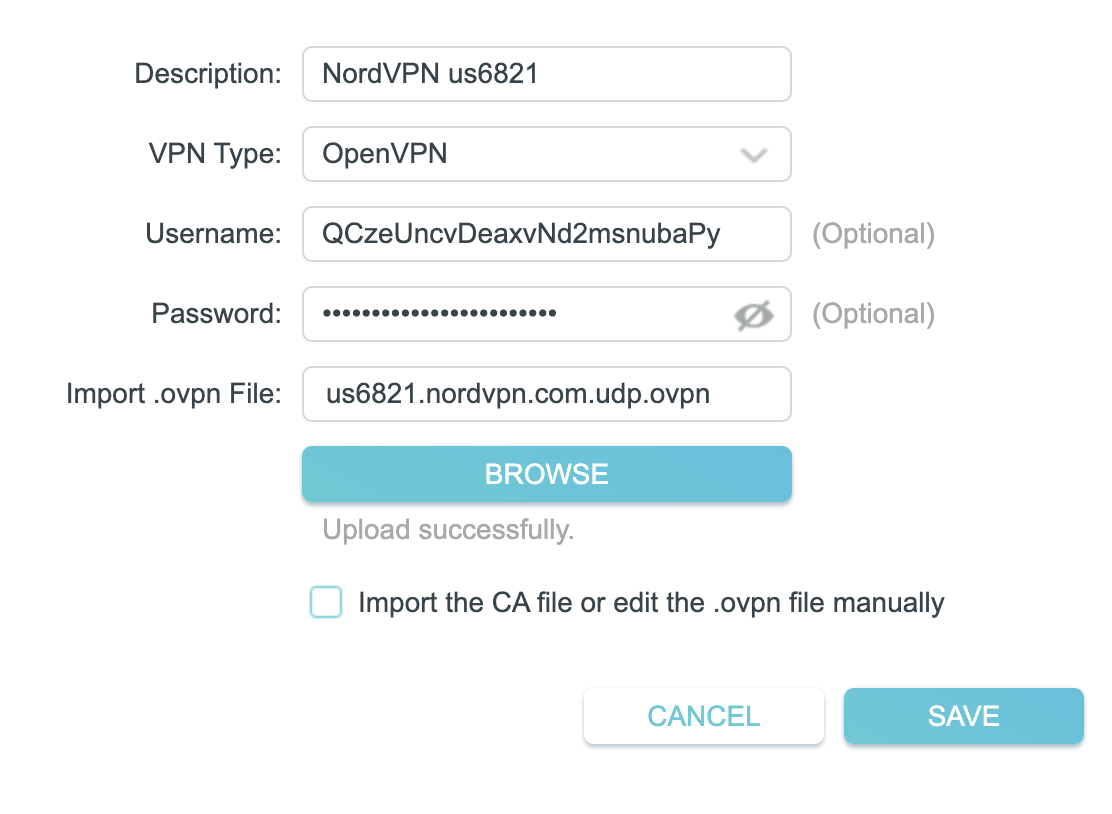
5. In the Description field enter in the name you’d like to use for this OpenVPN Client profile. We typically advise entering in the location or server number here. Our example server was us6821 so I have entered in NordVPN us6821.

Set the VPN Type to OpenVPN.

In the Username and Password fields paste in the NordVPN username and password we obtained earlier.

Click Browse and select the .ovpn file you downloaded earlier. Then click Save.

TP-Link NordVPN

By default no devices will be assigned to the VPN Tunnel. With TP-Link firmware you must manually assign the devices that you want connected to the VPN tunnel. Proceed with the next steps to do so for all devices you want connected to VPN.

6. Click the Add button in the Device List area.

TP-Link add devices to VPN tunnel

7. A list of devices connected to the FlashRouter’s network will appear. Check the devices that you want to connect to VPN. Then click OK.

TP-Link select devices to add to VPN tunnel

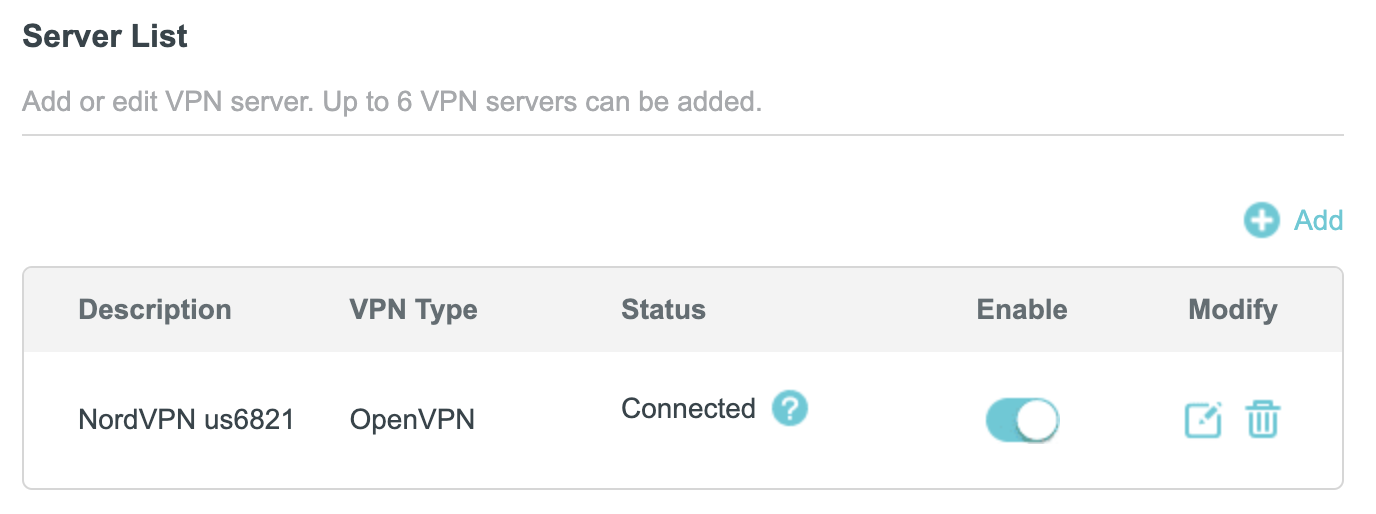
8. Now that the devices have been assigned to the VPN connection click the Enable toggle in the Server List area.

TP-Link NordVPN connected

Verify a successful NordVPN connection

  1. You should now see a CONNECTED message.
  2. Visit NordVPN’s IP Check to verify your new IP address and virtual location.

In some cases you may notice that the location is not showing the same location as the server you have input in your router settings; this is because geo tracking tools are often tricked by VPN connections. As long as you see an IP address that is not the same as your normal Internet IP address then you are indeed connected to NordVPN.

How to change the NordVPN server

  1. Follow the steps at the top of the page to obtain a new .ovpn file.
  2. Then proceed with the settings same as initial setup.

TROUBLESHOOTING

Still having issues? Visit the VPN Troubleshooting section.

Troubleshoot Here

Surfshark TP-Link WireGuard Setup

TeamFlashRouters · Apr 29, 2024 ·

Preparing for Surfshark TP-Link Setup

Download your Surfshark .conf file

If you are not already a Surfshark user Sign Up Now.

1. Log in to your account on the Surfshark website.

Surfshark Account Login

2. Click VPN Manual Setup.

Surfshark VPN Manual Setup

3. Select Router as the Setup method.

Surfshark setup method Router

4. Select WireGuard as the Protocol.

Surfshark select WireGuard

5. Select I don’t have a key pair.

Surfshark No Key Pair

6. Enter FlashRouter as the name of the connection and click Next.

Surfshark Connection Name

7. Click Generate a new key pair.

Surfshark Generate new Key Pair

8. Click Choose a location.

Surfshark Choose a Location

9. Select the server location you want to connect to. Unless you need a specific location we recommend using Surfshark’s recommended Fastest server. Click Download to download the .conf file for this Surfshark server location.

Surfshark download conf file

TP-Link Router Setup for Surfshark

Login to TP-Link firmware settings in a browser on any computer or smart device connected to the FlashRouter’s network.

1. Navigate to the Advanced tab.

TP-Link Advanced settings

2. Navigate to the VPN Client tab.

TP-Link VPN Client

3. Check the Enable box next to VPN Client. Then click Save at the bottom of the page.

TP-Link VPN Client enable

4. Click the Add button in the Server List area.

TP-Link Add server button

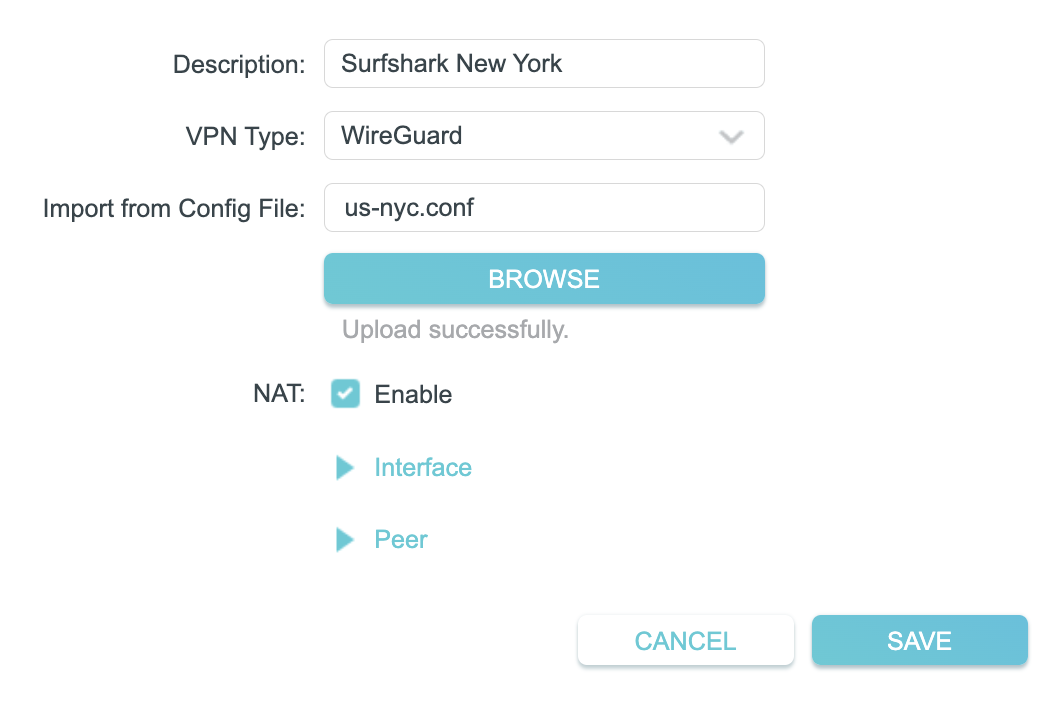
5. In the Description field enter in the name you’d like to use for this WireGuard Client profile. We typically advise entering in the location. Our example server was New York so I have entered in Surfshark New York.

Set the VPN Type to WireGuard.

Click Browse and select the .conf file you downloaded earlier. Then click Save.

TP-Link Surfshark WireGuard

By default no devices will be assigned to the VPN Tunnel. With TP-Link firmware you must manually assign the devices that you want connected to the VPN tunnel. Proceed with the next steps to do so for all devices you want connected to VPN.

6. Click the Add button in the Device List area.

TP-Link add devices to VPN tunnel

7. A list of devices connected to the FlashRouter’s network will appear. Check the devices that you want to connect to VPN. Then click OK.

TP-Link select devices to add to VPN tunnel

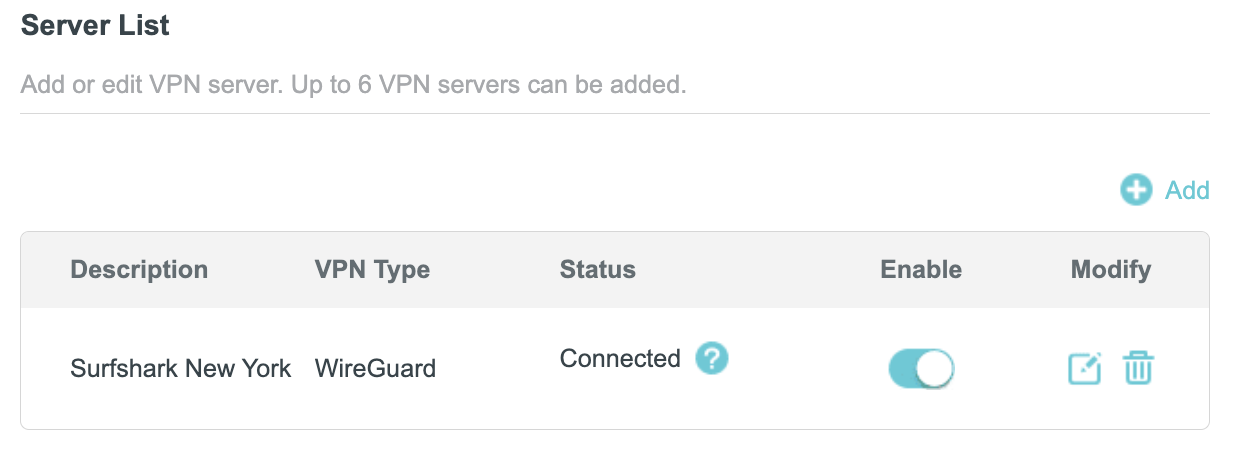
8. Now that the devices have been assigned to the VPN connection click the Enable toggle in the Server List area.

TP-Link Surfshark WireGuard Connected

Verify a successful Surfshark connection

  1. You should now see a CONNECTED message.
  2. Visit Surfshark’s IP Check to verify your new IP address and virtual location.

In some cases you may notice that the location is not showing the same location as the server you have input in your router settings; this is because geo tracking tools are often tricked by VPN connections. As long as you see an IP address that is not the same as your normal Internet IP address then you are indeed connected to Surfshark.

How to change the Surfshark server

  1. Follow the steps at the top of the page to obtain a new .conf file.
  2. Then proceed with the settings same as initial setup.

TROUBLESHOOTING

Still having issues? Visit the VPN Troubleshooting section.

Troubleshoot Here

Primary Sidebar

  • Troubleshooting
  • Router Access
  • Internet Connection Issues
  • WiFi Connectivity
  • General VPN Issues
  • TeamViewer Remote Support
  • DD-WRT Firmware
  • Facebook
  • Twitter
  • Instagram
  • Pinterest
  • YouTube

Footer