• Skip to primary navigation
  • Skip to main content
  • Skip to primary sidebar
  • Skip to footer

FlashRouters Support Portal

Prioritizing Privacy

  • SETUP GUIDES
    • Privacy Hero Router Setup Guide
    • ASUS-WRT Router Setup Guide
    • AsusWRT-Merlin Router Setup Guide
    • DD-WRT Router Setup Guide
    • ExpressVPN Router Setup Guide
    • GL.iNet Router Setup Guide
    • Roqos Core Router Setup Guide
  • TROUBLESHOOTING
    • Router Access
    • WiFi Connectivity
    • Internet Connection Issues
    • General VPN Issues
    • DD-WRT Firmware
    • TeamViewer Remote Support
  • FAQs
    • Router FAQs
    • VPN FAQs
    • Warranty and Returns FAQs
    • Sales FAQs
    • Shipping FAQs
    • Service Plan FAQs
  • Show Search
Hide Search

Search Results for: changing my add

NordVPN Setup for AsusWRT: Token, WireGuard & OpenVPN

TeamFlashRouters · Oct 15, 2025 ·

Set up NordVPN on an ASUS router using AsusWRT VPN Fusion. Supported ASUS firmware offers three different VPN types: NordVPN (access-token integration), WireGuard (downloadable .conf file), and OpenVPN (manual service credentials plus an .ovpn file). Choose the method that matches your needs and your router’s available options.

All configuration is completed directly through your ASUS router’s administration interface using VPN Fusion. Before starting, make sure your router is connected to the internet, your firmware supports VPN Fusion, and you have an active NordVPN subscription.

Before starting, join the ASUS router WiFi or LAN and sign in to http://www.asusrouter.com or your router’s LAN IP (commonly 192.168.50.1). Open VPN > VPN Fusion > Add profile. Router model, firmware, and region affect which VPN types appear. See Access Your AsusWRT Settings.

In This Guide

Choose a VPN Type →NordVPN, WireGuard, or OpenVPNNordVPN Token Setup →Built-in NordLynx integrationWireGuard File Setup →Download and import a .confOpenVPN Setup →Manual credentials and .ovpnDedicated IP Setup →OpenVPN onlyDevices & Troubleshooting →Route devices and verify IP

Which NordVPN Option Should You Choose?

1. NordVPN

NordVPN access token and a country/region dropdown. The built-in ASUS/NordVPN integration is the simplest approach if you only need a country, not an exact server file.

Follow token setup →

2. WireGuard

Import a NordVPN .conf configuration file for a server selected in Nord Account. Useful when you want a downloaded profile for a particular server.

Follow WireGuard setup →

3. OpenVPN

Import a NordVPN .ovpn server file and enter your separate manual service username and password. Also used for NordVPN Dedicated IP.

Follow OpenVPN setup →

Dedicated IP uses OpenVPN only in this guide. Select OpenVPN in VPN Fusion and import your Dedicated IP .ovpn file. Do not use the standard NordVPN token/region dropdown for a Dedicated IP.

Option 1: NordVPN Dropdown — Token-Based NordLynx

Select the NordVPN type inside VPN Fusion. This is the integrated token-based setup and offers a country/region selection, rather than a manually imported server file.

  1. In Nord Account, open NordVPN Access Tokens and complete email/account verification if requested.
  2. Generate an access token, choose an expiry period if NordVPN offers that setting, and copy the token immediately (it may only be displayed once).
  3. On your ASUS router, open VPN > VPN Fusion > Add profile.
  4. Set VPN Type to NordVPN. Name the profile, select your preferred Region, and paste the token.
  5. Choose Apply to all devices if you want it as the default route, or assign only selected devices (see the VPN Fusion guide below).
  6. Click Apply and Enable / Apply all settings, as shown in your firmware, and verify the profile connects.
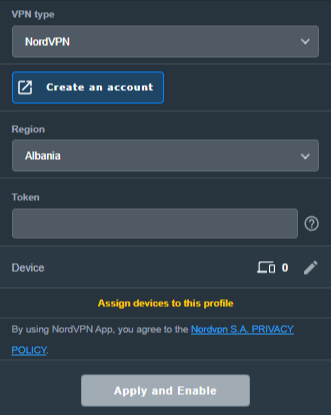
ASUS VPN Fusion NordVPN VPN type with Region and Token fields
Keep: existing ASUS NordVPN region/token form (remove any private token before publishing).

Need a specific server? Use the separate WireGuard file method below or the OpenVPN configuration-file method. Do not expect the token-based country dropdown to accept a .conf or .ovpn file.

Option 2: WireGuard Dropdown — Import a NordVPN .conf File

NordVPN now provides downloadable WireGuard configuration files through its manual server recommendation page. This is different from the built-in NordVPN token option in VPN Fusion.

  1. Sign in to Nord Account and open NordVPN Server Recommendation.
  2. Choose your preferred country and server; use the available filters if you need to narrow the list. Select a currently available server.
  3. Choose Get setup configuration, select WireGuard from the protocol menu, and click Download config. Save the downloaded .conf file.
  4. In your ASUS router settings open VPN > VPN Fusion > Add profile, then set VPN Type to WireGuard (not NordVPN).
  5. Use the ASUS Import configuration / file-import control to select the NordVPN .conf file. Confirm the imported parameters and save the profile.
  6. Choose the target devices or enable the default/all-devices route. Click Apply and Enable, then check the VPN status and your public IP.


WireGuard configuration files may contain a private key. Do not share an actual customer .conf file or publish a screenshot exposing its key material. When changing servers, download/import a different file and choose the desired active profile.

NordVPN’s official instructions: How to download WireGuard and OpenVPN configuration files.

Option 3: OpenVPN Dropdown — Credentials + .ovpn File

OpenVPN requires two separate items: the configuration file for your desired server and NordVPN’s manual service credentials. Your normal Nord Account email/password is not the correct credential pair for this method.

  1. Open NordVPN Manual Service Credentials and copy the service username and service password after any required verification.
  2. Open NordVPN OpenVPN Configuration Files and choose a server/location. Download its UDP .ovpn file, or TCP .ovpn if UDP does not work on your network.
  3. On ASUS, go to VPN > VPN Fusion > Add profile and set VPN Type to OpenVPN.
  4. Enter a connection name, Import .ovpn file, and paste the NordVPN manual service username and password in the corresponding fields.
  5. Choose devices or Apply to all devices, then click Apply and Enable. Confirm VPN Fusion shows a successful connection.
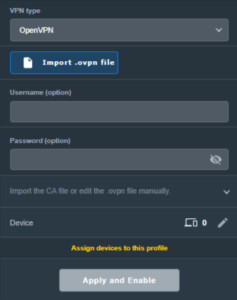
ASUS VPN Fusion OpenVPN VPN type with OVPN import and username password fields
Keep: existing ASUS OpenVPN profile form. New screenshots should use a larger clean capture if available.

Server selection: The location is controlled by the server named in the imported .ovpn file. To switch locations, import another server file or use a separate OpenVPN profile.

NordVPN Dedicated IP — OpenVPN Only

If you have purchased and activated the NordVPN Dedicated IP add-on, use your specific Dedicated IP OpenVPN configuration file. Do not select the ordinary NordVPN token integration or a regular shared server.

  1. In your Nord Account, open the Dedicated IP details and download the assigned server’s OpenVPN UDP or TCP configuration file, following NordVPN Dedicated IP manual configuration instructions.
  2. Open NordVPN Manual Service Credentials and copy the manual username and password.
  3. In ASUS VPN Fusion > Add profile, choose OpenVPN.
  4. Import the Dedicated IP .ovpn file, enter manual service credentials, save, enable, and verify the public IP matches your assigned Dedicated IP.

The Dedicated IP add-on must be active on the NordVPN account. A regular shared-server .ovpn file will not give you the Dedicated IP.

Assign Devices, Verify the VPN, and Troubleshoot

One VPN for everyone, or different VPNs for different devices?

VPN Fusion lets you use a VPN profile as the default connection for all devices or assign specific client devices to different profiles. Some supported ASUS models can maintain one WireGuard tunnel alongside multiple OpenVPN profiles, but the number of simultaneous tunnels is model/firmware dependent; creating multiple profiles does not mean all can be active simultaneously.

For step-by-step device assignments, default routing, profile conflicts, and bypassing the VPN, see How to Use ASUS VPN Fusion and Assign Devices to VPN Profiles. For a dedicated WiFi network with VPN or ISP routing, see ASUS Guest Network VPN / No-VPN Setup.

Verify the IP of the actual device

  1. Confirm your chosen profile shows Connected in VPN Fusion.
  2. Join the ASUS WiFi or LAN using a device that is actually assigned to that VPN profile.
  3. Open NordVPN IP Address Check and compare the public IP/location with the intended server or Dedicated IP.
  4. If the device shows an ISP IP, first check Apply to all devices and the per-device assignments in VPN Fusion.
  5. Disconnect a NordVPN app, Apple iCloud Private Relay, browser VPN/proxy, or other device-level network service during testing. Follow Router VPN Shows Wrong IP? Check Device Settings.

If VPN Fusion will not connect

  1. Temporarily disable the failing profile and confirm the ASUS router works using its normal ISP internet connection.
  2. For NordVPN type, check that the access token is valid and hasn’t expired; regenerate if needed.
  3. For WireGuard, import a fresh .conf from the Nord server recommendation page and make sure the profile is enabled.
  4. For OpenVPN, double-check manual service credentials (not website credentials) and try a different server file or TCP instead of UDP.
  5. Check that device-assignment rules point to the intended active profile, then retest with one clean device.

NordVPN Routers & Offers

Shop NordVPN-Ready FlashRouters

Compare ASUS and Privacy Hero router options and choose the hardware that fits your VPN and network requirements.

Browse NordVPN Routers →

NordVPN Partner Offer

Need NordVPN service? See the current FlashRouters NordVPN promotional offer. Subscription pricing and terms are shown on the offer page.

See NordVPN Offer →

Related AsusWRT Guides

  • ASUS VPN Fusion: Assign Devices and Manage Multiple Profiles
  • ASUS Guest Network: WiFi With or Without a VPN
  • AsusWRT Router Login Guide
  • Router VPN Shows Wrong IP? Device Settings

Upgrade your ASUS router

Explore the Latest WiFi 7 ASUS FlashRouters

Looking for a newer ASUS router? Browse WiFi 7 models available from FlashRouters and compare features to find the right fit for your home or office. VPN Fusion and other features vary by router model and firmware.

Shop ASUS WiFi 7 Routers →

ExpressVPN Setup for Privacy Hero

TeamFlashRouters · Aug 14, 2025 ·

Privacy Hero supports ExpressVPN using OpenVPN. To connect, you need your ExpressVPN Manual Configuration username and password and an OpenVPN (.ovpn) configuration file for your preferred server location.

Important: In Privacy Hero, choose Custom as the VPN provider. Upload the ExpressVPN .ovpn file and enter your separate Manual Configuration credentials, not your regular ExpressVPN website login.

Privacy Hero is cloud-managed, so you can complete setup from any computer, smartphone, or tablet with an internet connection. You do not need to be connected to Privacy Hero WiFi while changing the settings.

Choose Your ExpressVPN Setup Step

Jump directly to the instructions you need.

Manual Credentials →Find your ExpressVPN OpenVPN username and passwordDownload .ovpn File →Choose a server location and download its UDP fileCustom VPN Setup →Upload the file and enter credentials in Privacy HeroUDP Configuration →Check the OpenVPN protocol and save your connectionVerify Connection →Confirm your VPN IP address and server locationTroubleshooting →Connection errors, timeouts, and no internet

Get Your ExpressVPN Manual Configuration Credentials

ExpressVPN provides separate credentials for manual OpenVPN connections. These are different from your normal ExpressVPN website email and password.

  1. Open ExpressVPN Set Up Devices and sign in to your ExpressVPN account.
  2. In the left navigation, select Set Up Devices.
  3. Under Applications, expand Advanced setup and choose Manual Configuration.
  4. Find your unique Username and Password under Manual Configuration. Keep this tab open so you can copy them into Privacy Hero.

Important: Do not use your regular ExpressVPN account password, and do not share your manual configuration credentials publicly.


Download Your ExpressVPN OpenVPN Server File

Each available ExpressVPN location has its own OpenVPN configuration file. The file determines the server location used by Privacy Hero.

  1. On the same Manual Configuration page, locate the server regions, such as Americas, Europe, Asia Pacific, or Middle East & Africa.
  2. Expand your preferred region and download the UDP .ovpn file for an available location. Save it to the device you are using to configure Privacy Hero.

Only locations offered on your ExpressVPN Manual Configuration page can be used for this setup. To change locations later, download the corresponding .ovpn file and upload it to Privacy Hero.


Add ExpressVPN to Privacy Hero as a Custom VPN

ExpressVPN uses Privacy Hero’s Custom VPN configuration rather than a dedicated ExpressVPN provider option.

Upload the OpenVPN File and Enter Credentials

  1. Open app.privacyhero.com and sign in to your Privacy Hero account.
  2. Open the VPN section.
  3. Click Change beside the VPN provider and choose Custom.
  4. Choose OpenVPN if prompted, then upload the UDP .ovpn file downloaded from ExpressVPN.
  5. Copy the separate ExpressVPN Manual Configuration Username and Password into the corresponding Privacy Hero fields.
Privacy Hero Custom OpenVPN configuration showing file upload and manual username and password fields

Check the UDP Configuration and Connect

  1. If Privacy Hero displays the OpenVPN configuration in an editor, confirm that the downloaded UDP configuration specifies proto udp. If the directive is missing, add proto udp at the beginning of the configuration. Do not add a conflicting second protocol directive.
  2. Click Save to apply the configuration and establish the VPN connection.
  3. Confirm Privacy Hero displays Connected for the Custom OpenVPN connection.
Privacy Hero Custom OpenVPN configuration editor with proto udp directive

Verify Your ExpressVPN Connection

After Privacy Hero reports Connected, check that devices on the Privacy Hero network are actually using the VPN.

  1. Connect the testing device to the Privacy Hero WiFi or LAN network.
  2. Disconnect the ExpressVPN app or any other VPN application running directly on that device.
  3. Open a fresh private/incognito browser window.
  4. Visit ExpressVPN What Is My IP.
  5. Confirm the public IP address and approximate location correspond to the ExpressVPN server selected in your .ovpn file.

Important: You can manage Privacy Hero’s VPN settings from another network or cellular data. However, to verify the router’s VPN IP, the testing device must be connected to the Privacy Hero network. Running another VPN app on the device can produce double-VPN results.

Streaming Relocation and VPN Location

If Streaming Relocation is enabled for a supported streaming service, that service may use its Streaming Relocation region instead of the location defined in the ExpressVPN configuration file. See Privacy Hero Streaming Relocation.


ExpressVPN Not Connecting?

If Privacy Hero shows Failed, stays on Connecting, or displays a timeout error, try these checks:

  1. Confirm your ExpressVPN subscription is active and you entered the separate Manual Configuration username and password.
  2. Check that you selected Custom in Privacy Hero, rather than another VPN provider.
  3. Download a fresh UDP .ovpn file for an available ExpressVPN server location and upload it again.
  4. Check that the OpenVPN configuration uses proto udp without conflicting protocol directives.
  5. Temporarily disable the VPN Kill Switch while testing whether normal internet access works without the VPN, then restore your preferred Kill Switch setting.
  6. Try another ExpressVPN server location or reconnect the VPN.

No Internet After the VPN Disconnects?

The Privacy Hero VPN Kill Switch may intentionally block normal internet traffic when the VPN connection is unavailable. See Privacy Hero VPN Kill Switch: No Internet or WiFi Troubleshooting.

VPN Connected, but One Device Shows the Wrong IP?

If other devices show the correct VPN IP, check the affected device’s VPN apps, iCloud Private Relay, Private DNS, antivirus filtering, browser proxy/DNS settings, or other security software. See Device Settings That Can Interfere With Your Router VPN.

Related Privacy Hero Guides

  • Privacy Hero VPN Kill Switch Setup
  • Privacy Hero VPN Kill Switch: No Internet or WiFi Troubleshooting
  • Privacy Hero Streaming Relocation
  • Device Settings That Can Interfere With Your Router VPN
  • FlashRouters Router Troubleshooting

ASUS Guest WiFi With or Without VPN: Setup Guide

Dave · Oct 26, 2026 ·

On supported ASUS routers, you can create a separate WiFi network (SSID) that routes connected devices through a VPN profile, while another network uses the regular ISP connection. This is useful for streaming TVs, guests, work devices, and family members who need different VPN behavior.

The available controls depend on your ASUS model and firmware. Newer routers may call the feature Guest Network Pro or simply Network; older routers may only have Guest Network, which does not offer the same VPN-by-SSID options.

In This Guide

Check Your ASUS Model →Guest Network Pro vs. legacyCreate a VPN WiFi →SSID associated with VPNCreate an ISP WiFi →Network without VPNTest Both Networks →Verify VPN and ISP IPsCommon Mistakes →Default routes, DNS and firmwareRelated Guides →VPN setup and device routing

What You Need Before Starting

  1. Connect to your ASUS router and open http://www.asusrouter.com or its LAN IP. For login details, see AsusWRT Router Access Guide.
  2. For a VPN WiFi network, first set up and verify at least one connected VPN profile under VPN > VPN Fusion. Choose a supported VPN provider from the AsusWRT VPN Setup Guides, then review How to Use ASUS VPN Fusion: Assign Devices and Multiple VPNs for routing options.
  3. Look for Guest Network Pro, Network, or VPN Network in your ASUS firmware. If you only see the traditional Guest Network screen, read the legacy note below before proceeding.

Firmware compatibility: ASUS documents VPN Network functionality on eligible models with firmware 3.0.0.6.102_34312 or later, with the Guest Network Pro section renamed Network from 3.0.0.6.102_35404. Not all models, regions, or firmware builds offer the same features.

Create a Dedicated WiFi Network That Uses the VPN

Preferred route for supported ASUS models: create a VPN Network SSID so all devices joining that SSID use the chosen VPN without individual device assignments.

  1. Open Guest Network Pro > VPN Network, or the equivalent Network > Add Network > VPN Network menu in newer firmware.
  2. Choose a recognizable WiFi name such as Home-VPN and a strong WiFi password.
  3. Select the configured, connected VPN Fusion client/profile and enable VPN routing for that network.
  4. Review any options for local-network access, guest isolation, and bands, then click Apply.
  5. Connect a test device to the new Home-VPN WiFi SSID and check its public IP.

ASUS official walkthrough: Guest Network Pro / VPN Network Setup.

Alternative: Assign a VPN to an Existing Guest Network Pro SSID

  1. In Guest Network Pro / Network, open the existing Guest Network profile.
  2. Select the VPN tab, enable VPN routing, and choose your existing VPN Fusion client.
  3. Click Apply, reconnect a device to the guest SSID, and verify the VPN IP.

ASUS also documents this path: Assign a VPN to Guest Network Pro.

Create a Separate WiFi Network Without a VPN

Use a guest/secondary network routed through the regular ISP internet connection for devices that should not use the VPN.

  1. Under Guest Network Pro / Network, add a normal Guest Network or other suitable network profile (not the VPN Network preset).
  2. Set a clear name such as Home-ISP and secure it with a strong password.
  3. In that network profile’s VPN tab, leave the VPN assignment disabled or choose the Internet/ISP path if your firmware offers it.
  4. Check your VPN Fusion default connection and device policies. If a VPN is set to Apply to all devices, simply turning off the Guest Network’s VPN toggle may not guarantee an ISP bypass on every firmware. Configure an explicit ISP/bypass route where supported.
  5. Save, join the Home-ISP network with a test device, and confirm the public IP matches the ISP connection.

Always test the actual public IP. Different ASUS firmwares apply VPN Fusion defaults and network-profile overrides differently. A WiFi name that says “ISP” or “No VPN” does not itself enforce a VPN bypass.

Confirm Each WiFi Network Uses the Intended Internet Route

  1. Connect a phone or laptop to the VPN WiFi SSID. Disable any VPN app or iCloud Private Relay on the device for this test.
  2. Visit WhatIsMyIPAddress.com and note the public IP and location. This should reflect your selected VPN endpoint.
  3. Disconnect and join the ISP WiFi SSID. Repeat the IP check; it should now show the ISP’s public internet route.
  4. If both SSIDs show the same IP, review the VPN Fusion default profile, guest-network VPN assignment, and any device-specific rules.

Common Issues and What to Check

I only see “Guest Network,” not “Guest Network Pro” or “VPN Network”

Your router may use older firmware or lack this feature. Traditional Guest Network creates a separate WiFi SSID, but the VPN routing option may not exist. Use VPN Fusion device assignments as an alternative rather than assuming the guest network automatically bypasses or uses the VPN.

Every network still uses the VPN

Check whether Apply to all devices is enabled in VPN Fusion. If it is, verify that the guest profile actually overrides the default route on your firmware. You may need an explicit per-network or per-device ISP rule.

A phone reports the wrong IP although the guest VPN profile is correct

Temporarily disable device-level VPN apps, iCloud Private Relay / Limit IP Address Tracking, browser proxy, or Private DNS settings, then reconnect. See Device Settings That Interfere With Router VPN.

Guest devices cannot reach local printers or other LAN devices

Check the guest network’s intranet access / network isolation settings. Changing isolation affects LAN access, not necessarily VPN selection. Keep guests isolated unless LAN access is actually needed.

Related AsusWRT Guides

  • AsusWRT VPN Setup Guides
  • How to Use ASUS VPN Fusion: Assign Devices and Multiple VPNs
  • Device Settings That Interfere With Router VPN
  • ASUS Guest Network Pro Instructions (official)

Upgrade your ASUS router

Explore the Latest WiFi 7 ASUS FlashRouters

Looking for a newer ASUS router? Browse WiFi 7 models available from FlashRouters and compare features to find the right fit for your home or office. VPN Fusion and other features vary by router model and firmware.

Shop ASUS WiFi 7 Routers →

Primary Sidebar

  • Troubleshooting
  • Router Access
  • Internet Connection Issues
  • WiFi Connectivity
  • General VPN Issues
  • TeamViewer Remote Support
  • DD-WRT Firmware
  • Facebook
  • Twitter
  • Instagram
  • Pinterest
  • YouTube

Footer