Preparing for ExpressVPN TP-Link Setup
Obtain your ExpressVPN OpenVPN Information
If you are not already an ExpressVPN user Sign Up Now.
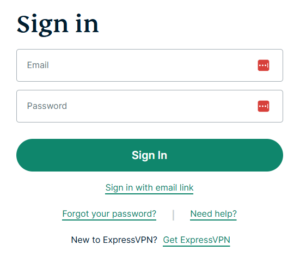
1. Log in to your account on the ExpressVPN website.

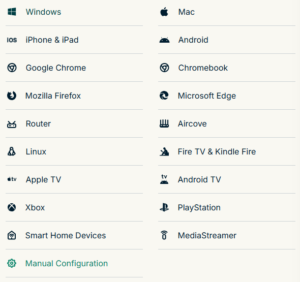
2. Successfully log in with your account information. Select More.

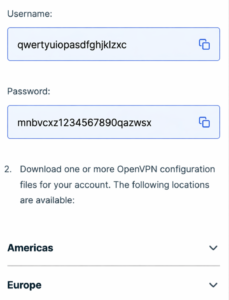
3. Select Manual Configuration and copy the Username and Password that are displayed on the right hand side of the screen.


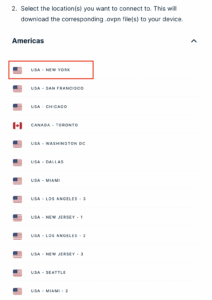
4. Click the Server Location that you want to connect to. This will download a .ovpn file to your computer that we will use later on. There is no need to open the file. For this example I have selected New York but feel free to select any server listed there.

TP-Link Router Setup for ExpressVPN
Login to TP-Link firmware settings in a browser on any computer or smart device connected to the FlashRouter’s network.
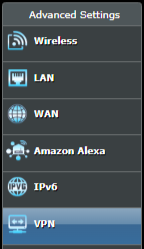
1. Navigate to the Advanced tab.

2. Navigate to the VPN Client tab.

3. Check the Enable box next to VPN Client. Then click Save at the bottom of the page.

4. Click the Add button in the Server List area.

5. In the Description field enter in the name you’d like to use for this OpenVPN Client profile. We typically advise entering in the location or server number here. Our example server was in New York so I have entered in ExpressVPN New York.
Set the VPN Type to OpenVPN.
In the Username and Password fields paste in the ExpressVPN username and password we obtained earlier.
Click Browse and select the .ovpn file you downloaded earlier. Then click Save.

By default no devices will be assigned to the VPN Tunnel. With TP-Link firmware you must manually assign the devices that you want connected to the VPN tunnel. Proceed with the next steps to do so for all devices you want connected to VPN.
6. Click the Add button in the Device List area.

7. A list of devices connected to the FlashRouter’s network will appear. Check the devices that you want to connect to VPN. Then click OK.

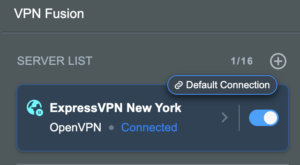
8. Now that the devices have been assigned to the VPN connection click the Enable toggle in the Server List area.

Verify a successful ExpressVPN connection
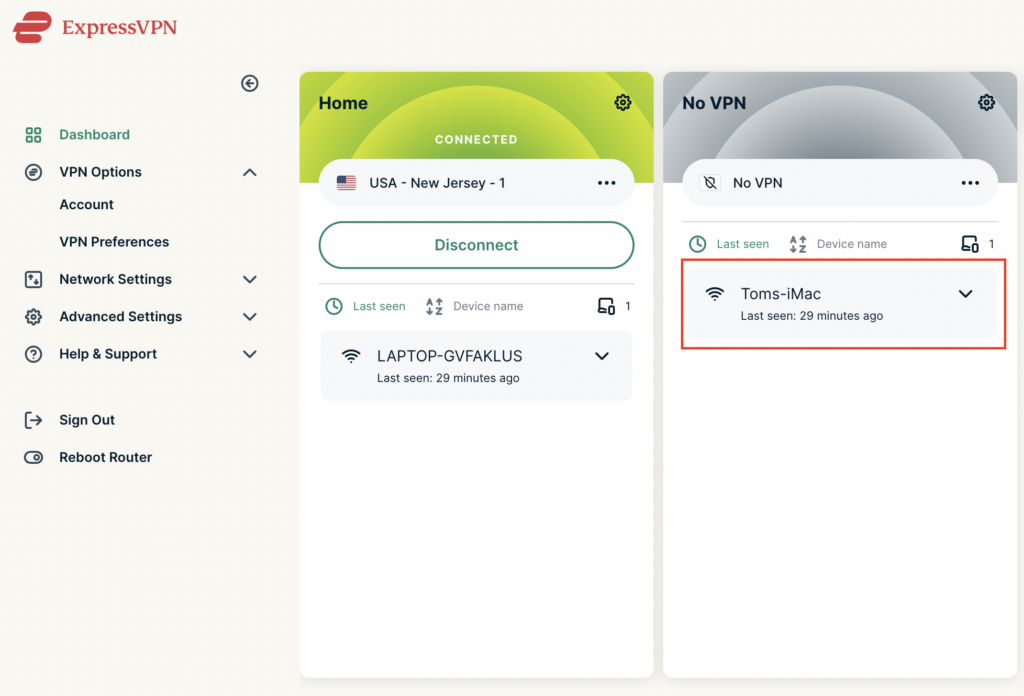
- You should now see a CONNECTED message.
- Visit ExpressVPN’s IP Check to verify your new IP address and virtual location.
In some cases you may notice that the location is not showing the same location as the server you have input in your router settings; this is because geo tracking tools are often tricked by VPN connections. As long as you see an IP address that is not the same as your normal Internet IP address then you are indeed connected to ExpressVPN.
How to change the ExpressVPN server
- Follow the steps at the top of the page to obtain a new .ovpn file.
- Then proceed with the settings same as initial setup.