• Skip to primary navigation
  • Skip to main content
  • Skip to primary sidebar
  • Skip to footer

FlashRouters Support Portal

Prioritizing Privacy

  • SETUP GUIDES
    • Privacy Hero Router Setup Guide
    • ASUS-WRT Router Setup Guide
    • AsusWRT-Merlin Router Setup Guide
    • DD-WRT Router Setup Guide
    • ExpressVPN Router Setup Guide
    • GL.iNet Router Setup Guide
    • Roqos Core Router Setup Guide
  • TROUBLESHOOTING
    • Router Access
    • WiFi Connectivity
    • Internet Connection Issues
    • General VPN Issues
    • DD-WRT Firmware
    • TeamViewer Remote Support
  • FAQs
    • Router FAQs
    • VPN FAQs
    • Warranty and Returns FAQs
    • Sales FAQs
    • Shipping FAQs
    • Service Plan FAQs
  • Show Search
Hide Search

Search Results for: reporting for a

Cudy Internet Setup

TeamFlashRouters · Feb 26, 2024 ·

Follow this article when you receive your new Cudy FlashRouter to connect it to the Internet.

1. Connect the ethernet cable that came with the router from an open LAN ethernet port on your ISP modem or other router to the WAN port if you purchased a Cudy AX3000 or to ethernet port #1 of the device marked Primary if you purchased a Cudy M1800 or Cudy M3000.

Cudy Mesh internet wiring

2. Connect the power to the router and wait about 2 minutes for the router to fully boot up.

3. Connect your computer, phone, or tablet to the Cudy router via wireless (FlashRouter24 / FlashRouter50) or via ethernet cable to one of the LAN ports on the router.

The FlashRouter WiFi password is printed on the sheet that came with the router and is set to Wireless#[First 5 characters of your router MAC]. The router MAC can be found on the bottom of your router if you cannot locate the sheet. For e.g. if your MAC is 1459C07E70A8 then your WiFi password is Wireless#1459C

Be sure to capitalize the W.

4. Once connected via wireless or ethernet on your device open your browser and go to 192.168.10.1

Cudy local IP access

5. Enter openwrt as the admin password to access the Cudy firmware settings.

Cudy router access

6. Verify that your Cudy FlashRouter is reporting as Internet and WAN Connected.

Cudy Verify Internet

6. Verify that your Cudy FlashRouter is reporting as Internet and WAN Connected.

7. If you purchased a Cudy M1800 or Cudy M3000 mesh package you can now take the unit labeled Node to the location you want it connecting from and power it up. It will connect to the Primary network that was just setup automatically. You will then see the Mesh Units number increase according to the number that you have purchased shortly.

Cudy Verify Mesh connection

TROUBLESHOOTING

Still having issues? Visit the VPN Troubleshooting section.

Troubleshoot Here

Roqos VPN Connected, but my device IP is unchanged

TeamFlashRouters · Mar 8, 2022 ·

If your VPN Out page in your Roqos settings is reporting that you are Connected to your VPN provider but your IP Address and location have not changed when you visit What is my IP address? follow the below checklist.

Double check that your device is connected to the Roqos network

Since the Roqos UI is being accessed securely via the cloud you can change the settings while your device is not connected to the Roqos network. This would result in your IP Address not updating when you connect to VPN.

Make sure that you are connected to your Roqos WiFi network or from an ethernet port on the back of the Roqos directly to your device and not another network.

Assign Devices To Connect To VPN in the Roqos

By default there are no devices assigned to the VPN tunnel. To assign devices to the Roqos’ VPN connection.

1. Login to your Roqos UI.

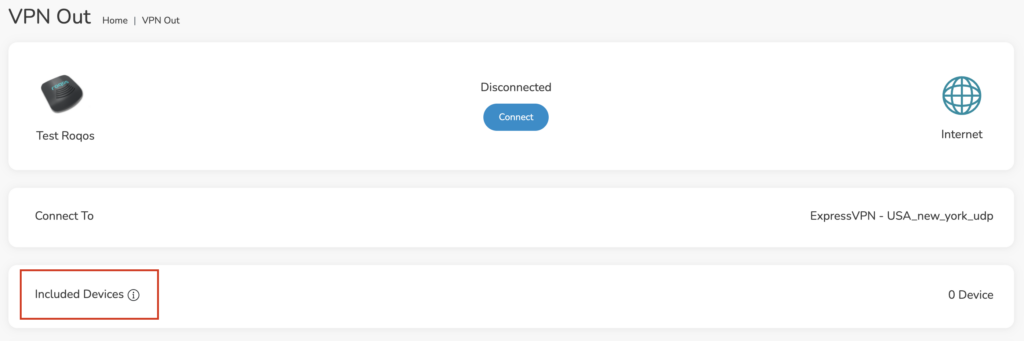
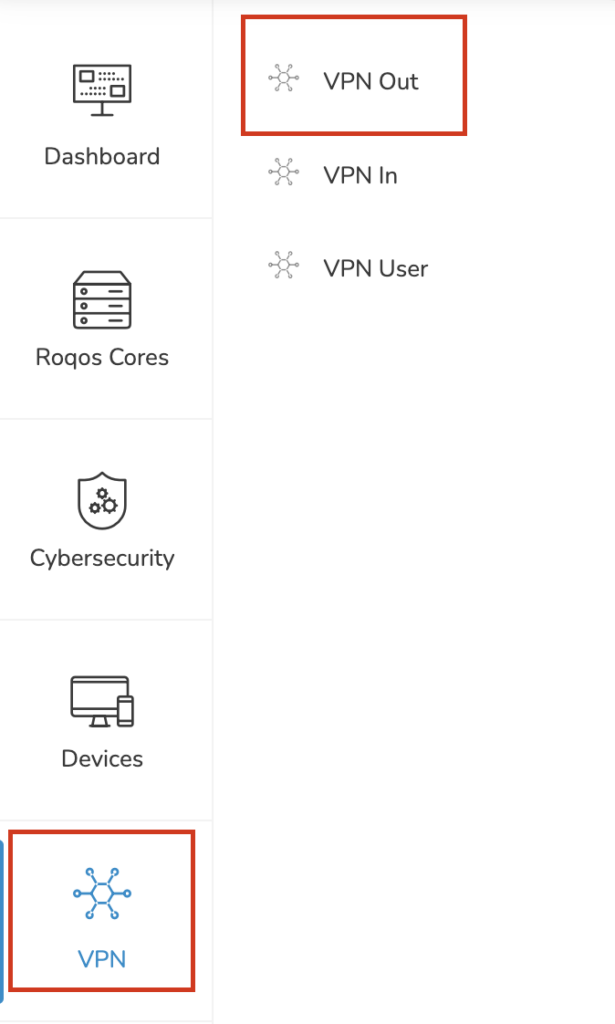
2. Select the VPN tab on the left hand menu and select VPN Out.

Roqos VPN Out

3. Click Included Devices. From this page you can choose if all devices should connect to VPN or only certain devices.

Roqos VPN Included Devices

4. From the dropdown select Include all devices if you want every device that connects to the Roqos to connect to VPN or if you only want specific devices to connect to VPN while others bypass the VPN connection select Include selected devices from the dropdown and then toggle the sliders for the devices you want connected to VPN. Click Save.

Turn off VPN device applications

Connecting to VPN via a device application or browser extension at the same time while connecting via your Roqos is not recommended. Doubling up on VPN connections can cause issues with speeds and stability.

When you are connected to the Roqos VPN network at home you should leave all VPN applications and extensions disconnected and unopened.

TP-Link Internet Setup

TeamFlashRouters · Apr 11, 2024 ·

Follow this article when you receive your new TP-Link FlashRouter to connect it to the Internet.

1. Connect the ethernet cable that came with the router from an open LAN ethernet port on your ISP modem or other router to the WAN port of the TP-Link.

2. Connect the power to the router and wait about 2 minutes for the router to fully boot up.

3. Connect your computer, phone, or tablet to the TP-Link router via wireless (FlashRouter24 / FlashRouter50) or via ethernet cable to one of the LAN ports on the router.

The FlashRouter WiFi password is printed on the sheet that came with the router and is set to Wireless#[First 5 characters of your router MAC]. The router MAC can be found on the bottom of your router if you cannot locate the sheet. For e.g. if your MAC is 1459C07E70A8 then your WiFi password is Wireless#1459C

Be sure to capitalize the W.

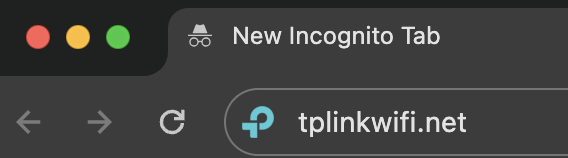
4. Once connected via wireless or ethernet on your device open your browser and go to tplinkwifi.net

TP-Link URL Access

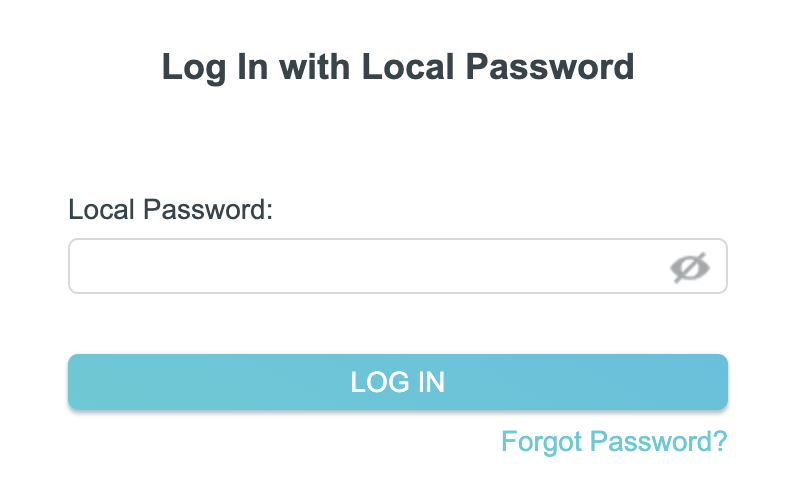
5. Enter tp-link as the admin password to access the TP-Link firmware settings.

TP-Link admin password

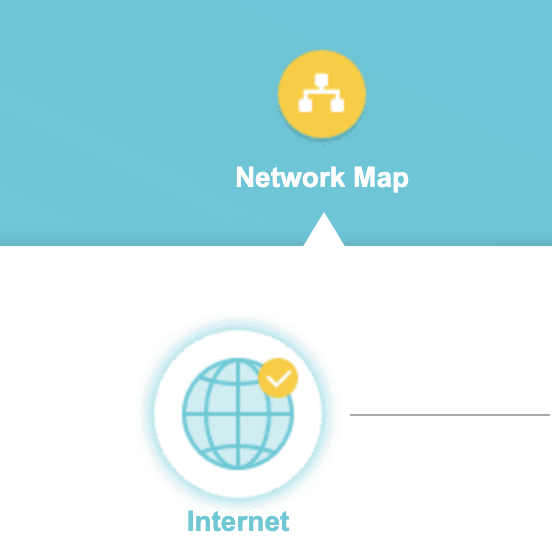
6. Verify that your TP-Link FlashRouter is reporting as Internet and WAN Connected.

TP-Link Internet Connected

TROUBLESHOOTING

Still having issues? Visit the VPN Troubleshooting section.

Troubleshoot Here

Why is my DNS showing as 192.168.11.1 on my devices?

TeamFlashRouters · May 30, 2019 ·

When connected to a FlashRouter’s network the DNS settings of the devices will be reporting as 192.168.11.1. This means that the router is handling DNS internally through the servers you have set in the Setup > Basic Setup section of the router. If you did not set any custom DNS here, then you will using your ISP or VPN DNS servers automatically.

You can always customize the DNS servers in the router to your preferred servers and through DNSmasq the router will use 192.168.11.1 to route these servers to your connected devices.

In some instances disabling DNSMasq in the DD-WRT settings can help unblock previously blocked websites while connected to VPN. This will force devices to report the DNS servers set in the router directly as opposed to 192.168.11.1.

Disabling DNSMasq is not recommended unless FlashRouters specifically advises you but we have seen this work for certain VPN providers. To disable the DNSMasq do the following.

Navigate to Setup > Basic Setup

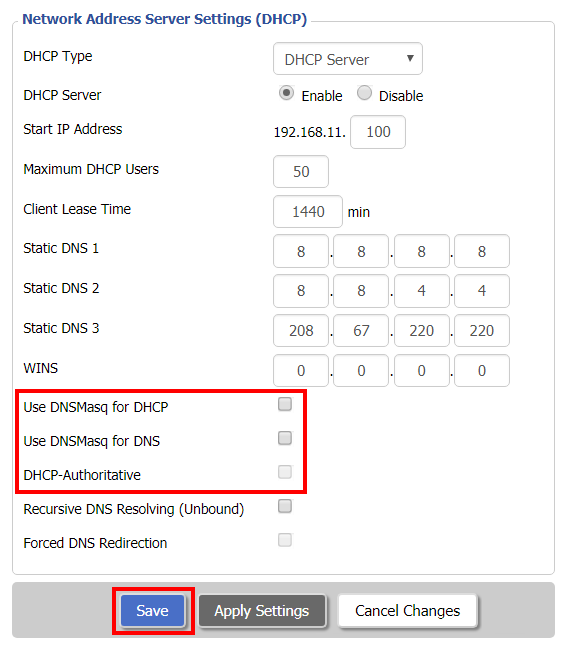
Disable DNSMaq Settings
  1. Uncheck Use DNSMasq for DHCP.
  2. Uncheck Use DNSMasq for DNS.
  3. Uncheck DHCP-Authoritative.
  4. Click Save.

Navigate to Services > Services

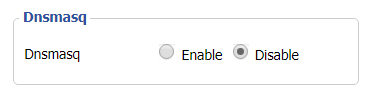
Disable DNSMaq Settings 2
  1. Set DNSMasq to Disable.
  2. Click Apply Settings.
  3. Reboot router.

Privacy Hero Dashboard Not Updating or Showing Old Information

Dave · Oct 8, 2026 ·

If the Privacy Hero dashboard is showing old information, a VPN status does not appear to update, settings you changed are not displaying correctly, or the dashboard behaves unexpectedly, your browser may be displaying cached Privacy Hero website data.

Before changing your router or VPN configuration again, open a fresh browser session and confirm that the dashboard is displaying the current information.

Start With a Private or Incognito Browser Window

The fastest test is to open the Privacy Hero dashboard in a new private or incognito browser window.

  1. Close any existing Privacy Hero dashboard tabs.
  2. Open a new private or incognito browser window.
  3. Visit app.privacyhero.com.
  4. Sign in to your Privacy Hero account.
  5. Check the router, VPN, device, or setting again.

If the correct information appears in the private browser window, the original browser session was likely displaying cached or stale website information.

Refresh the Privacy Hero Dashboard

If the dashboard has been open while you are changing VPN or router settings, refresh the page before assuming that a change failed.

  1. Refresh the Privacy Hero dashboard.
  2. Allow the page to finish loading.
  3. Return to the section you were changing.
  4. Check the current status again.

If the information still appears incorrect, sign out of Privacy Hero, close the browser tab, and sign back in through a fresh browser session.

Clear Cached Privacy Hero Site Data

If Privacy Hero works correctly in a private/incognito window but not in your normal browser window, clear the cached website data for Privacy Hero.

Browser menus vary, but look for settings related to:

  • Cached files and images.
  • Cookies and site data.
  • Website data.
  • Privacy and browsing data.

If your browser allows you to remove data for an individual website, clear the stored data for app.privacyhero.com rather than clearing your entire browser history.

Then reopen app.privacyhero.com, sign in again, and check the dashboard.

Try Another Browser or Device

If the dashboard still behaves unexpectedly, test it from another browser or device.

  1. Open app.privacyhero.com in another browser.
  2. Sign in using the same Privacy Hero account.
  3. Check whether the same router and settings appear correctly.

You can also test from another computer, phone, or tablet.

Privacy Hero is cloud-managed, so you do not need to be connected to the Privacy Hero WiFi to access the dashboard. You can use cellular data, another WiFi network, or another internet connection.

Disable Browser Extensions While Testing

Browser extensions can sometimes interfere with website login, scripts, or dashboard functions.

If the problem occurs only in one browser, temporarily test without extensions such as:

  • Ad blockers.
  • Privacy extensions.
  • Script blockers.
  • VPN or proxy extensions.
  • Security or filtering extensions.

A private/incognito window may disable some extensions automatically, depending on your browser configuration.

VPN Status Still Shows Failed or Connecting?

If a fresh browser session confirms that Privacy Hero is actually reporting the VPN as Failed, Connecting, Disconnected, or showing a timeout error, the problem is no longer just a browser display issue.

NordVPN users should continue with Privacy Hero NordVPN Not Connecting or Showing Timeout Errors.

No Internet After the VPN Failed?

If the dashboard confirms that the VPN has failed and your Privacy Hero network also has no internet access, check whether the VPN Kill Switch is enabled.

See Privacy Hero VPN Kill Switch: No Internet or WiFi Troubleshooting.

One Device Shows the Wrong VPN IP?

If Privacy Hero shows the VPN as connected and working but only one device shows an unexpected IP address or location, the browser cache is probably not the main issue.

Check the device for its own VPN application, Private Relay, Private DNS, browser Secure DNS, antivirus, firewall, or other network settings.

See Device Settings That Can Interfere With Your Router VPN.

Related Privacy Hero Guides

  • Privacy Hero VPN Kill Switch: No Internet or WiFi Troubleshooting
  • Privacy Hero NordVPN Not Connecting or Showing Timeout Errors
  • Privacy Hero VPN Kill Switch Setup
  • Device Settings That Can Interfere With Your Router VPN

Primary Sidebar

  • Troubleshooting
  • Router Access
  • Internet Connection Issues
  • WiFi Connectivity
  • General VPN Issues
  • TeamViewer Remote Support
  • DD-WRT Firmware
  • Facebook
  • Twitter
  • Instagram
  • Pinterest
  • YouTube

Footer