• Skip to primary navigation
  • Skip to main content
  • Skip to primary sidebar
  • Skip to footer

FlashRouters Support Portal

Prioritizing Privacy

  • SETUP GUIDES
    • Privacy Hero Router Setup Guide
    • ASUS-WRT Router Setup Guide
    • AsusWRT-Merlin Router Setup Guide
    • DD-WRT Router Setup Guide
    • ExpressVPN Router Setup Guide
    • GL.iNet Router Setup Guide
    • Roqos Core Router Setup Guide
  • TROUBLESHOOTING
    • Router Access
    • WiFi Connectivity
    • Internet Connection Issues
    • General VPN Issues
    • DD-WRT Firmware
    • TeamViewer Remote Support
  • FAQs
    • Router FAQs
    • VPN FAQs
    • Warranty and Returns FAQs
    • Sales FAQs
    • Shipping FAQs
    • Service Plan FAQs
  • Show Search
Hide Search

Search Results for: phone support

Service Plan FAQs

admin · May 25, 2021 ·

Service Plan FAQs

Is the service plan a one time purchase or does it renew?

All FR service plans automatically renew on a quarterly or annual basis based on the term initially purchased. A reminder e-mail will be sent one week prior to renewal. In your FlashRouter account panel, you can cancel the plan at any time to stop any further renewals.

What is included with a FlashRouter?

  • On-demand Installation of enhanced firmware and our exclusive FlashRouters VPN Privacy App.
  • Custom setup guide.
  • Power cord and an ethernet cable.
  • Individual VPN Account Setup/Pre-configuration (On Request)
  • 1 year open source hardware warranty.
  • 30 day satisfaction guarantee.
  • Initial basic setup assistance via e-mail. For any advanced setups/configurations, live chat or remote assistance, a service plan purchase is required.

Does the service plan include a VPN subscription?

A subscription to a VPN does not come with a FlashRouter or Service plan. If you are planning to use a VPN, you would need to sign up for one separately, directly from a provider.

Need assistance in finding a VPN Provider? Please visit our recent VPN Provider Best Seller List.

Plug and Play VPN Support

Unlike other VPN Router providers, FlashRouters is proud to offer free VPN service integration with any purchase.

To receive a plug and play with VPN device, you will need to provide our team with the credentials from your VPN provider subscription.

IMPORTANT NOTE: This is not required but recommended for users who wish to have the simplest, most seamless experience when the FlashRouter arrives. You can always change the password when the device arrives if you wish as well.

Shows what to look for when you want to preconfigure your router.

To have your router VPN pre-configured:

  1. Select Yes from the “Want Your Router Preconfigured?” on the Payment Page during check out.
  2. Select your VPN provider. If you don’t see your VPN listed select “Other” and you will see an additional field to input who your provider is.
  3. Enter your your VPN username and password
  4. For ExpressVPN Firmware Routers there will be an additional box for your activation code.

Please note:  If you do not enter a server location request in “Order Comments”, we will automatically start the device with the closest/optimal server for the location we are shipping the device by default. A location has to be added to the initial configuration for plug and play encryption security to occur on the device.

Do I have to buy a service plan?

Our routers are priced for the custom upgrades performed at our warehouse, testing expenses and keeping the FlashRouter App update to date.

Our service plan has three levels as an optional add-on with your purchase to get continued direct assistance from our team. This is especially useful to customers who are less tech savvy and want direct access to our support team to make sure their network is running exactly how they desire. Here is how these plans differ

Bronze – Basic E-mail Support
Silver – E-mail and Live Chat Support.
Gold – E-mail, Live Chat, and Remote One-on-One Sessions

Each situation and user has different needs and expertise. Our team of US-based support agents are highly trained specialists in VPN and DD-WRT router setup. From firmware updates to networking configuration/troubleshooting,solutions, the purpose of our Service Plans is to help our customers in whatever level they deem necessary.

Does FlashRouters offer phone support?

At this time, we do not provide phone support with our service plans. We have tested phone support for networking troubleshooting in the past but have found that on average caused us to help less customers in a less efficient manner. However, with a purchase of a Gold Service Plan, customers can schedule 1-on-1 remote support sessions via Teamviewer with our engineers and they will provide a hands-on, personal solution, to any problems you may be facing.

Do I need a Service Plan for a firmware upgrade?

Firmware upgrades are free of charge to any FlashRouter customer!

You can visit our support center and select your specific router model to upgrade your firmware based on the recommendations provided.

If you want the help of our Support Team to assist in this upgrade, you can always sign up for our Gold Service Plan and schedule a 1-on-1 Teamviewer session in which our trained engineers will take care of the upgrade for you!

What does the warranty cover?

Our complimentary 1-year hardware warranty does not include tech support outside. If your router suffers hardware failure within 365 days from the date you received the unit, then we will gladly replace your router with another fully tested one. For more information regarding our warranty and return policy, please check out our warranty and return section.

Can I purchase a router without a service plan and subscribe later?

Yes, you may purchase a service plan at any time. However, we can’t guarantee any pricing, or apply any previously offered discounts or specific features at that later date.

Teamviewer FAQ and Setup

TeamFlashRouters · May 30, 2019 ·

We do NOT offer phone support here at FlashRouters. You will not receive a phone call to begin your session. Please read the information below for how to get connected during your session time.

What is a Teamviewer session?

A Teamviewer session is the most hands on method of receiving support from FlashRouters.

A support agent will connect directly to your computer and proceed to configure or troubleshoot your FlashRouter with you present.

We use Teamviewer sessions to troubleshoot any issue an eligible customer may have with a FlashRouter that was purchased from us or to configure a compatible router that your purchased independently along with a FlashRouters Support Plan.

In the session a chat window will appear so we can communicate directly with you in real time.

If you follow the information below prior to your session and all goes smoothly a Teamviewer session typically takes anywhere from 15 to 45 minutes.

Do I qualify for a Teamviewer session?

When purchasing a FlashRouter you are able to select a Quarterly or Yearly Bronze, Silver or Gold subscription plan.

Silver Yearly plan comes with one Teamviewer remote support session a year.

Gold Quarterly and Yearly plans come with one session per quarter.

If you support plan has expired or you are signed up for Bronze and you’d like to receive Teamviewer remote support assistance please email support@flashrouters.com

How do I schedule a Teamviewer session?

We are available for scheduled Teamviewer sessions from 10AM – 6:00PM ET Monday through Saturday.

To schedule a session with us open a support ticket or contact us via our live chat. We do not perform sessions that are not scheduled.

If we are available off hours we do our best to accommodate off hours session times with at least 24 hours notification.

Recommended computer and network setup

What computer should I use for Teamviewer?

Teamviewer sessions can not be performed on phones or tablets at this time. We require a Windows or Mac computer to successfully connect and configure your FlashRouter.

Below are the different scenarios from most ideal to least ideal.

I have a Dual Router Setup and a computer with WiFi and Ethernet

If you have an available wireless network NOT coming from the FlashRouter and have a computer that has wireless AND Ethernet capabilities you should be setup as follows:

  1. Connect via wireless to the other router.
  2. Once we have joined the session we will instruct you to wire from the FlashRouter to your computer.

I have a Dual Router Setup and a computer with WiFi only

If you have an available wireless network NOT coming from the FlashRouter and have a computer that has wireless only you should be setup as follows:

  1. Obtaining a USB to Ethernet adapter is ideal.
  2. If that is not possible connect to the FlashRouter’s network via wireless.

Session disconnects may occur with no backup Internet connection.

I have a Single Router Setup and a computer with WiFi and Ethernet

If the FlashRouter is your only wireless network and your computer has wireless and Ethernet capabilities you should be setup as follows:

  1. Connect an Ethernet cable from a numbered port on your FlashRouter directly to your computer.
  2. We may ask you during the session if your smartphone can broadcast an wireless hotspot we can connect to for backup Internet.

I have a Single Router Setup and a computer with WiFi only

If the FlashRouter if your only wireless network and your computer is wireless only you should be setup as follows:

  1. Obtaining a USB to Ethernet adapter is ideal.
  2. If that is not possible connect to the FlashRouter’s network via wireless.

Session disconnects may occur with no backup Internet connection.

How do I download Teamviewer?

Windows

  1. Download Teamviewer for Windows.
  2. Open the Teamviewer application.
  3. Email the User ID and Password (example displayed below) to your existing email thread or our live chat.
Access Teamviewer User ID and Password for FlashRouters Remote Support Session on Windows

Mac

  1. Download Teamviewer for Mac.
  2. Open the Teamviewer application.
  3. Email the User ID and Password (example displayed below) to your existing email thread or our live chat.
Access Teamviewer User ID and Password for FlashRouters Remote Support Session on Mac

When should I provide FlashRouters with my Teamviewer User ID and Password?

About 15 minutes before your scheduled session time update your support ticket e-mail the User ID and Password to your existing email thread, or send via our live chat.

ProtonVPN Setup Guide for Privacy Hero

TeamFlashRouters · Sep 17, 2025 ·

Your Privacy Hero router uses Cloud Based router management which means you can access the router settings from anywhere on any device that has an internet connection. You can follow these steps while connected to your phone, other Wi-Fi network, or the Privacy Hero network.

ProtonVPN Wireguard Setup for Privacy Hero (recommended)

1. From any device that has a browser such as a computer, smartphone, or tablet visit app.privacyhero.com.

App.PrivacyHero.com

2. Enter your Privacy Hero account email and password. Click Login.

Privacy Hero Access Settings

3. Click the VPN symbol.

Privacy Hero Setup VPN

4. Click the Change button and select Custom from the dropdown and choose the Wireguard option.

Privacy Hero Change VPN Providers

5. In a new tab login to your ProtonVPN account.

6. Go to the Downloads section of your ProtonVPN account page.

7. Scroll down to find the WireGuard configuration section. Name your configuration and then select Router as the platform, and select Standard server configs.

8. Click on the country name that you want to choose, and Download any of the available server files from the list.

9. Drag and drop or click to Upload the server file into the Custom box on your Privacy Hero settings page. Then press Save.

10. Your Privacy Hero settings should now show a Connected message, indicating you have successfully signed in to your ProtonVPN server!

Wireguard connection

ProtonVPN OpenVPN Setup for Privacy Hero

1. From any device that has a browser such as a computer, smartphone, or tablet visit app.privacyhero.com.

App.PrivacyHero.com

2. Enter your Privacy Hero account email and password. Click Login.

Privacy Hero Access Settings

3. Click the VPN symbol.

Privacy Hero Setup VPN

4. Click the Change button and select Custom from the dropdown and choose the OpenVPN option.

Privacy Hero Change VPN Providers

5. In a new tab login to your ProtonVPN account.

6. Navigate to the Account tab and find your OpenVPN specific Username and Password.

FlashRouters DD-WRT Privacy APP ProtonVPN OpenVPN Specific Username and Password

7. Copy and paste the username and password from previous step into the Custom box on your Privacy Hero settings page.

8. Go to the Downloads section of your ProtonVPN account page.

9. Scroll down to find the OpenVPN Configuration Files section. Then select “Router” as the platform, and select “Standard Server Configs.”

10. Click on the country name that you want to choose, and Download any of the available server files from the list.

11. Drag and drop or click to Upload the server file into the Custom box on your Privacy Hero settings page. Then press Save.

12. Your Privacy Hero settings should now show a Connected message, indicating you have successfully signed in to your ProtonVPN server!

Privacy Hero’s cloud based router settings access makes it so you can change settings while not connected to the Privacy Hero network. Visit the ProtonVPN IP Check to verify your VPN IP address. If it has not changed be sure to double check that you are indeed connected to the Privacy Hero network.

Keep in mind that the VPN connection will not change the location of the streaming services listed in the Streaming Relocation area of the Privacy Hero settings if the Streaming Relocation feature is Enabled.

TROUBLESHOOTING

Still having issues? Contact our Support Team.

Troubleshoot Here

Access FlashRouter DD-WRT firmware settings

TeamFlashRouters · Mar 22, 2019 ·

You must be connected to the FlashRouter network via ethernet or WiFi connection on your device in order to be able to access the FlashRouter’s firmware settings.

Why do I need to access my FlashRouter's settings?

It is important to understand how to access your router if you want to:
  • Change WiFi or admin passwords
  • Switch VPN server locations
  • Attempt custom setups
  • Troubleshoot your network

Connect your device to the FlashRouter network

We recommend using a computer, tablet, or phone to access your FlashRouter firmware settings. You can connect your device to the FlashRouter via Ethernet Cable or Wireless connection.

Please note, you will NOT be able access the firmware settings unless you connect your device to the FlashRouter Network.

via Ethernet

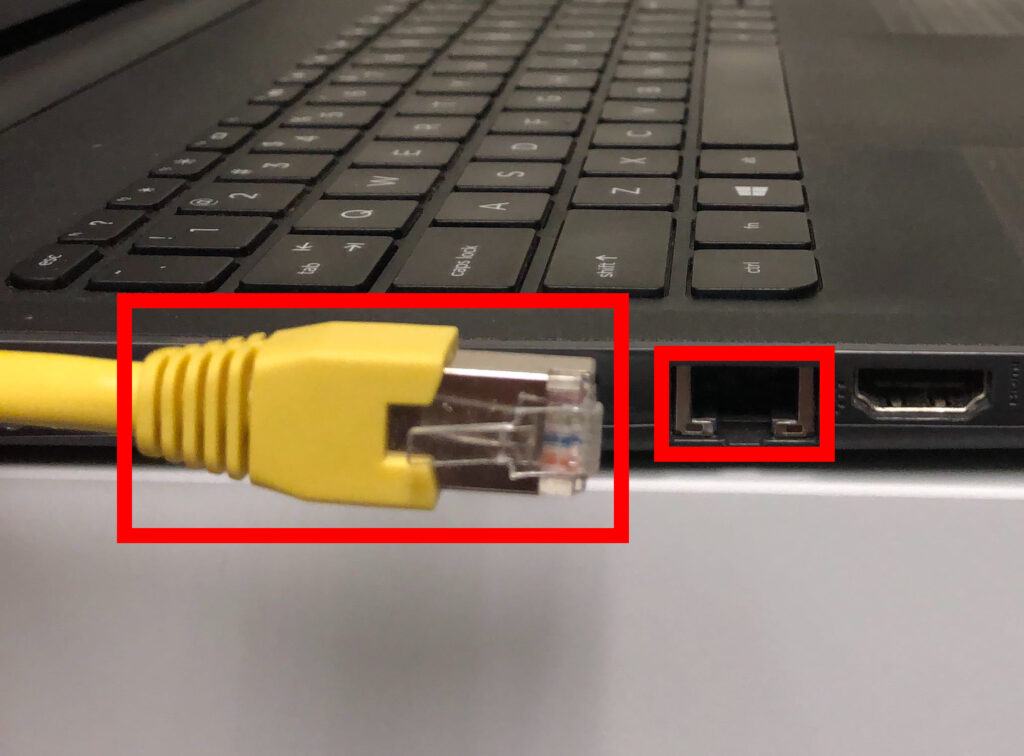
Connect an Ethernet cable to your device’s Ethernet port.

Access FlashRouters DD-WRT Admin Settings via Ethernet Connection 1

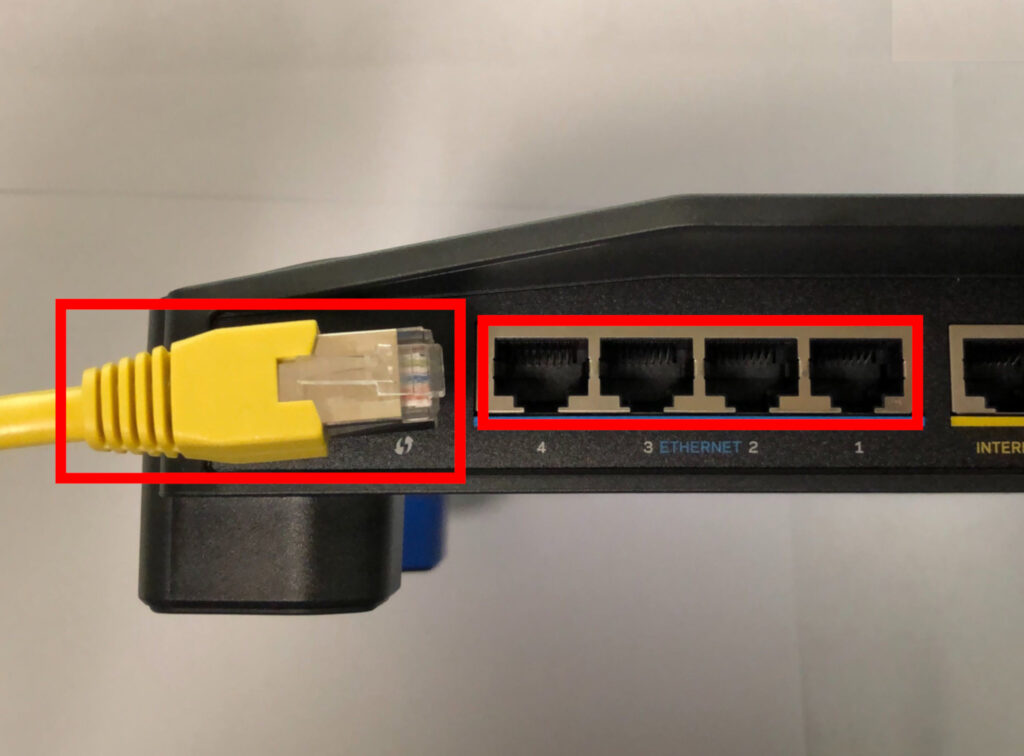
Connect the other end of that Ethernet cable to a FlashRouter LAN/numbered port.

Access FlashRouters DD-WRT Admin Settings via Ethernet Connection 2

Be sure NOT to connect your device to the WAN/internet port of the FlashRouter. Please use the LAN/numbered ports to connect your devices.

via Wireless

Navigate to the available wireless networks in your device network settings and join any of the available FlashRouter networks – FlashRouter24, FlashRouter50, or FlashRouter80 (if you have a tri-band router).

Access the FlashRouter settings

We recommend using a Google Chrome or Mozilla Firefox incognito/private browsing window to access the FlashRouter firmware settings. You can access the main DD-WRT firmware GUI or you can go directly into the FlashRouters Privacy App settings to manage your basic router settings and VPN connection settings right away.

Please note, after accessing the FlashRouter Settings at the Local IP Address, you will be prompted to enter an admin username and password. You can find this information in the subsections below.

DD-WRT - Firmware GUI

Local IP Address: 192.168.11.1

Username: flashrouter

Password: ddwrt

Keep in mind that if you enable HTTPS and disable HTTP access you will need to add https:// in front of the Local IP Address to access your FlashRouter’s firmware settings.

If your router has been reset for any reason then you can access the router at a local IP address of 192.168.1.1.

Please note you will be required to set the administration username and password as well as your WiFi and VPN network settings after a reset.

TROUBLESHOOTING

Still having issues? Visit our Troubleshooting section to diagnose common problems here.

Troubleshoot Here

How do I access my Roqos device settings?

TeamFlashRouters · Mar 8, 2022 ·

Your Roqos Core’s settings or UI (User Interface) is accessible via a secure cloud based connection rather than the typical local access of other routers. This means that you can manage your Roqos from anywhere in the world not just at home.

Visit the Roqos Login URL

From any device that has a browser such as a computer, smartphone, or tablet visit login.roqos.com

Roqos Login URL

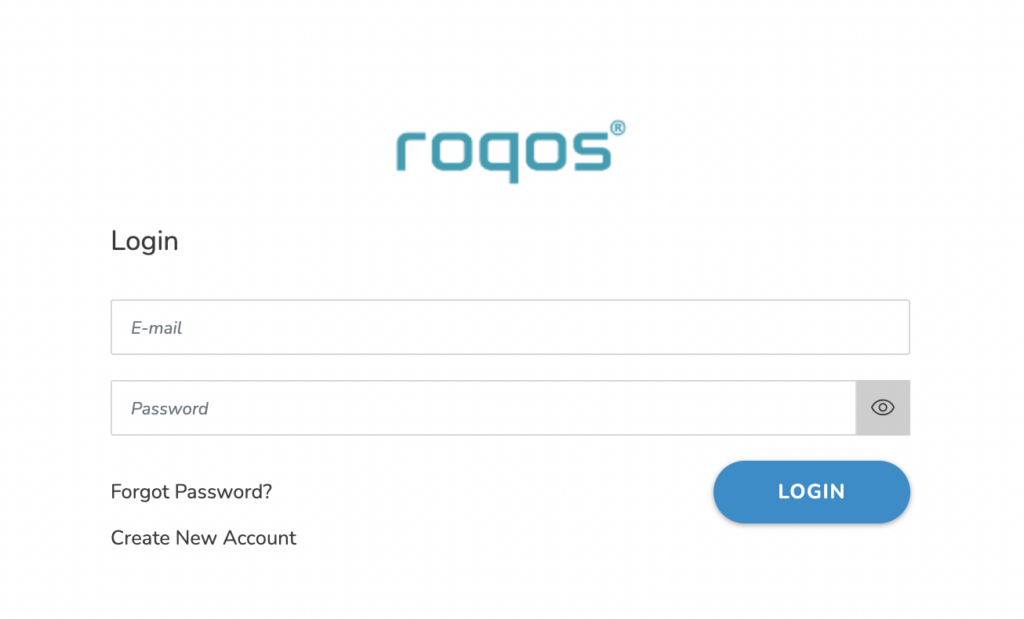
Login with your Roqos account

Enter in the email and password that you set when your Roqos was initially setup. If you still need to create your Roqos account and activate your Roqos follow our Activate and Connect Roqos to Internet guide.

Roqos UI Login

Proceed with making the changes to the settings you desire

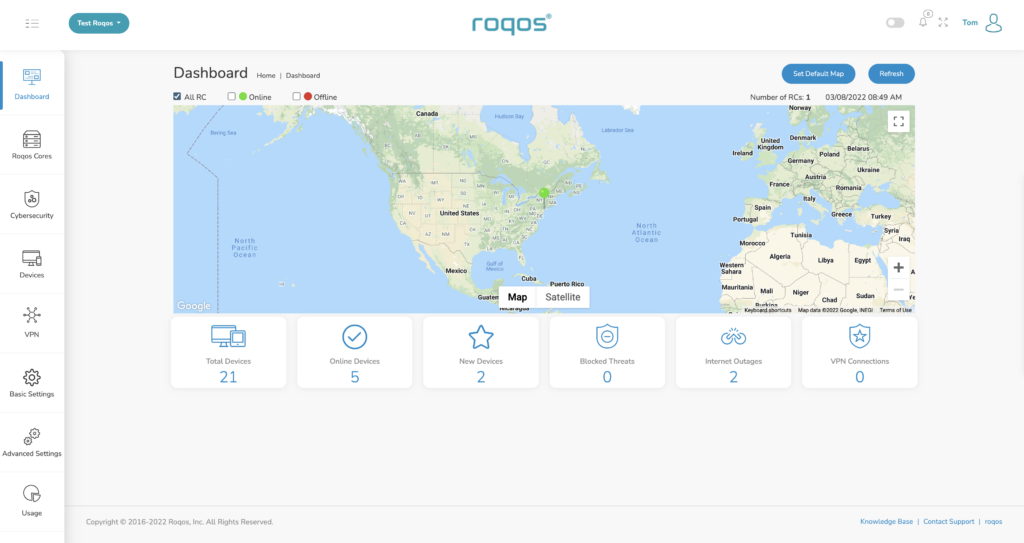
Now that you are logged in to your Roqos UI you adjust any settings as you see fit for your network. For guides on how to make specific changes to your Roqos view our Roqos Setup Guide area.

Roqos UI Logged in

Primary Sidebar

  • Troubleshooting
  • Router Access
  • Internet Connection Issues
  • WiFi Connectivity
  • General VPN Issues
  • TeamViewer Remote Support
  • DD-WRT Firmware
  • Facebook
  • Twitter
  • Instagram
  • Pinterest
  • YouTube

Footer