The following DD-WRT builds are from 11/24/2024 r58699. Keep in mind that these builds are for upgrading routers that already have DD-WRT firmware flashed. To flash a stock firmware router with DD-WRT firmware see our Flash My Router plan!
Search Results for: linksys wrt3200acm routers
How do I upgrade the DD-WRT firmware of my FlashRouter?
Download an updated DD-WRT firmware build for your specific FlashRouter model below. Contact support@flashrouters.com if you are uncertain about your router model or your router model is not available below.
- Asus RT-AC5300
- Asus RT-AC56U
- Asus RT-AC66U
- Asus RT-AC68U
- Asus RT-AC87U
- Linksys WRT1200AC
- Linksys WRT1900AC
- Linksys WRT1900ACv2
- Linksys WRT1900ACS
- Linksys WRT1900ACSv2
- Linksys WRT3200ACM
- Linksys WRT32X
- Netgear R6300v2
- Netgear R6400
- Netgear R6400v2
- Netgear R6700
- Netgear R6700v2
- Netgear R6700v3
- Netgear R7000
- Netgear R7000P
- Netgear R7450
- Netgear R7800
- Netgear R8000
- Netgear R8500
- Netgear R9000
Please be aware that FlashRouters is not responsible for any DIY firmware flashing updates. If you have questions or concerns contact FlashRouters Support or check out the DD-WRT Community for additional helpful resources.
Make sure you are following the directions below to load the firmware file into the router settings and not trying to open the firmware file on its own.
Access the FlashRouter via wired connection. It is possible to upgrade firmware via WiFi, but this is not recommended unless you are unable to wire directly to the router.
Navigate to Administration > Firmware Upgrade
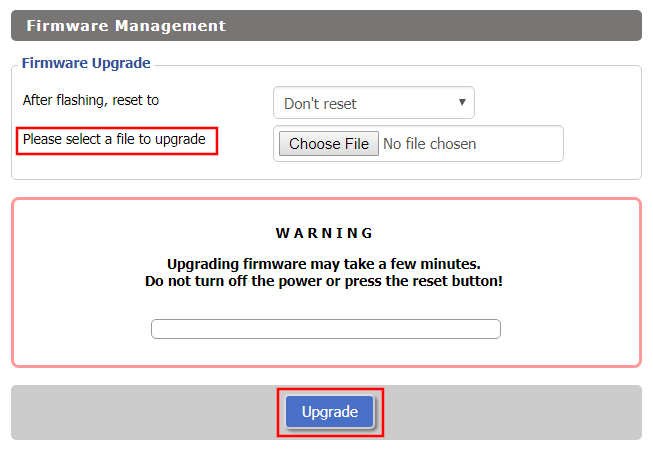
- Do NOT select Reset to Default Settings in the dropdown menu as this will erase all of your FlashRouter settings.
NOTE: If you are updating from an older DD-WRT build you may be required to reset the router after a firmware update for new features and UI to properly load. You will then be required to setup the administration username and password along with your WiFi and VPN network settings. - Click Choose File and select the file you have downloaded.
- Click Upgrade.
How do I boost my Wireless Transmission power?
Boost the wireless transmission power if you need to increase the wireless range of the FlashRouter.
Important Information
We recommend reading the entry in the DD-WRT Wiki to familiarize yourself with what TX Power values represent.
Broadcom routers
- Netgear R8500
- Netgear R7000
- Netgear R6400 V2
- Netgear R6300 V2
- Asus RT-AC5300
- Asus RT-AC66U
- Asus RT-AC56U
Navigate to Wireless > WL# or ath# Advanced
- Set the TX Power to the desired value.
- Click Apply Settings.

Atheros routers
- Netgear R9000
- Netgear R7800
- Linksys WRT3200ACM
- LinksysWRT32X
- Linksys WRT1900AC/v2/ACS
- LinksysWRT1200AC
Navigate to Wireless > Basic Settings
- Check Advanced Settings under the wireless interface you would like to boost.
- Set the TX Power to the desired value.
- Click Apply Settings.

We advise to proceed with caution when setting the TX Power. This has been known to negatively effect the hardware if set too high.