• Skip to primary navigation
  • Skip to main content
  • Skip to primary sidebar
  • Skip to footer

FlashRouters Support Portal

Prioritizing Privacy

  • SETUP GUIDES
    • Privacy Hero Router Setup Guide
    • ASUS-WRT Router Setup Guide
    • AsusWRT-Merlin Router Setup Guide
    • DD-WRT Router Setup Guide
    • ExpressVPN Router Setup Guide
    • GL.iNet Router Setup Guide
    • Roqos Core Router Setup Guide
  • TROUBLESHOOTING
    • Router Access
    • WiFi Connectivity
    • Internet Connection Issues
    • General VPN Issues
    • DD-WRT Firmware
    • TeamViewer Remote Support
  • FAQs
    • Router FAQs
    • VPN FAQs
    • Warranty and Returns FAQs
    • Sales FAQs
    • Shipping FAQs
    • Service Plan FAQs
  • Show Search
Hide Search

Search Results for: guide+it+from+b

ProtonVPN Merlin WireGuard Setup

TeamFlashRouters · Mar 30, 2023 ·

Preparing for ProtonVPN Merlin Setup

Download your ProtonVPN .conf file

If you are not already an ProtonVPN user Sign Up Now.

1. Log in to your account on the ProtonVPN website.
ProtonVPN Account Sign in

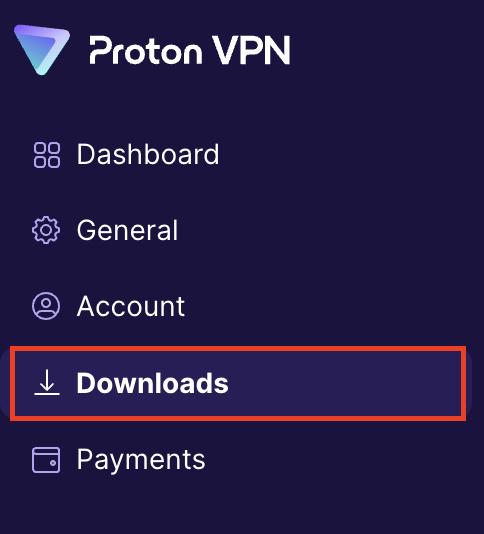
2. Click Downloads.

ProtonVPN Downloads

3. Scroll down to WireGuard configuration and name the device FlashRouter.
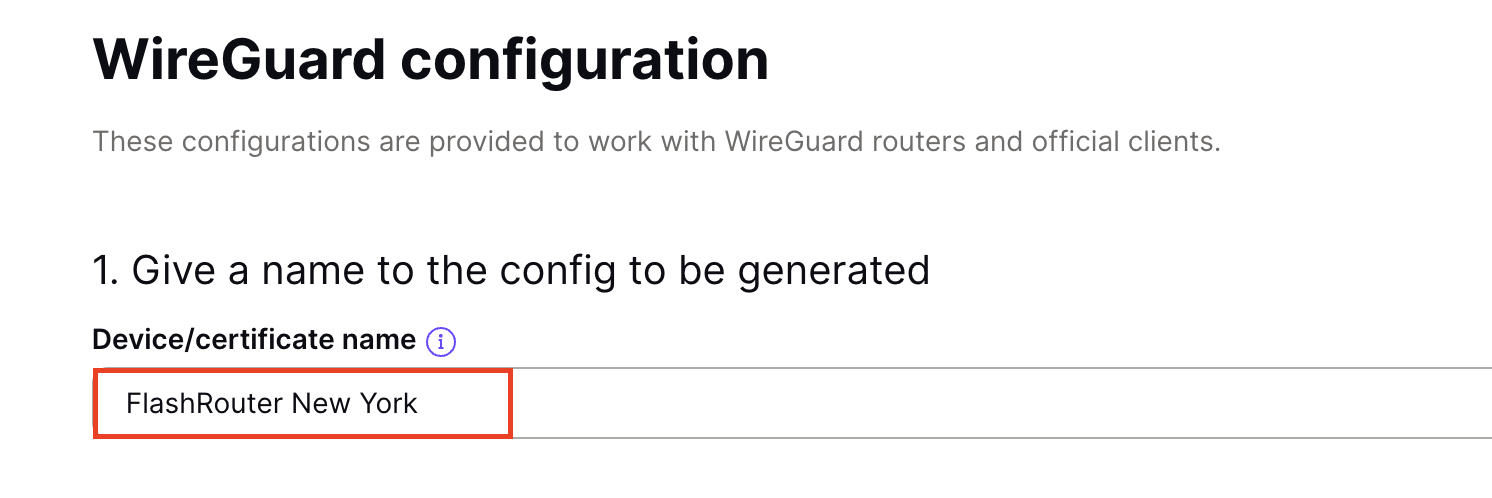
ProtonVPN WireGuard Configuration Name

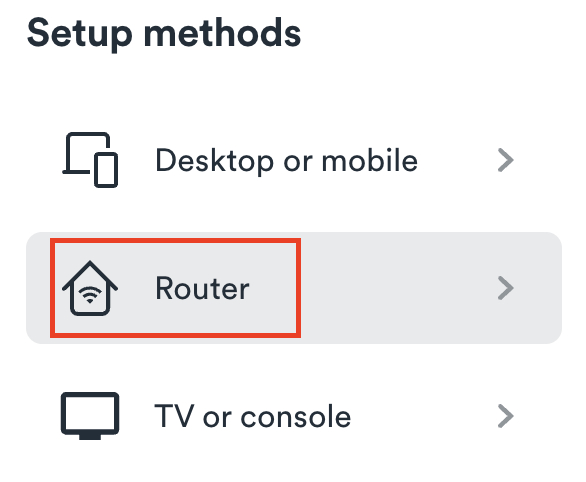
4. Select Router as the platform.

ProtonVPN WireGuard select Platform

5. Select the VPN options that best fit your needs. We typically use the settings as seen in the screenshot here if you are unsure.
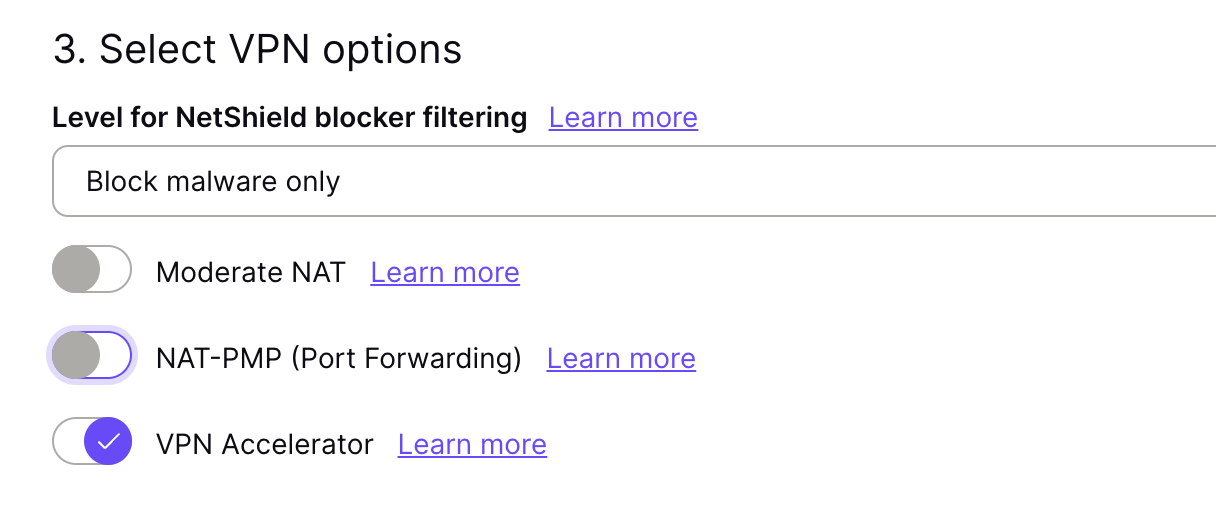
ProtonVPN WireGuard VPN options

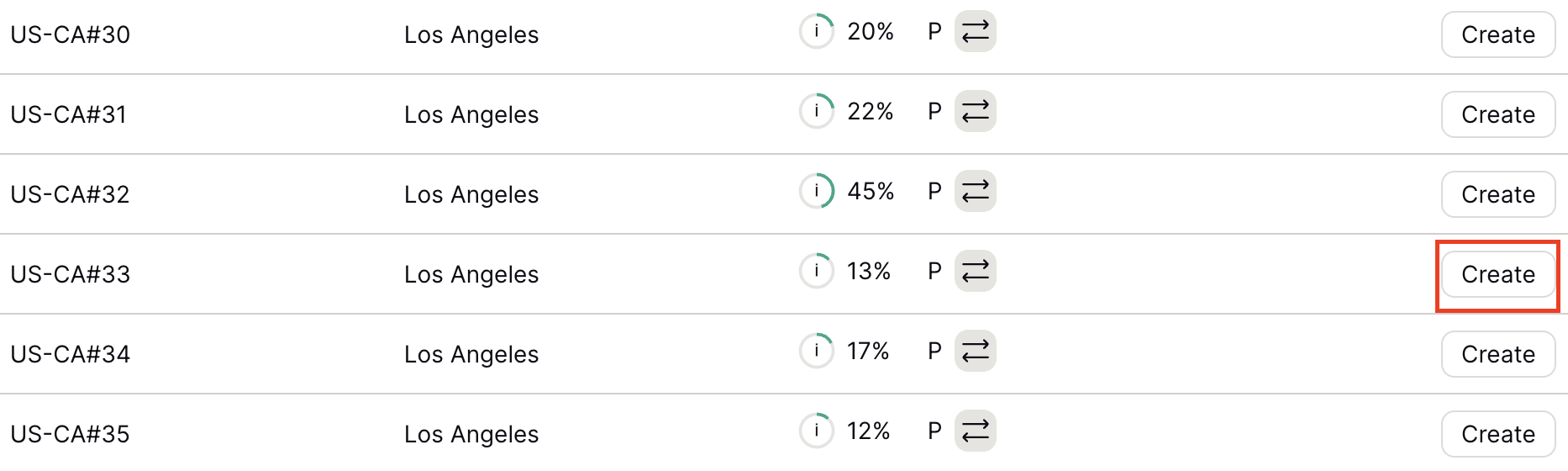
6. Next select the server that you would like to connect to and click Create. At the top of the page you’ll see ProtonVPN’s recommended server which we recommend using unless you need to connect to a specific location.

If you need a specific server location find it in the list and click Create.
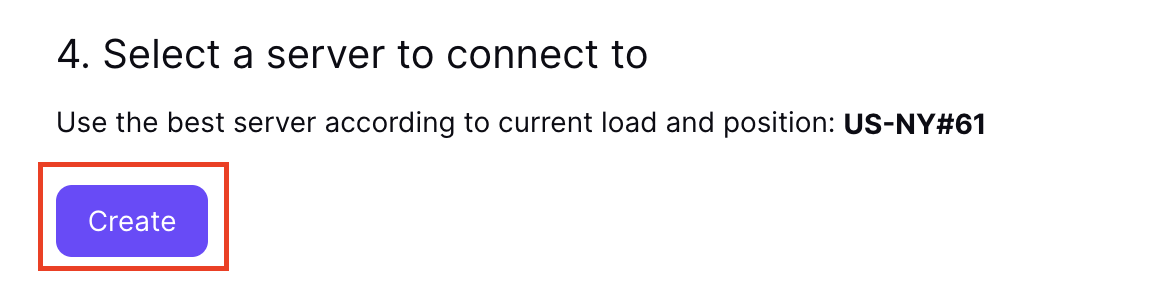
ProtonVPN WireGuard recommended server
ProtonVPN WireGuard specific server

7. After clicking Create a new window will appear. Click Download to download the .conf file to your computer.

Merlin Router Setup for ProtonVPN

Login to Asus Merlin firmware settings in a browser on any computer or smart device connected to the Merlin FlashRouter’s network.

1. Navigate to the VPN tab.

Merlin VPN Tab

2. Navigate to the VPN Client tab.

Merlin VPN Client Tab

3. Select WireGuard as the VPN Protocol.

Merlin VPN Client WireGuard

4. Click Choose file and select the .conf file you downloaded earlier. Then click Upload.
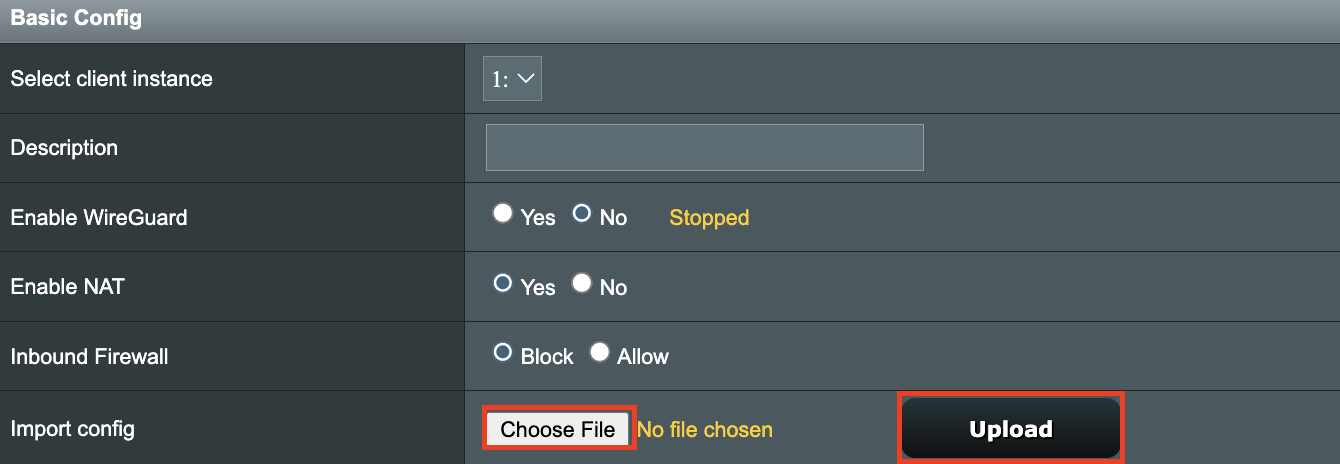
Merlin WireGuard Choose File Upload

5. In the Description field enter in the name you’d like to use for this WireGuard Client profile. We typically advise entering in the location here. Our example server was in US-NY#61 so I have entered in ProtonVPN NY-61.

Merlin WireGuard ProtonVPN Description

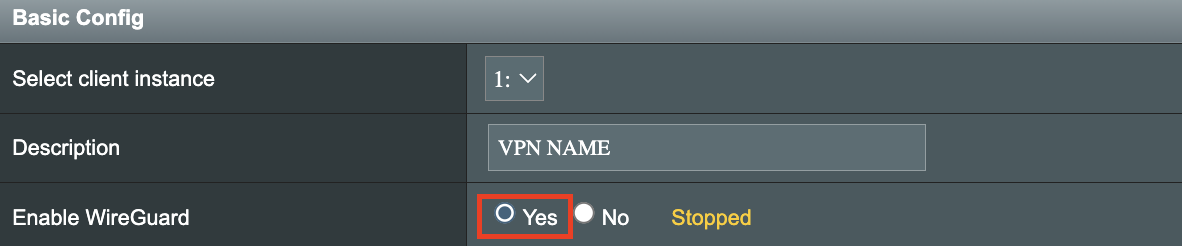
6. Set Enable WireGuard to Yes.

Merlin Enable WireGuard

7. Click Apply at the bottom of the page and you should then see a Connected message appear.
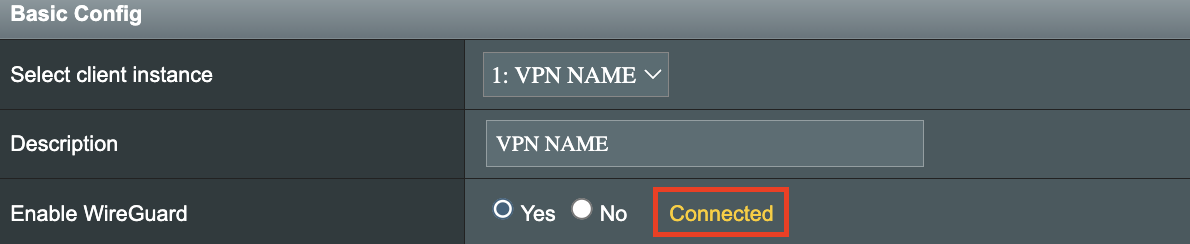
Merlin WireGuard Connected

8. By default no devices are assigned to the new active WireGuard connection profile. Click the VPN Director tab to assign specific devices to the new WireGuard profile. Your IP will not be changed on your devices yet.

WireGuard select VPN Director

9. On the VPN Director page click the + symbol next to Add new rule.
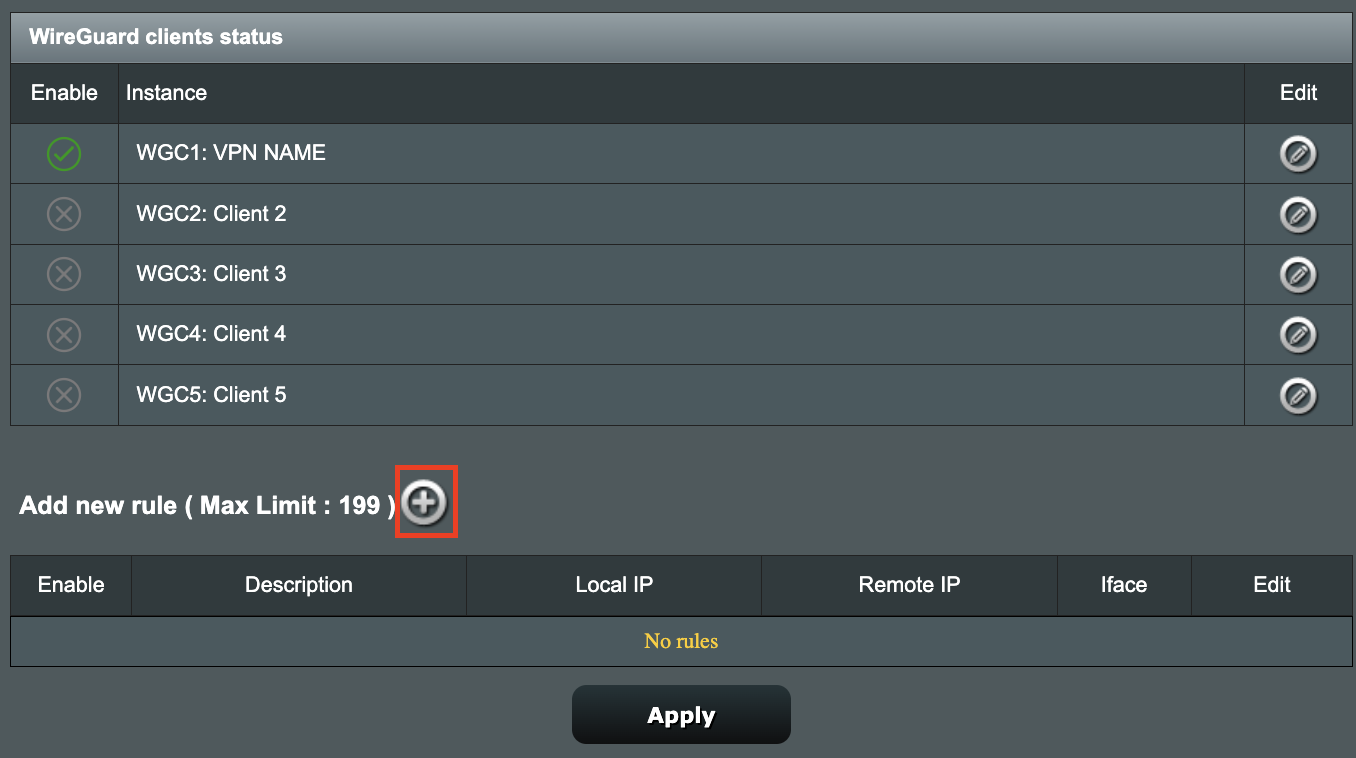
WireGuard VPN Director Add new rule

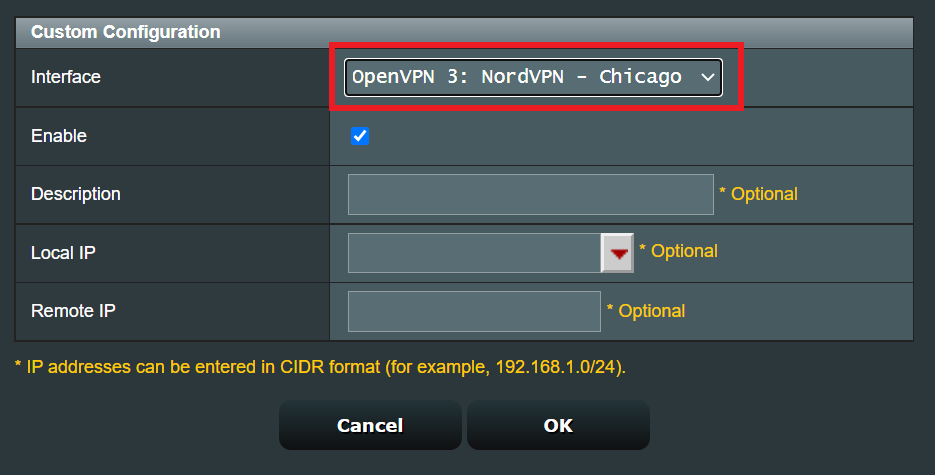
10. Select the new WireGuard profile in the Interface dropdown.
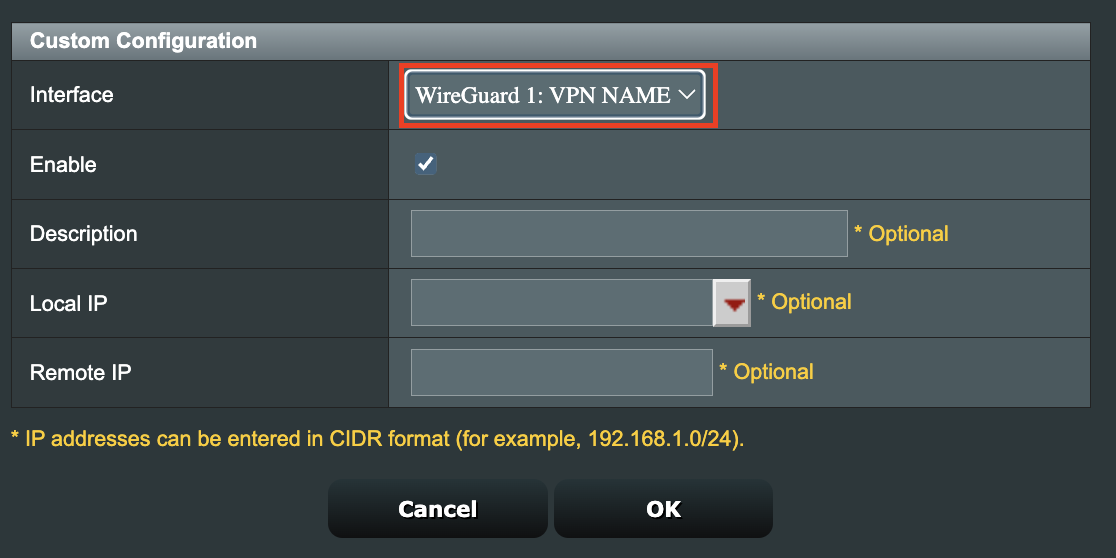
WireGuard VPN Director select Interface

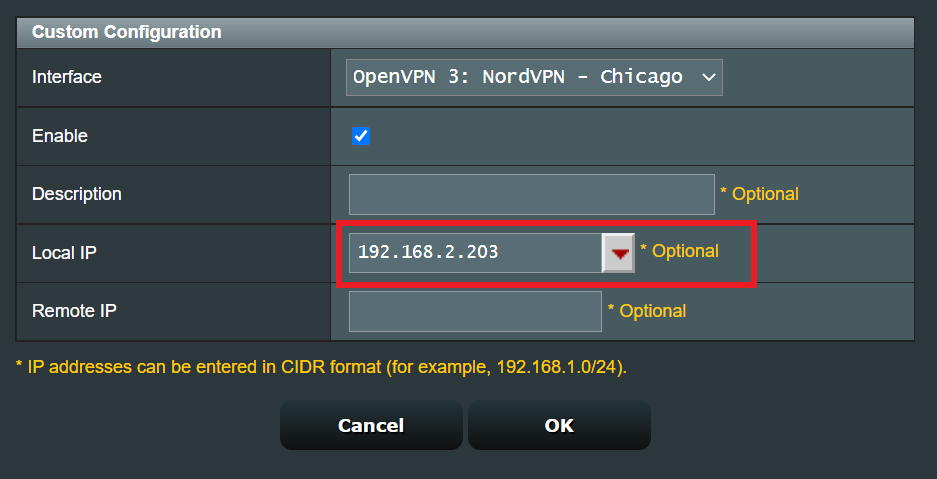
11. In the Local IP field enter in 192.168.50.0/24 if you want ALL devices connected to the FlashRouter’s network to use the WireGuard VPN connection. Click OK.

If you only want certain devices to connect to the WireGuard Client profile you have setting up instead of all the devices connected to the FlashRouter’s network please complete the instructions on our VPN Director guide.

12. Then click Apply at the bottom of the page.

Verify a successful ProtonVPN connection

Visit ProtonVPN’s IP Check from a private/incognito browsing window to verify your new IP address and virtual location.

In some cases you may notice that the location is not showing the same location as the server you have input in your router settings; this is because geo tracking tools are often tricked by VPN connections. As long as you see an IP address that is not the same as your normal Internet IP address then you are indeed connected to ProtonVPN.

How to change the ProtonVPN server

  1. Follow the steps at the top of the page to obtain a new .conf file.
  2. Then proceed with the settings same as initial setup.

TROUBLESHOOTING

Still having issues? Visit the VPN Troubleshooting section.

Troubleshoot Here

Surfshark Merlin WireGuard Setup

TeamFlashRouters · Mar 30, 2023 ·

Preparing for Surfshark Merlin Setup

Download your Surfshark .conf file

If you are not already a Surfshark user Sign Up Now.

1. Log in to your account on the Surfshark website.

Surfshark Account Login

2. Click VPN Manual Setup.

Surfshark VPN Manual Setup

3. Select Router as the Setup Method.

Surfshark setup method Router

4. Select WireGuard as the Protocol.

Surfshark select WireGuard

5. Select I don’t have a key pair.

Surfshark No Key Pair

6. Enter FlashRouter as the name of the connection and click Next.

Surfshark Connection Name

7. Click Generate a new key pair.

Surfshark Generate new Key Pair

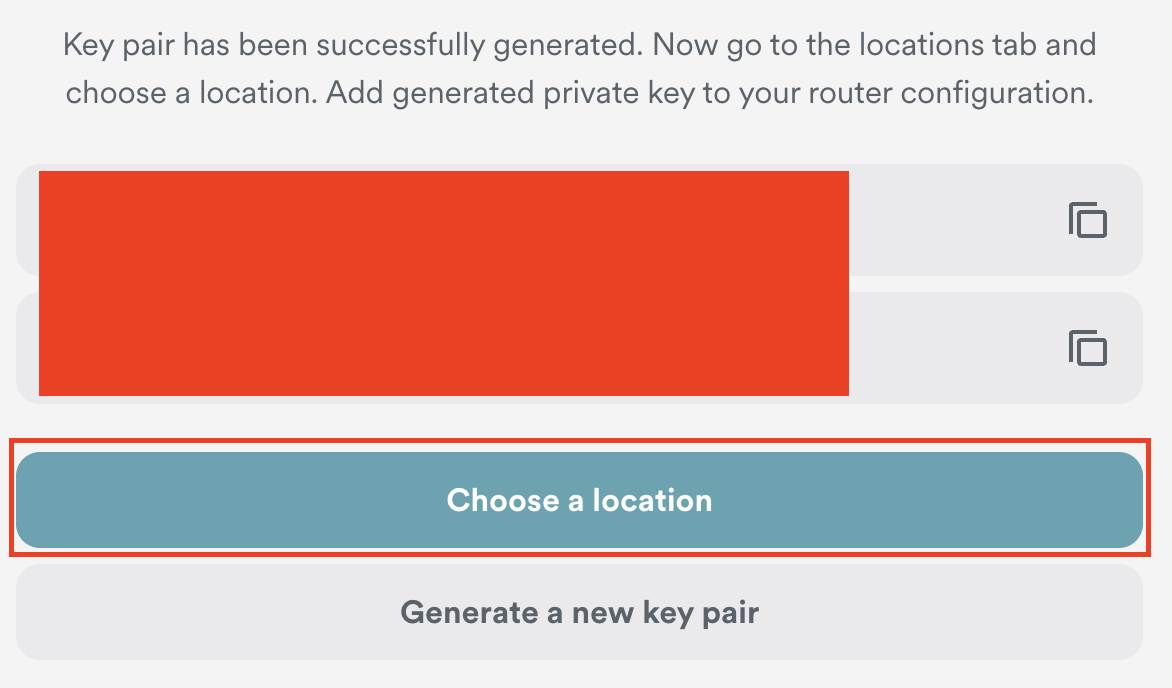
8. Click Choose a location.

Surfshark Choose a Location

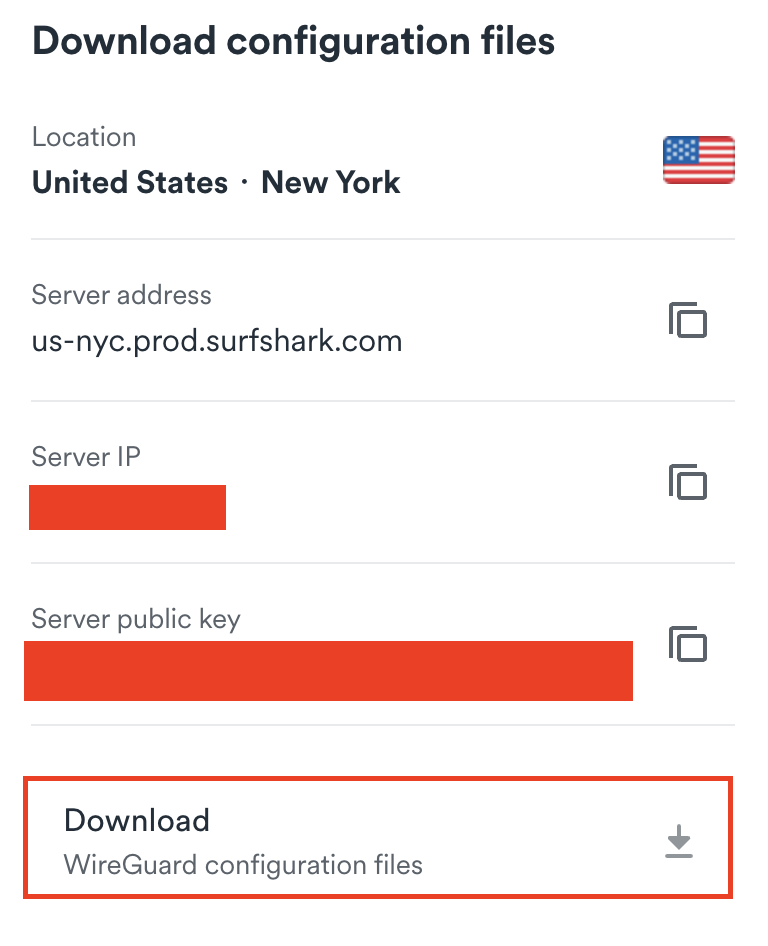
9. Select the server location you want to connect to. Unless you need a specific location we recommend using Surfshark’s recommended Fastest server. Click Download to download the .conf file for this Surfshark server location.

Surfshark download conf file

Merlin Router Setup for Surfshark

Login to Asus Merlin firmware settings in a browser on any computer or smart device connected to the Merlin FlashRouter’s network.

1. Navigate to the VPN tab.

Merlin VPN Tab

2. Navigate to the VPN Client tab.

Merlin VPN Client Tab

3. Select WireGuard as the VPN Protocol.

Merlin VPN Client WireGuard

4. Click Choose file and select the .conf file you downloaded earlier. Then click Upload.

Merlin WireGuard Choose File Upload

5. In the Description field enter in the name you’d like to use for this WireGuard Client profile. We typically advise entering in the location here. Our example server was in New York so I have entered in Surfshark New York.

Merlin WireGuard ProtonVPN Description

6. Set Enable WireGuard to Yes.

Merlin Enable WireGuard

7. Click Apply at the bottom of the page and you should then see a Connected message appear.

Merlin WireGuard Connected

8. By default no devices are assigned to the new active WireGuard connection profile. Click the VPN Director tab to assign specific devices to the new WireGuard profile. Your IP will not be changed on your devices yet.

WireGuard select VPN Director

9. On the VPN Director page click the + symbol next to Add new rule.

WireGuard VPN Director Add new rule

10. Select the new WireGuard profile in the Interface dropdown.

WireGuard VPN Director select Interface

11. In the Local IP field enter in 192.168.50.0/24 if you want ALL devices connected to the FlashRouter’s network to use the WireGuard VPN connection. Click OK.

If you only want certain devices to connect to the WireGuard Client profile you have setting up instead of all the devices connected to the FlashRouter’s network please complete the instructions on our VPN Director guide.

12. Then click Apply at the bottom of the page.

Verify a successful Surfshark connection

Visit Surfshark’s IP Check from a private/incognito browsing window to verify your new IP address and virtual location.

In some cases you may notice that the location is not showing the same location as the server you have input in your router settings; this is because geo tracking tools are often tricked by VPN connections. As long as you see an IP address that is not the same as your normal Internet IP address then you are indeed connected to Surfshark.

How to change the Surfshark server

  1. Follow the steps at the top of the page to obtain a new .conf file.
  2. Then proceed with the settings same as initial setup.

TROUBLESHOOTING

Still having issues? Visit the VPN Troubleshooting section.

Troubleshoot Here

VPN Director for Asus Merlin

TeamFlashRouters · Jan 19, 2022 ·

Once you have OpenVPN connected on your Merlin FlashRouter you can manage your VPN connections by device or by VPN servers or even VPN providers. This is a major advantage of Asus Merlin firmware as it allows up to 5 VPN connections at the same.

Login to Asus Merlin firmware settings in a browser on any computer or smart device.

Setup multiple VPN clients

1. Under Advanced Settings select VPN.

2. Click the VPN Client tab.

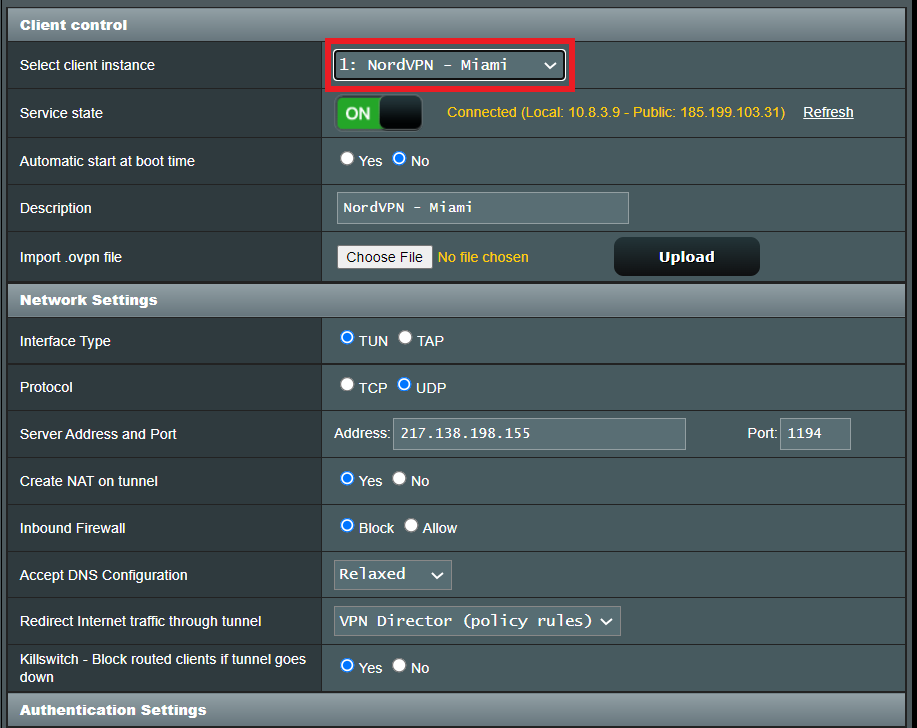
3. In the Select Client instance dropdown select a new client instance to setup and follow your VPN providers setup guide.

VPN Director select client instance

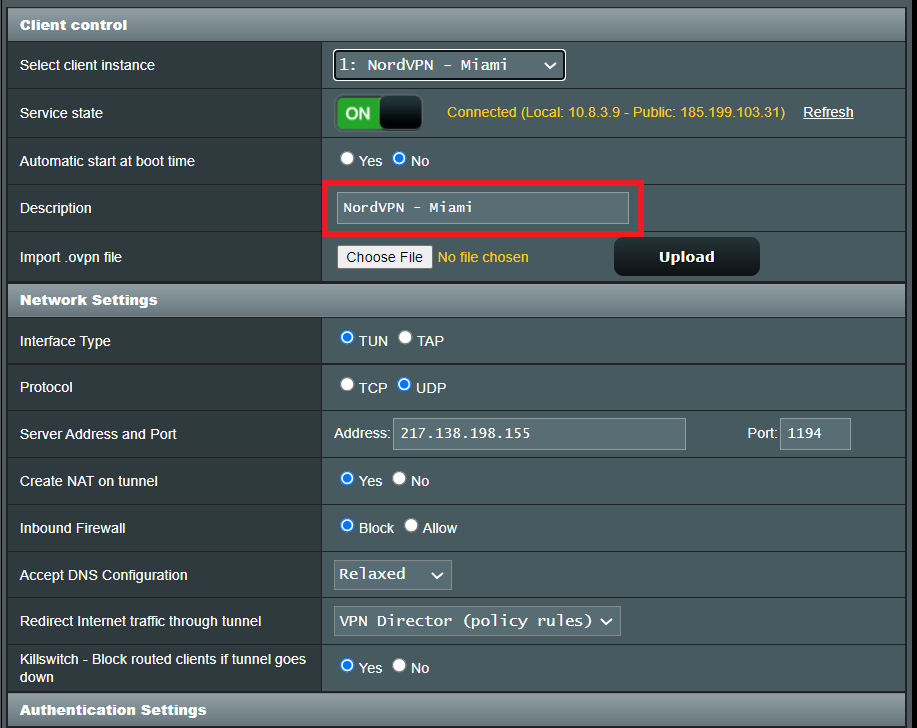
4. Name the client in the Description field for more clarity for which server or provider is being setup.

VPN Director Description

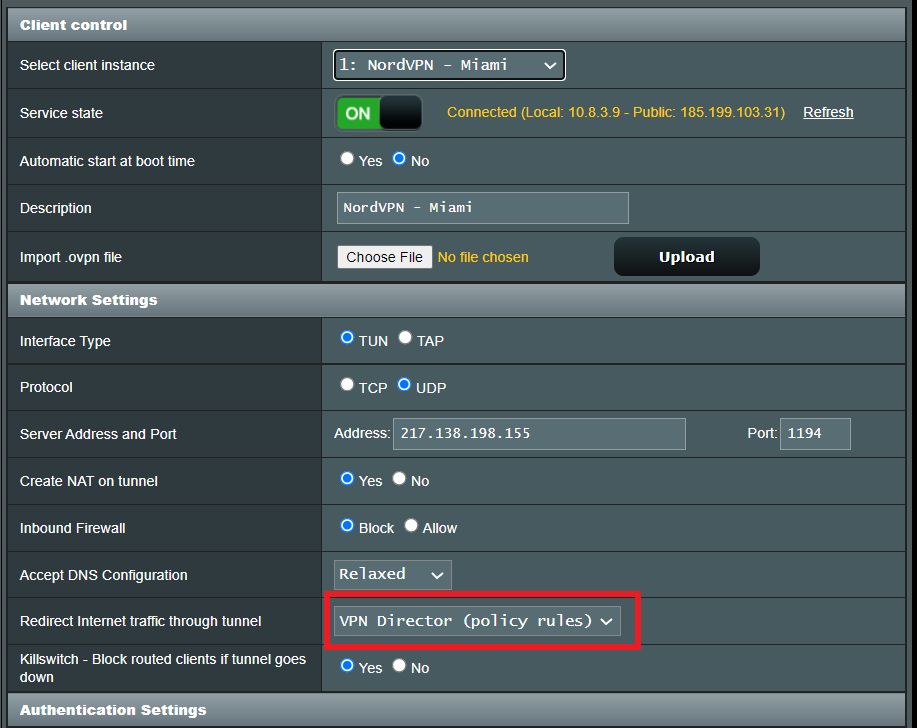
5. Set the Redirect Internet traffic through tunnel dropdown to VPN Director.

VPN Director Policy

Start or Stop VPN Client

1. Under Advanced Settings select VPN.

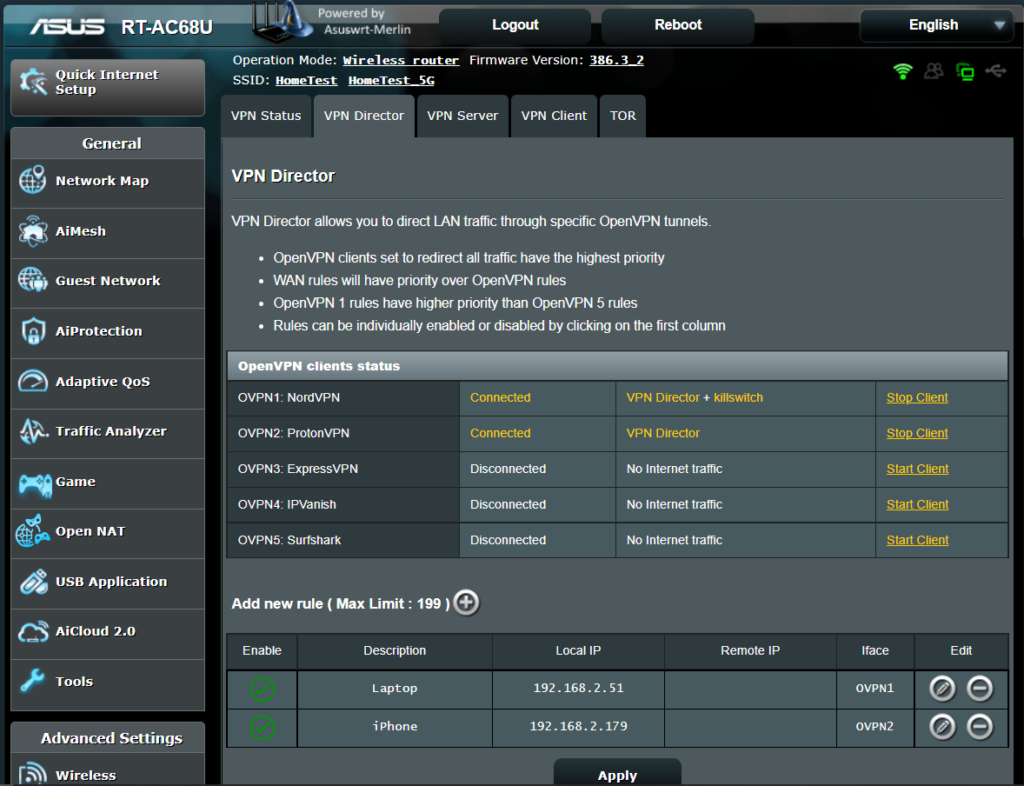
2. Click the VPN Director tab.

Merlin VPN Director

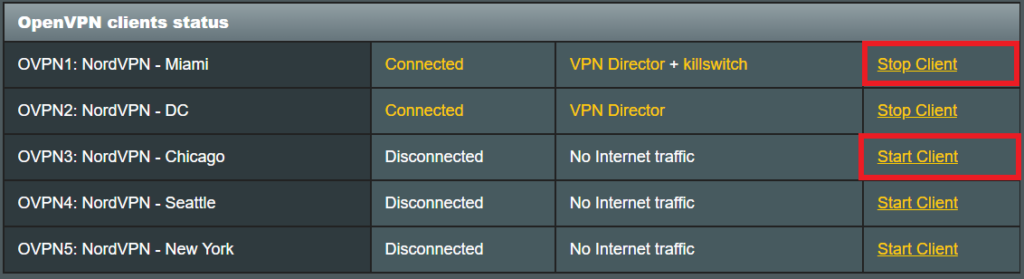
3. With multiple VPN clients connected you can start and stop them as needed from this page.

VPN Director

Assign a device to a specific VPN client

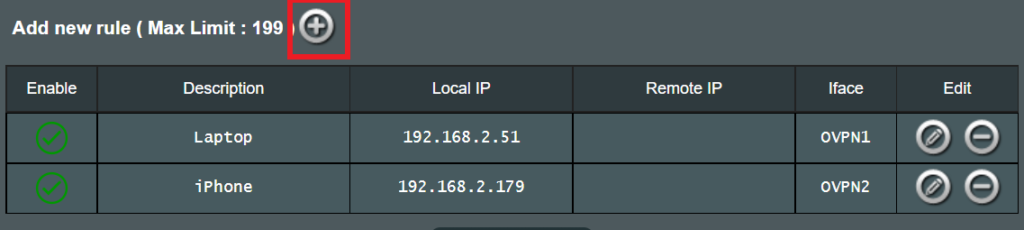
1. On the VPN Director page click the + symbol next to Add new rule.

VPN direct add new rule

2. Select the Interface that you want to add the device to.

VPN director select interface

3. Click the Local IP dropdown and a full list of devices connected to the Merlin FlashRouter should appear. Select the device you want to assign to this VPN client.

VPN director select device

4. Click OK and click Apply.

Surfshark Setup for Privacy Hero

TeamFlashRouters · Sep 23, 2025 ·

Privacy Hero supports Surfshark through WireGuard and OpenVPN using the Custom VPN provider option.

WireGuard is recommended for most users. It requires a Surfshark WireGuard key pair and a downloaded server configuration file. OpenVPN uses a downloaded .ovpn file and Surfshark’s separate Manual Setup credentials, not your usual Surfshark login email and password.

Privacy Hero is cloud-managed. You can change these settings from any computer, smartphone, or tablet with an internet connection; you do not need to be on the Privacy Hero WiFi to configure the VPN.

Choose Your Surfshark Setup

Select the connection method or instructions you need.

WireGuard Setup →Recommended · Key pair and server fileOpenVPN Setup →Manual credentials and UDP .ovpn fileUpload WireGuard →Import your configuration into Privacy HeroUpload OpenVPN →Add the file and service credentialsVerify Connection →Check your VPN IP and locationTroubleshooting →Fix connection failures and no internet

Surfshark WireGuard Setup (Recommended)

WireGuard uses a key pair for authentication. A separate Surfshark username and password is not needed for the WireGuard configuration.

Create or Select Your Surfshark WireGuard Key Pair

  1. Sign in to your Surfshark account.
  2. Open VPN → Manual Setup, choose the Router setup option, and select WireGuard.
  3. If you already registered a key pair with Surfshark, select I have a key pair and follow the prompts to register your public key. Otherwise, select I don’t have a key pair.
  4. If generating a new key pair, enter a name and choose Generate a new key pair. Save the generated keys securely when prompted.

Important: Your WireGuard private key is sensitive. Do not publish or send it in a support ticket. Surfshark notes that you may not be able to view the generated keys again after leaving that screen.

Download a Surfshark WireGuard Server File

  1. After setting up the key pair, select Choose a location or open the Locations section.
  2. Choose an available Surfshark server and download its WireGuard configuration file to your device.

Do not download the WireGuard configuration before setting up the key pair. Surfshark warns that a file downloaded too early can be missing the required key information. For more detail, see Surfshark’s manual WireGuard router instructions.

Upload WireGuard to Privacy Hero

  1. Open app.privacyhero.com and log in to your Privacy Hero account.
  2. Open the VPN section, click Change, and choose Custom as the VPN provider.
  3. Select WireGuard and upload the Surfshark WireGuard configuration file you downloaded.
  4. Click Save and allow Privacy Hero to establish the connection. Confirm the VPN status shows Connected.
Privacy Hero Custom WireGuard configuration and file upload panel

Surfshark OpenVPN Setup

OpenVPN is an alternative to WireGuard. It requires a Surfshark Manual Setup username and password and a downloaded OpenVPN configuration (.ovpn) file.

Get Your Surfshark OpenVPN Credentials

  1. Sign in to your Surfshark account.
  2. Open VPN → Manual Setup, choose Router, and select OpenVPN.
  3. Open the Credentials tab. If credentials are not yet available, select Generate credentials.
  4. Copy the Manual Setup username and password, or keep the tab open to enter them into Privacy Hero later.

Important: These are not your regular Surfshark website email and password. Keep the service credentials private.

Download a Surfshark OpenVPN Server File

  1. In Surfshark’s OpenVPN Manual Setup area, open the Locations tab.
  2. Select a country or server and download its UDP .ovpn configuration file. UDP is the recommended starting option; a TCP configuration may be worth trying later if needed.

Download a new .ovpn file whenever you want to switch to a different Surfshark server location. See Surfshark’s manual server selection instructions.

Upload OpenVPN to Privacy Hero

  1. Open app.privacyhero.com, sign in, and select the VPN section.
  2. Click Change, select Custom, and choose OpenVPN.
  3. Upload the Surfshark UDP .ovpn file you downloaded.
  4. Enter the Surfshark Manual Setup username and password into the Custom OpenVPN fields.
  5. Click Save, then confirm the VPN status shows Connected.
Privacy Hero Custom OpenVPN screen with configuration file upload and username and password fields

Verify Your Surfshark Connection

Privacy Hero showing Connected confirms the router connection status. Test a device on the Privacy Hero network to confirm it is using Surfshark.

  1. Connect your device to the Privacy Hero WiFi or LAN.
  2. Disconnect the Surfshark app or any other VPN app running directly on the testing device.
  3. Open a fresh private/incognito browser window.
  4. Visit Surfshark’s IP address checker.
  5. Confirm the displayed public IP and approximate location correspond to your selected Surfshark server.

You can change Privacy Hero settings while using another WiFi network or cellular data, but the device performing this VPN IP test must be connected to Privacy Hero. Avoid running a separate VPN app on the same testing device, as that creates a double-VPN connection.

Streaming Relocation and Your VPN Location

When Streaming Relocation is enabled for a supported streaming service, that service may use its Streaming Relocation region instead of the Surfshark VPN server region. See Privacy Hero Streaming Relocation.


Surfshark Not Connecting?

If Privacy Hero displays Failed, remains on Connecting, or reports a timeout, try these steps:

  1. Confirm your Surfshark subscription is active and that Custom is selected as the VPN provider in Privacy Hero.
  2. If using WireGuard, confirm that the key pair was created or registered before downloading the server file. If necessary, generate a new key pair, download a fresh configuration, and upload it again.
  3. If using OpenVPN, double-check your separate Surfshark Manual Setup username and password, not your regular website login.
  4. Download a fresh server configuration for another available Surfshark location and try again.
  5. If OpenVPN UDP continues to fail, try a Surfshark TCP .ovpn configuration file to check for a protocol-specific issue.
  6. Temporarily disable the VPN Kill Switch while checking whether internet access works without the VPN, then restore your preferred Kill Switch setting.

No Internet After Surfshark Disconnects?

The VPN Kill Switch may intentionally block normal internet traffic when the VPN connection is unavailable. See Privacy Hero VPN Kill Switch: No Internet or WiFi Troubleshooting.

VPN Connected but One Device Shows the Wrong IP?

If other Privacy Hero devices display the expected Surfshark VPN IP, review the affected device for VPN apps, iCloud Private Relay, Private DNS, proxy settings, antivirus filtering, or other security software. See Device Settings That Can Interfere With Your Router VPN.

Related Privacy Hero Guides

  • Privacy Hero VPN Kill Switch Setup
  • VPN Kill Switch: No Internet or WiFi
  • Privacy Hero Streaming Relocation
  • Device Settings That Can Interfere With Your Router VPN
  • FlashRouters Router Troubleshooting
« Previous Page

Primary Sidebar

  • Troubleshooting
  • Router Access
  • Internet Connection Issues
  • WiFi Connectivity
  • General VPN Issues
  • TeamViewer Remote Support
  • DD-WRT Firmware
  • Facebook
  • Twitter
  • Instagram
  • Pinterest
  • YouTube

Footer