You can connect to ProtonVPN on your GL.iNet router using Wireguard or OpenVPN.
Quick Options
-
Wireguard: Download your preferred server .conf configuration file from the ProtonVPN website.
-
OpenVPN: Download your preferred server .ovpn configuration file from the ProtonVPN website.
 If you are not already a ProtonVPN user Sign Up Now.
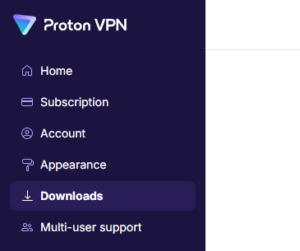
1. Login to your ProtonVPN account and go to the Downloads section of your ProtonVPN account page
2. Scroll down to find the WireGuard configuration section. Name your configuration and then select Router as the platform, and select Standard server configs.
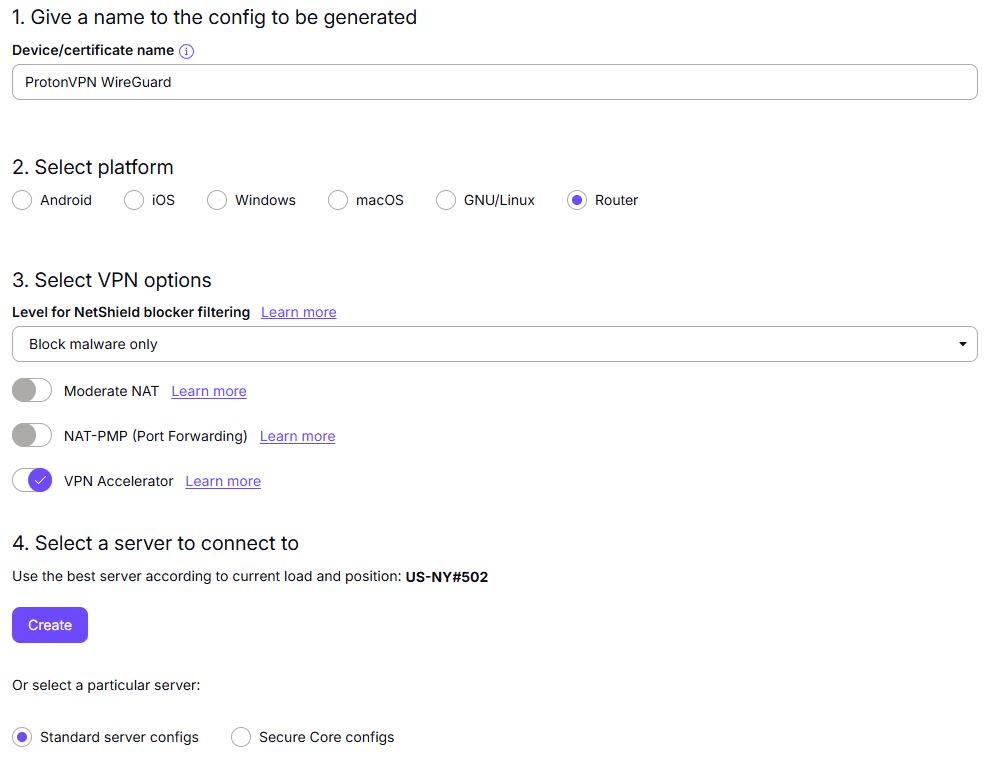
3. Click Create button to choose the recommended server or scroll down to choose and Download any of the available server files from the list.

4. Login to GL.iNet firmware settings (usually 192.168.8.1) in a browser on any computer or smart device connected to the GL.iNet FlashRouter’s network.
View our guide for more instructions on how to access GL.iNet firmware settings.
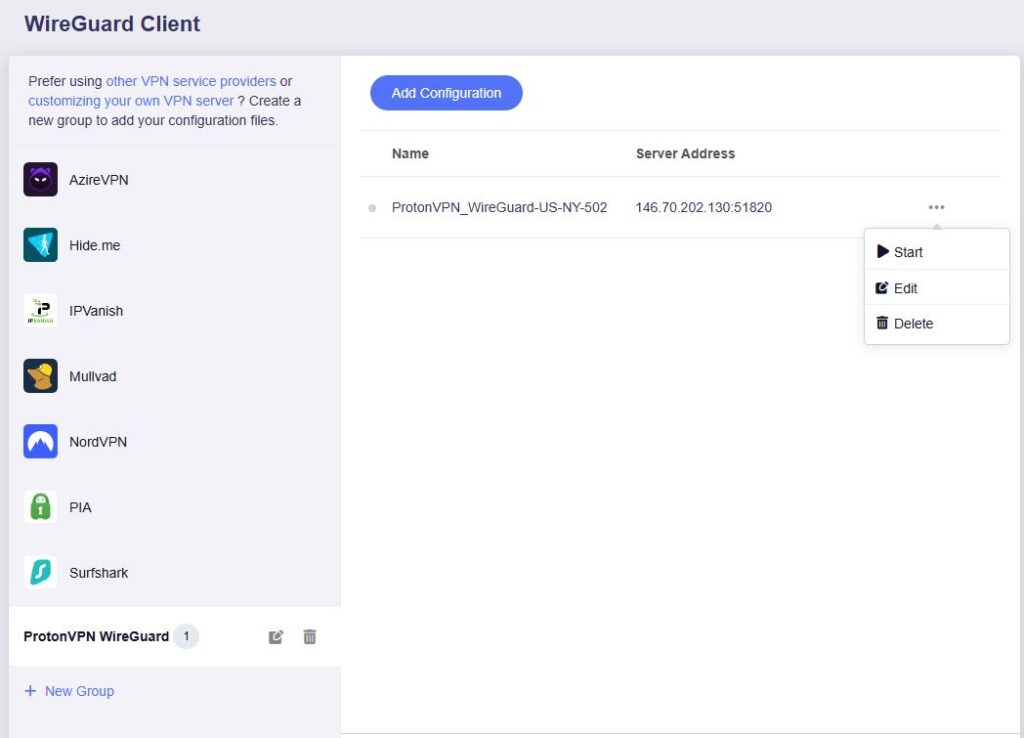
5. Navigate to the VPN tab and select WireGuard Client then click + New Group and name your connection and click the check to save.
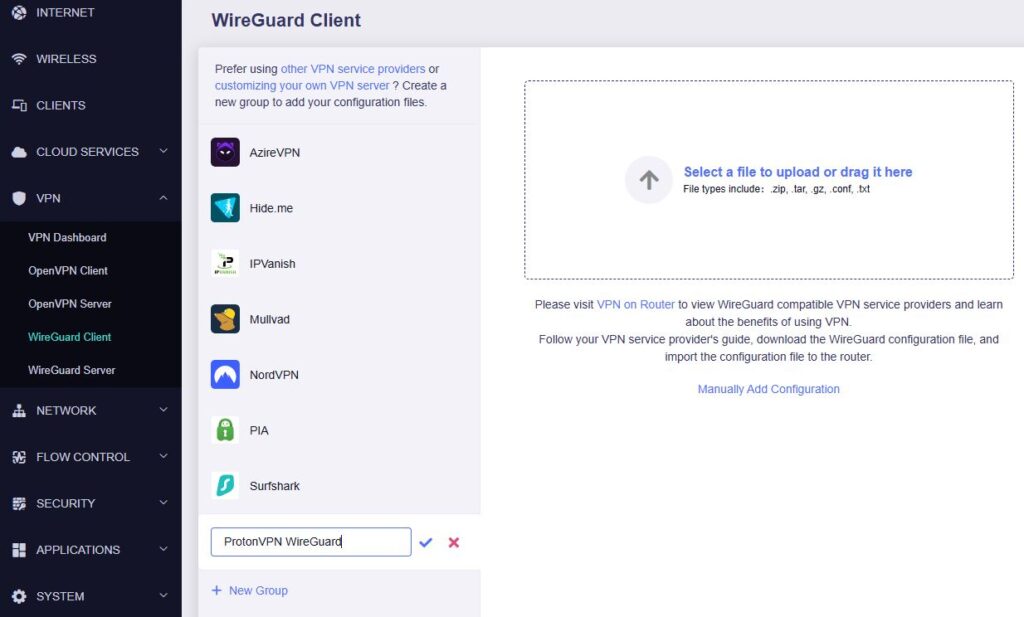
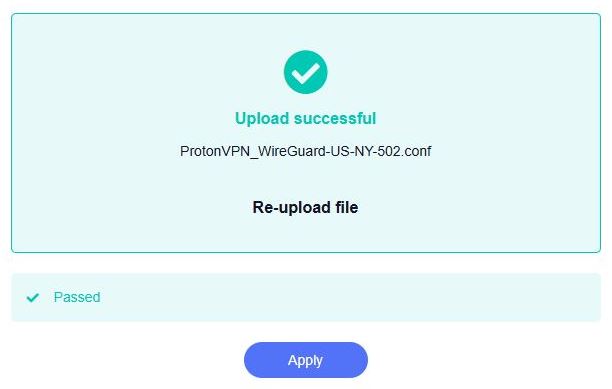
6. Upload the configuration file and click Apply.
7. Start a connection by clicking the 3 dots (…) > Start next to your chosen server.
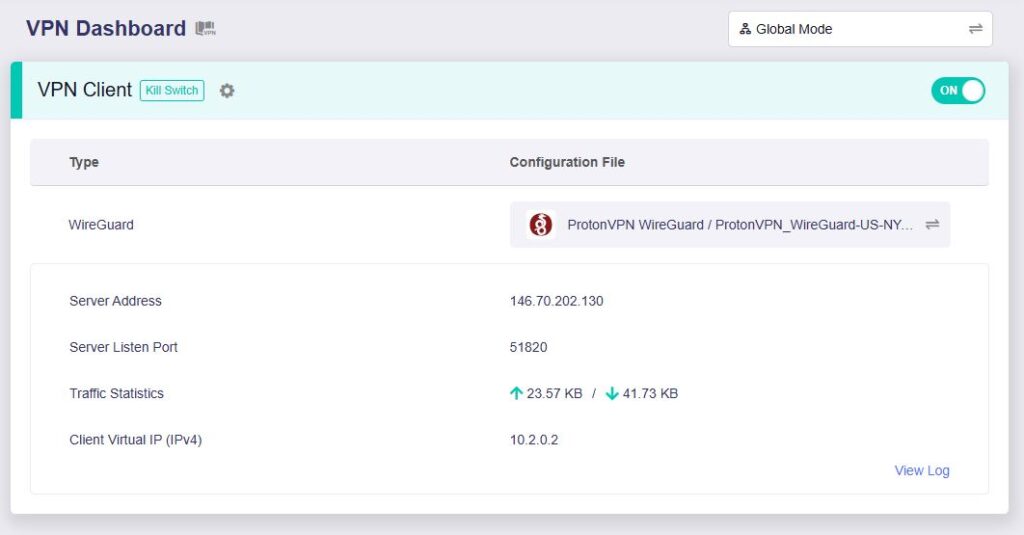
8. A green dot confirms success. You can also switch between Global Mode or Policy Mode for routing in the VPN Dashboard.
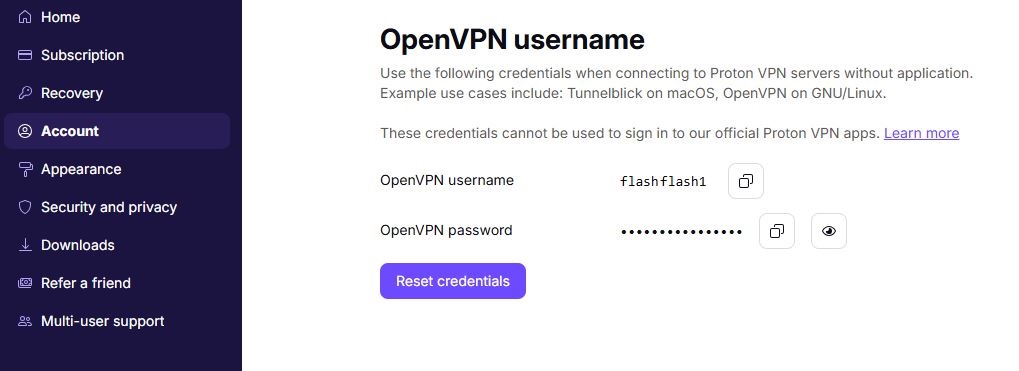
1. Log in to your ProtonVPN account and navigate to the Account tab. Scroll down to find your OpenVPN specific Username and Password.
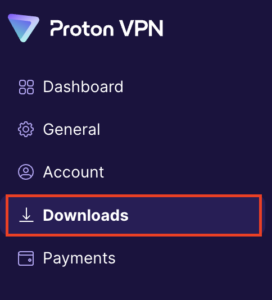
2. Go to the Downloads section of your ProtonVPN account page
3. Scroll down to find the OpenVPN configuration Files. Select Router as the platform, UDP as the protocol, and select Standard server configs. Choose your preferred country and download the configuration file.
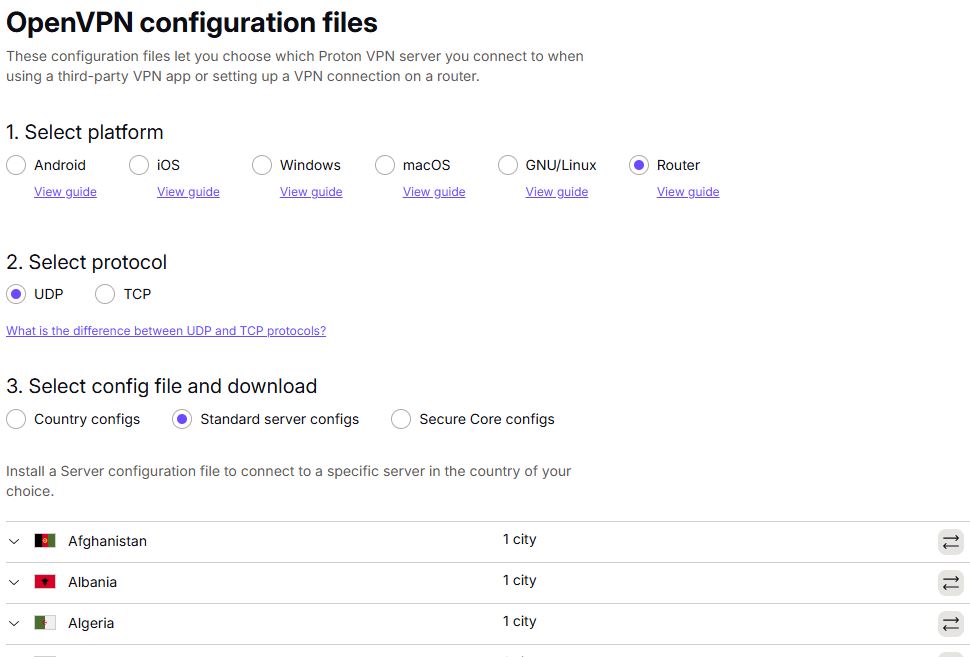
4. Login to GL.iNet firmware settings (usually 192.168.8.1) in a browser on any computer or smart device connected to the GL.iNet FlashRouter’s network.
View our guide for more instructions on how to access GL.iNet firmware settings.
5. Navigate to the VPN tab and select OpenVPN Client.
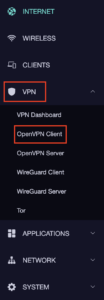
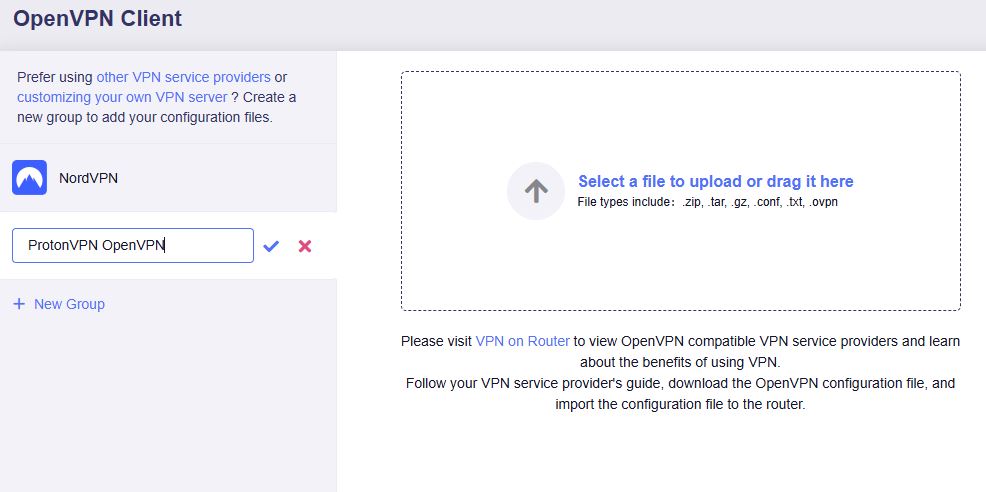
6. Select Add Manually then click + New Group and name your connection and click the check to save.

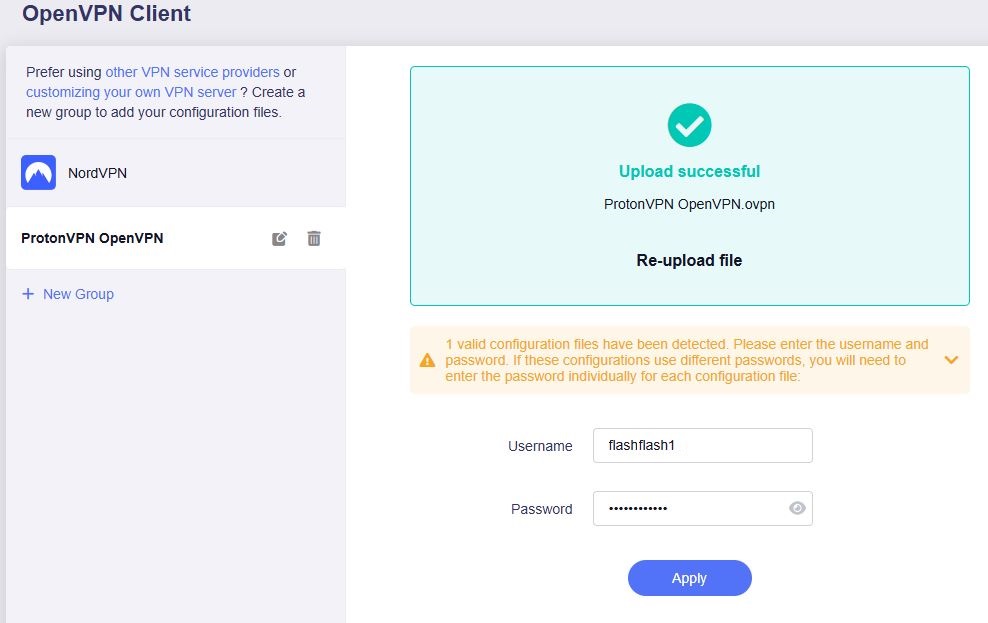
7. Upload the configuration file and input your username and password, click Apply.
8. Start a connection by clicking the 3 dots (…) > Start next to your chosen server.
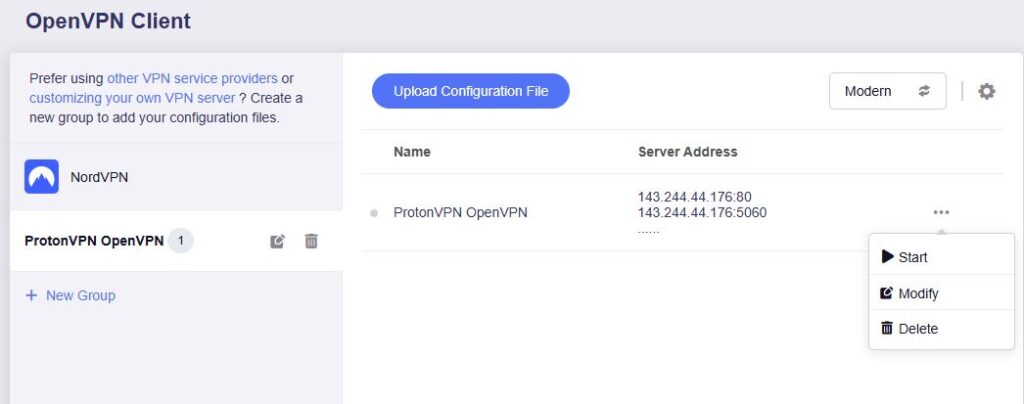
9. A green dot confirms success. You can also switch between Global Mode or Policy Mode for routing in the VPN Dashboard.
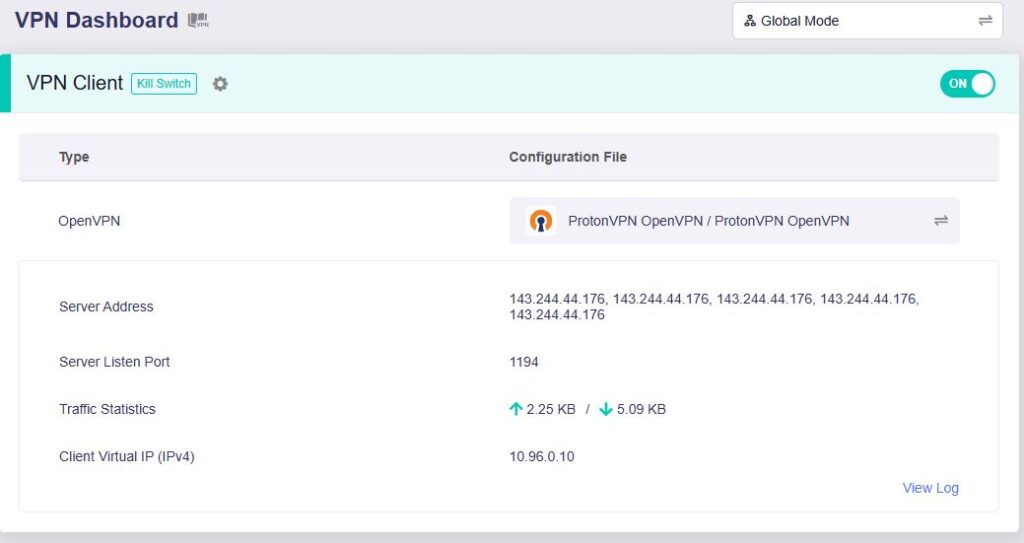
- You should now see information appear in the Server Address, Server Listen Port, Traffic Statistics, and Client Virtual IP areas.
- Visit ProtonVPN’s IP Check to verify your new IP address and virtual location.
In some cases you may notice that the location is not showing the same location as the server you have input in your router settings; this is because geo tracking tools are often tricked by VPN connections. As long as you see an IP address that is not the same as your normal Internet IP address then you are indeed connected to ProtonVPN.
🚫📱Do not run ProtonVPN apps on devices connected to your ProtonVPN router. Using the app at the same time as the router VPN may cause conflicts and connection issues.