- Do NOT connect to your VPN provider’s computer, phone, or tablet app while connected to the FlashRouter’s network. This may cause issues with access to your DD-WRT router settings as well as your internet connection.
- Connect any device in your home network to VPN by joining the FlashRouter’s network.
Search Results for: well phone router
Privacy Hero Activation and Setup
Follow this article when you receive your new Privacy Hero router to create your Privacy Hero account, connect your Privacy Hero to the Internet, and customize your network so it is ready to use.
Your Privacy Hero router uses Cloud Based router management which means you can access the router settings from anywhere on any device that has an internet connection. You can follow these steps while connected to your phone or your other Wi-Fi network.
Create your Privacy Hero account
1. From any device that has a browser such as a computer, smartphone, or tablet visit app.privacyhero.com

2. Select Create Account.
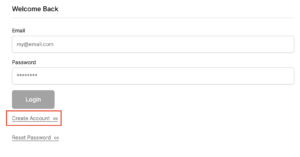
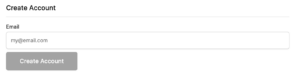
3. Enter the Email address you want to set for your Privacy Hero account. This will be your login to the Privacy Hero settings moving forward. Click Create Account.
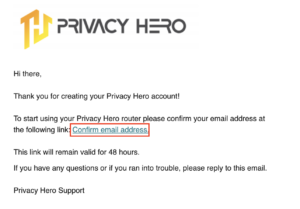
4. Go to your Email inbox and check for an email from Privacy Hero and click the Confirm email address link. This email may be in your Promotions or Spam inbox if it is not appearing in your main inbox.
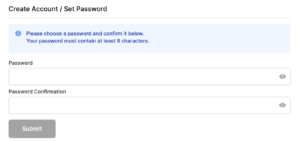
5. Enter the password that you want to use for your Privacy Hero account. Be sure to note this in a secure location so you do not forget. Click Submit.
6. You have now created your Privacy Hero account. You will use this login to access the Privacy Hero router settings.
Activate your Privacy Hero Internet and setup Wi-Fi
1. You will then be taken to the Router Activation steps. Connect the ethernet cable that the Privacy Hero came with from an open Ethernet port on your ISP modem or other router to the WAN/Internet (blue) port of the Privacy Hero.
Then power the Privacy Hero device on by connecting the power supply. This is shown in the video on the page as well. Wait about a minute or so for the Privacy Hero router to fully boot up and then click I’m Connected.
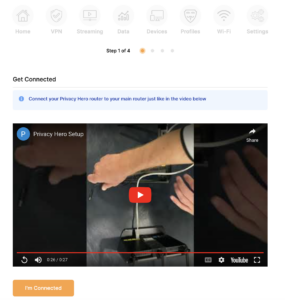
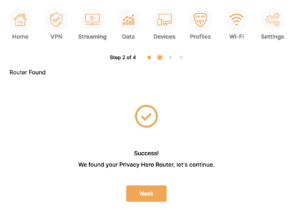
2. The next page may say Router Found or ask you to enter the Activation Code. If it asks for the Activation Code that will be the code printed on the bottom of the Privacy Hero. Enter this code and click Next.
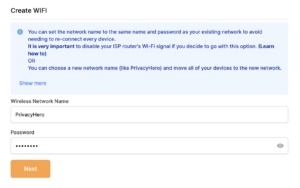
3. Set the Wi-Fi name and password for connecting your devices to the Privacy Hero network. Make sure it is not a duplicate name of an existing Wi-Fi network. Click Next.
4. To activate your 1 Year NordVPN code:
Click on Claim NordVPN 1 Year Code Now
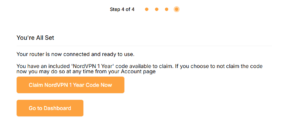
Go to the Account section of your router settings.

Copy the NordVPN code shown under Claim NordVPN 1 Year Code.
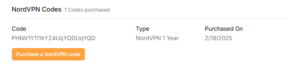
Go to the NordVPN activation page.
This code can be used with a new or existing NordVPN account.

5. You are now all set to begin joining your devices to the new Privacy Hero network with the Wi-Fi name and password you entered and setting up some of the Privacy Hero features.
Service Plan FAQs
 Service Plan FAQs
Is the service plan a one time purchase or does it renew?
All FR service plans automatically renew on a quarterly or annual basis based on the term initially purchased. A reminder e-mail will be sent one week prior to renewal. In your FlashRouter account panel, you can cancel the plan at any time to stop any further renewals.
What is included with a FlashRouter?
- On-demand Installation of enhanced firmware and our exclusive FlashRouters VPN Privacy App.
- Custom setup guide.
- Power cord and an ethernet cable.
- Individual VPN Account Setup/Pre-configuration (On Request)
- 1 year open source hardware warranty.
- 30 day satisfaction guarantee.
- Initial basic setup assistance via e-mail. For any advanced setups/configurations, live chat or remote assistance, a service plan purchase is required.
Does the service plan include a VPN subscription?
A subscription to a VPN does not come with a FlashRouter or Service plan. If you are planning to use a VPN, you would need to sign up for one separately, directly from a provider.
Need assistance in finding a VPN Provider? Please visit our recent VPN Provider Best Seller List.
Plug and Play VPN Support
Unlike other VPN Router providers, FlashRouters is proud to offer free VPN service integration with any purchase.
To receive a plug and play with VPN device, you will need to provide our team with the credentials from your VPN provider subscription.
IMPORTANT NOTE: This is not required but recommended for users who wish to have the simplest, most seamless experience when the FlashRouter arrives. You can always change the password when the device arrives if you wish as well.

To have your router VPN pre-configured:
- Select Yes from the “Want Your Router Preconfigured?” on the Payment Page during check out.
- Select your VPN provider. If you don’t see your VPN listed select “Other” and you will see an additional field to input who your provider is.
- Enter your your VPN username and password
- For ExpressVPN Firmware Routers there will be an additional box for your activation code.
Please note: If you do not enter a server location request in “Order Comments”, we will automatically start the device with the closest/optimal server for the location we are shipping the device by default. A location has to be added to the initial configuration for plug and play encryption security to occur on the device.
Do I have to buy a service plan?
Our routers are priced for the custom upgrades performed at our warehouse, testing expenses and keeping the FlashRouter App update to date.
Our service plan has three levels as an optional add-on with your purchase to get continued direct assistance from our team. This is especially useful to customers who are less tech savvy and want direct access to our support team to make sure their network is running exactly how they desire. Here is how these plans differ
Bronze – Basic E-mail Support
Silver – E-mail and Live Chat Support.
Gold – E-mail, Live Chat, and Remote One-on-One Sessions
Each situation and user has different needs and expertise. Our team of US-based support agents are highly trained specialists in VPN and DD-WRT router setup. From firmware updates to networking configuration/troubleshooting,solutions, the purpose of our Service Plans is to help our customers in whatever level they deem necessary.
Does FlashRouters offer phone support?
At this time, we do not provide phone support with our service plans. We have tested phone support for networking troubleshooting in the past but have found that on average caused us to help less customers in a less efficient manner. However, with a purchase of a Gold Service Plan, customers can schedule 1-on-1 remote support sessions via Teamviewer with our engineers and they will provide a hands-on, personal solution, to any problems you may be facing.
Do I need a Service Plan for a firmware upgrade?
Firmware upgrades are free of charge to any FlashRouter customer!
You can visit our support center and select your specific router model to upgrade your firmware based on the recommendations provided.
If you want the help of our Support Team to assist in this upgrade, you can always sign up for our Gold Service Plan and schedule a 1-on-1 Teamviewer session in which our trained engineers will take care of the upgrade for you!
What does the warranty cover?
Our complimentary 1-year hardware warranty does not include tech support outside. If your router suffers hardware failure within 365 days from the date you received the unit, then we will gladly replace your router with another fully tested one. For more information regarding our warranty and return policy, please check out our warranty and return section.
Can I purchase a router without a service plan and subscribe later?
Yes, you may purchase a service plan at any time. However, we can’t guarantee any pricing, or apply any previously offered discounts or specific features at that later date.
Access FlashRouter DD-WRT firmware settings
You must be connected to the FlashRouter network via ethernet or WiFi connection on your device in order to be able to access the FlashRouter’s firmware settings.
Why do I need to access my FlashRouter's settings?
- Switch VPN server locations
- Attempt custom setups
- Troubleshoot your network
Connect your device to the FlashRouter network
We recommend using a computer, tablet, or phone to access your FlashRouter firmware settings. You can connect your device to the FlashRouter via Ethernet Cable or Wireless connection.
Please note, you will NOT be able access the firmware settings unless you connect your device to the FlashRouter Network.
via Ethernet
Connect an Ethernet cable to your device’s Ethernet port.
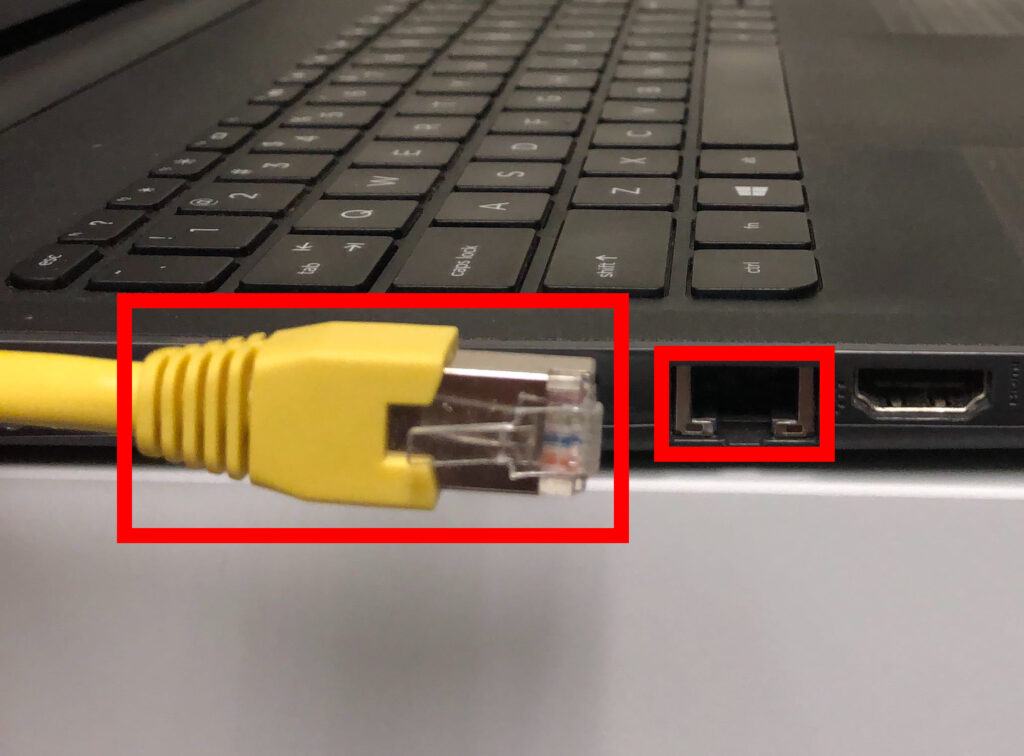
Connect the other end of that Ethernet cable to a FlashRouter LAN/numbered port.
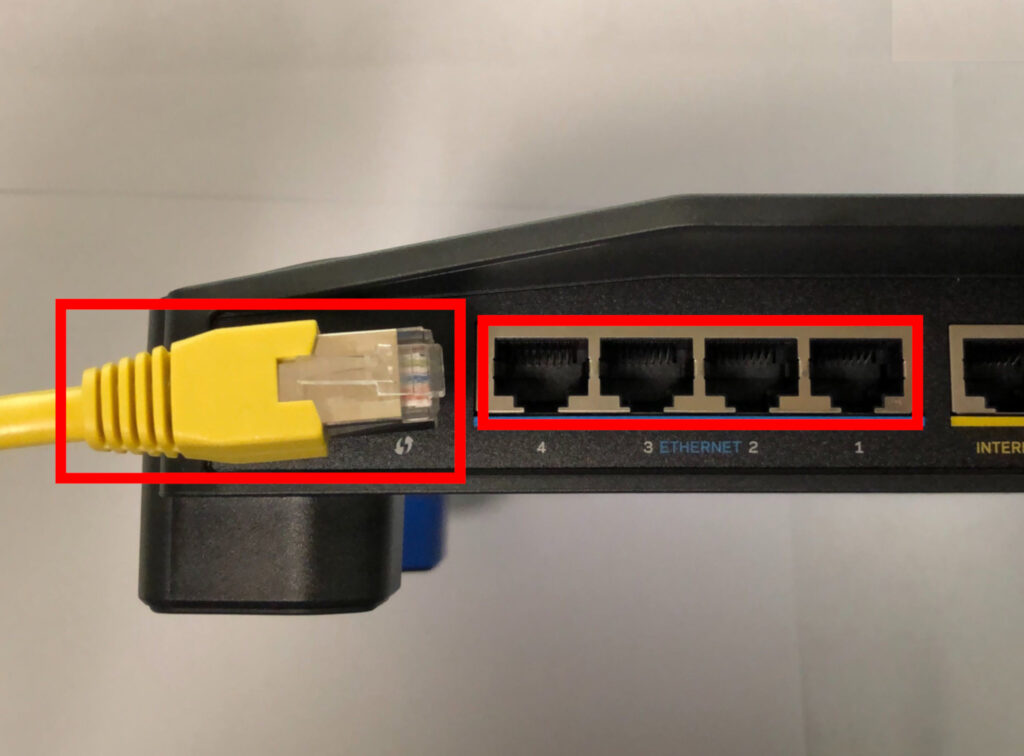
Be sure NOT to connect your device to the WAN/internet port of the FlashRouter. Please use the LAN/numbered ports to connect your devices.
via Wireless
Navigate to the available wireless networks in your device network settings and join any of the available FlashRouter networks – FlashRouter24, FlashRouter50, or FlashRouter80 (if you have a tri-band router).
Access the FlashRouter settings
We recommend using a Google Chrome or Mozilla Firefox incognito/private browsing window to access the FlashRouter firmware settings. You can access the main DD-WRT firmware GUI or you can go directly into the FlashRouters Privacy App settings to manage your basic router settings and VPN connection settings right away.
Please note, after accessing the FlashRouter Settings at the Local IP Address, you will be prompted to enter an admin username and password. You can find this information in the subsections below.
DD-WRT - Firmware GUI
Local IP Address: 192.168.11.1
Username: flashrouter
Password: ddwrt
Keep in mind that if you enable HTTPS and disable HTTP access you will need to add https:// in front of the Local IP Address to access your FlashRouter’s firmware settings.
If your router has been reset for any reason then you can access the router at a local IP address of 192.168.1.1.
Please note you will be required to set the administration username and password as well as your WiFi and VPN network settings after a reset.