Set up NordVPN on an ASUS router using AsusWRT VPN Fusion. Supported ASUS firmware offers three different VPN types: NordVPN (access-token integration), WireGuard (downloadable .conf file), and OpenVPN (manual service credentials plus an .ovpn file). Choose the method that matches your needs and your router’s available options.
All configuration is completed directly through your ASUS router’s administration interface using VPN Fusion. Before starting, make sure your router is connected to the internet, your firmware supports VPN Fusion, and you have an active NordVPN subscription.
Which NordVPN Option Should You Choose?
1. NordVPN
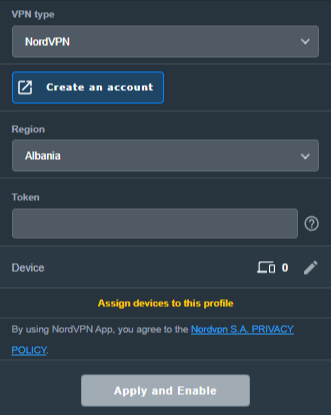
NordVPN access token and a country/region dropdown. The built-in ASUS/NordVPN integration is the simplest approach if you only need a country, not an exact server file.
2. WireGuard
Import a NordVPN .conf configuration file for a server selected in Nord Account. Useful when you want a downloaded profile for a particular server.
3. OpenVPN
Import a NordVPN .ovpn server file and enter your separate manual service username and password. Also used for NordVPN Dedicated IP.
Option 1: NordVPN Dropdown — Token-Based NordLynx
Select the NordVPN type inside VPN Fusion. This is the integrated token-based setup and offers a country/region selection, rather than a manually imported server file.
- In Nord Account, open NordVPN Access Tokens and complete email/account verification if requested.
- Generate an access token, choose an expiry period if NordVPN offers that setting, and copy the token immediately (it may only be displayed once).
- On your ASUS router, open VPN > VPN Fusion > Add profile.
- Set VPN Type to NordVPN. Name the profile, select your preferred Region, and paste the token.
- Choose Apply to all devices if you want it as the default route, or assign only selected devices (see the VPN Fusion guide below).
- Click Apply and Enable / Apply all settings, as shown in your firmware, and verify the profile connects.
Need a specific server? Use the separate WireGuard file method below or the OpenVPN configuration-file method. Do not expect the token-based country dropdown to accept a .conf or .ovpn file.
Option 2: WireGuard Dropdown — Import a NordVPN .conf File
NordVPN now provides downloadable WireGuard configuration files through its manual server recommendation page. This is different from the built-in NordVPN token option in VPN Fusion.
- Sign in to Nord Account and open NordVPN Server Recommendation.
- Choose your preferred country and server; use the available filters if you need to narrow the list. Select a currently available server.
- Choose Get setup configuration, select WireGuard from the protocol menu, and click Download config. Save the downloaded
.conffile. - In your ASUS router settings open VPN > VPN Fusion > Add profile, then set VPN Type to WireGuard (not NordVPN).
- Use the ASUS Import configuration / file-import control to select the NordVPN
.conffile. Confirm the imported parameters and save the profile. - Choose the target devices or enable the default/all-devices route. Click Apply and Enable, then check the VPN status and your public IP.
NordVPN’s official instructions: How to download WireGuard and OpenVPN configuration files.
Option 3: OpenVPN Dropdown — Credentials + .ovpn File
OpenVPN requires two separate items: the configuration file for your desired server and NordVPN’s manual service credentials. Your normal Nord Account email/password is not the correct credential pair for this method.
- Open NordVPN Manual Service Credentials and copy the service username and service password after any required verification.
- Open NordVPN OpenVPN Configuration Files and choose a server/location. Download its UDP .ovpn file, or TCP .ovpn if UDP does not work on your network.
- On ASUS, go to VPN > VPN Fusion > Add profile and set VPN Type to OpenVPN.
- Enter a connection name, Import .ovpn file, and paste the NordVPN manual service username and password in the corresponding fields.
- Choose devices or Apply to all devices, then click Apply and Enable. Confirm VPN Fusion shows a successful connection.
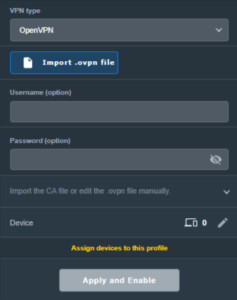
Server selection: The location is controlled by the server named in the imported .ovpn file. To switch locations, import another server file or use a separate OpenVPN profile.
NordVPN Dedicated IP — OpenVPN Only
If you have purchased and activated the NordVPN Dedicated IP add-on, use your specific Dedicated IP OpenVPN configuration file. Do not select the ordinary NordVPN token integration or a regular shared server.
- In your Nord Account, open the Dedicated IP details and download the assigned server’s OpenVPN UDP or TCP configuration file, following NordVPN Dedicated IP manual configuration instructions.
- Open NordVPN Manual Service Credentials and copy the manual username and password.
- In ASUS VPN Fusion > Add profile, choose OpenVPN.
- Import the Dedicated IP
.ovpnfile, enter manual service credentials, save, enable, and verify the public IP matches your assigned Dedicated IP.
Assign Devices, Verify the VPN, and Troubleshoot
One VPN for everyone, or different VPNs for different devices?
VPN Fusion lets you use a VPN profile as the default connection for all devices or assign specific client devices to different profiles. Some supported ASUS models can maintain one WireGuard tunnel alongside multiple OpenVPN profiles, but the number of simultaneous tunnels is model/firmware dependent; creating multiple profiles does not mean all can be active simultaneously.
For step-by-step device assignments, default routing, profile conflicts, and bypassing the VPN, see How to Use ASUS VPN Fusion and Assign Devices to VPN Profiles. For a dedicated WiFi network with VPN or ISP routing, see ASUS Guest Network VPN / No-VPN Setup.
Verify the IP of the actual device
- Confirm your chosen profile shows Connected in VPN Fusion.
- Join the ASUS WiFi or LAN using a device that is actually assigned to that VPN profile.
- Open NordVPN IP Address Check and compare the public IP/location with the intended server or Dedicated IP.
- If the device shows an ISP IP, first check Apply to all devices and the per-device assignments in VPN Fusion.
- Disconnect a NordVPN app, Apple iCloud Private Relay, browser VPN/proxy, or other device-level network service during testing. Follow Router VPN Shows Wrong IP? Check Device Settings.
If VPN Fusion will not connect
- Temporarily disable the failing profile and confirm the ASUS router works using its normal ISP internet connection.
- For NordVPN type, check that the access token is valid and hasn’t expired; regenerate if needed.
- For WireGuard, import a fresh
.conffrom the Nord server recommendation page and make sure the profile is enabled. - For OpenVPN, double-check manual service credentials (not website credentials) and try a different server file or TCP instead of UDP.
- Check that device-assignment rules point to the intended active profile, then retest with one clean device.
NordVPN Routers & Offers
Shop NordVPN-Ready FlashRouters
Compare ASUS and Privacy Hero router options and choose the hardware that fits your VPN and network requirements.
NordVPN Partner Offer
Need NordVPN service? See the current FlashRouters NordVPN promotional offer. Subscription pricing and terms are shown on the offer page.
Upgrade your ASUS router
Explore the Latest WiFi 7 ASUS FlashRouters
Looking for a newer ASUS router? Browse WiFi 7 models available from FlashRouters and compare features to find the right fit for your home or office. VPN Fusion and other features vary by router model and firmware.