- White (looks blueish white on Teal colored Roqos Cores): System startup
- Solid Red: System is up, but there is no internet connection. Roqos Core cannot detect a network link either.
- Flashing Red: System is up and there is an ethernet cable connected to Internet port, however Roqos Core is unable to reach the internet. Usually happens with bad ethernet cable, or cable modem/ISP modem not giving IP address to Roqos Core due to ISP provisioning issues, or some other type of network setting blocking Roqos Core’s access to the internet. First thing to try in this scenario is to reboot the ISP router/modem upstream of Roqos Core.
- Flashing Blue: Roqos Core is up and connected to the internet, but it is not yet activated. Brand new Roqos Cores, or Roqos Cores that are factory reset will show this behavior when they are ready to be activated again.
- Blue (deep blue color, different from #1): Roqos Core is up and activated, everything is normal.
Search Results for: new+router+setup
SmartDNSProxy SmartDNS Setup
SmartDNSProxy offers a SmartDNS service for unblocking geo-restricted content without the encryption of a VPN service. SmartDNS routes DNS servers to different regions which “tricks” the website to allow access to previously restricted content.
SmartDNS does not change your IP Address or provide the encryption that a VPN connection does. This can result in faster speeds and unblocked content.
SmartDNS and VPN should not be configured at the same time. When using a SmartDNS connection, make sure to disable your VPN connection on the FlashRouter.
Register your IP Address
If you are not already a SmartDNSProxy user Sign Up Now.
Click on Sign Up and fill in the requested information.
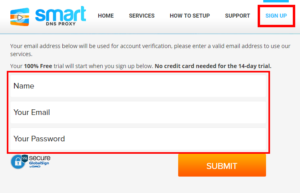
Access the e-mail you entered and Verify your new account.

Your account will now be verified.

Login to SmartDNSProxy

Visit SmartDNSProxy’s DNS servers list and note the DNS servers of the location you would like to access content from.
Enter SmartDNSProxy SmartDNS servers on your FlashRouter
Navigate to Setup > Basic Setup
- Scroll down to Network Address Server Settings (DHCP).
- Enter in any combination of SmartDNSProxy SmartDNS servers you noted into Static DNS fields 1 and 2.
- Click Apply Settings at the bottom of the page.
- Reboot the FlashRouter.
Once the router is fully booted back up, you can access your desired regional content on any device that connects to the FlashRouter’s network.