Set up IPVanish on an ASUS router using AsusWRT-Merlin. This guide covers WireGuard (a generated .conf file) and OpenVPN (a server .ovpn file and IPVanish VPN credentials). Choose the method that matches your needs and your router’s available options.
All configuration takes place in your ASUS router’s administration interface. You will need a working internet connection, an active IPVanish subscription, and an ASUS router with the appropriate AsusWRT-Merlin WireGuard or OpenVPN client support.
Which IPVanish Setup Method Should You Choose?
1. WireGuard
Generate a location-specific .conf file from IPVanish; the file contains keys and connection parameters.
2. OpenVPN
Download an IPVanish server .ovpn file, then enter the credentials accepted for manual VPN connection.
Option 1: Download an IPVanish WireGuard Configuration
- Log in at IPVanish account sign-in.
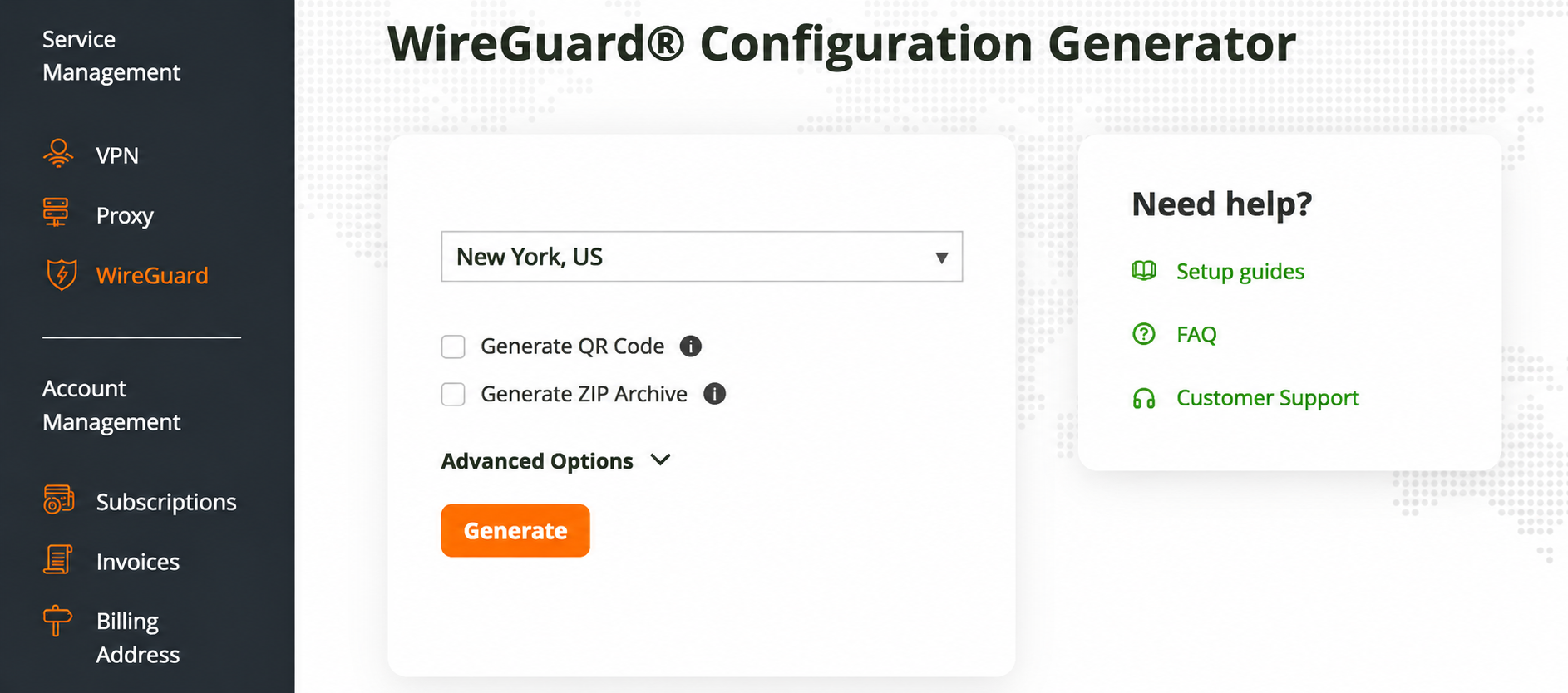
- Find WireGuard under the account’s service-management or manual-configuration options. Open the WireGuard Configuration Generator.
- Choose an available server location and select Generate. Save the
.conffile securely. Do not share the private key stored inside.
Import IPVanish WireGuard into AsusWRT-Merlin
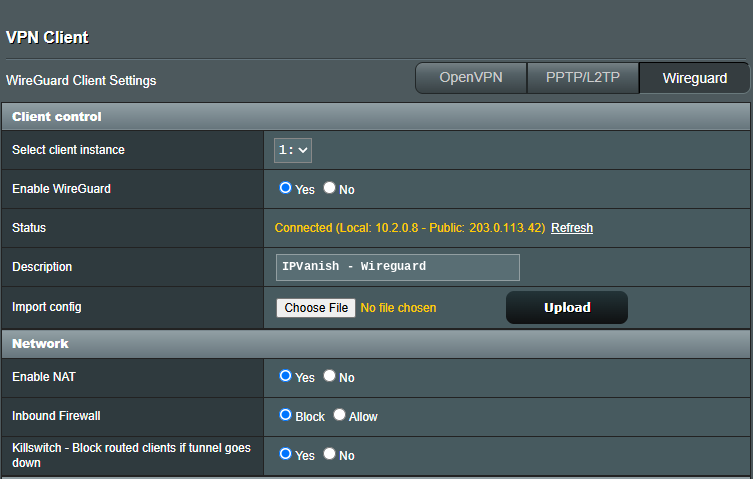
- Open VPN > VPN Client in AsusWRT-Merlin. Choose an unused WireGuard client instance and select WireGuard as its protocol.
- Under Import config, select Choose file, choose the downloaded
.conf, and click Upload. Review the imported endpoint and keys without exposing private keys. - Under Basic Config, name the profile, such as IPVanish New York WireGuard. Set Enable WireGuard to Yes, then click Apply. Confirm the tunnel is active.
- Next: The tunnel must be assigned to your LAN devices through VPN Director. Complete the routing steps immediately below before testing your public IP.
Route All Main WiFi and Wired Devices Through WireGuard
Required Merlin VPN Director step: The WireGuard client can show Connected while your computers, phones, and other LAN devices still use the regular ISP connection. Add the VPN Director policy below to route the main ASUS LAN through your IPVanish WireGuard tunnel.
- Check the router’s LAN address and subnet under LAN > LAN IP or the equivalent Merlin LAN settings. For a FlashRouter with LAN gateway
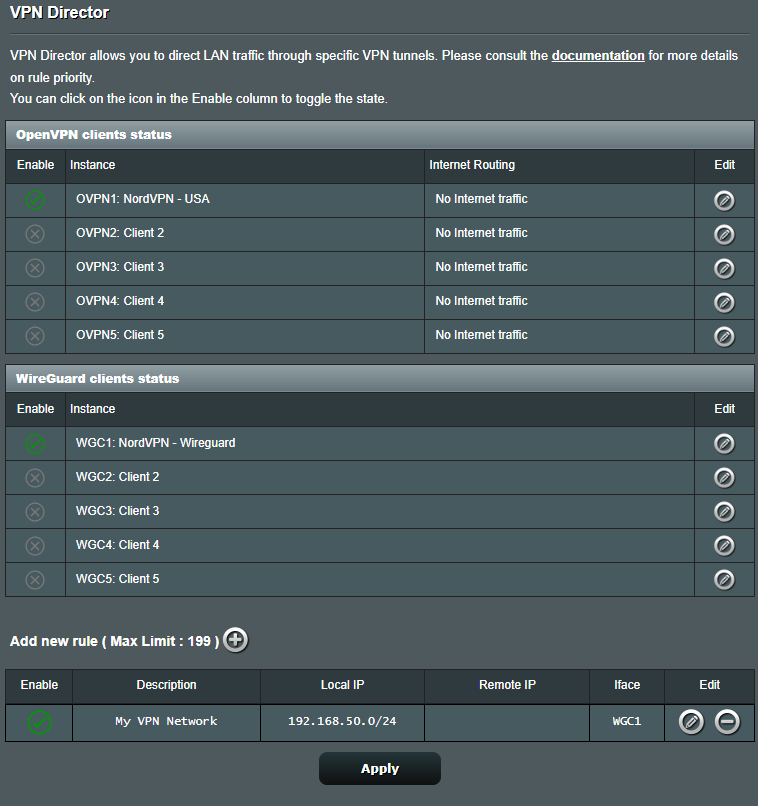
192.168.50.1and mask255.255.255.0, the full LAN subnet is192.168.50.0/24. Use your actual subnet if it differs. - Open VPN > VPN Director and click Add new rule (+).
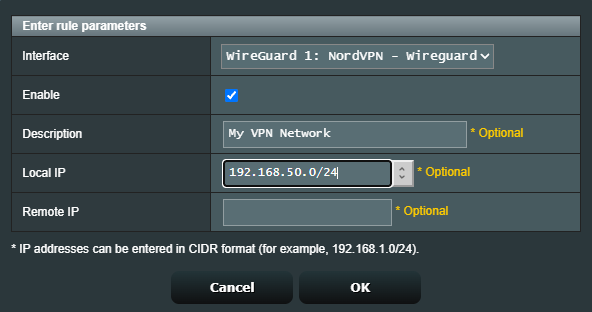
- Give the rule a name such as Main LAN via WireGuard. Under Interface, select the WireGuard client instance you just connected (for example, WireGuard 1). Under Local IP, enter
192.168.50.0/24for the example main LAN. Leave Remote IP blank to cover all destinations, and make sure the rule is enabled. - Click OK to add the policy, then click Apply on the VPN Director page to activate it.
- Test one device on the normal ASUS WiFi and one device connected by Ethernet. On each device, open IPLeak.net to confirm the public IP reflects your IPVanish VPN server instead of your ISP.
Option 2: Download an IPVanish OpenVPN Configuration
- Visit the IPVanish OpenVPN configuration directory and download an available server
.ovpnconfiguration file. - Choose the location you want. Start with UDP if available; use TCP as an alternative if your network blocks UDP.
- Have the username and password accepted by your IPVanish account for manual OpenVPN connections ready. If IPVanish provides separate manual credentials, use those, not an unrelated website password.
Import IPVanish OpenVPN into AsusWRT-Merlin
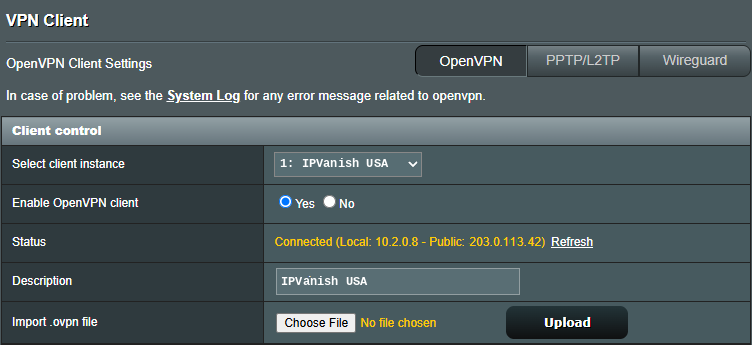
- Open VPN > VPN Client, select an available OpenVPN client instance, and import the provider
.ovpnfile using Choose file and Upload. - Enter a descriptive name such as IPVanish New York OpenVPN. Fill the Username and Password fields with the IPVanish VPN credentials for manual OpenVPN connections. Review the imported values and any required certificate fields.
- Under the routing/network settings, choose Yes (all) for Redirect Internet traffic through tunnel to route all applicable client traffic, or choose VPN Director when using per-device rules. DNS settings depend on provider and firmware; start with the provider-recommended mode and check for DNS leaks after connection.
- Choose whether to enable the optional Kill Switch / Block routed clients if tunnel goes down. Click Apply to save. On newer Merlin 3006 firmware, enable the client with its Enable control; on older builds, use the available Service State control.
- Confirm that the OpenVPN client is connected. For device-specific routing, add the matching rules in VPN Director and select Apply.
Assign Devices, Verify the VPN, and Troubleshoot
Choose Which Devices Use the VPN
For a WireGuard connection, add VPN Director rules; without them, your device may still use its ordinary ISP route. For OpenVPN, choose an all-device redirect or VPN Director rules. Reserve stable client IP addresses where possible. See Merlin VPN Director: Route Devices and Subnets.
Verify Your VPN Connection
- Verify the client is enabled and connected in VPN > VPN Client.
- Connect a device to the ASUS Wi-Fi or LAN, and ensure that device or its subnet is assigned to the intended VPN interface.
- Open IPVanish IP Check or IPLeak.net on that device. Compare the public address with the normal ISP address; geographic databases can be approximate.
- For a clean test, temporarily turn off a VPN app, browser proxy, or Private Relay on the device and check its DNS/IPv6 behavior separately.
Troubleshooting IPVanish
- No internet before VPN: Disable the VPN and confirm the router has working WAN/ISP connectivity first.
- VPN connected but ISP IP: Check VPN Director rules, OpenVPN redirect mode, rule priority, and whether the test device is on the ASUS network.
- Import or authentication error: Download a fresh provider configuration, verify credentials or WireGuard key, and try another server.
- No internet with kill switch: Check the active VPN tunnel and read Merlin VPN Kill Switch Setup and Troubleshooting before turning off protection.
- Still stuck: Follow General VPN Troubleshooting and Device Settings That Can Interfere With Router VPN.
