VPN Director is the device and destination routing feature in AsusWRT-Merlin. Use it to assign selected connected devices or an entire LAN subnet to specific OpenVPN or WireGuard clients while other devices remain on the normal WAN connection. Unlike stock AsusWRT, Merlin uses VPN Director rather than the VPN Fusion setup flow.
Before You Begin: Understand the Two Merlin VPN Screens
VPN Client holds the actual OpenVPN or WireGuard connection configuration. VPN Director holds the rules specifying which LAN clients use which interface. For OpenVPN, set the client’s traffic-redirection mode to VPN Director if using policy rules. WireGuard clients already use VPN Director rules and generally do not have an OpenVPN-style route-mode dropdown.
- Confirm the router is online and the desired OpenVPN/WireGuard client is enabled and connected.
- Find the LAN device’s address in the router’s client list. Reserve its IP in the DHCP settings if you want the VPN rule to follow that device reliably.
- Check your ASUS LAN network and subnet. A typical FlashRouters example is
192.168.50.0/24, but other networks use different values. - Avoid changing rule priority or multiple active profiles during your first verification.

Choose Which Devices Use the VPN
- Go to VPN > VPN Director. Locate the rules table and select Add new rule (+).
- Enter a short Description, then choose the appropriate Interface, such as a named OpenVPN client, WireGuard client, or WAN for a bypass rule.
- For one device, select its Local IP or type its reserved LAN address. Leave Remote IP empty if the rule should apply to every internet destination.
- Confirm with OK or the available add control, and then click Apply on the VPN Director page. Enable the rule if it is created in a disabled state.
- Test the routed device using IPLeak.net, and test a second device without a matching rule to verify expected ISP bypass.
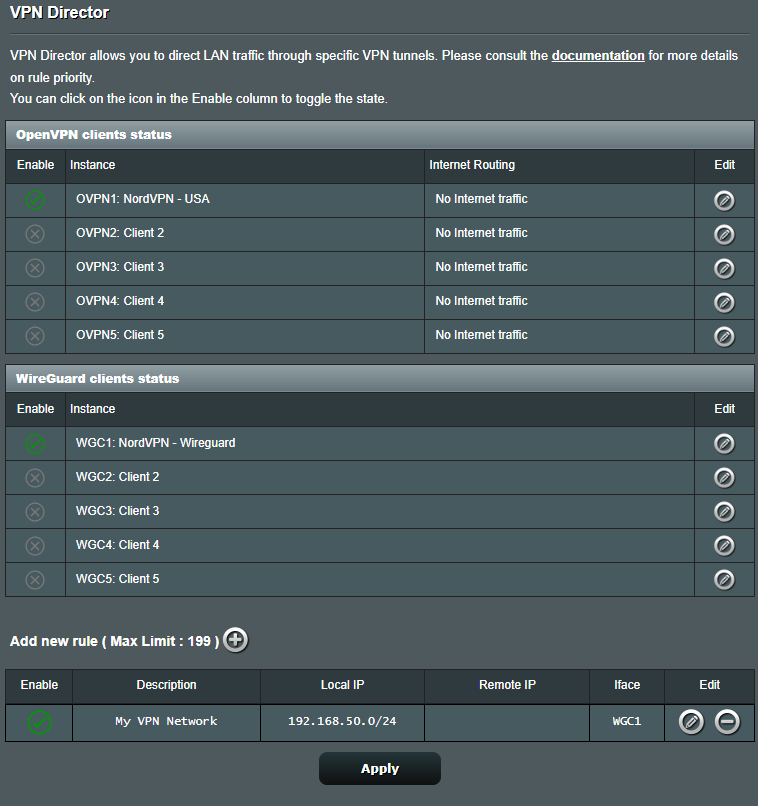
Route All ASUS LAN Devices Through One VPN
To route the entire normal LAN via a chosen WireGuard or OpenVPN VPN Director interface, enter the actual LAN subnet in Local IP instead of one client IP. For example, 192.168.50.0/24 matches devices on that /24 subnet.
- Confirm your main LAN gateway and subnet in LAN > LAN IP. A router using
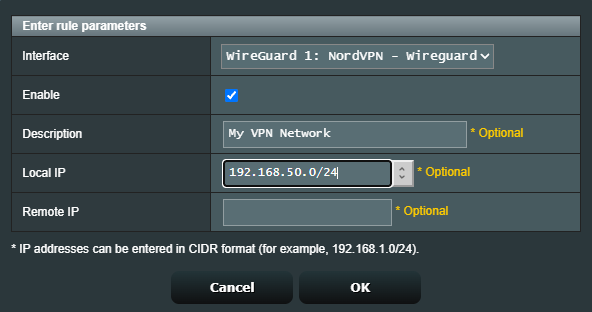
192.168.50.1with a255.255.255.0mask has the LAN subnet192.168.50.0/24. - Open VPN > VPN Director and select Add new rule (+). Enter a Description such as Main LAN via WireGuard.
- For Interface, choose the active WireGuard 1 tunnel (or the actual client instance). For Local IP, enter
192.168.50.0/24. Leave Remote IP blank; check that the rule is enabled. For OpenVPN clients configured for VPN Director, choose the OpenVPN interface instead. - Click OK to add the rule and click Apply on the main VPN Director page.
- Check the public IP of a device on regular ASUS WiFi and a wired LAN device. Both should use the VPN server when they belong to the matching main LAN subnet.
- For exceptions, create an appropriate WAN rule for a specific device and verify it separately. Merlin’s interface priority, not simply row position, determines which matching rule wins.
VPN Director Rule Priority and Important Limits
Merlin’s documentation describes routing precedence as WAN first, followed by OpenVPN clients in instance order, then WireGuard clients in instance order. When overlapping rules match, the interface priority matters; do not assume the last rule entered wins. Dual-WAN route settings may take even higher precedence.
- A WAN bypass rule can override a matching VPN rule.
- A rule with an empty Remote IP matches any destination. Do not use
0.0.0.0in that field as a substitute for blank. - The same local device can accidentally match more than one rule. Avoid overlapping rules unless you understand the precedence.
- VPN Director is for Merlin built-in OpenVPN/WireGuard client policy routing. Third-party Astrill Applet device filtering is a separate configuration system.
- The Kill Switch can interact with rule priority and should be tested on each routed device. See Merlin Kill Switch Setup.
Technical reference: Official Merlin VPN Director wiki.
Verify Your VPN Director Rules and Troubleshoot
- In the Merlin client page, confirm the intended VPN tunnel is enabled/connected.
- Check that each rule is enabled and that you selected the correct interface and Local IP/subnet. Press Apply after changes.
- Test the public IP on a device meant to use the VPN, and another meant to bypass it. Temporarily disable device-level VPN apps or proxies when testing.
- If every device reports the ISP IP, check whether the OpenVPN client is in VPN Director mode (or whether the WireGuard VPN Director rule exists).
- If the wrong VPN is used, check overlapping rules, WAN bypass priority and the OpenVPN/WireGuard interface priority.
- If devices lose connectivity, check VPN client status and the kill switch before changing unrelated WAN settings.
